
How to prepare your Podcast source Channel
Overview
This article explains how to prepare a VOD or AOD Channel in the Media Cloud for Podcast distribution.
Once your source Channel includes the required media and Podcast thumbnail image, Lightcast can generate the RSS feed you will use to submit your Podcast to supported Podcast platforms.
How it works
Your Podcast needs a source Channel in the Media Cloud before Lightcast can generate the RSS feed for submission to Podcast platforms.
For Apple Audio Podcasts, Spotify, YouTube Music, Amazon Music, iHeartRadio, TuneIn, or another Audio Podcast platform, you can use either a VOD Channel or an AOD Channel as the source Channel.
If you use a VOD Channel, Lightcast can deliver the audio-only version of your uploaded videos through the Podcast RSS feed.
If you use an AOD Channel, upload audio files directly to the AOD Channel.
For an Apple Video Podcast, you must use a VOD Channel.
Before Lightcast can generate your RSS feed, your source Channel must include at least 1 media item and a Podcast thumbnail image.
Instructions
Step 1
Confirm the type of Podcast you want to create:
For Apple Audio Podcasts, Spotify, YouTube Music, Amazon Music, iHeartRadio, TuneIn, or any other Audio Podcast platform, use either a VOD Channel or an AOD Channel.
For an Apple Video Podcast, use a VOD Channel.
Option 1: Using a Video On-Demand (VOD) Channel as the Podcast source
Use this option for:
Apple Audio Podcasts
Spotify
YouTube Music
Amazon Music
iHeartRadio
Apple Video Podcasts
Any other Audio Podcast
Step 1
Log in to your Media Cloud account.
Step 2
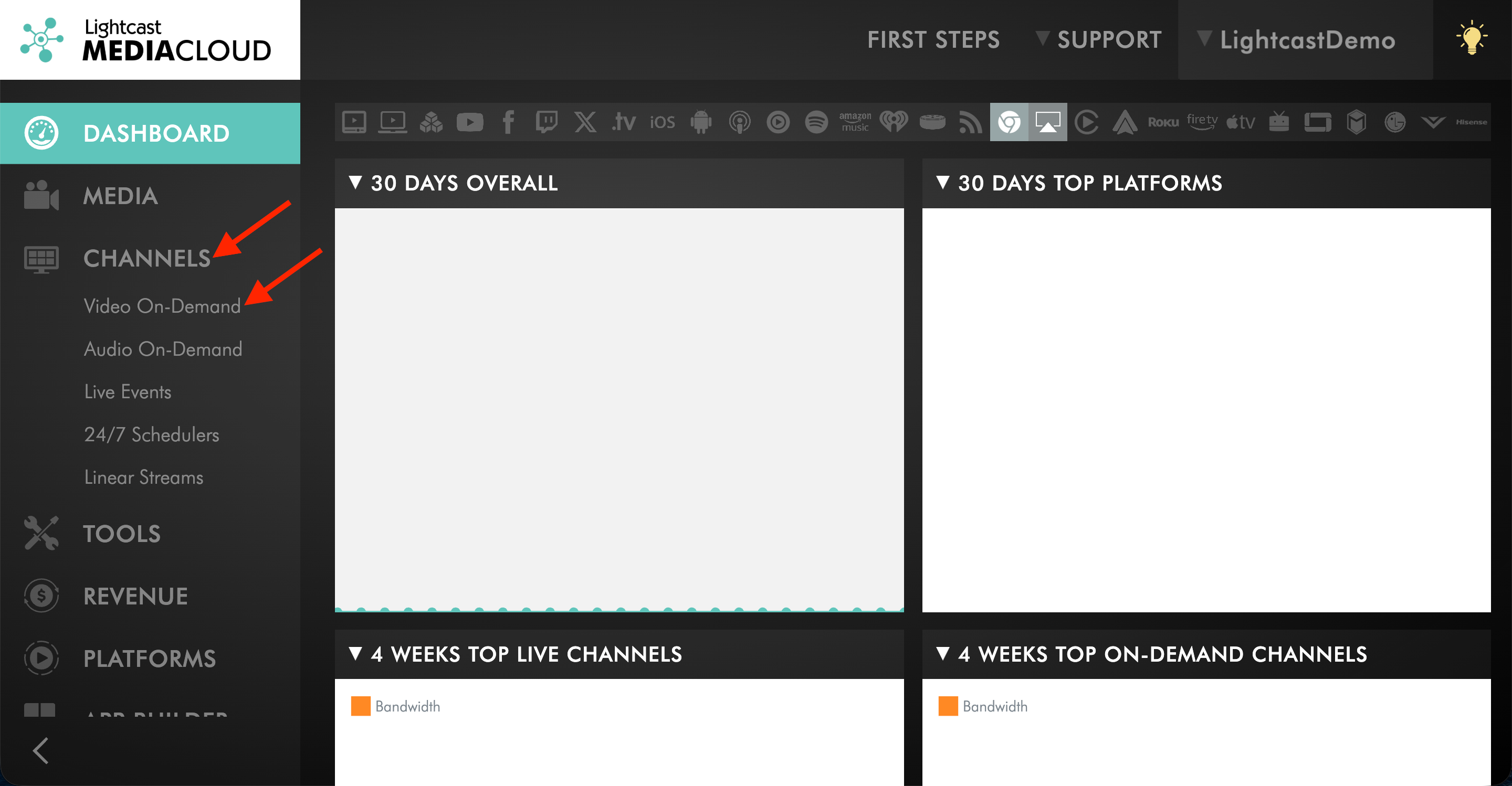
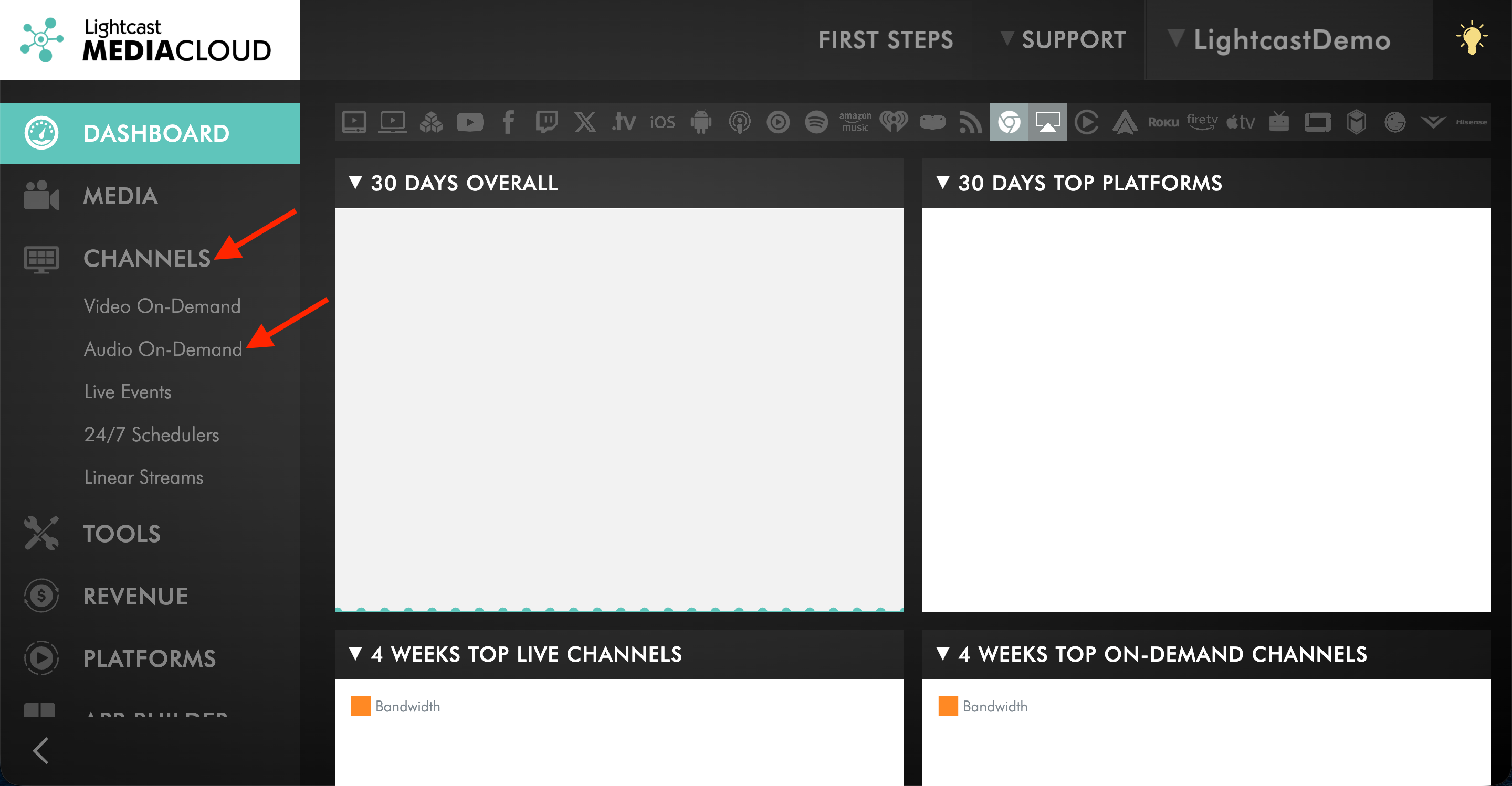
Go to CHANNELS, then click on Video On-Demand.
Step 3
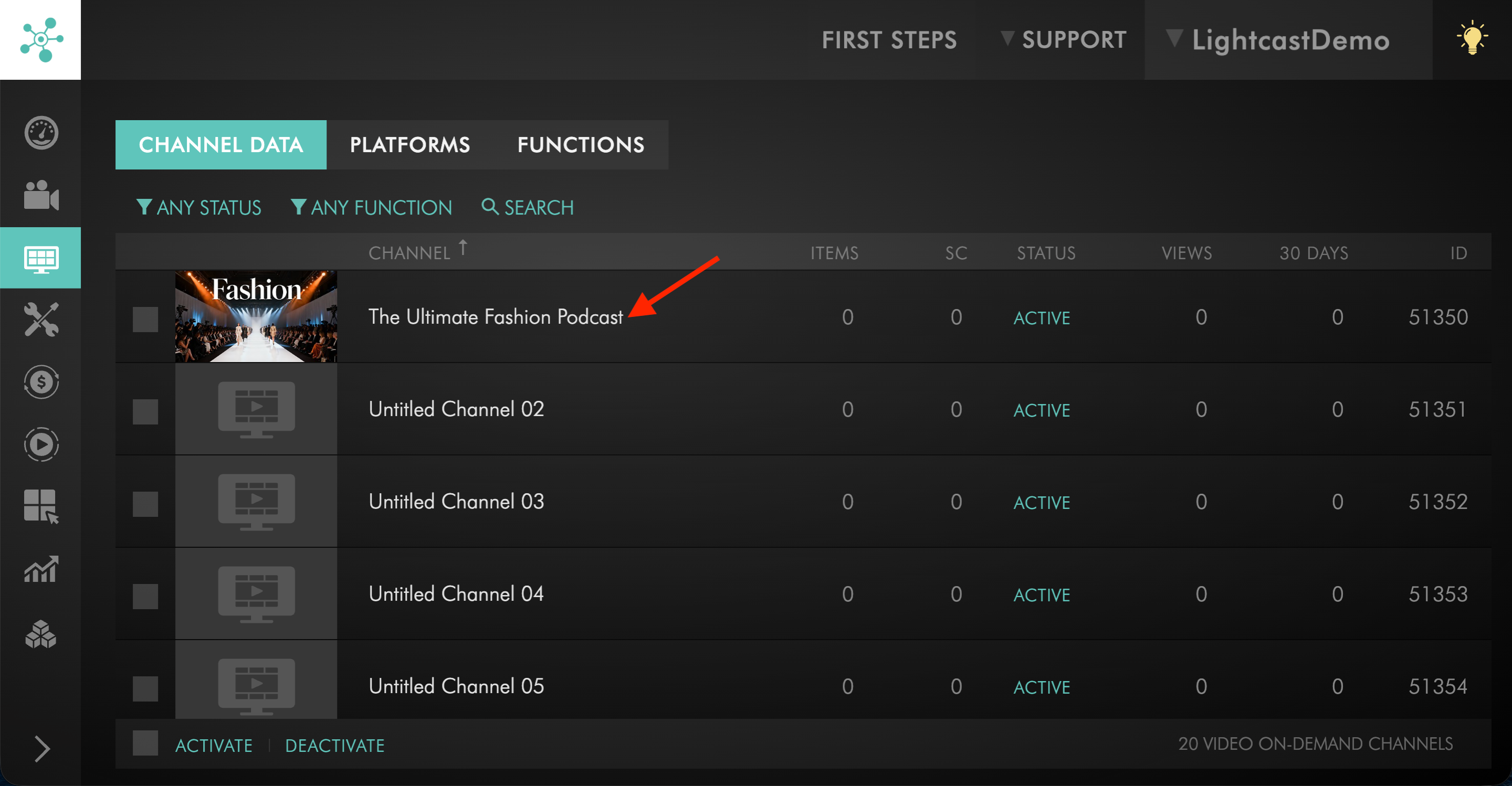
Choose the VOD Channel you want to use as the source for your Podcast. If you have not created this VOD Channel yet, see How to set up your Video On-Demand (VOD) Channel.
Step 4
Open the source Channel in the Media Cloud.
Step 5
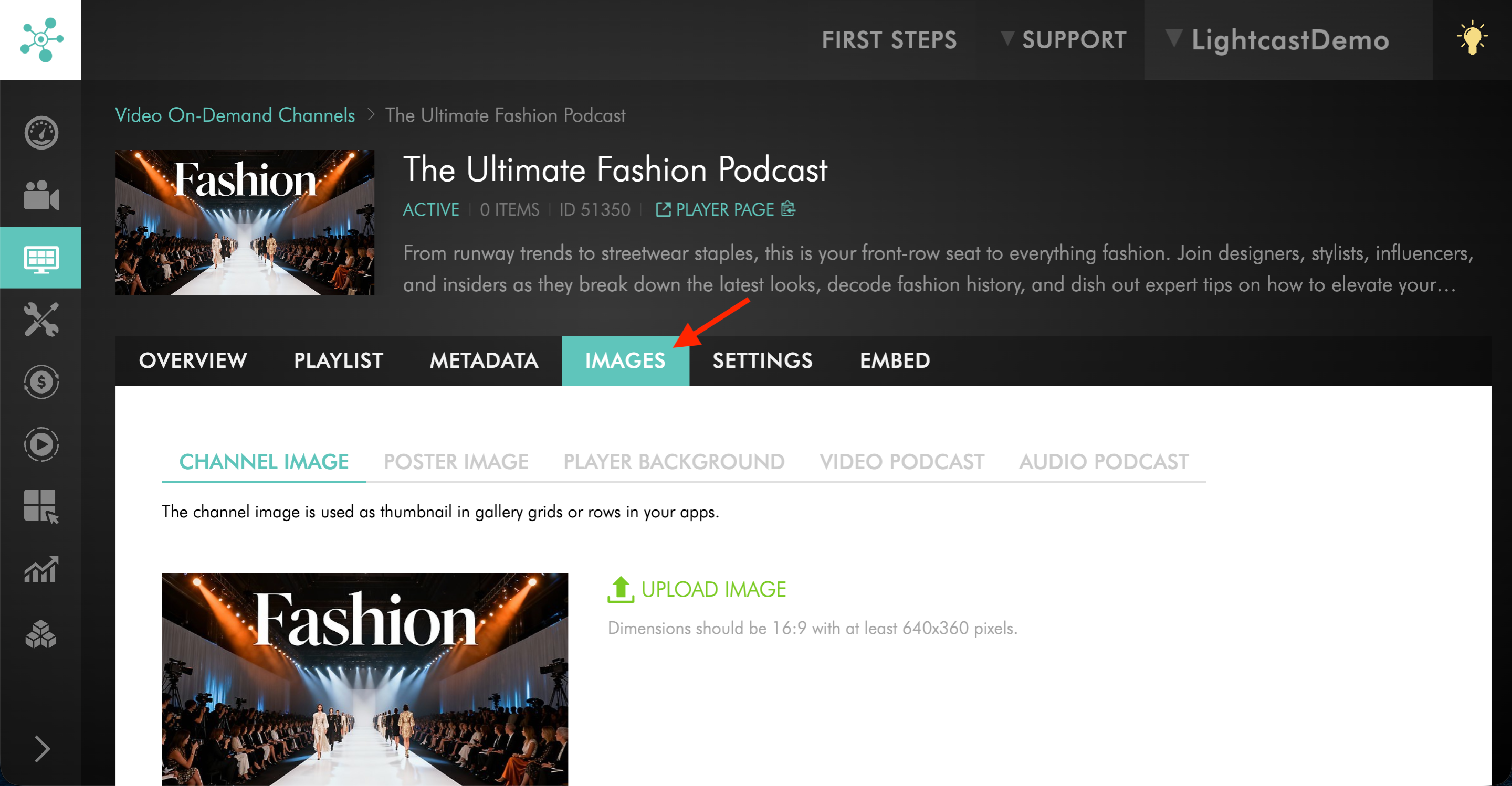
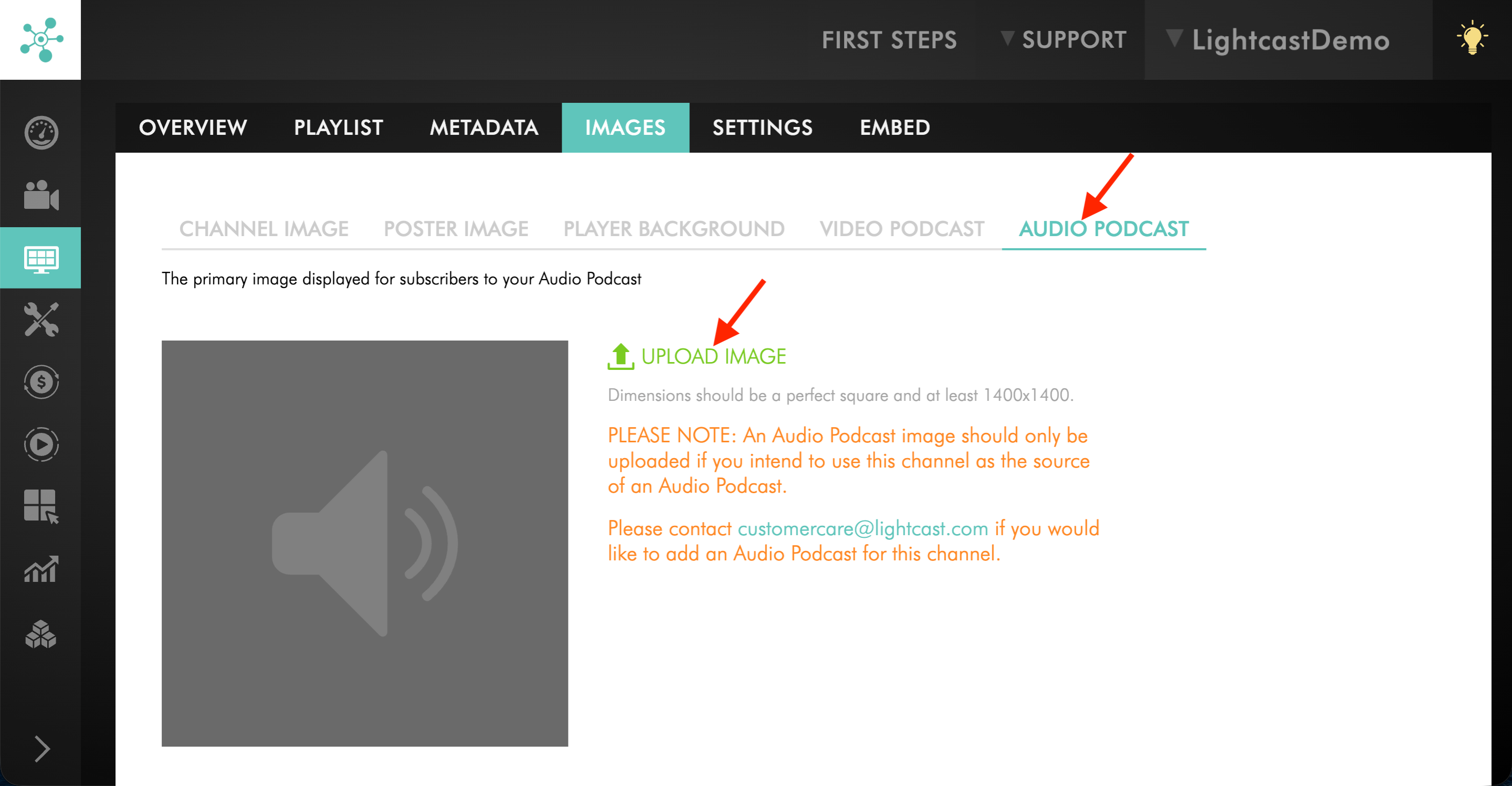
Switch to the IMAGES tab.
Step 6
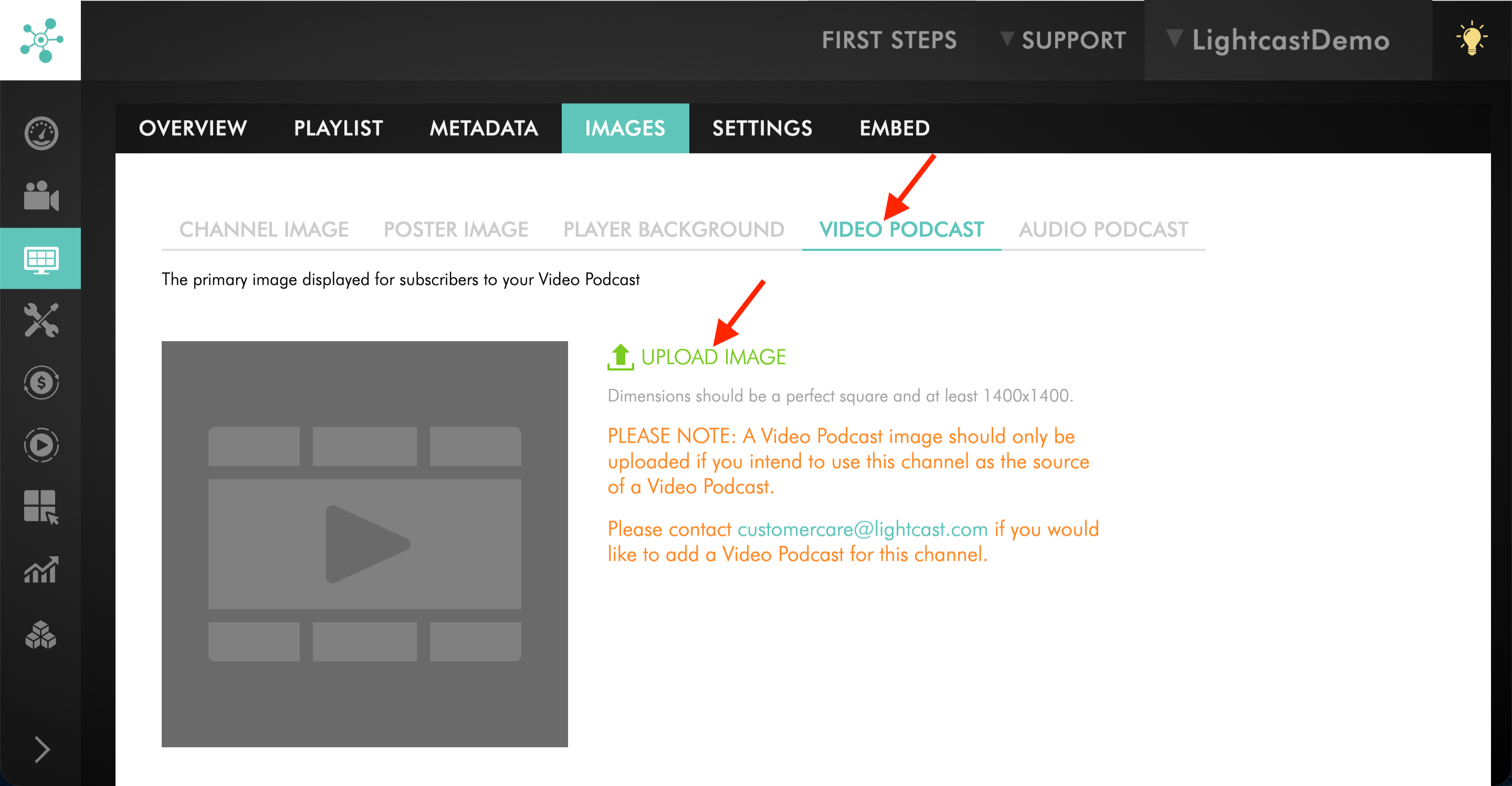
If you are preparing an Apple Video Podcast, select the VIDEO PODCAST tab and click UPLOAD IMAGE to upload the Podcast thumbnail image.
Step 7
If you are preparing an Audio Podcast using this VOD Channel as the source, select the AUDIO PODCAST tab and click UPLOAD IMAGE to upload the Podcast thumbnail image.
Step 8
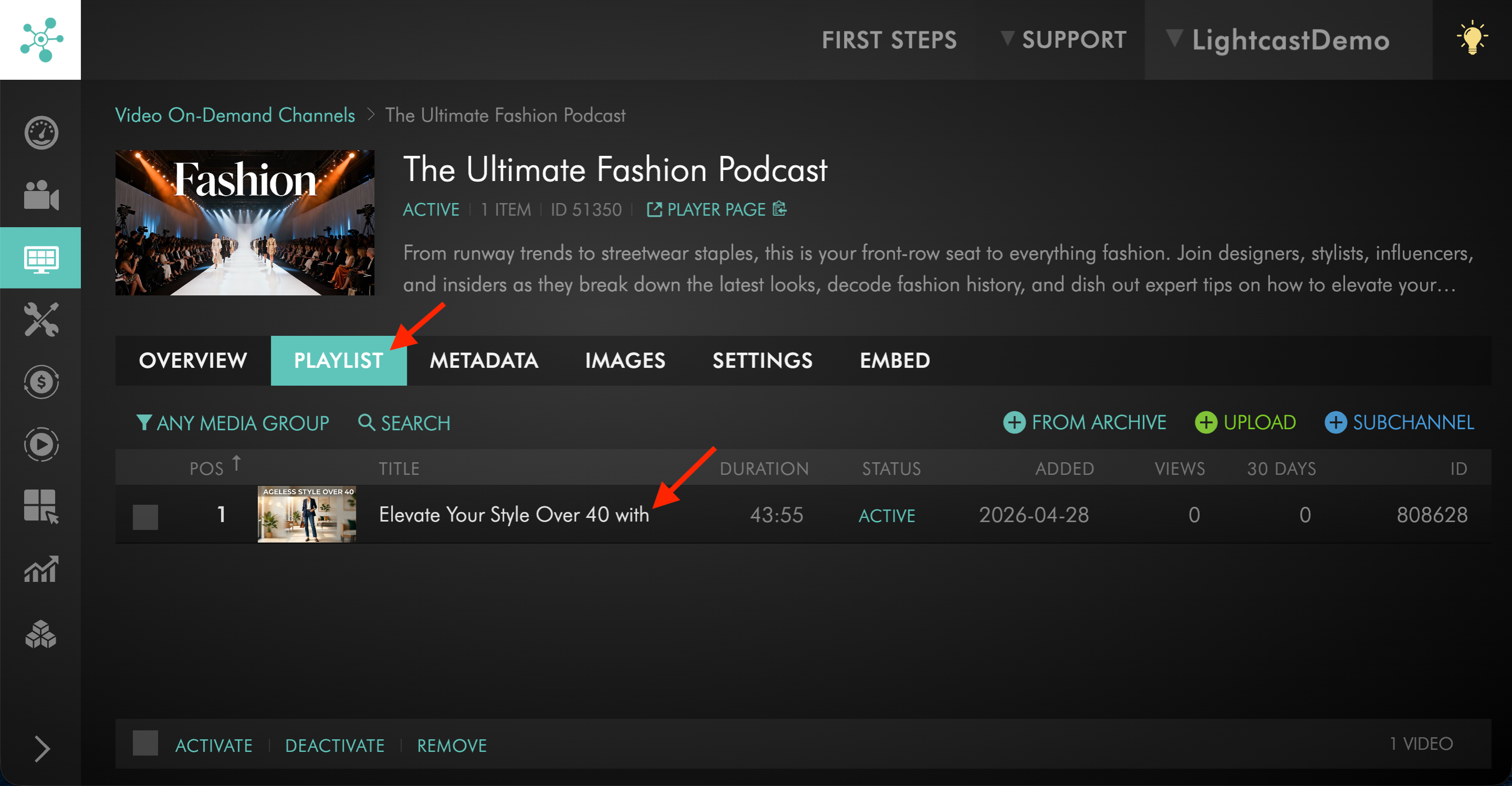
Upload or assign at least 1 video file to the VOD Channel.
If you use a VOD Channel for an Audio Podcast, Lightcast will use the audio-only version of those uploaded videos for the Audio Podcast.
To learn how to add media to a VOD Channel, see:
How to assign videos to a specific Video On-Demand (VOD) Channel
How to upload local video files to a Video On-Demand (VOD) Channel
Step 9
Make sure the source Channel includes at least 1 media item before continuing. Your Podcast cannot be submitted without media content in the source Channel.
Step 10
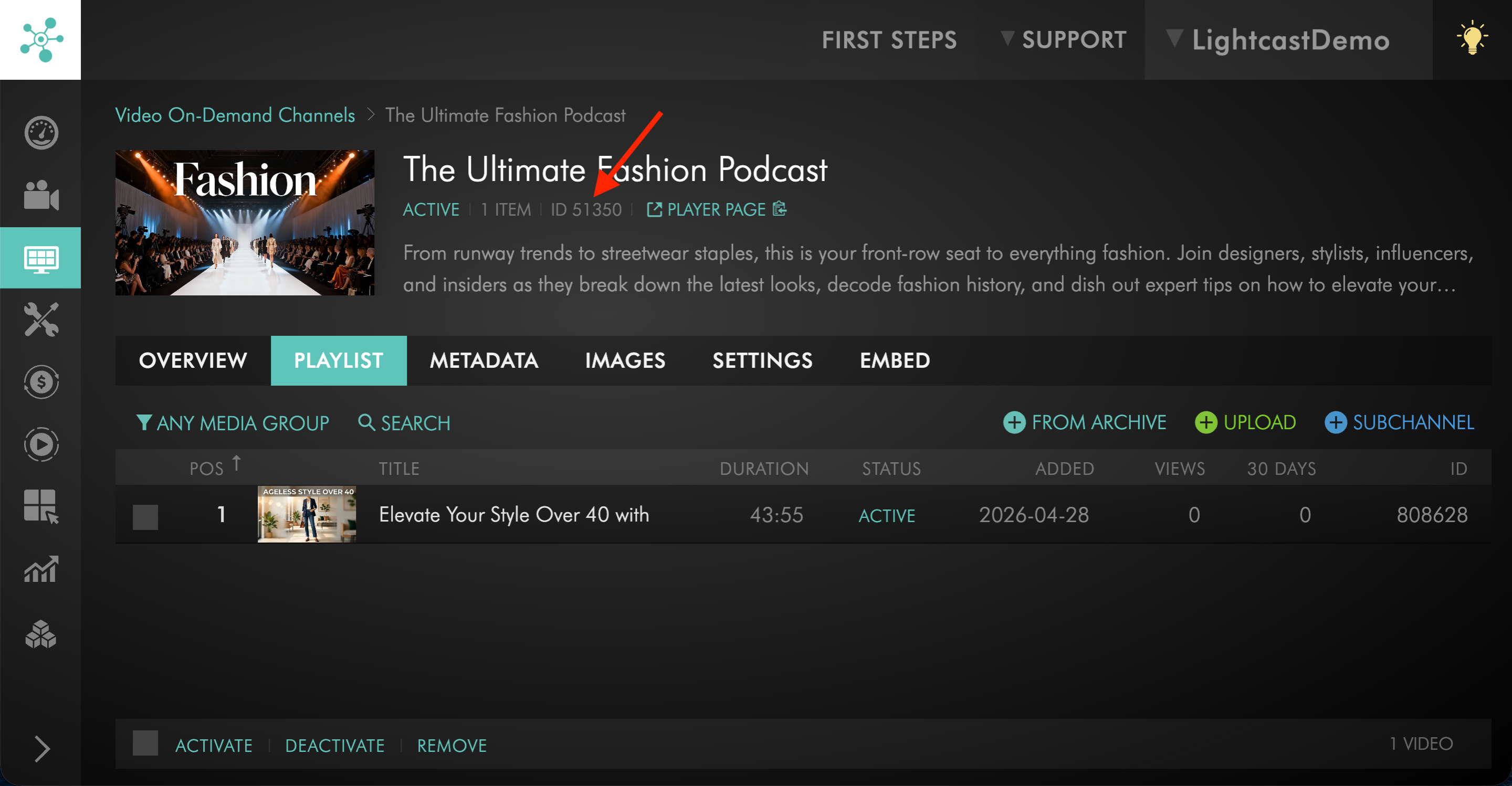
Find the Channel ID for the source Channel.
Step 11
Send Customer Support the Channel ID for each source Channel you want to use for your RSS feed generation.
Step 12
After you receive the RSS feed(s), follow the submission steps for each Podcast platform you want to use.
Option 2: Using an Audio On-Demand (AOD) Channel as the Podcast source
Use this option for:
Apple Audio Podcasts
Spotify
YouTube Music
Amazon Music
iHeartRadio
Any other Audio Podcast
Do not use this option for Apple Video Podcasts.
Step 1
Log in to your Media Cloud account.
Step 2
Go to CHANNELS, then click Audio On-Demand.
Step 3
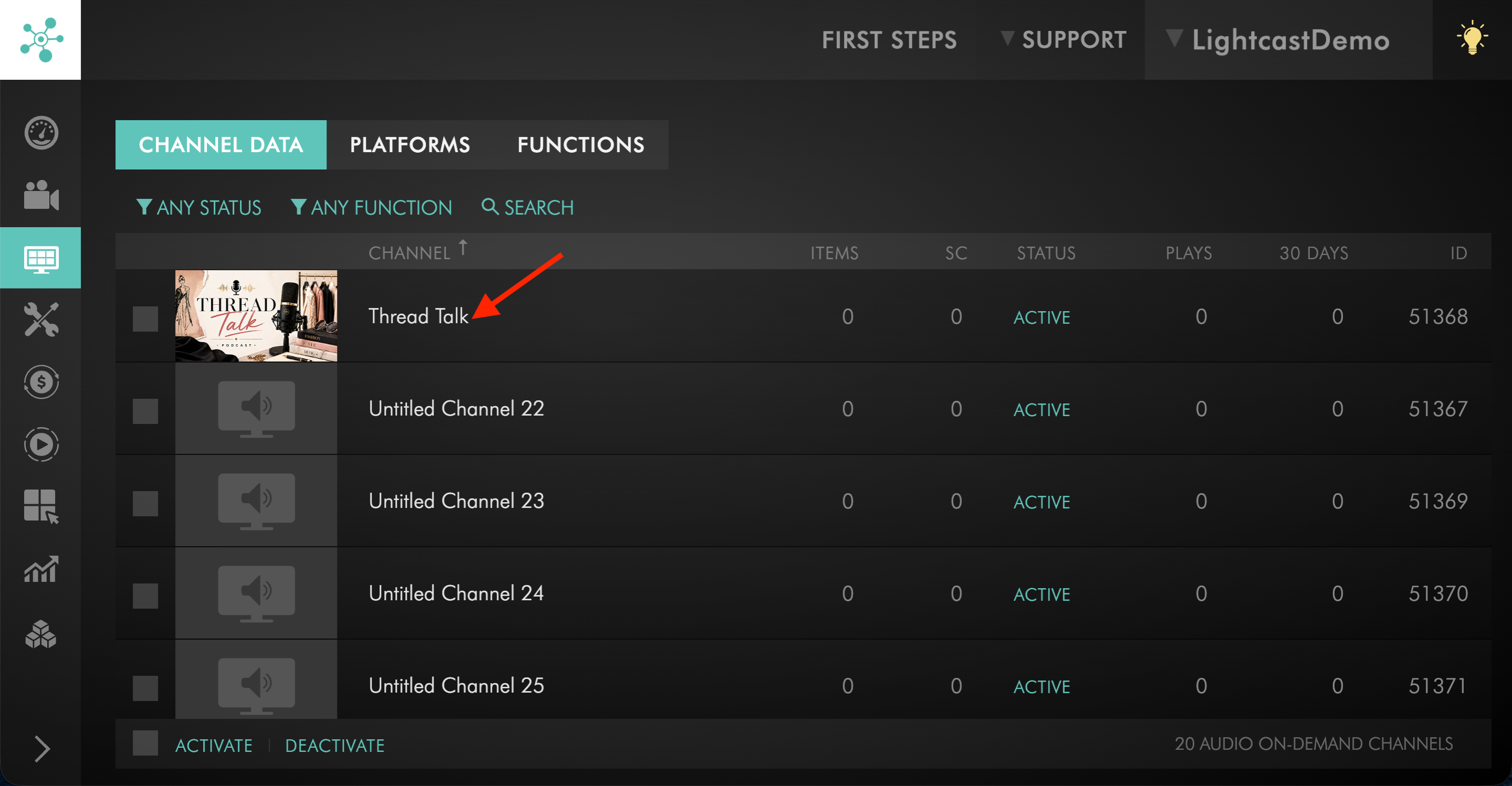
Choose the AOD Channel you want to use as the source for your Podcast.
If you have not created this AOD Channel yet, see How to set up your Audio On-Demand (AOD) Channel.
Step 4
Open the source Channel in the Media Cloud.
Step 5
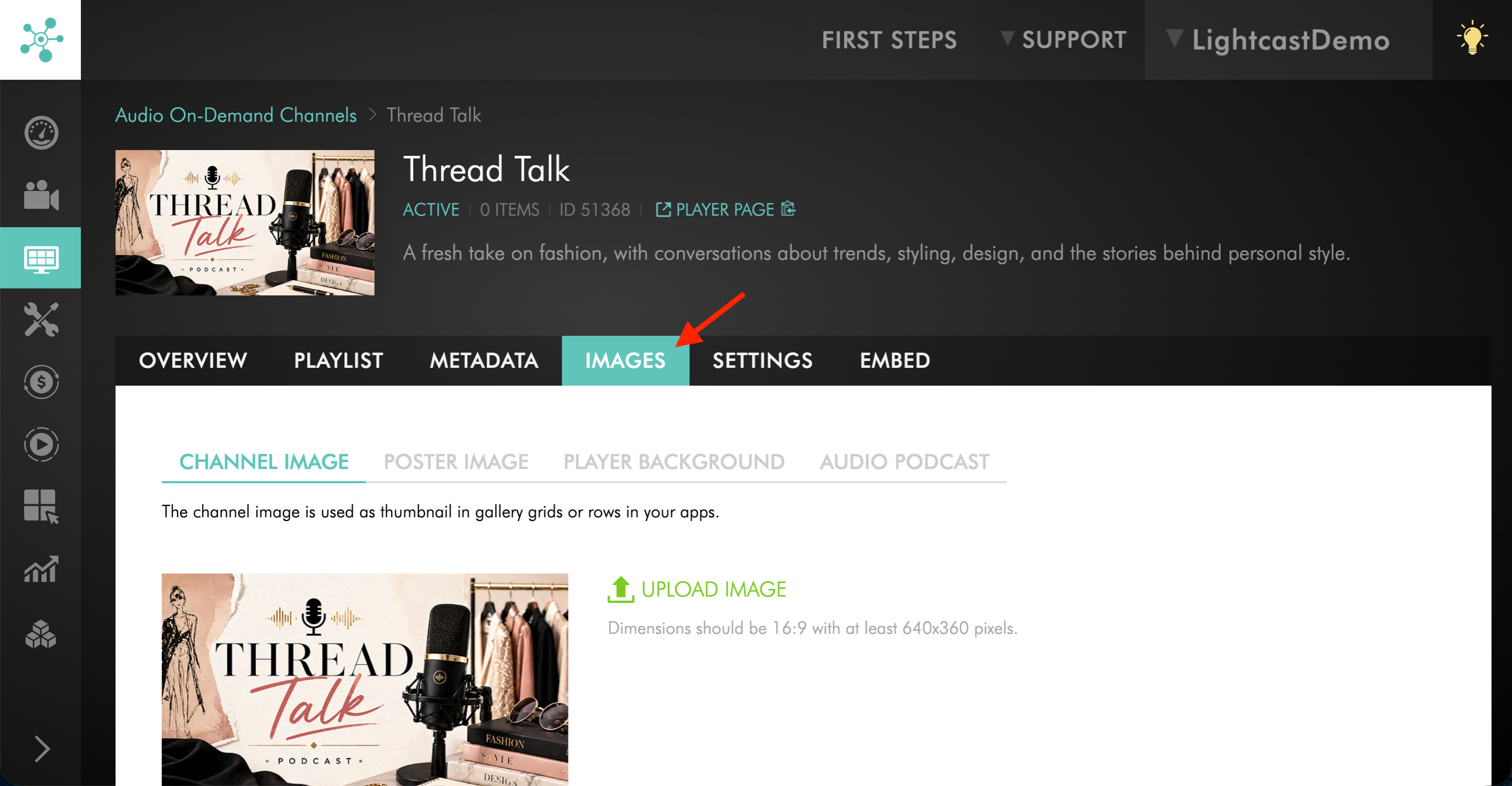
Switch to the IMAGES tab.
Step 6
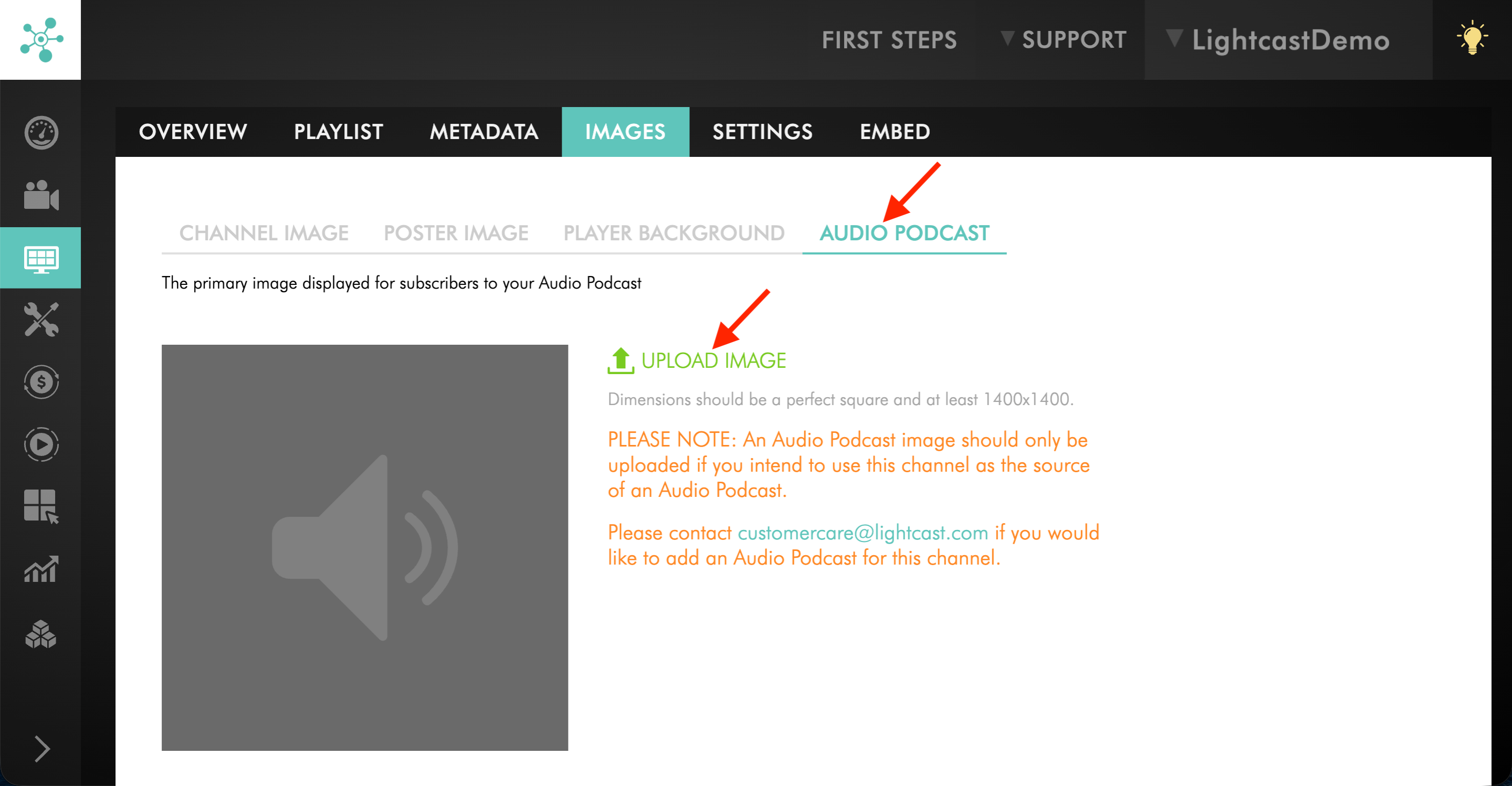
Select the AUDIO PODCAST tab and click UPLOAD IMAGE to upload the Podcast thumbnail image.
Step 7
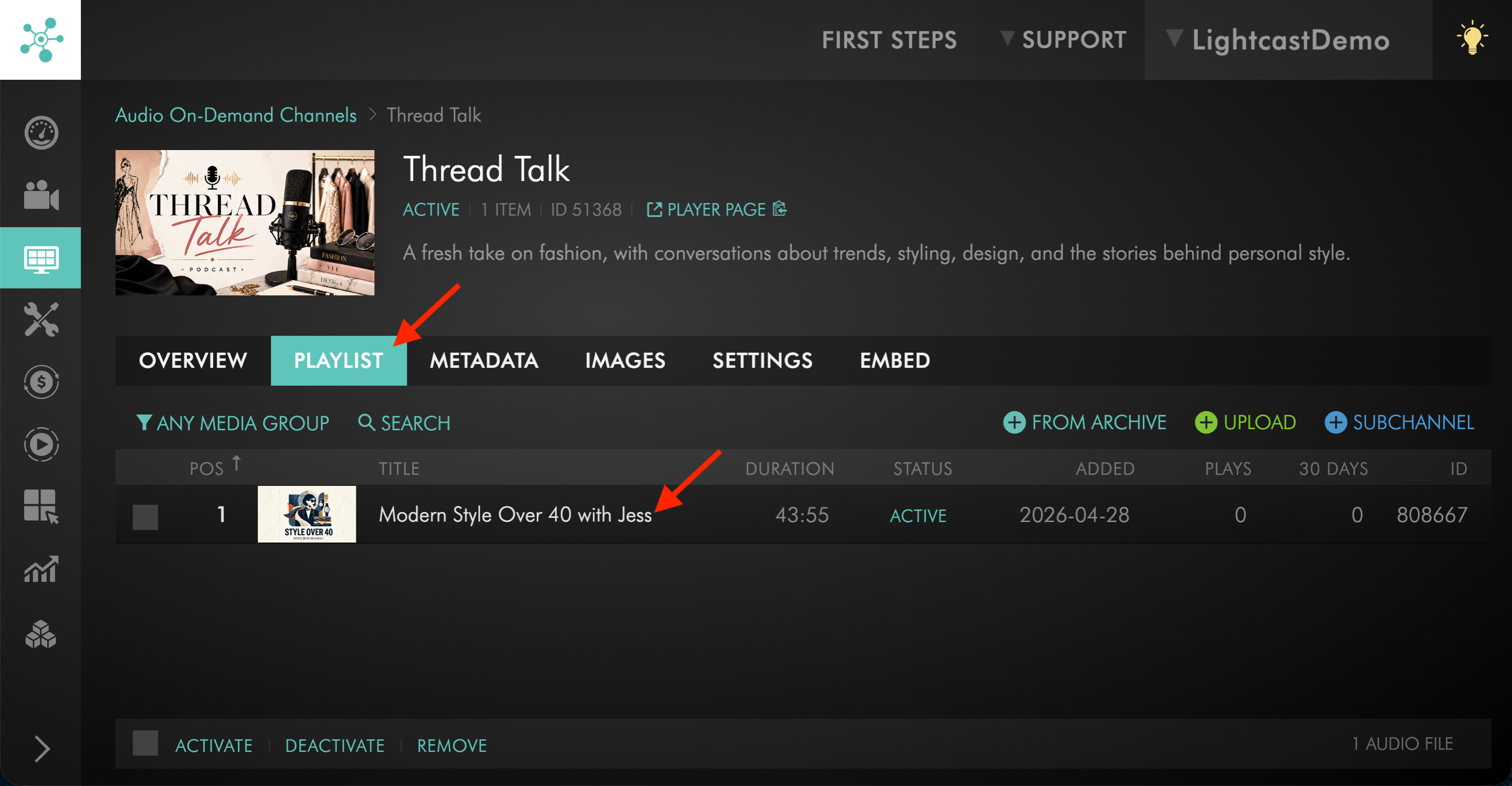
Upload or assign at least 1 audio file to the AOD Channel.
To learn how to add media to an AOD Channel, see:
How to assign audio files to a specific Audio On-Demand (AOD) Channel
How to upload local audio files to an Audio On-Demand (AOD) Channel
Step 8
Make sure the source Channel includes at least 1 media item before continuing. Your Podcast cannot be submitted without media content in the source Channel.
Step 9
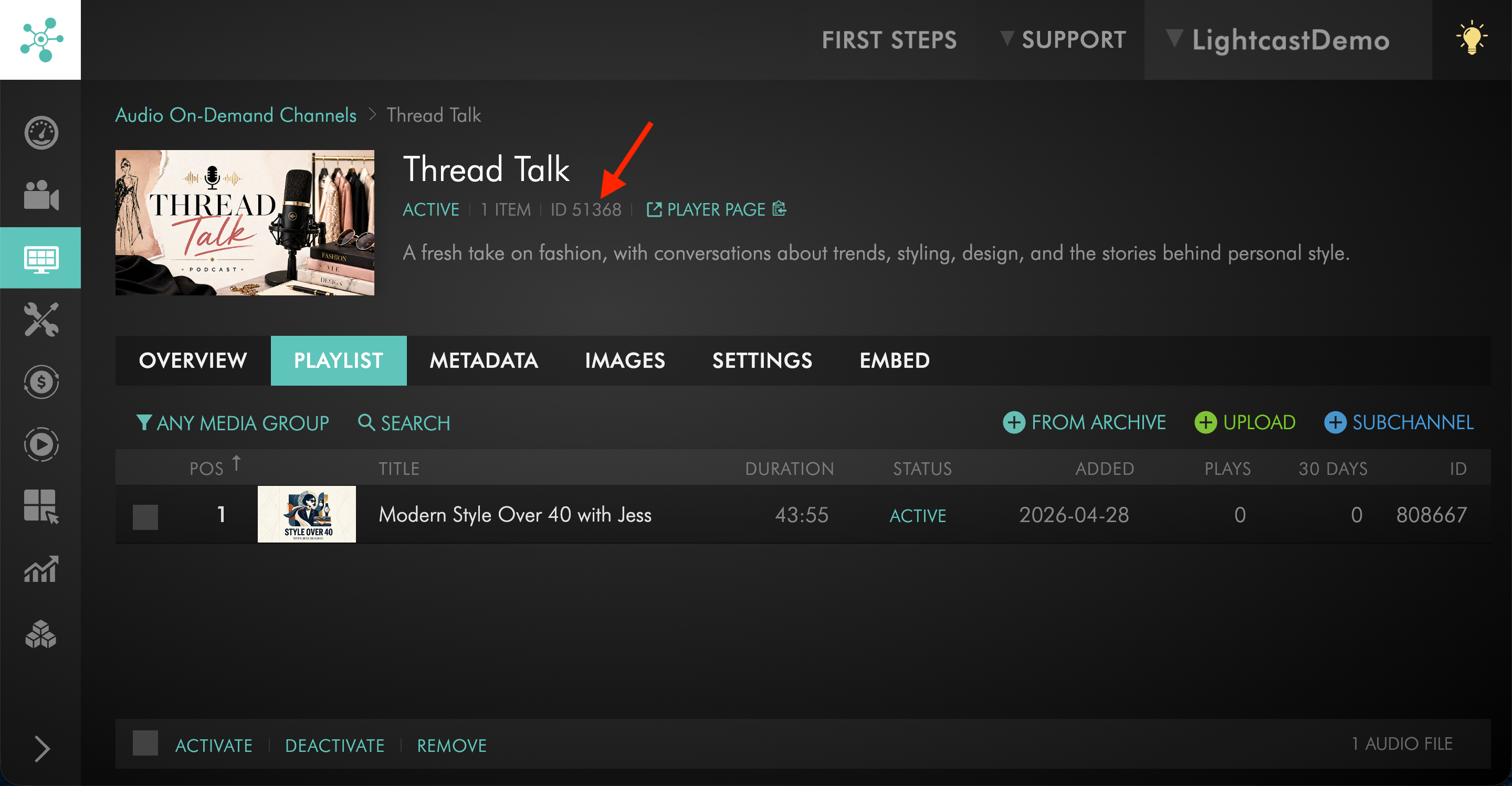
Find the Channel ID for the source Channel.
Step 10
Send Customer Support the Channel ID for each source Channel you want to use for your RSS Feed generation.
Step 11
After you receive the RSS feed(s), follow the submission steps for each Podcast platform you want to use.
FAQs
Can Lightcast generate an RSS Feed for each of my VOD or AOD Channels?
Yes. Lightcast can generate Podcast RSS Feeds using your VOD or AOD Channels as the source.
We recommend using your organization name in the Podcast title so listeners can recognize your Podcast more easily.
Can I use the same Channel for multiple Podcast platforms?
Yes. The same source Channel can be used for multiple podcast platforms, depending on the Podcast type.
A VOD Channel or AOD Channel can be used as the source for Apple Audio Podcasts, Spotify, YouTube Music, Amazon Music, iHeartRadio, TuneIn, and other Audio Podcast platforms.
An Apple Video Podcast must use a VOD Channel.
Is it possible to send audio-only versions of uploaded videos to an Audio Podcast?
Yes. If your Audio Podcast uses a VOD Channel as its source, Lightcast can deliver the audio-only version of your uploaded video files through the Podcast RSS feed.
The audio-only rendition stays tied to the VOD asset as a sidecar file. It is not added to an AOD Channel.
Do I need to upload audio files to an AOD Channel if I already uploaded videos to a VOD Channel?
No, not if you want to use the audio-only version of your uploaded videos for an Audio Podcast.
In that case, the VOD Channel can serve as the source for the Audio Podcast.
Use an AOD Channel when you want to upload separate audio files directly.
Can I embed the audio from an Audio Podcast created from a VOD Channel?
Not directly from the VOD Channel’s web player. The VOD Channel player is always a video player.
If you want to embed audio-only playback, you can either upload audio files to an AOD Channel and use that audio player, or use an embeddable player provided by a Podcast platform such as Spotify or Apple Podcasts, if available.
Channel setup guides:
Understanding Audio On-Demand (AOD), Video On-Demand (VOD), and LIVE Channels (and Channel IDs)
How to assign videos to a specific Video On-Demand (VOD) Channel
How to upload local video files to a Video On-Demand (VOD) Channel
How to assign audio files to a specific Audio On-Demand (AOD) Channel
How to upload local audio files to an Audio On-Demand (AOD) Channel
Podcast submission guides: