
How to assign videos to a specific Video On-Demand (VOD) Channel
Overview
This article explains how to assign existing video content to a specific Video On-Demand (VOD) Channel in the Media Cloud.
When to use this article
Use this article when the video has already been uploaded to the Media Cloud and you want to add it to a VOD Channel playlist.
This article is helpful when you want to:
add existing video items from the Channel’s PLAYLIST tab by clicking + FROM ARCHIVE
assign existing video items from the Video Archive to a VOD Channel
assign an individual media item from its CHANNELS tab to a VOD Channel
How it works
A Video On-Demand (VOD) Channel in the Media Cloud is used to organize and deliver on-demand video content.
To learn more about the purpose of Channels and how they are used, see Understanding Video On-Demand (VOD), Audio On-Demand (AOD), and LIVE Channels (and Channel IDs)
When you add or assign an existing video item, the item is placed into the Channel playlist without creating a new upload. This means those options do not use additional upload-related Storage or Transcoding.
You can assign an existing video item to a VOD Channel from the Channel’s PLAYLIST tab, from the Video Archive, or from that media item’s CHANNELS tab.
Instructions
Option 1: Add existing video items from the Channel’s PLAYLIST tab
Step 1
Log in to your Media Cloud account.
Step 2
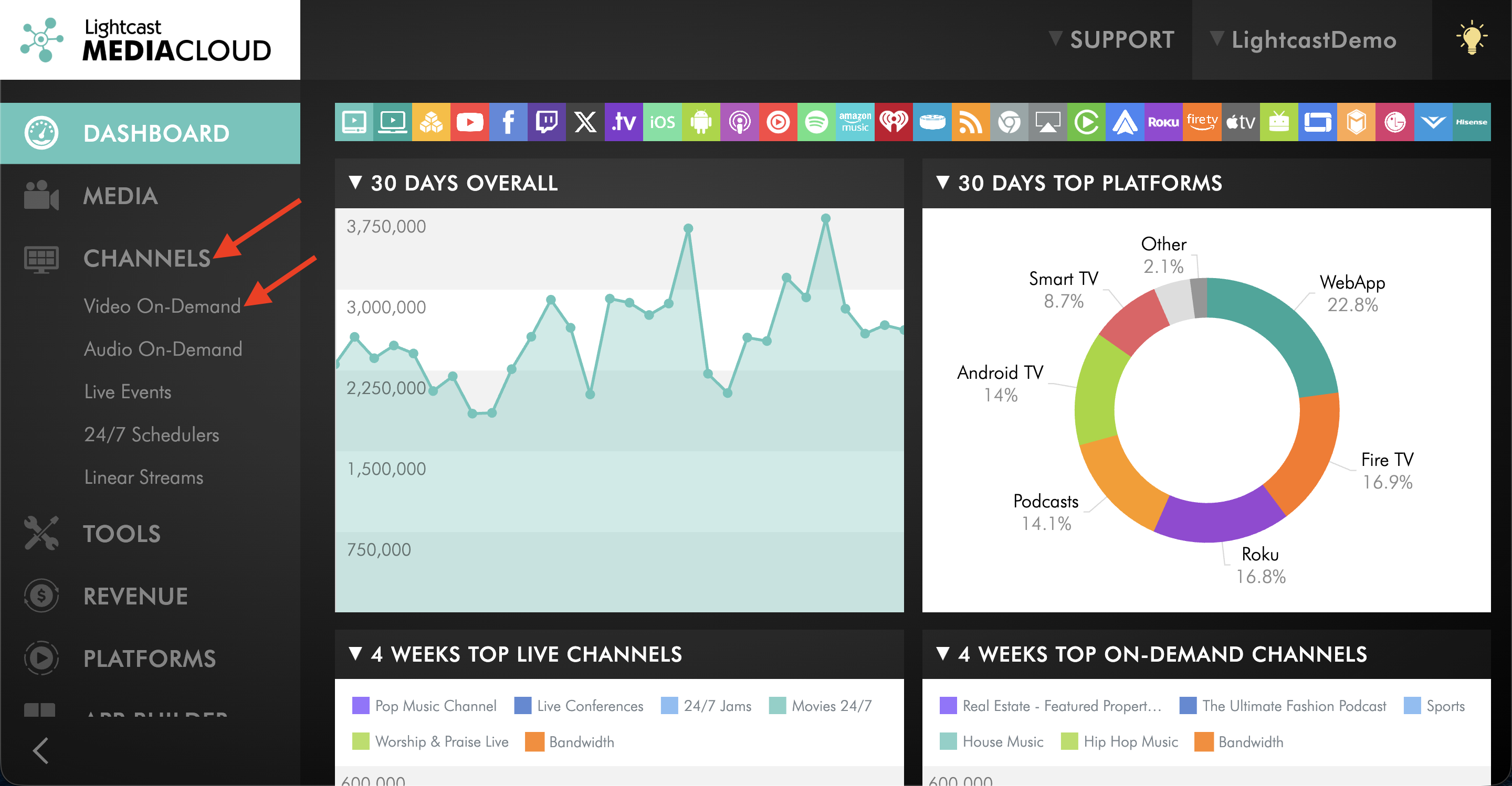
Go to CHANNELS and then Video On-Demand.
Step 3
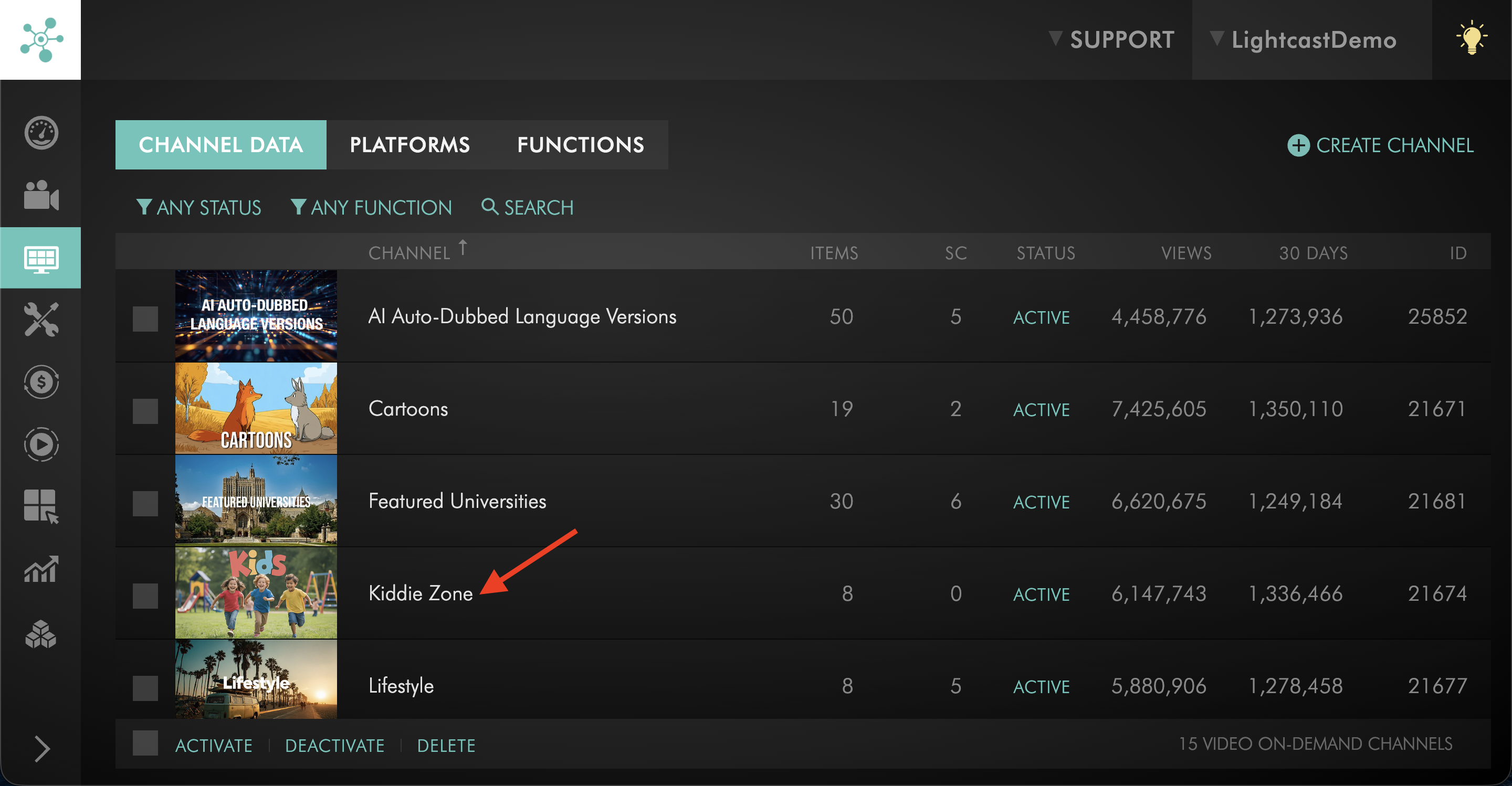
Select the VOD Channel where you want to add content.
Step 4
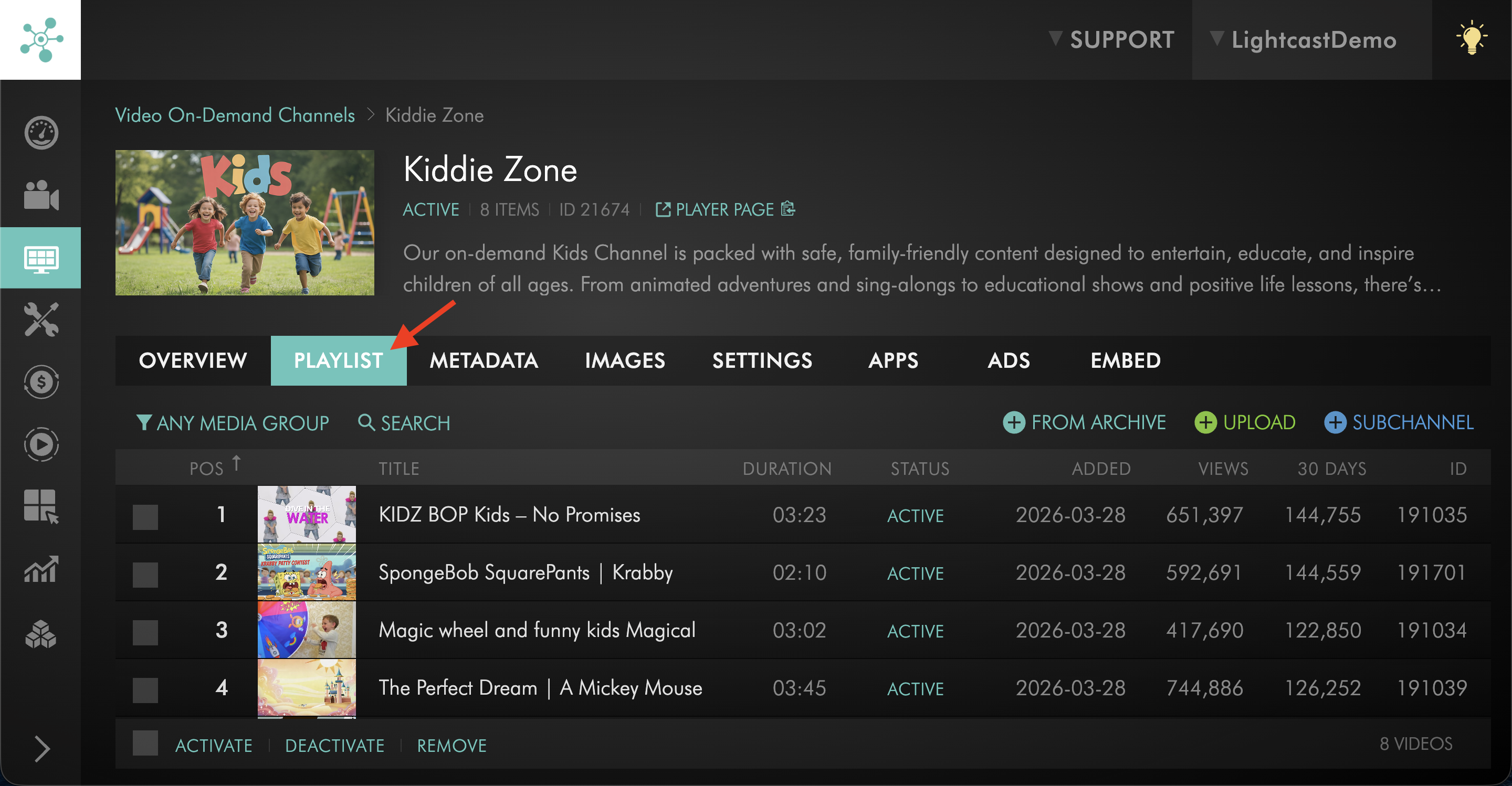
Switch to the PLAYLIST tab.
Step 5
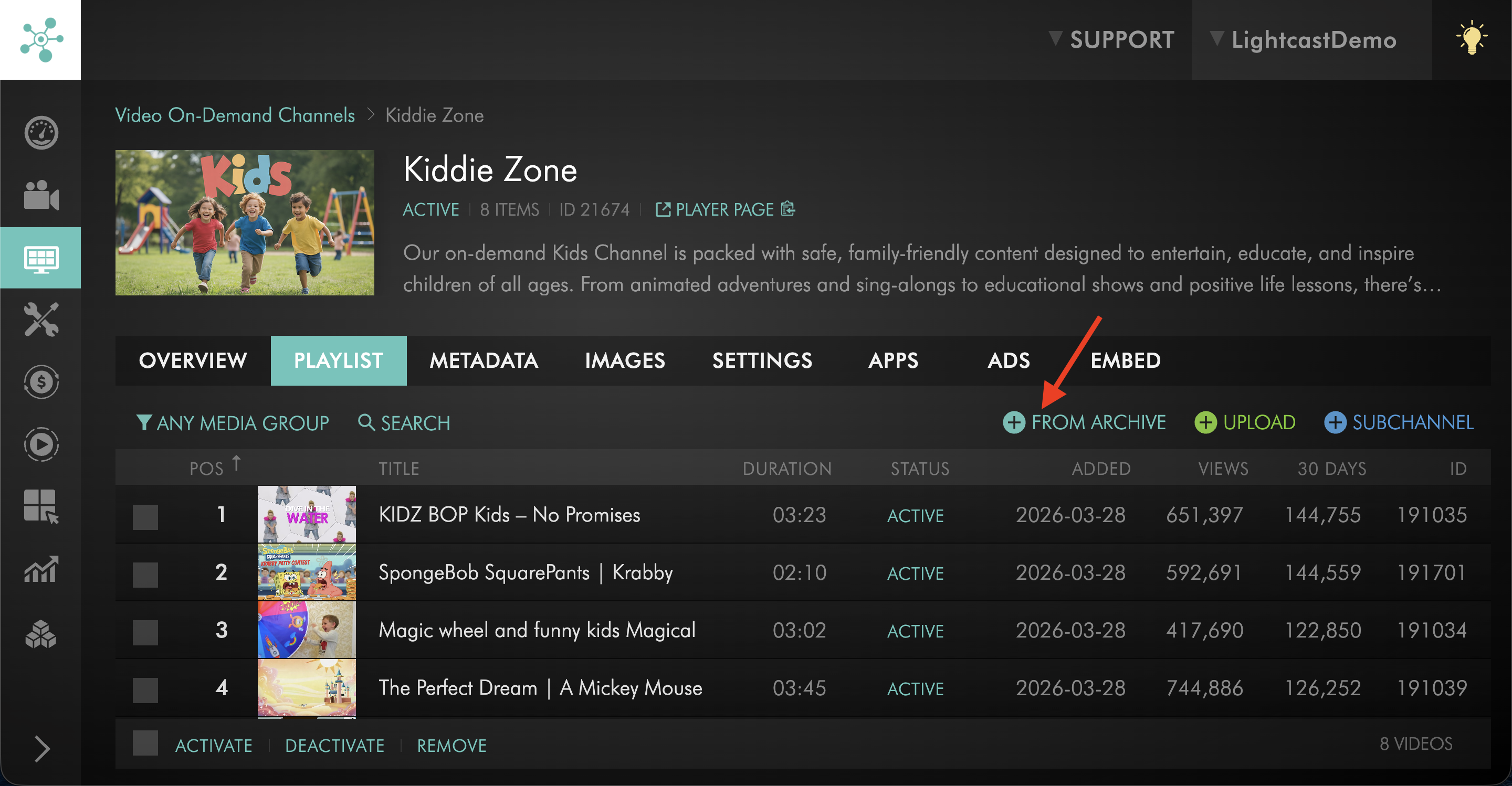
Click + FROM ARCHIVE.
Step 6
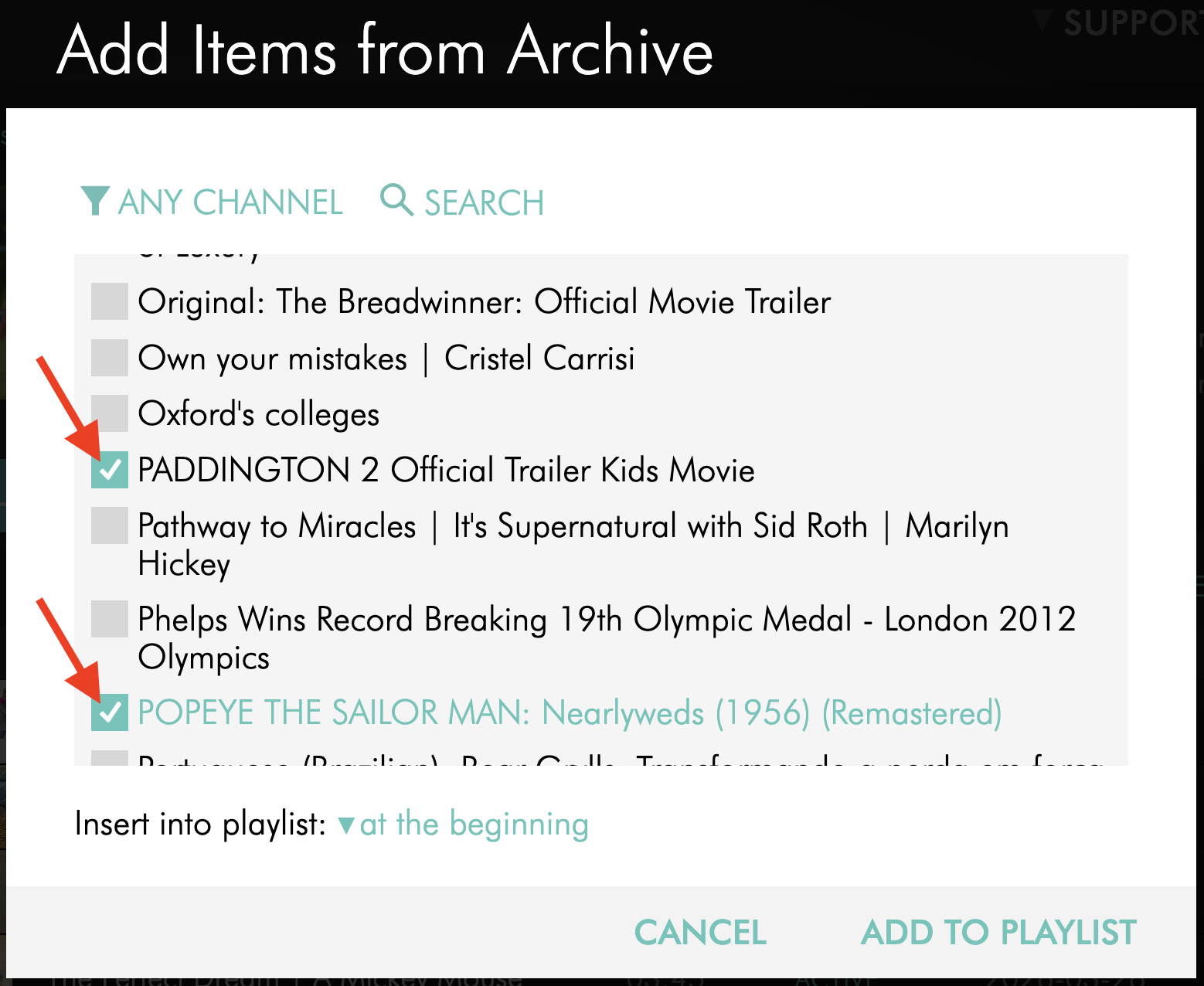
In the pop-up window, select the video items that you want to add.
Step 7
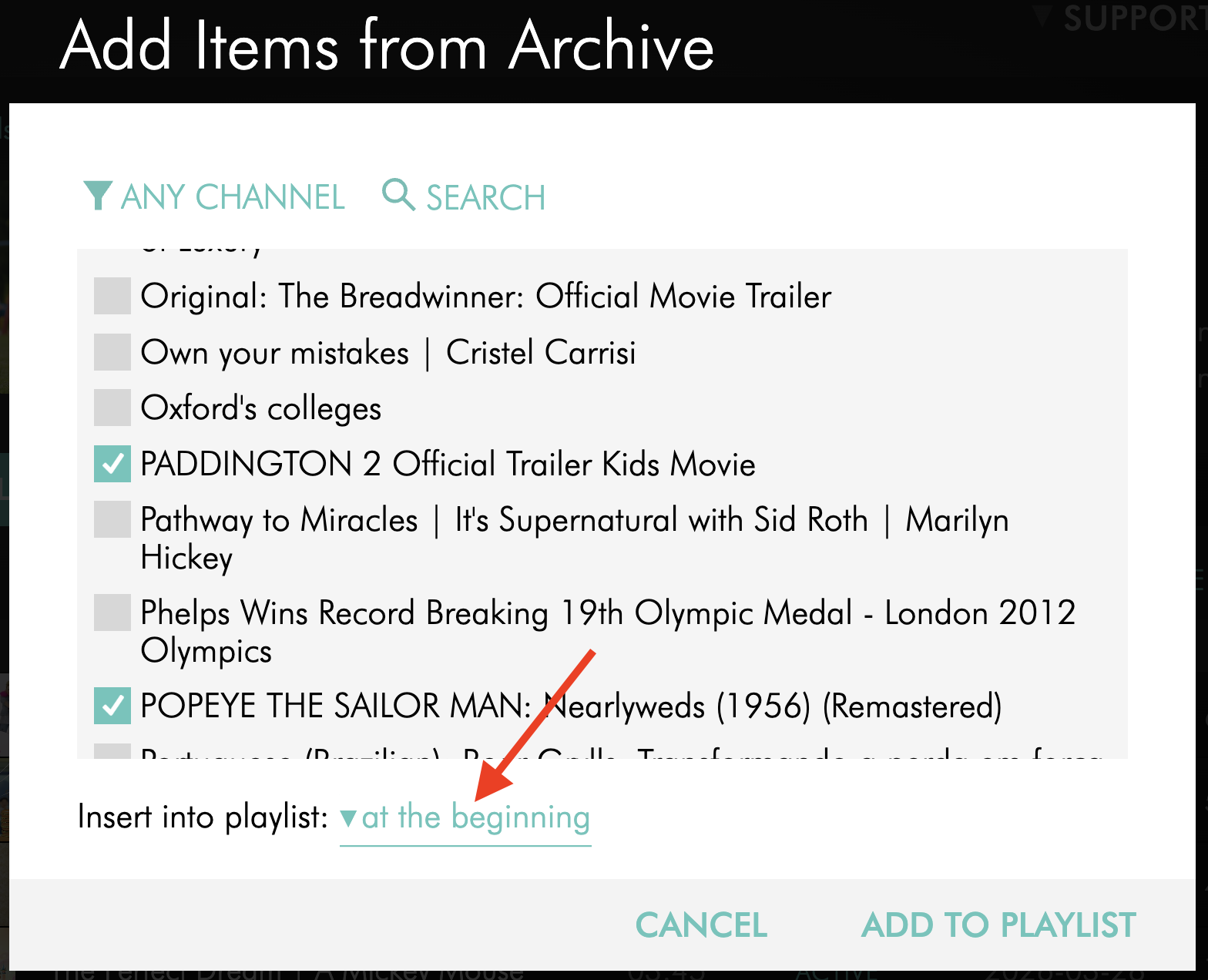
Select the playlist position for the content.
at the beginning places the content at the beginning of the Channel playlist.
at the end places the content at the end of the Channel playlist.
Step 8
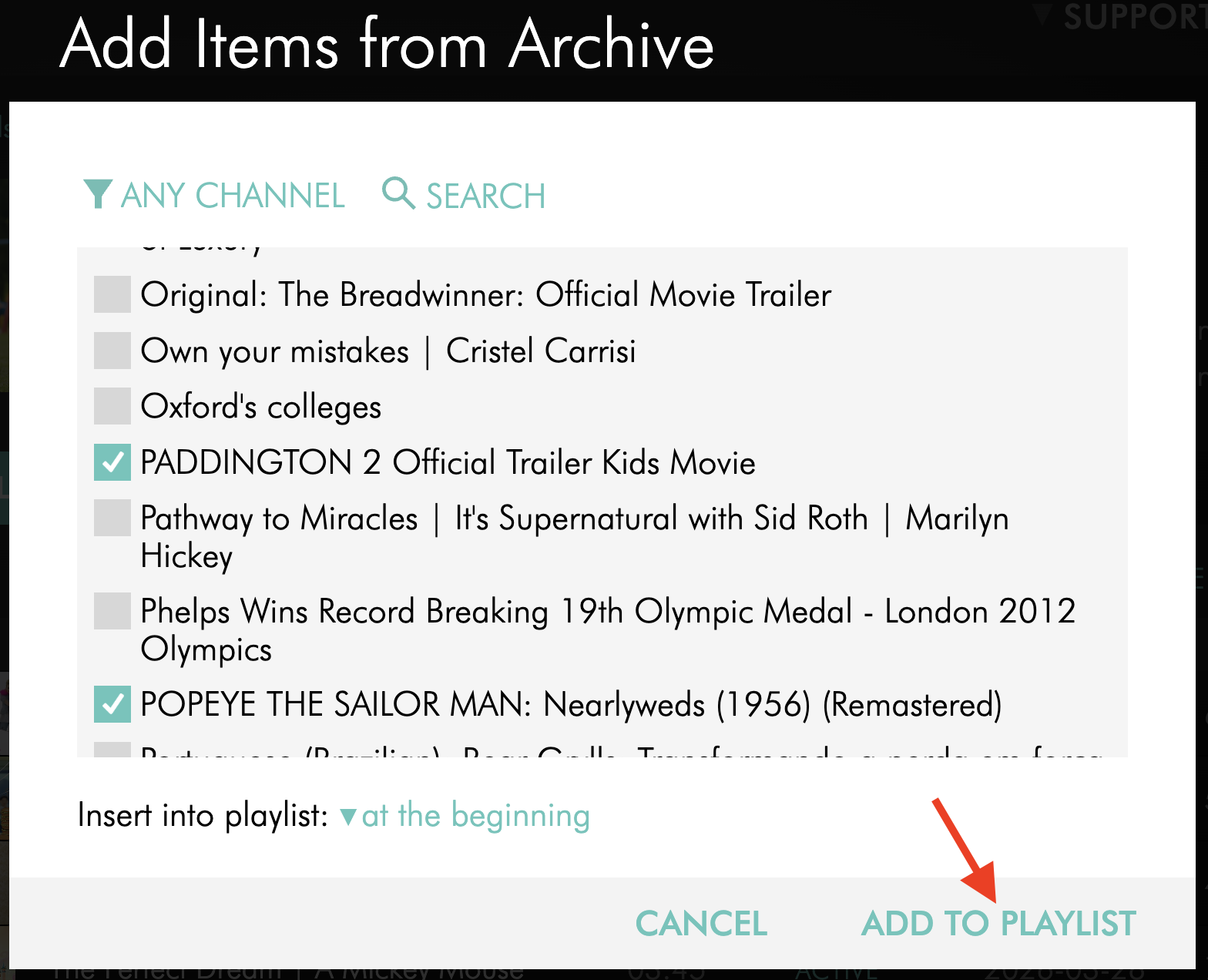
Click ADD TO PLAYLIST.
Option 2: Assign existing video items from the Video Archive to a VOD Channel
Step 1
Log in to your Media Cloud account.
Step 2
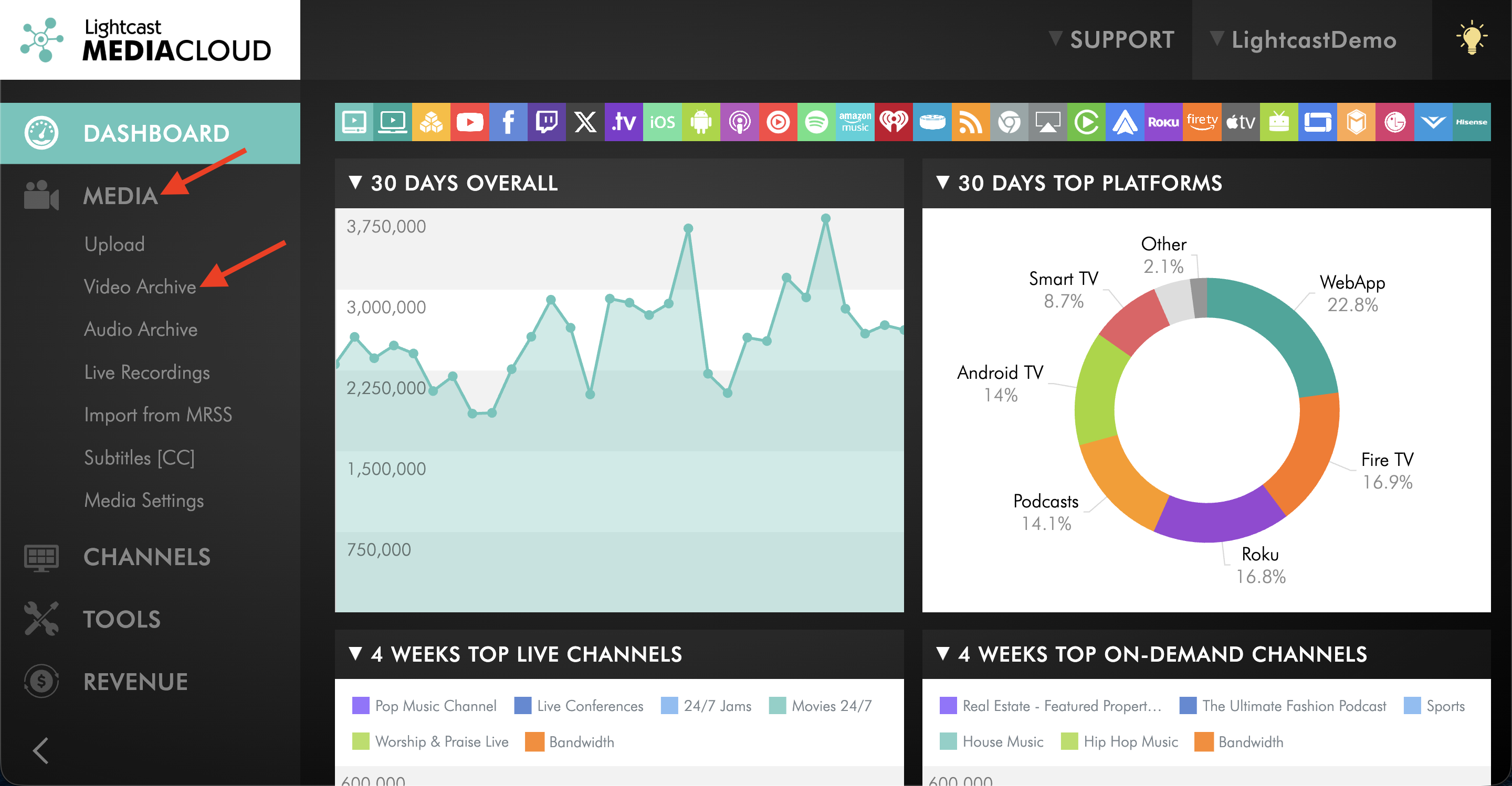
Go to MEDIA and then Video Archive.
Step 3
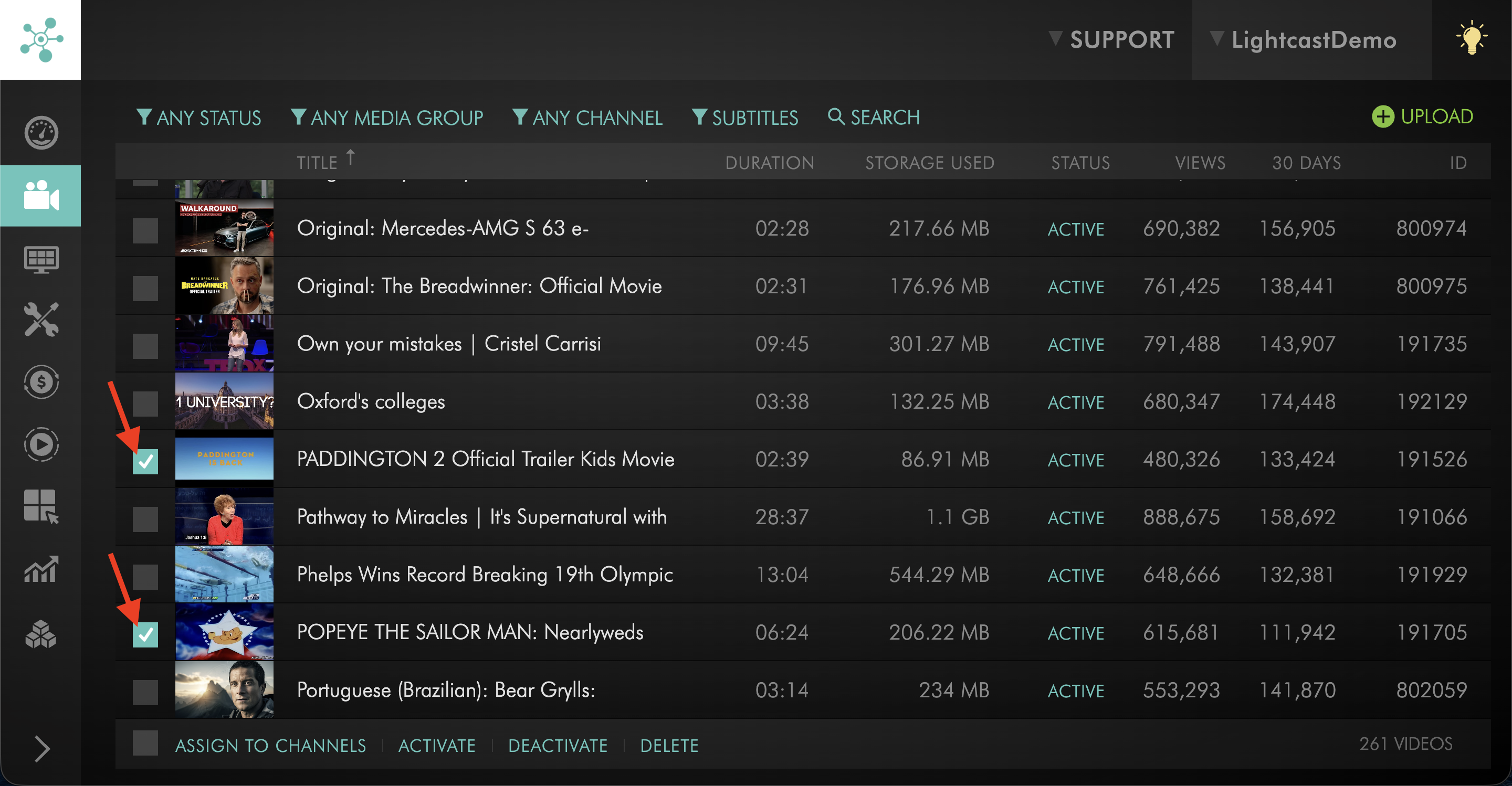
Select the checkbox next to the video item or video items that you want to assign.
Step 4
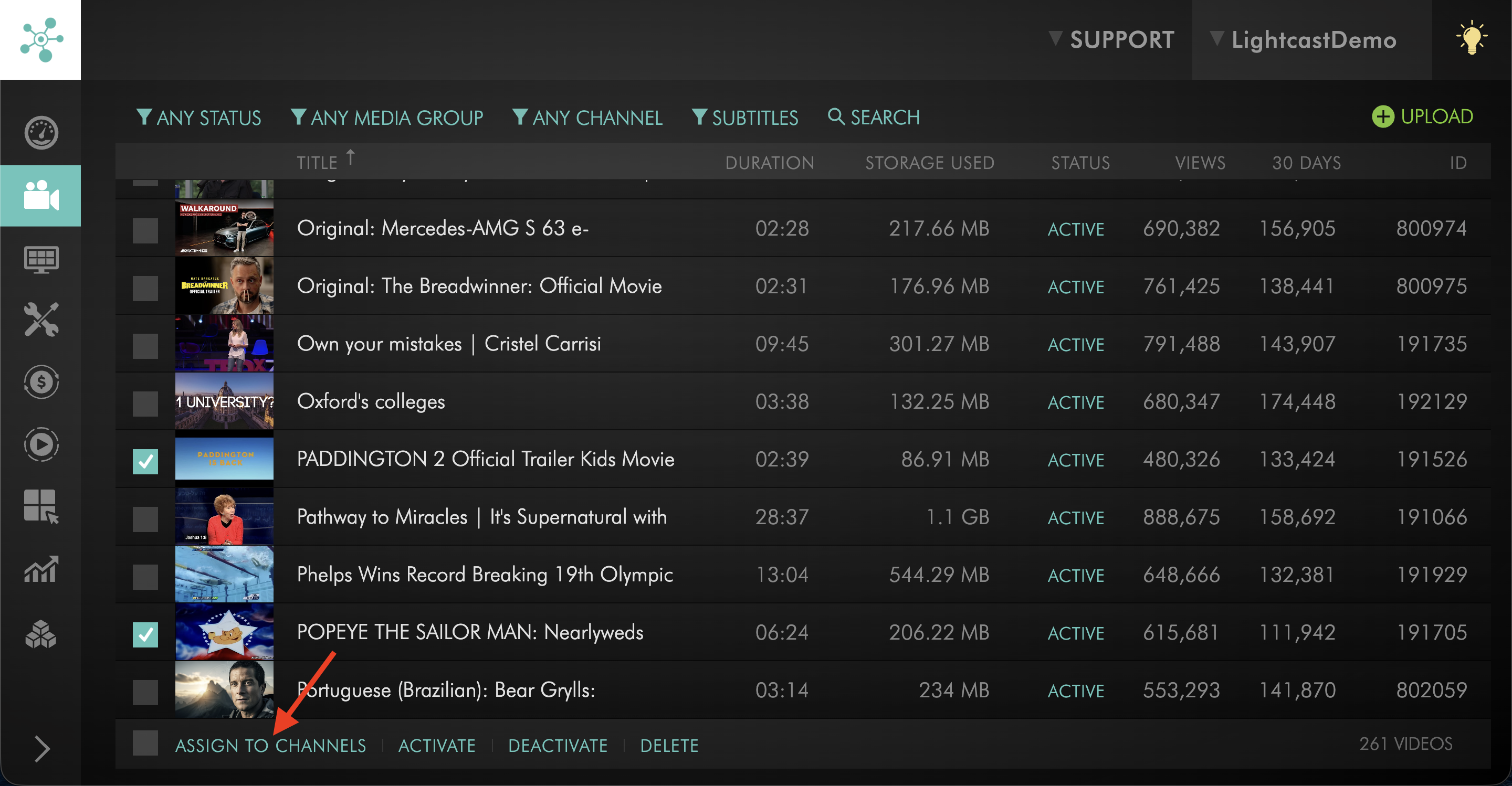
Click ASSIGN TO CHANNELS.
Step 5
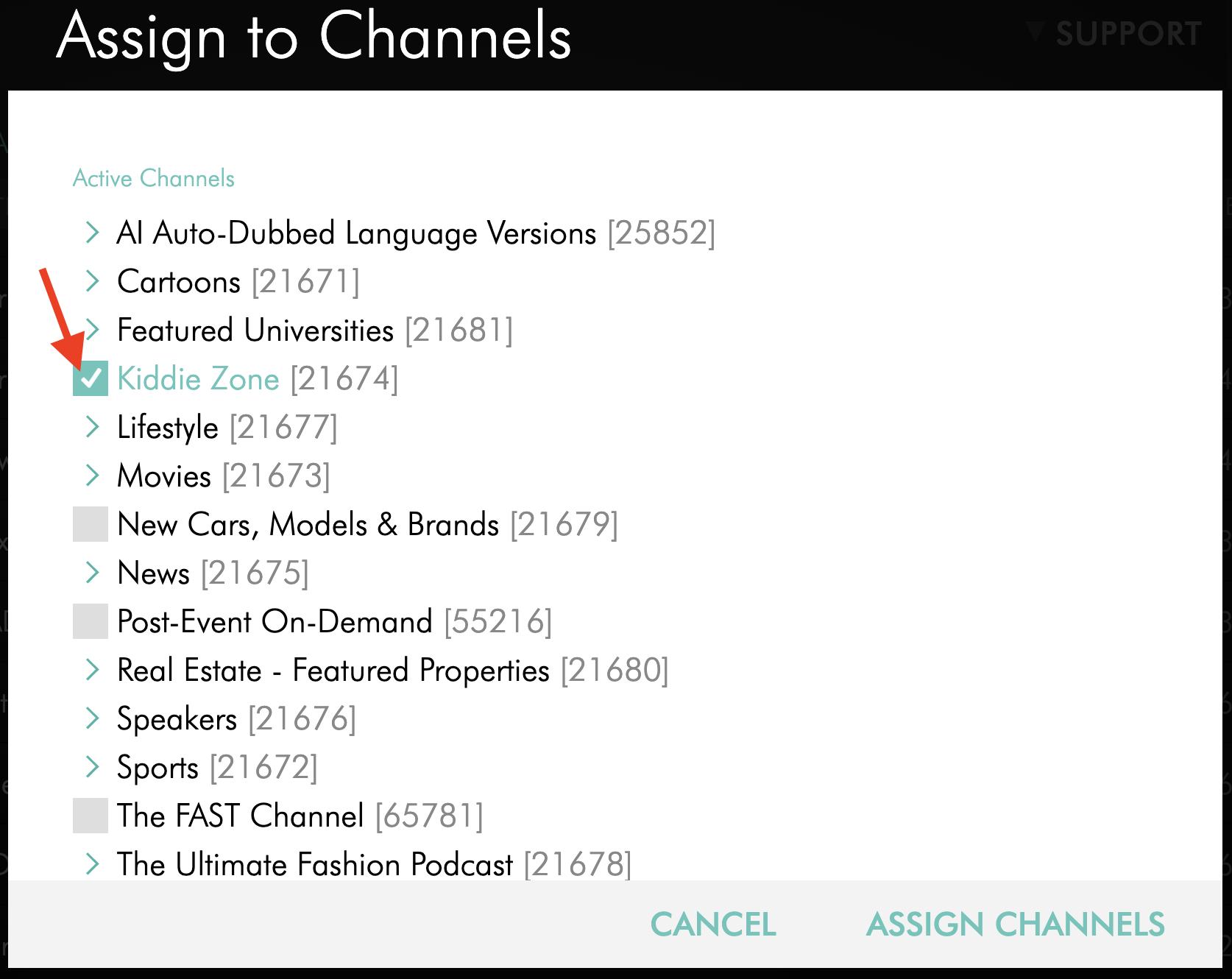
In the pop-up window, select the VOD Channel where you want to add the content.
Step 6
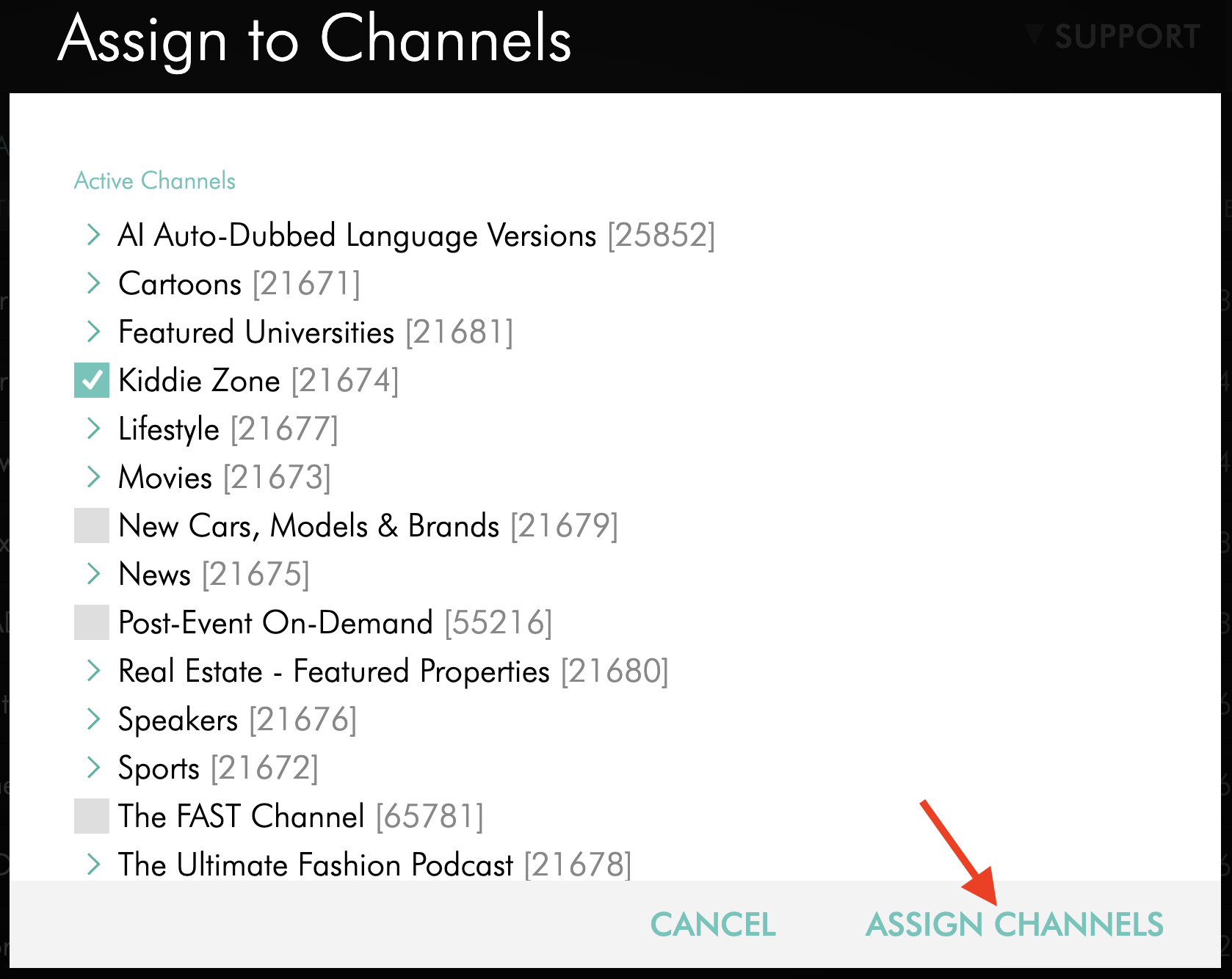
Click ASSIGN CHANNELS.
Option 3: Assign an individual media item from its CHANNELS tab to a VOD Channel
Step 1
Log in to your Media Cloud account.
Step 2
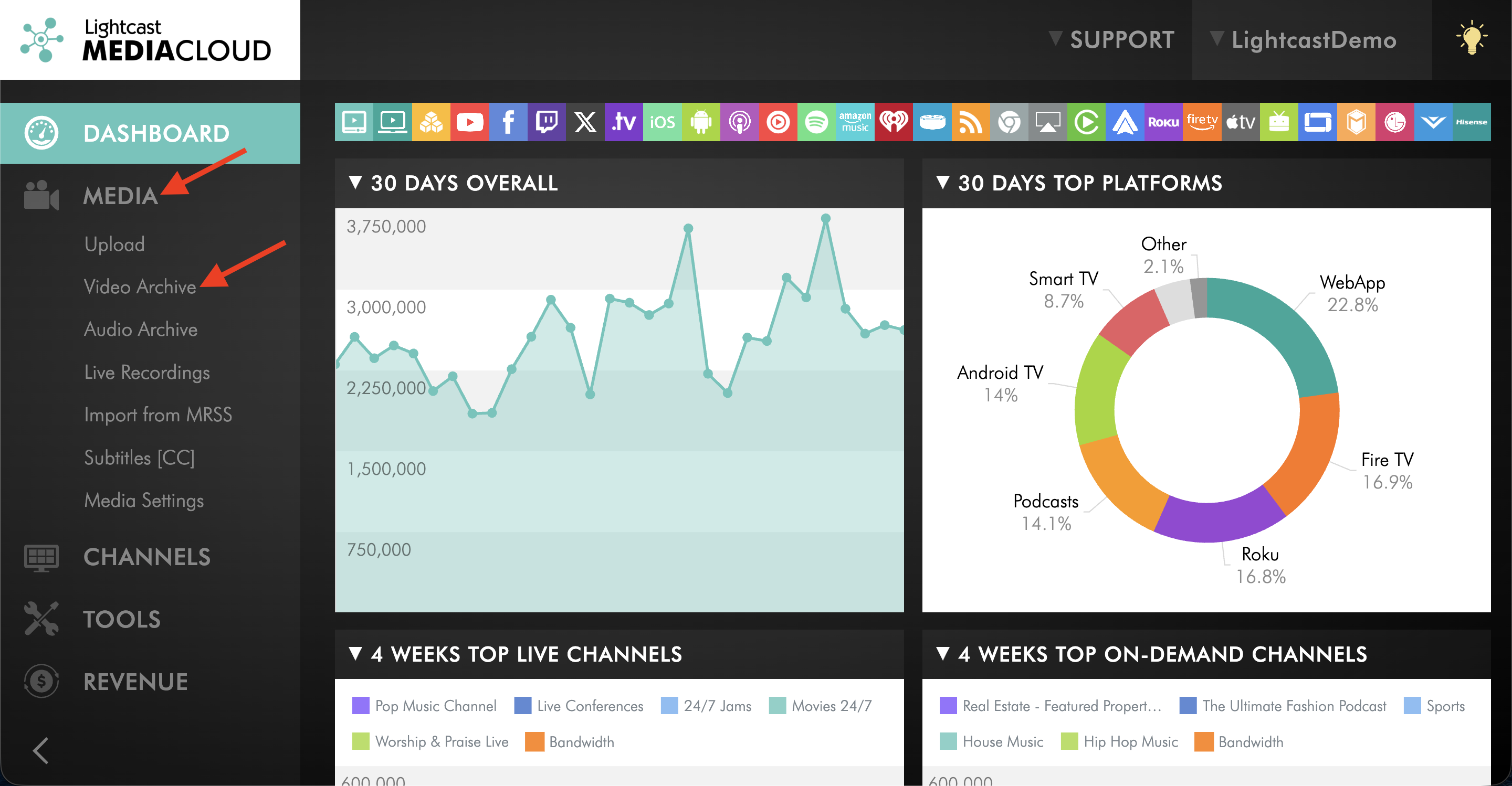
Go to MEDIA and then Video Archive.
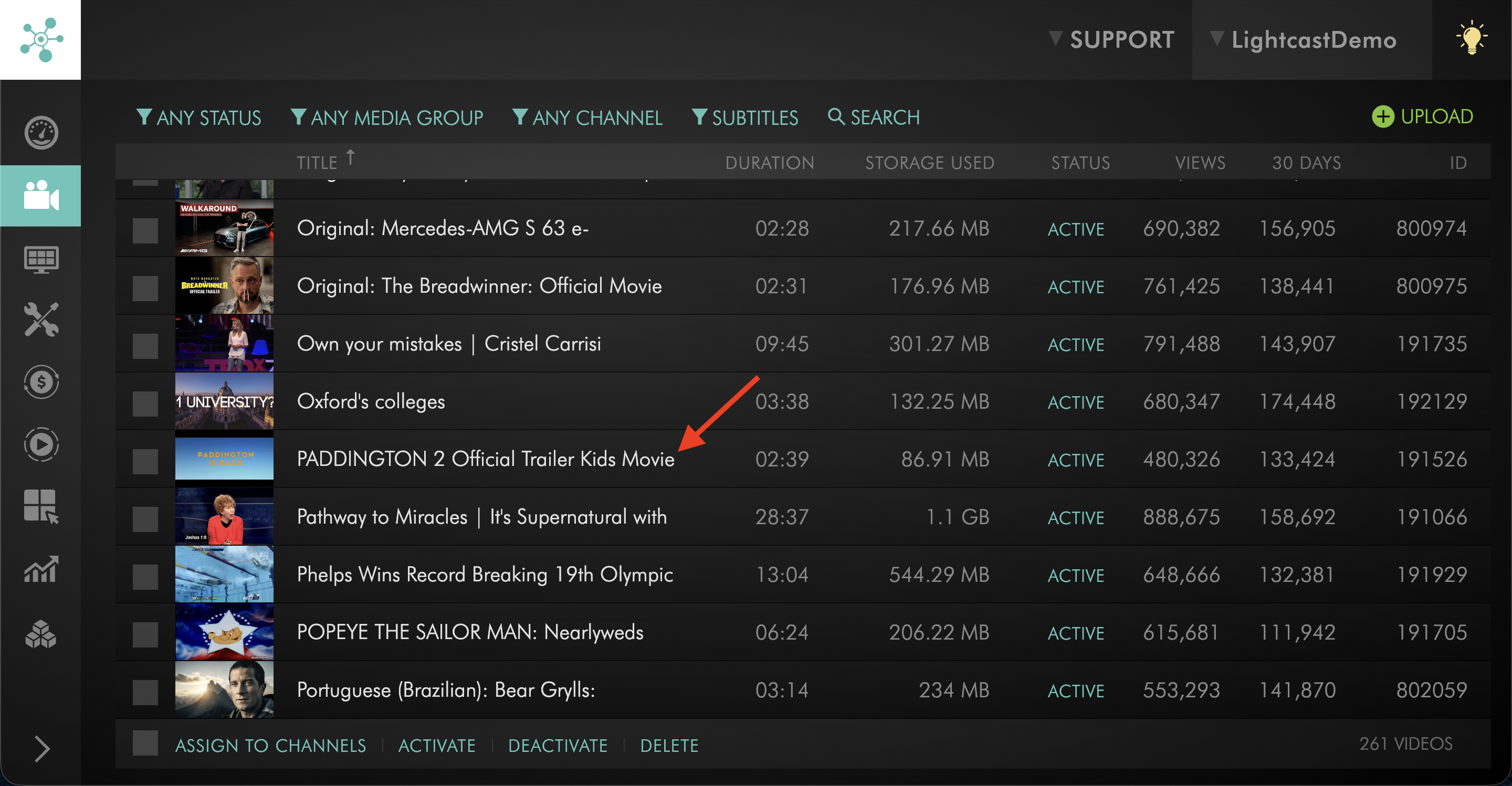
Step 3
Select the video item.
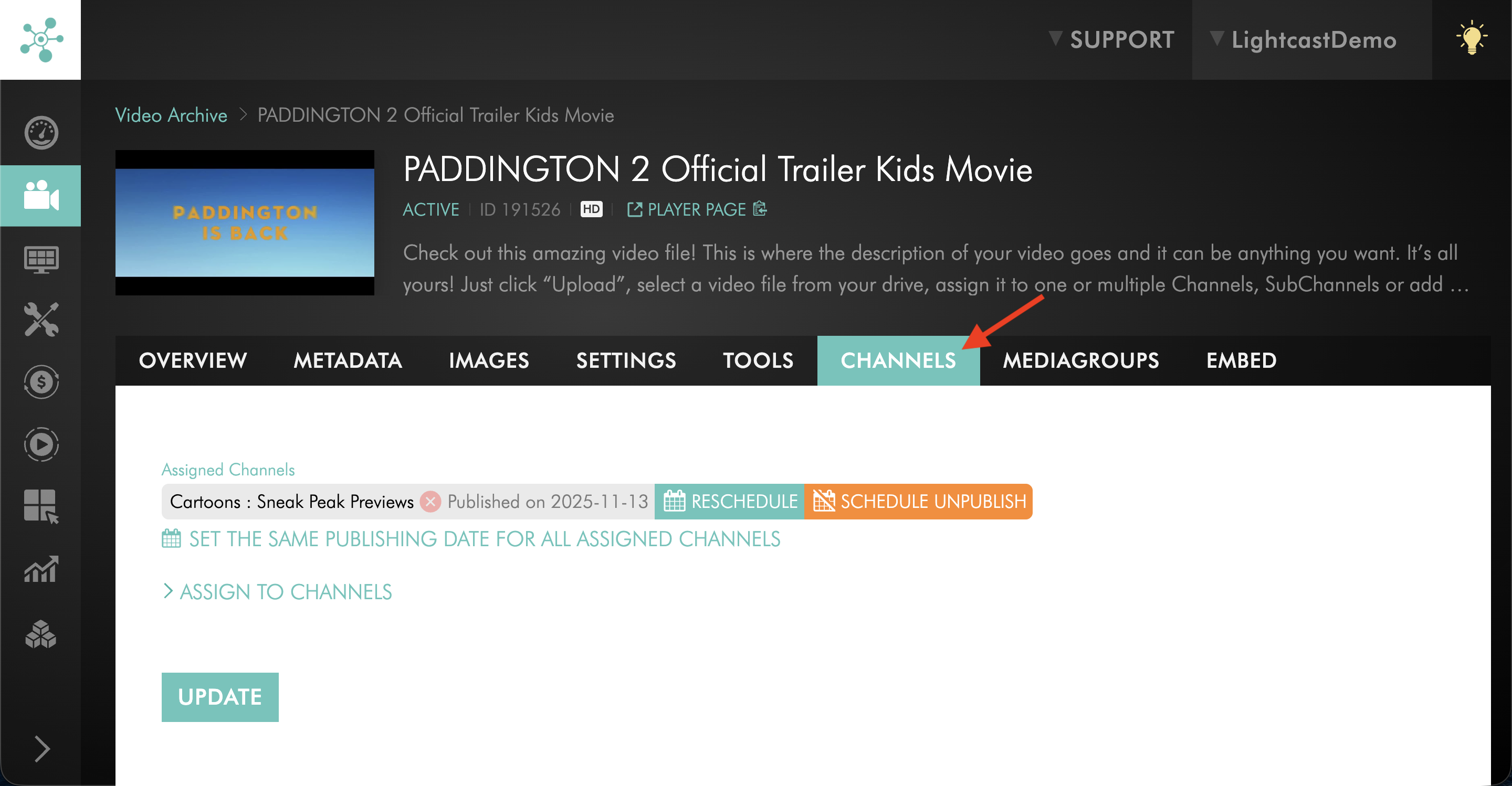
Step 4
Switch to the CHANNELS tab.
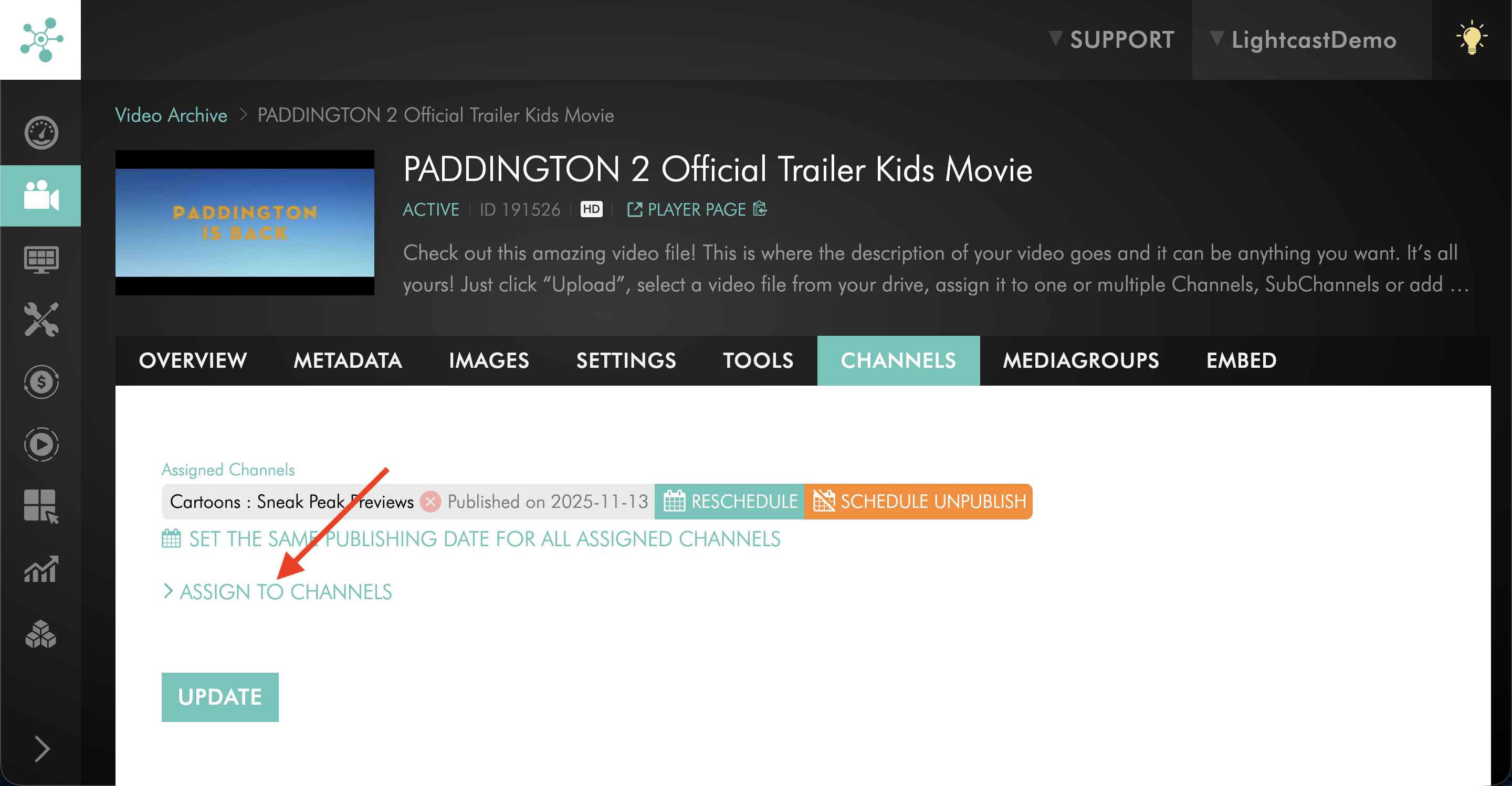
Step 5
Click ASSIGN TO CHANNELS.
Step 6
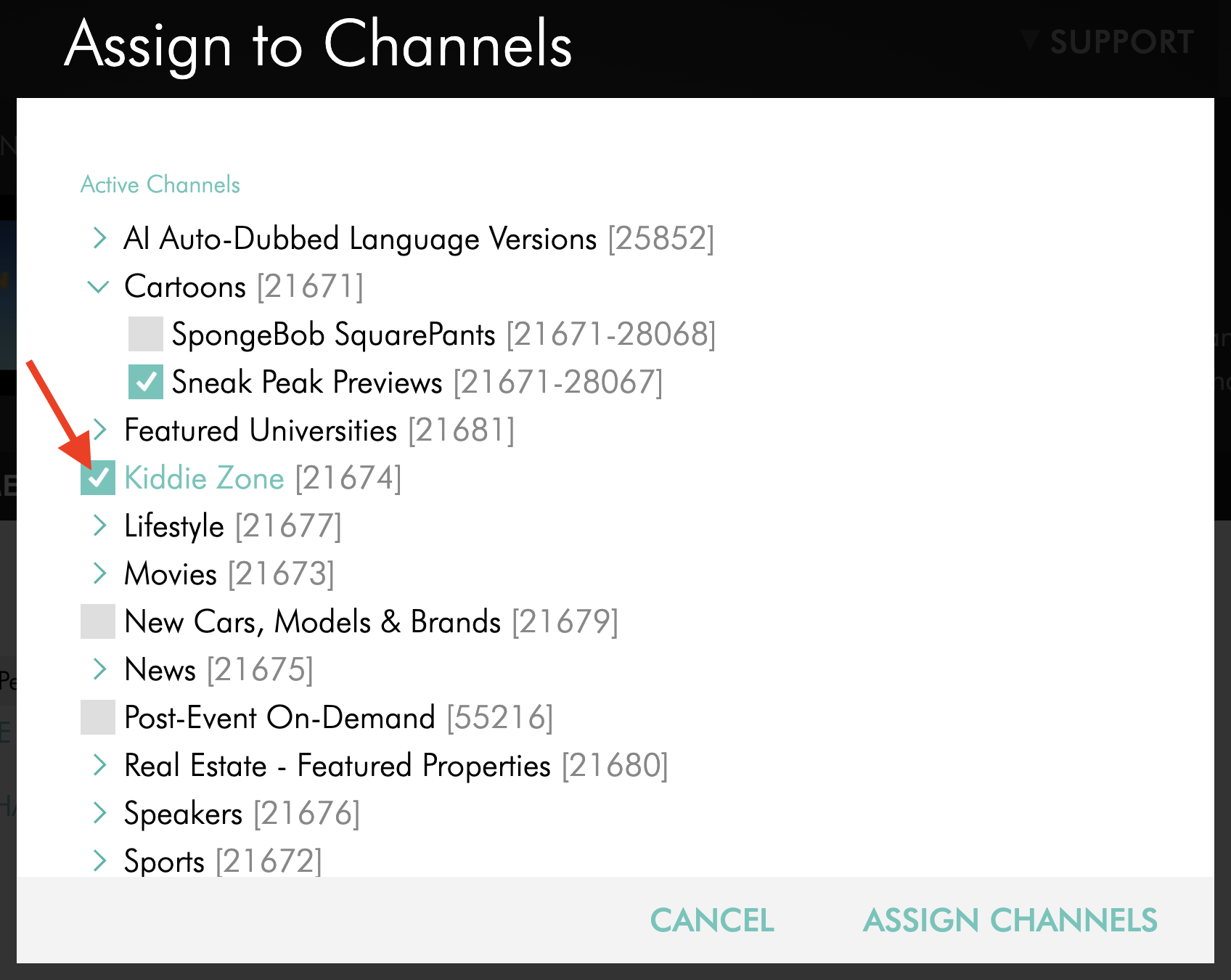
In the Channel assignment pop-up window, select the VOD Channel where you want to publish the media item.
Step 7
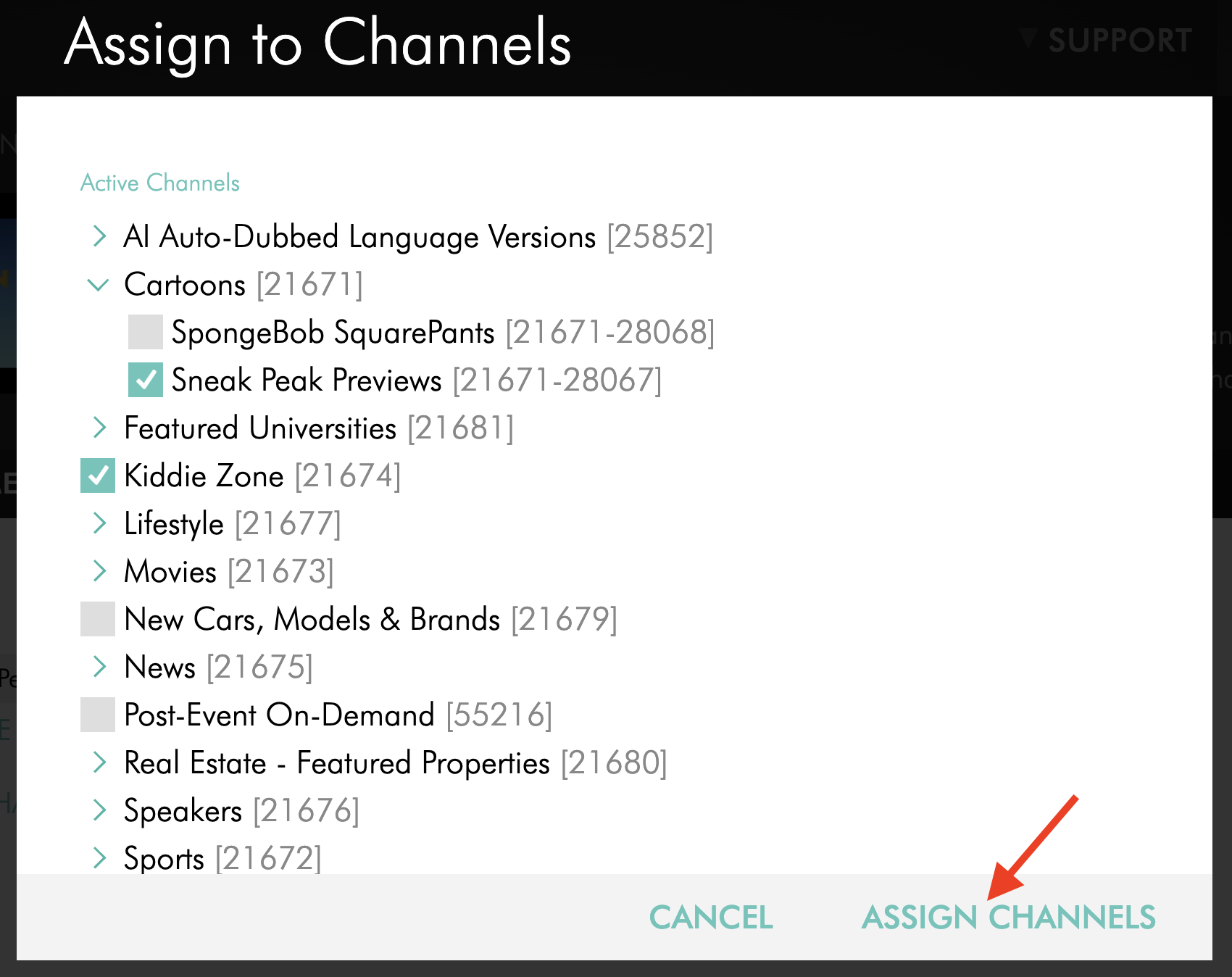
Click ASSIGN CHANNELS.
Step 8
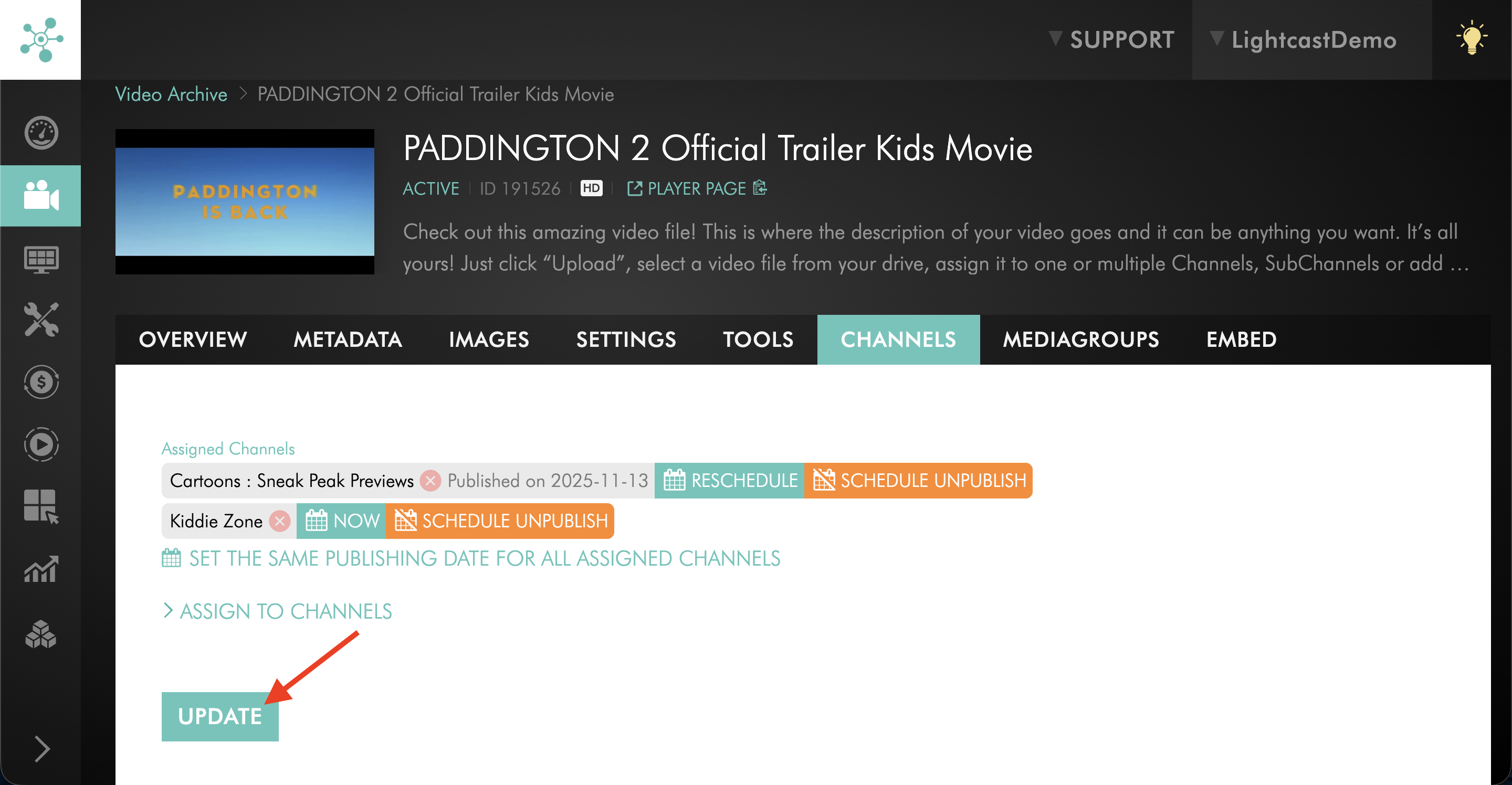
Click UPDATE to save the Channel assignment.
FAQs
Can I assign content to a VOD Channel without uploading it again?
Yes. You can add existing video items from the Channel’s PLAYLIST tab by clicking + FROM ARCHIVE, assign them from the Video Archive, or assign an individual item from its CHANNELS tab.
What is the difference between assigning and uploading content?
Assigning adds an existing video item to a VOD Channel playlist without creating a new upload.
Uploading adds a new file from your computer into the Media Cloud.
When should I use + FROM ARCHIVE?
Use + FROM ARCHIVE when the video item has already been uploaded to the Media Cloud and you want to add it while working inside that VOD Channel’s PLAYLIST tab.
When should I assign content from the Video Archive?
Use the Video Archive when you want to select one or more existing video items first and then assign them to a VOD Channel.
When should I use the media item’s CHANNELS tab?
Use the media item’s CHANNELS tab when you are already viewing one specific video item and want to assign that item directly to a VOD Channel.
Does assigning content create a duplicate media file?
No. Assigning existing content places the video item into the VOD Channel playlist. It does not create a new upload.
Can I remove a video from a VOD Channel later?
Yes. You can remove a video from the Channel’s PLAYLIST tab or unassign it from the video item’s CHANNELS tab.
To learn more, see How to unassign or remove a video from a Video On-Demand (VOD) Channel