
How to submit your Podcast to YouTube
Overview
This article explains how to submit your Podcast to YouTube using the RSS feed provided by Lightcast. Use these steps when you want to make your Podcast available on YouTube.
How it works
YouTube requires advanced account features before you can submit a Podcast with an RSS feed. After you create the Podcast and verify ownership of the feed, it may take a few days for your episodes to finish processing and uploading. You will receive an email when the Podcast is ready, but the Podcast and episodes remain Private until you click Publish in YouTube Studio. After the feed is published, the Podcast becomes public and future episodes usually publish automatically.
Instructions
Step 1
If you do not already have a YouTube account, go to youtube.com and create one.
Step 2
Sign in to your YouTube account at studio.youtube.com.
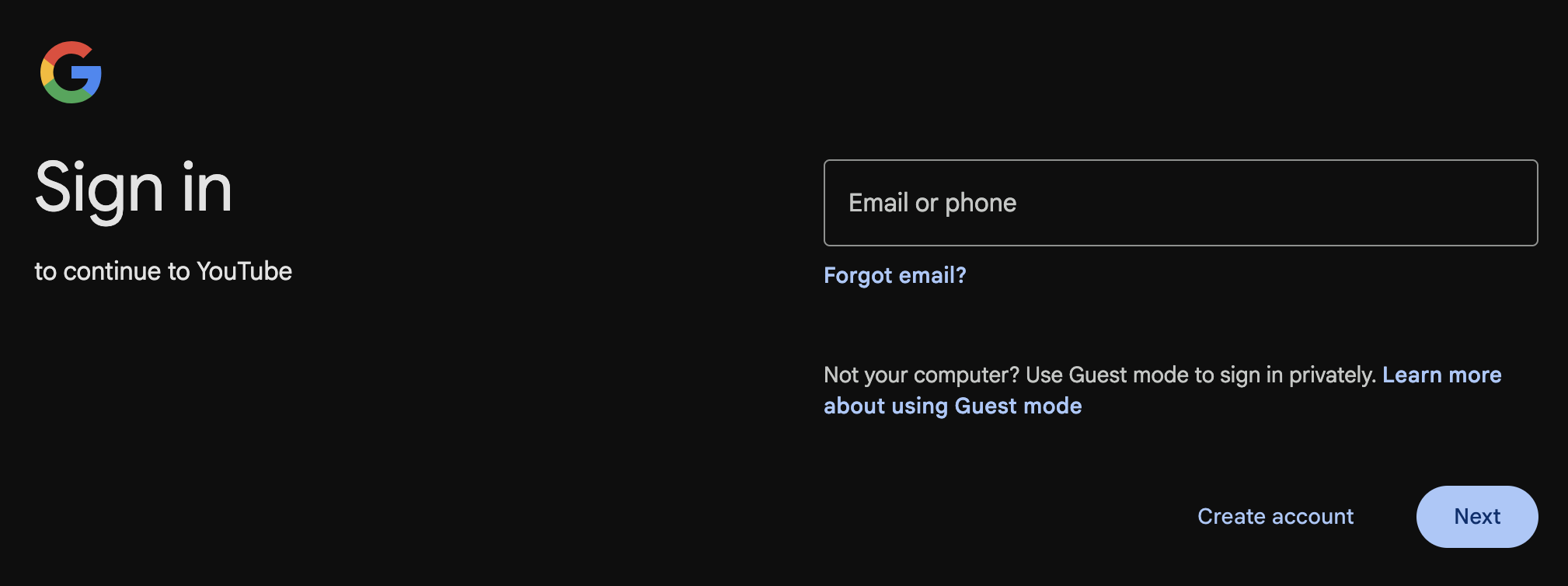
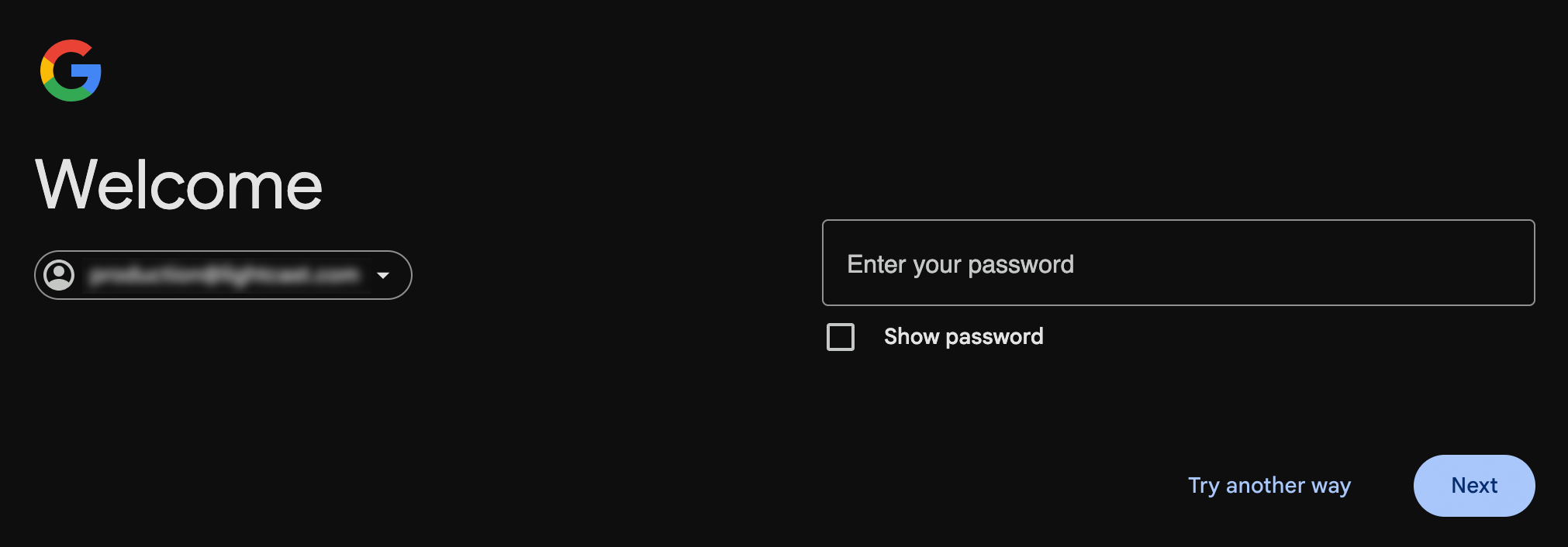
Step 3
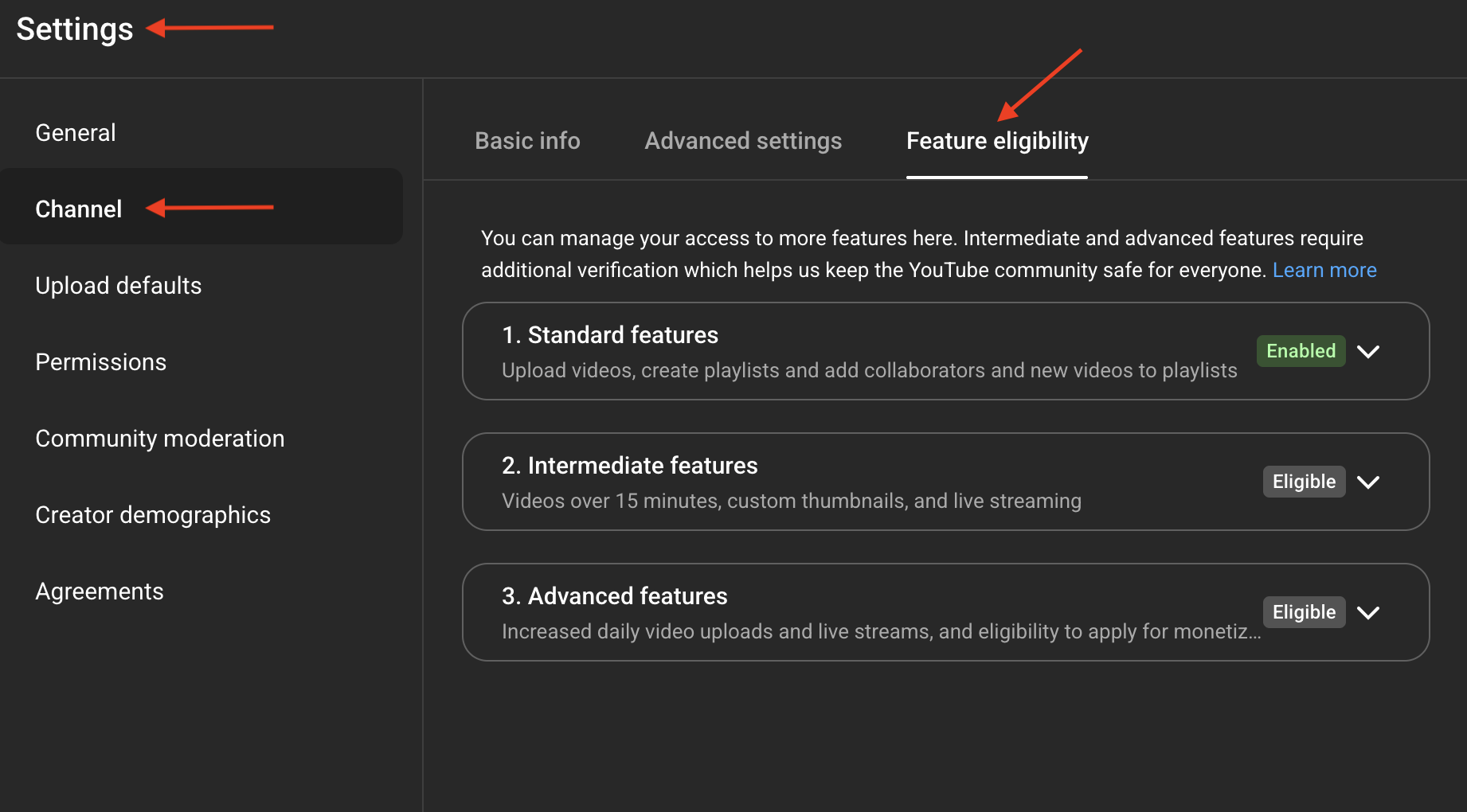
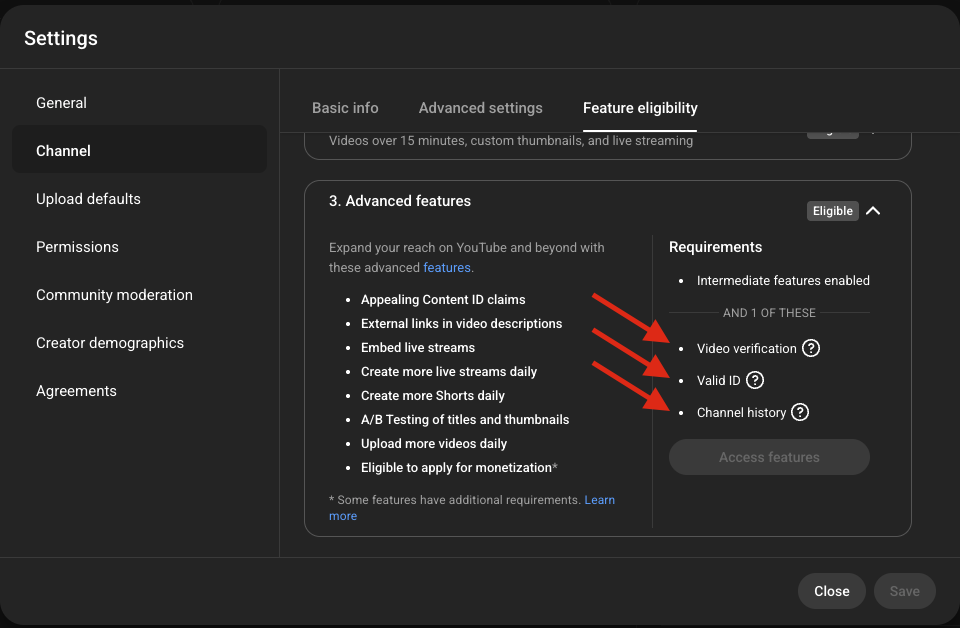
Verify your account so you can access advanced features. To check your feature eligibility:
Go to studio.youtube.com
Open Settings in the bottom-left corner
Select Channel, then Feature eligibility.
Step 4
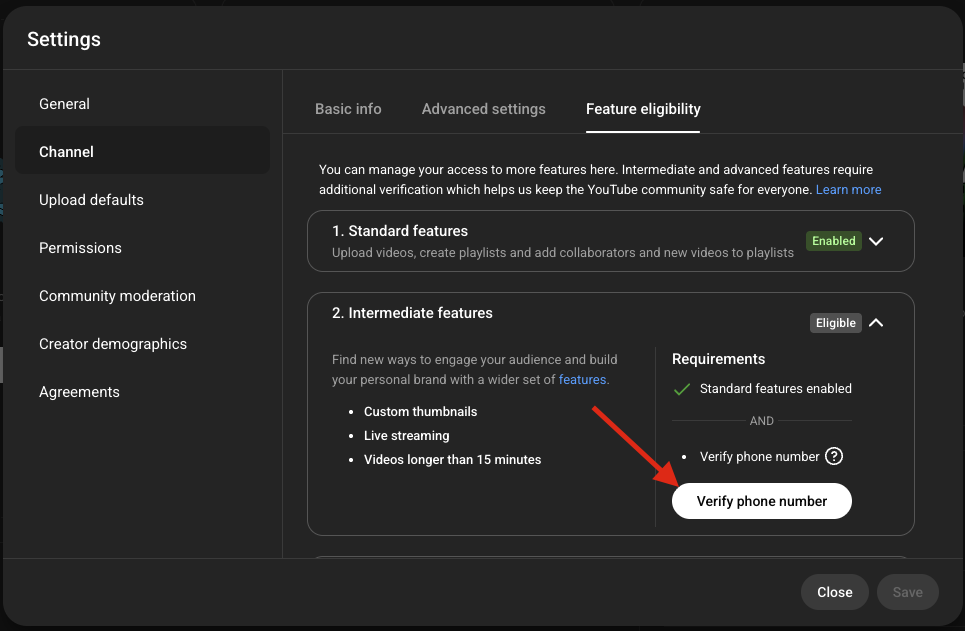
In the Intermediate features box, click the dropdown arrow and follow the prompts verify your phone number.
Step 5
In the Advanced Features box, click the dropdown arrow and follow the prompts to verify your identity.
Step 6
After verifying your phone number and identity, return to studio.youtube.com.
Step 7
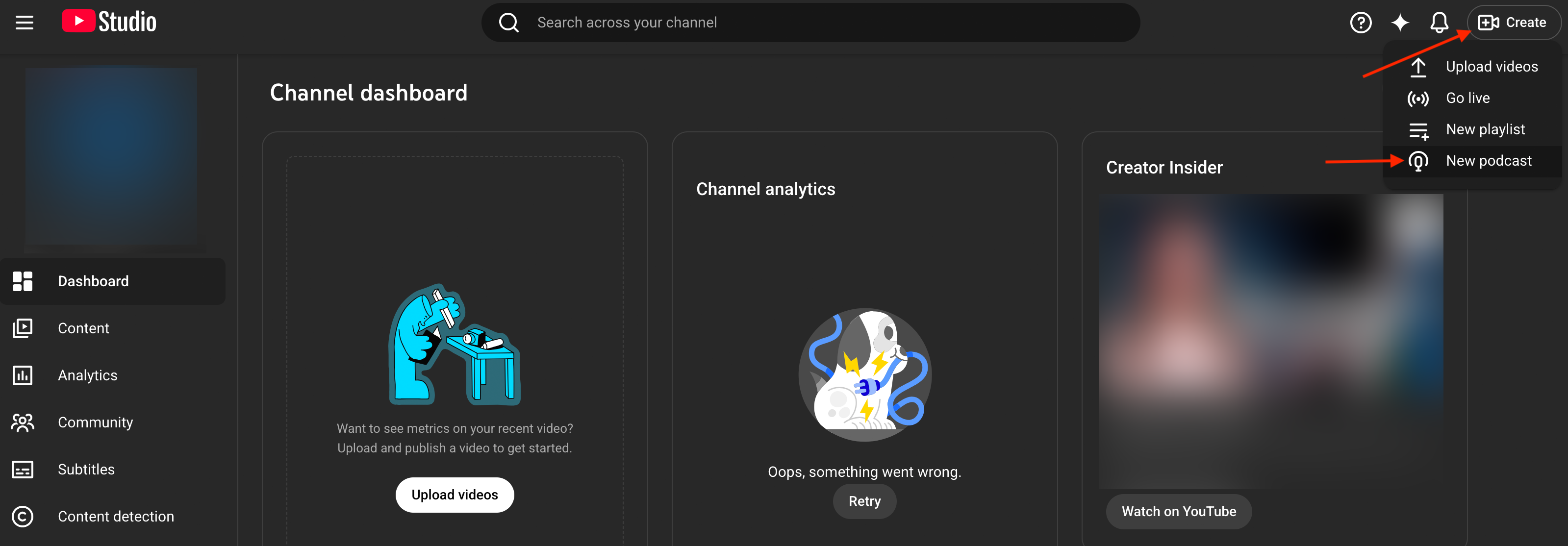
Click Create in the top-left corner and select New Podcast.
Step 8
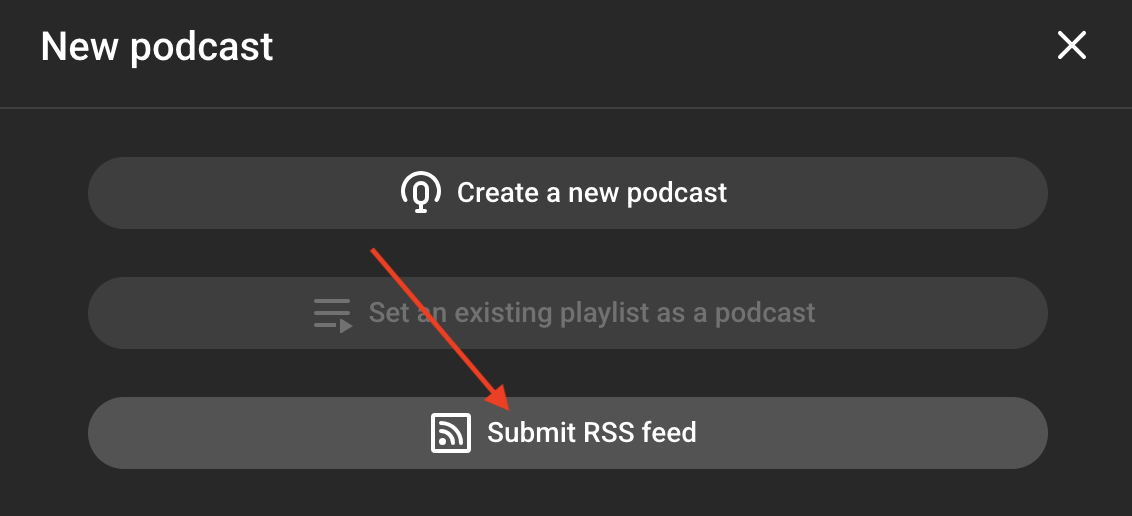
In the pop-up window, select Submit RSS feed.
Step 9
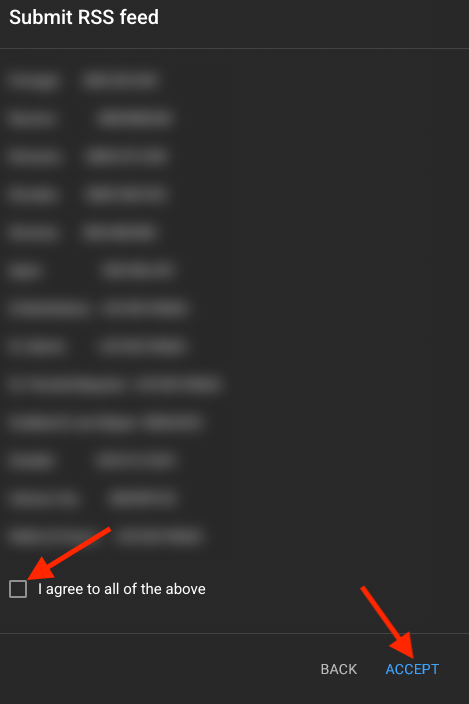
Check the box to agree to the terms, then click Accept.
Step 10
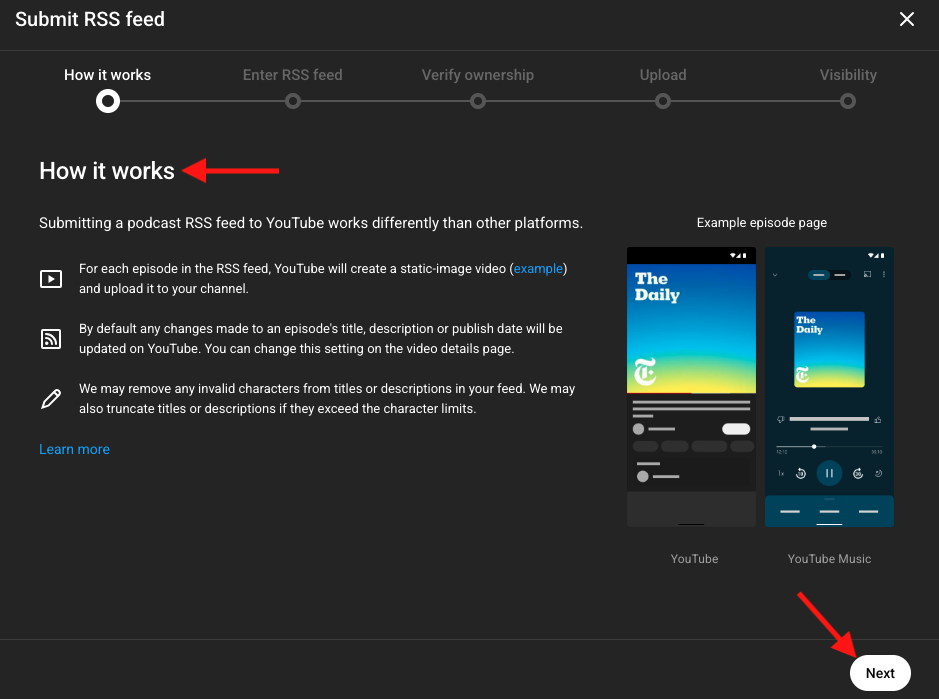
Review the overview explaining how Podcasts work on YouTube, then click Next.
Step 11
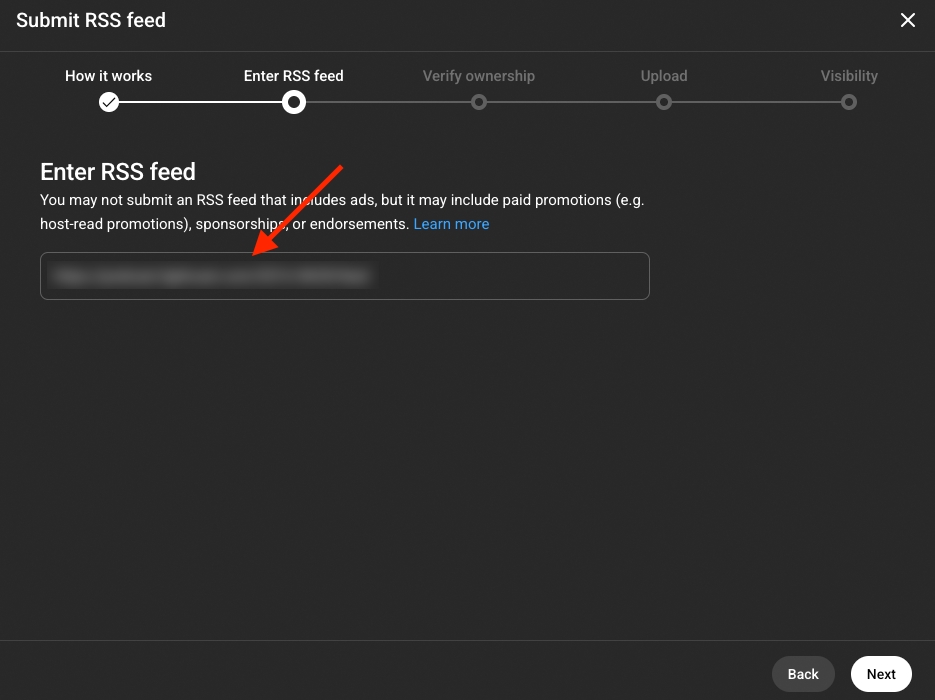
Paste the RSS feed link provided by Lightcast, then click Next.
Step 12
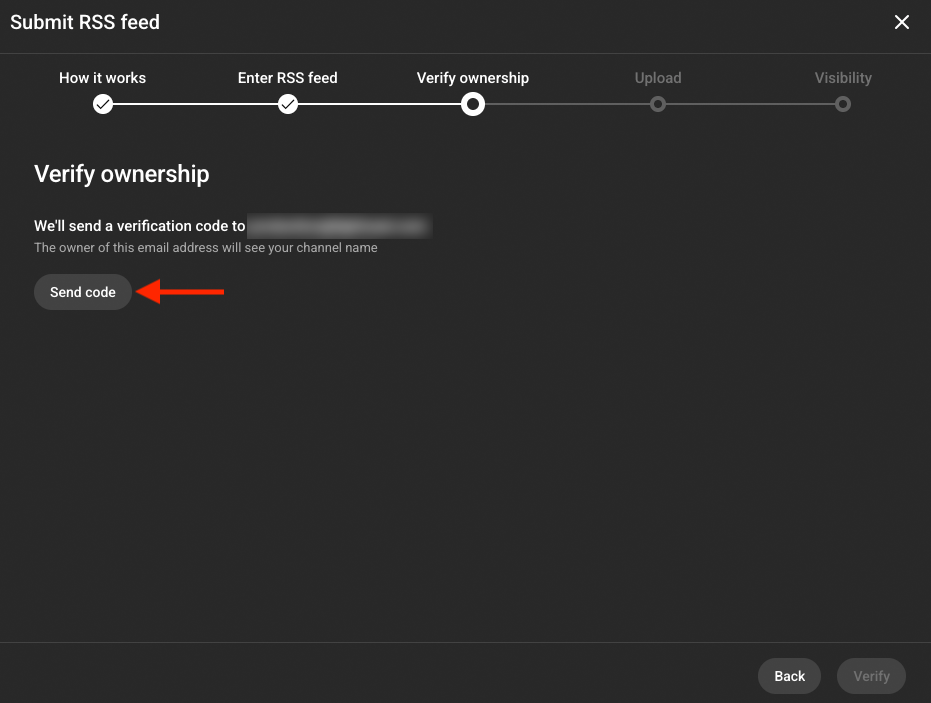
Click Send Code to verify ownership of the RSS feed.
Step 13
Open the email sent to the address listed in the RSS feed and enter the verification code.
Step 14
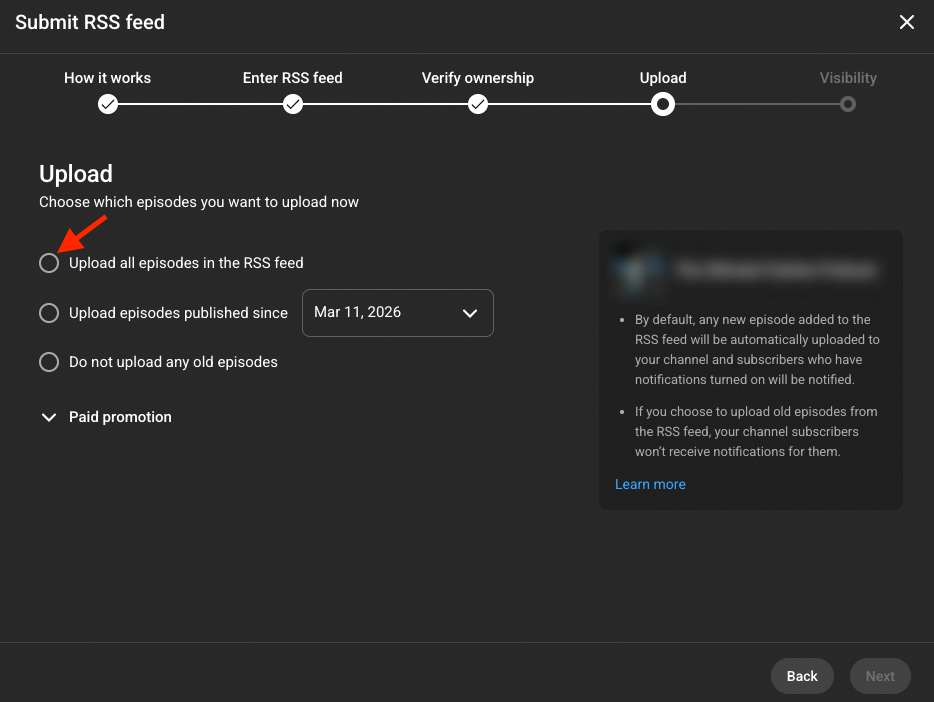
Choose your episode upload option. We recommend selecting the first option.
Step 15
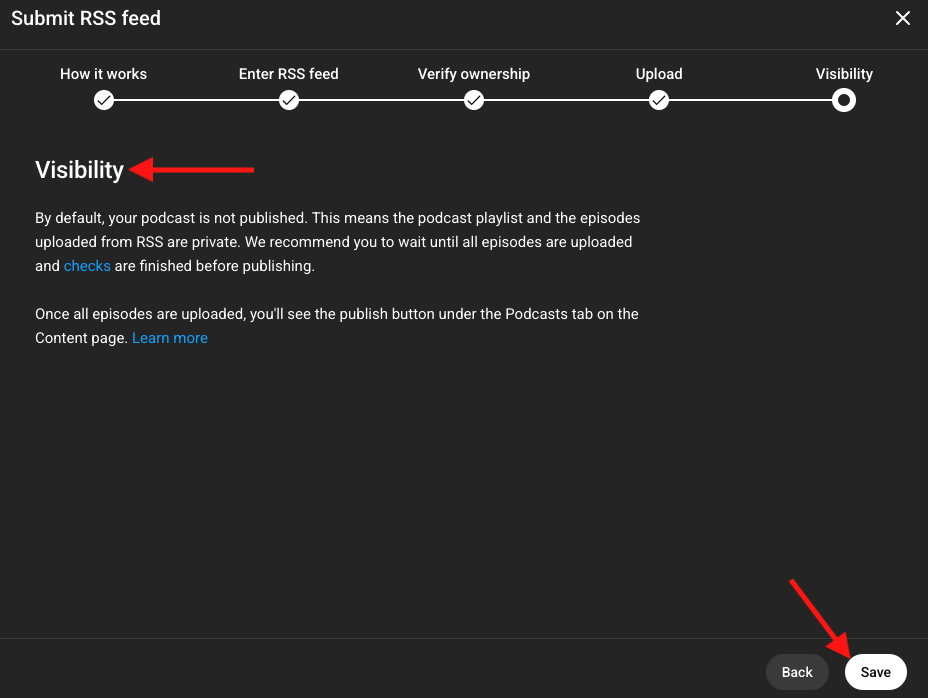
On the Visibility page, review the information and click Save.
Step 16
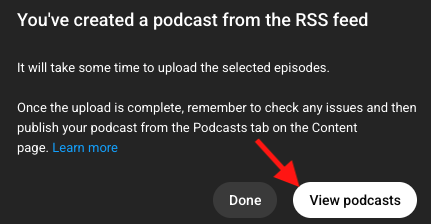
Click View Podcasts.
Step 17
Wait for the episodes to finish processing and uploading.
Step 18
After all episodes have finished uploading, click Publish.
FAQs
Why is my Podcast not live right after I create it?
After you submit your RSS feed, it may take a few days for your episodes to finish uploading to YouTube. You will receive an email when the Podcast is ready, but it will not be public until you click Publish in YouTube Studio.
How long does it take for my podcast to appear on YouTube?
After you submit your RSS feed, it usually takes a few days for your episodes to upload and finish processing. Once the Podcast is ready, YouTube sends you an email. Your Podcast becomes public only after you click Publish in YouTube Studio.