
How to submit your Podcast to iHeartRadio
Overview
This article explains how to submit your Podcast to iHeartRadio using the RSS feed provided by Lightcast. Use these steps when you want to make your Podcast available on iHeartRadio.
How it works
To submit a Podcast to iHeartRadio, you must sign in to iHeart Podcasters, add your RSS feed, and complete an ownership verification process. Before you begin, make sure you have an iHeartRadio account, the RSS feed link provided by Lightcast, and access to the email address listed in the RSS feed.
Instructions
Step 1
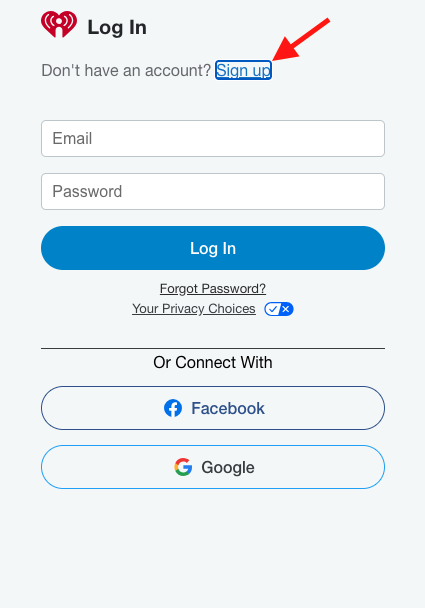
If you do not already have an iHeartRadio account:
Go to iheart.com
Click the User icon in the top-right corner
Select Sign Up.
Step 2
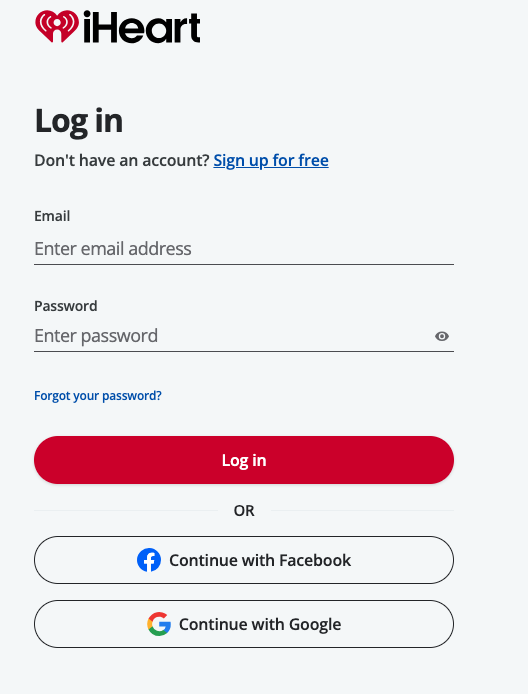
When your iHeartRadio account is set up, go to podcasters.iheart.com and sign in.
Step 3
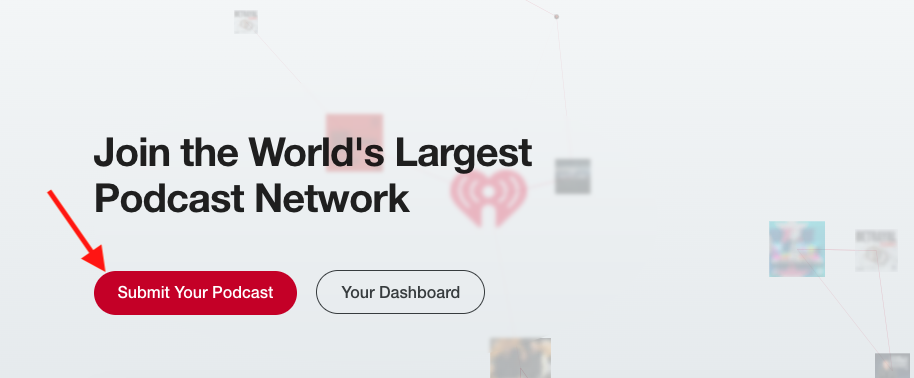
Click Submit Your Podcast to start the submission process.
Step 4
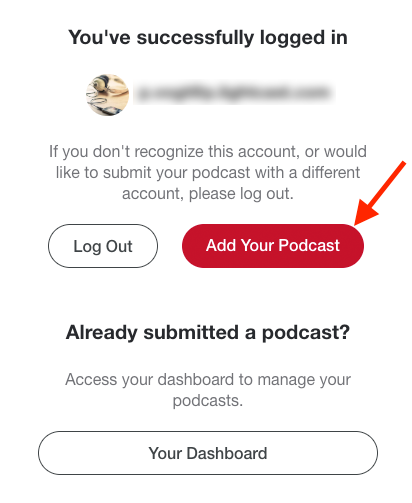
Click Add Your Podcast.
Step 5
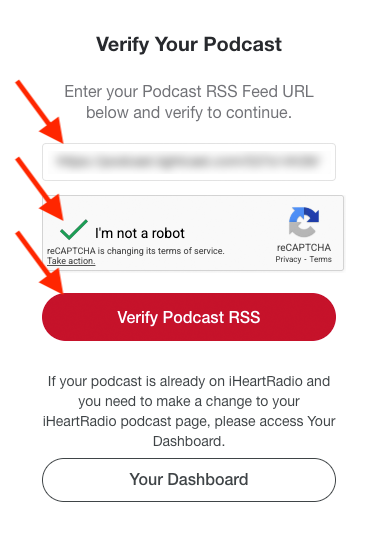
Paste the RSS feed link provided by Lightcast, complete the CAPTCHA, and click Verify Podcast RSS.
Step 6
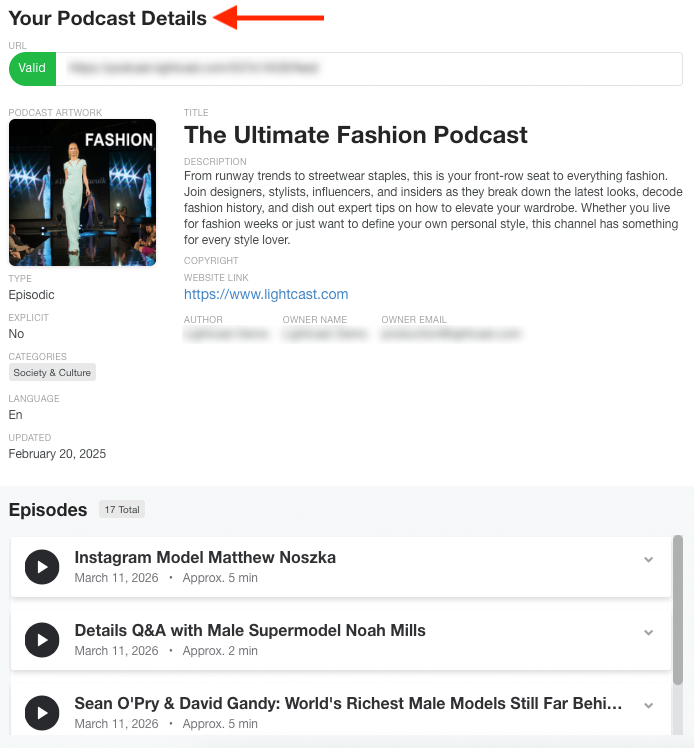
Once the RSS feed is verified, iHeartRadio will display your podcast details. Review the information carefully to make sure it is accurate.
Step 7
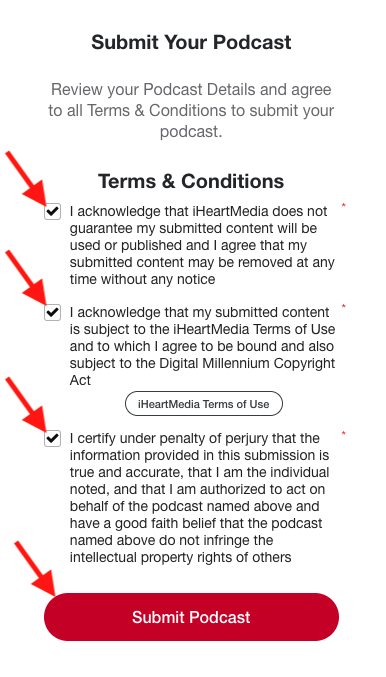
Check the three boxes under Terms & Conditions, then click Submit Podcast.
Step 8
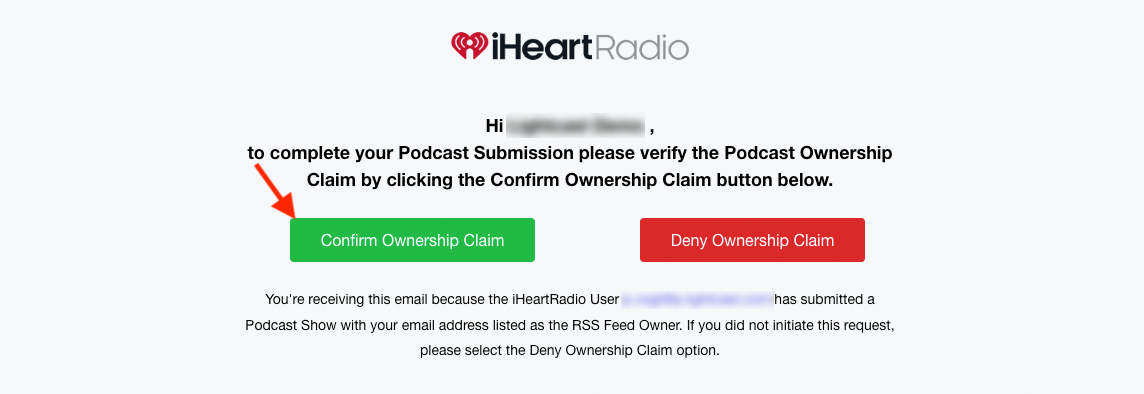
Open the verification email sent to the email address listed in your RSS feed, then click Confirm Ownership Claim.
Step 9
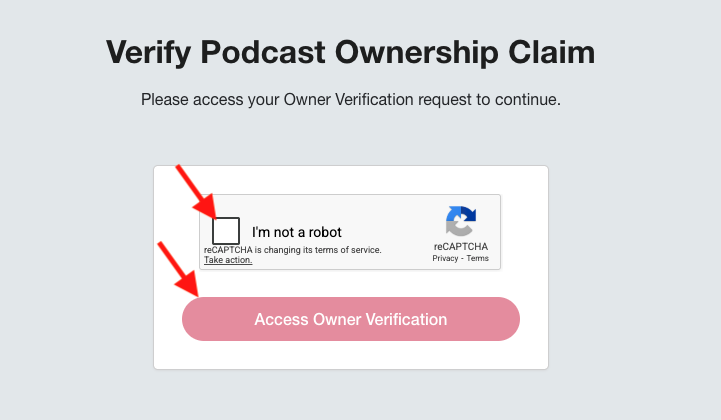
Follow the prompts, complete the CAPTCHA, and click Access Owner Verification.
Step 10
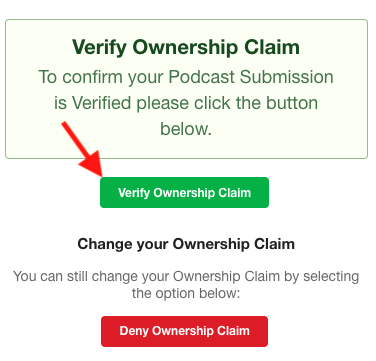
Click Verify Ownership Claim on the right-hand side to finish ownership verification.
FAQs
How long does iHeartRadio take to publish my Podcast?
After submission, iHeartRadio may take up to 14 days to review and publish the Podcast. In most cases, the Podcast is published within 24 hours after submission.
Why do I need access to the email address in the RSS feed?
iHeartRadio sends the ownership verification email to the email address listed in the RSS feed.