
Troubleshooting content availability: Video Minutes and subscription payments
Overview
This article explains how to determine whether unavailable content in your apps, players, or other publishing properties is related to insufficient Video Minutes or an overdue Service Package subscription payment.
Follow the troubleshooting steps below to check your Video Minutes balance and subscription payment status and learn how to resolve these issues.
When to use this article
Use this article if:
Content that was previously available is no longer playing or accessible.
Content is unavailable across multiple apps, players, or other publishing properties.
You have received a notification about insufficient Video Minutes or an overdue subscription payment.
You want to rule out account-related causes before troubleshooting other playback or publishing issues.
How it works
There are several reasons content may become unavailable. This article focuses specifically on two account-related conditions:
Insufficient available Video Minutes
An overdue Service Package subscription payment
Your available Video Minutes support content delivery through your Lightcast services. If your Video Minutes are depleted, your content may become unavailable until additional Video Minutes are added.
Subscription payment status can also affect service availability. If a subscription payment cannot be processed successfully or is not received by the payment due date, Lightcast sends an automated notification and a 21-day grace period begins.
Your Lightcast services remain active throughout the 21-day grace period. If the outstanding payment is not resolved by the end of the grace period, service may be interrupted.
Checking your Video Minutes balance and subscription payment status can help determine whether either condition is affecting your content before you continue with other troubleshooting.
Troubleshooting
Check your available Video Minutes
Step 1
Log in to your Media Cloud account.
Step 2
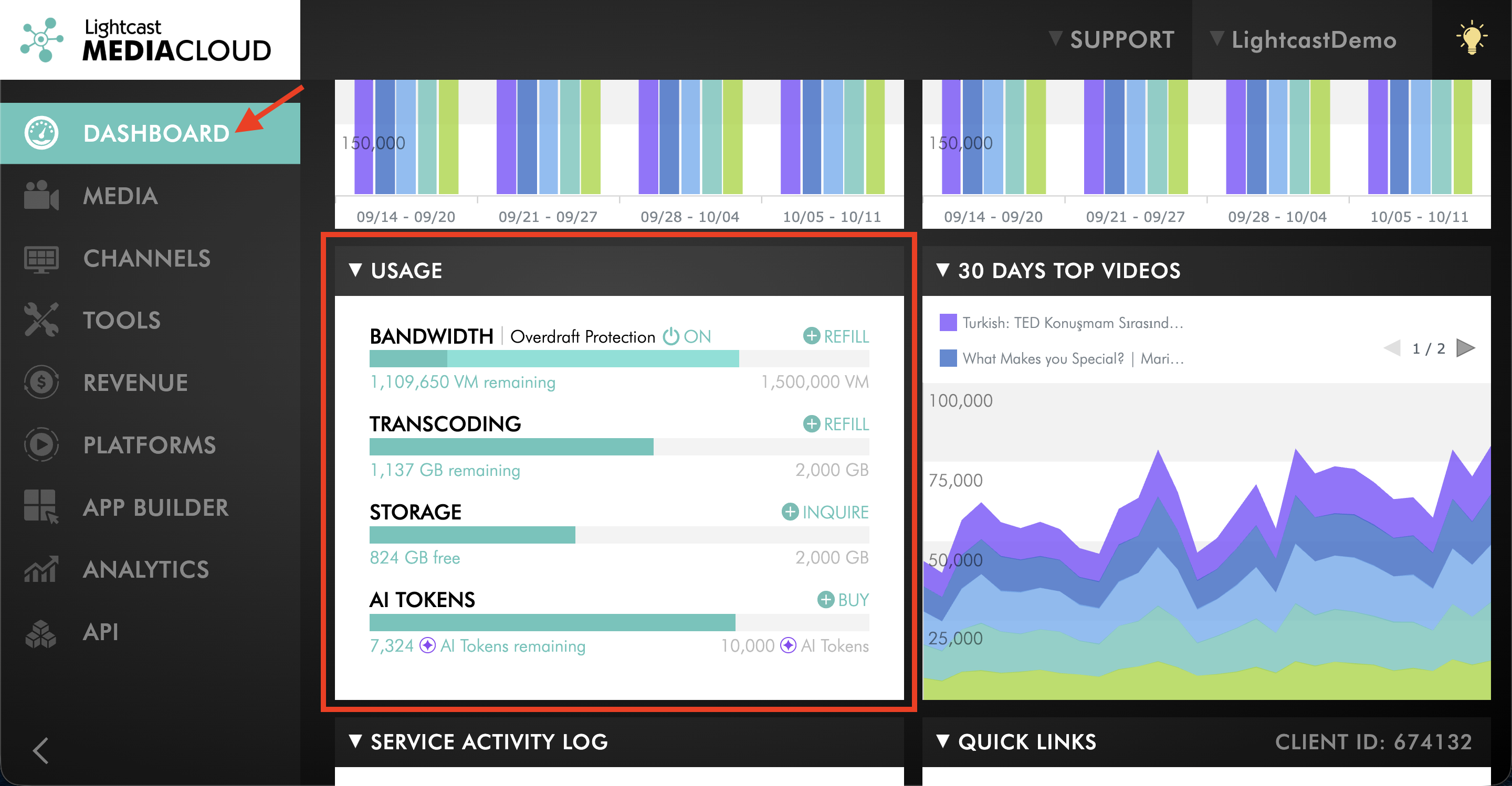
On DASHBOARD, locate USAGE.
Step 3
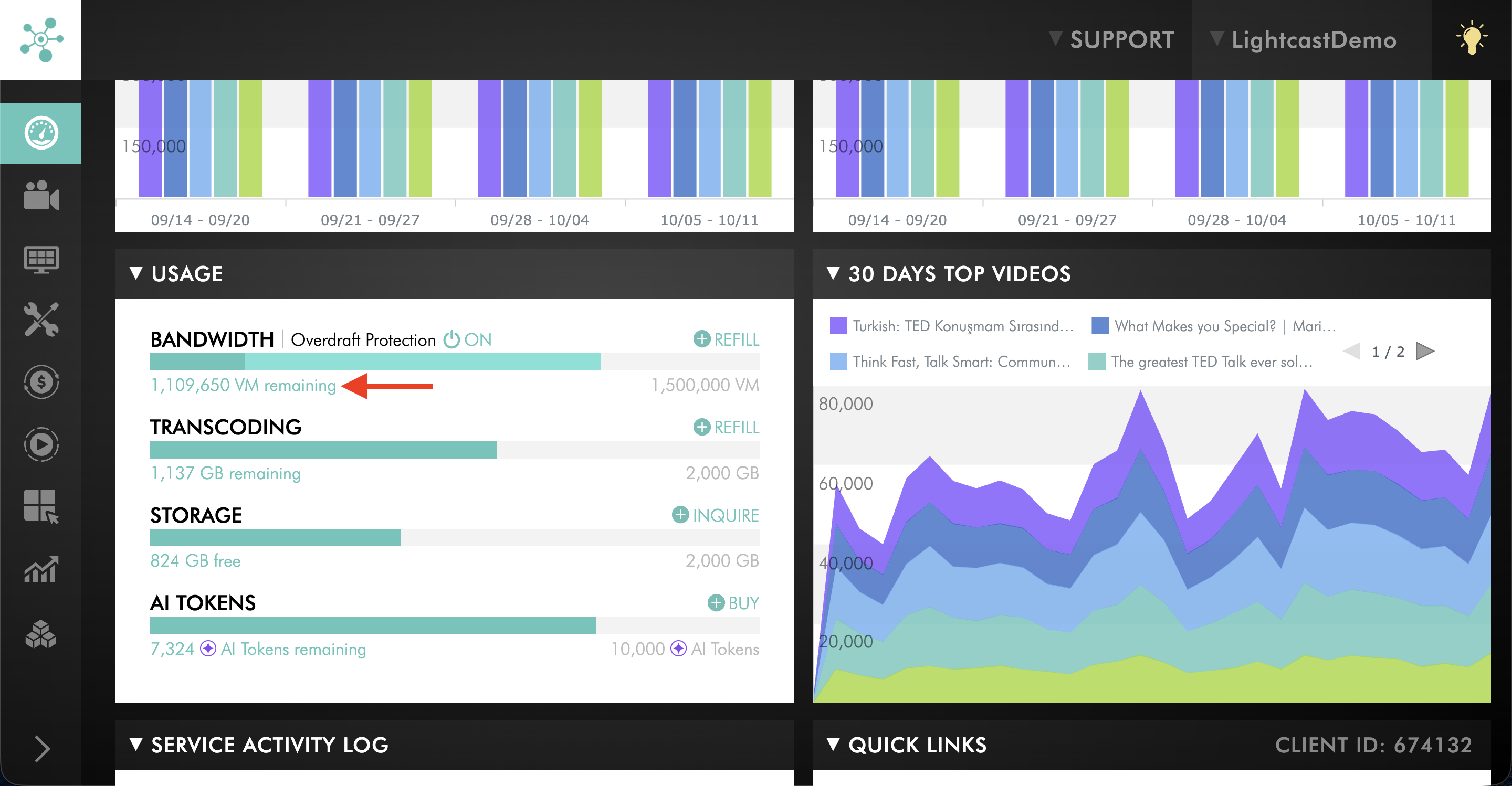
Under BANDWIDTH, review your available Video Minutes balance.
If your Video Minutes balance is depleted, purchase a Video Minutes refill to replenish your available balance.
To help prevent future service interruptions, you can enable Overdraft Protection, which automatically purchases a selected Video Minutes refill when your balance reaches the threshold you configure.
For instructions, see How to add Video Minutes and enable Overdraft Protection.
Check your subscription payment status
Step 1
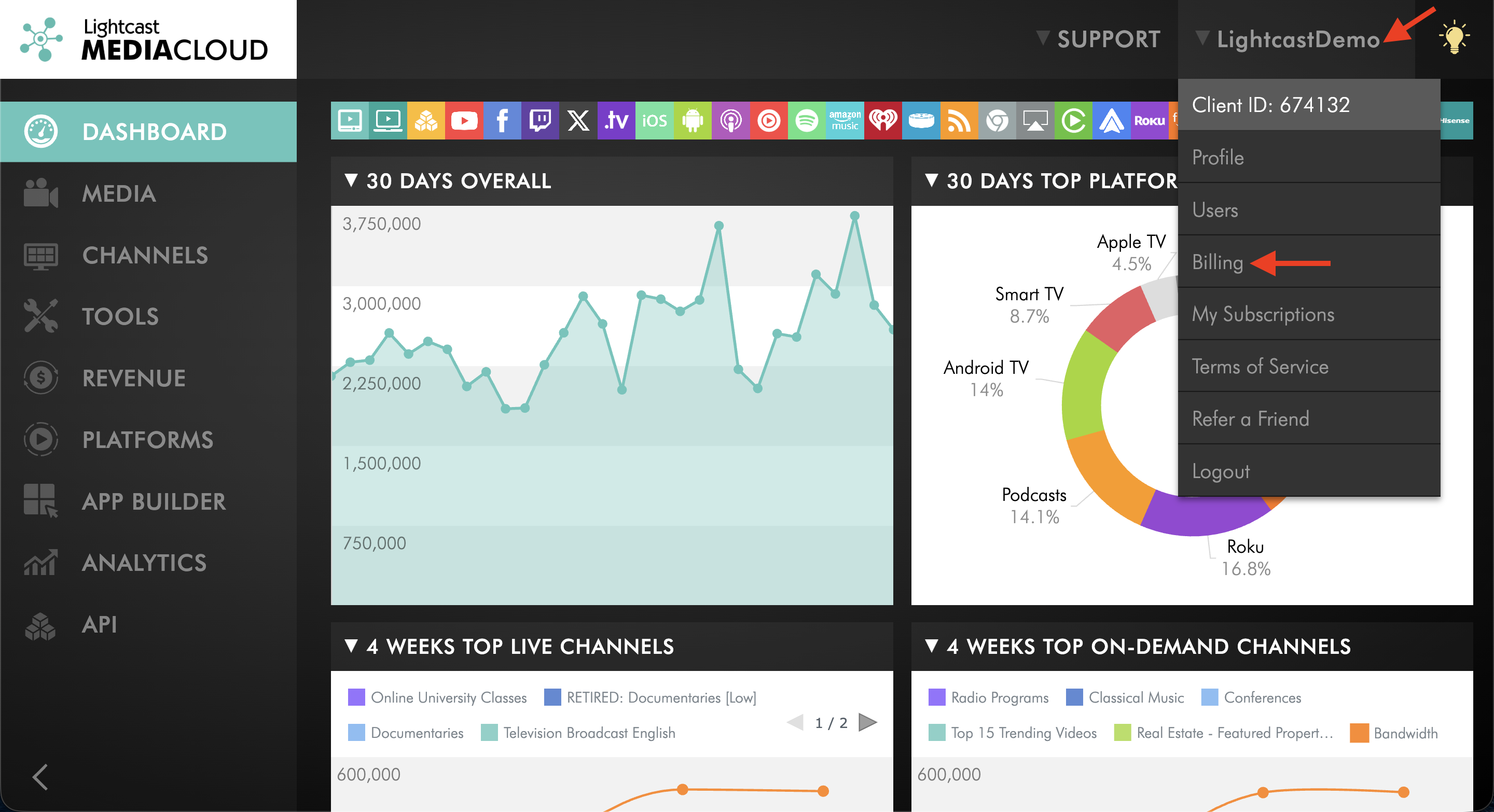
Click your username in the upper-right corner of the Media Cloud, then select Billing.
Step 2
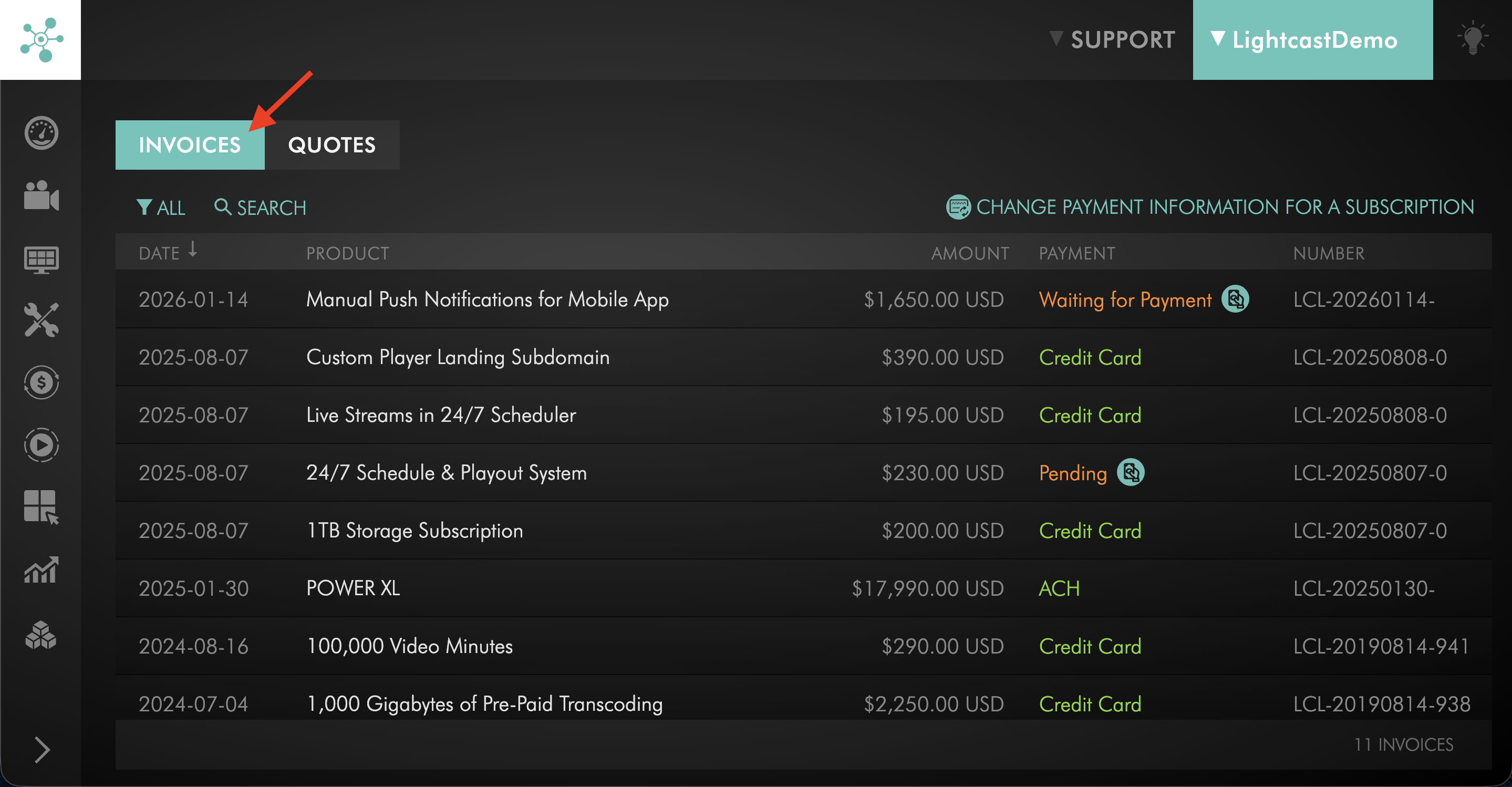
Review the INVOICES page for invoices associated with your account and their current payment status.
Step 3
If your Service Package subscription has an overdue invoice, take the appropriate action based on your payment method:
If an automatic payment failed, review and update your payment information as needed and complete the outstanding payment.
If you pay by wire transfer or manual ACH transfer, arrange payment of the outstanding invoice. If you have already submitted your payment but the invoice is still showing as unpaid, contact Customer Support for assistance.
For more information, see:
After resolving the issue
After replenishing your Video Minutes or resolving an overdue subscription payment, check whether your content is available again in the affected apps, players, or other publishing properties.
If your content remains unavailable, contact Customer Support for assistance.
If your Video Minutes and subscription payments are current
If you have sufficient Video Minutes and your Service Package subscription payments are current, the unavailable content may have another cause.
Continue with the applicable playback or publishing troubleshooting for the affected content, app, or player, or contact Customer Support for assistance.
FAQs
Does a failed subscription payment immediately make my content unavailable?
No. If an automatic subscription payment cannot be processed successfully or a manual payment is not received by its payment due date, a 21-day grace period applies.
Your Lightcast services remain active throughout the grace period.
If the outstanding payment is not resolved by the end of the 21-day grace period, service may be interrupted.
For more information, see Understanding Lightcast's payment terms.
Where can I see my available Video Minutes?
Your available Video Minutes are displayed under DASHBOARD → USAGE → BANDWIDTH in the Media Cloud.
For information about adding Video Minutes or enabling automatic refills, see How to add Video Minutes and enable Overdraft Protection.
What should I do if my Video Minutes are depleted?
Purchase a Video Minutes refill to replenish your available balance.
To help prevent future service interruptions, you can also enable Overdraft Protection. Overdraft Protection automatically purchases a selected refill when your balance reaches the threshold you configure.
For instructions, see How to add Video Minutes and enable Overdraft Protection.
Where can I check whether my subscription payment is overdue?
Open Billing from the menu under your username in the Media Cloud.
The INVOICES page displays the invoices associated with your Lightcast account and their current payment status.
For instructions, see How to find and view your invoices.
Will my content become available again after I add Video Minutes or pay my overdue invoice?
After replenishing your Video Minutes or resolving an overdue subscription payment, check whether your content is available again in the affected apps, players, or other publishing properties.
If your content remains unavailable, contact Customer Support for assistance.
What if my Video Minutes and subscription payments are current but my content is still unavailable?
If your Video Minutes balance is sufficient and your subscription payments are current, another playback, publishing, or configuration issue may be affecting the content.
Continue with the appropriate troubleshooting for the affected content or publishing property, or contact Customer Support for assistance.