
How to add Video Minutes and enable Overdraft Protection
Overview
This article explains how to purchase a one-time Video Minutes refill and enable Overdraft Protection in the Media Cloud.
Use this article if you need additional Video Minutes or want the Media Cloud to automatically add Video Minutes when your available balance reaches a threshold you select.
When to use this article
Use this article when you want to:
Purchase additional Video Minutes through a one-time refill
Enable automatic Video Minutes refills through Overdraft Protection
Configure when automatic refills are triggered and how many Video Minutes are added
Avoid manually monitoring your Video Minutes balance
Prepare for increased viewership during live events or other high-traffic periods
If you regularly need additional Video Minutes, upgrading to a higher Service Package may be more cost-effective. Contact Customer Support to review available options.
How it works
Your available Video Minutes are displayed in the USAGE section of the Media Cloud DASHBOARD. Video Minutes represent the bandwidth available for viewers to watch your video and live-streaming content.
Lightcast sends low-balance notifications when your available Video Minutes fall below 20,000, 10,000, and 5,000 Video Minutes. These notifications are sent to the applicable primary account and technical contacts.
Low-balance notifications help you monitor usage but do not automatically add Video Minutes. To enable automatic refills, you must activate Overdraft Protection.
Maintaining additional Video Minutes in your account can provide a buffer for unexpected increases in viewership.
One-time Video Minutes refills
A one-time refill allows you to manually purchase additional Video Minutes and add them to your available balance.
Purchasing a refill does not enable automatic future purchases. Additional Video Minutes purchased as a refill do not expire.
Overdraft Protection
Overdraft Protection helps maintain your available Video Minutes by automatically purchasing an additional refill when your balance reaches a threshold you select.
When setting up Overdraft Protection, you choose:
The Video Minutes balance that triggers a refill
The number of Video Minutes to add when that threshold is reached
This provides a buffer for increases in viewership, such as a highly viewed live event or on-demand video, and helps keep your streaming content available without requiring you to manually monitor and refill your Video Minutes balance.
A valid payment method must remain associated with your Lightcast account to use Overdraft Protection. Your payment method can be a credit card or ACH account.
By enabling Overdraft Protection, you authorize the Media Cloud to process the selected Video Minutes refill when your balance reaches the threshold you configured.
Important: Overdraft Protection automatically purchases additional Video Minutes whenever your balance reaches the configured threshold. Depending on your usage, multiple refills and corresponding charges may occur within the same billing period. Each refill is charged according to the selected refill amount and applicable pricing.
Instructions
Add Video Minutes with a one-time refill
Step 1
Log in to your Media Cloud account.
Step 2
From the DASHBOARD, locate the USAGE section.
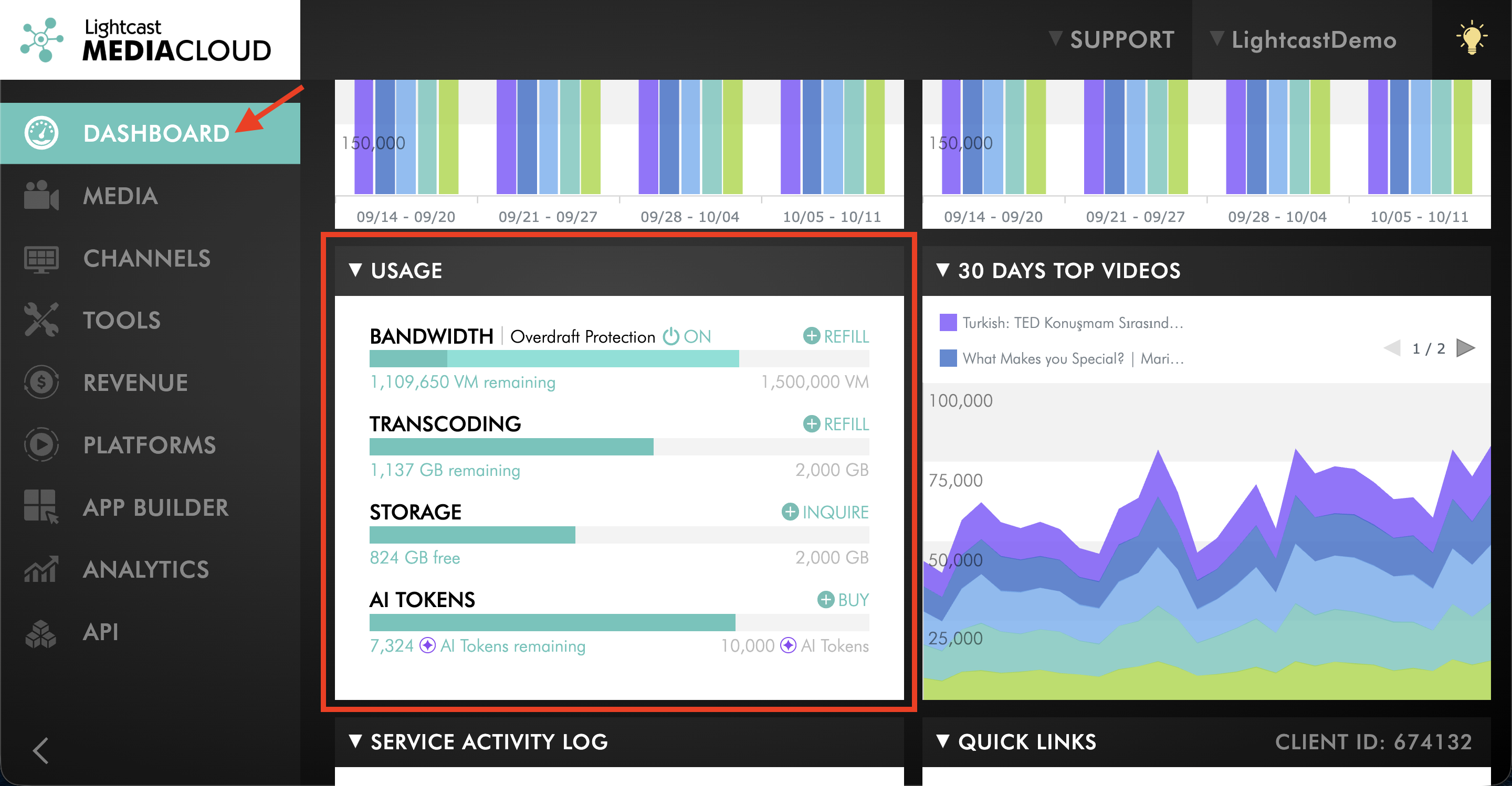
Step 3
Locate your Video Minutes balance under BANDWIDTH, then select REFILL.
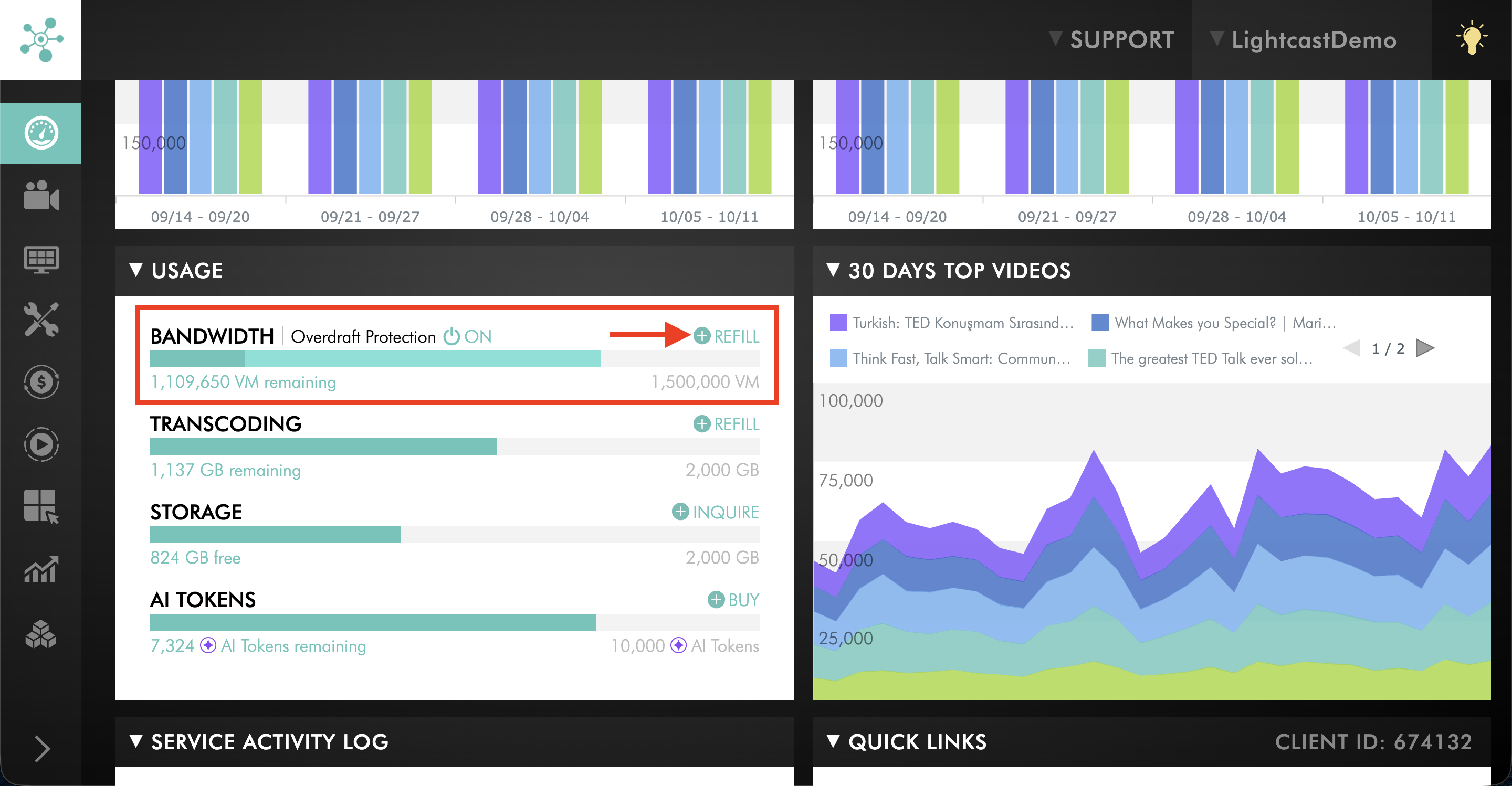
Step 4
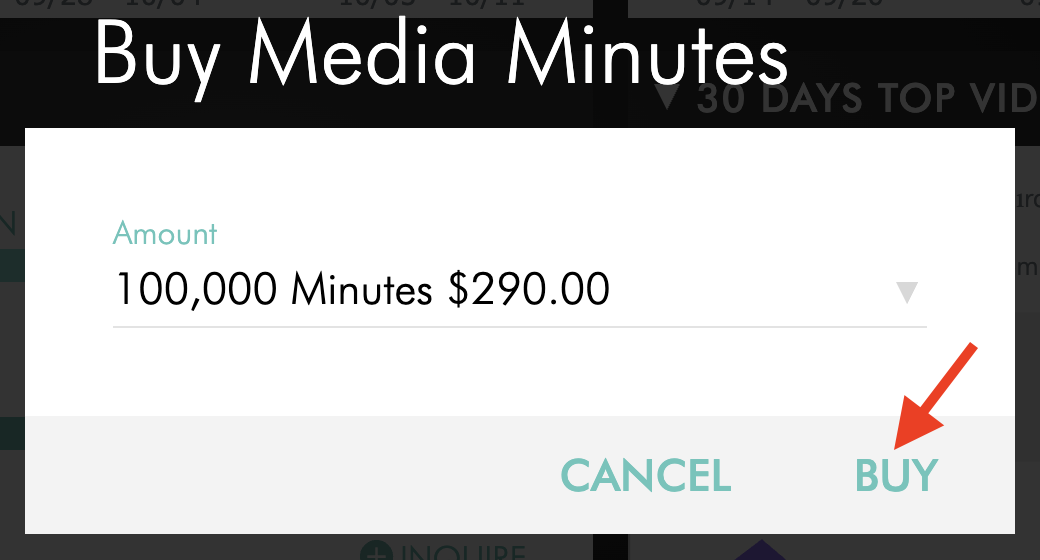
Select the number of Video Minutes you want to add.
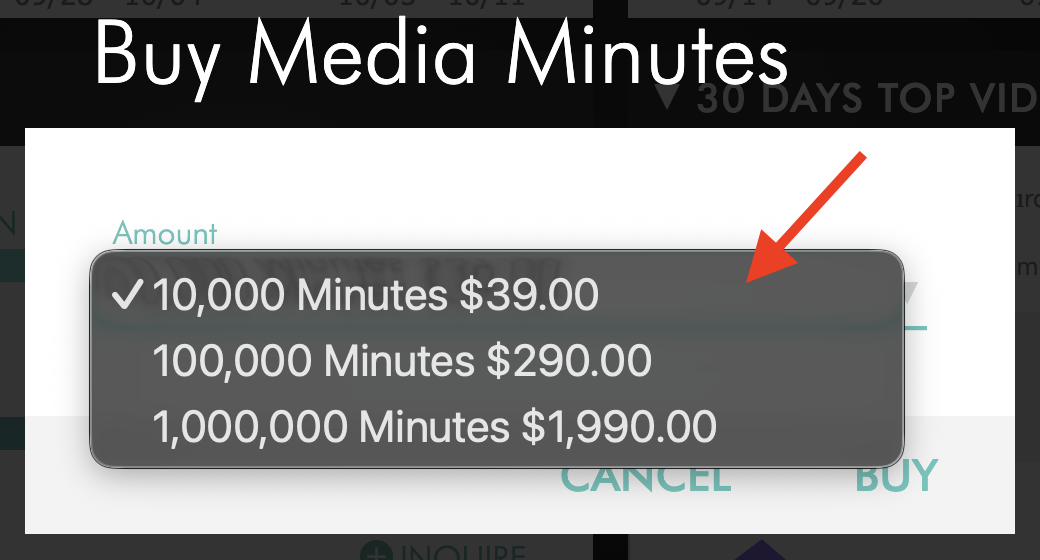
Step 5
Review the purchase details and applicable charge.
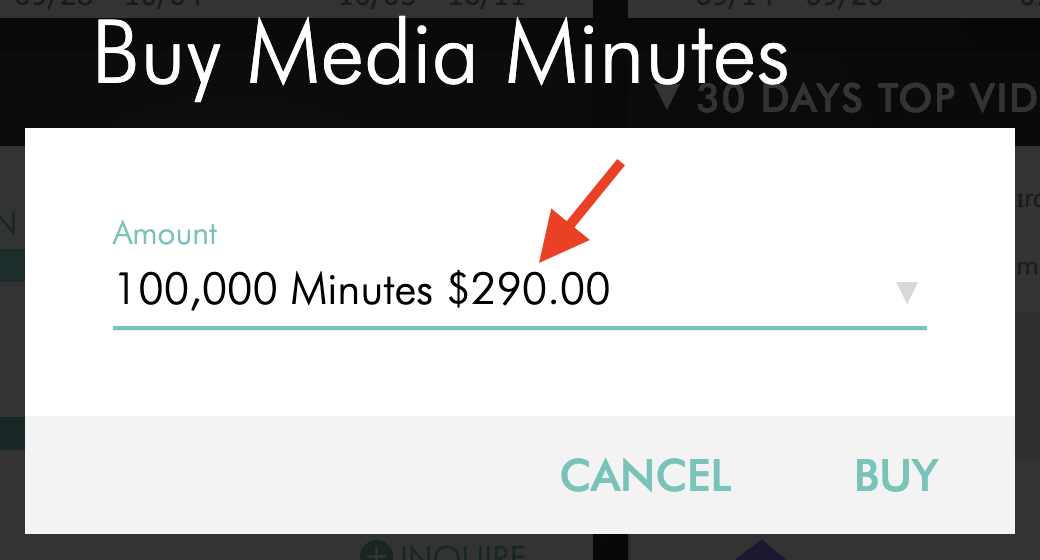
Step 6
Select BUY to confirm the purchase to add the Video Minutes to your account.
The selected Video Minutes will be added to your available balance as a one-time refill.
Enable Overdraft Protection
Step 1
Log in to your Media Cloud account.
Step 2
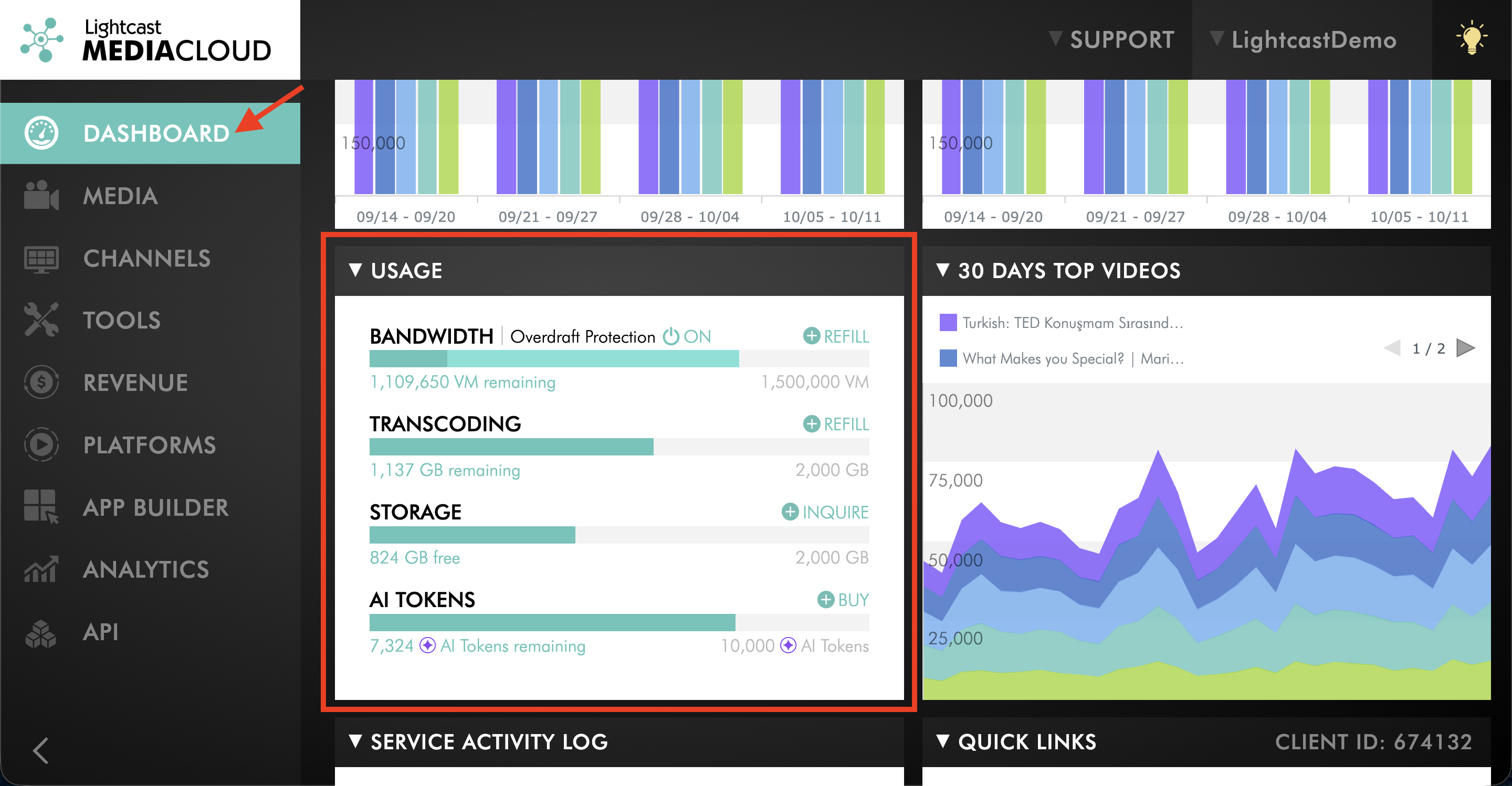
On the DASHBOARD, locate the USAGE section.
Step 3
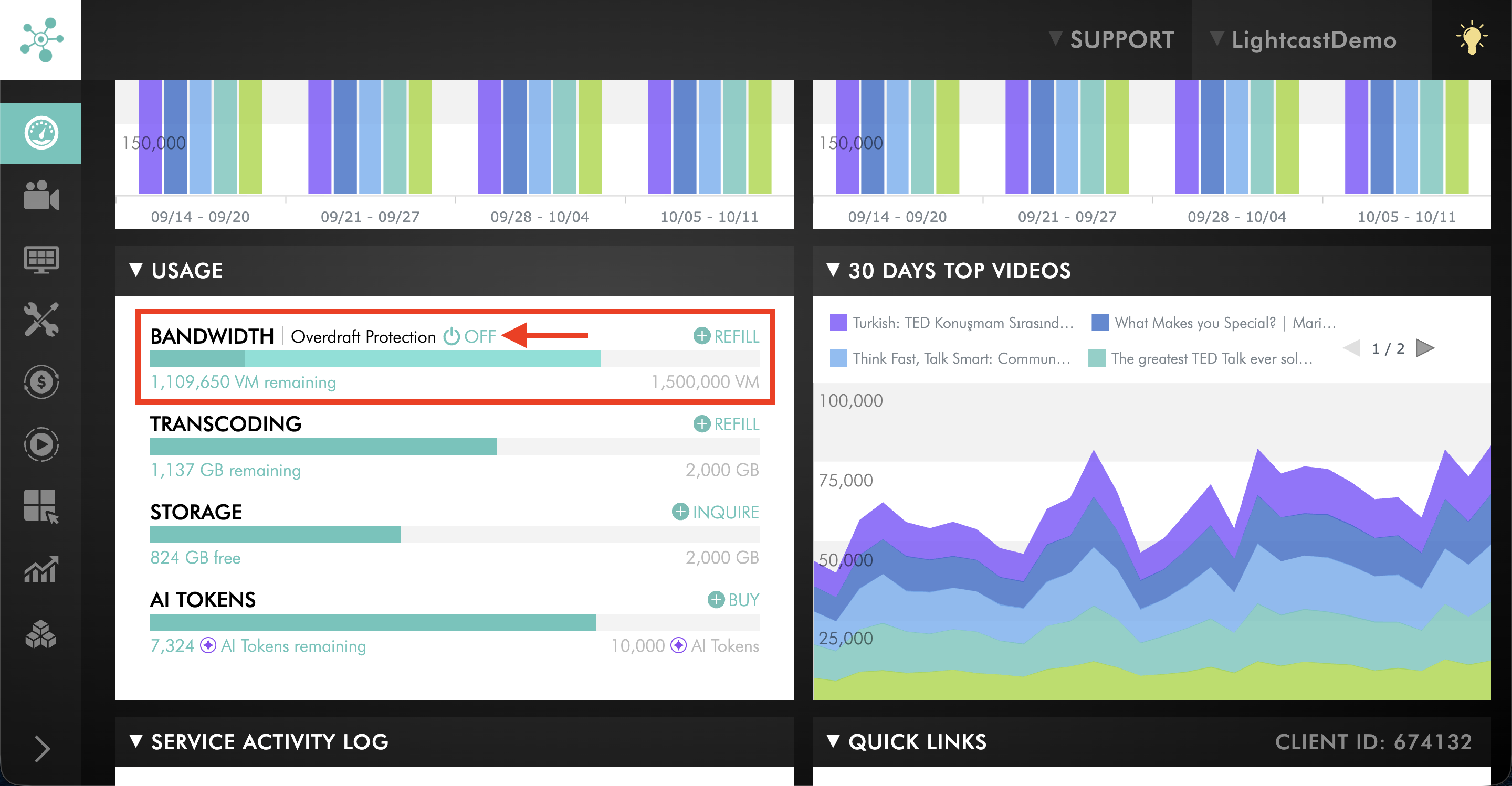
Under BANDWIDTH, click the Overdraft Protection control.
Step 4
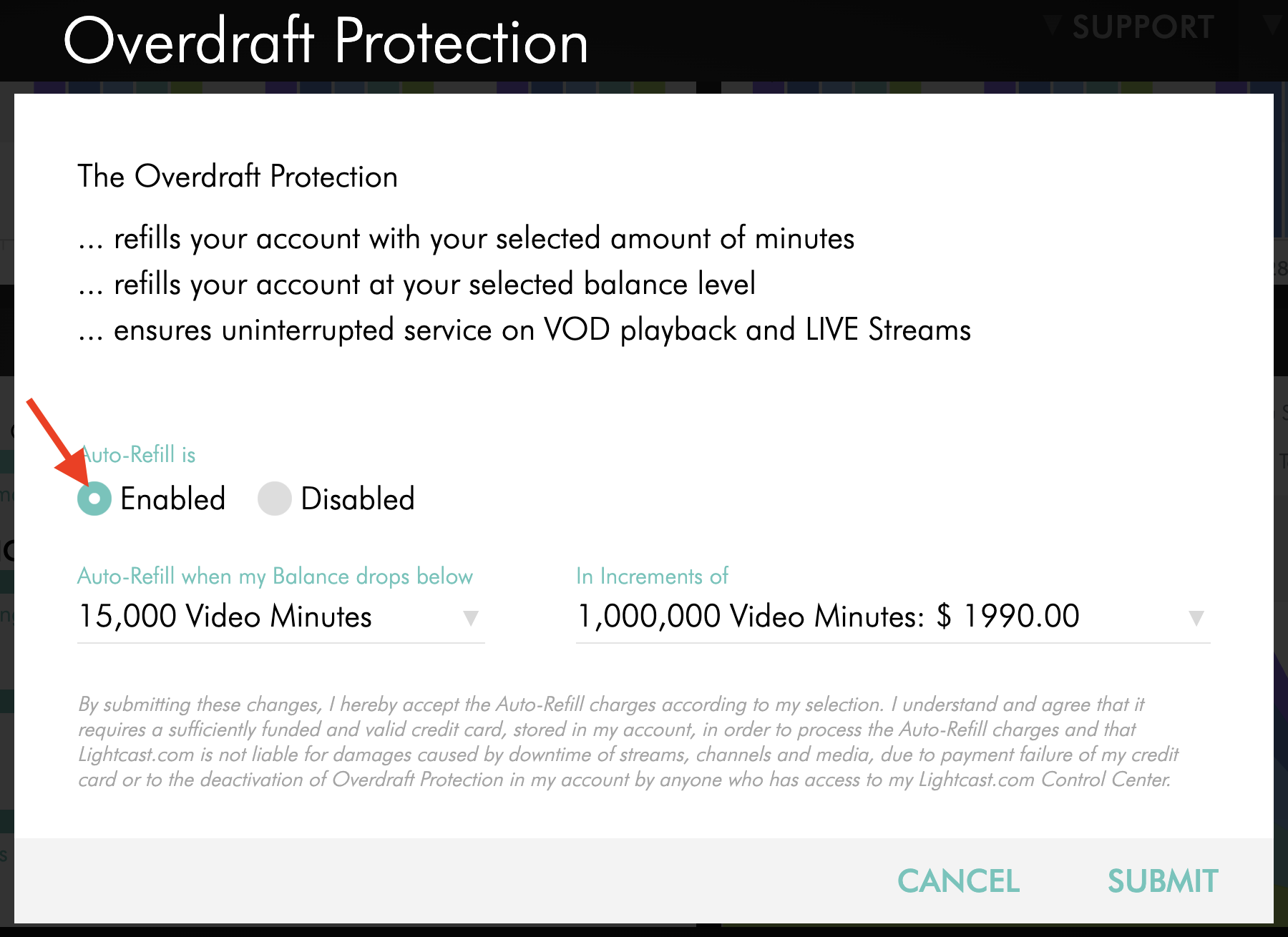
Under Auto-Refill is, select Enabled.
Step 5
Under Auto-Refill when my Balance drops below, select the Video Minutes balance that should trigger an automatic refill.
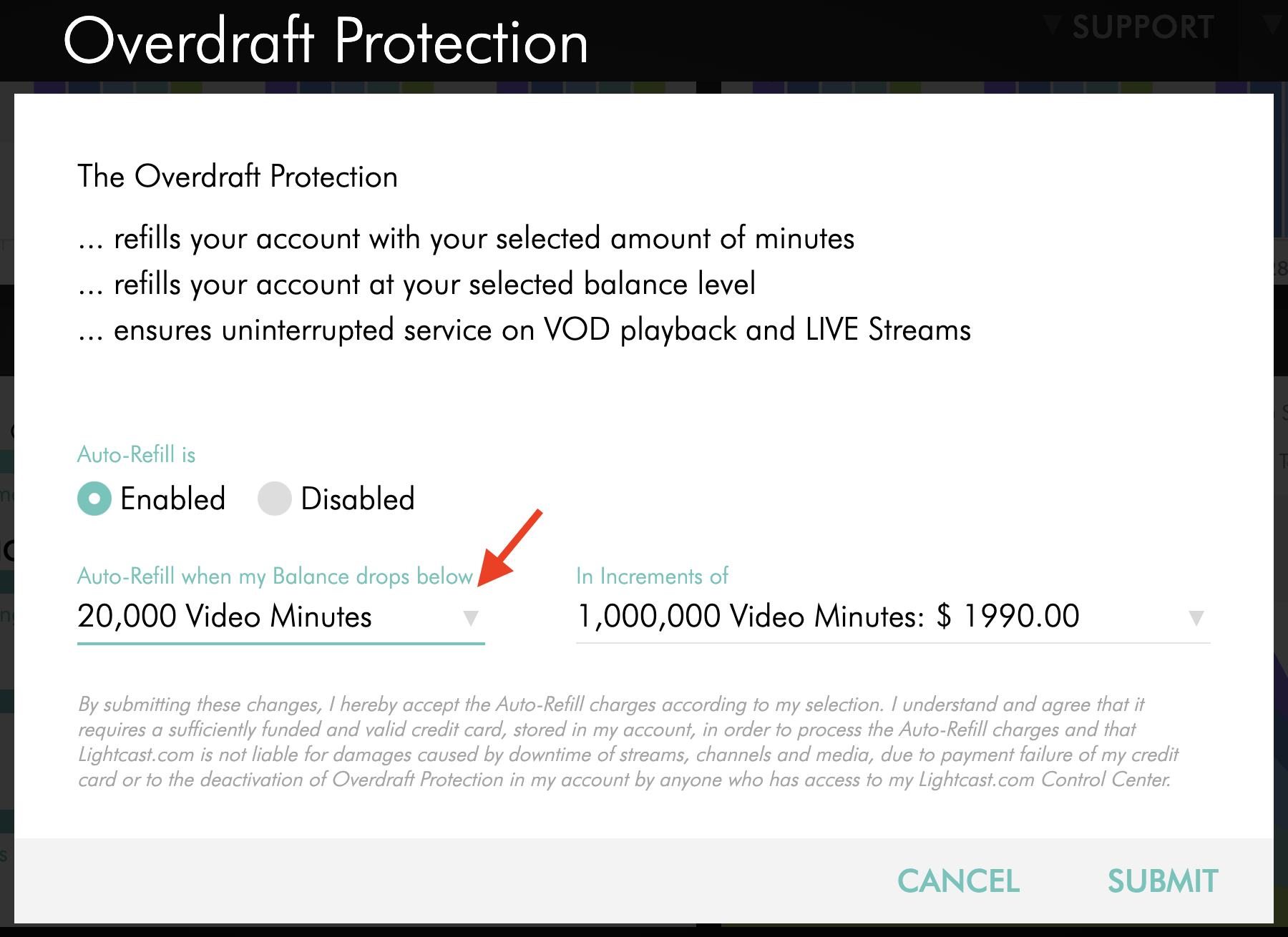
Step 6
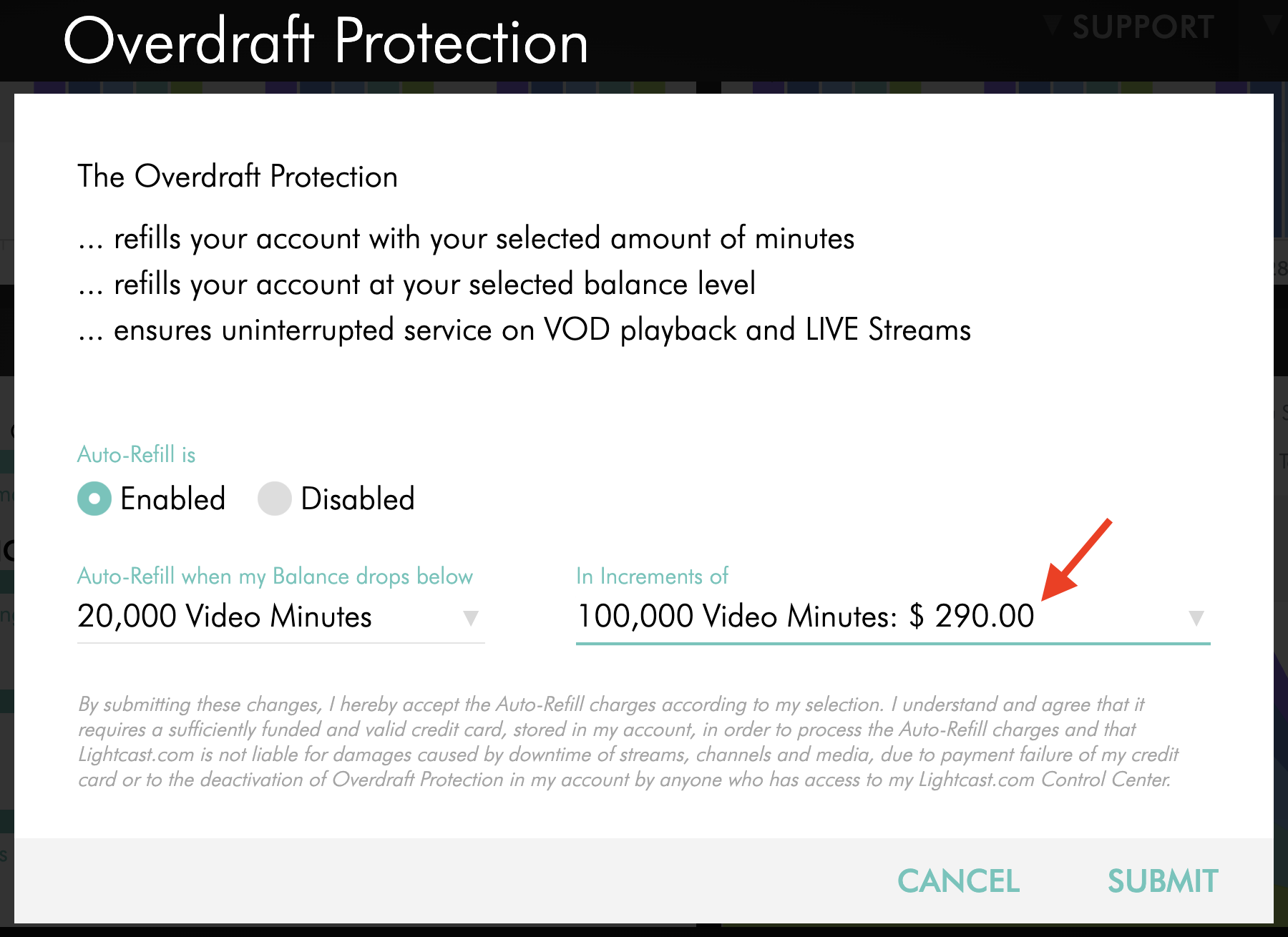
Under In Increments of, select the number of Video Minutes you want automatically added when the balance reaches your selected threshold.
The applicable refill price is displayed with the selected Video Minutes amount.
Step 7
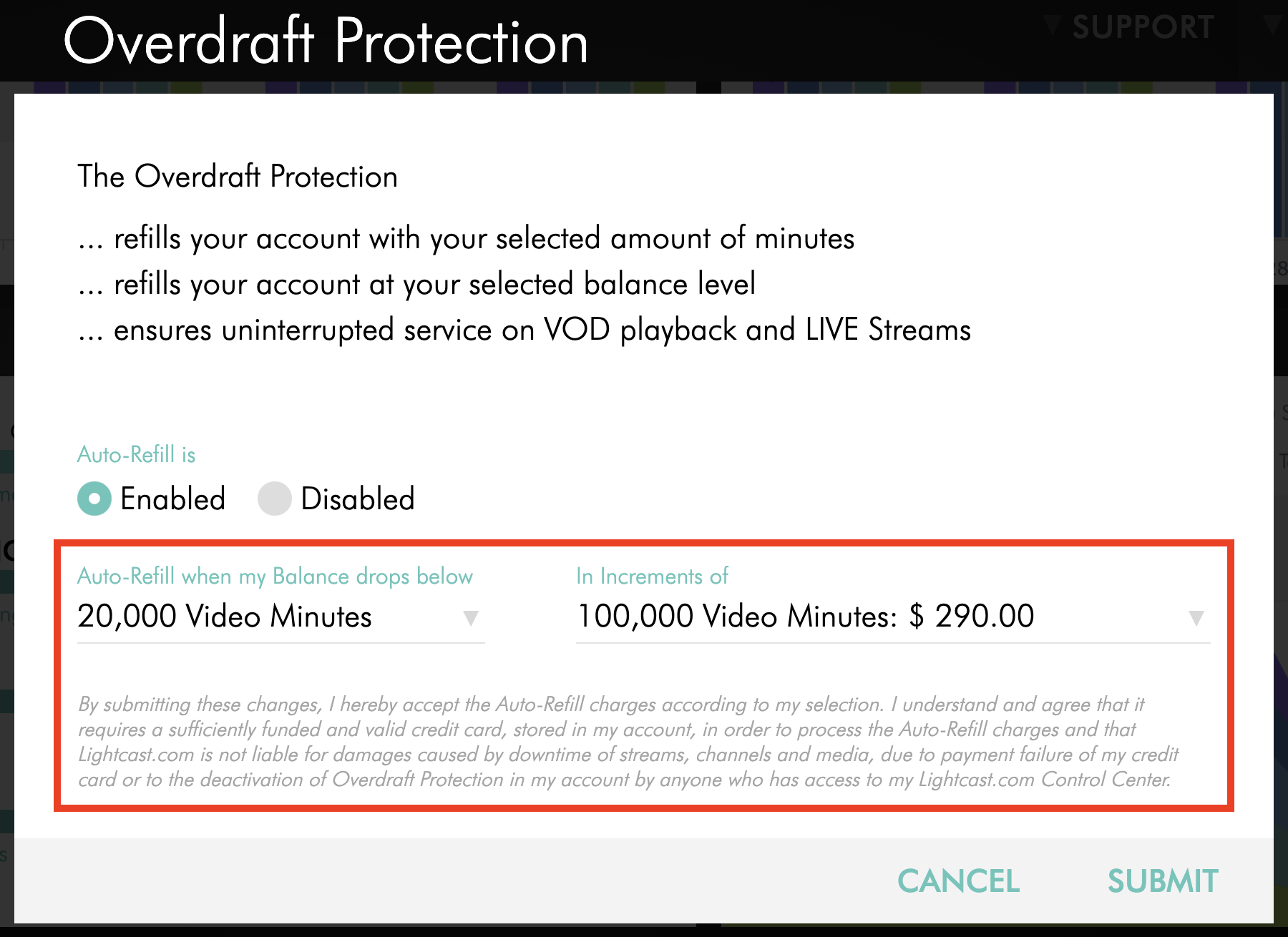
Review your selections and the Auto-Refill authorization information.
Step 8
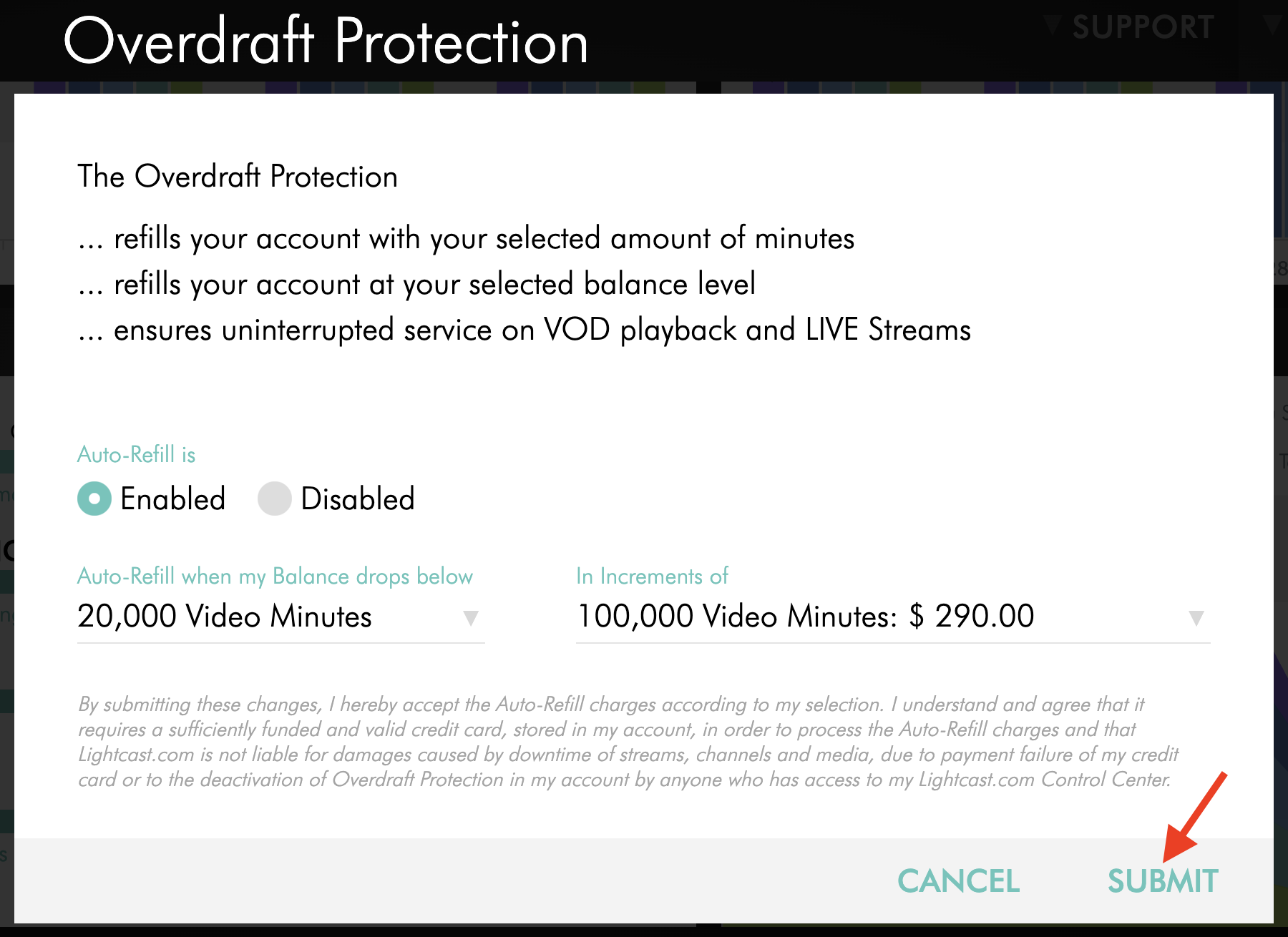
Click SUBMIT.
Once enabled, ON appears next to Overdraft Protection under BANDWIDTH in the USAGE section. The Media Cloud will automatically add the selected Video Minutes refill whenever your balance reaches the threshold you configured.
Disable Overdraft Protection
Step 1
Log in to your Media Cloud account.
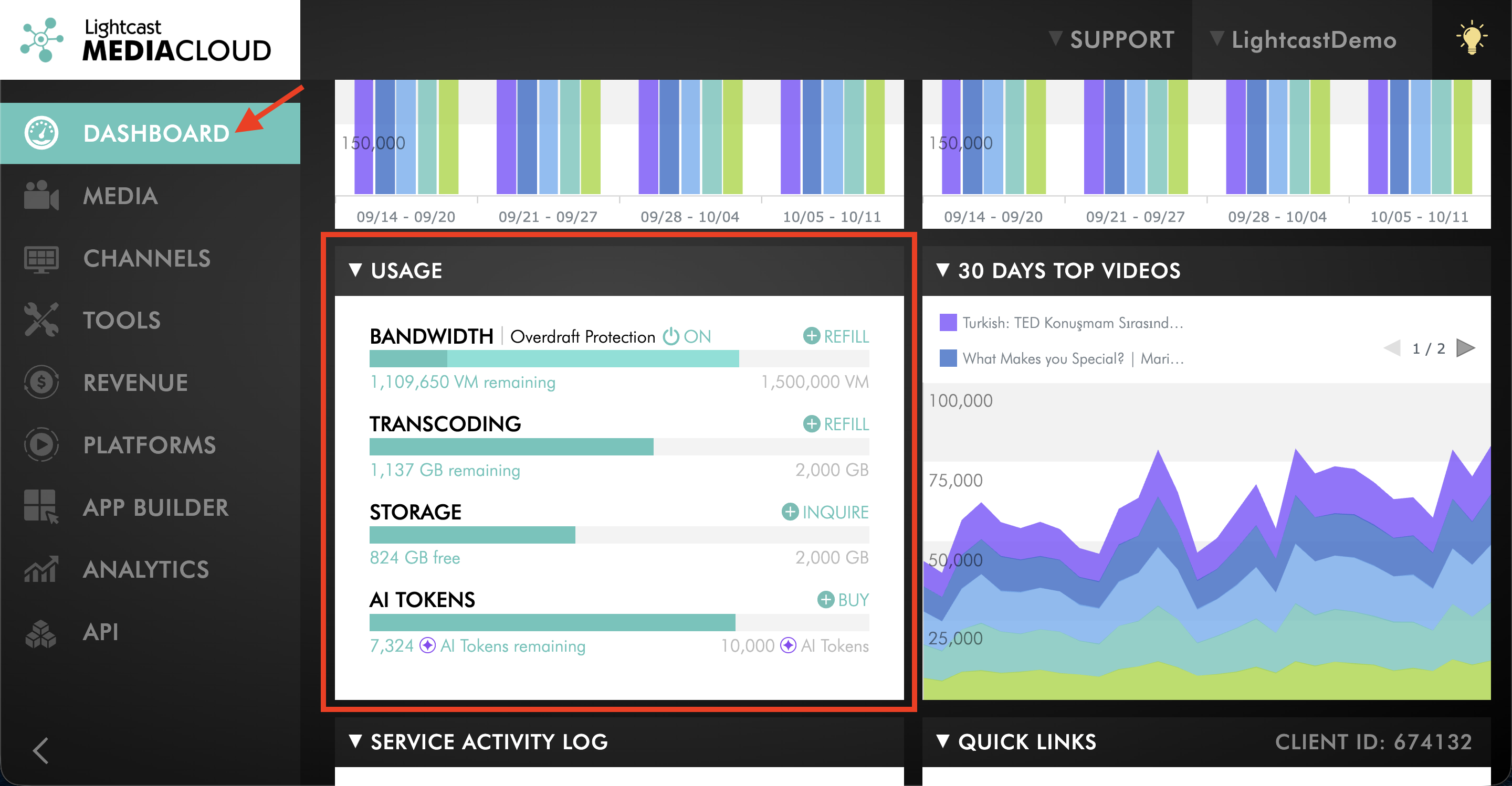
Step 2
On the DASHBOARD, locate the USAGE section.
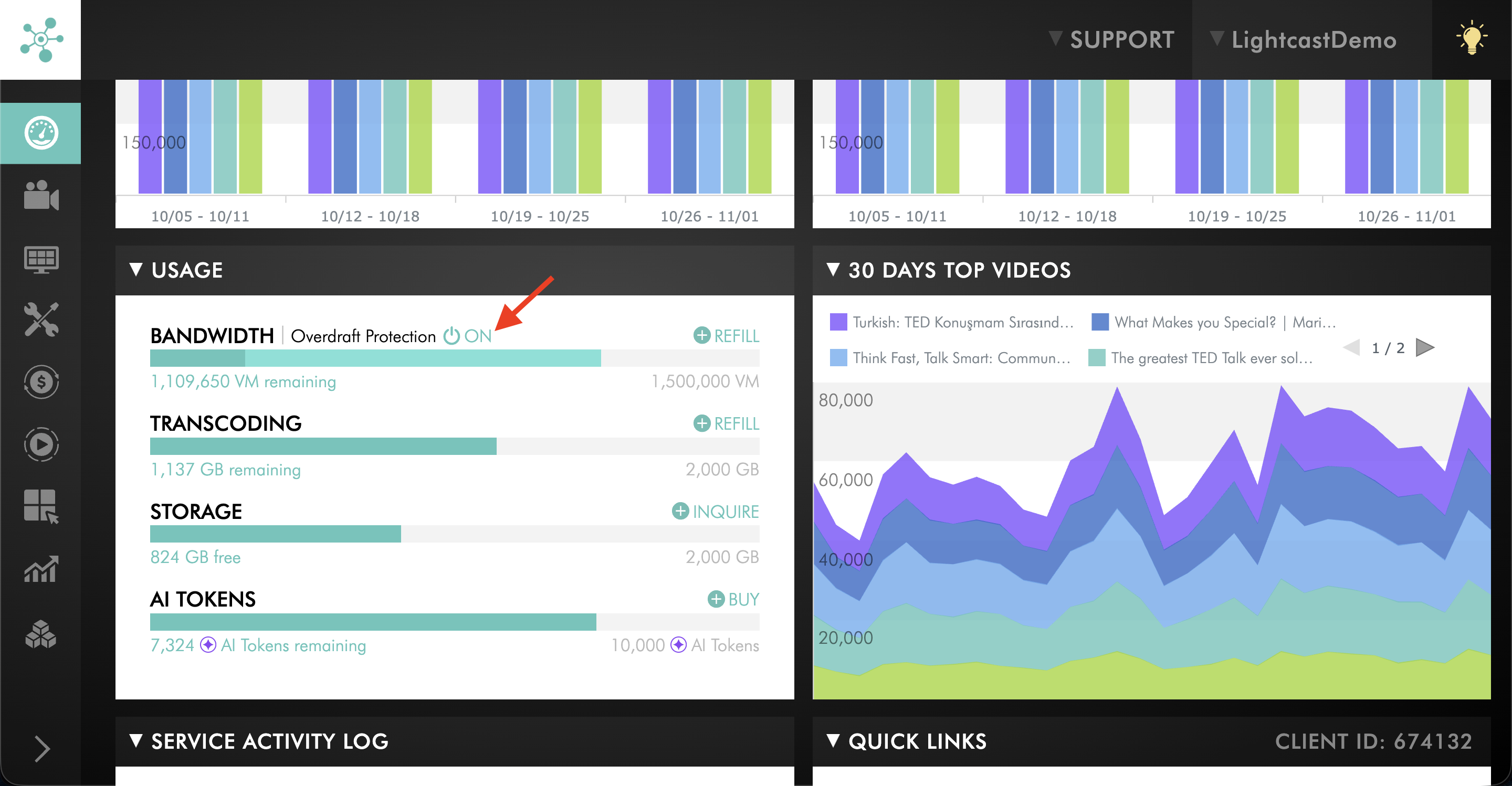
Step 3
Under BANDWIDTH, click the Overdraft Protection control.
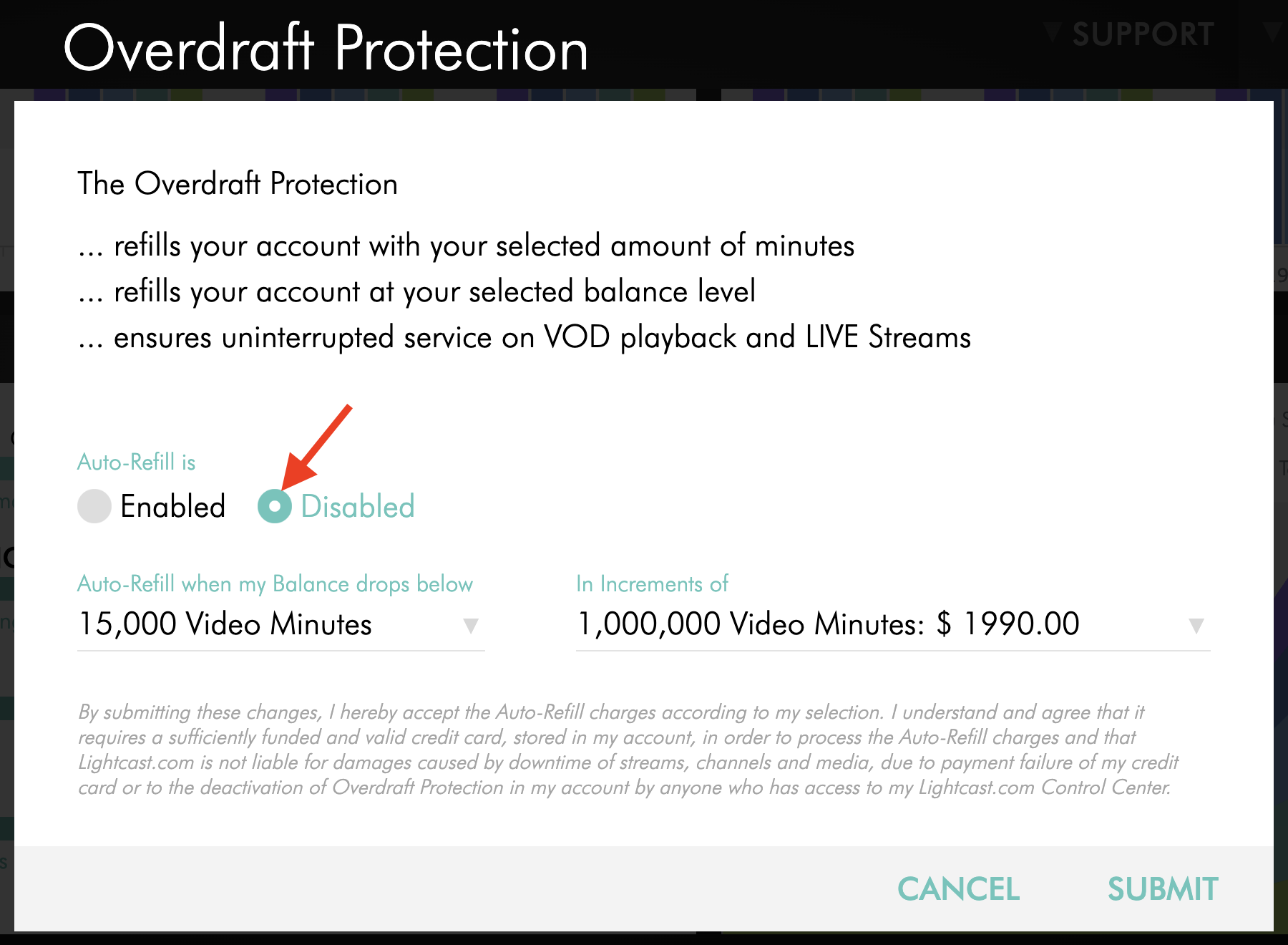
Step 4
Under Auto-Refill is, select Disabled.
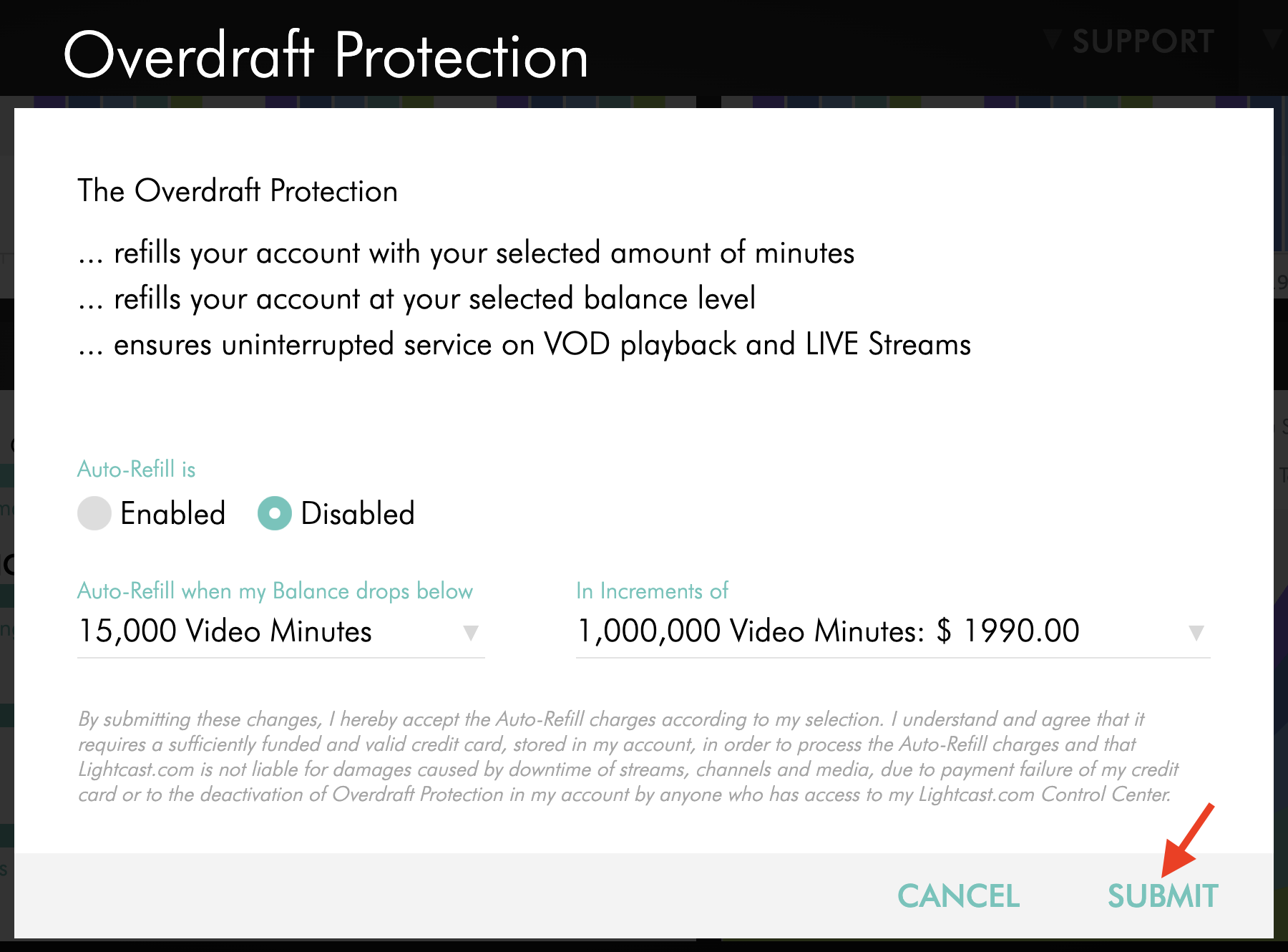
Step 5
Click SUBMIT to save the change.
Once disabled, Overdraft Protection will no longer automatically purchase additional Video Minutes when your balance reaches the previously configured threshold.
FAQs
What is the difference between a one-time Video Minutes refill and Overdraft Protection?
A one-time refill adds Video Minutes when you manually purchase them.
Overdraft Protection automatically purchases and adds the refill amount you selected whenever your balance reaches your configured threshold.
Can I customize when and how many Video Minutes are automatically added?
Yes. When configuring Overdraft Protection, you select both:
The Video Minutes balance that triggers the automatic refill
The number of Video Minutes added when that threshold is reached
Can Overdraft Protection result in multiple charges?
Yes. Overdraft Protection purchases an additional refill each time your Video Minutes balance reaches the configured threshold.
Depending on your usage, multiple refills and corresponding charges may occur within the same billing period. Each refill is charged according to the selected refill amount and applicable pricing.
How do I disable Overdraft Protection?
Go to the USAGE section of the Media Cloud DASHBOARD, open the Overdraft Protection settings under BANDWIDTH, select Disabled under Auto-Refill is, and click SUBMIT.
After Overdraft Protection is disabled, the Media Cloud will no longer automatically purchase refills when your Video Minutes balance reaches the previously configured threshold.
Do purchased Video Minutes expire?
No. Video Minutes purchased through a one-time refill or Overdraft Protection do not expire.
Can purchased Video Minutes be refunded?
Purchased Video Minutes are non-refundable.
Video Minutes purchased through a one-time refill or Overdraft Protection do not expire and remain available for future use.