
How to pay a single invoice with a different payment method
Overview
This article explains how to pay a single open invoice in the Media Cloud using a different credit card or ACH account without changing the payment method saved for future recurring subscription payments.
When to use a different payment method for a single invoice
Use this article when you want to pay an individual invoice using a different payment method without changing the payment method saved for your recurring subscription payments.
This may be helpful if you want to:
Pay an invoice with a different credit card.
Pay an invoice directly from a U.S. bank account using ACH.
Settle an overdue invoice without changing your recurring subscription payment method.
Use an alternate payment method for one payment only.
If you want to change the payment method used for future subscription payments, see How to update the credit card used for your subscription or How to switch your subscription payments from credit card to ACH.
How it works
You can pay an individual invoice using a different credit card or ACH account without changing the payment method saved for your recurring subscription payments.
The alternate payment method applies only to the selected invoice. Future recurring subscription payments will continue using the payment method already saved for your subscription.
Available payment methods
Credit Card (Recommended)
Credit card payments are the recommended option because they are generally processed faster than ACH payments. This makes them particularly useful when you need to settle an overdue invoice or restore services that have been interrupted due to nonpayment.
ACH (US Only)
ACH, or Automated Clearing House, allows you to pay an invoice directly from a U.S. bank account.
ACH payments typically take 4–6 business days to settle.
If your services have expired or require immediate renewal, Lightcast recommends using a credit card to help avoid potential delays associated with ACH processing.
Invoice payment options
The available payment options depend on the invoice status:
Waiting for Payment: Click the alternate payment icon next to the invoice to open the Pay Invoice window directly.
Pending: Hover over the alternate payment icon and select Use Alternate Payment for this Invoice Only to open the Pay Invoice window.
Both options allow you to pay the selected invoice without changing your recurring subscription payment method.
Instructions
Pay an invoice with a Waiting for Payment status
Step 1
Log in to your Media Cloud account.
Step 2
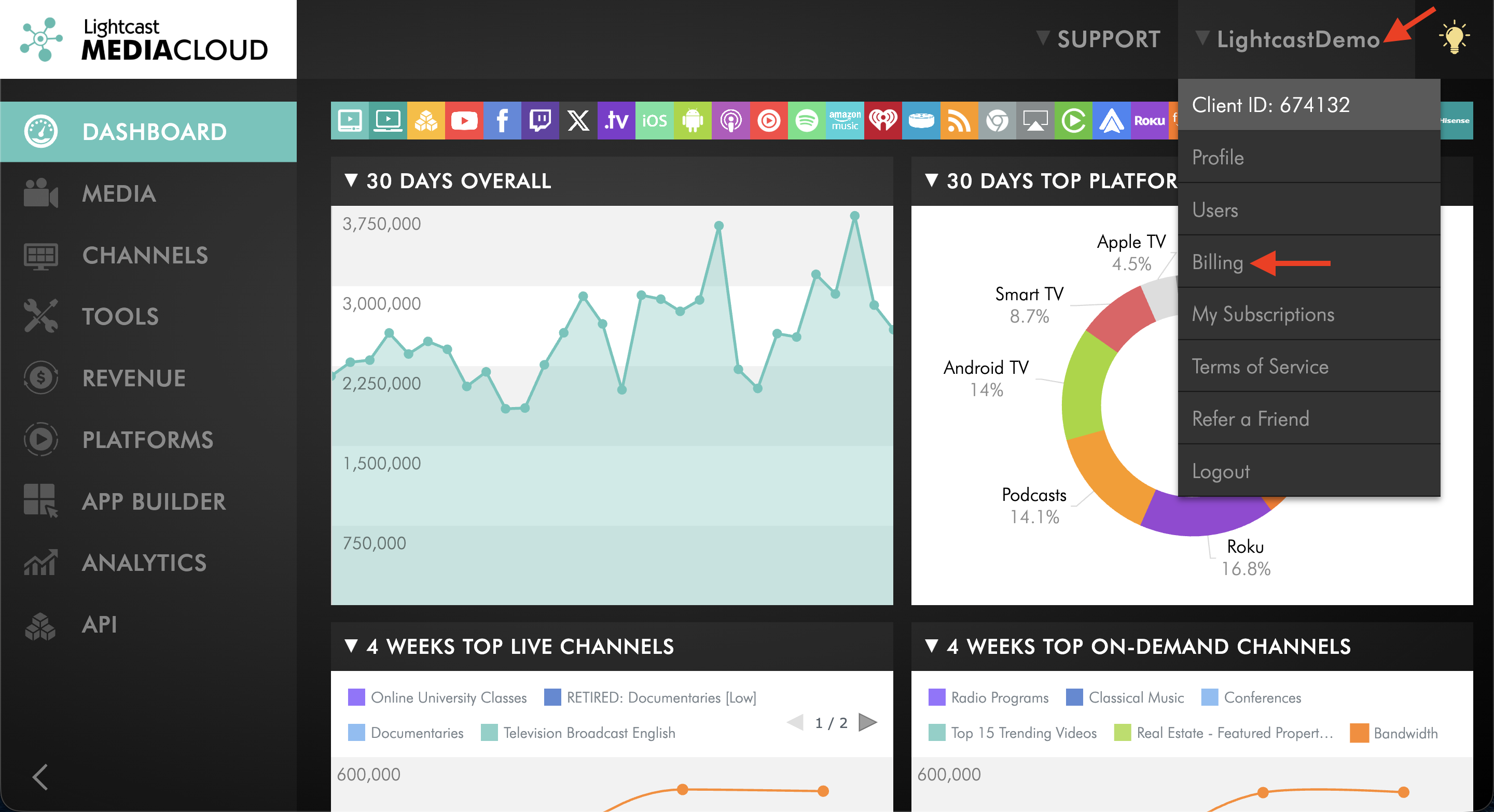
In the upper-right corner, click your username, then select Billing.
Step 3
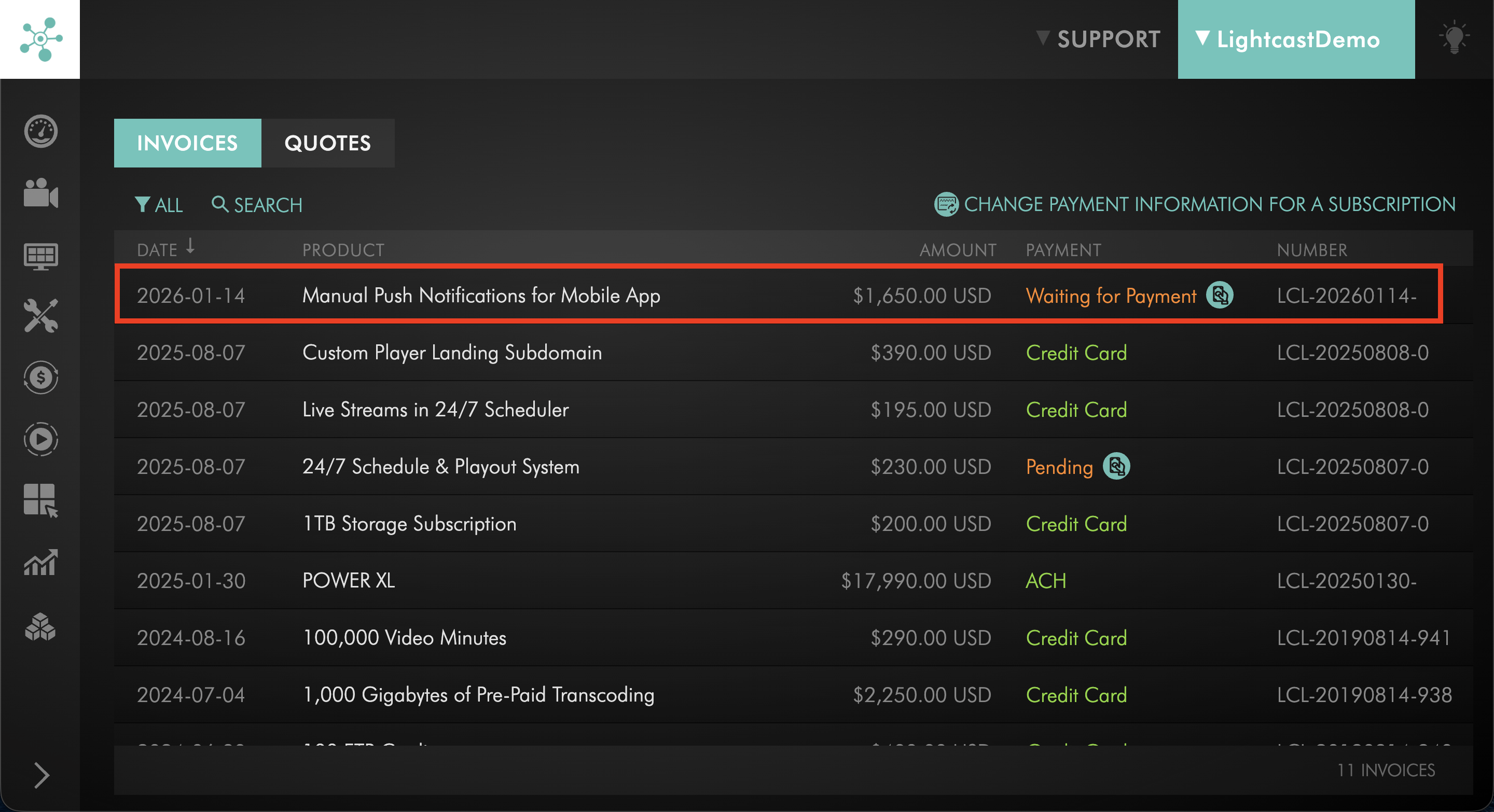
Locate the invoice with a Waiting for Payment status that you want to pay.
Step 4
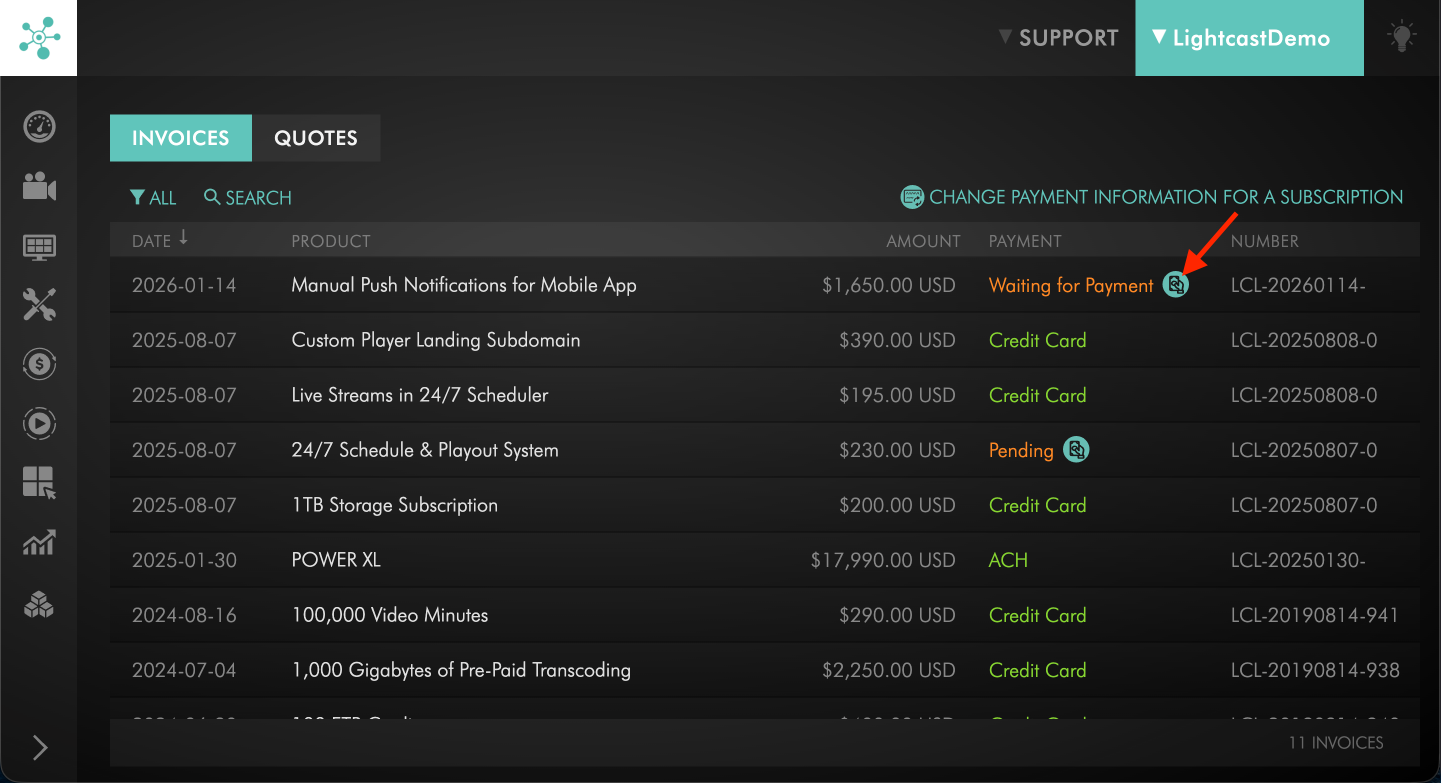
Next to the invoice, click the alternate payment icon.
Step 5
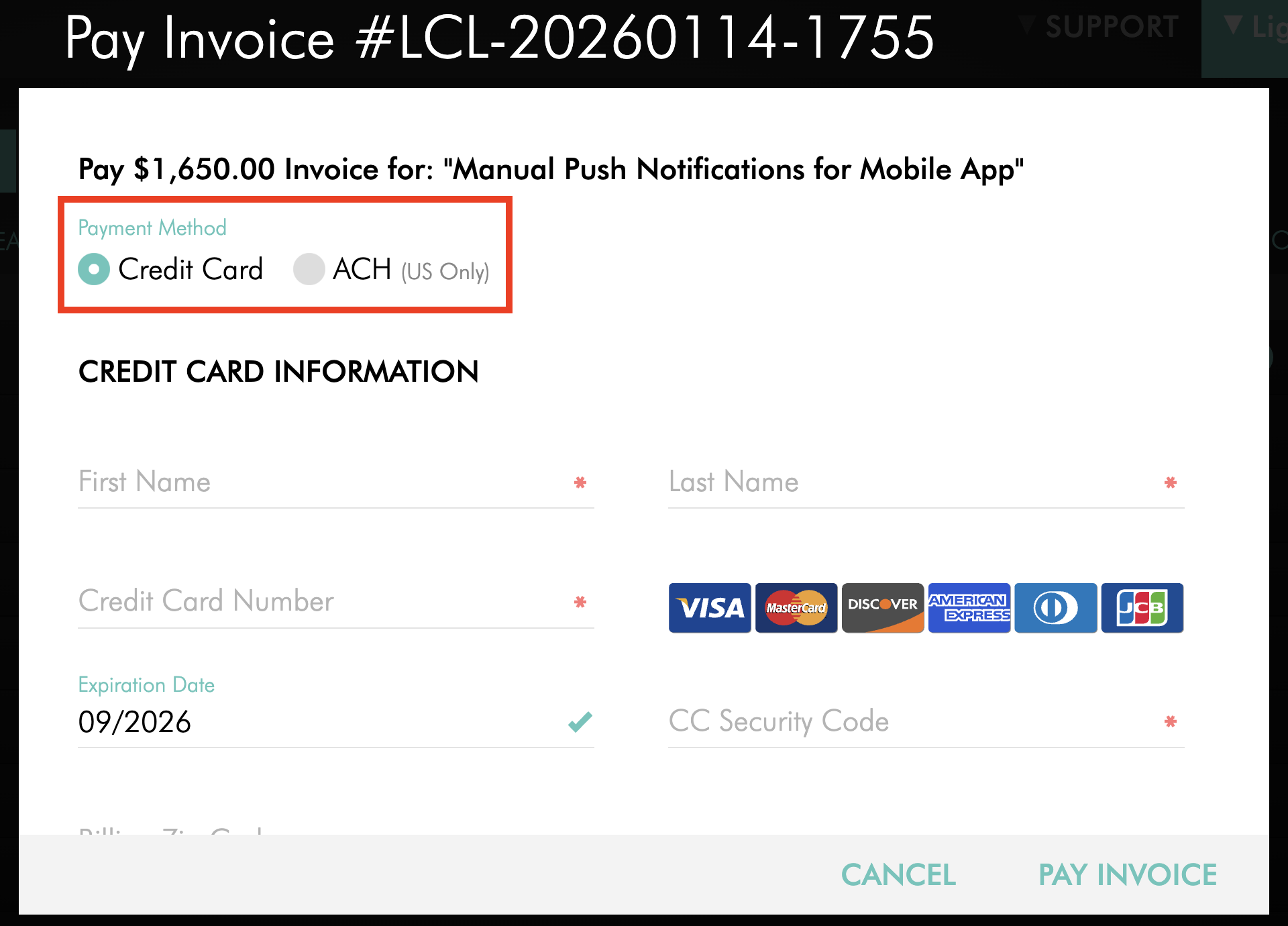
In the Pay Invoice window, select your preferred payment method:
Credit Card (Recommended) — For faster payment processing.
ACH (US Only) — For payments directly from a U.S. bank account.
Step 6
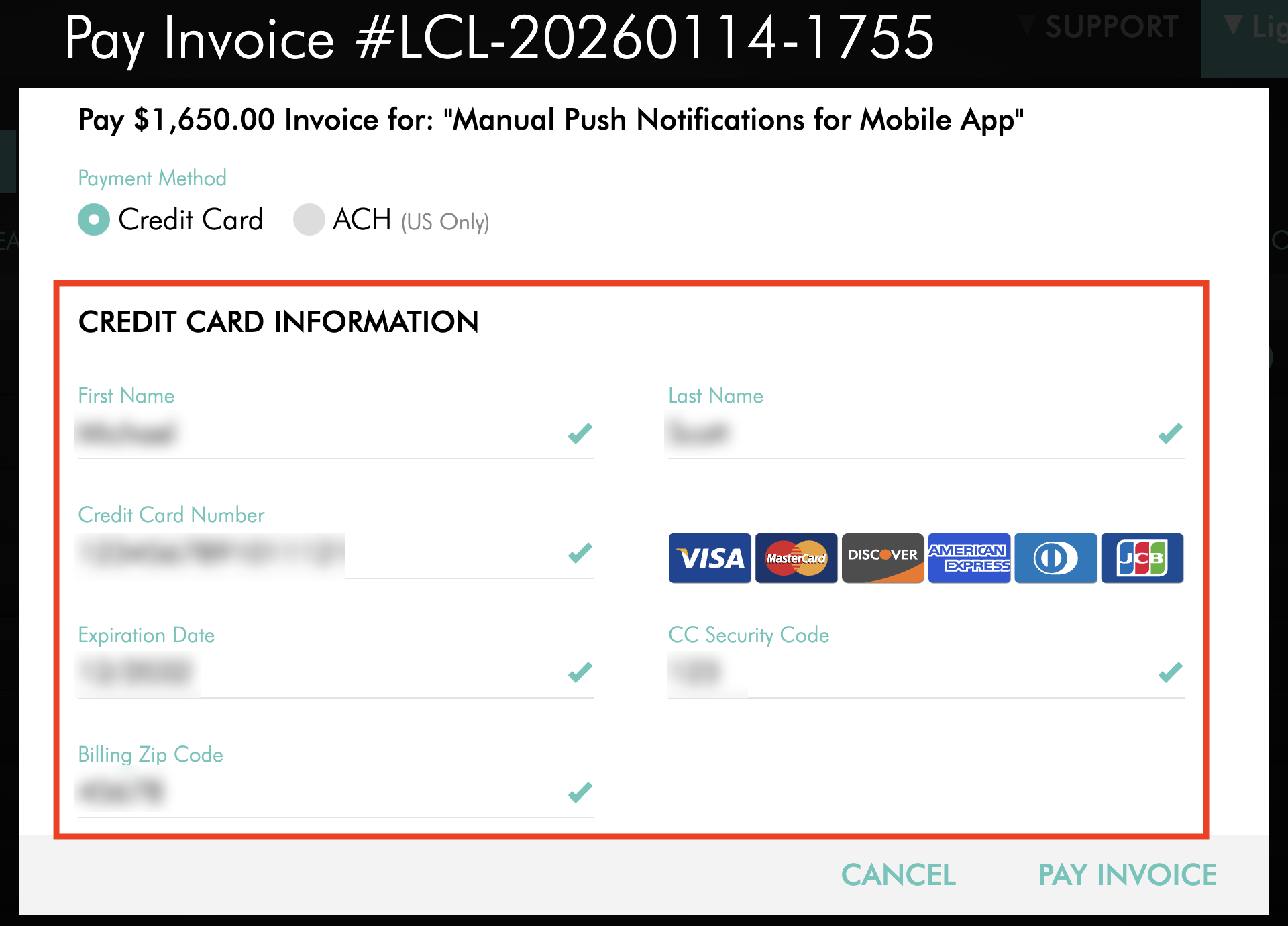
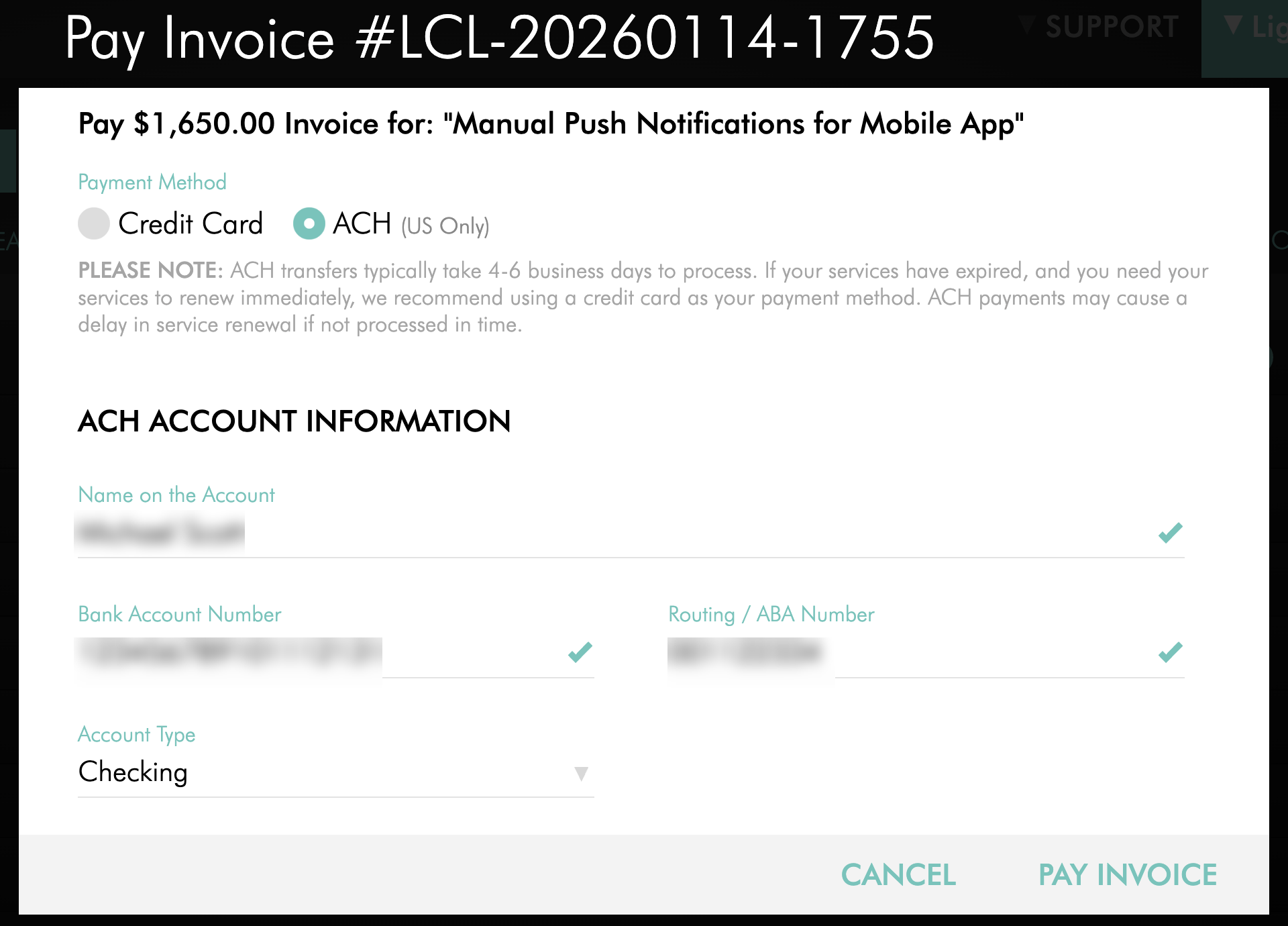
Enter the required payment information.
If you select Credit Card, enter the requested credit card and billing information.
If you select ACH (US Only), enter the requested bank account information.
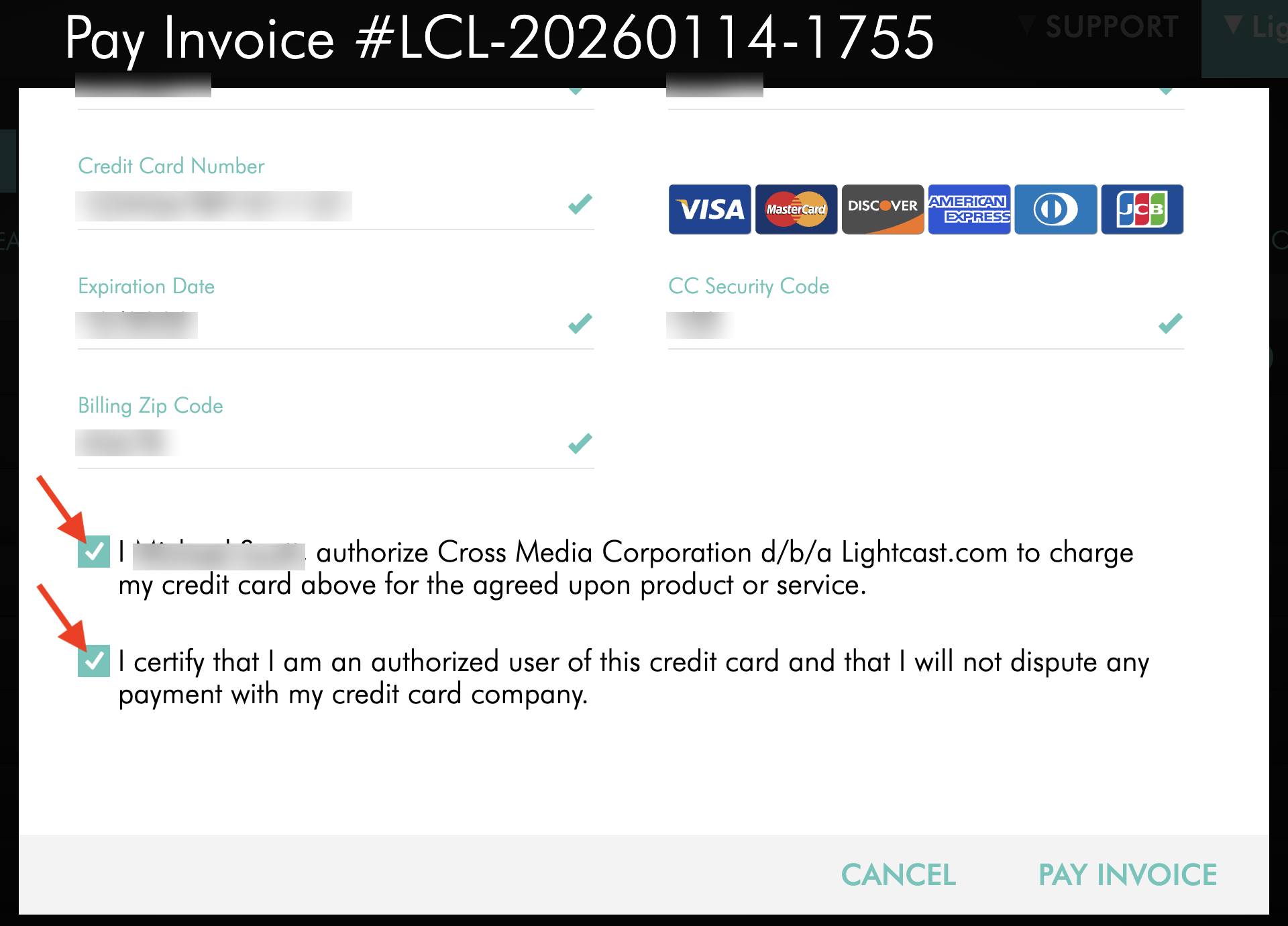
Step 7
Review and select the required authorization and consent checkboxes.
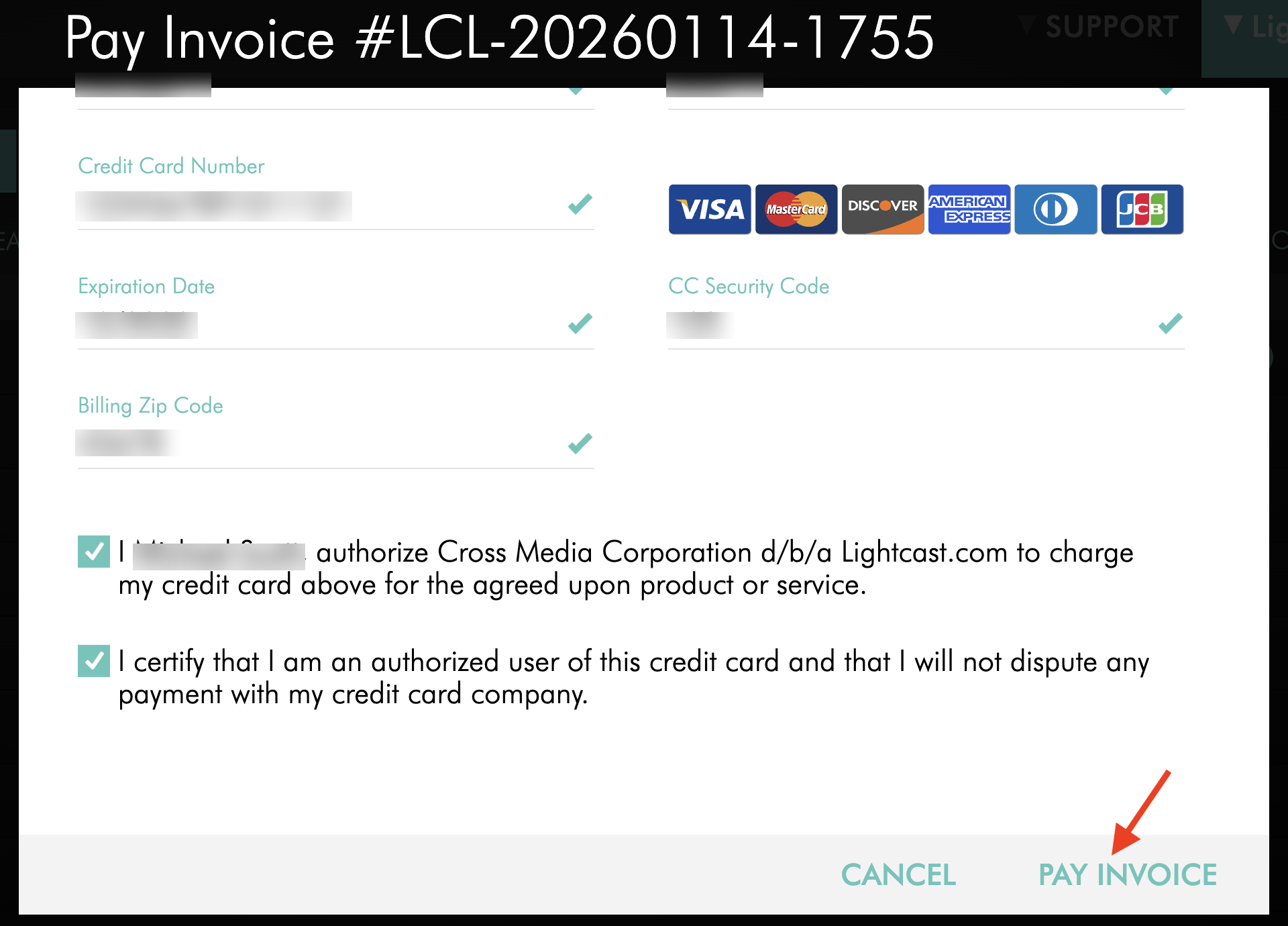
Step 8
Click PAY INVOICE to complete the transaction.
The selected payment method will apply only to this invoice. Your recurring subscription payment method will remain unchanged.
If you selected ACH, allow 4–6 business days for the payment to settle.
Pay an invoice with a Pending status
Step 1
Log in to your Media Cloud account.
Step 2
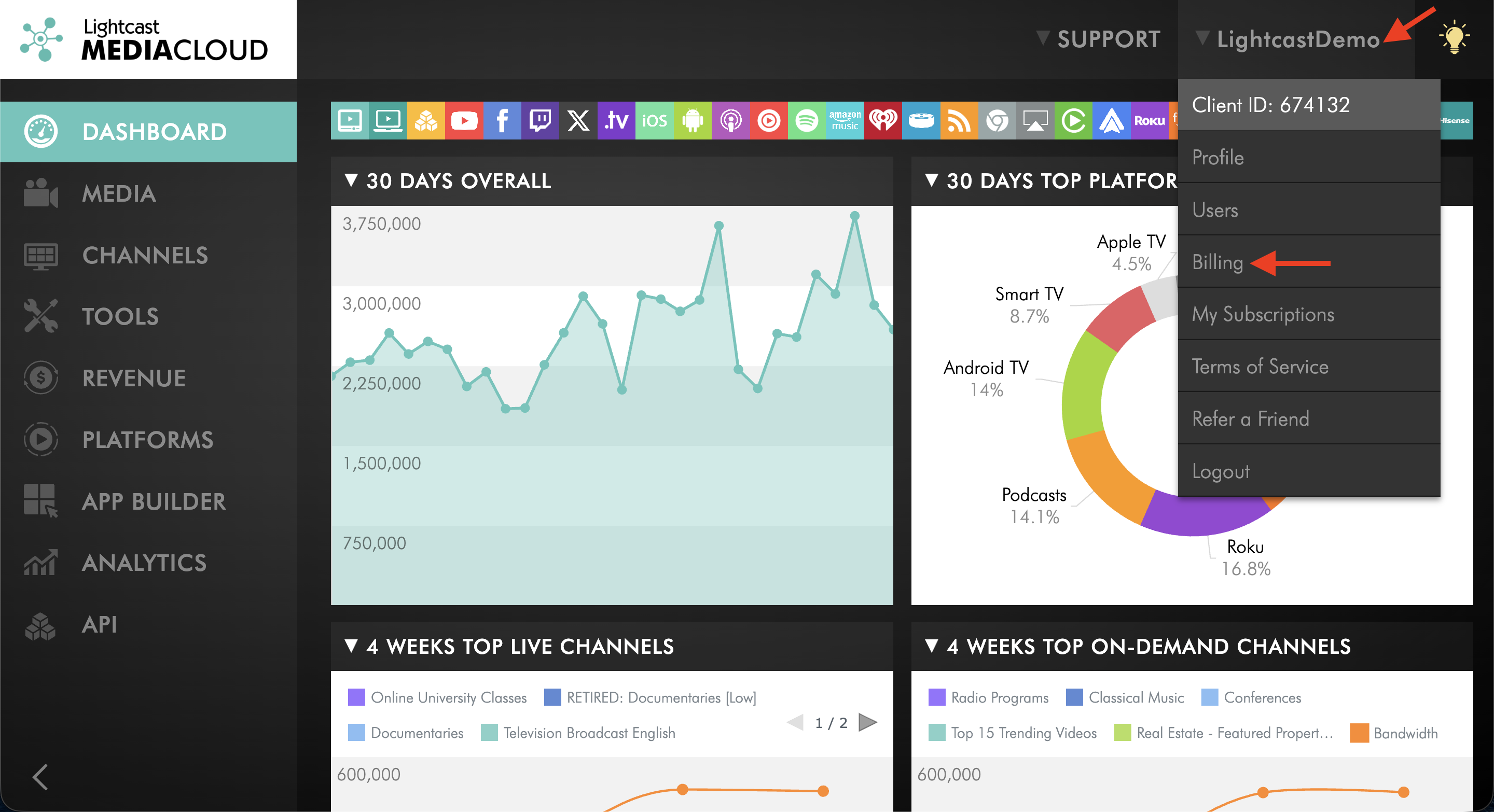
In the upper-right corner, click your username, then select Billing.
Step 3
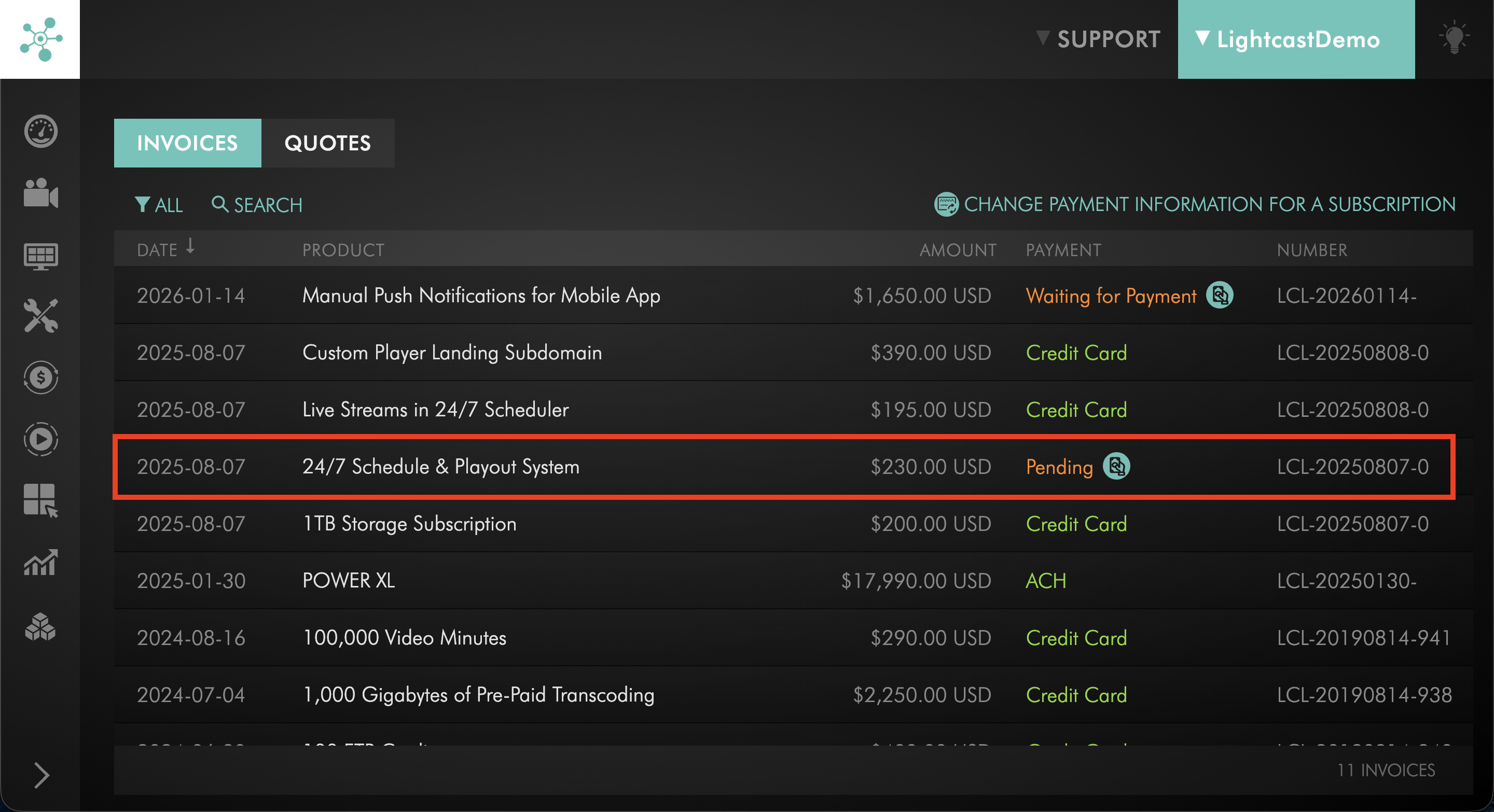
Locate the invoice with a Pending status that you want to pay.
Step 4
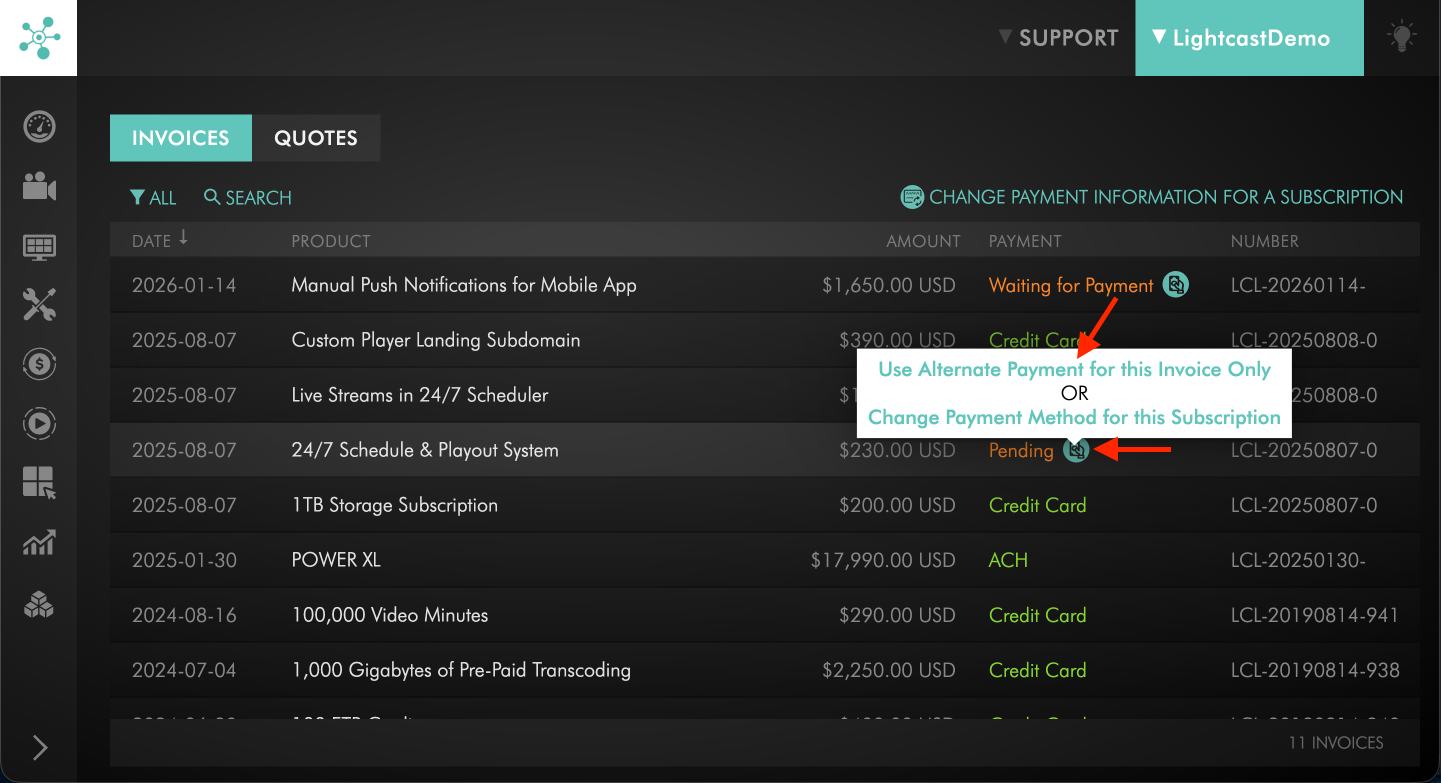
Next to the invoice, hover over the alternate payment icon, then select Use Alternate Payment for this Invoice Only.
Step 5
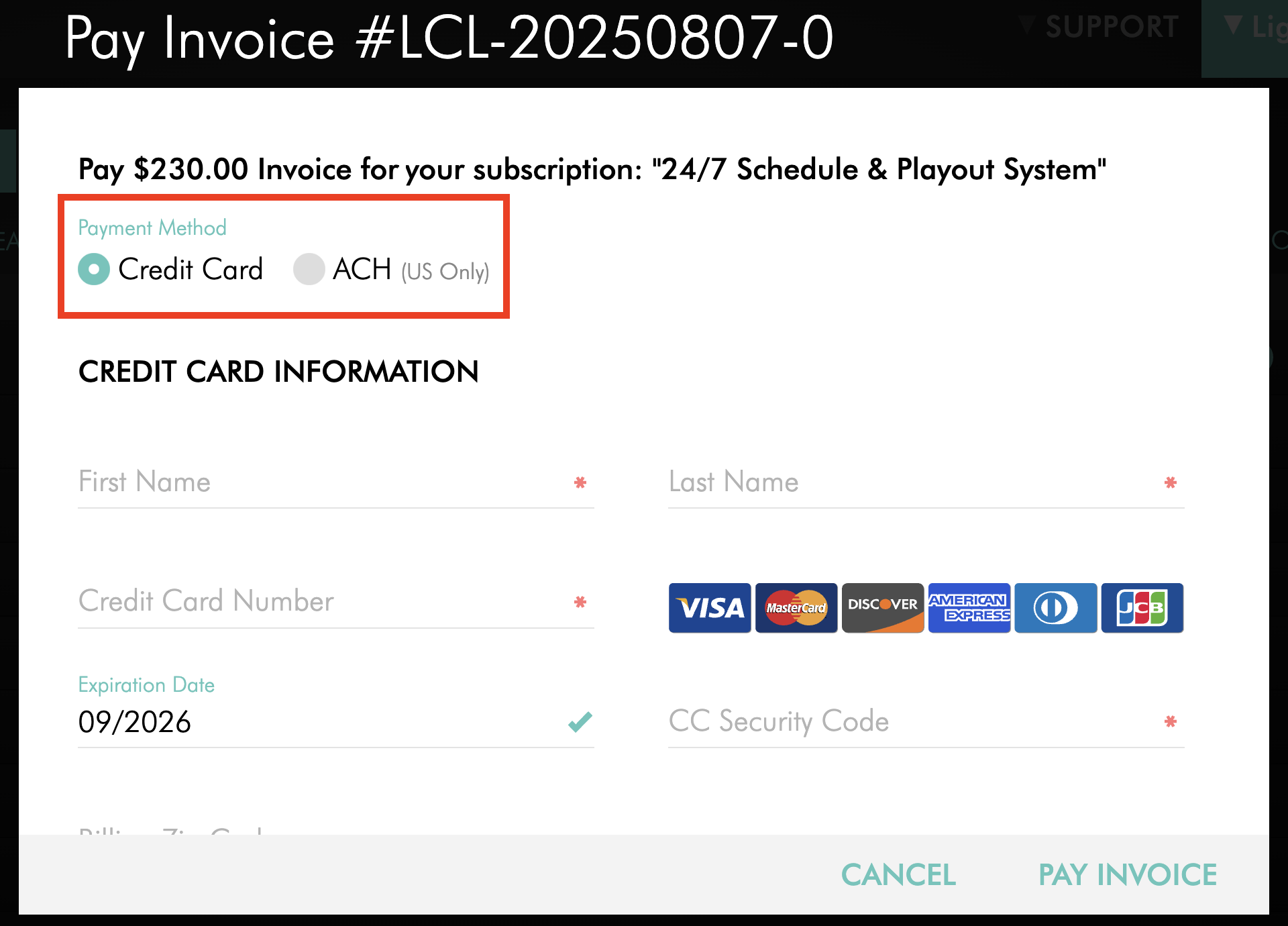
In the Pay Invoice window, select your preferred payment method:
Credit Card (Recommended) — For faster payment processing.
ACH (US Only) — For payments directly from a U.S. bank account.
Step 6
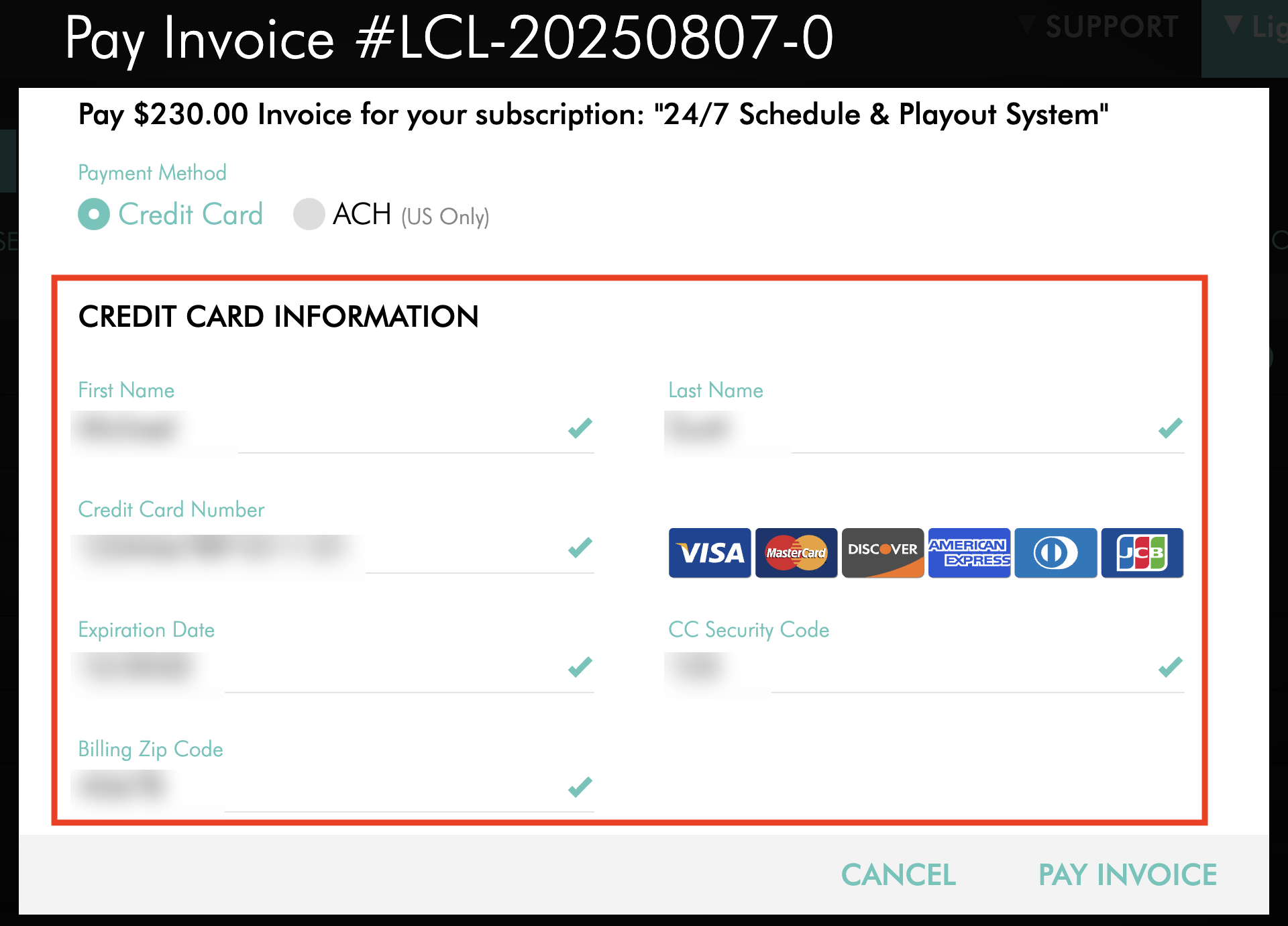
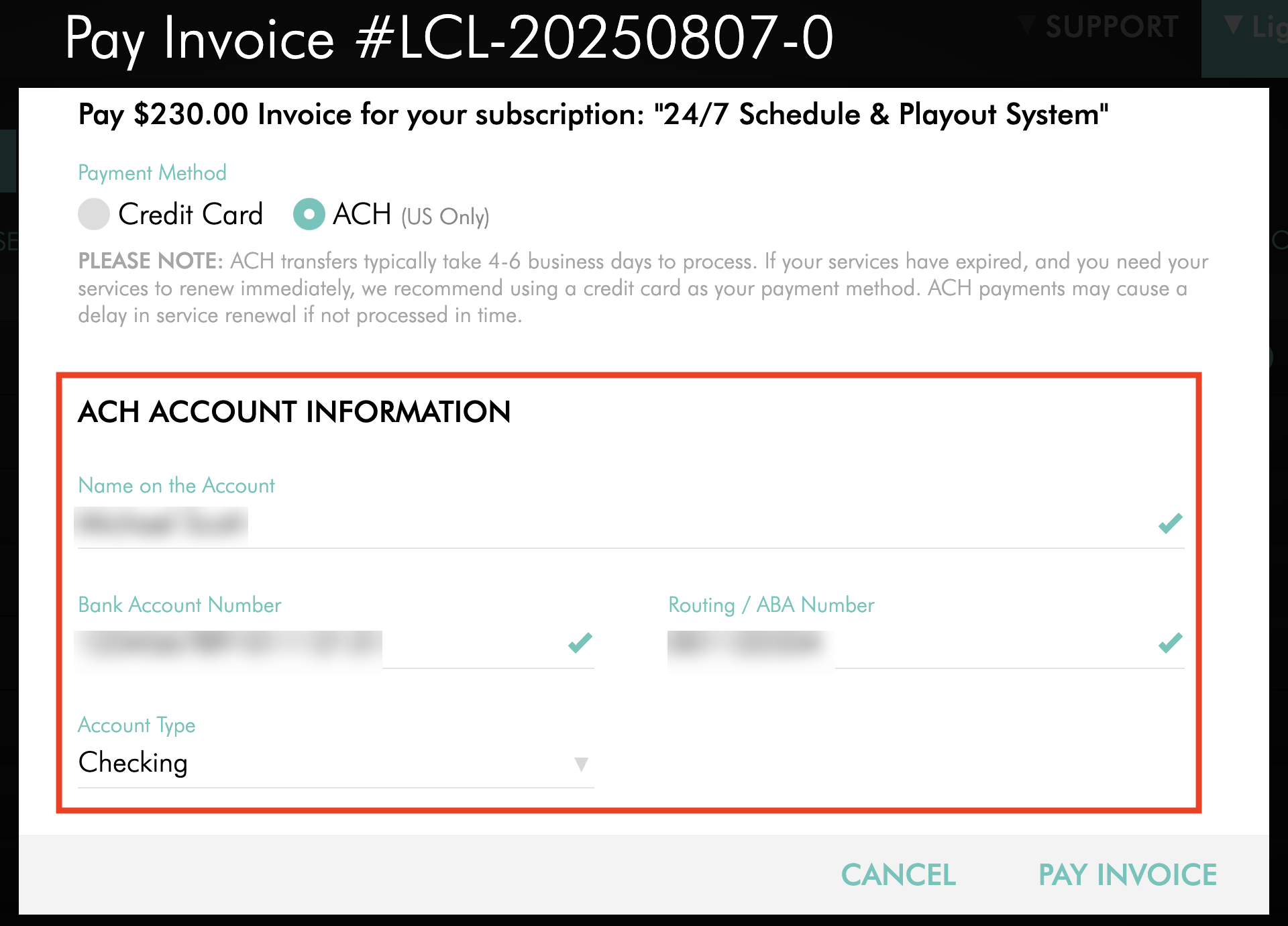
Enter the required payment information.
If you select Credit Card, enter the requested credit card and billing information.
If you select ACH (US Only), enter the requested bank account information.
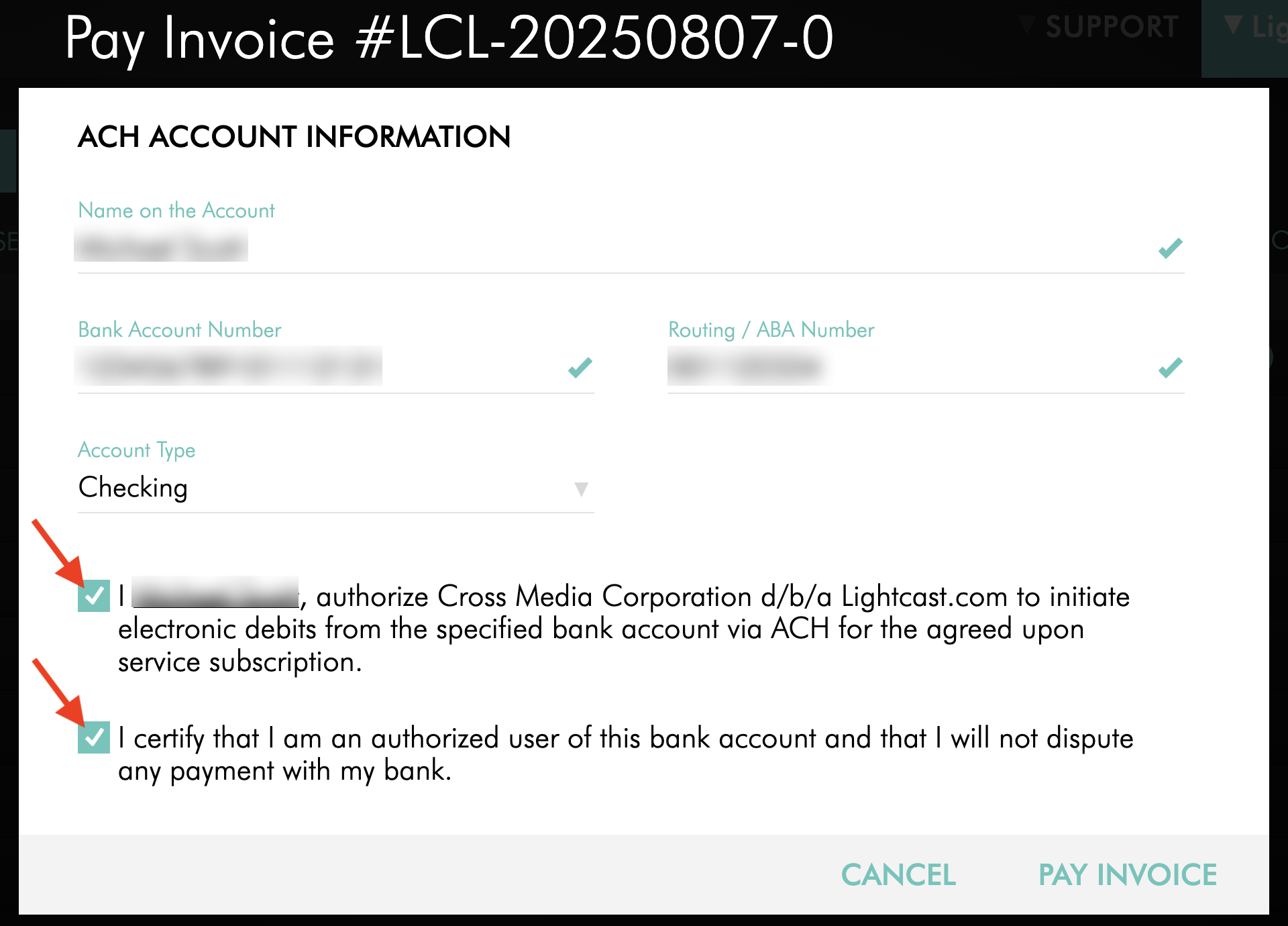
Step 7
Review and select the required authorization and consent checkboxes.
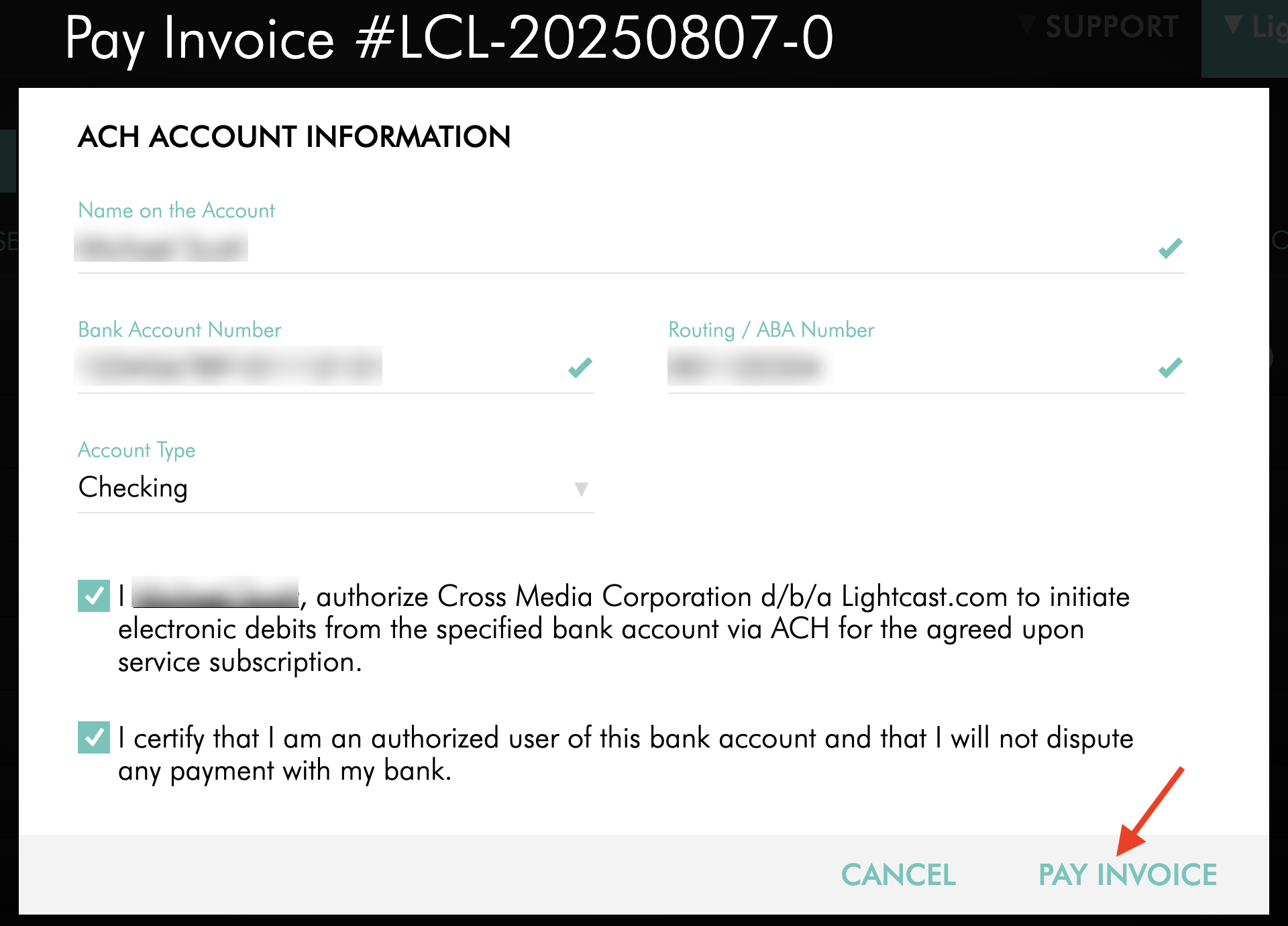
Step 8
Click PAY INVOICE to complete the transaction.
The selected payment method will apply only to this invoice. Your recurring subscription payment method will remain unchanged.
If you selected ACH, allow 4–6 business days for the payment to settle.
FAQs
Does paying an invoice with a different payment method change my subscription payment method?
No. The alternate payment method is used only for the selected invoice. The payment method saved for future recurring subscription payments remains unchanged.
Can I use ACH to pay a single invoice?
Yes. You can use ACH from a U.S. bank account to pay a single open invoice without changing the recurring payment method for your subscription.
How long does an ACH payment take to process?
ACH payments typically take 4–6 business days to settle.
If you need to settle an overdue invoice quickly, Lightcast recommends using a credit card for faster processing.
Which invoices can be paid with a different payment method?
You can use an alternate payment method for invoices with a Waiting for Payment or Pending status.
The steps differ slightly depending on the invoice status. Follow the corresponding instructions above.
Will paying an overdue invoice immediately restore my services?
Credit card payments are generally processed faster than ACH payments and are recommended when payment is urgent.
ACH payments typically take 4–6 business days to settle, which may delay service renewal or restoration.
Can I permanently change the payment method used for my subscription?
Yes. To change the payment method used for future recurring subscription payments, see How to update the credit card used for your subscription or How to switch your subscription payments from credit card to ACH.