
How to find and view your invoices
Overview
This article explains how to find, view, and review your Lightcast invoices in the Media Cloud.
When to use this article
Use this article when you want to:
Find a current or previous invoice
Review your invoice history
Check whether an invoice has been paid or still requires payment
Find an invoice for a specific Service Package or Add-On
Review invoice details for your accounting records
How it works
The Billing section of the Media Cloud provides access to invoices associated with your Lightcast account.
Under the INVOICES tab, you can view current and previous invoices, check payment statuses, and search for specific invoices.
You can also filter the invoice list to display ALL, ONE-TIME, or RECURRING invoices, making it easier to distinguish between recurring subscription charges and individual purchases.
Selecting an invoice opens its details, including the invoice number, billing date, Client ID, purchased products or services, pricing, and payment information.
You can also access quotes associated with your account under the separate QUOTES tab.
Instructions
Step 1
Log in to your Media Cloud account.
Step 2
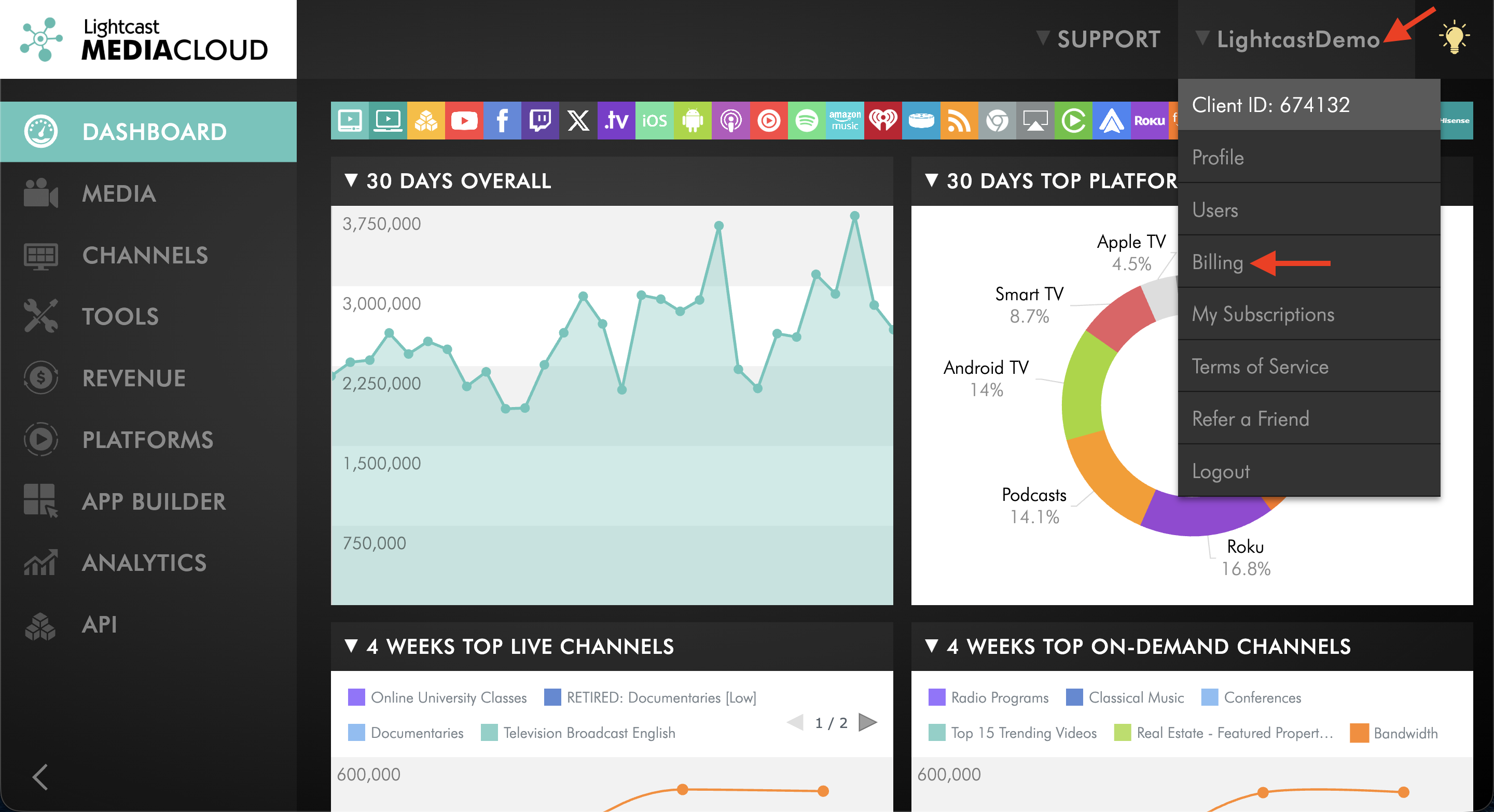
In the upper-right corner, click your username, then select Billing.
Step 3
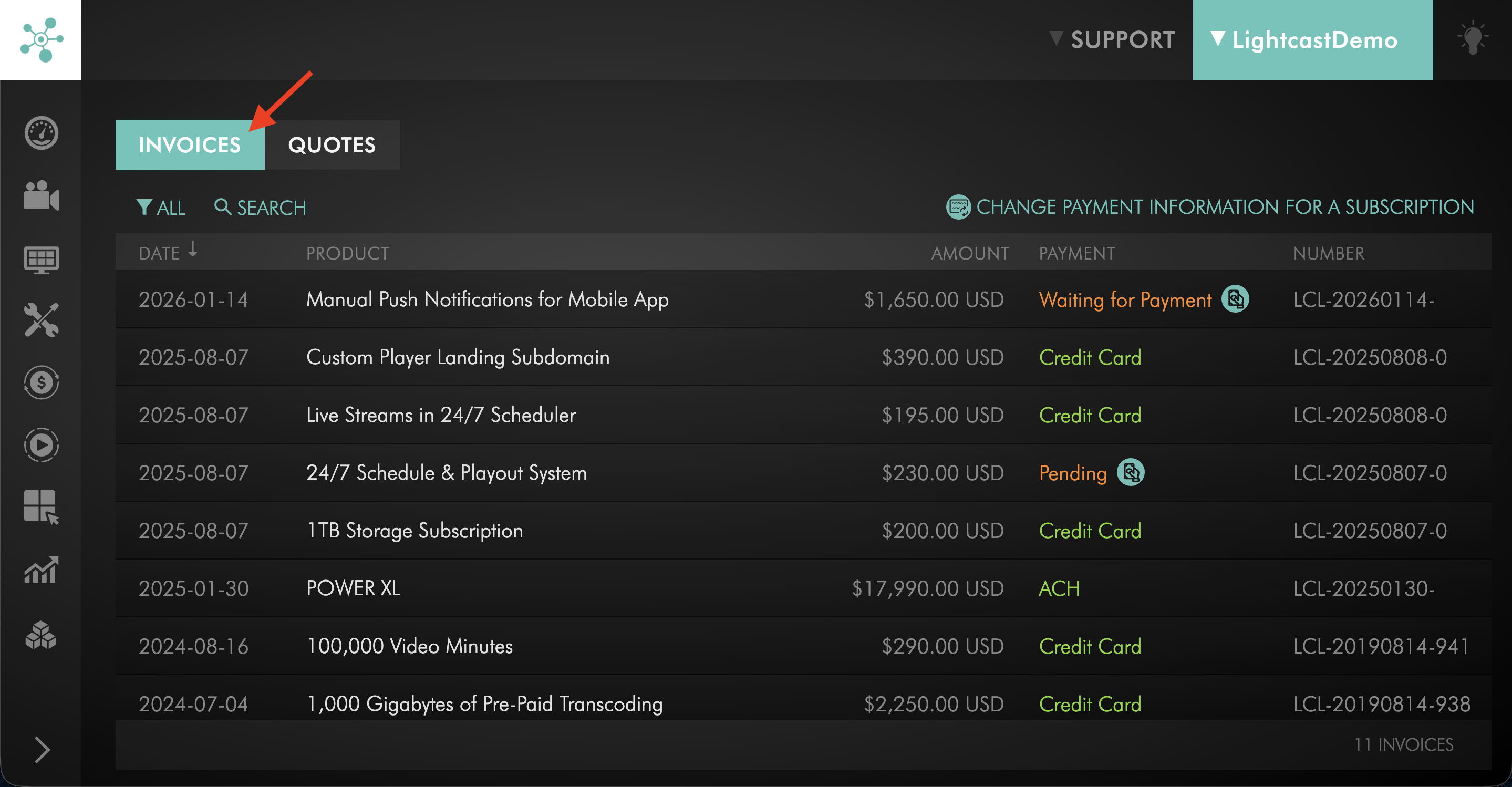
Make sure the INVOICES tab is selected.
The INVOICES page displays the invoices associated with your Lightcast account and their current payment status.
Step 4
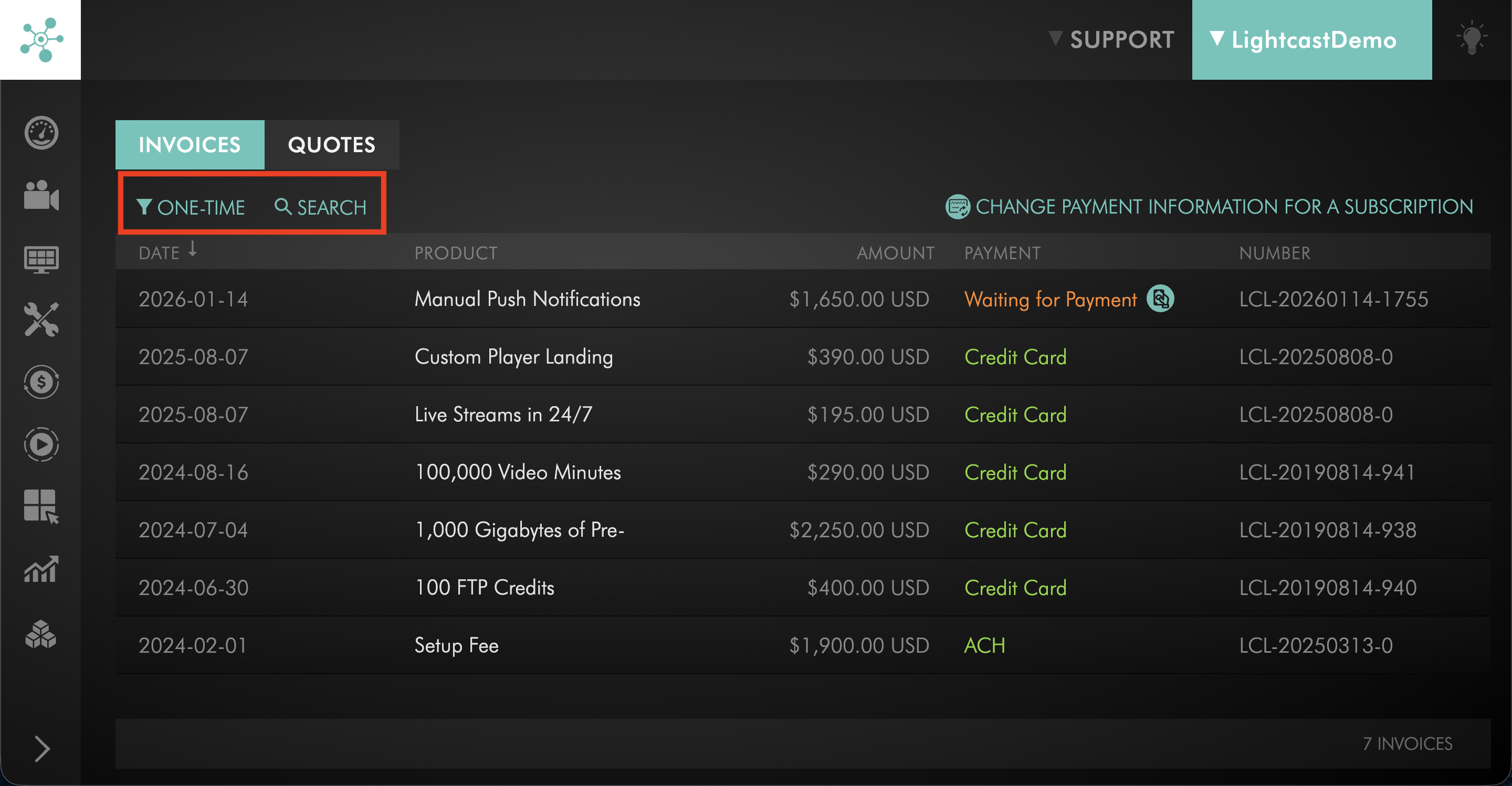
Locate the invoice you want to view.
You can browse the complete invoice list, use the ALL, ONE-TIME, or RECURRING filters, or select SEARCH to find a specific invoice.
Step 5
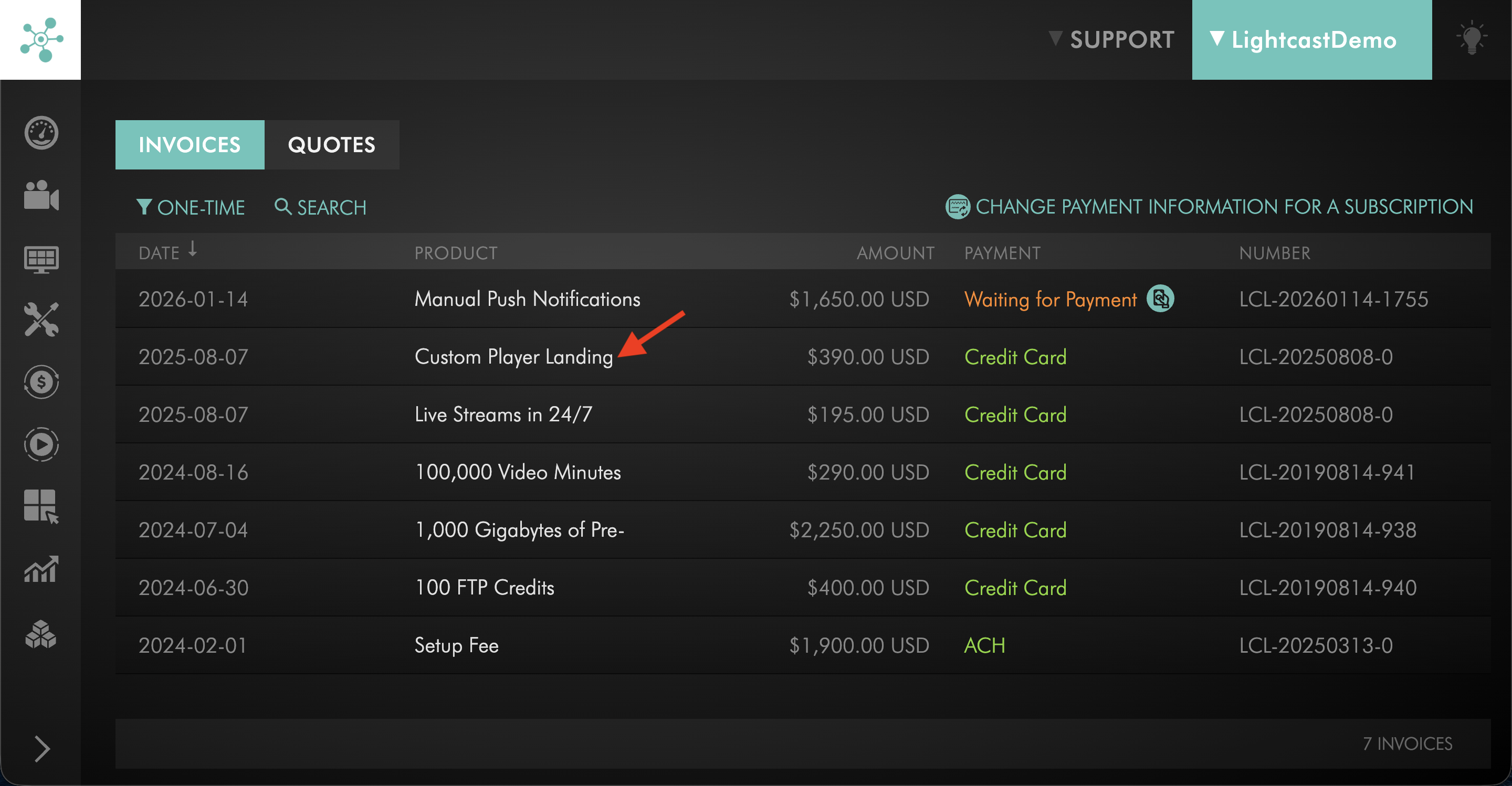
Click the invoice you want to view.
The invoice displays its billing details, including the invoice number, invoice date, Client ID, billed products or services, pricing, payment information, and total amount.
If you have questions about an invoice or notice incorrect billing information, Contact Customer Support.
Step 6
If you need a copy of the invoice for your records, use your browser's Print function while the invoice is open.
From your browser's print window, you can print the invoice or save it as a PDF if your browser provides that option.
FAQs
Where can I pay an open invoice?
Payment options for eligible invoices are available in the Billing section of the Media Cloud.
If you want to use a different payment method for an individual invoice, see How to pay a single invoice with a different payment method.
Where can I find quotes associated with my account?
You can find quotes under the QUOTES tab in the Billing section of the Media Cloud.
Can I request additional information on an invoice?
Yes. If your organization needs information such as a PO number, billing reference, legal entity name, or billing address, see How to request invoice customization.
Why might an Add-On appear on a separate invoice?
Service Package subscriptions and Add-On services may have different order dates, pricing structures, and billing schedules.
For more information, see Understanding separate billing for subscriptions and Add-Ons.