
How to update the credit card used for your subscription
Overview
This article explains how to update or replace the credit card saved for recurring subscription payments in your Media Cloud account.
When to update your credit card on file
Use this article when you need to update or replace the credit card saved for an existing subscription.
This may be helpful when:
Your current credit card has expired or is about to expire.
Your credit card was lost, stolen, or replaced.
Your recurring subscription payment was declined.
You want to use a different credit card for future subscription payments.
Your billing information has changed.
If you want to switch your recurring subscription payment method from a credit card to ACH, see How to switch your subscription payments from credit card to ACH.
If you only want to use a different credit card for one open invoice without changing the card saved on your subscription, see How to pay a single invoice with a different payment method.
A valid payment method must remain on file for your subscription. This can be either a credit card or an ACH account.
How it works
Updating the credit card on a subscription replaces the existing payment information with the new credit card details. The new credit card will be used for future recurring payments associated with that subscription.
Automatic payment attempts for overdue invoices
If your subscription has overdue invoices, updating your credit card automatically triggers a payment attempt typically within 10 minutes.
The system will attempt to process the oldest overdue invoice first using the newly saved credit card.
This means your new credit card may be charged shortly after you update your payment information if outstanding payments are due.
If you have multiple subscriptions, you may need to update the payment information separately for each subscription.
Instructions
Step 1
Log in to your Media Cloud account.
Step 2
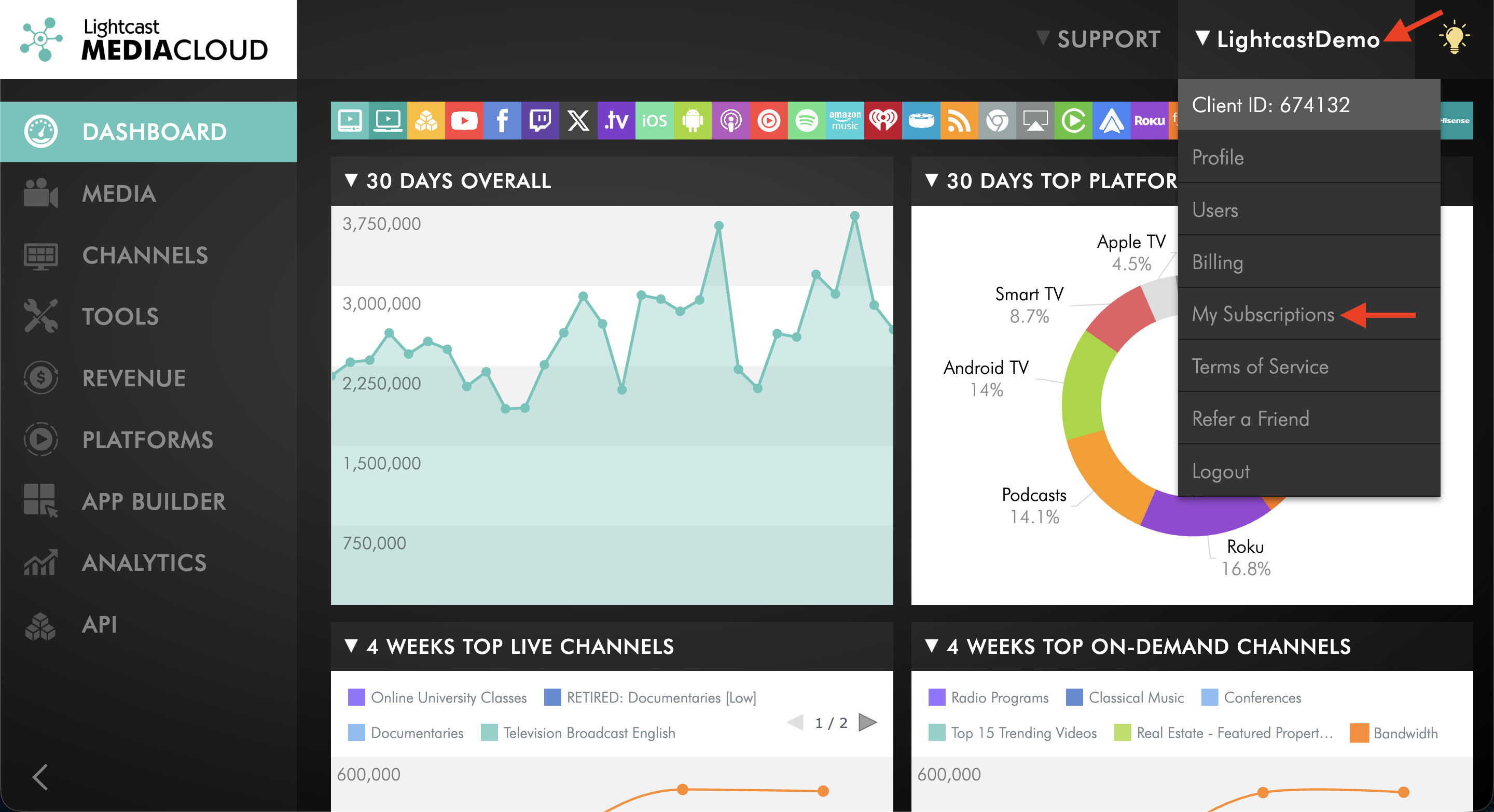
In the upper-right corner, click your username, then select My Subscriptions.
Step 3
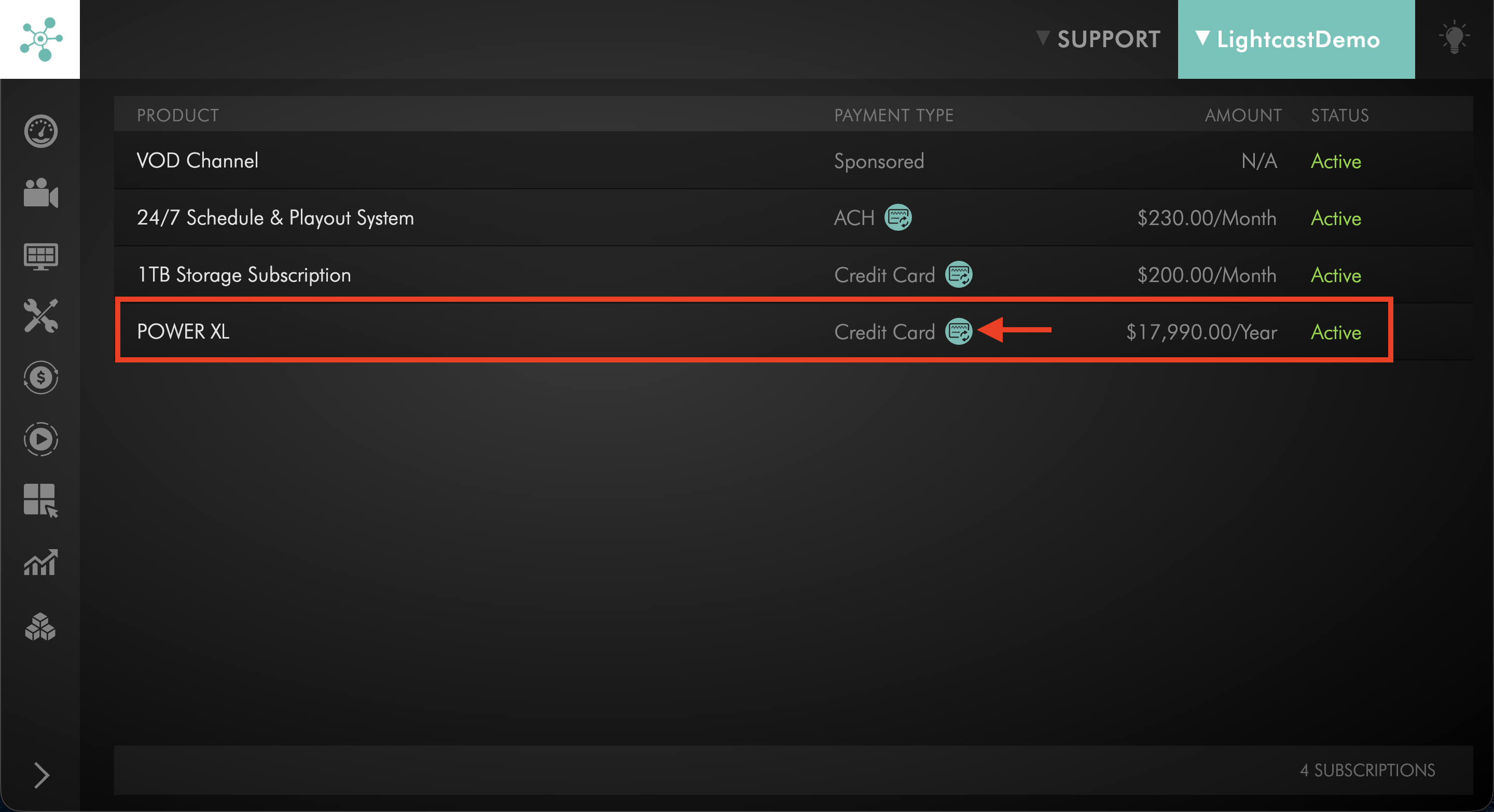
Locate the subscription you want to update. Under PAYMENT TYPE, click the payment information icon next to Credit Card.
Step 4
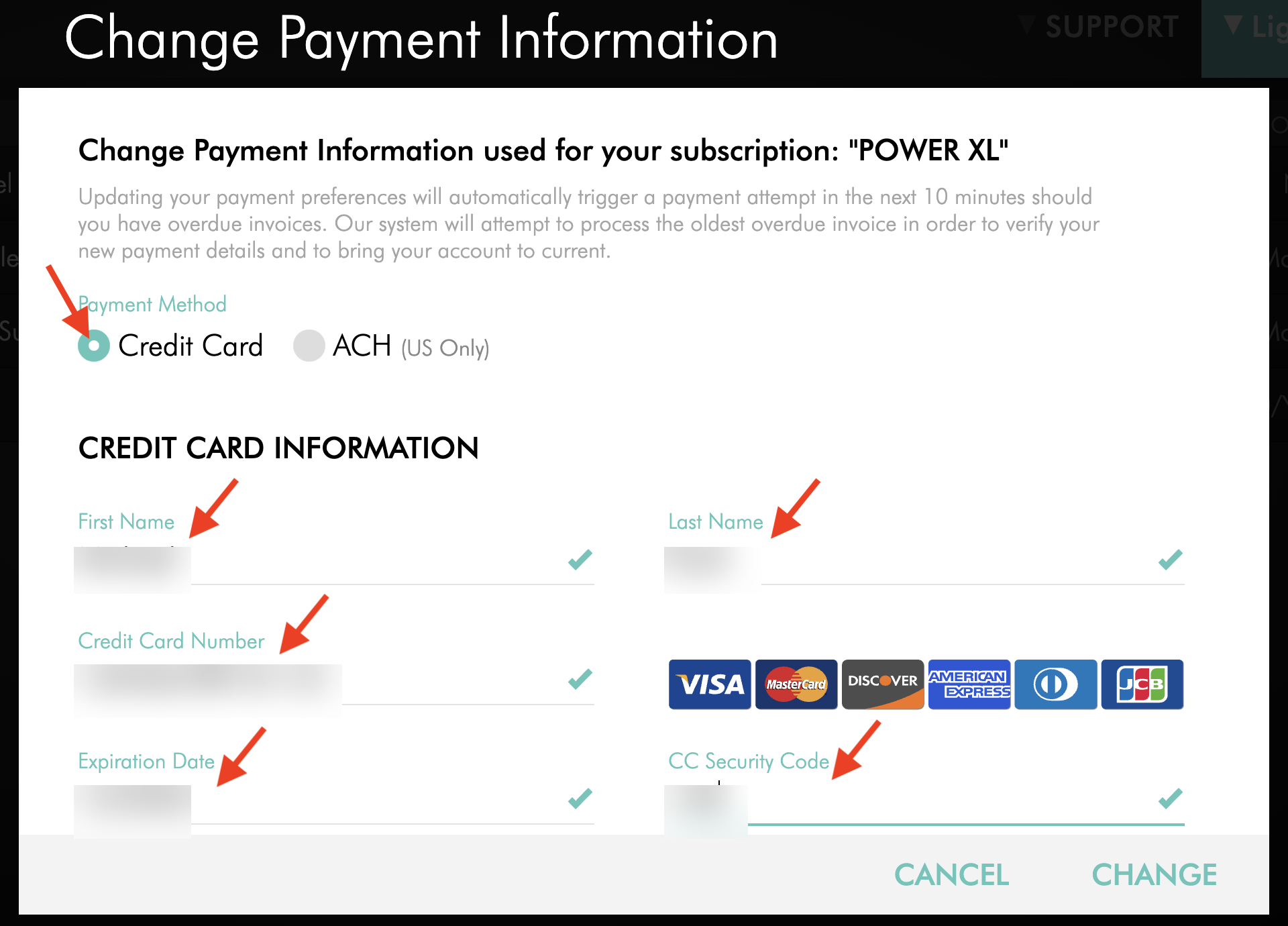
In the Change Payment Information window, make sure Credit Card is selected as the payment method.
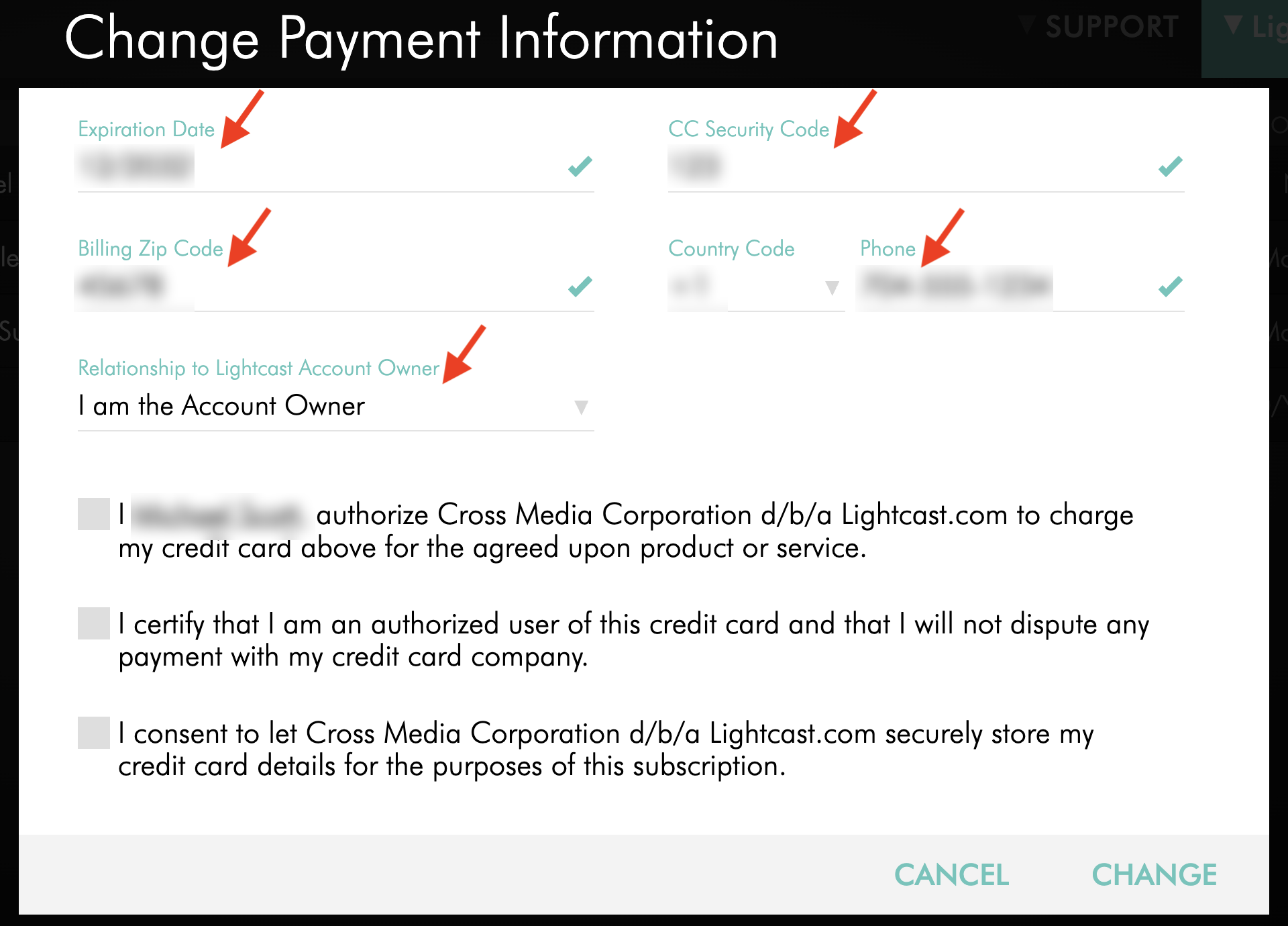
Enter the required credit card, billing, and account holder information:
First Name
Last Name
Credit Card Number
Expiration Date
CC Security Code
Billing Zip Code
Country Code
Phone
Relationship to Lightcast Account Owner
Step 5
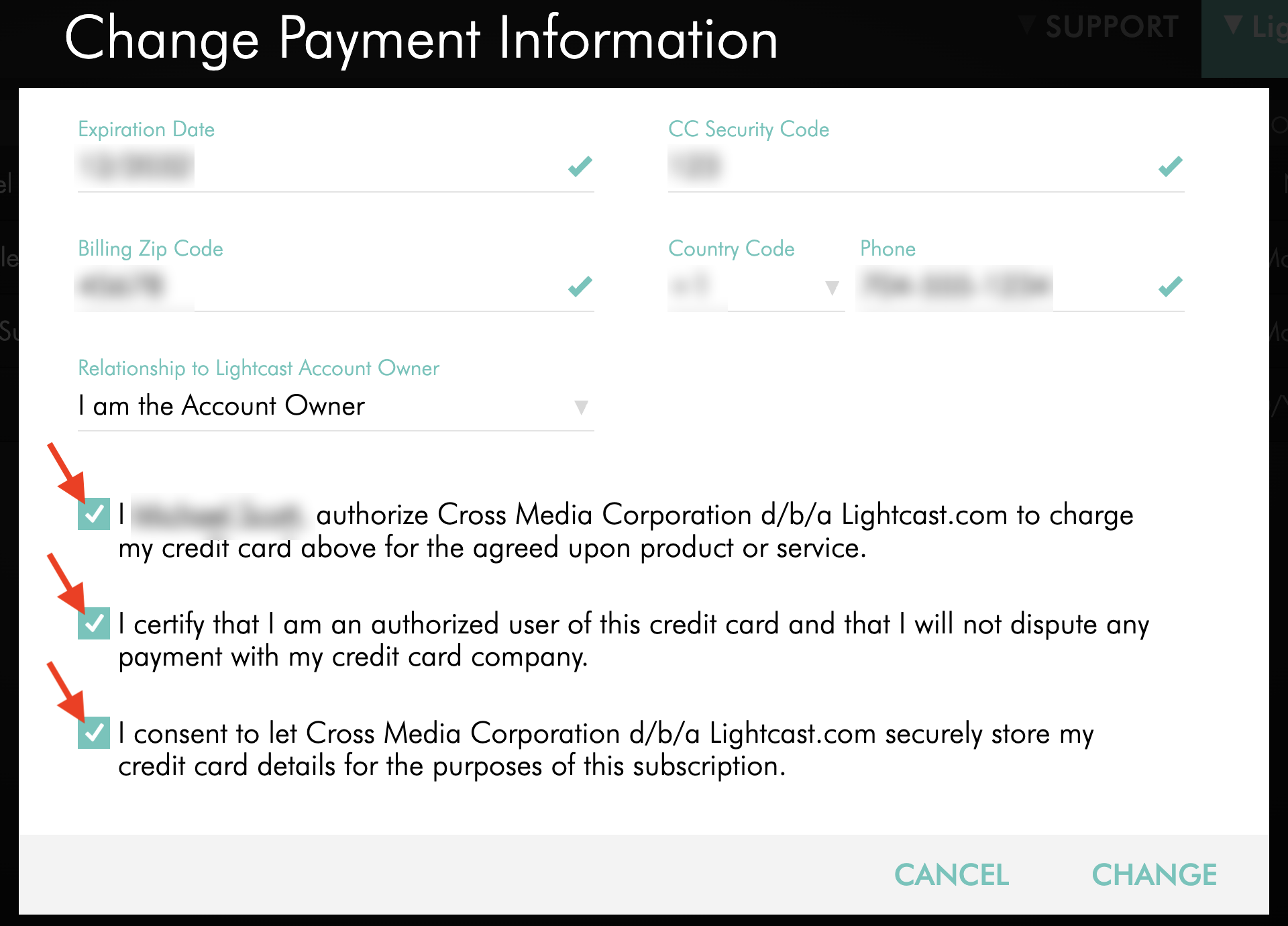
Review and select the required authorization and consent checkboxes.
Step 6
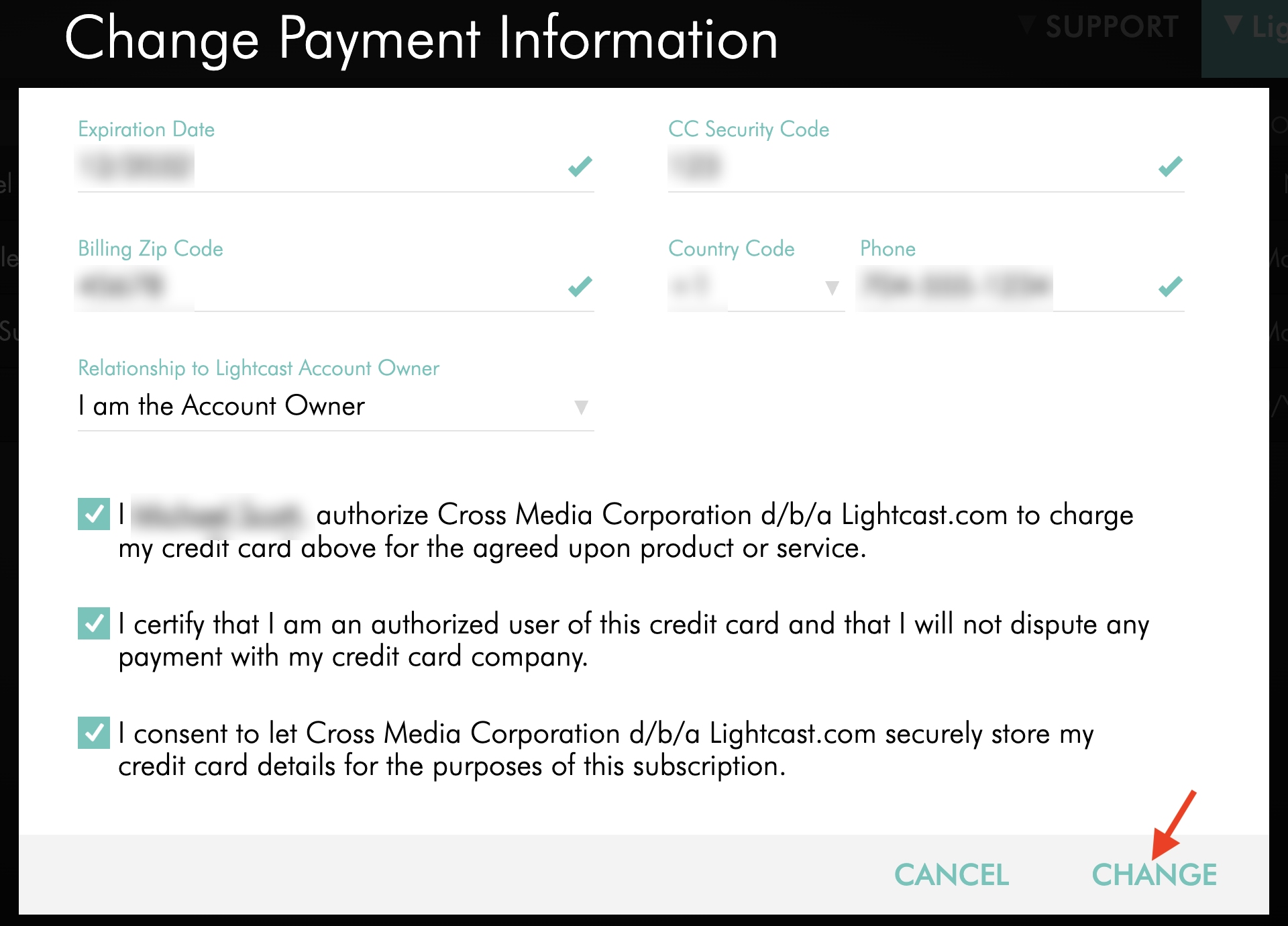
Click CHANGE to save your updated credit card information.
The new credit card will be used for future recurring payments for the selected subscription.
If overdue invoices exist, the system will automatically attempt to process the oldest overdue invoice within the next 10 minutes.
FAQs
Does updating my credit card change the payment method for all of my subscriptions?
The credit card is updated for the subscription you select on the My Subscriptions page.
If you have multiple subscriptions, review the payment information for each subscription you want to update.
Can I use a different credit card for only one invoice?
Yes. You can use a different credit card for a single open invoice without changing the credit card saved for future subscription payments.
See How to pay a single invoice with a different payment method for instructions.
Can I switch my recurring payment method to ACH instead?
Yes. See How to switch your subscription payments from credit card to ACH for instructions.
Do I need to keep a payment method on file?
Yes. A credit card or ACH account must remain on file to help prevent service disruptions, allow for Add-On purchases, and enable Overdraft Protection.
Will my new credit card be charged immediately?
If your subscription has overdue invoices, updating your credit card automatically triggers a payment attempt typically within 10 minutes. The system will attempt to process the oldest overdue invoice first.
If there are no overdue invoices, your new credit card will be used for future recurring subscription payments according to your billing schedule.
What happens if my new credit card is declined?
If a payment attempt is declined, the outstanding invoice remains unpaid.
Verify that your credit card details are correct, that the card is active, and that sufficient funds or credit are available. You may also need to contact your card issuer to authorize the transaction.
If the issue continues, contact Customer Support for assistance.