
How to publish Live Events and Simulated Live Events to YouTube
Overview
This article explains how to connect your YouTube account to a Live Events Channel in the Media Cloud and publish scheduled Live Broadcasts or Simulated Live Events to YouTube.
Before publishing, your YouTube Channel must meet YouTube's live streaming requirements.
When to send your live stream to YouTube
Use this feature when you want to:
Publish a scheduled Live Broadcast from the Media Cloud to your YouTube Channel
Stream live content from your camera, encoder, or production setup to YouTube
Publish prerecorded content as a Simulated Live Event on YouTube
Allow viewers to watch your Live Event through YouTube's live player
How it works
YouTube publishing is configured within a scheduled Live Event in a Live Events Channel.
When you select YouTube as a publishing destination, the Media Cloud prompts you to sign in with the Google account that manages your YouTube Channel and authorize the connection.
For Live Broadcasts: Your encoder sends the live source stream to the Media Cloud, which forwards the stream to YouTube when the scheduled event begins.
For Simulated Live Events: The Media Cloud uses a previously uploaded video from your Media Archive as the source for the scheduled broadcast. No live encoder is required.
Once the stream reaches YouTube, YouTube controls its own player, processing, viewer experience, and platform-specific behavior.
YouTube account requirements
Before you can go live on YouTube, YouTube currently requires that:
Your YouTube Channel is verified
Your Channel has no live streaming restrictions from the past 90 days
The person live streaming meets YouTube's minimum age requirement
YouTube verifies a Channel using a phone number and a verification code sent by text message or voice call. Completing this verification enables access to live streaming and other YouTube features.
YouTube currently requires users to be at least 16 years old to live stream. These requirements are set and enforced by YouTube and may change.
Important: If live streaming has not been enabled on your YouTube Channel before, enable it well in advance of your scheduled event. YouTube may take up to 24 hours to activate live streaming for the first time.
For more information, see YouTube Help: Verify your YouTube account and YouTube Help: Get started with live streaming.
YouTube connections and Live Events Channels
YouTube accounts are connected at the Live Events Channel level.
Each Live Events Channel can have one connected YouTube account at a time. Different Live Events Channels can be connected to different YouTube accounts.
To use a different YouTube account for an existing Live Events Channel, disconnect the current account and connect the new one.
Recurring Live Events
Recurring Live Events can be scheduled for up to 26 weeks at a time.
If you need the recurring event to continue beyond 26 weeks, create another recurring event beginning at a future date.
Using the Media Cloud as the publishing source
When publishing a Live Event to YouTube through the Media Cloud, we recommend sending your source stream to the Media Cloud and allowing it to distribute the stream to YouTube and your other configured destinations.
This keeps your publishing workflow centralized and avoids sending multiple separate streams from your encoder.
Sending one stream to the Media Cloud and another stream directly to YouTube may use additional upload bandwidth and can make it more difficult to identify the source of a connection, publishing, or playback issue.
YouTube duration limits and 24/7 streams
YouTube publishing through the Media Cloud is designed for scheduled Live Events and Simulated Live Events, rather than continuous 24/7 streaming.
If you need continuous 24/7 streaming, you can use a 24/7 Scheduler or Linear Stream to deliver content to supported destinations, such as your website and Lightcast apps.
YouTube may not automatically archive live streams longer than 12 hours.
For more information, see YouTube Help: Archive live streams.
Instructions
Connect a YouTube account to a Live Events Channel
Step 1
Log in to your Media Cloud account.
Step 2
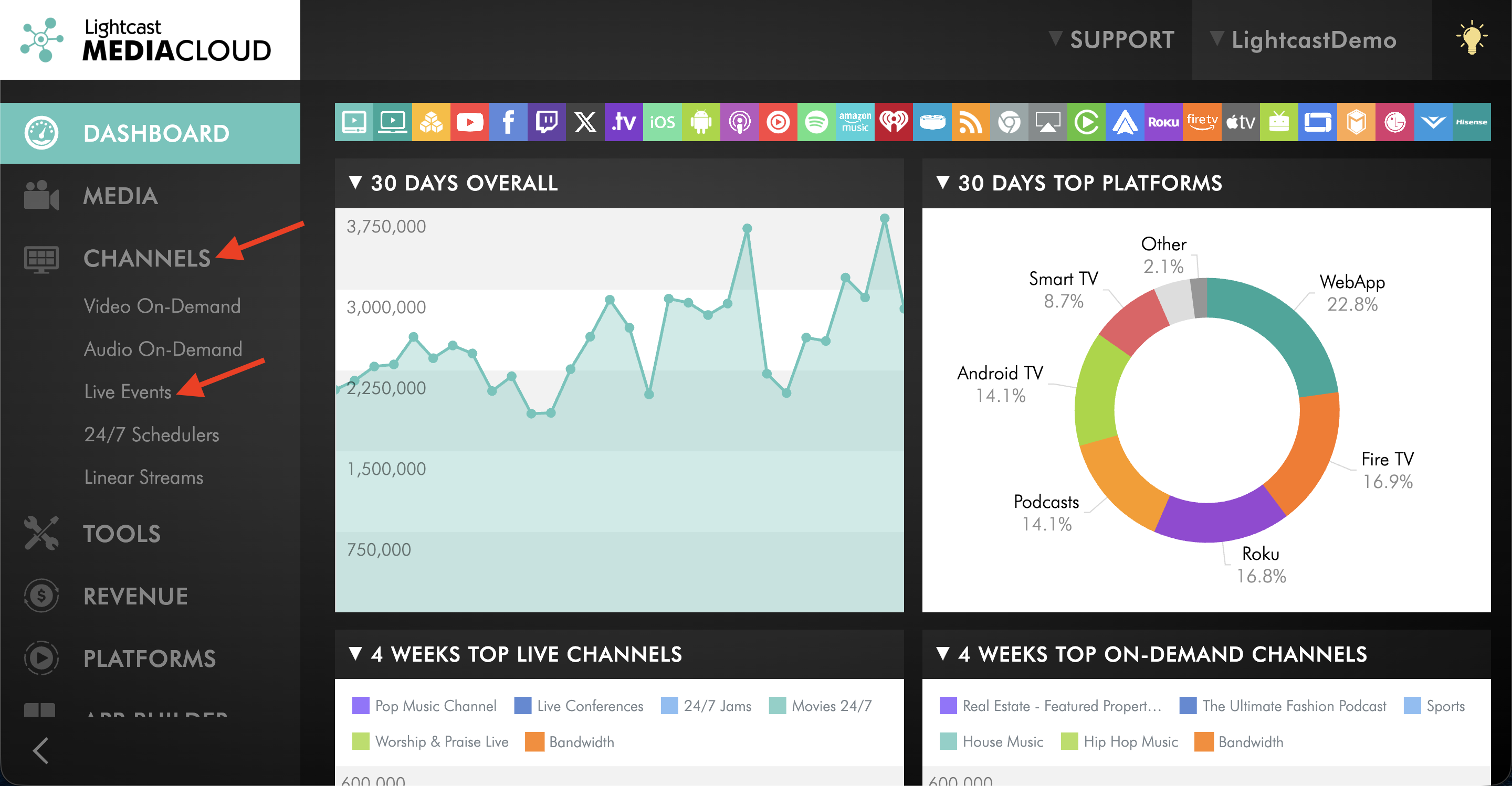
Go to CHANNELS, then select Live Events.
Step 3
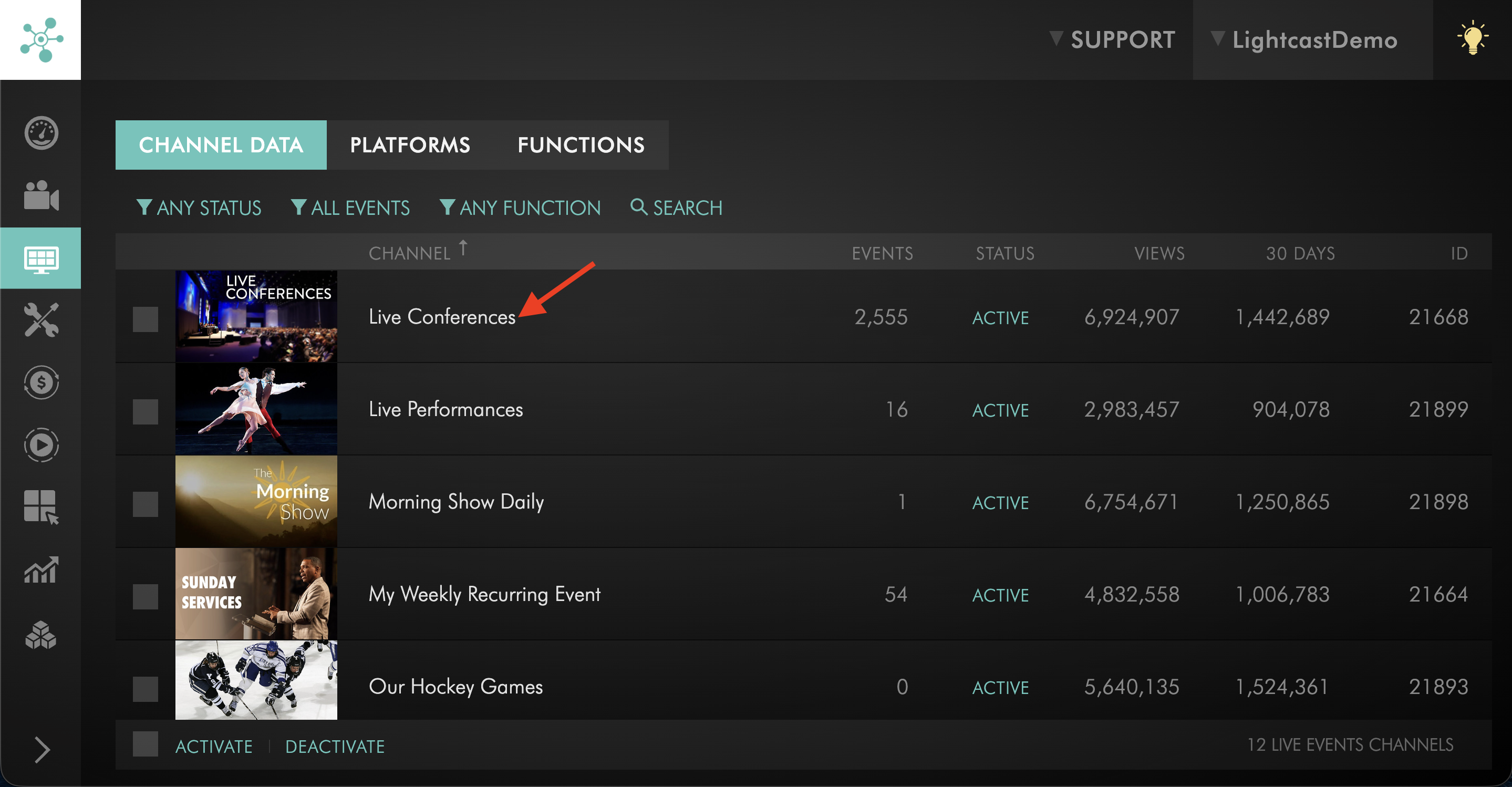
Select the Live Events Channel you want to use for the YouTube live stream.
Step 4
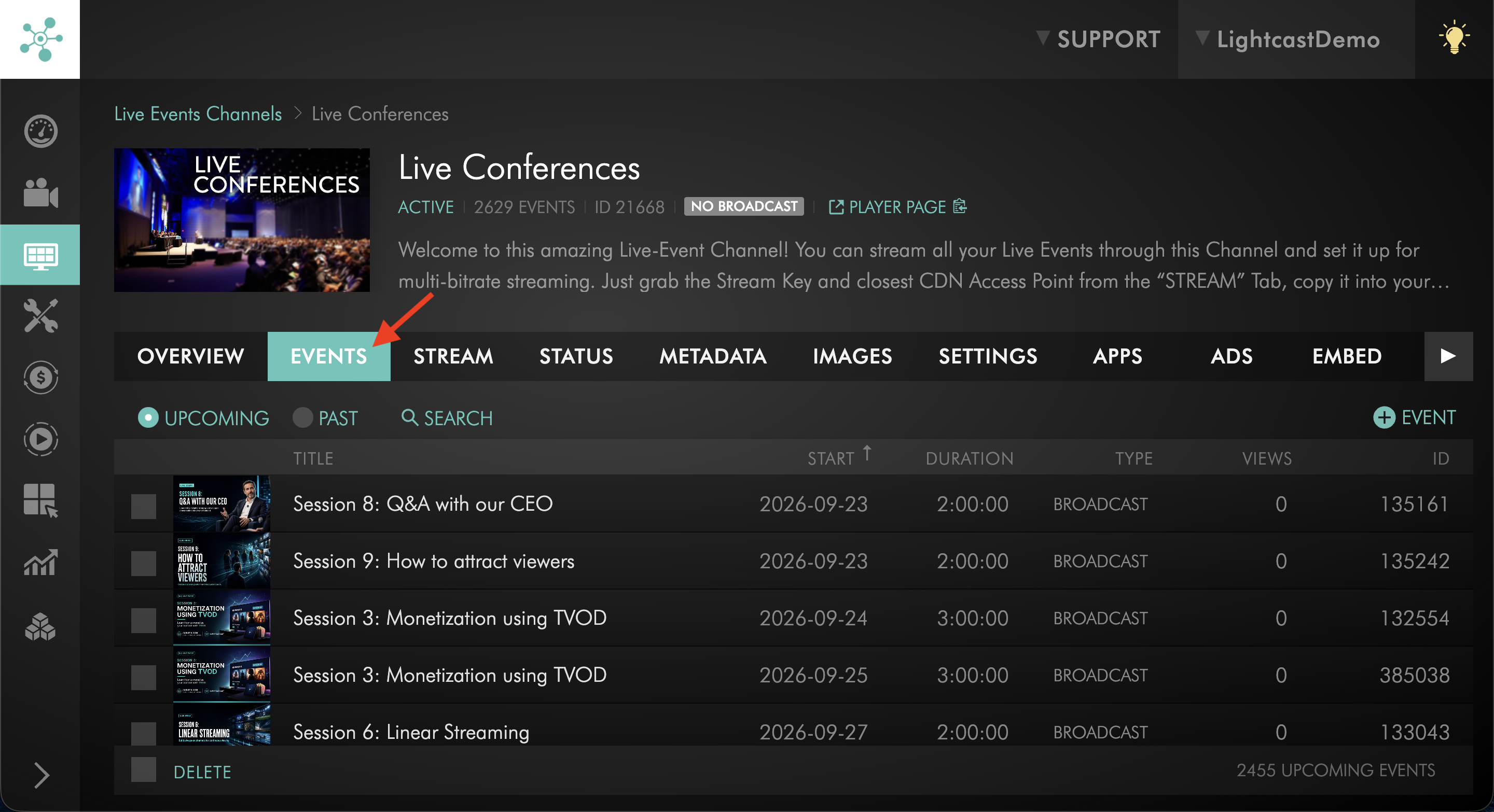
Go to the EVENTS tab.
Step 5
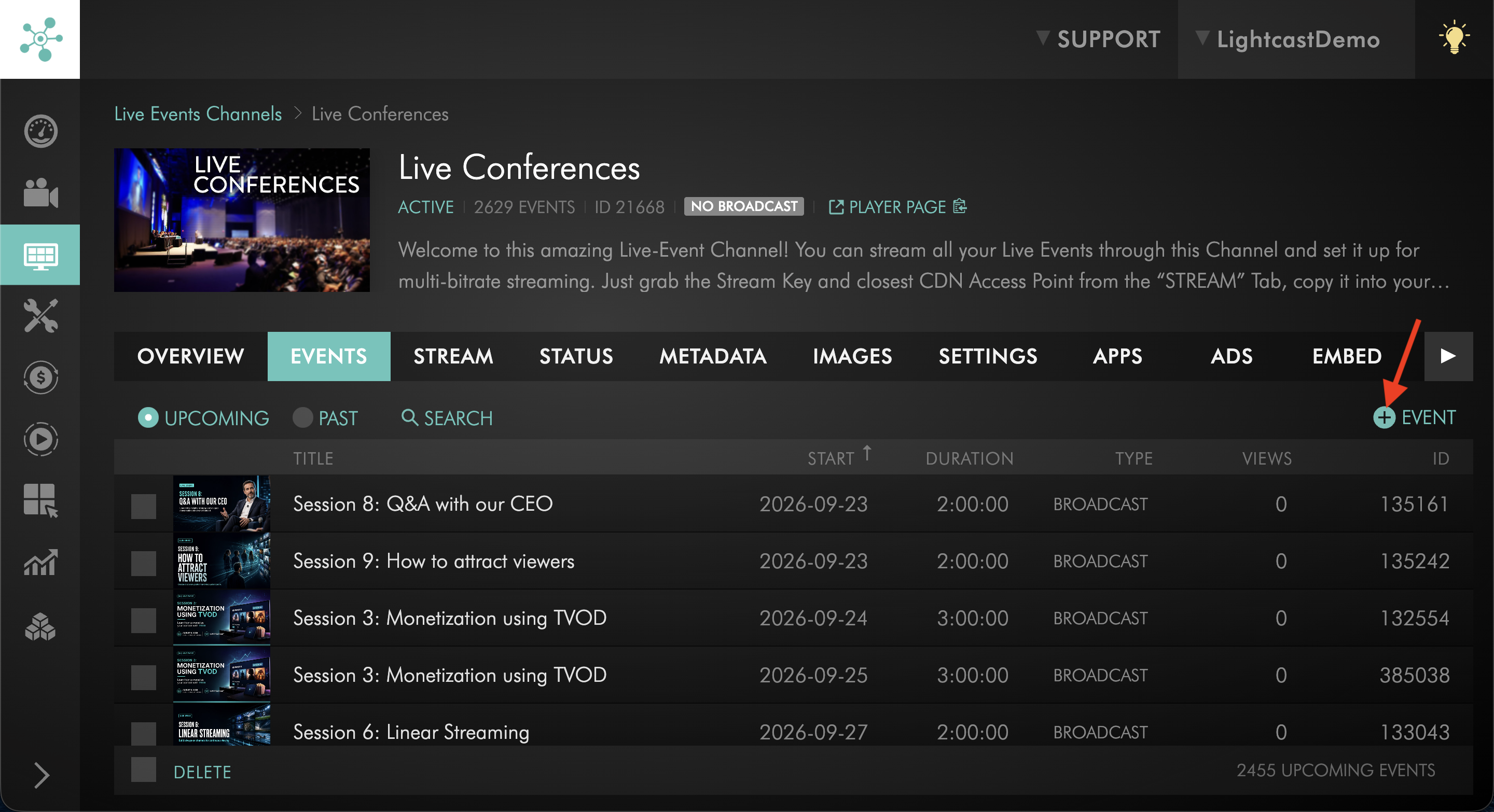
Click + EVENT to add a new Live Event, or select an existing scheduled Live Event.
To learn how to set up a scheduled event, see How to schedule a Live Event or How to schedule a Simulated Live Event.
Step 6
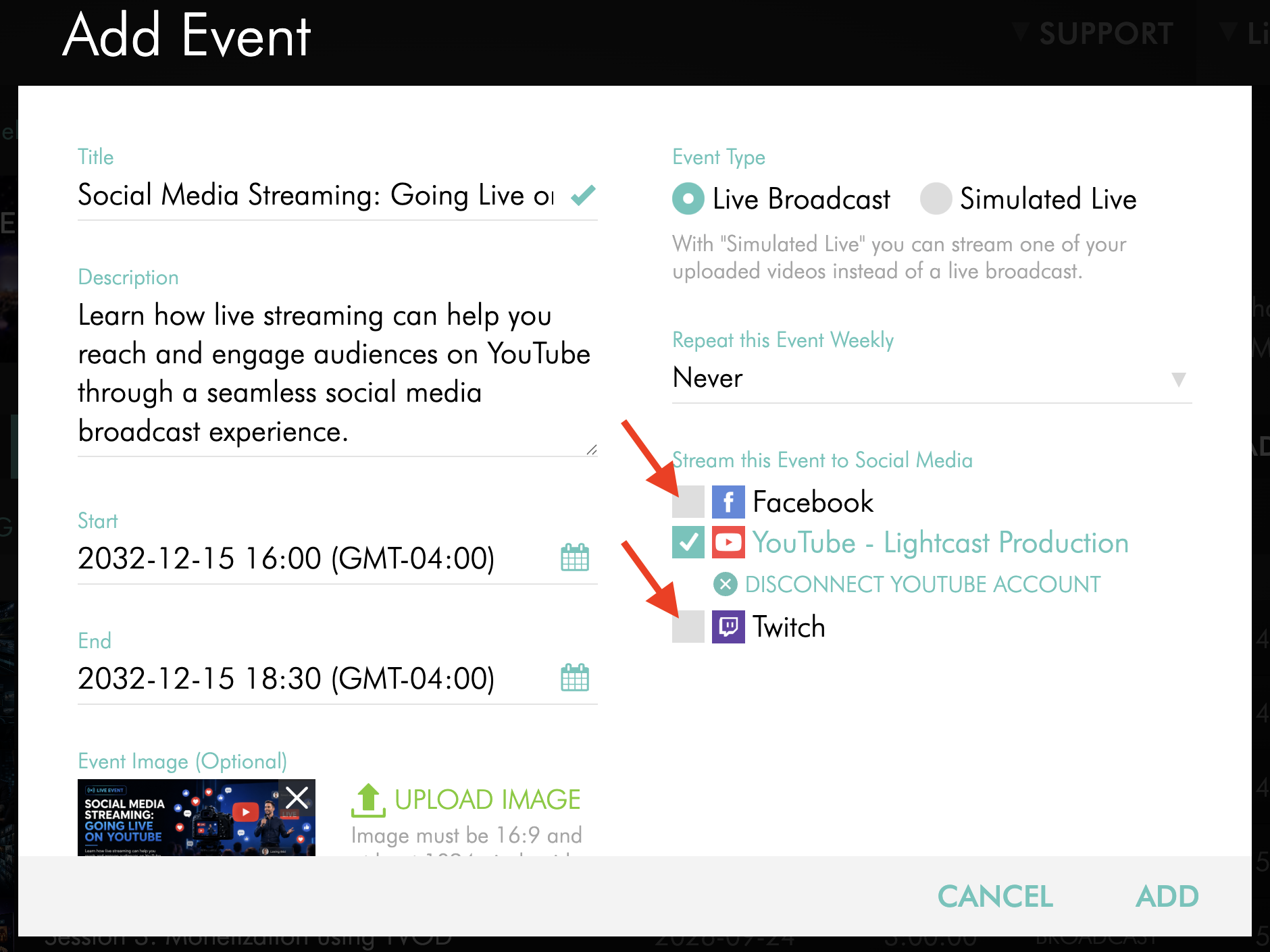
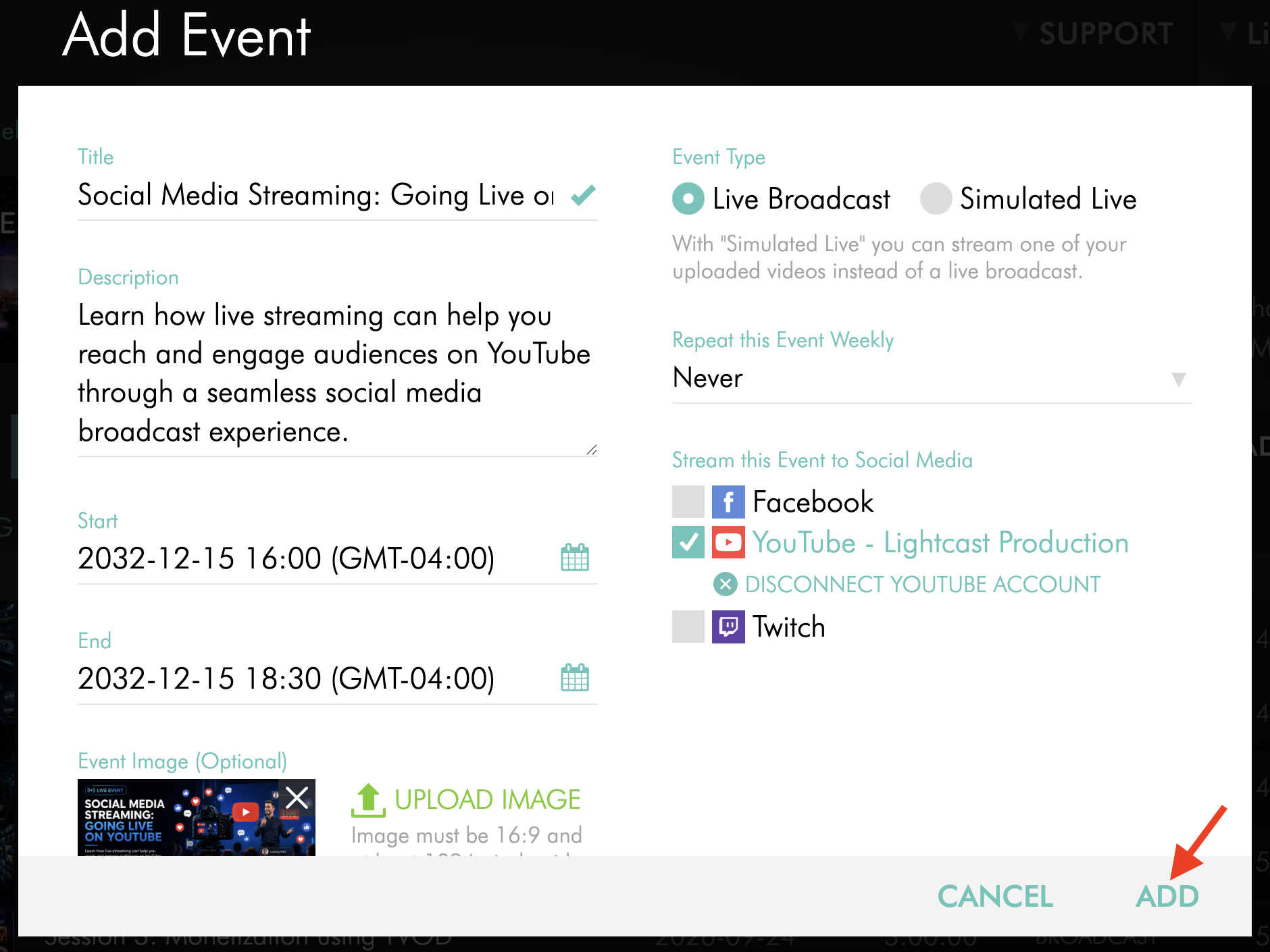
In the event settings, select the YouTube publishing option.
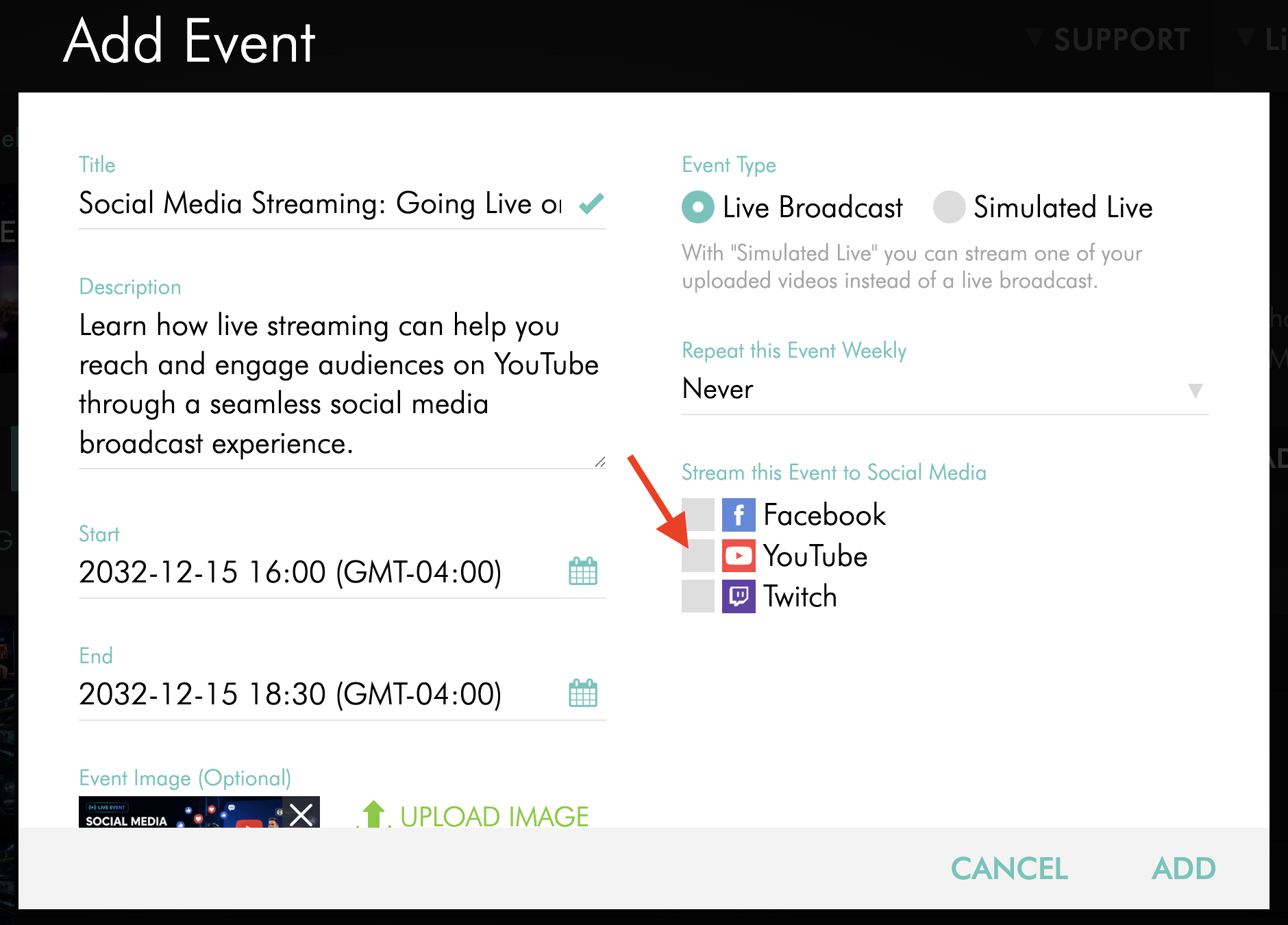
Step 7
In the pop-up window, log in with the Google account that manages your YouTube Channel. If needed, make sure your browser allows pop-ups.
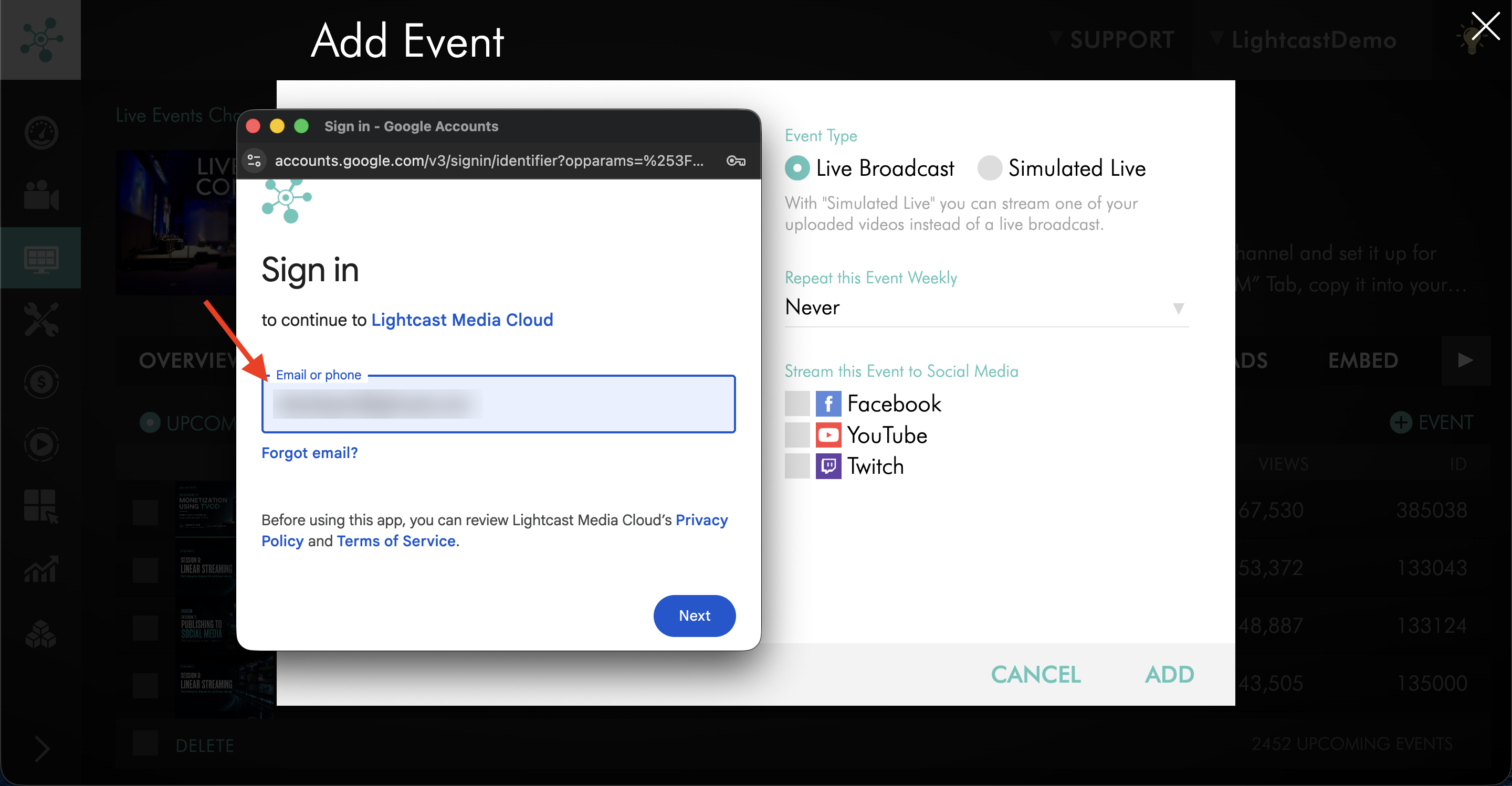
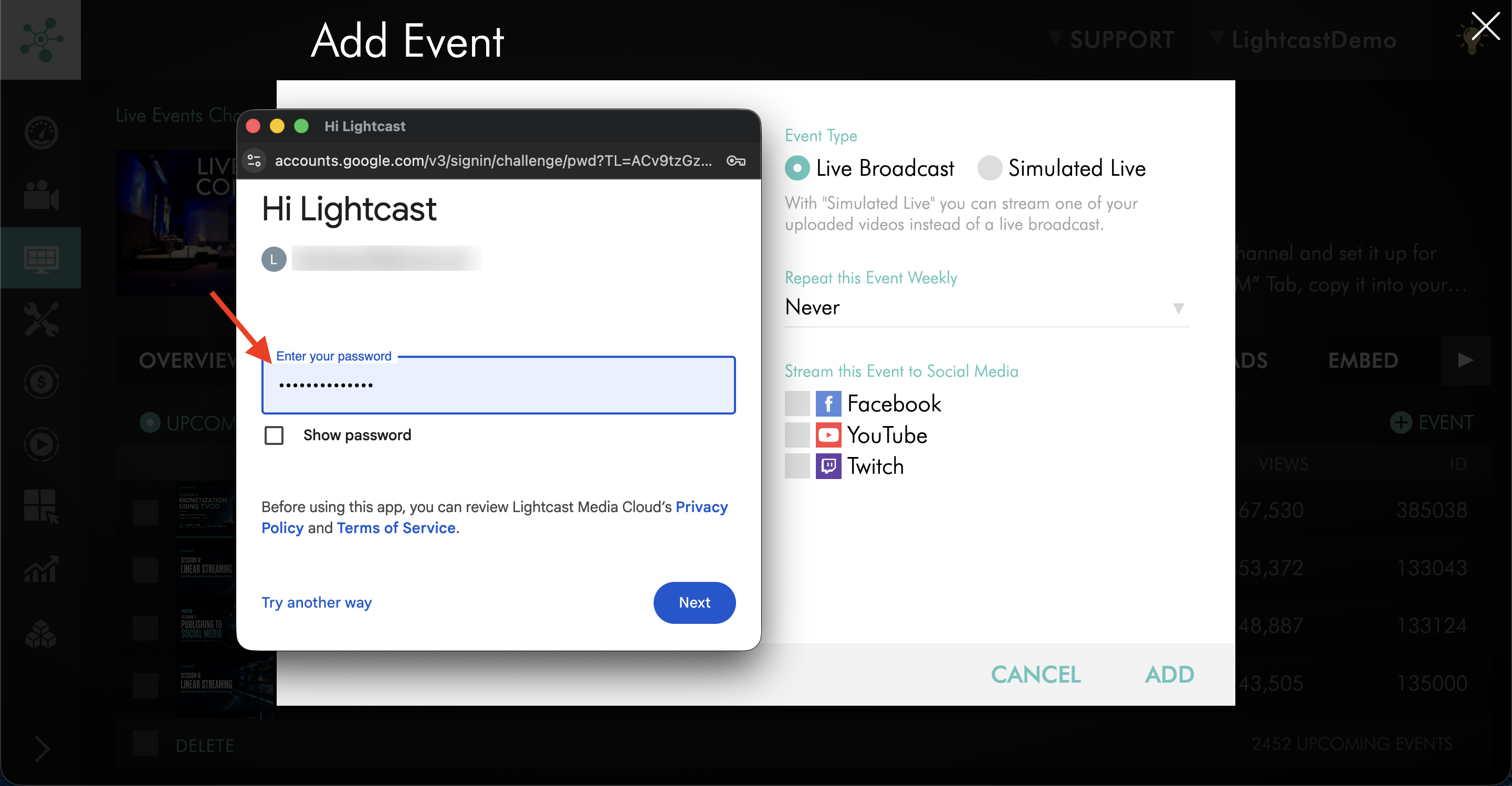
Step 8
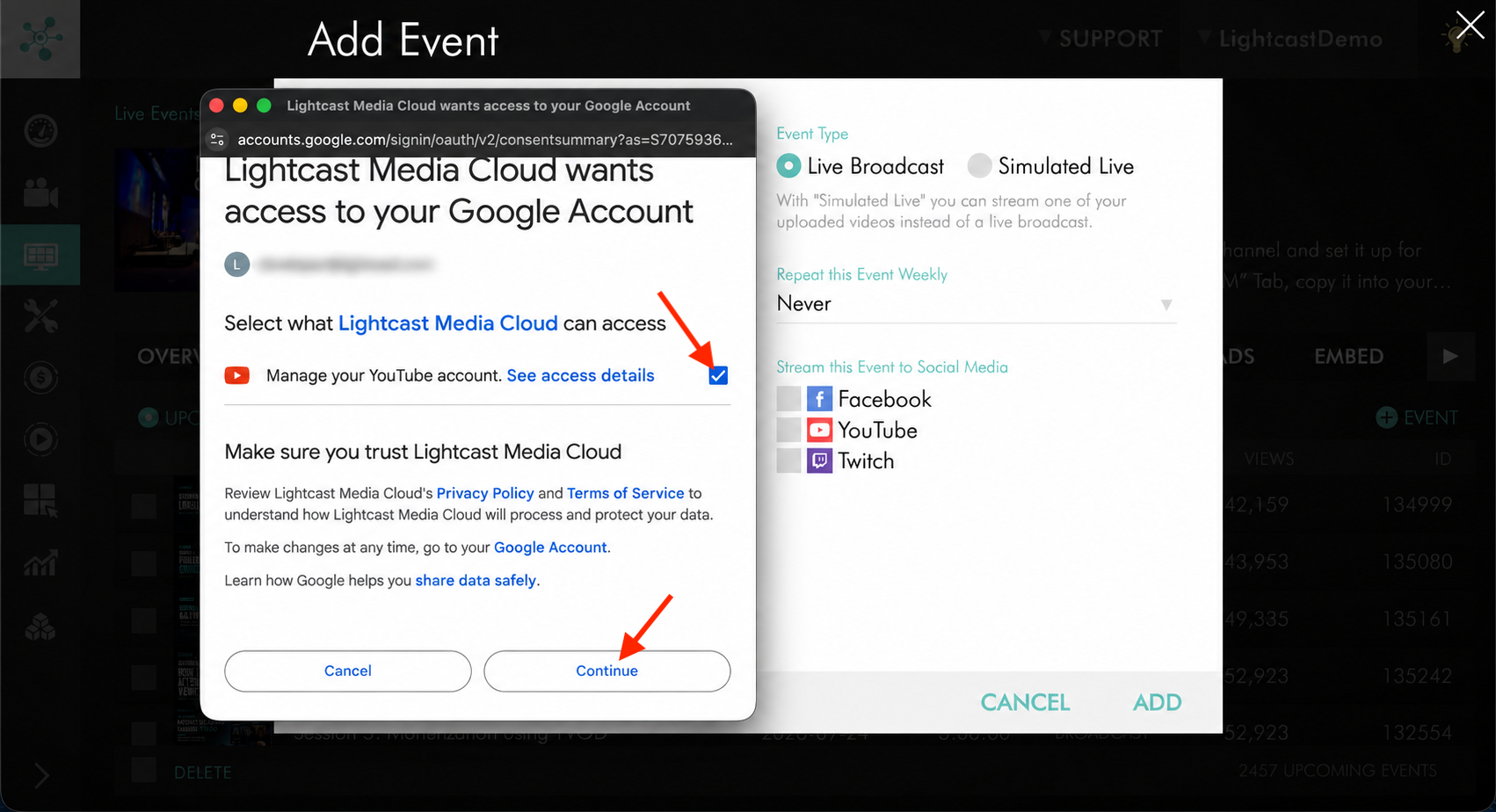
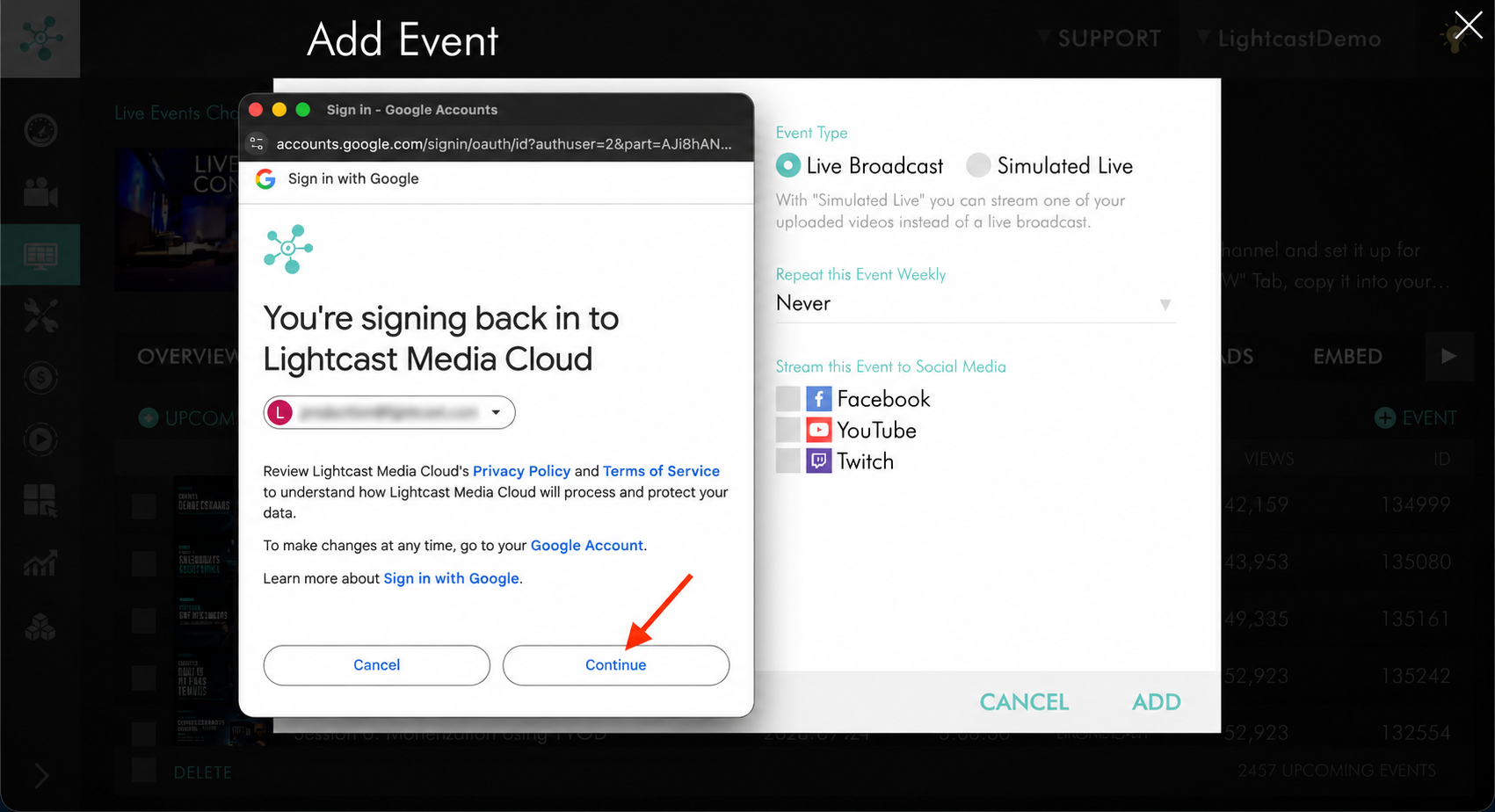
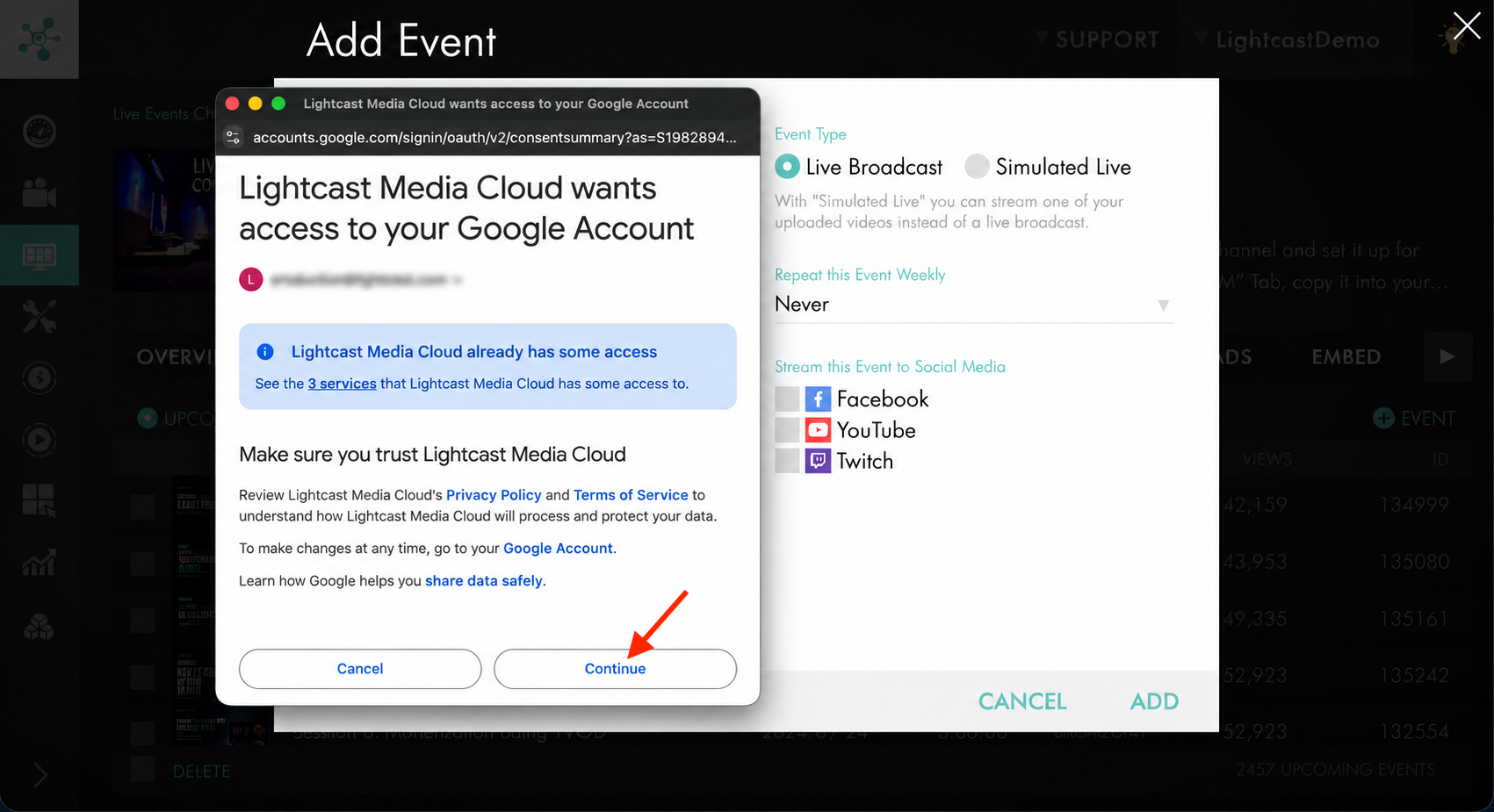
Follow the authorization prompts to allow the Media Cloud to connect to the account.
The prompts may look different depending on whether you have connected this Google account to Lightcast before:
If this is your first time connecting the account, Google may ask you to review the requested permissions and save your selections.
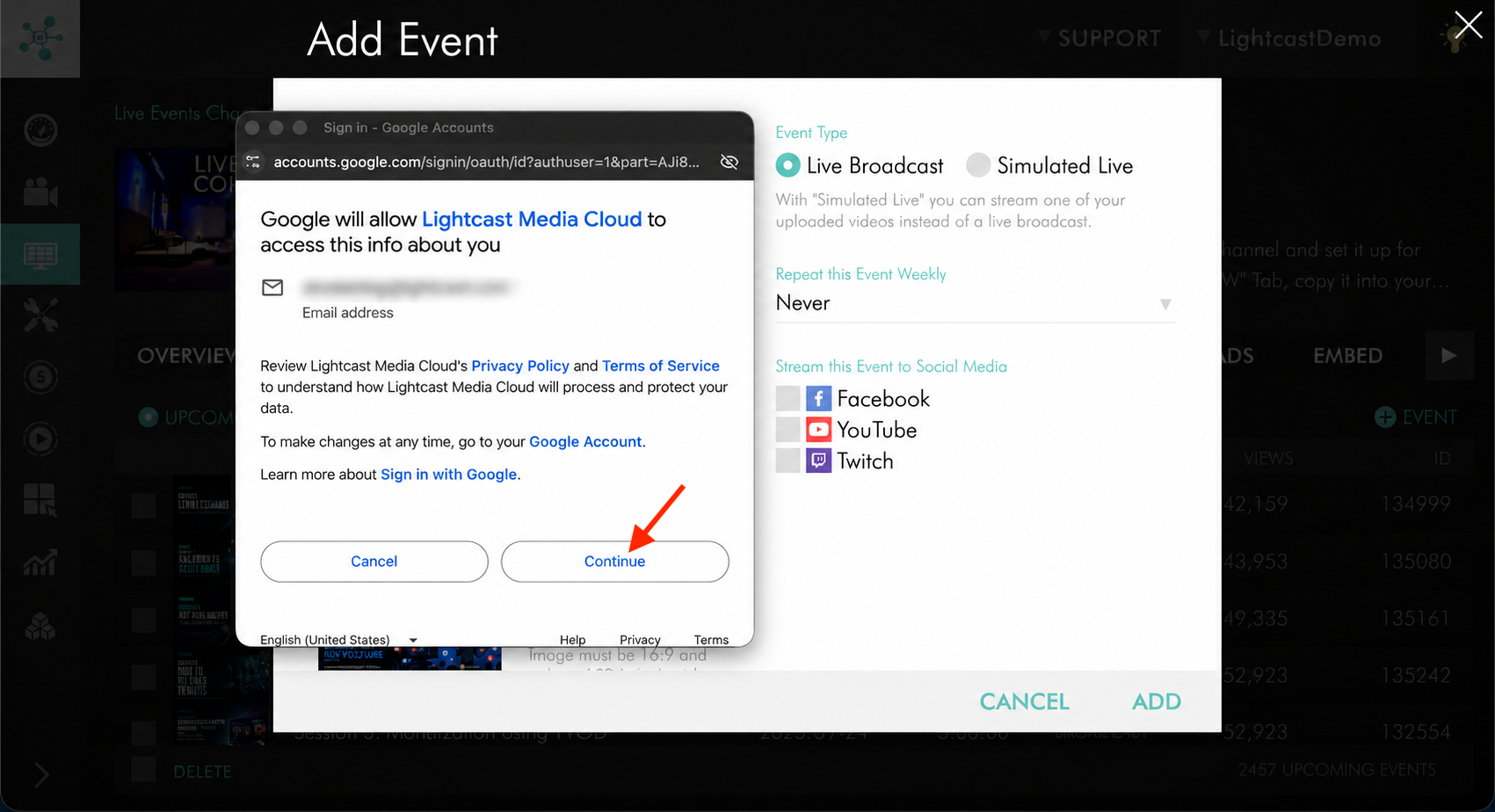
If the account has been connected previously, Google may ask you to continue using your existing connection or edit the previous settings.
Step 9
Finish configuring any additional event settings in the Media Cloud.
Step 10
Click ADD or SAVE to save the Live Event.
Step 11
Prepare your stream based on the event type:
For Live Broadcasts: Start your encoder before the scheduled event time to ensure the Media Cloud receives your source stream. The Media Cloud will deliver the stream to YouTube when the scheduled event begins.
For Simulated Live Events: No encoder is required. The Media Cloud automatically streams your selected video at the scheduled event time.
Once your event begins, check your YouTube Channel to verify that the broadcast is available as expected.
Change the connected YouTube account
Important: YouTube accounts are connected at the Live Events Channel level. Changing or disconnecting an account may affect other scheduled Live Events within the same Live Events Channel.
Before making changes, review your upcoming events to ensure they are configured to publish to the intended YouTube Channel.
Step 1
Log in to your Media Cloud account.
Step 2
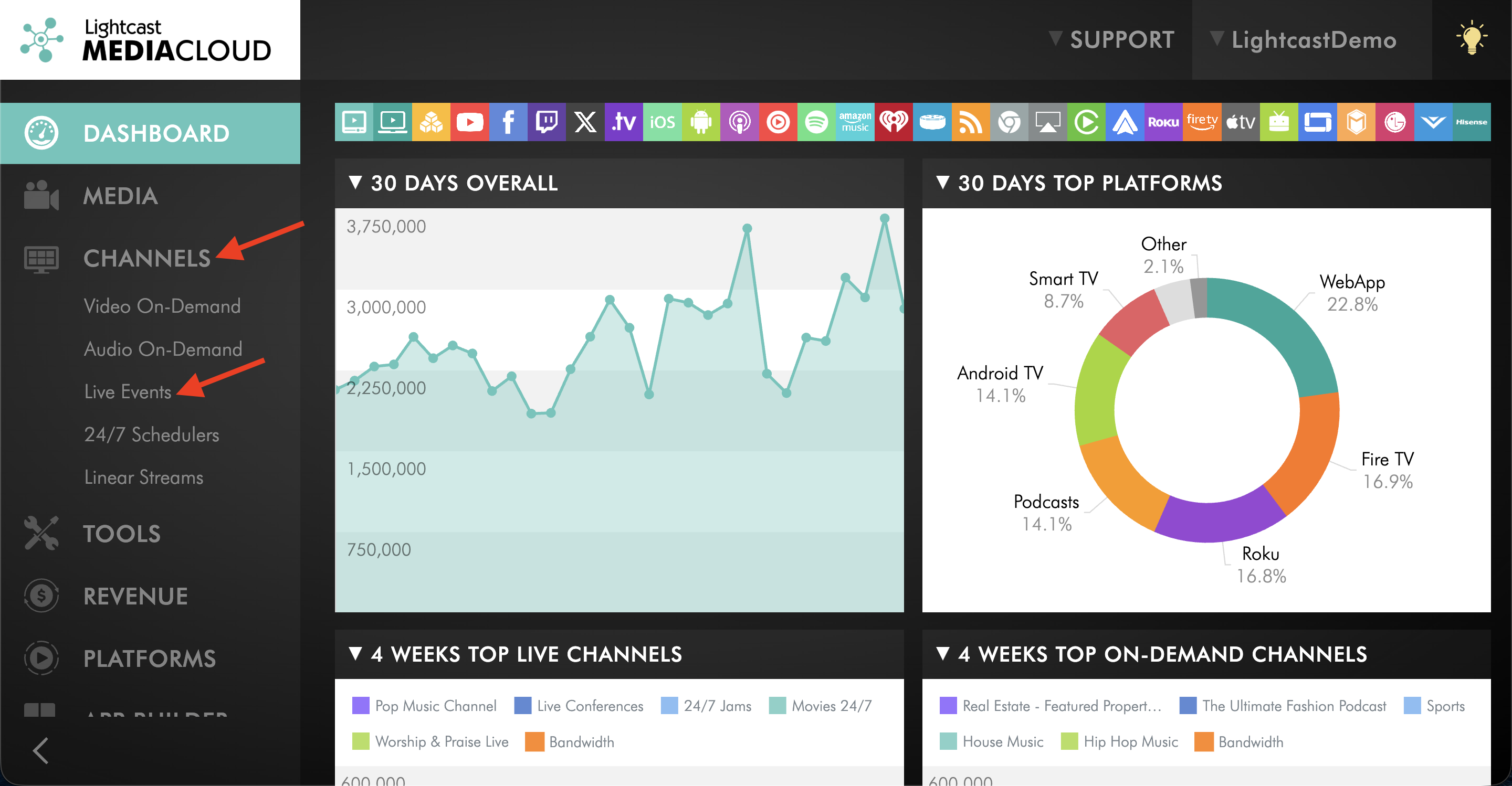
Go to CHANNELS, then select Live Events.
Step 3
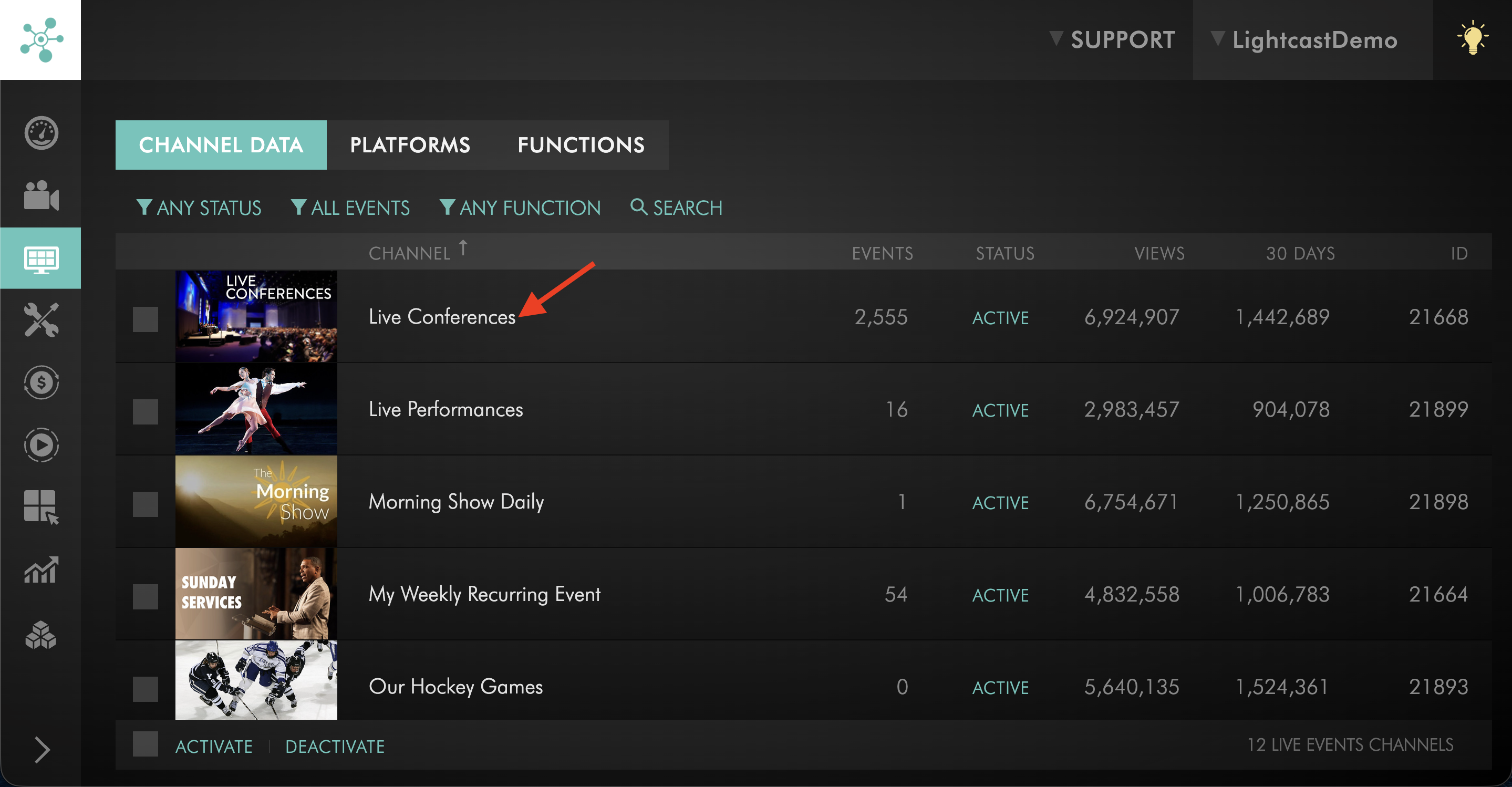
Select the Live Events Channel with the YouTube account you want to change.
Step 4
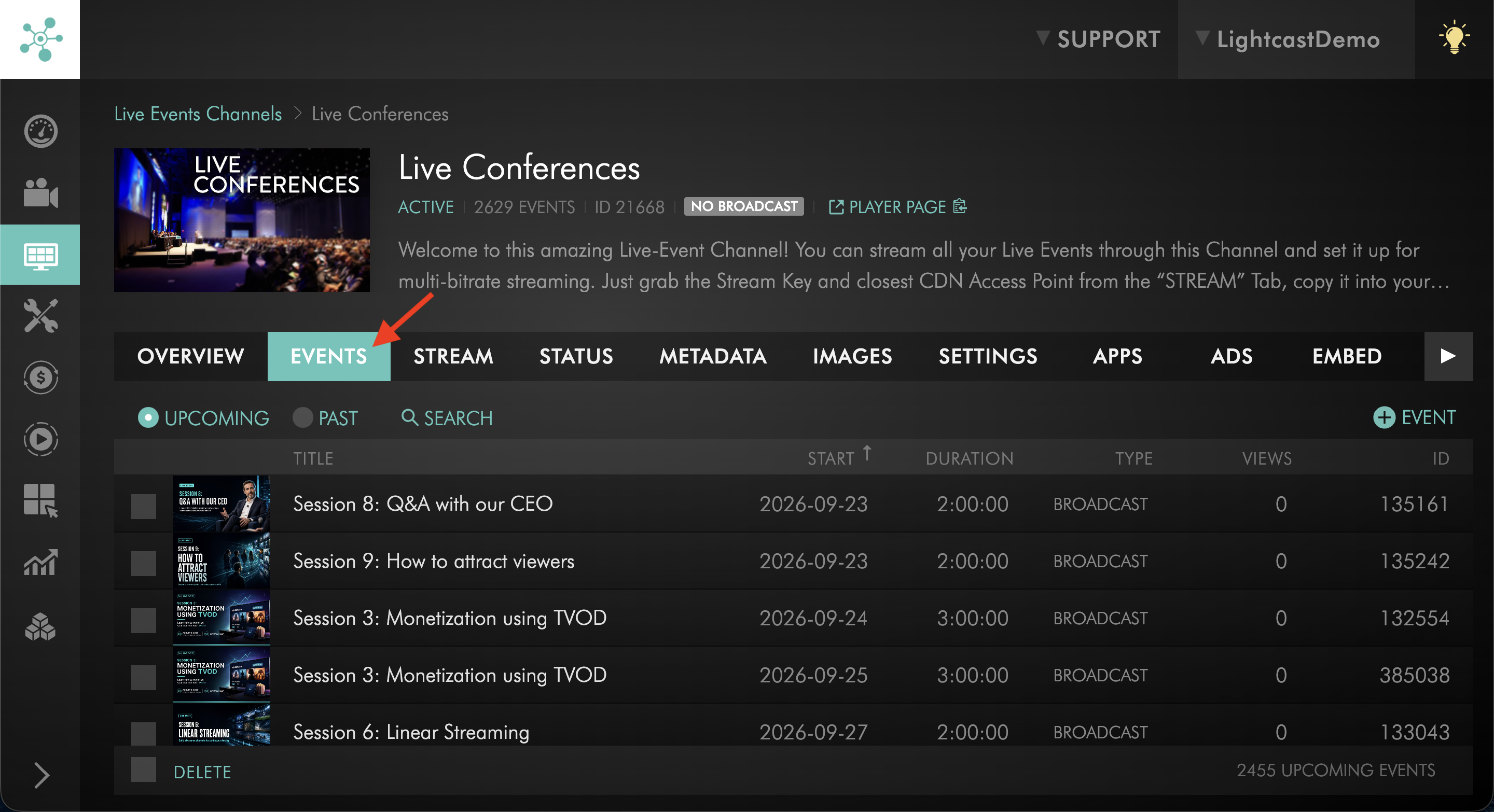
Go to the EVENTS tab.
Step 5
Create or open a scheduled Live Event.
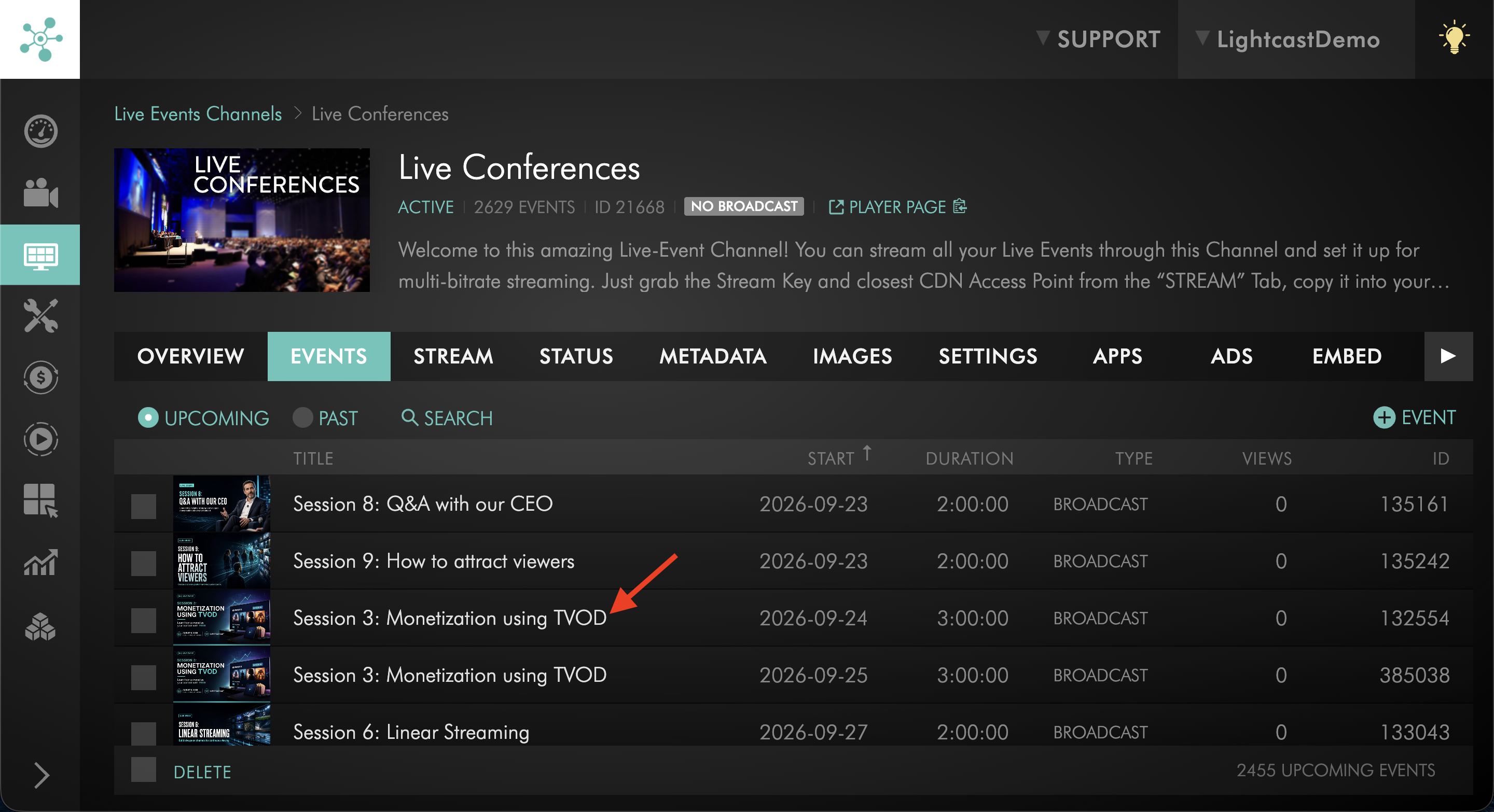
Step 6
Locate the YouTube publishing option.
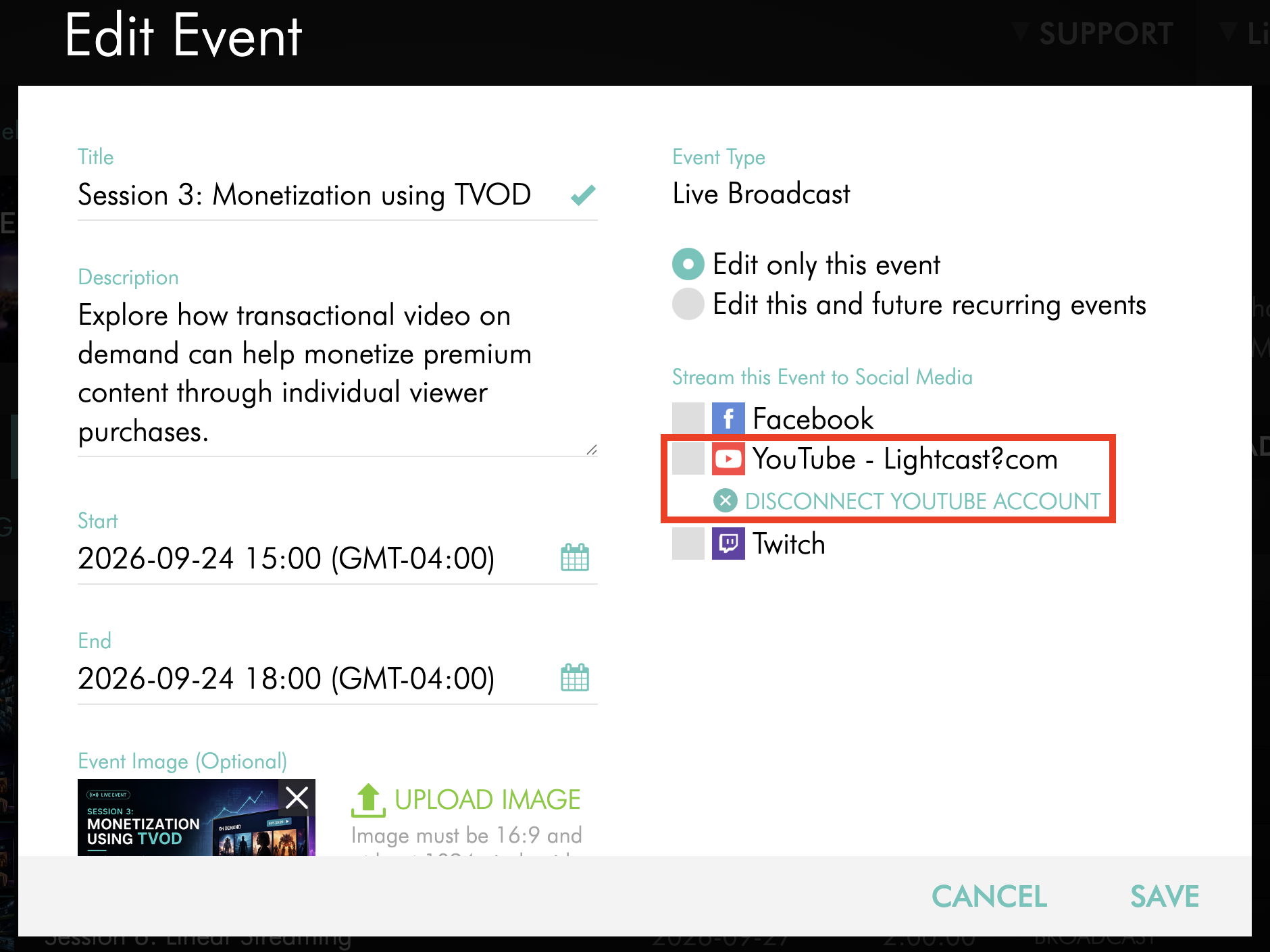
Step 7
Click DISCONNECT YOUTUBE ACCOUNT.
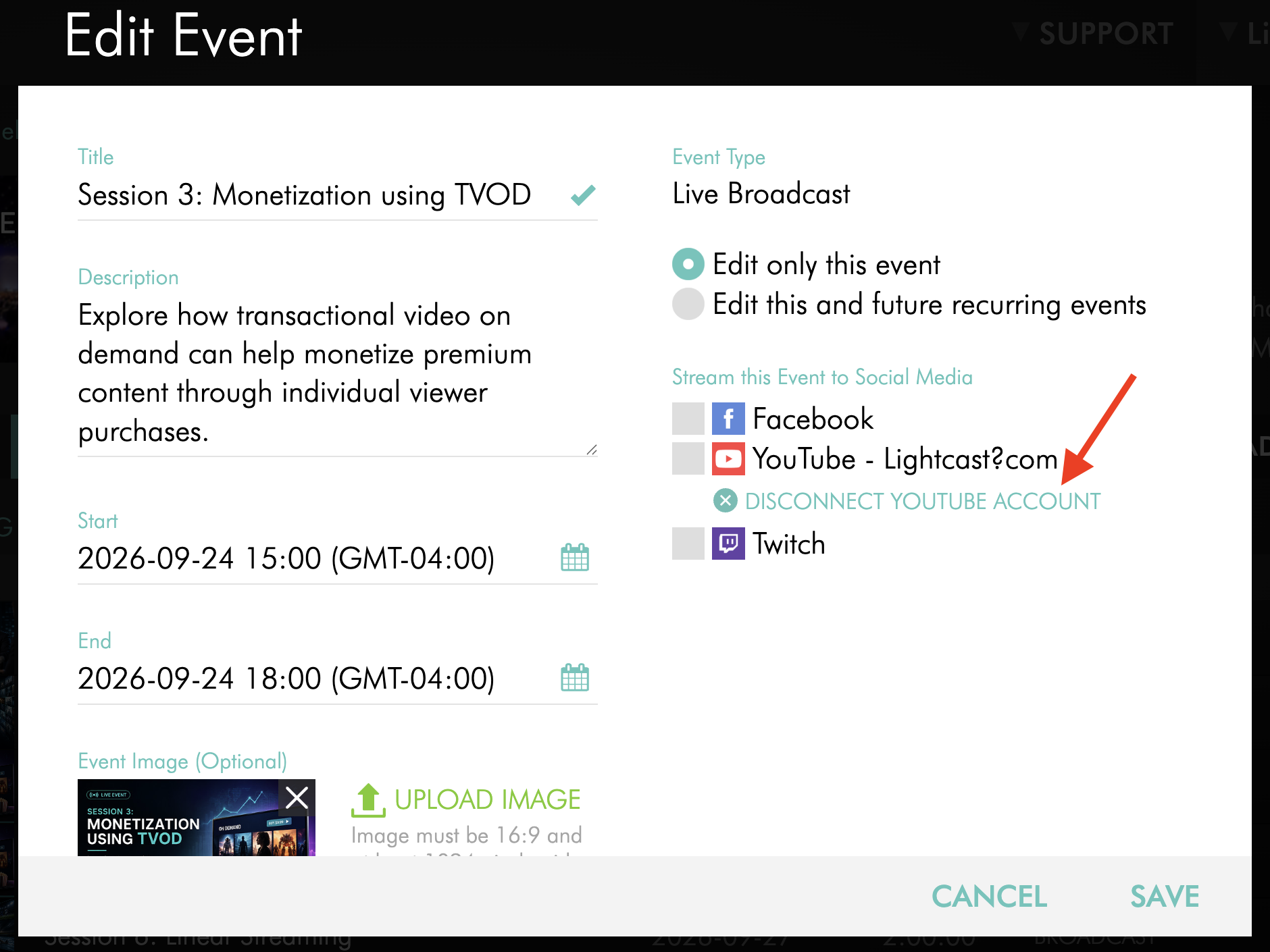
Step 8
When the confirmation window appears, click DISCONNECT.
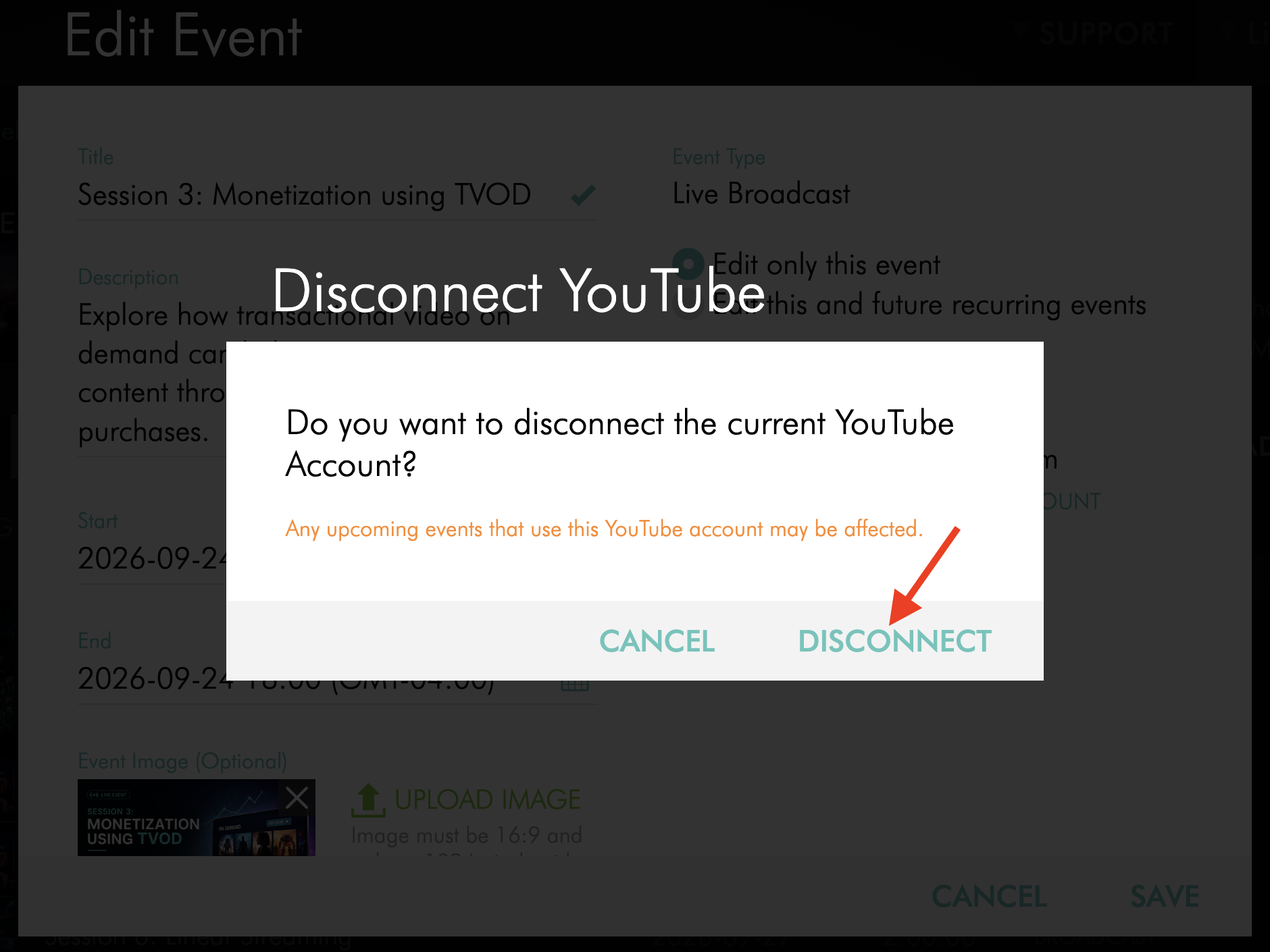
Step 9
Sign out of the currently connected Google account in your browser if needed.
This helps prevent the Media Cloud from reconnecting to the same account automatically.
Step 10
Select YouTube again.
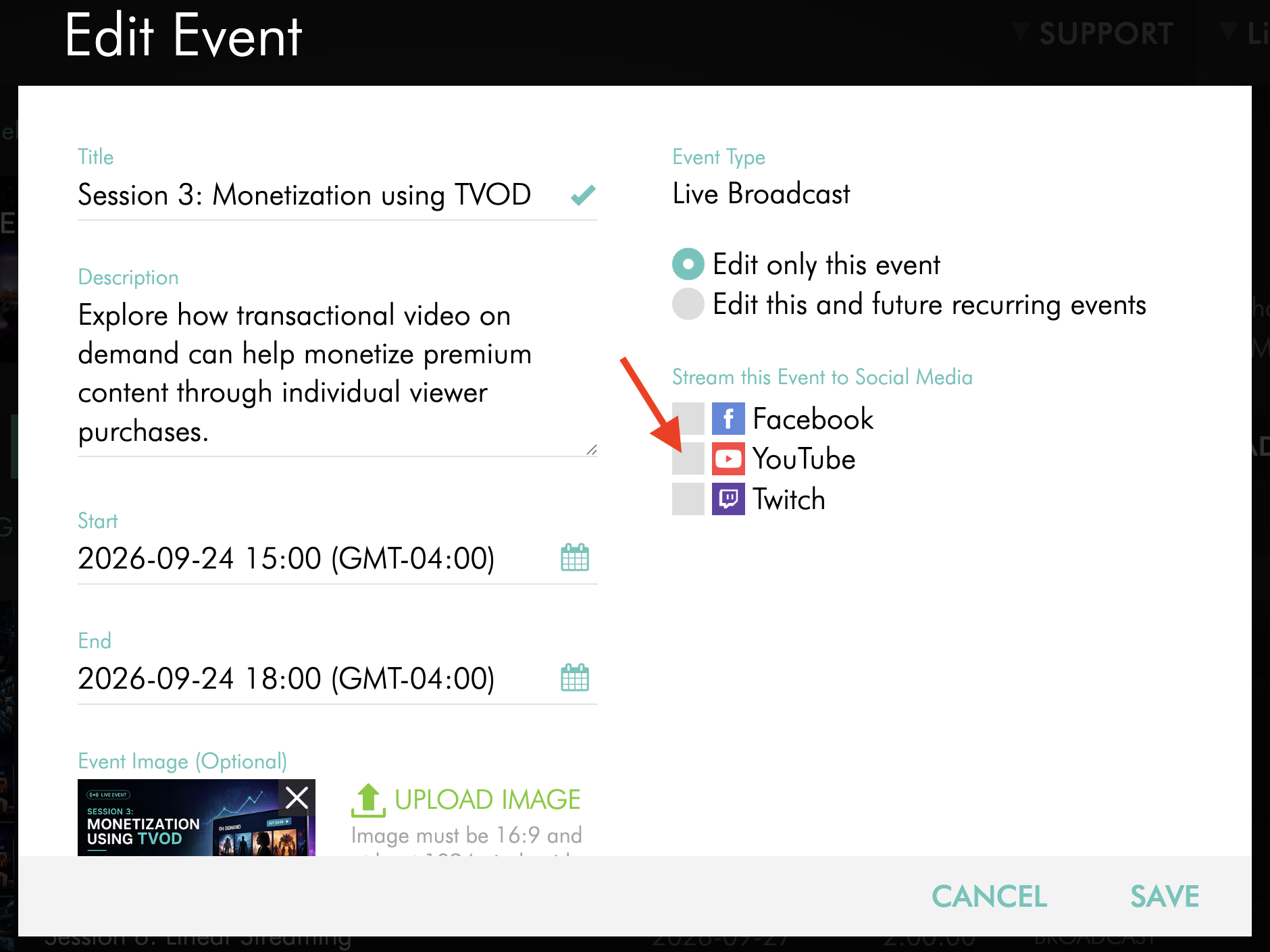
Step 11
In the pop-up window, log in with the Google account that manages the YouTube Channel you want to connect.
Step 12
Complete the necessary authorization steps, then click ADD or SAVE to save your changes.
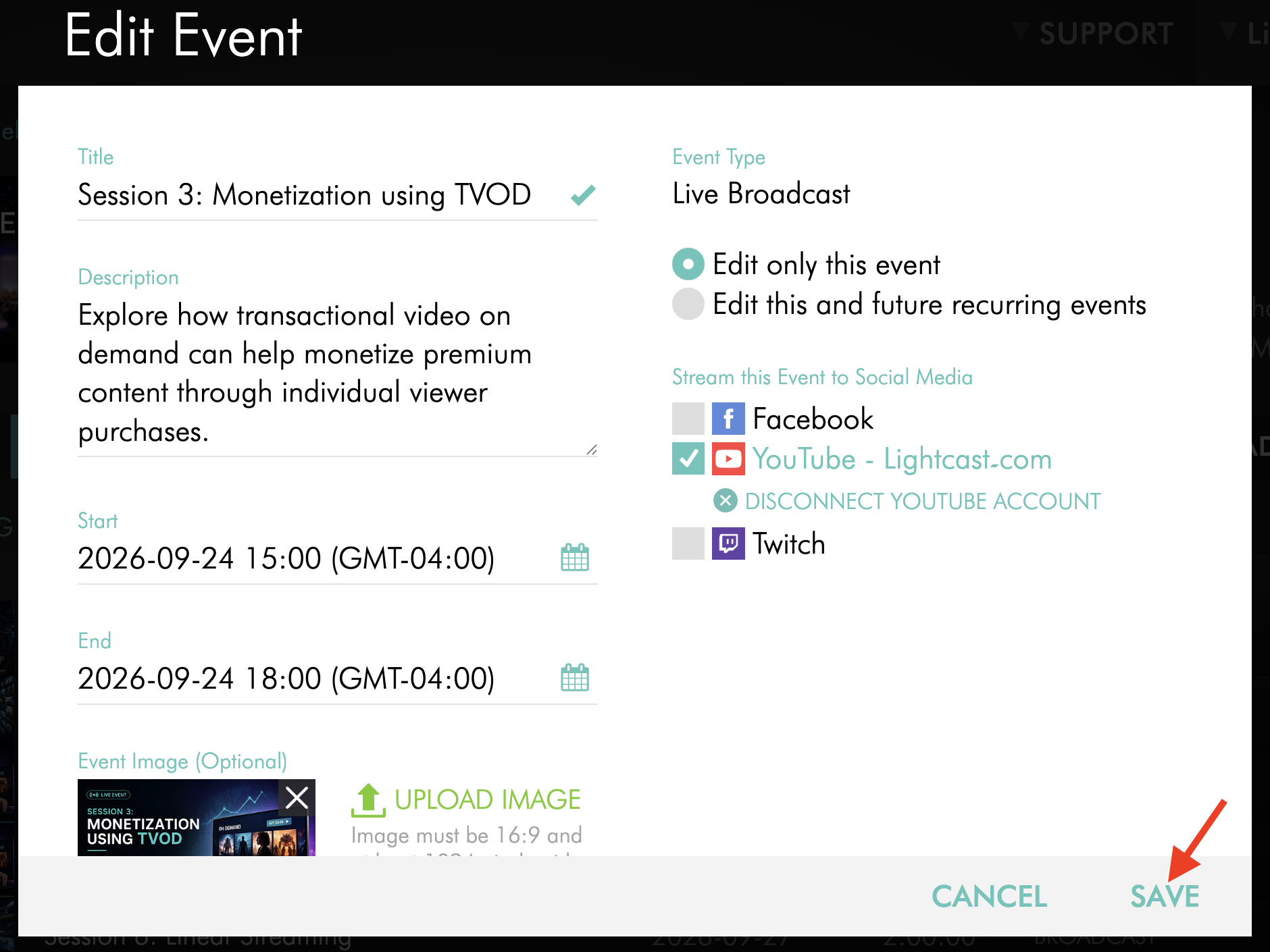
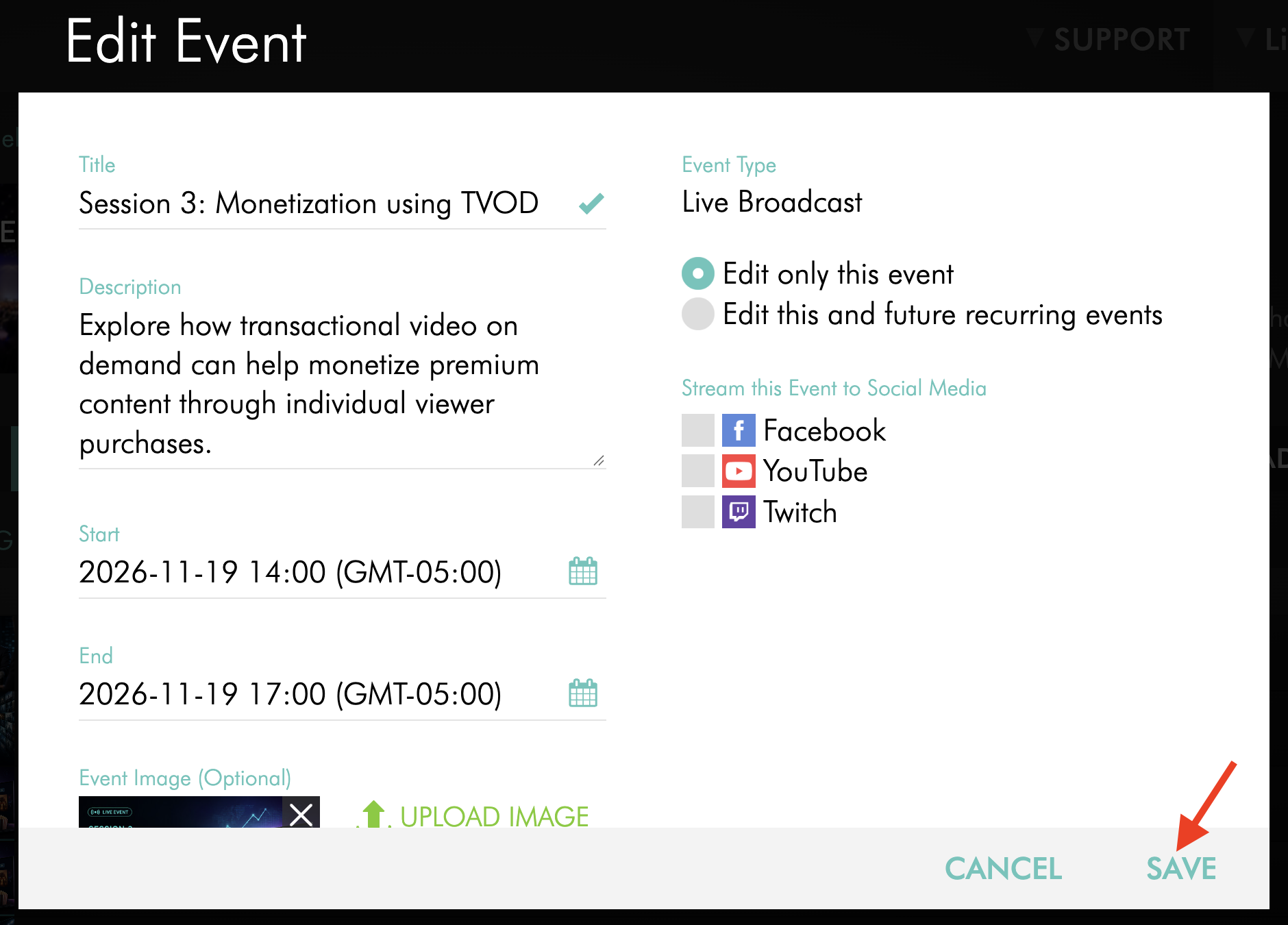
Stop YouTube publishing before the Live Event begins
Important: Live Event settings cannot be edited once the event has started. Editing also becomes unavailable less than 5 minutes before the scheduled start time.
If the event is more than 5 minutes away from its scheduled start time, you can remove YouTube from the scheduled event.
Step 1
Log in to your Media Cloud account.
Step 2
Go to CHANNELS, then select Live Events.
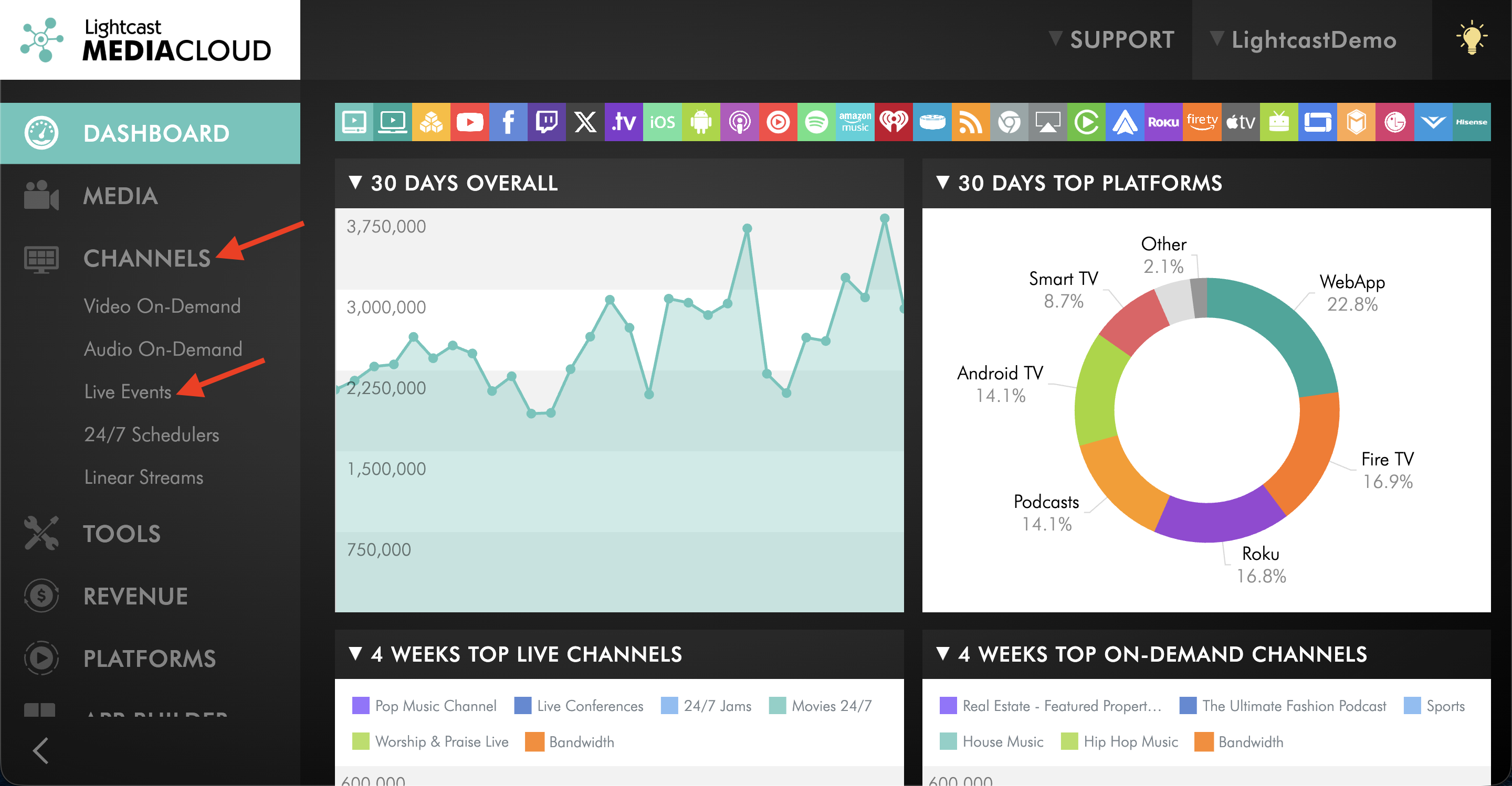
Step 3
Select the Live Events Channel that contains the scheduled Live Event.
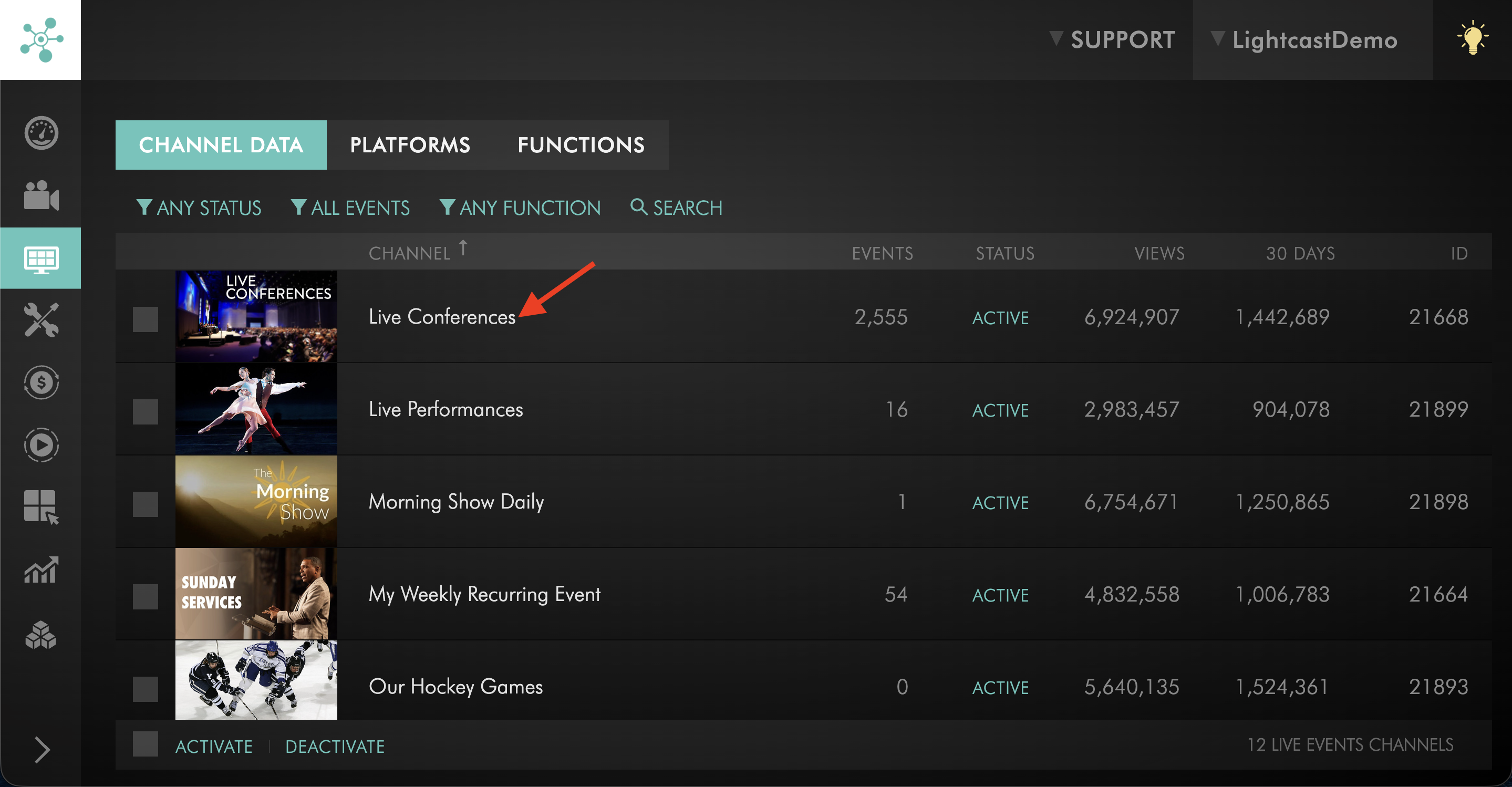
Step 4
Go to the EVENTS tab.
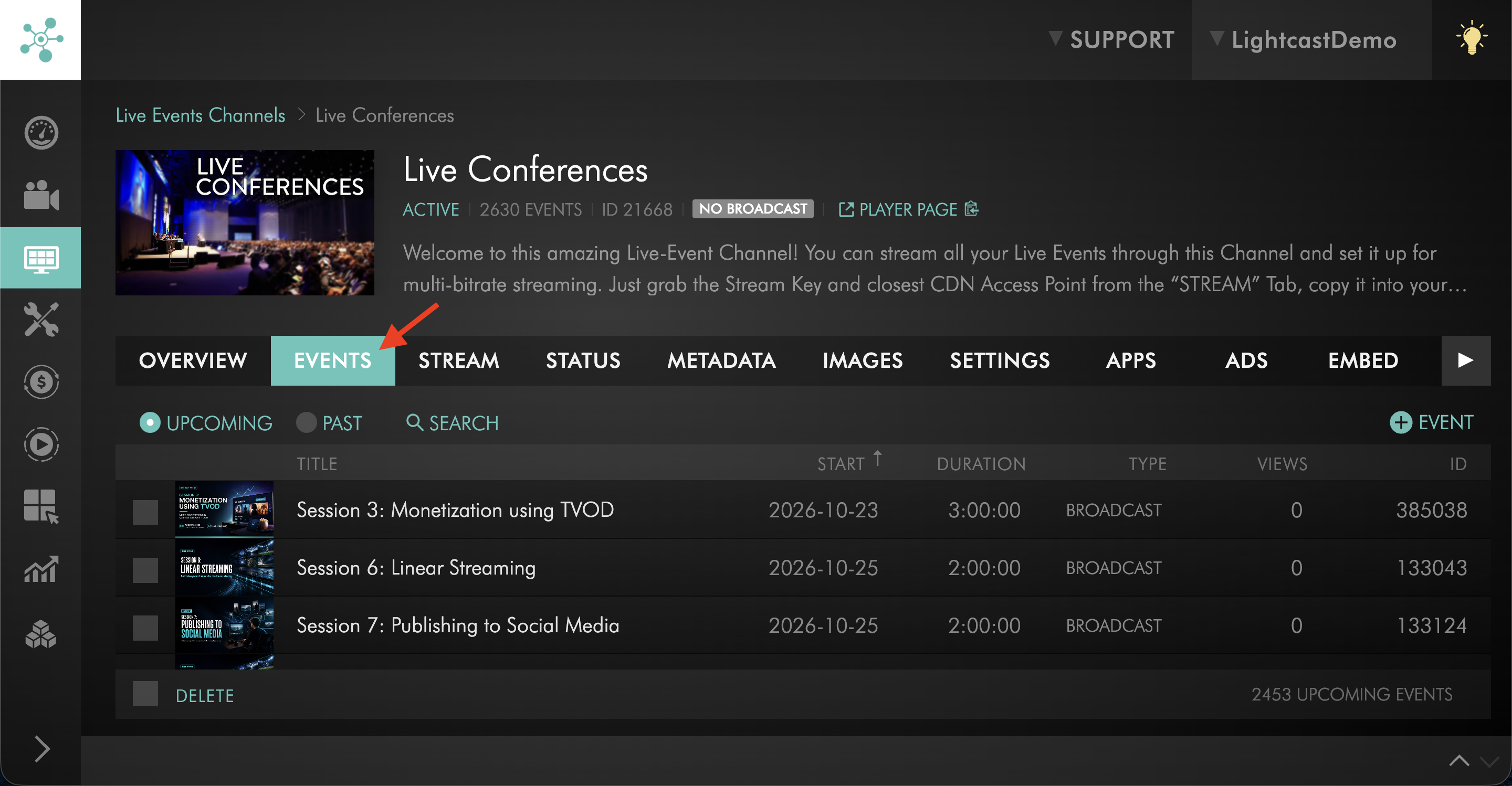
Step 5
Open the scheduled Live Event.
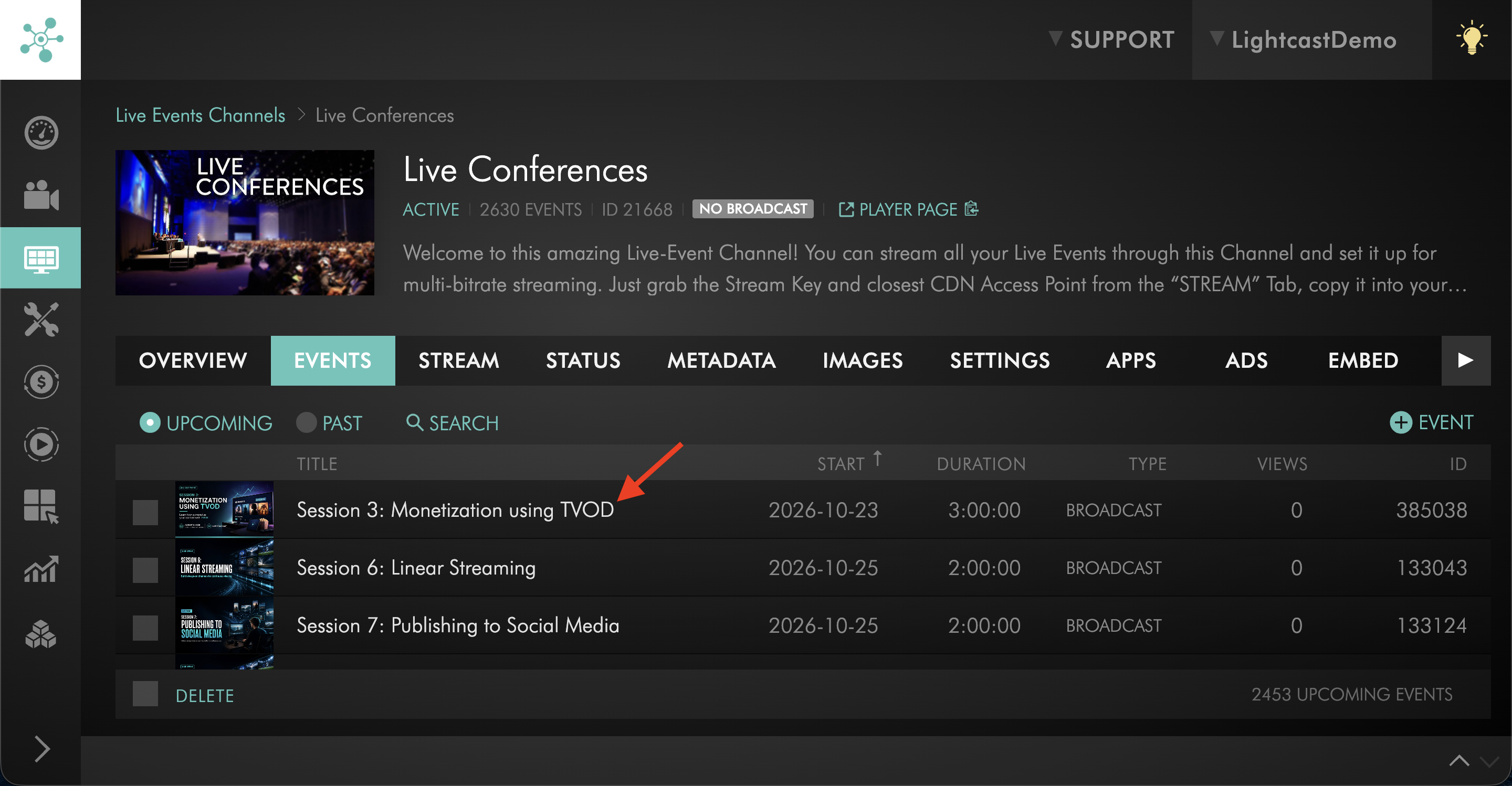
Step 6
Locate the YouTube publishing option.
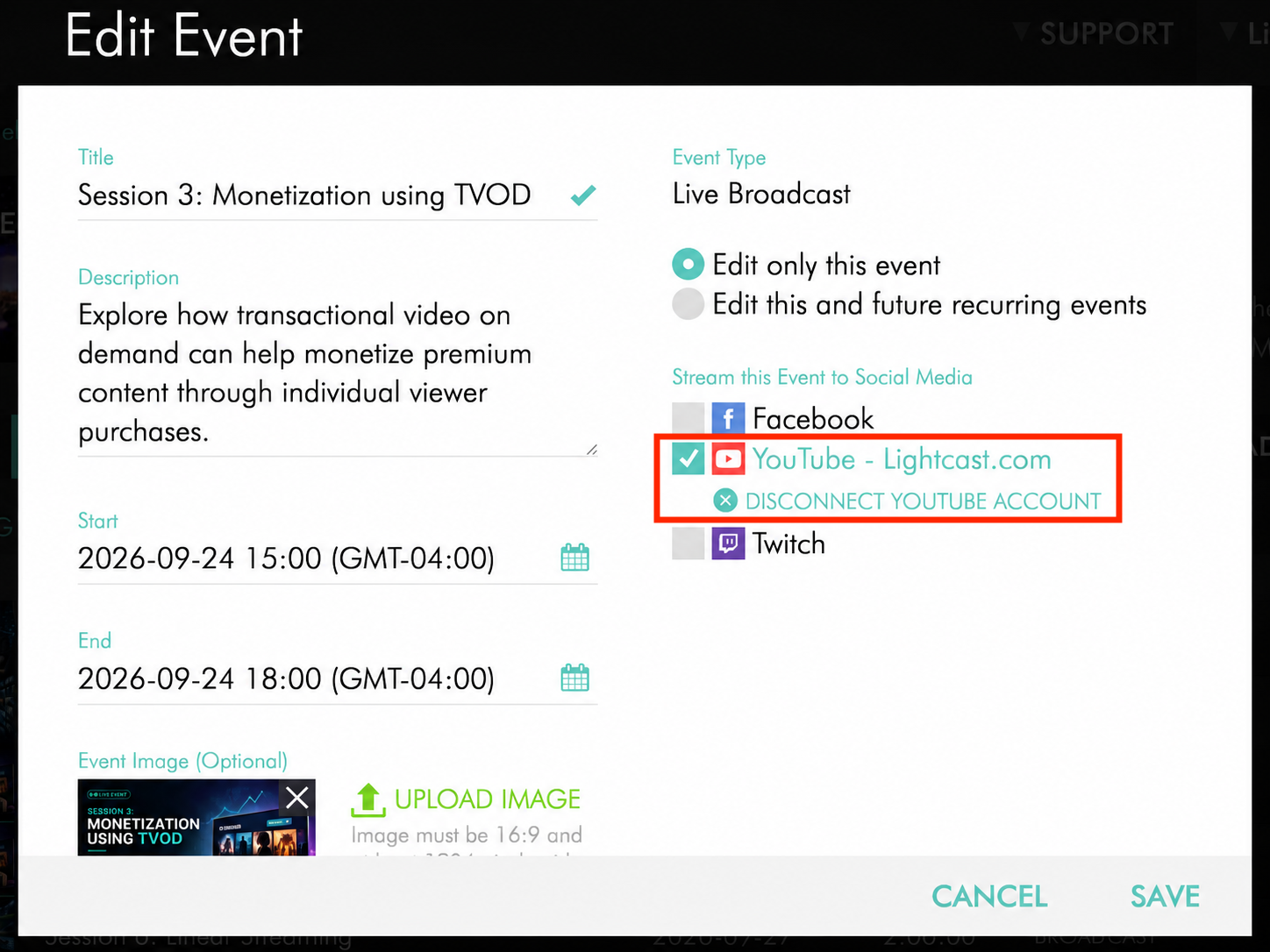
Step 7
Deselect the YouTube publishing option.
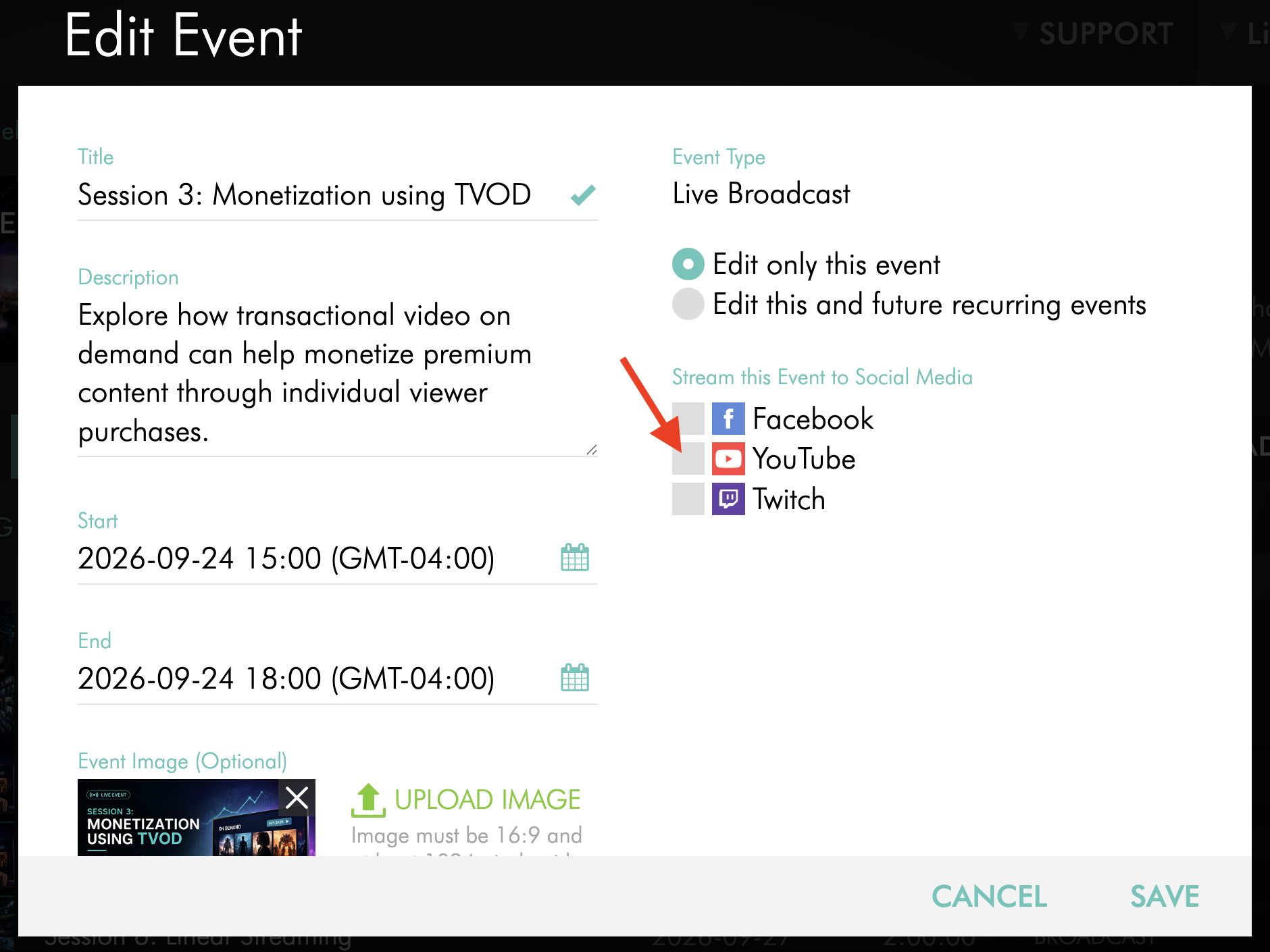
Step 8
Click SAVE to save the changes.
After the event is saved, the Live Event remains scheduled in the Media Cloud but will no longer be configured to publish to YouTube.
Stop YouTube publishing after the Live Event begins
If you are broadcasting an encoder-based Live Event, stop sending the source stream from your encoder when you are ready to end the broadcast.
YouTube responds according to its live streaming settings, including whether automatic stopping is enabled. If the broadcast remains active on YouTube after the source stream stops, you may need to end it through YouTube's live streaming controls.
To learn more, see YouTube Help: Manage live stream settings
If you need to stop YouTube publishing before the scheduled Live Event finishes, deleting the scheduled Live Event from the Media Cloud's event manager may stop the outgoing stream to YouTube.
Important: Deleting a Live Event removes it from the Media Cloud and may interrupt broadcasting to other connected destinations. Only use this option if you intend to stop or remove the entire scheduled event.
YouTube's automatic stopping settings may affect when the broadcast itself ends after the source stream stops.
If you are unsure how to stop your broadcast without affecting other destinations, contact Customer Support before deleting the Live Event.
Troubleshooting YouTube publishing
If you have trouble connecting your YouTube account or publishing a Live Event, check the following:
YouTube account: Verify that the correct Google account and YouTube Channel are connected.
Live streaming permissions: Confirm that your YouTube Channel is verified and enabled for live streaming.
First-time activation: If you recently enabled live streaming, allow up to 24 hours for YouTube to activate the feature.
Encoder connection: For Live Broadcasts, ensure your encoder is running and the Media Cloud is receiving the source stream.
Scheduled event: Verify that the Live Event is configured for the correct date and time and that YouTube is selected as a publishing destination.
Browser settings: If the Google authorization window does not appear, make sure your browser allows pop-ups from the Media Cloud.
For issues with the YouTube broadcast itself, including delayed publishing, unexpected interruptions, or scheduled end-time behavior, see Troubleshooting YouTube Live streaming issues.
If the issue persists, contact Customer Support for assistance.
FAQs
What YouTube requirements must be met before I can go live?
Your YouTube Channel must be verified and have no live streaming restrictions from the past 90 days.
YouTube also currently requires users to be at least 16 years old to live stream.
If live streaming has not been enabled on your YouTube Channel before, enable it well in advance of your scheduled event. YouTube may take up to 24 hours to activate live streaming for the first time.
For more information, see YouTube Help: Get started with live streaming.
How is a YouTube Channel verified for live streaming?
YouTube verifies the Channel using a phone number. YouTube sends a verification code by text message or voice call, which you enter to complete the verification process.
Once the Channel is verified, live streaming is one of the features that becomes available.
For more information, see YouTube Help: Verify your YouTube account.
Can I connect multiple YouTube accounts to my Media Cloud account?
Yes. YouTube accounts are connected at the Live Events Channel level.
You can connect different YouTube accounts to different Live Events Channels. Each Live Events Channel can have one connected YouTube account at a time.
Can I connect a different YouTube account to my Live Events Channel?
Yes. Disconnect the current YouTube account from the Live Events Channel, then connect the new account through the YouTube publishing option.
Before reconnecting, sign out of the currently connected Google account in your browser if needed so the correct account can be selected.
Changing the connected account may affect other scheduled Live Events within the same Live Events Channel.
Can I publish a 24/7 stream on YouTube?
YouTube publishing through the Media Cloud is available for scheduled Live Events and Simulated Live Events, not continuous 24/7 streams.
For continuous 24/7 programming, you can use a 24/7 Scheduler or Linear Stream to deliver content to supported Lightcast destinations, such as your website and apps.
Can I test YouTube publishing from a trial account?
No. Trial accounts cannot be connected to YouTube for auto-publishing.
YouTube publishing is available for contracted Media Cloud accounts with access to the feature.
How does a Live Broadcast reach YouTube?
For a Live Broadcast, your encoder sends the source stream to the Media Cloud. The Media Cloud then sends the active stream to YouTube during the scheduled Live Event.
YouTube controls playback and delivery to viewers after receiving the stream.
How does a Simulated Live Event reach YouTube?
A Simulated Live Event uses an existing video from your Media Archive instead of a live encoder source.
At the scheduled event time, the Media Cloud sends the selected video to YouTube as a live broadcast.
No encoder is required.
What happens when the encoder stops sending the live stream?
When the encoder stops sending the source stream, YouTube responds according to its live streaming settings.
If automatic stopping is enabled, YouTube can automatically end the broadcast when the incoming stream stops.
If automatic stopping is disabled, you may need to end the broadcast manually through YouTube Studio.
Can Lightcast subscriber authentication or paywalls be used for viewers watching directly on YouTube?
No. Lightcast subscriber authentication and subscription paywall settings do not carry over to standard YouTube Live broadcasts.
YouTube controls viewer access through its own audience settings and permissions.
For more information, see Understanding how YouTube handles Live Events published from the Media Cloud.
Pricing
Live Streaming to Social Media is available on POWER packages and up.
If you don't have access to this feature, you can upgrade to one of our latest plans or contact your account manager.