
How to publish Live Events and Simulated Live Events to Facebook
Overview
This article explains how to publish a Live Event or Simulated Live Event from the Media Cloud to Facebook.
You can connect a Facebook account to a Live Events Channel and select an eligible Facebook destination for your scheduled event.
When to send your live stream to Facebook
Use this feature when you want to publish a scheduled Live Event or Simulated Live Event from the Media Cloud to Facebook.
This may be helpful when:
You want viewers to watch your event directly on Facebook
You want to send an encoder-based Live Event to Facebook
You want to publish a Simulated Live Event to Facebook
You want to manage the event schedule in the Media Cloud while also distributing the event to Facebook
Facebook Live is designed for event-based streaming and is not recommended for continuous 24/7 streams.
How it works
Facebook publishing is configured from a scheduled event inside a Live Events Channel.
When you select Facebook as a publishing destination, the Media Cloud prompts you to sign in with your Facebook account and authorize the connection. After authorization, you can select an eligible Facebook Page or other supported destination associated with that account.
For Live Broadcasts: Your encoder sends the live source stream to the Media Cloud, which distributes the stream to Facebook during the scheduled Live Event.
For Simulated Live Events: The Media Cloud uses a previously uploaded video from your Media Archive as the source for the scheduled broadcast. No live encoder is required.
Once the stream reaches Facebook, Facebook controls its own live player, processing, viewer experience, and platform-specific behavior. Facebook may restrict, reject, interrupt, or end a live stream based on its current policies, requirements, and technical limits.
Facebook account requirements
Facebook applies eligibility requirements to accounts, Pages, and professional mode profiles before they can go live. These requirements are controlled by Facebook and may change.
Facebook currently requires that:
The Facebook account is at least 60 days old
The Facebook Page or professional mode profile has at least 100 followers
The Facebook user has the required Facebook access or task access to create content for the Page
For the most current requirements, see Facebook Help: Go live on Facebook account requirements.
Facebook connections and Live Events Channels
Facebook accounts are connected at the Live Events Channel level.
You can connect a different Facebook account to different Live Events Channels. For example, if you have three Live Events Channels, each Live Events Channel can be connected to a different Facebook account.
A single Live Events Channel cannot be connected to multiple Facebook accounts at the same time. If you need to use a different Facebook account for the Live Events Channel, disconnect the current Facebook account and connect the new one.
Facebook Pages and multiple destinations
If the connected Facebook account manages multiple Pages, you may be able to select which Page should receive the live stream.
If you need to publish to multiple Facebook Pages at the same time, you may need a multi-destination publishing workflow. Contact Customer Support to review the best setup for your account.
Using the Media Cloud as the publishing source
When publishing a Live Event to Facebook through the Media Cloud, we recommend sending your source stream to the Media Cloud and allowing the Media Cloud to distribute the stream to Facebook and your other configured destinations.
This keeps your publishing workflow centralized and avoids sending multiple separate streams from your encoder.
Sending one stream to the Media Cloud and another stream directly to Facebook may use additional upload bandwidth and can make it more difficult to identify the source of a connection, publishing, or playback issue.
Facebook duration limits and 24/7 streams
Facebook Live is intended for event-based live streaming.
Facebook currently lists an 8-hour maximum duration for standard live streams. Because this is a Facebook-controlled platform limit, it may change.
If you need continuous 24/7 streaming, use a 24/7 Scheduler or Linear Stream for supported destinations such as your website or apps.
For the most current duration information, see Facebook Help: Time limit and guidelines for live streaming on Facebook.
Instructions
Publish a Live Event or Simulated Live Event to Facebook
Step 1
Log in to your Media Cloud account.
Step 2
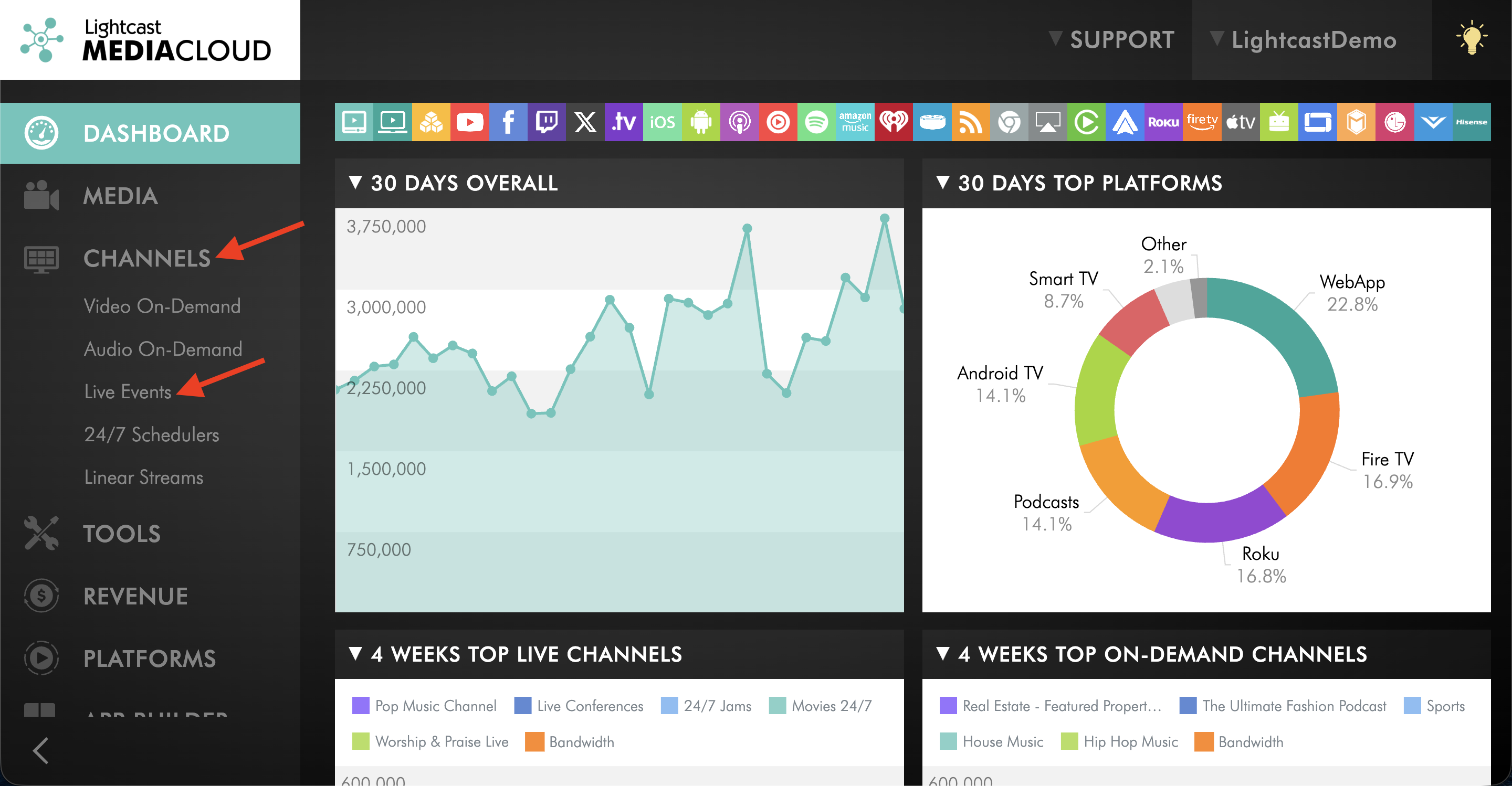
Go to CHANNELS, then select Live Events.
Step 3
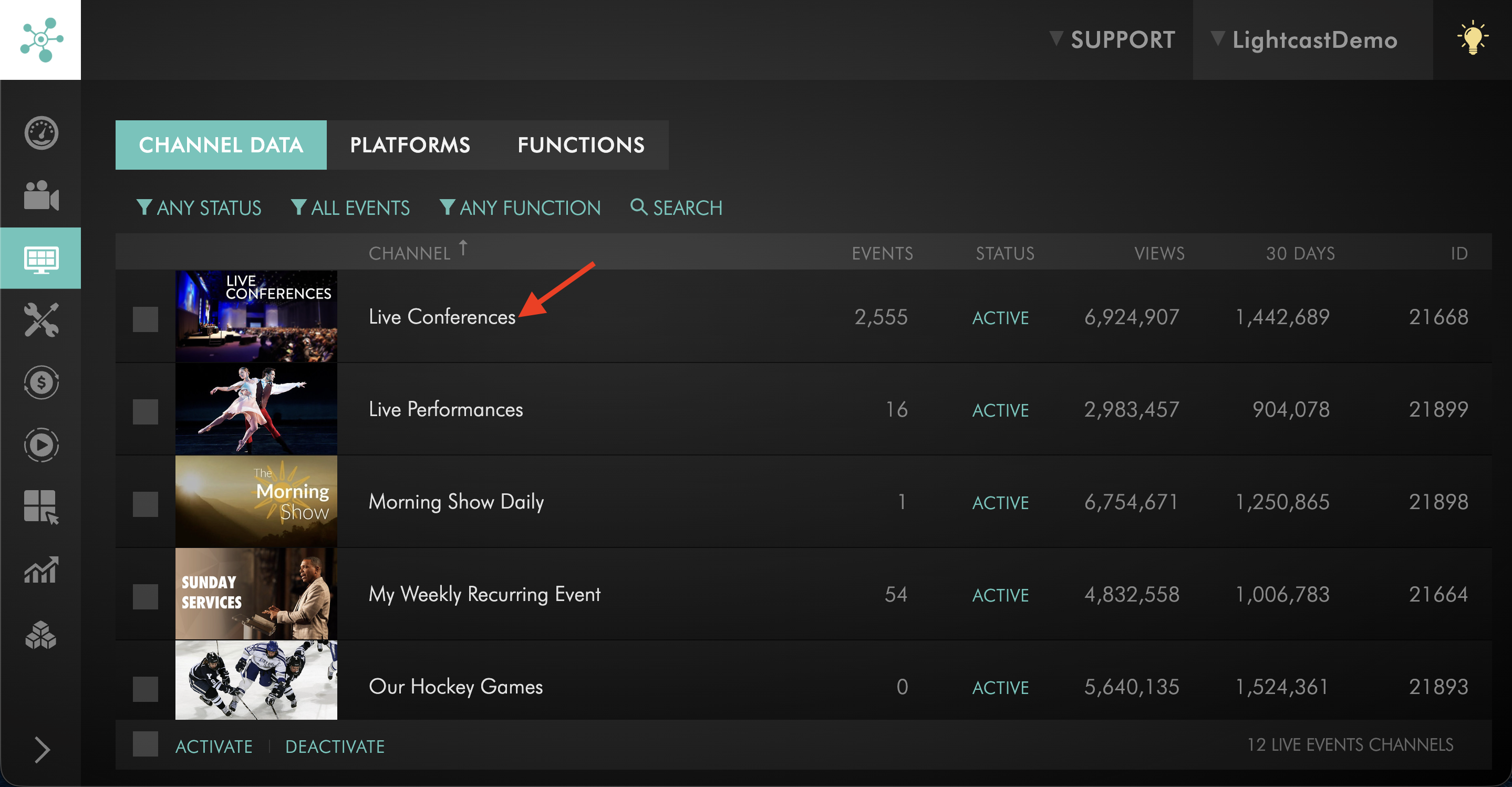
Select the Live Events Channel you want to use for the Facebook live stream.
Step 4
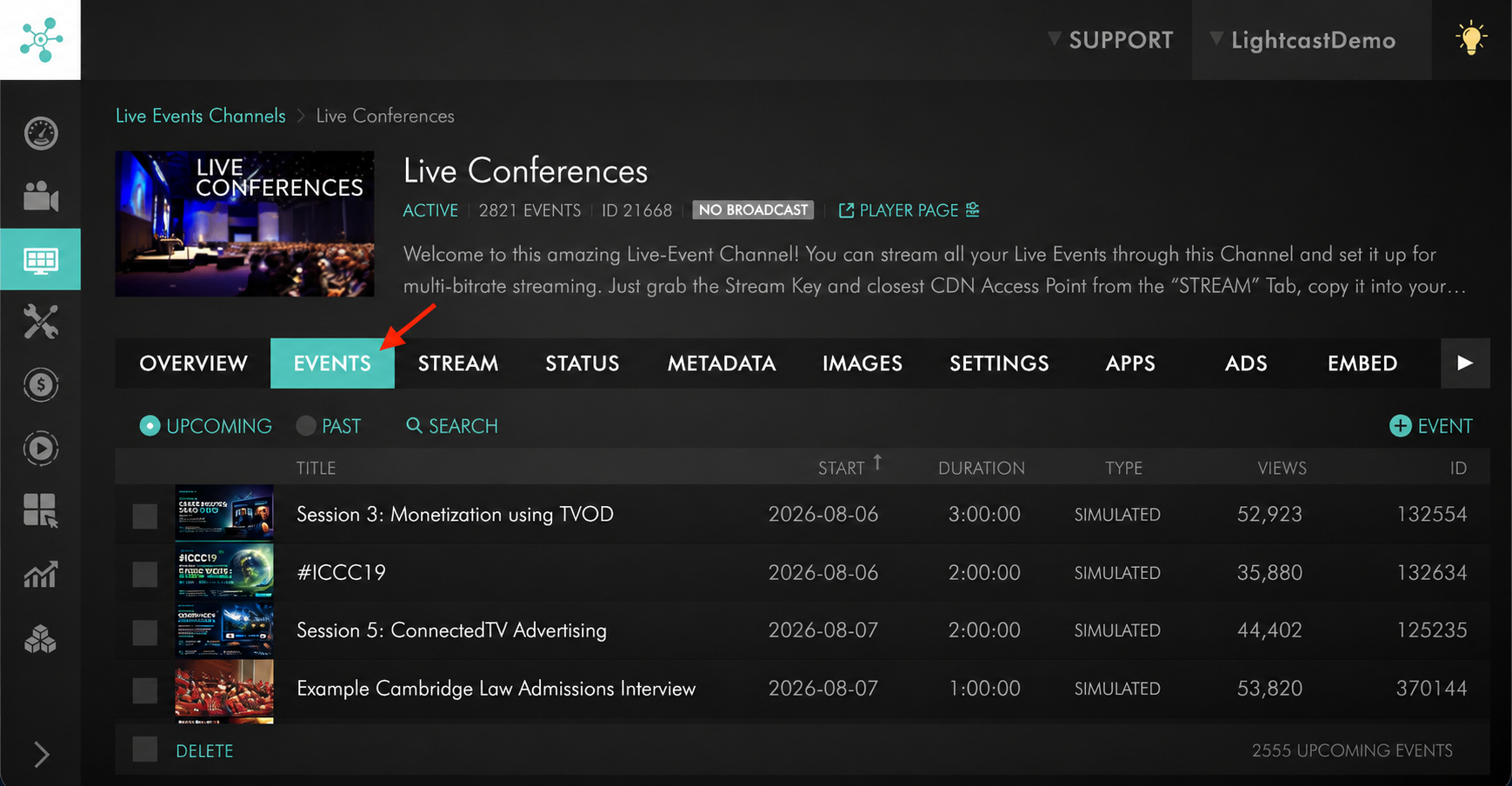
Go to the EVENTS tab.
Step 5
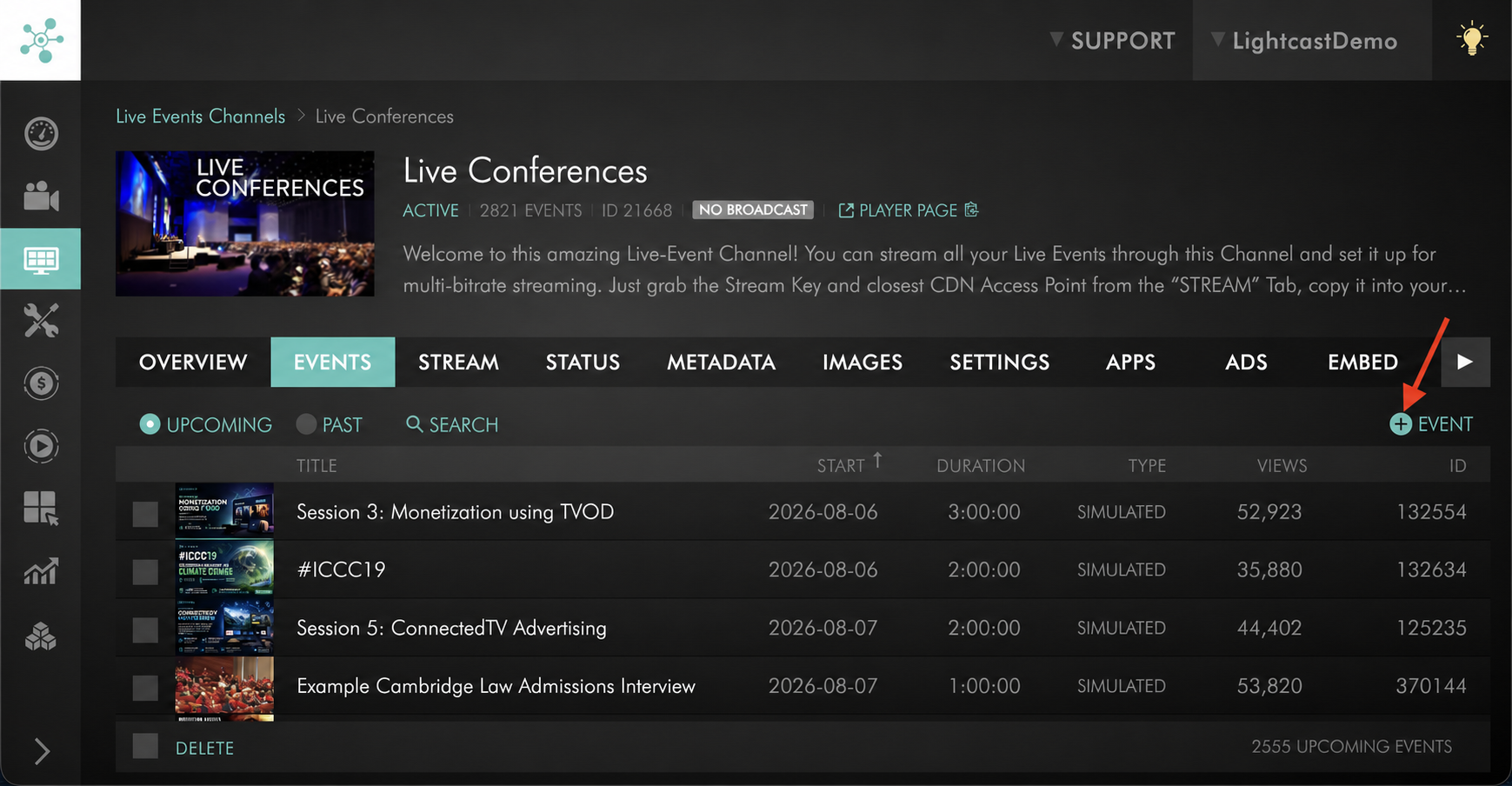
Click + EVENT to add a new Live Event, or select an existing scheduled Live Event.
To learn how to set up a scheduled event, see How to schedule a Live Event or How to schedule a Simulated Live Event.
Step 6
In the event settings, select the Facebook publishing option.
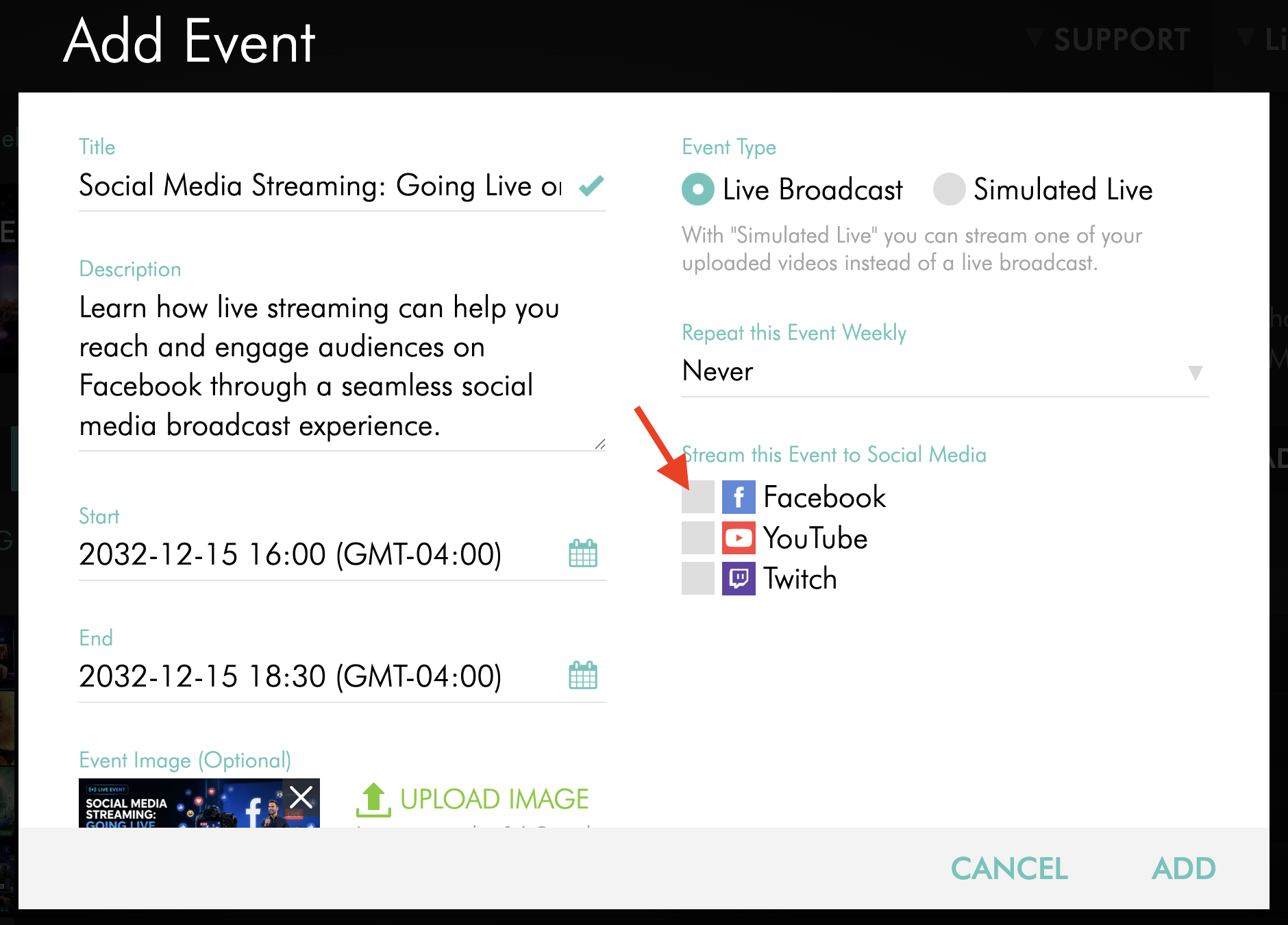
Step 7
When the Facebook pop-up appears, sign in to the Facebook account you want to connect.
If you manage multiple Facebook Pages, make sure you are signing in with the Facebook account that has permission to publish live content to the correct Page.
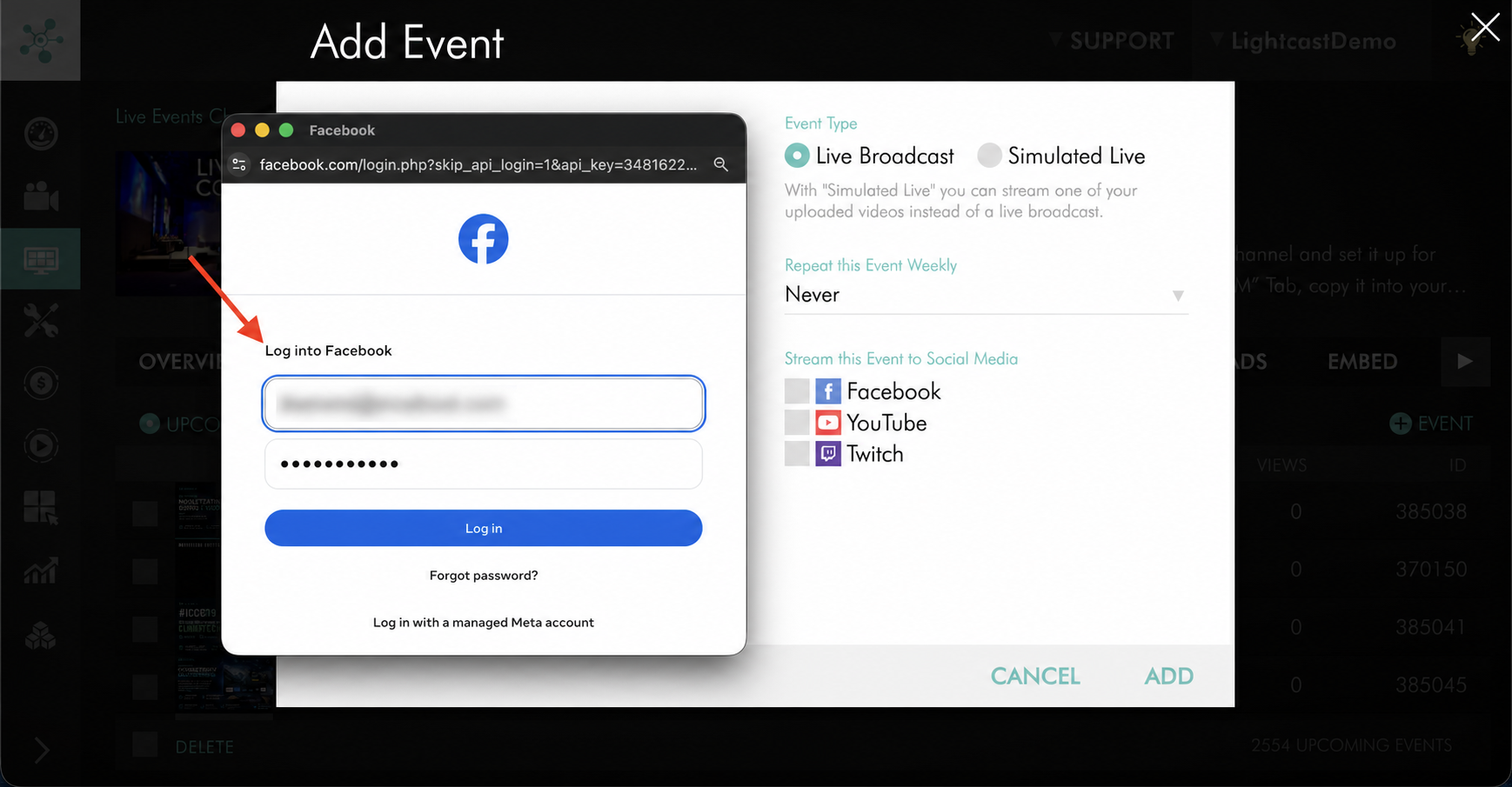
Step 8
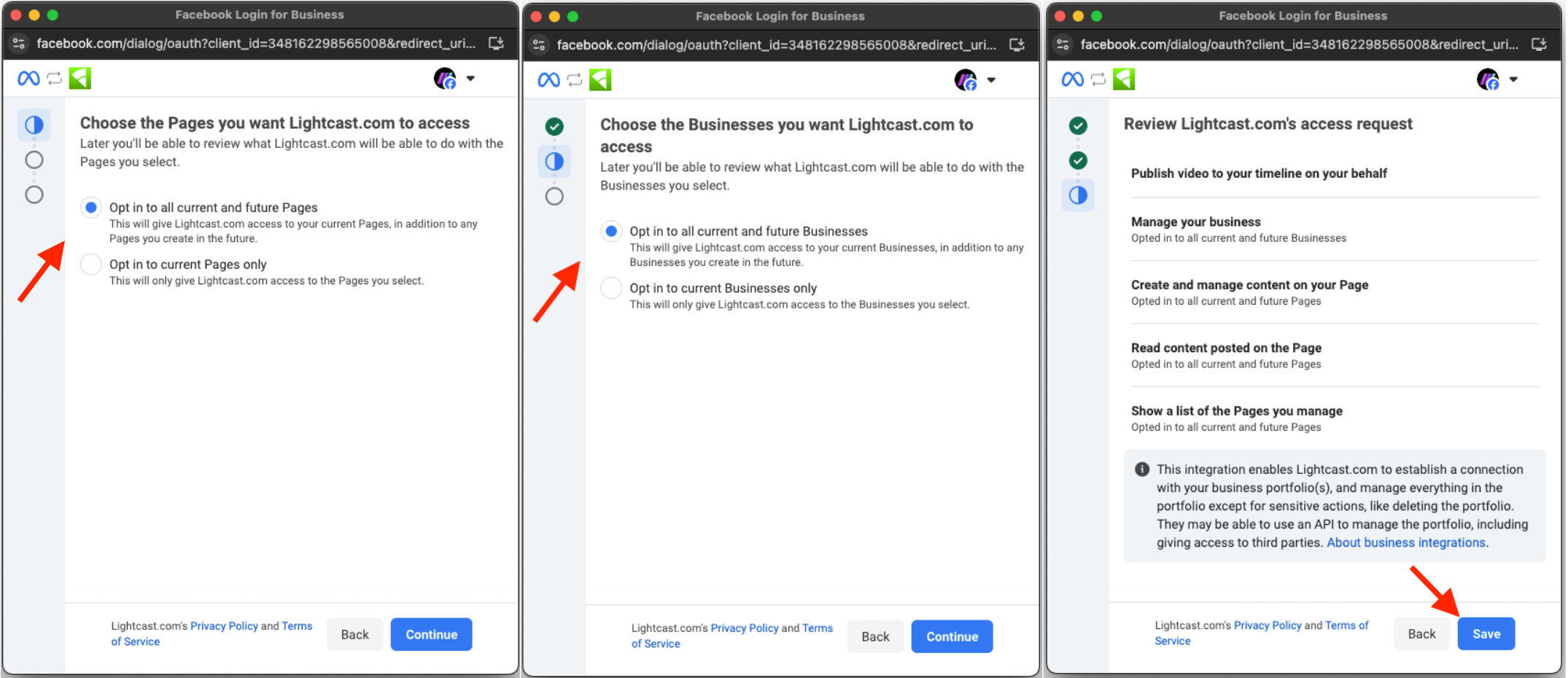
Follow the authorization prompts shown by Facebook.
The prompts may differ depending on whether you previously connected the Facebook account to Lightcast.
First-time connection: Facebook may ask you to select the Pages and Businesses Lightcast can access and approve the requested permissions.
Previous connection: Facebook may ask you to continue with your existing settings or edit the permissions previously granted.
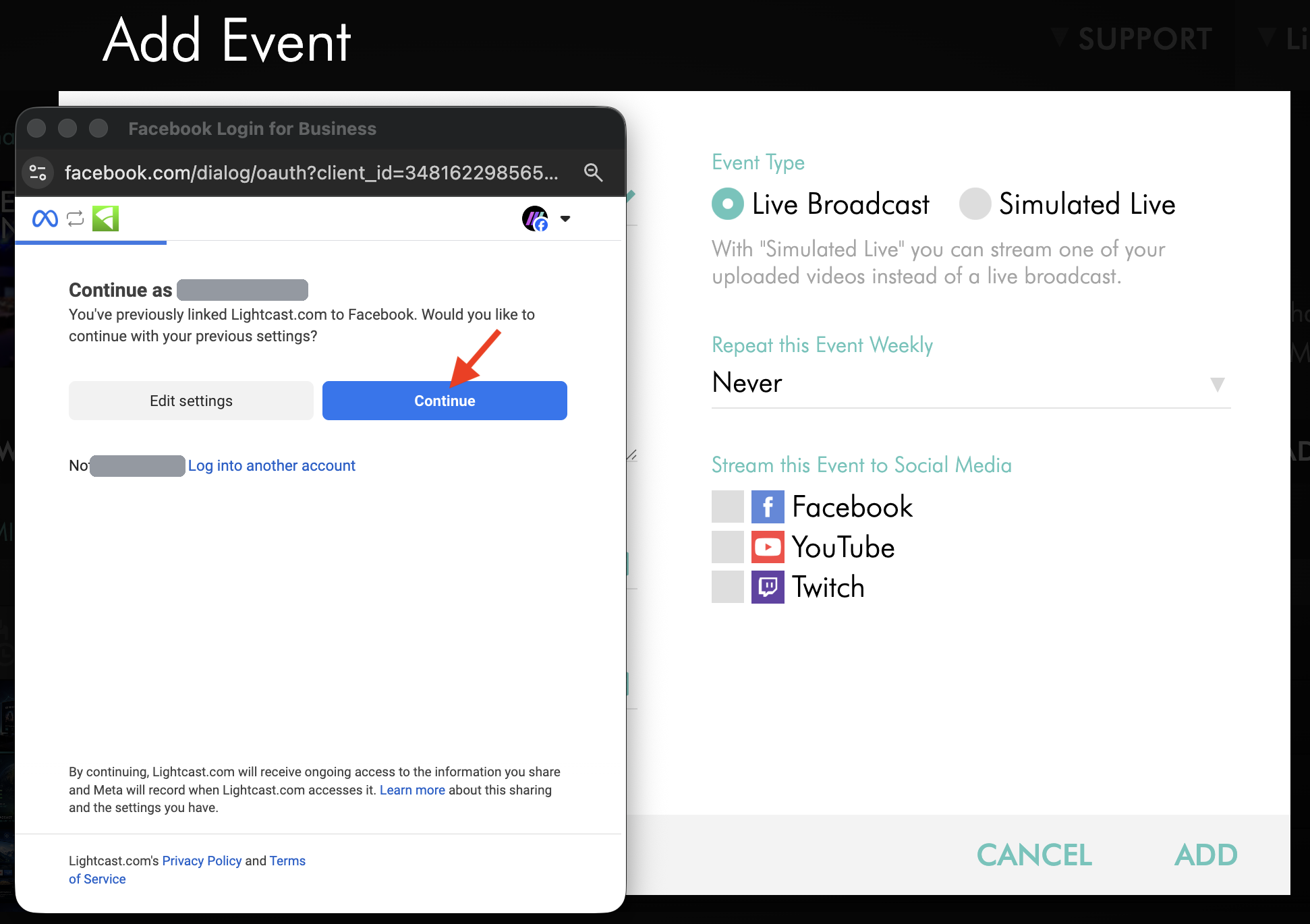
Complete the Facebook prompts to continue scheduling the Live Event.
Step 9
Select the Facebook destination where you want to publish the Live Event.
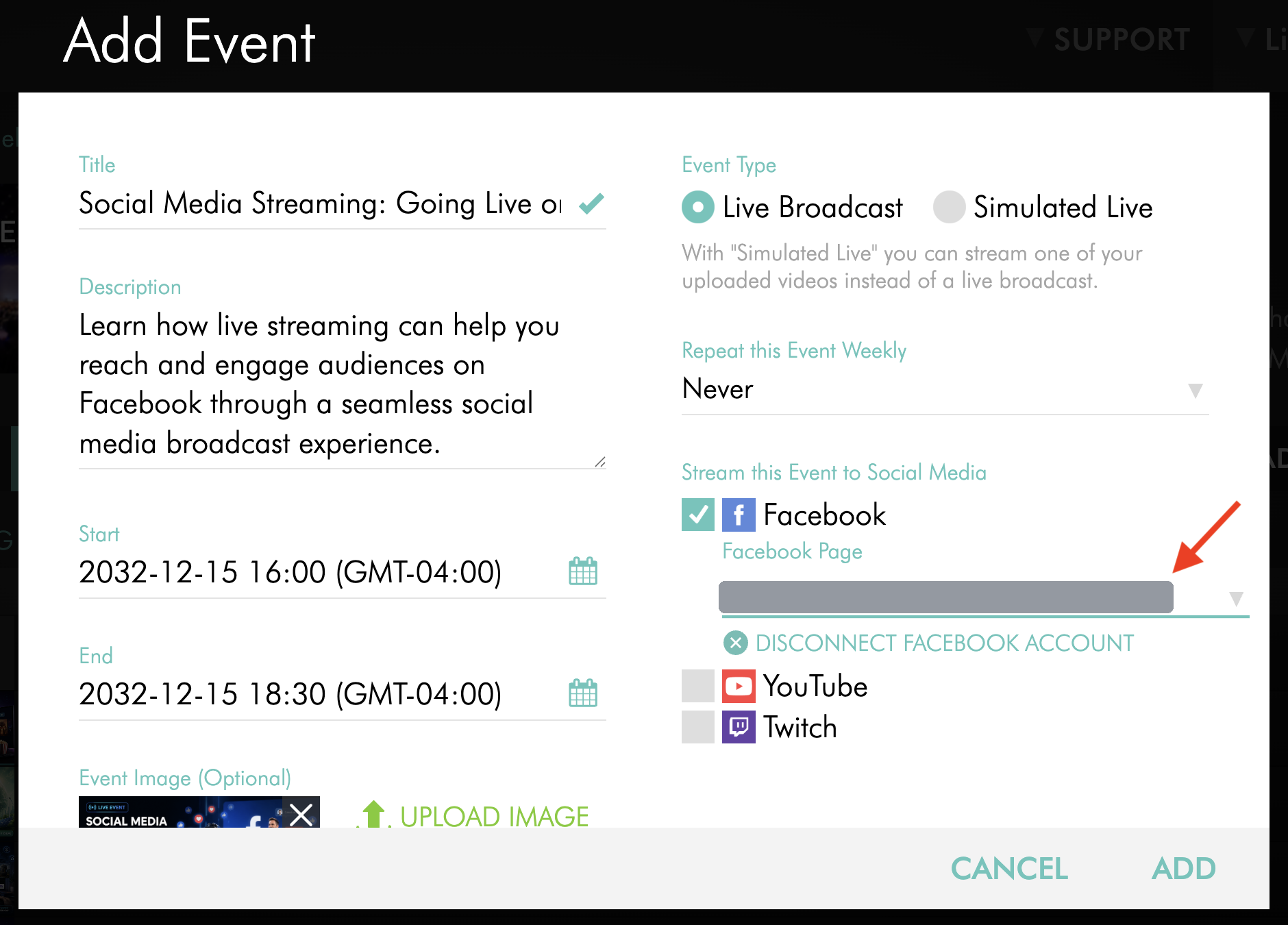
Step 10
Finish configuring any additional event settings in the Media Cloud.
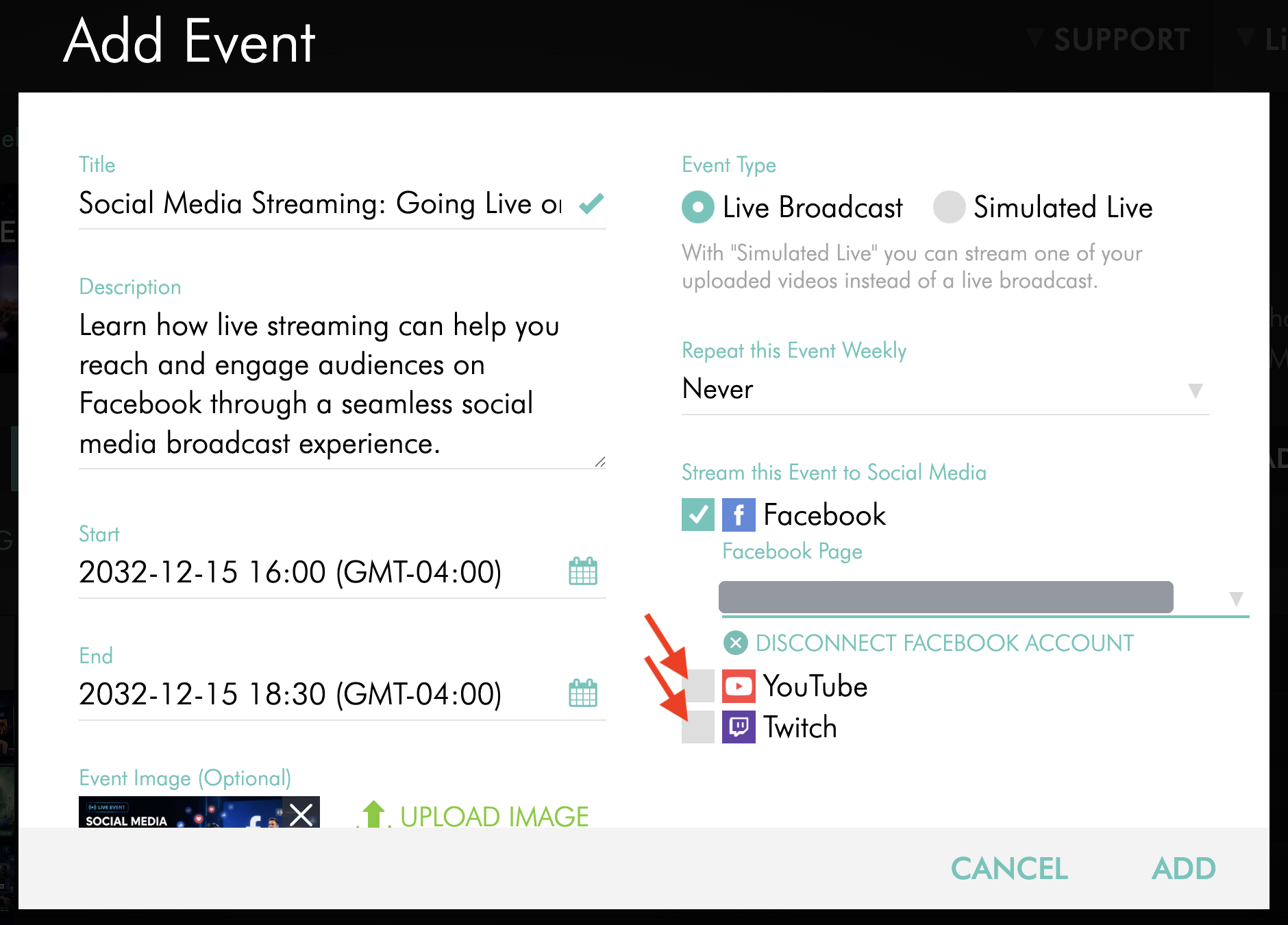
Step 11
Click ADD or SAVE to save the Live Event.
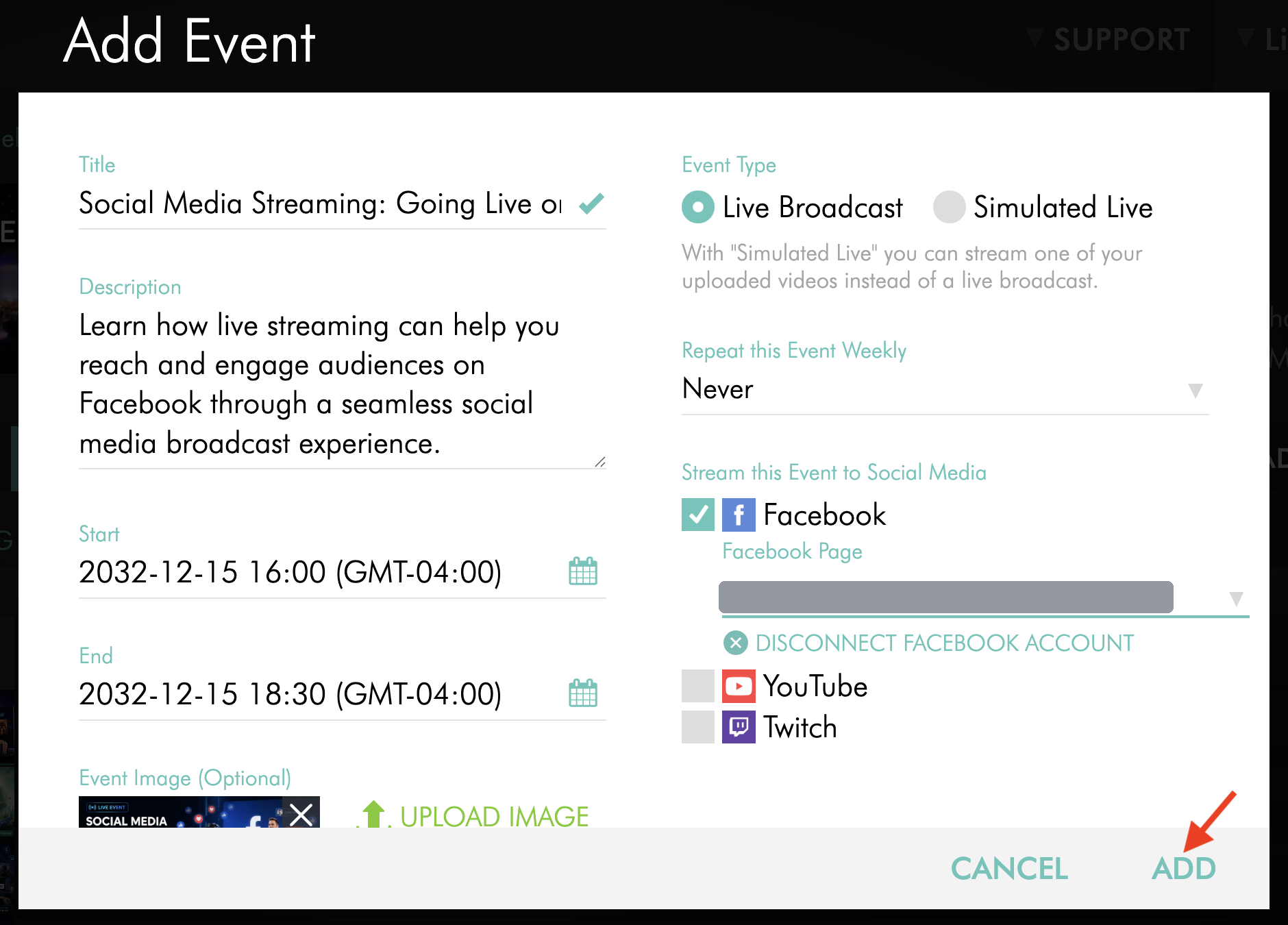
Step 12
Prepare your stream based on the event type:
For Live Broadcasts: Start your encoder before the scheduled event time to ensure the Media Cloud receives your source stream. The Media Cloud distributes the stream to Facebook for the scheduled Live Event.
For Simulated Live Events: No encoder is required. The Media Cloud automatically streams your selected video at the scheduled event time.
Once your event begins, check your Facebook destination to verify that the broadcast is available as expected.
Important: Starting your encoder within 5 minutes before the scheduled Live Event start time may cause the Facebook broadcast to begin before the exact scheduled time.
Change the connected Facebook account
Step 1
Log in to your Media Cloud account.
Step 2
Go to CHANNELS, then select Live Events.
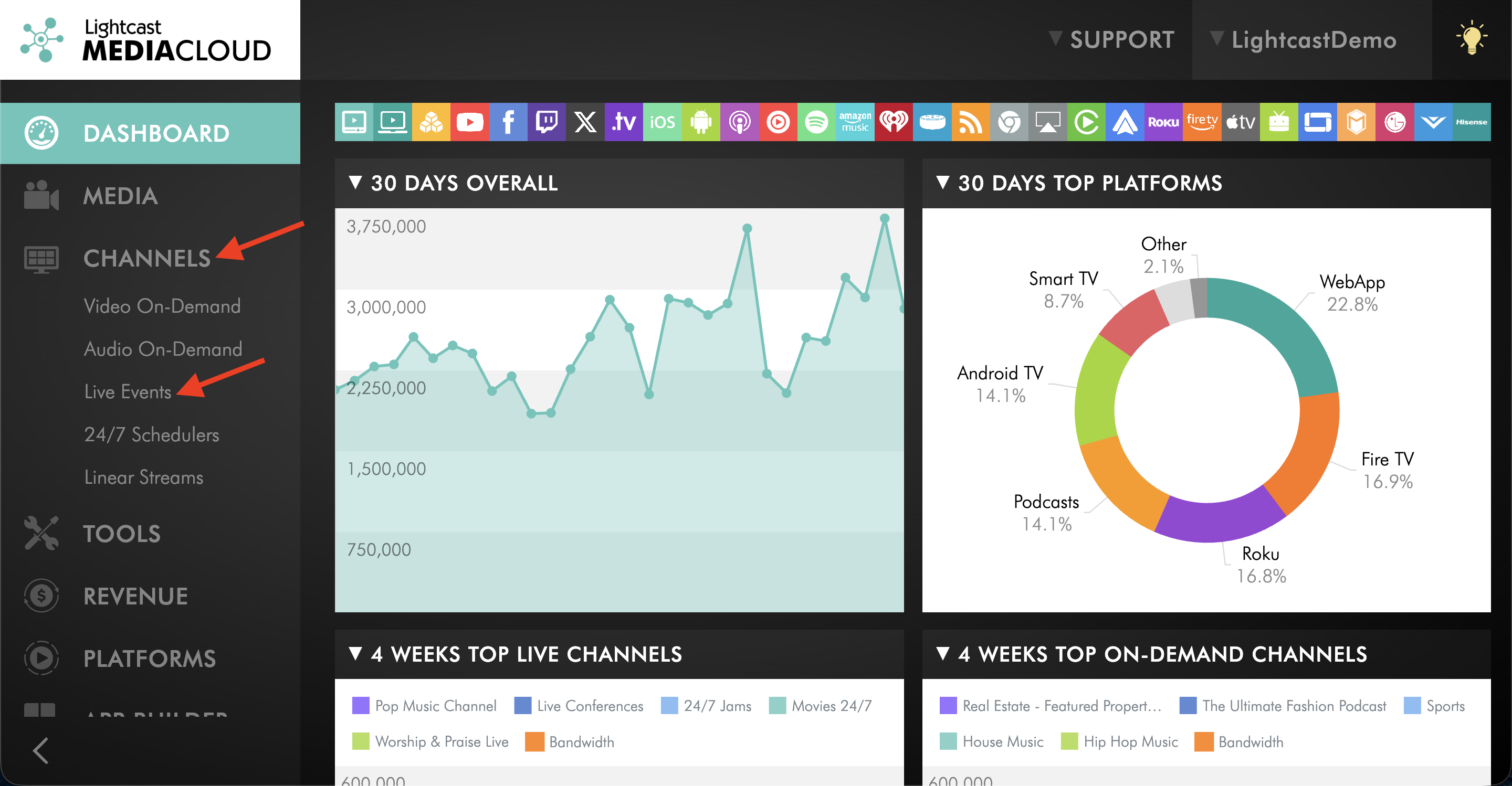
Step 3
Select the Live Events Channel with the Facebook account you want to change.
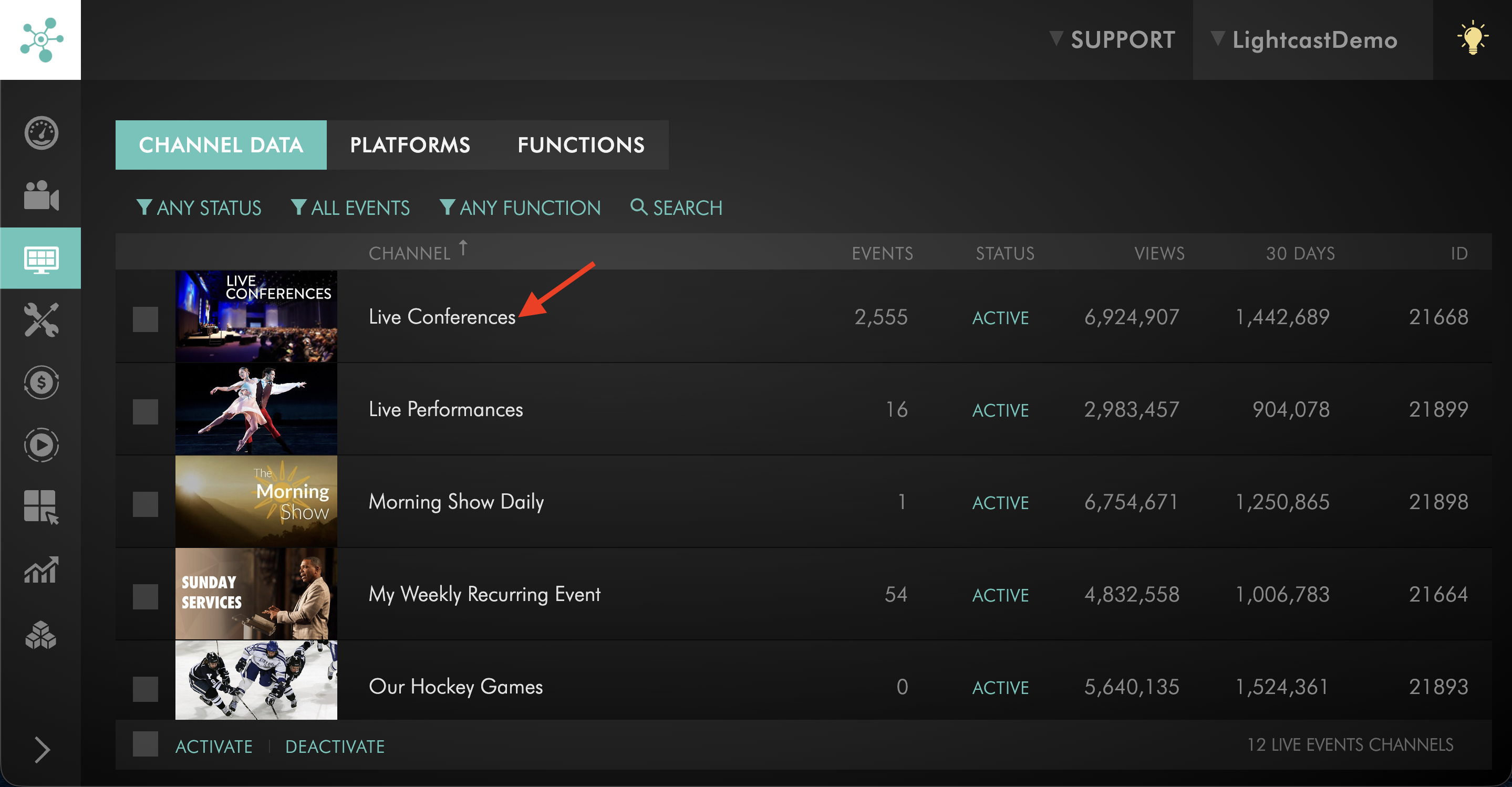
Step 4
Go to the EVENTS tab.
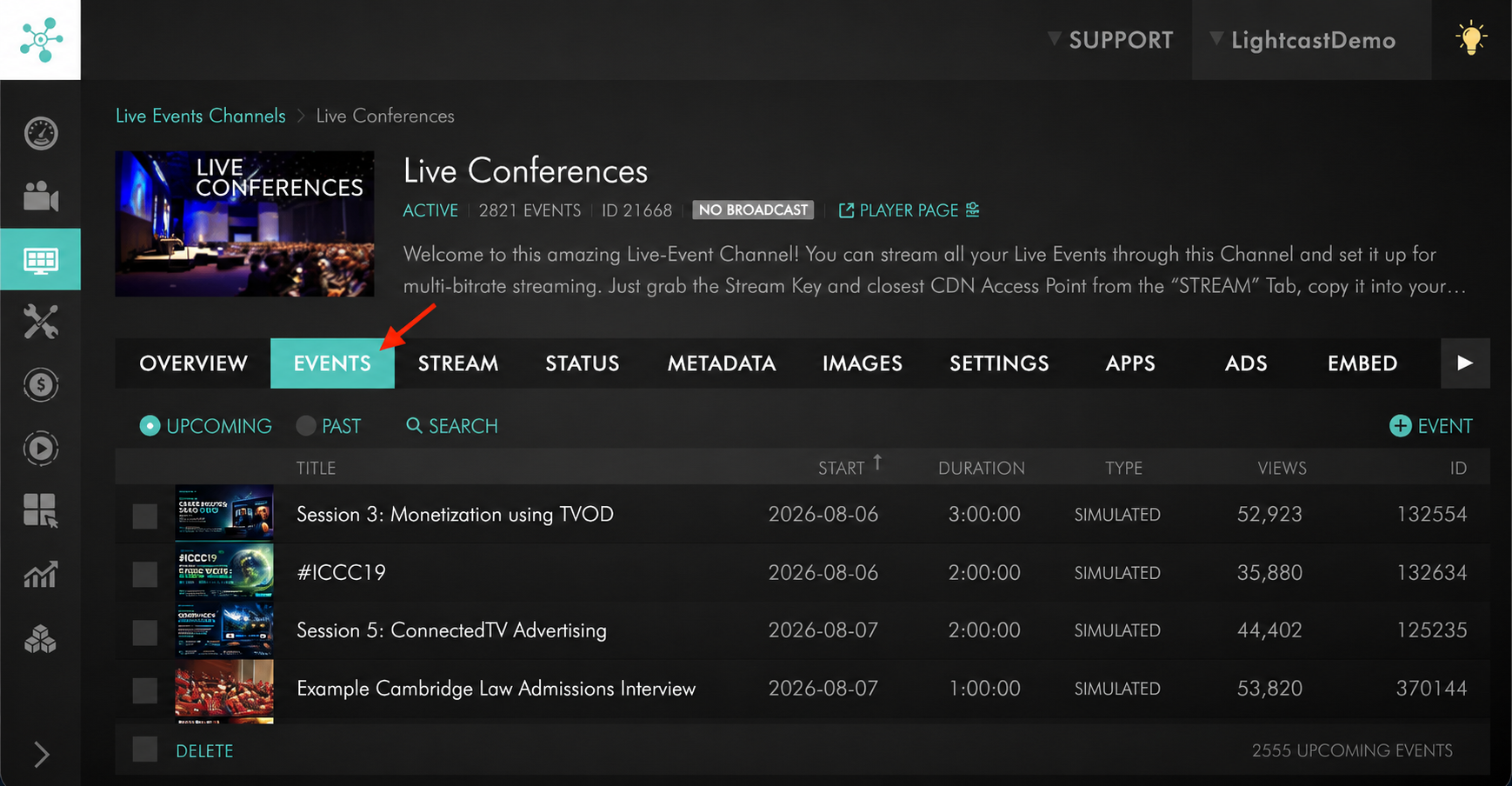
Step 5
Create or open a scheduled Live Event.
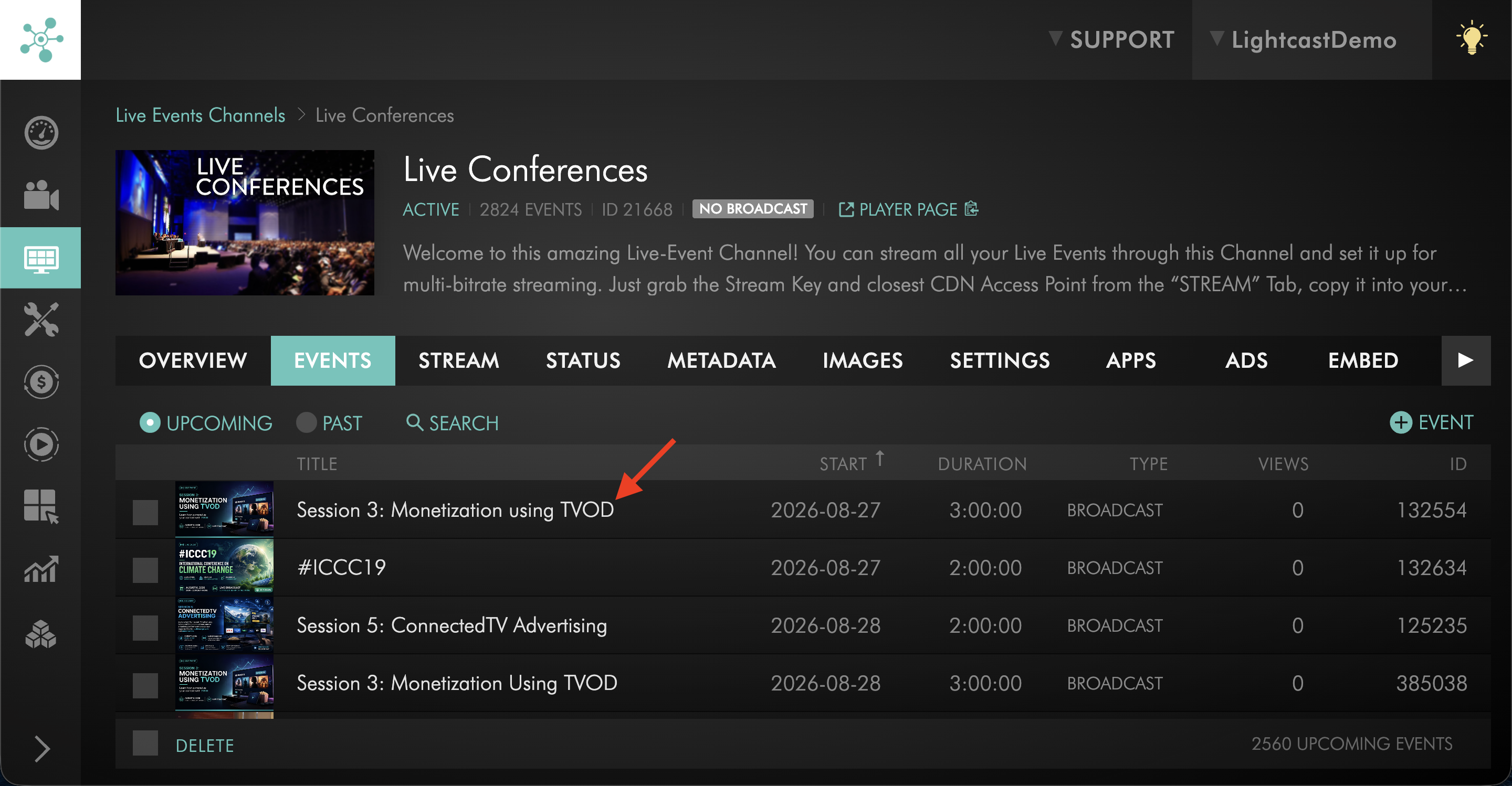
Step 6
Locate the Facebook publishing option.
Important: The Facebook connection applies to the entire Live Events Channel. Disconnecting the account may affect other scheduled events in the same Channel that are configured to publish to Facebook.
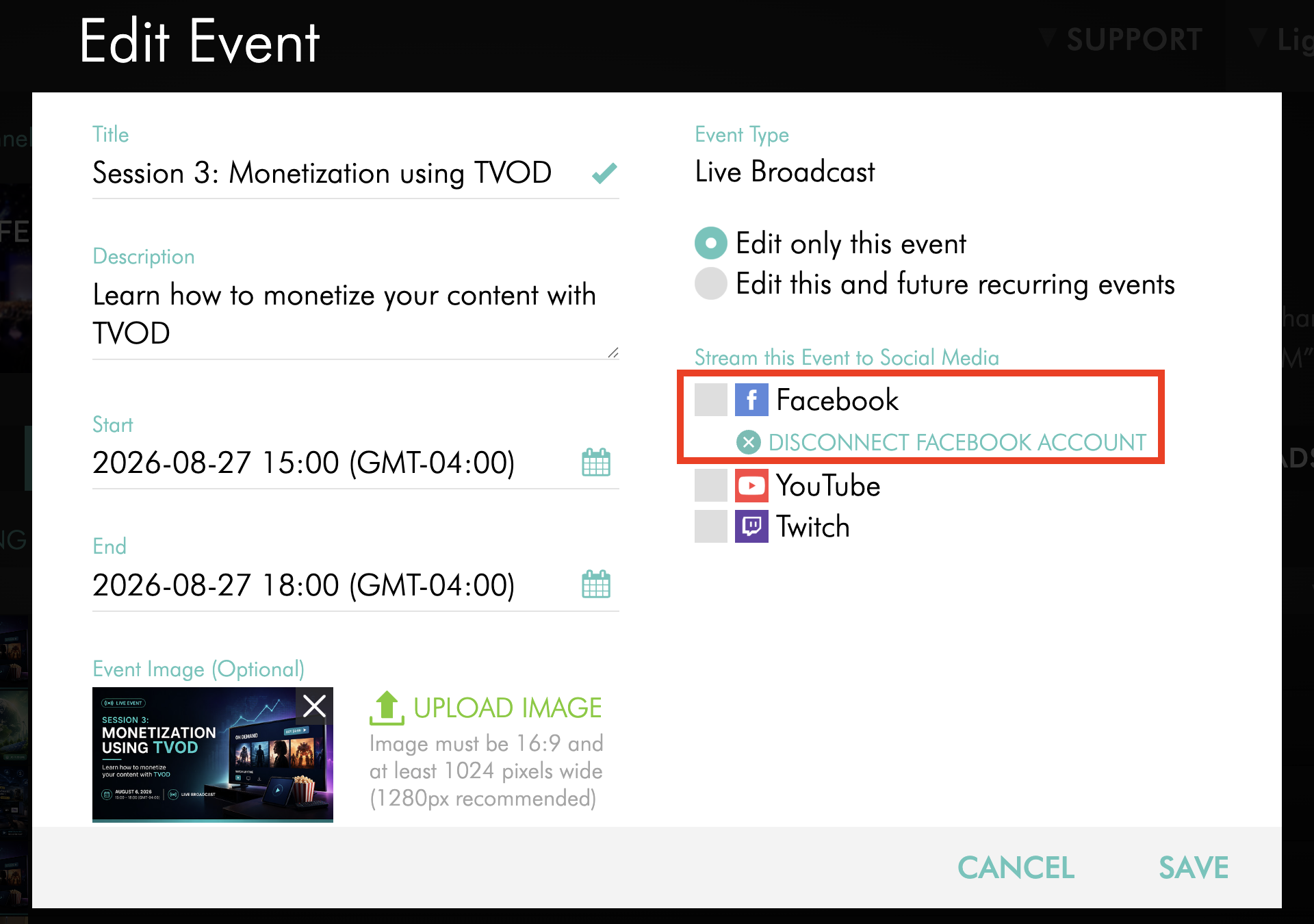
Step 7
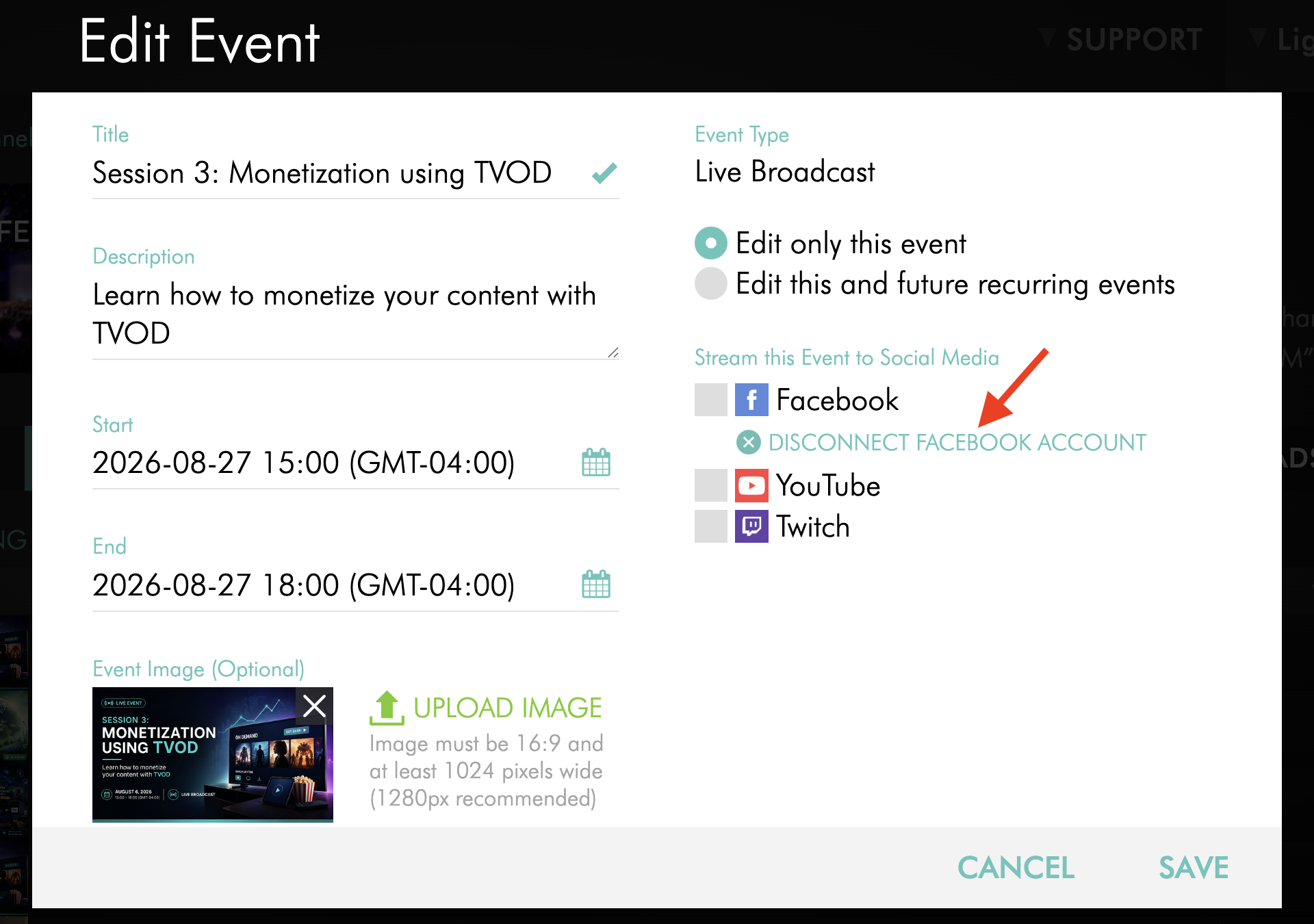
Click DISCONNECT FACEBOOK ACCOUNT.
Step 8
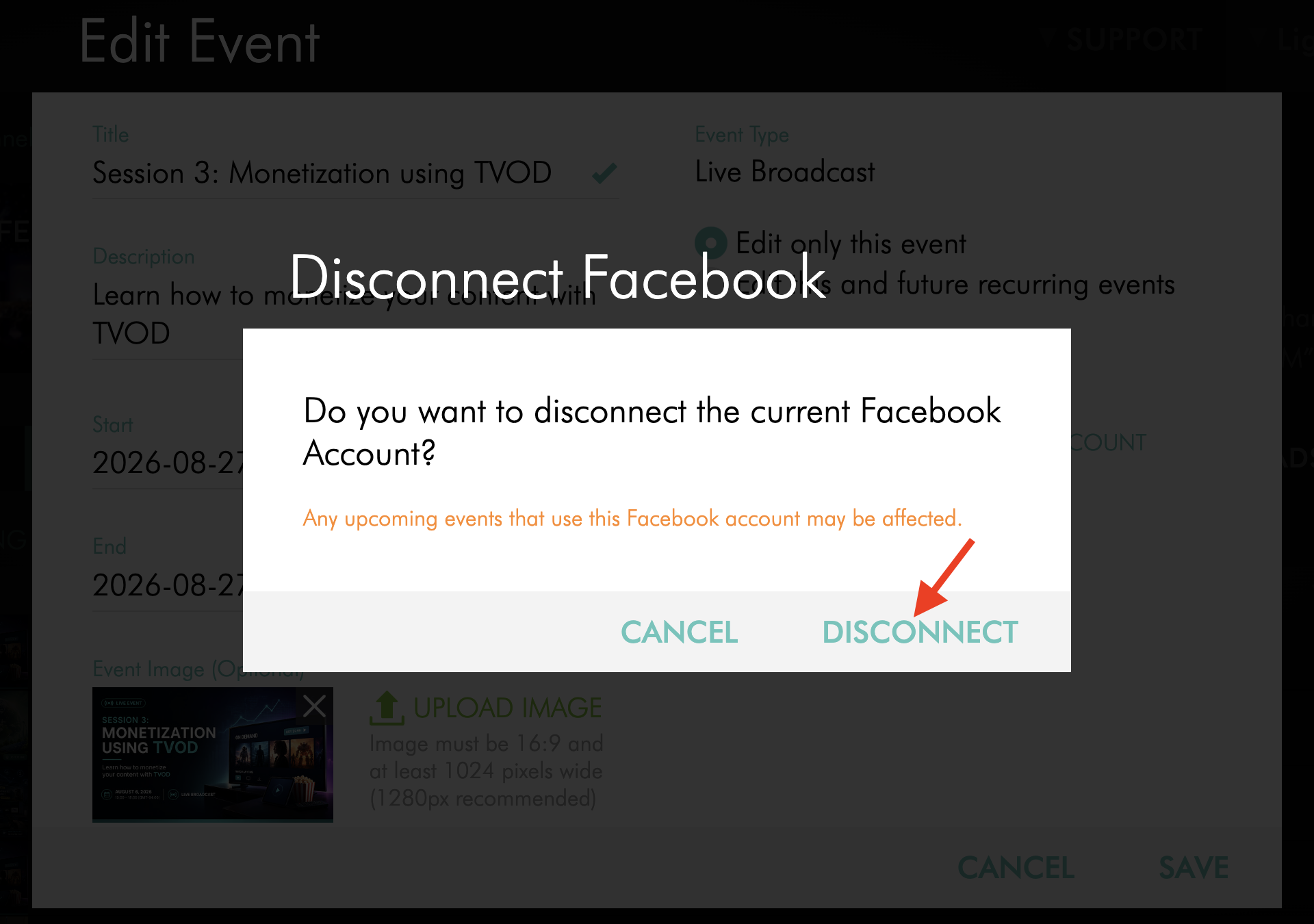
When the confirmation window appears, click DISCONNECT.
Step 9
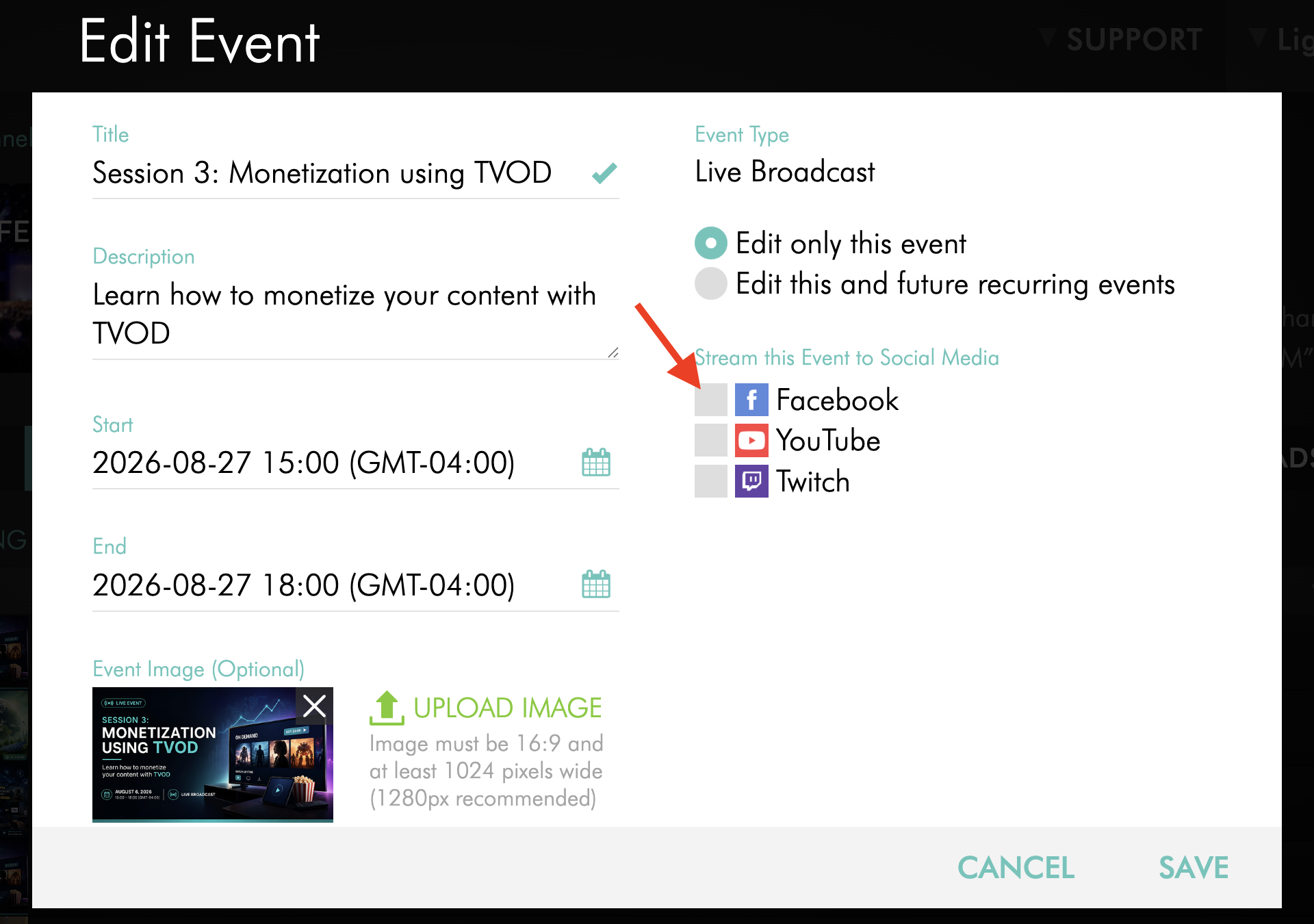
Select Facebook again and sign in with the new Facebook account.
If Facebook automatically signs you back in with the previous account, sign out of Facebook in your browser before reconnecting.
Step 10
Follow the Facebook authorization prompts.
Step 11
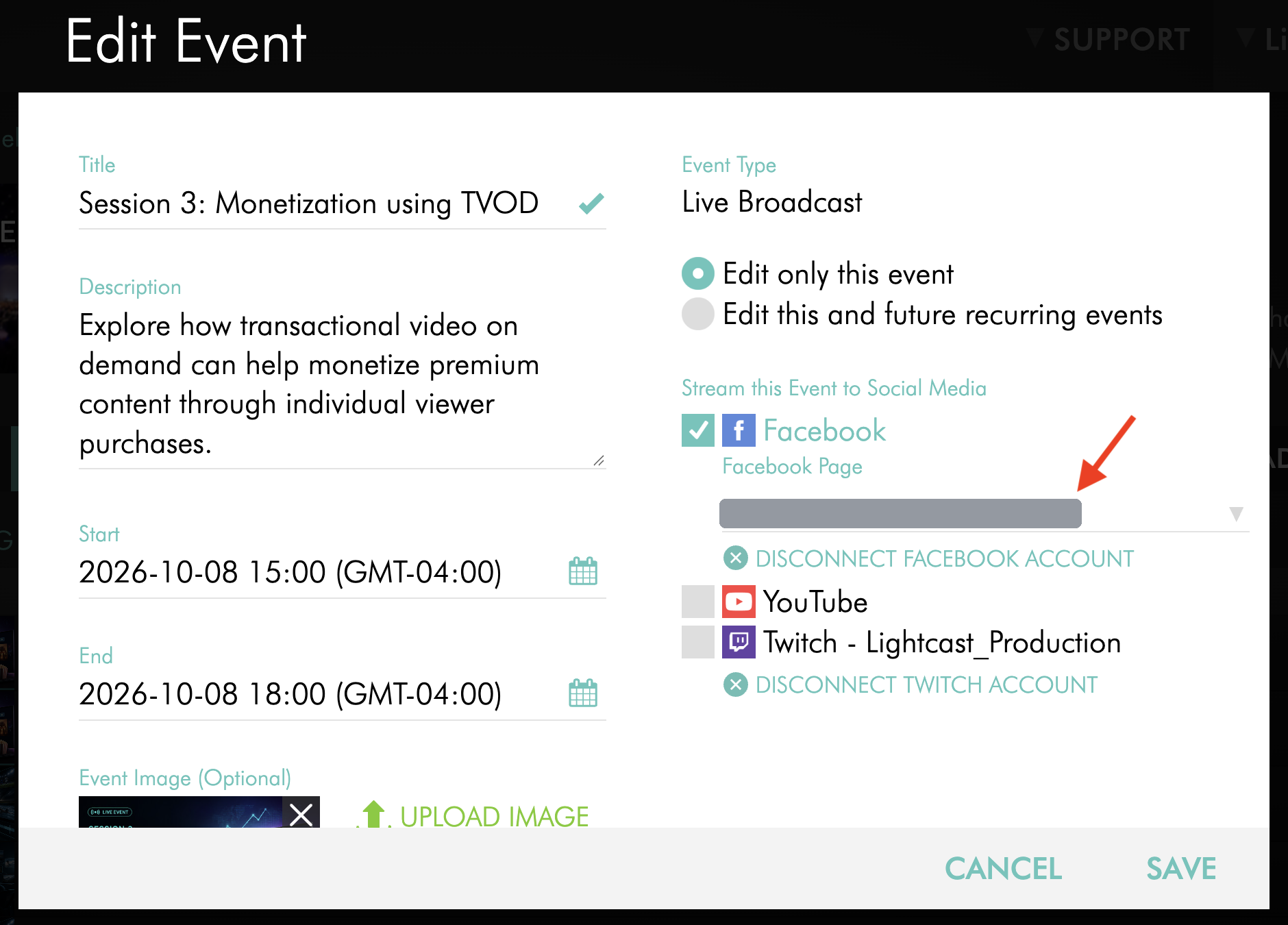
Select the Facebook destination where you want to publish the Live Event.
Step 12
Click ADD or SAVE to save your changes.
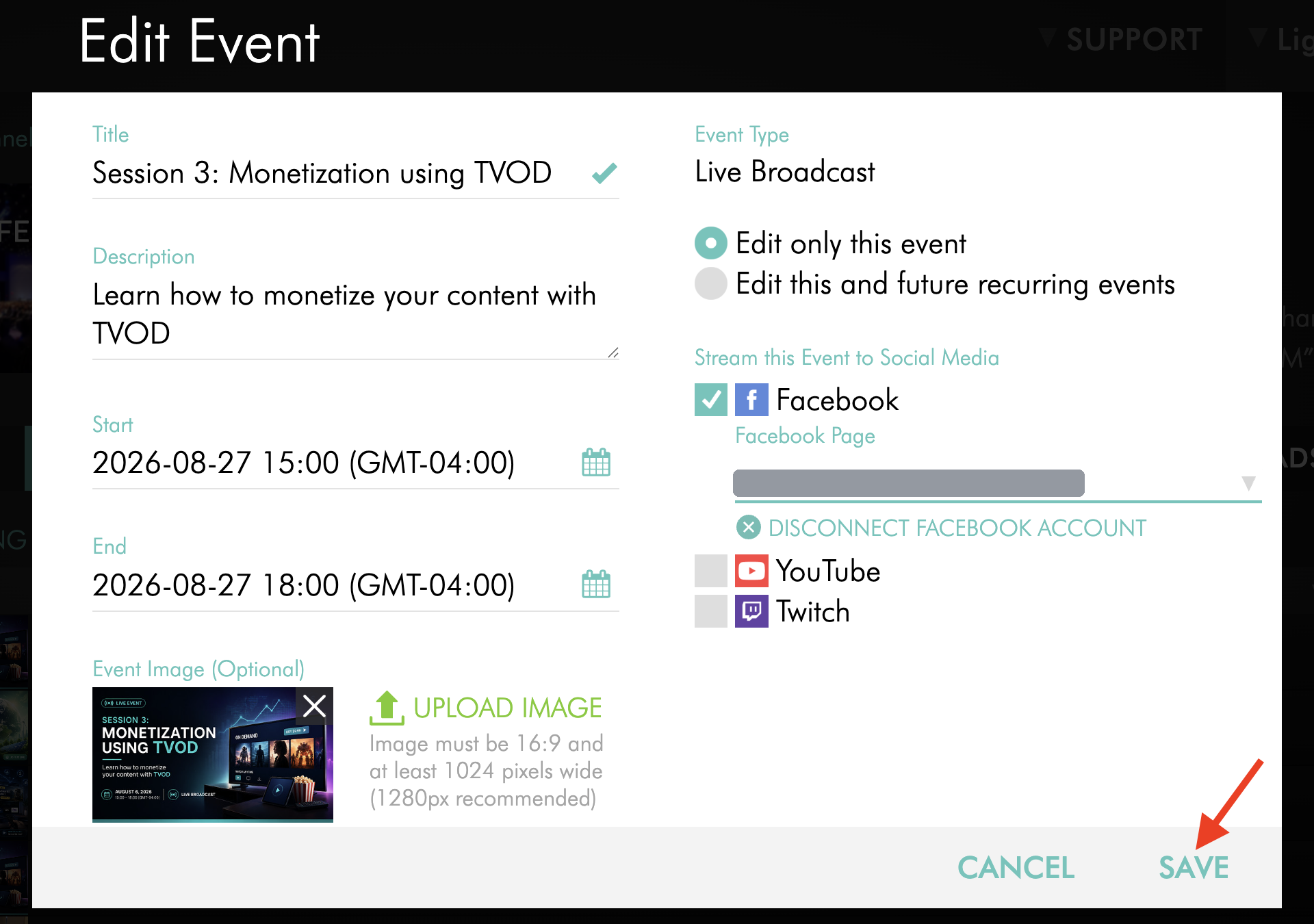
Stop Facebook publishing before the Live Event begins
Important: If the event starts in less than 5 minutes, or if the event settings show that the event is already connected to Facebook, it may be too late to remove Facebook publishing from the event settings.
If the event is more than 5 minutes away from its scheduled start time, you can remove Facebook from the scheduled event.
Step 1
Log in to your Media Cloud account.
Step 2
Go to CHANNELS, then select Live Events.
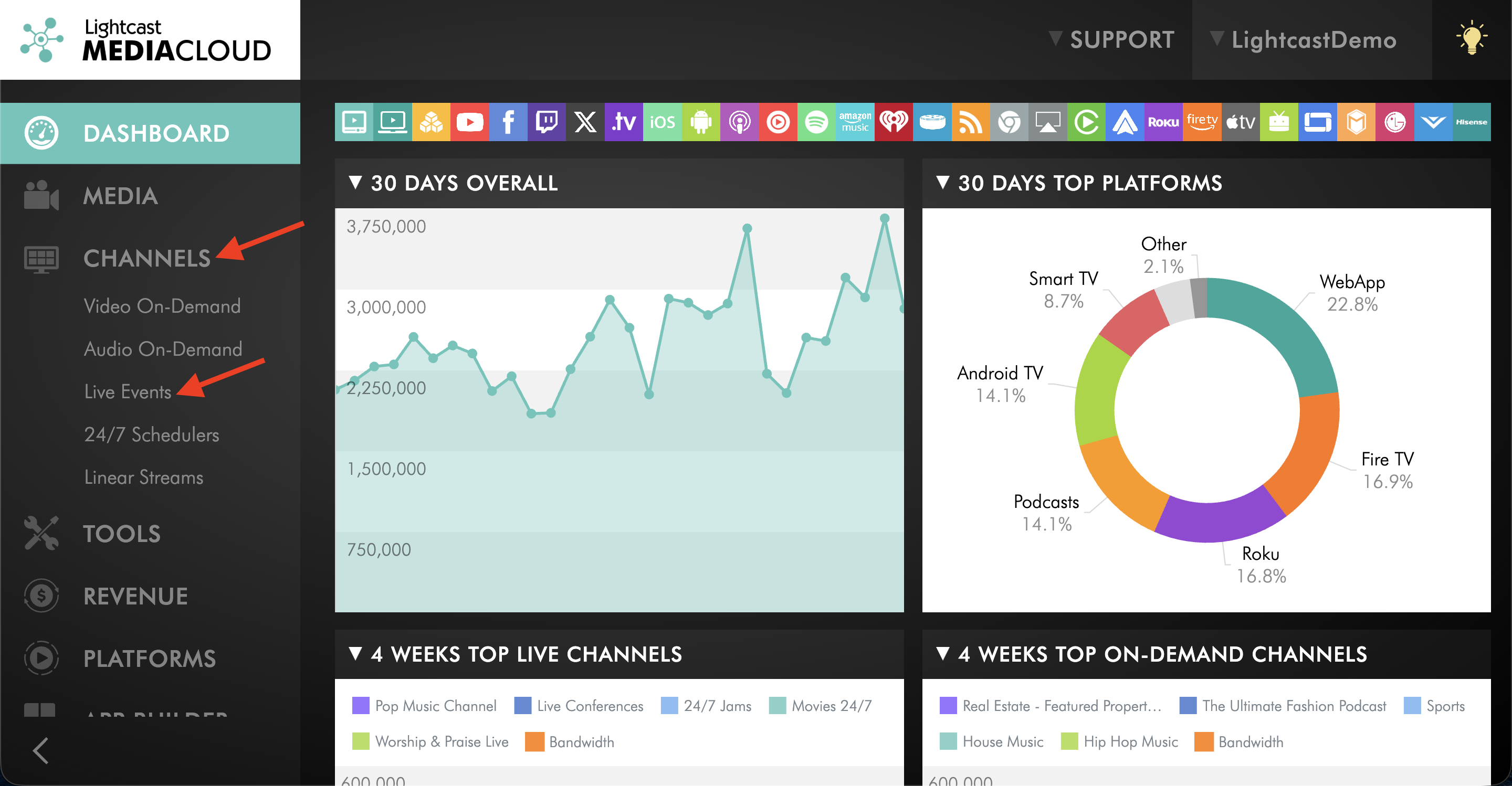
Step 3
Select the Live Events Channel that contains the scheduled Live Event.
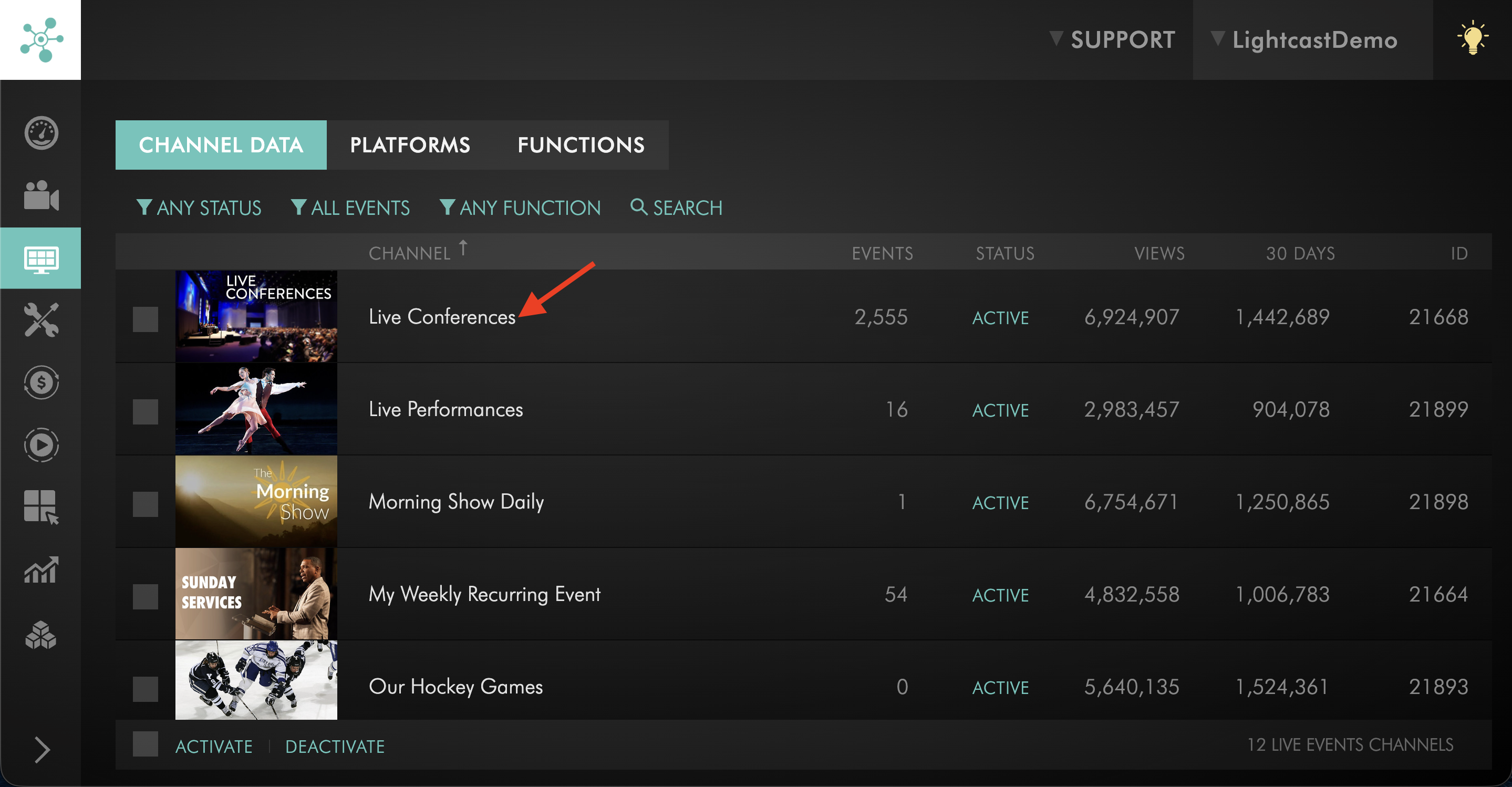
Step 4
Go to the EVENTS tab.
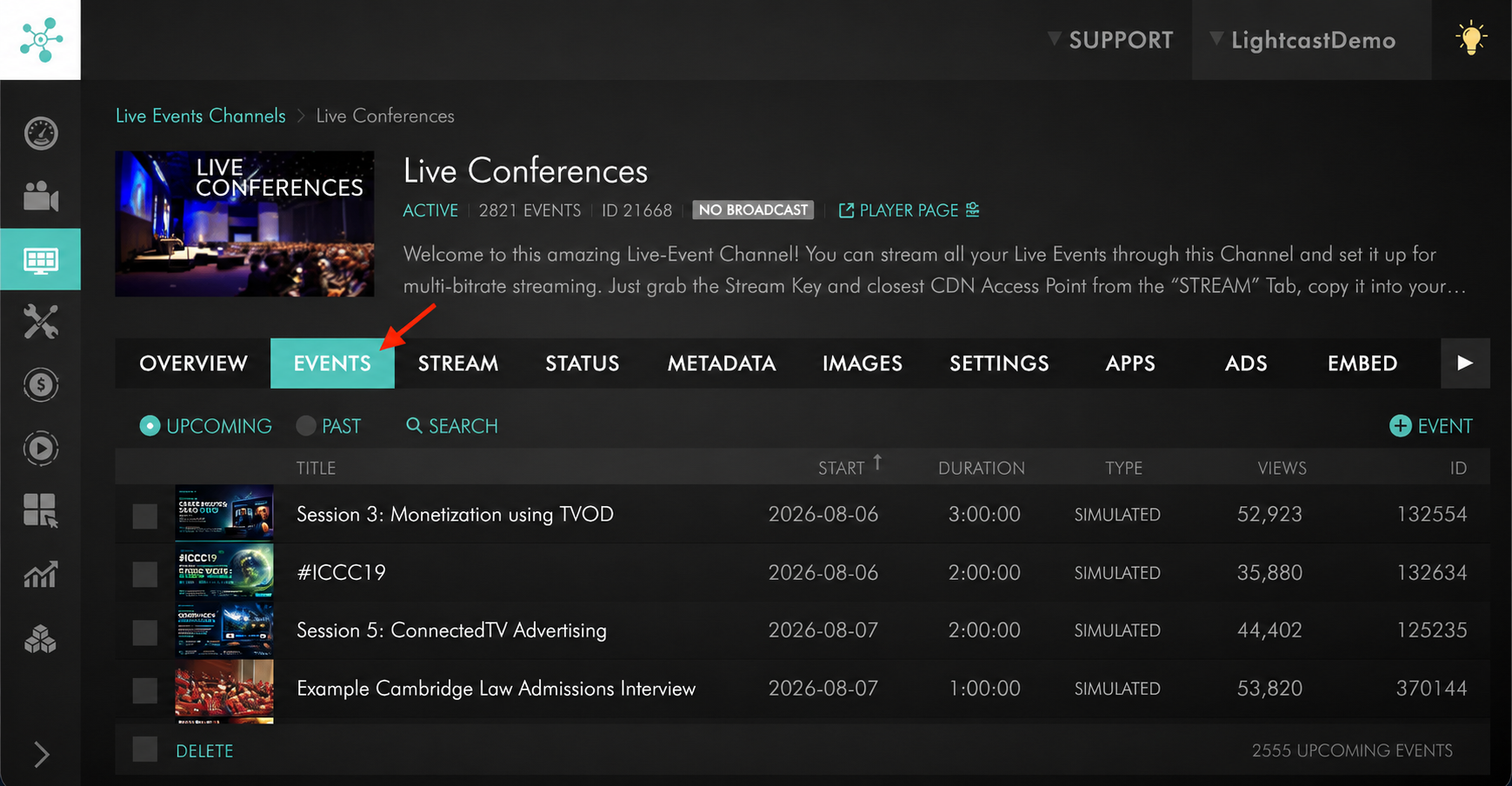
Step 5
Open the scheduled Live Event.
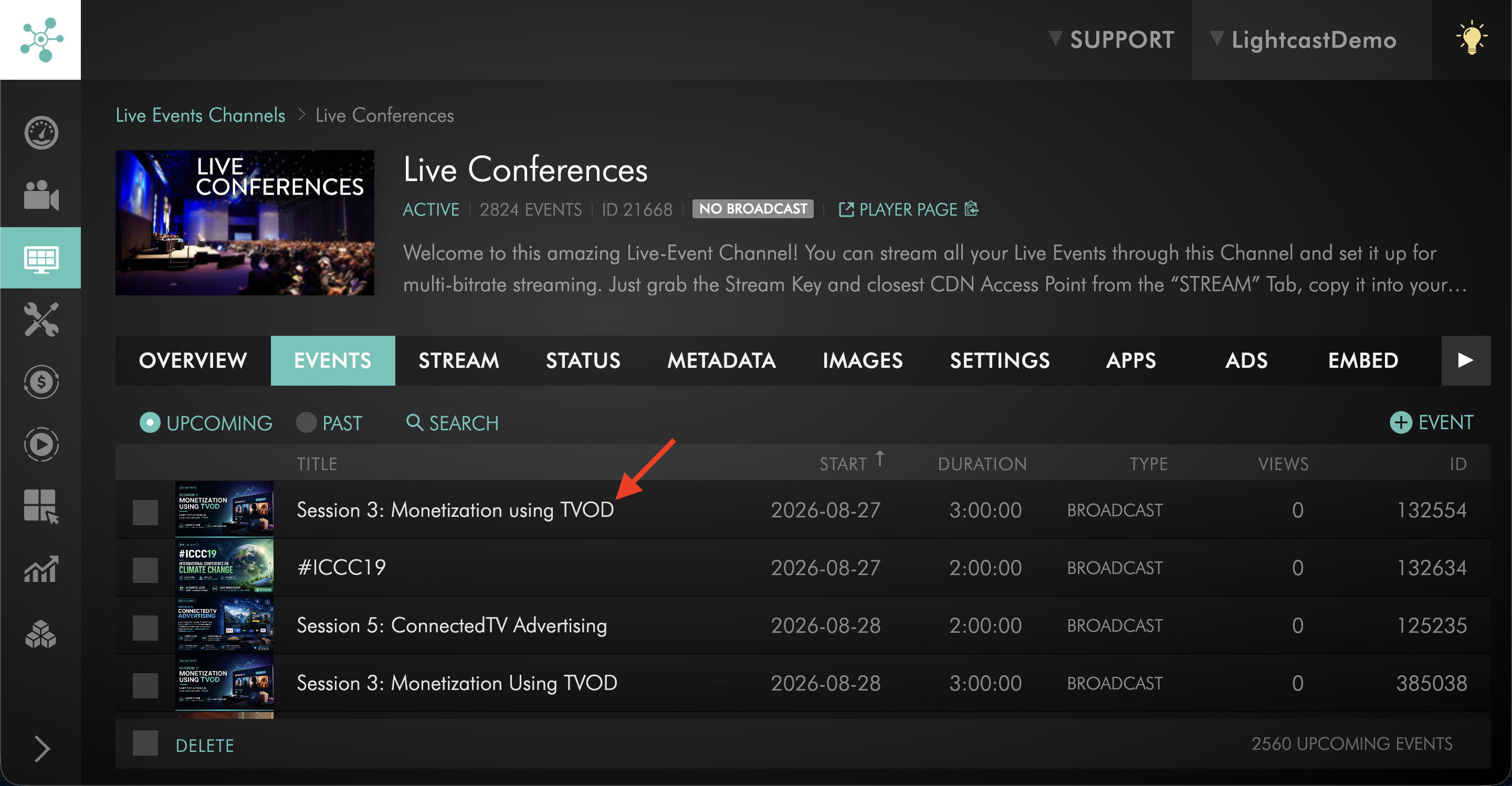
Step 6
Locate the Facebook publishing option.
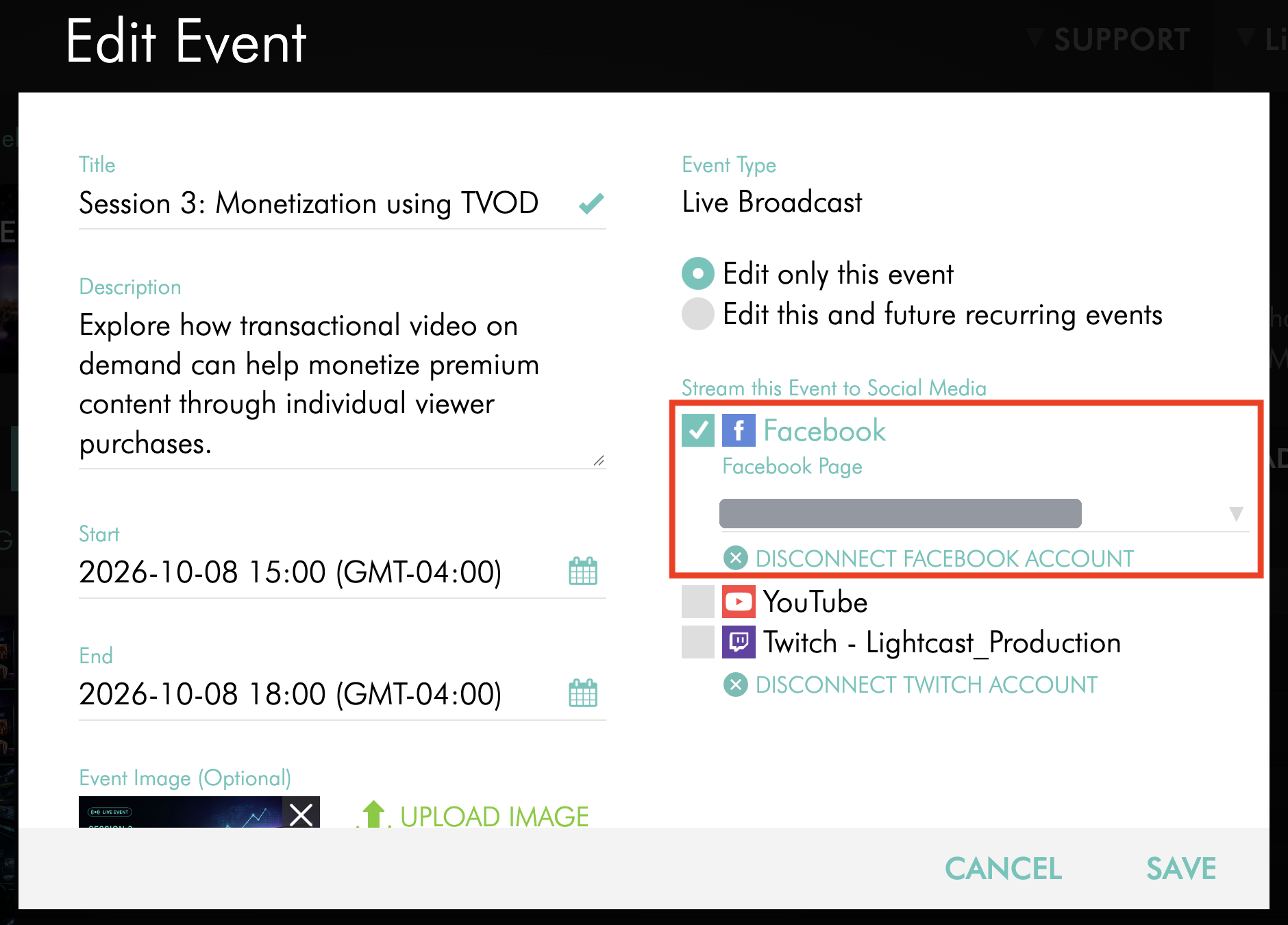
Step 7
Deselect the Facebook publishing option.
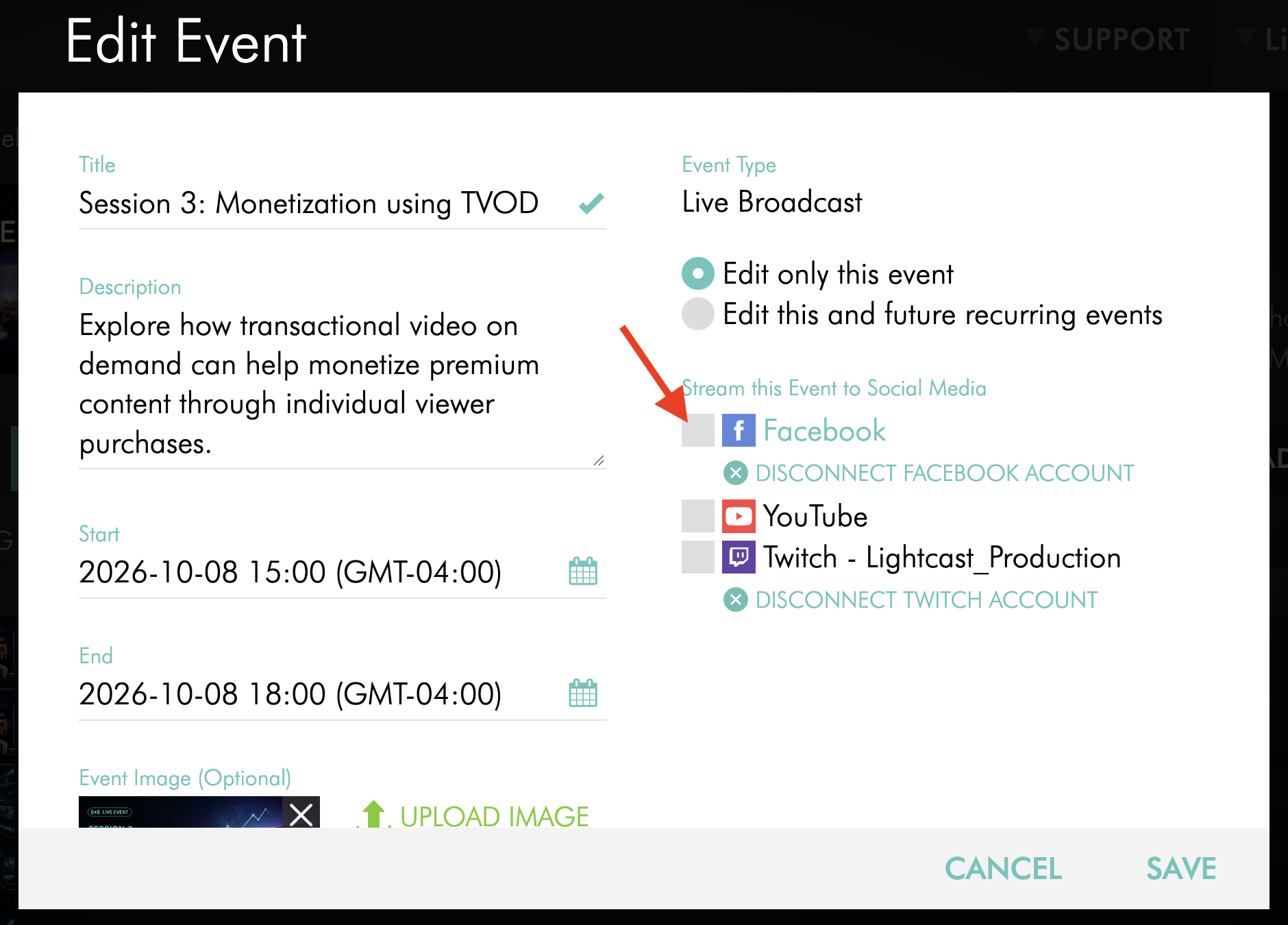
Step 8
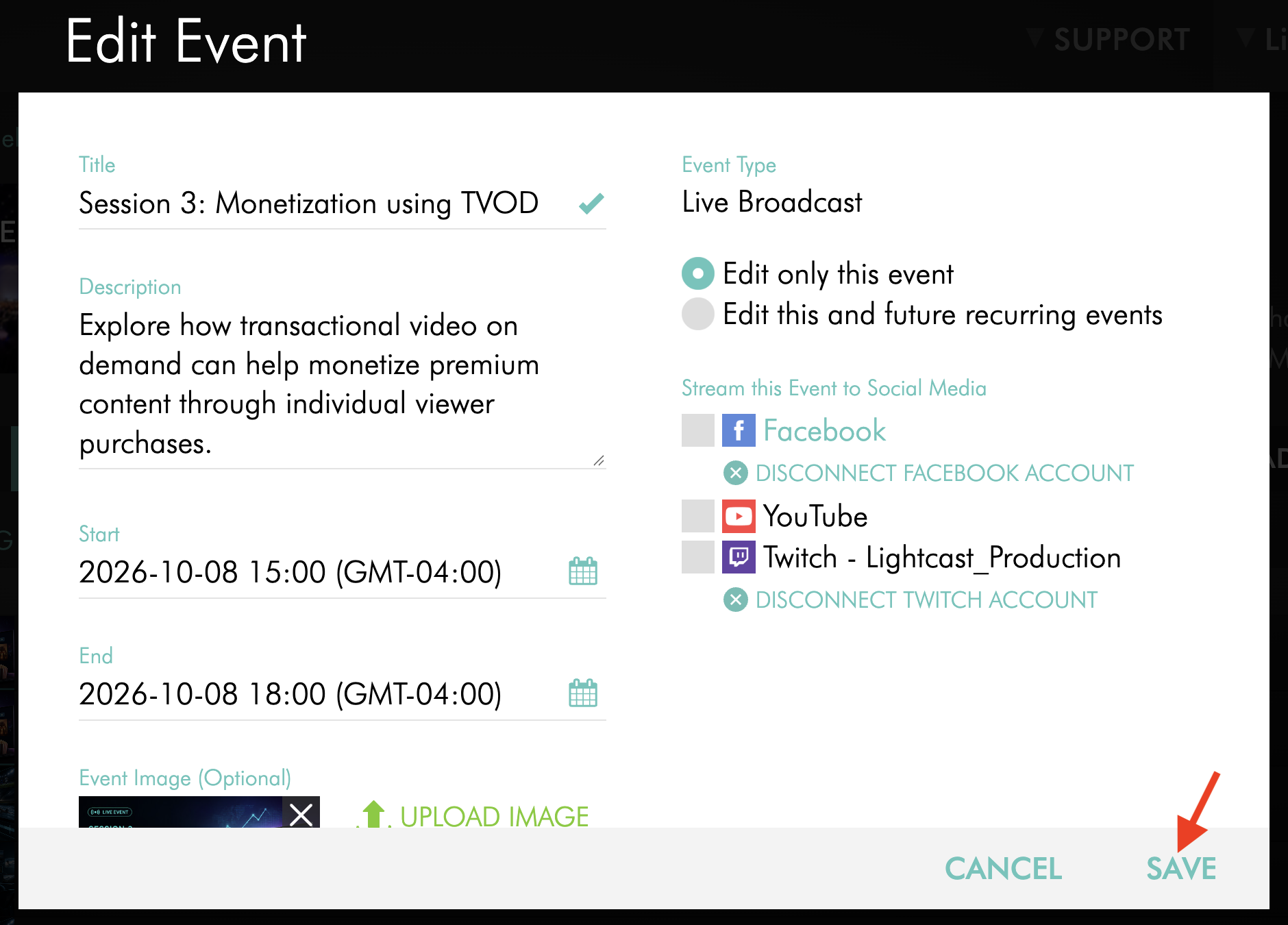
Click SAVE to save the event changes.
After the event is saved, the Live Event remains scheduled in the Media Cloud, but it will no longer publish to Facebook.
Stop Facebook publishing after the Live Event begins
If the Live Event has already started, stopping Facebook publishing may require stopping the source stream or ending the scheduled event.
If you are broadcasting an encoder-based Live Event and you stop the encoder, the source stream ends. This will stop the Live Event on Facebook and any other destinations receiving the same stream.
Deleting the scheduled Live Event can also stop the Facebook broadcast, but it removes the event from the Media Cloud and may affect other destinations associated with the event. Only use this option if you intend to end or remove the entire scheduled event.
If you are not sure which option to use, contact Customer Support before stopping the encoder or deleting the scheduled event.
Troubleshooting
This section covers common setup and authorization issues that may happen while connecting Facebook or selecting a Facebook destination.
For issues with a Facebook Live broadcast after the event has been scheduled or while the stream is running, see Troubleshooting Facebook Live streaming issues.
The Facebook authorization window does not open
Make sure your browser allows pop-ups from the Media Cloud.
If the authorization window still does not open, try refreshing the page, using another supported browser, or checking whether a browser extension is blocking the Facebook pop-up.
The wrong Facebook account keeps reconnecting
Facebook may automatically reconnect the account already signed in through your browser.
If the wrong account keeps reconnecting, sign out of Facebook in your browser, then return to the Media Cloud and connect Facebook again.
The Facebook Page I want to use does not appear
Make sure the Facebook account you connected has the required access to publish content to that Page.
You may also need to reconnect Facebook and review the Pages, Businesses, and permissions granted to Lightcast during the Facebook authorization process.
Facebook permissions were not granted
If the required permissions were not granted, the Facebook destination may not appear or publishing may fail.
Reconnect Facebook and review the permissions shown by Facebook. Make sure the correct Pages and Businesses are selected, and approve the requested permissions before returning to the Media Cloud.
The Live Event does not appear on Facebook
Confirm that the Live Event was saved, the correct Facebook destination was selected, and the Facebook account and destination meet Facebook’s current live streaming requirements.
If the Media Cloud is receiving the stream normally but the Live Event does not appear on Facebook, see Troubleshooting Facebook Live streaming issues.
FAQs
What Facebook requirements must be met before I can go live?
Facebook currently requires that the Facebook account is at least 60 days old, the Page or professional mode profile has at least 100 followers, and the user has the required Facebook access or task access to create content for the Page.
These requirements are set by Facebook and may change.
Can I connect multiple Facebook accounts to my Media Cloud account?
Yes, but Facebook accounts are connected at the Live Events Channel level.
You can connect different Facebook accounts to different Live Events Channels. A single Live Events Channel cannot be connected to multiple Facebook accounts at the same time.
Can I connect a different Facebook account to my Live Events Channel?
Yes. Disconnect the current Facebook account from the Live Events Channel, then connect the new Facebook account through the Facebook publishing option.
Before reconnecting, sign out of Facebook in your browser if needed so the correct account can be selected.
Can I publish to multiple Facebook Pages at the same time?
Possibly, depending on your setup.
If the connected Facebook account manages multiple Pages, you may be able to select the Page where the live event should be published.
If you need to publish one live stream to multiple Facebook Pages at the same time, contact Customer Support to review your available publishing options.
Can I stop a Live Event from publishing to Facebook before it begins?
Yes, if the event is more than 5 minutes away from its scheduled start time.
Open the scheduled Live Event, deselect the Facebook publishing option, and save the event.
If the event starts in less than 5 minutes, or if the event settings show that the event is already connected to Facebook, it may be too late to remove Facebook publishing from the event settings.
What happens if I stop my encoder during a Facebook Live Event?
If you stop the encoder, the source stream ends.
This may stop the Live Event on Facebook and any other destinations receiving the same stream. Only stop the encoder if you intend to stop the source stream for all destinations using that stream.
Can I publish a 24/7 stream on Facebook?
Facebook is not recommended for continuous 24/7 streaming.
Facebook Live is intended for event-based live streams, and Facebook currently lists an 8-hour maximum duration for standard live streams.
Is there a duration limit for Facebook Live streams?
Yes. Facebook currently lists an 8-hour maximum duration for standard live streams.
If your event needs to run longer, plan a separate streaming workflow or schedule a new live event according to Facebook’s current requirements.
Can I test Facebook publishing from a trial account?
No. Trial accounts cannot be connected to Facebook for auto-publishing.
Facebook publishing is available for contracted Media Cloud accounts with access to the feature.
Why did my Facebook stream not go live?
Facebook may prevent a stream from going live if the Facebook account, Page, permissions, content, or stream configuration does not meet Facebook’s requirements.
Confirm that the Facebook account and Page meet Facebook’s current requirements, the correct Facebook account is connected, the user has permission to publish to the Page, and the Live Event is scheduled correctly in the Media Cloud.
Can Facebook reject or stop my live stream?
Yes. Facebook controls its own live platform, review process, and policies. Facebook may restrict, reject, interrupt, or end a stream based on its own rules or technical limits.
Publishing to Facebook is dependent on Facebook’s platform and is not guaranteed by Lightcast.
Pricing
Live Streaming to Social Media is available on POWER packages and up.
If you don't have access to this feature, you can upgrade to one of our latest plans or contact your account manager.