
How to schedule a Simulated Live Event
Overview
This article explains how to schedule a Simulated Live Event in the Media Cloud.
A Simulated Live Event allows you to schedule a previously uploaded video to play as a simulated live broadcast at a specific date and time.
When to schedule a Simulated Live Event
Use a Simulated Live Event when you want to present pre-recorded video content as a scheduled broadcast.
This may be helpful when:
You want to replay a previously recorded event at a scheduled time
You want viewers to gather at the same time for a shared viewing experience
You want to coordinate a pre-recorded broadcast with live chat, fundraising, promotions, or other scheduled activities
You want to schedule a pre-recorded presentation, service, conference session, or program
You do not need to stream from a live encoder during the event
Simulated Live Events are designed for individual scheduled events. They are not intended to create a continuous 24/7 linear stream.
For more information, see Understanding Simulated Live Events.
How it works
A Simulated Live Event is scheduled inside a Live Events Channel in the Media Cloud.
Instead of receiving a real-time stream from a live encoder, the Media Cloud uses a selected VOD item for the scheduled broadcast. Viewers join at the scheduled time and watch the selected video as it plays.
Scheduling duration and video length
The scheduled event duration determines the maximum length of the Simulated Live Event.
If the video is longer than the scheduled event duration: The event stops when the scheduled end time is reached, and the video may be cut off before it finishes.
If the video is shorter than the scheduled event duration: The event ends automatically when the video finishes.
For example, a 50-minute video scheduled for a 45-minute event will be cut off after 45 minutes. A 45-minute video scheduled for a 60-minute event will end after the video finishes.
To avoid timing issues, set the scheduled event duration to match the duration of the selected video as closely as possible.
The Media Cloud also requires at least a 3-minute buffer between scheduled Live Events in the same Live Events Channel. If a Live Event would start or end within 3 minutes of another event, the Media Cloud may not allow the event to be saved.
Simulated Live Events on Facebook and YouTube
The same timing behavior applies when publishing a Simulated Live Event to Facebook or YouTube.
The stream ends when the selected video finishes or when the scheduled event end time is reached, whichever occurs first.
When publishing to Facebook or YouTube, set the scheduled event duration to match the duration of the selected video as closely as possible.
Instructions
Step 1
Log in to your Media Cloud account.
Step 2
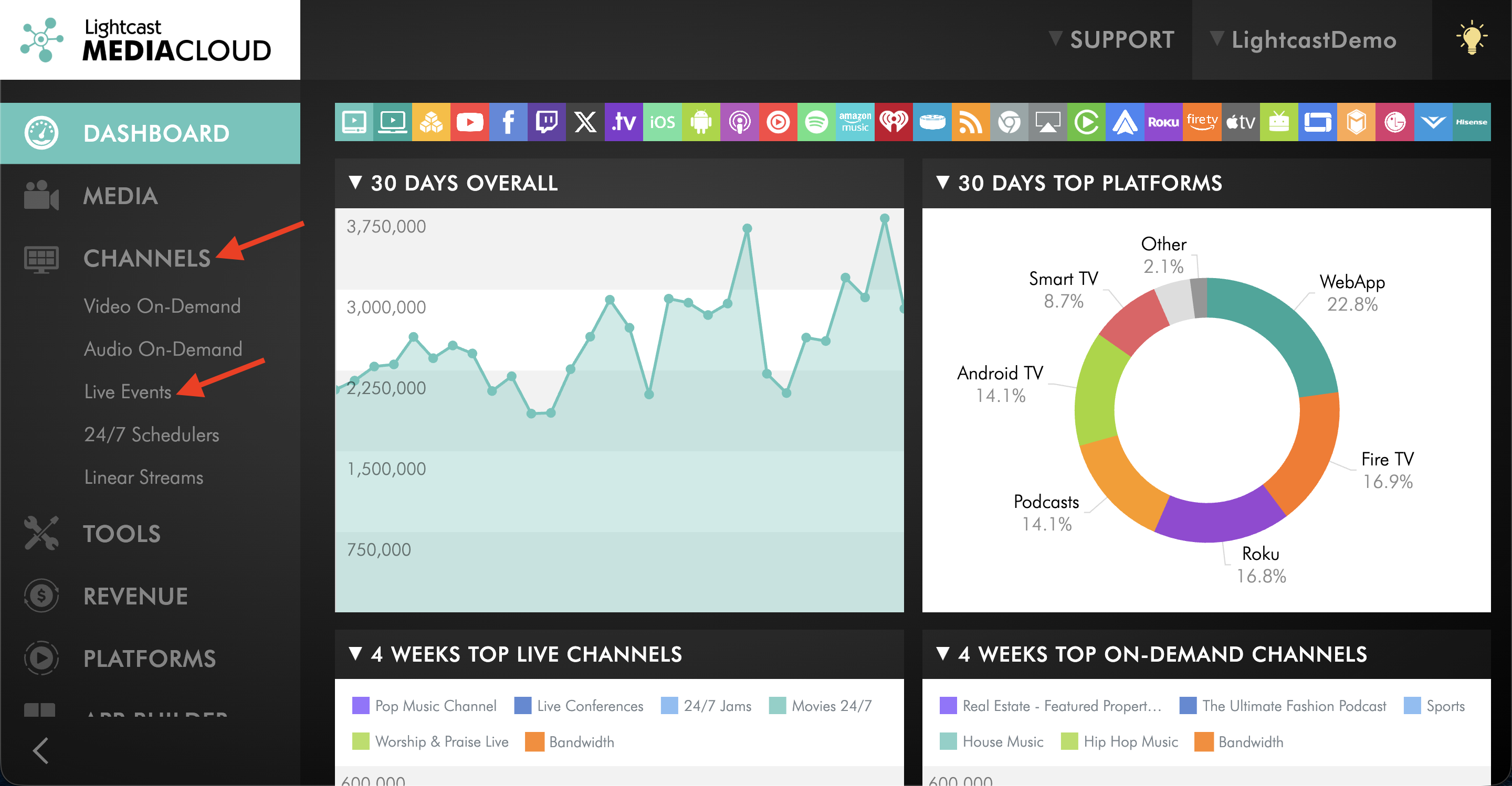
Go to CHANNELS, then select Live Events.
Step 3
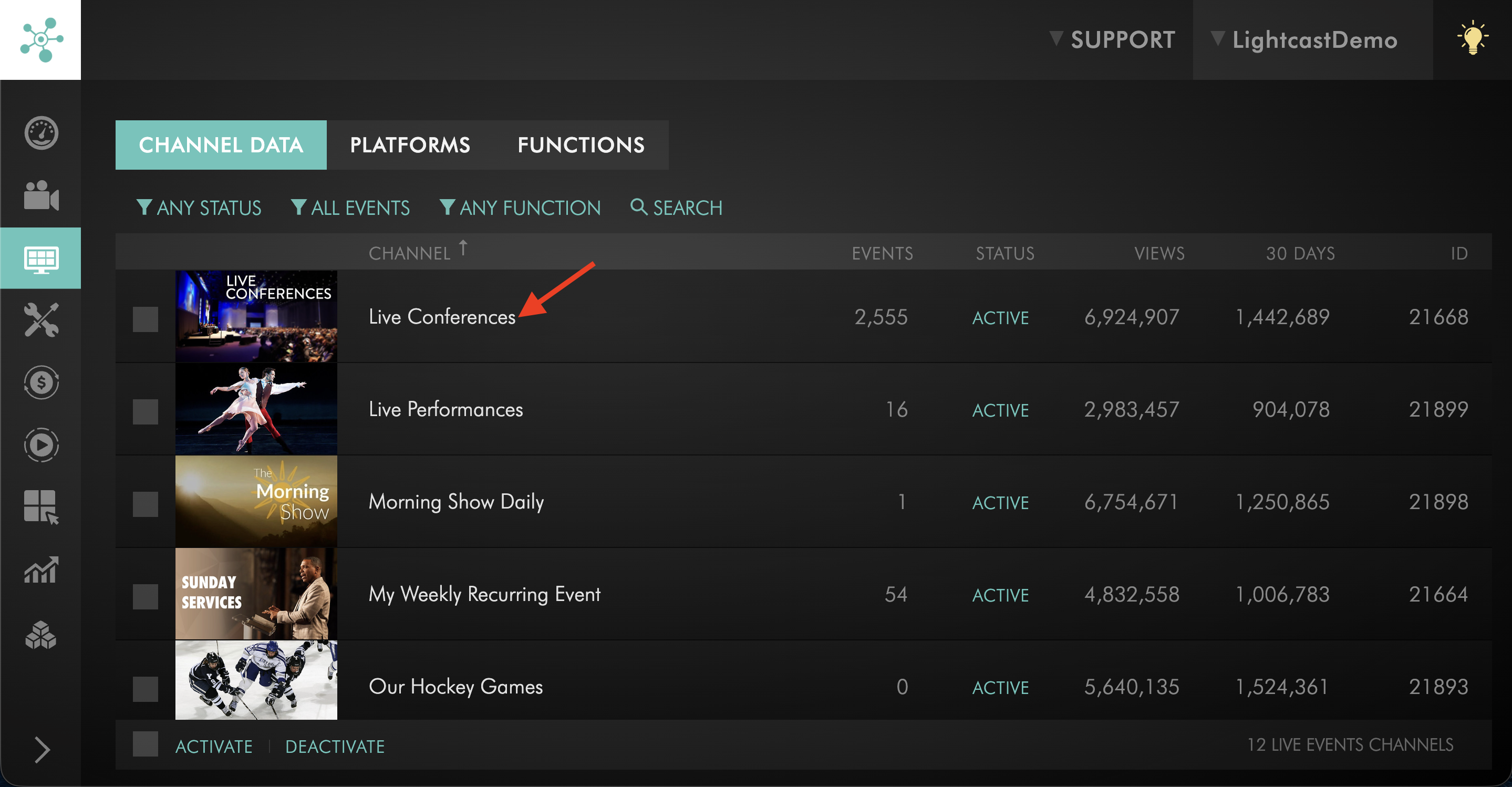
Select the Live Events Channel where you want to schedule the Simulated Live Event.
As a best practice, use a Live Events Channel dedicated to Simulated Live Events instead of using the same Channel for encoder-ingested Live Events.
For more information, see Understanding Simulated Live Events.
Step 4
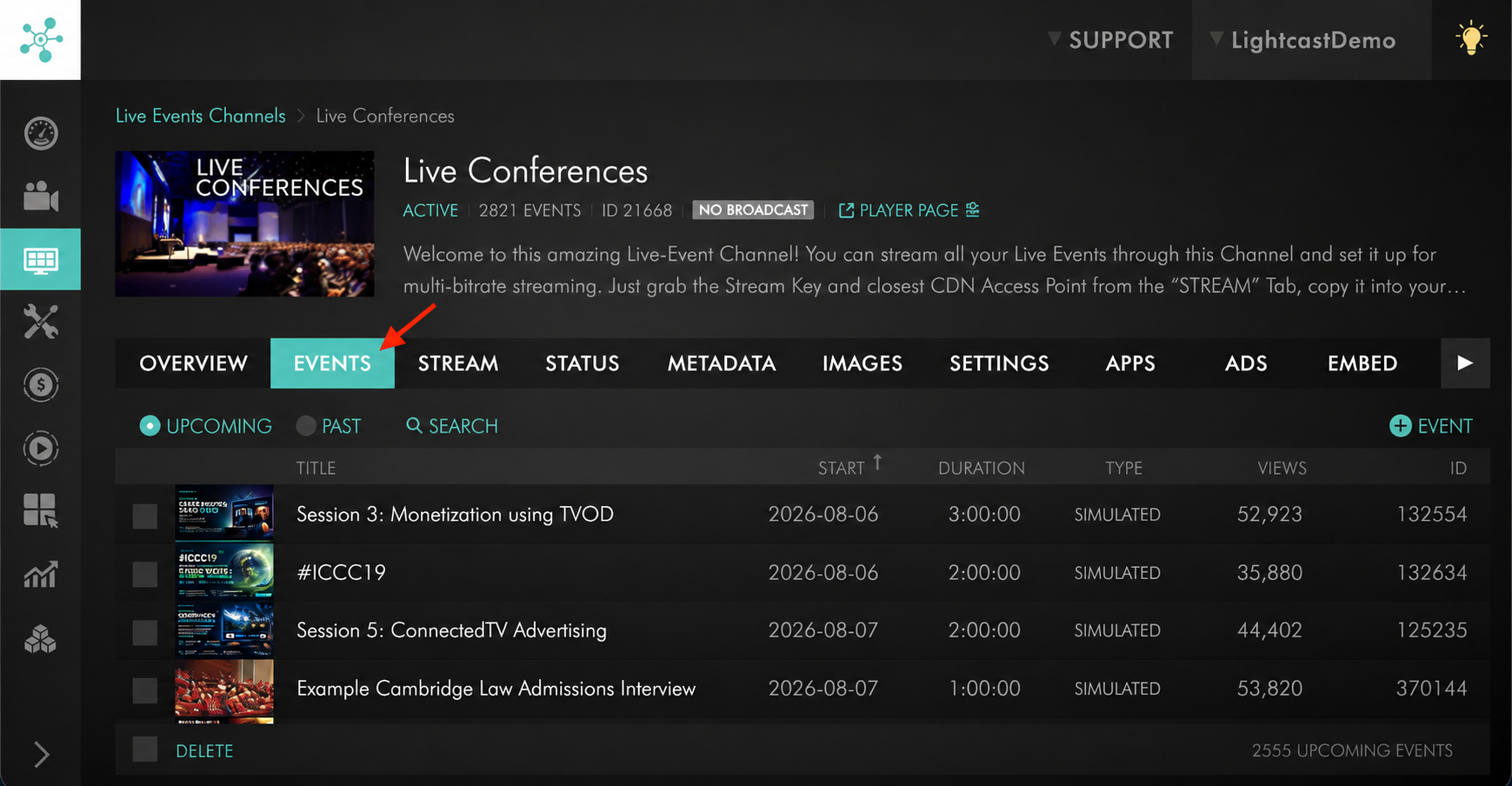
Go to the EVENTS tab.
Step 5
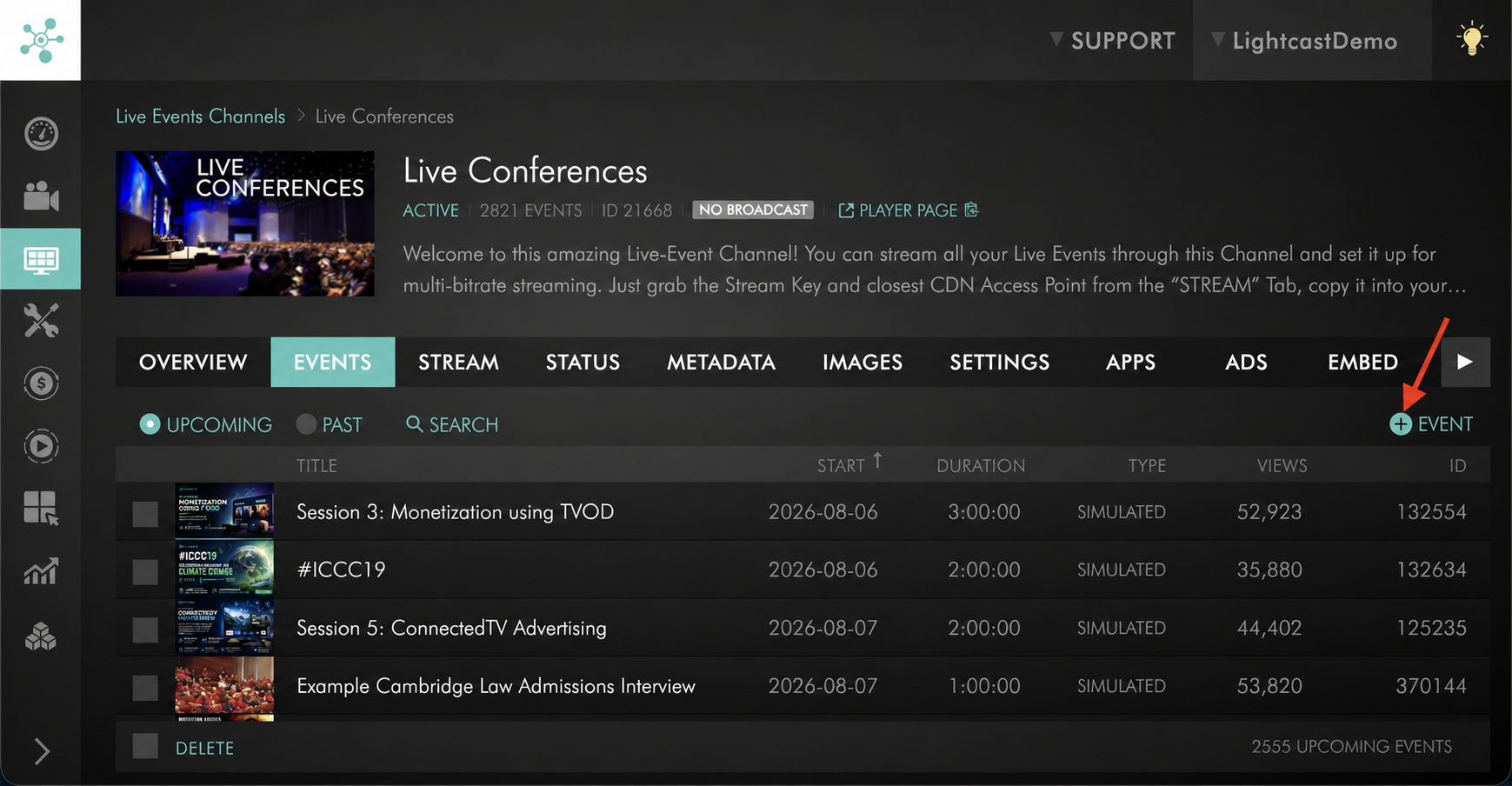
Click + EVENT.
Step 6
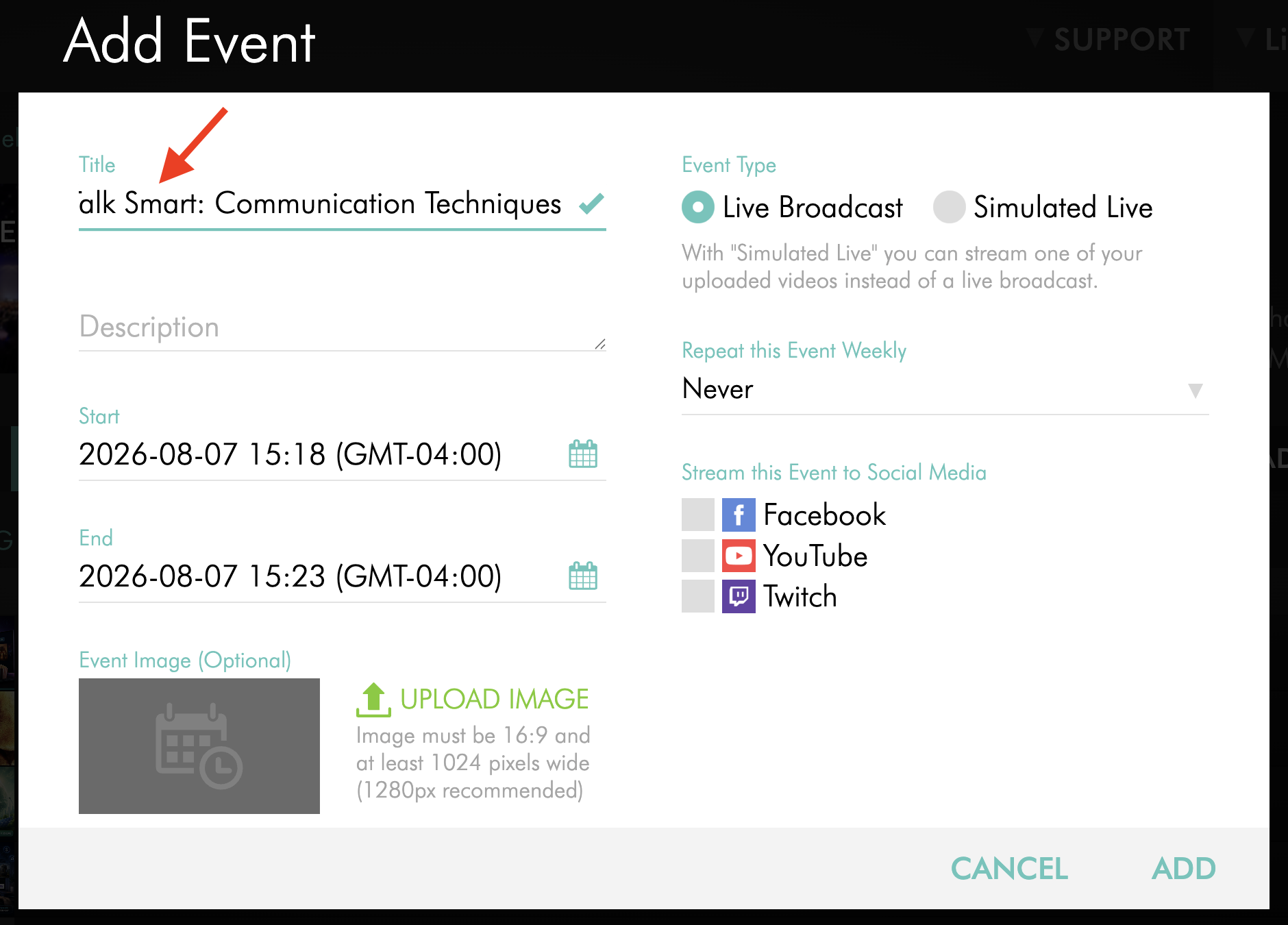
Enter the event Title.
Use a clear title that helps viewers recognize the Simulated Live Event.
Step 7
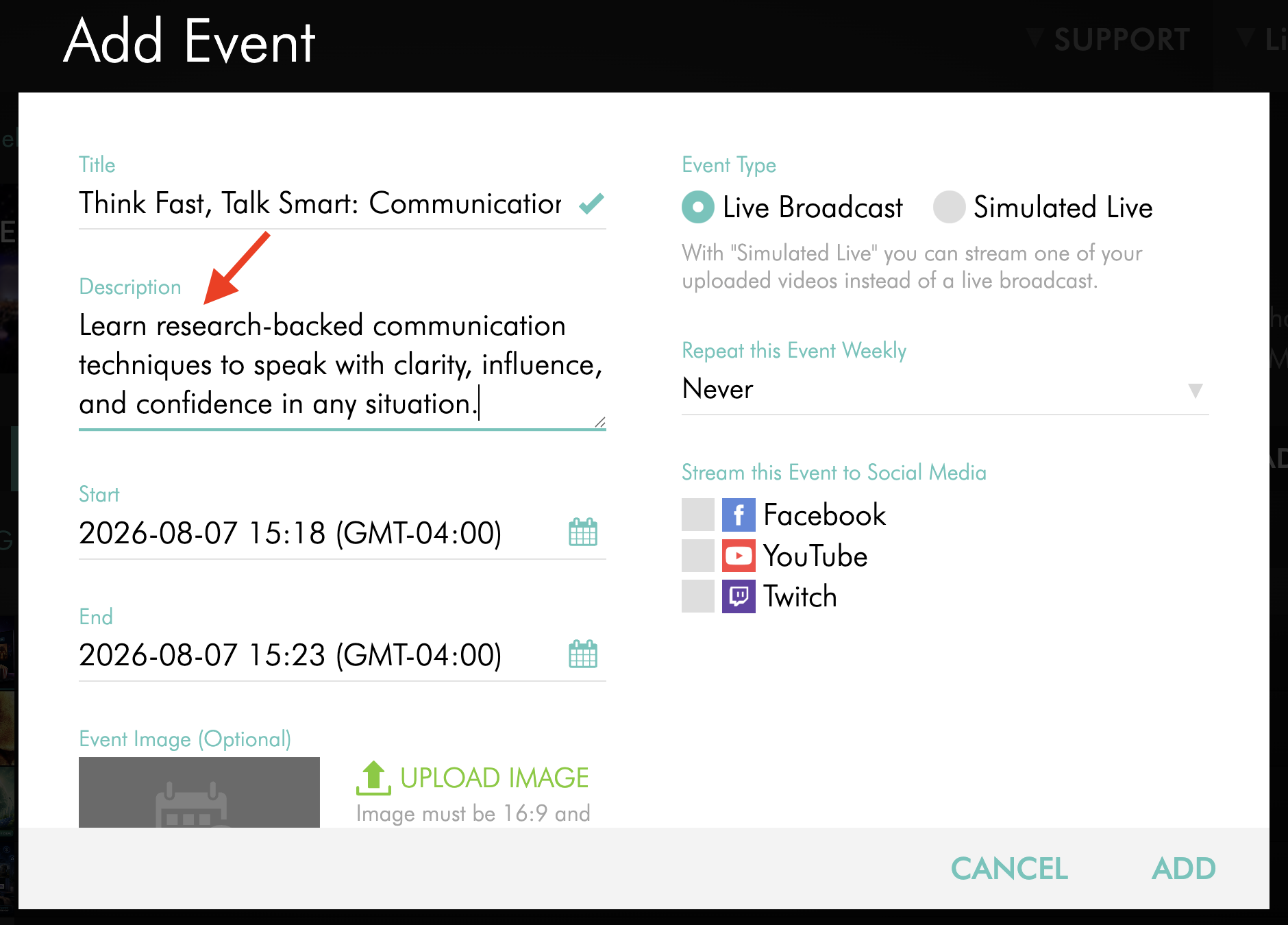
Enter the event Description.
The description should briefly explain what viewers can expect from the Simulated Live Event.
Step 8
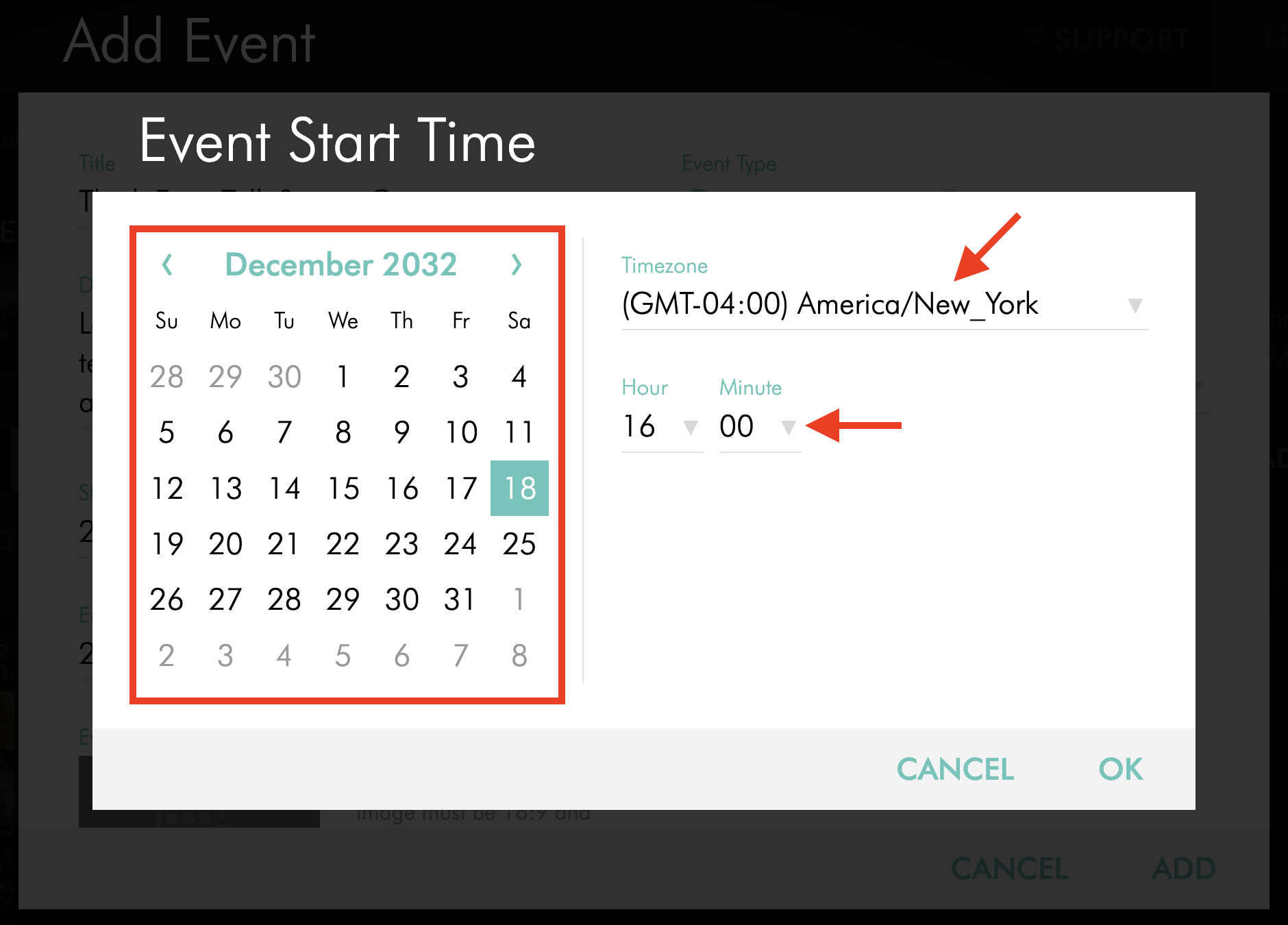
Set the event Start Date, Time, and Timezone.
Step 9
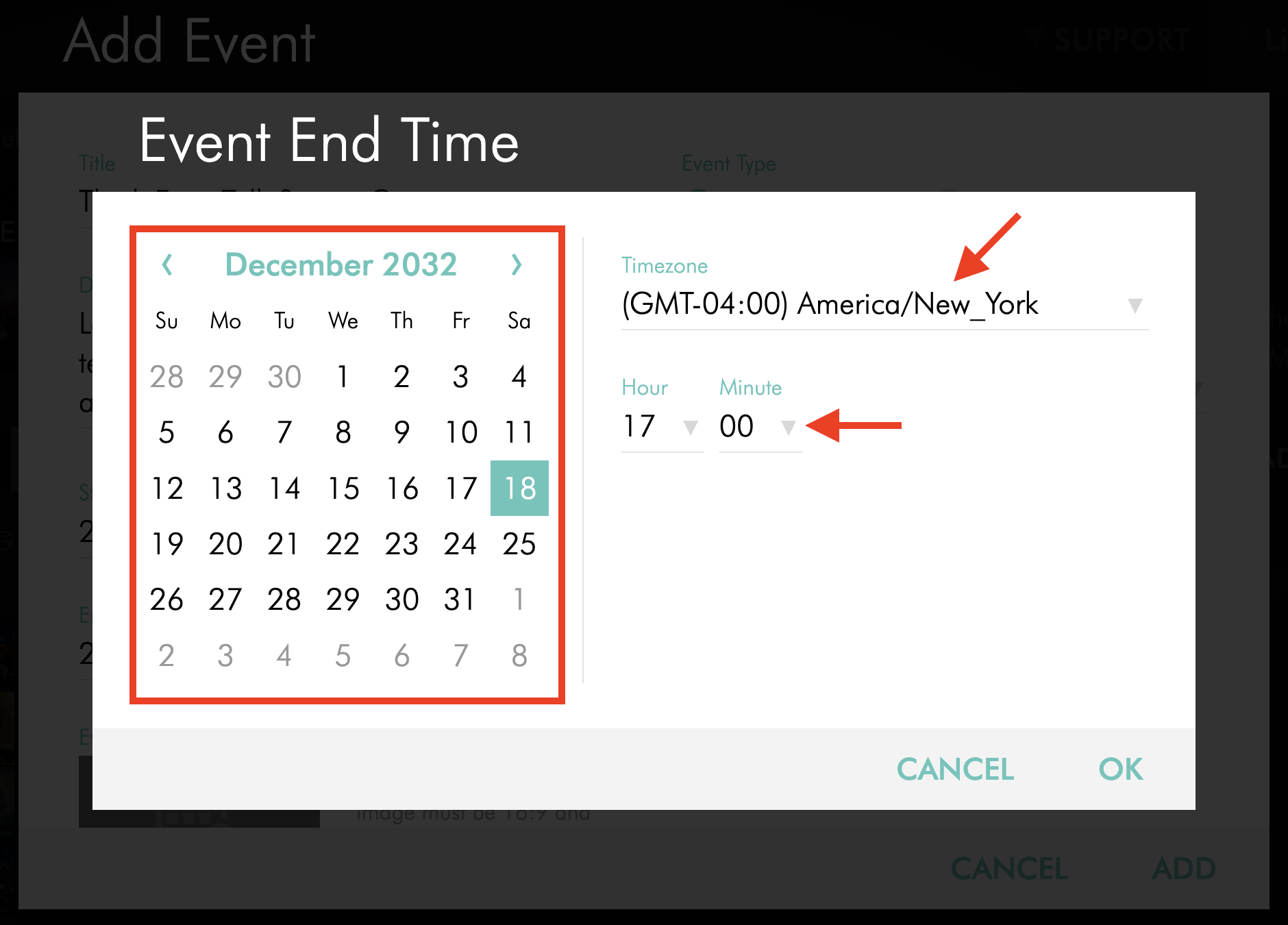
Set the event End Date, Time, and Timezone.
Review the start time, end time, and timezone carefully before saving the event. An incorrect date, time, or timezone can cause the countdown or scheduled event time to display incorrectly.
Make sure the scheduled event duration is at least as long as the selected video. If the event duration is shorter than the selected video, the Simulated Live Event may stop before the video finishes.
Step 10
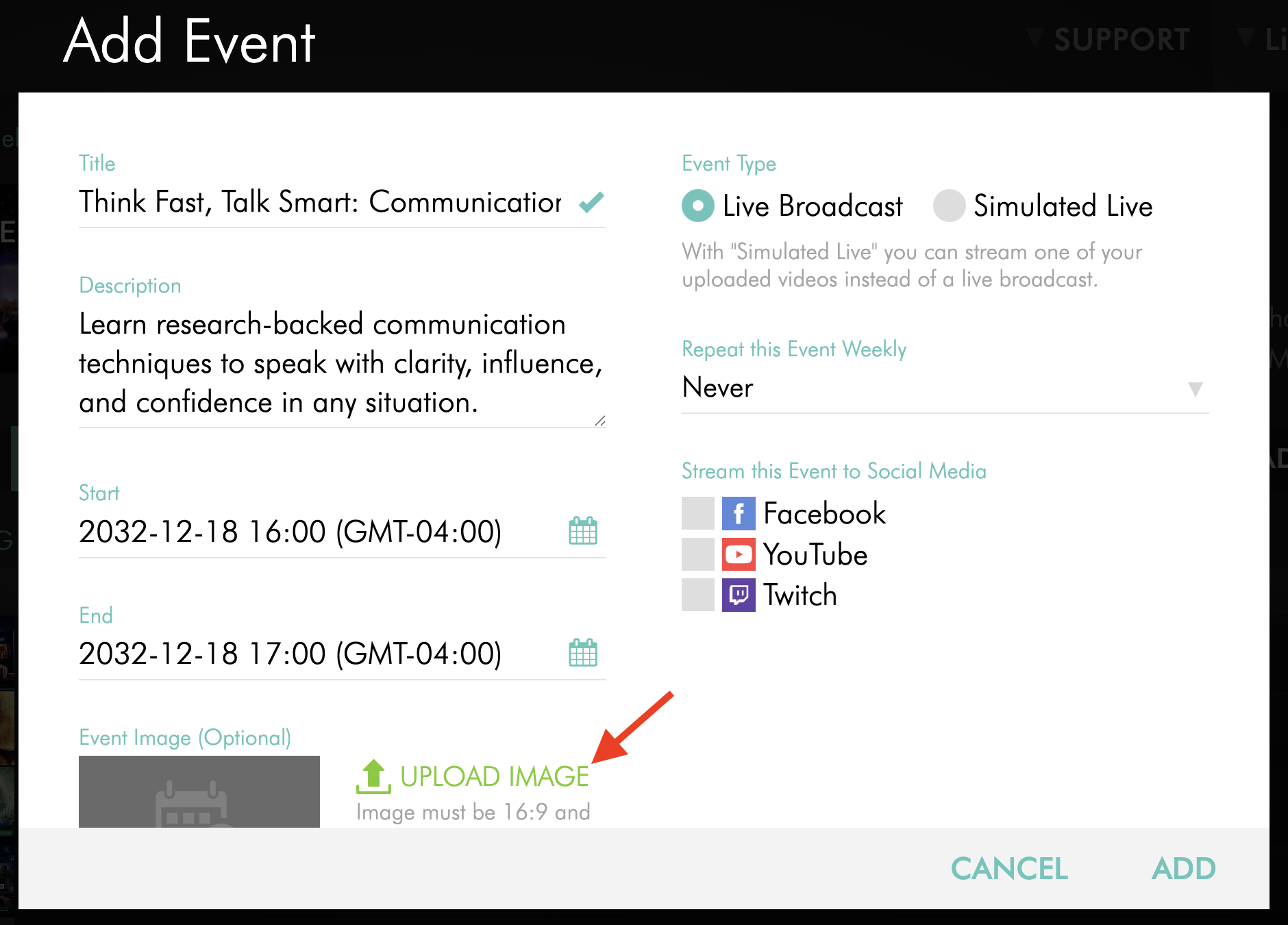
Optional: Upload an Event Image.
An event image can be used for the countdown display and supported event listings. To learn more, see How to add Live Event images.
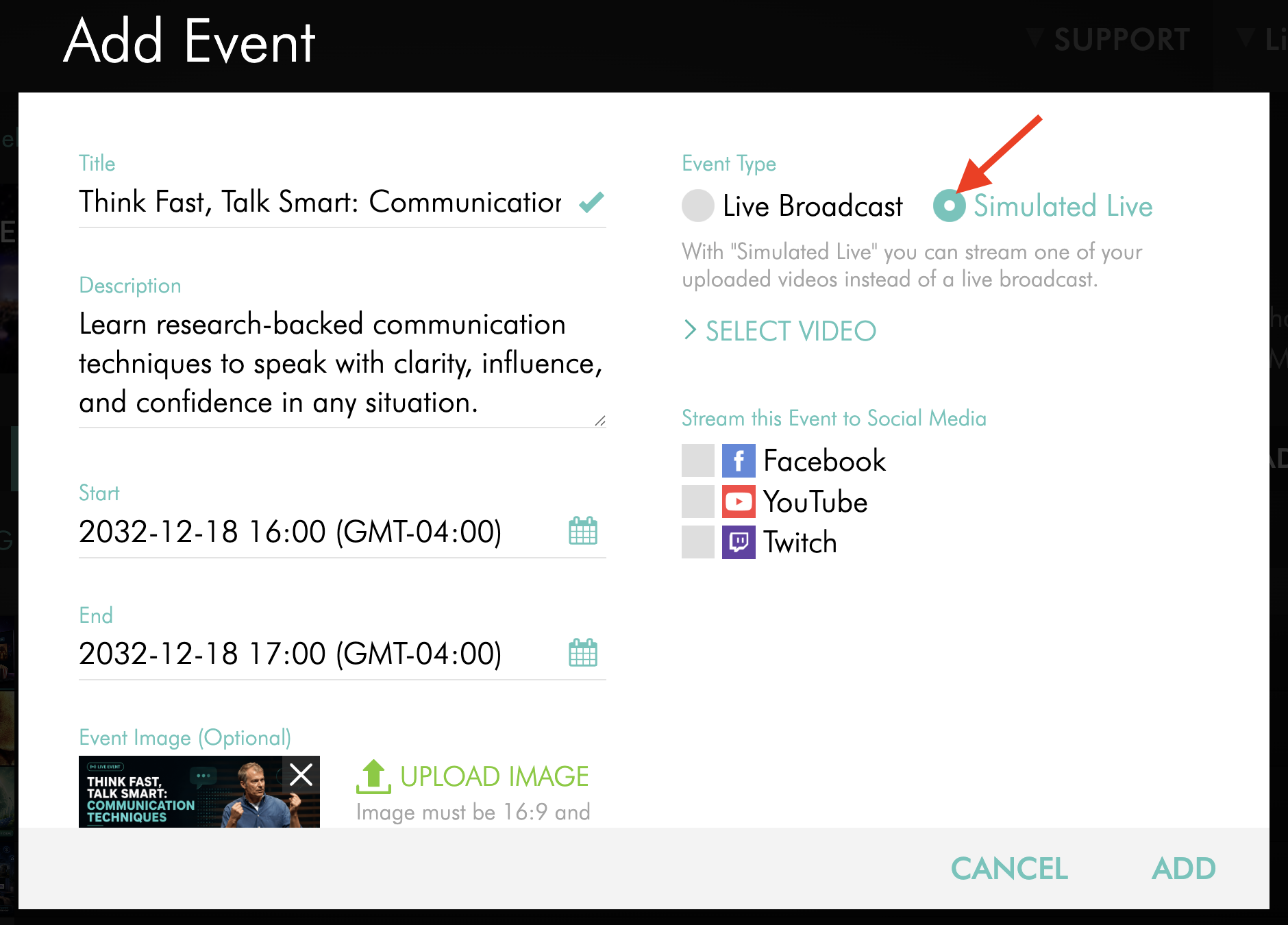
Step 11
Under Event Type, select Simulated Live.
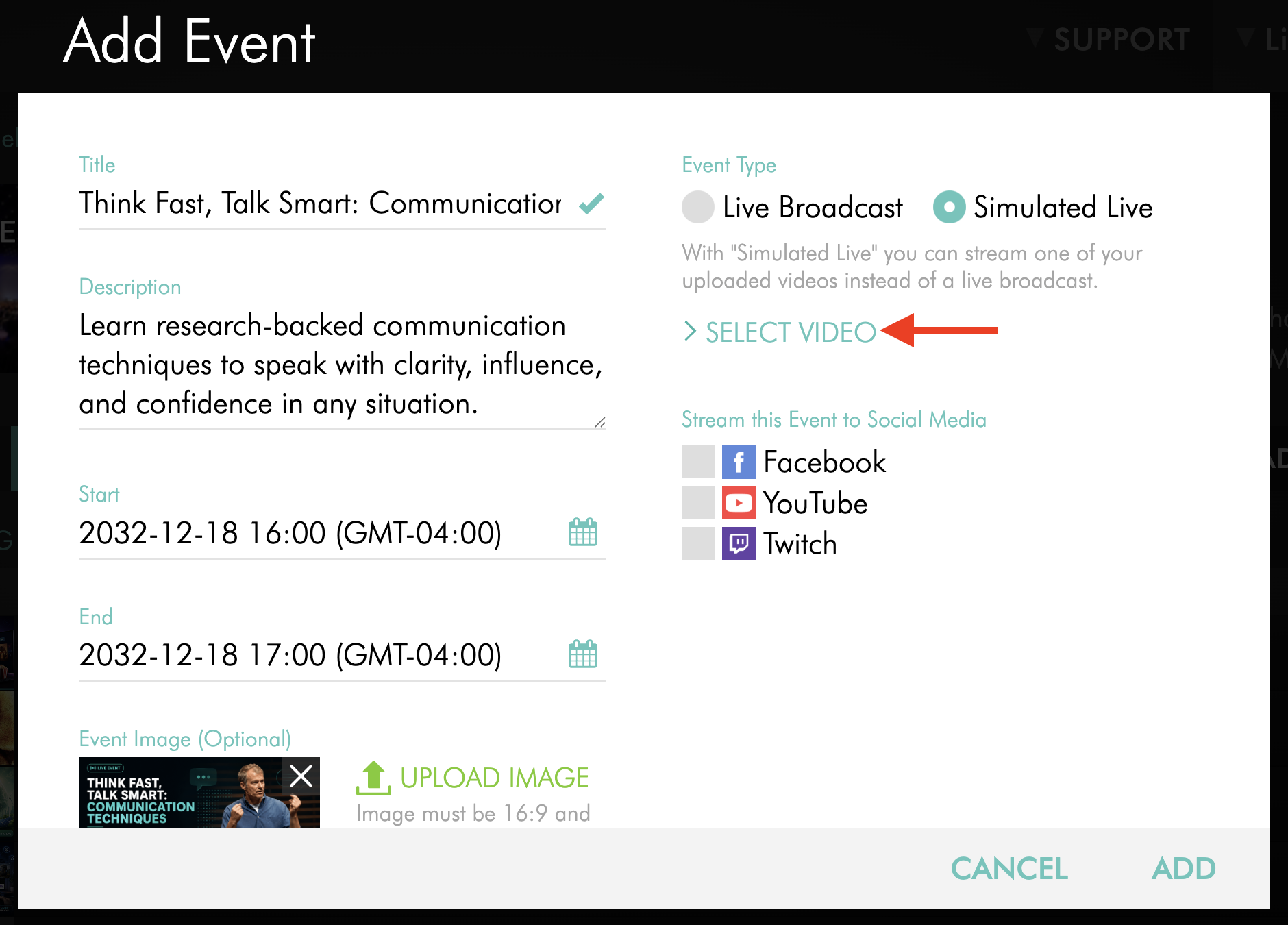
Step 12
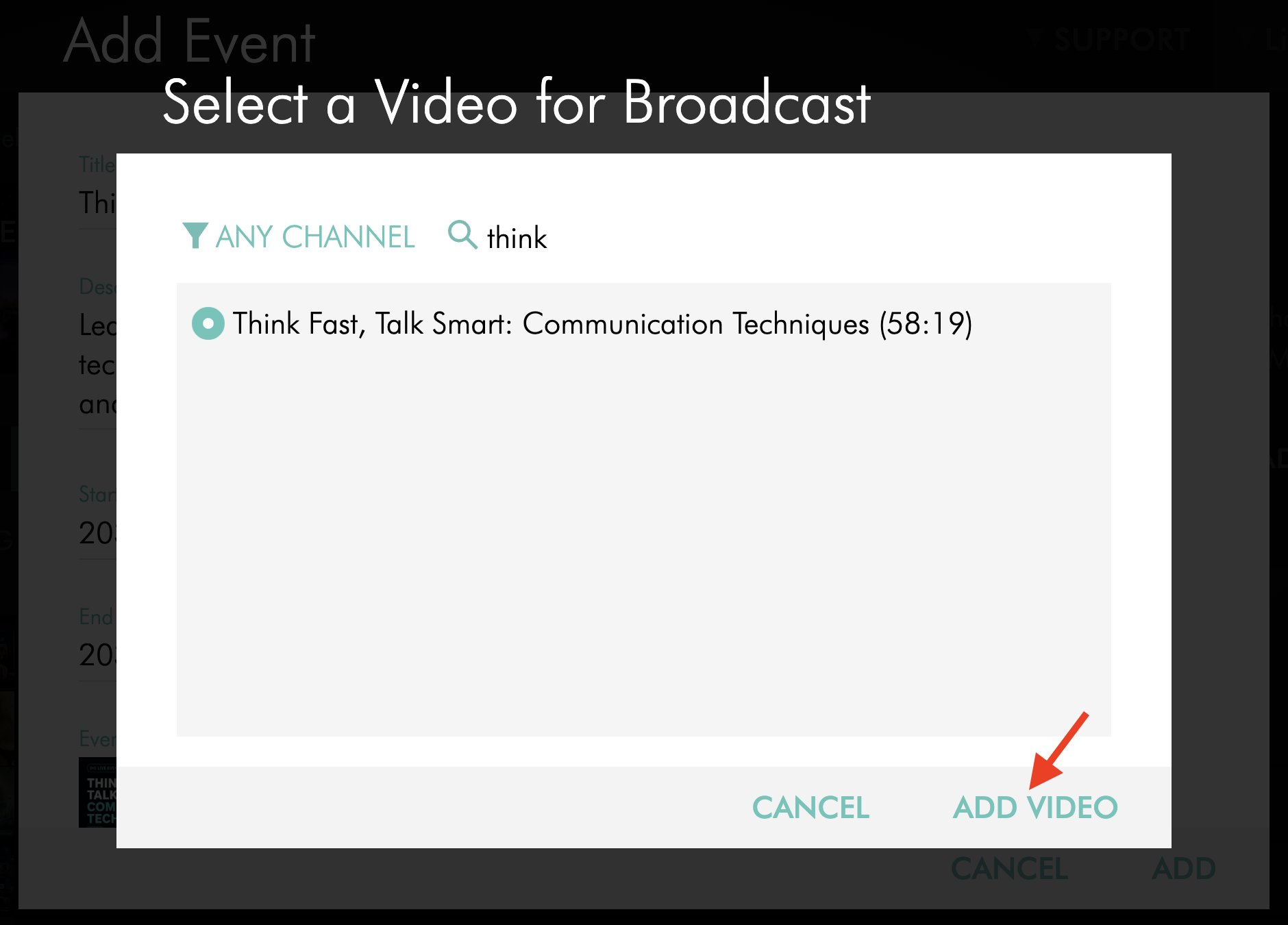
Click SELECT VIDEO to open the Select a Video for Broadcast pop-up.
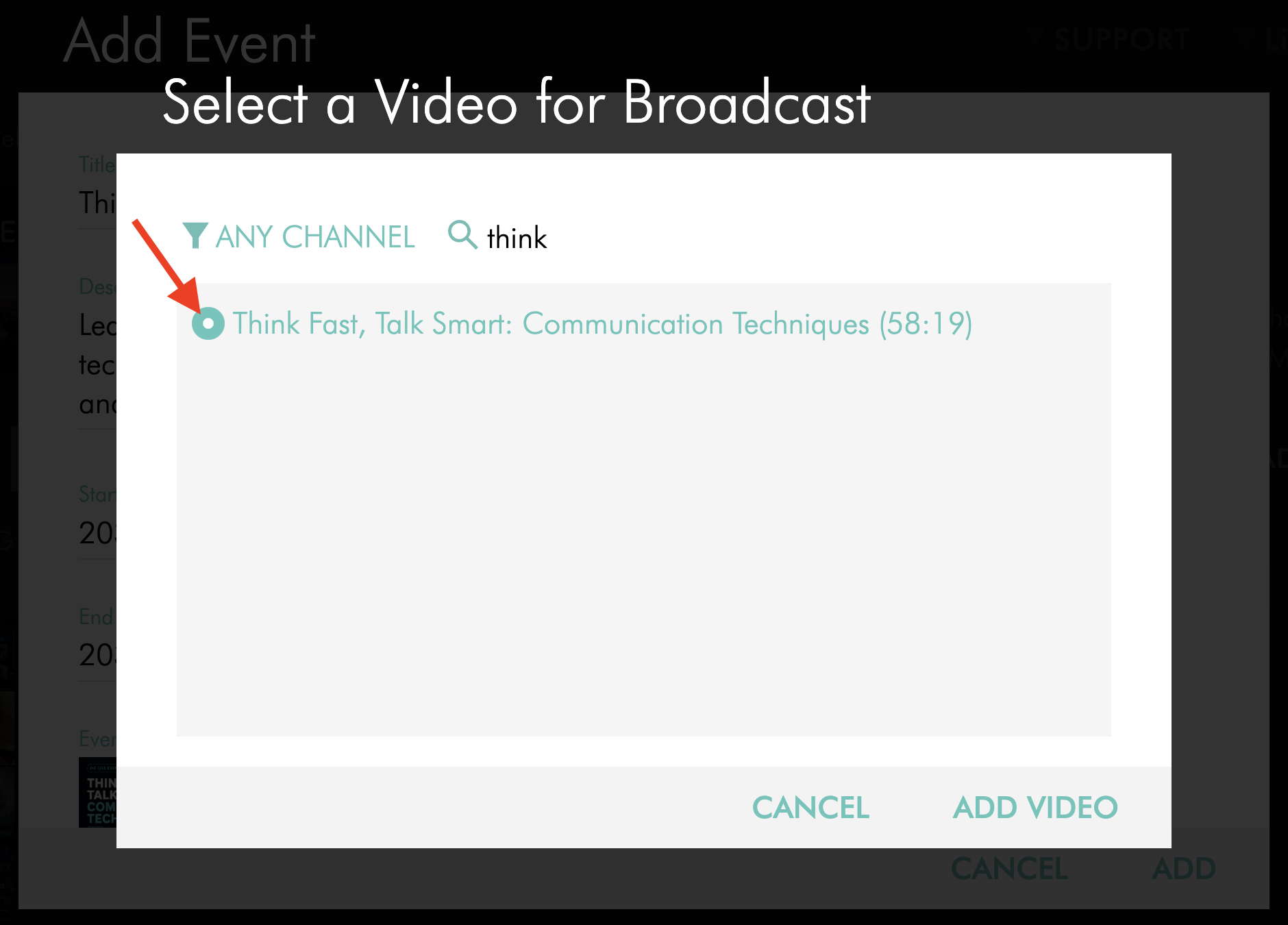
Step 13
Select the uploaded video you want to use for the Simulated Live Event.
Only videos that have already been uploaded and processed in the Media Cloud can be selected.
Step 14
Click ADD VIDEO.
Step 15
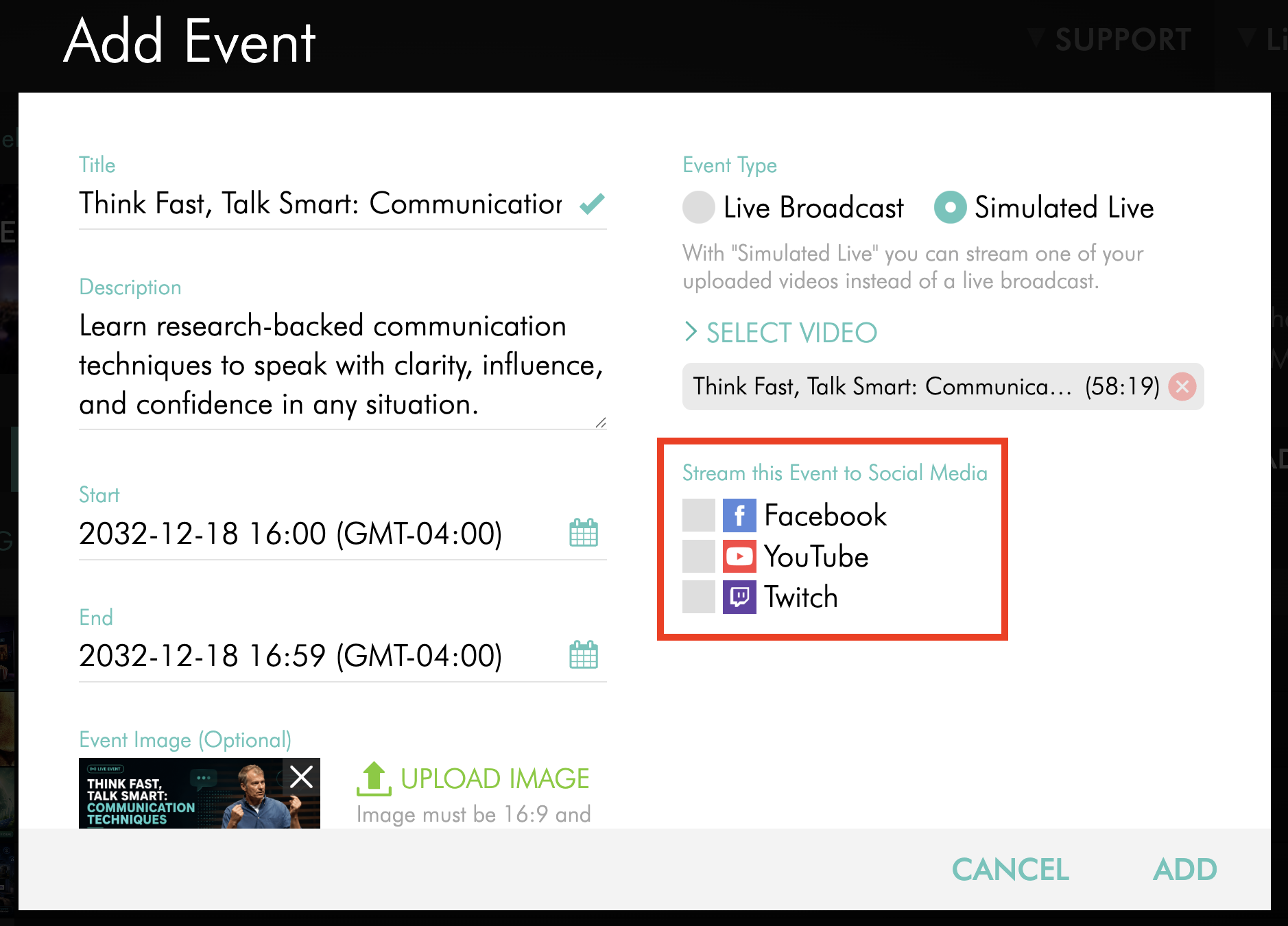
Optional: Configure any additional event settings, publishing settings, or social media destinations available for the event.
If you want to publish the Simulated Live Event to a connected social media destination, make sure the destination is connected to the Live Events Channel before the event begins. For more information, see How to send your live stream to Facebook, How to send your live stream to YouTube, or How to send your live stream to Twitch.
Step 16
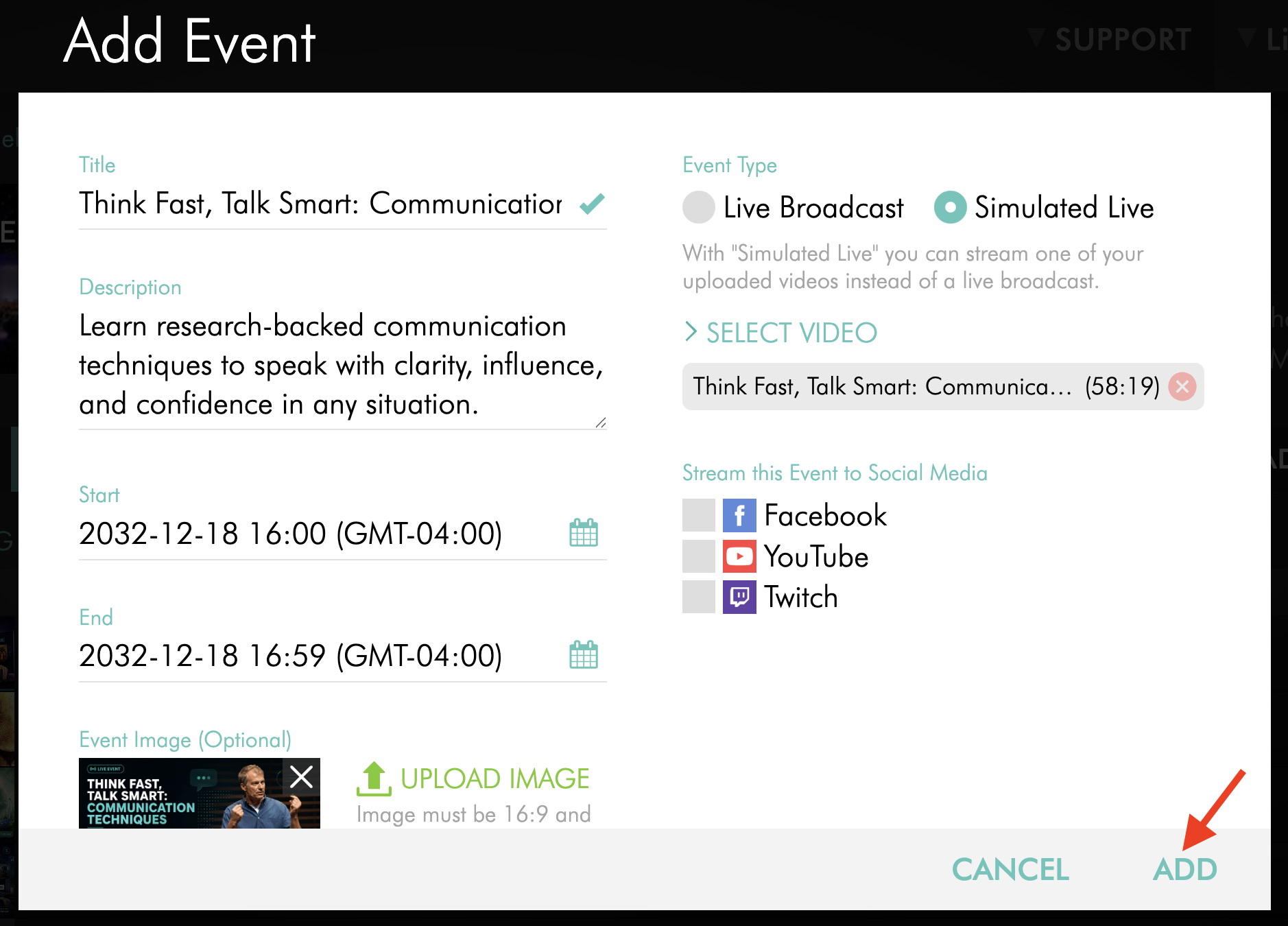
Click ADD to schedule the Simulated Live Event.
The selected video will play as a simulated live broadcast at the scheduled event time.
FAQs
Can I upload a video and schedule it for future live playback?
Yes. You can upload a video to the Media Cloud and schedule it to play later as a Simulated Live Event.
The video must be uploaded and processed before it can be selected for the Simulated Live Event.
Does a Simulated Live Event require a live encoder?
No. A Simulated Live Event uses a previously uploaded video. You do not need to send a live stream from an encoder during the event.
What happens if the selected video is longer than the scheduled event duration?
The Simulated Live Event will stop when the scheduled end time is reached.
This may cut off the video before it finishes. To avoid this, make sure the scheduled event duration is at least as long as the selected video.
What happens if the selected video is shorter than the scheduled event duration?
The Simulated Live Event will end automatically when the selected video ends.
Should I add extra time to the scheduled event duration?
You can add a small buffer if needed, but the scheduled event duration should be based on the selected video duration.
Because the video has a fixed duration, the most important step is making sure the scheduled event is not shorter than the video.
Can I schedule Simulated Live Events back to back?
Simulated Live Events cannot be scheduled immediately back to back in the same Live Events Channel.
The Media Cloud requires at least a 3-minute buffer between scheduled Live Events in the same Channel.
Does the same timing behavior apply when publishing to Facebook or YouTube?
Yes. If you publish a Simulated Live Event to Facebook or YouTube, the same timing behavior applies.
The stream ends when the selected video finishes or when the scheduled event end time is reached, whichever occurs first.
When scheduling a Simulated Live Event for Facebook or YouTube, set the event duration based on the selected video duration.
Pricing
Simulated Live Events are available on POWER packages and up.
If you don't have access to this feature, you can upgrade to one of our latest plans or contact your account manager.