
How to set up and ingest a 24/7 Linear Stream
Overview
This article explains how to set up and ingest a 24/7 Linear Stream into a LIVE Channel in the Media Cloud using RTMP or SRT.
A Linear Stream is used for continuous broadcasting and does not require event scheduling. This setup is useful when you want your Channel to stay live at all times, or when a third-party content partner is sending a continuous stream to your LIVE Channel.
When to use a 24/7 Linear Stream
Use a 24/7 Linear Stream when you want to broadcast continuously through a LIVE Channel in the Media Cloud.
This may be helpful when:
You have a continuous live feed
You want your Channel to remain live at all times
You are receiving a continuous stream from a content partner
You do not need to schedule individual Live Events with start and end times
You are using an encoder or source feed designed for long-running broadcasts
Before you begin, make sure you have:
Access to a LIVE Channel in the Media Cloud
A supported encoder or content partner feed that can send RTMP or SRT
Your LIVE Channel stream credentials
A stable upload connection from the encoder location
For instructions on finding your Stream Key, CDN Access Point, or SRT Streaming URL, see How to find your LIVE Channel stream credentials.
For general encoder setting recommendations, see Recommended encoder settings for live streaming.
How it works
A Linear Stream is an always-on LIVE Channel designed for continuous broadcasting. Unlike a Live Event, a Linear Stream does not require a scheduled start time or event creation before streaming.
If your LIVE Channel is marked as UNUSED, you must activate it before you can begin streaming.
If your LIVE Channel is currently set to Live Event, you must change the Channel Type to Linear Stream before sending your feed.
A Linear Stream can be sent from your own encoder or from a third-party content partner’s encoder. If a content partner is sending the stream for you, provide them with the required stream credentials from your LIVE Channel.
You can ingest a Linear Stream using:
RTMP, using the LIVE Channel CDN Access Point and Stream Key
SRT, using the LIVE Channel SRT Streaming URL
RTMP is widely supported and works well for most standard streaming setups. SRT provides improved reliability and can support lower-latency delivery, especially for long-running or long-distance broadcasts.
Instructions
Step 1: Prepare your LIVE Channel for Linear Streaming
Step 1
Log in to your Media Cloud account.
Step 2
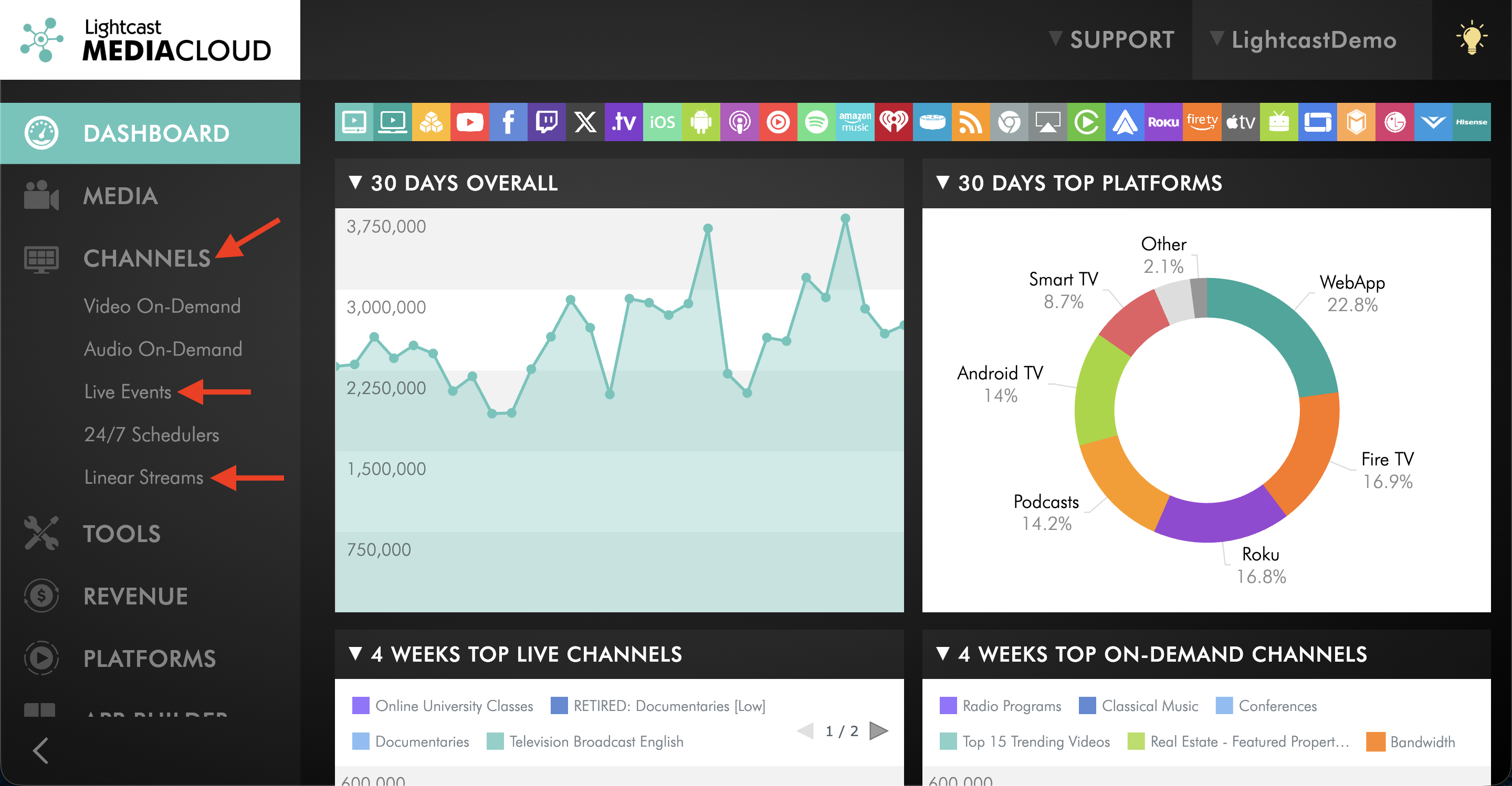
Go to CHANNELS, then select either Live Events or Linear Streams.
Step 3
Check the Channel status and Channel Type.
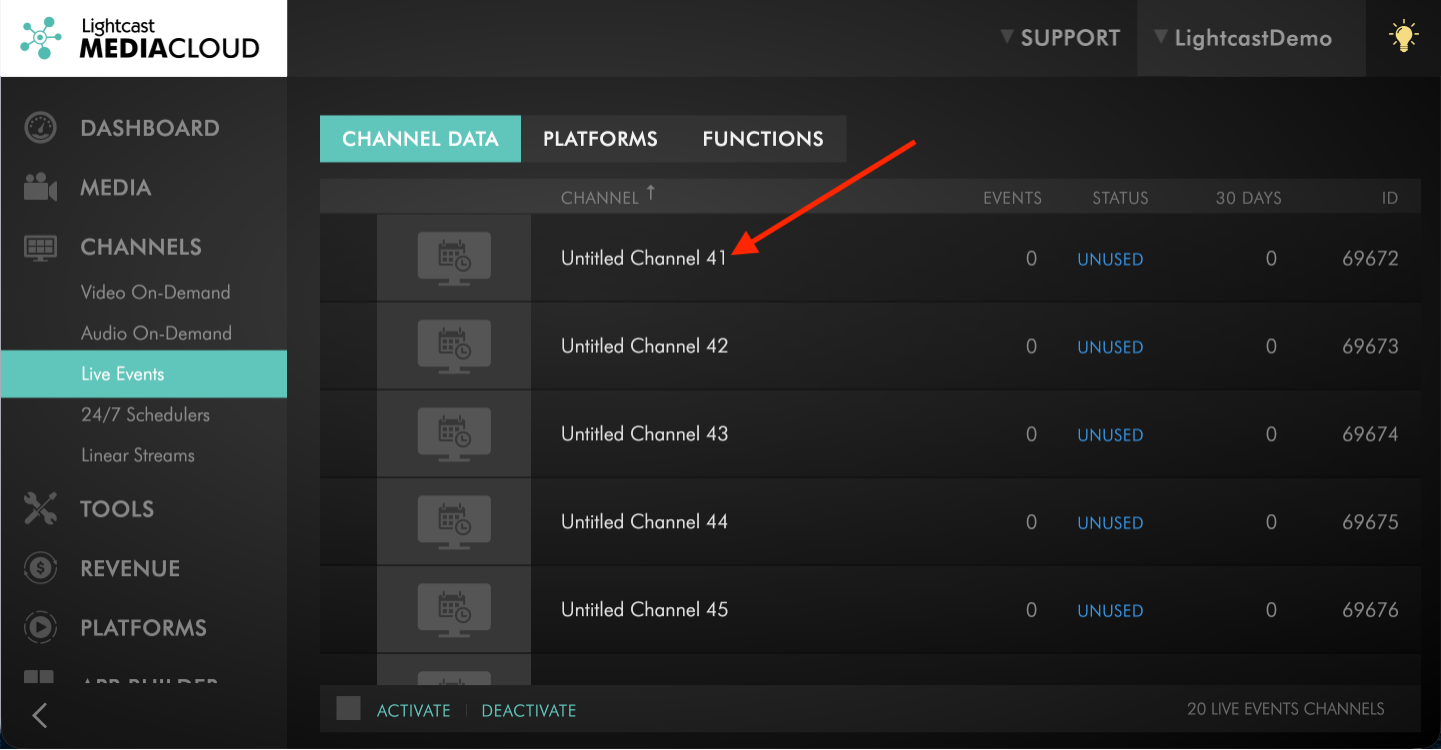
If your Channel shows UNUSED, you must activate it before streaming.
If your Channel is currently set to Live Event, you must change it to Linear Stream before using it for 24/7 streaming.
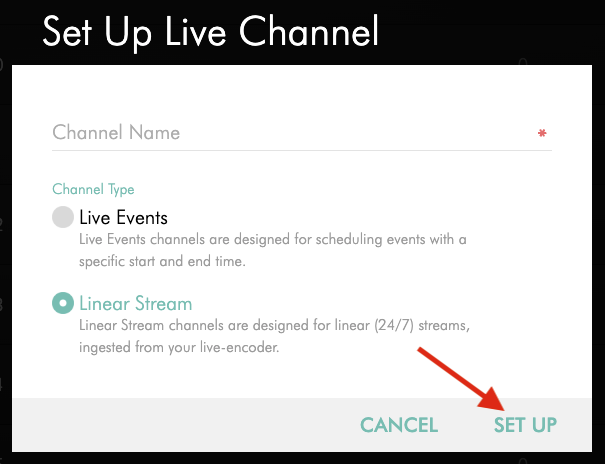
OPTION A: Activate an UNUSED LIVE Channel as a Linear Stream
Step 1
Open the UNUSED LIVE Channel.
Step 2
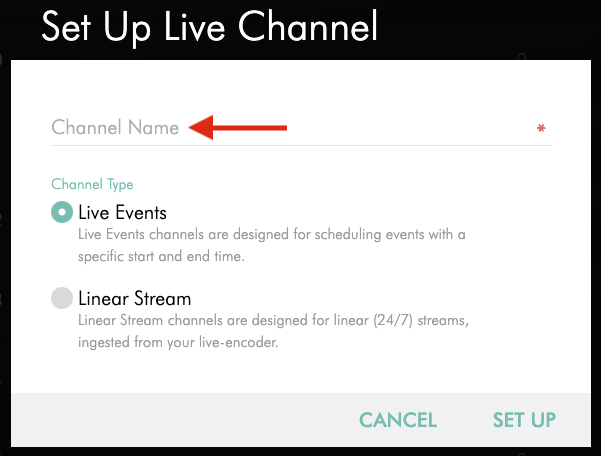
Enter a name for your LIVE Channel.
Step 3
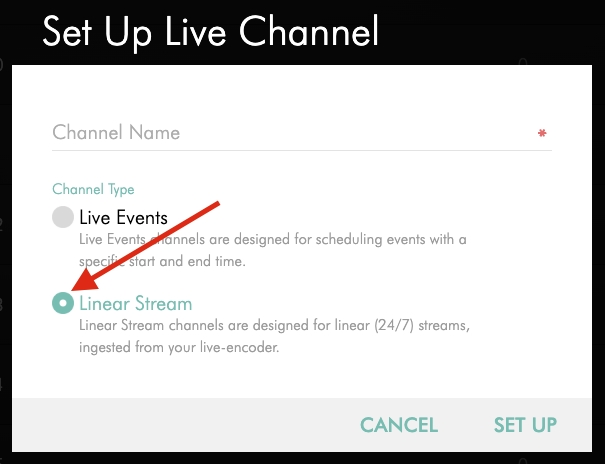
For Channel Type, select Linear Stream.
Step 4
Click SET UP.
Your channel is now ACTIVE and configured for 24/7 streaming.
OPTION B: Change a Live Event Channel to a Linear Stream
Step 1
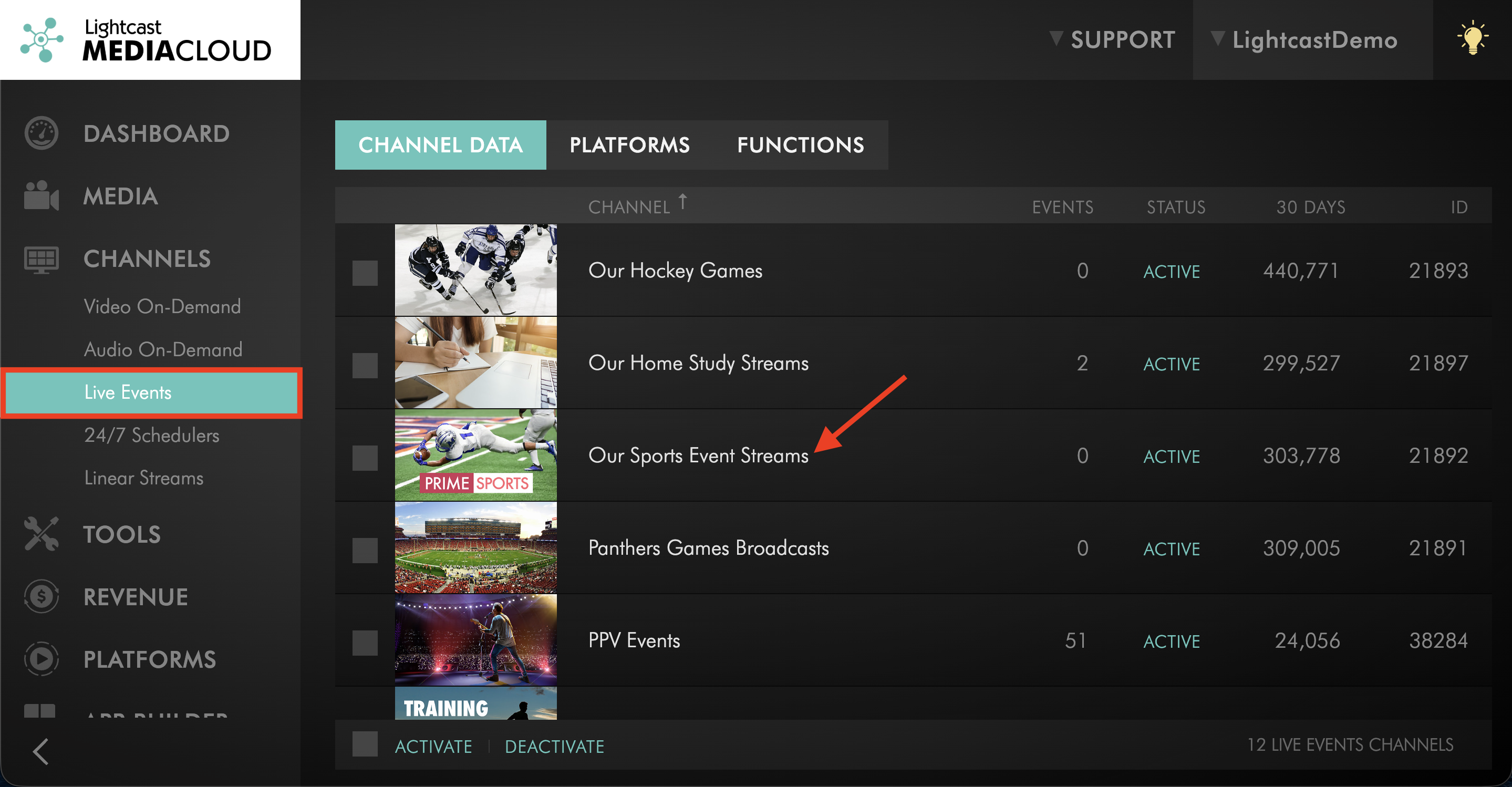
Open your LIVE Channel.
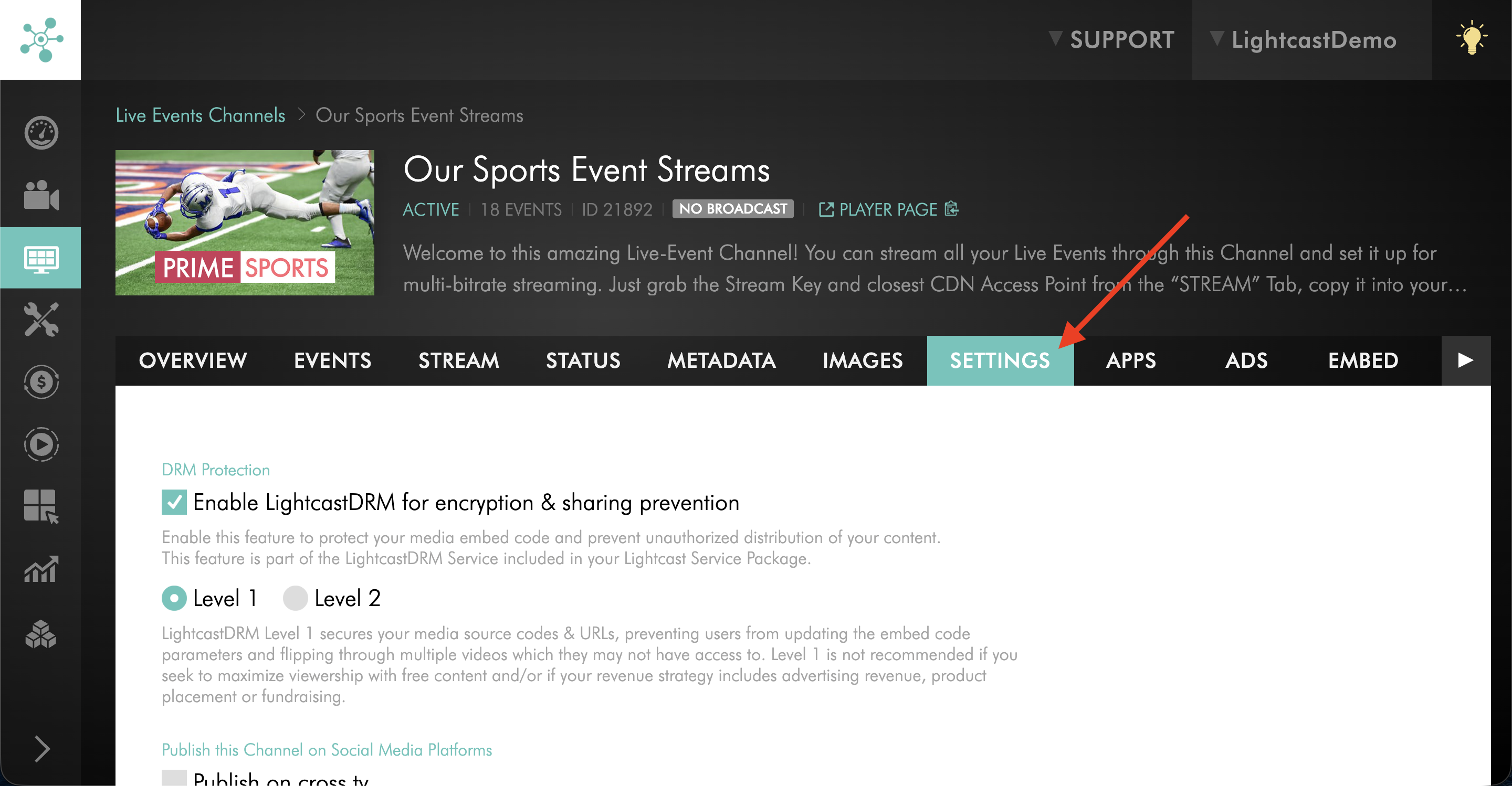
Step 2
Go to the SETTINGS tab.
Step 3
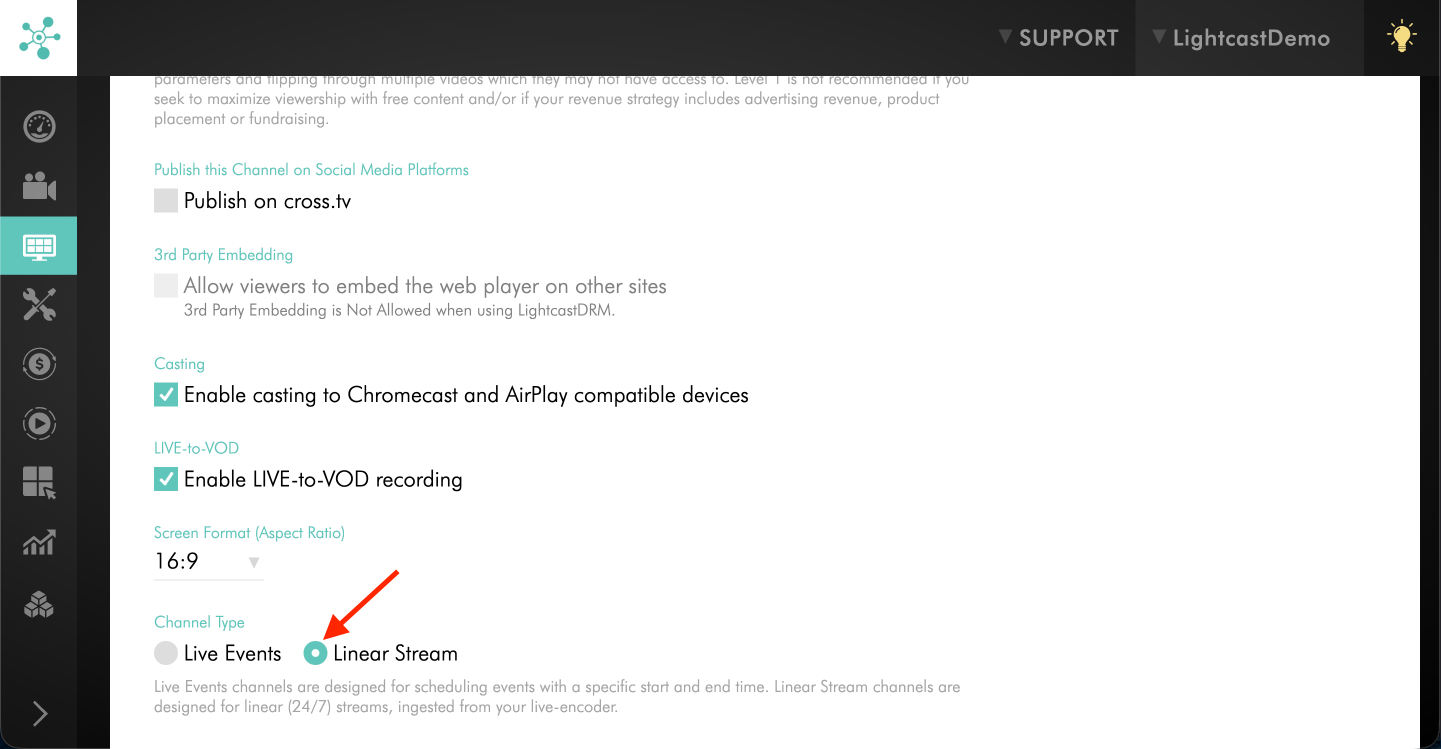
Locate the Channel Type setting.
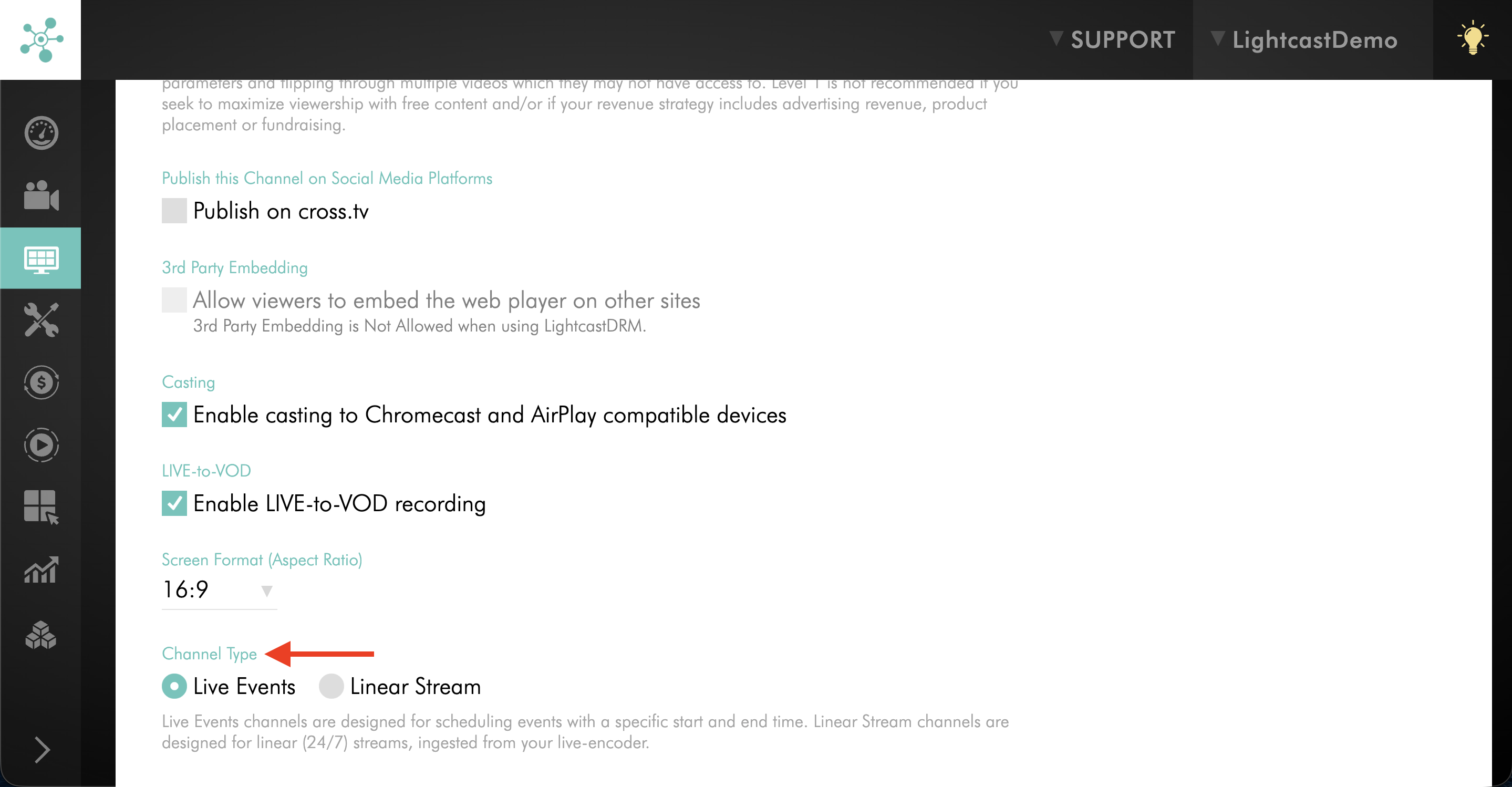
Step 4
Change it from Live Event to Linear Stream.
Step 5
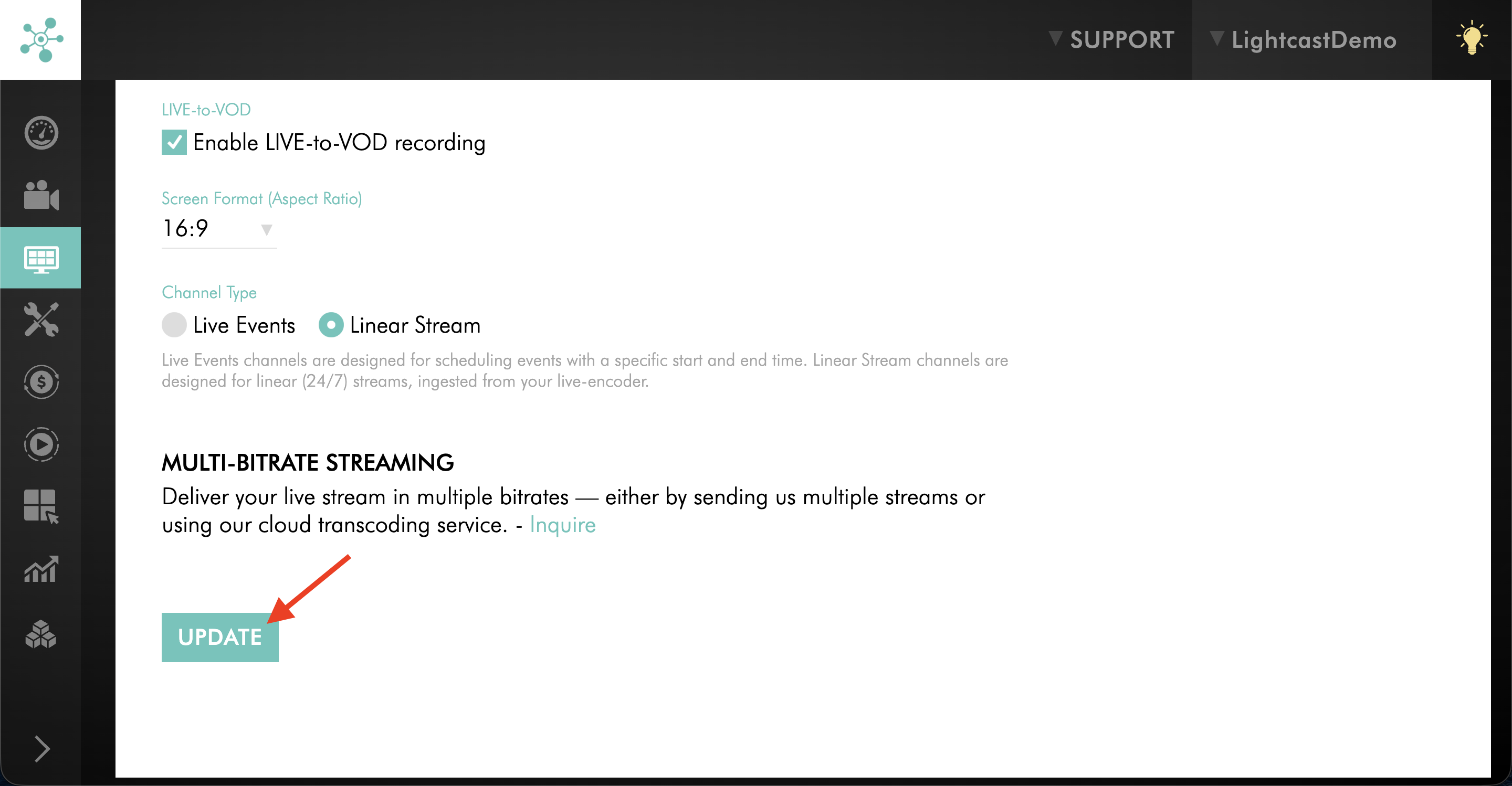
Click UPDATE to save your changes.
Your Channel is now configured for continuous broadcasting.
Step 2: Choose your ingestion method
Choose whether you want to ingest the stream using RTMP or SRT.
Use RTMP if your encoder supports standard RTMP streaming.
For RTMP, you will need the LIVE Channel’s Stream Key and CDN Access Point.
Use SRT if your encoder supports SRT and you want improved reliability for a long-distance or unstable network connection.
For SRT, you will need the LIVE Channel’s SRT Streaming URL.
To learn where to find these credentials, see How to find your LIVE Channel stream credentials.
After adding the correct credentials to your encoder, save your encoder settings.
Your encoder is now configured to send the stream to your LIVE Channel.
Step 3: Start streaming from your encoder
Begin sending your RTMP or SRT stream from your encoder to the LIVE Channel.
It is recommended to start streaming a few minutes early so you can confirm the connection is working correctly before your audience begins watching.
Step 4: Add your Linear Stream to your apps
Step 1
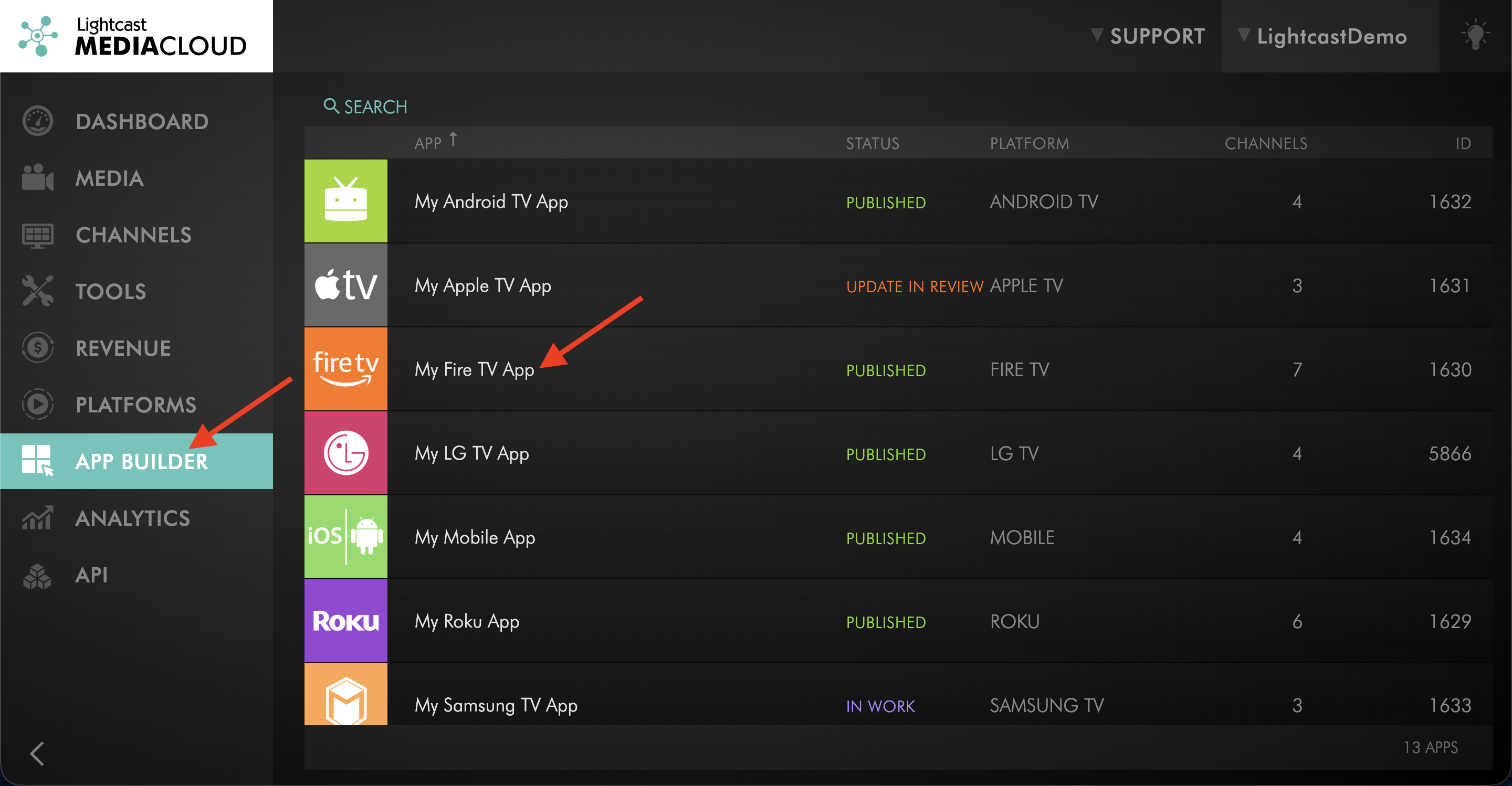
Open the App Builder and select an app.
Step 2
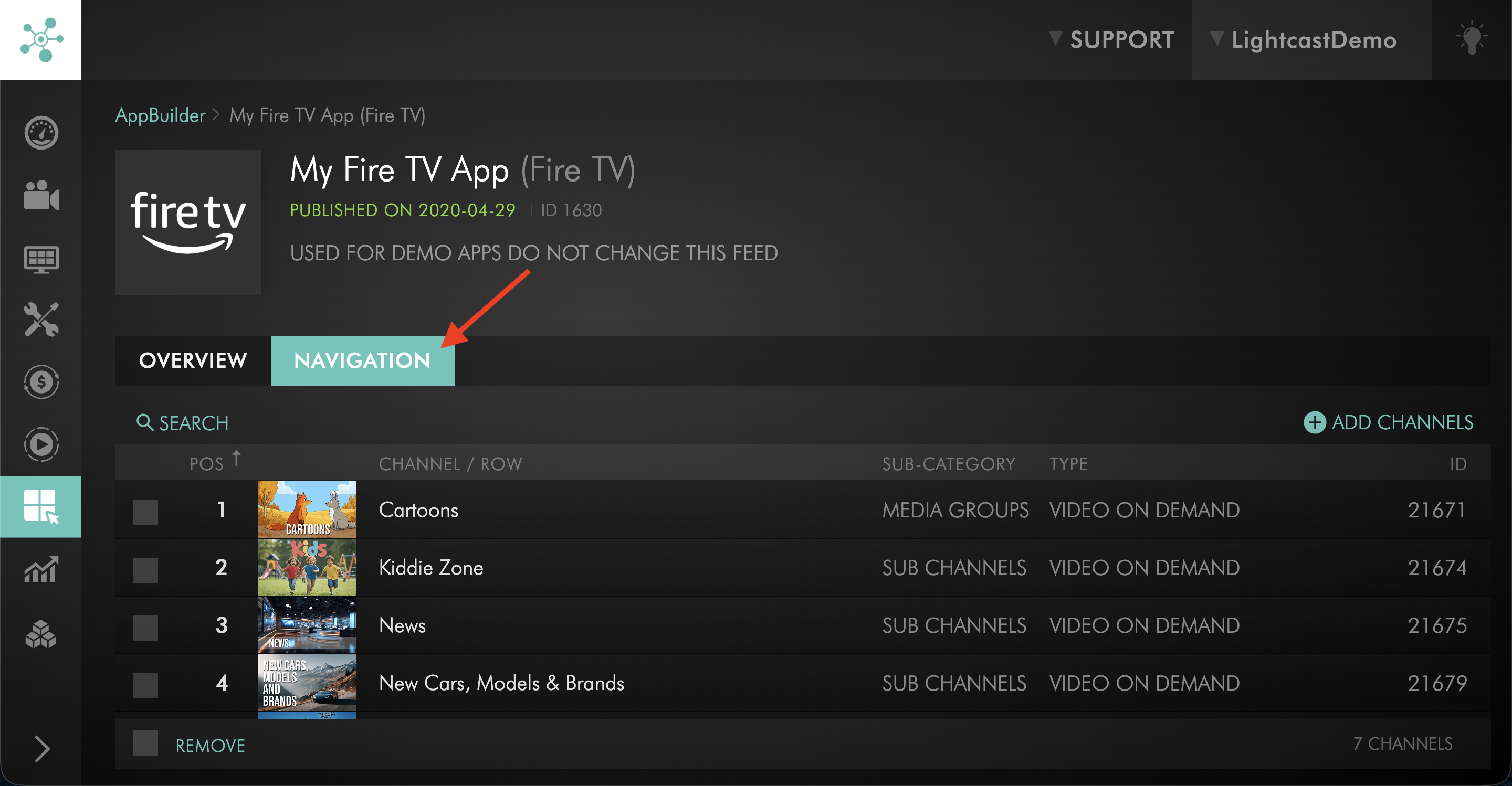
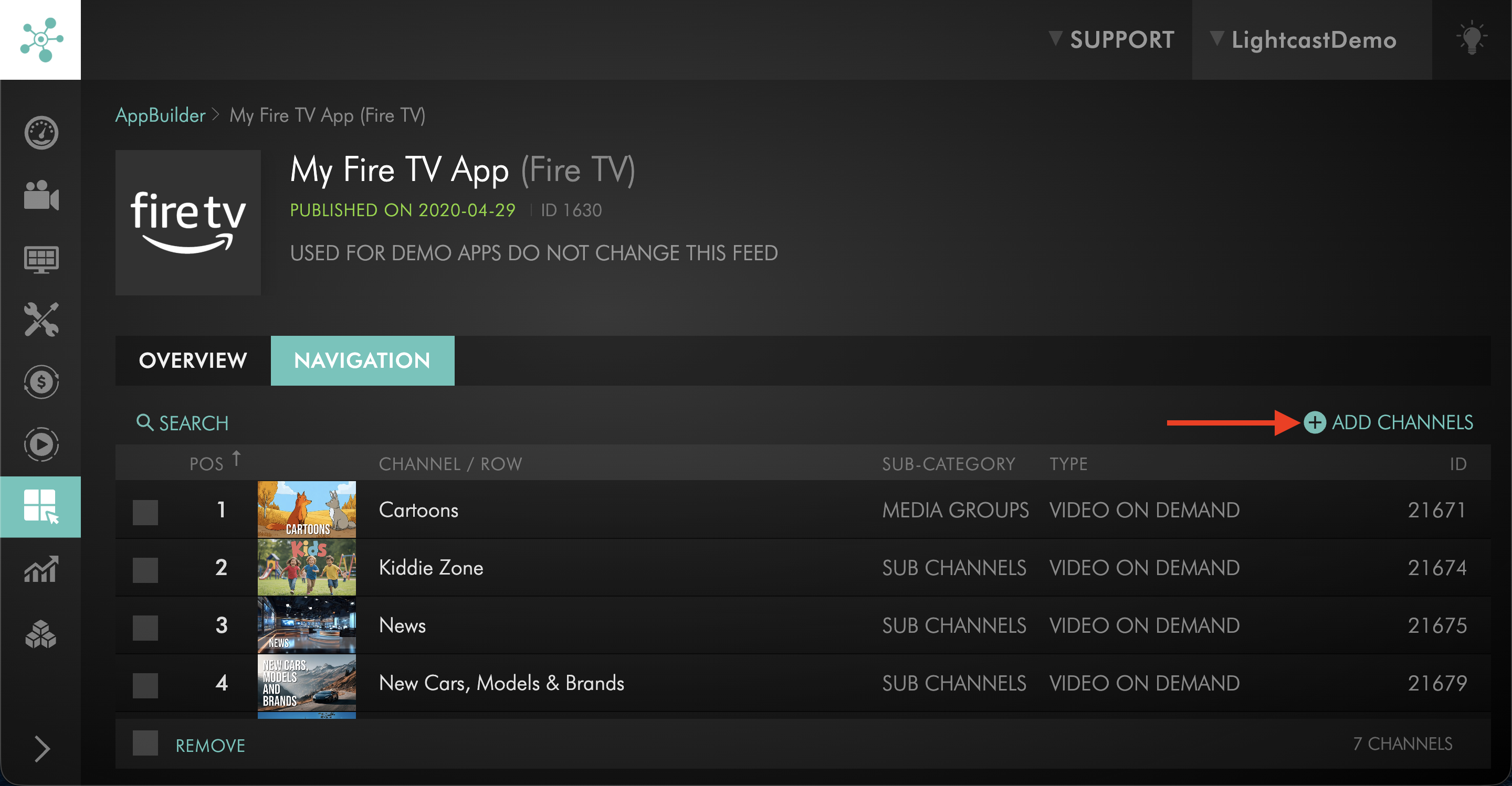
Go to the NAVIGATION tab.
Step 3
Click + ADD CHANNELS to add your LIVE Channel to your app layout.
Step 4
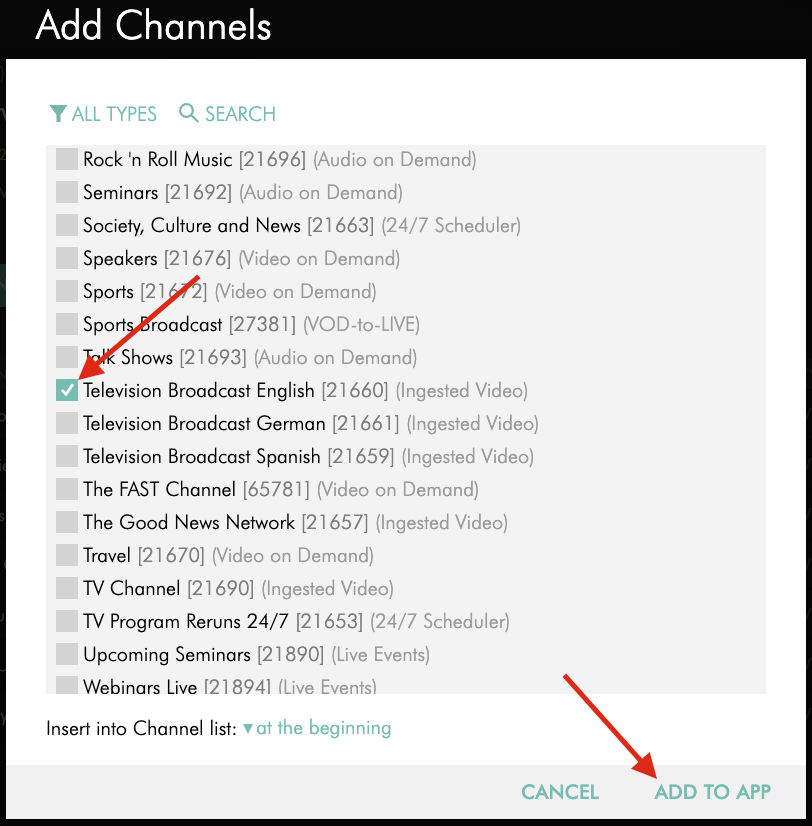
Select your Channel(s) and click ADD TO APP to publish your app updates.
FAQs
Why does my LIVE Channel say “UNUSED”?
A LIVE Channel shows “UNUSED” when it has not been activated yet.
To begin streaming, you must activate the channel and select a Channel Type (such as Linear Stream).
See OPTION A: Activate an UNUSED LIVE Channel above for activation instructions.
What is the difference between a Live Event and a Linear Stream?
A Live Event is designed for scheduled broadcasts with defined start and end times.
A Linear Stream is designed for continuous 24/7 broadcasting and does not require scheduling.
If you plan to stream continuously, your Channel Type must be set to Linear Stream.
Can I switch from Live Event to Linear Stream after streaming?
Yes. You can change the Channel Type in Channel Settings at any time.
However, it is recommended to configure the correct Channel Type before beginning your broadcast.
Which ingestion method should I use — RTMP or SRT?
RTMP is widely supported and simple to configure.
SRT provides improved reliability, security, and lower latency — especially for long-running or long-distance broadcasts.
For 24/7 channels, SRT is generally recommended when available.
Where can I find my Stream Key, CDN Access Point, or SRT Streaming URL?
Your LIVE Channel stream credentials are located in the LIVE Channel’s STREAM tab.
For step-by-step instructions, see How to find your LIVE Channel stream credentials.
Can my content partner send a stream to my Linear Stream Channel?
Yes. If your content partner is sending the stream from their encoder, provide them with the ingestion details from your LIVE Channel.
For RTMP, provide the Stream Key and the CDN Access Point they should use.
For SRT, provide the SRT Streaming URL they should use.
For best results, ask your content partner to use the access point or SRT URL closest to their encoder location and confirm that their encoder settings match Lightcast’s recommended live encoder settings.
Why is no video showing after I start streaming?
Common causes include using an incorrect Stream Key or incorrect Server URL or SRT address, the Channel not being set to Linear Stream, or the encoder not actively sending a signal.
Please verify your encoder settings and confirm the stream is active. If the behavior continues, review the Troubleshooting Guide below.
Video: How to Activate an Unused LIVE Channel as Linear Stream
Encoder Configuration Support: https://encoderconfig.lightcast.com/