
How to find your LIVE Channel stream credentials
Overview
This article explains how to find the stream credentials for a LIVE Channel in the Media Cloud.
These credentials are used to send a live stream from an encoder, production system, or supported streaming app into the Media Cloud.
Depending on your streaming method, you may need:
RTMP: Stream Key and CDN Access Point
SRT: SRT Streaming URL
When you need your LIVE Channel stream credentials
Use this article when you need to configure a live encoder or streaming app to send a stream into the Media Cloud.
This may be helpful when:
You are configuring a software or hardware encoder
You are setting up a mobile streaming app
You need to stream to a Live Events Channel or Linear Stream Channel
You are scheduling a Live Stream within a 24/7 Scheduler and need the credentials to send the live event stream to the Media Cloud
You are configuring an RTMP or SRT connection
You need to securely provide stream credentials to a production team or content partner
Which stream credentials do I need?
The credentials you need depend on the streaming method you are using.
RTMP streaming
RTMP streaming requires:
Stream Key – identifies the LIVE Channel that will receive the stream
CDN Access Point – the RTMP server URL your encoder connects to
SRT streaming
SRT streaming requires:
SRT Streaming URL – the destination URL entered into a supported SRT encoder or streaming application
Important: Keep your stream credentials private. Anyone with access to these credentials may be able to send a stream to your LIVE Channel. Only share them with authorized members of your production team or trusted content partners.
Instructions
Find stream credentials for a Live Events Channel
Step 1
Log in to your Media Cloud account.
Step 2
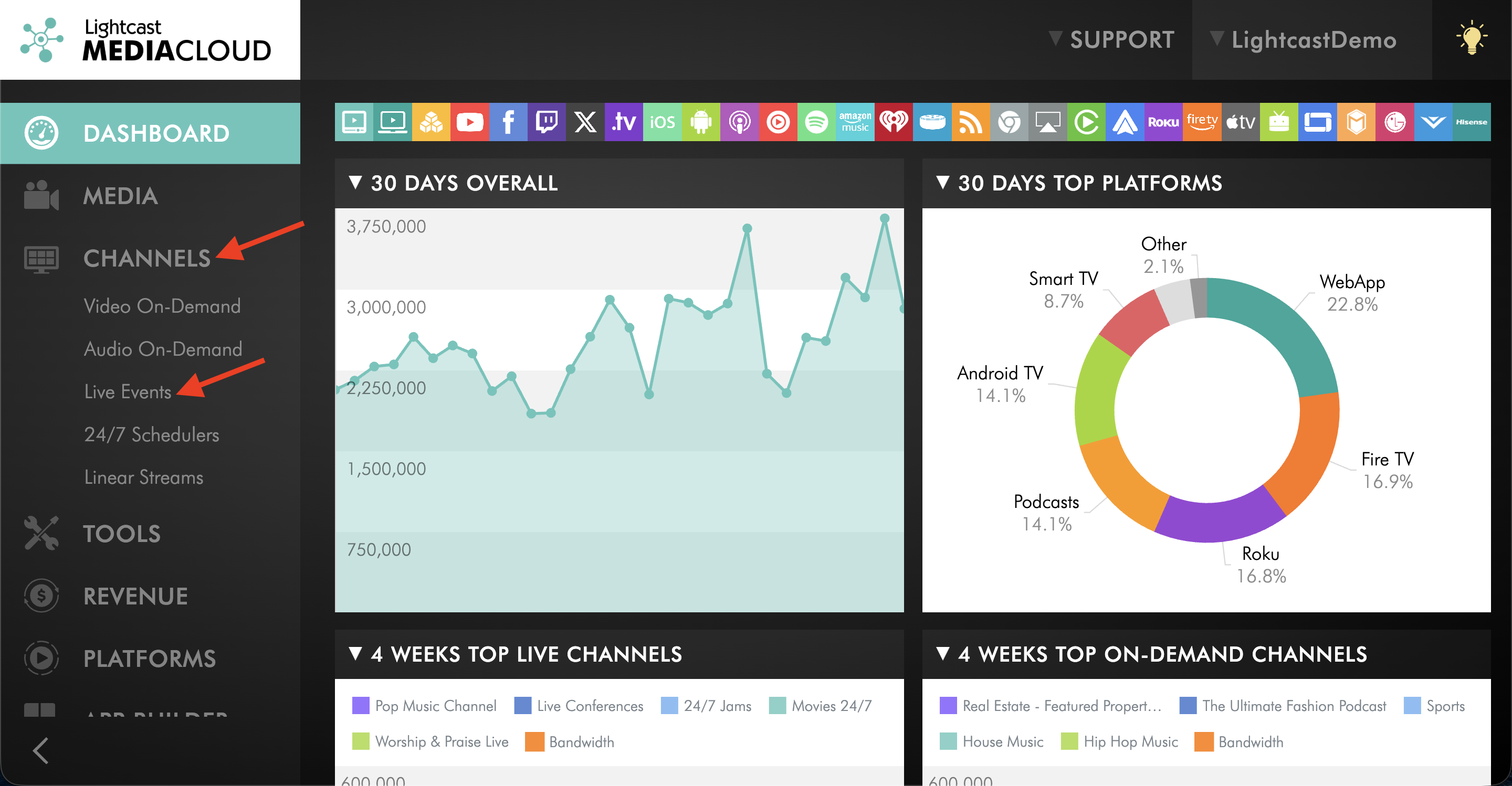
Go to CHANNELS, then select Live Events.
Step 3
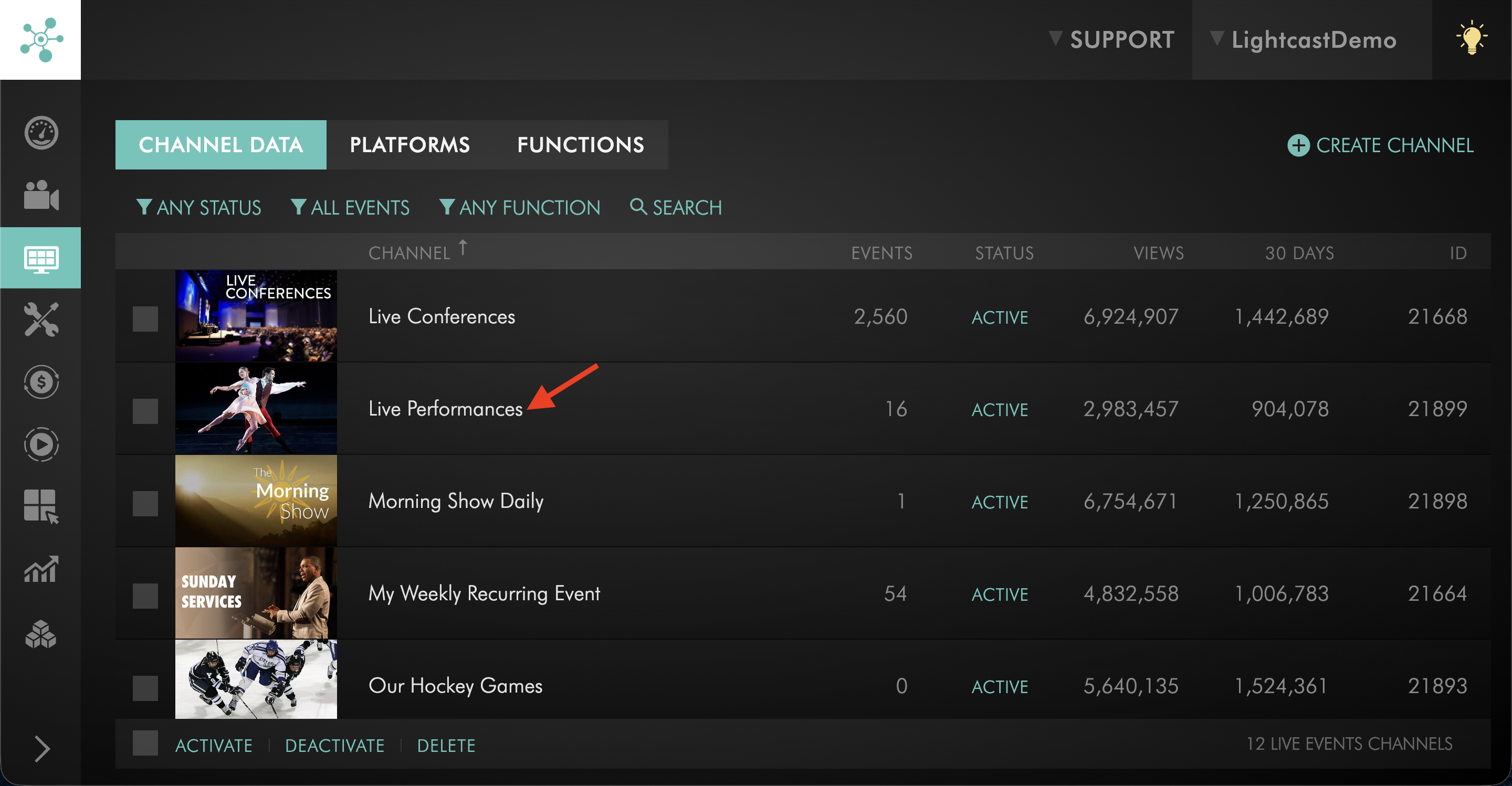
Select the Live Events Channel where you want to send the stream.
Step 4
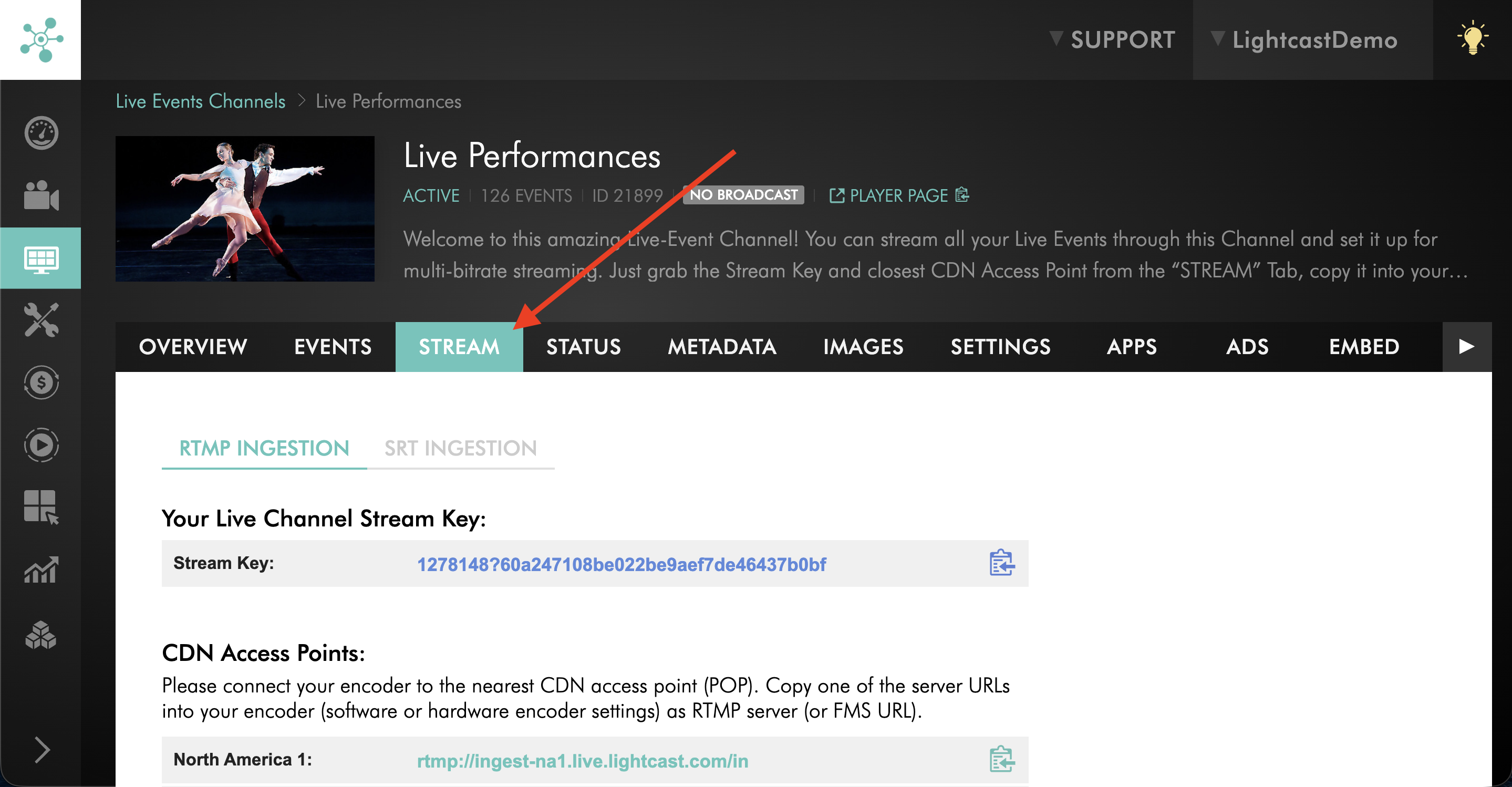
Open the STREAM tab.
Step 5
Choose whether you want to stream using RTMP or SRT.
Use RTMP if your encoder supports standard RTMP streaming.
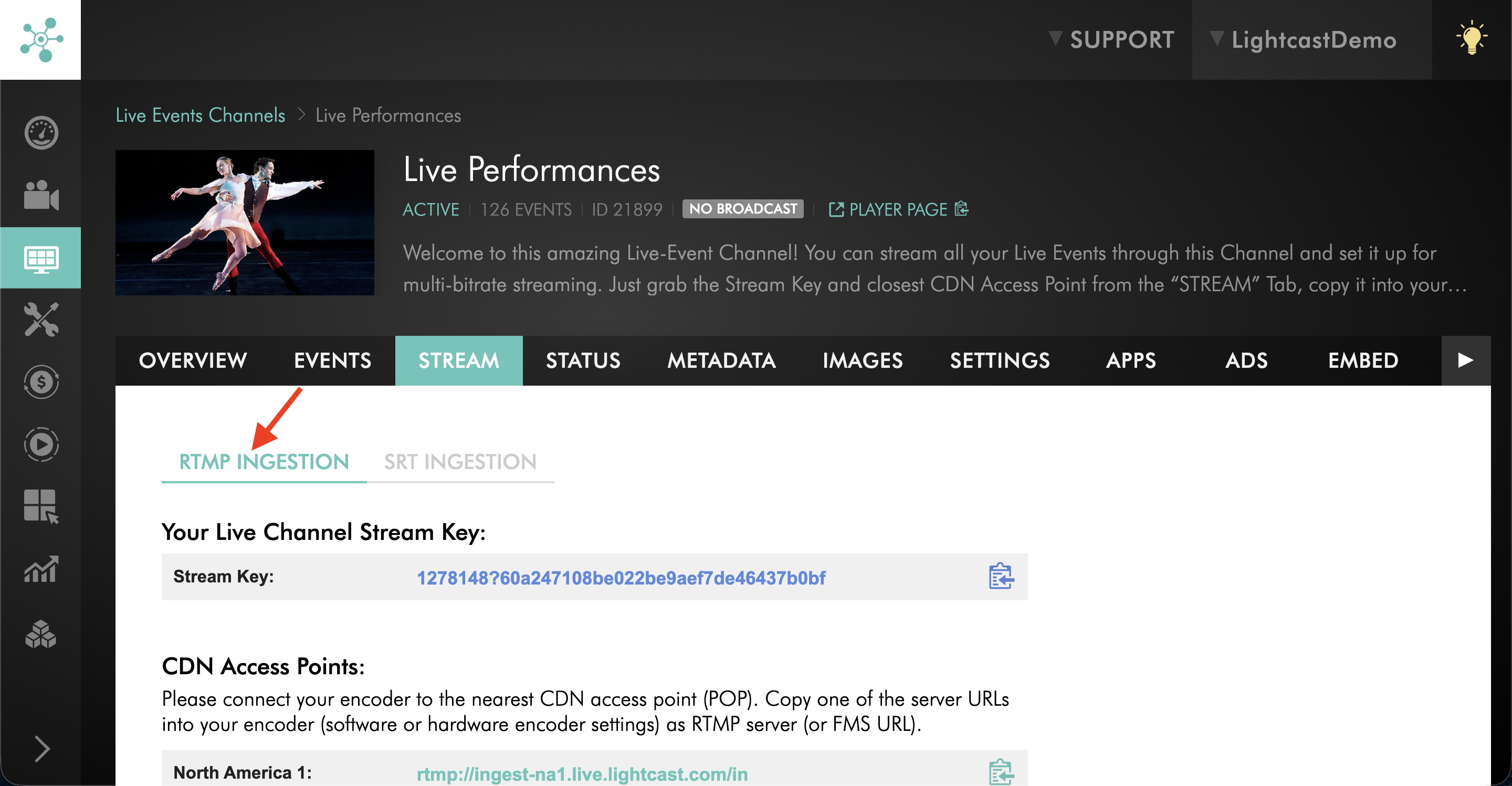
Use SRT if your encoder supports SRT and you want improved reliability for a long-distance or unstable network connection.
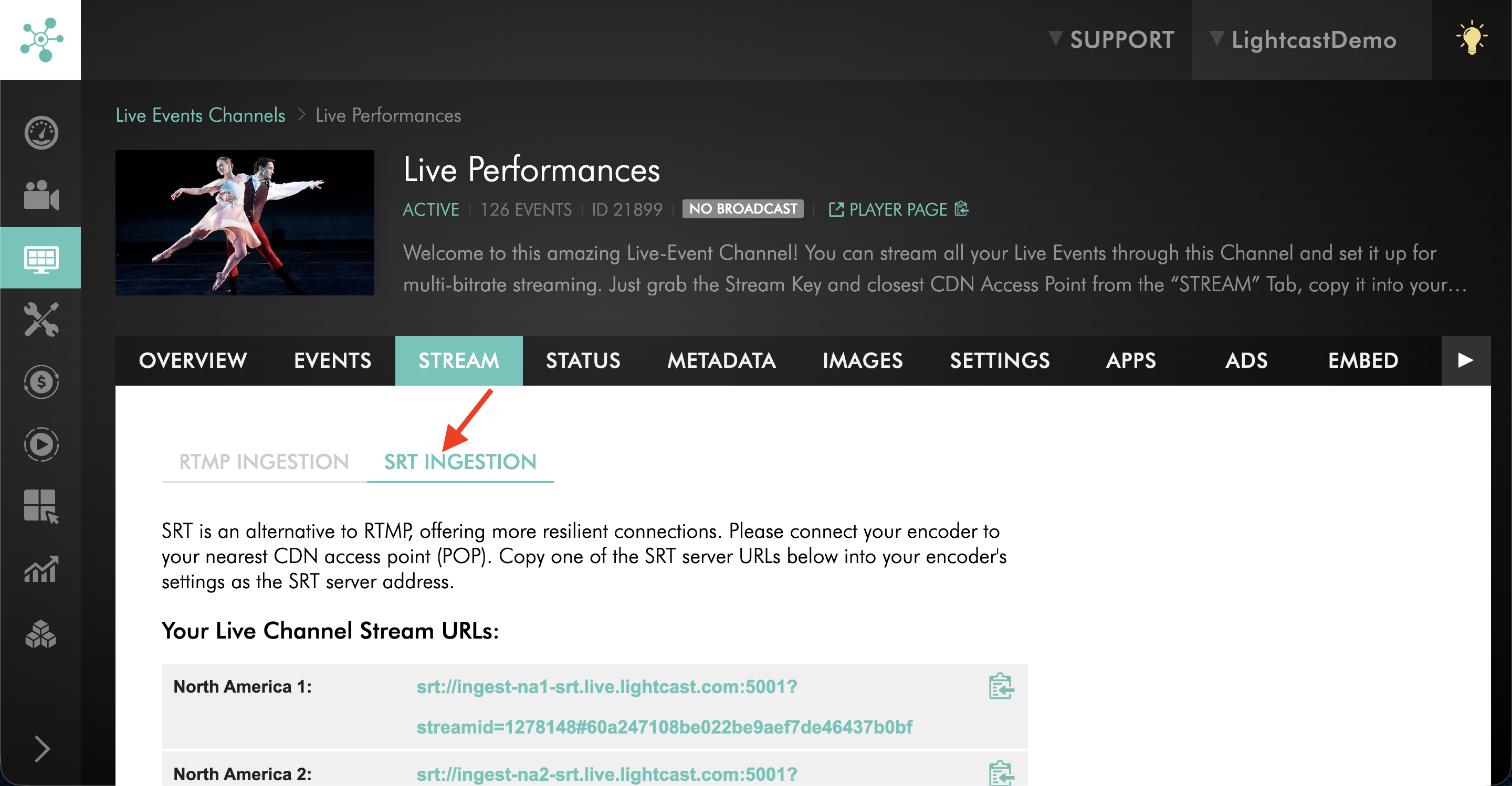
Step 6
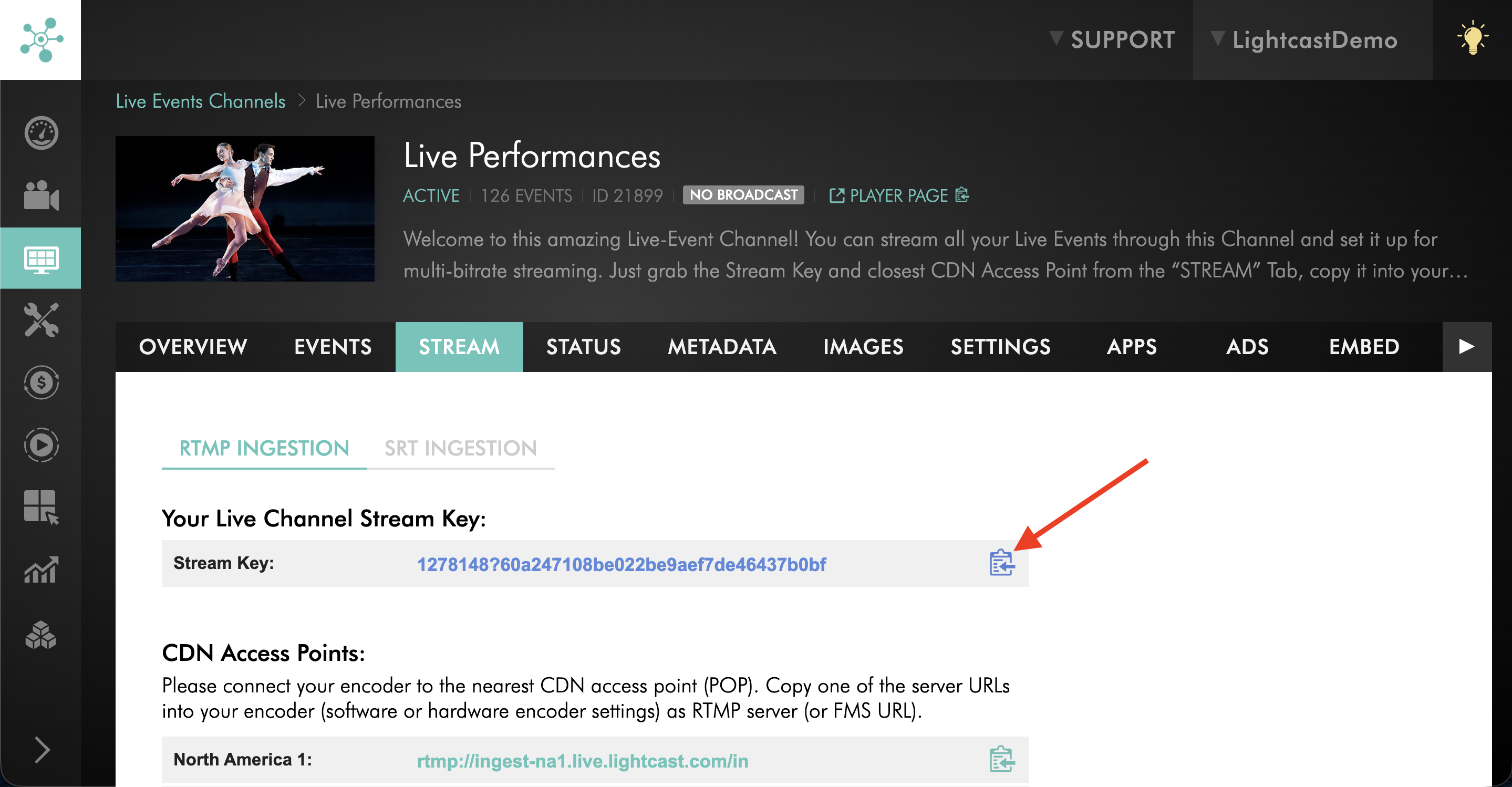
Based on your preferred streaming method, copy the credentials you need from the STREAM tab.
OPTION A: RTMP
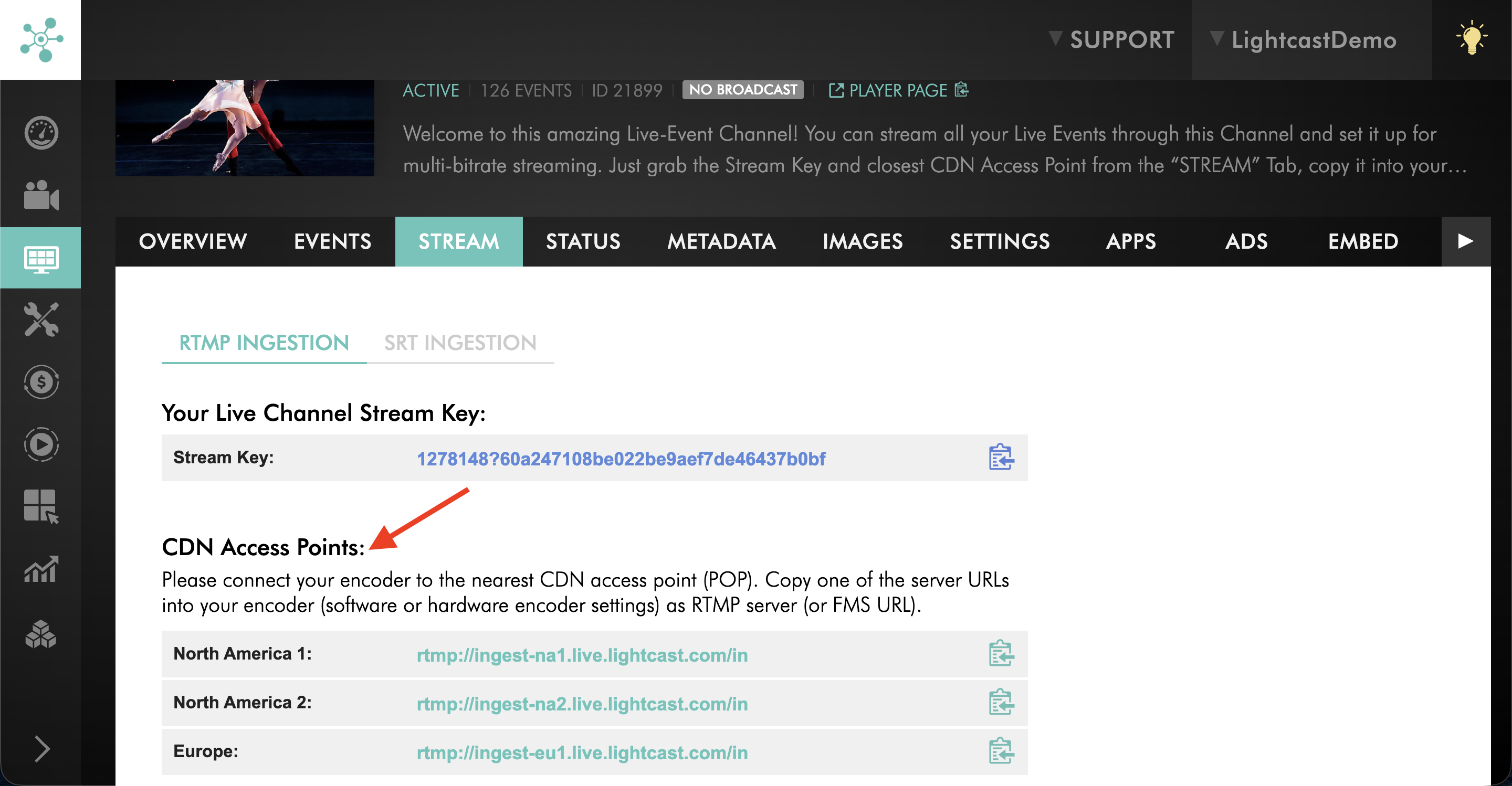
To stream with RTMP, copy the Stream Key and CDN Access Point.
Stream Key → Encoder Stream Key field
CDN Access Point → Encoder Server or Server URL field
OPTION B: SRT
To stream with SRT, open the SRT Ingestion section or sub-tab, then copy one of the SRT Streaming URLs.
Choose the location closest to your encoder for best performance.
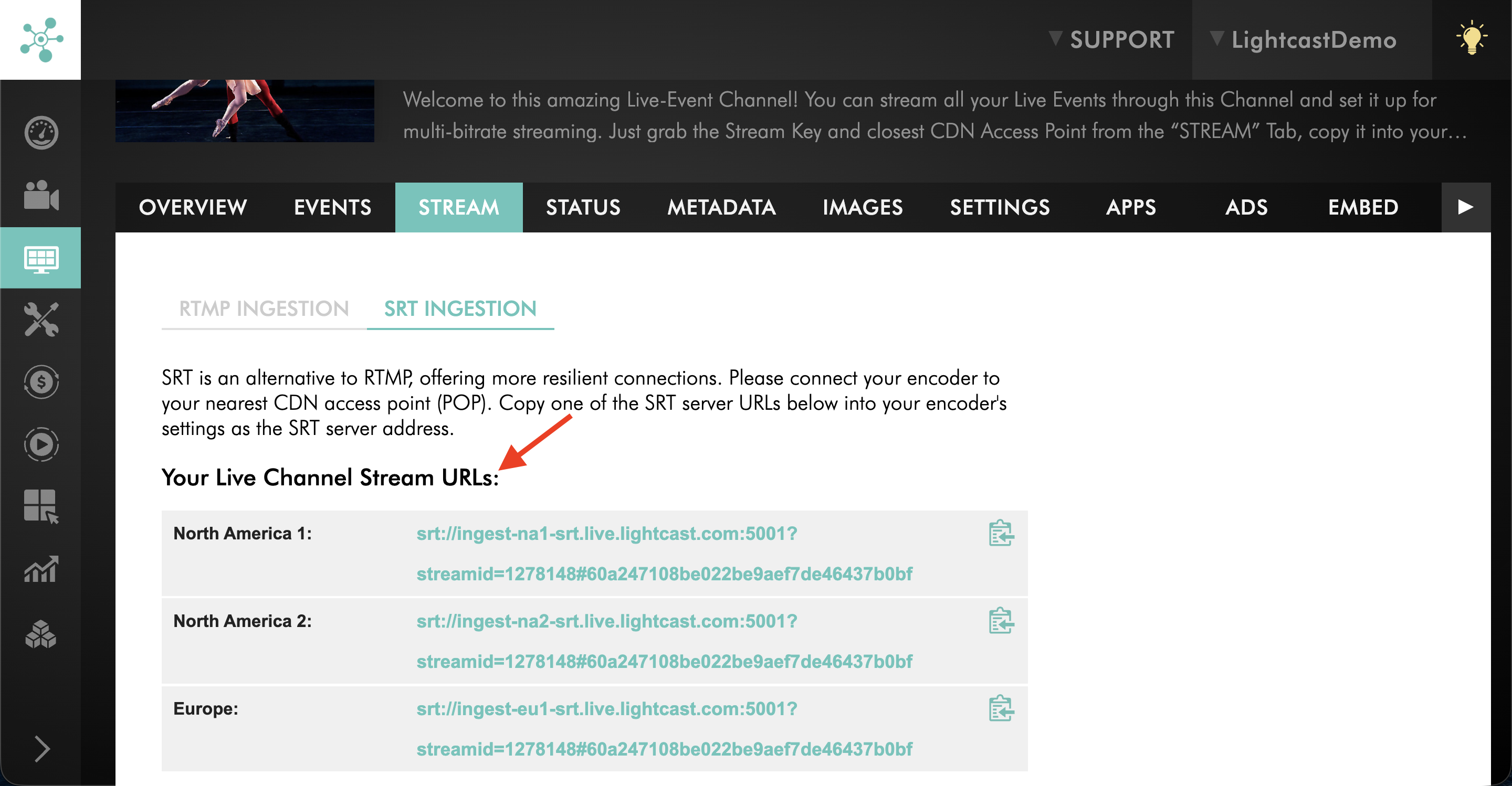
Paste the selected SRT Streaming URL into the SRT destination, SRT server address, SRT URL, or Server field in your encoder.
Find stream credentials for a Linear Stream Channel
Step 1
Log in to your Media Cloud account.
Step 2
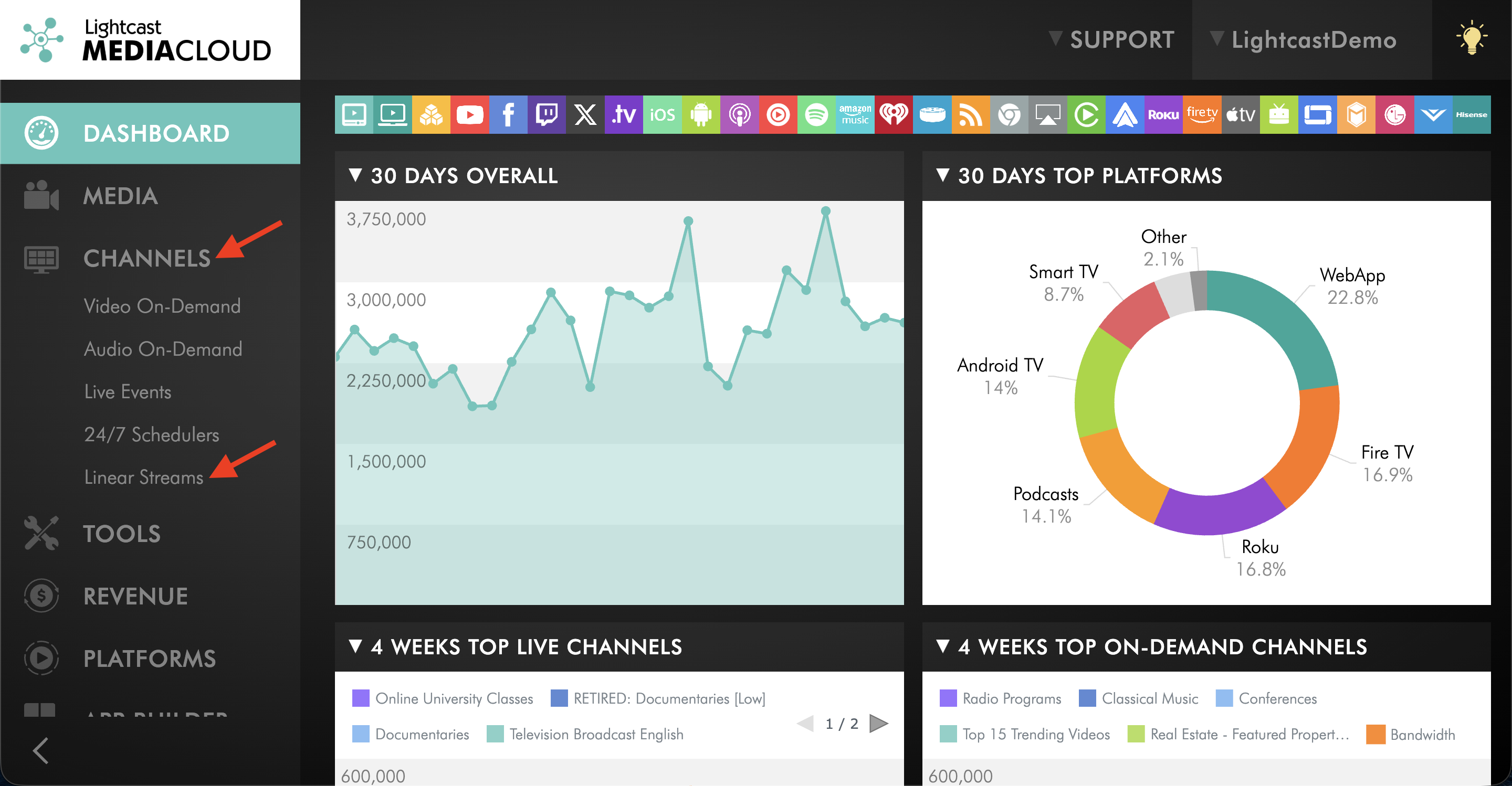
Go to CHANNELS, then select Linear Streams.
Step 3
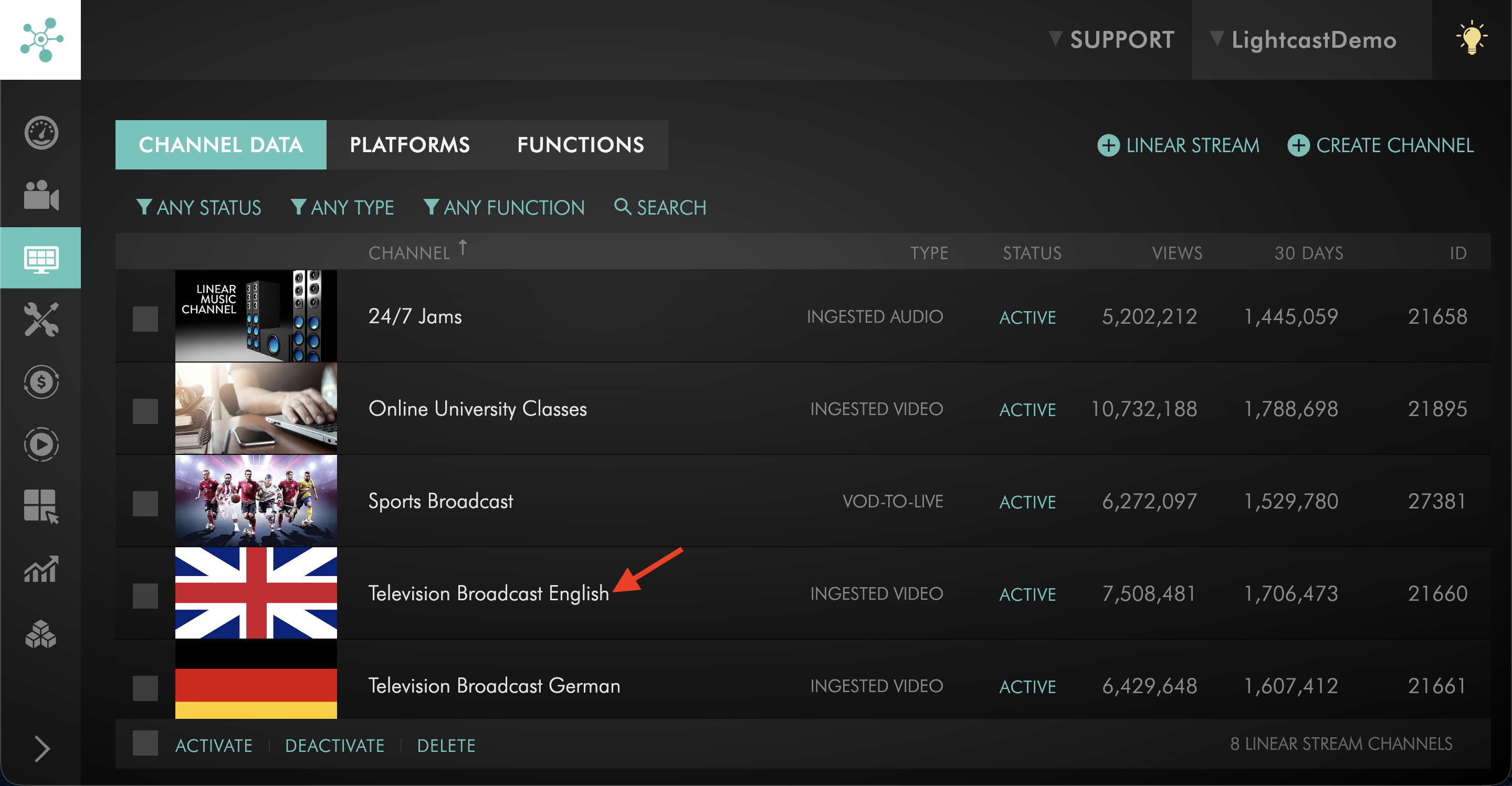
Select the Linear Stream Channel where you want to send the stream.
Step 4
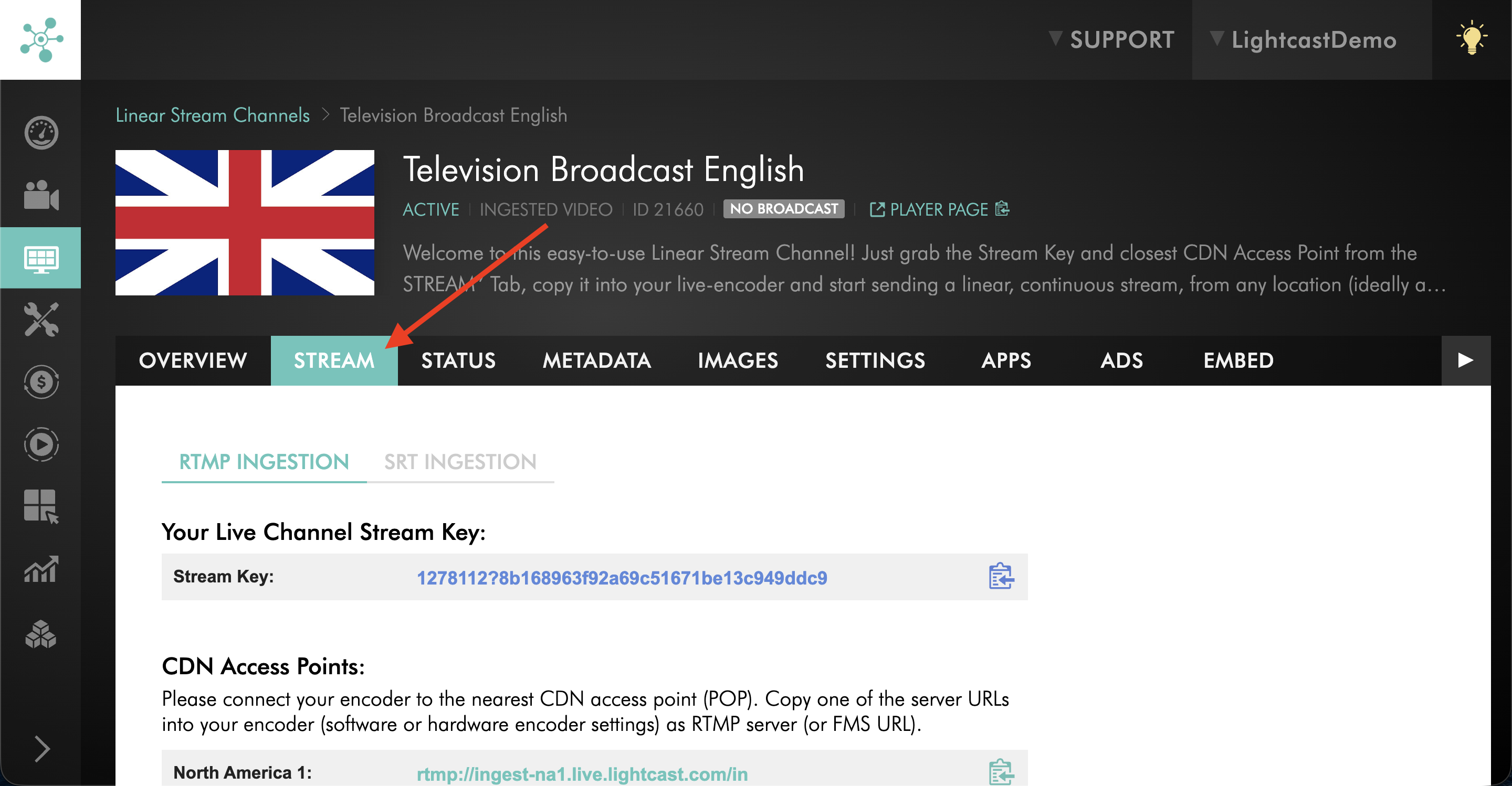
Open the STREAM tab.
Step 5
Choose whether you want to stream using RTMP or SRT.
Use RTMP if your encoder supports standard RTMP streaming.
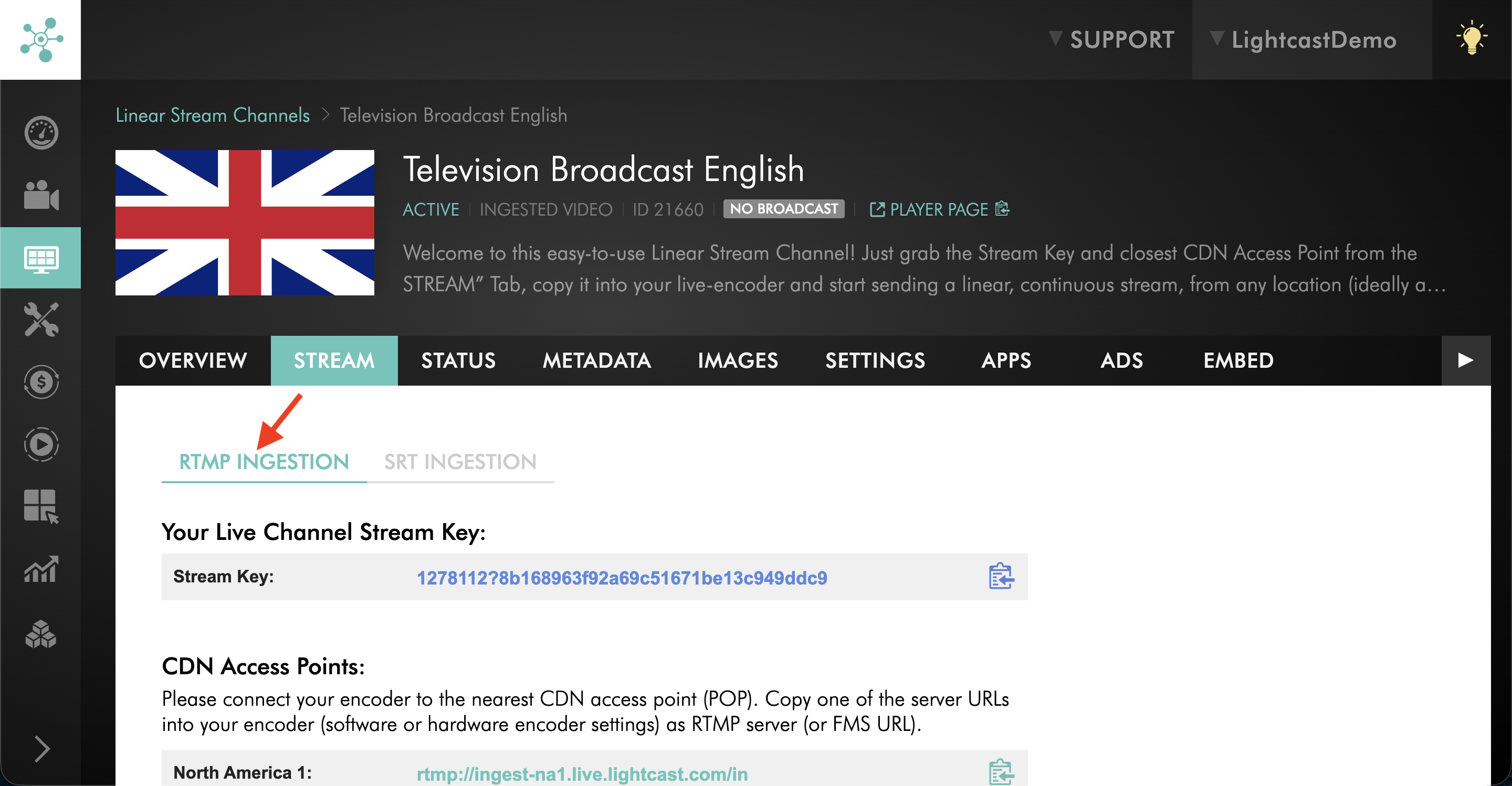
Use SRT if your encoder supports SRT and you want improved reliability for a long-distance or unstable network connection.
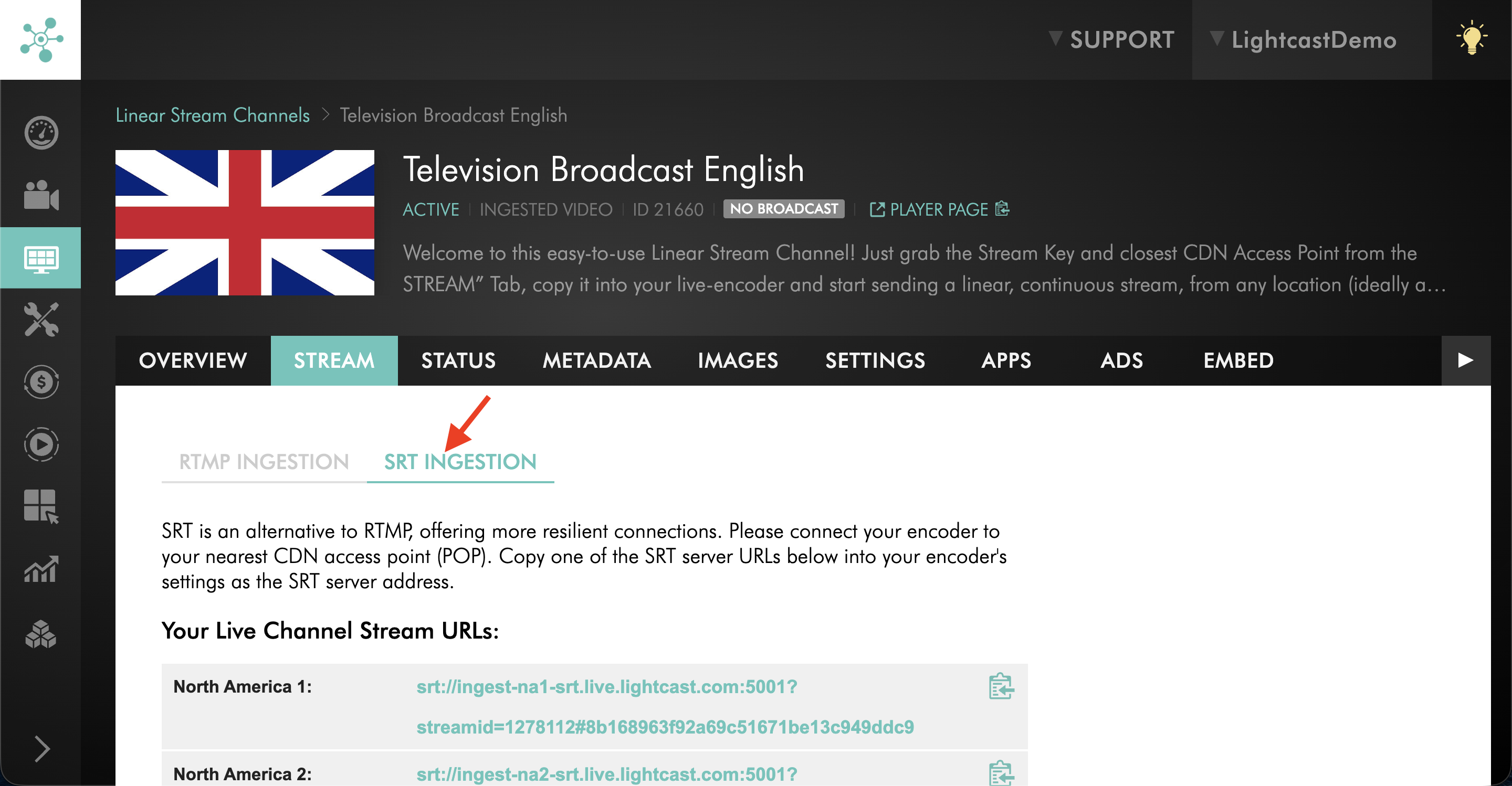
Step 6
Based on your preferred streaming method, copy the credentials you need from the STREAM tab.
OPTION A: RTMP
To stream with RTMP, copy the Stream Key and CDN Access Point.
Stream Key → Encoder Stream Key field
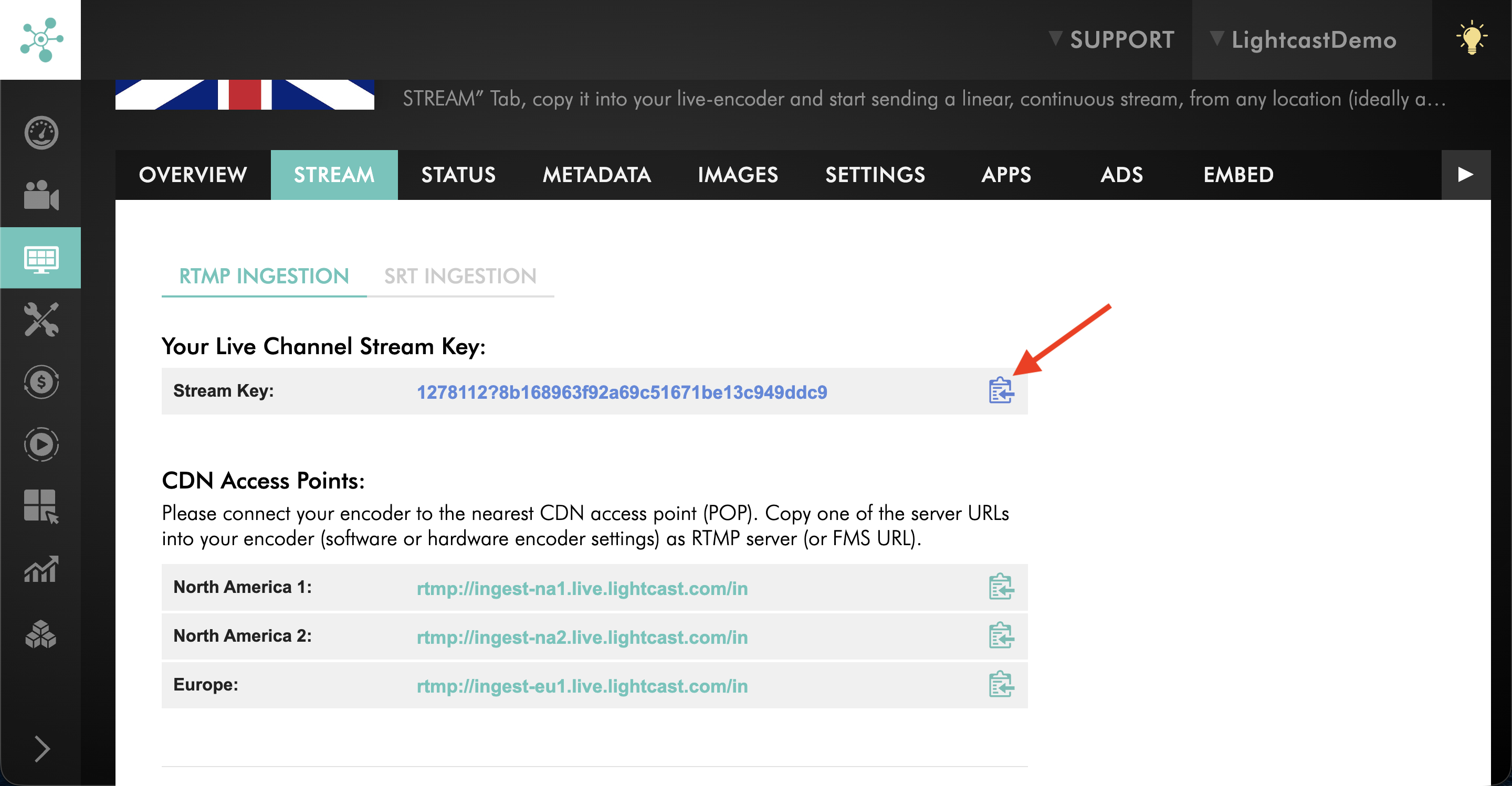
CDN Access Point → Encoder Server or Server URL field
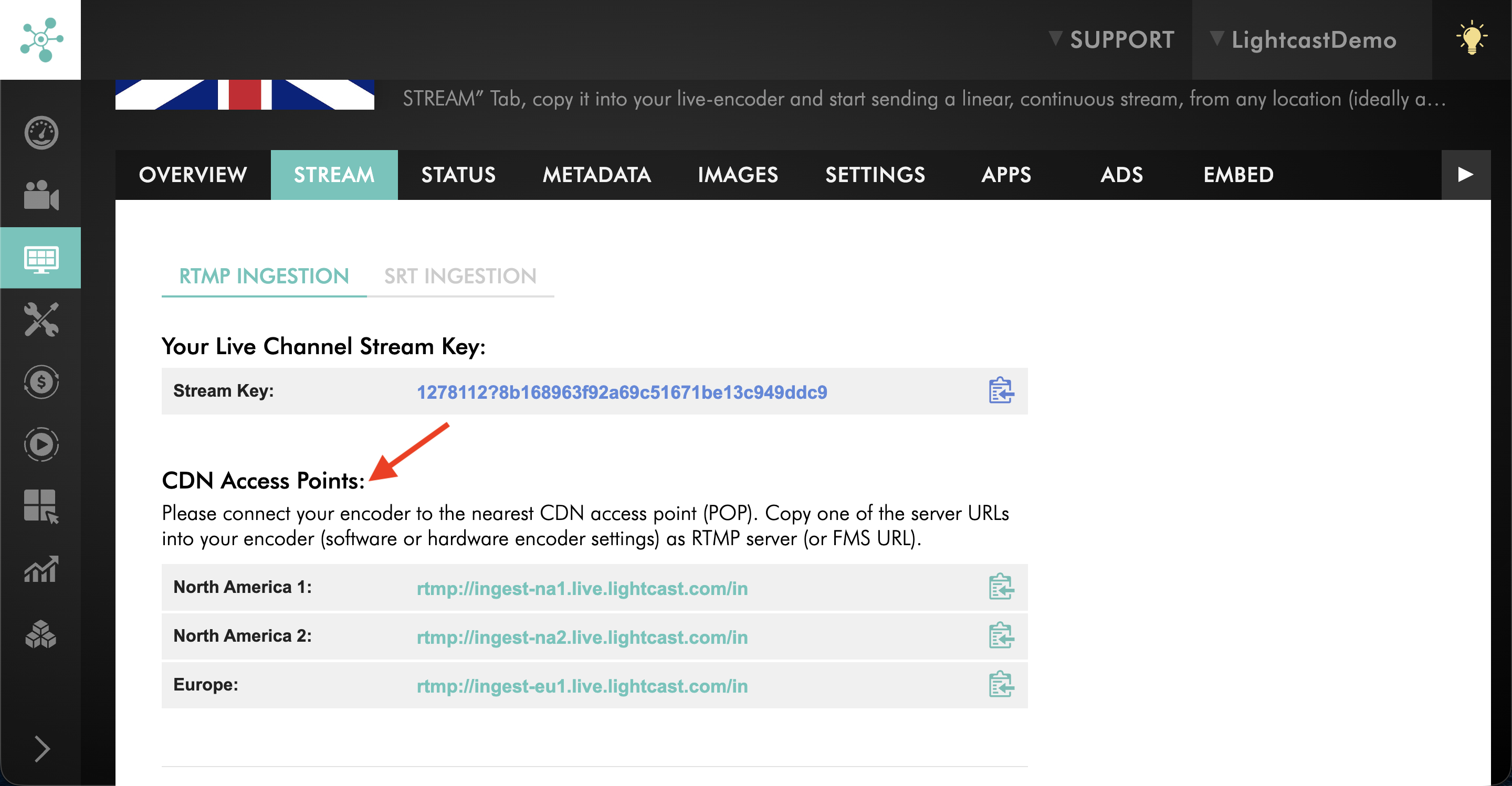
OPTION B: SRT
To stream with SRT, open the SRT Ingestion section or sub-tab, then copy one of the SRT Streaming URLs.
Choose the location closest to your encoder for best performance.
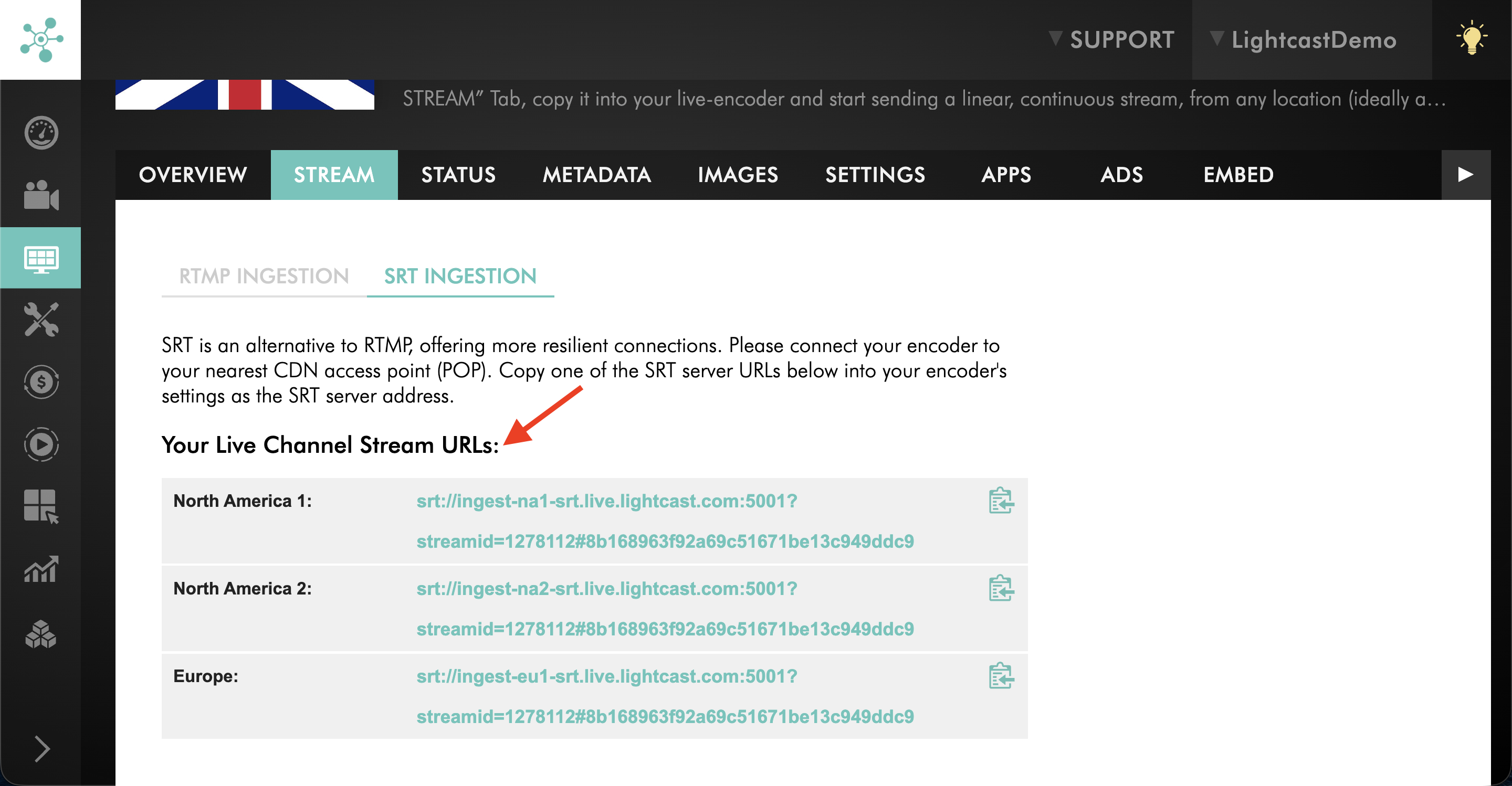
Paste the selected SRT Streaming URL into the SRT destination, SRT server address, SRT URL, or Server field in your encoder.
Find stream credentials for a Live Stream in a 24/7 Scheduler
Step 1
Log in to your Media Cloud account.
Step 2
Go to CHANNELS, then select 24/7 Schedulers.
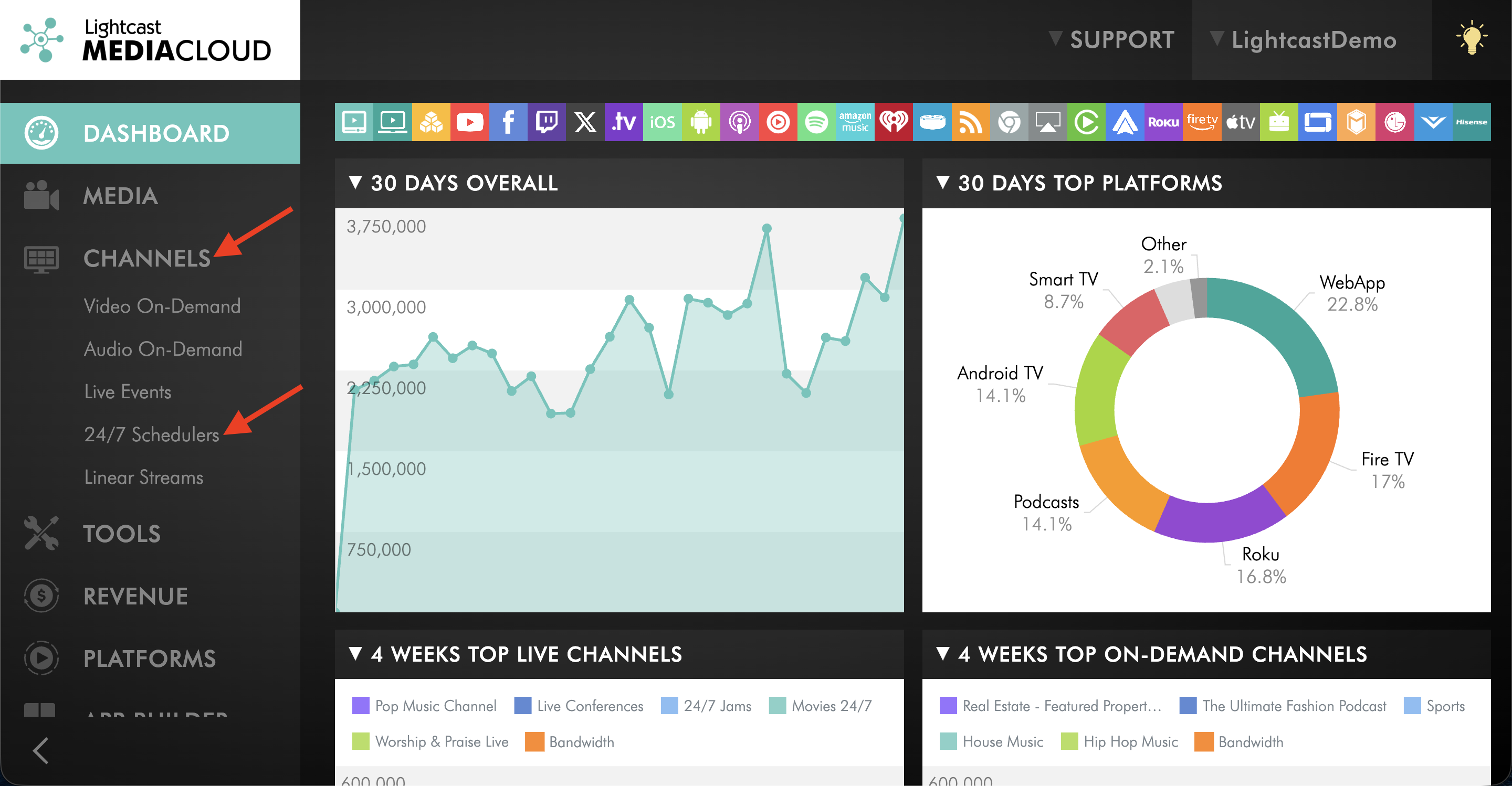
Step 3
Select the 24/7 Scheduler Channel where you want to send the live broadcast.
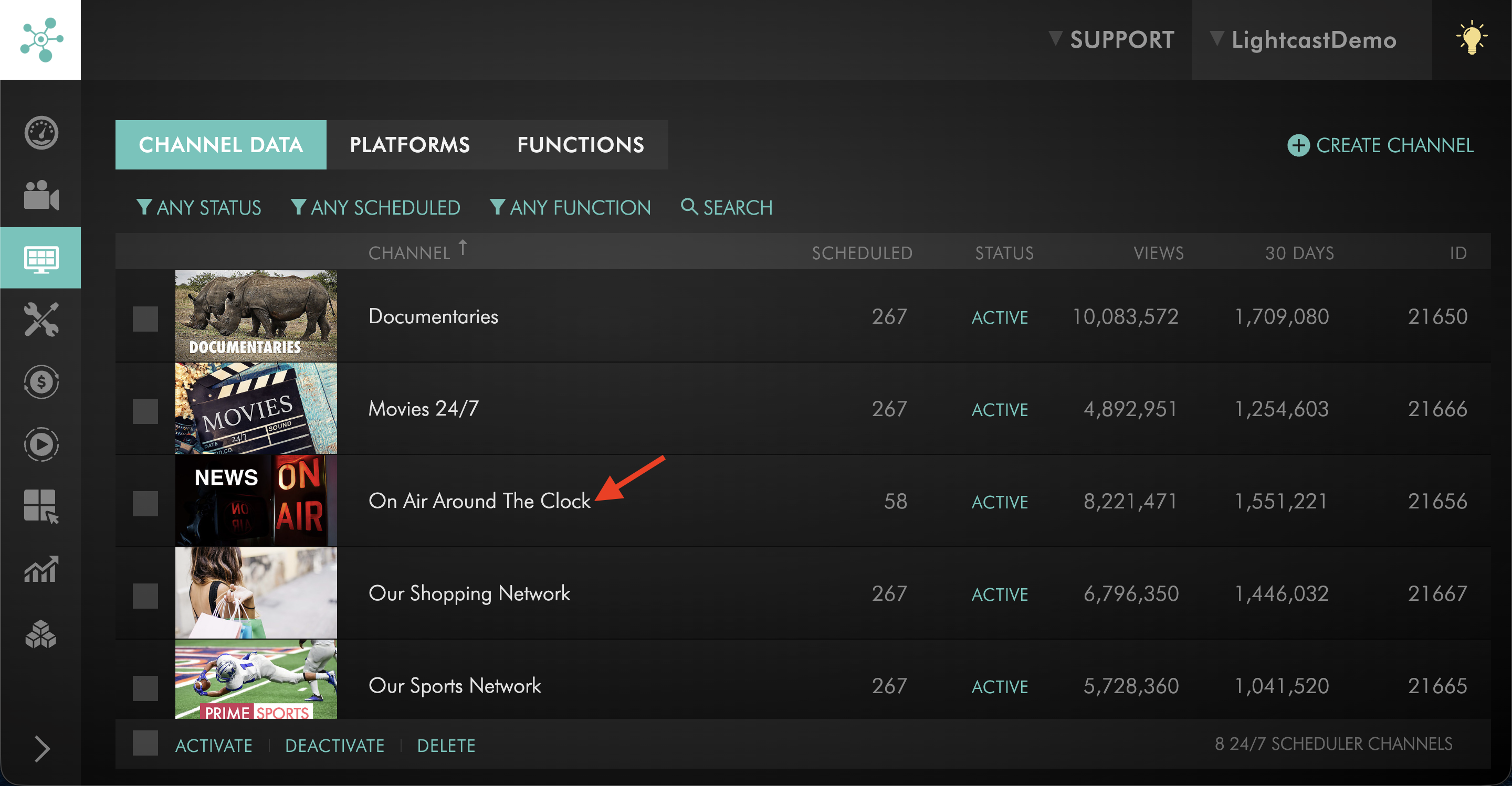
Step 4
Open the STREAM tab.
The STREAM tab is available for 24/7 Scheduler Channels when Live Broadcasts have been enabled by Customer Support.
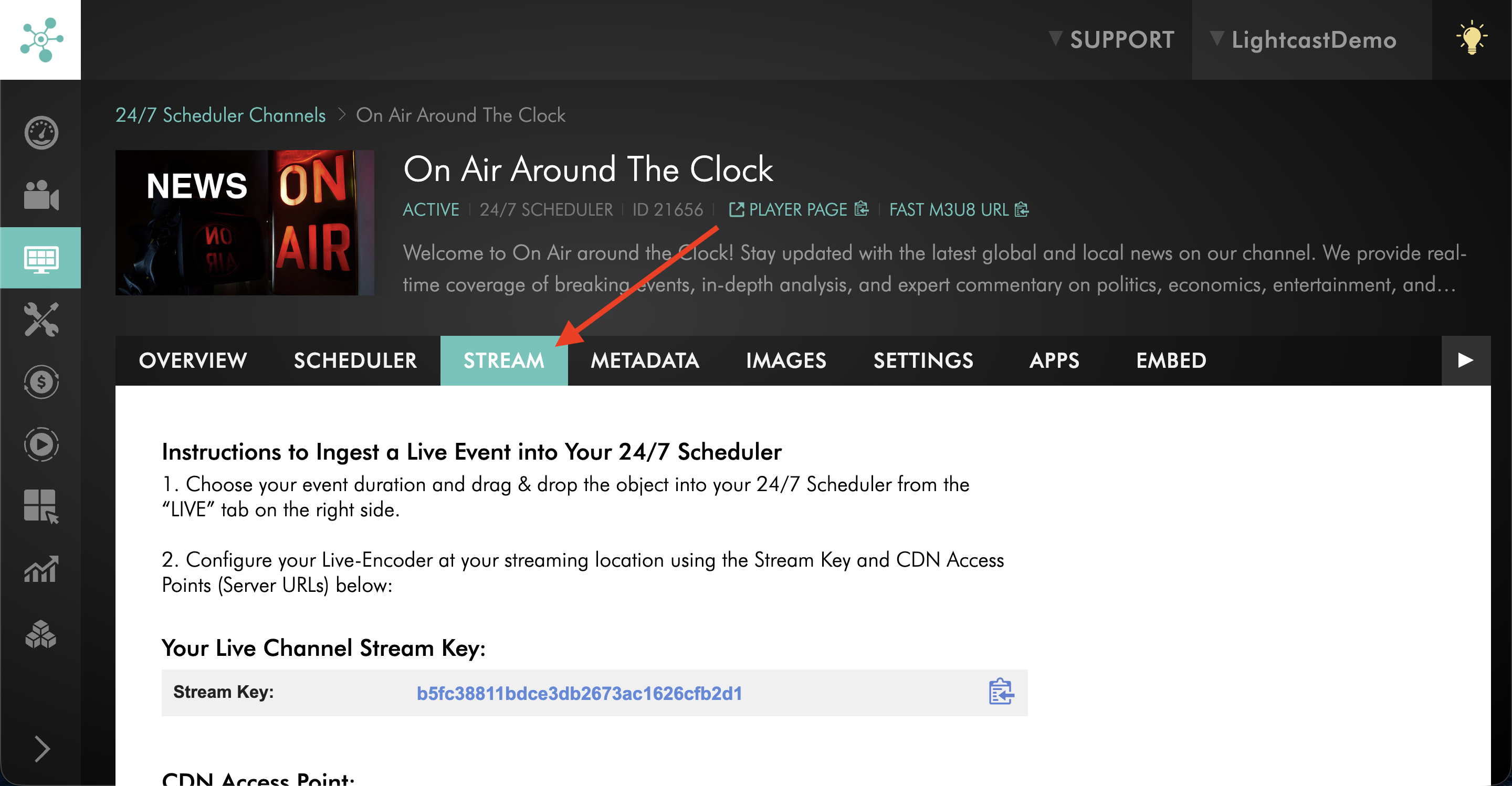
Step 5
Copy the Stream Key and CDN Access Point from the STREAM tab.
Stream Key → Encoder Stream Key field
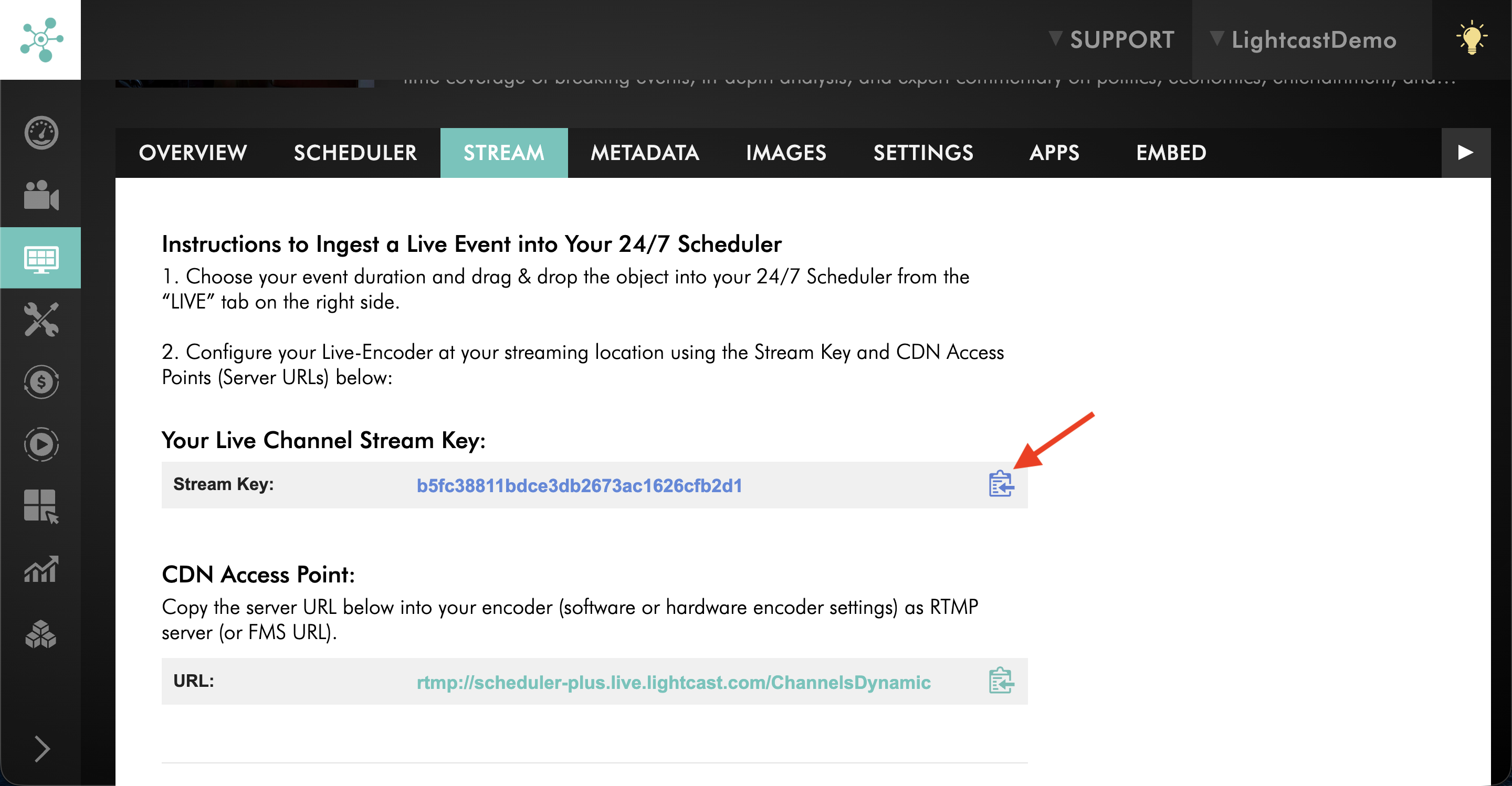
CDN Access Point → Encoder Server or Server URL field
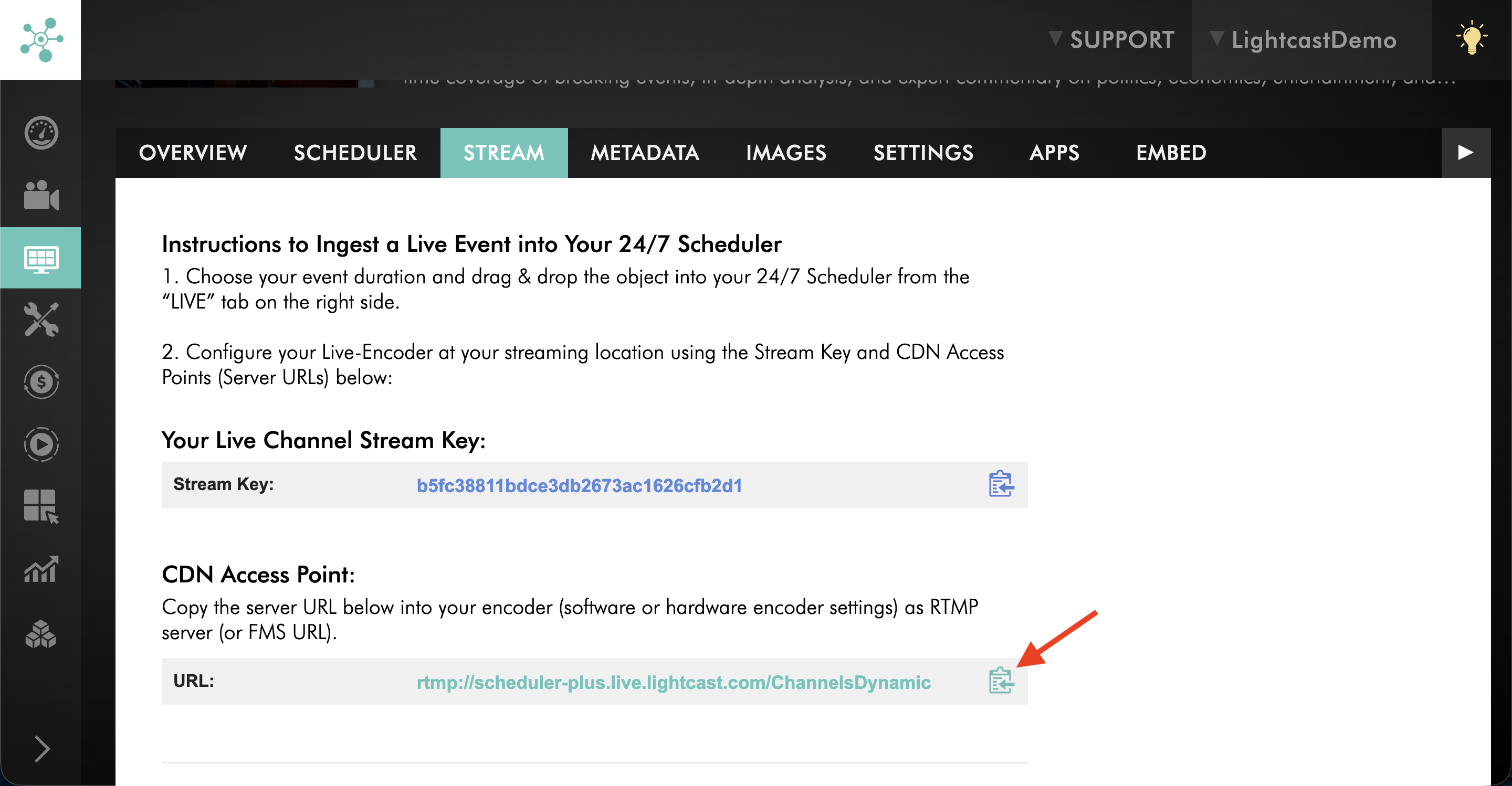
Live Streams within 24/7 Schedulers use RTMP stream credentials.
What to do next
After locating your stream credentials, enter them into your encoder or streaming application.
For additional setup instructions, see:
FAQs
What is a Stream Key?
The Stream Key identifies the LIVE Channel that should receive the stream from your encoder.
Your encoder uses the Stream Key together with the CDN Access Point when streaming with RTMP.
What is a CDN Access Point?
The CDN Access Point is the RTMP server URL used by your encoder.
When streaming with RTMP, paste the CDN Access Point into the Server or Server URL field in your encoder.
What is an SRT Streaming URL?
The SRT Streaming URL is the SRT destination URL used by supported encoders and streaming apps.
When streaming with SRT, paste the SRT Streaming URL into the SRT destination, SRT server address, SRT URL, or Server field in your encoder.
Should I use RTMP or SRT?
RTMP is widely supported and works well for most standard streaming workflows.
SRT can provide a more resilient connection between your encoder and Lightcast, especially when streaming over networks with packet loss, variable bandwidth, or longer geographic distances.
For more information, see Recommended encoder settings for live streaming.
Can I use SRT for a Live Stream in a 24/7 Scheduler?
Live Streams within 24/7 Schedulers use RTMP stream credentials.
If you are setting up a Live Stream within a 24/7 Scheduler, use the Stream Key and CDN Access Point from the Scheduler Channel’s STREAM tab.
Can I share my stream credentials with another person or production team?
Only share your stream credentials with trusted people who are approved to send a stream to your LIVE Channel.
Anyone with access to your stream credentials may be able to send a stream to your LIVE Channel.
Do my stream credentials change?
Your stream credentials may remain the same unless the LIVE Channel settings are changed, the Channel is reconfigured, or Support provides updated credentials.
Before an important broadcast, always confirm that your encoder is using the current credentials from the STREAM tab.
Why is my encoder not connecting after I pasted the stream credentials?
Common causes include an incorrect Stream Key, incorrect CDN Access Point, incorrect SRT Streaming URL, extra spaces copied into the encoder field, the wrong streaming method selected in the encoder, or the stream being sent to the wrong LIVE Channel.
Confirm that the credentials were copied from the correct LIVE Channel and pasted into the correct encoder fields.
Why don’t I see a STREAM tab for my 24/7 Scheduler Channel?
The STREAM tab is available for 24/7 Scheduler Channels when Live Broadcasts have been enabled by Customer Support.
If you need to use a live broadcast within a 24/7 Scheduler and do not see the STREAM tab, contact Customer Support.