
How to stream from a mobile device to a LIVE Channel
Overview
This article explains how to stream live video from an iPhone, iPad, Android phone, or tablet to a LIVE Channel in the Media Cloud using a mobile streaming app that supports RTMP or SRT.
When to use mobile streaming
Use mobile streaming when you want to broadcast a live event, interview, update, or on-location stream without using a computer, hardware encoder, or full production setup.
Mobile streaming is helpful when:
You need a portable live streaming option
You are streaming from the field or away from your main production setup
You want to send a simple camera feed from a phone or tablet
Before you begin
Before you begin, make sure you have:
An active LIVE Channel in the Media Cloud
Access to your Media Cloud account
A mobile streaming app that supports custom RTMP or SRT streaming
A stable Wi-Fi or mobile data connection
Enough upload speed to support your selected stream quality
For best results, use a stable Wi-Fi or mobile data connection with an available upload speed of at least twice the total bitrate you are sending, including video and audio.
Mobile data connections can fluctuate, so test your connection and stream before starting an important live event.
For step-by-step instructions on activating a LIVE Channel, see How to set up and ingest a Live Event stream or How to set up and ingest a 24/7 Linear Stream.
For instructions on finding your Stream Key, CDN Access Point, or SRT Streaming URL, see How to find your LIVE Channel stream credentials.
For general encoder setting recommendations, see Recommended encoder settings for live streaming.
How it works
A mobile streaming app uses your phone or tablet’s camera and microphone as the video and audio source and sends the live stream to your LIVE Channel in the Media Cloud using RTMP or SRT.
Depending on the app you are using, you may be able to stream using:
Streaming method | Media Cloud credentials |
|---|---|
RTMP | CDN Access Point + Stream Key |
SRT | SRT Streaming URL |
Mobile app settings may look different depending on the app you choose. If your app uses different field names, look for labels such as Server URL, RTMP URL, Stream Key, Stream Name, SRT URL, Address, Port, or Stream ID.
Important: Keep your Stream Key and SRT Streaming URL private. Anyone with valid streaming credentials may be able to send a stream to your LIVE Channel.
When the mobile app sends the stream to the Media Cloud, the LIVE Channel receives the stream and delivers it to your connected platforms, apps, and embedded players.
Before going live
Before starting an important mobile stream:
Run a short test stream using the same mobile device, app, internet connection, orientation, and stream settings you plan to use for the event
Fully charge the device or connect it to power
Disable automatic screen locking if required by the streaming app
Prevent calls and notifications from interrupting the broadcast where possible
Keep the streaming app open if it does not support background streaming
Use a wired or stable Wi-Fi connection when available
Avoid switching between Wi-Fi and mobile data during the stream
Avoid large uploads, downloads, backups, or other bandwidth-heavy activity on the same network during the broadcast
Instructions
Prepare your LIVE Channel and mobile app
Step 1
Install a mobile streaming app that supports custom RTMP or SRT streaming.
Examples of mobile streaming apps may include:
Before using an app, confirm that it supports the streaming method you want to use.
Step 2
Have your LIVE Channel stream credentials ready.
For RTMP, you need the Stream Key and CDN Access Point.
For SRT, you need the SRT Streaming URL.
For step-by-step instructions on finding your stream credentials, see How to find your LIVE Channel stream credentials.
Step 3
Use the section below that matches the streaming method supported by your mobile app.
Stream using RTMP from a mobile app
Step 1
Open your mobile streaming app.
Step 2
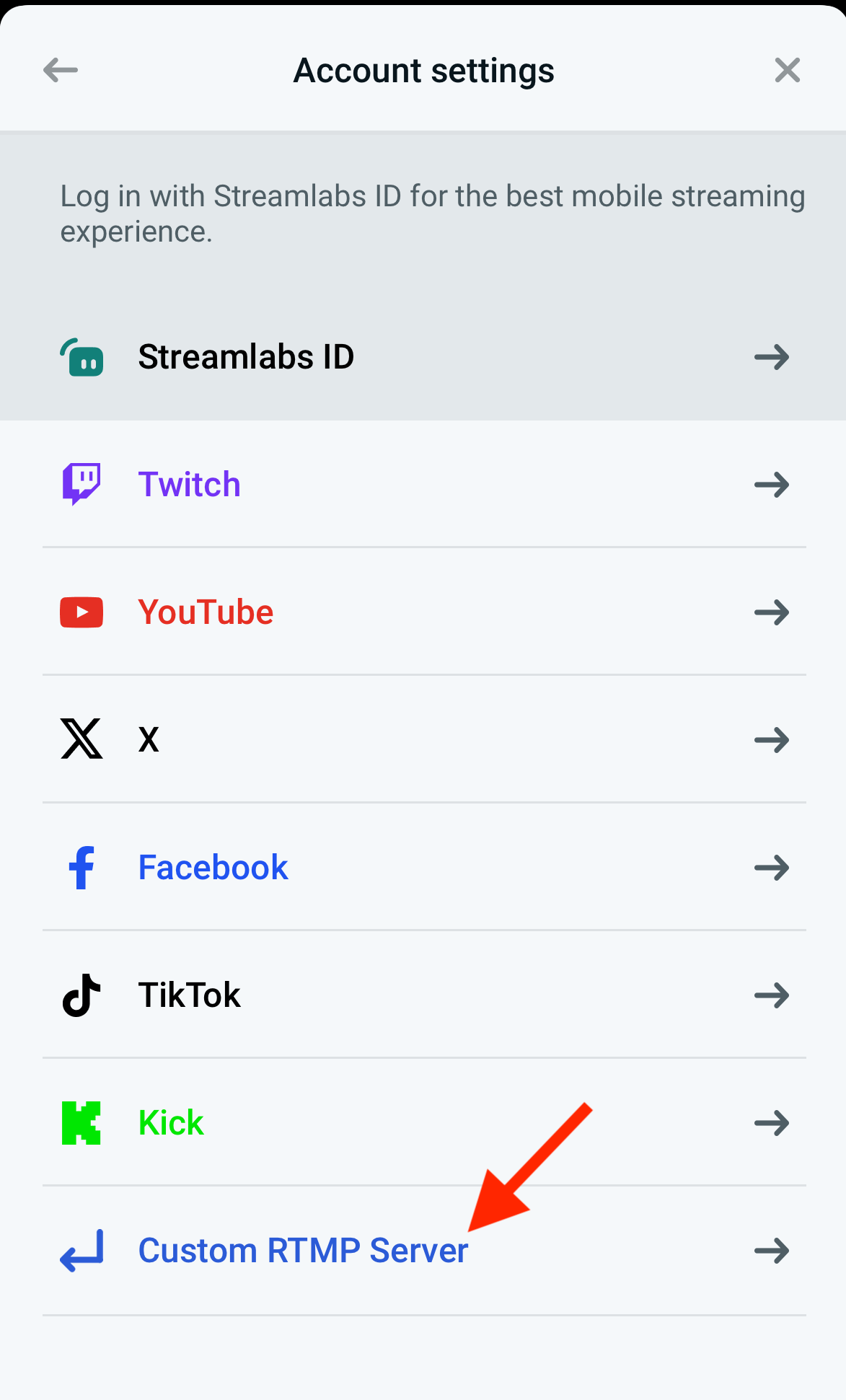
Create or add a custom RTMP destination.
Depending on the app, this may be called Custom RTMP, RTMP Server, Add New Server, New Destination, or a similar option.
Step 3
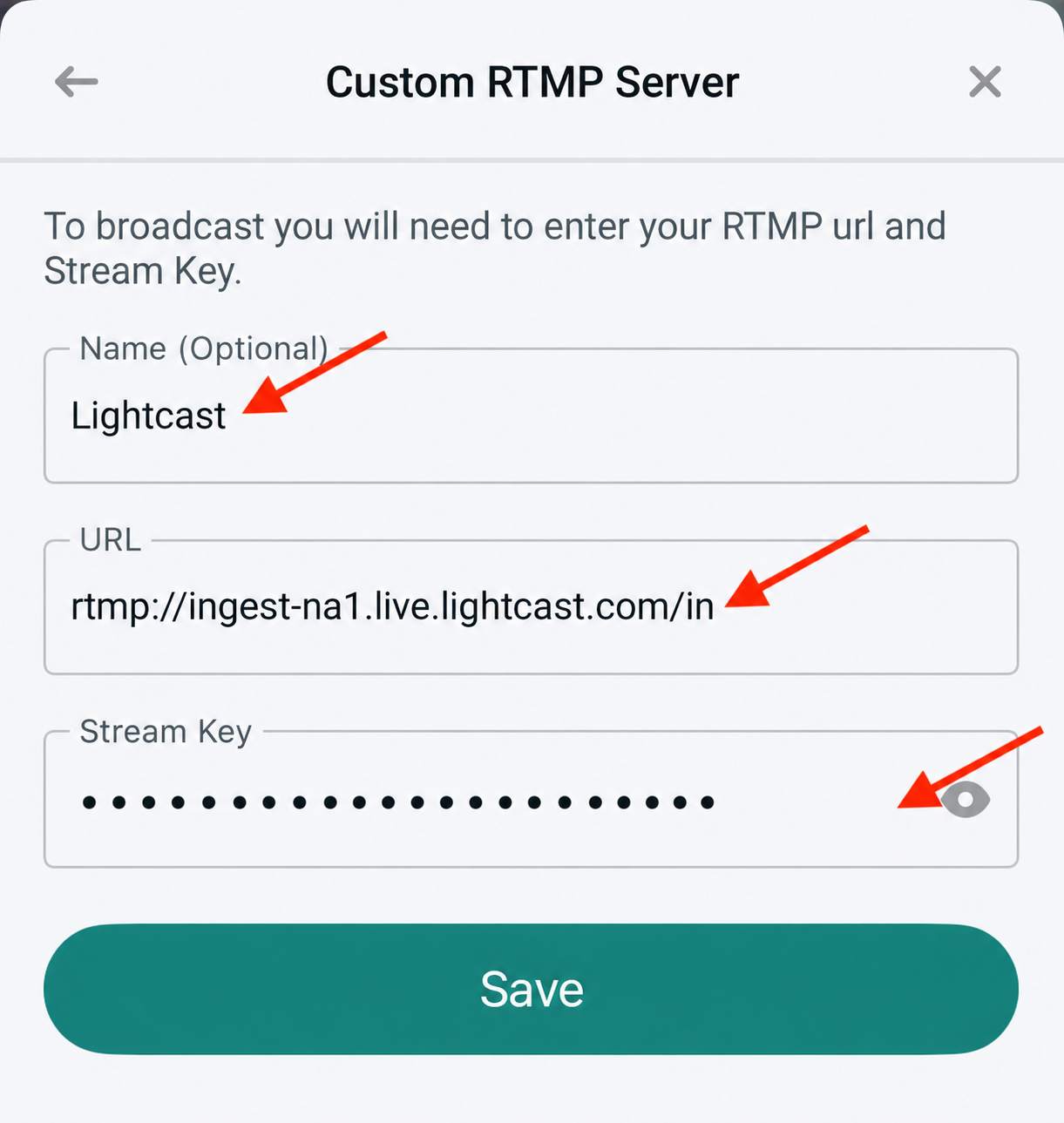
Enter the RTMP stream information from the Media Cloud.
Mobile app field | What to enter |
|---|---|
Server URL, RTMP URL, or Address | Paste the CDN Access Point |
Stream Key, Stream Name, or Stream Name/Key | Paste the Stream Key |
Note: If your mobile app only provides one RTMP URL field, enter the CDN Access Point, add a forward slash /, and then add the Stream Key.
Example:
rtmp://ingest-na1.live.lightcast.com/in/1279148?60a247108be022be9aef7de46437b0bf
Step 4
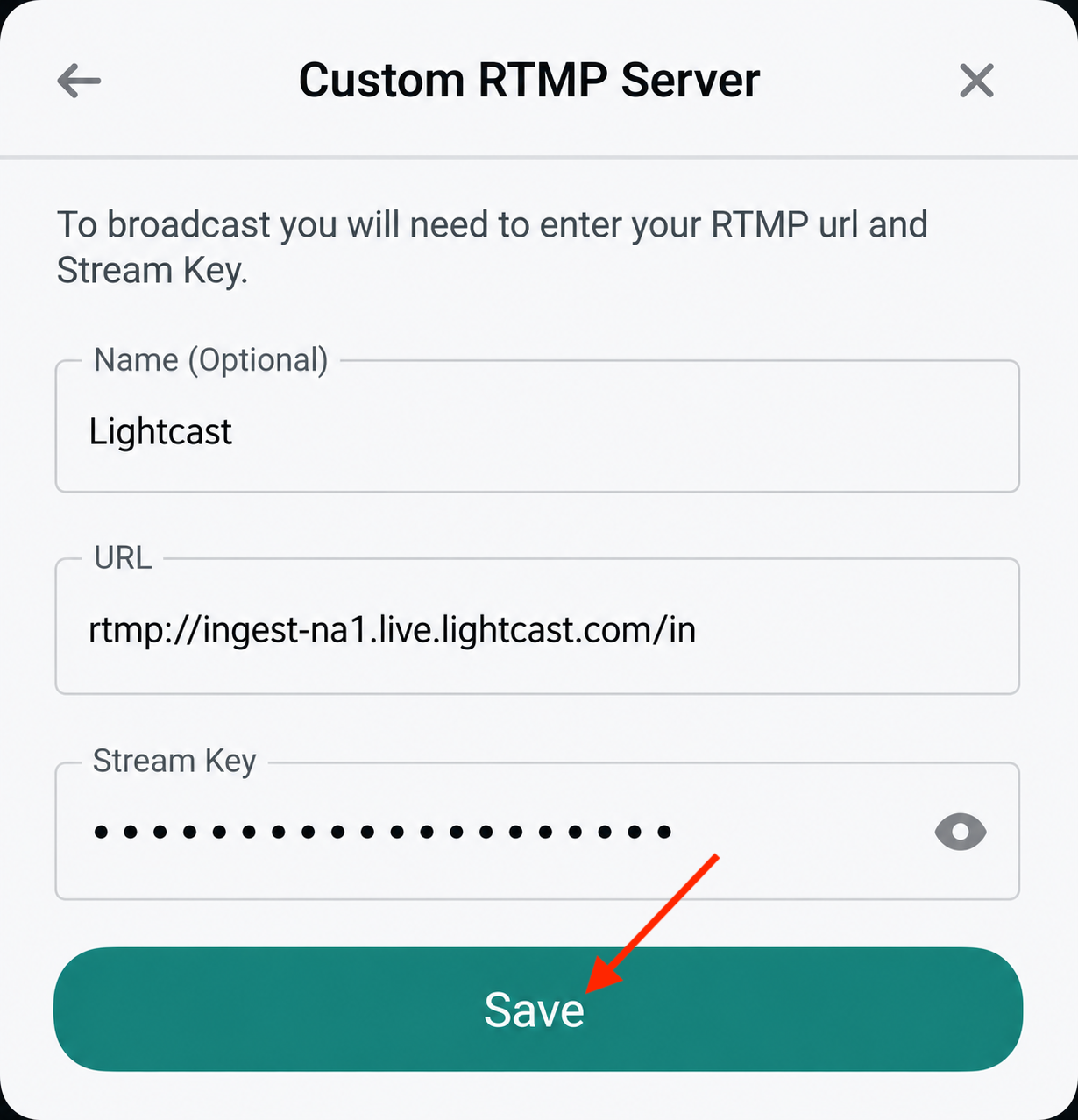
Save the RTMP destination in your mobile streaming app.
Step 5
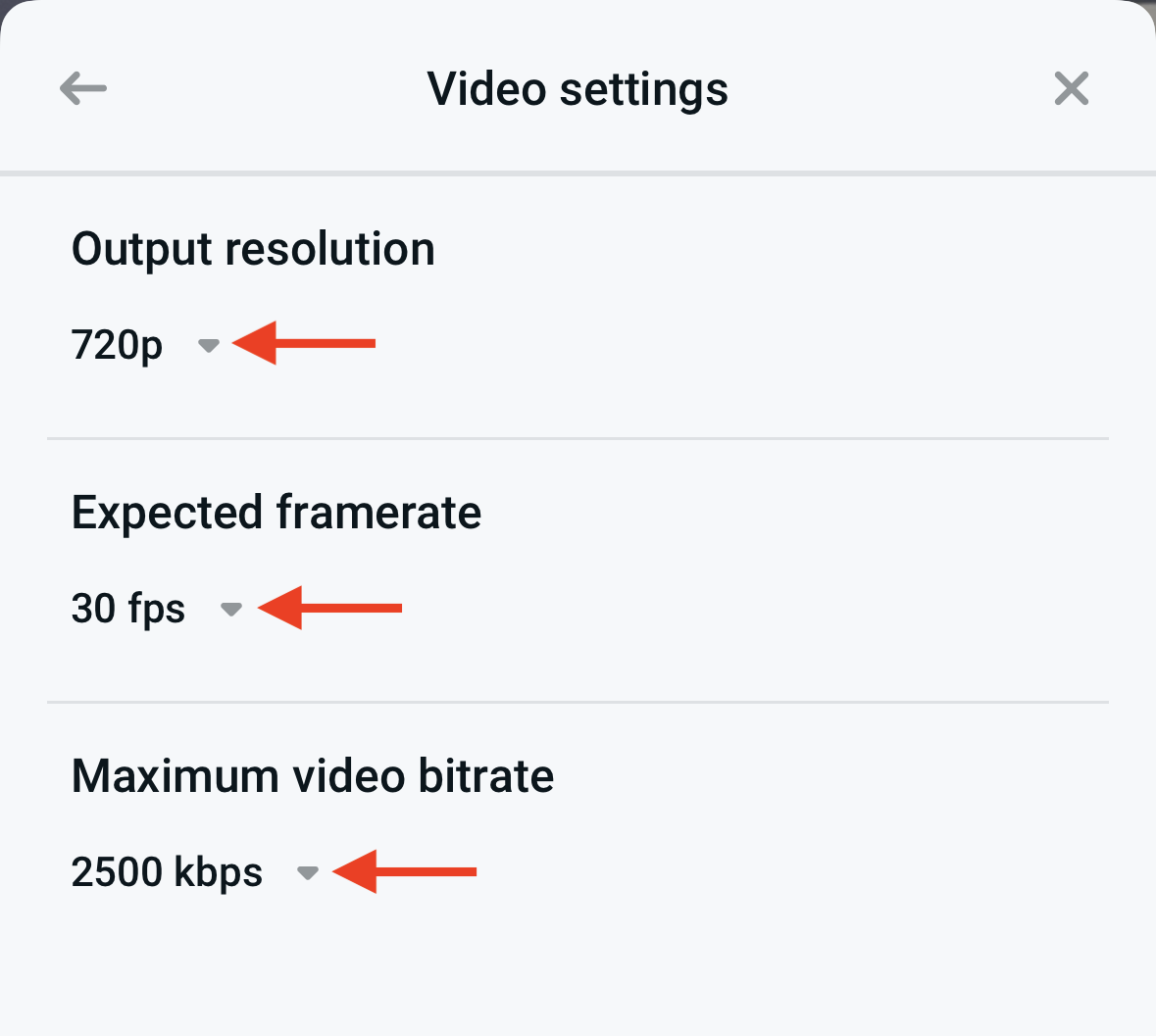
Review your stream quality settings.
For most mobile broadcasts, 720p at 30 FPS provides a good balance between quality and stability.
Step 6
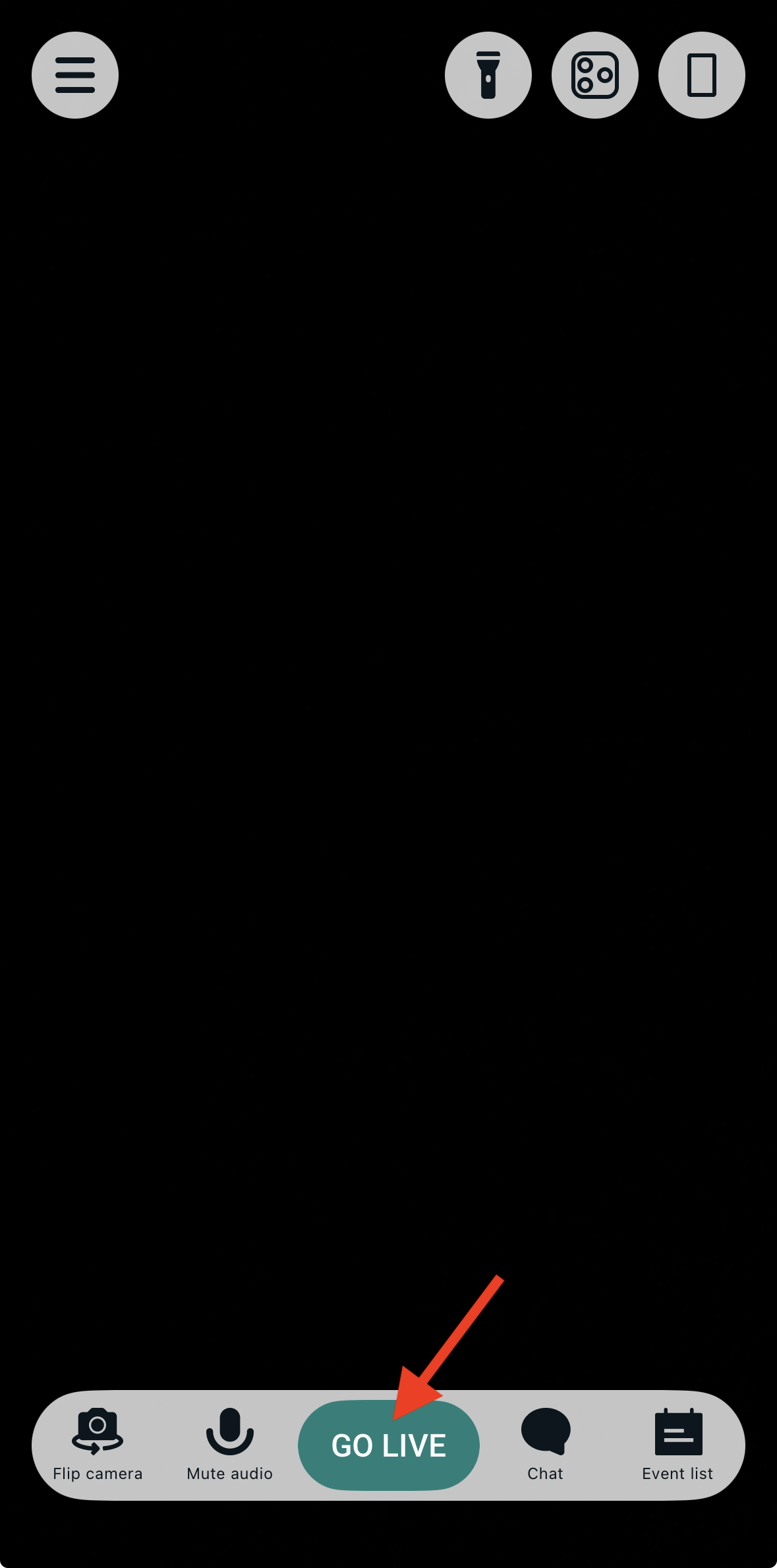
Start the stream from your mobile app.
Step 7
Return to the Media Cloud and confirm that the stream appears on the correct LIVE Channel.
Stream using SRT from a mobile app
Step 1
Open your mobile streaming app.
Step 2
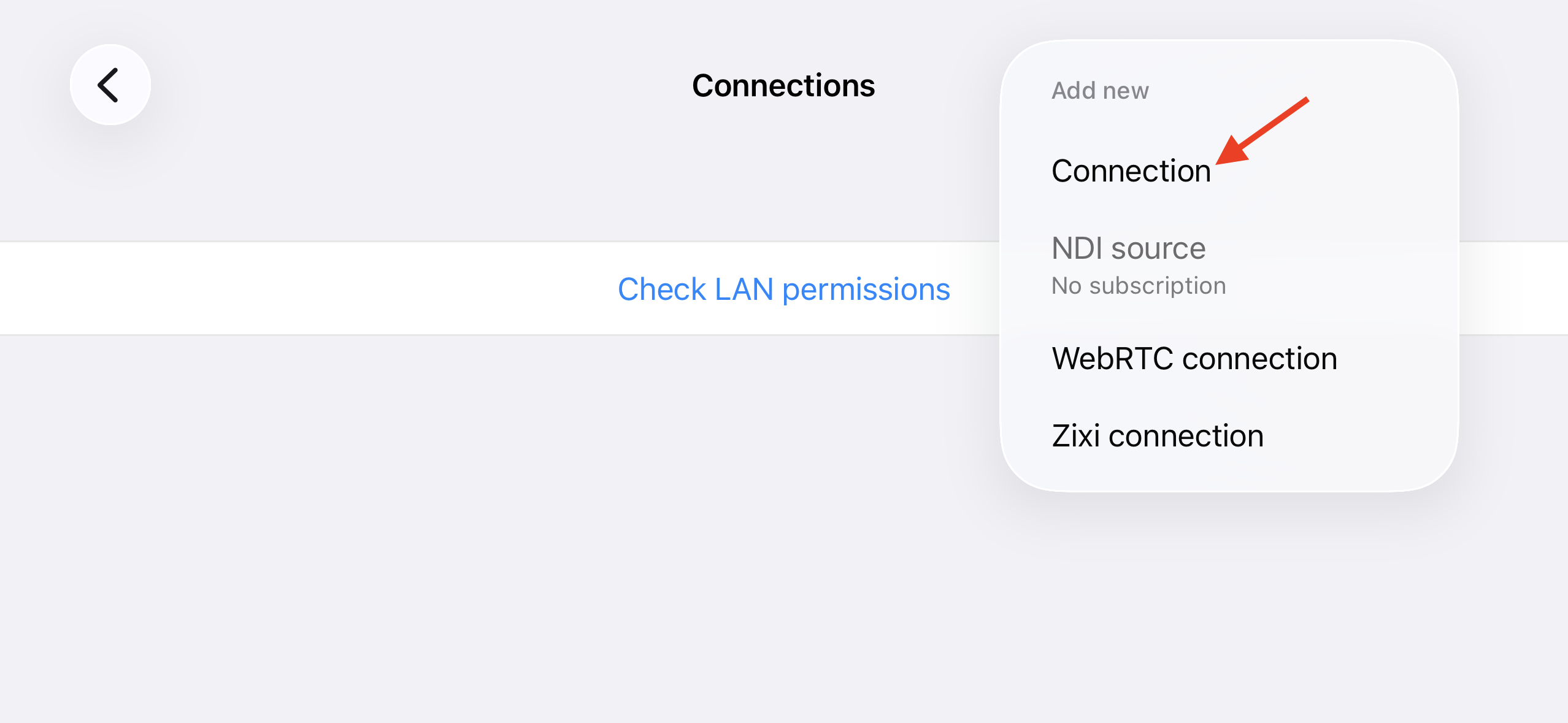
Create or add an SRT destination.
Depending on the app, this may be called SRT, SRT URL, SRT Caller, Add Connection, New Destination, or a similar option.
Step 3
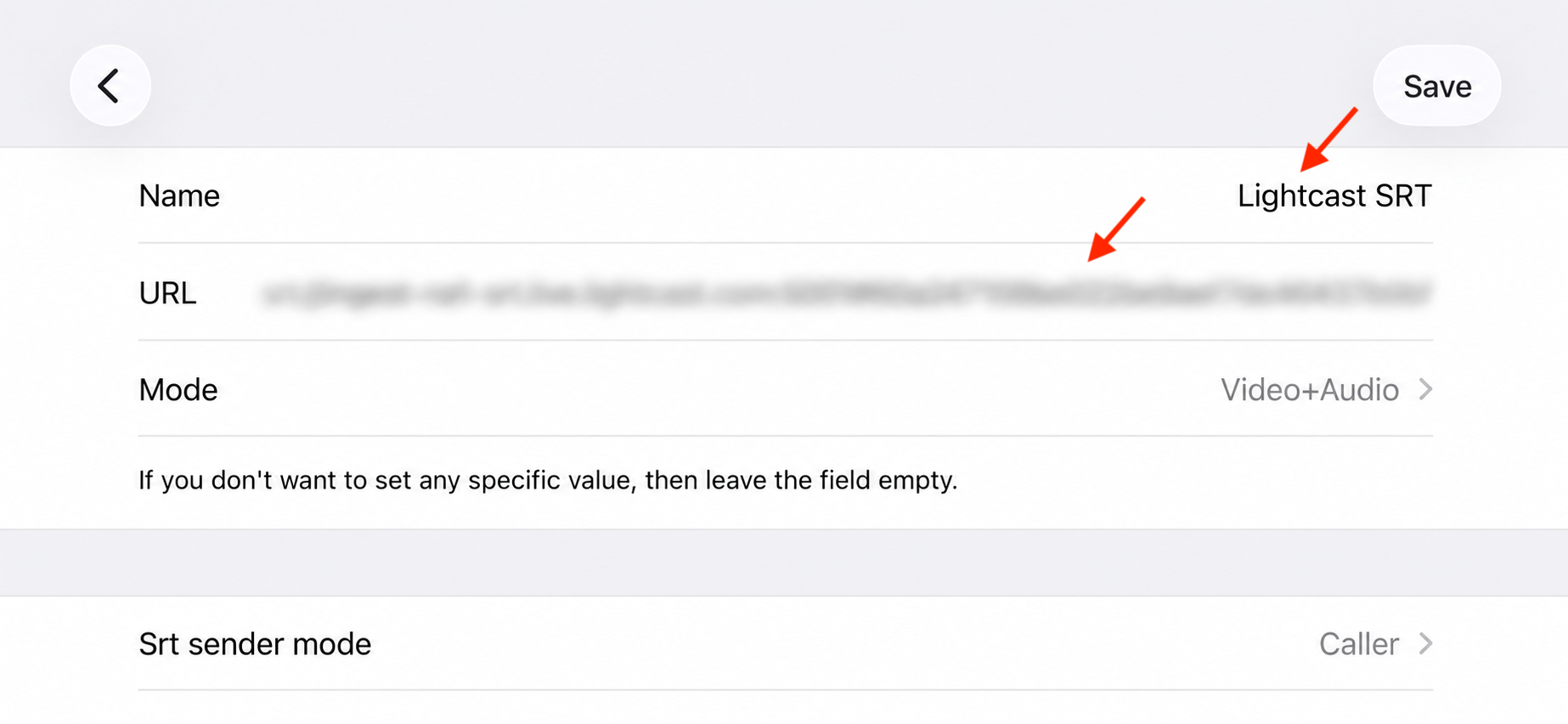
Copy the SRT Streaming URL from the Media Cloud.
Some mobile apps allow you to paste the full SRT Streaming URL into one field. If your app supports a full SRT URL field, paste the full URL exactly as it appears in the Media Cloud.
Step 4
If your mobile app separates the SRT settings into multiple fields, separate the SRT Streaming URL into the required parts.
For example, if your SRT Streaming URL is:
srt://ingest-na1-srt.live.lightcast.com:5001?streamid=1278148#60a247108be042be9aef7de46437b0bf
Enter the information in your mobile app like this:
Mobile app field | What to enter | Example |
|---|---|---|
Address or Host | Enter the destination address before the port number. |
|
Port | Enter the number after the colon and before |
|
Stream ID | Remove |
|
Step 5
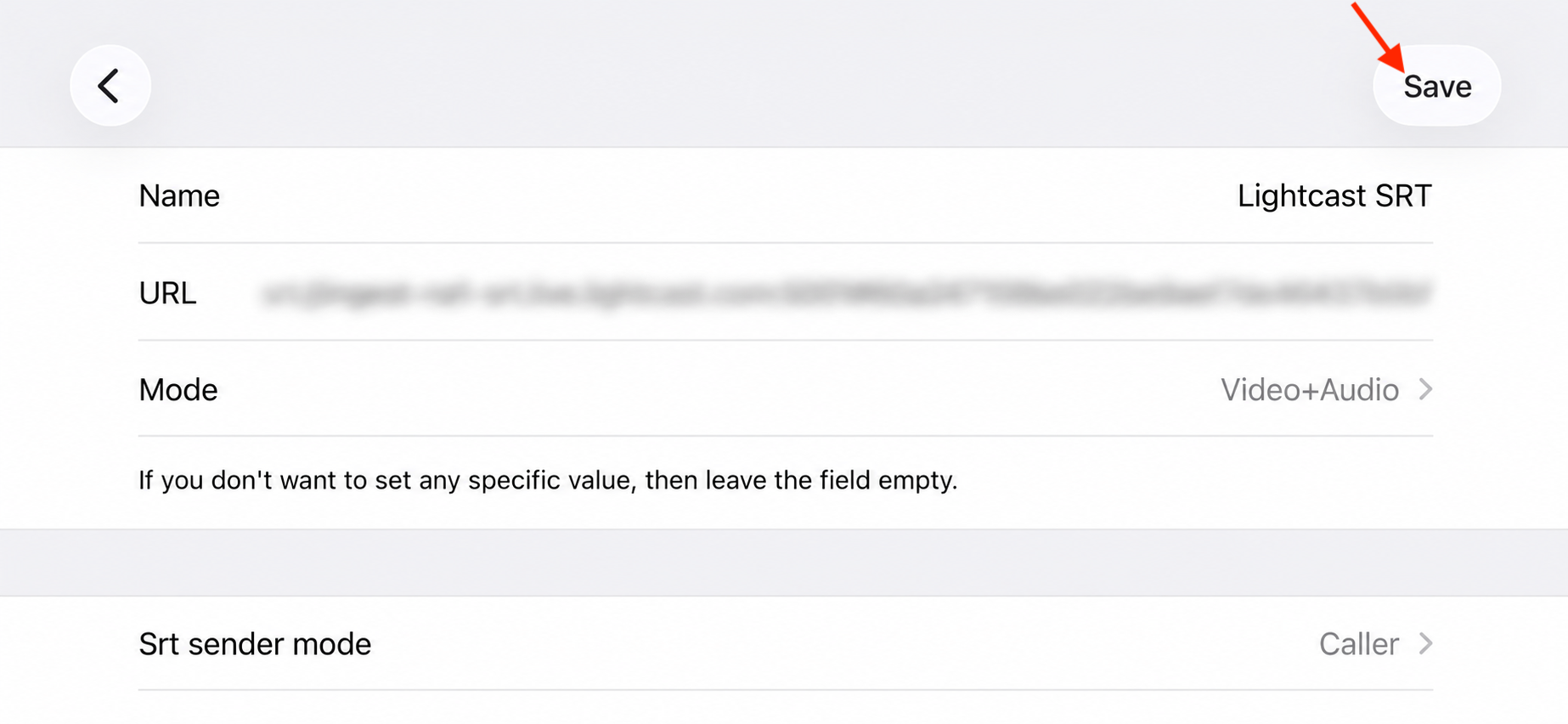
Save the SRT destination in your mobile streaming app.
Step 6
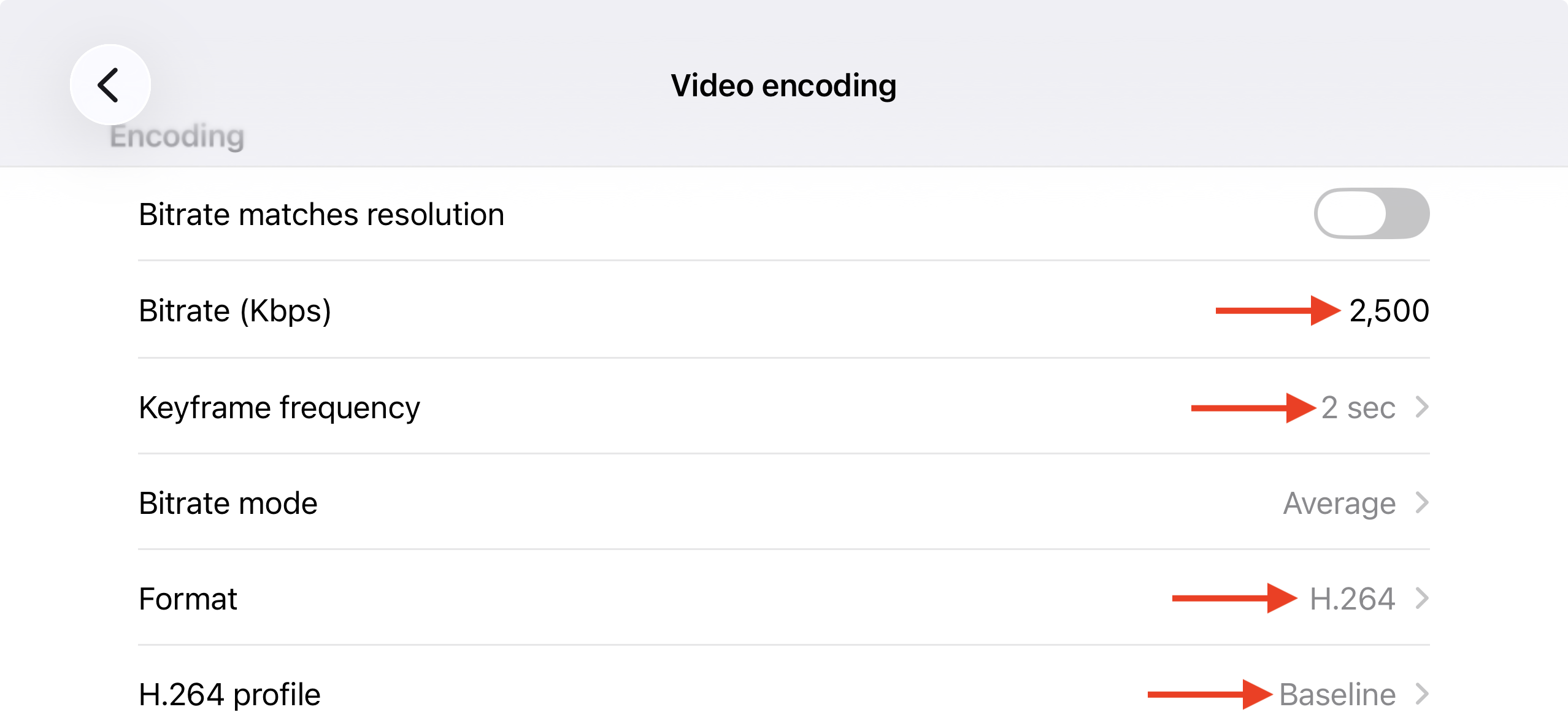
Review your stream quality settings.
For most mobile broadcasts, 720p at 30 FPS provides a good balance between quality and stability.
Resolution | Recommended bitrate |
|---|---|
720p | 2,000–2,500 kbps |
1080p | 5,000–8,000 kbps |
Step 7
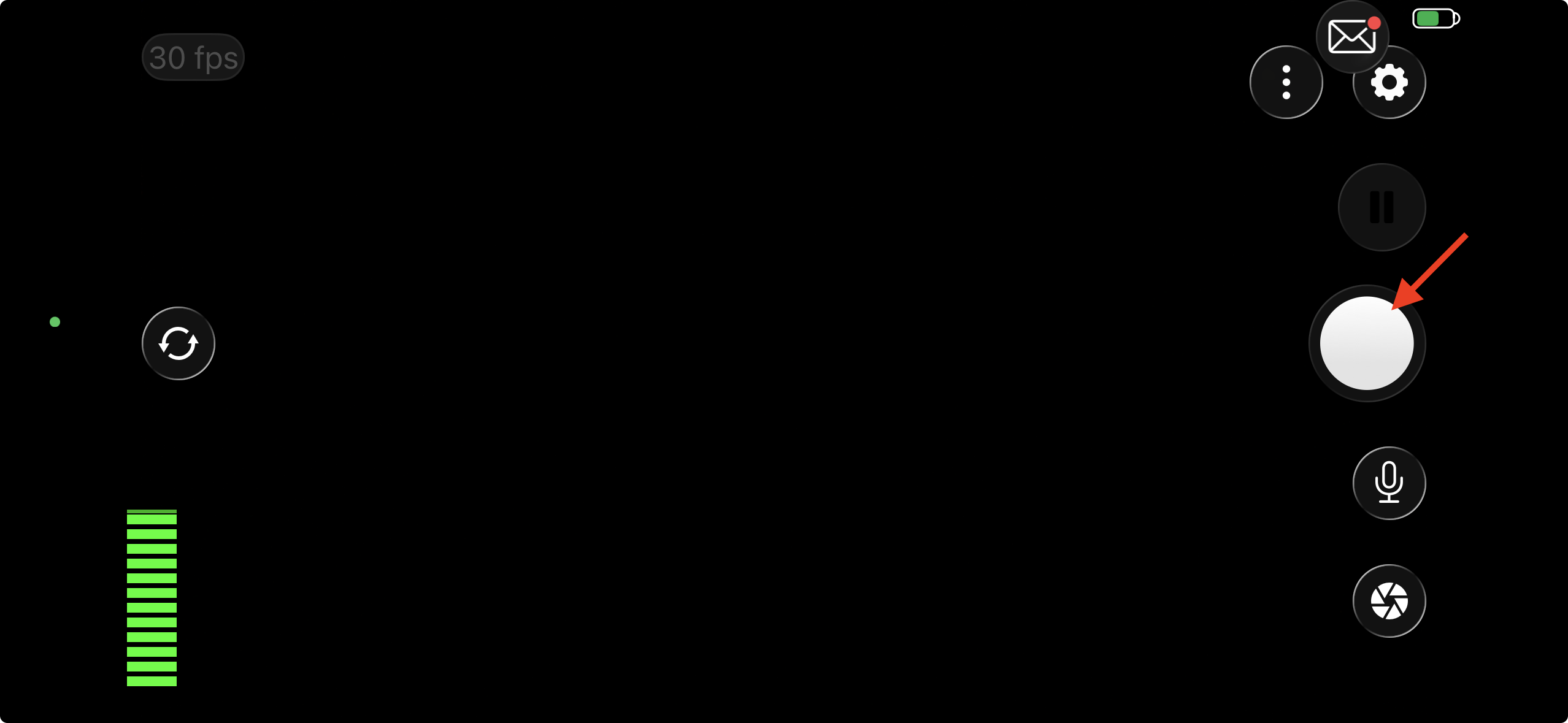
Start the stream from your mobile app.
Step 8
Return to the Media Cloud and confirm that the stream appears on the correct LIVE Channel.
Confirm your stream before going live
Step 1
Start streaming several minutes before your scheduled go-live time.
Step 2
In the Media Cloud, confirm that the stream is appearing on the correct LIVE Channel.
Step 3
Check that your video and audio are working as expected.
Step 4
Keep your mobile device connected to a stable network during the broadcast.
Avoid switching between Wi-Fi and mobile data during the live stream whenever possible, because this may interrupt the connection.
Tip: Before an important live event, run a short test stream using the same mobile device, app, internet connection, orientation, and stream settings you plan to use for the event.
Troubleshooting
The Media Cloud does not receive the stream
Confirm that the LIVE Channel is active.
Verify that the CDN Access Point and Stream Key, or SRT Streaming URL, were entered correctly.
Confirm that the mobile app is configured to use the correct streaming protocol.
Check that your internet connection has sufficient upload bandwidth.
Confirm that the encoder settings meet Lightcast’s recommended live encoder settings.
Stop and restart the stream after correcting any settings.
Video appears, but there is no audio
Confirm that the mobile app has permission to access the device microphone.
Check that the microphone is not muted in the streaming app.
Confirm that your mobile app is using supported audio settings, such as AAC audio.
The mobile stream is unstable or buffering
Common causes include a weak mobile data signal, unstable Wi-Fi, network congestion, or a bitrate that is too high for your available upload speed.
For best results:
Use a strong Wi-Fi connection when possible
Avoid shared or congested networks
Make sure your available upload speed is at least twice as high as your total stream bitrate
Lower your bitrate or resolution if the stream is unstable
Avoid switching between Wi-Fi and mobile data during the stream
The stream appears sideways or in the wrong orientation
Check the orientation settings in your mobile streaming app.
Before going live, start a test stream and confirm whether the video appears correctly in the Media Cloud and on your intended viewing destination.
If needed, rotate the device or update the app’s orientation settings before beginning the broadcast.
The stream stops unexpectedly
Mobile streams may stop if the device loses network connection, switches networks, locks the screen, receives an interruption, overheats, or runs out of battery.
Before streaming, fully charge the device or connect it to power, keep the streaming app open, and prevent calls or notifications from interrupting the broadcast where possible.
FAQs
What mobile apps can I use to stream to a LIVE Channel?
You can use a mobile streaming app that supports custom RTMP or SRT streaming.
Examples of mobile streaming apps may include:
Before your live event, confirm that the app supports the streaming method you want to use and allows you to enter custom stream credentials.
Should I use RTMP or SRT from a mobile device?
RTMP is widely supported by many mobile streaming apps and works well for most standard mobile streaming setups.
SRT can provide a more resilient connection between your mobile app and Lightcast, especially when streaming over networks with packet loss, variable bandwidth, or longer geographic distances. SRT is only available in mobile apps that support SRT streaming.
What resolution should I use when streaming from a phone?
For most mobile broadcasts, 720p at 30 FPS provides a good balance between quality and stability.
Higher resolutions may require more upload bandwidth and may be less reliable on mobile data connections.
Why is my mobile stream buffering?
Common causes include a weak mobile data signal, unstable Wi-Fi, network congestion, or a bitrate that is too high for your available upload speed.
For best results:
Use a strong Wi-Fi connection when possible
Avoid shared or congested networks
Make sure your available upload speed is at least twice as high as your total stream bitrate
Lower your bitrate or resolution if the stream is unstable
Try another access point if your app is using RTMP and your current route is unstable
Why is my stream working on some devices but not Apple devices?
If your stream plays on some platforms but not on Apple devices, the issue may be related to encoder compatibility settings.
If your mobile streaming app allows you to adjust video profile or encoder settings, use H.264 Baseline for broad compatibility. If your mobile app does not provide these settings, try another mobile streaming app or use a software or hardware encoder with more advanced controls.
Can I stream over mobile data?
Yes, if your mobile data connection is strong and stable enough for live streaming.
For best results, test your upload speed before the broadcast and avoid moving between areas with changing signal strength during the stream.
What should I do before streaming from a mobile device?
Before streaming from a mobile device, run a short test stream using the same mobile device, app, internet connection, orientation, and stream settings you plan to use for the event.
You should also fully charge the device or connect it to power, prevent calls or notifications from interrupting the broadcast where possible, and avoid switching between Wi-Fi and mobile data during the live stream.