
How to upload media files directly to a Sub-Channel
Overview
This article explains how to upload media files from your computer to a Sub-Channel in the Media Cloud.
This article covers the local file upload workflow started from within a Sub-Channel. Other upload methods in the Media Cloud can also upload content into a specific Channel or Sub-Channel.
When to use this article
Use this article when your media files are stored on your computer and you want to upload them to a specific Sub-Channel from within the Sub-Channel page.
This article is helpful when you want to:
upload one or more local media files to a Sub-Channel
place uploaded media at the beginning or end of the Sub-Channel playlist
optionally apply a Workflow Preset during upload
optionally apply a Watermark during video encoding for VOD Sub-Channel uploads
Before you follow these steps, make sure the Sub-Channel has already been created.
How it works
A Sub-Channel is a smaller section inside an Audio On-Demand (AOD) Channel or Video On-Demand (VOD) Channel. It is used to organize content within a parent Channel.
To learn more about how Sub-Channels work, see Sub-Channels explained.
When you upload a new media file from within a Sub-Channel, the file is added to the Media Cloud’s Video Archive or Audio Archive and placed into that Sub-Channel playlist.
Because this creates a new upload, it uses your account’s available Storage and Transcoding.
This is one way to add content to a Sub-Channel. Other upload methods in the Media Cloud can also upload content into a specific Channel or Sub-Channel during the upload process.
If the media item has already been uploaded to the Media Cloud, you do not need to upload it again. Instead, you can assign the existing media item to the Sub-Channel. To learn how to assign existing media items, see How to assign content to a Sub-Channel.
If you are uploading a video file to a VOD Sub-Channel, you can optionally apply a Watermark during upload. Watermarks are not available for audio uploads.
Instructions
Step 1
Log in to your Media Cloud account.
Step 2
Go to CHANNELS and then click Video On-Demand or Audio On-Demand, depending on the type of Sub-Channel you want to use.
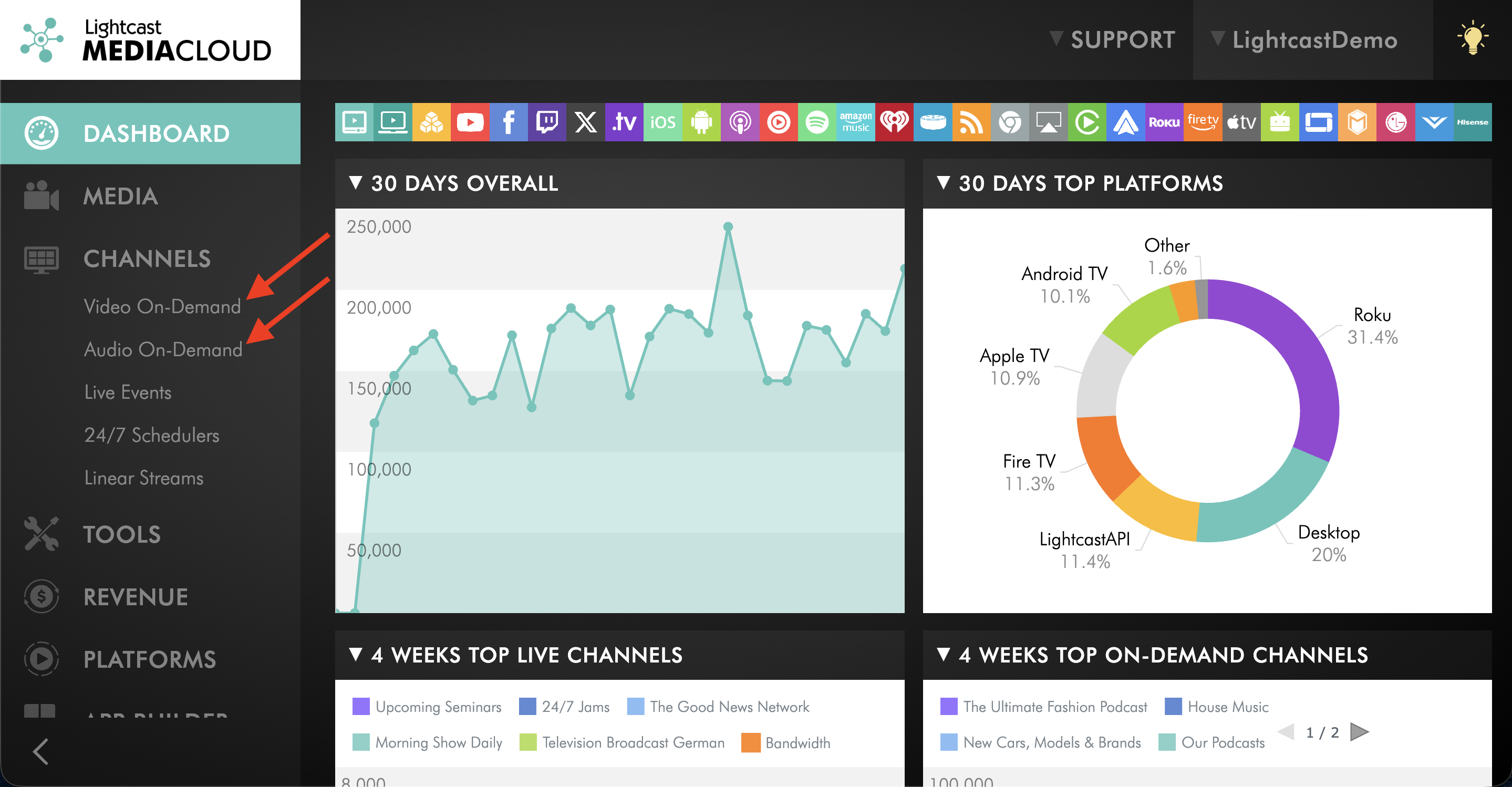
Step 3
Select the parent Channel that contains the Sub-Channel.
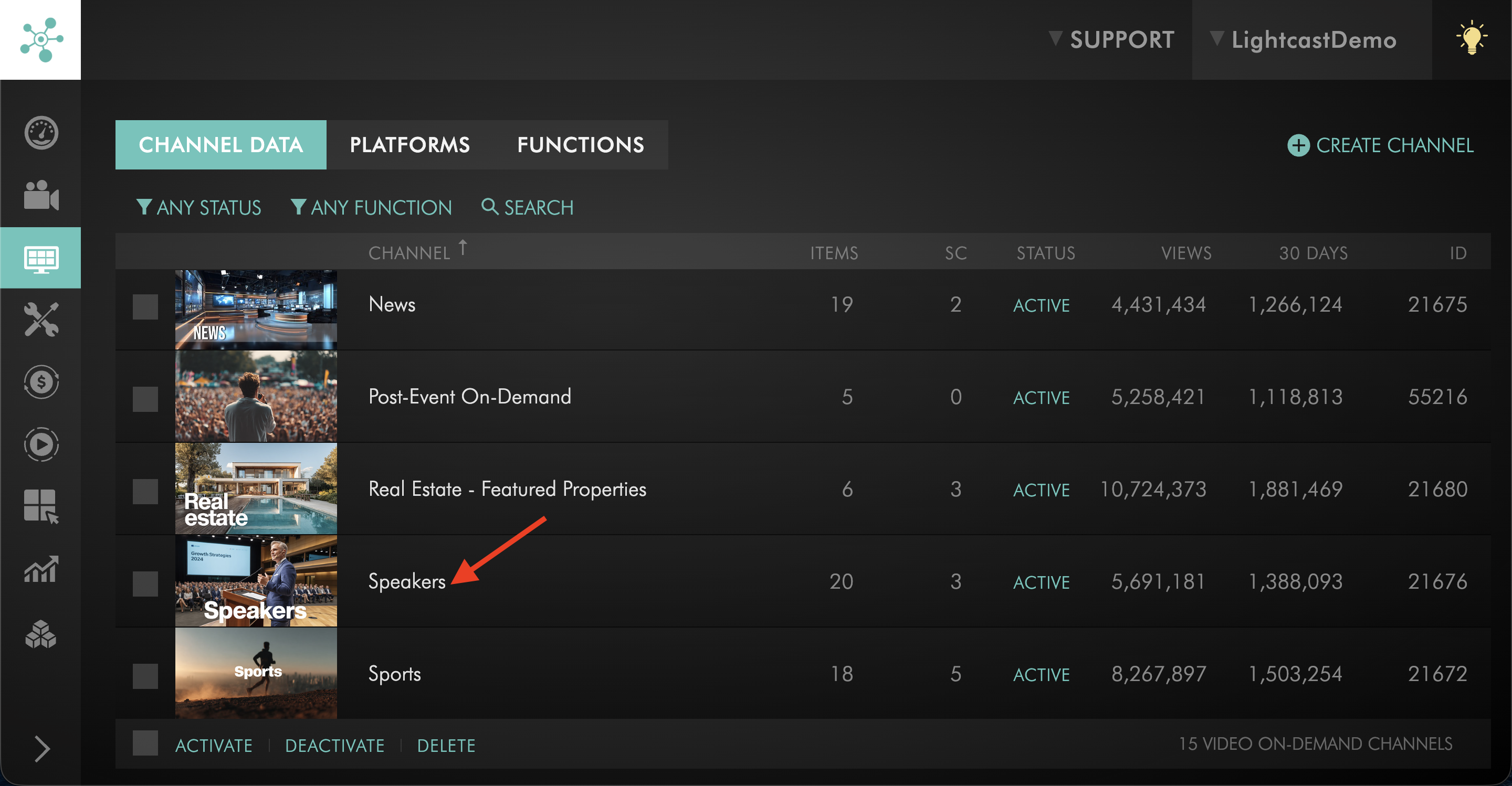
Step 4
Switch to the SUBCHANNELS tab.
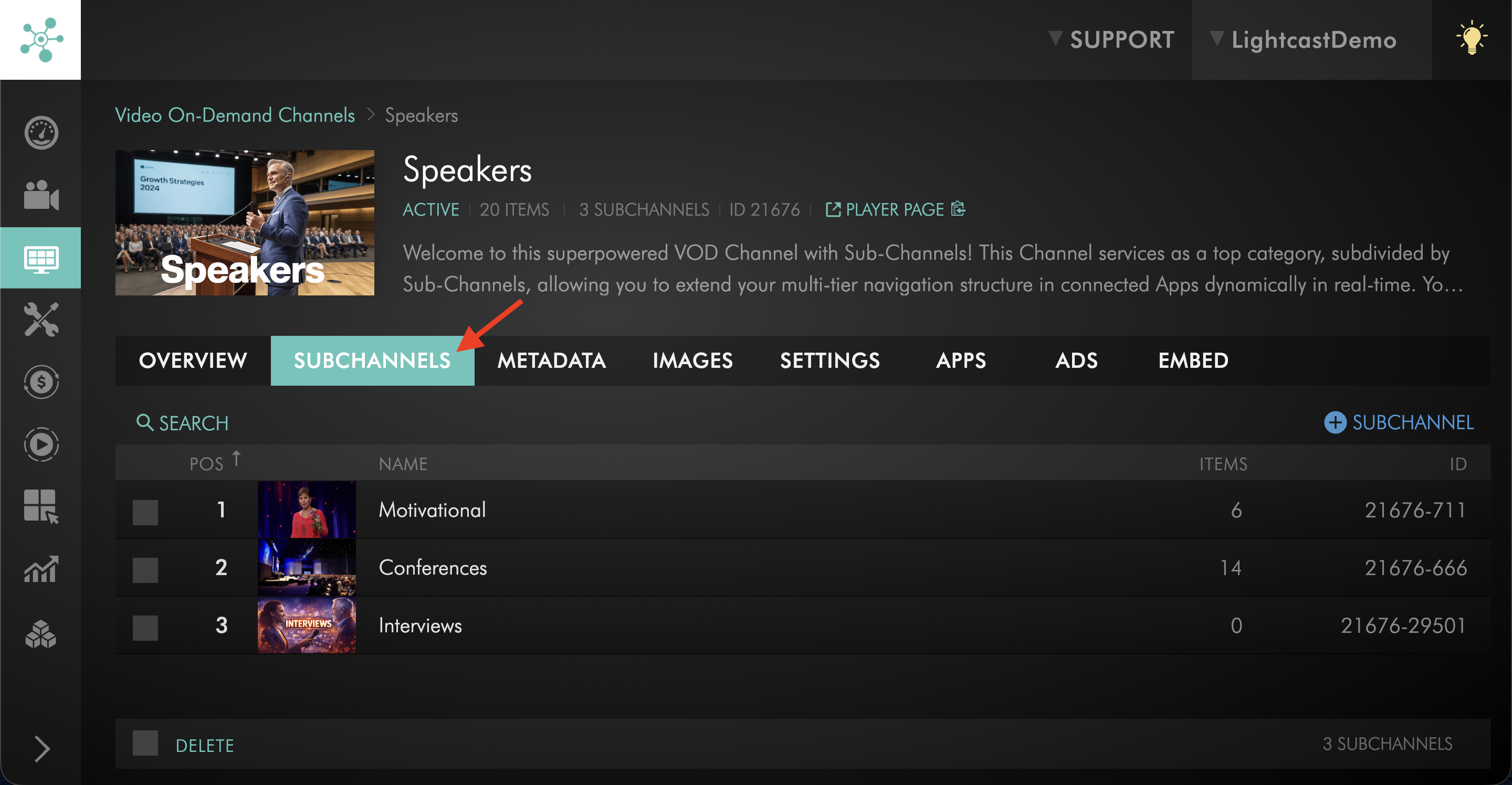
Step 5
Select the Sub-Channel where you want to add content.
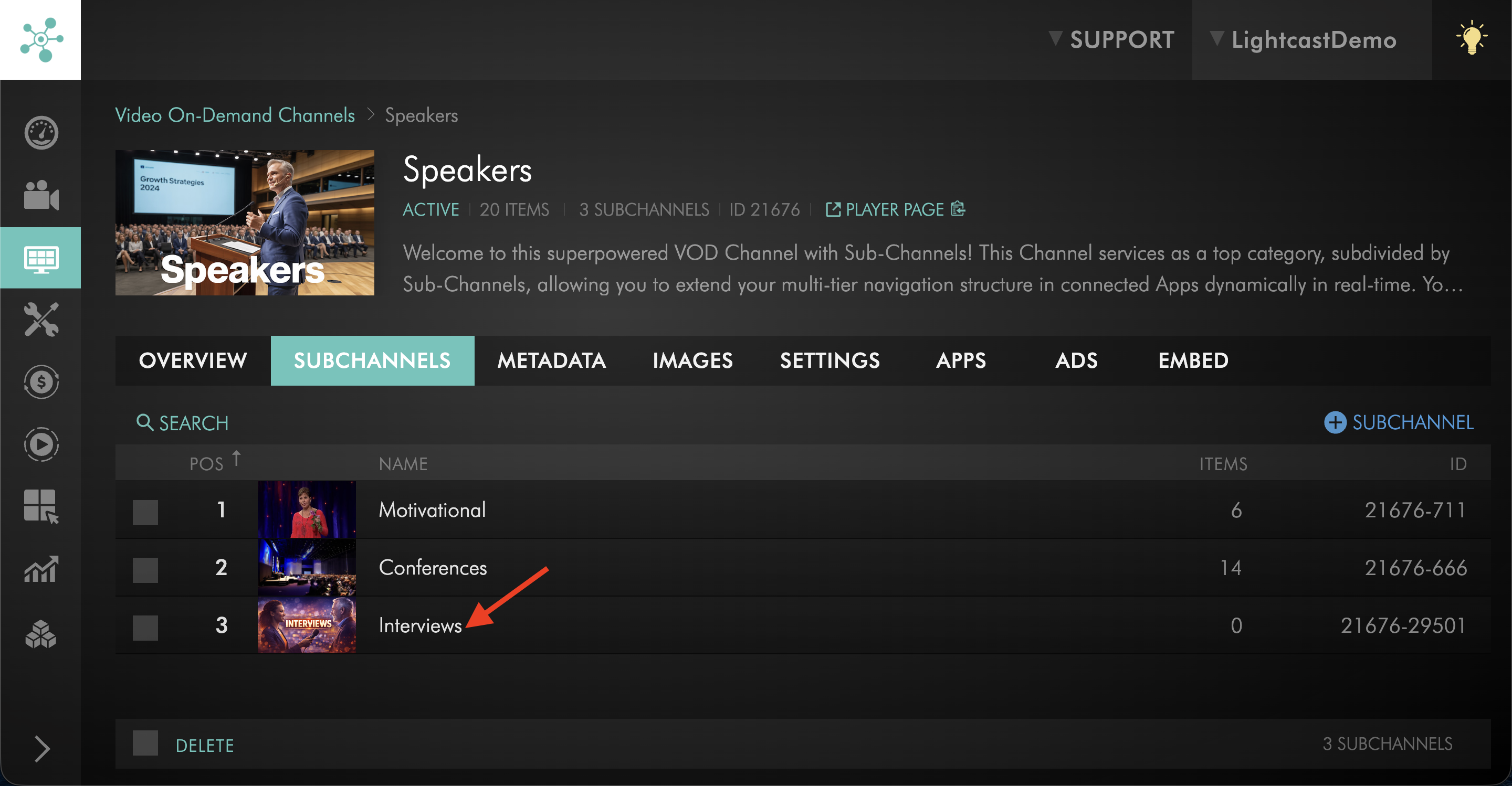
Step 6
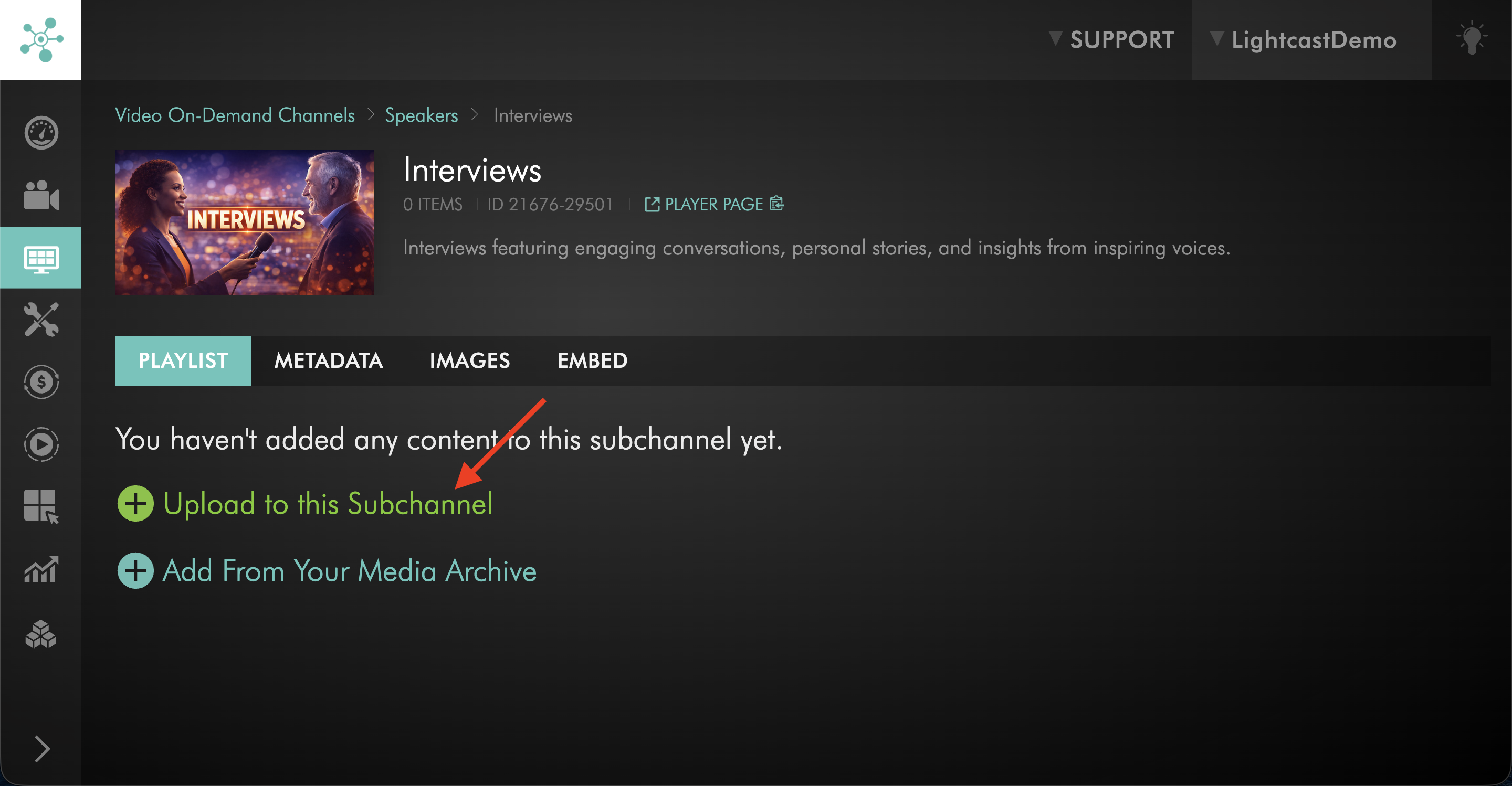
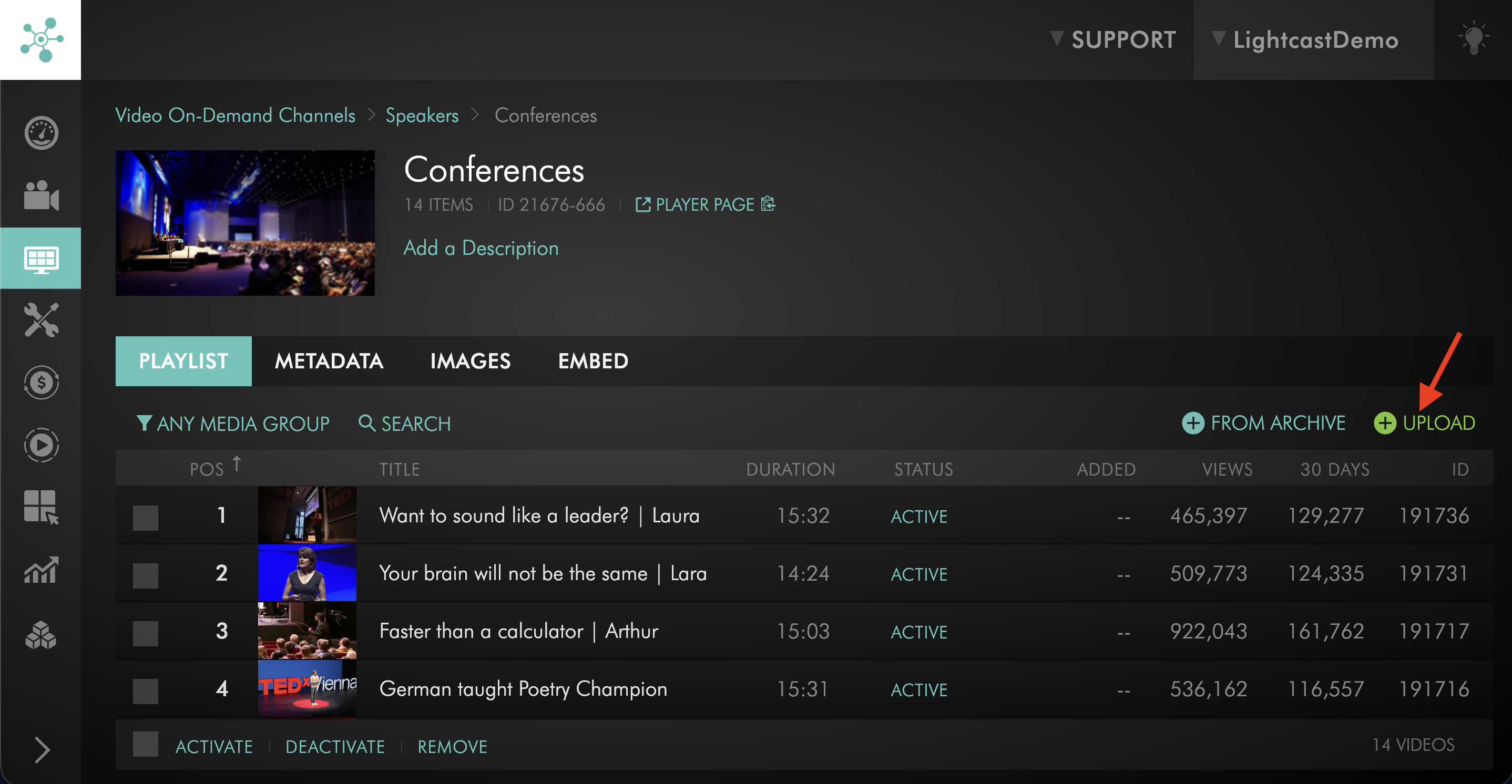
On the Sub-Channel’s PLAYLIST tab, do one of the following:
If no media has been added to the Sub-Channel, click + Upload to this Subchannel.
If media has already been added to the Sub-Channel, click + UPLOAD.
Step 7
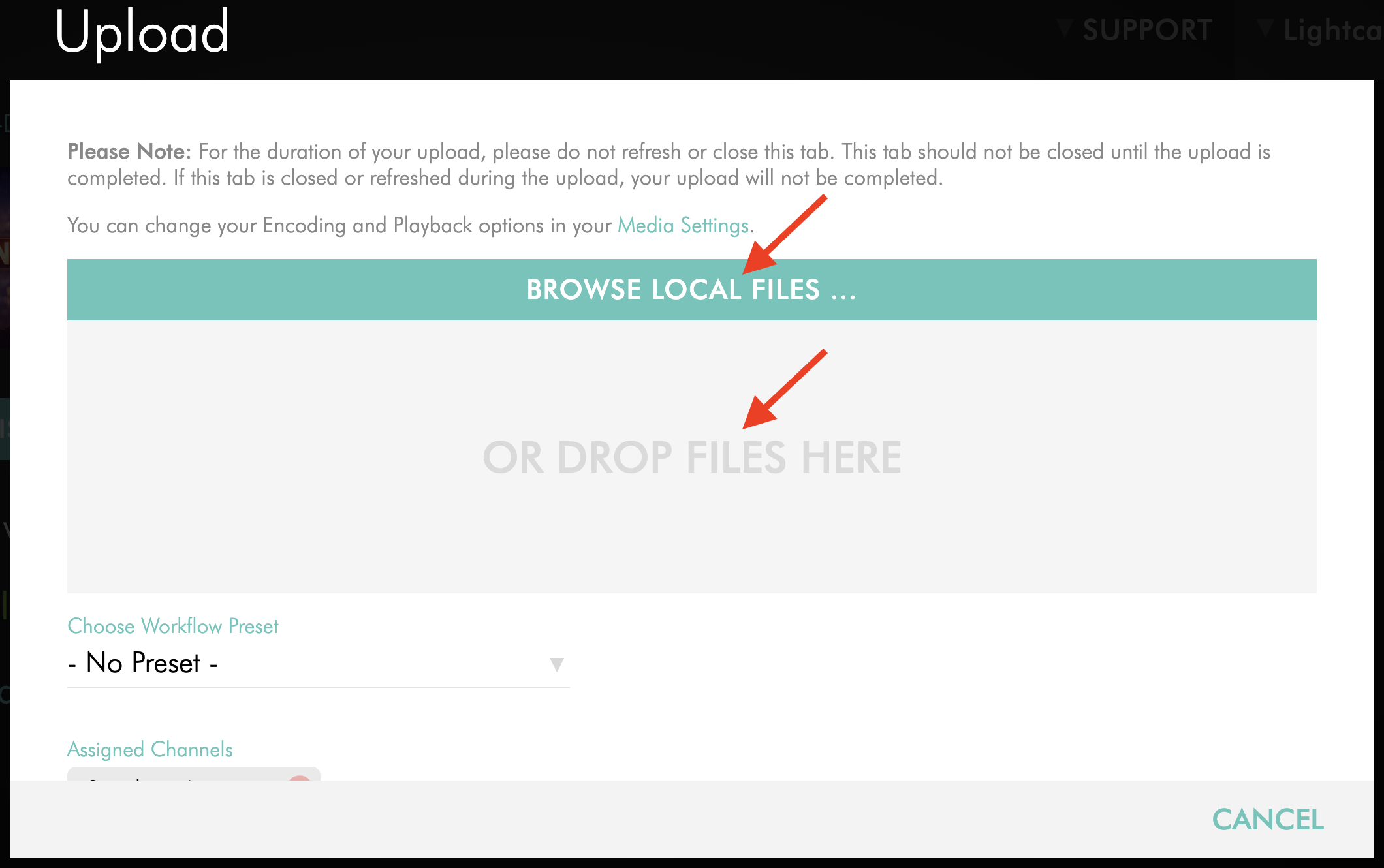
Click BROWSE LOCAL FILES . . . or drag and drop the media files from your computer into the upload window.
Step 8
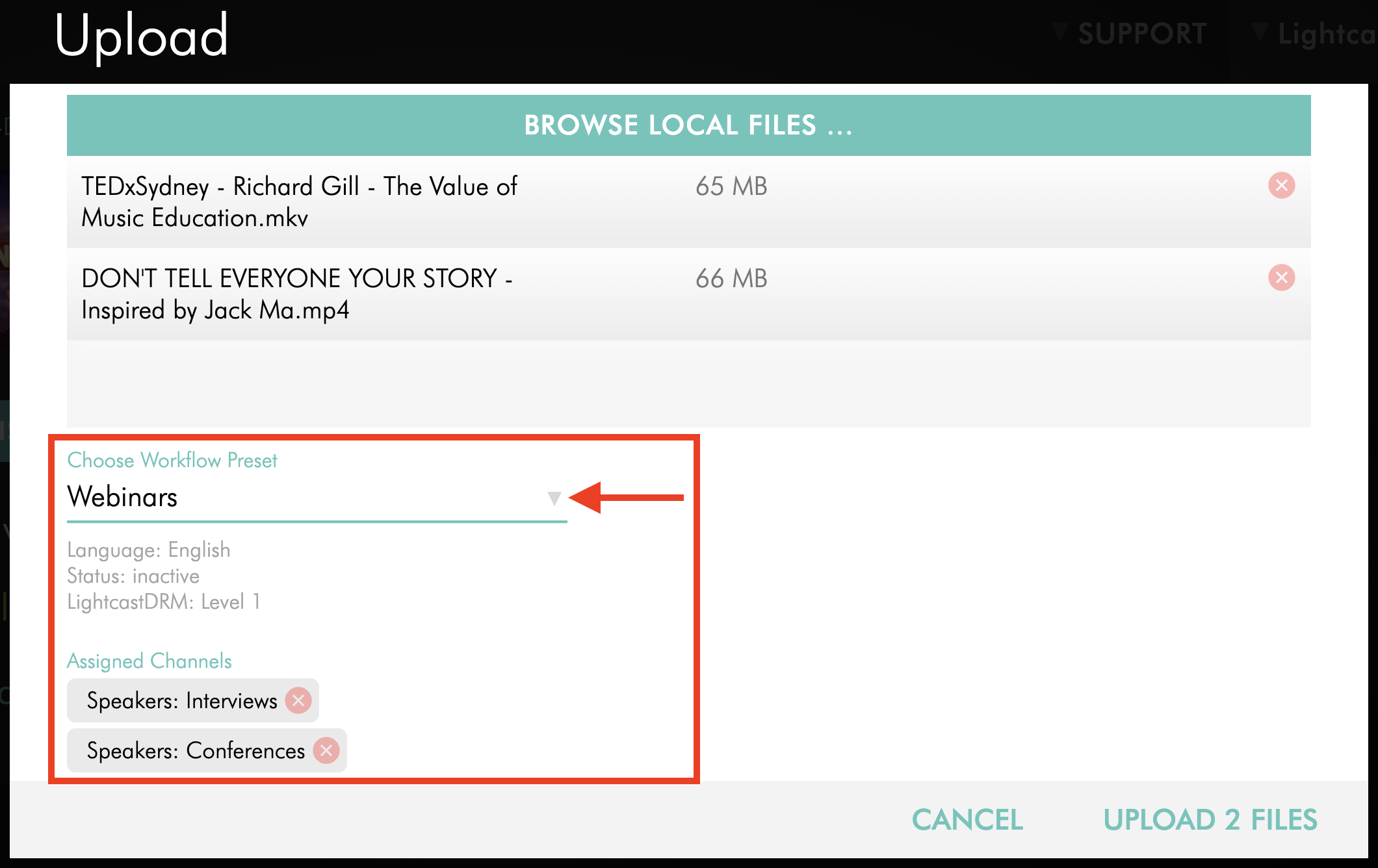
Optional: Select a Workflow Preset.
To learn how to create one, see How to create Workflow Presets.
Step 9
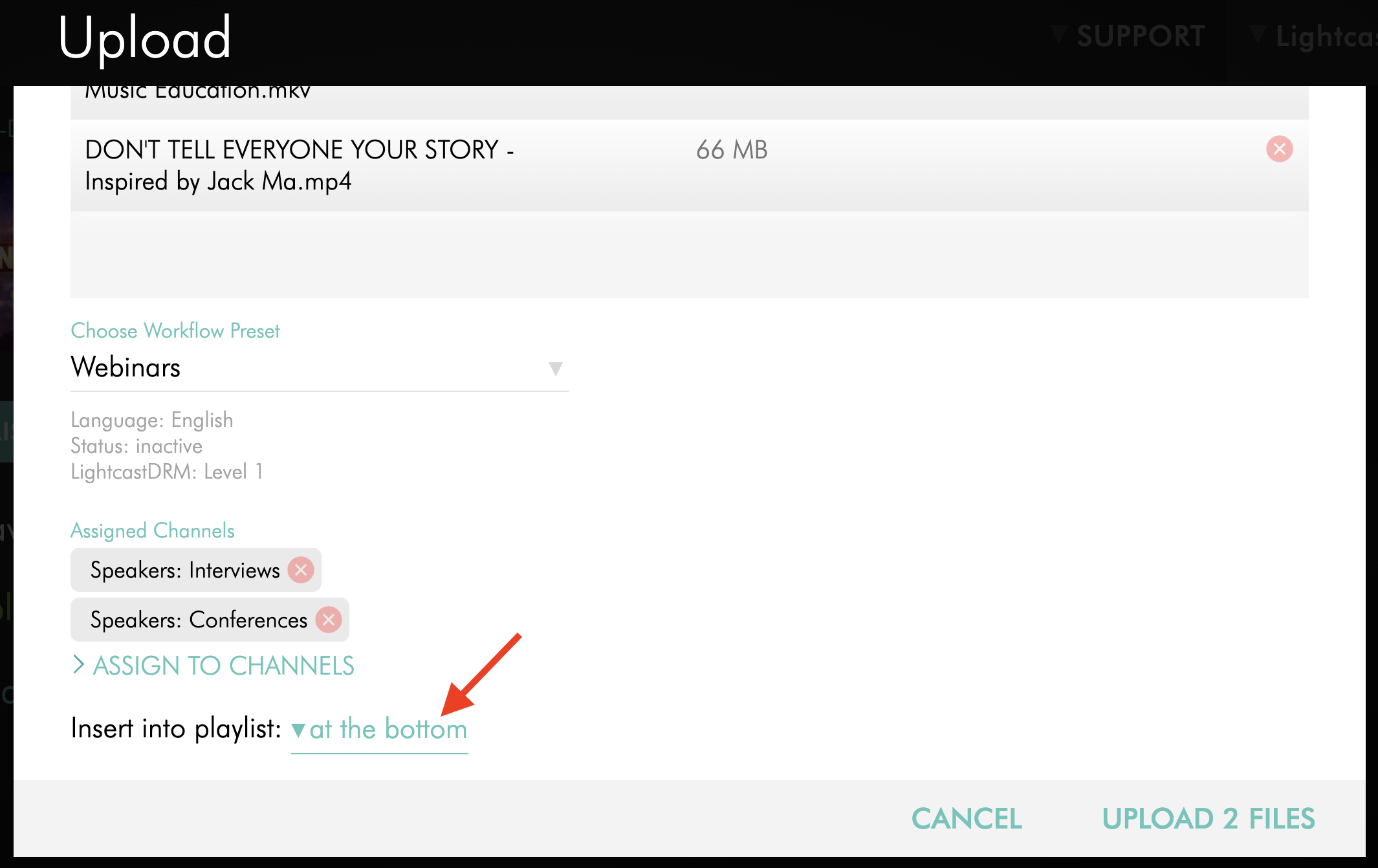
Select the playlist position for the uploaded content.
on top places the content at the beginning of the Sub-Channel playlist.
at the bottom places the content at the end of the Sub-Channel playlist.
Step 10
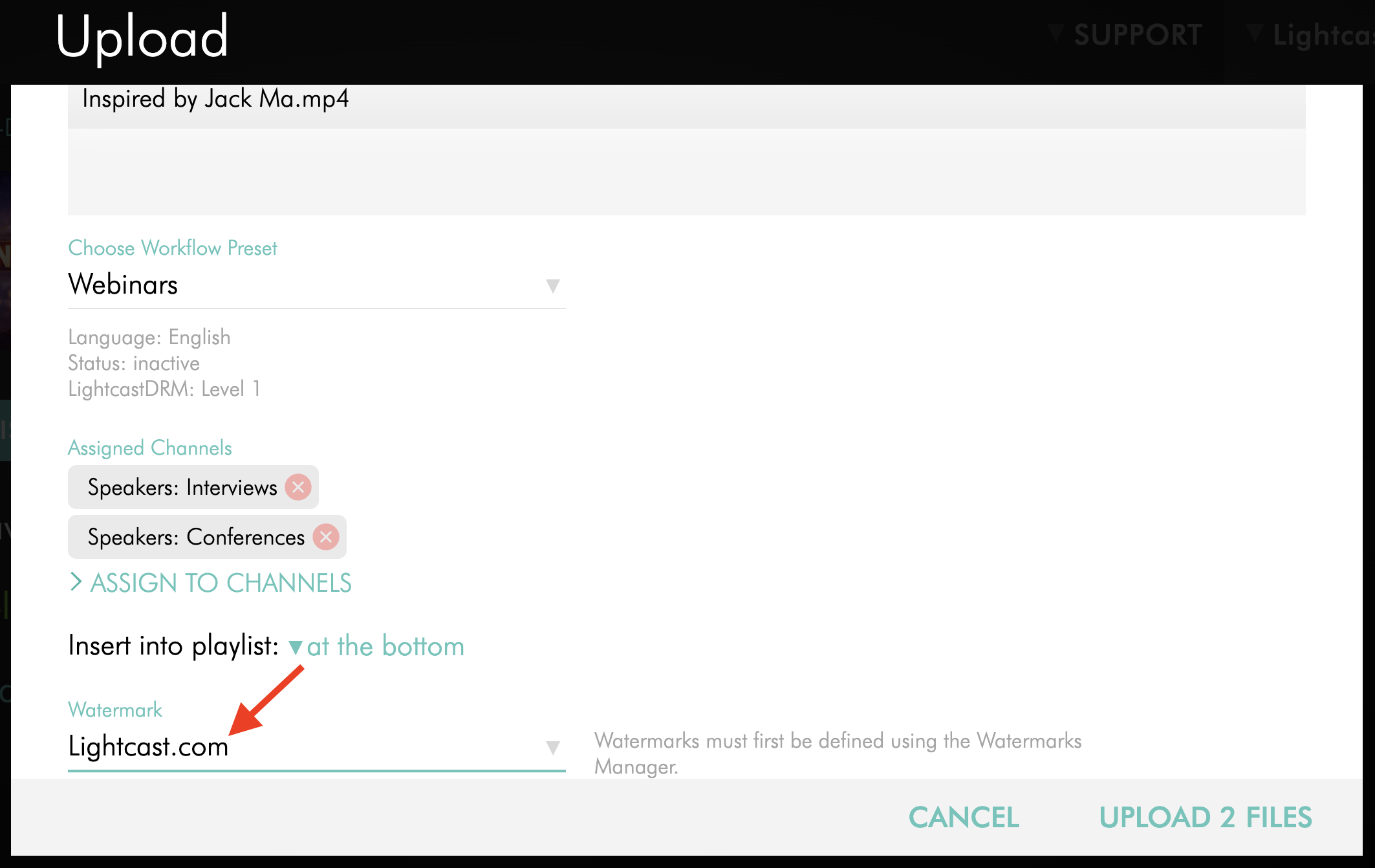
Optional: If you are uploading a video file to a VOD Sub-Channel, select a Watermark to apply during encoding.
To learn how to create one, see How to add a Watermark.
Step 11
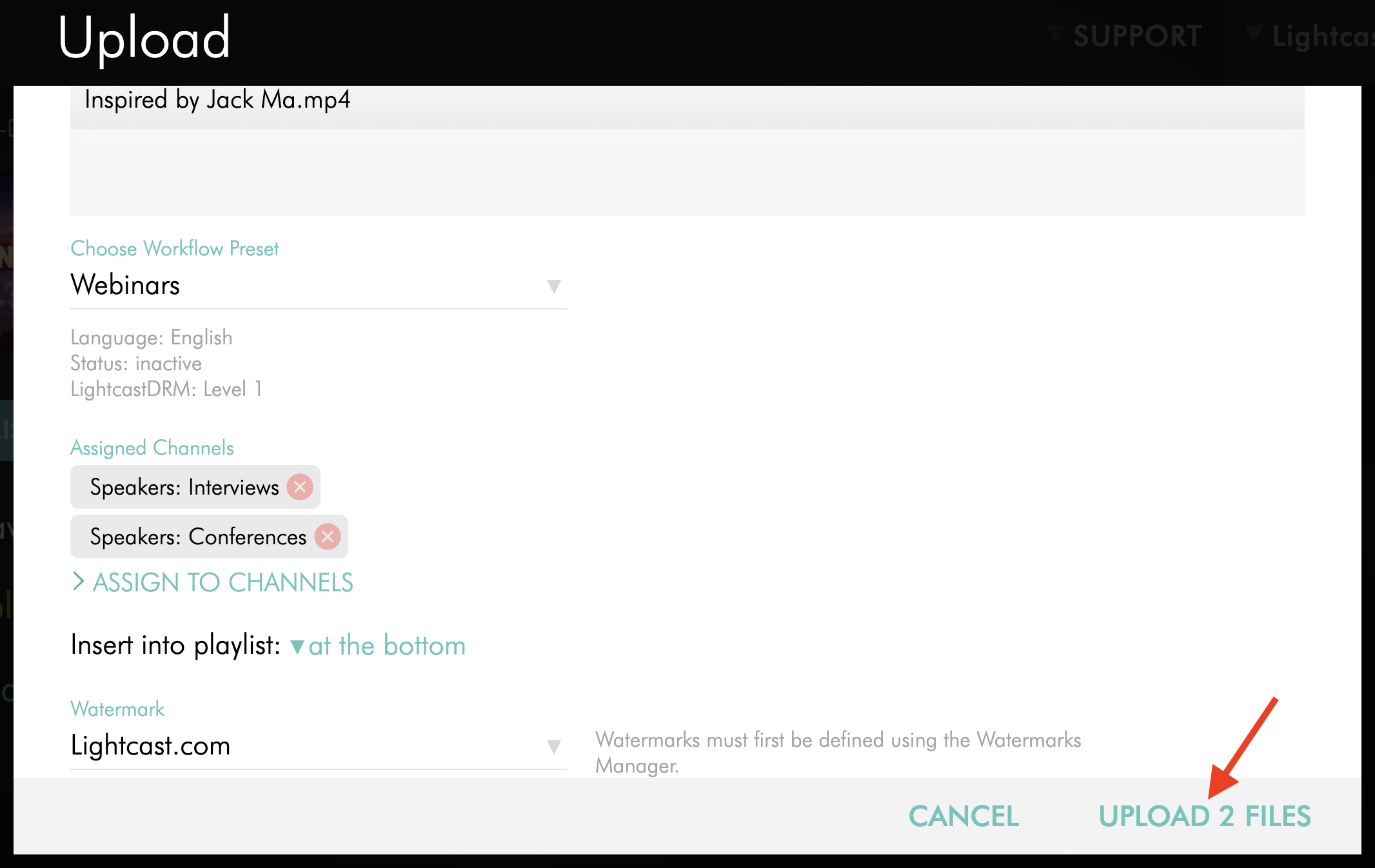
Click UPLOAD FILES.
FAQs
Can I upload multiple local media files to a Sub-Channel?
Yes. You can upload up to 50 media files to a Sub-Channel in the same upload window.
Where do uploaded media files go after I upload them?
Uploaded media files are added to the Media Cloud’s Video Archive or Audio Archive and to the Sub-Channel playlist you selected.
Does uploading directly to a Sub-Channel use Storage and Transcoding?
Yes. Uploading directly to a Sub-Channel creates a new upload, so it uses your account’s available Storage and Transcoding.
Can I apply a Workflow Preset when uploading to a Sub-Channel?
Yes. You can optionally select a Workflow Preset during the upload process.
Can I apply a Watermark when uploading to a Sub-Channel?
You can apply a Watermark only when uploading a video file to a VOD Sub-Channel. Watermarks are not available for audio uploads.
Can other upload methods also upload content into a specific Channel or Sub-Channel?
Yes. Other upload methods in the Media Cloud also support uploading content into a specific Channel or Sub-Channel during upload.
What if my media item has already been uploaded to the Media Cloud?
If the media item already exists in the Media Cloud, you do not need to upload it again.
To learn how to add an existing media item to a Sub-Channel, see How to assign content to a Sub-Channel.
Pricing
Sub-Channels are available on POWER packages and up.
If you don’t have access to this feature, you can upgrade to one of our latest plans or contact your account manager.
For other ways to upload content and assign it to Channels or Sub-Channels, see: