
How to import content using the MRSS Import Tool
Overview
This article explains how to import video and audio content using the MRSS Import Tool in the Media Cloud.
The MRSS Import Tool allows you to automate content imports from an existing MRSS feed. This is a convenient option when your content is already published through a partner, podcast host, or other media platform that provides an MRSS feed.
When to use the MRSS Import Tool
Use the MRSS Import Tool when:
your content is already available through an MRSS feed
you want the Media Cloud to automatically import new content
you want imported media to include metadata such as titles, descriptions, and keywords
you want a more automated workflow for recurring content imports
The MRSS Import Tool supports files up to 25 GB per file.
How it works
The MRSS Import Tool connects an MRSS feed to your Media Cloud account and automatically checks the feed for new content every 15 minutes. When new content is detected, the Media Cloud can import the media along with metadata such as titles, descriptions, and keywords.
The MRSS Import Tool also allows you to:
view, add, and edit MRSS feeds connected for import
activate or deactivate feed imports at any time
apply Workflow Presets during import
filter feeds by status and media type
track how many files have been imported from each feed
If your account previously had MRSS imports configured, those existing feeds automatically appear in the tool.
Your ability to import content depends on your account’s available Storage and Transcoding. If your remaining balance is too low, uploads may be limited and you may see an upload warning. Because Storage and Transcoding usage is estimated, balances may also go into the negative in some cases.
To learn more, see:
Instructions
Step 1
Log in to your Media Cloud account.
Step 2
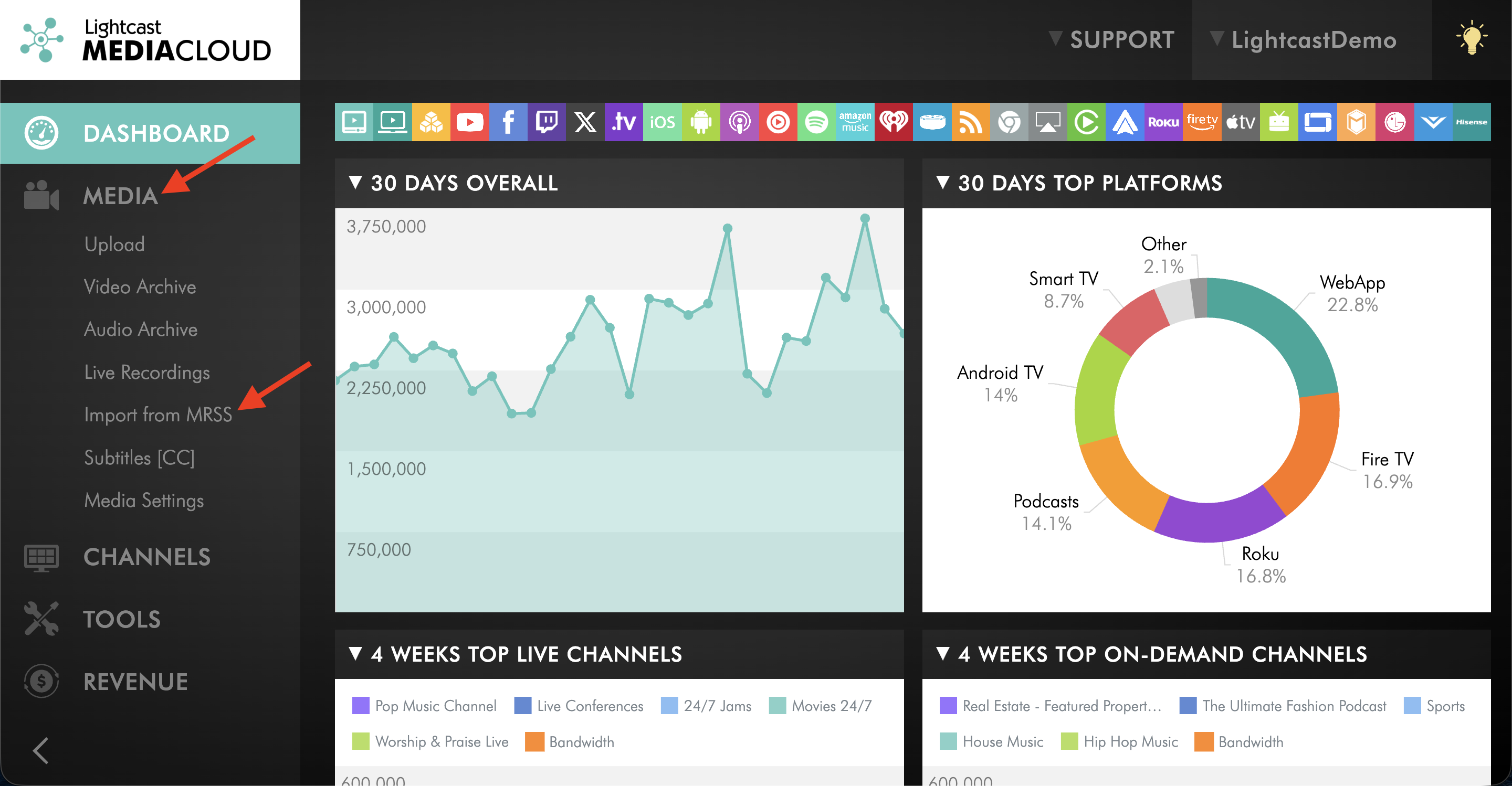
Go to MEDIA and click Import from MRSS.
Step 3
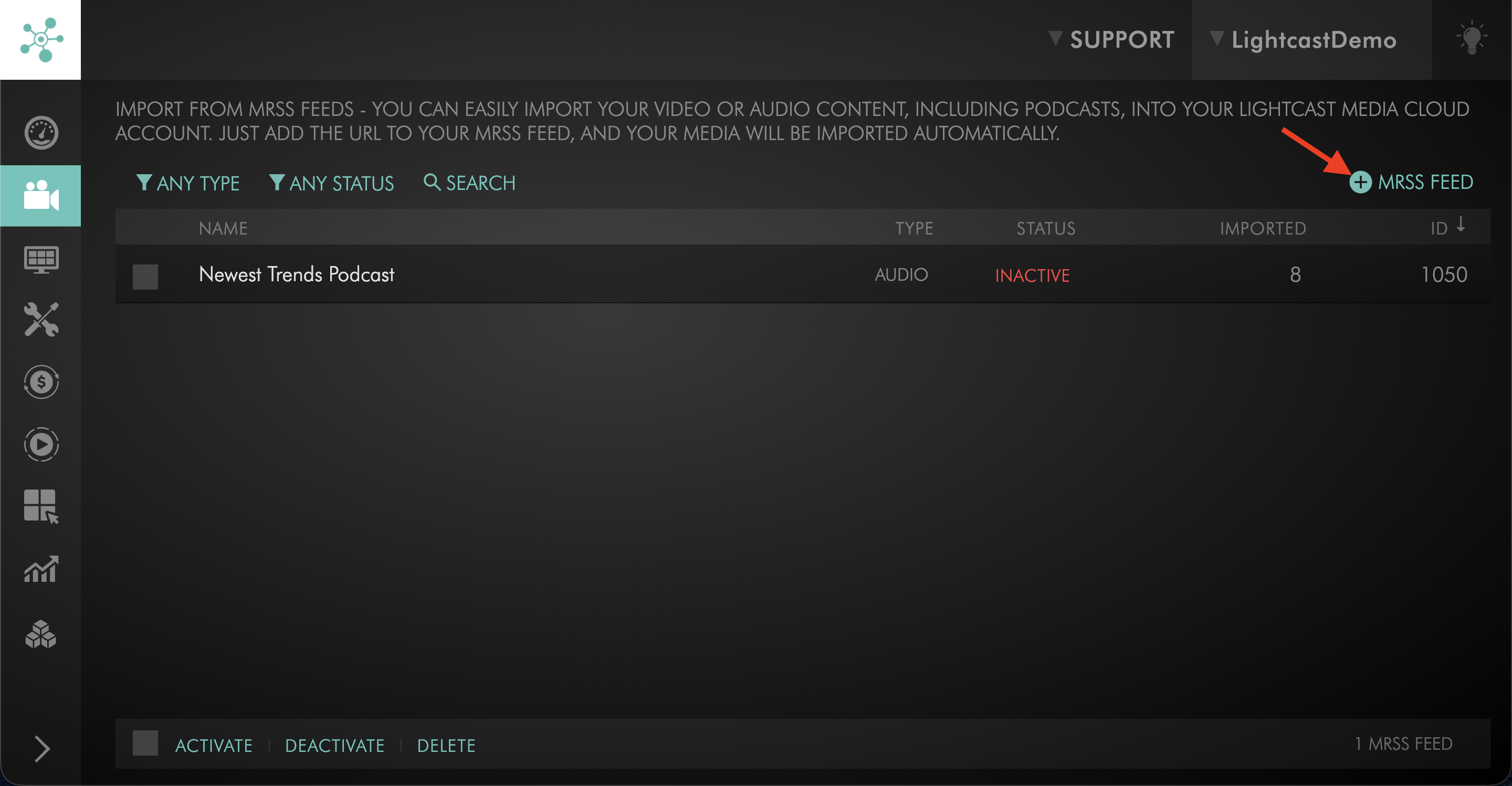
Click + MRSS FEED to add a new feed.
Step 4
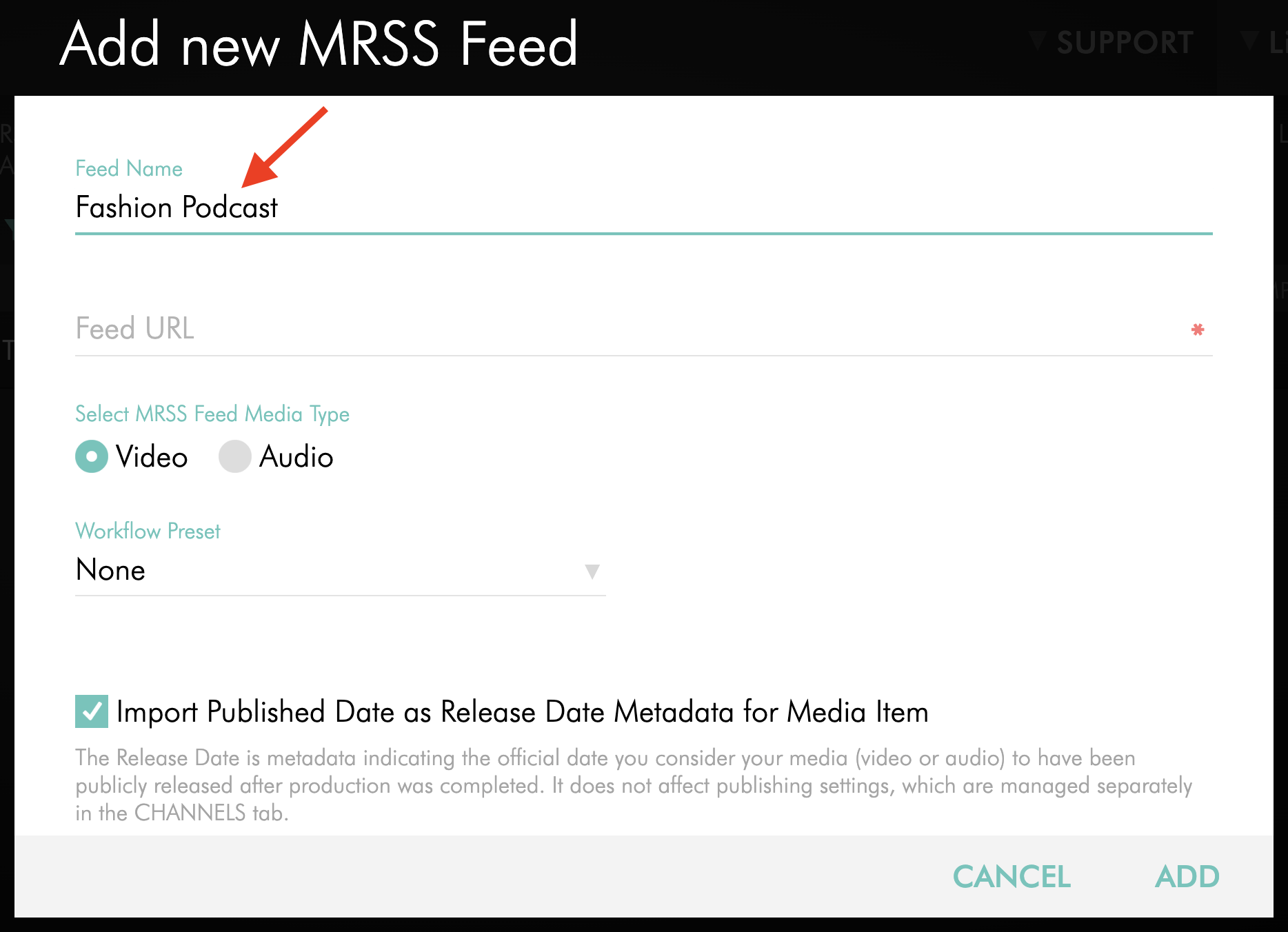
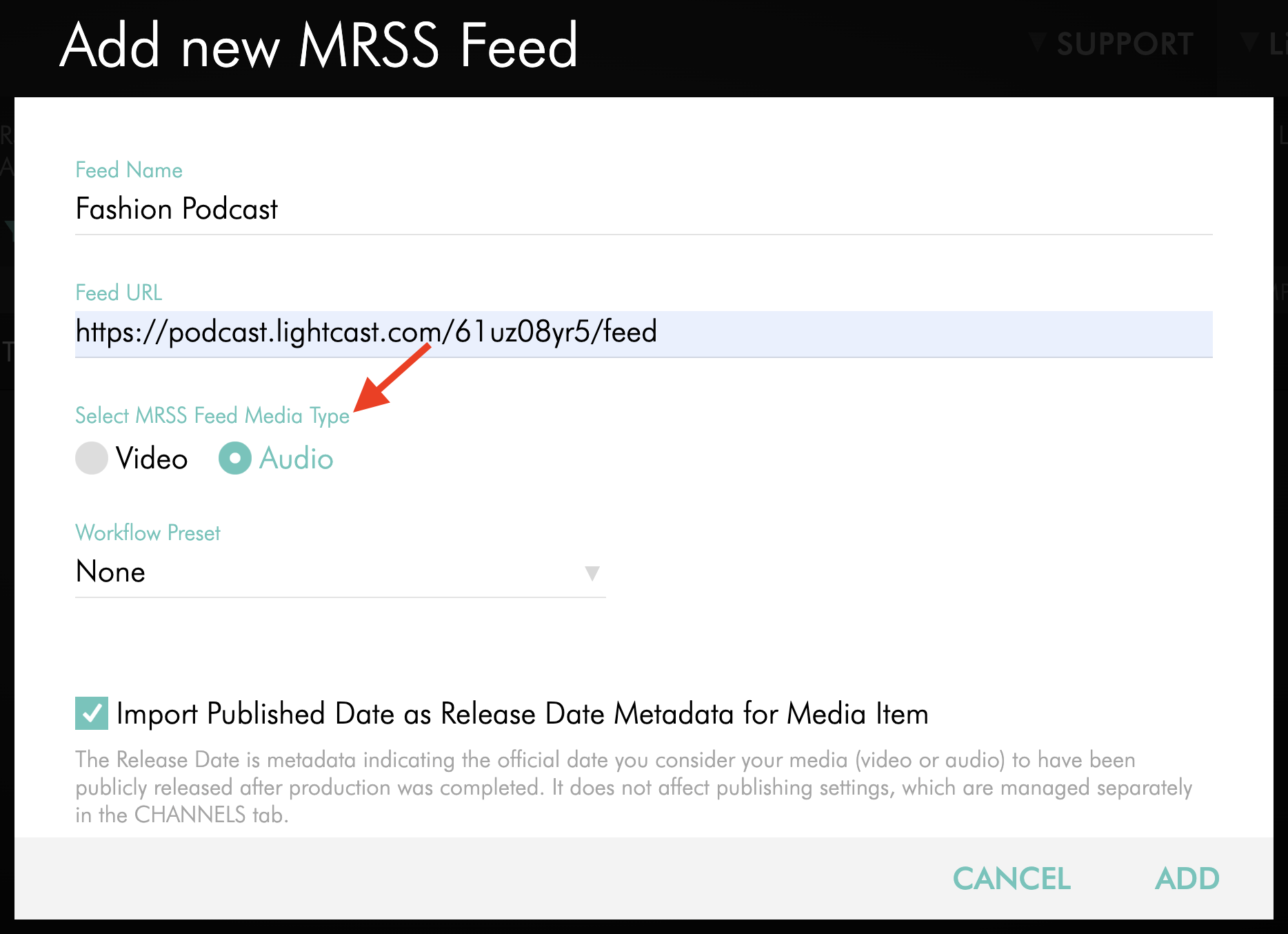
Enter a clear name for the feed so your team can quickly recognize the content that will be imported through this MRSS feed.
For example, you might name your feed based on the content type, destination, or platform.
Step 5
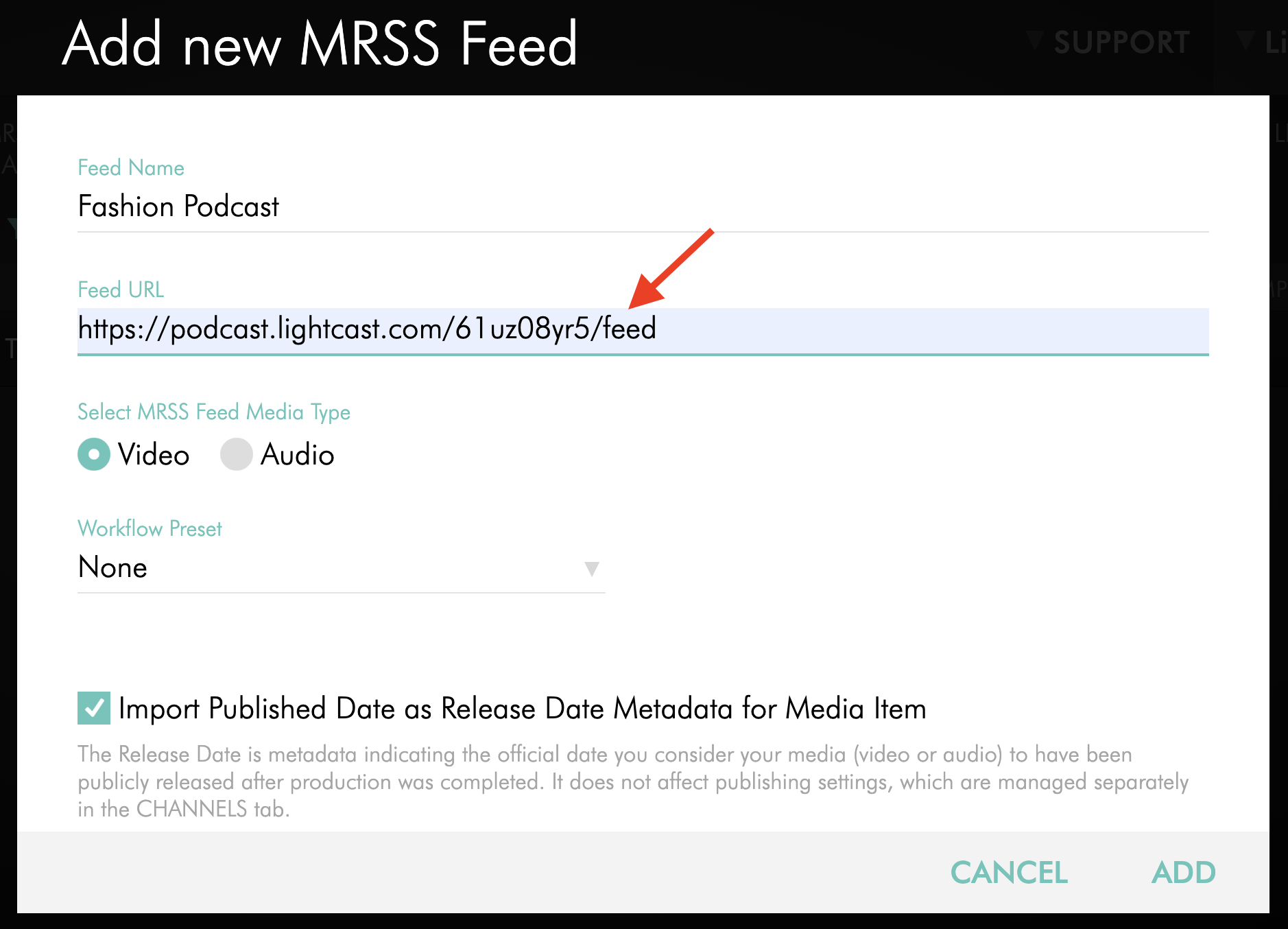
In the Feed URL field, paste the URL of the MRSS feed.
Step 6
Under Select MRSS Feed Media Type:
If this feed contains video uploads, select Video.
If this feed contains audio uploads, select Audio.
Step 7
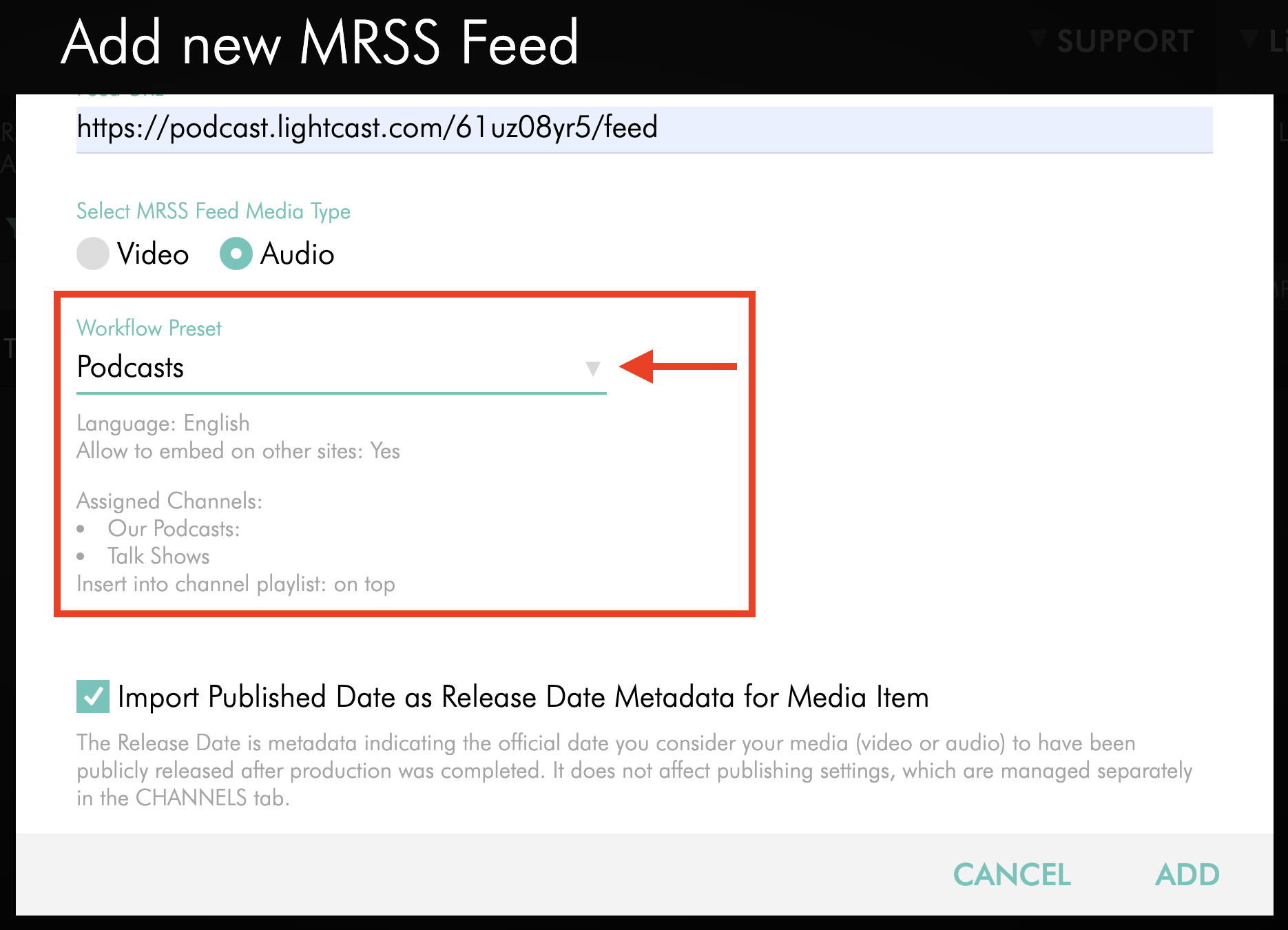
Optional: Select a Workflow Preset to apply during import.
To use a Workflow Preset, it must already be set up in your account. To learn how to create a Workflow Preset, see: How to create Workflow Presets
Step 8
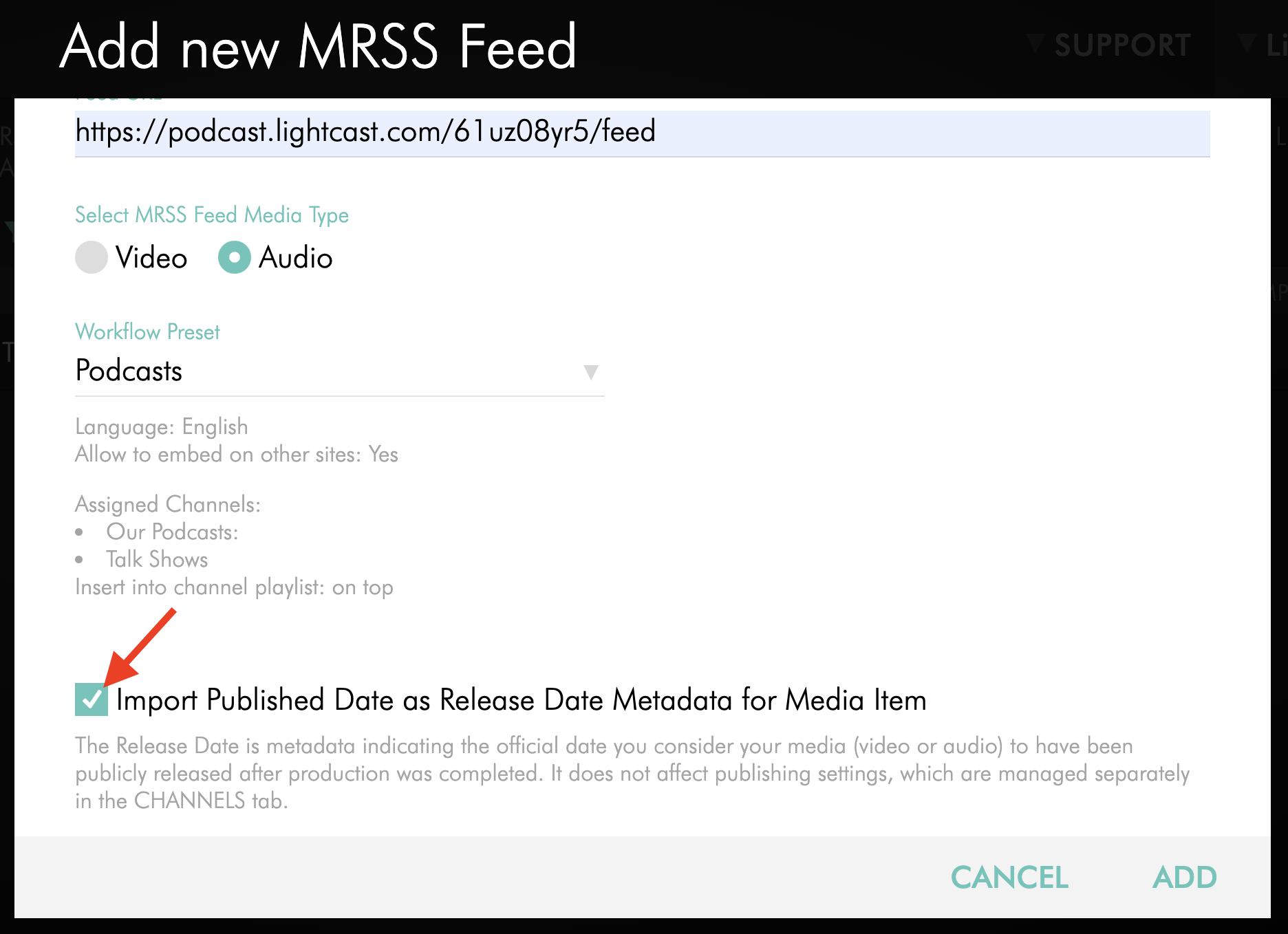
Choose whether to import the Published Date as the Release Date for the media items in this MRSS feed.
Step 9
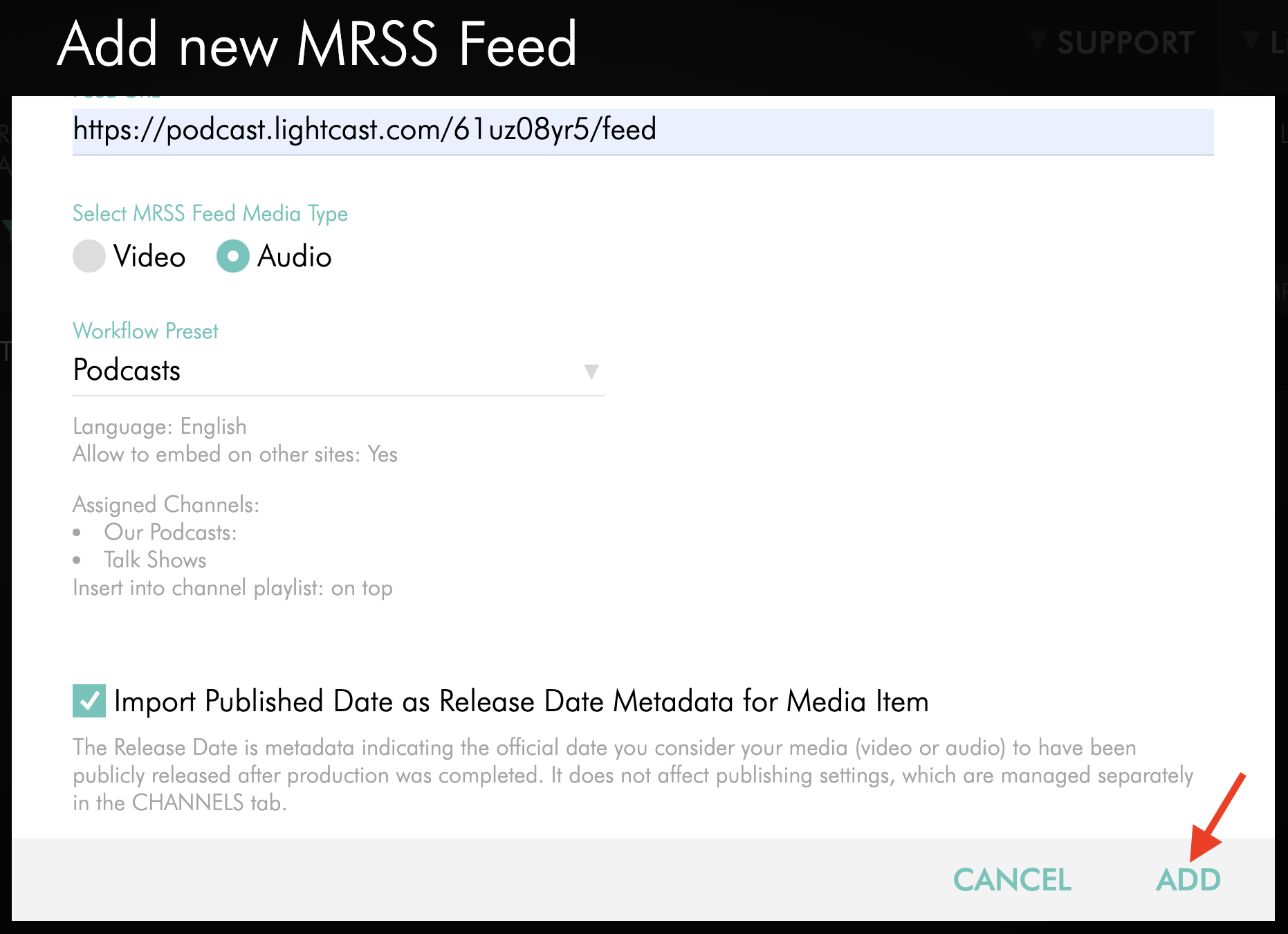
Click ADD to activate the feed when you are ready for the Media Cloud to begin importing content.
Step 10
Monitor the feed to track how many files have been imported.
FAQs
What is the file size limit for the MRSS Import Tool?
The MRSS Import Tool supports files up to 25 GB per file.
How often does the MRSS Import Tool check for new content?
The Media Cloud checks connected MRSS feeds every 15 minutes for new content.
What metadata can be imported from an MRSS feed?
The MRSS Import Tool can import metadata such as titles, descriptions, and keywords.
Can I manage MRSS feeds myself in the Media Cloud?
Yes. You can view, add, edit, activate, and deactivate MRSS feeds directly in the Media Cloud.
Will my existing MRSS feeds still appear in the new tool?
Yes. If your account previously had MRSS imports configured, those feeds automatically appear in the new tool.
Can I apply a Workflow Preset during MRSS import?
Yes. Workflow Presets must already be created in your account before you can select one during MRSS import.