
How to upload files using the FTP Uploader
Overview
This article explains how to upload video and audio files using the FTP Uploader in the Media Cloud.
The FTP Uploader allows you to transfer files into the Media Cloud using either a Remote FTP Server or a Lightcast FTP Account.
When to use the FTP Uploader
Use the FTP Uploader when:
you need to upload files larger than 4 GB
you are uploading a large number of files
your media files are already stored in an FTP account
you want to transfer content into the Media Cloud without uploading directly from your computer
The FTP Uploader supports video and audio uploads up to 25 GB per file.
How it works
The FTP Uploader lets you import files from either a connected Remote FTP Server or a Lightcast FTP Account. Both options support video and audio uploads up to 25 GB per file.
All users can use the Remote FTP Server option. A Lightcast FTP Account is available for accounts that already have Lightcast FTP enabled. If your account does not already have Lightcast FTP enabled, you can request one through the Media Cloud.
With the Remote FTP Server, users connect an FTP account to the Media Cloud and upload files from that connected account. Sub-users share the same connected FTP account as the main user, so if the main user changes the connected FTP account, the sub-user connection is updated automatically as well. Remote FTP also supports browsing files in subfolders, and the connected FTP account can be edited or disconnected as needed.
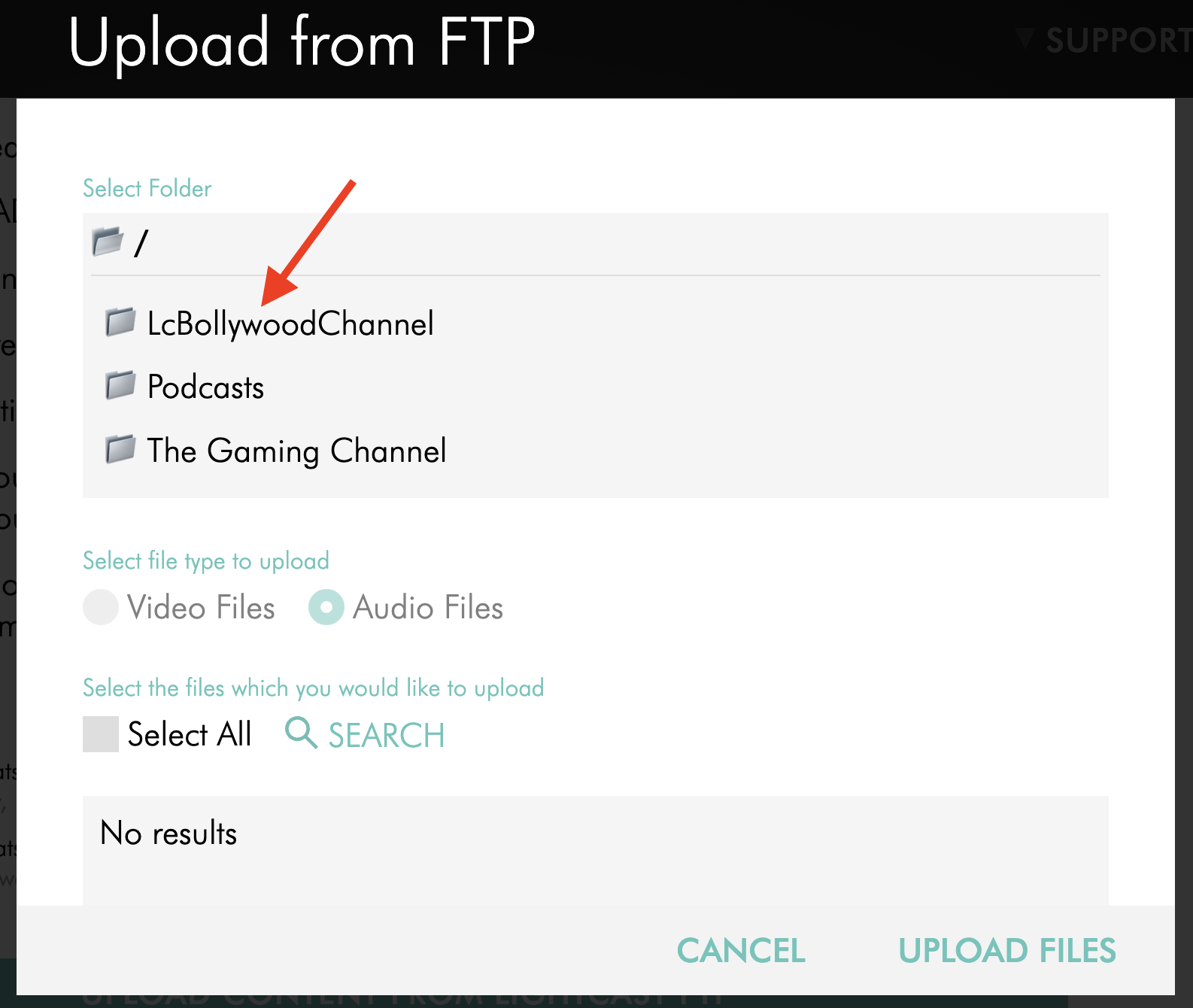
With the Lightcast FTP Account, users upload files to their Lightcast FTP account first, then select those files in the Media Cloud for upload. Users can upload files to the root folder or to subfolders they create in their Lightcast FTP account to keep files organized. Those subfolders can be browsed in the Lightcast FTP upload pop-up.
In both FTP upload workflows, users can apply upload settings such as Workflow Presets, Channel assignments, and Watermarks. For the Remote FTP Server, files are deleted only if the user selects the delete option and confirms it. For the Lightcast FTP Account, files are automatically deleted from both the FTP client and the FTP upload pop-up after they are uploaded.
Your ability to upload content depends on your account’s available Storage and Transcoding. If your remaining balance is too low, uploads may be limited, and you may see an upload warning. Because Storage and Transcoding usage are estimated, balances may also go into the negative in some cases.
To learn more, see:
Instructions
Upload files using Remote FTP Server
Step 1
Log in to your Media Cloud account.
Step 2
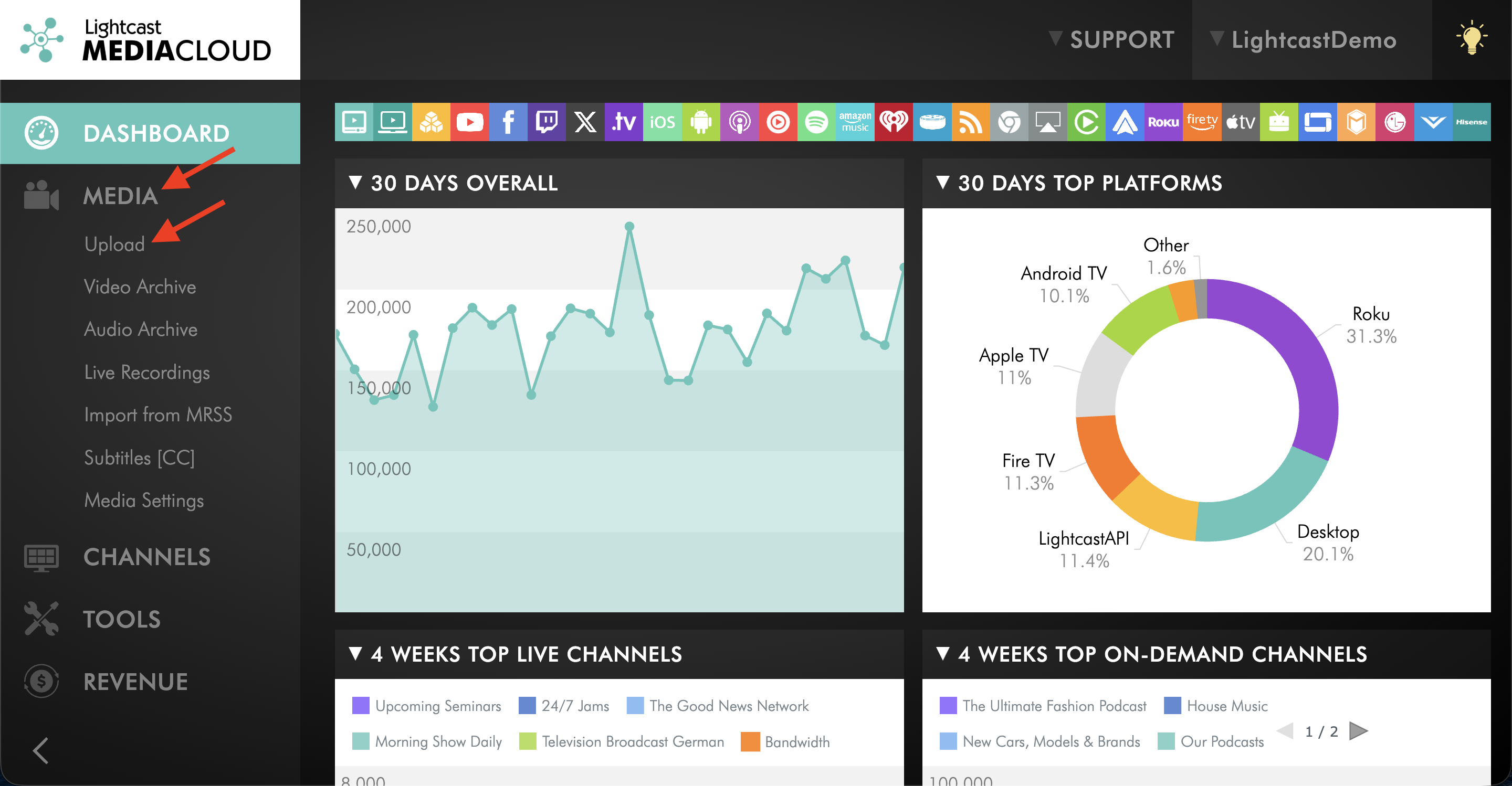
Go to MEDIA and click Upload.
Step 3
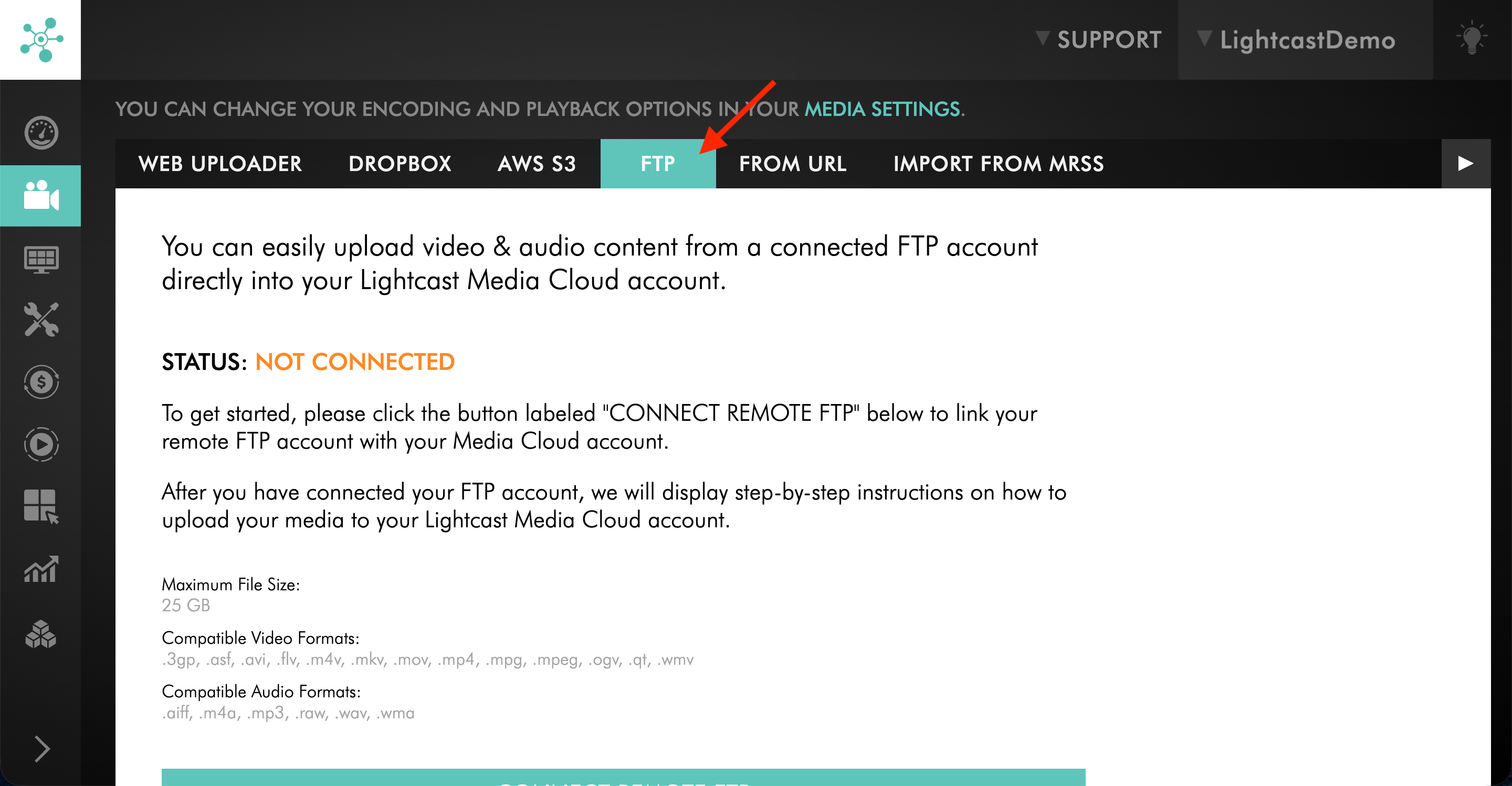
Click the FTP tab.
Step 4
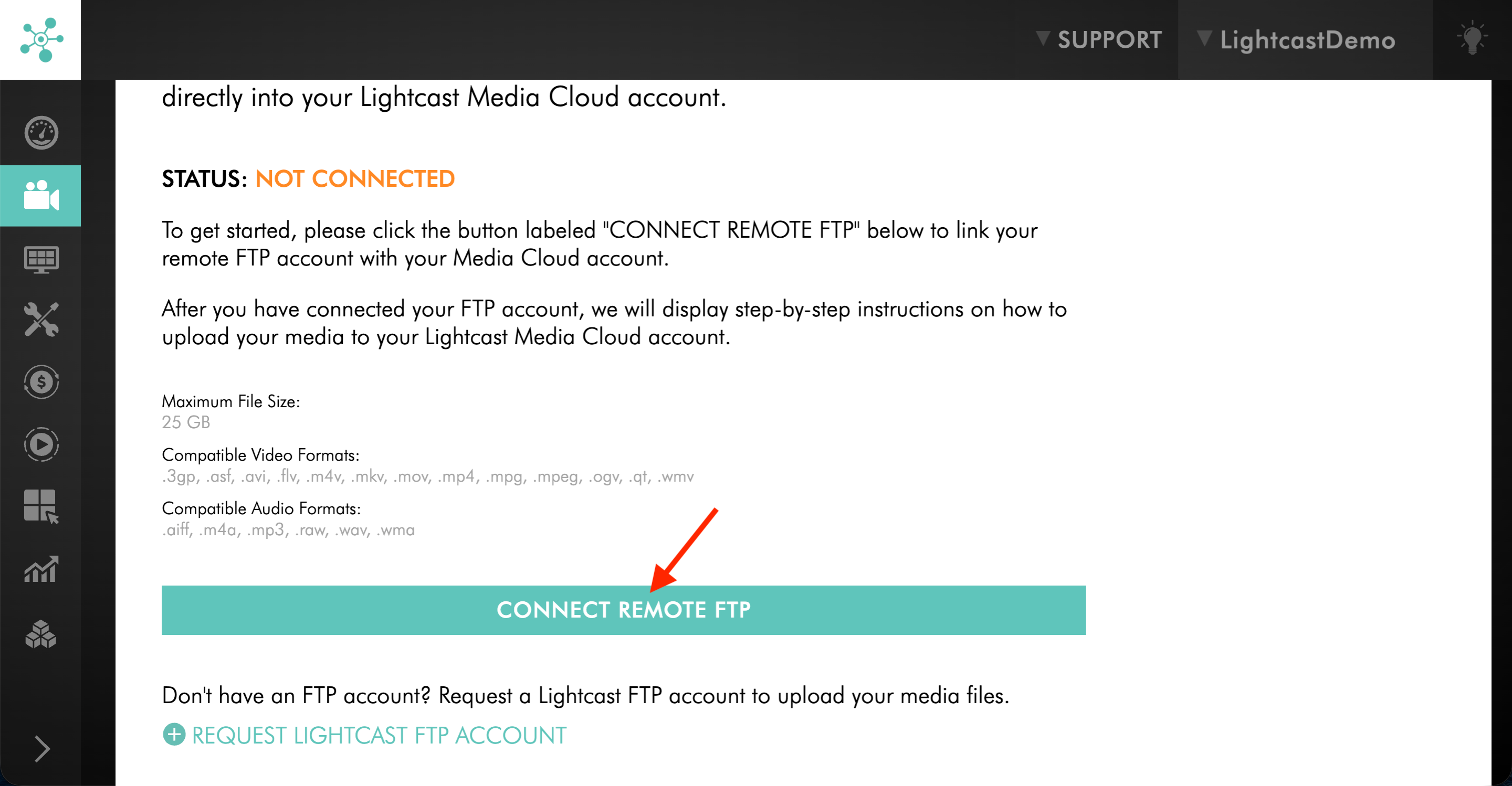
If your Remote FTP connection is already set up, select Remote FTP Server and then proceed to Step 6.
If you need to connect your Remote FTP Server, select Remote FTP Server, then click CONNECT REMOTE FTP.
Step 5
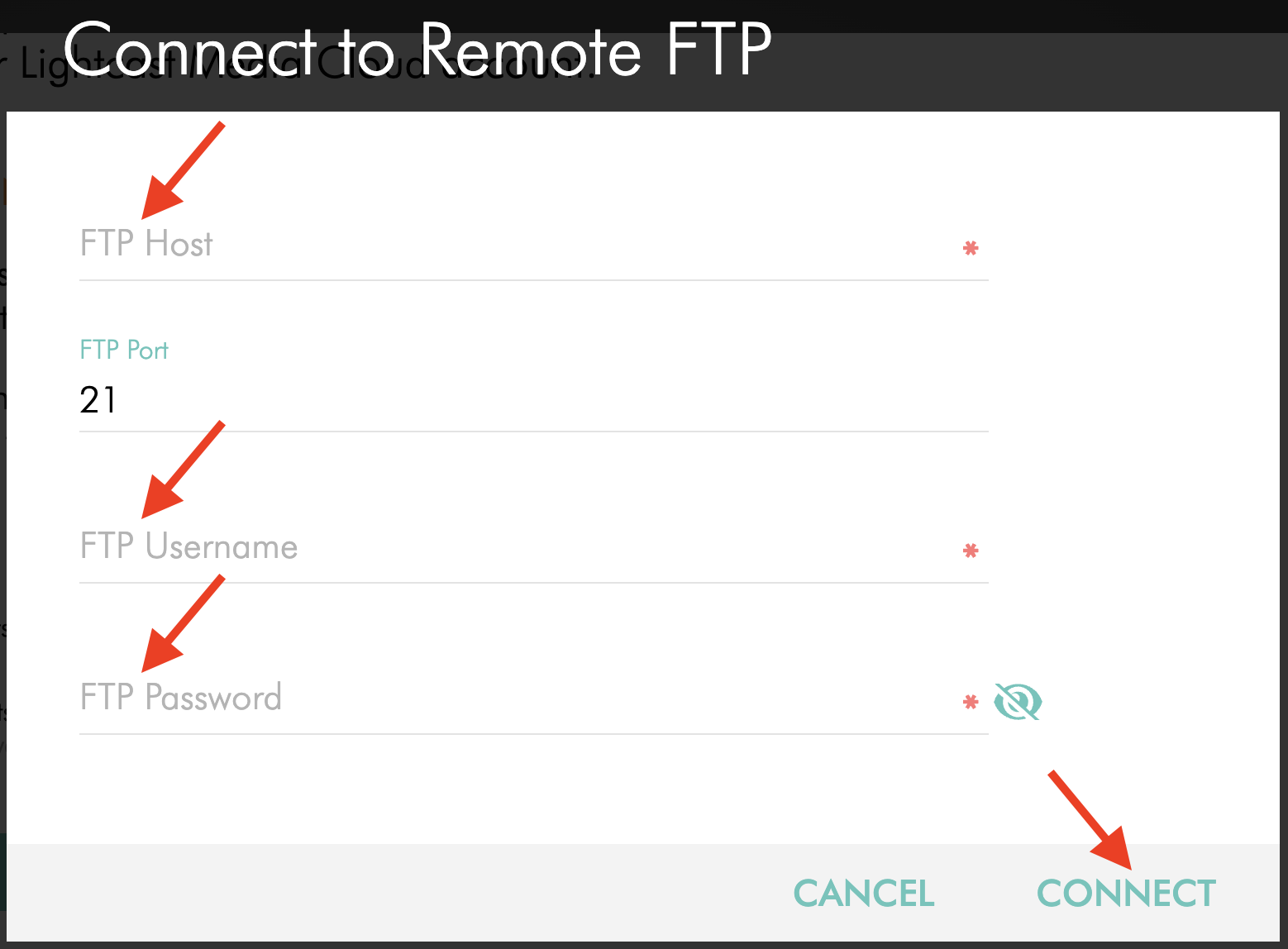
Enter your FTP account details (FTP Host, FTP Username, and FTP Password), then click CONNECT.
Step 6
Once the connection is complete, click UPLOAD CONTENT FROM REMOTE FTP.
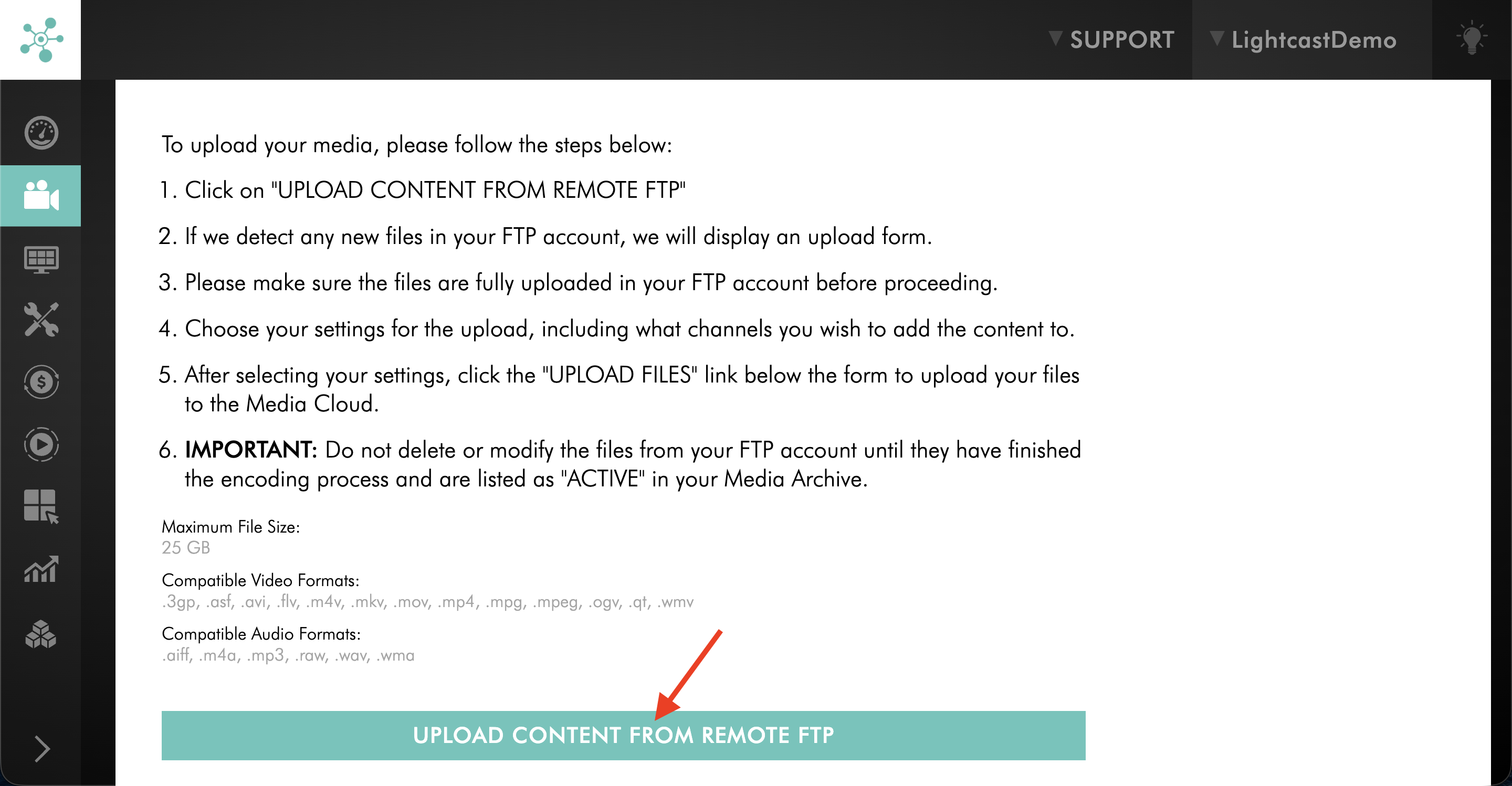
Step 7
Select the folder or sub-folder that contains the content you want to upload.
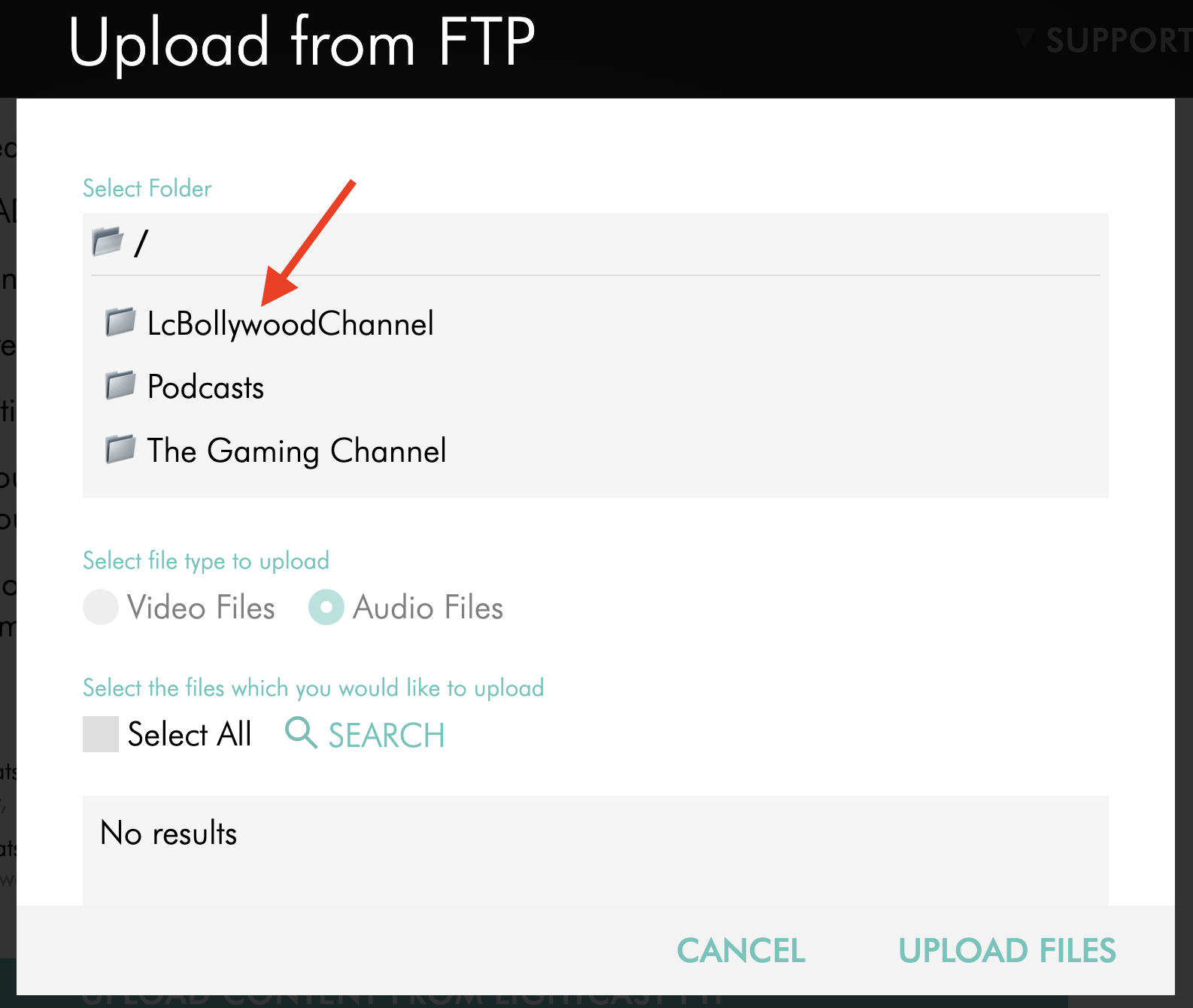
Step 8
Select the file or files you want to upload.
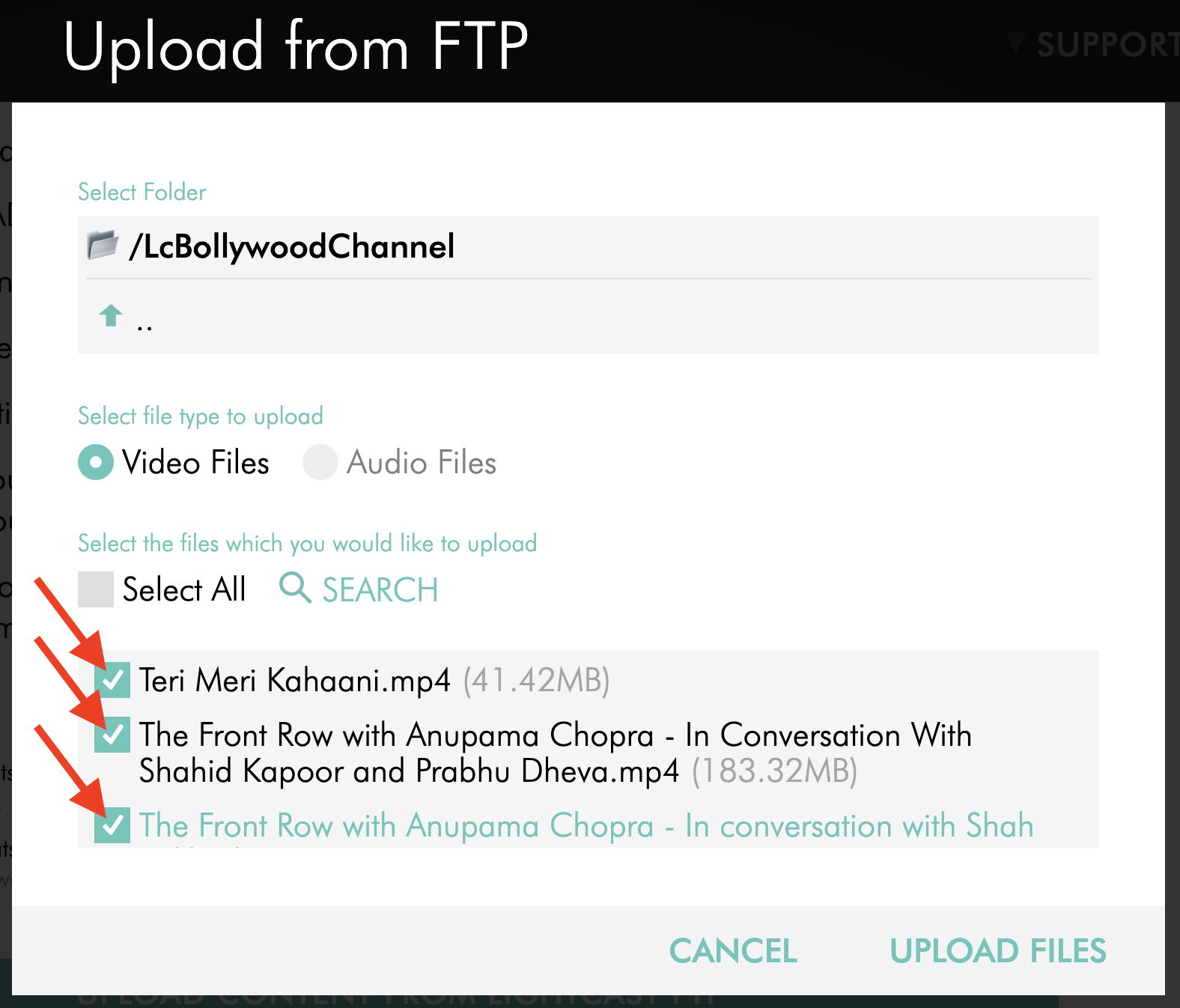
Step 9
Optional: Select a Workflow Preset.
To learn how to create a Workflow Preset, see: How to create Workflow Presets
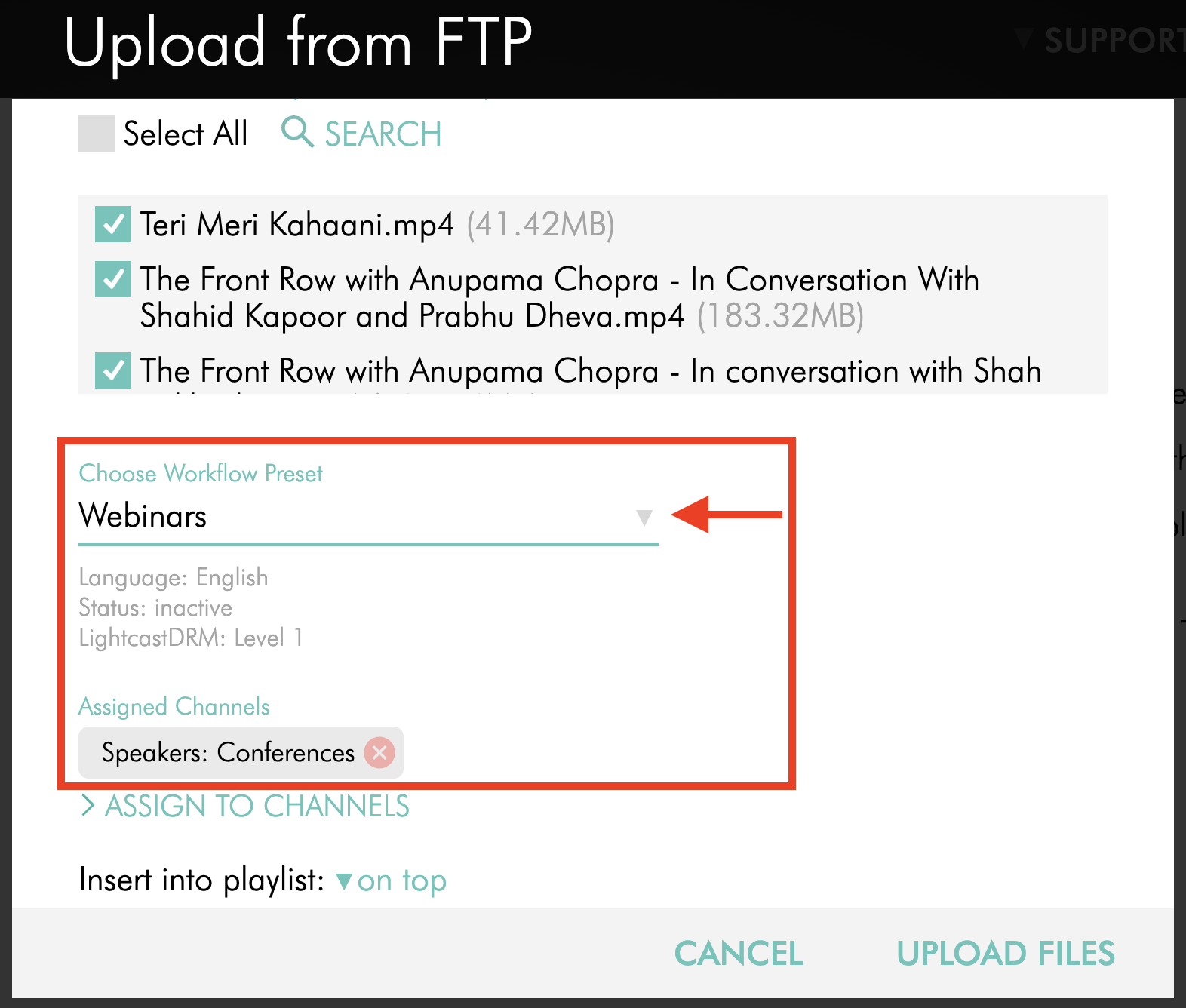
Step 10
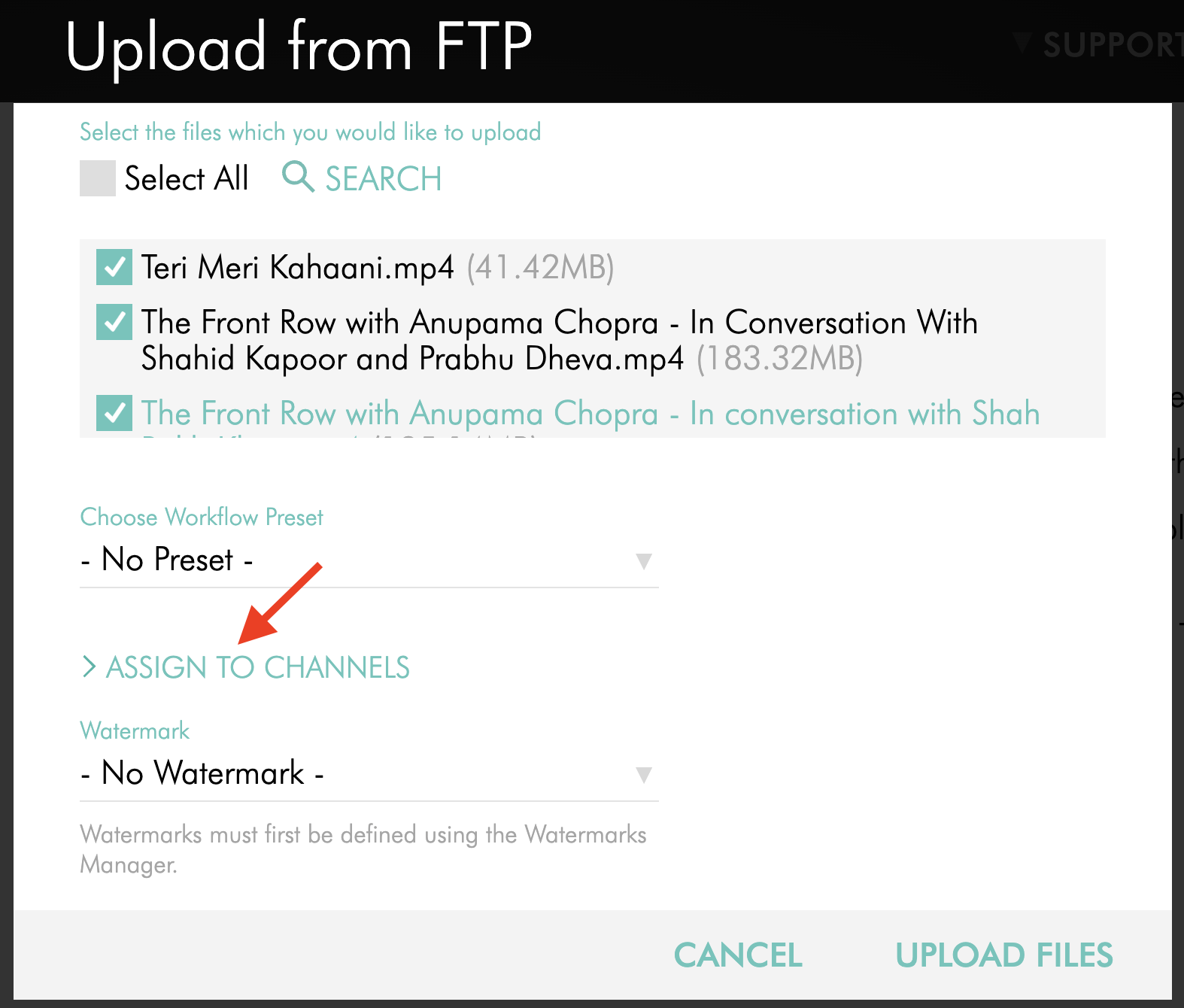
If you are not using a Workflow Preset, click ASSIGN TO CHANNELS to open the Channel assignment window.
Step 11
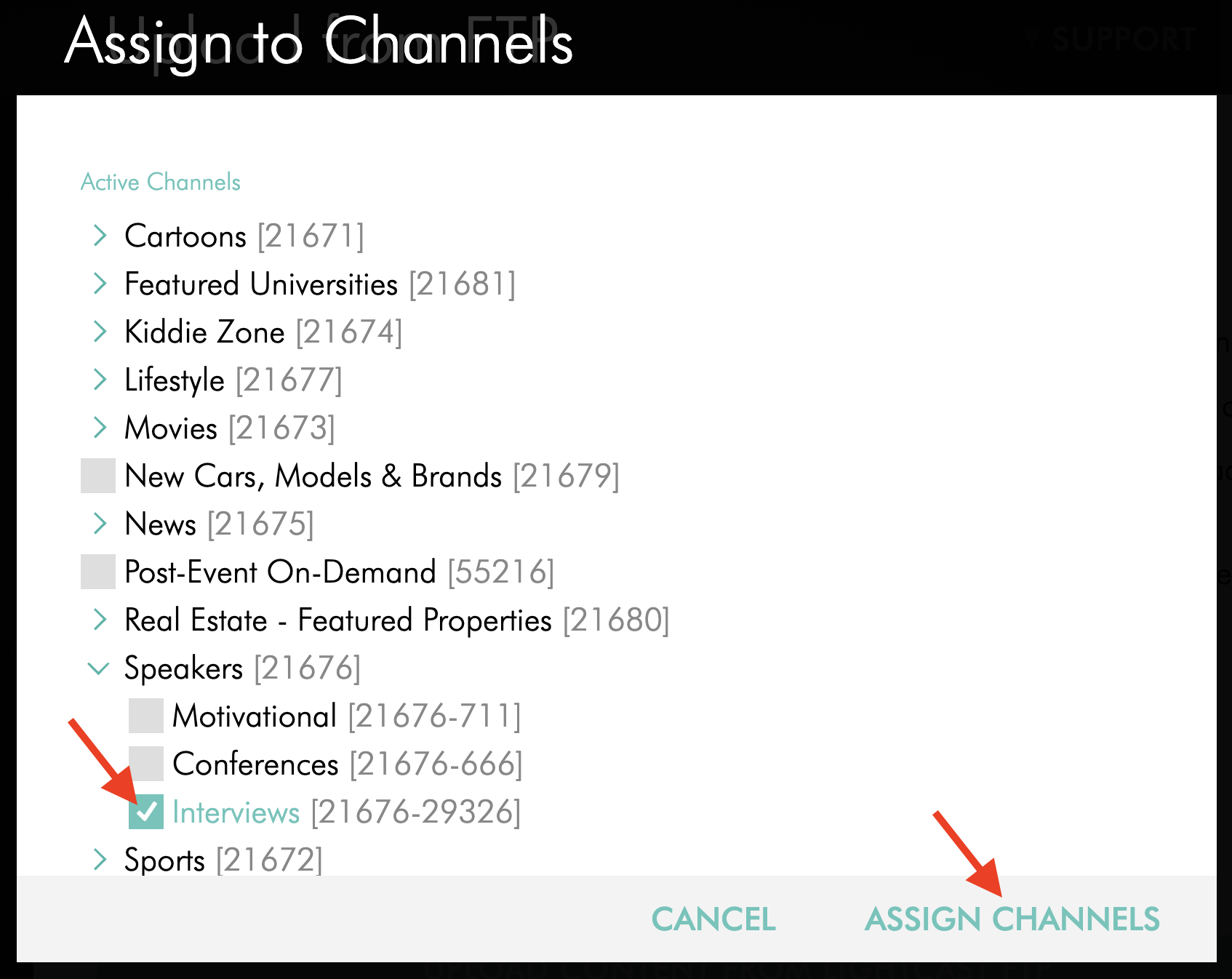
In the Assign to Channels pop-up window, select the checkbox next to the Channel or Sub-Channel you want to use, then click ASSIGN CHANNELS.
Step 12
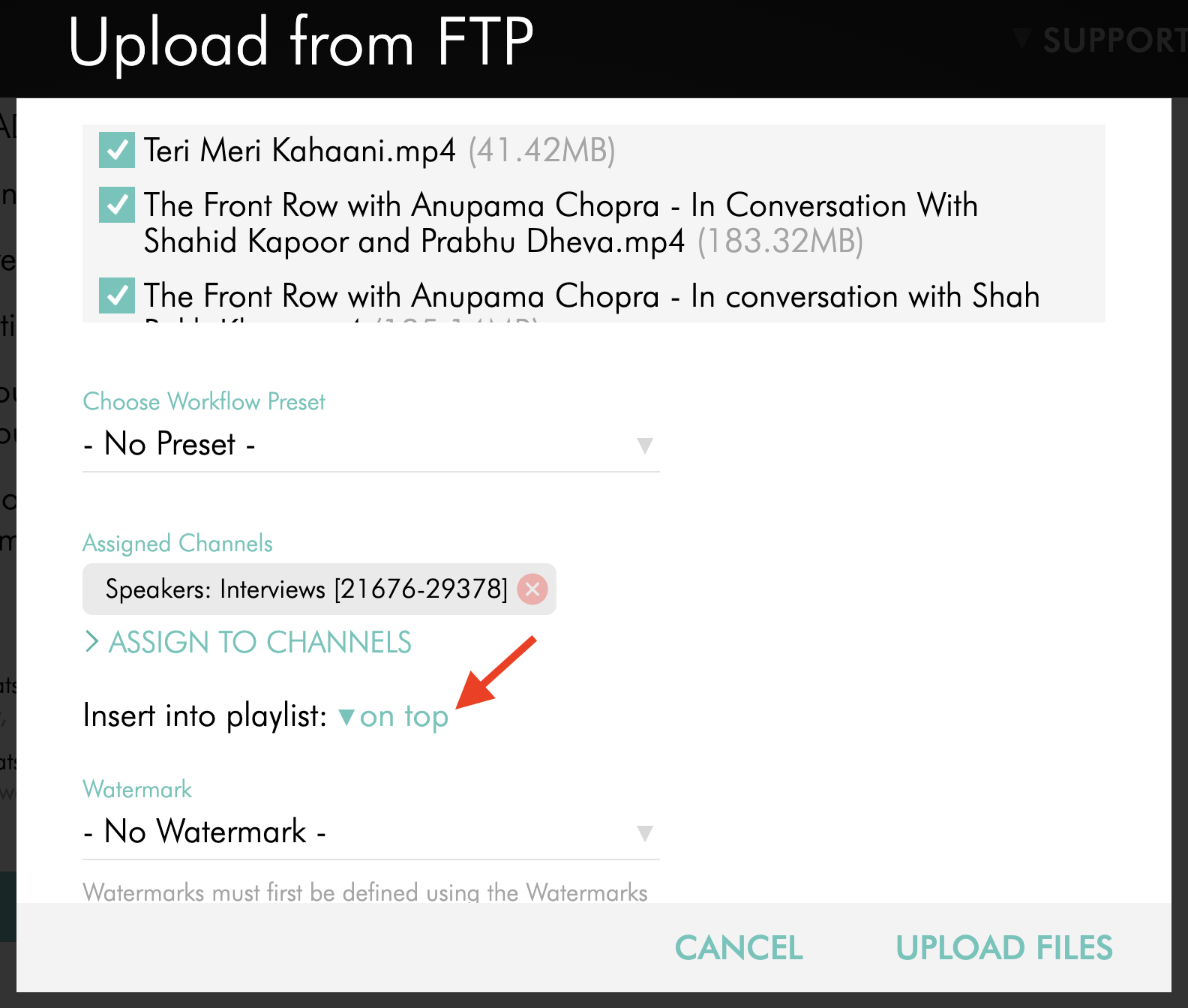
Select the playlist position for the uploaded content:
on top places the content at the beginning of the Channel or Sub-Channel playlist
at the bottom places the content at the end of the Channel or Sub-Channel playlist
Step 13
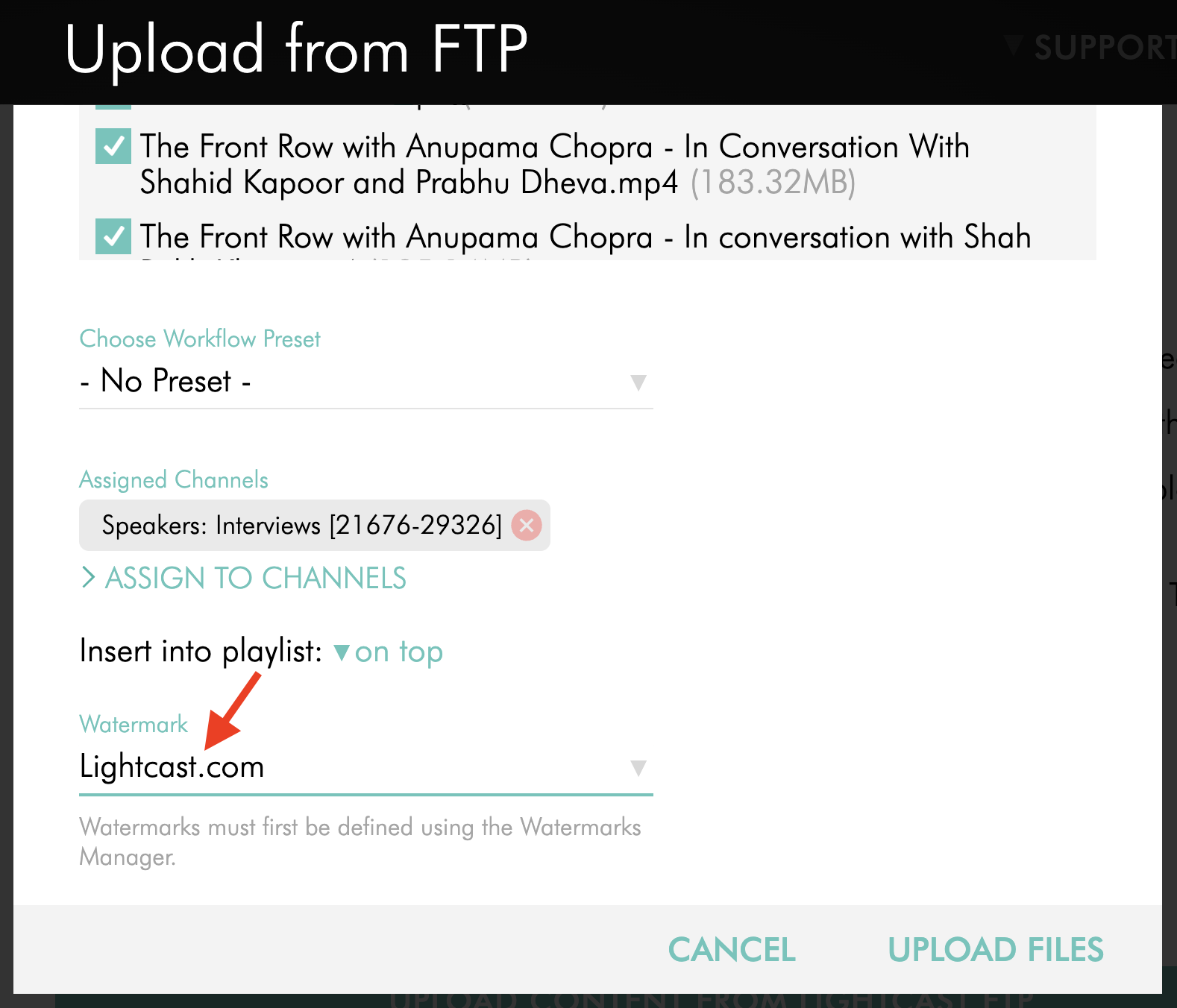
Optional: If you are uploading a video file, select a Watermark to apply during encoding.
To learn how to create a Watermark, see: How to add a Watermark
Step 14
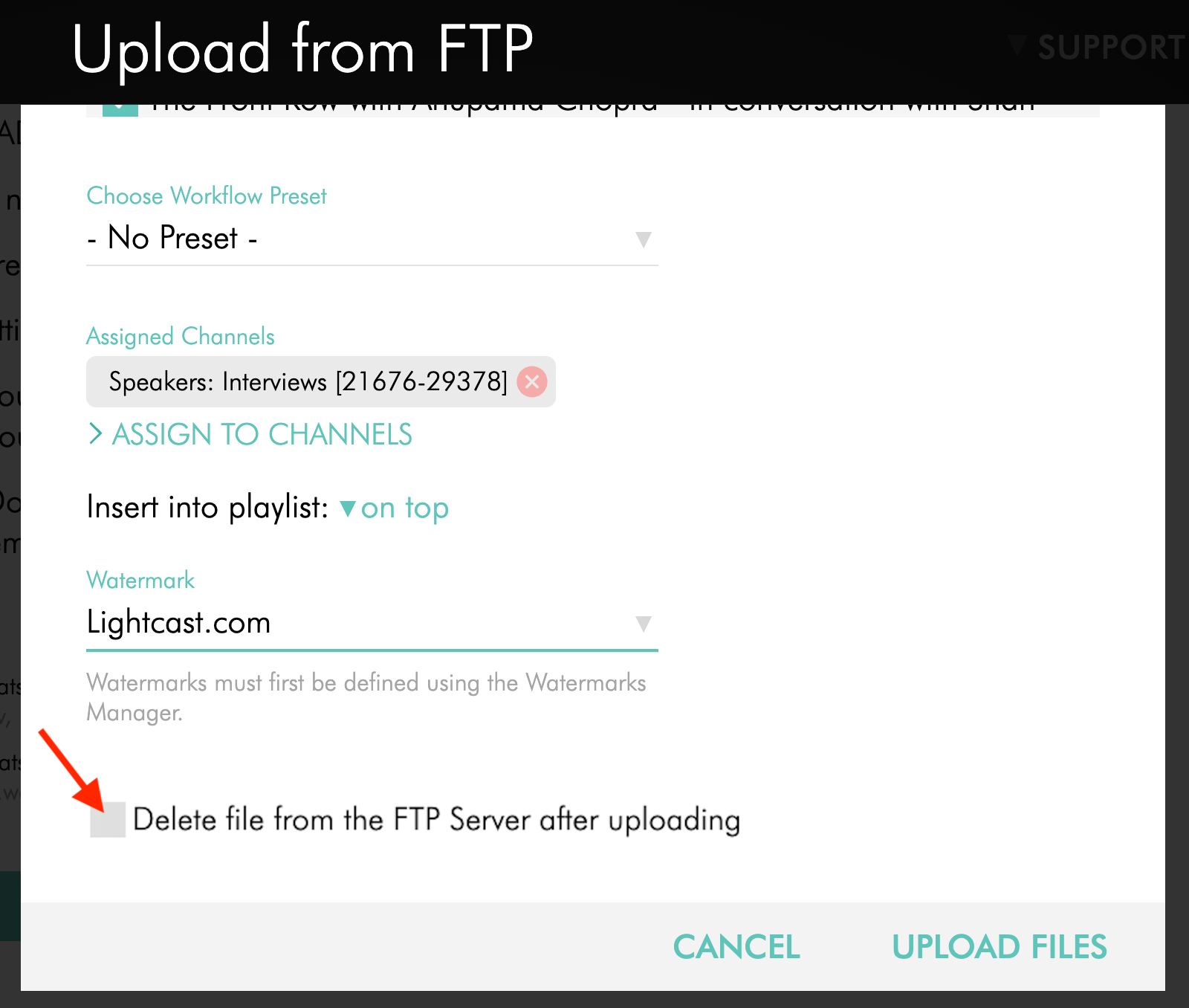
Optional: Select Delete file from the FTP Server after uploading if you want the selected files to be removed from the connected FTP server after the upload is verified.
The Media Cloud will ask you to confirm this action before continuing.
Step 15
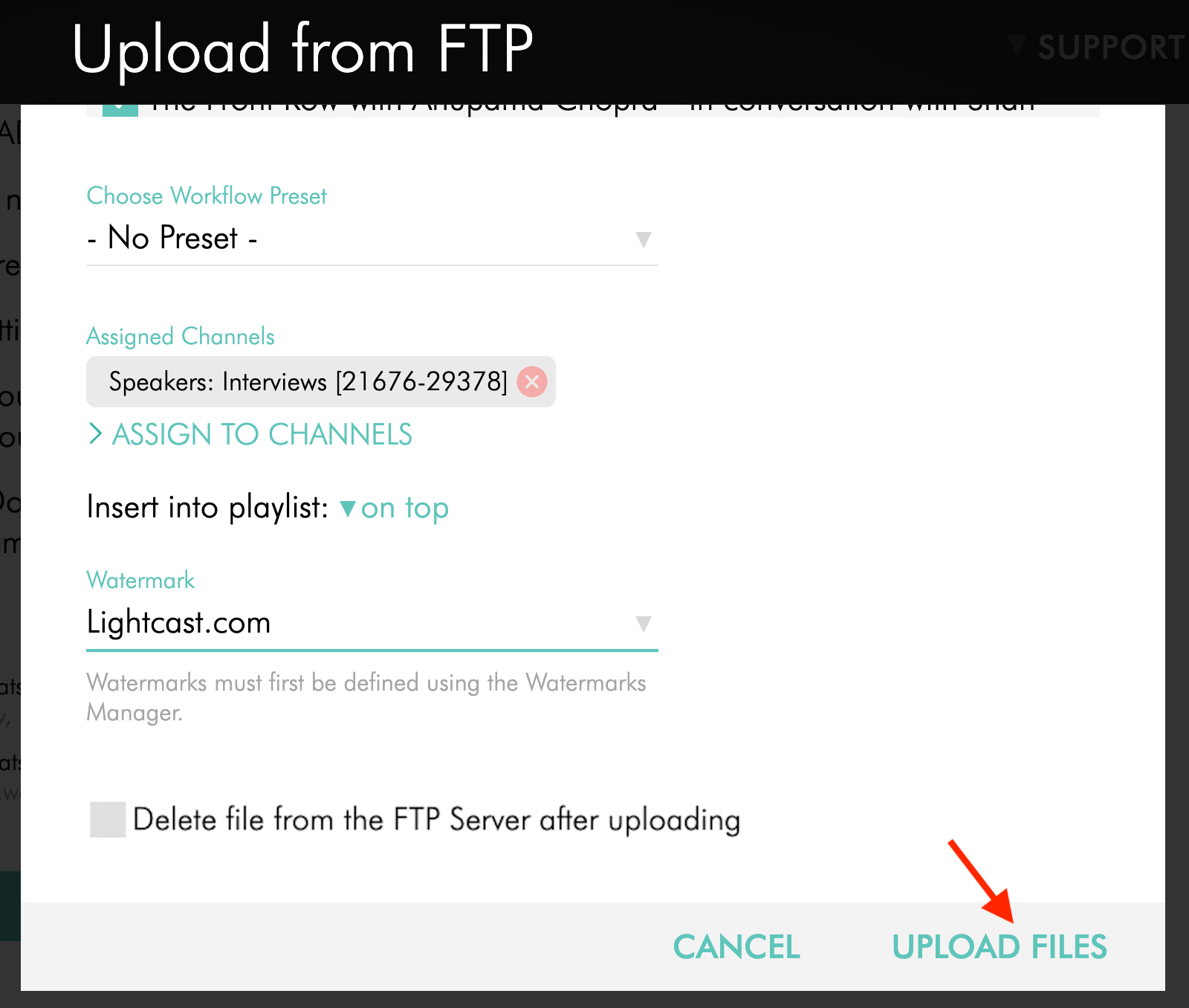
Click UPLOAD FILES to upload the selected files into the Media Cloud.
Upload files using Lightcast FTP Account
Step 1
Log in to your Media Cloud account.
Step 2
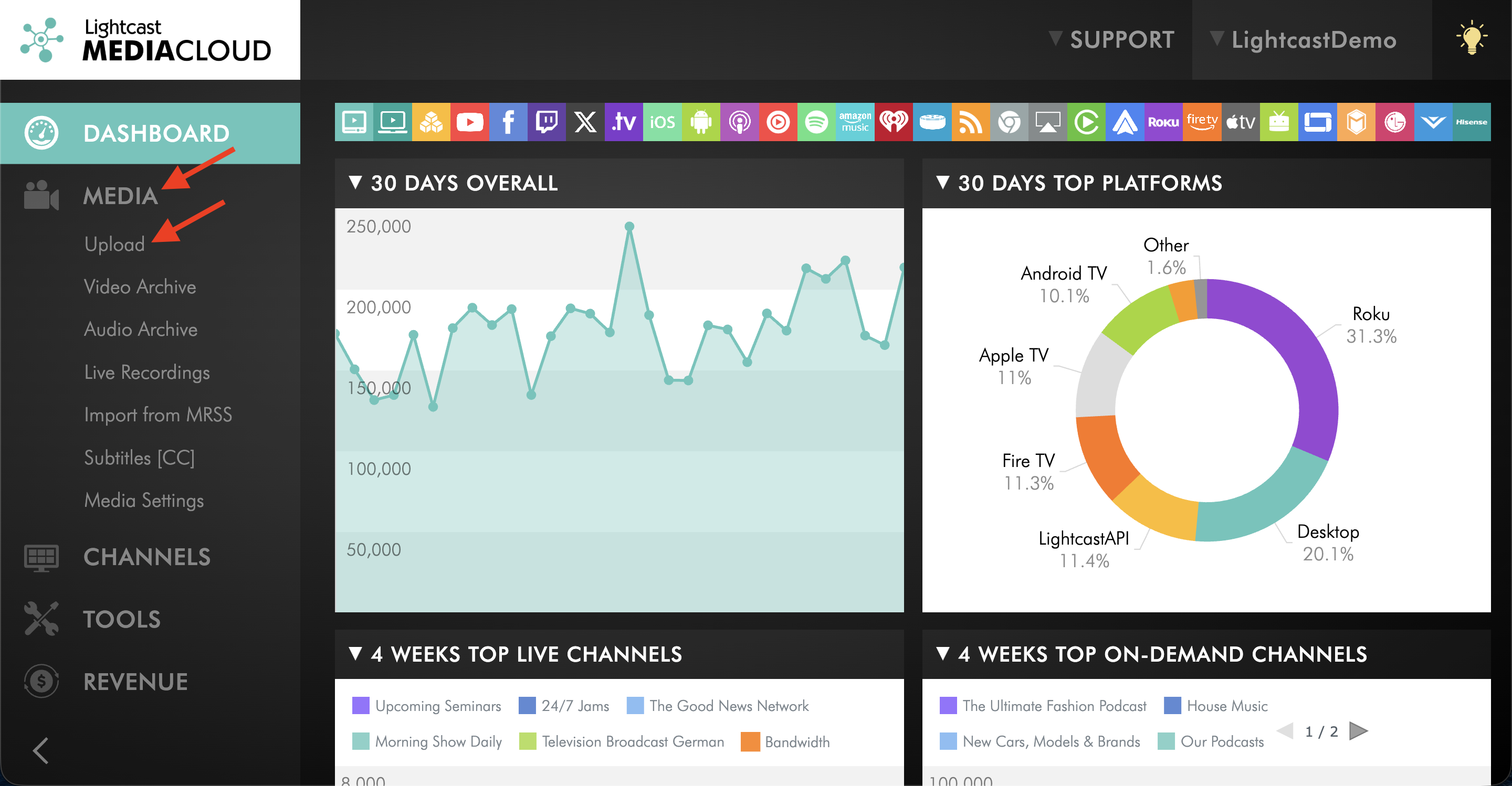
Go to MEDIA and click Upload.
Step 3
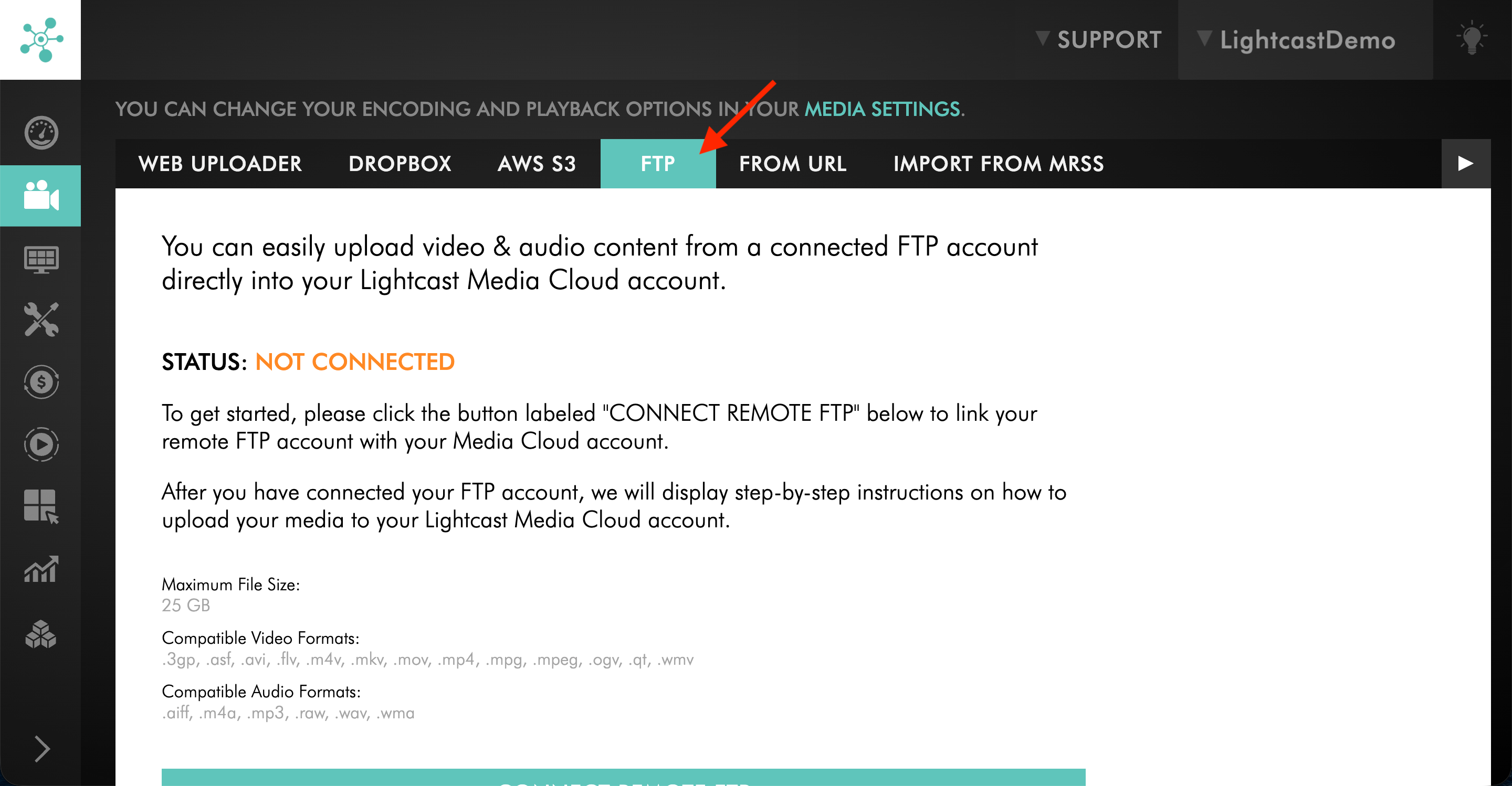
Click the FTP tab.
Step 4
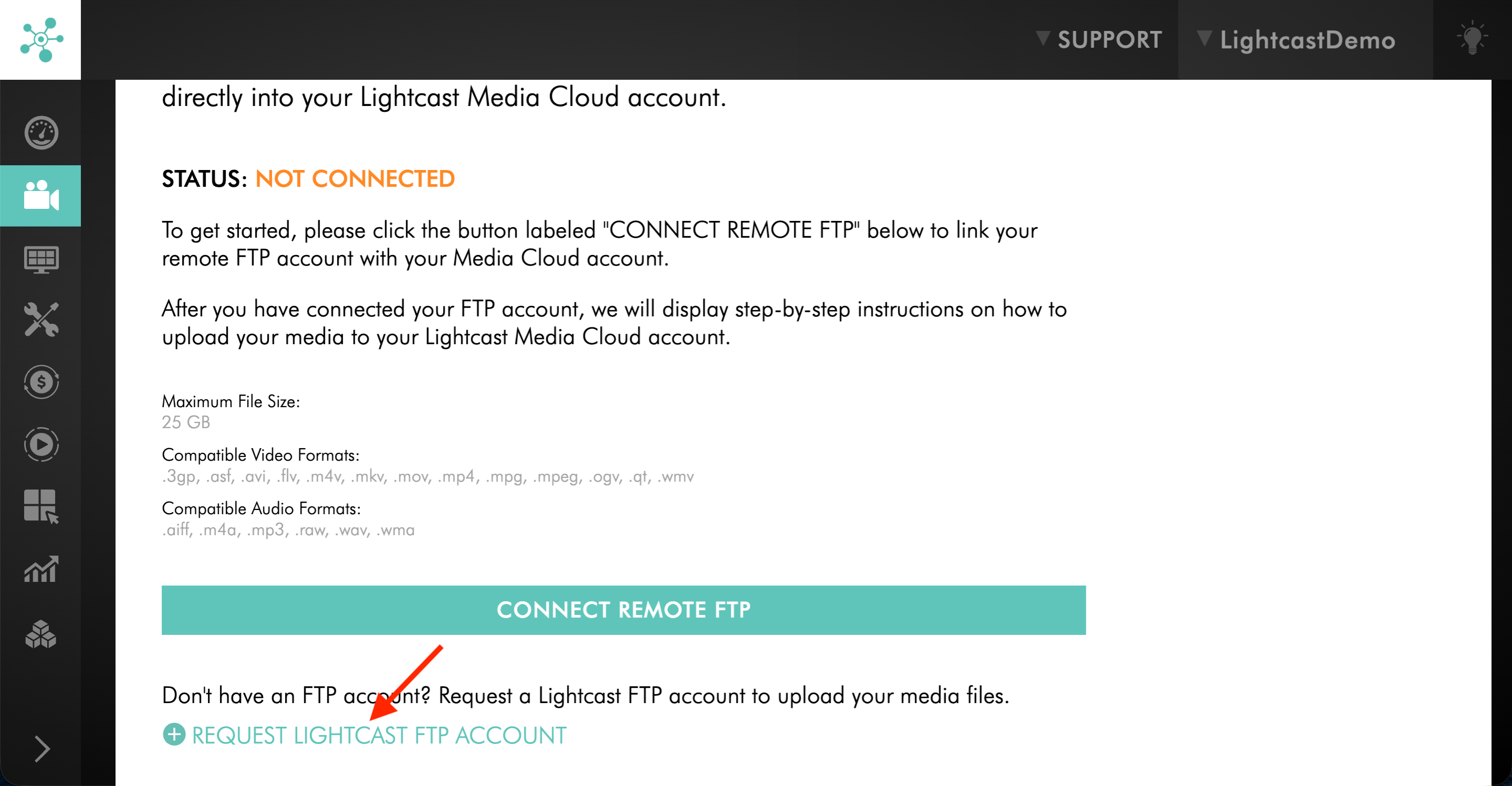
If your Lightcast FTP Account is already set up, select Lightcast FTP Account and then proceed to Step 6.
If you need a Lightcast FTP Account, click REQUEST LIGHTCAST FTP ACCOUNT so Customer Support can set up the account for you.
Step 5
If you requested a Lightcast FTP Account, wait until Customer Support confirms that your account has been set up before continuing.
Step 6
Upload your media files to your Lightcast FTP account. You can place them in the root folder or in subfolders you create.
Step 7
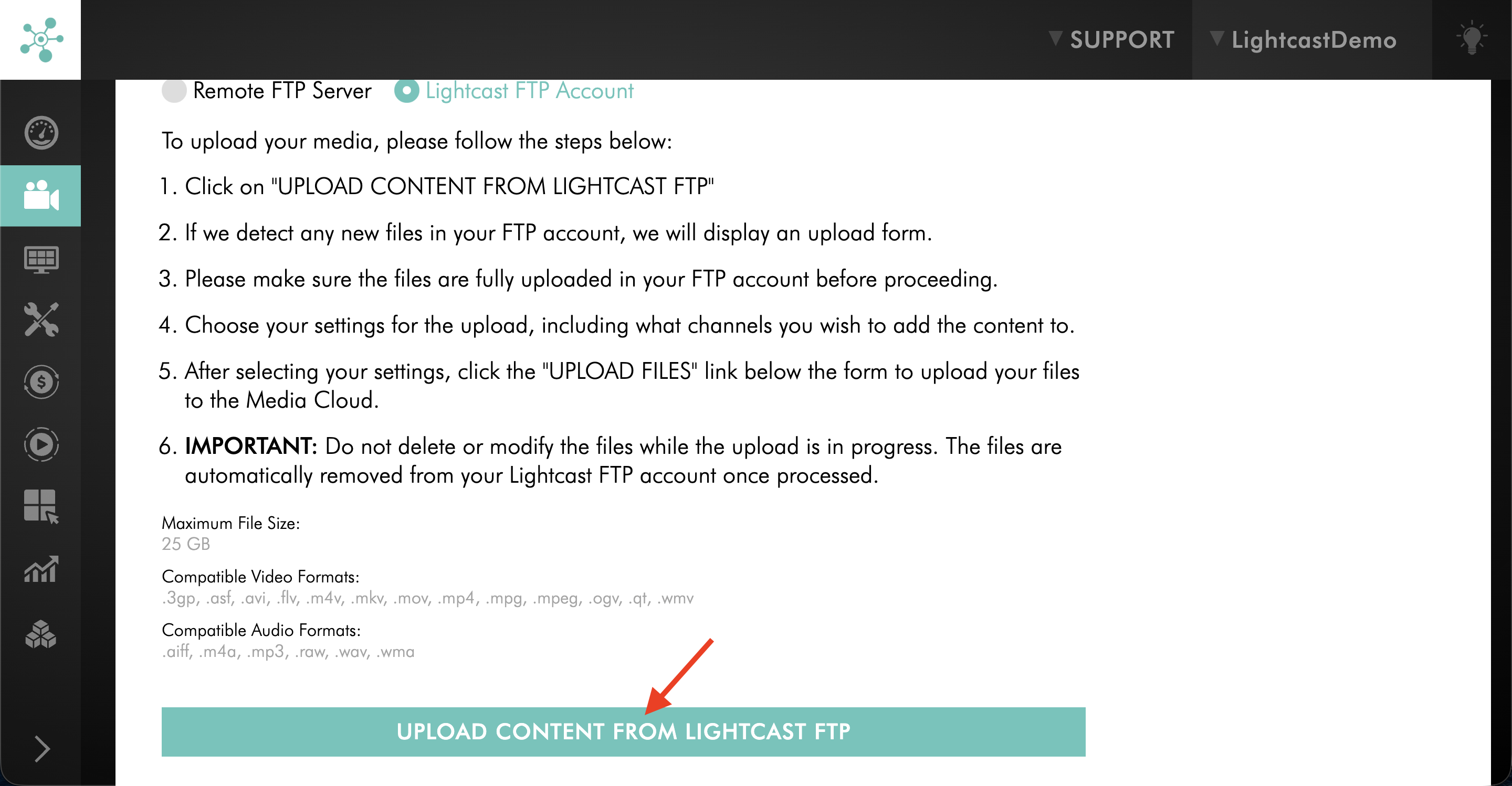
In the Media Cloud FTP Uploader, click UPLOAD CONTENT FROM LIGHTCAST FTP.
Step 8
Select the folder or sub-folder that contains the content you want to upload.
Step 9
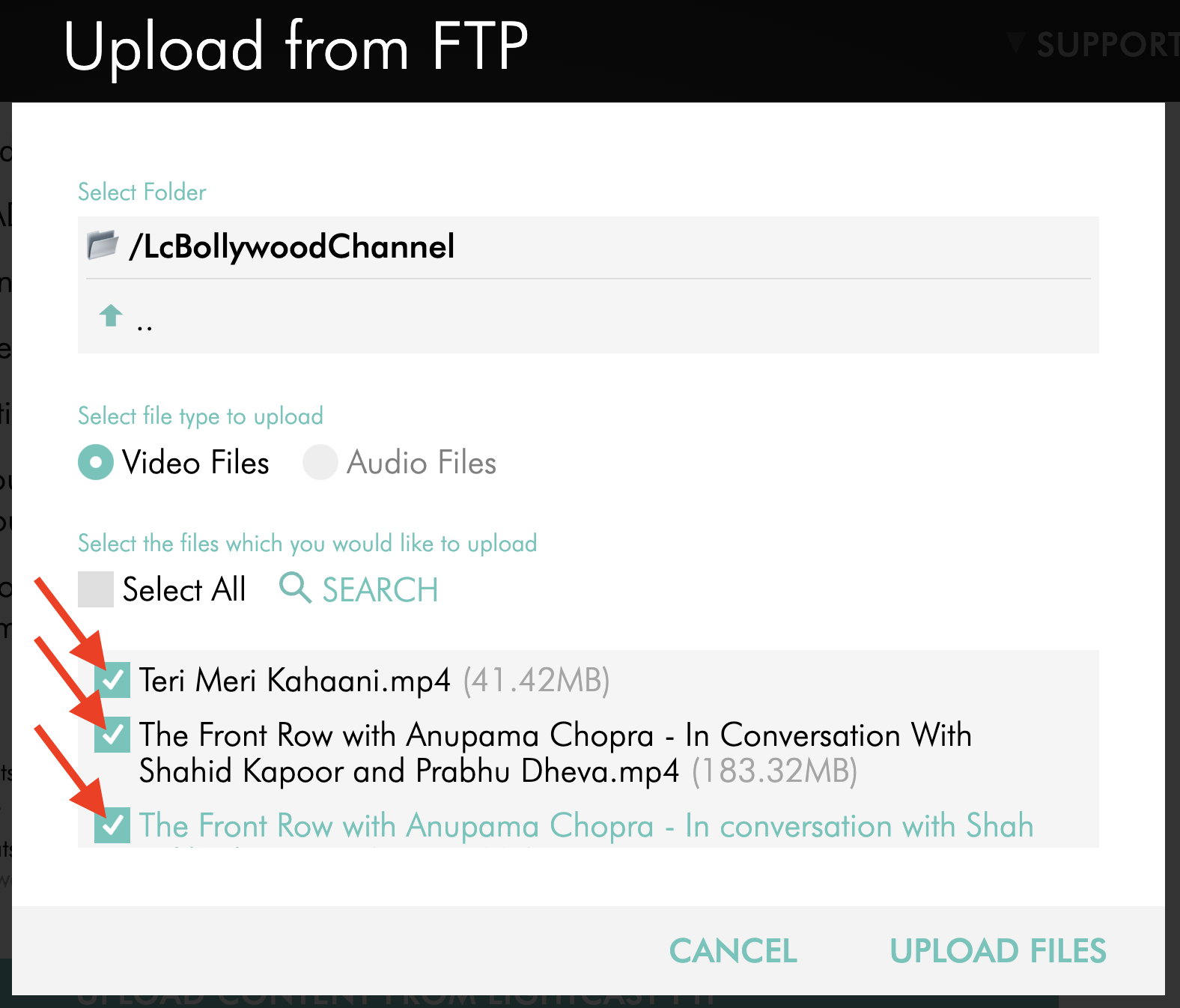
Select the file or files you want to upload.
Step 10
Optional: Select a Workflow Preset.
To learn how to create a Workflow Preset, see: How to create Workflow Presets
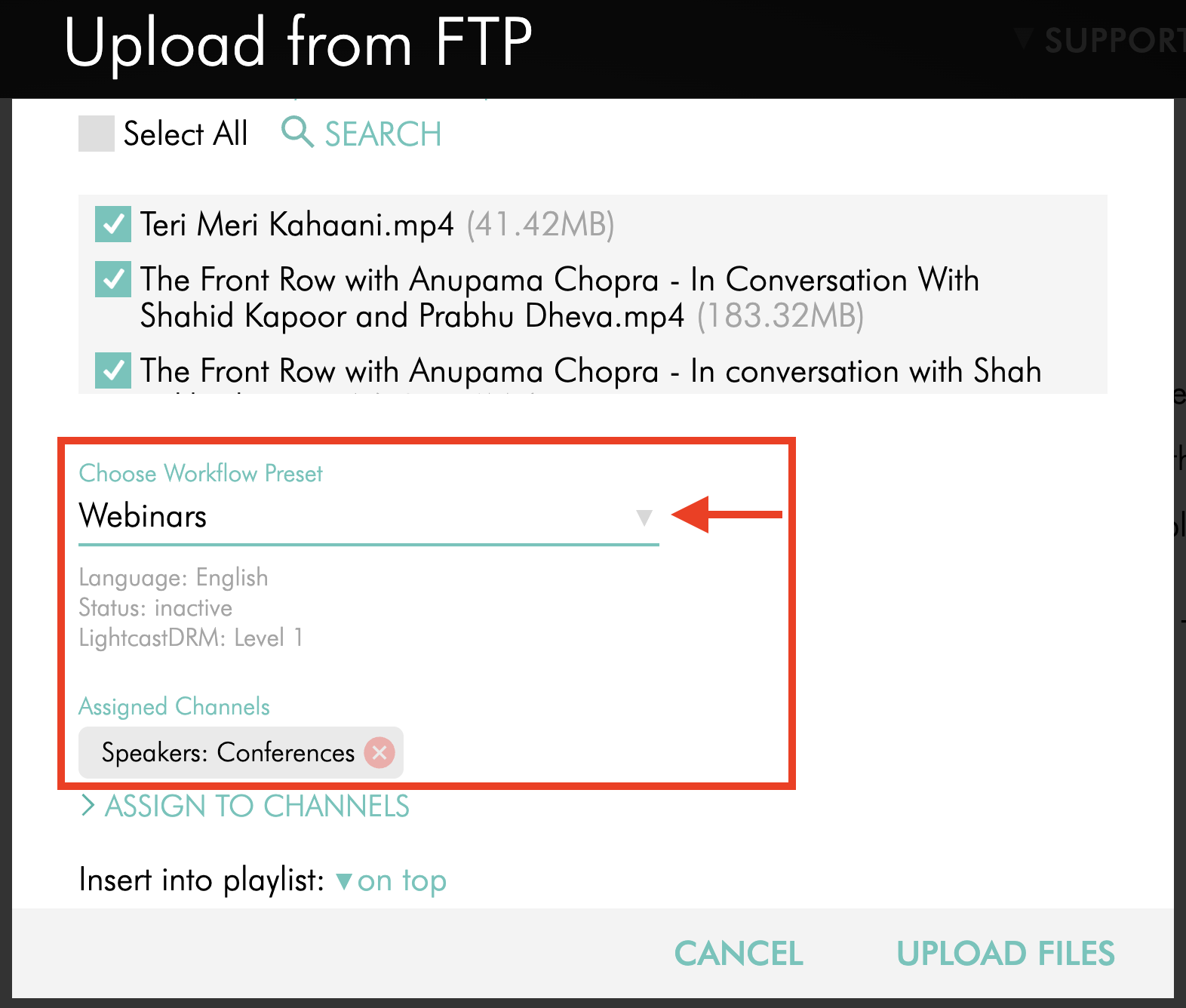
Step 11
If you are not using a Workflow Preset, click ASSIGN TO CHANNELS to open the Channel assignment window.
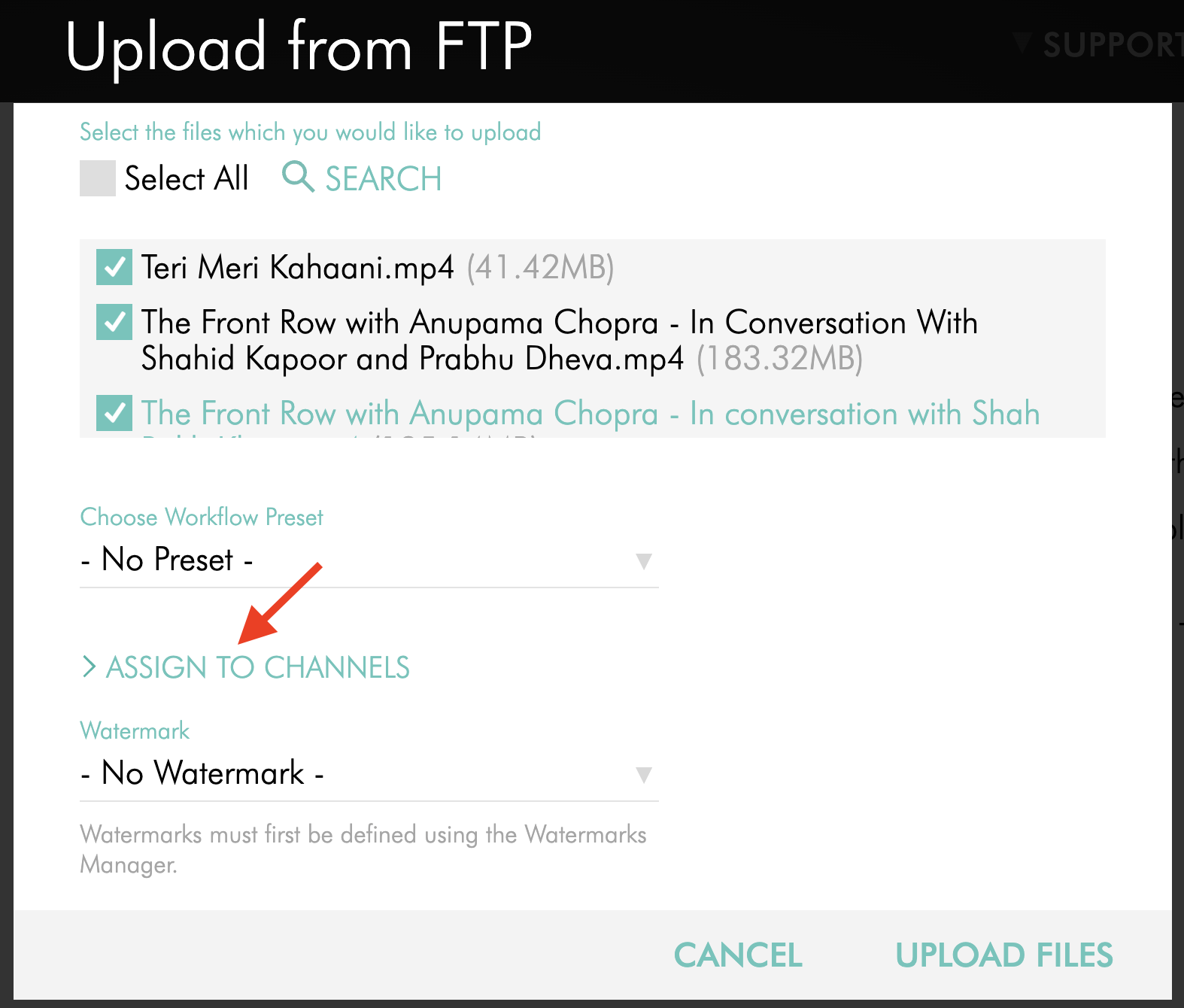
Step 12
In the Assign to Channels pop-up window, select the checkbox next to the Channel or Sub-Channel you want to use, then click ASSIGN CHANNELS.
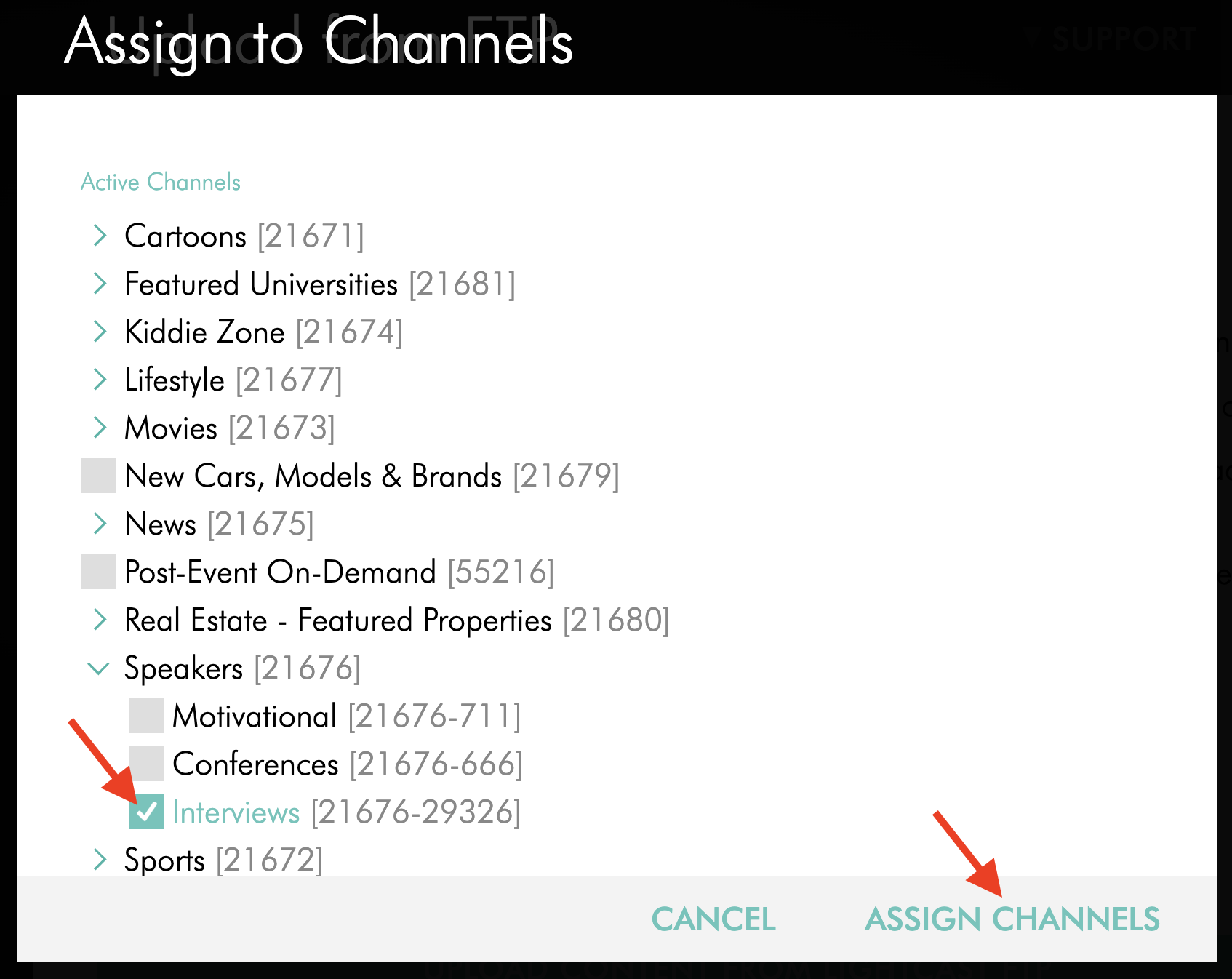
Step 13
Select the playlist position for the uploaded content:
on top places the content at the beginning of the Channel or Sub-Channel playlist
at the bottom places the content at the end of the Channel or Sub-Channel playlist
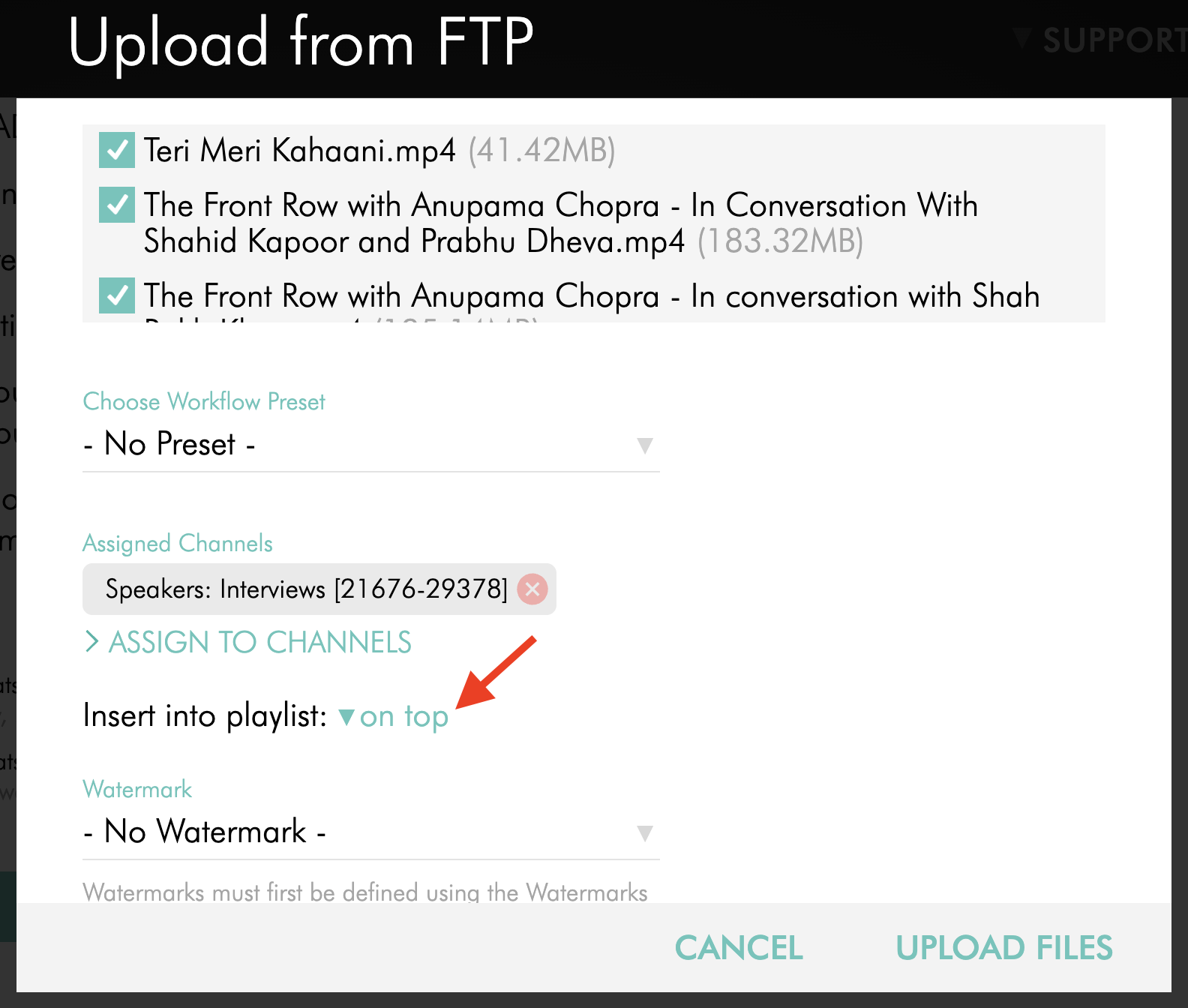
Step 14
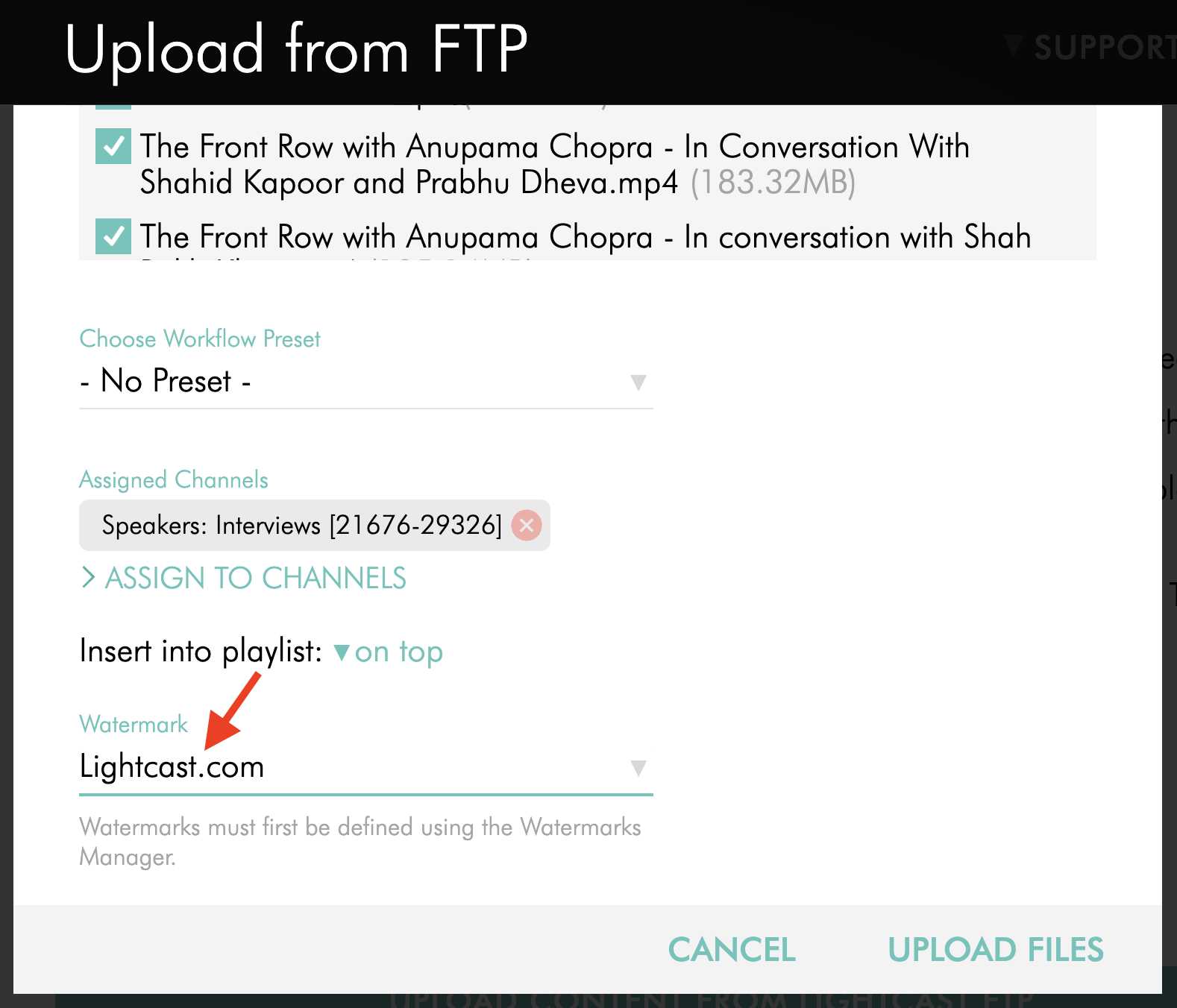
Optional: If you are uploading a video file, select a Watermark to apply during encoding.
To learn how to create a Watermark, see: How to add a Watermark
Step 15
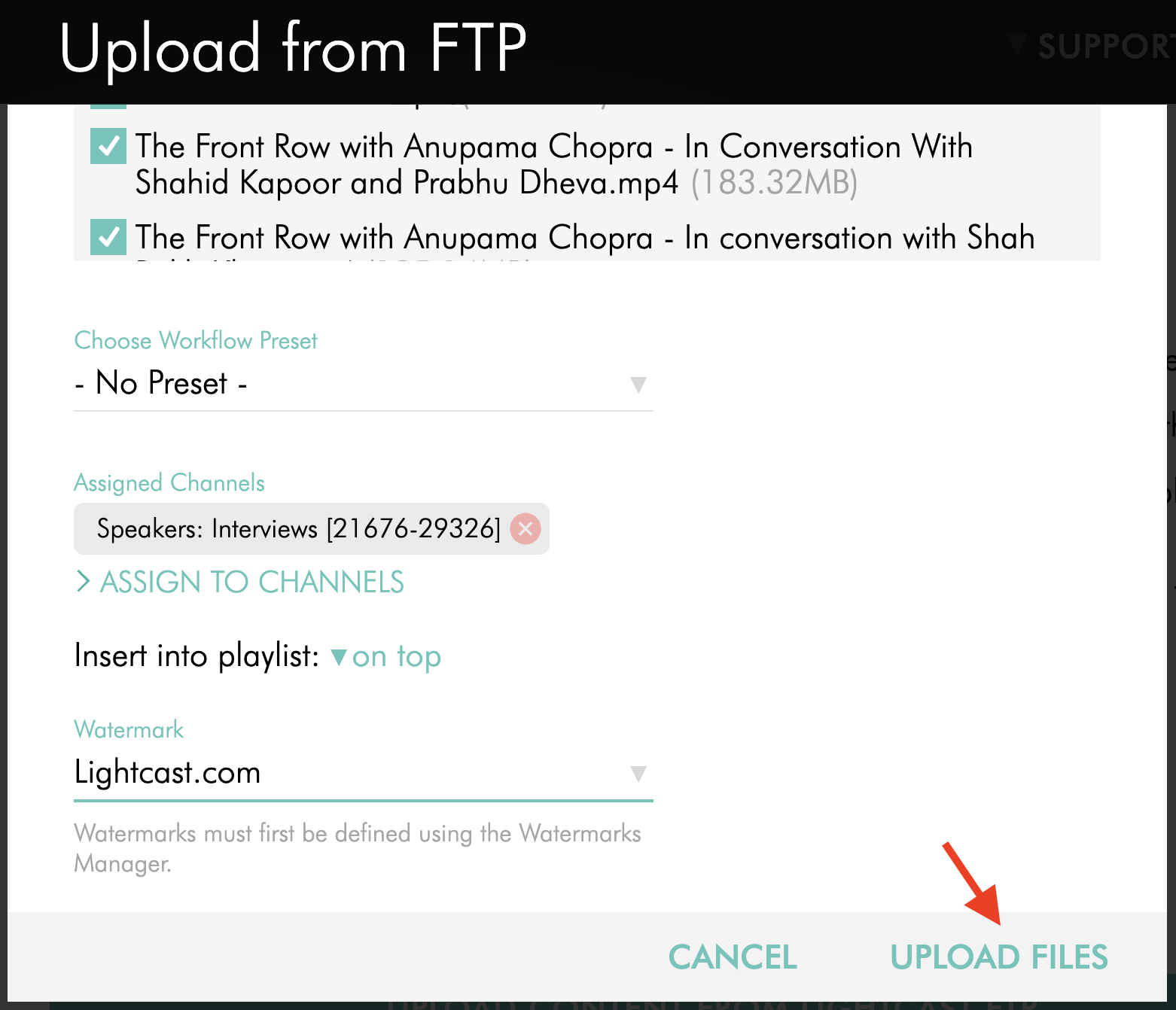
Click UPLOAD FILES to upload the selected files into the Media Cloud.
FAQs
Who can use the Remote FTP Server option?
All users have access to the Remote FTP Server upload option.
What is the file size limit for FTP uploads?
The FTP Uploader supports video and audio files up to 25 GB per file.
What is the difference between the Remote FTP Server and the Lightcast FTP Account?
Remote FTP Server lets you connect your own FTP account to the Media Cloud. Lightcast FTP Account uses a Lightcast FTP account that must already be enabled for your account.
Can I delete files from my Remote FTP Server after uploading?
Yes. You can select Delete file from the FTP Server after uploading during upload. If you choose this option, the Media Cloud will ask you to confirm before the files are deleted from the FTP server after upload verification.
What happens to files after uploading from the Lightcast FTP Account?
Files uploaded from the Lightcast FTP Account are automatically removed from both the FTP upload window and the FTP client after upload.
Can I change or disconnect a connected Remote FTP account?
The connected Remote FTP account can be edited or disconnected as needed. Sub-users share the same connected FTP account as the main user.
Video: How to Upload Videos via the FTP Uploader
Video: How to Upload Audio Files via the FTP Uploader
How to assign content to Channels
Troubleshooting upload issues