
How to offer on-demand access after a Pay-Per-View Live Event
Overview
This article explains how to make an on-demand version of a Pay-Per-View (PPV) Live Event available after the live broadcast.
You can include the on-demand version with the original PPV purchase or create a separate PPV product for on-demand access.
Prerequisites
Before offering an on-demand version after a Pay-Per-View Live Event, make sure:
Lightcast has completed the initial PPV configuration for your account.
A PPV product has been created for your Live Event.
You have a recording of the Live Event or have arranged for the event to be recorded using LIVE-to-VOD.
You have a VOD Channel available for the on-demand version of the event.
If you have not yet created a PPV product, see How to create a Pay-Per-View product.
When to use each option
You can offer the on-demand version of your PPV Live Event as part of the original ticket purchase or as a separate PPV product.
Same PPV product | Separate PPV product | |
|---|---|---|
Ticket purchase | One purchase includes both live and on-demand access. | Viewers purchase on-demand access separately. |
Price | One price for both versions. | Can have a different price. |
Access period | Shared PPV access period. | Independent PPV access period. |
Best for | Offering a replay to existing ticket holders. | Selling the recording as a separate product. |
Important: If you want existing Live Event ticket holders to access the on-demand version without purchasing another ticket, include the applicable VOD Channel in the original PPV product.
How it works
Planning on-demand access before your Live Event
If you plan to include on-demand access with the original Live Event ticket, we recommend configuring your PPV product before the Live Event takes place.
Assign both the LIVE Channel and the VOD Channel to the same PPV product and set the Pay-Per-View End Date/Time to include the desired post-event viewing period.
Once the recording is ready, make it available in the assigned VOD Channel. Existing ticket holders can then access the on-demand version during the remaining PPV access period without purchasing another ticket.
Using the same PPV product
A single PPV product can include both the LIVE Channel for the event and the VOD Channel containing the post-event on-demand version.
The PPV product access period controls access to both Channels. To allow existing ticket holders to watch the recording after the Live Event, the Pay-Per-View End Date/Time must cover the period when you want the on-demand version to remain available.
Active and expired PPV products can be edited in the Media Cloud. This allows you to update the access period and assigned Channels if your on-demand plans change after the Live Event.
Important: Use a dedicated VOD Channel for your PPV on-demand content if you want ticket holders to access only the recording of the Live Event. Assigning a VOD Channel to a PPV product provides ticket holders with access to the content available in that Channel during the PPV access period.
Using a separate PPV product
You can also create a new PPV product specifically for the on-demand version.
The separate product can have its own:
Public Product Name
Public Description
Price
Pay-Per-View Start Date/Time
Pay-Per-View End Date/Time
Assigned VOD Channel(s)
Because this is a separate PPV product, purchasing the original Live Event does not automatically provide access to the on-demand version.
Instructions
How to include the on-demand version with the original PPV product
Use this option when you want viewers who purchased the original PPV Live Event to access the post-event on-demand version without purchasing another ticket.
Important: If you already assigned the applicable VOD Channel to the PPV product and set the Pay-Per-View End Date/Time to include the desired post-event viewing period when you created the product, you only need to make the recording available in that VOD Channel. No additional changes to the PPV product are required.
Step 1
Log in to your Media Cloud account.
Step 2
Make the post-event recording available in the VOD Channel you want to use for post-event access.
Depending on how the recording was created:
If the Live Event was recorded using LIVE-to-VOD, see How to manage LIVE-to-VOD recordings.
If the recording is stored on your computer, see How to upload local video files to a Video On-Demand (VOD) Channel.
If the video already exists in the Media Cloud, see How to assign videos to a specific Video On-Demand (VOD) Channel.
Important: Ticket holders receive access to the content available in the assigned VOD Channel during the PPV access period. Use a dedicated VOD Channel if you want the PPV product to provide access only to the Live Event recording.
Step 3
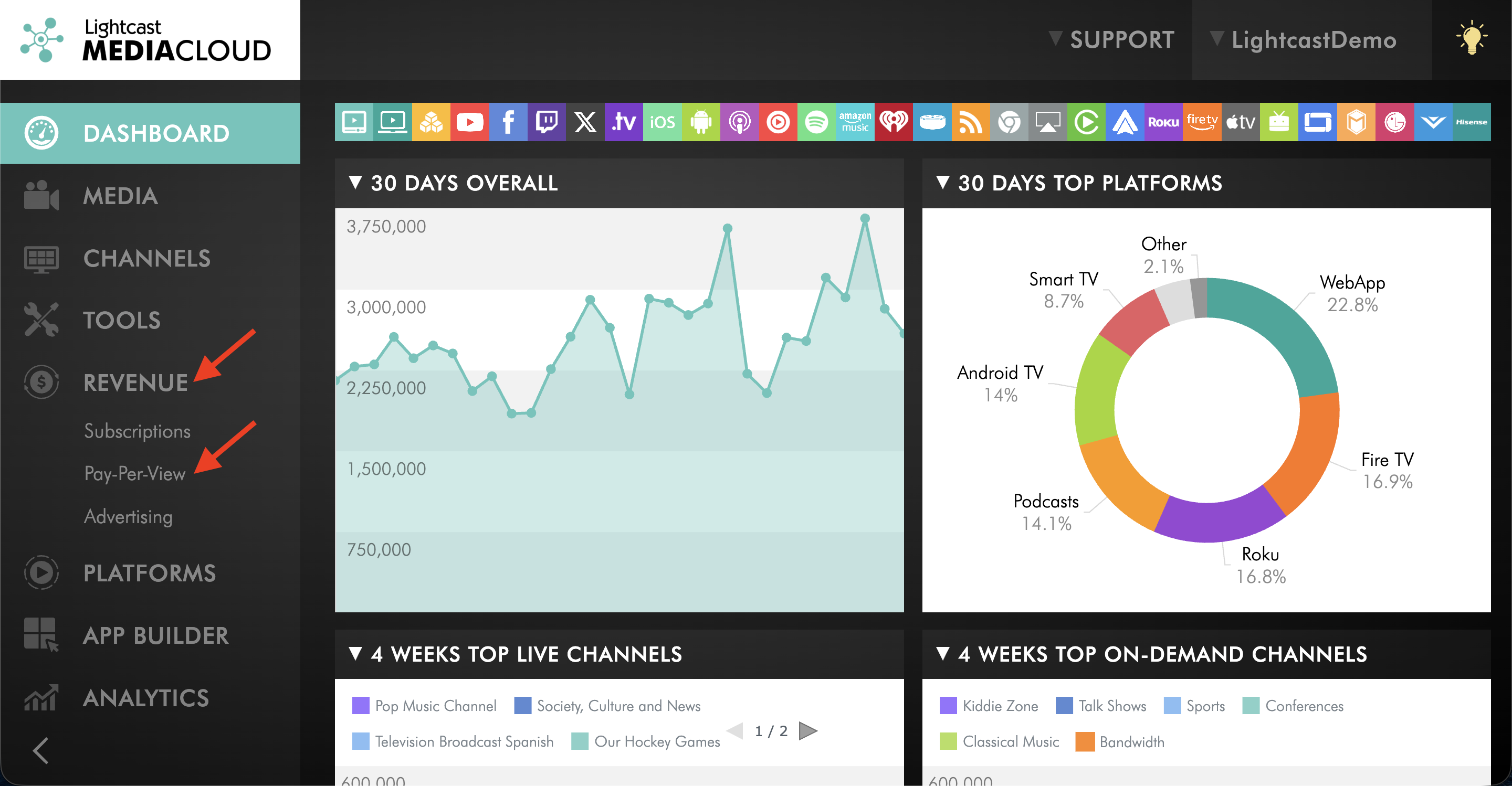
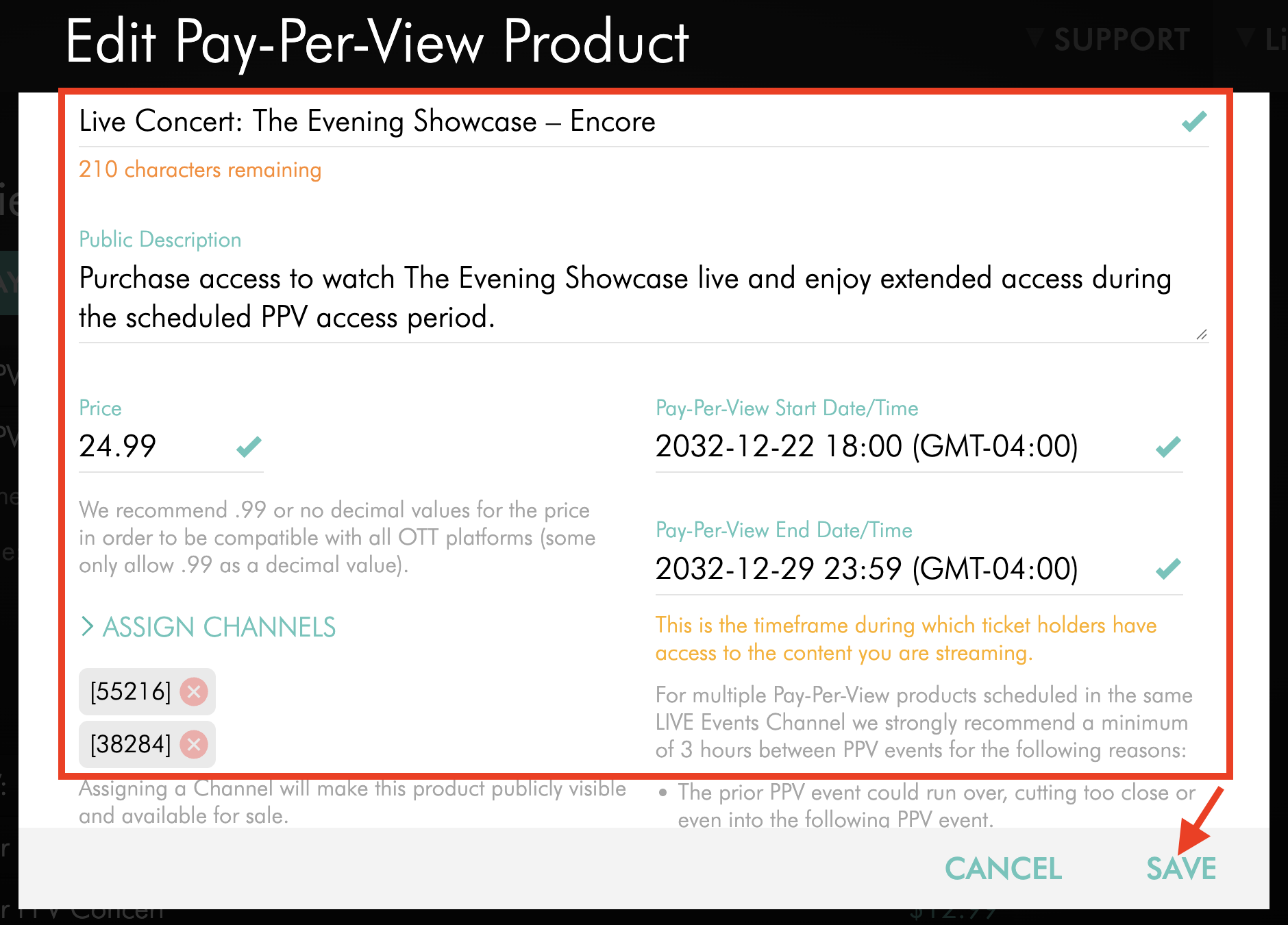
Select REVENUE from the left-hand menu, then select Pay-Per-View.
Step 4
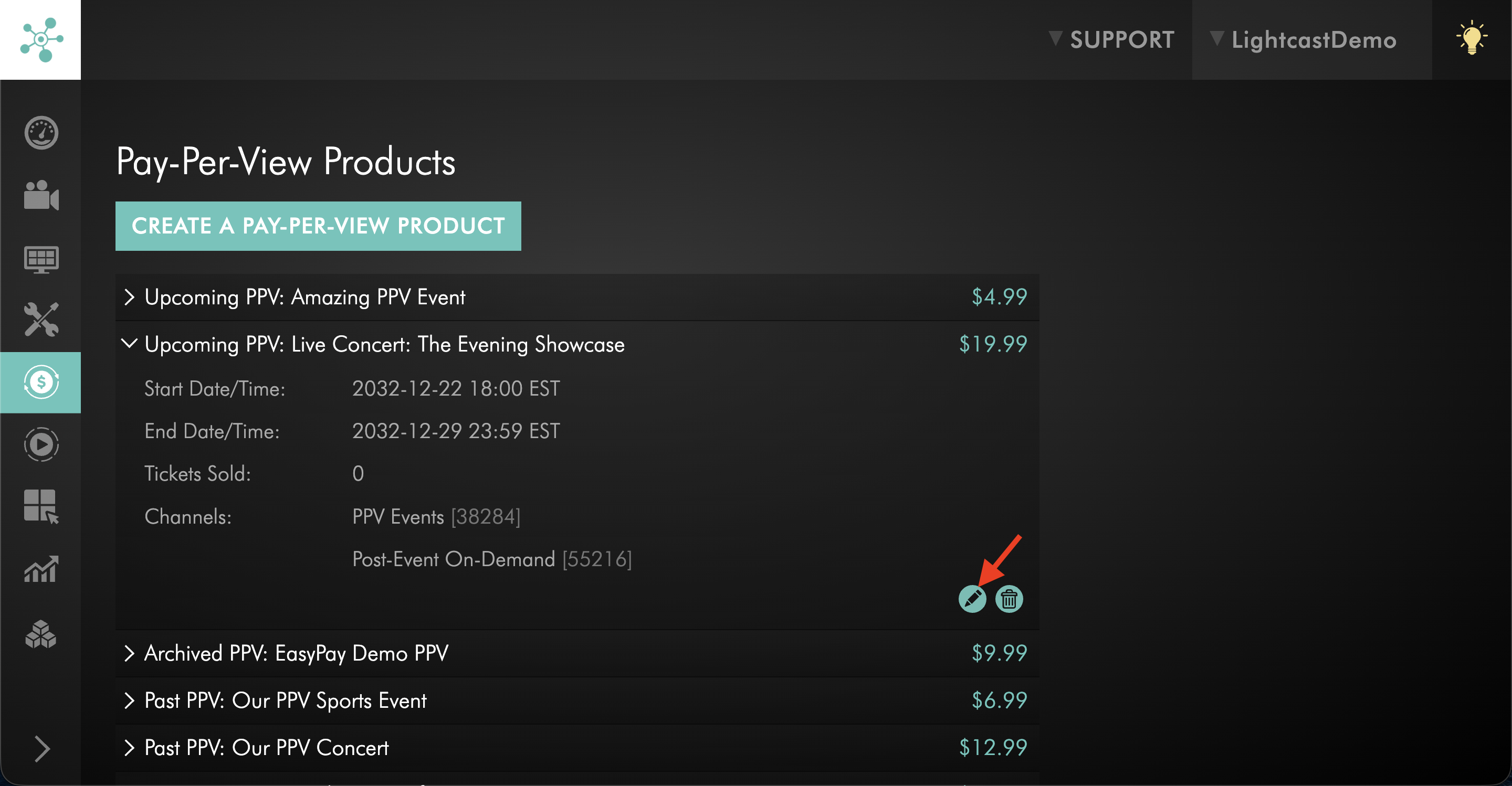
Select the PPV product used for the Live Event, then click the edit icon.
Step 5
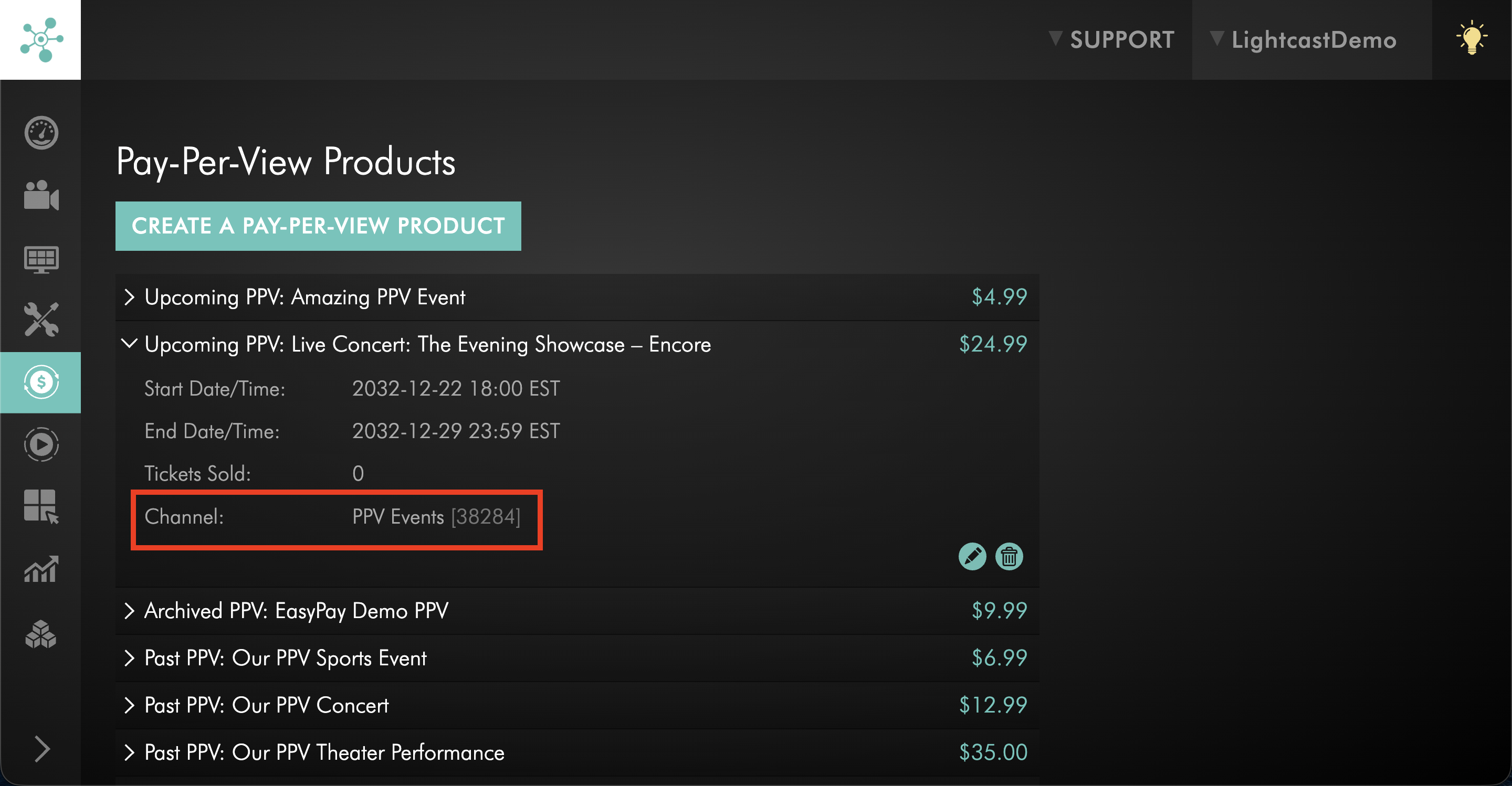
Confirm that the VOD Channel containing the post-event recording is assigned to the PPV product.
If the VOD Channel is already assigned but you still need to extend the PPV access period, continue to Step 8.
If both the VOD Channel and access period are already configured correctly, no additional PPV product changes are required.
Step 6
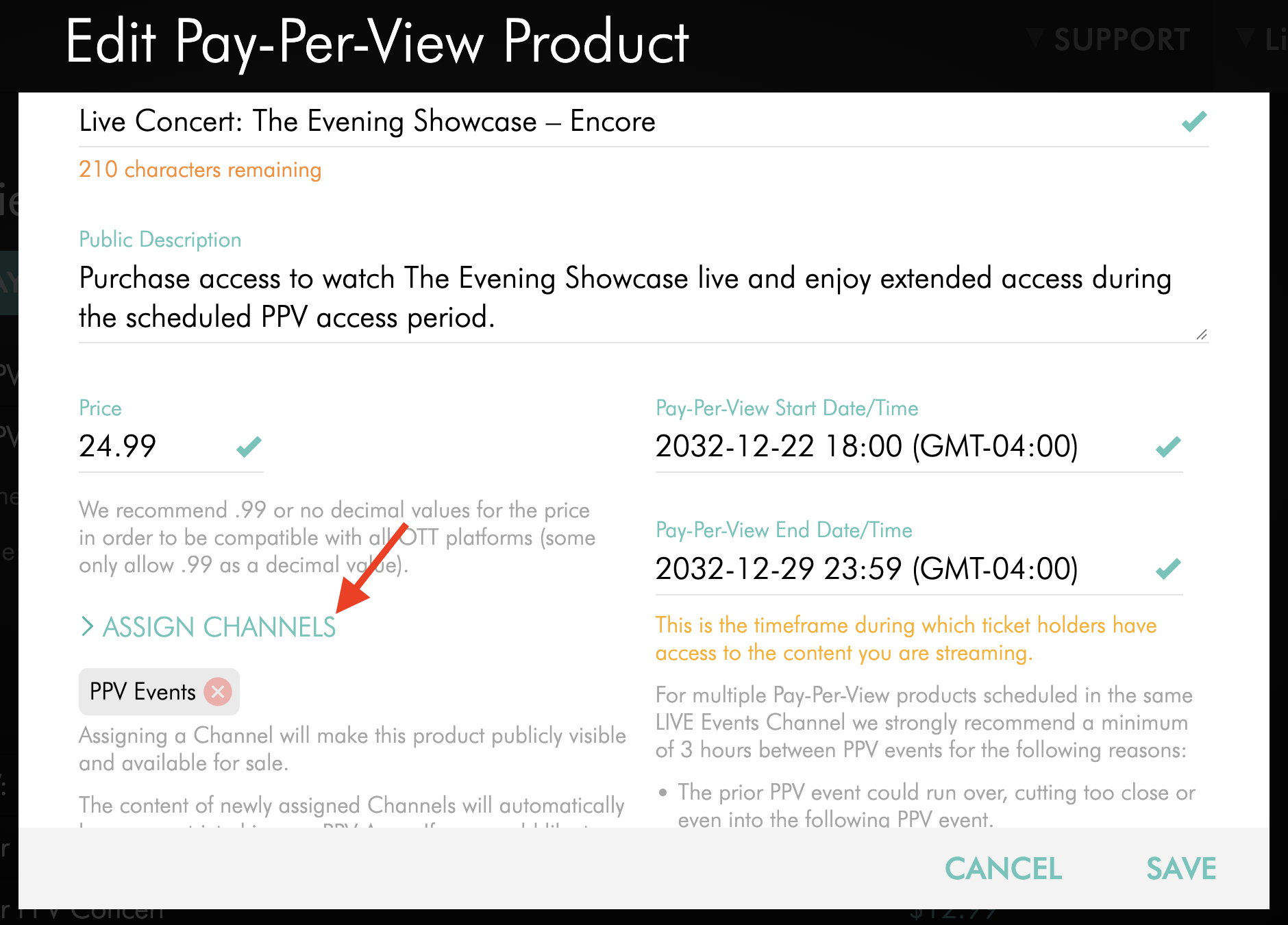
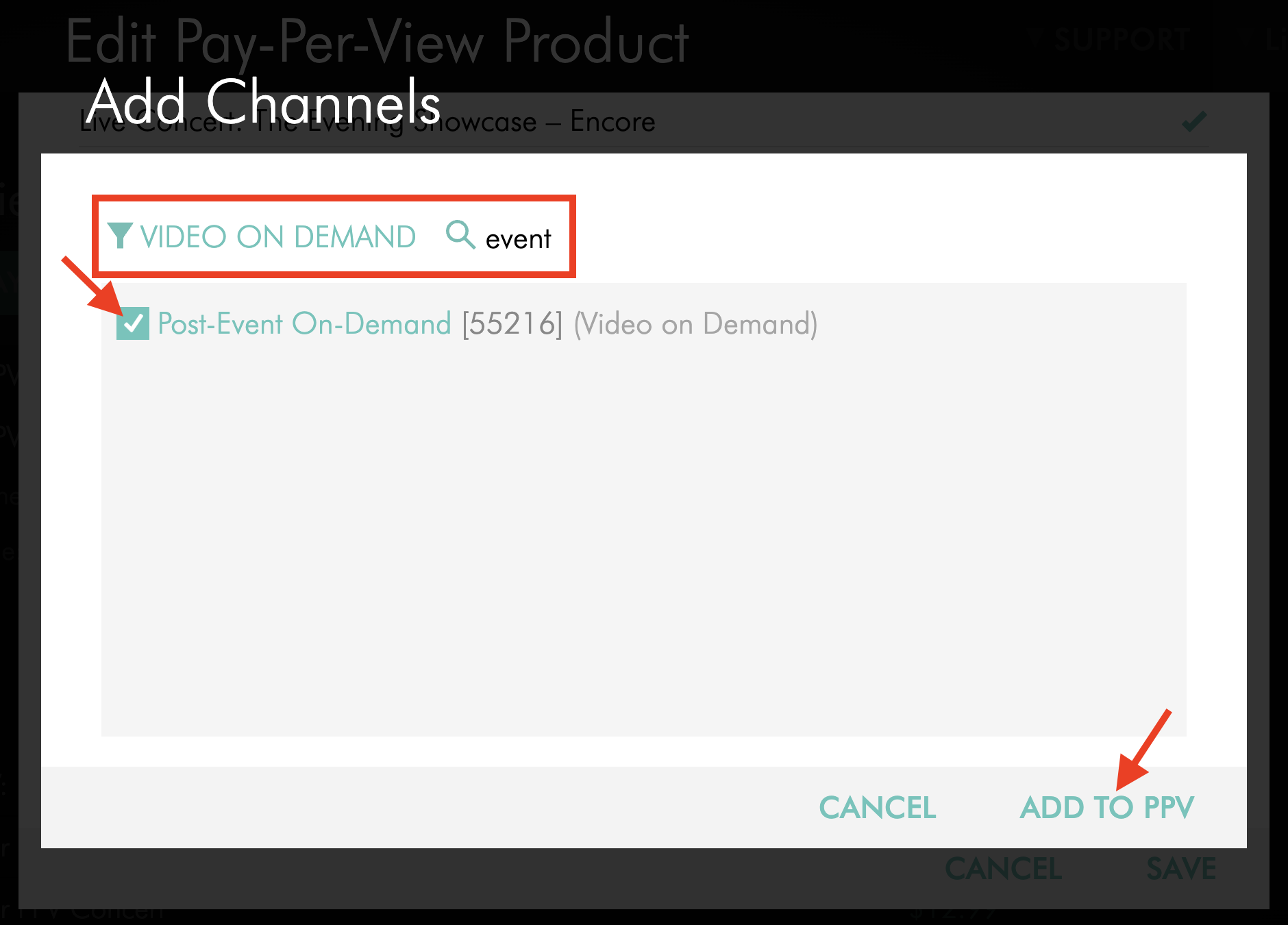
If the VOD Channel is not assigned, click ASSIGN CHANNELS.
Step 7
Use the Channel type filter and/or SEARCH field to find the applicable VOD Channel.
Select the Channel, then click ADD TO PPV.
Important: Keep the original LIVE Channel and post-event VOD Channel assigned to the same PPV product if you want the original ticket purchase to provide access to both.
Step 8
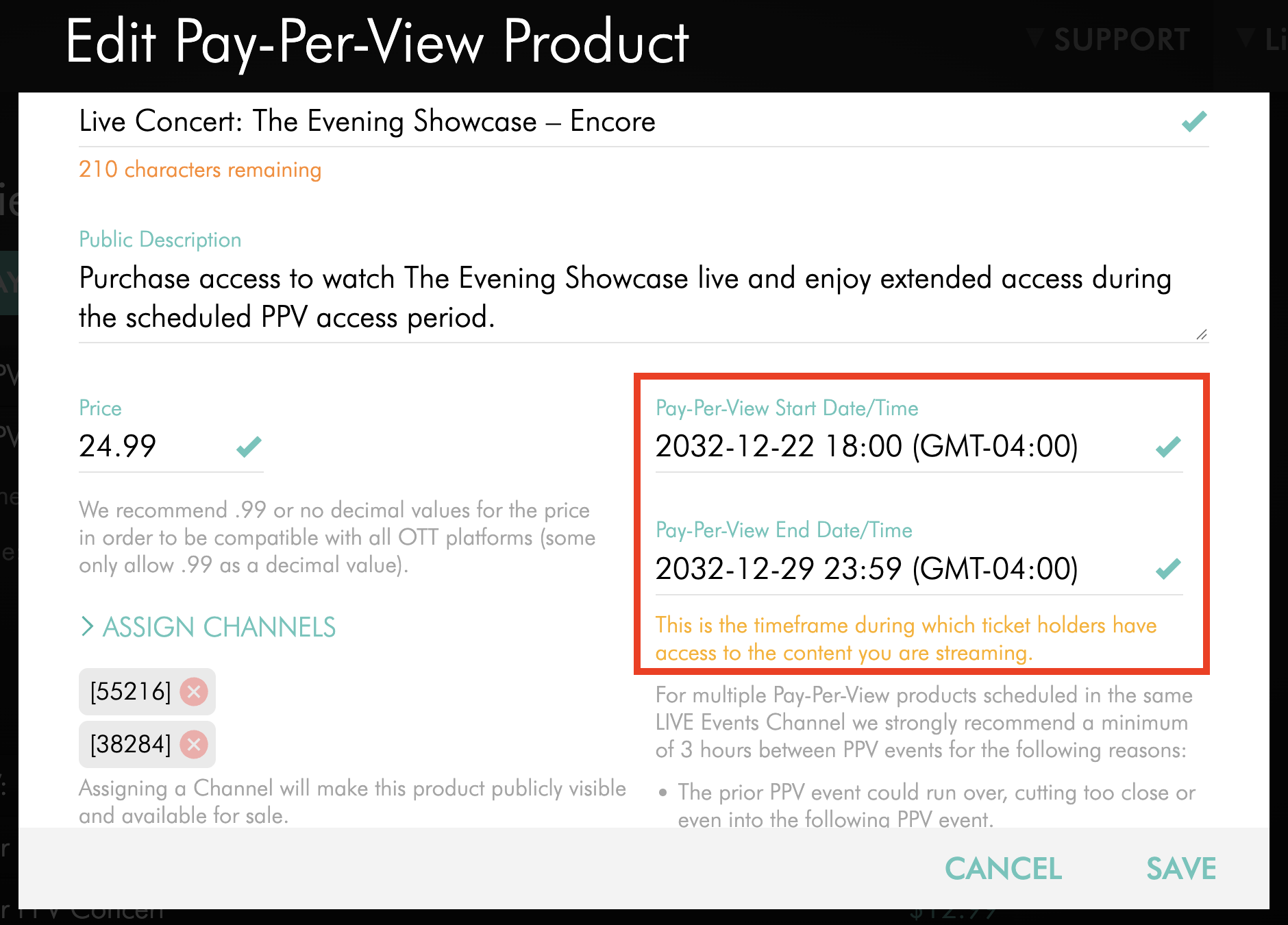
Review the Pay-Per-View End Date/Time.
If the existing end date and time already includes the full period when you want ticket holders to access the on-demand version, no change is needed.
If additional viewing time is needed, extend the Pay-Per-View End Date/Time to cover the desired on-demand access period.
If the PPV product has already expired, you can edit the product and extend its access period.
Step 9
Review the PPV product settings and assigned Channels, then click SAVE.
If you changed an expired PPV product, check your PPV-enabled app after saving to confirm that the on-demand content is available as intended before notifying ticket holders.
How to create a separate PPV product for the on-demand version
Use this option when you want to sell the post-event on-demand version separately from the original PPV Live Event.
Important: A separate PPV product requires a separate purchase. Viewers who purchased the original Live Event ticket will not automatically receive access to the on-demand PPV product.
Step 1
Log in to your Media Cloud account.
Step 2
Make the post-event recording available in the VOD Channel you want to monetize.
Depending on how the recording was created:
If the Live Event was recorded using LIVE-to-VOD, see How to manage LIVE-to-VOD recordings.
If the recording is stored on your computer, see How to upload local video files to a Video On-Demand (VOD) Channel.
If the video already exists in the Media Cloud, see How to assign videos to a specific Video On-Demand (VOD) Channel.
Important: Ticket holders receive access to the content available in the assigned VOD Channel during the PPV access period. Use a dedicated VOD Channel if you want the PPV product to provide access only to the Live Event recording.
Step 3
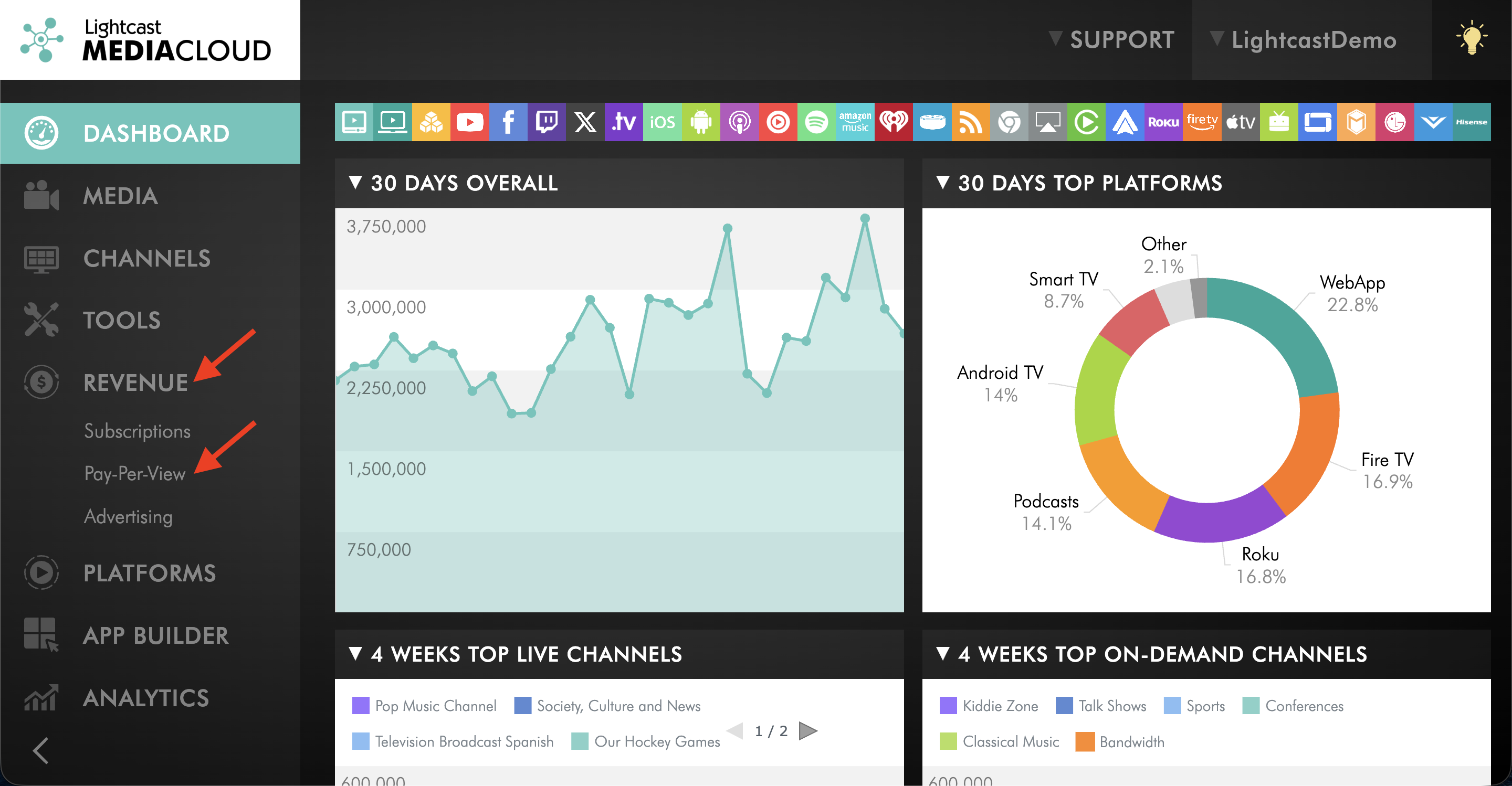
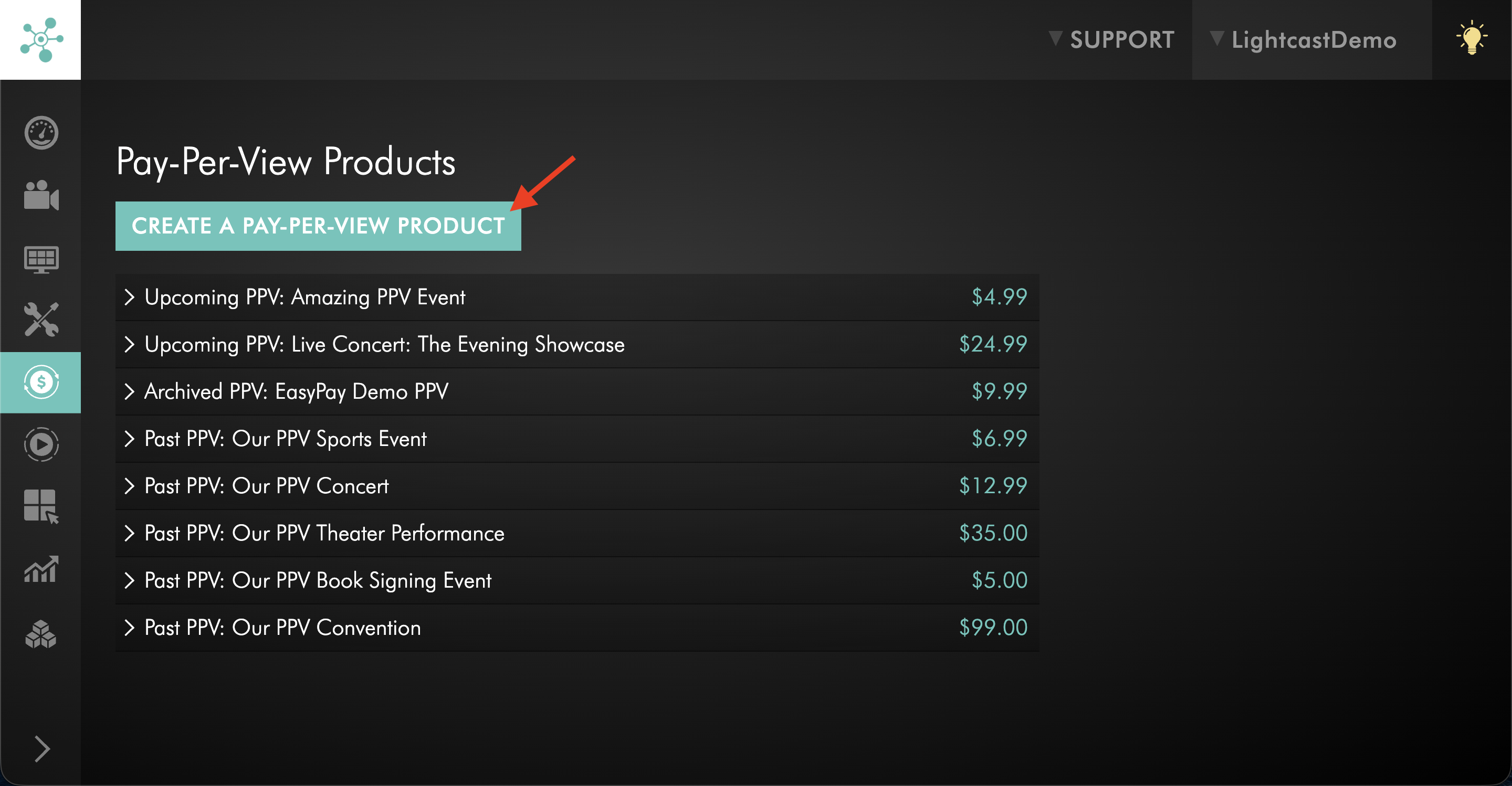
Select REVENUE from the left-hand menu, then select Pay-Per-View.
Step 4
Click Create A Pay-Per-View Product.
Step 5
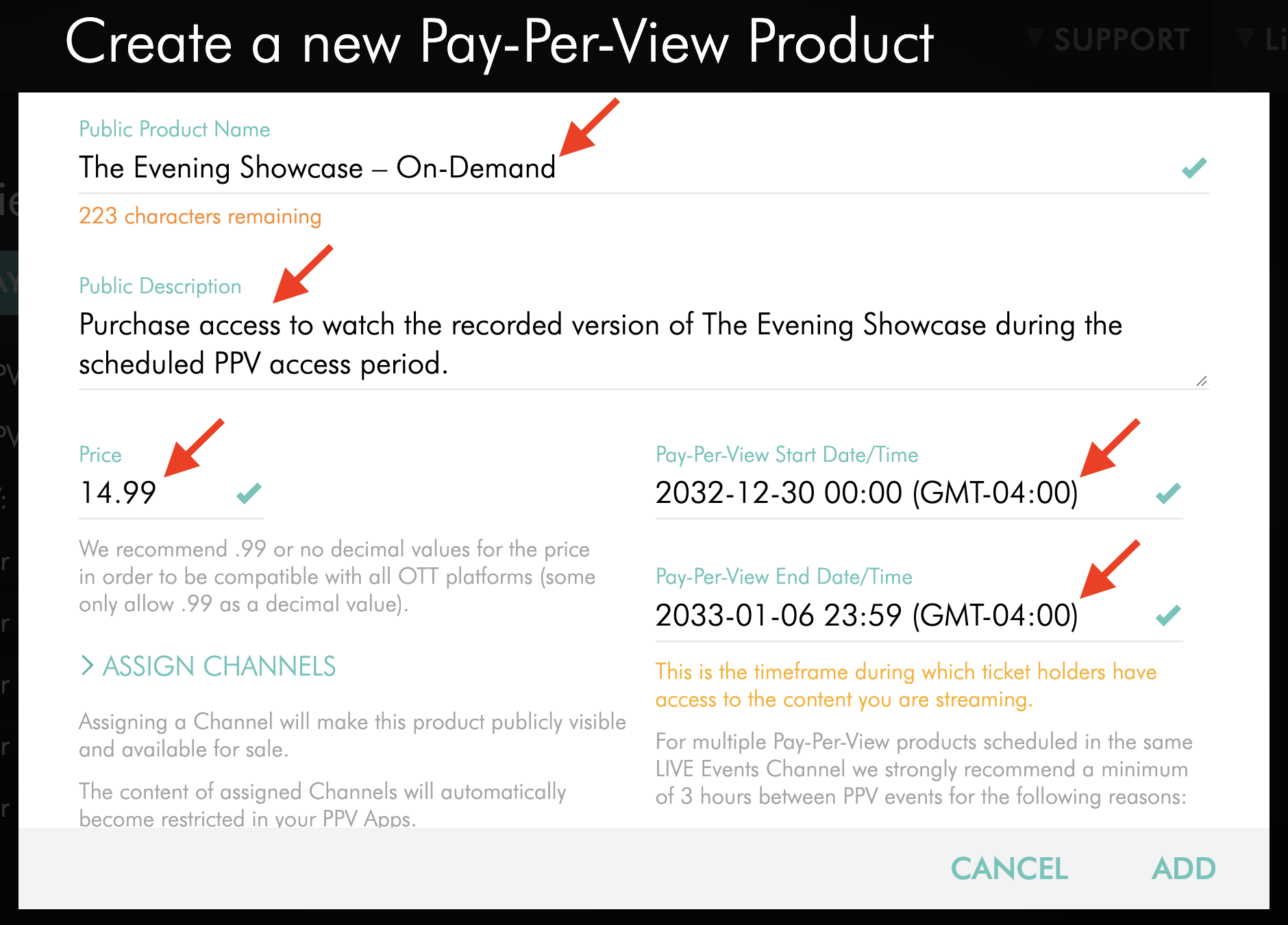
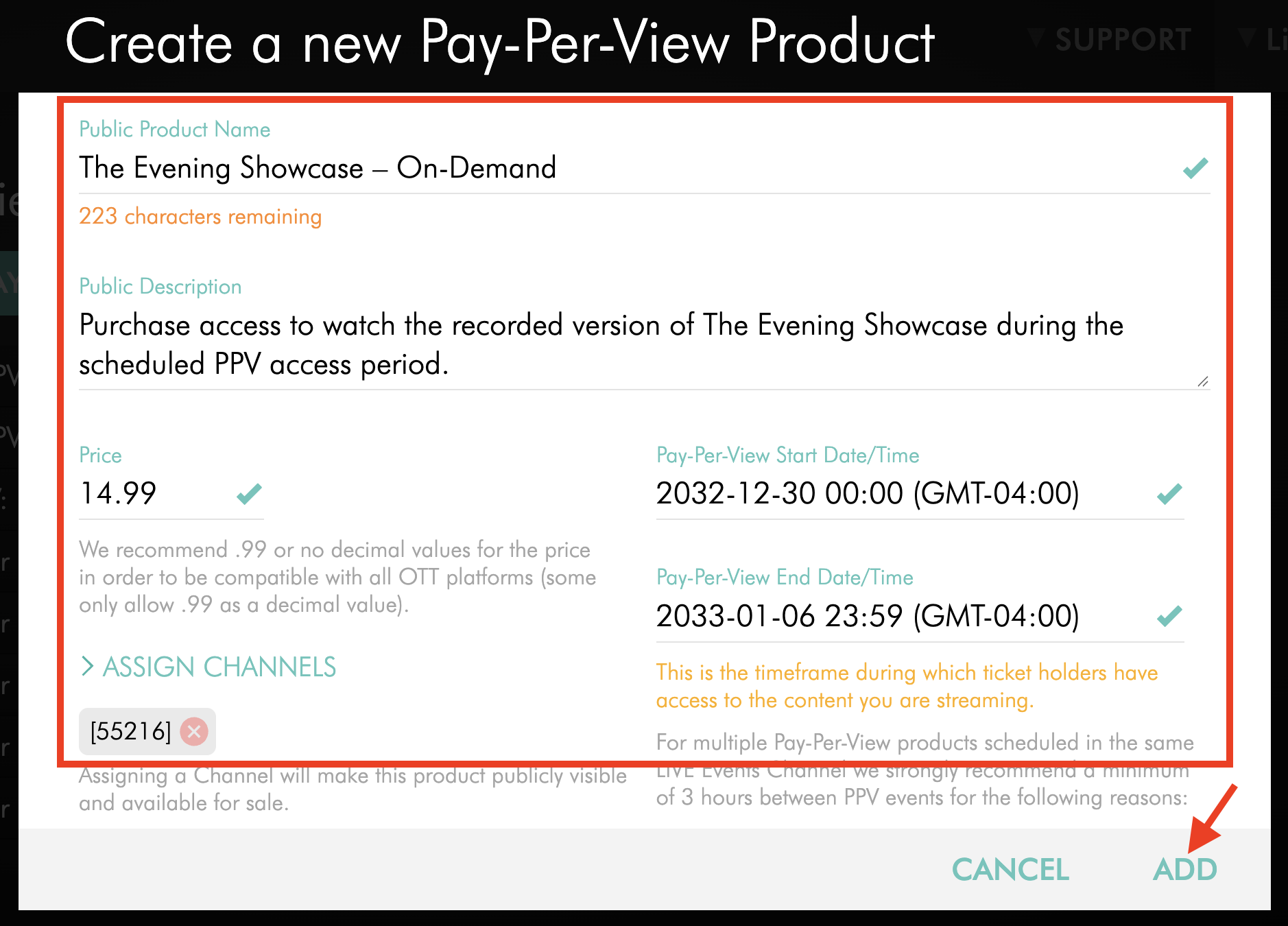
Configure the new PPV product for the on-demand version, including the:
Public Product Name
Public Description
Price
Pay-Per-View Start Date/Time
Pay-Per-View End Date/Time
Because this is a separate PPV product, you can use a different price and access period from the original Live Event product.
Step 6
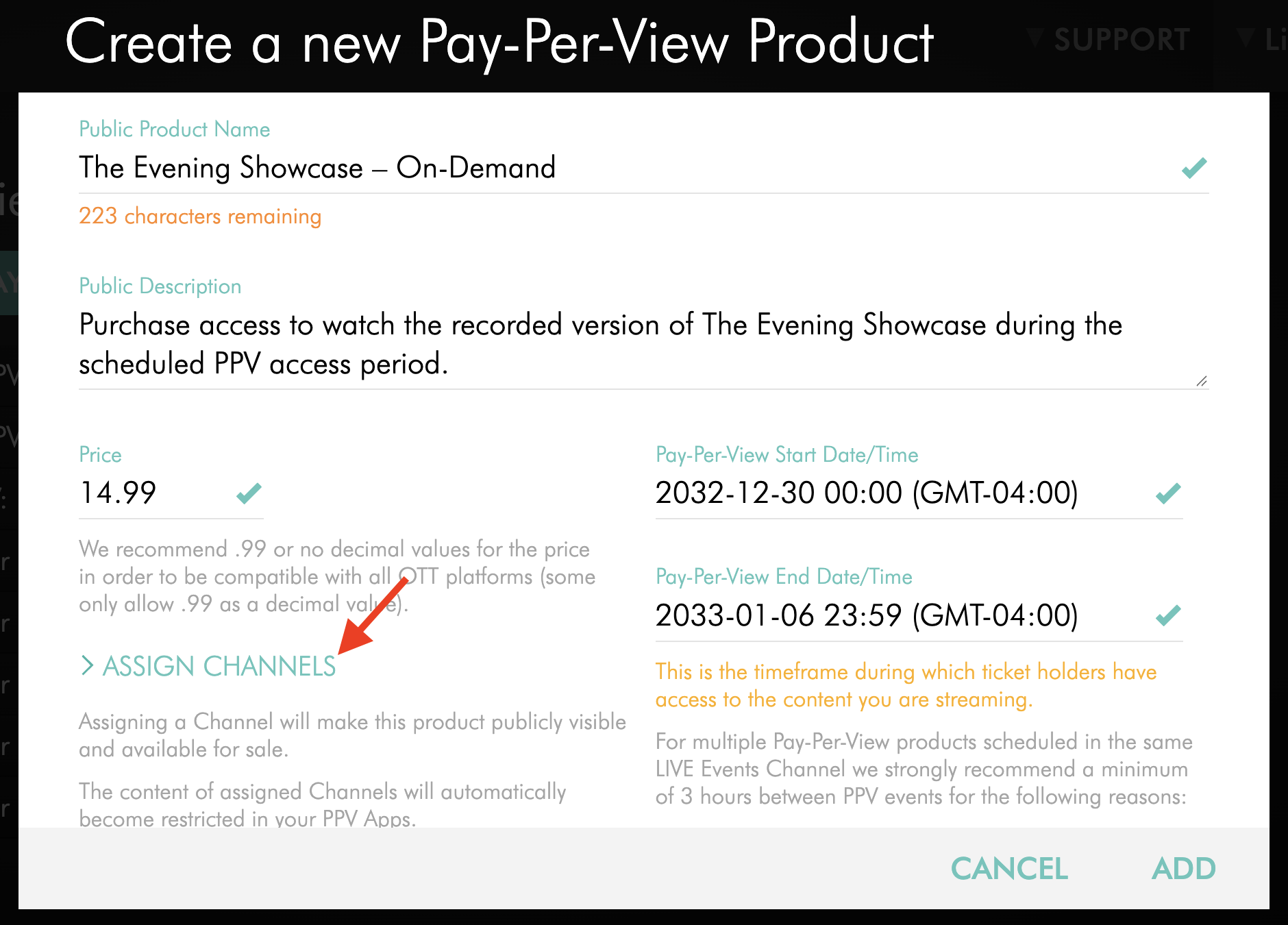
Click ASSIGN CHANNELS.
Step 7
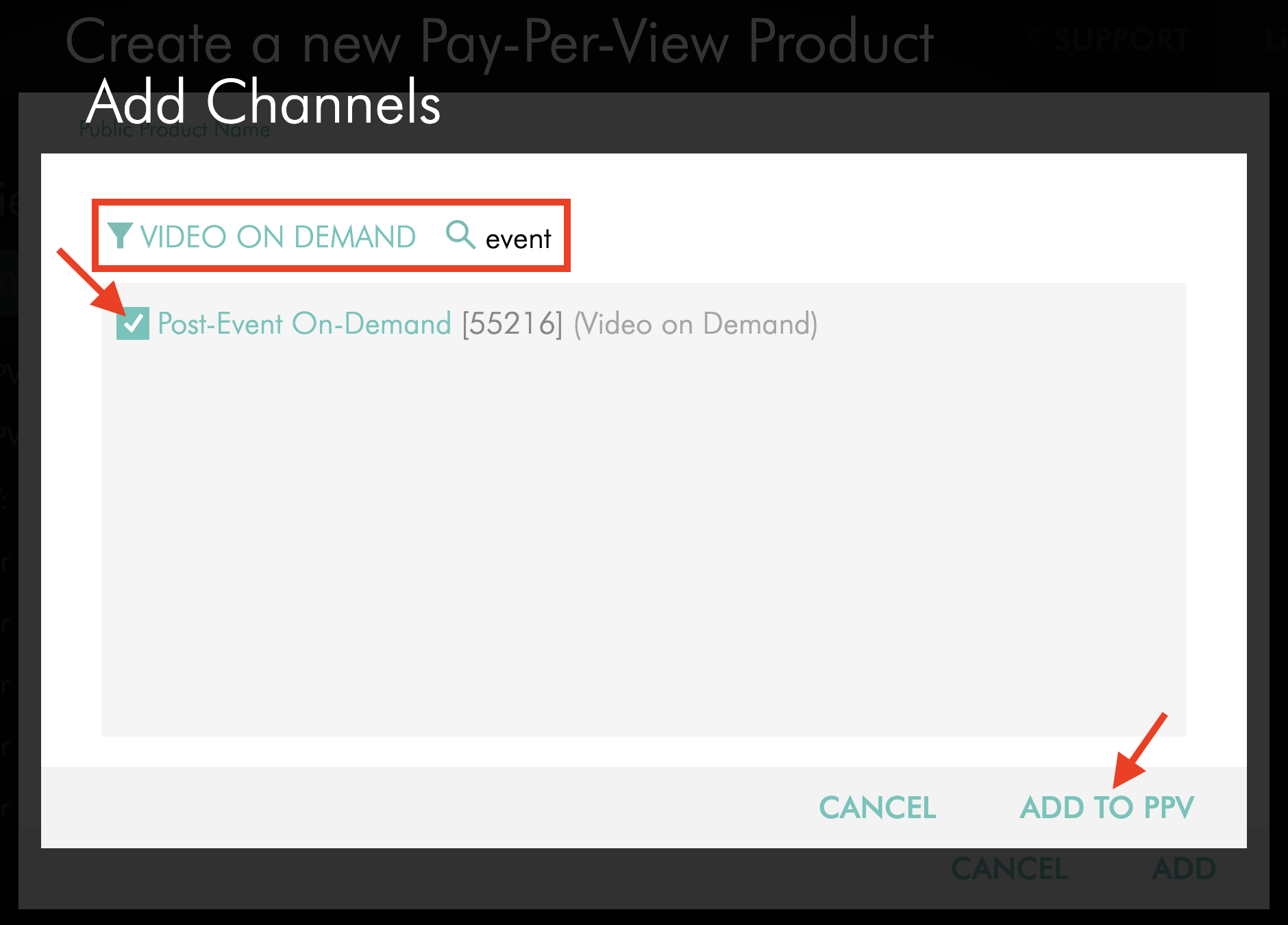
Use the Channel type filter and/or SEARCH field to find the VOD Channel containing the post-event recording.
Select the applicable VOD Channel, then click ADD TO PPV.
Step 8
Review the PPV product details and assigned VOD Channel, then click ADD to create the product.
Check your PPV-enabled app to confirm that the on-demand product is displayed as intended before promoting it to your audience.
FAQs
Do existing Live Event ticket holders need to purchase the on-demand version again?
Not if the on-demand version is included in the same PPV product as the Live Event.
Existing ticket holders can access the assigned VOD Channel during the PPV product access period.
If the on-demand version uses a separate PPV product, viewers must purchase that product separately.
How long can viewers access the post-event on-demand version?
Access is controlled by the Pay-Per-View End Date/Time of the PPV product.
When using the same PPV product for the Live Event and on-demand version, set the access period long enough to cover the time you want ticket holders to have access to the recording.
Can the Live Event and on-demand version use different prices?
Yes, if you create a separate PPV product for the on-demand version.
A single PPV product has one configured price for the content included with that purchase.
Which option is better if the recording requires post-production?
A separate PPV product may be more practical if you need several days to edit or prepare the recording and do not know exactly when it will be available.
You can also use the original PPV product if its access period covers the time when the recording will become available and the desired post-event viewing period.
Can more than one Channel be included in the same PPV product?
Yes. For a PPV Live Event with post-event viewing, the LIVE Channel and applicable VOD Channel can be assigned to the same PPV product so ticket holders can access both with one purchase.
Can I offer on-demand access if I did not record my Live Event?
No. To offer an on-demand version, you need a recording of the Live Event.
You can use a LIVE-to-VOD recording or upload a recording created using another recording method.
Can I make the on-demand version available several days after the Live Event?
Yes.
If you are using the original PPV product, make sure its access period covers the time when the recording will be available and the desired post-event viewing period.
Alternatively, you can create a separate PPV product with its own access period once the recording is ready.
Can I add on-demand access after the original PPV product has expired?
An expired PPV product can be edited in the Media Cloud. You can add the applicable VOD Channel and extend the Pay-Per-View End Date/Time as needed.
After saving the changes, check your PPV-enabled app to confirm that the on-demand content is available as intended before notifying ticket holders.