
How to manage a Pay-Per-View product
Overview
This article explains how to manage existing Pay-Per-View (PPV) products in the Media Cloud, including how to review ticket sales, update product settings, change assigned Channels, and delete PPV products.
Prerequisites
Before managing a Pay-Per-View product, make sure:
Lightcast has completed the initial PPV configuration for your account.
You have access to the REVENUE → Pay-Per-View section of your Media Cloud account.
At least one PPV product has been created in your account.
If you need to create a new PPV product, see How to create a Pay-Per-View product.
If PPV has not yet been configured for your account, see Getting started with Pay-Per-View (PPV).
How it works
After Lightcast completes your initial PPV setup, you can manage your PPV products from REVENUE → Pay-Per-View in the Media Cloud.
From there, you can review upcoming, current, and past PPV products and view information such as:
PPV access period
Tickets Sold
Assigned Channel(s)
Upcoming, active, and expired PPV products can be edited. Depending on the change you want to make, you can update settings such as:
Public Product Name
Public Description
Price
Pay-Per-View Start Date/Time
Pay-Per-View End Date/Time
Assigned Channel(s)
Changing the Price affects future ticket purchases only. Viewers who already purchased access retain their purchase at the price they originally paid and do not need to purchase the PPV product again.
Important: Before editing a PPV product, check whether tickets have already been sold. Changes to the PPV access period or assigned Channels can affect when and which content existing ticket holders can access. Review your changes carefully before saving and communicate any relevant changes to affected ticket holders.
Instructions
How to view PPV product details, ticket sales, and assigned Channels
Step 1
Log in to your Media Cloud account.
Step 2
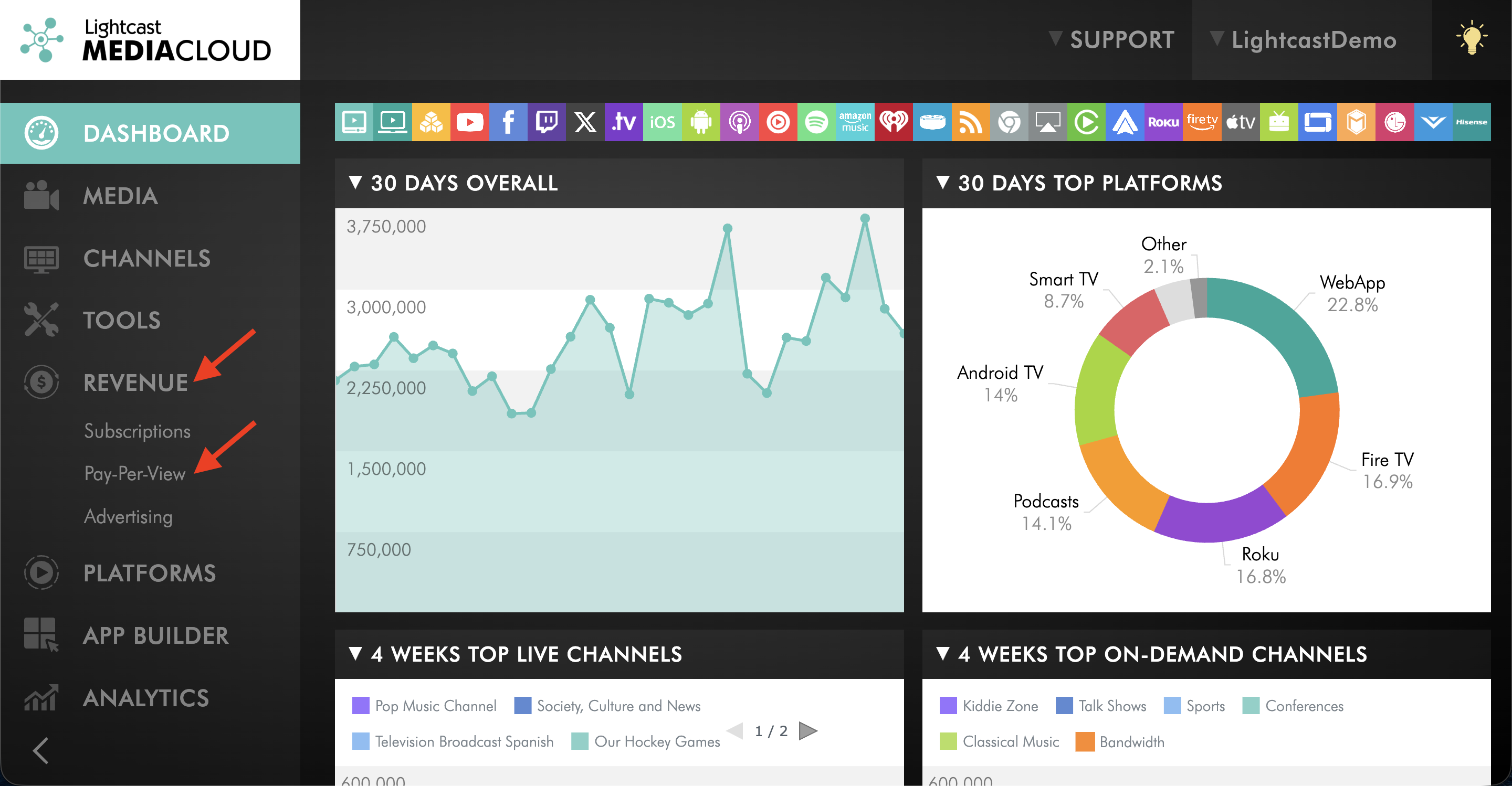
Select REVENUE from the left-hand menu, then select Pay-Per-View.
Step 3
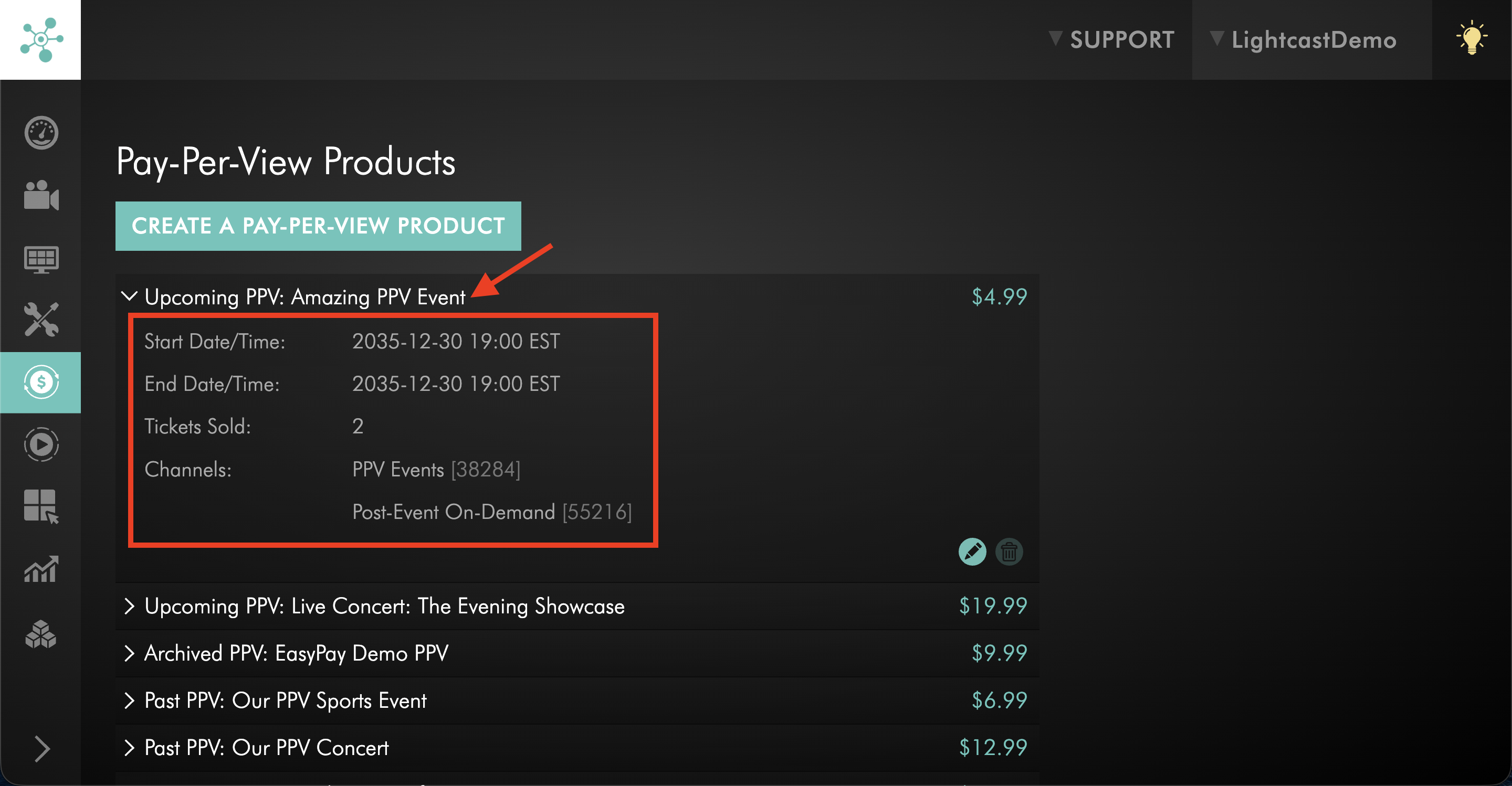
Select the PPV product you want to review.
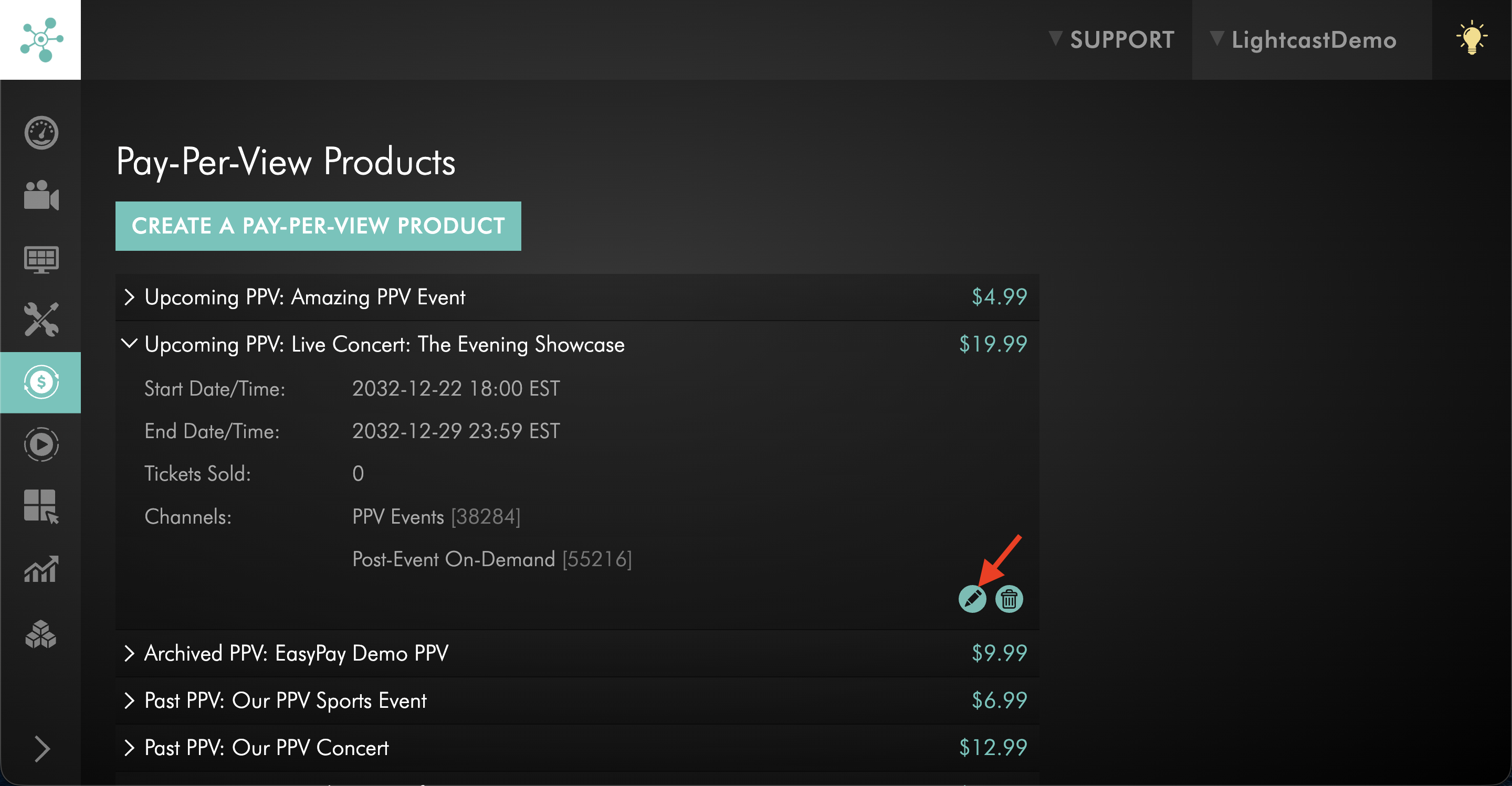
The product details display information such as the PPV access period, Tickets Sold, and assigned Channel(s).
How to edit a Pay-Per-View product
Step 1
Log in to your Media Cloud account.
Step 2
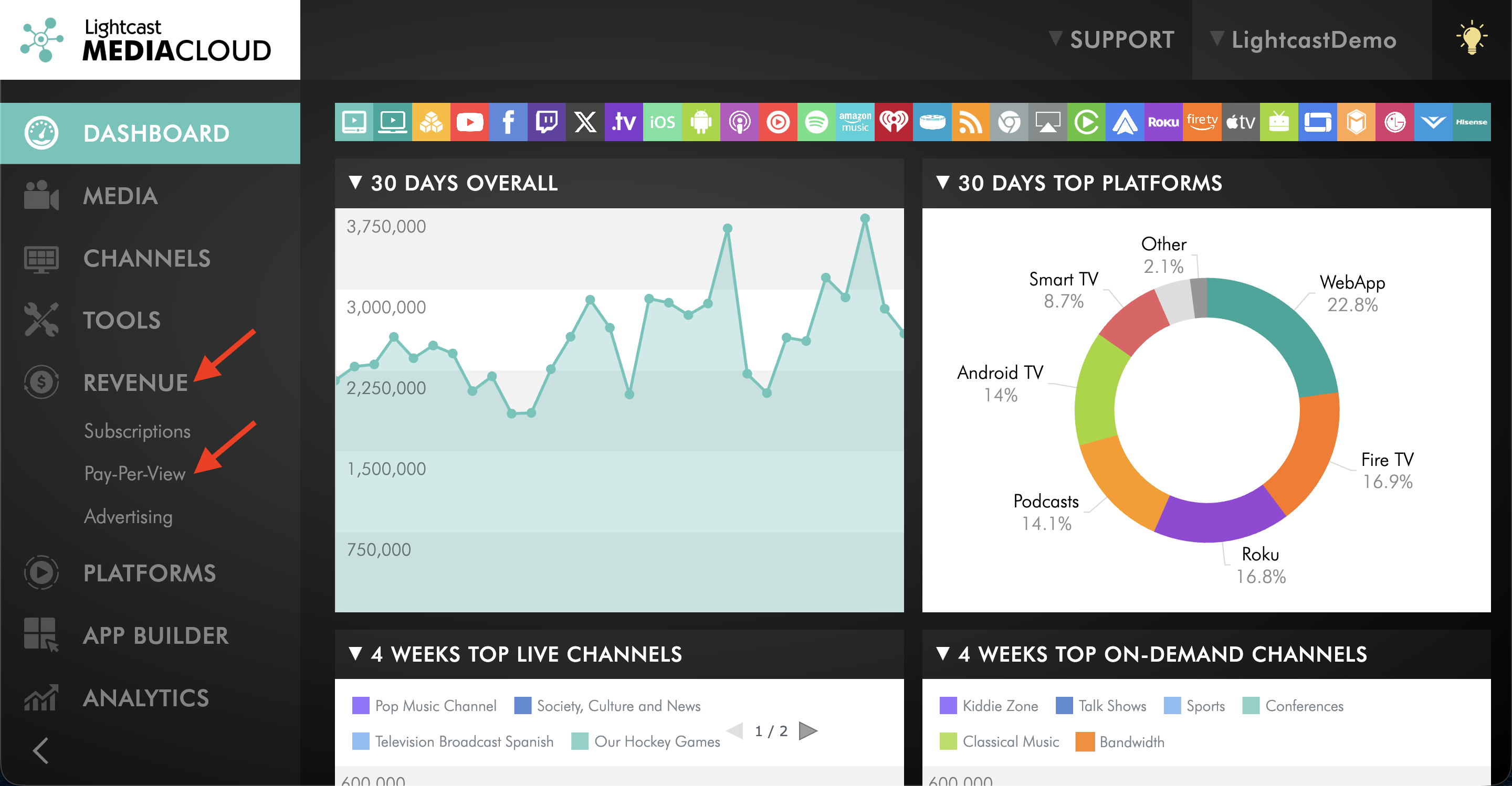
Select REVENUE from the left-hand menu, then select Pay-Per-View.
Step 3
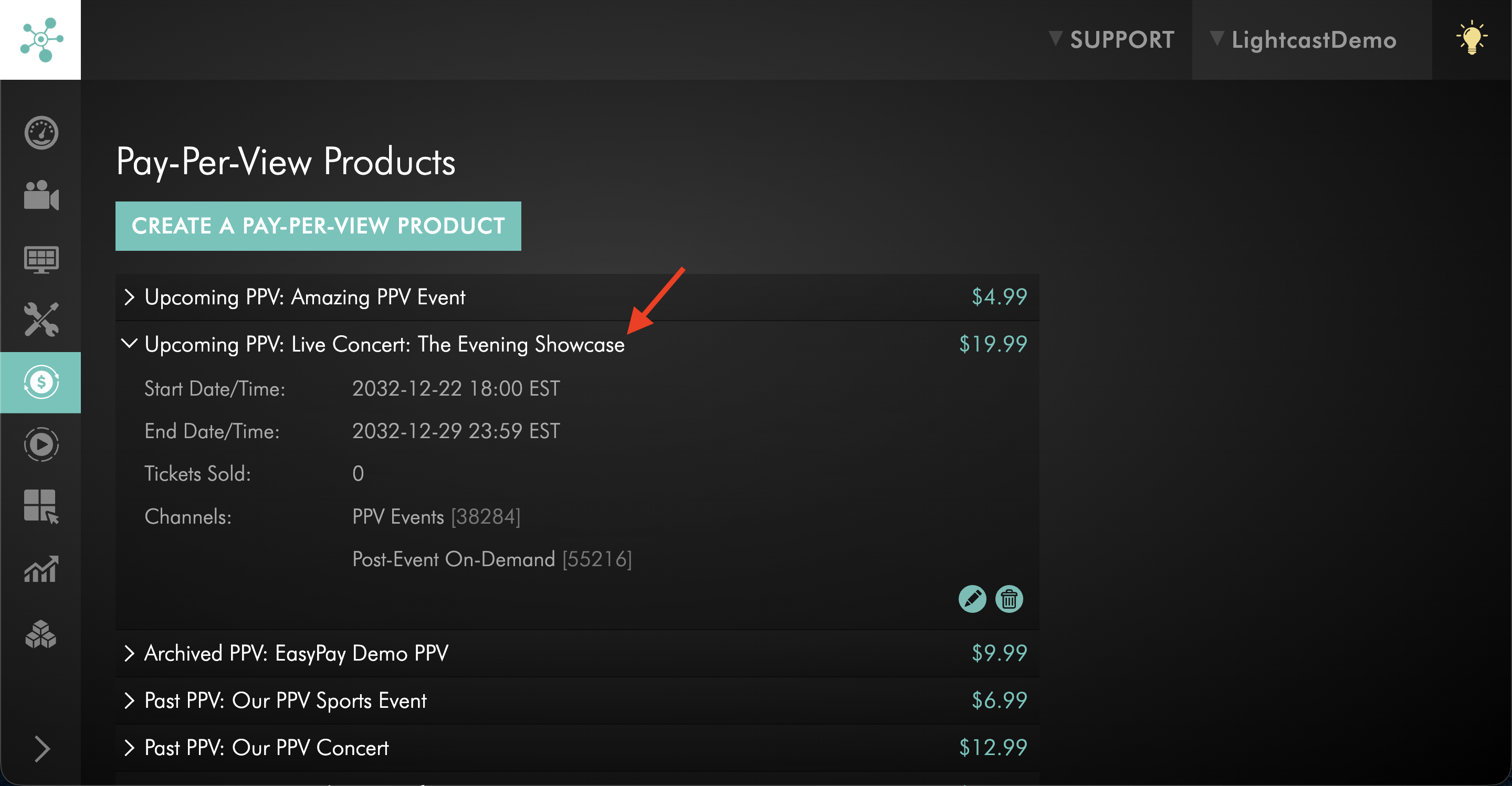
Select the PPV product you want to edit.
Before making changes, review Tickets Sold and the current PPV access period.
Step 4
Click the edit icon.
Step 5
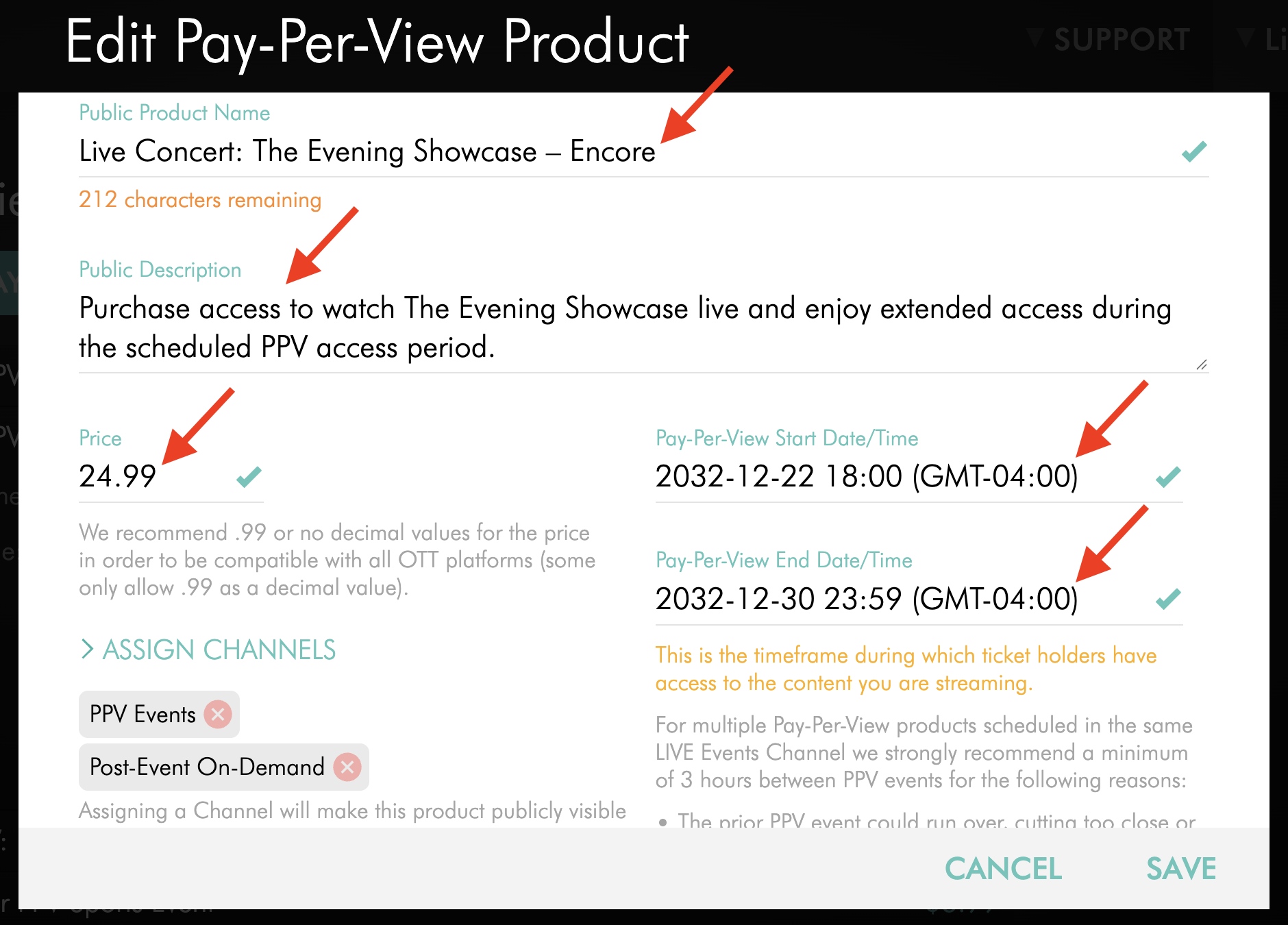
Update the applicable product settings.
Depending on the change you want to make, you can update:
Public Product Name
Public Description
Price
Pay-Per-View Start Date/Time
Pay-Per-View End Date/Time
For changes to the start or end date and time, select the applicable date, time zone, hour, and minute, then click OK.
Important: Changes to the PPV access period can affect when existing ticket holders can access the content. Verify the start date, end date, and time zone carefully before saving.
If you change the Price, the new price applies to future purchases only. Viewers who already purchased the PPV product retain access based on their existing purchase and are not charged the new price.
Step 6
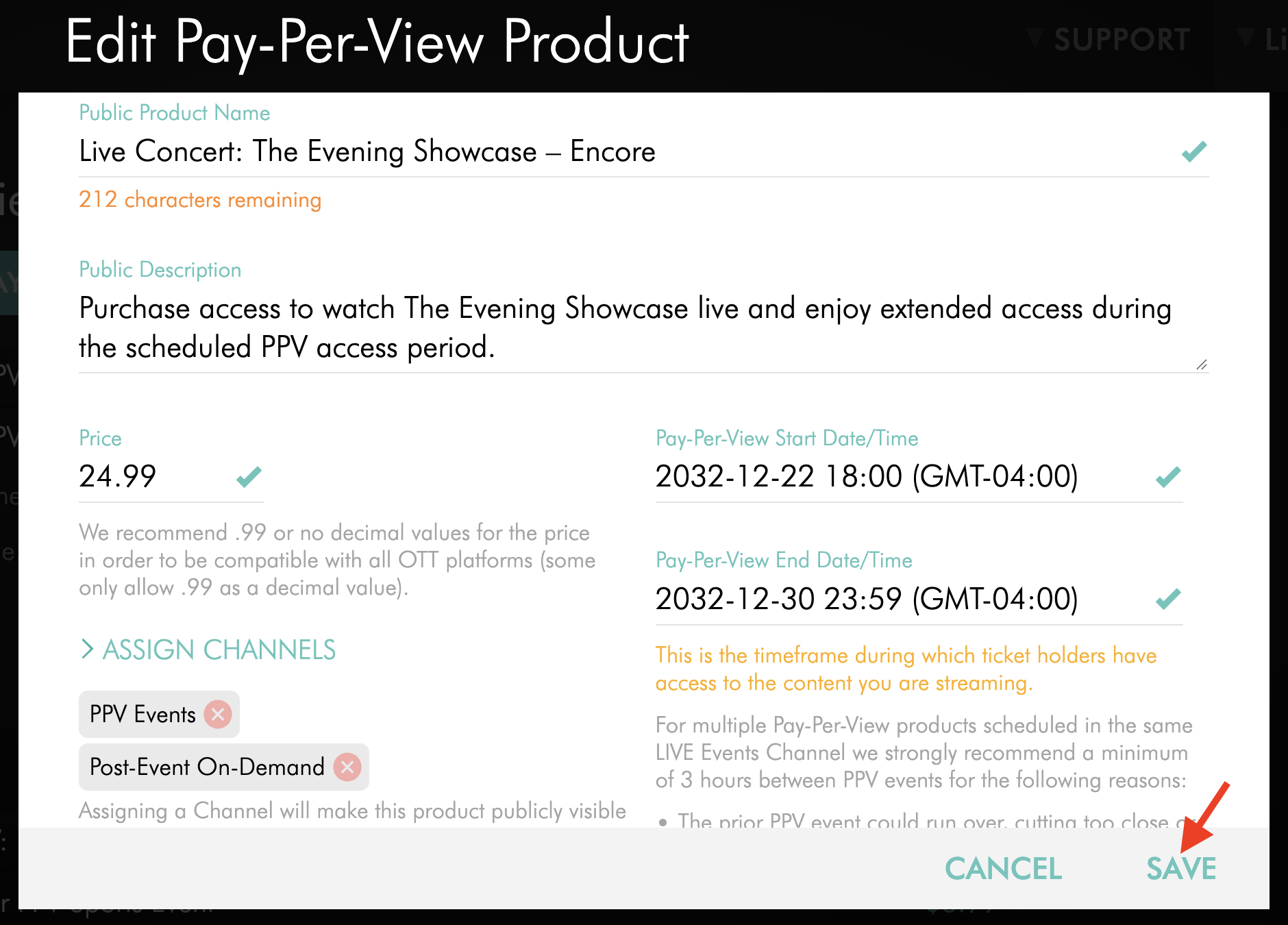
Review your changes, then click SAVE.
How to change assigned Channels
Step 1
Log in to your Media Cloud account.
Step 2
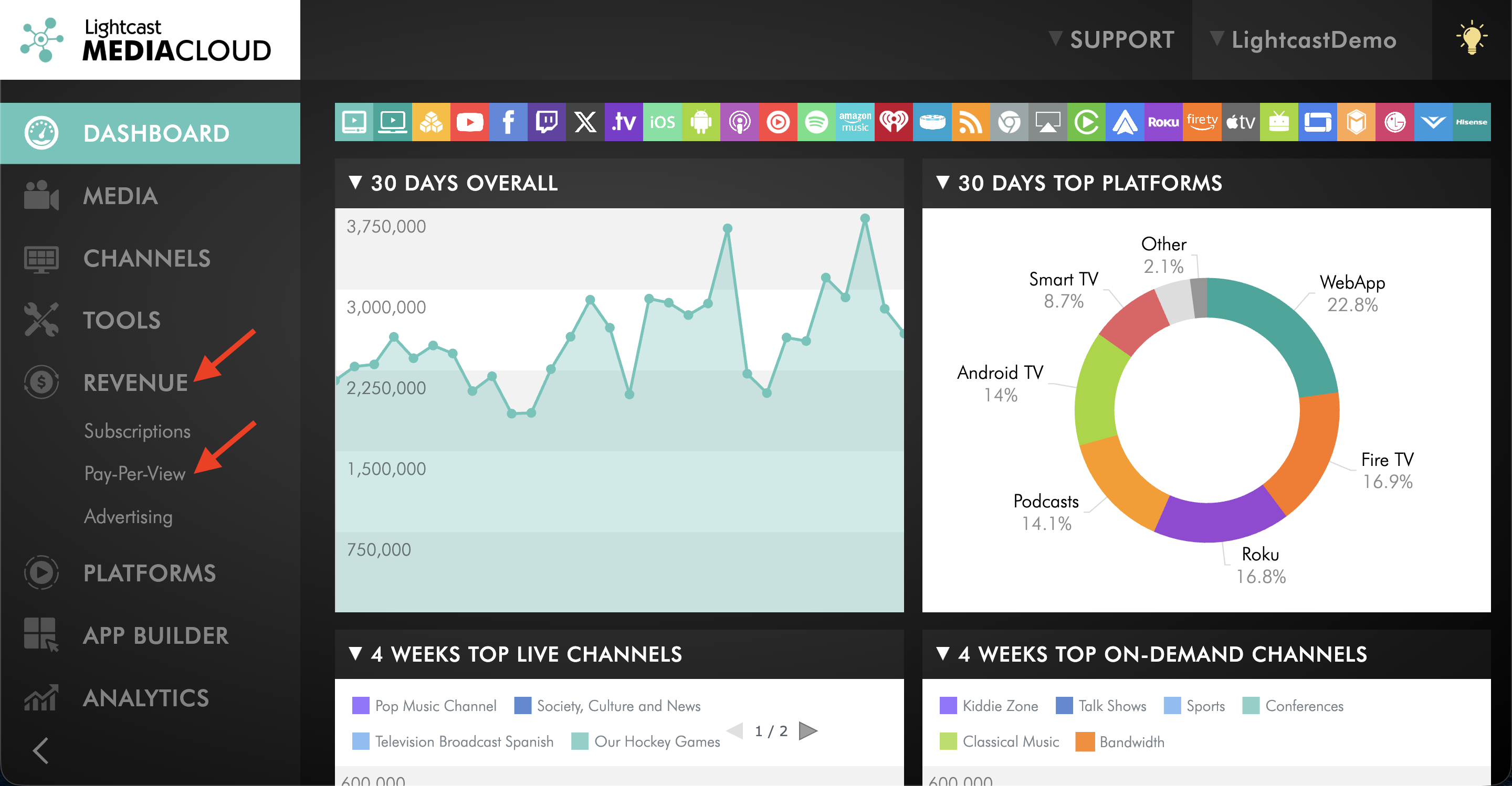
Select REVENUE from the left-hand menu, then select Pay-Per-View.
Step 3
Select the PPV product you want to update.
Before changing the assigned Channels, review Tickets Sold and the current PPV access period.
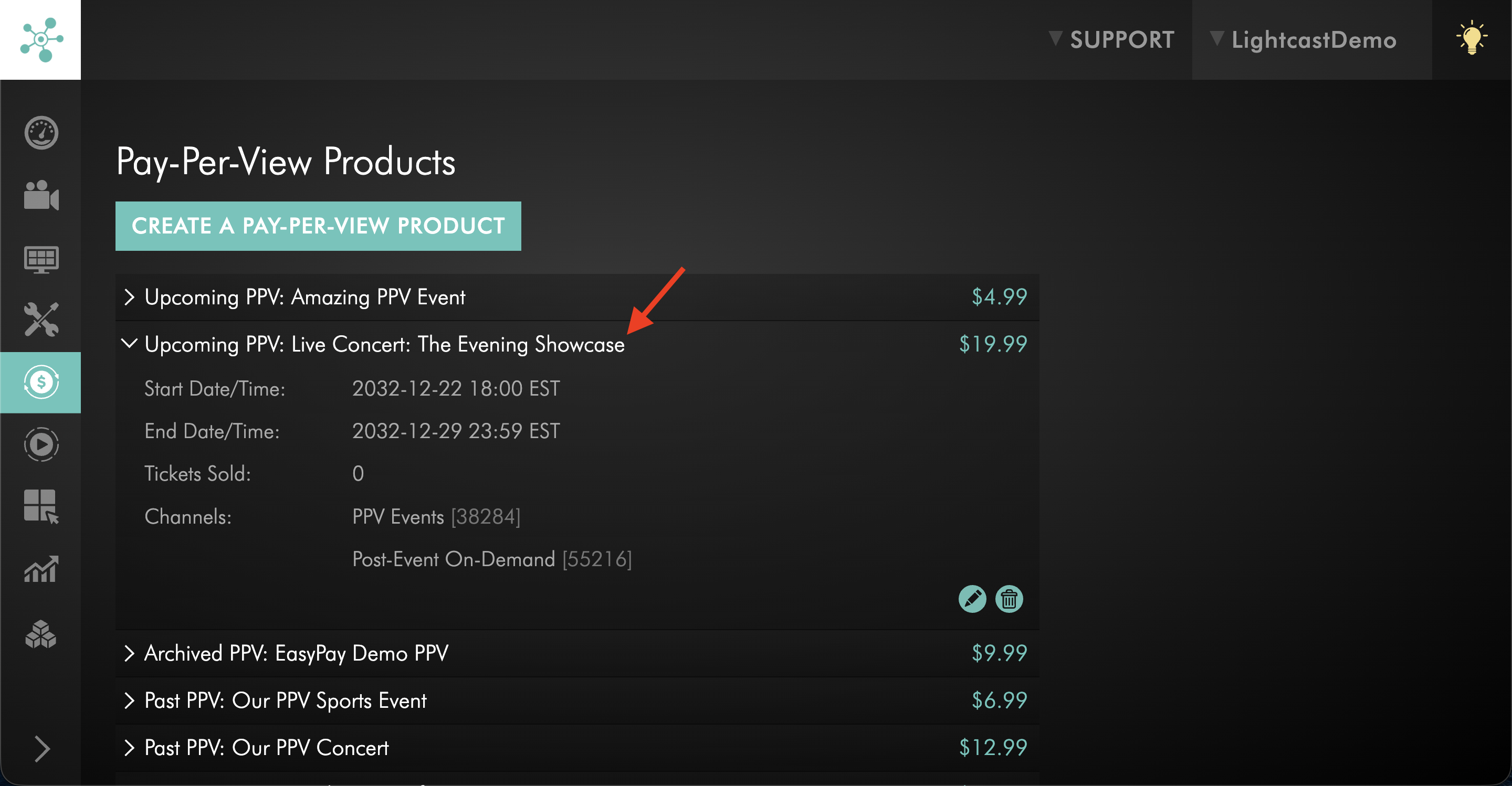
Step 4
Click the edit icon.
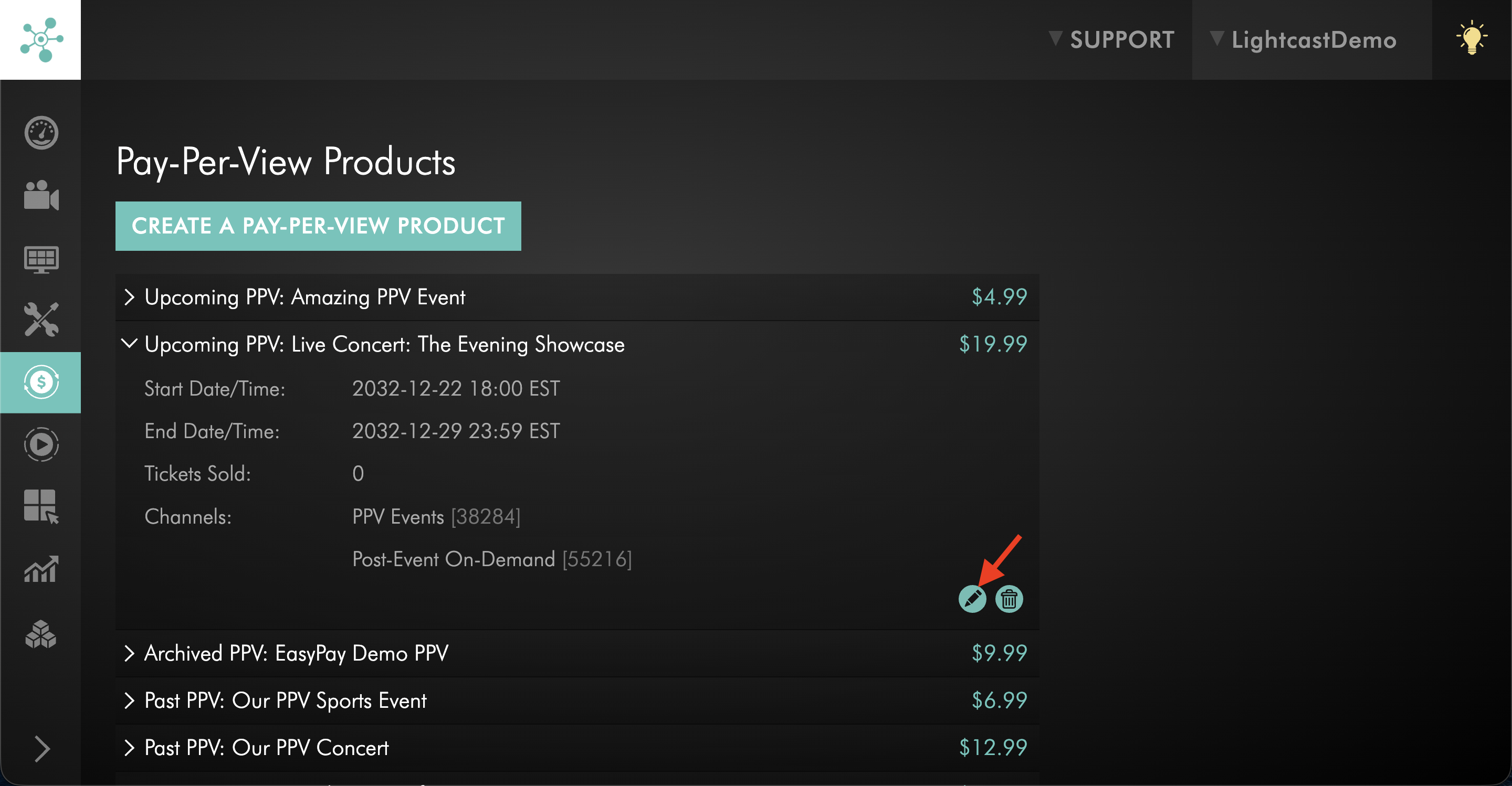
Step 5
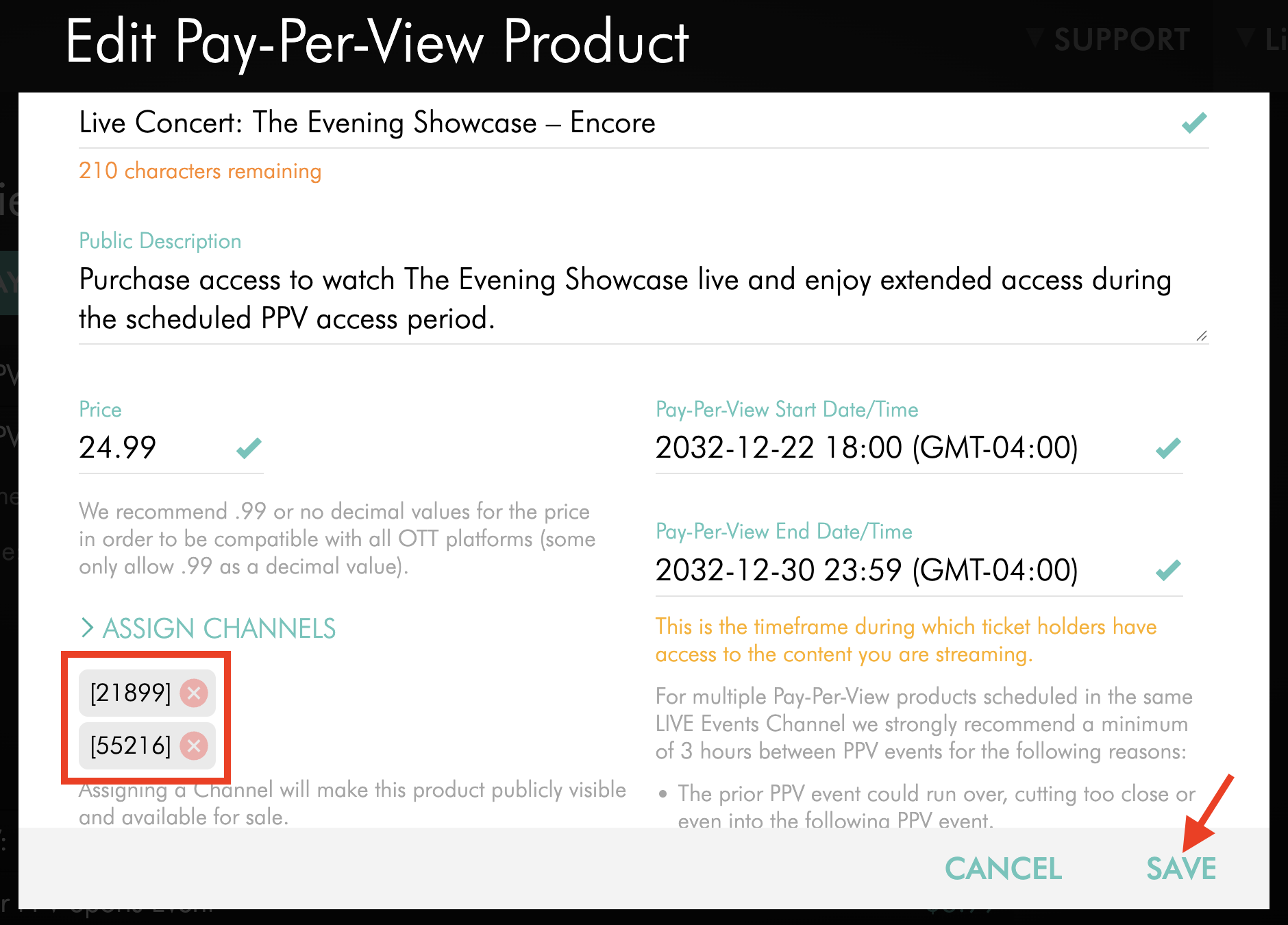
To remove an assigned Channel, click the X on the applicable Channel.
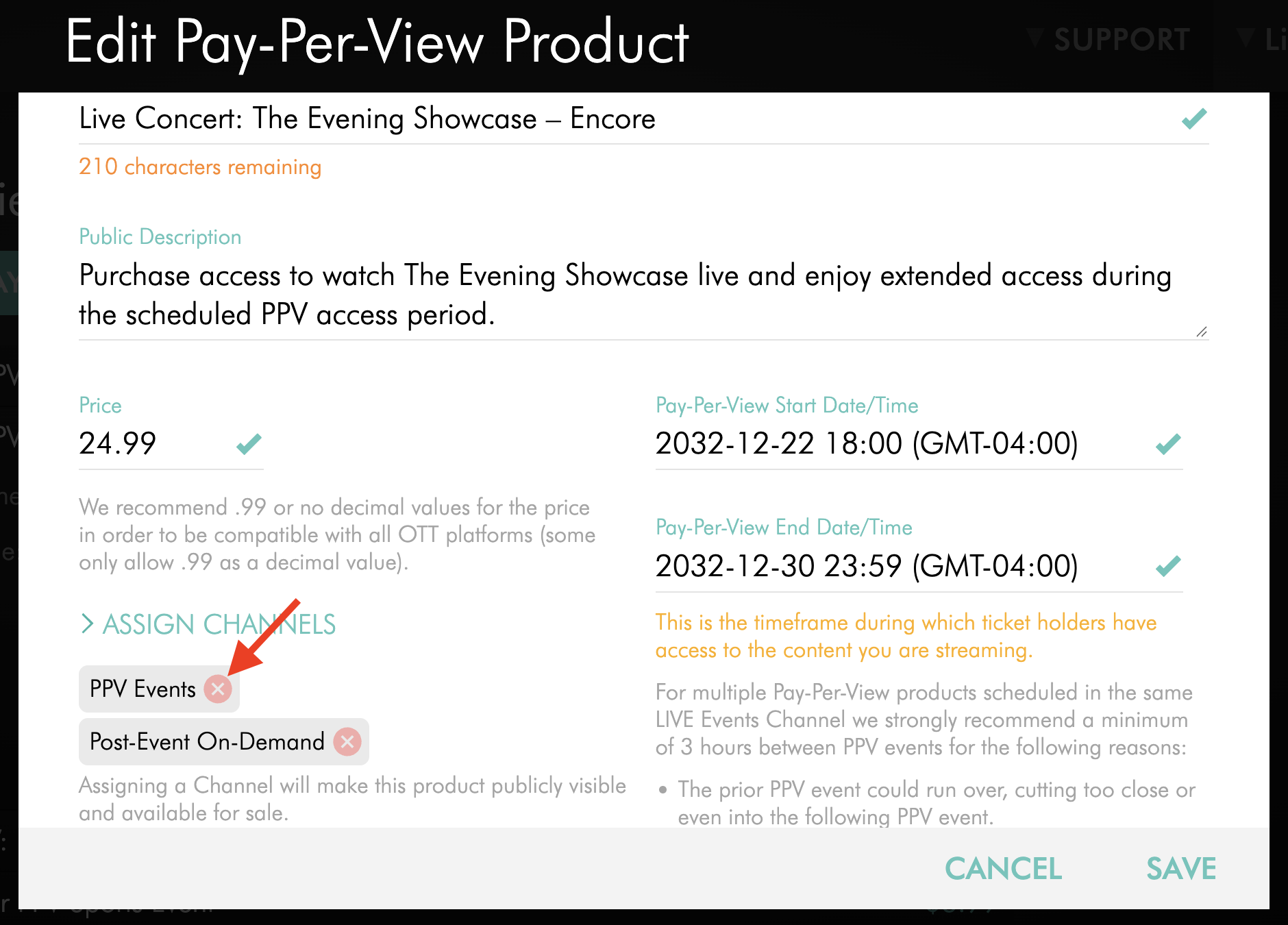
Step 6
To add another Channel, click ASSIGN CHANNELS.
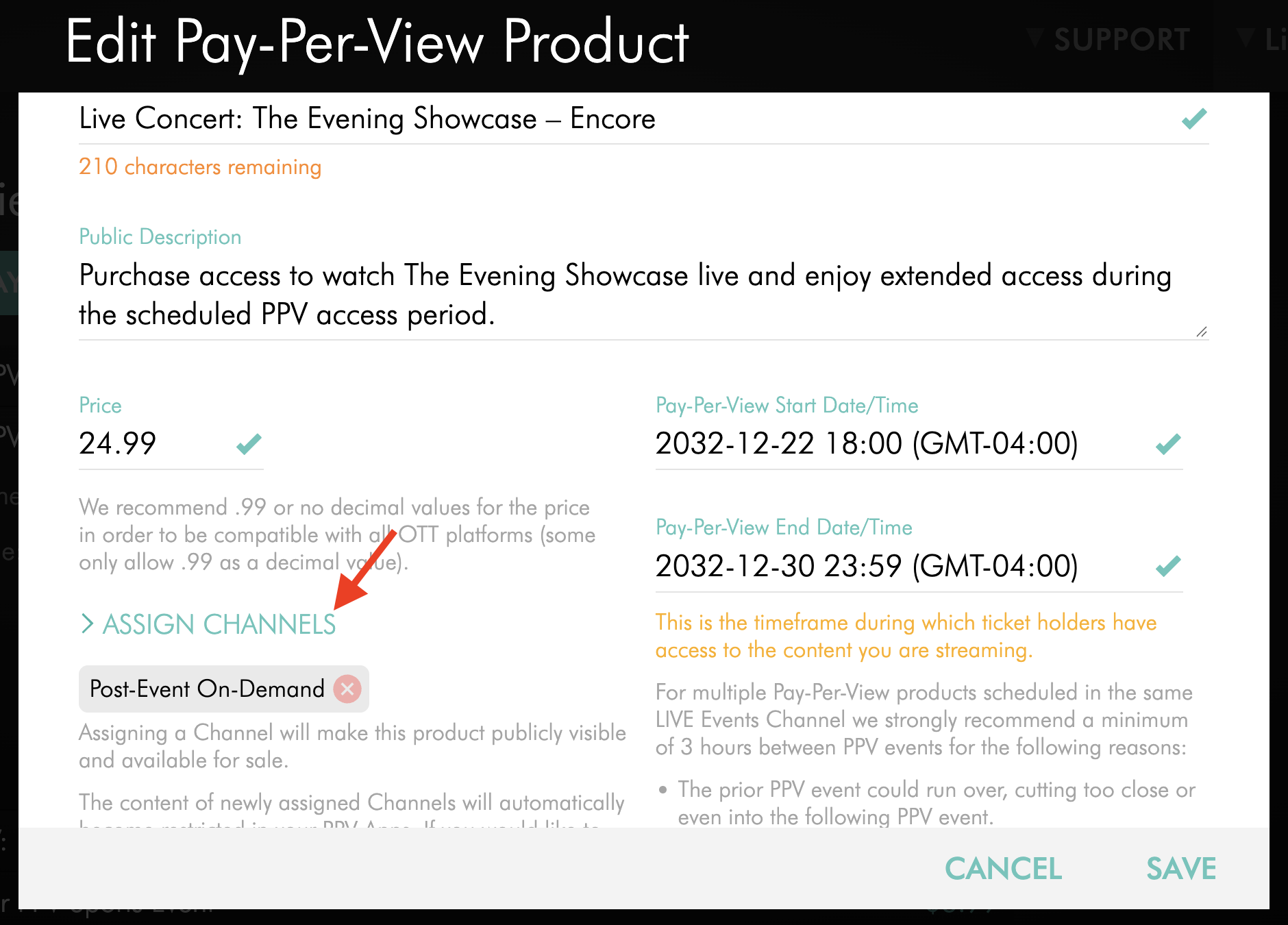
Step 7
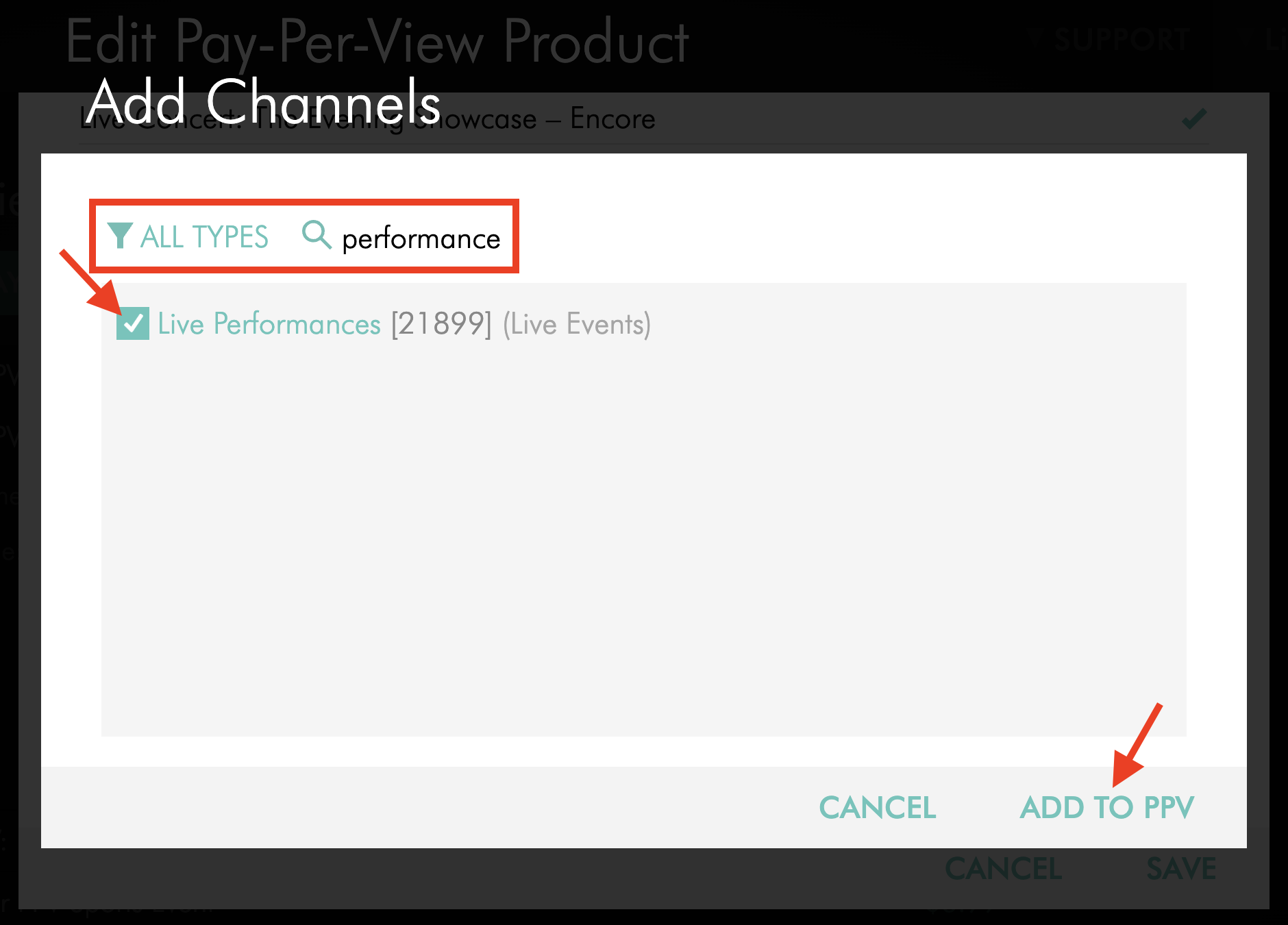
Use the Channel type filter and/or SEARCH field to find the LIVE, VOD, and/or AOD Channel(s) you want to include with the PPV product.
Select the applicable Channel(s), then click ADD TO PPV.
Important: The assigned Channels determine which content ticket holders can access with their PPV purchase.
If your PPV Live Event includes access to a post-event on-demand version, assign both the applicable LIVE Channel and VOD Channel to the same PPV product. This allows ticket holders to access both with a single purchase.
Make sure the on-demand content is published to the assigned VOD Channel and that the PPV access period extends long enough for ticket holders to watch the post-event content.
Changing a Channel assignment can also affect viewers who access that Channel in other ways:
If a previously free Channel is added to a PPV product and the changes are saved, the Channel becomes restricted by the PPV product.
If the Channel is also included in a subscription product, viewers with an active subscription that includes the Channel can continue accessing it without purchasing the PPV product separately.
If a previously free Channel is removed from the PPV product and the changes are saved, it becomes freely accessible again.
Step 8
Review the assigned Channel(s), then click SAVE.
How to delete a Pay-Per-View product
Important: Before deleting a PPV product, review Tickets Sold. If one or more tickets have been sold, the product cannot be deleted from the Media Cloud. This protects viewers who purchased the product from losing access to content they have already paid for.
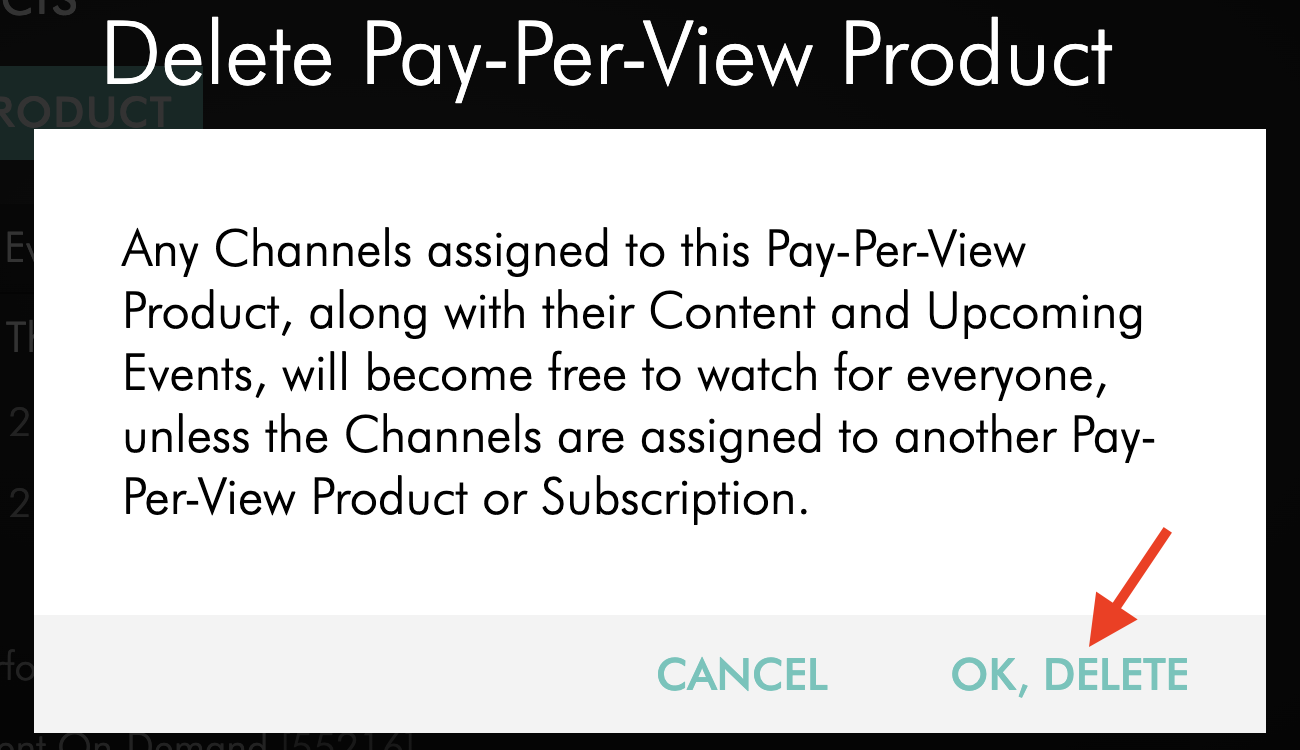
Deleting a PPV product also removes its historical information from the Pay-Per-View section of the Media Cloud. A deleted PPV product cannot be restored from the Media Cloud.
Step 1
Log in to your Media Cloud account.
Step 2
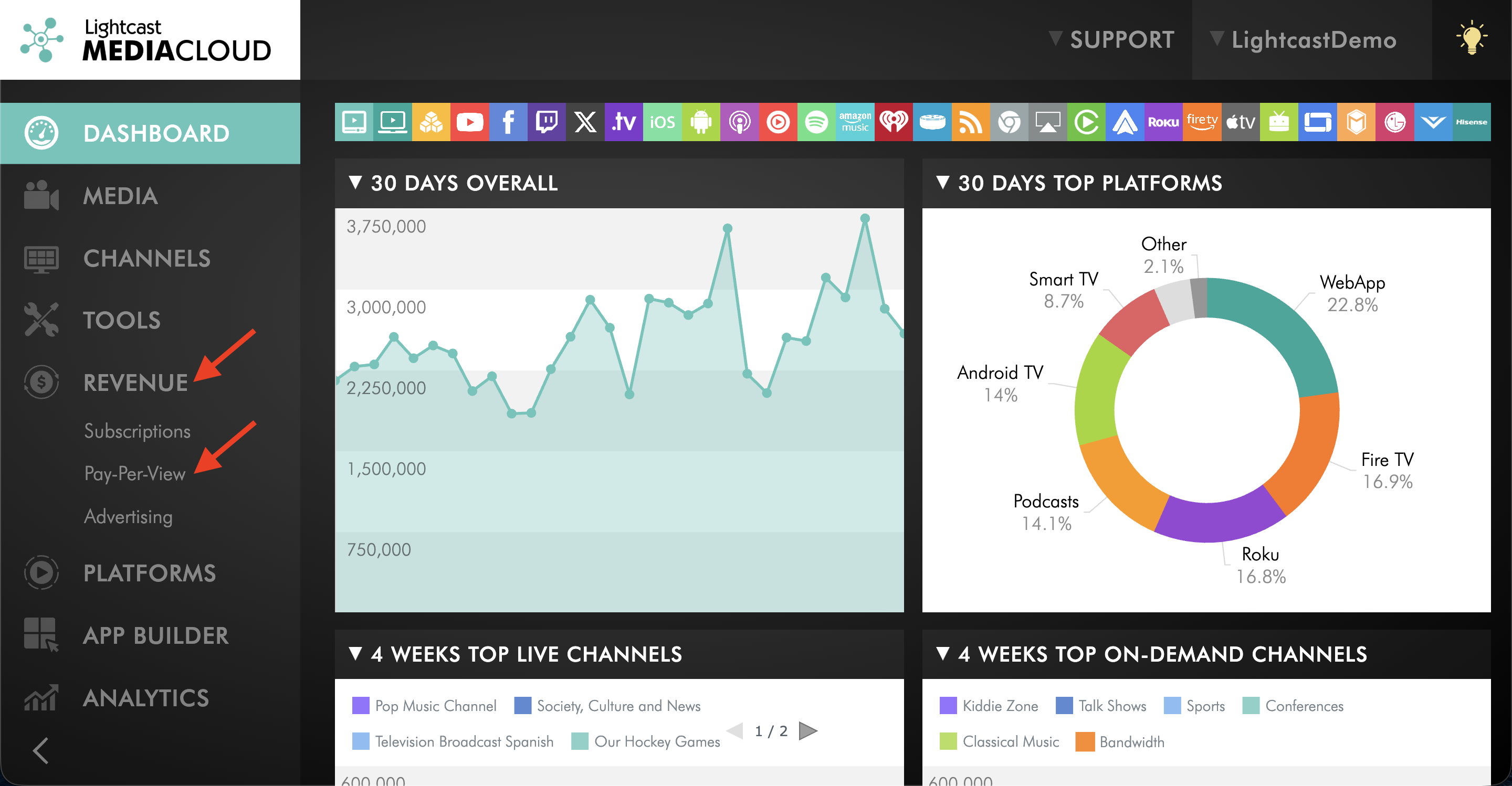
Select REVENUE from the left-hand menu, then select Pay-Per-View.
Step 3
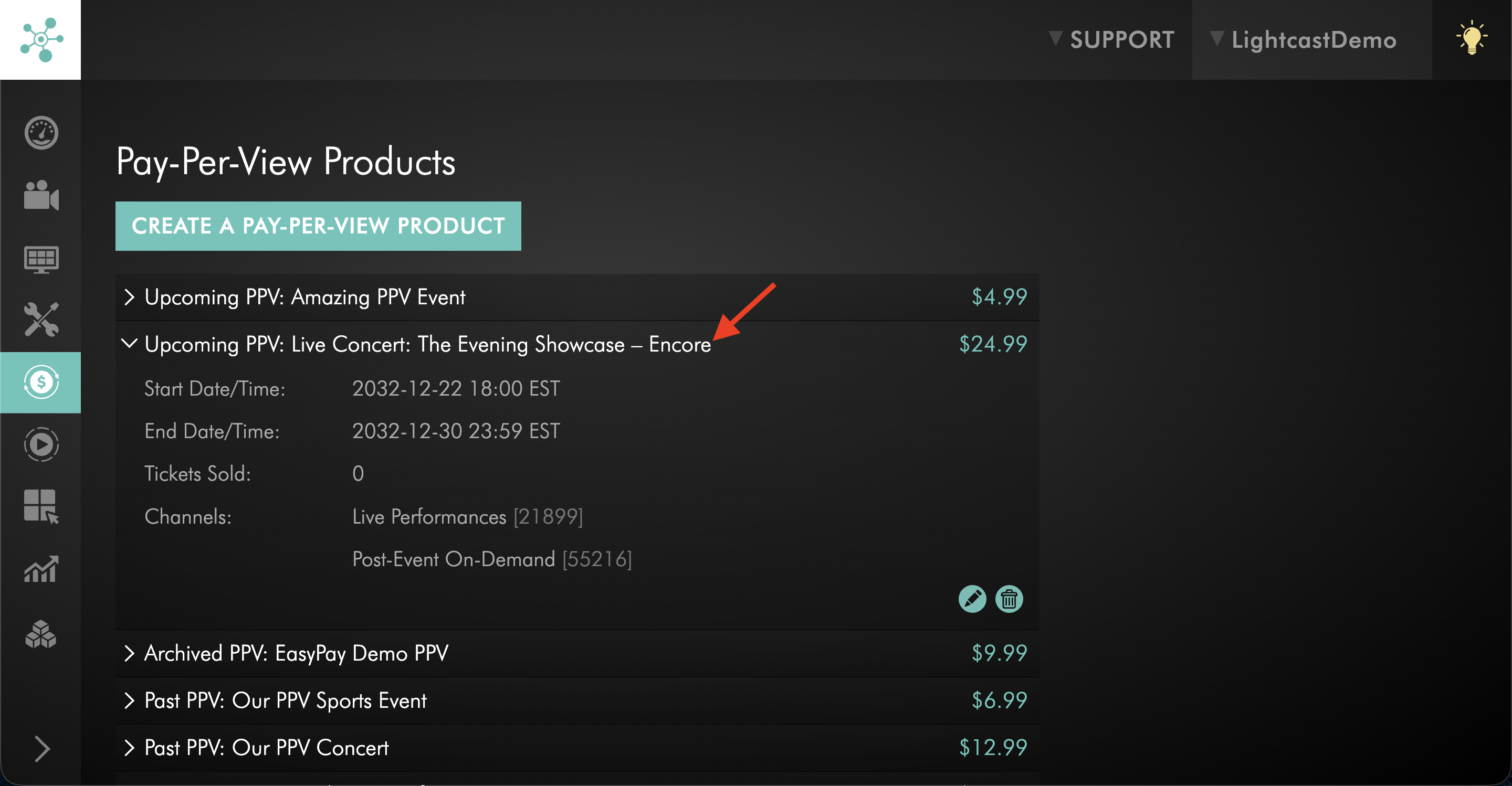
Select the PPV product you want to delete.
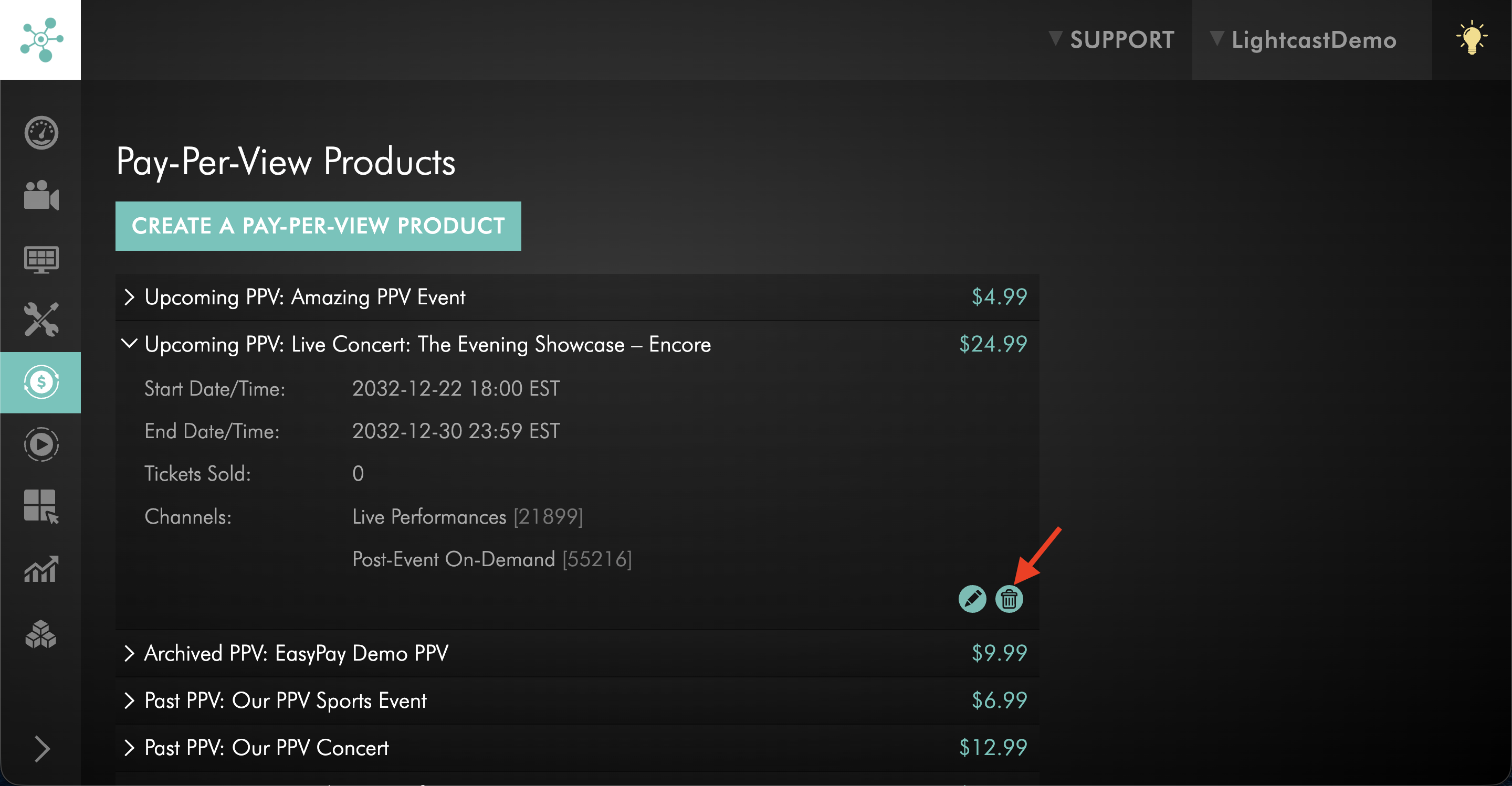
Confirm that Tickets Sold is 0.
Step 4
Click the delete icon.
Step 5
Click OK, DELETE to confirm the deletion.
FAQs
Where can the number of tickets sold for a Pay-Per-View product be viewed?
Select the PPV product from REVENUE → Pay-Per-View. The product details display the number of Tickets Sold.
Where can the Channels assigned to a Pay-Per-View product be viewed?
Select the PPV product from REVENUE → Pay-Per-View. The product details display the Channel(s) assigned to that product.
Can I edit a Pay-Per-View product after tickets have already been sold?
Yes. A PPV product can still be edited after tickets have been sold.
Before making changes, review Tickets Sold and consider how changes to the access period or assigned Channels may affect existing ticket holders.
Can an active Pay-Per-View product be edited after its access period has started?
Yes. Active PPV products can be edited after their access period has started.
Changes to the access period or assigned Channels can affect existing ticket holders, so review the changes carefully before saving.
Can an expired Pay-Per-View product be edited?
Yes. Past PPV products can still be edited, including changes to the configured access period.
For example, you can extend the Pay-Per-View End Date/Time when you want to extend access to the assigned content.
What happens if I change the ticket price after tickets have already been sold?
The new Price applies only to future purchases.
Viewers who already purchased the PPV product retain access at the price they paid when they purchased their ticket. They do not need to purchase the product again at the new price.
Can the Public Product Name and Public Description be changed?
Yes. Edit the PPV product and update the Public Product Name and/or Public Description, then save your changes.
Can the Pay-Per-View access period be changed?
Yes. Edit the Pay-Per-View Start Date/Time and/or Pay-Per-View End Date/Time, including the applicable time zone, then save your changes.
Keep in mind that changing the access period can affect when existing ticket holders can access the content.
Can I extend the Pay-Per-View access period to include post-event on-demand content?
Yes. Update the Pay-Per-View End Date/Time to include the desired on-demand access period.
Make sure the applicable VOD Channel is assigned to the PPV product and that the on-demand content is published to that Channel.
For more information, see How to offer on-demand access after a Pay-Per-View Live Event.
Can the Channels assigned to a Pay-Per-View product be changed?
Yes. Remove any Channels that should no longer be assigned, then use ASSIGN CHANNELS to add the applicable LIVE, VOD, and/or AOD Channel(s).
Keep in mind that changing Channel assignments can affect the content available to existing ticket holders.
Can I delete a Pay-Per-View product after tickets have already been sold?
No. A PPV product cannot be deleted from the Media Cloud after one or more tickets have been sold.
This prevents existing ticket holders from losing access to content they have already purchased.
What happens to a deleted Pay-Per-View product?
Once a PPV product is deleted, its historical information is no longer available in the Pay-Per-View section of the Media Cloud.
A deleted PPV product cannot be restored from the Media Cloud. If you need assistance with a previously deleted PPV product, contact Customer Support.