
How to manage Channel access for a sub-user
Overview
Channel access controls allow account owners and sub-users with the User Management permission to choose which Channels a sub-user can access in the Media Cloud.
Channel access determines which Channels the sub-user can access, while the sub-user's permissions determine what they can do within those Channels and other areas of the Media Cloud.
This article explains how to assign specific Channels to a sub-user and update their Channel access as needed.
When to use Channel access controls
You may want to manage Channel access when:
You want to limit a sub-user's access to certain Channels
Different team members are responsible for different Channels
A sub-user's responsibilities have changed
You want to keep each sub-user's Channel access aligned with their role
Channel access can be configured when creating a new sub-user or when editing an existing sub-user.
How it works
Channel access and permissions
Channel access is managed through Users → PERMISSIONS → Channel Management.
When Channel Management is enabled, the sub-user has access to all Channels by default. Use SELECT CHANNELS if you want to limit the sub-user's access to specific Channels.
If Channel Management is not enabled, the SELECT CHANNELS option does not appear.
When specific Channels are selected, the sub-user's Channel access is limited to those Channels. The sub-user can work within the assigned Channels according to their other enabled permissions.
You can update the selected Channels later as the sub-user's responsibilities change.
Channel analytics
For assigned Channels that provide Channel-level analytics, the sub-user can access those analytics directly from the Channel's OVERVIEW page.
The Full Analytics permission is separate from Channel access. If enabled, it provides the sub-user with broader analytics access in addition to analytics available from their assigned Channels.
Live Events Channels: Channel-specific analytics are handled differently. If a sub-user needs access to Live Event analytics, assign the Full Analytics permission.
Media access
The Media Management permission is not required for a sub-user to work with media from within an assigned Channel. Channel access allows the sub-user to perform supported media actions directly within that Channel.
For example, a sub-user can:
Upload or select media from within an assigned VOD or AOD Channel
Create Live Events for an assigned Live Events Channel
Add videos to an assigned 24/7 Scheduler Channel
Assign Media Management only when the sub-user also needs direct access to broader MEDIA areas outside their assigned Channels, such as the Video Archive or Audio Archive.
Podcast access
If an assigned VOD or AOD Channel is used as the source of a Podcast, the sub-user can access the associated Podcast from the Channel's OVERVIEW page without requiring broader Apps & Platforms access.
Assign the Apps & Platforms permission when the sub-user needs broader access to Podcast management or other areas within PLATFORMS.
Instructions
Assign Channel access to a new sub-user
Step 1
Log in to your Media Cloud account.
Step 2
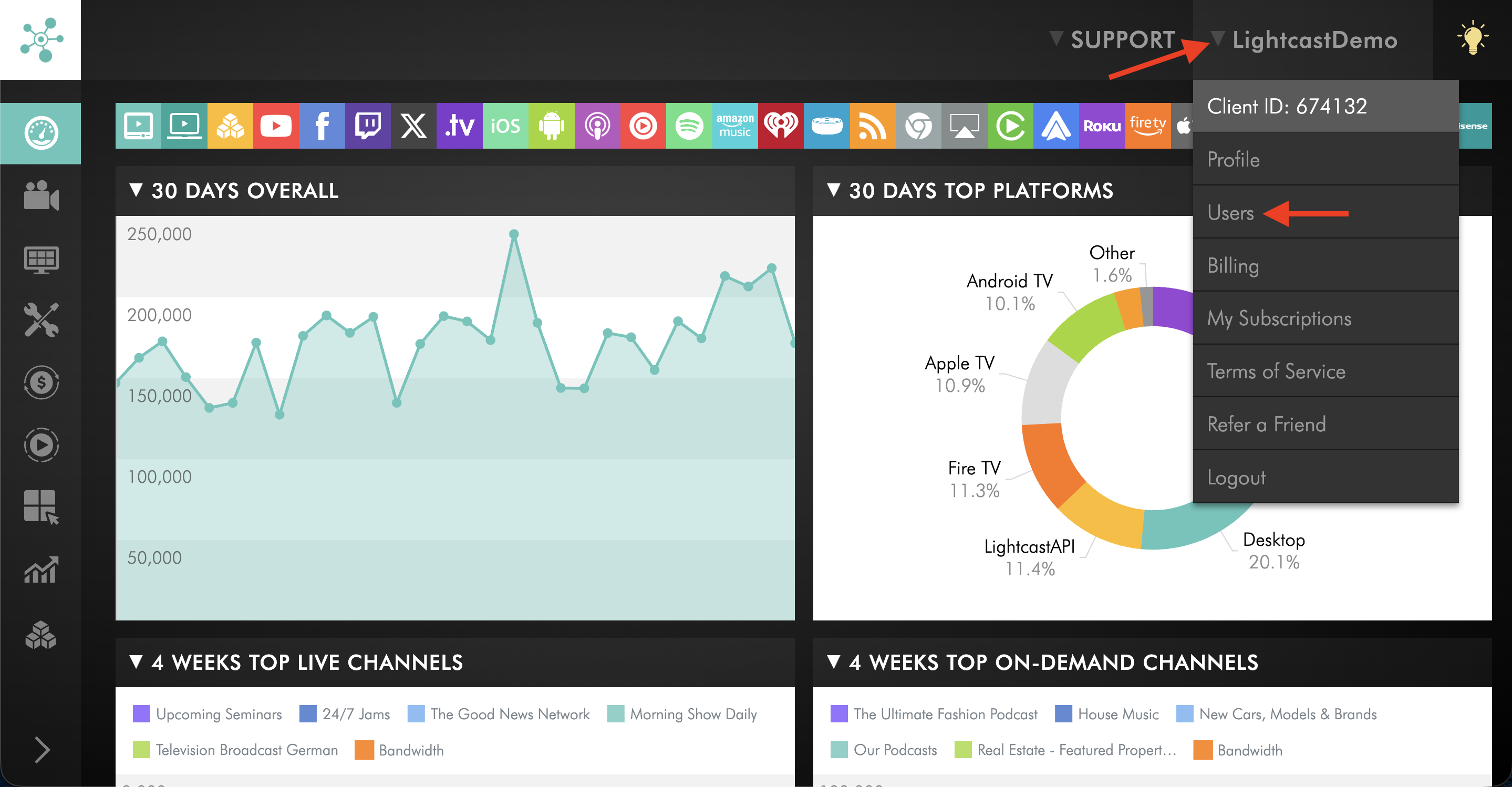
Click your username in the upper-right corner, then select Users from the dropdown menu.
Step 3
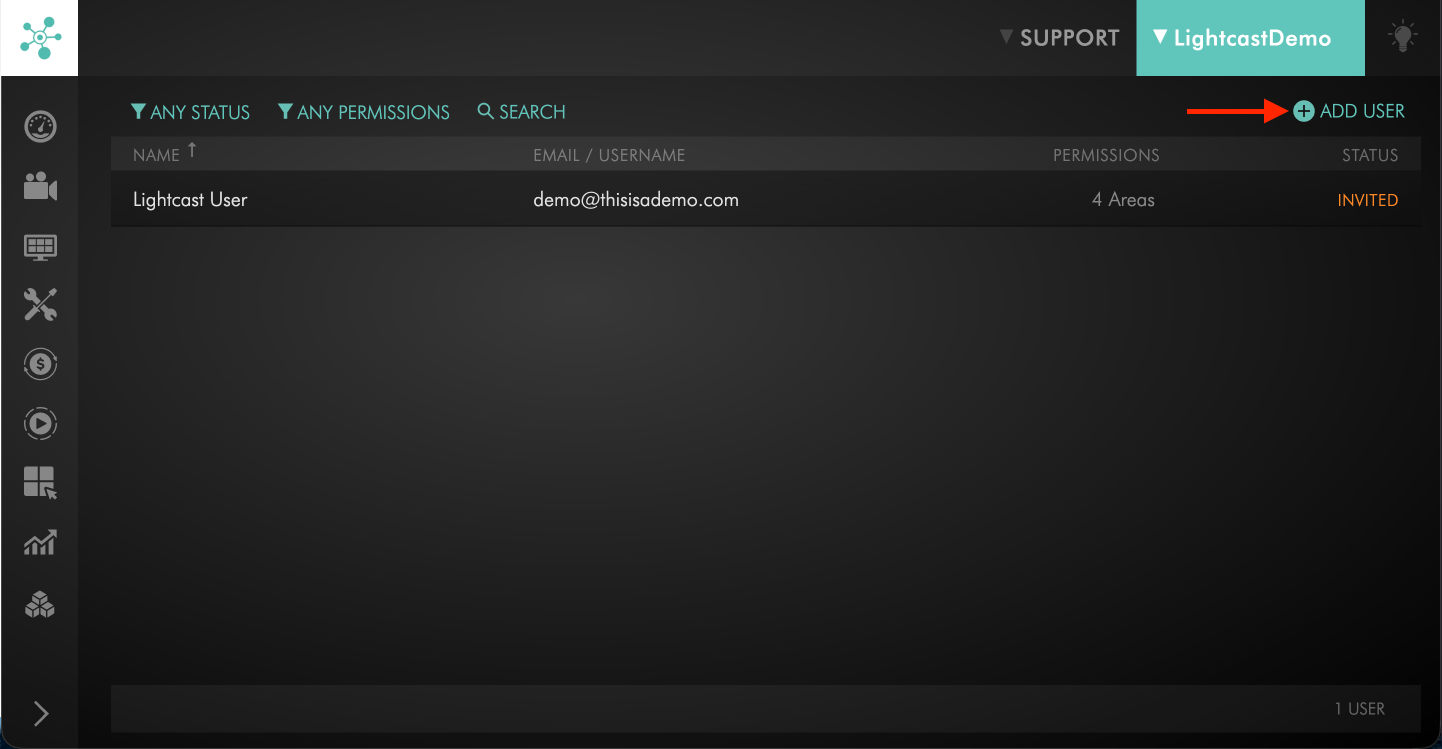
Click + ADD USER.
Step 4
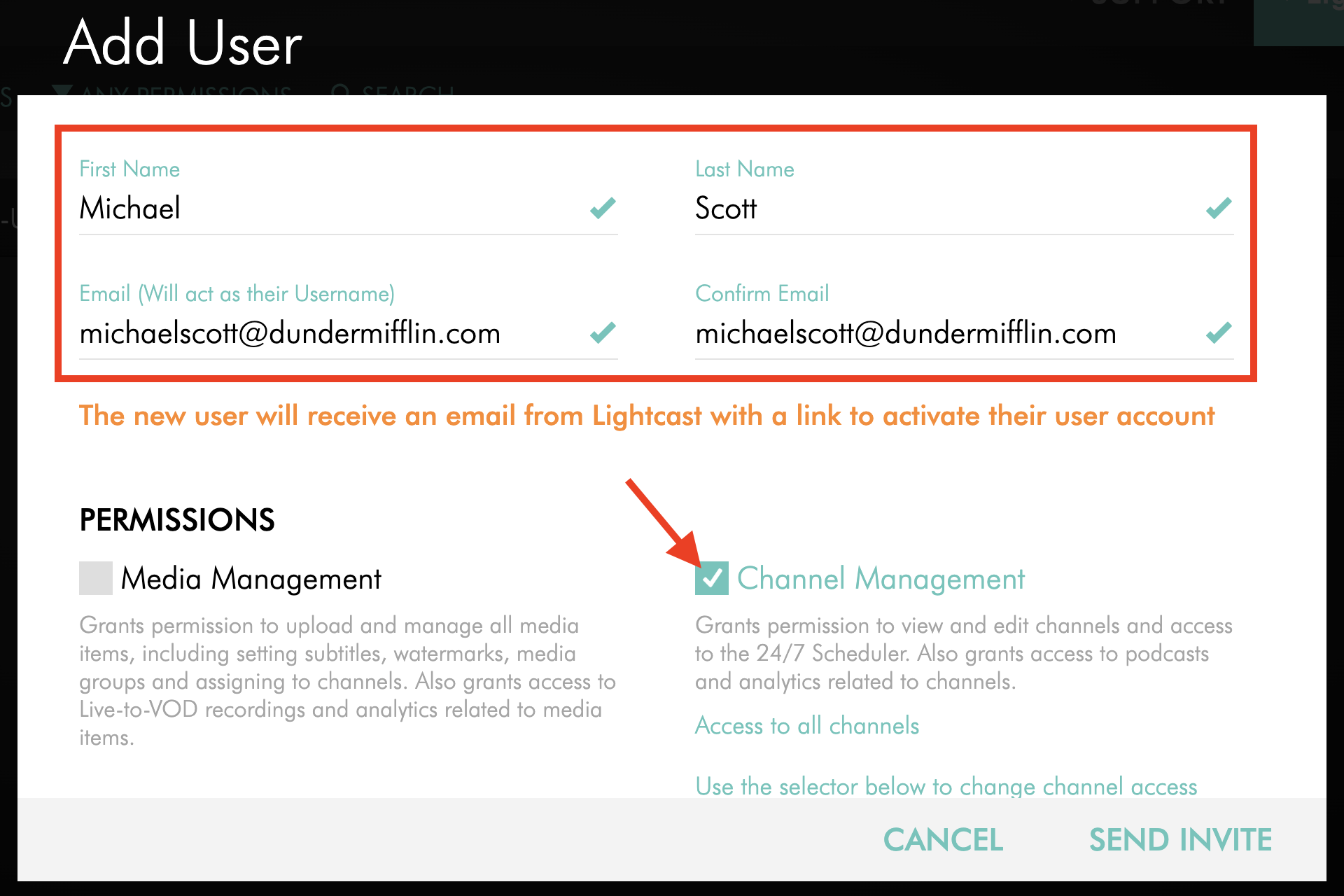
Enter the sub-user's information and select the Channel Management permission.
Step 5
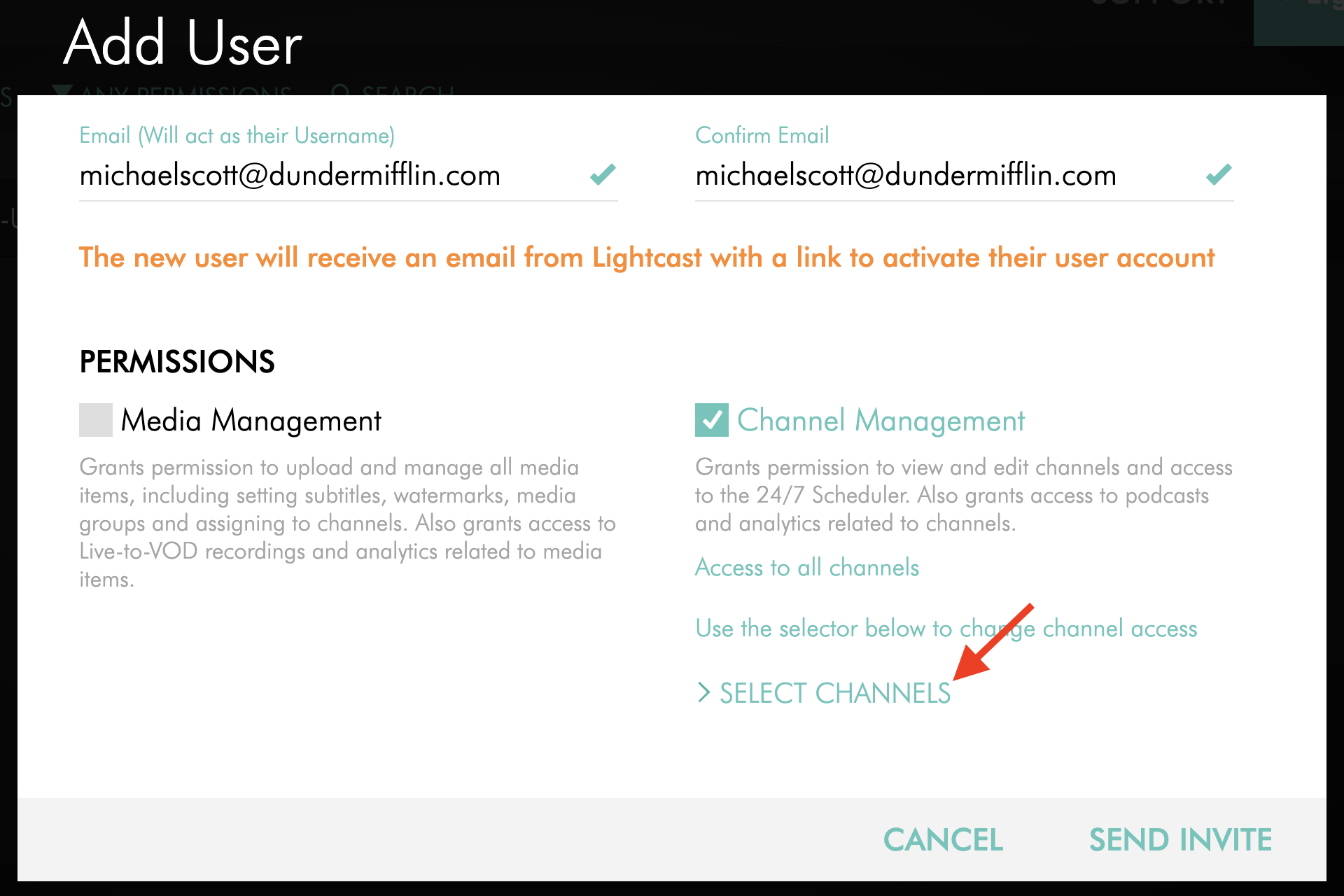
Under Channel Management, click SELECT CHANNELS.
Step 6
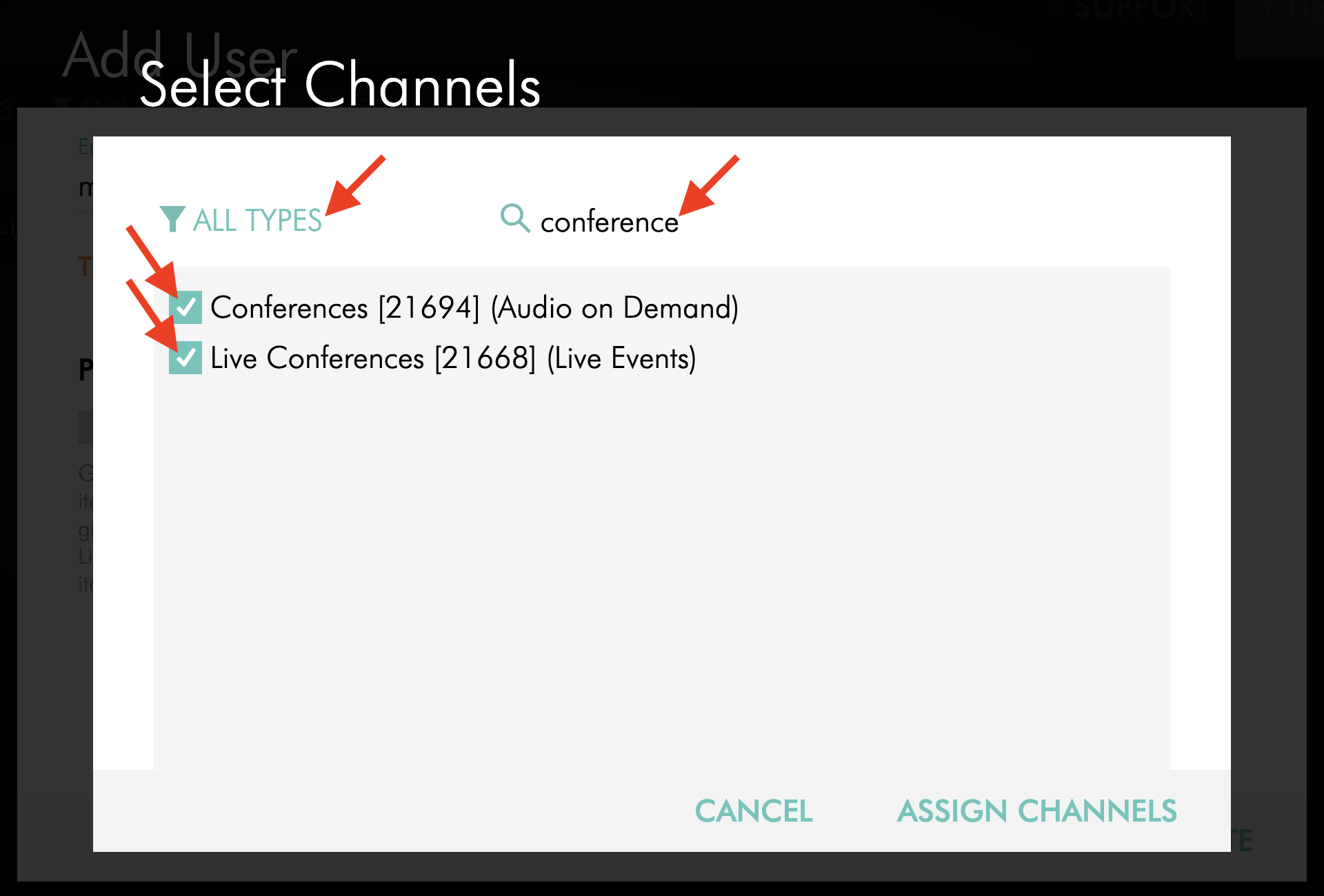
Select the Channels the sub-user should be able to access.
If needed, use the ALL TYPES filter or SEARCH option to find specific Channels more quickly.
Step 7
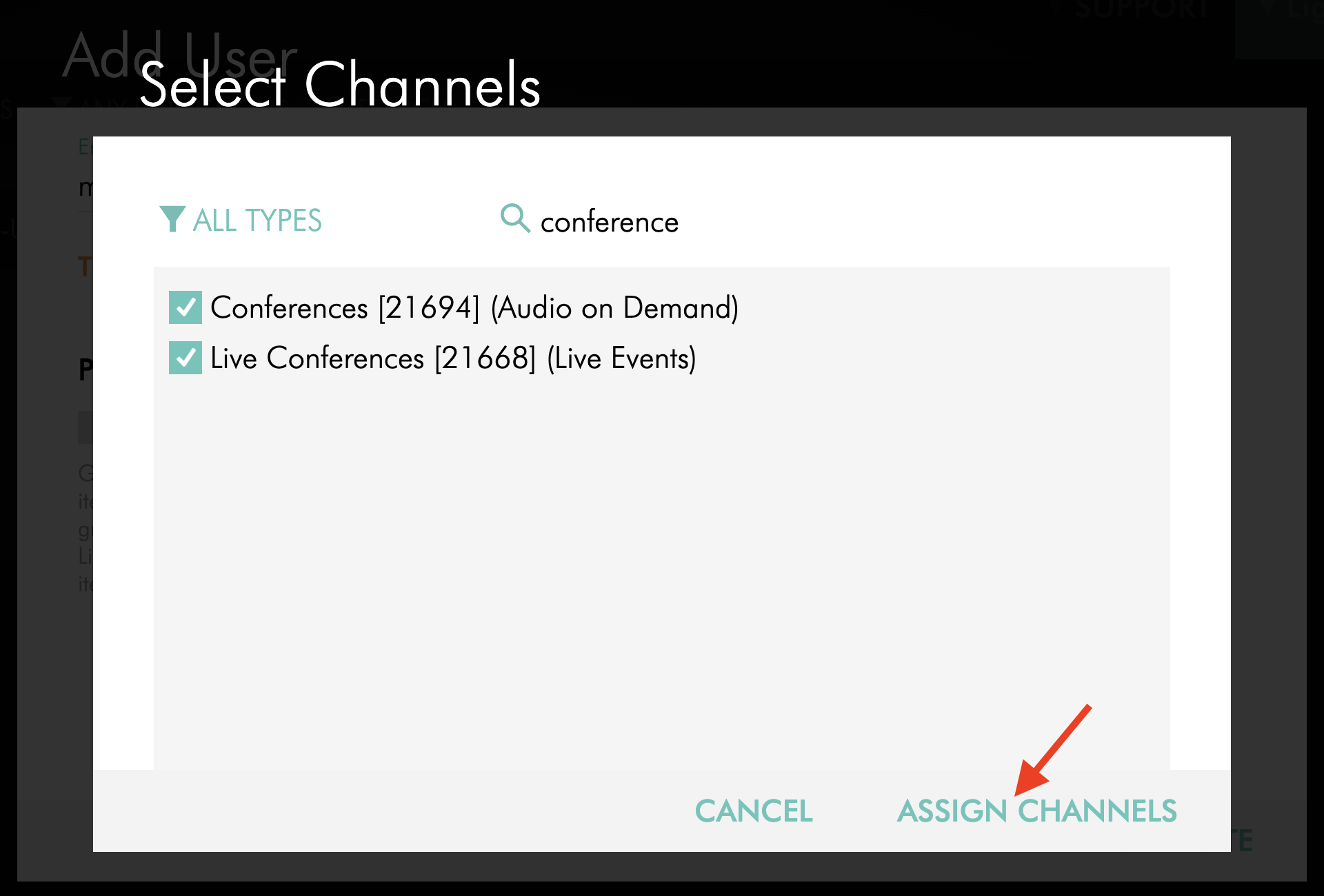
Click ASSIGN CHANNELS.
The selected Channels will appear under the Channel Management permission.
Step 8
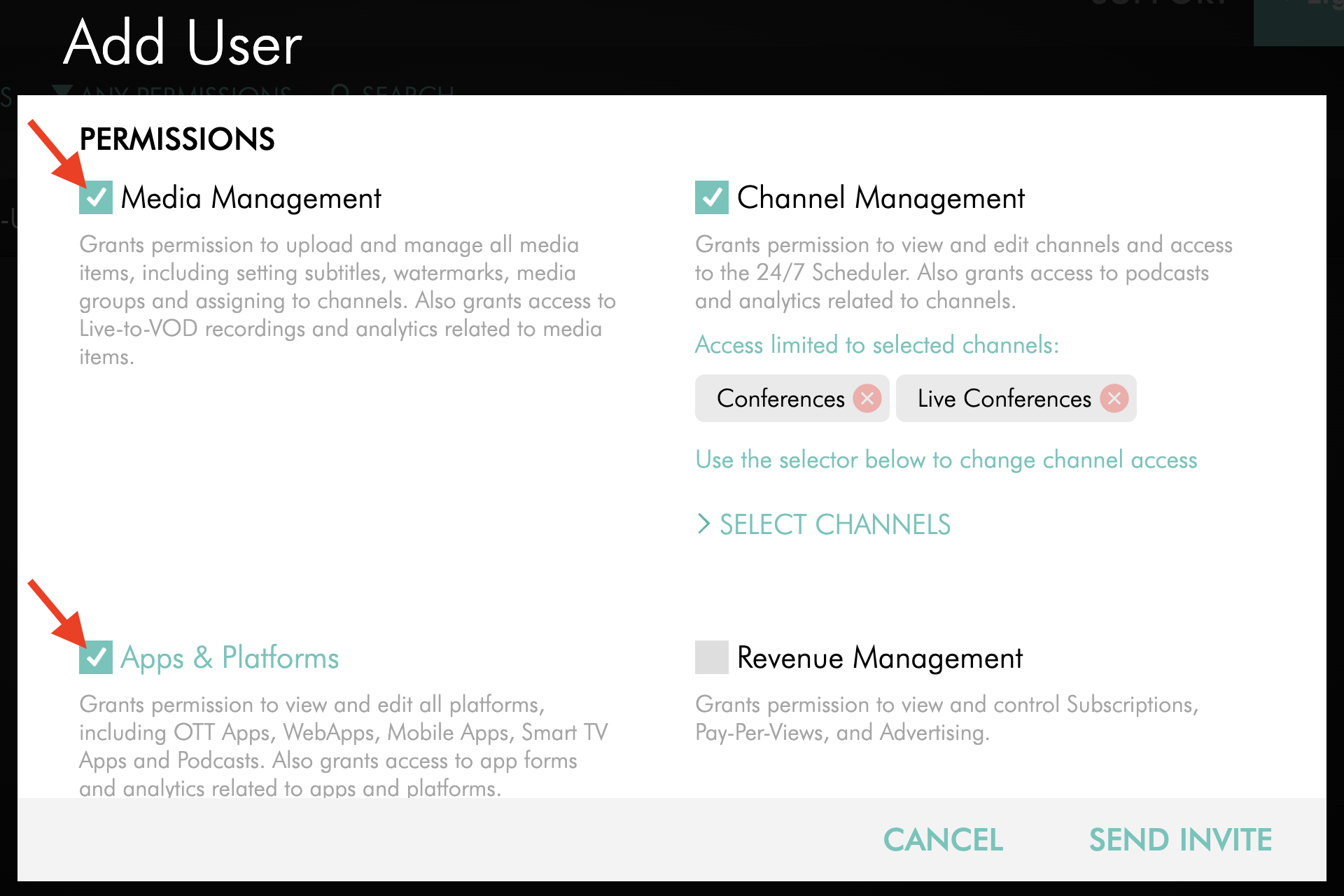
Optional: Select any additional PERMISSIONS the sub-user should have.
Step 9
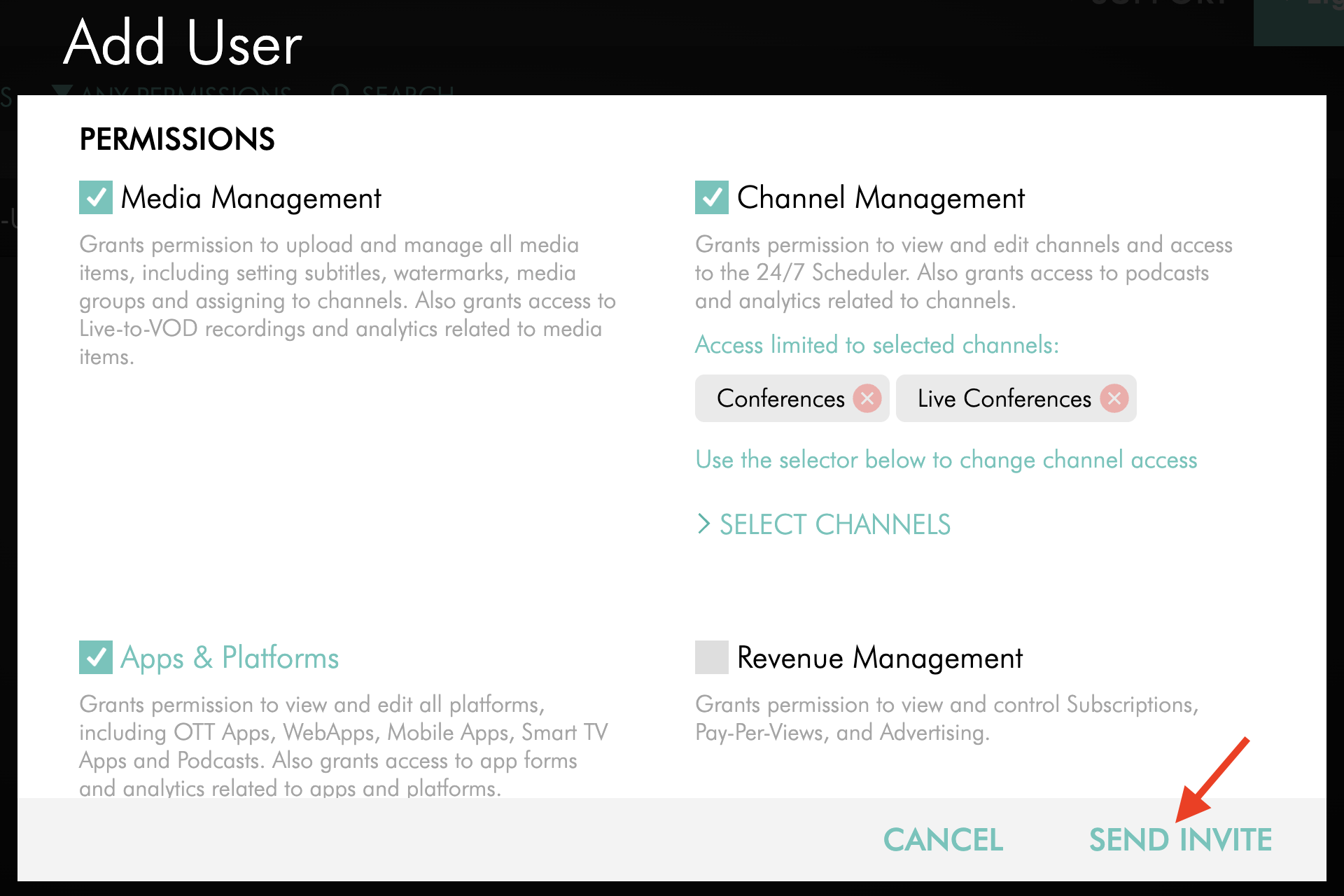
Click SEND INVITE.
Step 10
The sub-user will receive an email invitation to activate their account. They must click the link in the email and create their password to complete setup.
Important: The invitation email expires after 14 days. If the sub-user does not accept the invitation within that timeframe, the account owner or a sub-user with the User Management permission can resend the invitation from the Media Cloud.
Update Channel access for an existing sub-user
Step 1
Log in to your Media Cloud account.
Step 2
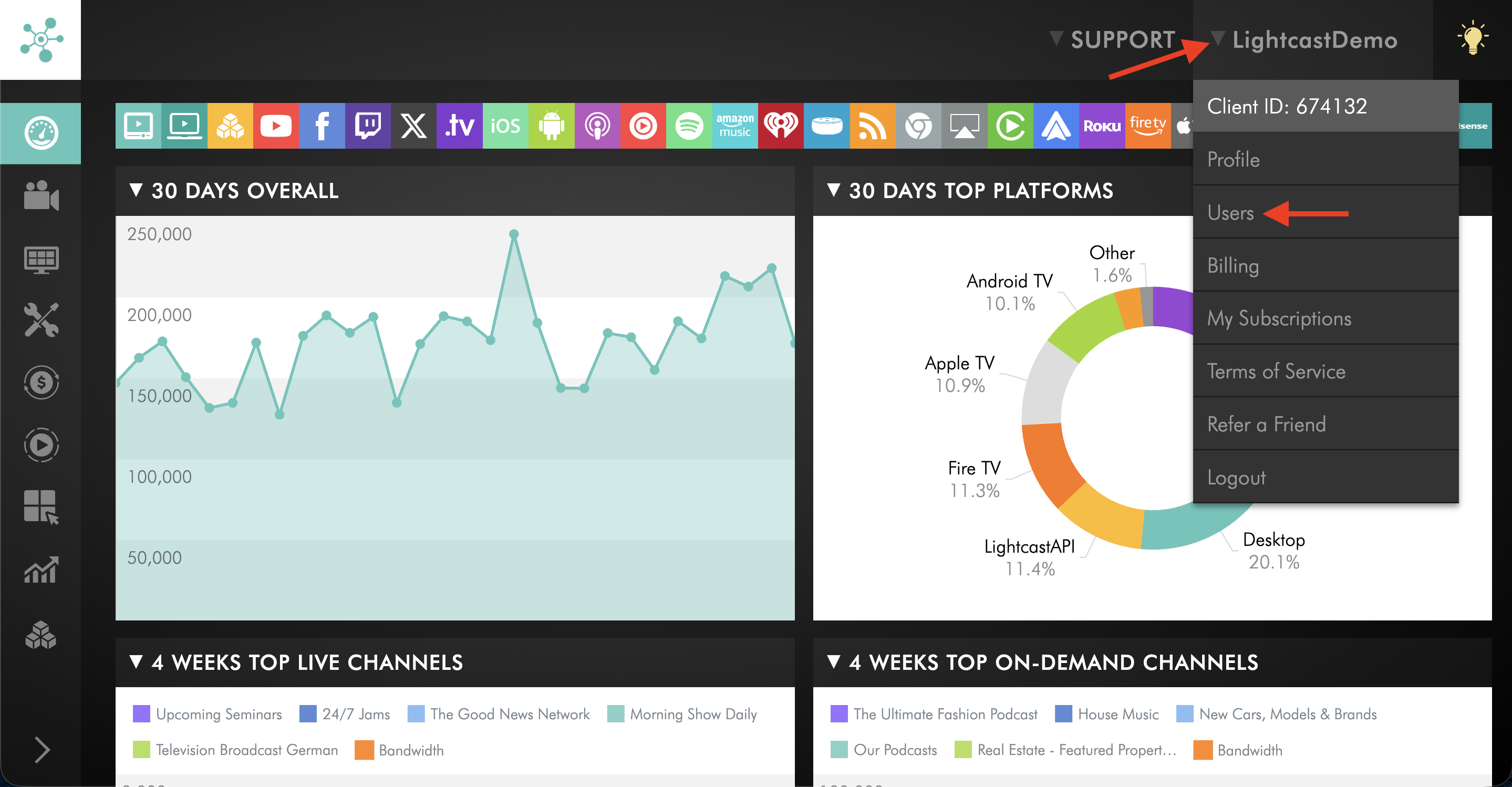
Click your username in the upper-right corner, then select Users from the dropdown menu.
Step 3
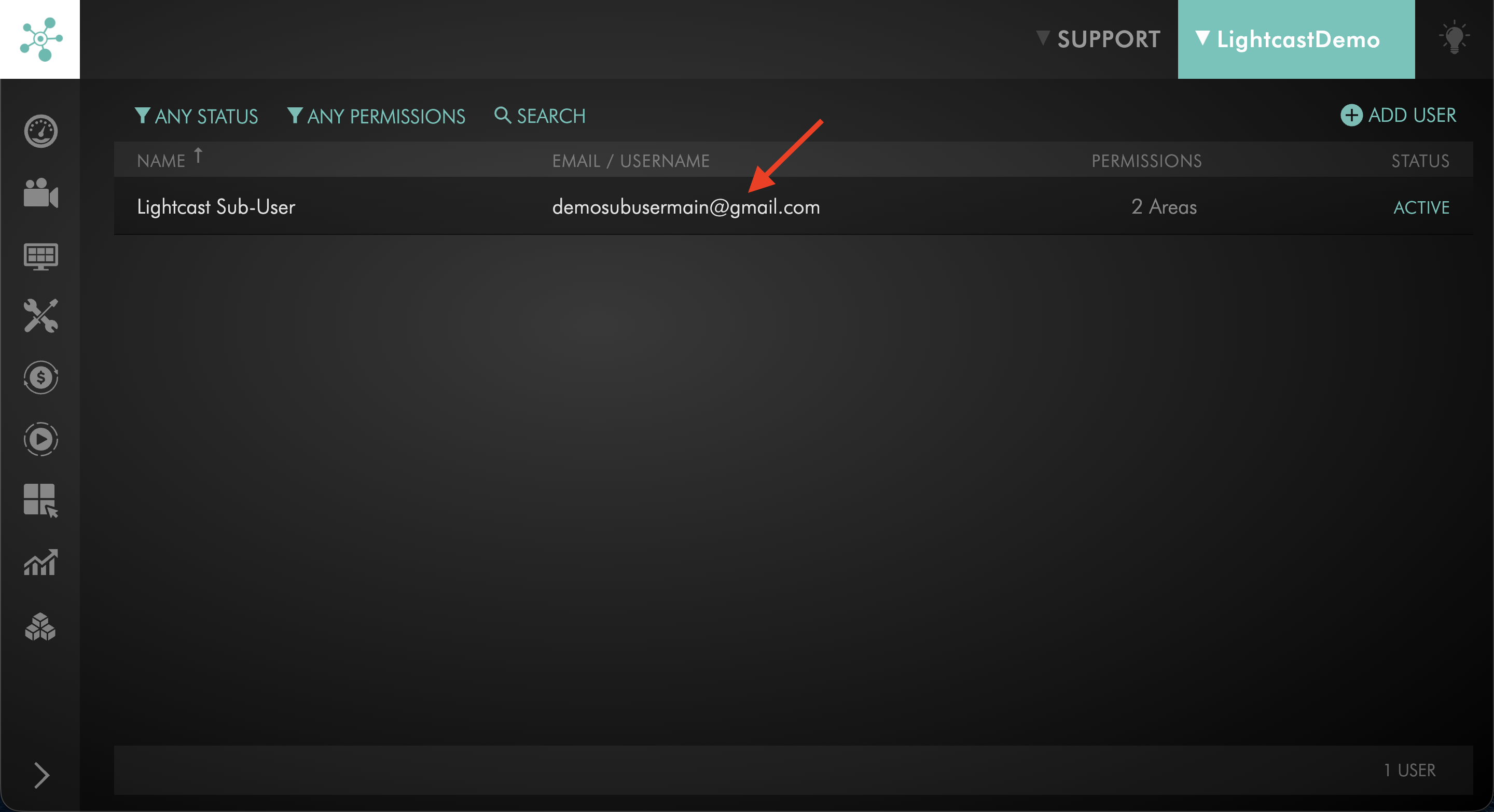
Click the sub-user whose Channel access you want to update.
Step 4
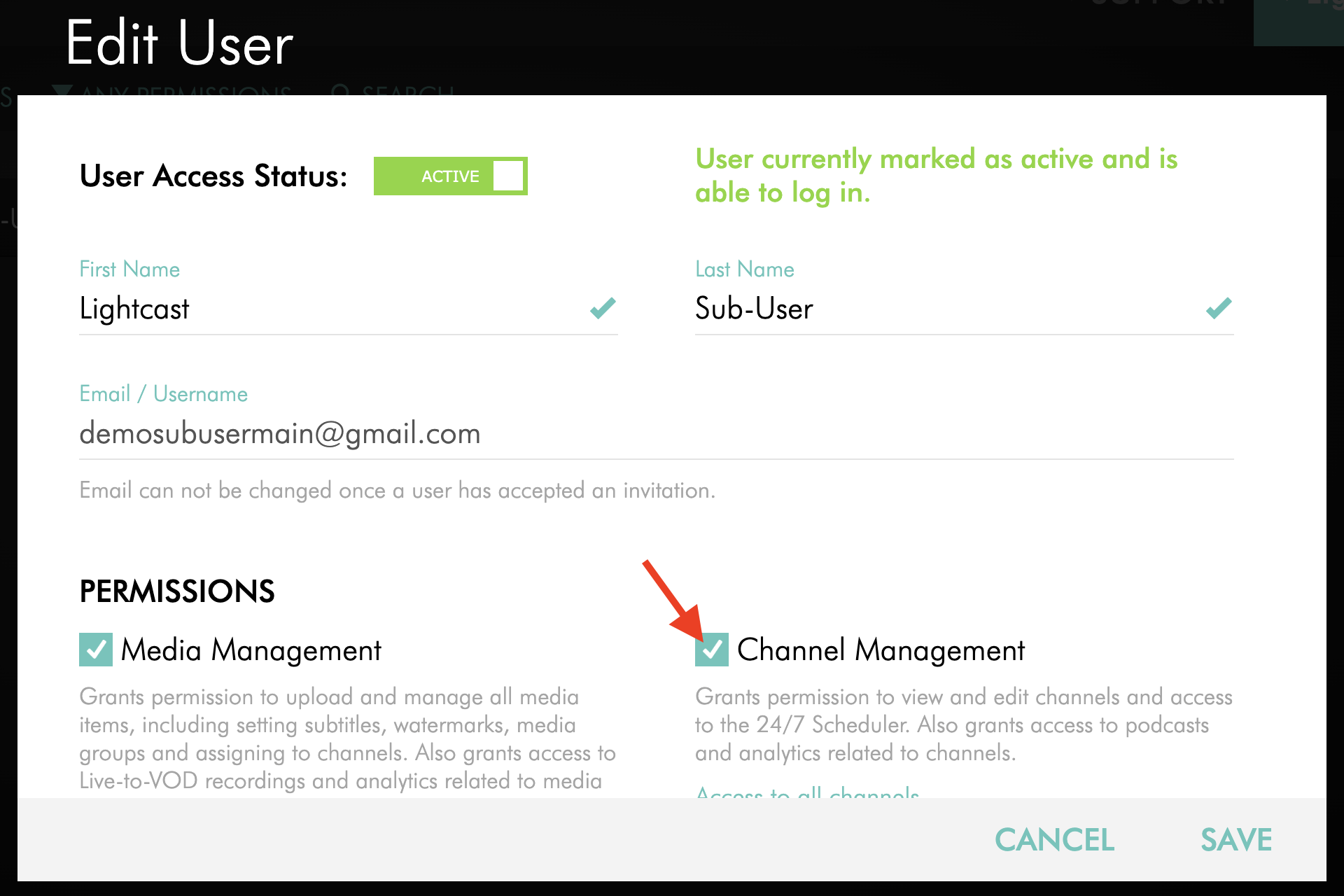
Make sure Channel Management is enabled.
Step 5
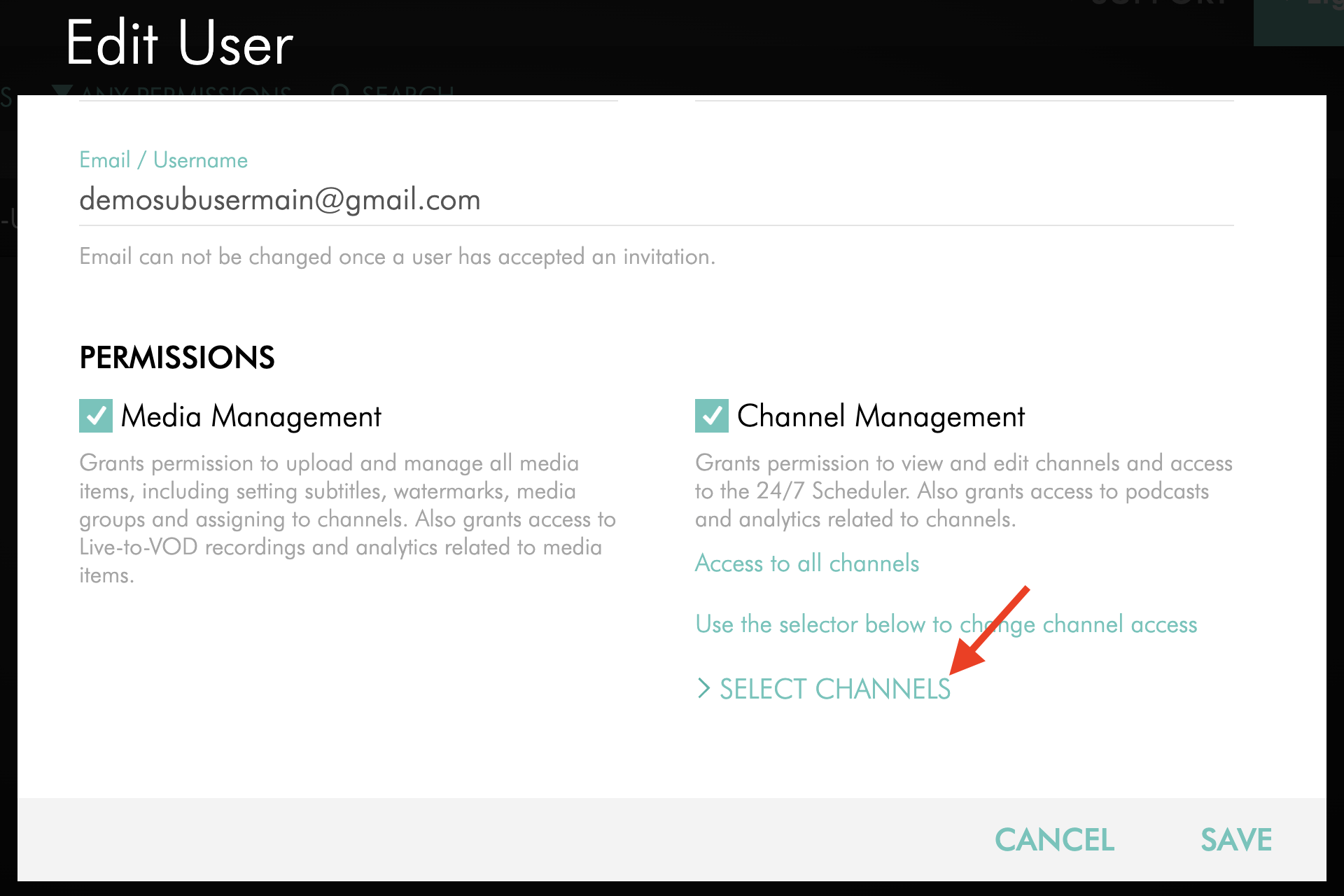
Click SELECT CHANNELS.
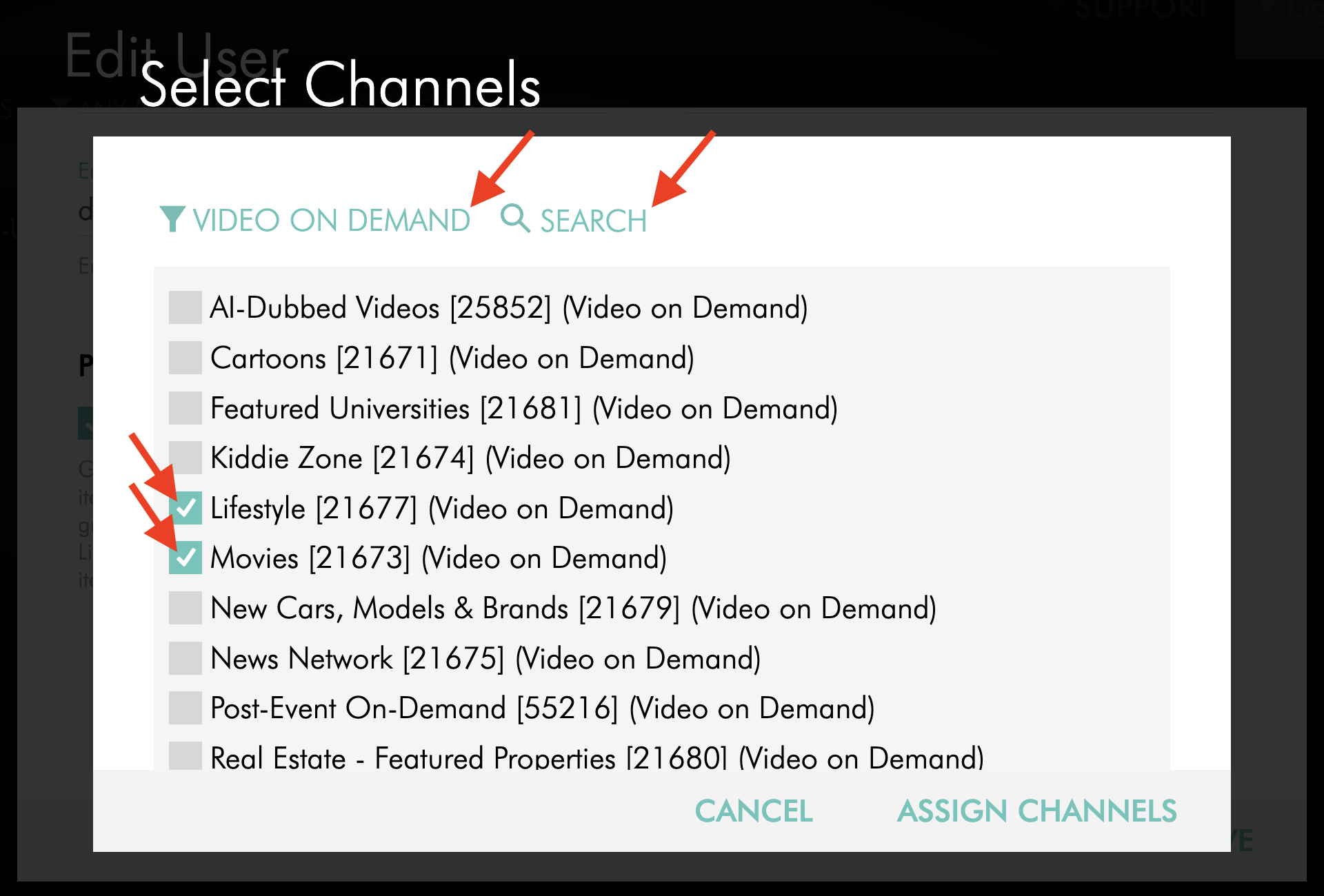
Step 6
Select or deselect Channels to update the sub-user's access.
If needed, use the ALL TYPES filter or SEARCH option to find specific Channels more quickly.
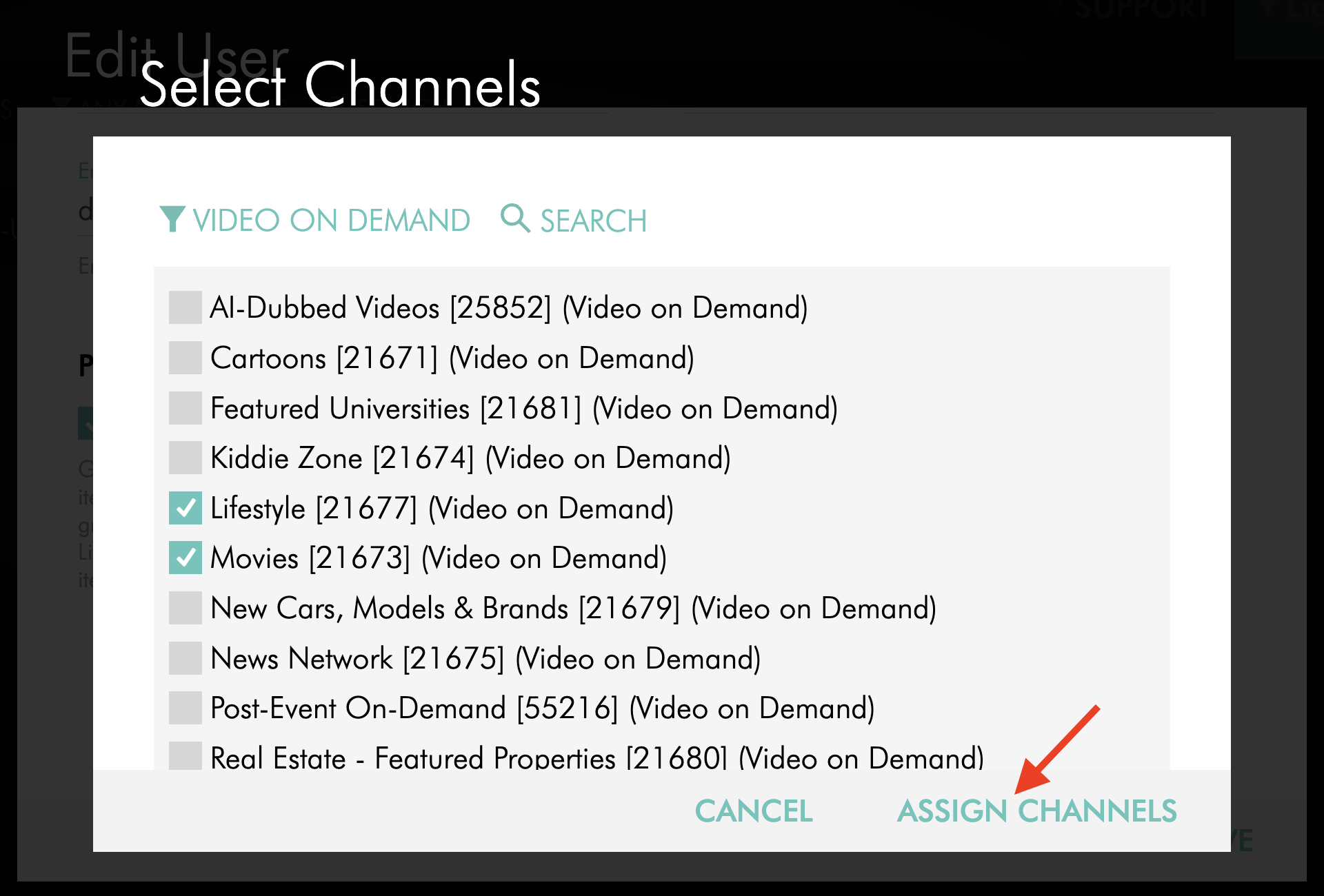
Step 7
Click ASSIGN CHANNELS.
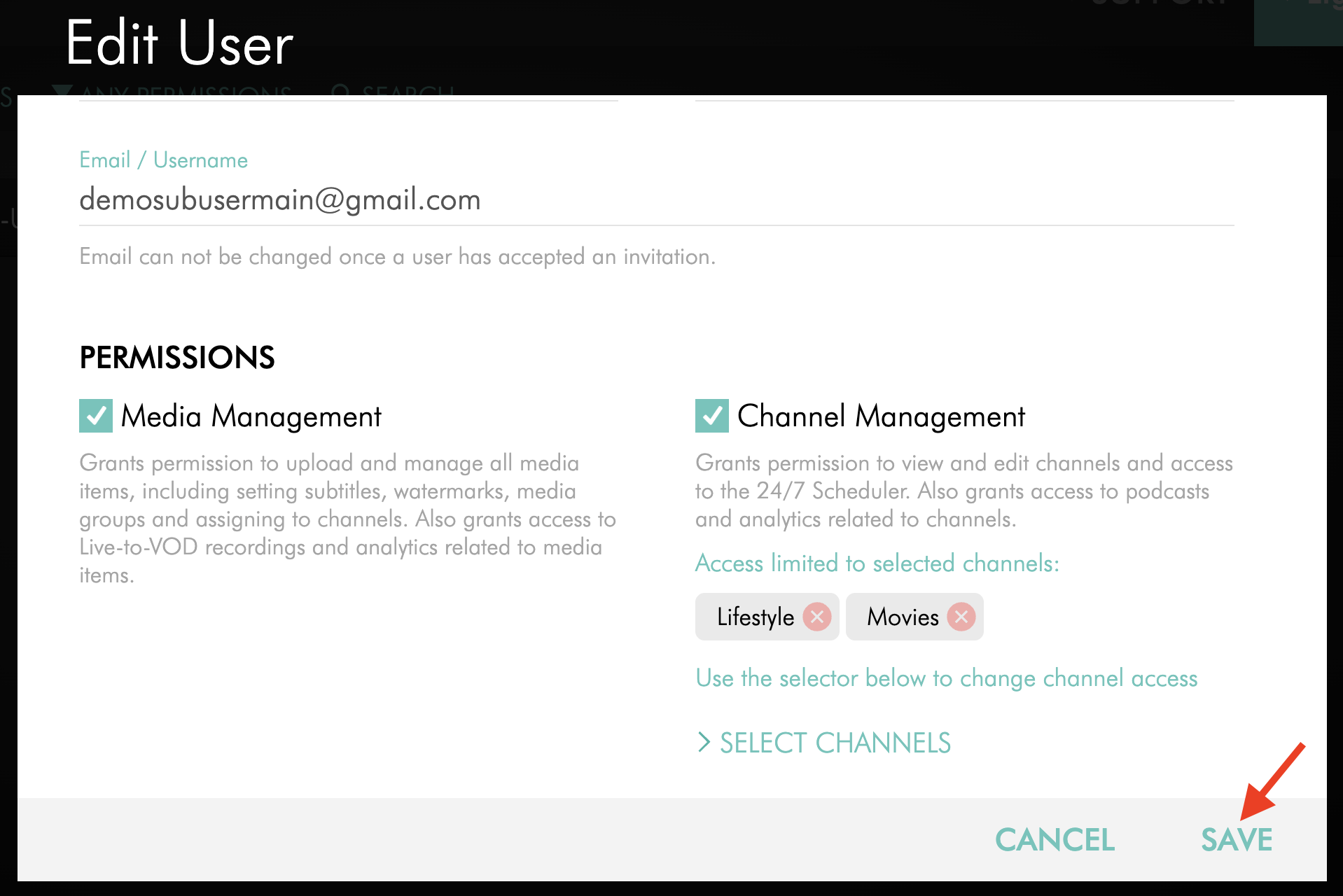
Step 8
Click SAVE to save the changes.
FAQs
What happens if I do not select specific Channels?
If Channel Management is enabled and no specific Channels are selected, the sub-user will have access to all Channels.
Can I change a sub-user's Channel access later?
Yes. You can return to the sub-user's Edit User window and use SELECT CHANNELS to add or remove Channels at any time.
To return the sub-user to access to all Channels, remove the specific Channel selections. When no specific Channels are selected, Channel Management provides access to all Channels.
Does a sub-user need Media Management to work with content in an assigned Channel?
No. The Media Management permission is not required for a sub-user to work with media from within an assigned Channel.
For example, they can upload or select media within assigned VOD or AOD Channels, create Live Events, and add videos to assigned 24/7 Scheduler Channels.
Assign Media Management when the sub-user also needs direct access to broader MEDIA areas outside their assigned Channels, such as the Video Archive or Audio Archive.
What analytics can a sub-user see for assigned Channels?
For assigned Channels that provide Channel-level analytics, the sub-user can access those analytics from the Channel's OVERVIEW page.
The Full Analytics permission is separate from Channel access. If enabled, it provides broader analytics access in addition to analytics available from the assigned Channels.
For Live Events Channels, assign Full Analytics if the sub-user needs access to Live Event analytics.
What happens if an assigned Channel is the source of a Podcast?
If an assigned VOD or AOD Channel is used as the source of a Podcast, the sub-user can access the associated Podcast from the Channel's OVERVIEW page without requiring broader Apps & Platforms access.
Assign Apps & Platforms when the sub-user needs broader access to Podcast management or other areas within PLATFORMS.
Why don't I see the Channel selector?
The Channel selector is available through the Channel Management permission. If Channel Management is not enabled for the sub-user, SELECT CHANNELS will not appear.
Who can manage Channel access for sub-users?
The account owner and any sub-user with the User Management permission can manage sub-user access.
Does selecting specific Channels change the sub-user's other permissions?
No. Selecting specific Channels determines which Channels the sub-user can access through Channel Management. Other permissions are assigned separately and determine what additional areas or features the sub-user can access.