
How to deactivate or permanently delete a sub-user
Overview
Account owners and sub-users with the User Management permission can deactivate or permanently delete sub-users from the Media Cloud account.
This article explains when to deactivate a sub-user, when to permanently delete a sub-user, and how to do both from the Edit User window.
When to use this article
You may want to deactivate or permanently delete a sub-user when:
A team member no longer needs access to the Media Cloud
A team member is taking extended time away and you want to temporarily remove their access
Someone has left your organization and should no longer have access to the account
You need to review and clean up sub-user access for security purposes
How it works
Sub-users can be managed from the Users section of the Media Cloud.
If you deactivate a sub-user, their account is marked as inactive and they will no longer be able to log in to the Media Cloud. This is the best option when you want to remove access temporarily but may need to restore it later.
If you permanently delete a sub-user, that sub-user is removed from the Media Cloud account entirely. This is the best option when the person no longer needs access and should be fully removed from the account.
The account owner and any sub-user with the User Management permission can deactivate, activate, and permanently delete sub-users.
Please note: If a sub-user is deactivated or deleted, they are instantly logged out of the Media Cloud.
Instructions
To temporarily deactivate a sub-user
Step 1
Log in to your Media Cloud account.
Step 2
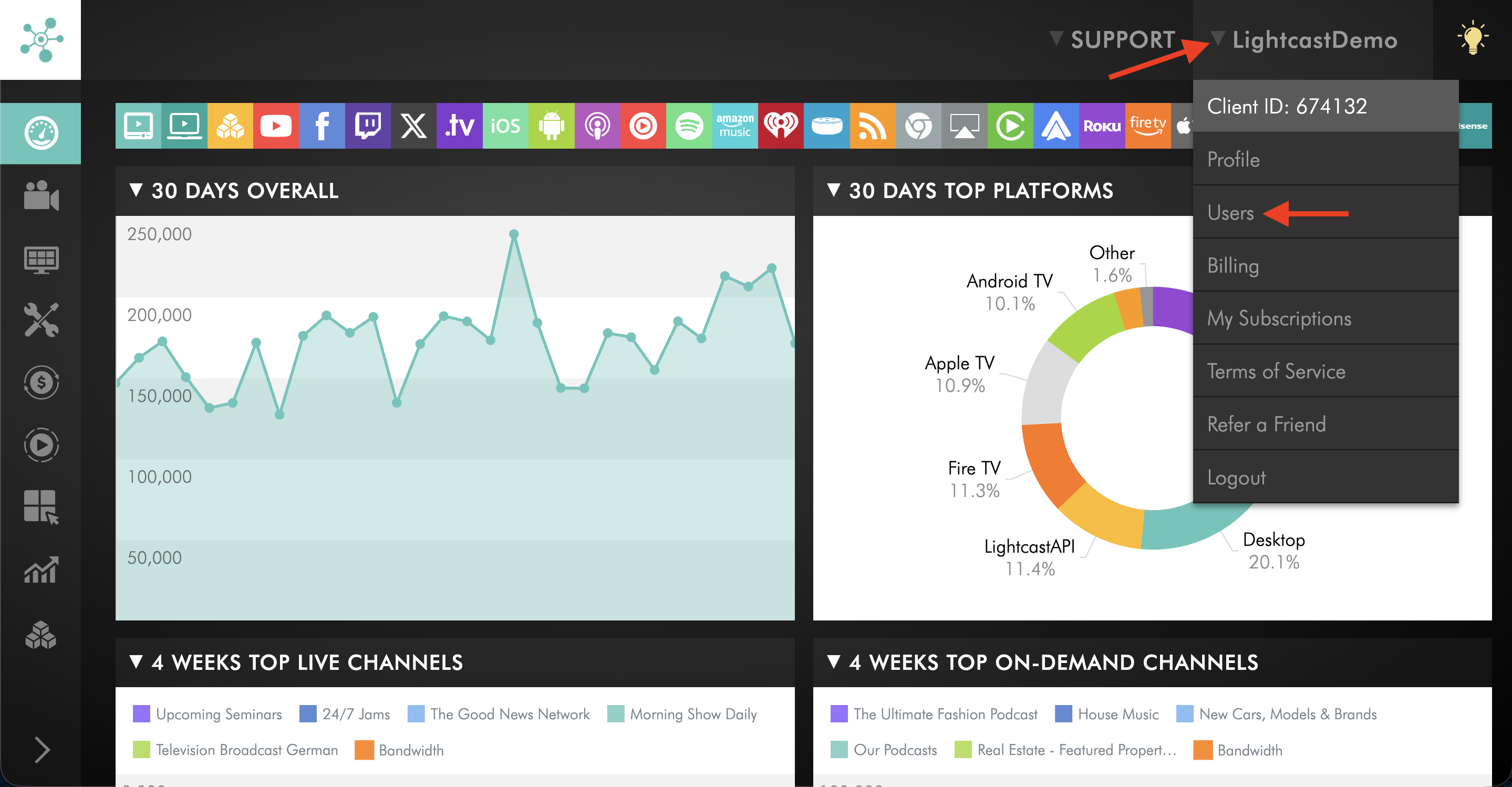
Click your username in the upper-right corner, then select Users from the dropdown menu.
Step 3
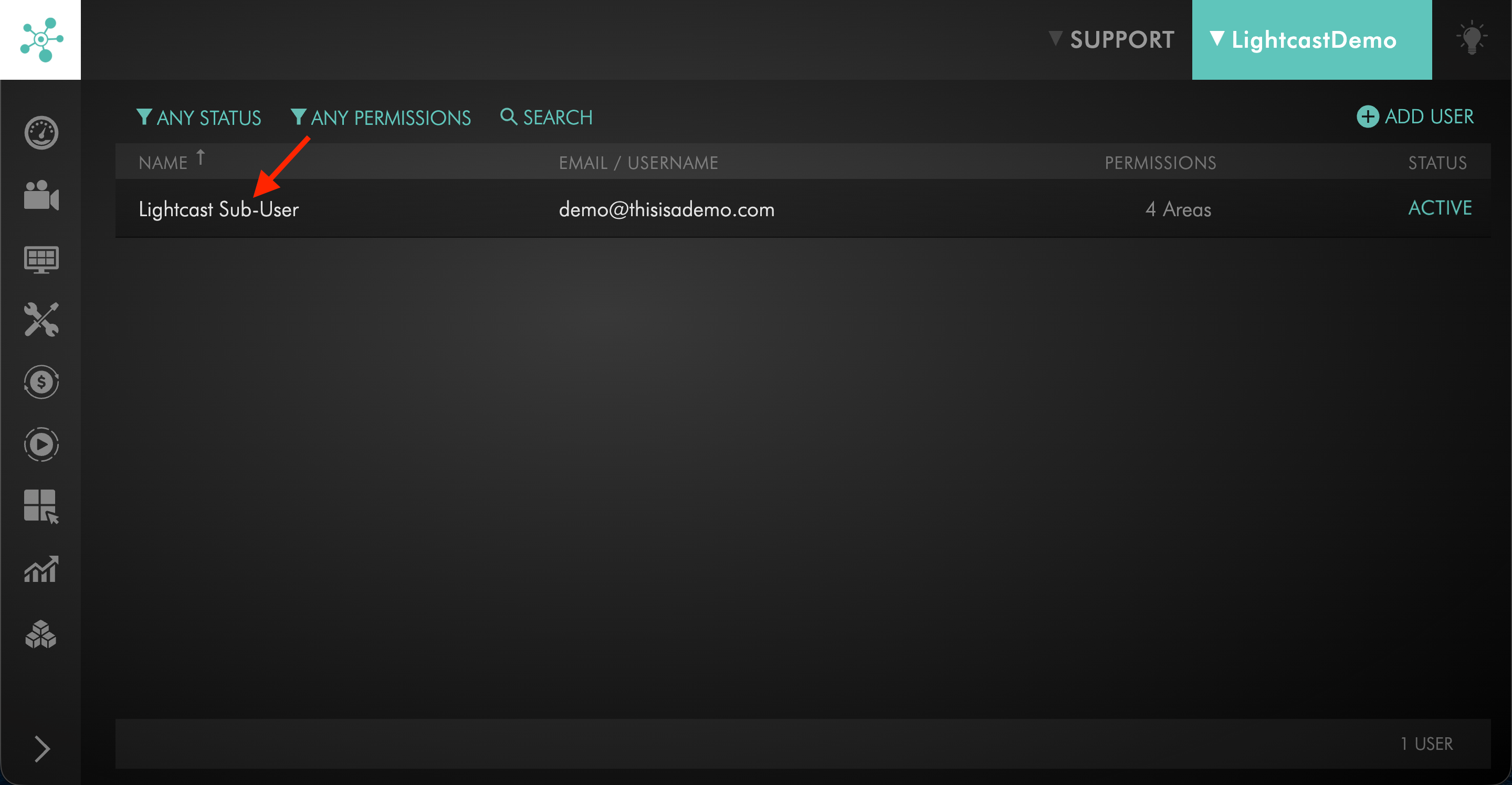
Click on the sub-user you want to update.
Step 4
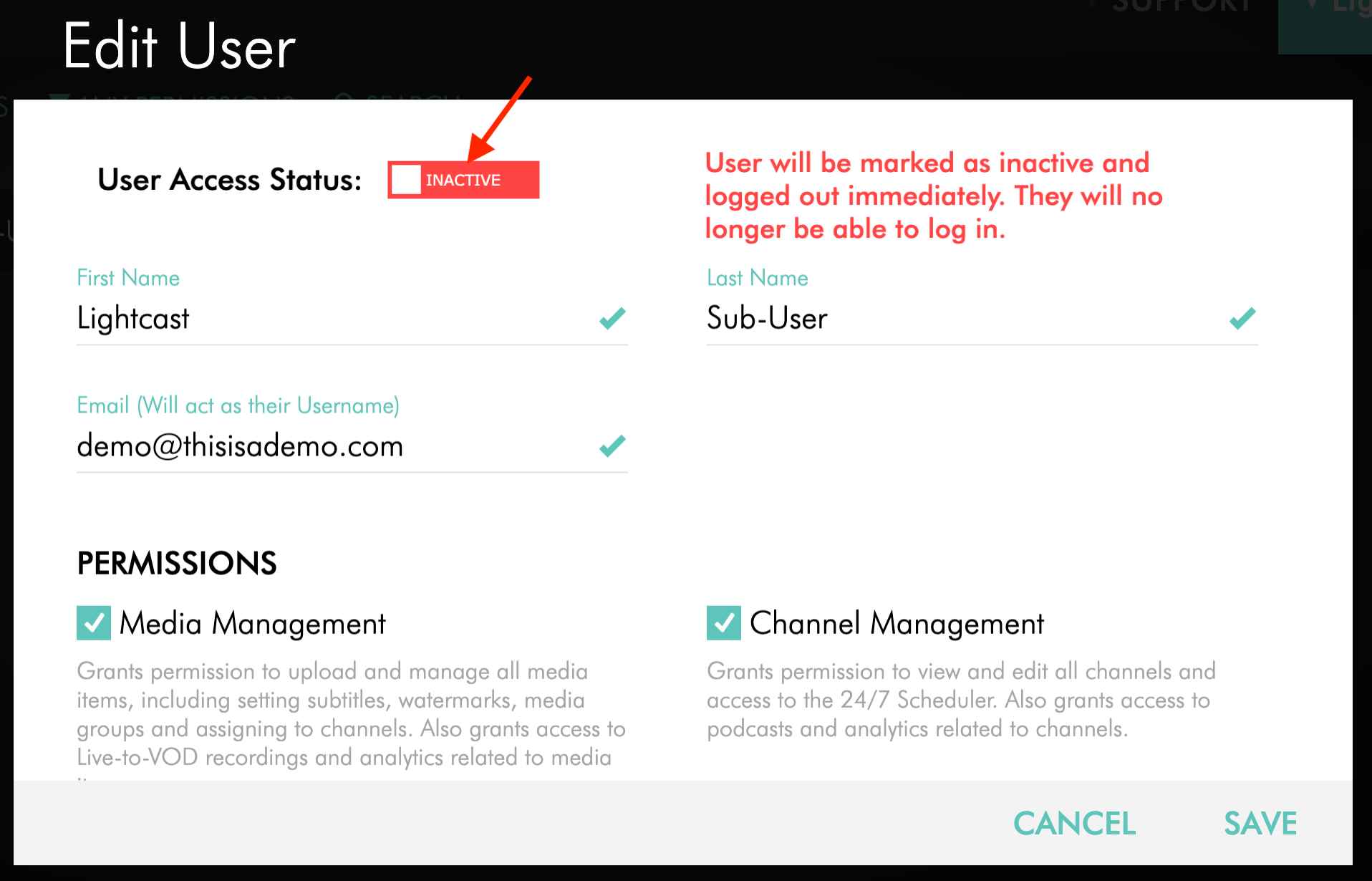
In the Edit User window, change the User Access Status from ACTIVE to INACTIVE.
Step 5
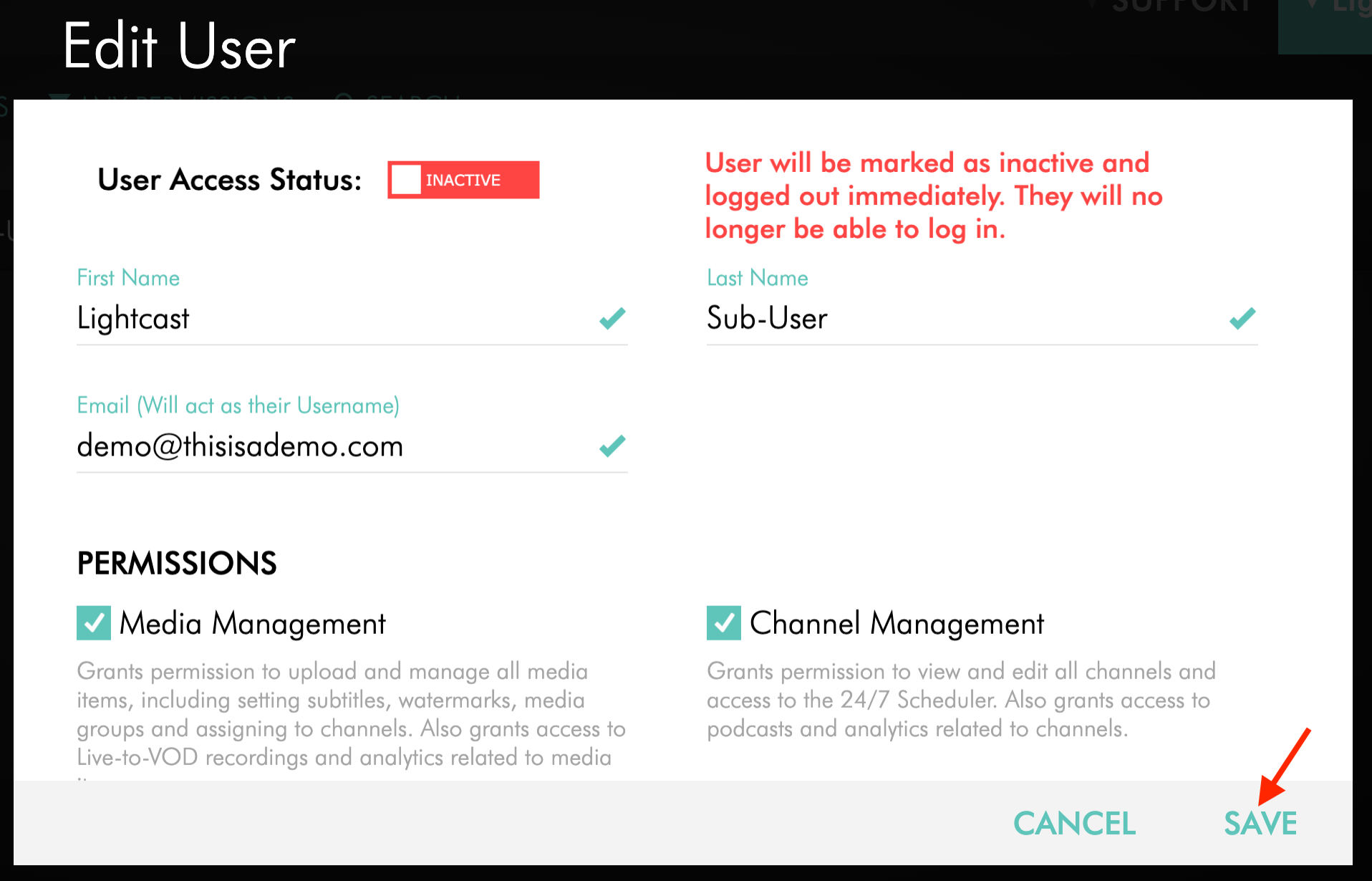
Click SAVE.
The sub-user will no longer be able to log in unless they are reactivated later.
To permanently delete a sub-user
Step 1
Log in to your Media Cloud account.
Step 2
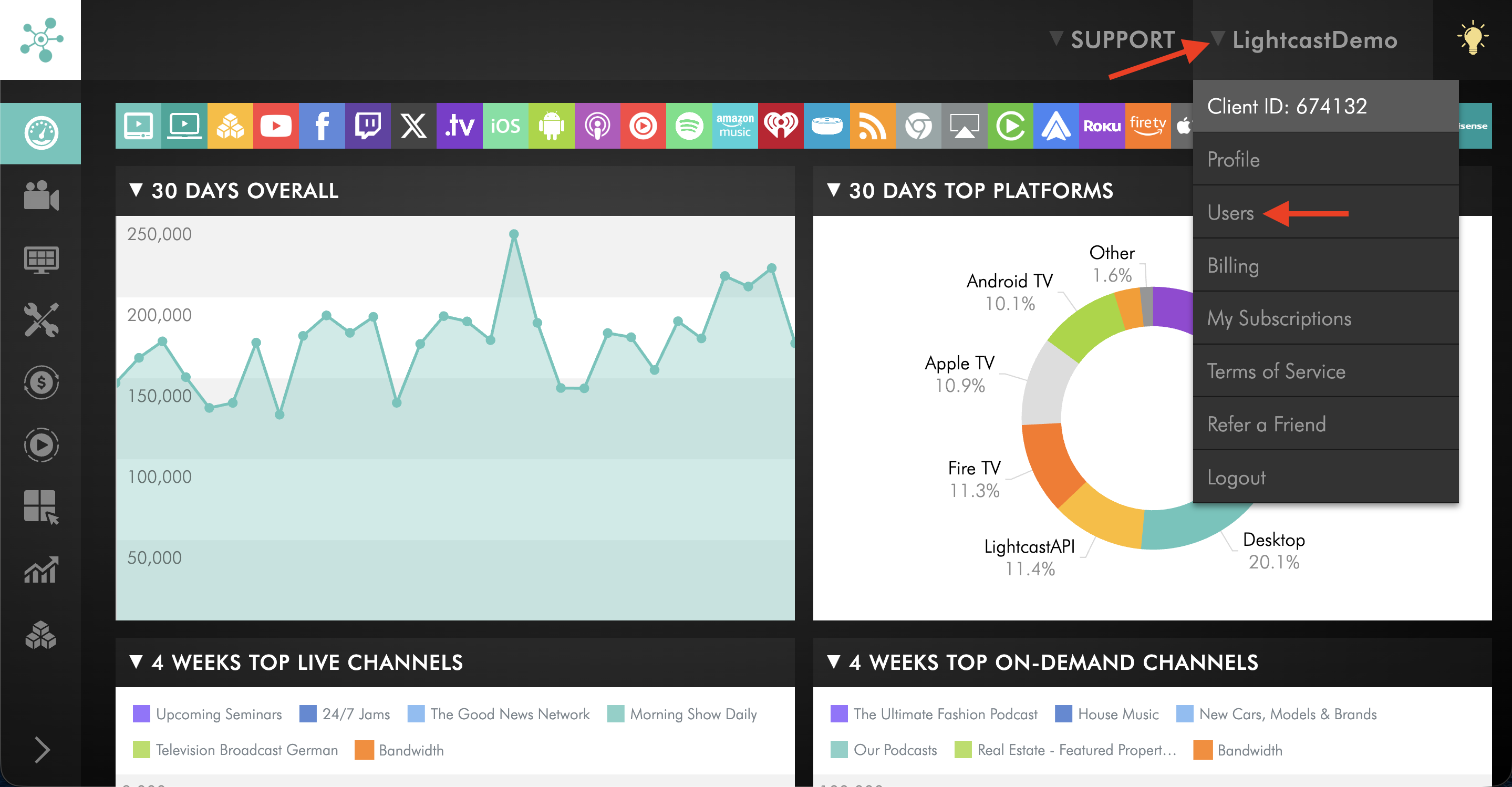
Click your username in the upper-right corner, then select Users from the dropdown menu.
Step 3
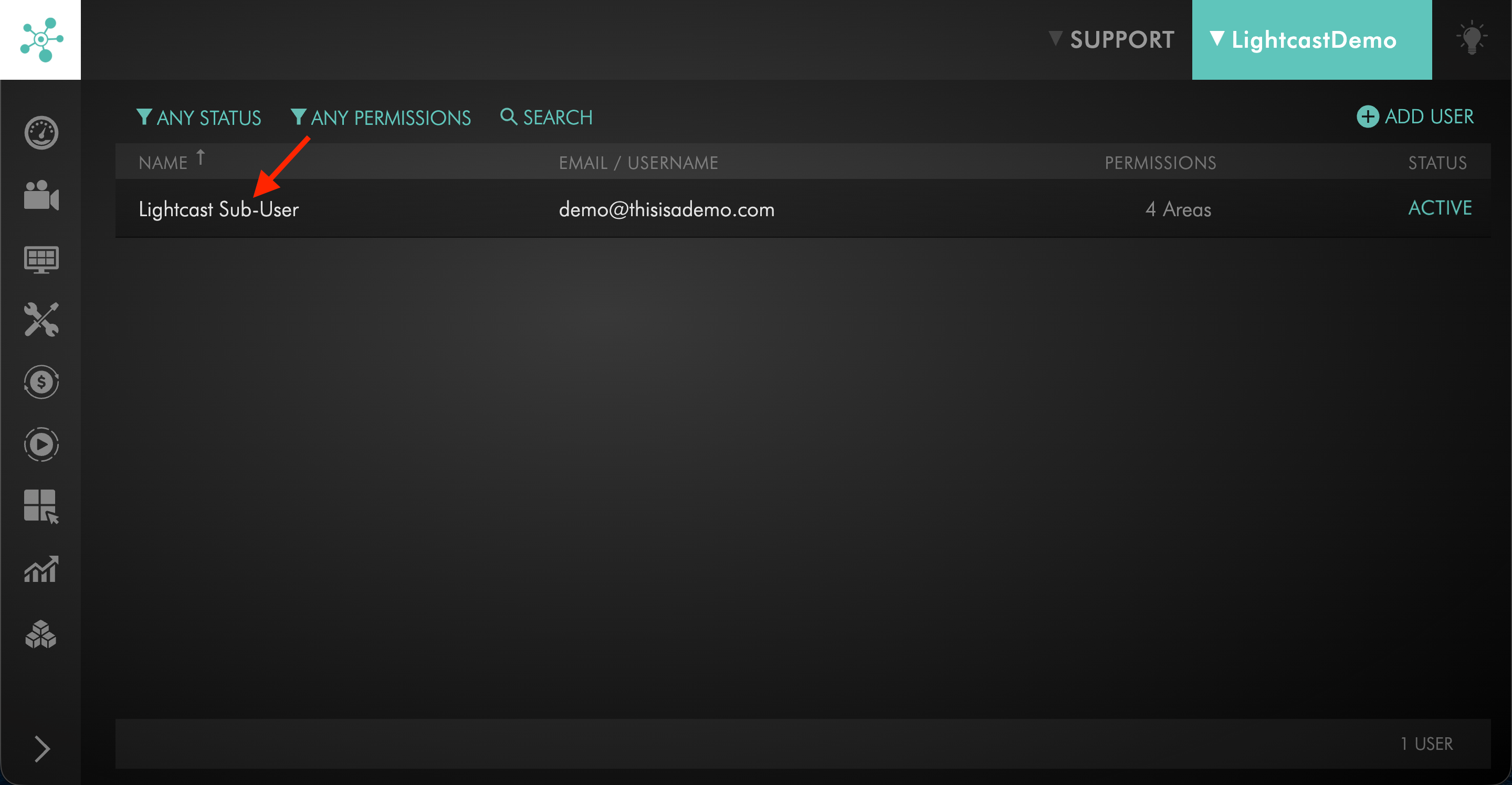
Click on the sub-user you want to remove.
Step 4
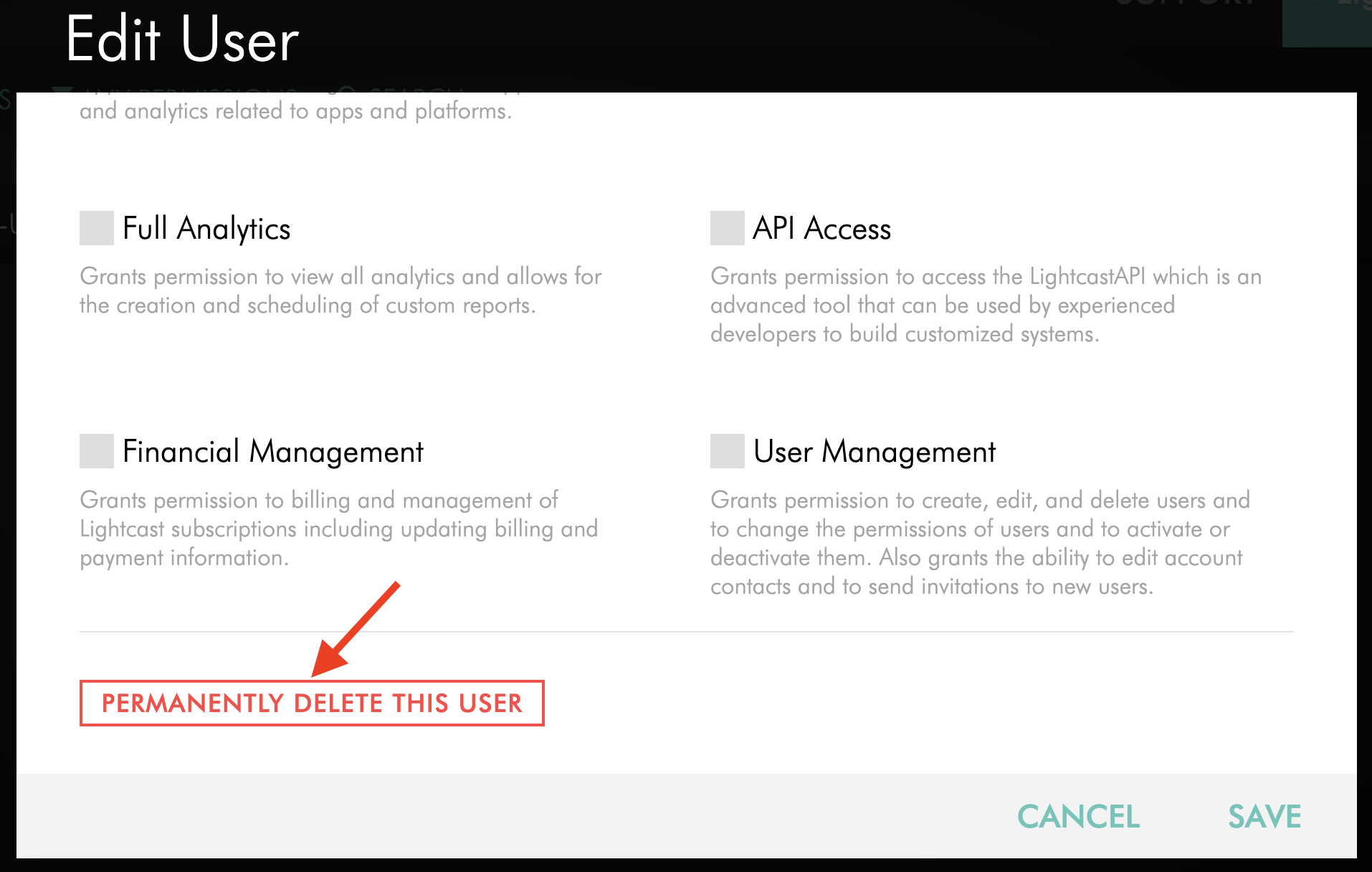
In the Edit User window, scroll down and click PERMANENTLY DELETE THIS USER.
Step 5
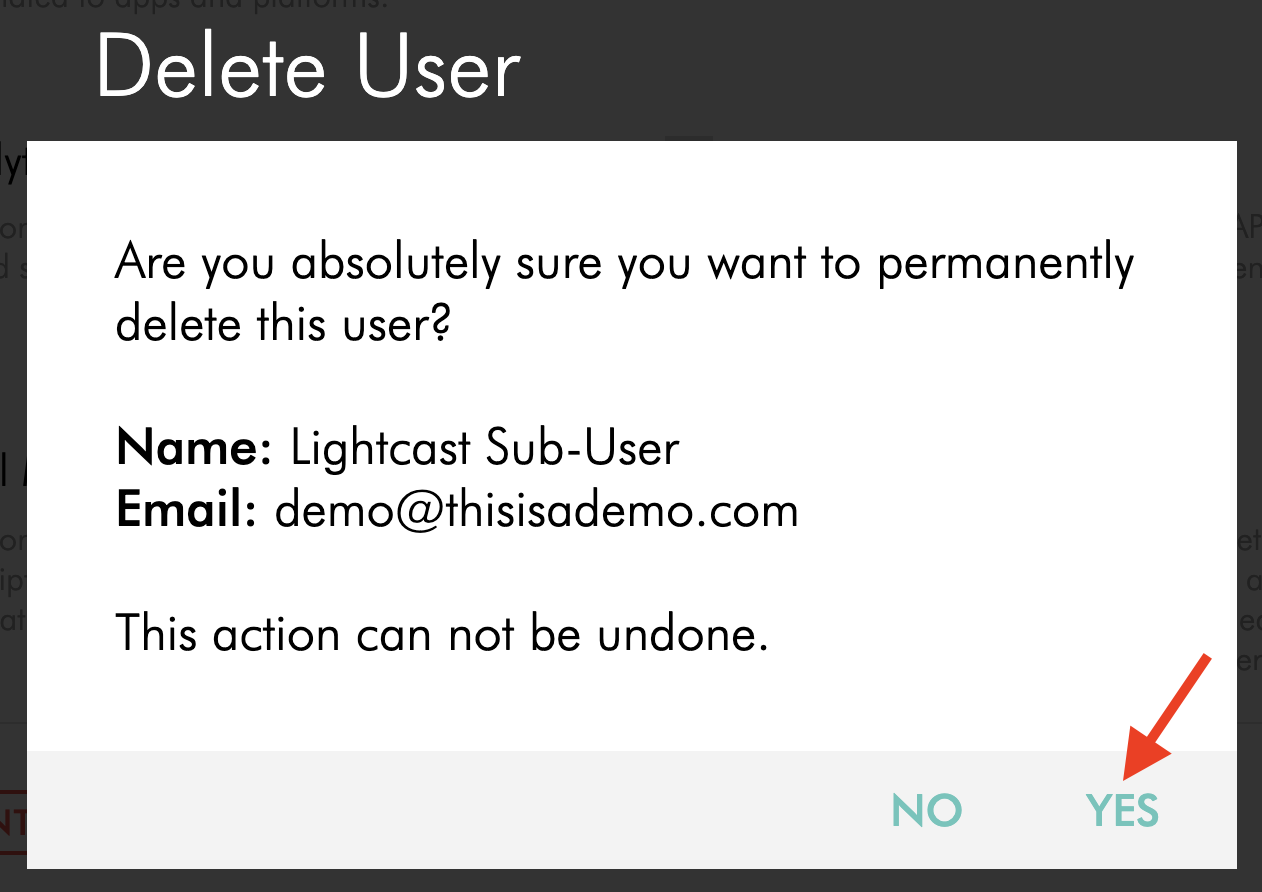
In the pop-up window, review the deletion details and click YES to confirm.
The sub-user will be permanently removed from the Media Cloud account and instantly logged out of the Media Cloud.
FAQs
What is the difference between deactivating and deleting a sub-user?
Deactivating a sub-user removes their access to the Media Cloud, but keeps their sub-user account in place so it can be reactivated later.
Permanently deleting a sub-user removes that sub-user from the Media Cloud account entirely.
When should I deactivate a sub-user instead of deleting them?
You may want to deactivate a sub-user if their access only needs to be removed temporarily, such as when someone is taking an extended leave or may need access again later.
When should I permanently delete a sub-user?
You should permanently delete a sub-user when that person has left your organization or should no longer have any access to the Media Cloud account.
Who can deactivate or delete a sub-user?
The account owner and any sub-user with the User Management permission can deactivate or permanently delete sub-users.
What happens when a sub-user is deactivated or deleted?
If a sub-user is deactivated or deleted, they are instantly logged out of the Media Cloud.
Can a deactivated sub-user be reactivated later?
Yes. A deactivated sub-user can be reactivated later by returning to the Edit User window, updating the User Access Status back to ACTIVE, and clicking SAVE.