
How to add sub-users to your Media Cloud account
Overview
Sub-users allow account owners to give additional team members their own login credentials for the Media Cloud account instead of sharing the primary login.
This helps keep account access secure and organized while allowing each person to access the areas of the account they need.
This article explains how to add a sub-user and assign the access they need in the Media Cloud.
When to use sub-users
You may want to add sub-users when:
Multiple team members need access to the same Media Cloud account
You want to avoid sharing one login across several people
Different team members need different levels of access
You want to control which Channels a team member can access
You want each person to log in with their own credentials for security and tracking purposes
How it works
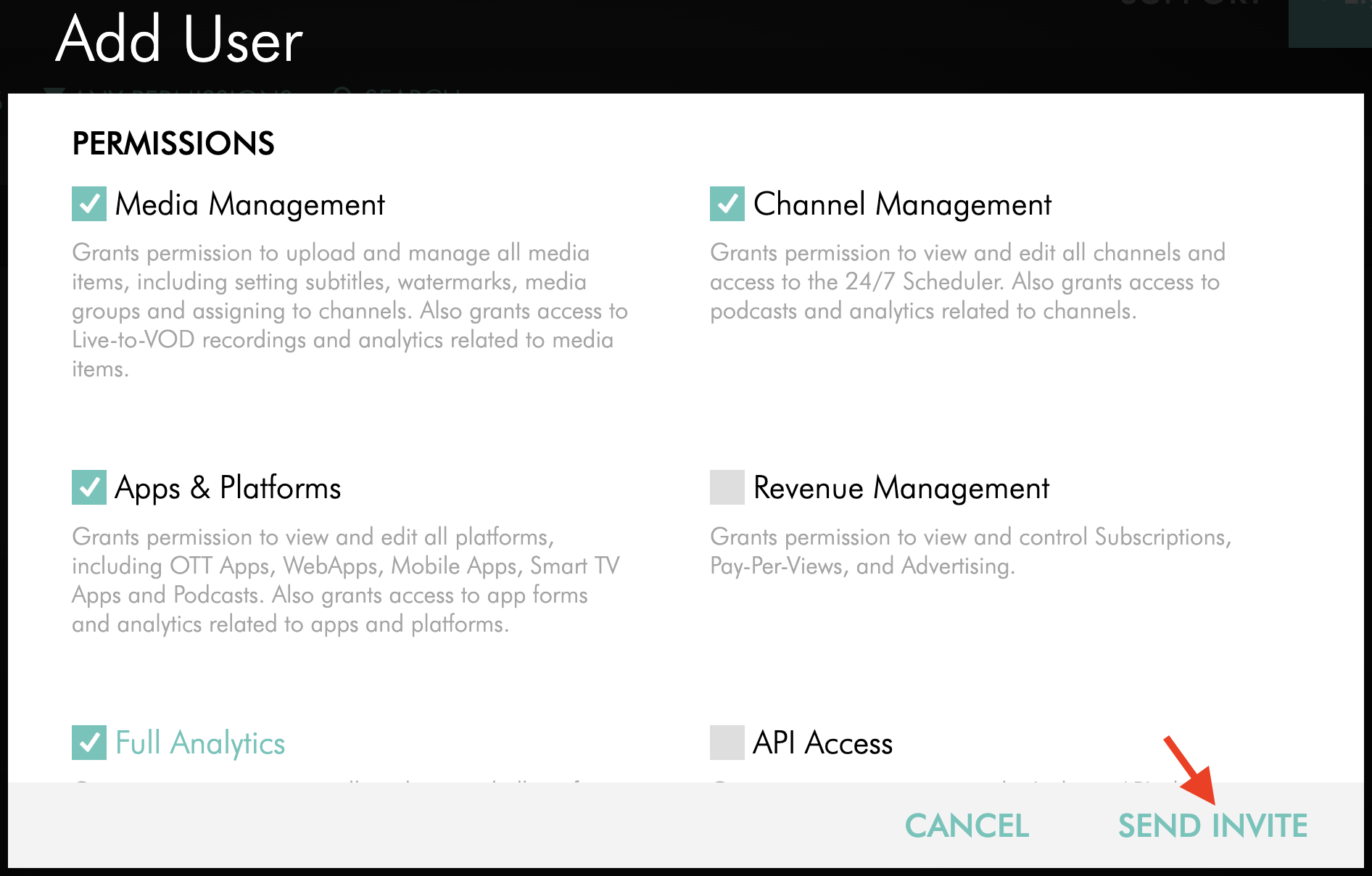
When an account owner adds a sub-user, they select the PERMISSIONS that determine which areas of the Media Cloud the sub-user can access.
If Channel Management is enabled, the account owner can also choose whether the sub-user should have access to all Channels or only specific Channels. By default, the sub-user has access to all Channels unless specific Channels are selected.
After the invitation is sent, the sub-user receives an email with a link to set up their account.
The invitation email is active for 14 days. During setup, the sub-user creates their own password, and their email address becomes their username.
Once the sub-user activates their account, the account owner and any sub-user with the User Management permission will receive an email notification confirming the account has been activated.
If a sub-user is deactivated or deleted, they are logged out of the Media Cloud immediately.
Instructions
Step 1
Log in to your Media Cloud account.
Step 2
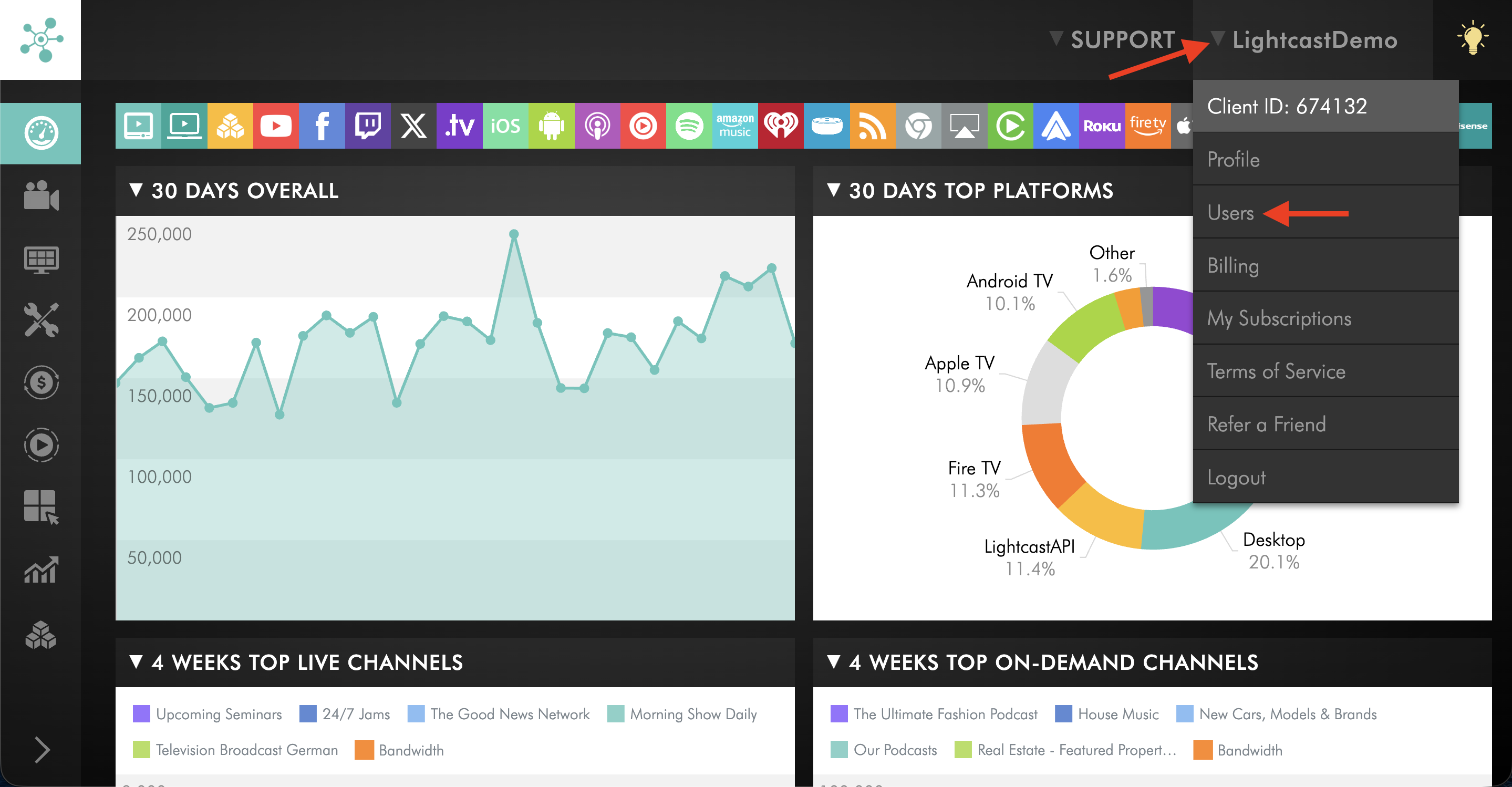
Click your username in the upper-right corner, then select Users from the dropdown menu.
Step 3
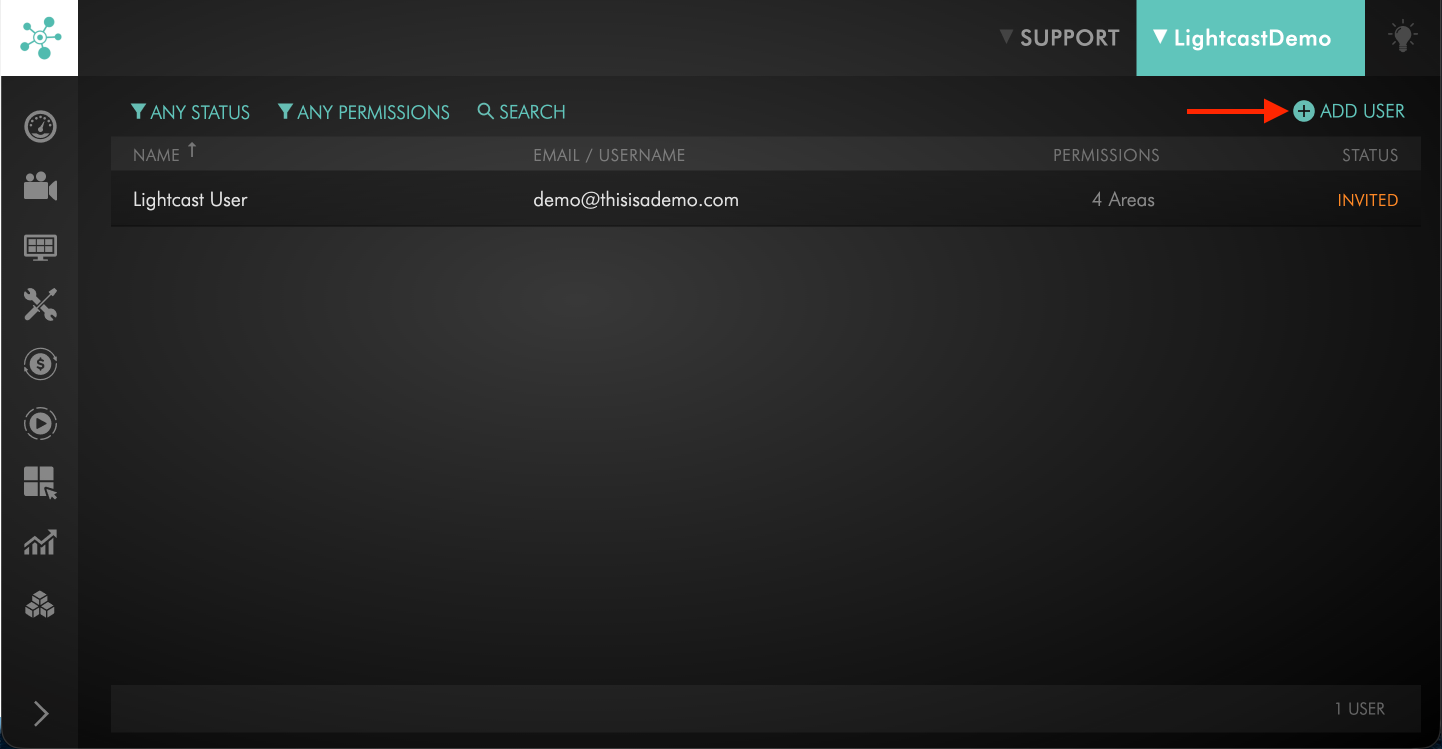
Click + ADD USER.
Step 4
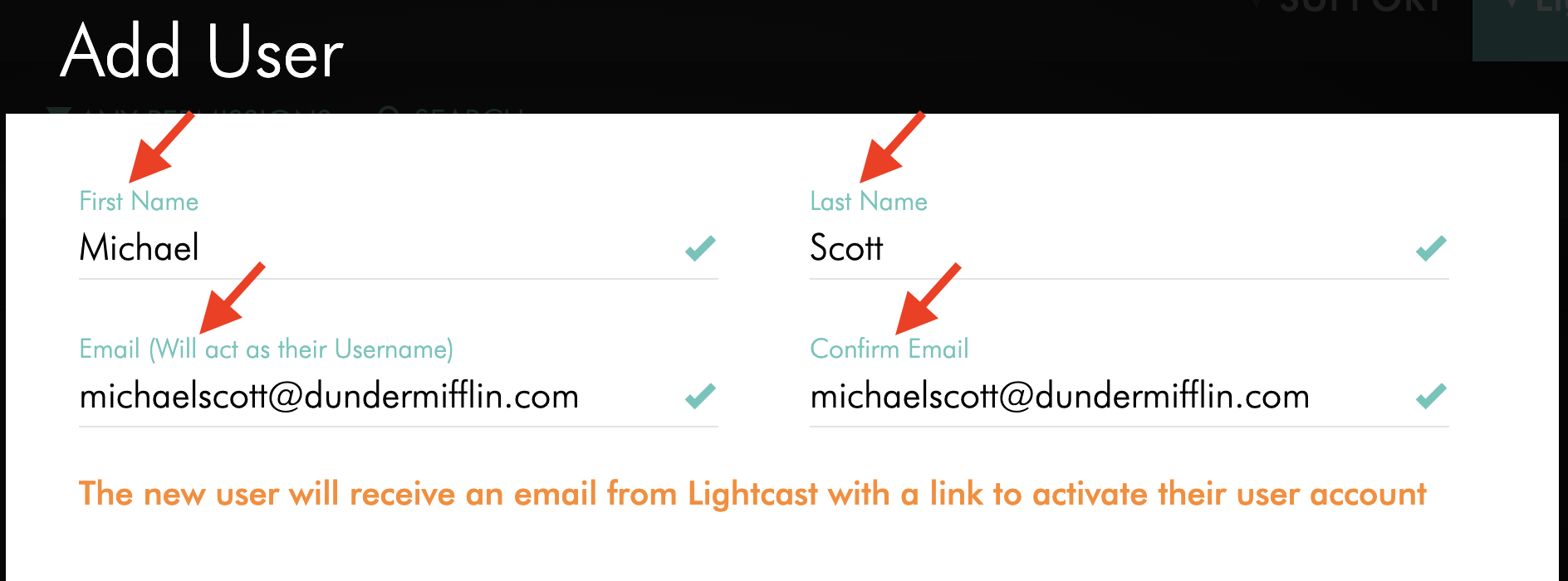
Enter the sub-user's:
First Name
Last Name
Email address
The email address will also serve as the sub-user's username.
Step 5
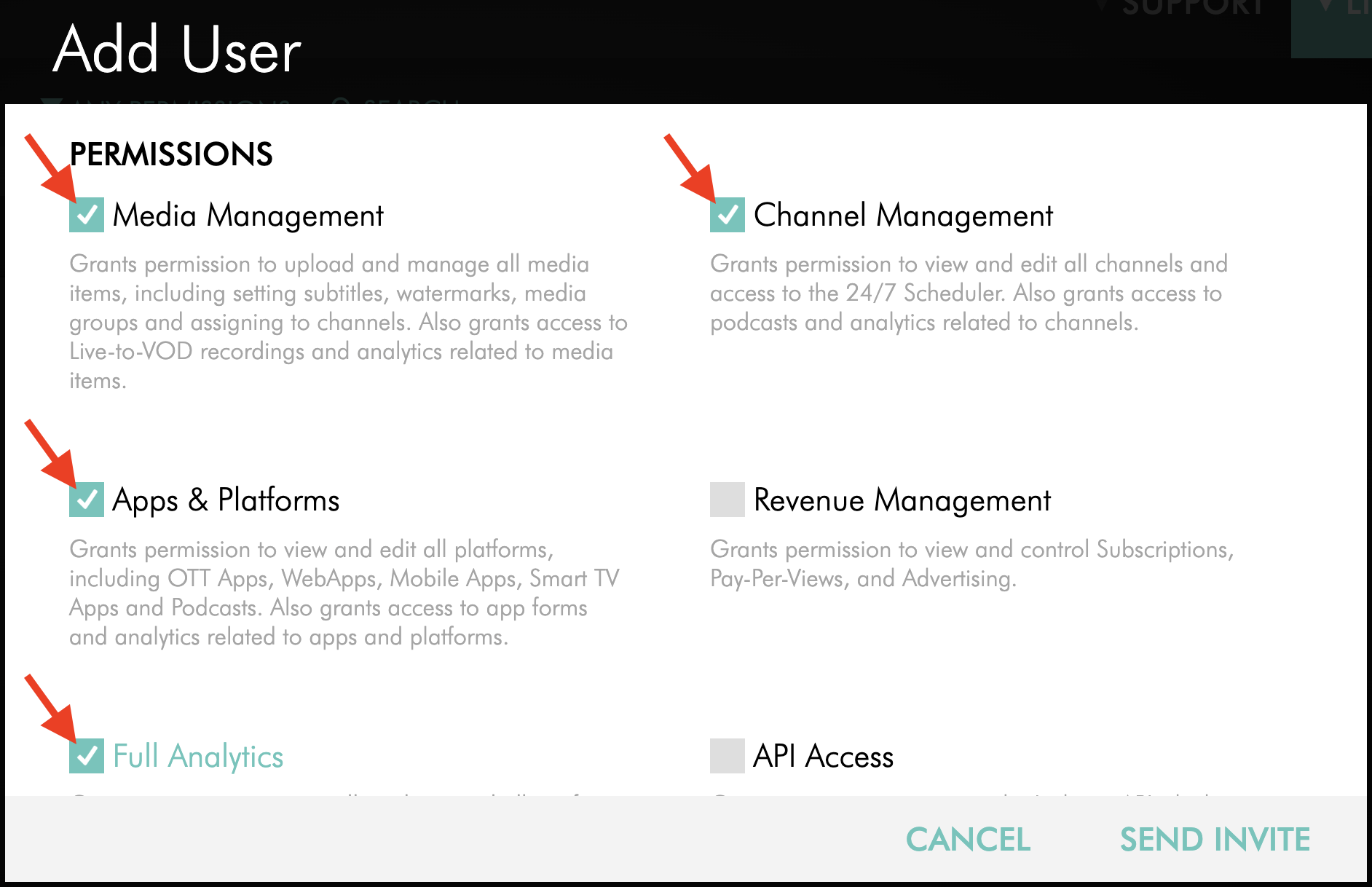
Select the PERMISSIONS you want the sub-user to have in the Media Cloud account.
Step 6
Optional: If you enable Channel Management, you can limit the sub-user to specific Channels.
To learn how to select and manage Channel access, see: How to manage Channel access for a sub-user.
Step 7
Click SEND INVITE.
Step 8
The sub-user will receive an email invitation to activate their account. They must click the link in the email and create their password to complete setup.
Important: The invitation email expires after 14 days. If the sub-user does not accept the invitation within that timeframe, the account owner or a sub-user with the User Management permission can resend the invitation from the Media Cloud.
FAQs
Can sub-users have different permissions?
Yes. The account owner can define the Permissions and access for each sub-user when creating the user and can make changes later if needed.
How many sub-users can I add?
There is no limit to the number of sub-users that can be invited to a Media Cloud account.
Can I remove a sub-user later?
Yes. Account owners and sub-users with the User Management permission can edit, deactivate, or permanently delete sub-users from the Users section of the Media Cloud account.
If a sub-user is deactivated or deleted, they are instantly logged out of the Media Cloud.
What happens if the invitation email expires?
The invitation email is active for 14 days. If the sub-user does not activate their account within that time, the account owner or a sub-user with the User Management permission can resend the invitation.
Can I limit a sub-user's access to specific Channels?
Yes. If the Channel Management permission is enabled, you can select the specific Channels the sub-user should be able to access directly from the Media Cloud.
If no specific Channels are selected, the sub-user will have access to all Channels.
To learn how to manage Channel access after a sub-user has been created, see: How to manage Channel access for a sub-user.
Who gets notified when a sub-user activates their account?
The account owner and any sub-user with the User Management permission will receive an email notification once the sub-user has activated their account.