
How to manage permissions for sub-users
Overview
Sub-user permissions allow account owners to control which areas of the Media Cloud each sub-user can access. This helps you give team members access to only the tools and features they need based on their role.
This article explains how to update permissions for an existing sub-user and what each available permission allows.
When to use this article
You may want to manage sub-user permissions when:
A team member needs access to a different area of the Media Cloud
A sub-user’s role has changed
You need to reduce or expand a sub-user’s access
You want to review and update access for security or account management purposes
How it works
When a sub-user is created, the account owner selects the permissions that determine which areas of the Media Cloud that user can access. Those permissions can be changed later if the sub-user’s responsibilities change.
The account owner and any sub-user with the User Management permission can update permissions for other sub-users. Permissions can be changed before or after a sub-user accepts their invitation, and any permission changes take effect immediately after you click SAVE.
The available sub-user permissions are:
Media Management
Allows the sub-user direct access to MEDIA areas, including the Video Archive and Audio Archive, where they can upload and manage media items. This includes setting subtitles, Watermarks, Media Groups, assigning media to Channels, accessing LIVE-to-VOD recordings, and viewing analytics related to individual media items.
A sub-user does not need Media Management to upload or select media from within a VOD or AOD Channel they have access to.
Channel Management
Allows the sub-user to view and edit Channels. By default, Channel Management provides access to all Channels, but you can use SELECT CHANNELS to limit the sub-user to specific Channels.
If the 24/7 Scheduler is included with your package or has been purchased for your account, this permission also provides access to assigned 24/7 Scheduler Channels.
For supported assigned Channels, the sub-user can also access Channel-related analytics from the Channel’s OVERVIEW page.
If an assigned AOD or VOD Channel is the source of a podcast, this permission also allows the sub-user to manage that source Channel and view related Channel analytics. It does not provide full access to the podcast’s settings or details page.
For complete instructions, see: How to manage Channel access for a sub-user.
Apps & Platforms
Allows the sub-user to view and edit all platforms, including TV apps, Web Apps, mobile apps, Smart TV apps, and Podcasts. This permission also includes access to app forms and analytics related to apps and platforms.
For Podcasts, this includes access to the Podcast details page and Podcast settings, such as the title, description, author, thumbnail image, category, owner information, website URL, content rating, and RSS feed.
Revenue Management
Allows the sub-user to view and manage the monetization tools included with your account. This may include viewing subscription products and Pay-Per-View events, creating and managing Pay-Per-View events, and reviewing advertising settings, such as which Channels have ads configured and whether ads are set to run as pre-roll, mid-roll, and/or post-roll.
Full Analytics
Allows the sub-user to view analytics across the Media Cloud, including analytics for Platforms, Video Items, Audio Items, VOD Channels, AOD Channels, Live Events Channels, and Linear Stream Channels.
This permission also includes access to the Custom Reports builder for creating one-time and recurring scheduled reports, as well as analytics filters for reviewing data across available date ranges.
Assign Full Analytics when the sub-user should have broader analytics access beyond the Channels selected under Channel Management.
API Access
Allows the sub-user to access the LightcastAPI, which can be used by experienced developers to build customized systems.
Financial Management
Allows the sub-user to manage billing for Lightcast subscriptions, including viewing invoices and updating billing and payment information.
User Management
Allows the sub-user to create, edit, activate, deactivate, and delete sub-users, change sub-user permissions, edit account contacts, and send invitations to new sub-users.
Please note: Financial Management, Revenue Management, API Access, and User Management should be assigned carefully, since they provide access to sensitive account, revenue, developer, or user administration features.
Instructions
Step 1
Log in to your Media Cloud account.
Step 2
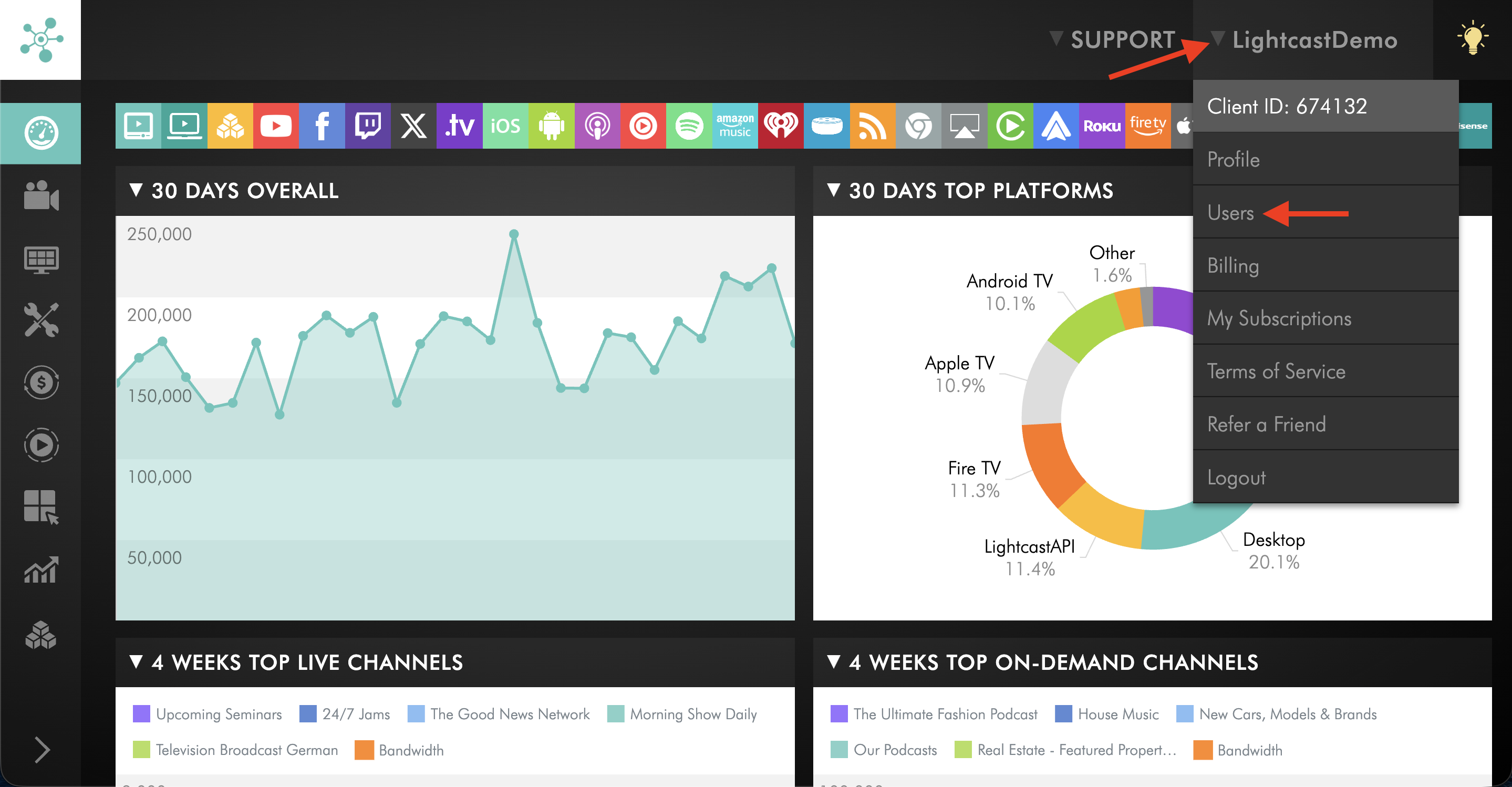
Click your username in the upper-right corner, then select Users from the dropdown menu.
Step 3
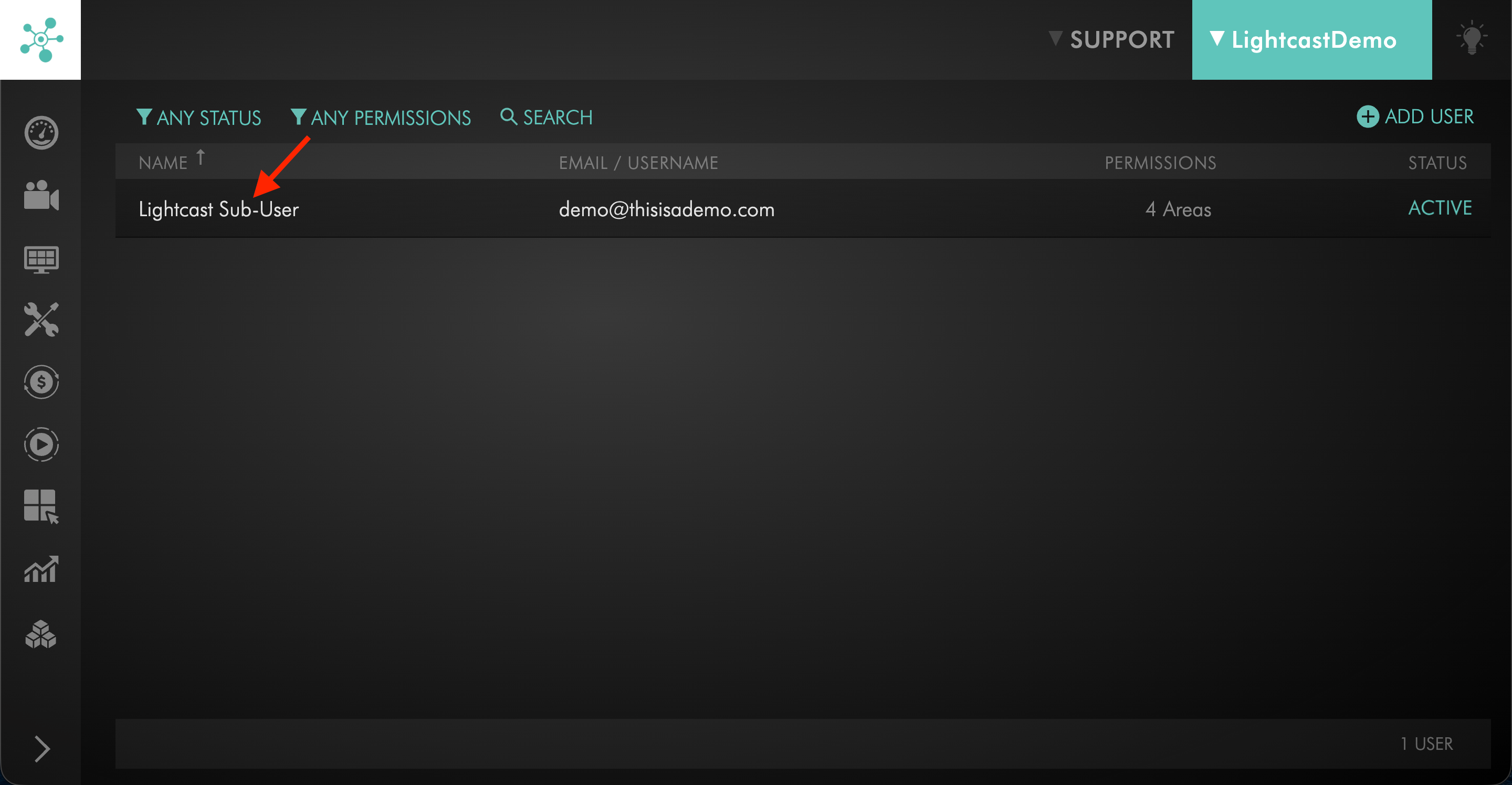
Click on the existing sub-user whose permissions you want to update.
Step 4
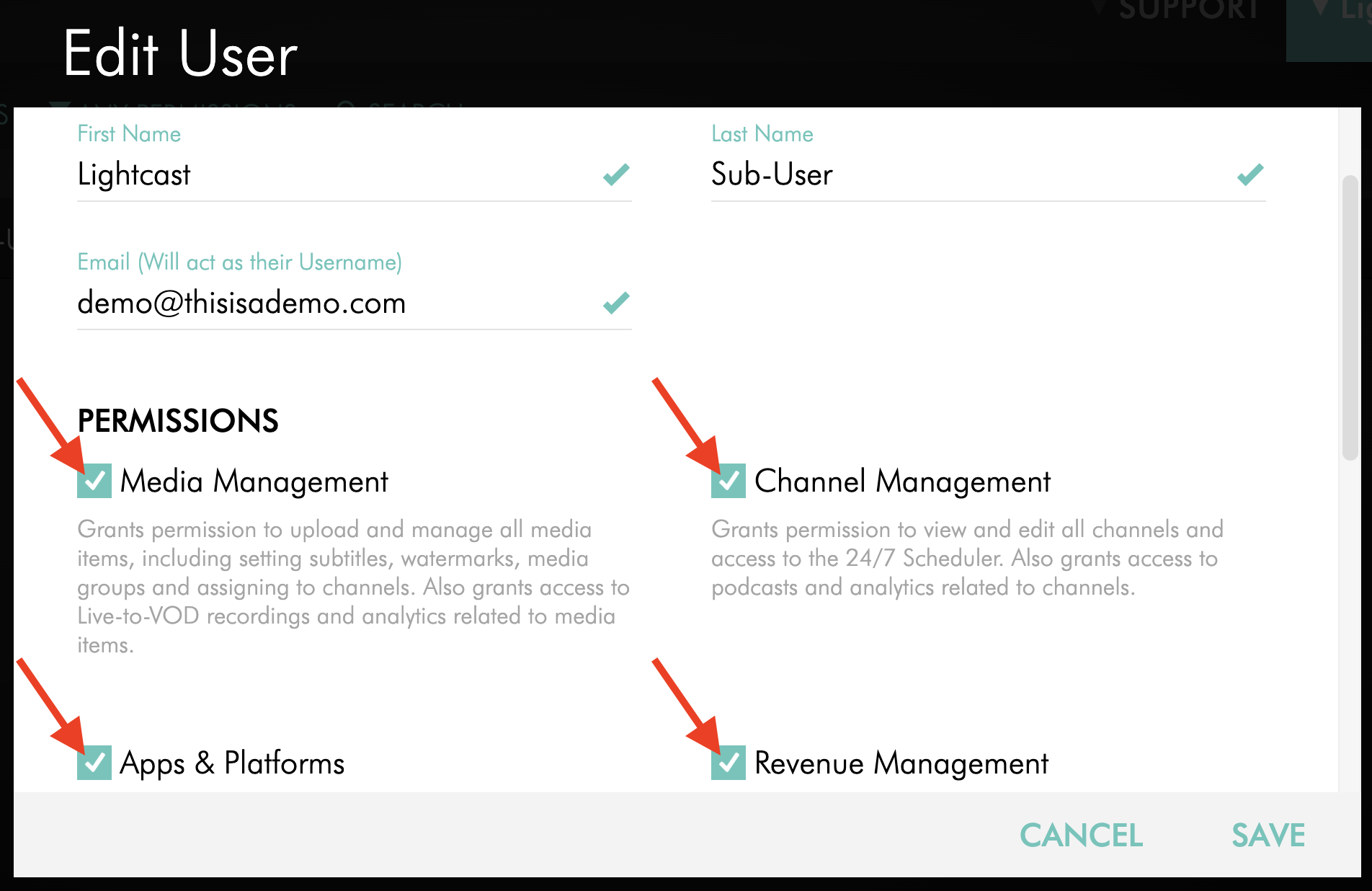
In the pop-up window, select or deselect the boxes to add or remove the permissions you want that sub-user to have.
Step 5
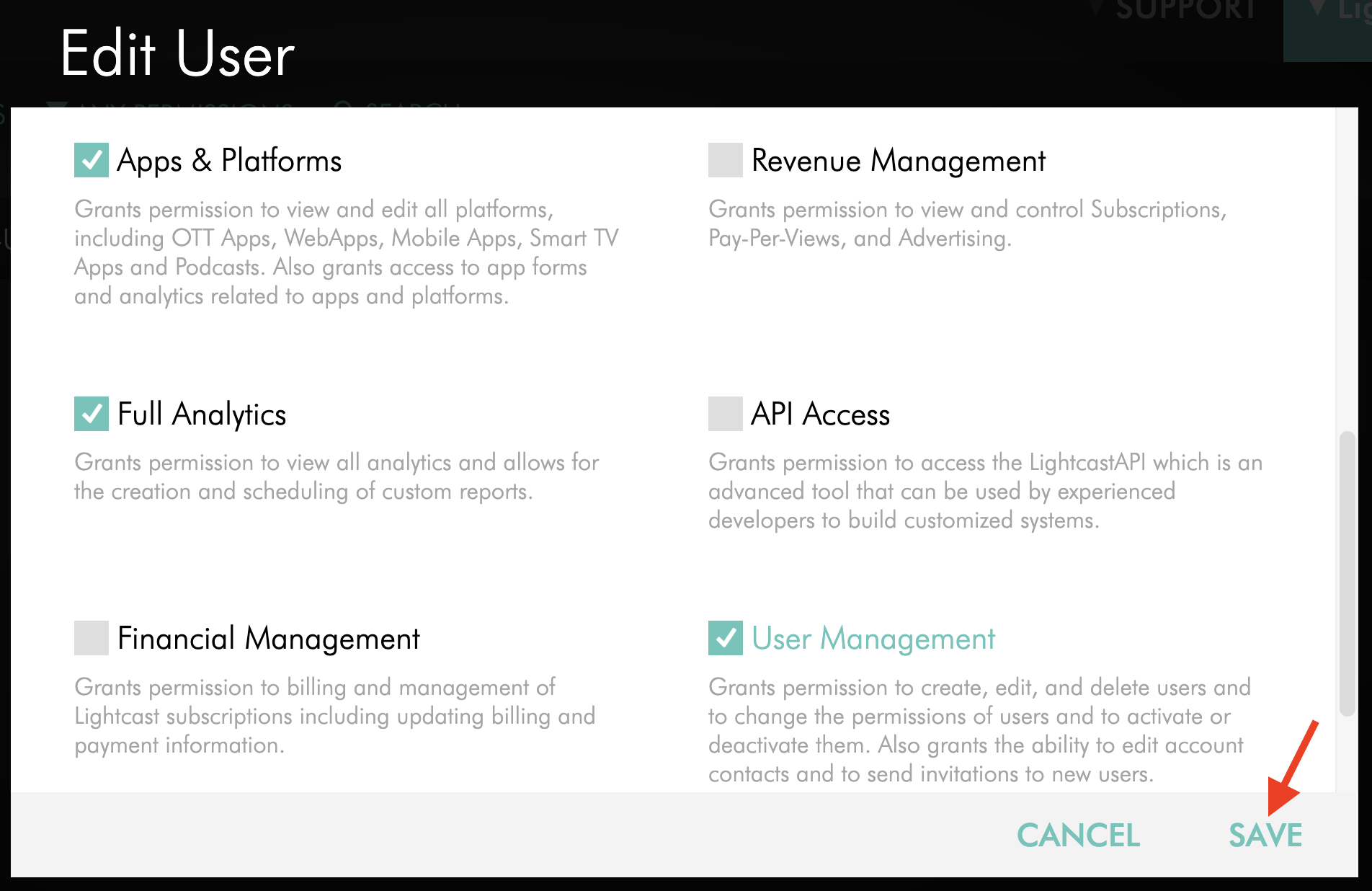
Click SAVE and the permission changes will take effect immediately.
FAQs
Can I change a sub-user’s permissions after sending the invitation?
Yes. You can update a sub-user’s permissions before or after they accept their invitation.
Who can manage permissions for sub-users?
The account owner and any sub-user with the User Management permission can manage permissions for sub-users.
Do permission changes take effect immediately?
Yes. Once you click SAVE, the updated permissions take effect immediately.
Which permissions should be assigned carefully?
The following permissions should be assigned with extra care because they provide access to sensitive features:
Financial Management
Revenue Management
API Access
User Management
Can I limit a sub-user’s access to a specific Channel?
Yes. When Channel Management is enabled, you can use SELECT CHANNELS to choose the specific Channels the sub-user should be able to access.
By default, a sub-user with Channel Management has access to all Channels. If you select specific Channels, their Channel access will be limited to those selections.
To learn how to assign and update specific Channel access, see: How to manage Channel access for sub-users.
Can the account owner change a sub-user’s email address when updating permissions?
If the sub-user has not yet accepted their invitation, the account owner can still edit that user’s details.
After the invitation has been accepted, the account owner can no longer change the sub-user’s email address from the Edit User screen.
If the sub-user needs to update their own email address after accepting the invitation, see: How to change your Media Cloud email address.