
Troubleshooting Facebook Live streaming issues
Overview
This article explains how to troubleshoot common issues when sending a Live Event from the Media Cloud to Facebook.
Use this article to identify whether an issue may be related to your encoder, the Media Cloud, or Facebook’s publishing platform.
When to use this article
Use this article when:
Your Live Event does not appear on Facebook.
Your Facebook Live broadcast ends unexpectedly or before your event is finished.
Your stream works through Lightcast but not on Facebook.
You need help determining whether an issue originates from your encoder, the Media Cloud, or Facebook.
You want to understand whether a separate stream to Facebook is necessary.
How Facebook Live publishing works
When you publish a Live Event from the Media Cloud to Facebook, your stream passes through three main stages:
Encoder: Sends your live video stream to the Media Cloud.
Media Cloud: Receives the stream and distributes it to Facebook and any other configured destinations.
Facebook: Receives the stream and makes it available to viewers through its own live player.
When troubleshooting, identifying which stage is experiencing the issue is the most important first step.
If the Media Cloud is not receiving your stream: Check your encoder, internet connection, and stream configuration.
If the Media Cloud receives your stream but Facebook does not display it: Check your Facebook connection, publishing destination, and account permissions.
If your stream appears on Facebook but stops unexpectedly: Check the scheduled Live Event end time, stream continuity, and Facebook notifications.
Because Facebook controls playback and delivery on its platform, Facebook publishing can also be affected by Facebook’s own processing, account permissions, platform requirements, policies, and availability.
For more information about Facebook publishing behavior, see Understanding how Facebook handles Live Events published from the Media Cloud.
For the complete Facebook connection and publishing workflow, see How to publish Live Events and Simulated Live Events to Facebook.
Quick troubleshooting checklist
Before troubleshooting a specific issue, check the following:
Is your encoder actively sending a stream to the Media Cloud?
Is your Live Event active in the Media Cloud?
Is Facebook selected as a publishing destination?
Is the correct Facebook account and destination connected?
Is the Facebook connection still authorized?
Has the scheduled end time of your Live Event been reached?
Are there any notifications or restrictions displayed on Facebook?
If your stream works normally through Lightcast but not on Facebook, focus on the Facebook publishing connection and destination before changing your encoder settings.
Troubleshooting
The live stream does not appear on Facebook
A short delay may occur between the time your stream is sent from the Media Cloud and when it becomes available to viewers on Facebook.
Facebook must receive and process the incoming live stream before displaying it through its live player. Network conditions and Facebook's own processing can affect how quickly the broadcast appears.
Start your encoder a few minutes before your scheduled Live Event begins to allow time for the Media Cloud to receive and establish a stable incoming stream.
Important: If your encoder starts sending the stream within approximately 5 minutes before the scheduled start time, the stream may begin publishing to Facebook before the exact scheduled start time.
If the stream still does not appear on Facebook:
Confirm that your encoder is actively sending the stream to the Media Cloud
Confirm that the correct Live Event is scheduled and active in the Media Cloud.
Confirm that Facebook is selected as a publishing destination.
Confirm that the correct Facebook account and destination are connected.
Confirm that the Facebook connection is still authorized
Check that the Facebook account and destination meet Facebook's current live streaming requirements
Check Facebook for any account, permission, content, or platform-related notification.
If the Media Cloud is not receiving the source stream, see How to set up and ingest a Live Event stream or Troubleshooting encoder connection and buffering issues.
If the stream is working through your Lightcast destinations but does not appear on Facebook, the issue may be specific to the Facebook publishing connection, destination, account permissions, or Facebook’s platform.
The Facebook Live broadcast ends unexpectedly
If your Facebook Live broadcast ends unexpectedly, first check the scheduled end time of the Live Event in the Media Cloud.
The Facebook broadcast is expected to end shortly after the scheduled event end time. If your event may run longer than expected, include additional time when scheduling the event.
If the scheduled end time has not been reached, check the following:
Confirm that your encoder is still sending the stream to the Media Cloud
Check your encoder and internet connection for interruptions
Confirm that the Live Event is still active in the Media Cloud
Check whether the stream is continuing normally on your other Lightcast destinations
Confirm that the Facebook connection is still authorized
Check Facebook for any notification related to the broadcast, account, permissions, content, or platform requirements
For help troubleshooting the encoder or connection to the Media Cloud, see Troubleshooting encoder connection and buffering issues.
Facebook controls its own live streaming platform and may restrict, interrupt, or end a broadcast based on its current policies, requirements, or technical limits.
If the stream continues normally through Lightcast but has ended on Facebook, the issue may be specific to Facebook publishing.
The Live Event runs past its scheduled end time
The Facebook Live broadcast is expected to end shortly after the scheduled end time configured for your Live Event in the Media Cloud.
If your Live Event continues beyond its scheduled end time, Facebook publishing may stop even if your encoder is still sending the stream.
To avoid this:
Schedule additional time when creating your Live Event.
Allow extra time for events that may run longer than expected.
Verify the scheduled start and end times before your event begins.
Make schedule changes more than 5 minutes before the scheduled start time, when possible.
Important: Once a Live Event has started, you can still open the event and view its settings. However, you can no longer modify any event settings, including the scheduled end time.
Please note that editing also becomes unavailable within 5 minutes of the scheduled start time. We recommend making all necessary changes well in advance of your event.
For instructions, see How to schedule a Live Event.
For timing information about Simulated Live Events, see How to schedule a Simulated Live Event.
The Facebook connection is no longer authorized
If your Facebook connection is no longer authorized, the Media Cloud may be unable to publish your Live Event to Facebook.
To reauthorize the connection, disconnect the Facebook account from the Live Events Channel and reconnect it through the Facebook publishing workflow.
Important: The Facebook connection applies to the entire Live Events Channel. Disconnecting the account may affect other scheduled events in the same Channel that are configured to publish to Facebook.
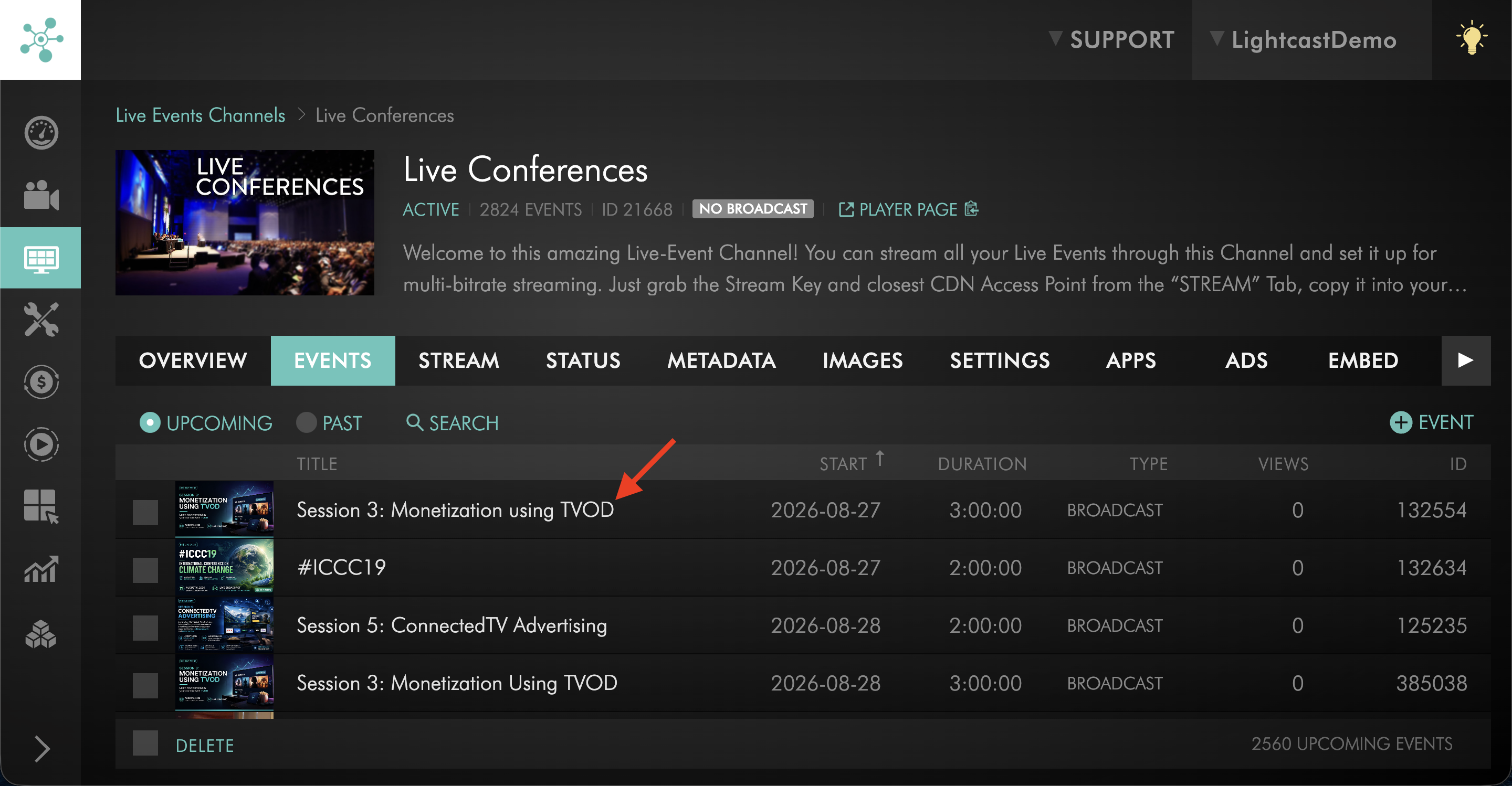
Step 1
Open the scheduled Live Event in the Media Cloud.
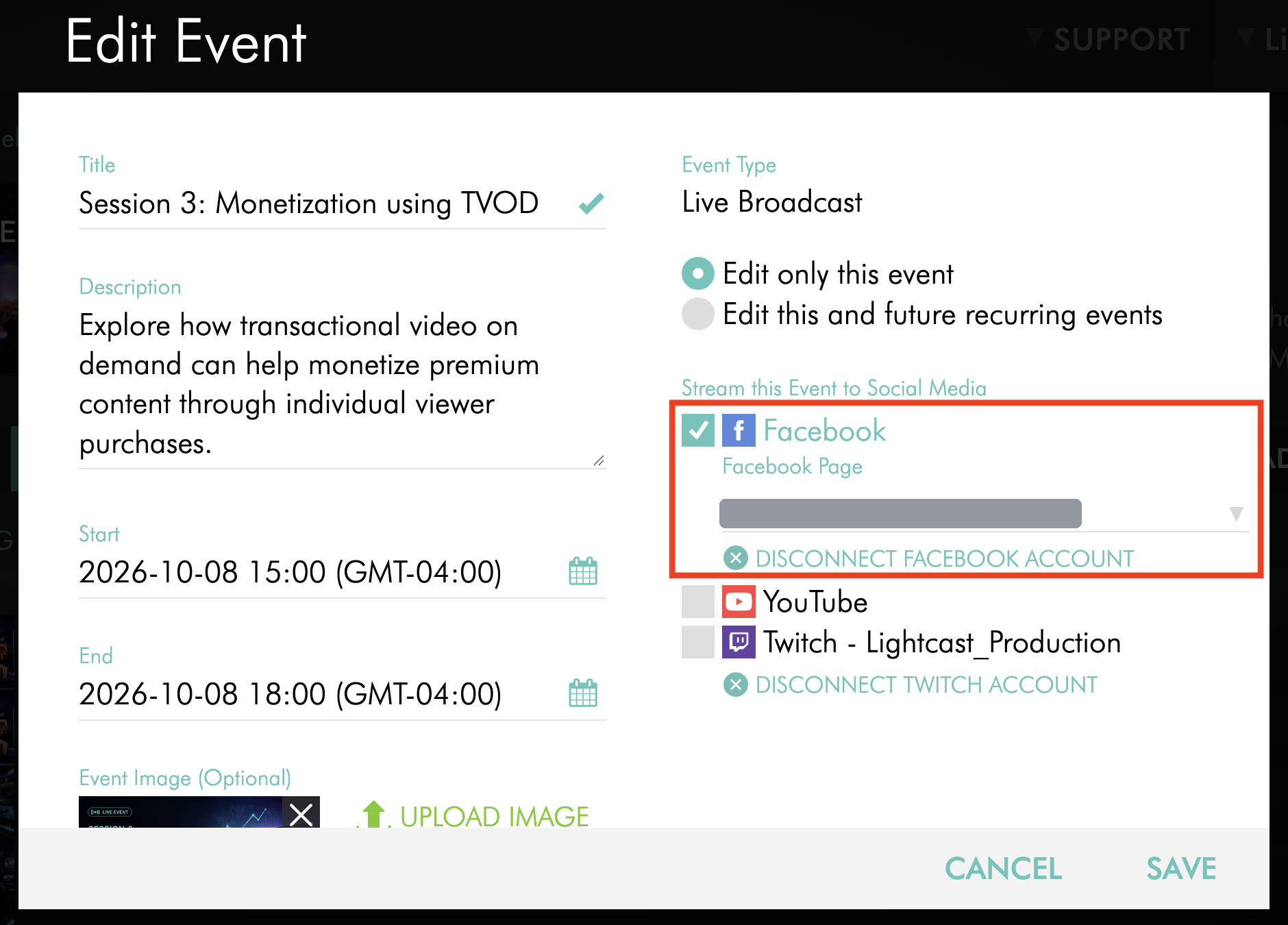
Step 2
Locate the Facebook publishing option.
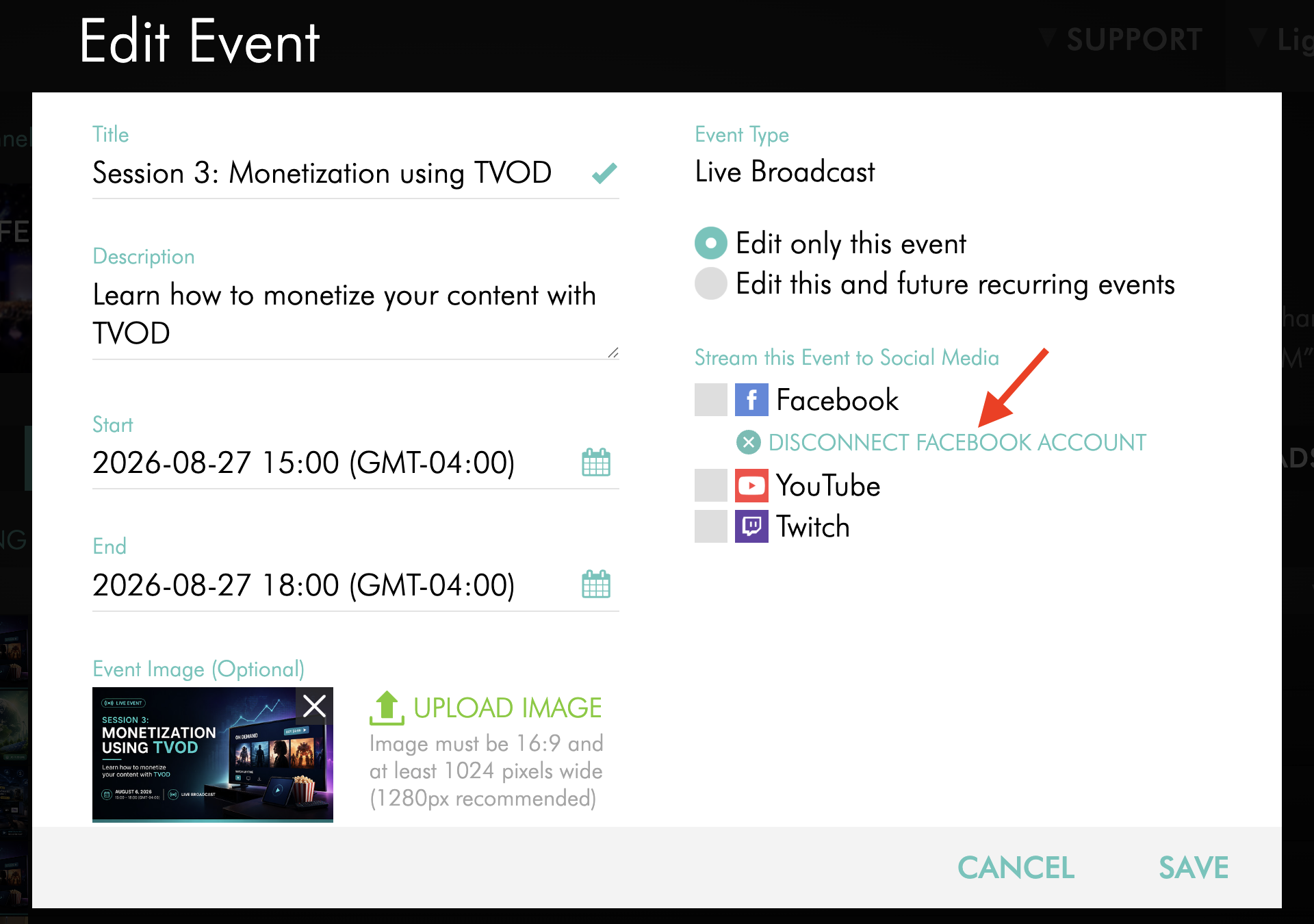
Step 3
Click DISCONNECT FACEBOOK ACCOUNT.
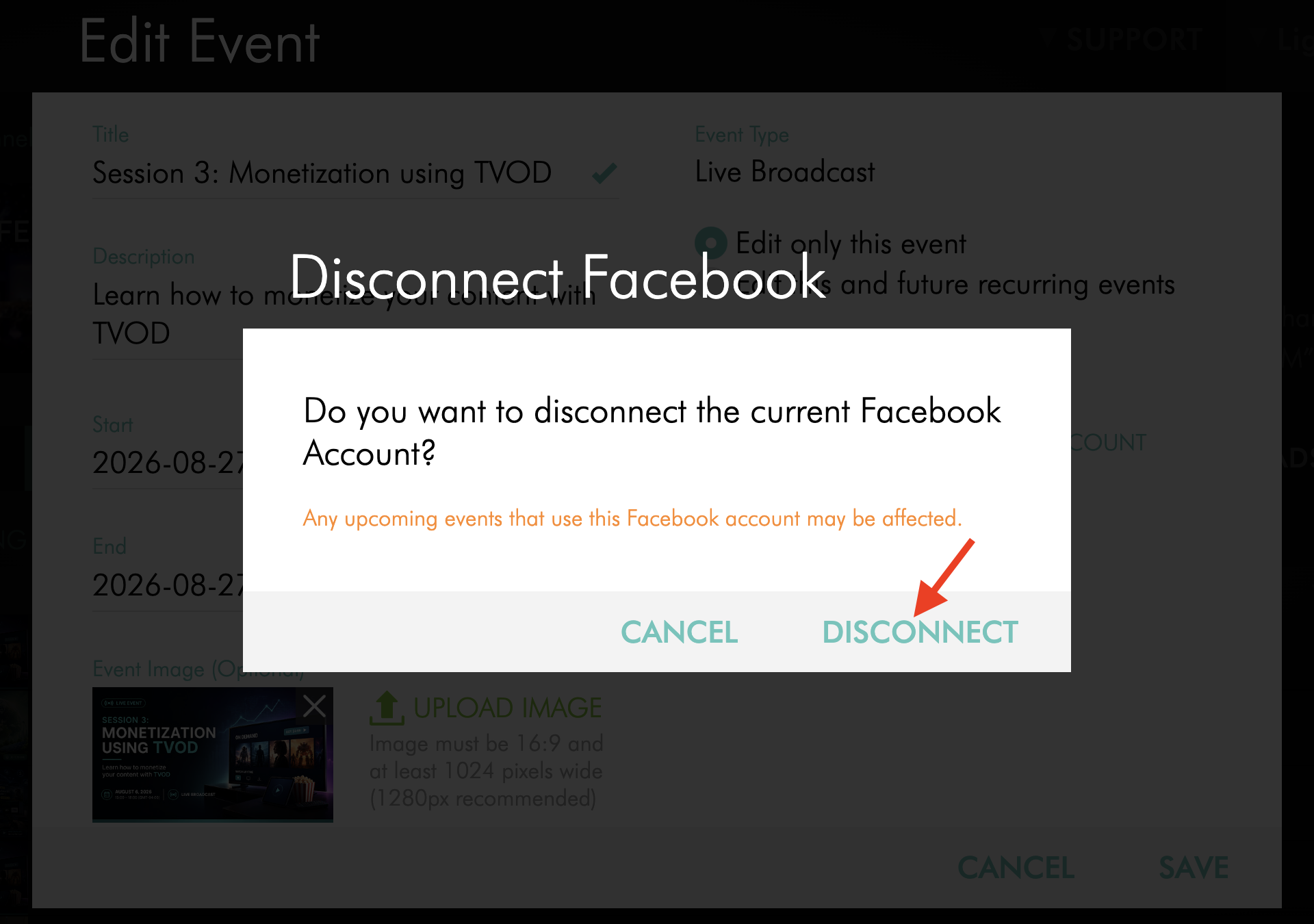
Step 4
When the confirmation window appears, click DISCONNECT.
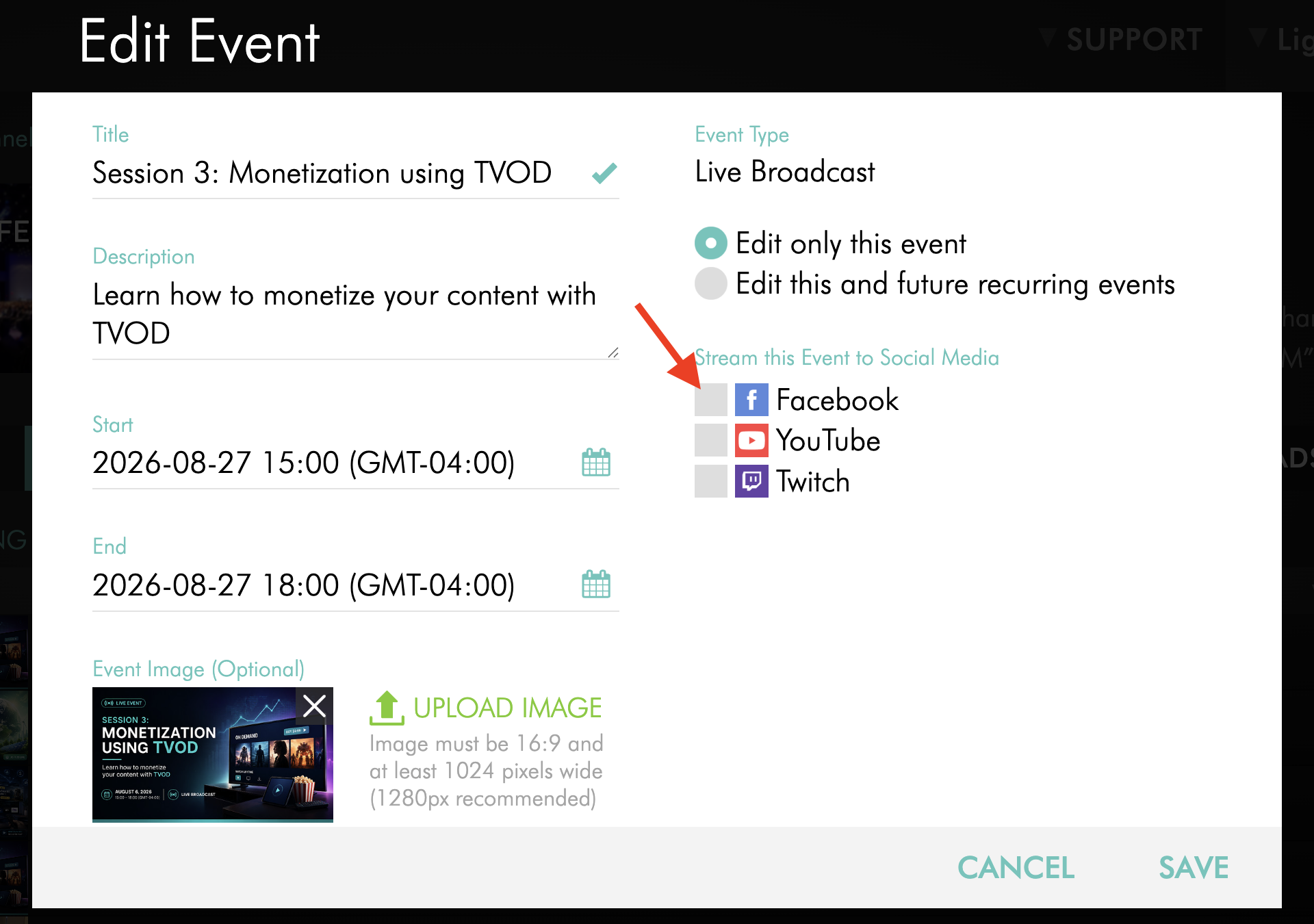
Step 5
Select Facebook again and sign in to the Facebook account you want to connect.
If Facebook automatically signs you back in with the previous account, sign out of Facebook in your browser before reconnecting.
Step 6
Follow the Facebook authorization prompts.
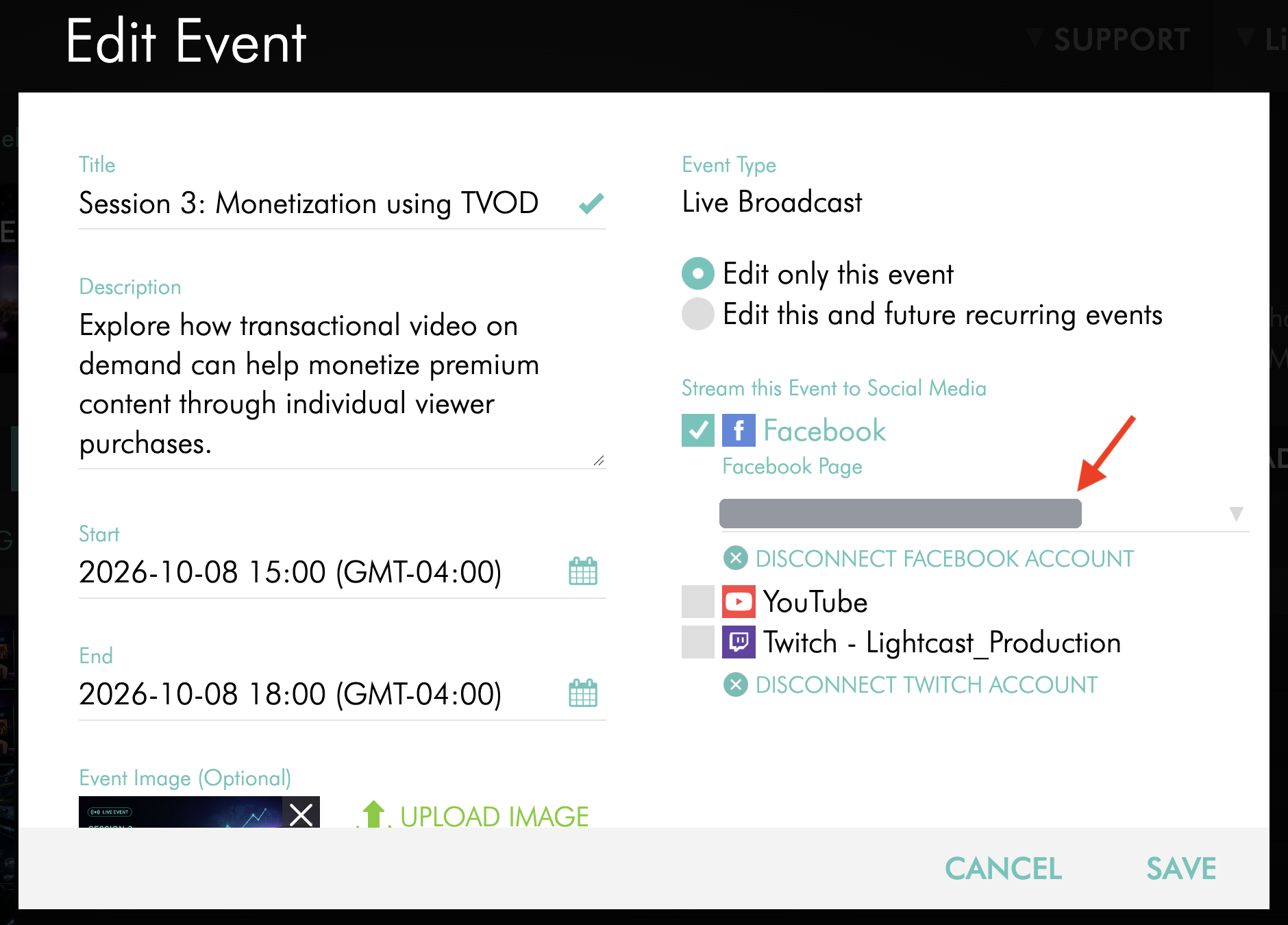
Step 7
Select the Facebook destination where you want to publish the Live Event.
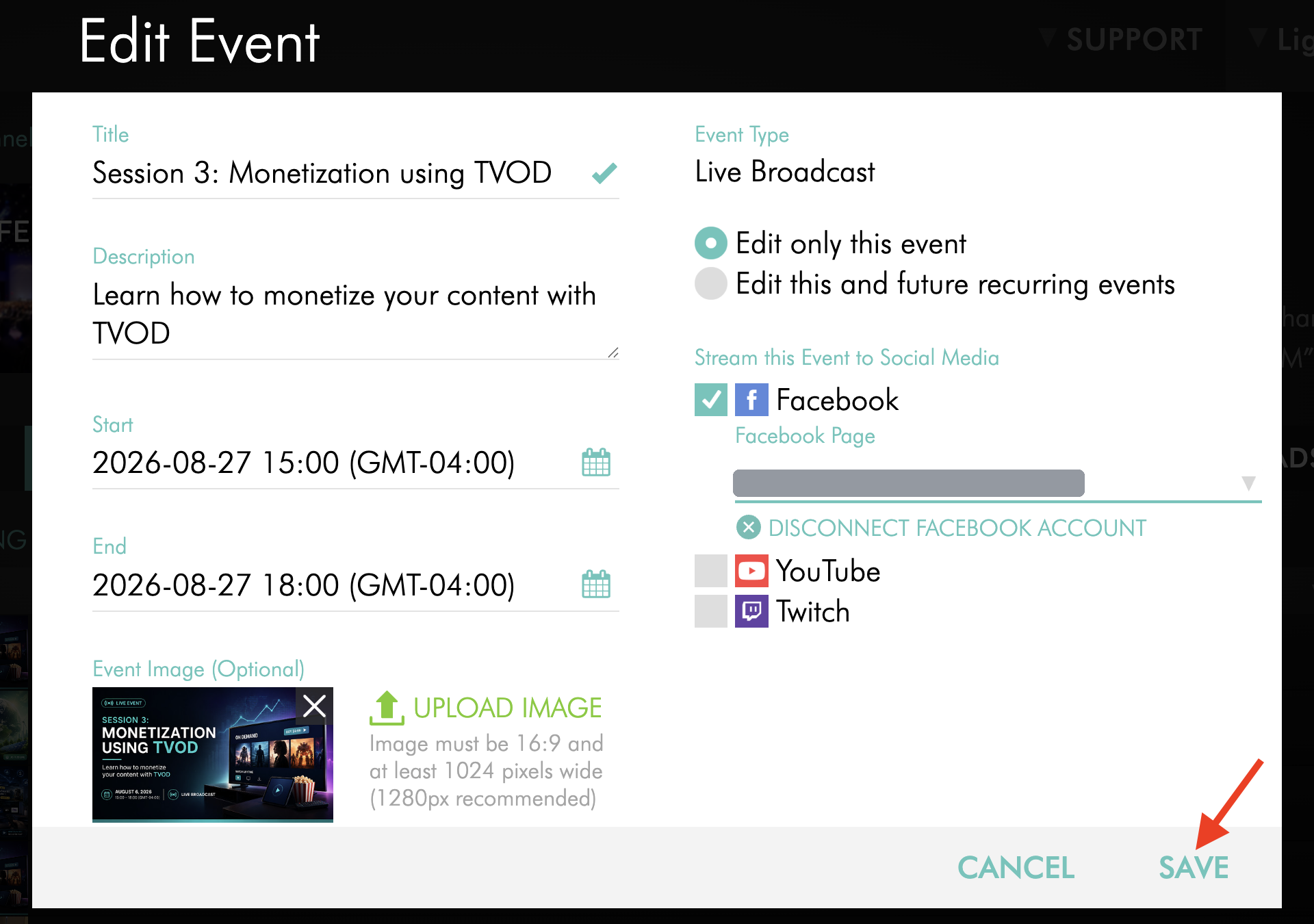
Step 8
Click SAVE to save your changes.
For the full Facebook connection workflow, see How to publish Live Events and Simulated Live Events to Facebook.
Important: You may not be able to edit the Live Event or reconnect Facebook if the event starts in less than 5 minutes or has already started.
Before contacting Customer Support
If you are unable to resolve the issue using the troubleshooting steps above, contact Customer Support.
To help our team investigate your issue, please provide:
The name of the affected Live Event.
The date and approximate time the issue occurred, including your time zone.
A description of the issue, such as whether the stream did not appear on Facebook or ended unexpectedly.
Whether the stream was working normally through your Lightcast destinations.
Any error messages or notifications displayed in the Media Cloud or on Facebook.
Screenshots of any relevant errors, if available.
Providing this information will help our Customer Support team identify the issue more efficiently.
FAQs
Why is my live stream working through Lightcast but not on Facebook?
Facebook receives the live stream from the Media Cloud but controls playback and delivery on its own platform.
If the stream is working normally through your Lightcast destinations but not on Facebook, confirm that the correct Facebook account and destination are connected, confirm that the connection is still authorized, and check Facebook for any account, permission, content, or platform-related notification.
Can Facebook end my live broadcast?
Yes. Facebook controls its own live streaming platform and may restrict, interrupt, or end a broadcast based on its current policies, platform requirements, or technical limits.
Publishing a Live Event successfully through the Media Cloud does not override Facebook's requirements.
For more information about Facebook publishing behavior, see Understanding how Facebook handles Live Events published from the Media Cloud.
What happens when my Live Event reaches its scheduled end time?
The Facebook Live broadcast is expected to end shortly after the scheduled event end time.
If your event may run longer than planned, include additional time when scheduling the Live Event.
For more information, see How to schedule a Live Event.
Can I extend the scheduled end time after my Live Event has started?
No. Once a Live Event has started, you can open the Live Event and view its settings, but you cannot edit the event settings, including the scheduled end time.
You may also be unable to make changes if the event starts in less than 5 minutes.
To avoid interruption, schedule extra time before the event begins whenever possible.
Should I restart my encoder if the Facebook broadcast stops?
Only restart your encoder if the encoder has stopped sending the source stream or you are troubleshooting an encoder connection issue.
If the Media Cloud is still receiving the stream and it is working on other Lightcast destinations, restarting the encoder may unnecessarily interrupt those destinations.
If only the Facebook broadcast is affected, check the Facebook publishing connection and Facebook account for additional information before restarting your encoder.
Should I send a separate stream directly from my encoder to Facebook?
When publishing a Live Event to Facebook through the Media Cloud, we recommend sending your source stream to the Media Cloud and allowing it to distribute the stream to Facebook and your other configured destinations.
This keeps your publishing workflow centralized and avoids unnecessary additional upload bandwidth usage.
Where should I manage a Facebook Live Event created through the Media Cloud?
Manage the scheduled Live Event and its Facebook publishing settings from the Media Cloud.
This keeps the Media Cloud event configuration and Facebook publishing workflow together.
For instructions, see How to publish Live Events and Simulated Live Events to Facebook.