
Best practices for reliable Live Events and Linear Streams
Overview
This article explains best practices for preparing reliable Live Events and Linear Streams using Lightcast's Media Cloud.
Learn how to prepare your account, optimize upload bandwidth and encoder settings, maintain a stable network connection, and configure optional backup streaming for additional reliability.
Following these recommendations can help you deliver a consistent streaming experience, especially for important broadcasts and continuous live programming.
When to use this article
Use this article when preparing a Live Event or Linear Stream, especially when uninterrupted playback is particularly important.
This includes:
Important Live Events, including pay-per-view broadcasts, conferences, and special presentations
Continuous 24/7 Linear Streams
Broadcasts with large anticipated audiences
Events where backup streaming is desired
Situations where you want to verify your account, bandwidth, network, and encoder readiness before going live
Quick pre-event checklist
Before your broadcast, use this checklist to confirm that your streaming setup is ready:
Video Minute balance and Overdraft Protection reviewed
Billing and payment information verified
Upload speed tested and streaming bitrate confirmed
Wired internet connection prepared
Encoder settings checked
Primary stream connection tested
Backup stream configured and tested, if applicable
Viewer playback and audio verified
Someone assigned to monitor the stream during the broadcast
The following sections explain how to prepare and verify each area.
Key areas of live stream preparation
Reliable live streaming begins with proper preparation. Before going live, review these four areas:
Account readiness: Confirm that your Video Minute balance, Overdraft Protection settings, and billing information are prepared for the broadcast.
Bandwidth readiness: Verify that your internet connection provides sufficient upload bandwidth for your selected streaming bitrate.
Network and encoder readiness: Use a stable internet connection and configure your encoder according to the recommended streaming settings.
Backup streaming: For important broadcasts, consider configuring an optional backup stream to provide an additional ingestion path.
The detailed recommendations below explain how to prepare each area.
Preparing your live stream
Account readiness
Before a critical broadcast, make sure your Media Cloud account is prepared for the expected stream usage.
Review the following items:
Confirm that your account has enough available Video Minutes for the anticipated viewership.
If your broadcast is especially important or expected to attract a large audience, consider adding a Video Minute buffer or enabling Overdraft Protection.
Confirm that your billing and payment information is valid and up to date.
Make sure the payment method on file can process recurring payments or approved add-on purchases successfully.
When estimating your Video Minute requirements, consider the expected audience size, anticipated viewing duration, and any other applicable usage associated with your streaming setup. For more information, see Bandwidth Accounting Progression Key for On-Demand and LIVE content.
For example, viewing activity through Lightcast-powered apps, Web Apps, and embedded web players may consume Video Minutes based on the number of viewers and how long they watch.
Preparing your account in advance helps reduce the risk of interruptions related to Video Minute limits or payment issues.
For more information, see How to add Video Minutes and enable Overdraft Protection and How to update your billing and payment details.
Bandwidth readiness
Before going live, test your internet connection to confirm that it can support your selected streaming bitrate.
Upload bandwidth is particularly important because your encoder sends video and audio from your location to Lightcast's live streaming network.
For reliable streaming, we recommend keeping your total streaming bitrate at or below approximately 50% of your tested upload speed.
Use the following planning guideline:
Recommended maximum total streaming bitrate = Tested upload speed ÷ 2
For example:
Tested upload speed: 10 Mbps
Recommended maximum total streaming bitrate: 5 Mbps
This recommended buffer helps accommodate normal internet fluctuations, network activity, and bitrate variations.
Your total streaming bitrate should include both video and audio. If you are sending multiple streams simultaneously, include the combined bitrate of all streams.
Important: This calculation is a recommended planning guideline, not a technical bandwidth limit. A speed test also provides only a snapshot of your connection's performance. For critical broadcasts, test your connection multiple times and consider its stability, not just its maximum upload speed.
For more information about recommended video and audio settings, see Recommended encoder settings for live streaming.
Network and encoder readiness
Before an important broadcast, review your local network and encoder setup.
Use a wired internet connection whenever possible.
Avoid large uploads, cloud backups, software updates, and other bandwidth-heavy activities during the broadcast.
Make sure anyone sharing the same internet connection avoids activities that could affect available upload bandwidth.
Confirm that your encoder settings match your available upload bandwidth.
Check that your encoder is configured with the recommended video and audio settings.
Test the source stream, including video quality, audio quality, and connection stability, before your broadcast.
Wireless connections can be affected by interference, signal strength, distance from the router, and other devices using the same network.
For critical streams, a stable wired connection is recommended whenever possible.
Additional recommendations for critical broadcasts
For high-priority Live Events, consider these additional precautions:
Backup internet connection: When possible, have a secondary internet connection available, such as a different internet service provider or a cellular connection.
Backup power: Consider using an uninterruptible power supply (UPS) for critical networking and streaming equipment.
Encoder redundancy: For particularly important broadcasts, consider having a second encoder available.
Pre-event testing: Perform a complete test using the same equipment, network, and streaming settings planned for the actual broadcast.
Stream monitoring: Assign someone to monitor the actual viewer playback experience throughout the event.
These recommendations are especially valuable for paid broadcasts and other events where interruptions could have significant consequences.
Backup streaming readiness
For important Live Events and Linear Streams, Lightcast provides optional backup streaming credentials that can be used to establish an additional streaming connection.
Depending on your Channel configuration, backup streaming credentials are available for RTMP Ingestion or SRT Ingestion.
When both the primary and backup streams are configured and actively sending content, Lightcast can automatically switch to the backup stream if the primary ingestion connection fails.
The primary and backup streams use separate ingestion paths, providing additional reliability if one connection experiences an issue. This functionality is supported for both RTMP and SRT Ingestion.
Before configuring a backup stream:
Confirm that your encoder or streaming setup supports simultaneous primary and backup outputs.
Verify that your Channel provides dedicated backup streaming credentials.
Make sure your upload bandwidth can support both streams simultaneously.
Test both connections before the broadcast.
Important: Although Lightcast can automatically switch to the backup stream, viewers who are already watching may experience a brief interruption or need to reload their player, depending on the platform. Viewers who begin watching after the backup has taken over can generally access the stream normally.
Calculating backup stream bandwidth
A backup stream increases your upload bandwidth requirements because you are sending more than one stream.
When both streams use the same bitrate, use the following calculation:
Total required upload bandwidth = Combined video and audio bitrate × Number of streams
For example, if your video bitrate is 2,500 kbps and your audio bitrate is 128 kbps, one stream uses approximately 2,628 kbps.
If you send both a primary stream and a backup stream:
2,628 kbps × 2 = 5,256 kbps
Your streaming connection must support the combined bitrate of both streams while maintaining sufficient bandwidth for normal fluctuations.
Using the recommended 50% bandwidth guideline, a connection tested at 10 Mbps would have a recommended total streaming bitrate of approximately 5 Mbps. In this example, sending both streams at a combined 5,256 kbps would exceed that recommendation.
You would need to adjust your streaming setup or use a connection with more available upload bandwidth.
Important: Backup streaming provides an additional ingestion path but does not eliminate every potential interruption. Issues affecting your local internet connection, power supply, encoder, or available upload bandwidth may still impact both streams.
If you cannot support both streams reliably, prioritize a stable primary stream or consider an alternative backup setup.
Instructions
Test your upload speed
Step 1
Before your broadcast, test your internet connection from the same location and network you plan to use for streaming.
Step 2
Use a speed test tool, such as http://www.speedtest.net/, to check your current upload speed.
For the most accurate result, run the test when other devices and users are not consuming significant bandwidth on the connection.
Step 3
If possible, run multiple tests at different times before the event.
Upload speed can vary depending on your internet service provider, local network activity, and connection type.
Step 4
Use the results to determine your recommended maximum total streaming bitrate.
For reliable streaming, we recommend keeping the combined bitrate of your outgoing streams at or below approximately 50% of your tested upload speed.
For more information about selecting an appropriate streaming bitrate, see Recommended encoder settings for live streaming.
Configure a backup stream
Step 1
Log in to your Media Cloud account.
Step 2
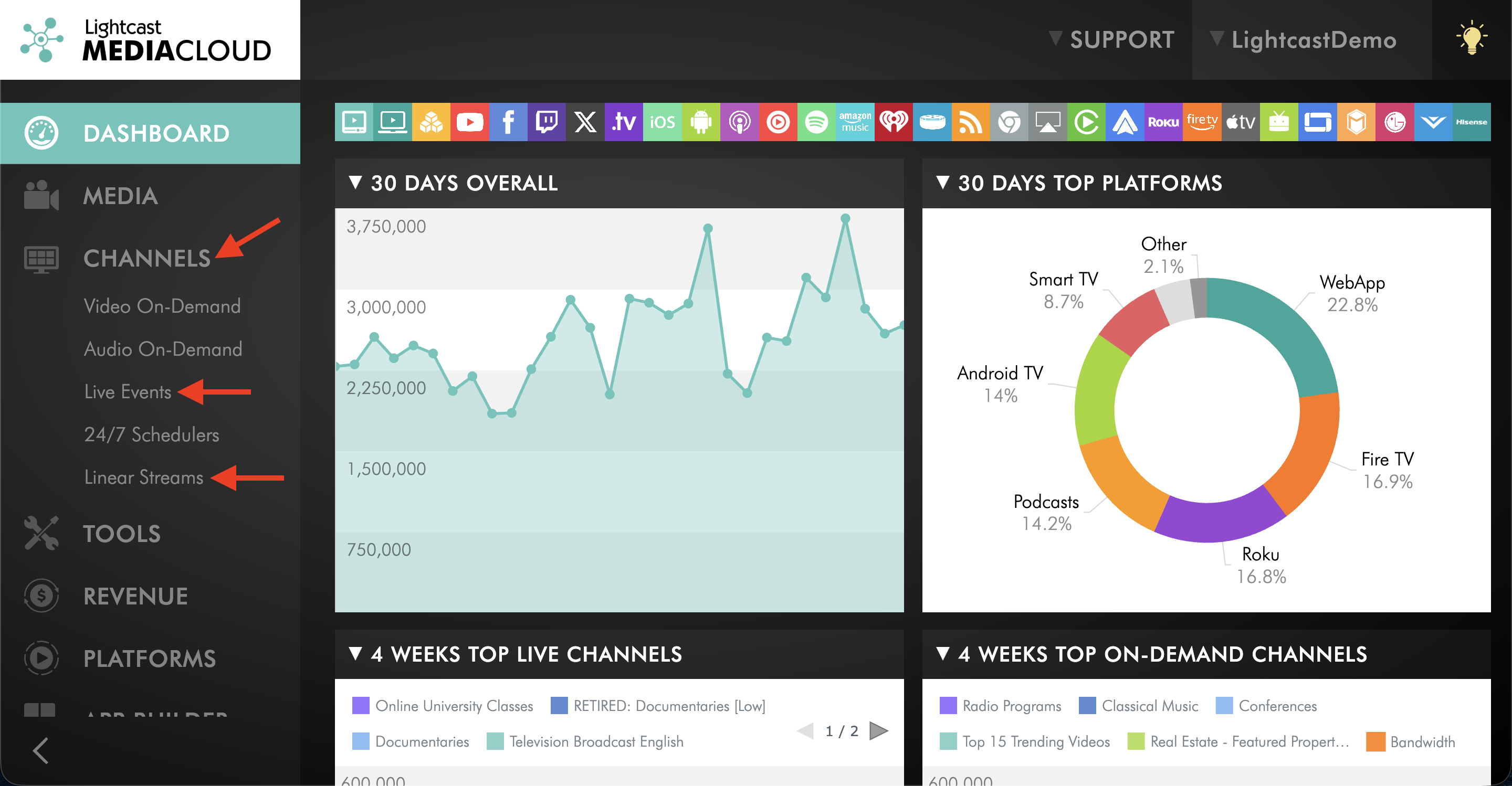
Go to CHANNELS, then select the appropriate LIVE Channel type.
For example, select Live Events for a Live Events Channel or Linear Streams for a Linear Stream Channel.
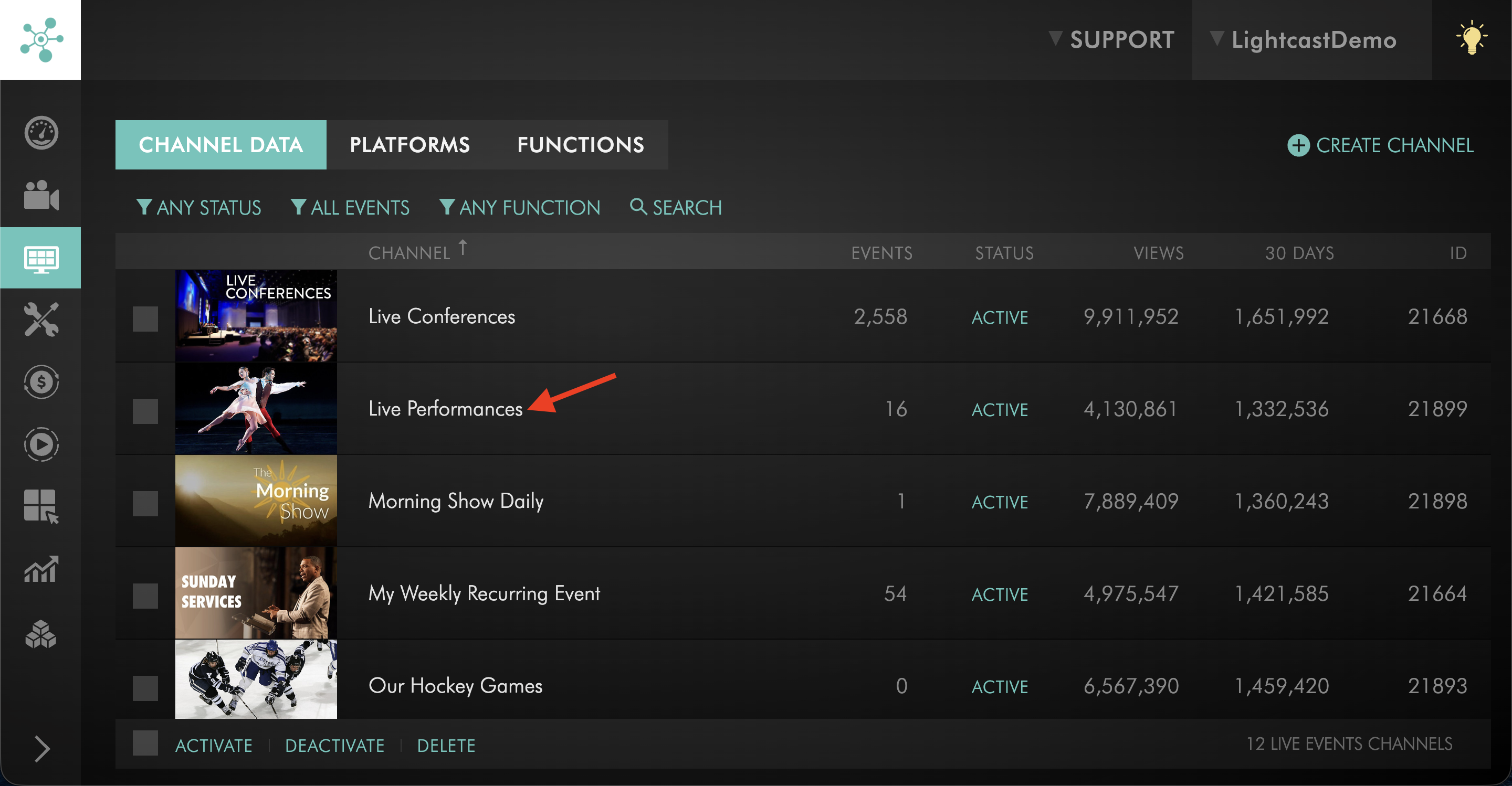
Step 3
Select the Channel you want to stream to.
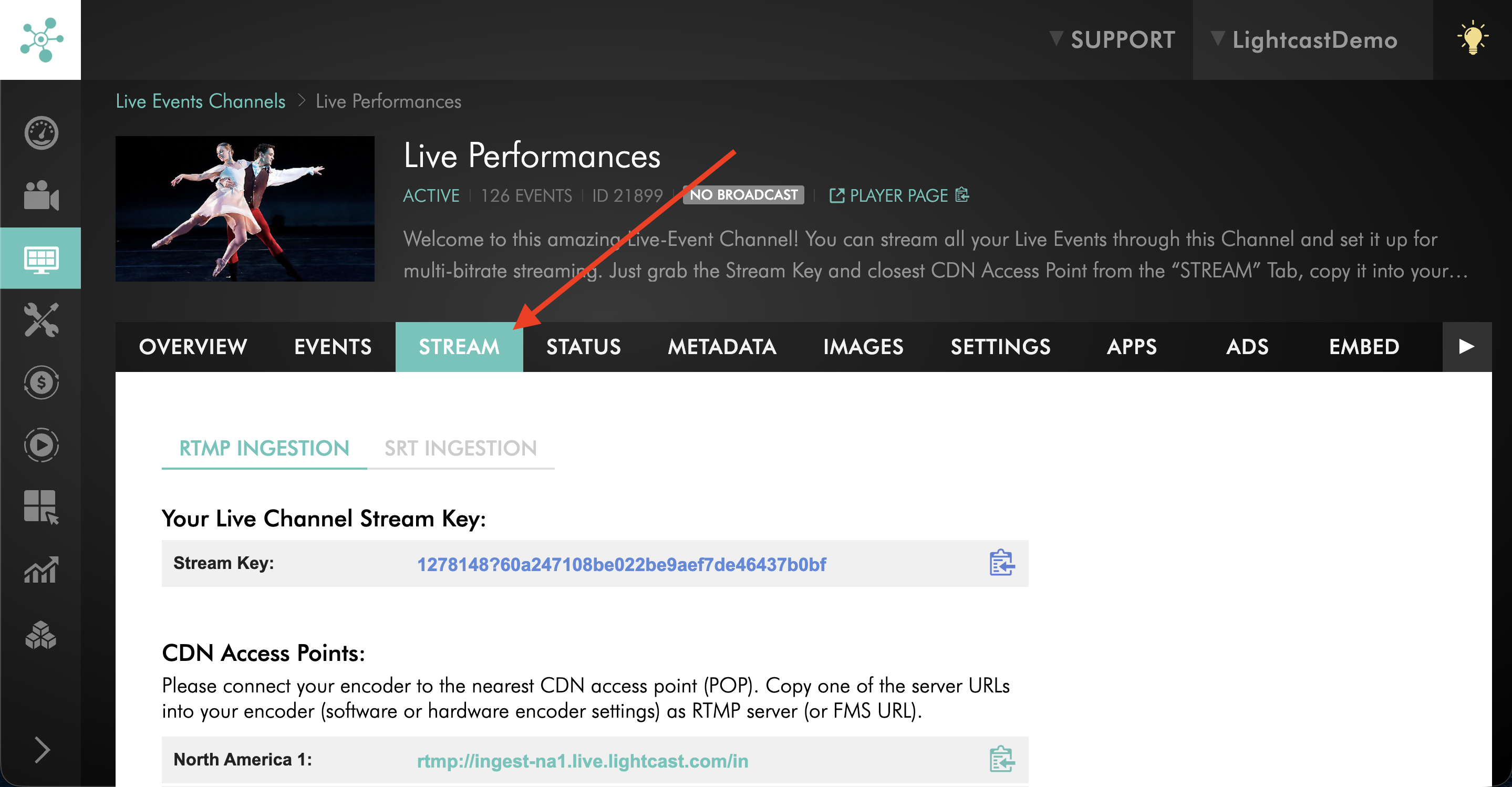
Step 4
Click the STREAM tab.
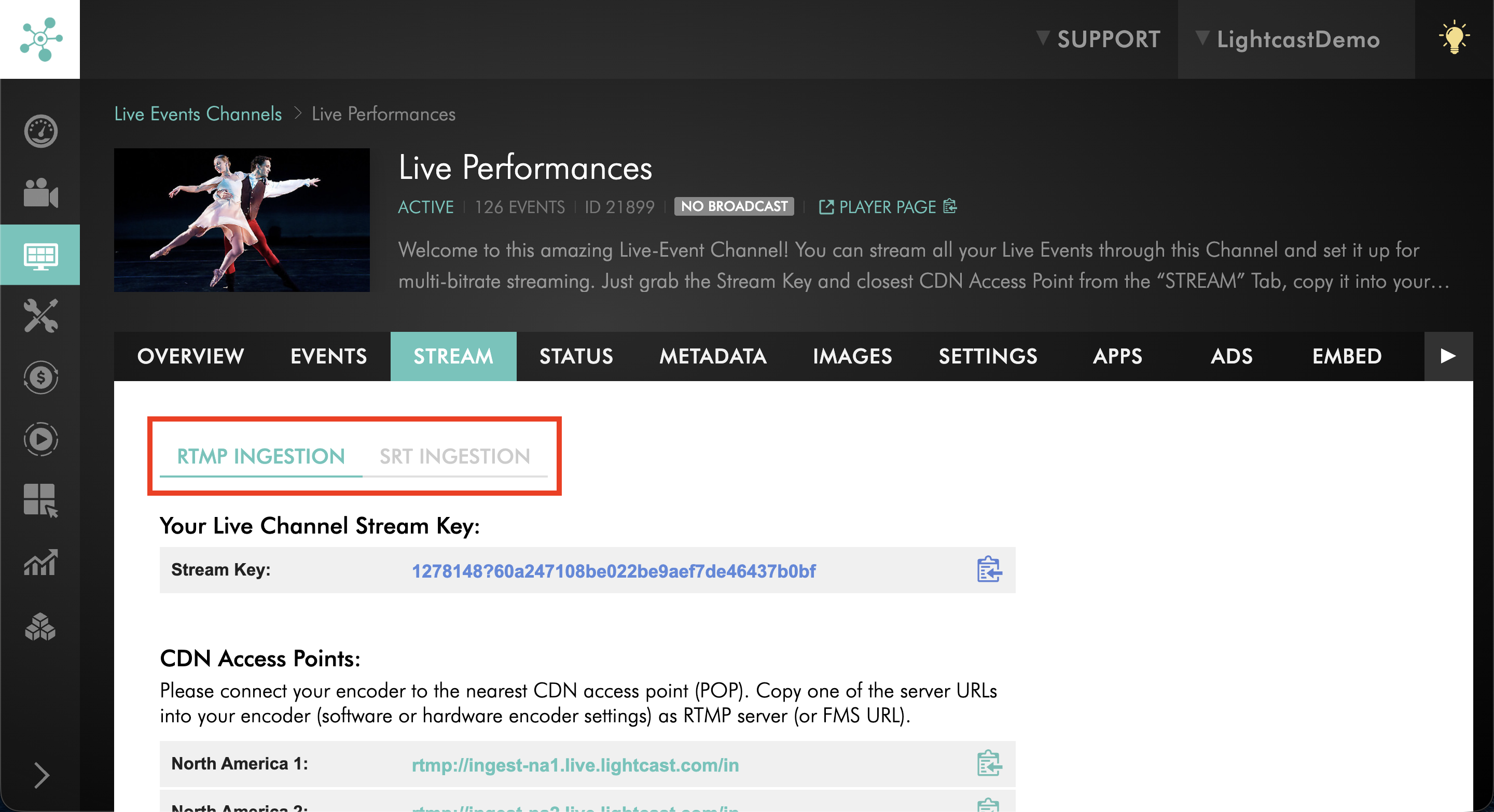
Step 5
Choose the ingestion method you are using.
Use RTMP Ingestion if your encoder is sending an RTMP stream.
Use SRT Ingestion if your encoder is sending an SRT stream.
For more information about standard RTMP and SRT stream credentials, see How to find your LIVE Channel stream credentials.
Step 6
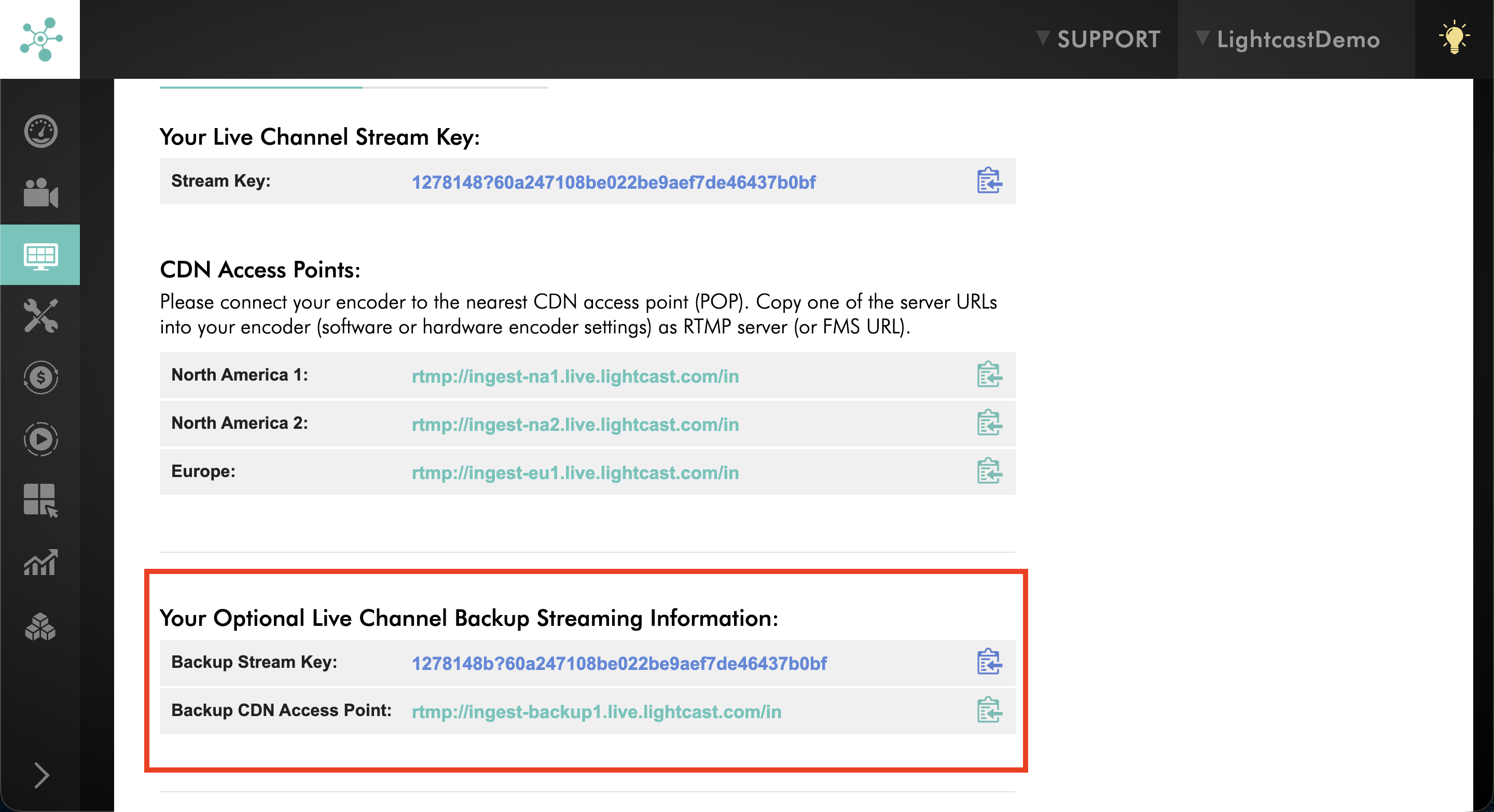
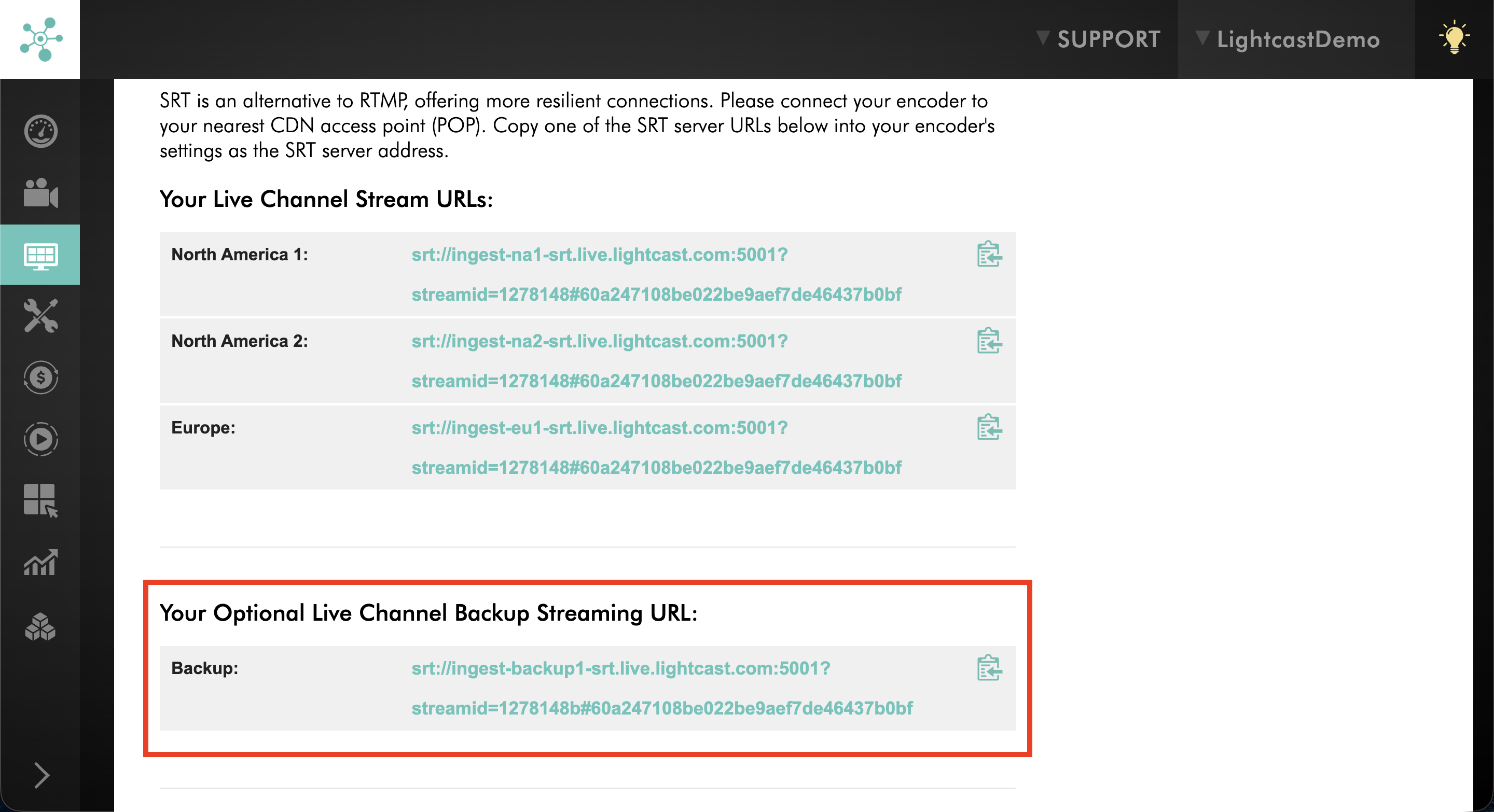
Locate the backup streaming credentials for the selected ingestion method.
For RTMP Ingestion, the backup credentials appear under Your Optional Live Channel Backup Streaming Information and include a Backup Stream Key and Backup CDN Access Point.
For SRT Ingestion, the backup credentials appear under Your Optional Live Channel Backup Streaming URL.
Step 7
If your encoder supports backup streaming, configure the backup output using the dedicated backup credentials shown on the Channel's STREAM tab.
Keep your primary streaming credentials configured separately.
Step 8
Test both the primary and backup streaming connections before your live broadcast.
Confirm that your encoder or streaming setup can send both streams and that your internet connection provides sufficient upload bandwidth.
If you need help confirming the appropriate backup streaming setup for your Channel, contact Customer Support.
Verify playback before your event
A successful connection between your encoder and the Media Cloud does not necessarily confirm that viewers are receiving the expected playback experience.
Before your event begins:
Start your encoder and confirm that the Media Cloud receives the stream.
Open the stream through your Lightcast-powered app, Web App, or embedded web player.
Confirm that the video and audio play correctly.
Check for buffering, interruptions, or audio/video synchronization issues.
If backup streaming is configured, test the backup setup according to your encoder's capabilities and Lightcast's supported behavior.
Continue monitoring playback throughout the broadcast.
For important broadcasts, assign someone to monitor the actual viewing experience while the event is running so that any issues can be identified and addressed promptly.
FAQs
Does a backup stream guarantee uninterrupted streaming?
No. When a primary ingestion connection fails, Lightcast can automatically switch to the backup stream if it is configured and actively sending content.
However, viewers who are already watching may experience a brief interruption or need to reload their player, depending on the platform.
Backup streaming provides additional reliability but cannot prevent every interruption. Local internet outages, encoder failures, power loss, or insufficient upload bandwidth may still affect the broadcast.
Does using a backup stream require additional upload bandwidth?
Yes. When transmitting a primary and backup stream simultaneously, your upload bandwidth must support the combined bitrate of both streams.
If both streams use identical settings, the total required upload bandwidth will be approximately doubled.
Should I enable Overdraft Protection before an important Live Event?
For important broadcasts, we recommend reviewing your available Video Minutes in advance.
Adding a Video Minute buffer or enabling Overdraft Protection, when available, can help reduce the risk of interruptions related to Video Minute limits.
Make sure your billing and payment information is also valid and up to date.
What should I do if my internet connection cannot support both a primary and backup stream?
Prioritize a stable primary stream using an appropriate bitrate and a wired internet connection.
If possible, consider an independent backup internet connection or another streaming setup that provides additional reliability without exceeding your available upload bandwidth.