
Understanding what affects live stream playback
Overview
This article explains how the publisher's streaming setup, CDN delivery, and viewers' devices and internet connections can affect live stream playback.
It covers the live streaming signal path, common sources of interruptions, and ways to identify where playback problems may originate.
When to use this article
Use this article when you want to understand the factors that influence live stream reliability or identify possible causes of streaming issues.
This may be helpful when:
Viewers experience buffering, disconnects, or playback problems
You want to determine whether an issue is related to your streaming setup, CDN delivery, or the viewer's environment
You are preparing for an important Live Event or Linear Stream
You want to understand how encoder settings, internet connections, and network conditions affect stream stability
Understanding the live stream signal path
A live stream travels through several interconnected systems before reaching a viewer. These systems can be grouped into three main areas:
Publisher side: Includes the cameras, audio equipment, encoder, local network, and internet connection used to send the live stream to Lightcast.
CDN side: Includes the streaming infrastructure responsible for receiving, processing, and distributing the live stream to viewers.
Viewer side: Includes the viewer's device, app or browser, local network, internet connection, and internet service provider.
Each area plays a role in delivering a reliable viewing experience. The diagram below illustrates the different components involved in the live streaming signal path and highlights potential sources of interruptions or playback issues.
Live stream signal path
Publisher side → CDN side → Viewer side
Capture equipment and encoder → Lightcast streaming delivery infrastructure → Viewer device and internet connection
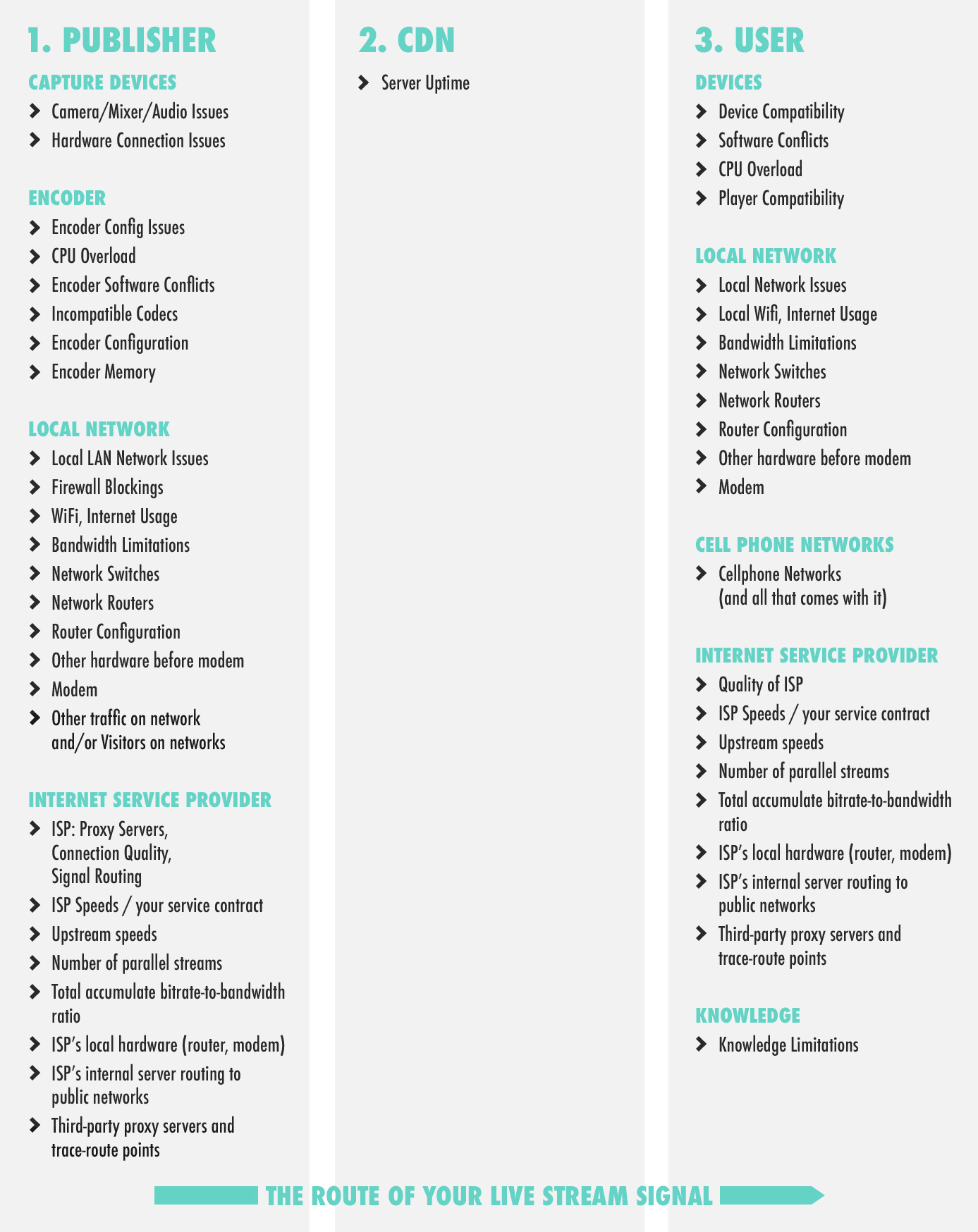
An interruption in one area can affect the overall viewing experience. For example, an unstable internet connection at the publisher's location may affect all viewers, while a weak Wi-Fi connection at a viewer's location may affect only that individual viewer.
Publisher-side troubleshooting sources
The publisher's streaming environment is the starting point of the live stream signal path. The quality and stability of the source signal can influence the viewing experience across all delivery destinations.
Several components can affect the stream before it reaches Lightcast.
Capture devices
Cameras, microphones, audio mixers, switchers, and other production equipment capture the video and audio signals.
Loose cables, incorrect audio routing, hardware malfunctions, or incompatible connections may affect the source signal before it reaches the encoder.
Encoder
The encoder converts the source video and audio into a format suitable for live streaming and sends the stream to the Media Cloud.
Common encoder-related issues include:
Incorrect stream credentials or configuration
Unsupported video or audio codecs
Incorrect bitrate or resolution settings
CPU or memory overload
Encoder software conflicts or outdated software
Using Lightcast's recommended encoder settings helps maintain compatibility across supported devices and viewing platforms.
For more information, see Recommended encoder settings for live streaming.
Local network
The publisher's local network connects the encoder to the internet through network equipment such as switches, routers, and firewalls.
Network congestion, unstable Wi-Fi, incorrect firewall settings, or other devices consuming bandwidth may affect stream stability.
For critical broadcasts, use a wired connection whenever possible and minimize other bandwidth-intensive activities during the stream.
Internet service provider
The publisher's internet connection carries the live stream from the production location to Lightcast's streaming infrastructure.
Insufficient upload bandwidth, packet loss, network congestion, unstable connections, or internet service provider (ISP) routing problems can affect the delivery of the source stream.
For reliable streaming, the available upload bandwidth should provide sufficient capacity above the configured stream bitrate, including any additional streams or network activity.
CDN-side troubleshooting sources
Lightcast uses Content Delivery Network (CDN) infrastructure to deliver live streams to viewers across supported devices, apps, and viewing platforms.
The CDN plays an important role in stream availability, scalability, and reliable delivery, particularly when large audiences are watching simultaneously.
Like any internet-based delivery infrastructure, CDN performance can be affected by temporary service interruptions, network routing issues, or connectivity problems between different parts of the streaming workflow.
When troubleshooting, it is important to determine whether the issue affects all viewers or only specific devices, networks, or geographic locations.
For example:
If viewers across multiple networks and locations experience the same interruption, the source stream and CDN delivery should both be investigated.
If only viewers in a particular region or network are affected, the issue may be related to regional delivery infrastructure or network routing.
If the stream is reaching Lightcast intermittently, the publisher's encoder, upload connection, and network path should also be reviewed.
Identifying where the interruption occurs helps narrow down the possible cause and determine the appropriate next troubleshooting steps.
Viewer-side troubleshooting sources
Viewer-side issues occur when a viewer is trying to watch the live stream through a device, app, browser, or internet connection.
These issues may affect individual viewers or groups of viewers using similar devices, networks, or geographic locations.
Viewer devices
Viewers may watch live streams through different devices, operating systems, browsers, and apps.
Outdated software, unsupported devices, playback compatibility limitations, or incorrect device settings may affect the viewing experience.
Using supported video and audio codecs and Lightcast's recommended encoder settings helps maintain compatibility across supported viewing platforms.
Viewer local network
A viewer's local network may include Wi-Fi, routers, modems, network extenders, or other devices sharing the same internet connection.
Even when the live stream is working correctly, a viewer may experience buffering if their local network is unstable, congested, or too slow to sustain playback.
Mobile networks
Mobile network connections can be more variable than wired or stable Wi-Fi connections.
Viewers using cellular networks may experience interruptions caused by weak signal strength, network congestion, movement between cellular towers, or regional coverage limitations.
Viewer internet service provider
A viewer's ISP can also affect live stream playback.
Temporary slowdowns, routing problems, local outages, or network congestion may affect the viewer's ability to maintain a stable connection to the stream.
In these cases, viewers using different internet providers or network connections may experience different playback results.
How to identify the possible source of a streaming issue
The following examples can help narrow down where a streaming issue may originate.
What you observe | What to check first |
|---|---|
All viewers experience interruptions at the same time | Encoder, publisher upload connection, source stream, and CDN delivery |
Only one viewer experiences buffering | Viewer device, app, browser, Wi-Fi, and internet connection |
Viewers in one geographic region experience issues | Regional CDN delivery, ISP routing, and network connectivity |
The stream works on desktop but not on mobile | Encoder codecs, device compatibility, mobile app or browser, and network conditions |
Video works, but audio is missing or distorted | Audio capture, mixer settings, encoder audio configuration, and playback compatibility |
The stream repeatedly disconnects and reconnects | Encoder stability, upload bandwidth, packet loss, and network connectivity |
Buffering increases as more viewers join | Source stability, CDN delivery, and any shared or constrained network paths |
These examples are intended as starting points for troubleshooting. A single symptom may have several possible causes, so additional testing may be necessary to identify the source.
How to verify your stream setup
Before an important Live Event or Linear Stream, test the complete streaming workflow using the equipment, network connection, encoder settings, and Media Cloud Channel you plan to use for the broadcast.
Step 1: Check your production equipment
Confirm that your cameras, microphones, mixers, and other capture devices are connected and working correctly.
Step 2: Verify your encoder settings
Confirm that your encoder is configured according to Lightcast's recommended settings, including supported video and audio codecs, resolution, and bitrate.
Step 3: Test your internet connection
Verify that your available upload bandwidth is sufficient for the configured stream bitrate and that your connection remains stable during the test.
Step 4: Start a test stream
Send a test stream to the Media Cloud and confirm that the video and audio are received correctly.
Step 5: Test playback on multiple devices
Watch the stream on supported desktop and mobile devices, as well as your published apps where applicable.
Step 6: Monitor stream stability
Allow the test stream to run long enough to identify intermittent interruptions, buffering, audio synchronization problems, or encoder performance issues.
Step 7: Review backup options for critical streams
For important broadcasts, consider backup internet connections, backup encoders, or other redundancy measures appropriate for your streaming setup.
For more information, see:
FAQs
Why can viewers experience buffering even when the Media Cloud is working?
Buffering can originate from different parts of the streaming workflow, including the publisher's encoder or upload connection, CDN delivery, or the viewer's device and internet connection.
A stream may be active in the Media Cloud while individual viewers experience buffering caused by their local networks, available bandwidth, or playback environments.
How can I determine whether a streaming issue affects all viewers or only some viewers?
Compare playback across different devices, internet connections, apps, and geographic locations.
If viewers across multiple locations and networks experience the same interruption, investigate the source stream and CDN delivery.
If only certain viewers are affected, compare their devices, apps, network connections, and locations to help identify possible common factors.
Can the CDN resolve issues with the original source stream?
The CDN primarily receives, processes, and distributes the live stream delivered by the publisher.
If the original source contains audio problems, video problems, unsupported codec settings, or interruptions caused by an unstable upload connection, those problems may also affect the viewer experience.
For best results, make sure your source stream is stable and your encoder is configured according to Lightcast's recommended settings.
What information should I provide when contacting Lightcast Customer Support?
If you experience a live streaming issue, providing the following information can help our team investigate more efficiently:
The affected Live Event or Linear Stream, including the Channel name or ID
The approximate date, time, and time zone when the issue occurred
A description of the issue, including any error messages
Whether all viewers or only certain viewers were affected
The affected devices, apps, browsers, or geographic locations, if known
Whether the issue also occurred during a test stream
Any encoder errors, connection warnings, or relevant screenshots
This information helps Customer Support narrow down potential causes and determine the appropriate next troubleshooting steps.