
Managing video ads in an Ad Source Channel
Overview
This article explains how to manage video ads that are uploaded to an Ad Source Channel in the Media Cloud.
It covers when to add, remove, or replace videos in the Ad Source Channel and where to manage ad placement settings such as pre-roll, mid-roll, and post-roll.
When to update your Ad Source Channel
Update your Ad Source Channel when you want to add, remove, or replace the video ads used for In-House Ads.
This applies when your video ads are uploaded to a dedicated VOD Channel in the Media Cloud, often labeled Ad Source, Video Ads, or something similar.
Use this article when you want to:
Upload new video ads
Remove video ads that should no longer run
Replace outdated sponsor ads or internal promotional ads
Manage the video content available for your In-House Ads setup
If you need to change where ads play, such as pre-roll, mid-roll, or post-roll placement, those settings are managed separately from the uploaded video files.
Instructions
The steps below explain how to update the video files available in your Ad Source Channel. If you need to change where ads play, use the related ad placement articles listed below.
To add or remove video ads from an Ad Source Channel
Step 1
Log in to your Media Cloud account.
Step 2
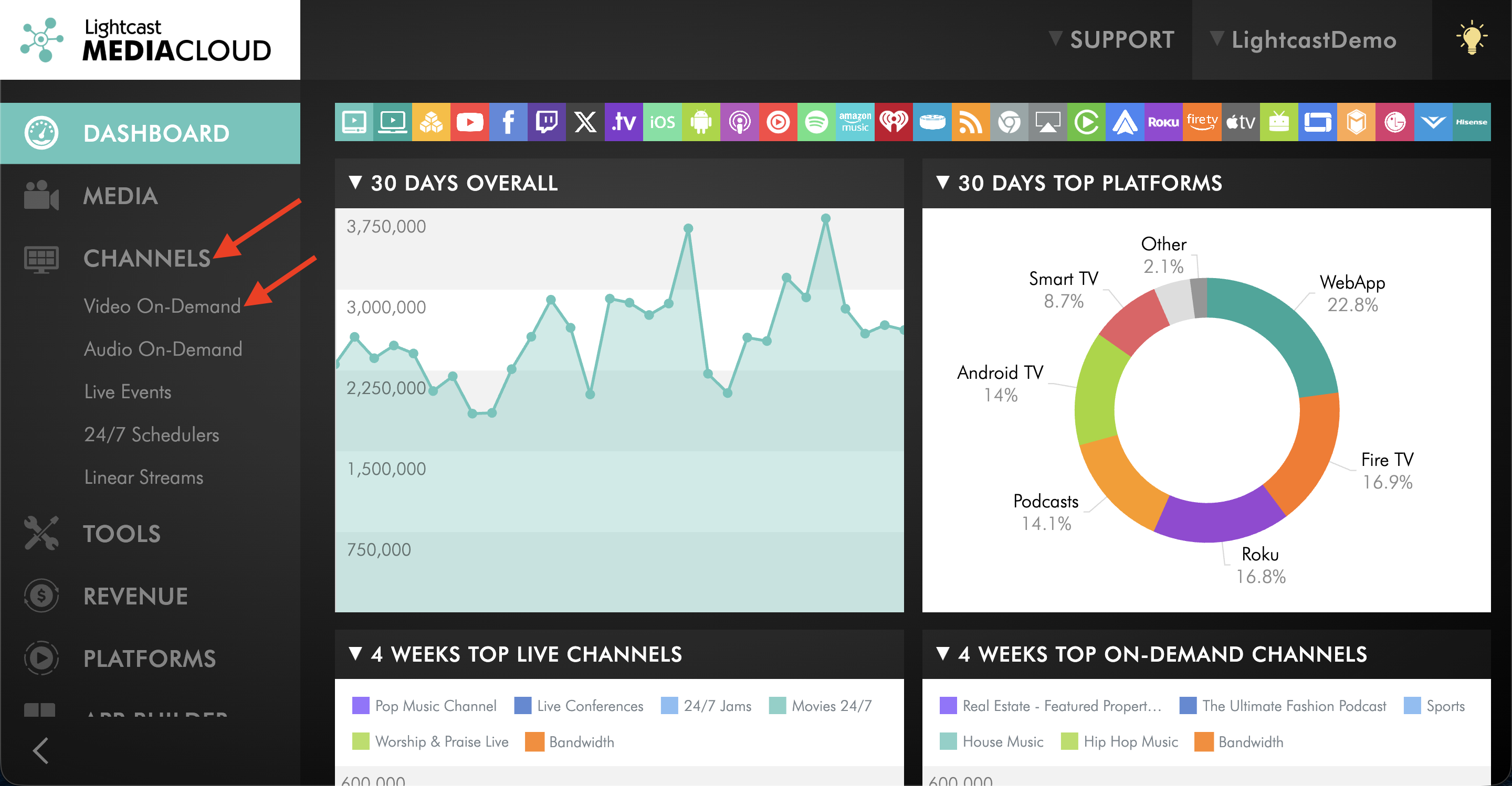
Go to CHANNELS, and select Video On-Demand.
Step 3
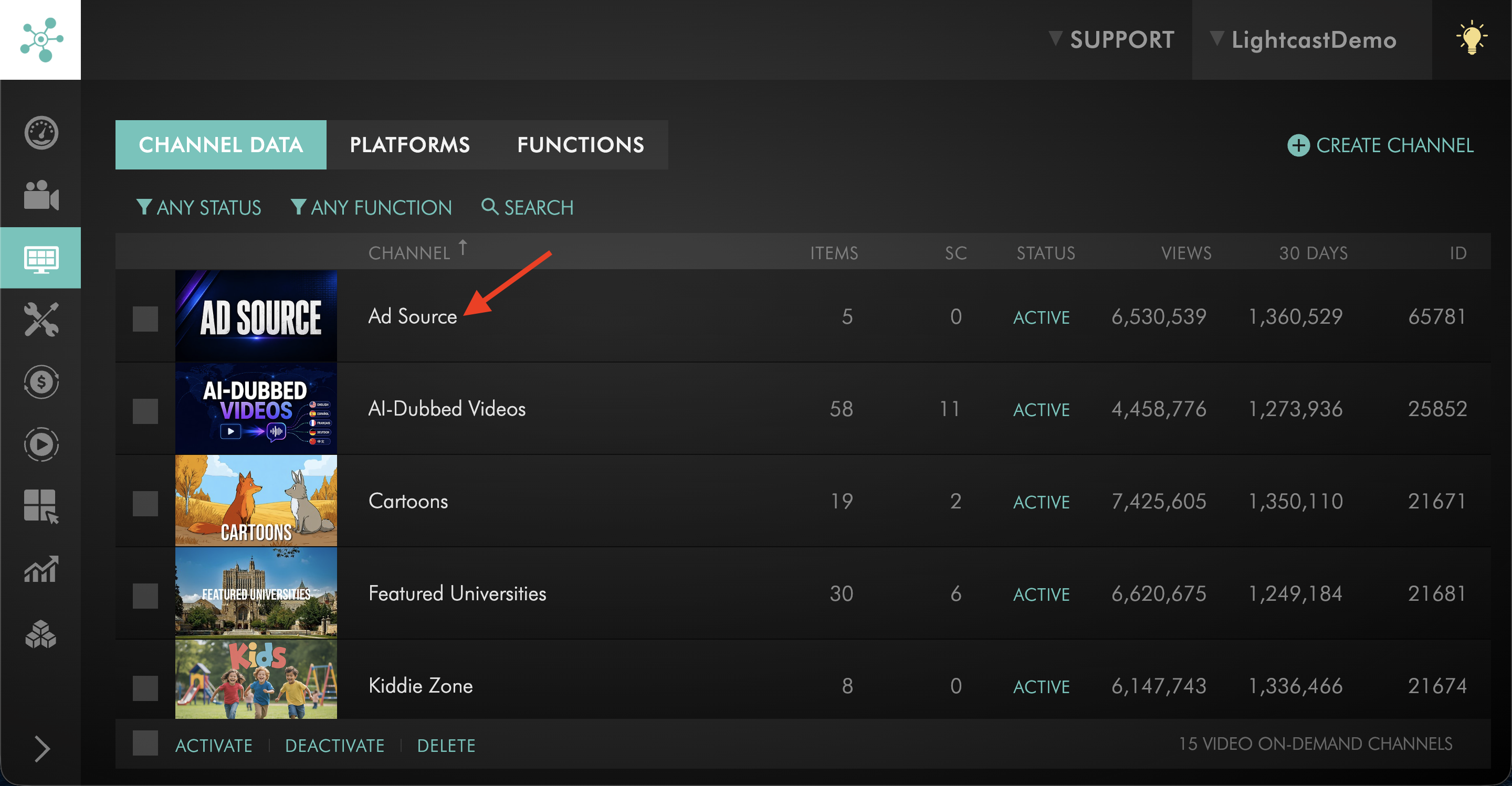
Open the Ad Source VOD Channel where your video ads are uploaded.
This Channel may be labeled Ad Source, Video Ads, or something similar in your account.
Step 3
To add a new video ad, upload the new video to the Ad Source Channel.
For full upload instructions, see How to upload new local video files to a Video On-Demand (VOD) Channel.
Step 4
To remove a video ad, remove the video from the Ad Source Channel.
For full removal instructions, see How to unassign or remove a video from a Video On-Demand (VOD) Channel.
To change pre-roll, mid-roll, and post-roll settings
Ad placement settings are managed separately from the uploaded video files.
Use the related article for the placement you want to manage:
For pre-roll or post-roll options, see Using pre-roll and post-roll video ads.
For mid-roll options, see How to manage mid-roll ad breaks.
For Ad Serving Module configuration, see Lightcast’s Ad Serving Module explained.
FAQs
Can video ads in an Ad Source Channel be updated later?
Yes. You can manage uploaded video ads at any time in the Media Cloud by opening the Ad Source Channel.
Where are new video ads uploaded?
New video ads are uploaded to the dedicated Ad Source VOD Channel used for your In-House Ads setup.
Where are video ads removed?
Video ads are removed from the dedicated Ad Source VOD Channel where they are hosted.
Does changing videos in the Ad Source Channel change the ad type?
No. Adding or removing videos in the Ad Source Channel changes which video ads are available to serve.
Ad type settings, such as pre-roll, mid-roll, or post-roll, are managed separately in the App Builder.
Can different Ad Source Channels be used for different ad campaigns?
Yes. Different Ad Source Channels may be used when separate ad feeds or campaign setups are needed.
For example, you may use different Ad Source Channels when different video ads should run on different VOD Channels or publishing properties.