
Using pre-roll and post-roll video ads
Overview
This article explains the available options for playing video ads before or after your videos.
It also covers key setup details, skip-ad behavior, and when each option may be used. For ads that play during videos, see How to manage mid-roll ad breaks.
For ad breaks in a linear stream that are used by an SSAI workflow, see How to create a FAST Channel using the 24/7 Scheduler and Playout system.
When to use pre-roll and post-roll video ads
Use pre-roll video ads when you want an ad to play before your video content or live stream starts.
Use post-roll video ads when you want an ad to play after your video content ends.
Pre-roll and post-roll ads can be used for sponsor commercials, direct advertiser ads, internal promotions, or other video ad content. The best setup depends on whether the ad should run across all published videos, only around selected videos, be used before a LIVE Channel, or be permanently edited into the video file.
If you want ads to play during an on-demand video, you can use mid-roll ad breaks. If you want to schedule ad breaks in a linear stream for an SSAI workflow, you can use the 24/7 Scheduler.
How it works
Option 1: Serve ads through the Advertising Module
If all published videos should play a pre-roll or post-roll video ad, the recommended option is to serve the ad through the Lightcast Ad Serving Module.
With this setup, video ads can be served from a dedicated VOD Channel in the Media Cloud or from compatible VAST Tags provided by an external ad network. The Advertising Module can then be configured to call those ads as pre-roll or post-roll ads on supported publishing properties, such as TV apps, mobile apps, embedded website players, and the Web App.
The Advertising Module can also be used to serve pre-roll ads on LIVE Channels, including Live Events, Linear Streams, and 24/7 Schedulers.
For LIVE Channels, the Advertising Module can be configured to play pre-roll ads only. Post-roll ads are not used for LIVE Channels because live streams do not have a fixed ending point.
Video ads should not be longer than 60 seconds. For TV app placements, we recommend using video ads no longer than 30 seconds because not all TV apps have a Skip option.
Option 2: Place the video ad in a VOD Channel playlist
If only selected videos should play a pre-roll or post-roll ad, you can upload the video ad to the Media Cloud and place it in the VOD Channel playlist before or after the specific video.
For example, if the ad should play before a specific video, place the ad directly before that video in the playlist. If the ad should play after a specific video, place the ad directly after that video in the playlist.
With this option, viewers may be able to click directly on another video in the playlist and skip the ad.
As an alternative, a VOD-to-LIVE loop can be used to turn the VOD Channel playlist into a 24/7 continuous loop. Viewers join the stream at its current point, similar to watching live television. The stream starts from the top of the playlist every midnight Eastern Time, and you can change the videos and playlist order at any time.
Option 3: Edit the ad into the video file
You can also add the video ad during the editing process and export it as part of the final video file.
With this option, the ad becomes part of the video, so future changes require additional editing. To remove or replace the ad, the video must be edited, exported, and uploaded again.
This option may also use more of your included storage and transcoding space because the ad is included in each uploaded video file.
Instructions
Use the steps below to turn pre-roll or post-roll ads on or off for a Channel that already has ad integration enabled in the selected app. If you need to update the uploaded ad videos, see Managing video ads in an Ad Source Channel.
Ads cannot be managed in the App Builder until Lightcast’s development team has enabled ad integration for that Channel in that app. If you add new VOD Channels after your original ad setup, those new Channels will not automatically include ad integration. Contact Customer Support if you need ads enabled on additional Channels or apps.
To update pre-roll or post-roll ad settings
Step 1
Log in to your Media Cloud account.
Step 2
Go to APP BUILDER.
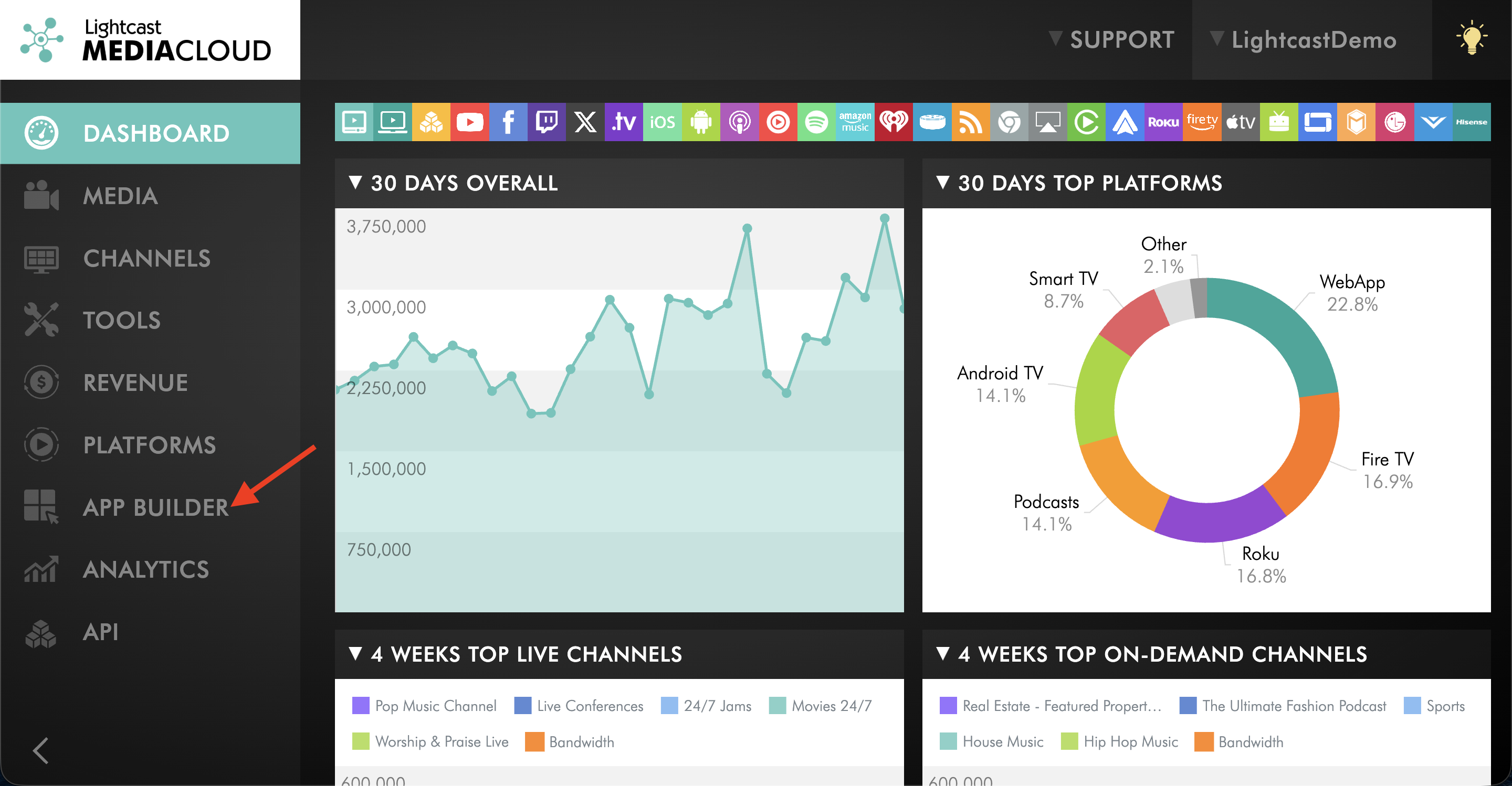
Step 3
Select the app where you want to manage pre-roll or post-roll ad settings.
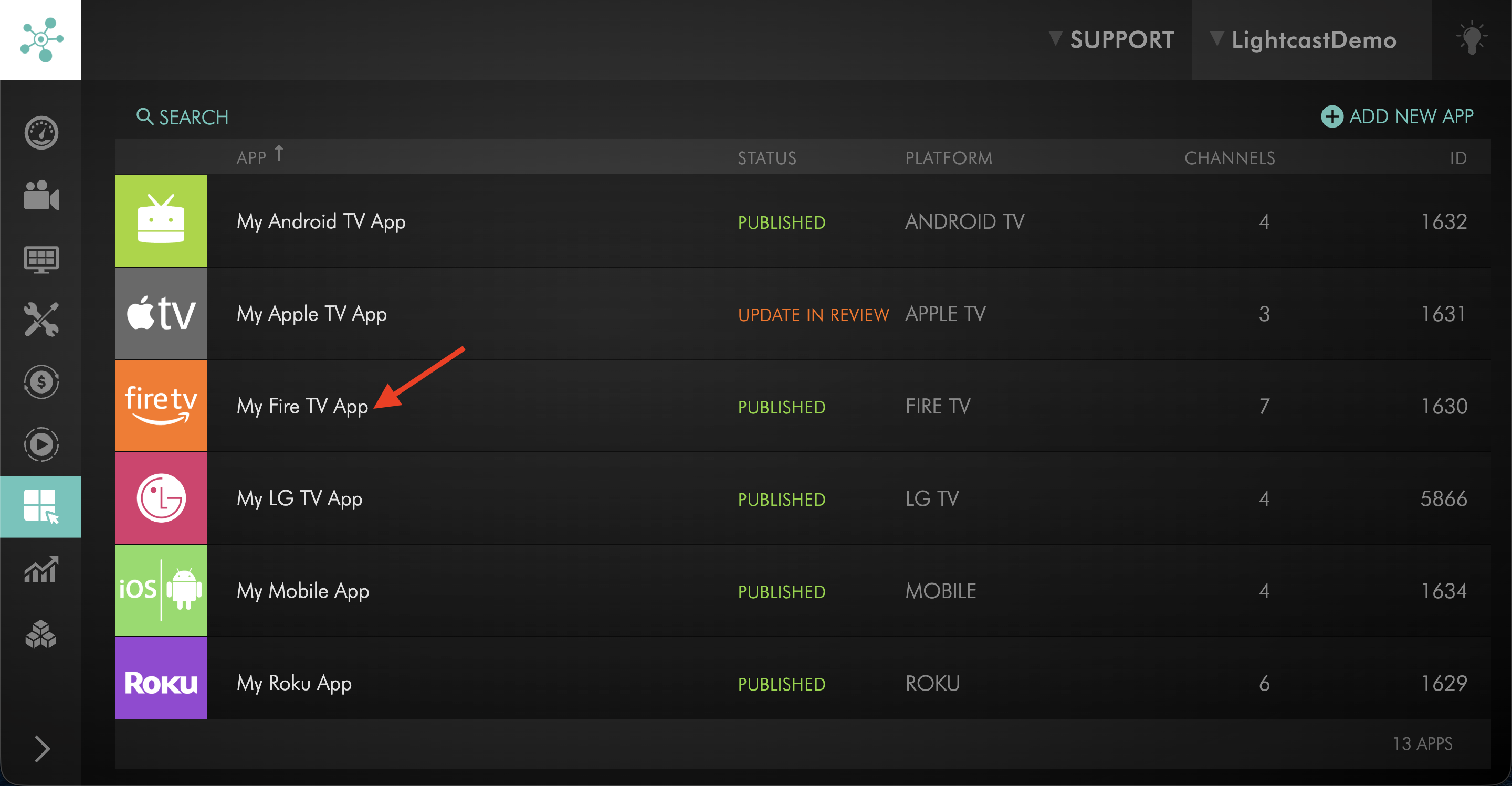
Step 4
Open the NAVIGATION tab.
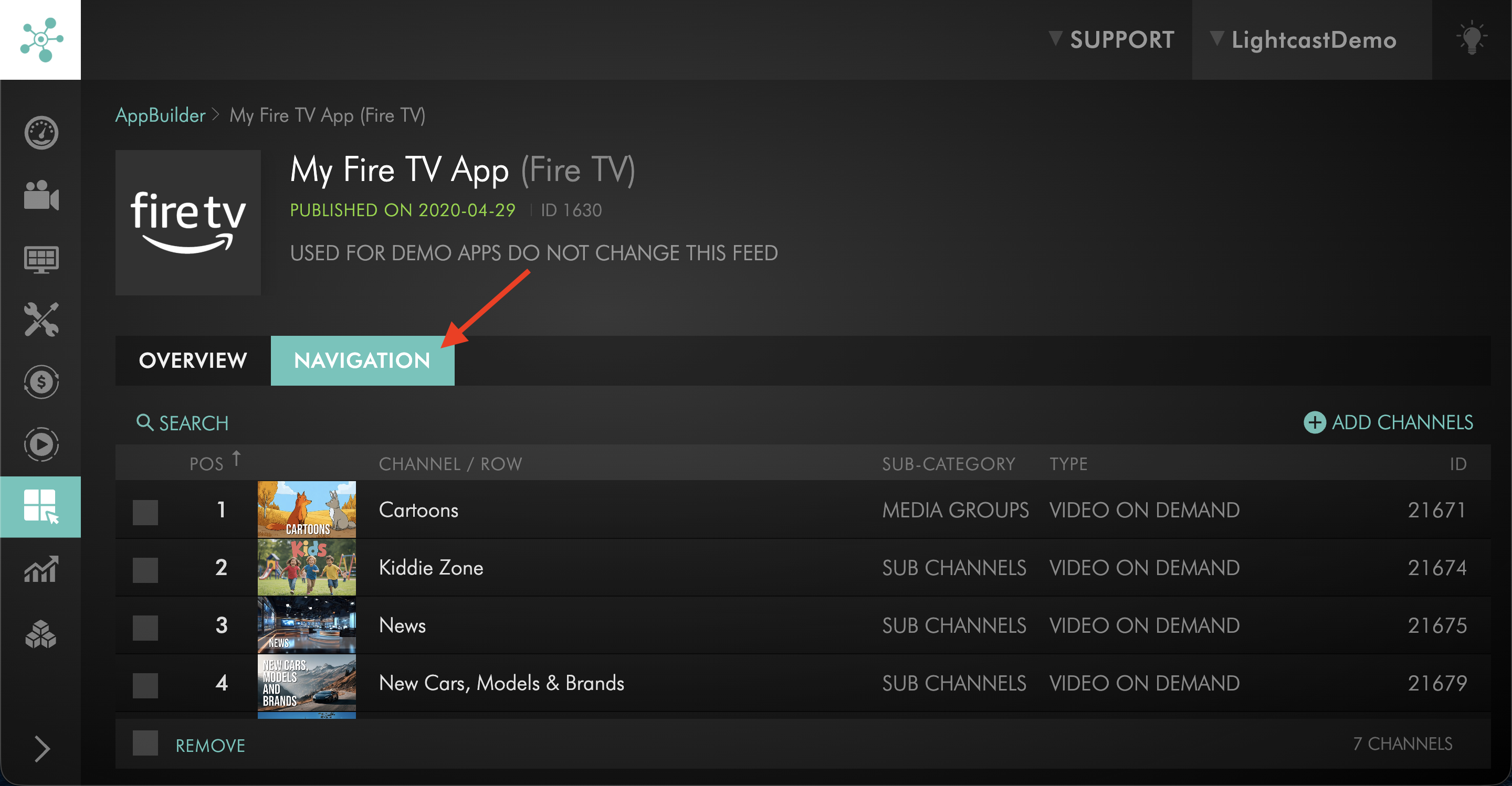
Step 5
Select the Channel where ad integration has been enabled.
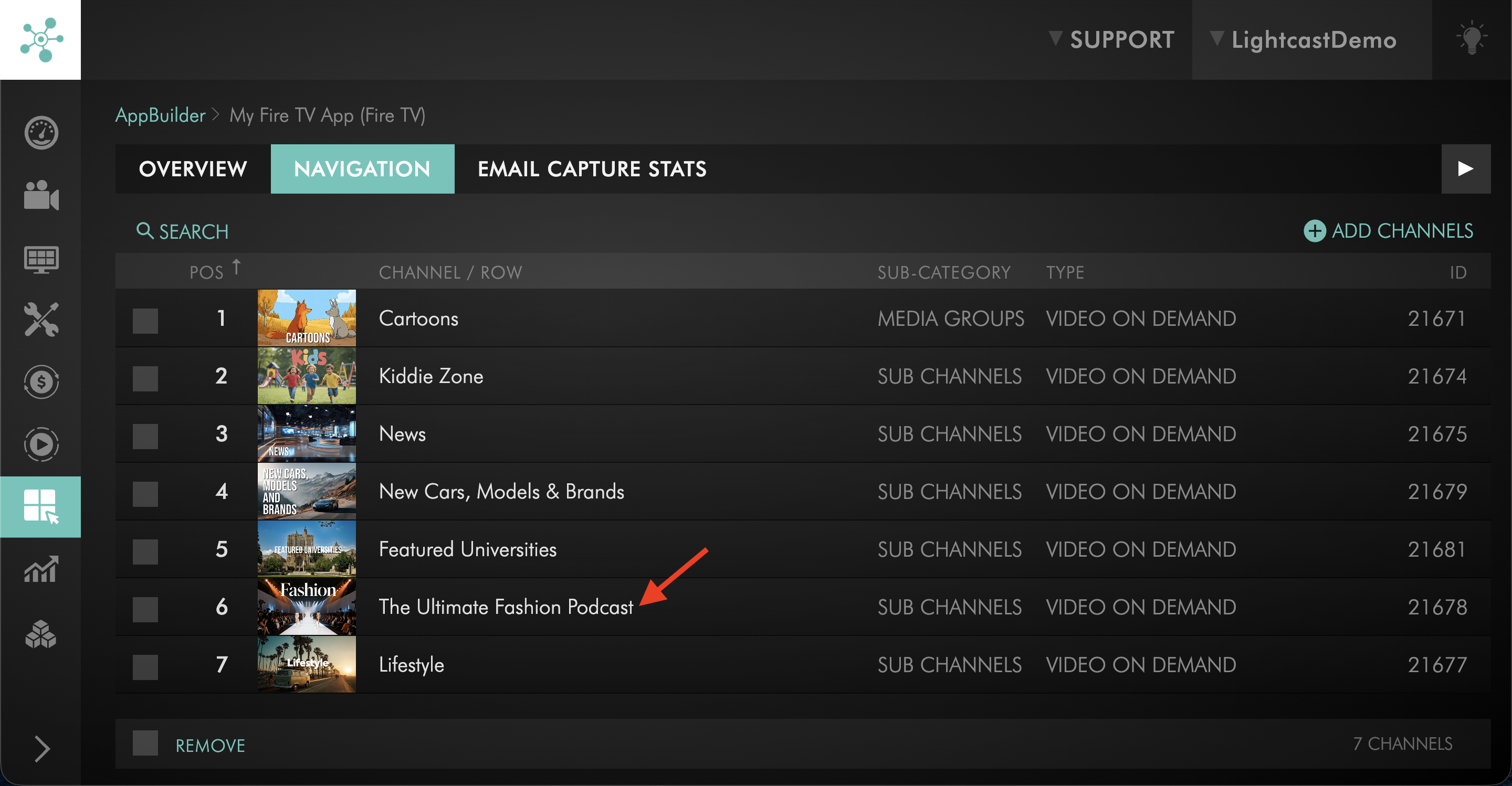
Step 6
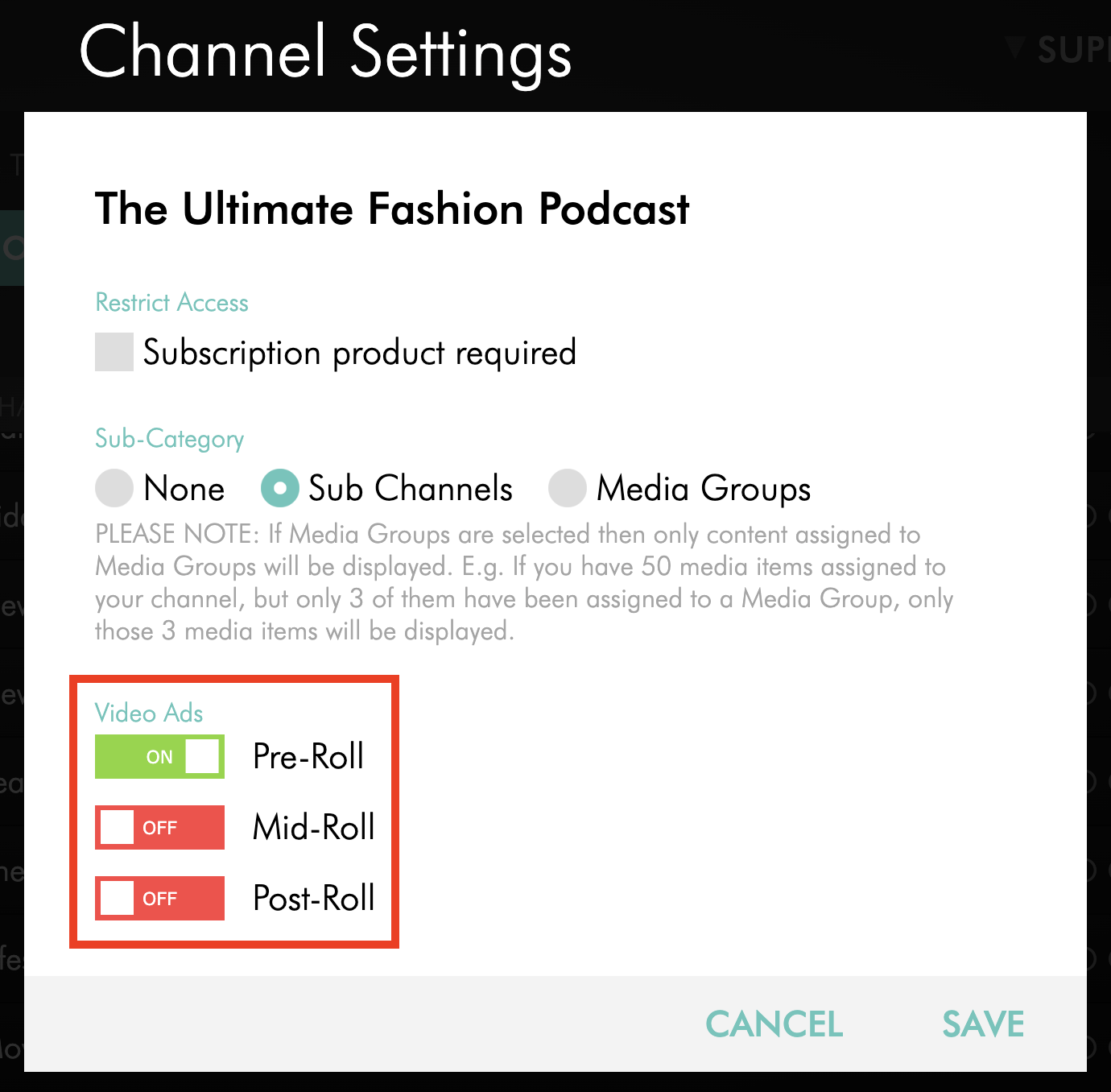
Review the available Video Ads settings for the selected Channel.
Step 7
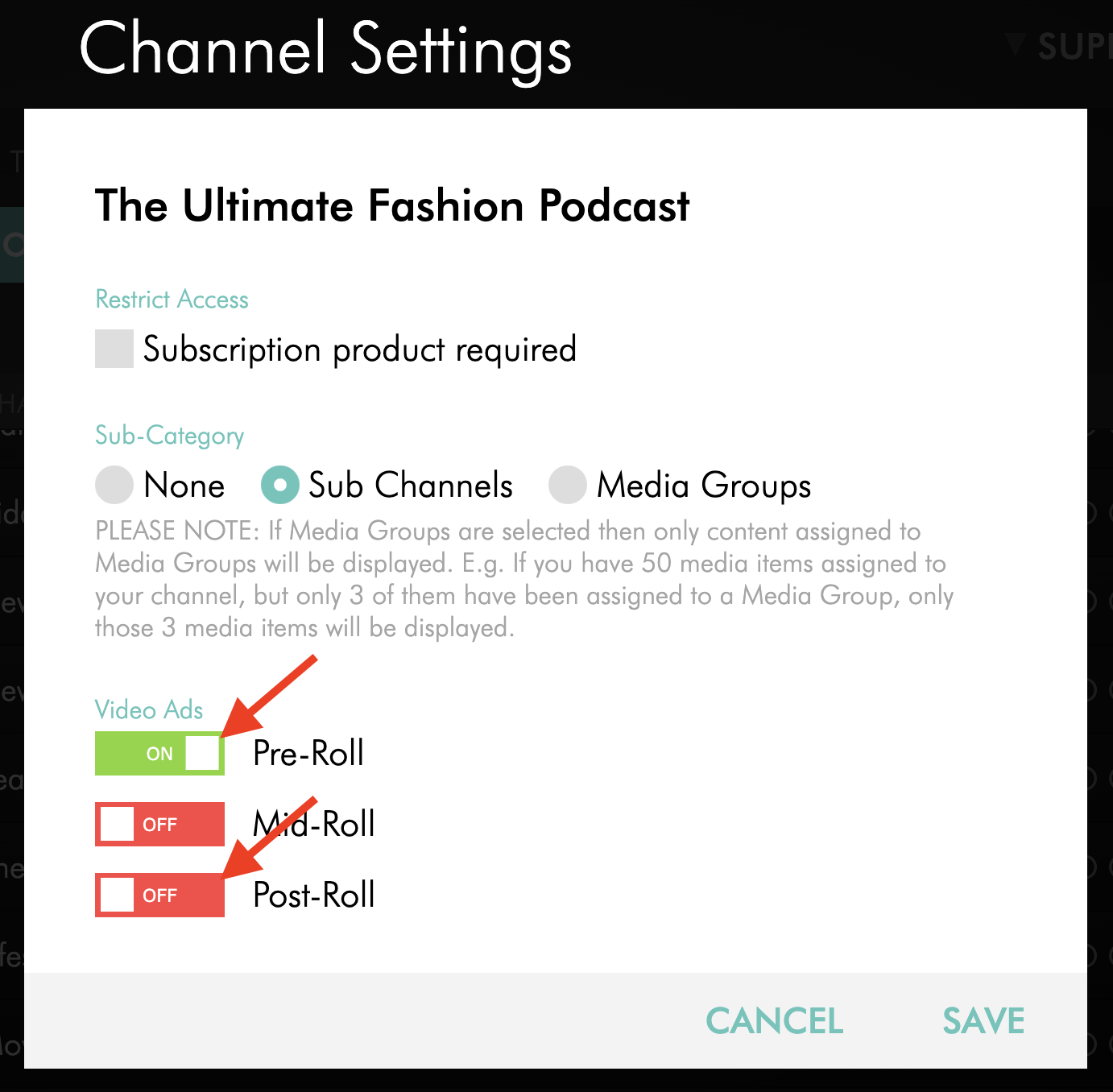
Turn Pre-Roll or Post-Roll on or off as needed.
The available options may depend on your Advertising Module setup, ad source, and publishing property.
Step 8
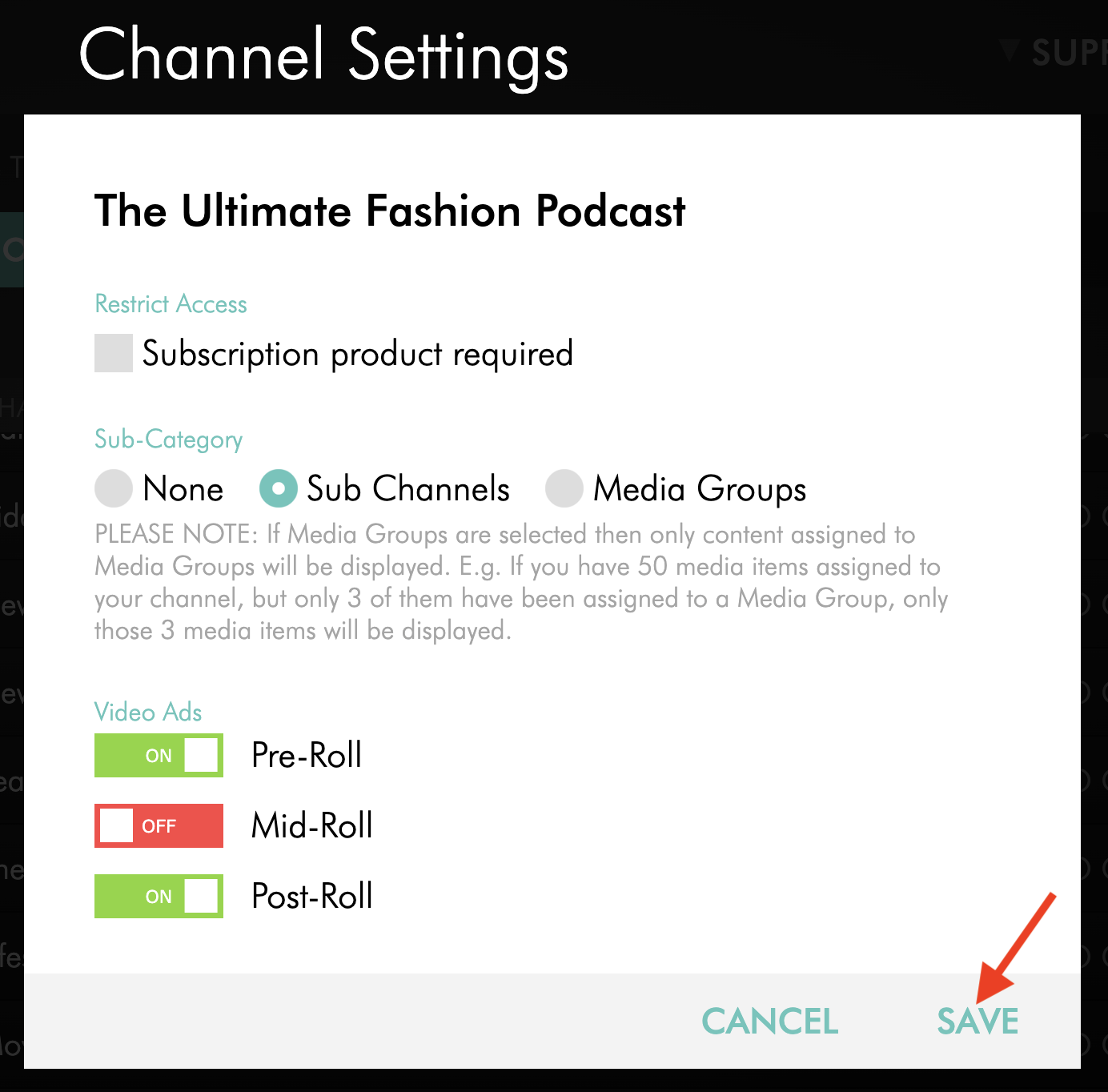
Click SAVE.
Your changes will affect the selected app in real time.
FAQs
Can pre-roll video ads play before videos?
Yes. Pre-roll ads can be served through the Advertising Module, placed manually in a VOD Channel playlist, or added directly during video editing.
Can post-roll video ads play after videos?
Yes. Post-roll ads can be served through the Advertising Module, placed manually in a VOD Channel playlist, or added directly during video editing
Can ads play during videos or linear streams?
Yes, but the workflow depends on the type of content.
For on-demand videos, mid-roll ad breaks are available when you want ads to play during a video. For more information, see How to manage mid-roll ad breaks.
For linear streams, ad breaks can be scheduled in the 24/7 Scheduler for an SSAI workflow. For more information, see How to create a FAST Channel using the 24/7 Scheduler and Playout system.
Can pre-roll and post-roll ads be served from VAST Tags?
Yes. Compatible VAST Tags from an external ad network can be used with the Advertising Module to serve pre-roll or post-roll ads on supported publishing properties.
Can pre-roll and post-roll ads be used on LIVE Channels?
Pre-roll ads can be configured for LIVE Channels through the Advertising Module.
Post-roll ads are not used for LIVE Channels because live streams do not have a fixed ending point.
LIVE Channels may include Live Events, Linear Streams, and 24/7 Schedulers.
Why are pre-roll or post-roll settings not available for a Channel?
Pre-roll and post-roll settings are only available after ad integration has been enabled for that Channel in the selected app.
If you added a new VOD Channel or LIVE Channel after your original ad setup, Contact Customer Support to request ad integration for the additional Channel or app.
Which option is recommended when all videos should play the same type of ad?
The Advertising Module is recommended when all published videos should play a pre-roll or post-roll video ad.
This allows the video ad to be served through Lightcast’s AdServer from a dedicated VOD Channel in the Media Cloud.
Which option is recommended when only selected videos should play an ad?
If only selected videos should play an ad, you can place the video ad directly before or after the selected videos in the VOD Channel playlist.
Keep in mind that viewers may be able to skip the ad by clicking directly on another video in the playlist.
Can VOD-to-LIVE help prevent viewers from skipping playlist-based ads?
Yes. VOD-to-LIVE can help reduce skipping by turning the VOD Channel playlist into a continuous 24/7 stream.
With this setup, viewers join the stream at its current point instead of selecting individual playlist items.
Can viewers skip video ads?
The Lightcast Web Player may show a Skip Ad button, usually after 5 seconds.
The Skip Ad button can appear for pre-roll, mid-roll, and post-roll video ads. Contact Customer Support if you want to ask about removing the Skip Ad button.
How long can pre-roll and post-roll video ads be?
Video ads should not be longer than 60 seconds.
For TV app placements, we recommend using video ads no longer than 30 seconds because not all TV apps have a Skip option. For the best viewer experience, shorter ads are usually recommended.
Pricing
The Advertising Module is available as an add-on.
Current pricing for the Advertising Module, ad serving, and related ad setup services is listed on the Add-On Rates page.