
How to manage mid-roll ad breaks
Overview
This article explains how to manage mid-roll ad breaks for videos in the Media Cloud.
It covers the difference between Channel Mid-Roll Frequency and Custom Mid-Roll Ad Breaks, how both methods work together, and how to update mid-roll settings.
When to use mid-roll ad breaks
Use mid-roll ad breaks when you want video ads to play during a video instead of only before or after it. If you want ads to play before or after videos, use pre-roll or post-roll ads instead.
Mid-roll ads can be used with In-House Ads and VAST Tags from third-party ad providers.
Mid-roll ad settings are available only after ad integration has been enabled for the Channel in the selected app. If you add new VOD Channels after your original ad setup, those Channels will not automatically include ad integration. Contact Customer Support if you need ads enabled on additional Channels or apps.
How it works
Channel Mid-Roll Frequency
Channel Mid-Roll Frequency automatically plays a mid-roll ad after a set amount of time.
The same interval applies to all videos in the Channel. This is the fastest way to apply consistent mid-roll ads across your content without manually placing ad breaks in each video.
This option is best if you want simple, automated ad placement without manual adjustments.
By default, mid-roll ad breaks play every 900 seconds. The mid-roll frequency can be changed in the App Builder.
Channel Mid-Roll Frequency can be overridden on individual videos by using Custom Mid-Roll Ad Breaks.
Custom Mid-Roll Ad Breaks
Custom Mid-Roll Ad Breaks give you precise control over where ads appear within a video.
With Lightcast's Ad Break Manager, you can manually place ad breaks at exact timestamps in individual videos. This is helpful when you want ads to appear at specific moments, such as scene changes or natural pauses, instead of fixed time intervals.
Custom ad break markers override the Channel Mid-Roll Frequency for that specific video. You can apply Custom Mid-Roll Ad Breaks to selected videos while other videos continue using the Channel Mid-Roll Frequency.
Changes made in the Ad Break Manager apply only to the selected video.
Using both methods together
You can combine both approaches for maximum flexibility.
Set a Channel Mid-Roll Frequency to ensure all videos have mid-roll ads by default. Then use Custom Mid-Roll Ad Breaks to fine-tune or replace ad placements for selected videos.
This approach provides consistent ad coverage while still allowing video-level customization.
Instructions
Use the steps below to manage mid-roll ad settings for a Channel that already has ad integration enabled in the selected app.
Mid-roll ad settings cannot be managed in the App Builder until Lightcast’s development team has enabled ad integration for that Channel in that app.
How to manage Channel Mid-Roll Frequency
Use these steps to change the automated mid-roll interval for a Channel in an app.
Step 1
Log in to your Media Cloud account.
Step 2
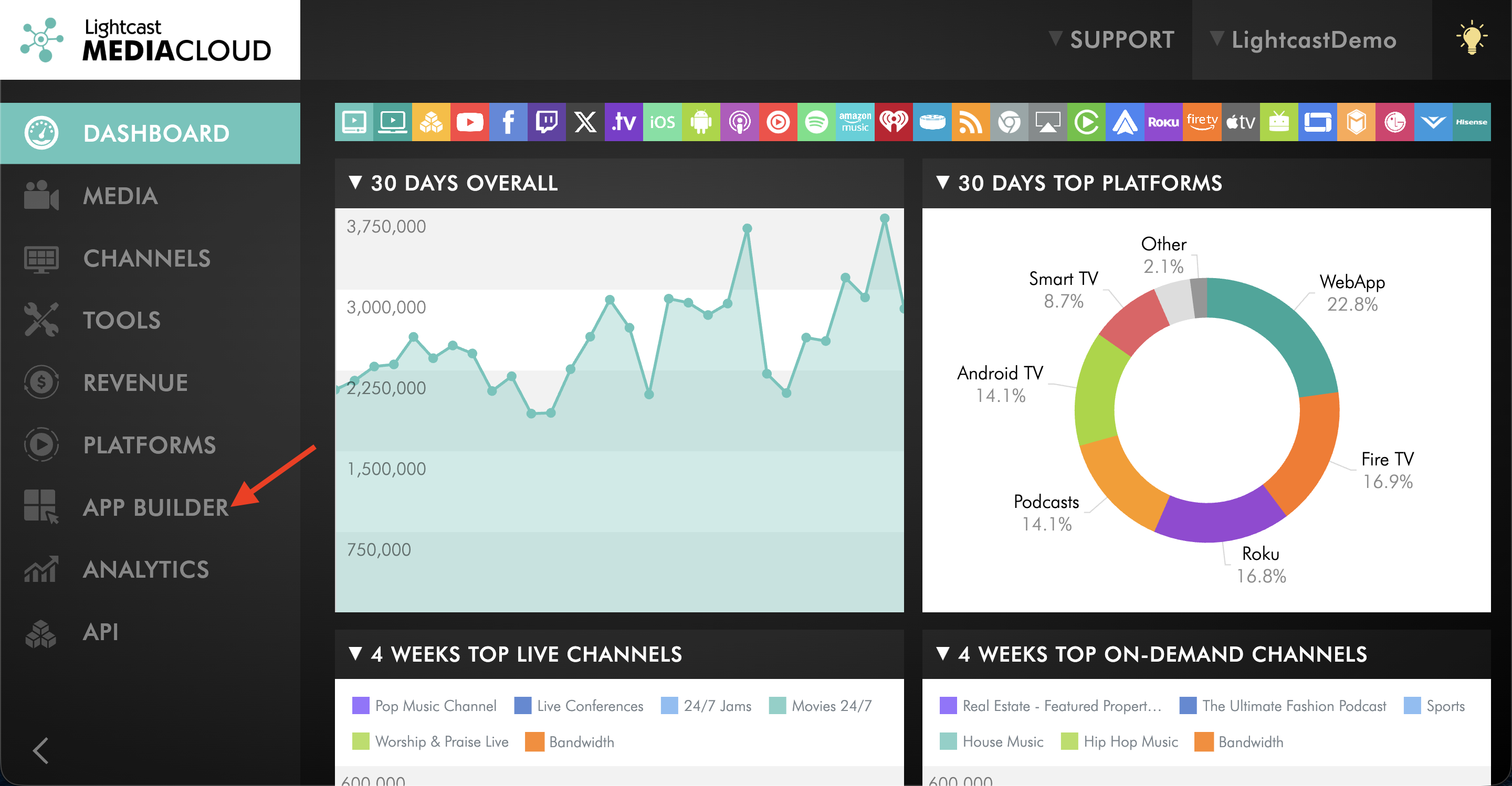
Go to APP BUILDER.
Step 3
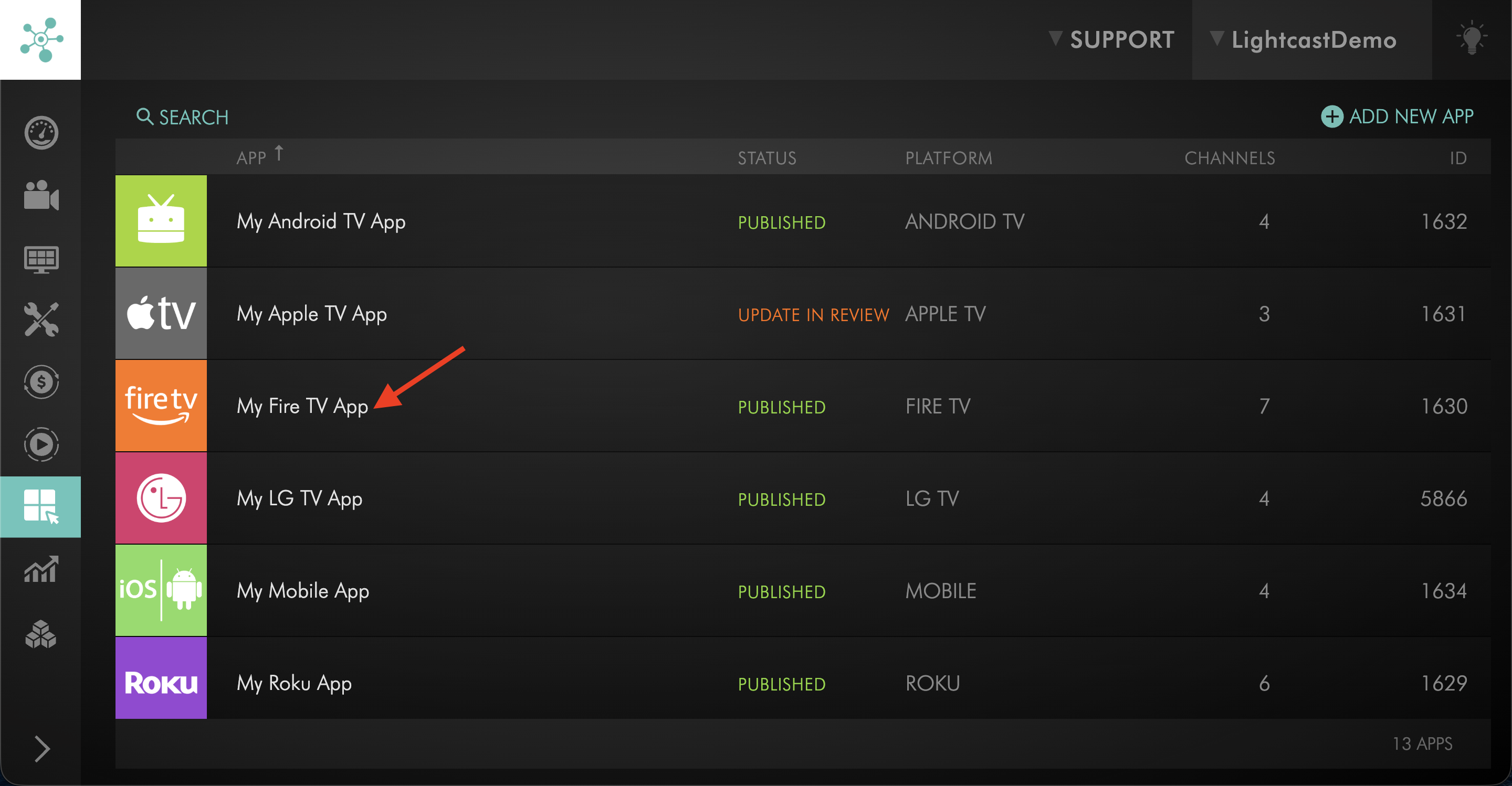
Select an app that has advertising enabled.
Step 4
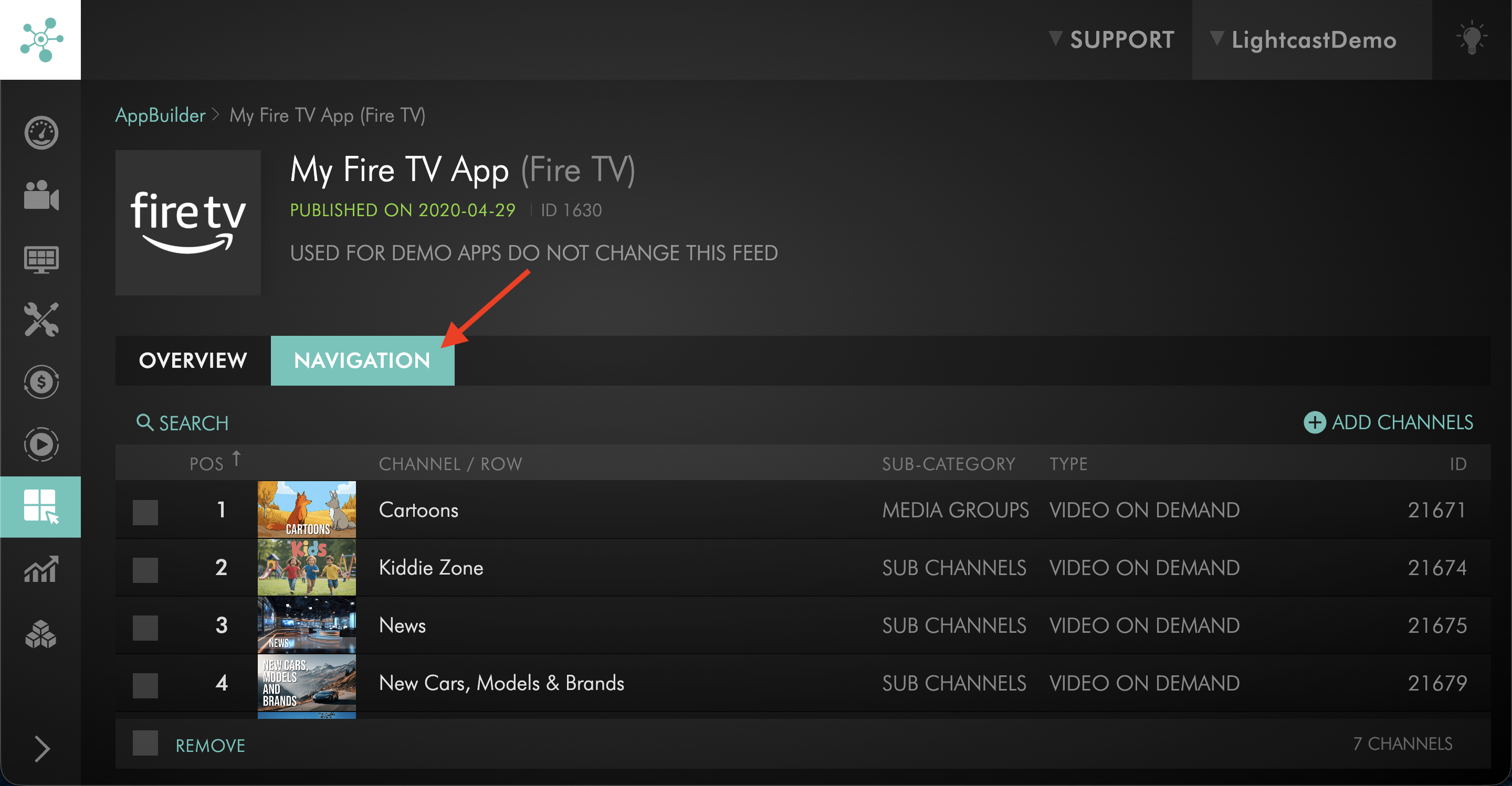
Open the NAVIGATION tab.
Step 5
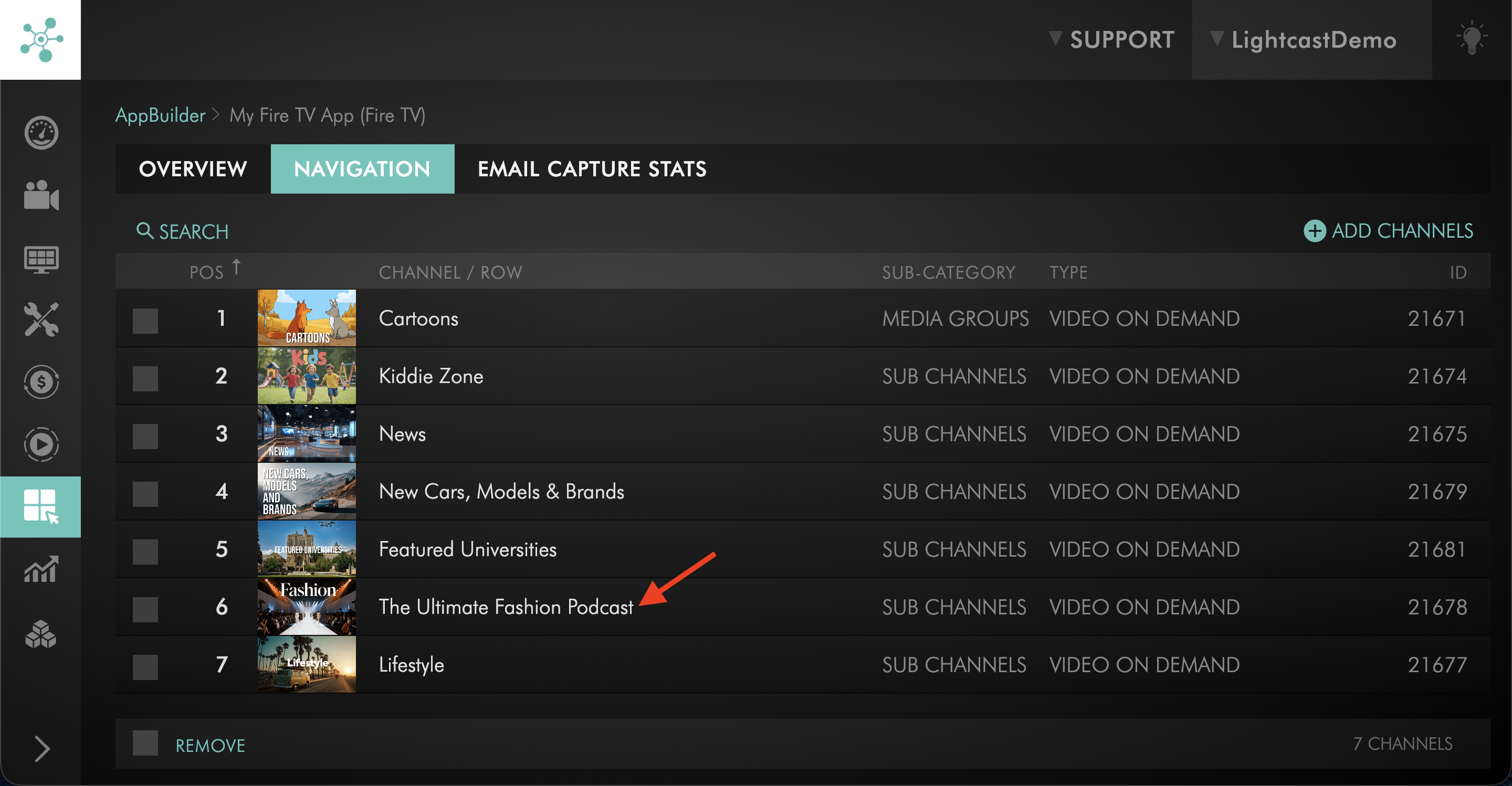
Select a Channel that has ad integration enabled.
Step 6
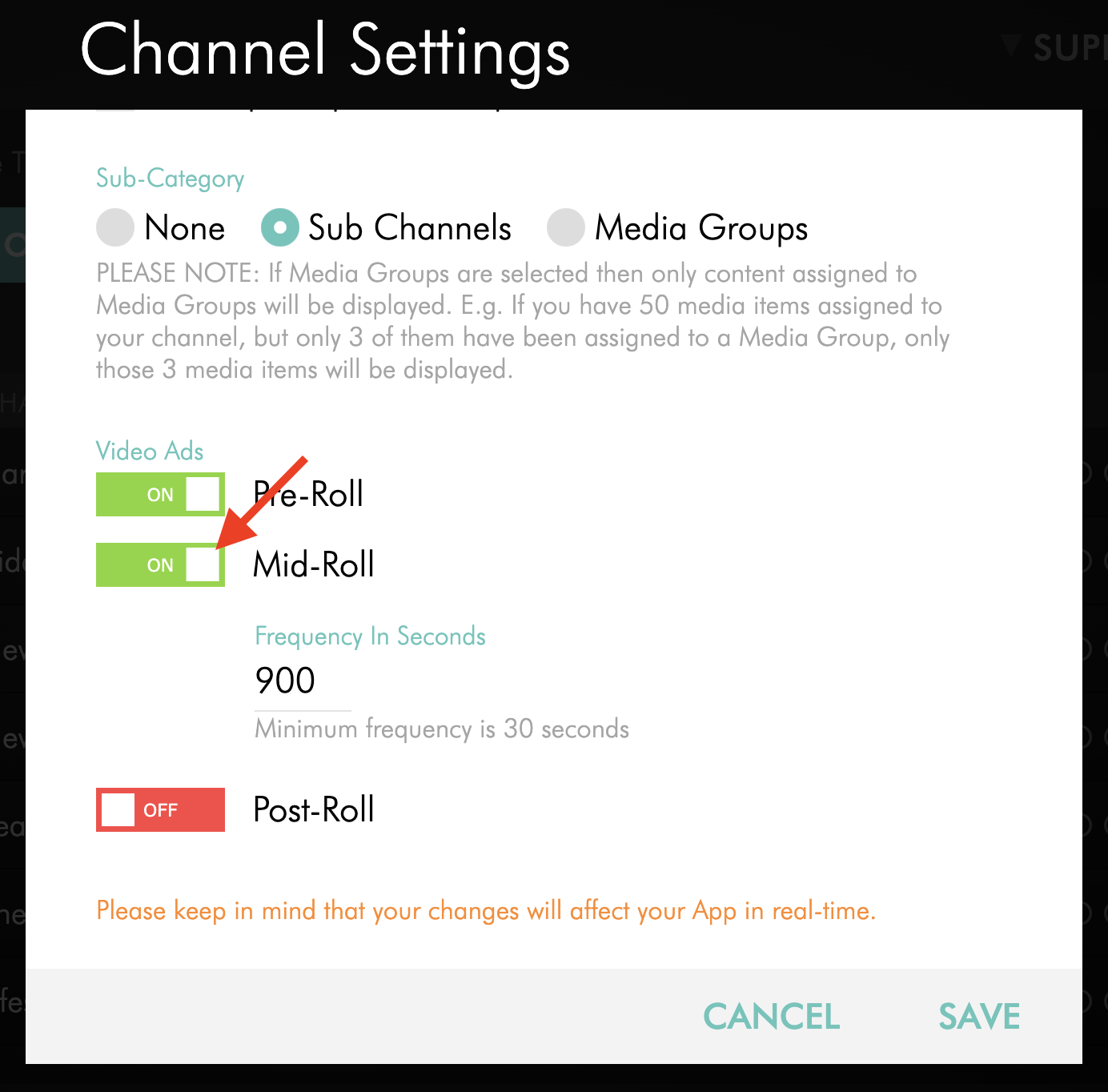
In the Video Ads settings, turn Mid-Roll on if it is not already enabled.
Step 7
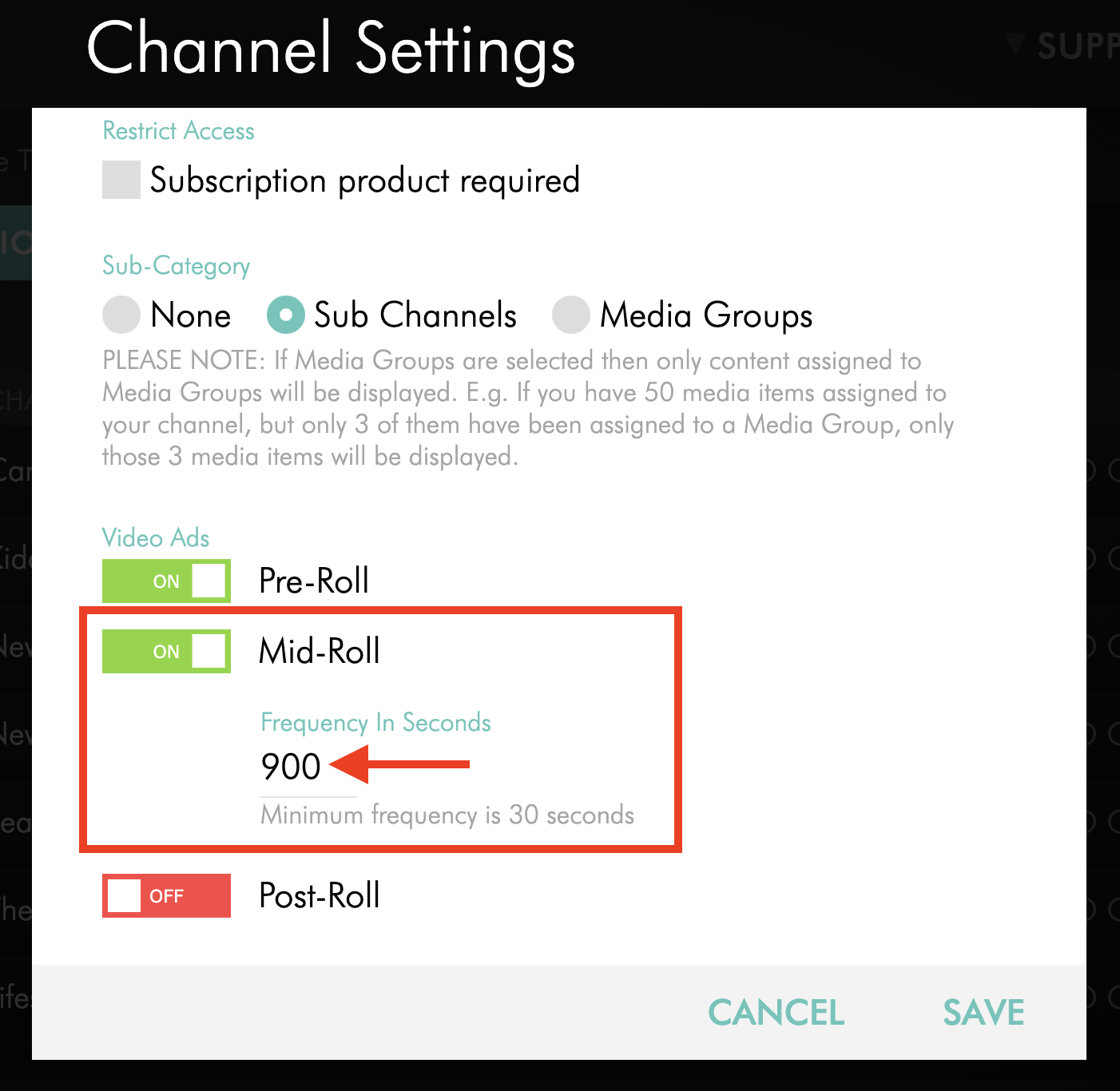
Under Frequency in Seconds, enter the new mid-roll frequency.
For example, enter 900 for 15 minutes.
Step 8
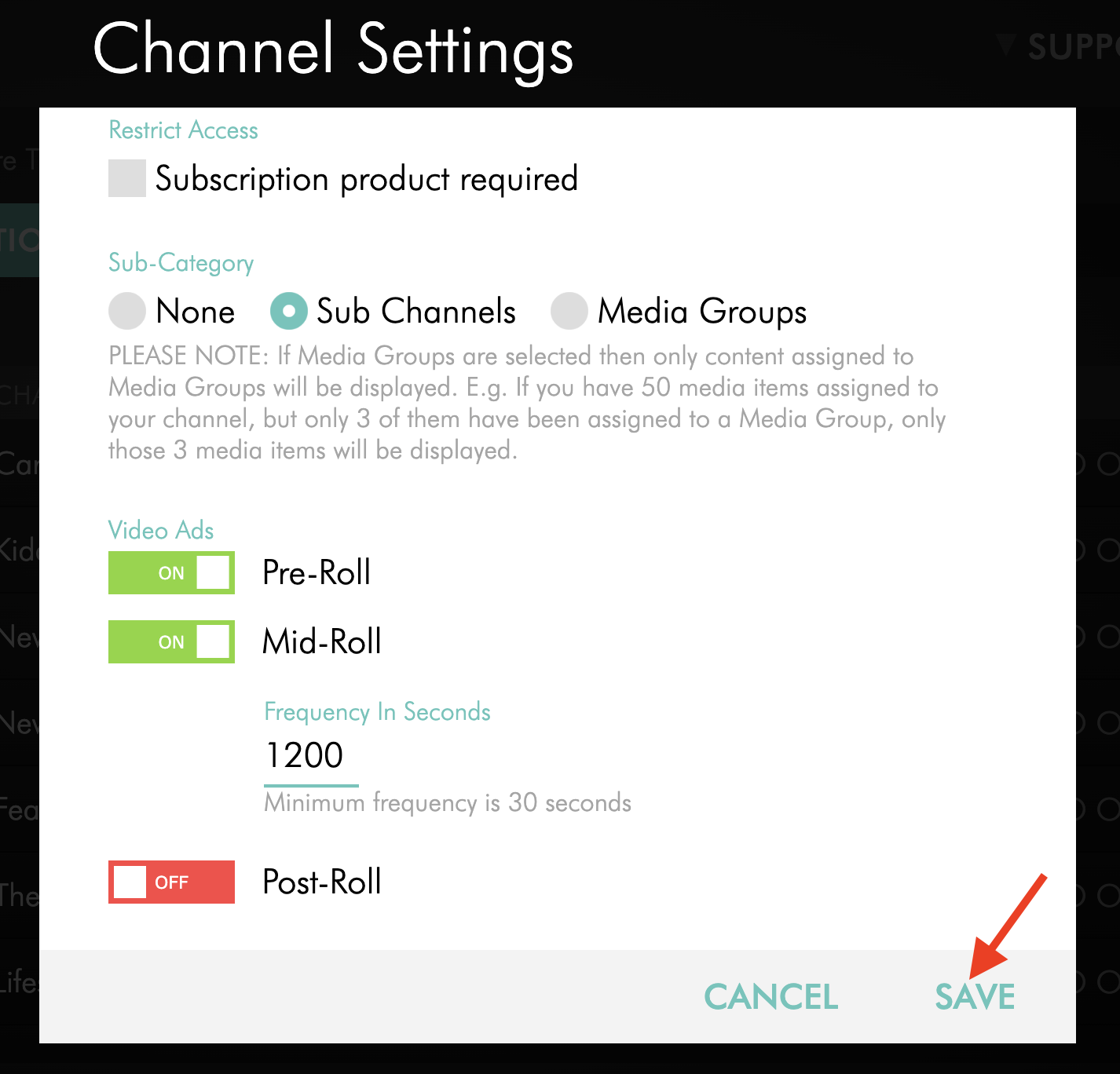
Click Save.
Your changes will affect the selected app in real time.
How to manage Custom Mid-Roll Ad Breaks
Use these steps to add, move, or remove custom mid-roll ad markers for an individual video.
Step 1
Log in to your Media Cloud account.
Step 2
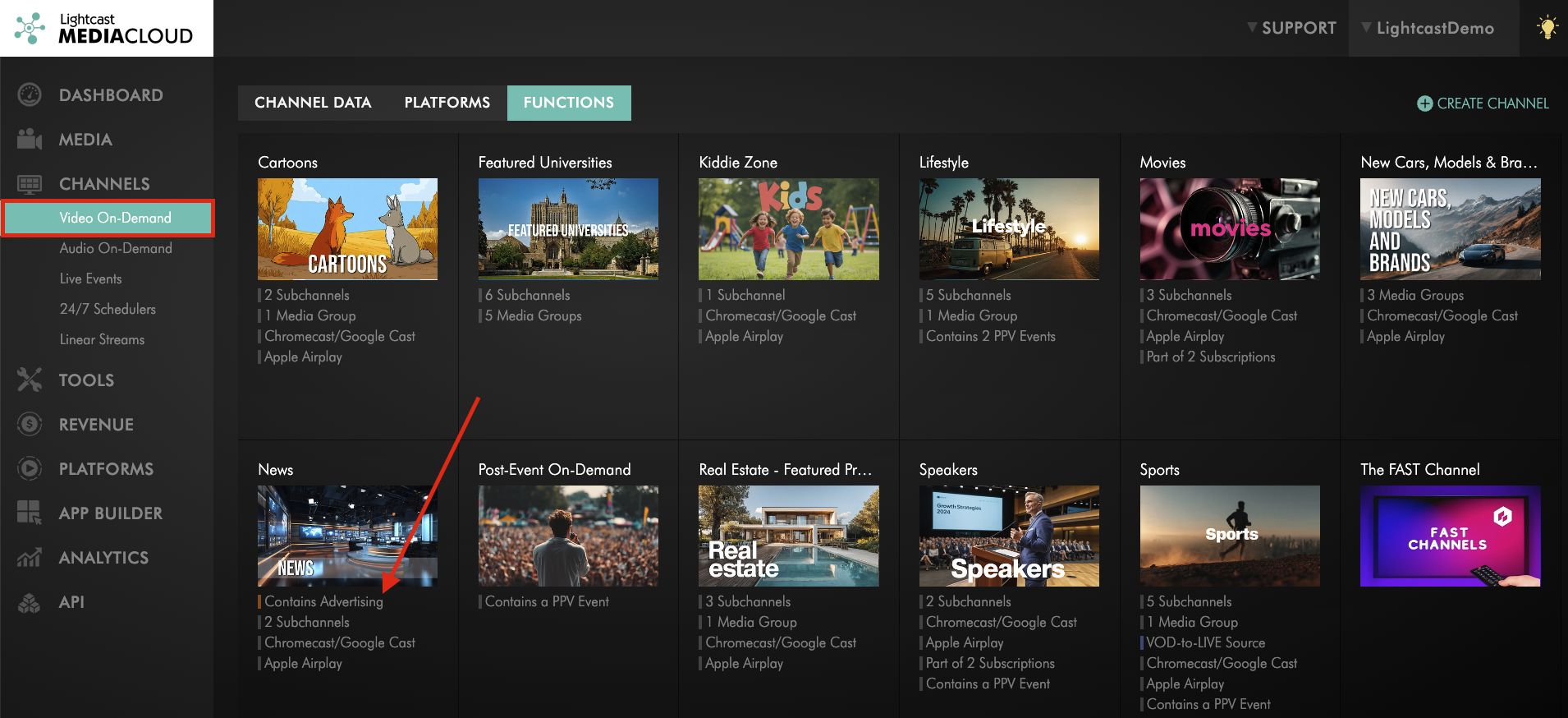
Open a VOD Channel with advertising enabled.
Step 3
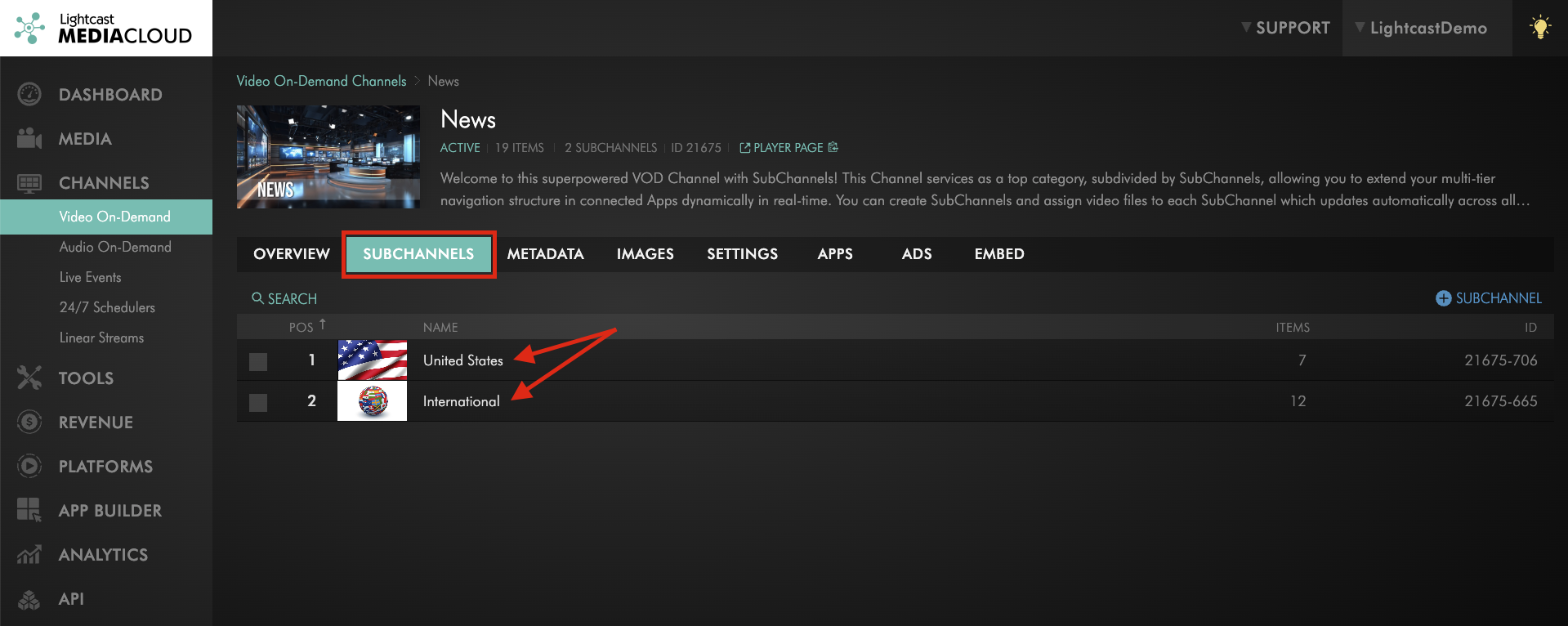
Click the SUBCHANNELS or PLAYLIST tab.
If the Channel uses Sub-Channels, select the Sub-Channel that contains the video you want to edit.
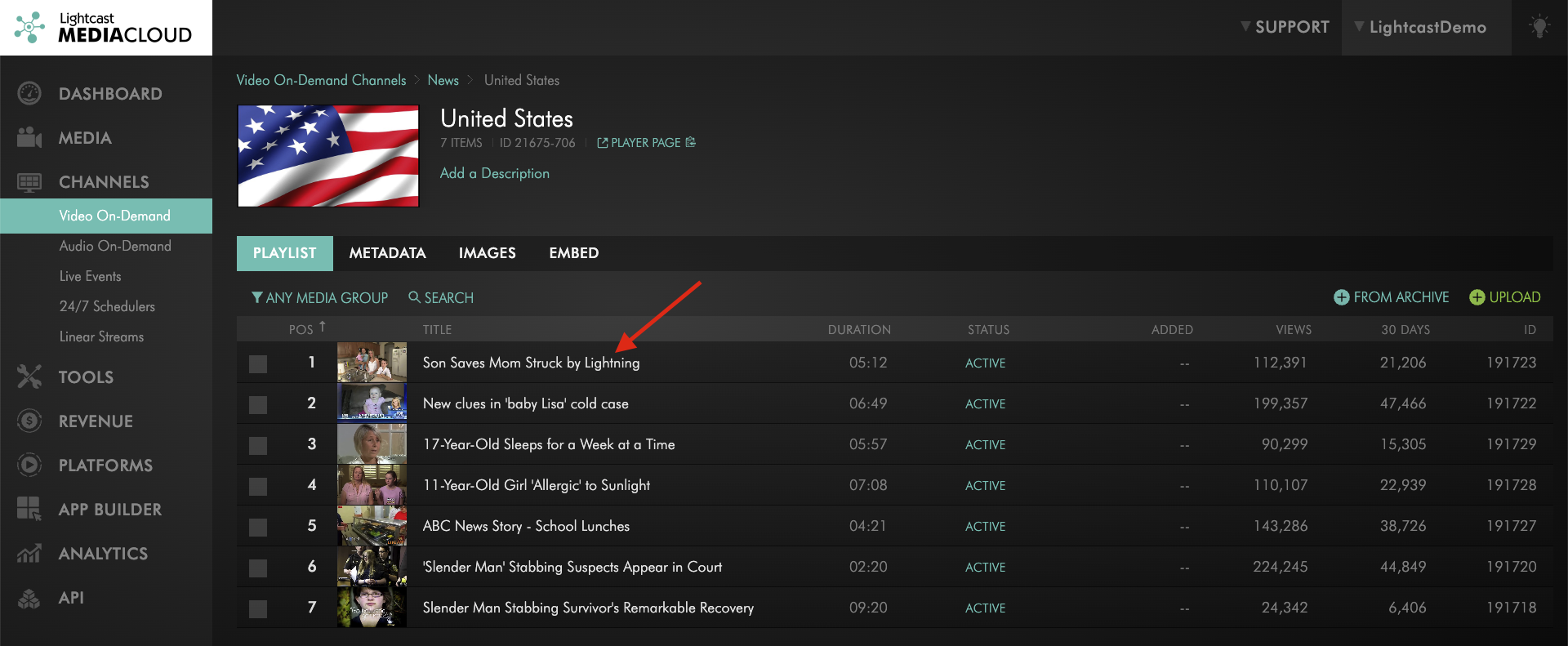
Step 4
Select the video you want to edit.
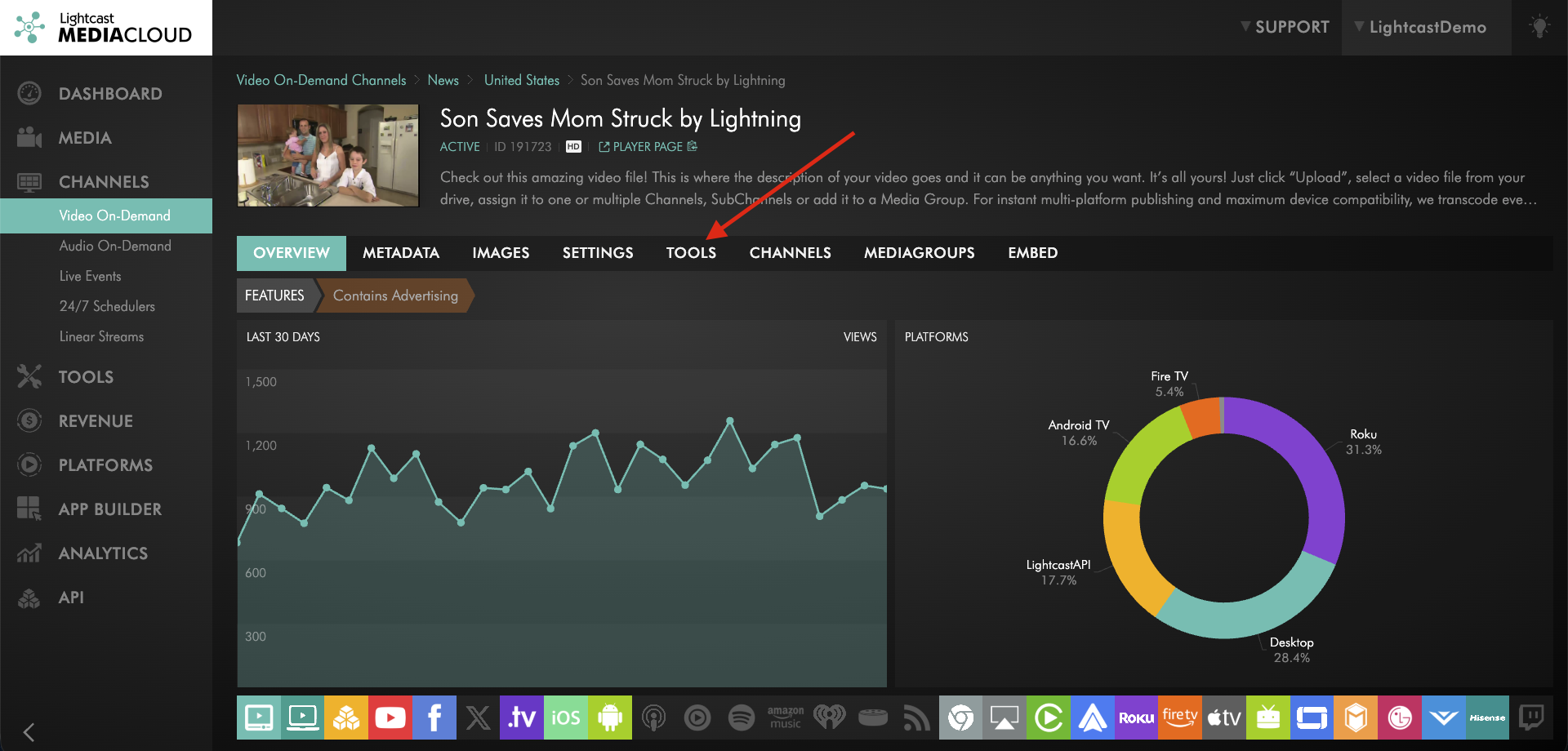
Step 5
Open the TOOLS tab.
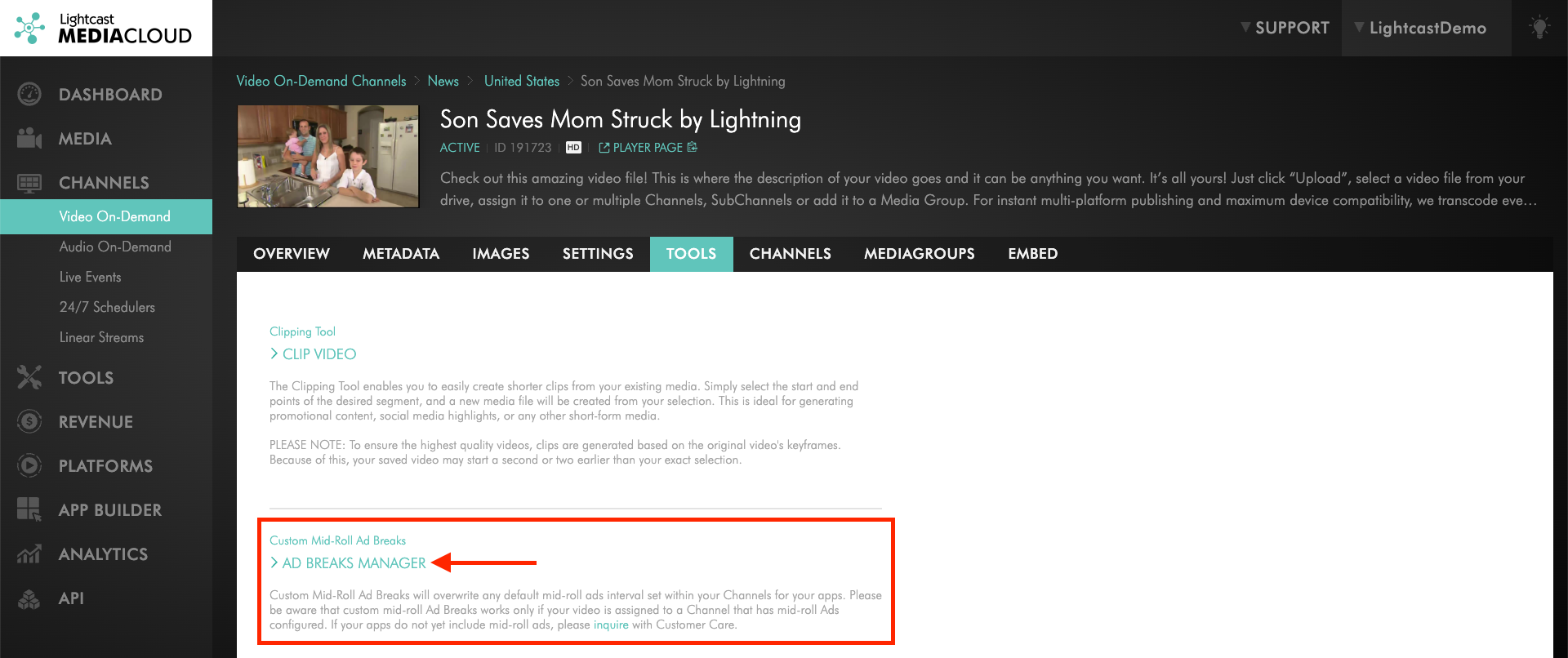
Step 6
Locate the Custom Mid-Roll Ad Breaks section and click AD BREAKS MANAGER.
Step 7
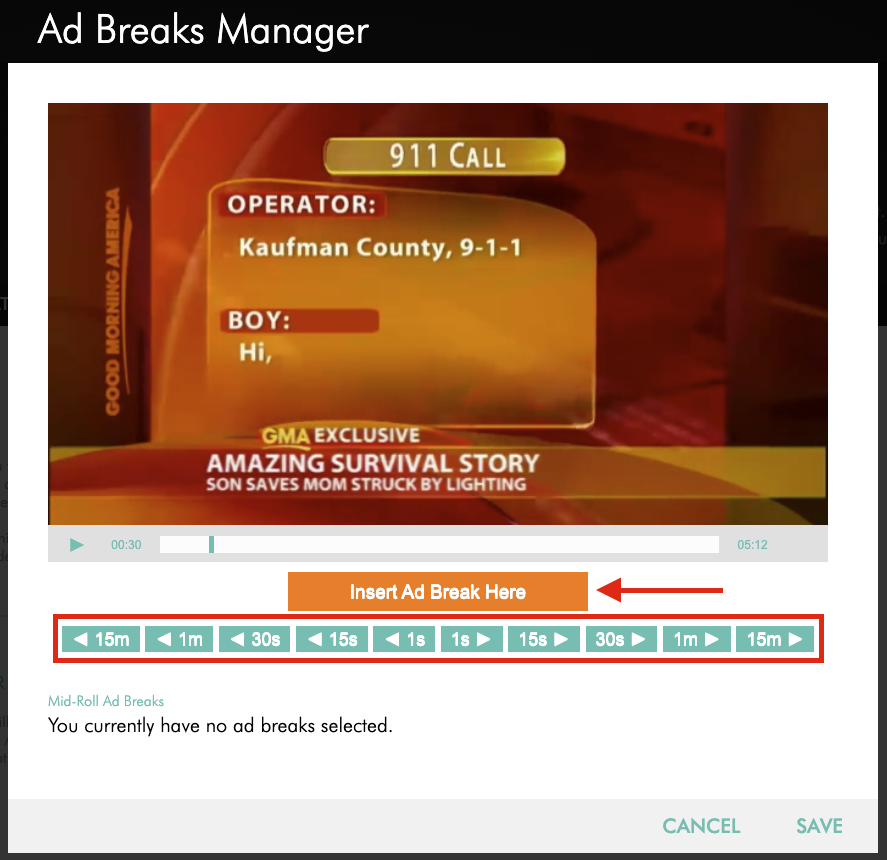
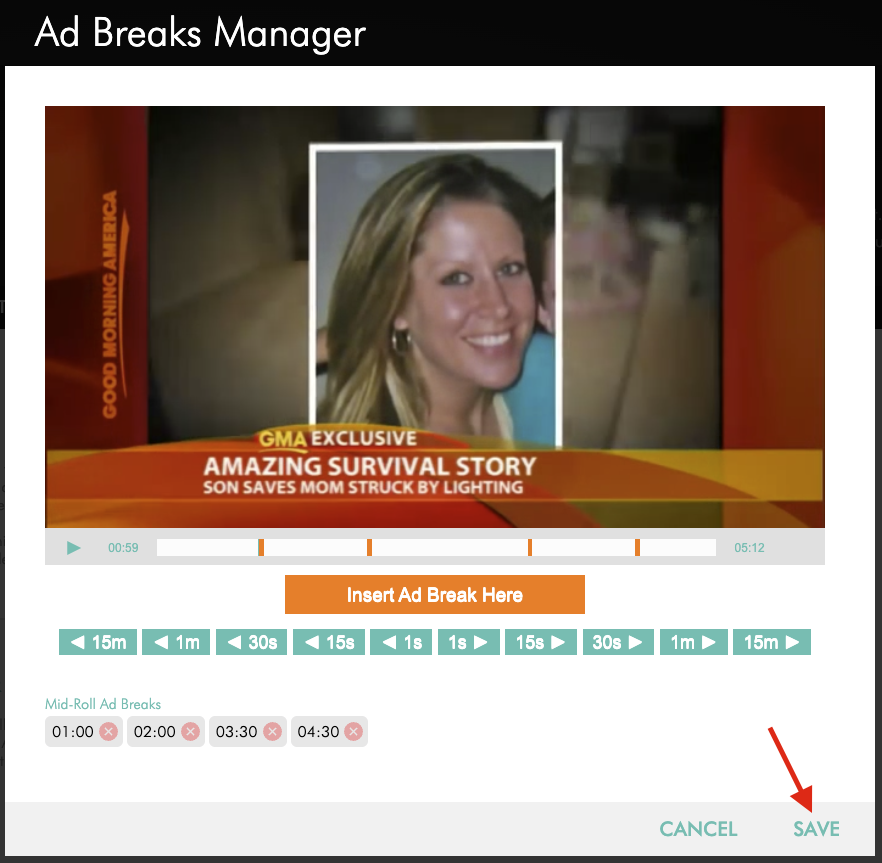
Add, move, or remove mid-roll ad markers as needed.
Step 8
Click SAVE.
Changes are saved automatically and apply only to the selected video.
FAQs
How often do mid-roll ads play by default?
By default, mid-roll ad breaks play every 900 seconds.
Can the mid-roll frequency be changed?
Yes. Mid-roll frequency can be changed in the App Builder.
Why are mid-roll settings not available for a Channel?
Mid-roll settings are only available after ad integration has been enabled for that Channel in the selected app.
If you added a new VOD Channel after your original ad setup, Contact Customer Support to request ad integration for the additional Channel or app.
Can Custom Mid-Roll Ad Breaks override the Channel frequency?
Yes. Custom ad break markers override the Channel Mid-Roll Frequency for that specific video.
Can Channel Mid-Roll Frequency and Custom Mid-Roll Ad Breaks be used together?
Yes. You can use Channel Mid-Roll Frequency as the default for the Channel and Custom Mid-Roll Ad Breaks for specific videos.
Can some videos use custom ad breaks while others use the Channel frequency?
Yes. You can apply Custom Mid-Roll Ad Breaks to selected videos while other videos continue using the Channel Mid-Roll Frequency.
Do mid-roll ads support In-House Ads and VAST Tags?
Yes. Mid-roll ads can support In-House Ads and VAST Tags from third-party ad providers.
Do changes apply to every video in the Channel?
No. Changes made in the Custom Mid-Roll Ad Break Manager apply only to the selected video.
How long should mid-roll video ads be?
Video ads should not be longer than 60 seconds.
For TV app placements, we recommend using video ads no longer than 30 seconds because not all TV apps have a Skip option. For the best viewer experience, shorter ads are usually recommended.
Pricing
The Advertising Module is available as an add-on.
Current pricing for the Advertising Module, ad serving, and related ad setup services is listed on the Add-On Rates page.