
How to retrieve reporting for video ads
Overview
This article explains where to find reporting for video ads based on how the ads are delivered.
It also provides steps for creating a Custom Report for In-House Ads that are hosted in a dedicated VOD Channel in the Media Cloud.
How it works
Viewing statistics are available from the source where the video ads are delivered.
Reporting from Ad Network ads, or VAST Tags
If your video ads are delivered through an external ad network using VAST Tags, the ad network provides the reporting.
These stats are not available in the Media Cloud’s Custom Reports. Contact your ad network for reporting, dashboard access, or definitions for metrics such as ad calls, impressions, completed impressions, fill rate, CPM, and revenue.
Reporting for In-House Ads
If your video ads are uploaded to a dedicated VOD Channel in the Media Cloud, you can use Custom Reports to review their viewing stats.
This applies when your video ads are uploaded to a dedicated VOD Channel, often labeled Ad Source, Video Ads, or something similar.
For In-House Ad reporting, select Views when creating the report. When videos from an Ad Source Channel are served as pre-roll, mid-roll, or post-roll ads, those ad views are tracked as Views. Unique Plays are not tracked when videos from an Ad Source Channel are served as ads.
Custom Reports can help you:
View video ad performance by Channel
Compare video ad performance across platforms
Track performance for individual video ad creatives
Schedule recurring video ad performance reports by email
Reporting for Waterfall/Fallback Campaigns
If you use a Waterfall/Fallback Campaign, reporting may come from more than one source.
Media Cloud-managed house ads can be reviewed in Custom Reports. External VAST Tag performance should be reviewed through the external ad network or ad server.
Instructions
Use the steps below to create a Custom Report for In-House Ads that are hosted in a dedicated VOD Channel in the Media Cloud.
These steps do not apply to video ads delivered through an external ad network. If your video ads are delivered through an external ad network, contact the ad network for reporting or dashboard access.
Step 1
Log in to your Media Cloud account.
Step 2
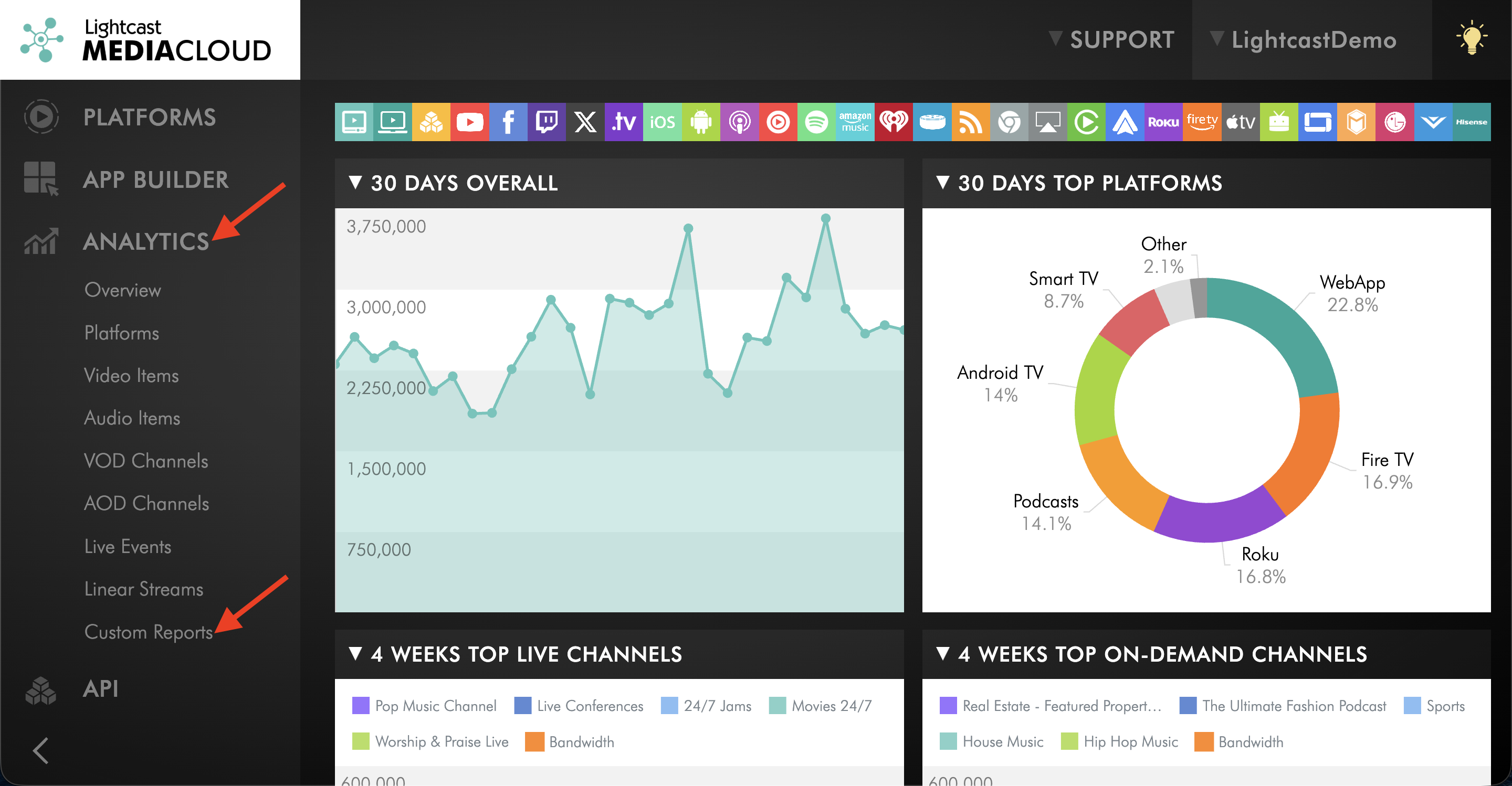
Go to ANALYTICS and select Custom Reports.
Step 3
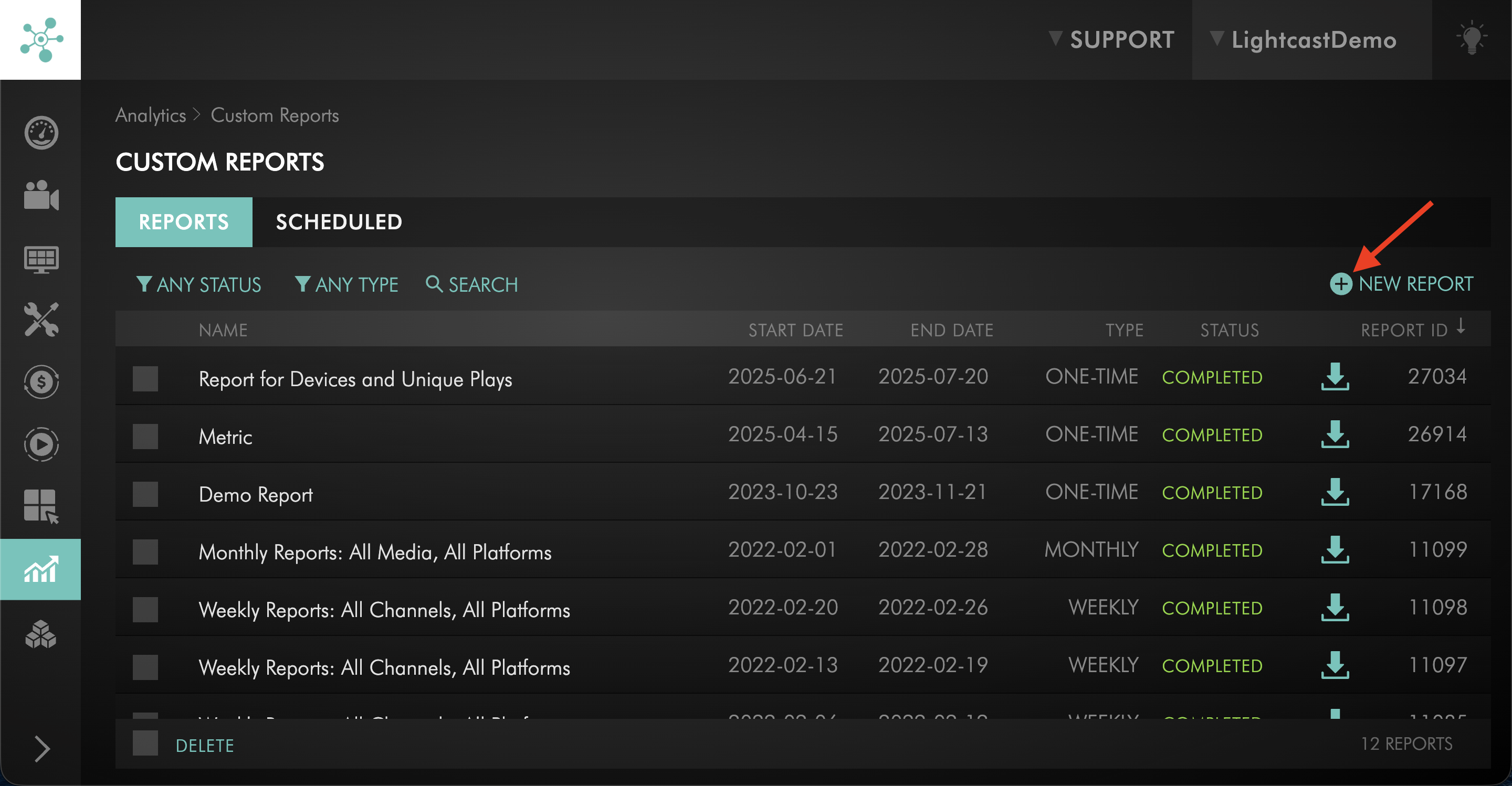
Choose the type of report you want to create.
For a one-time report, stay on the REPORTS tab and click + NEW REPORT.
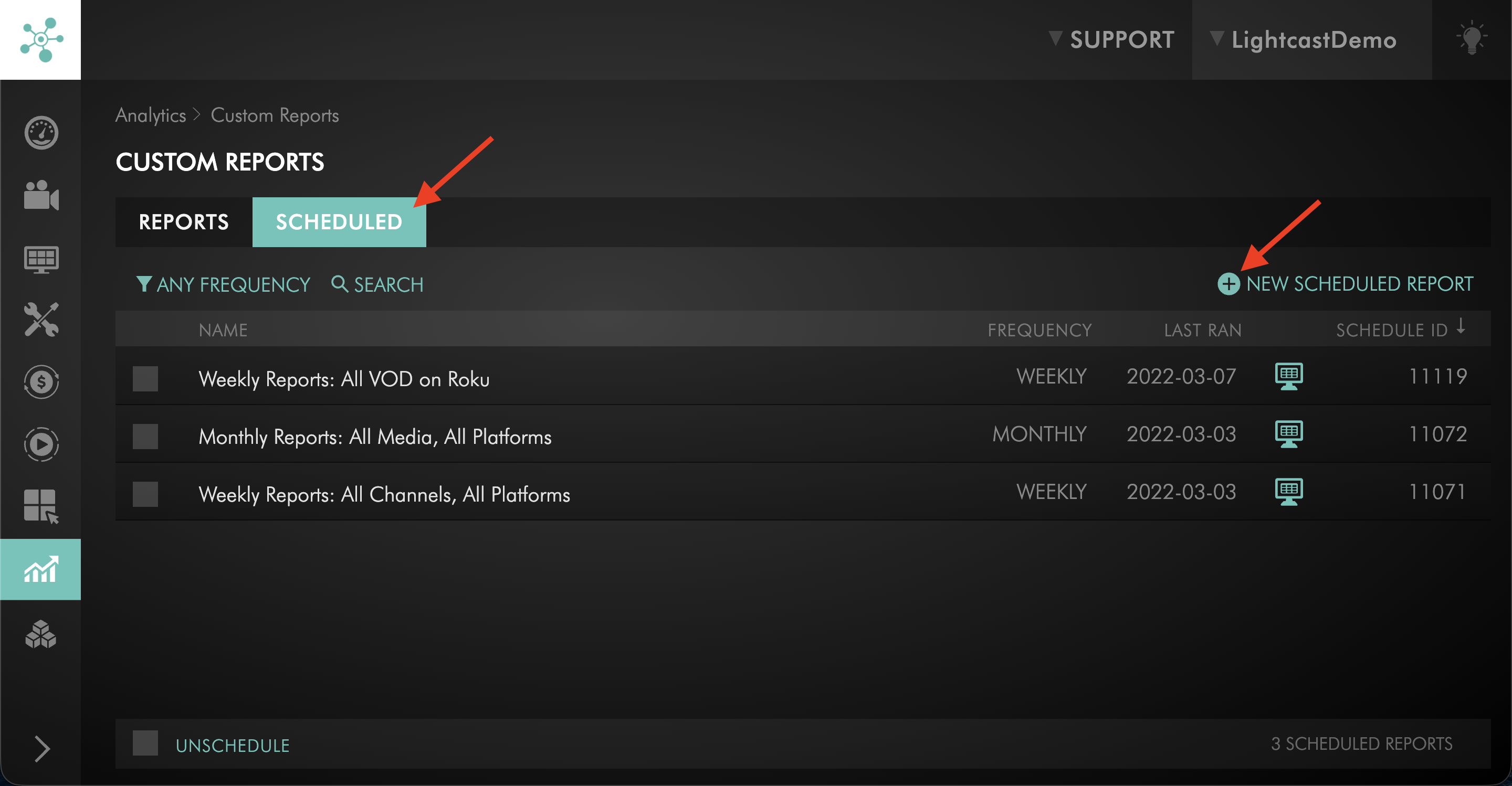
For a recurring report, select the SCHEDULED tab, then click + NEW SCHEDULED REPORT.
Step 4
Select the report timeframe.
For a one-time report, choose the Date Range you want to review.
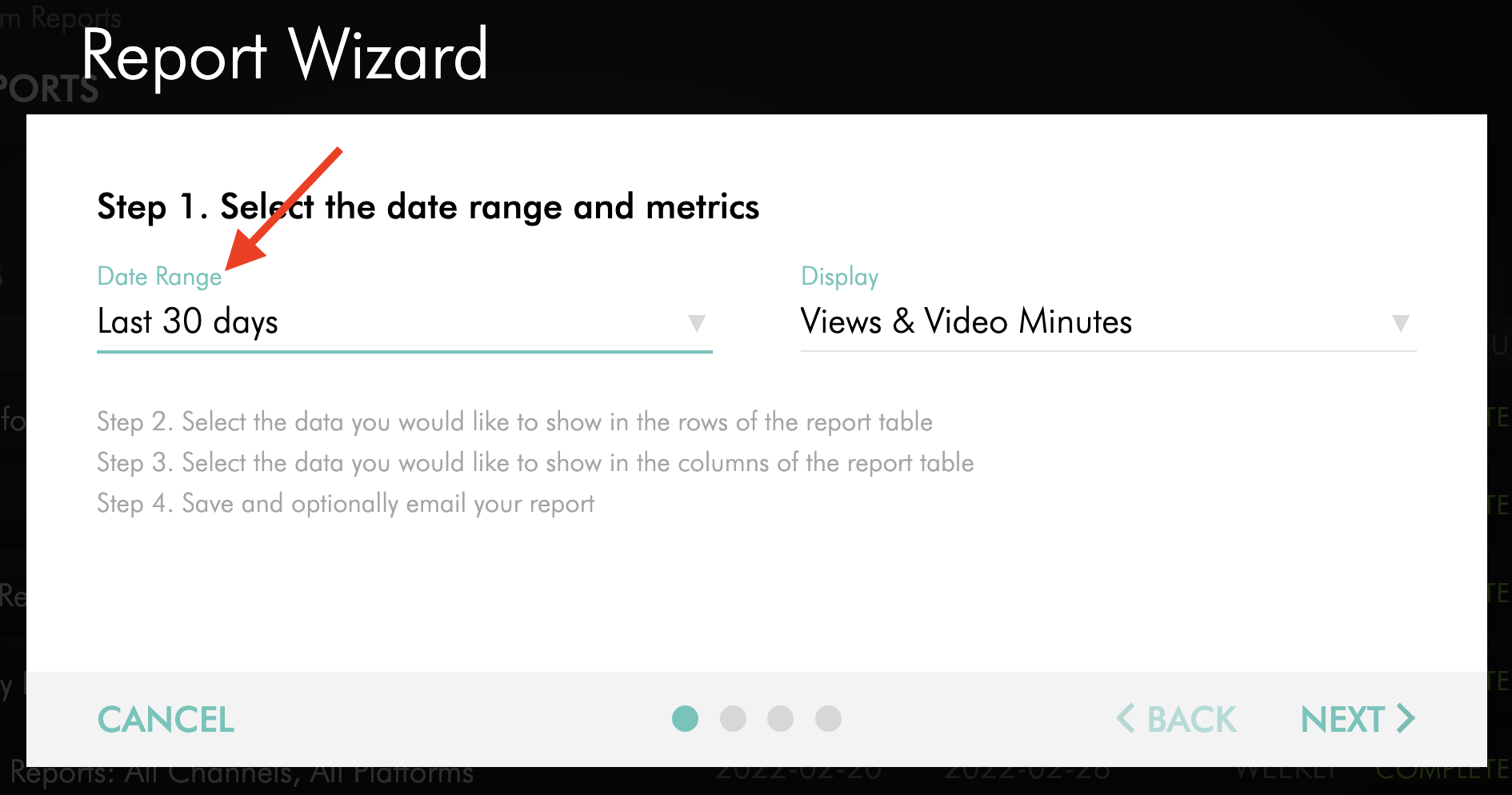
For a Scheduled Report, choose the Frequency of the report.
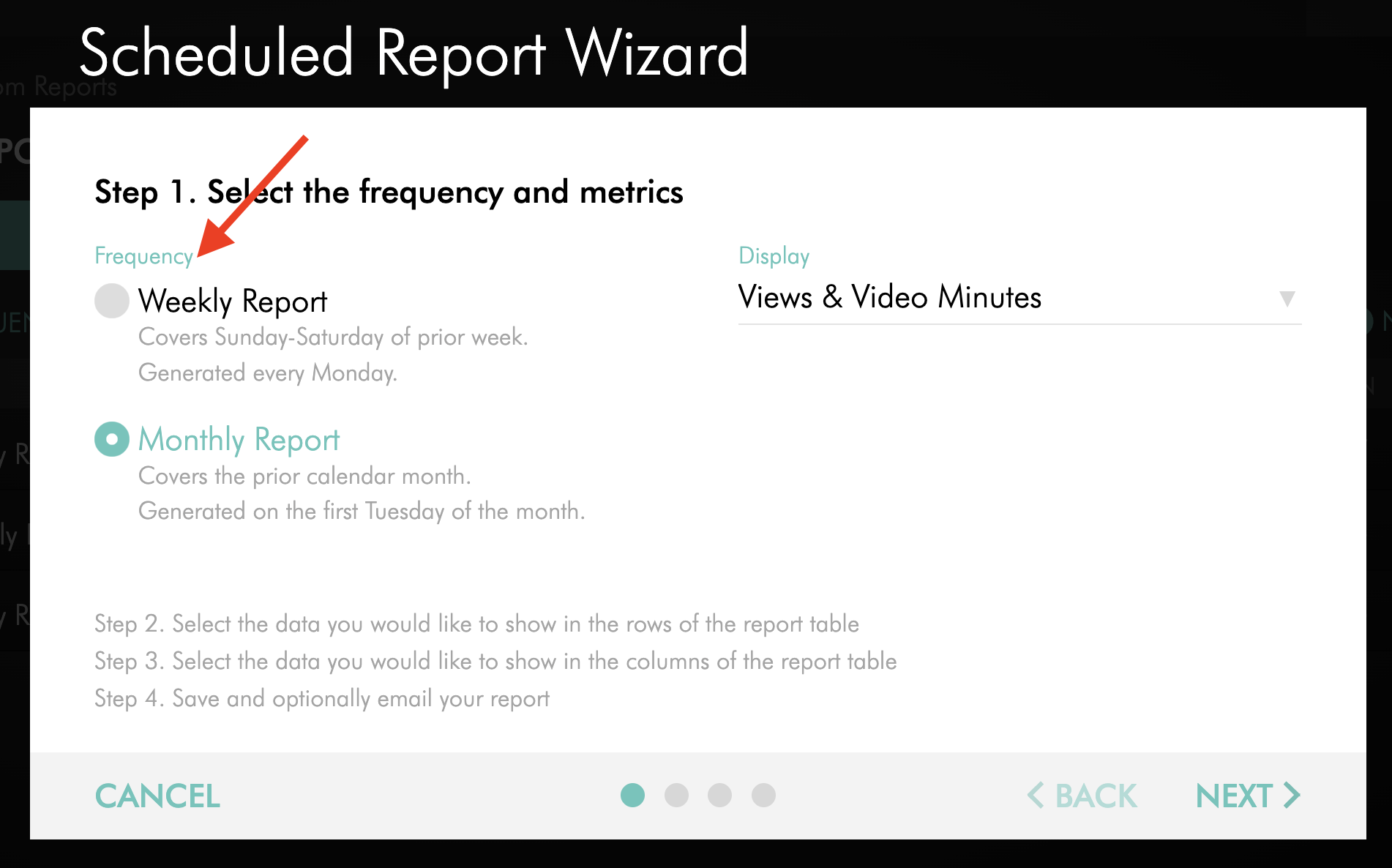
Step 5
Under Display, choose Views to see how often your video ads were watched, then click NEXT.
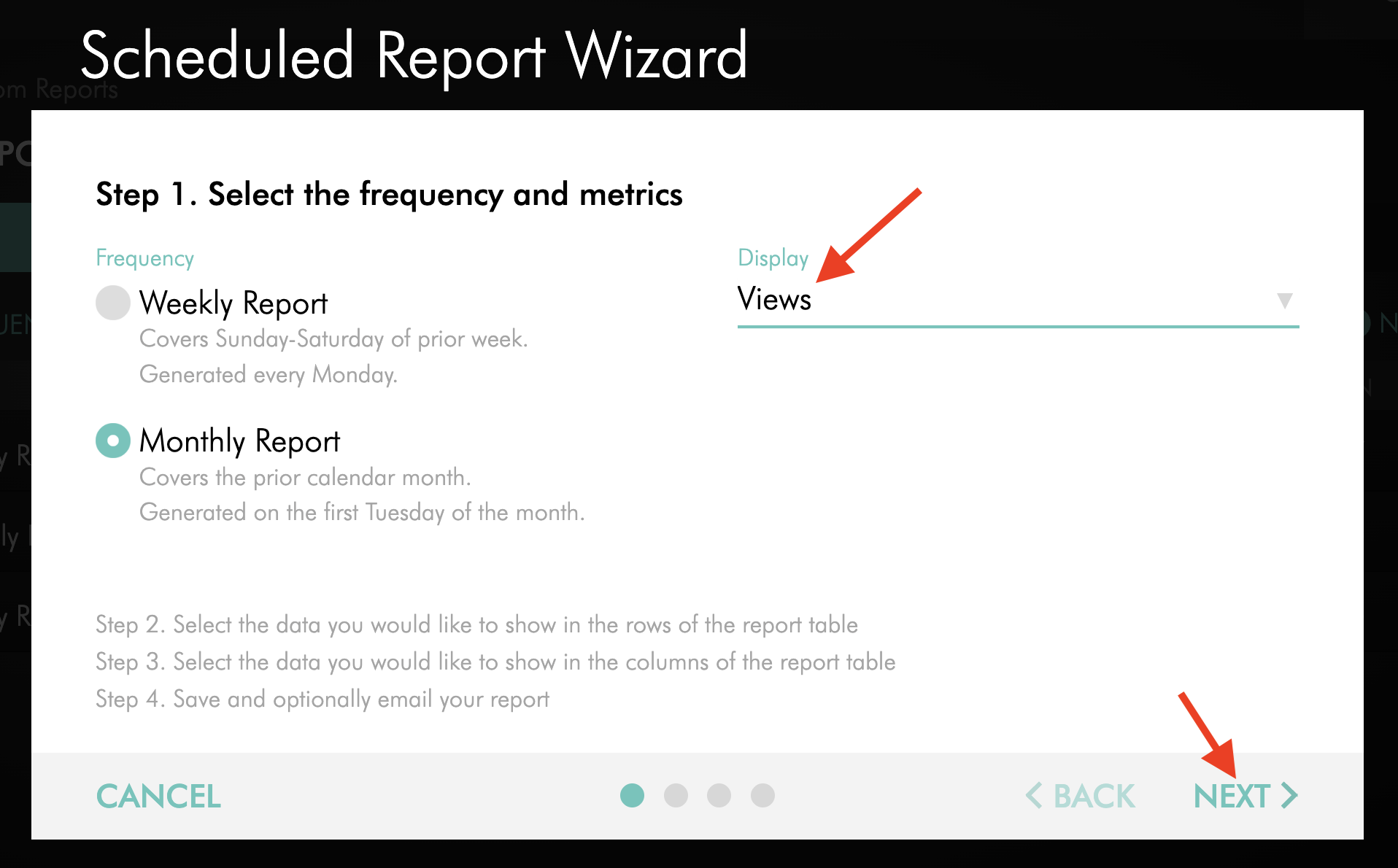
Step 6
For the Rows Category, select Channels.
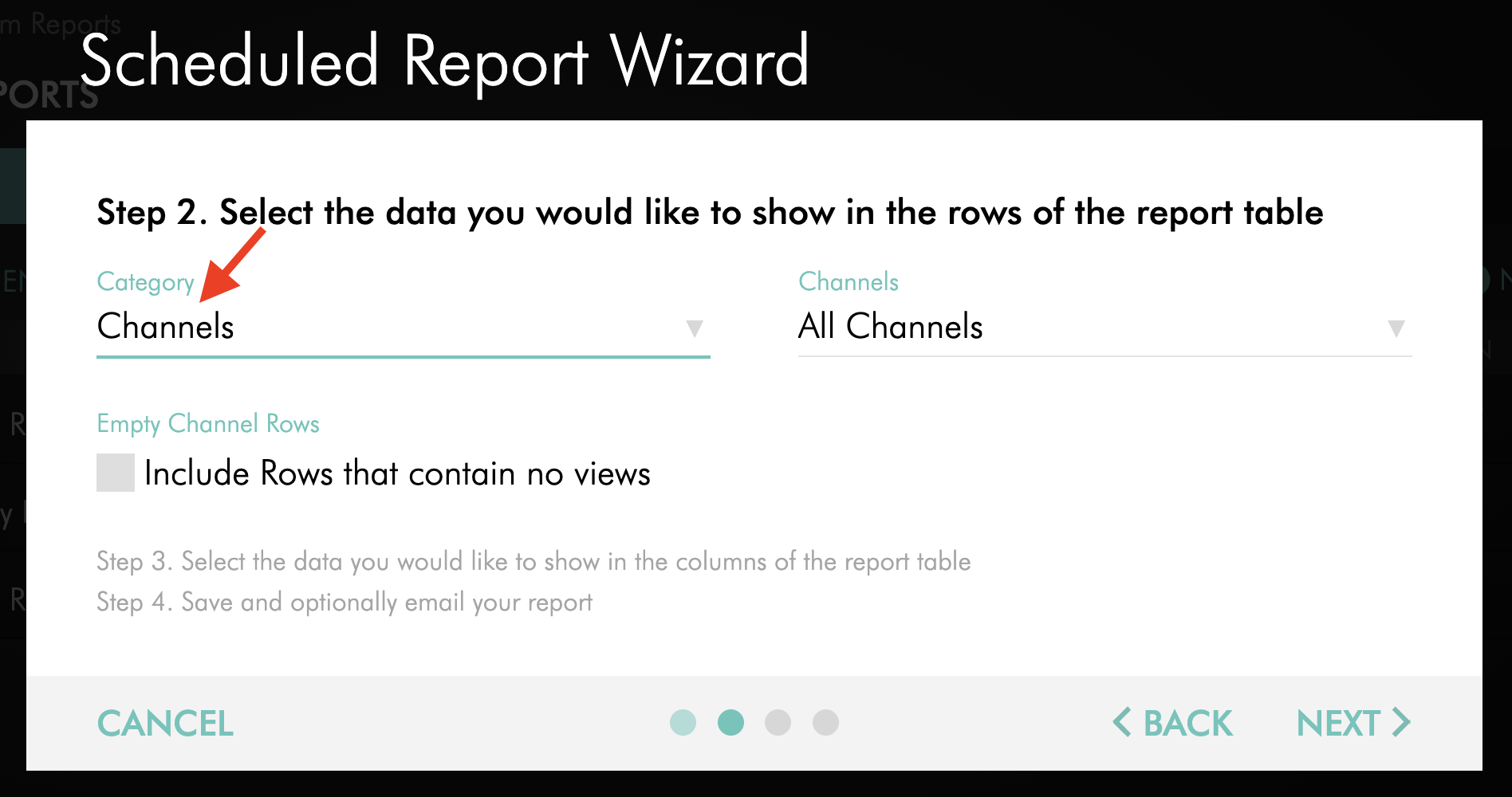
Step 7
Choose Selected Channels, then click SELECT CHANNELS.
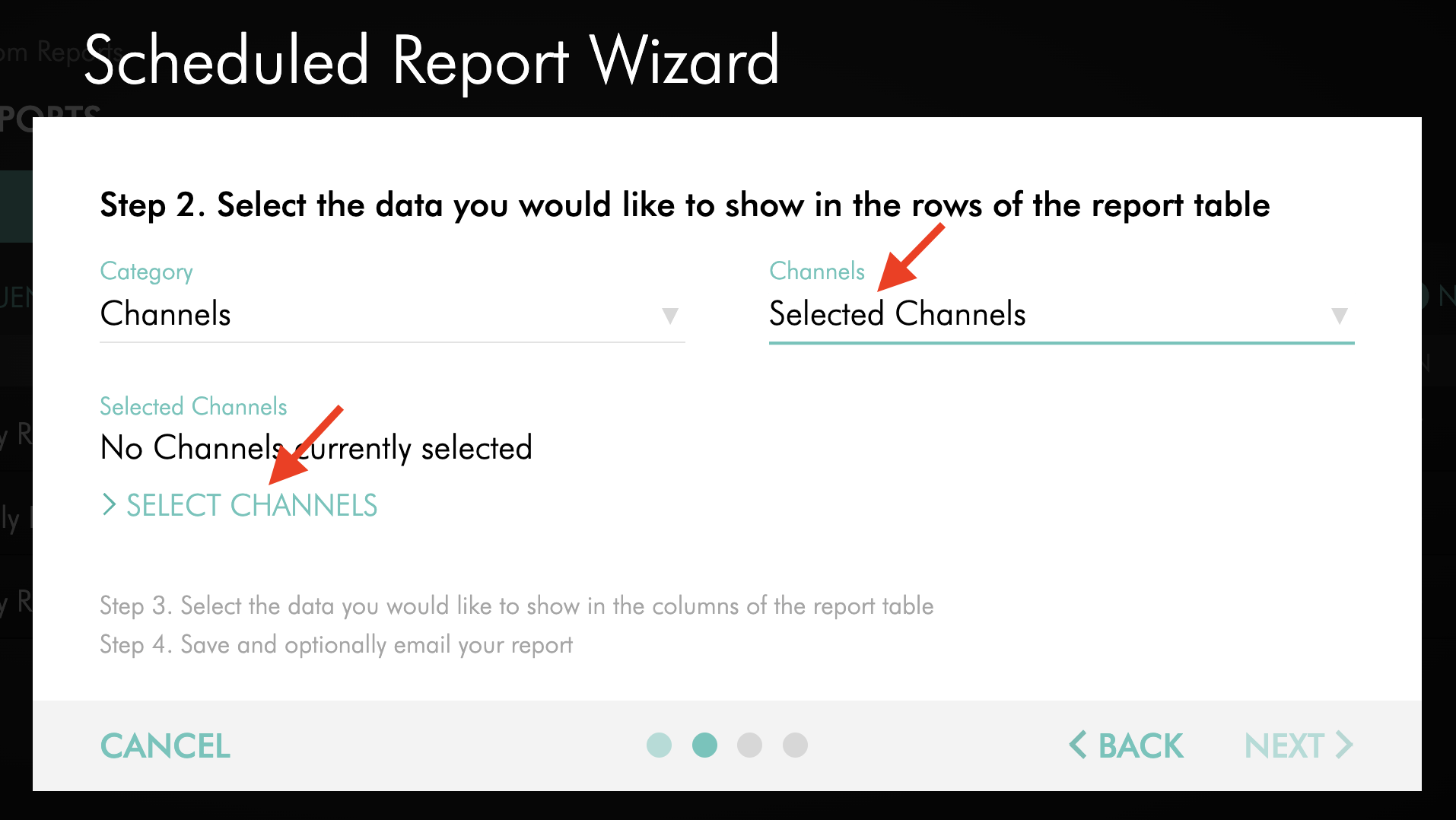
Step 8
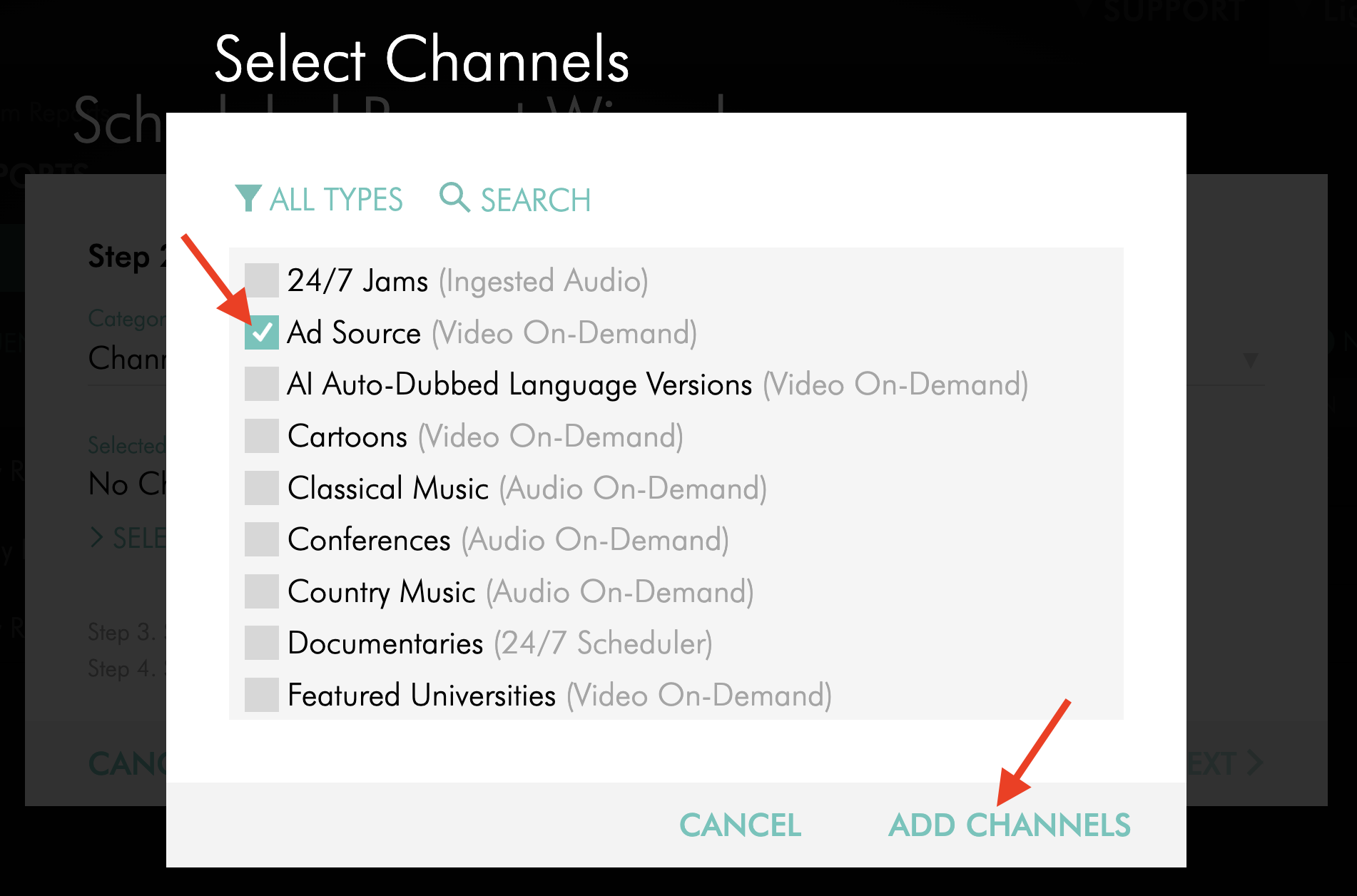
Select the specific Channel where your video ads are hosted, then click ADD CHANNELS.
Your video ads are usually uploaded to a dedicated VOD Channel, often labeled Ad Source, Video Ads, or something similar. Selecting this Channel allows the report to focus only on the video ad content hosted there.
Step 9
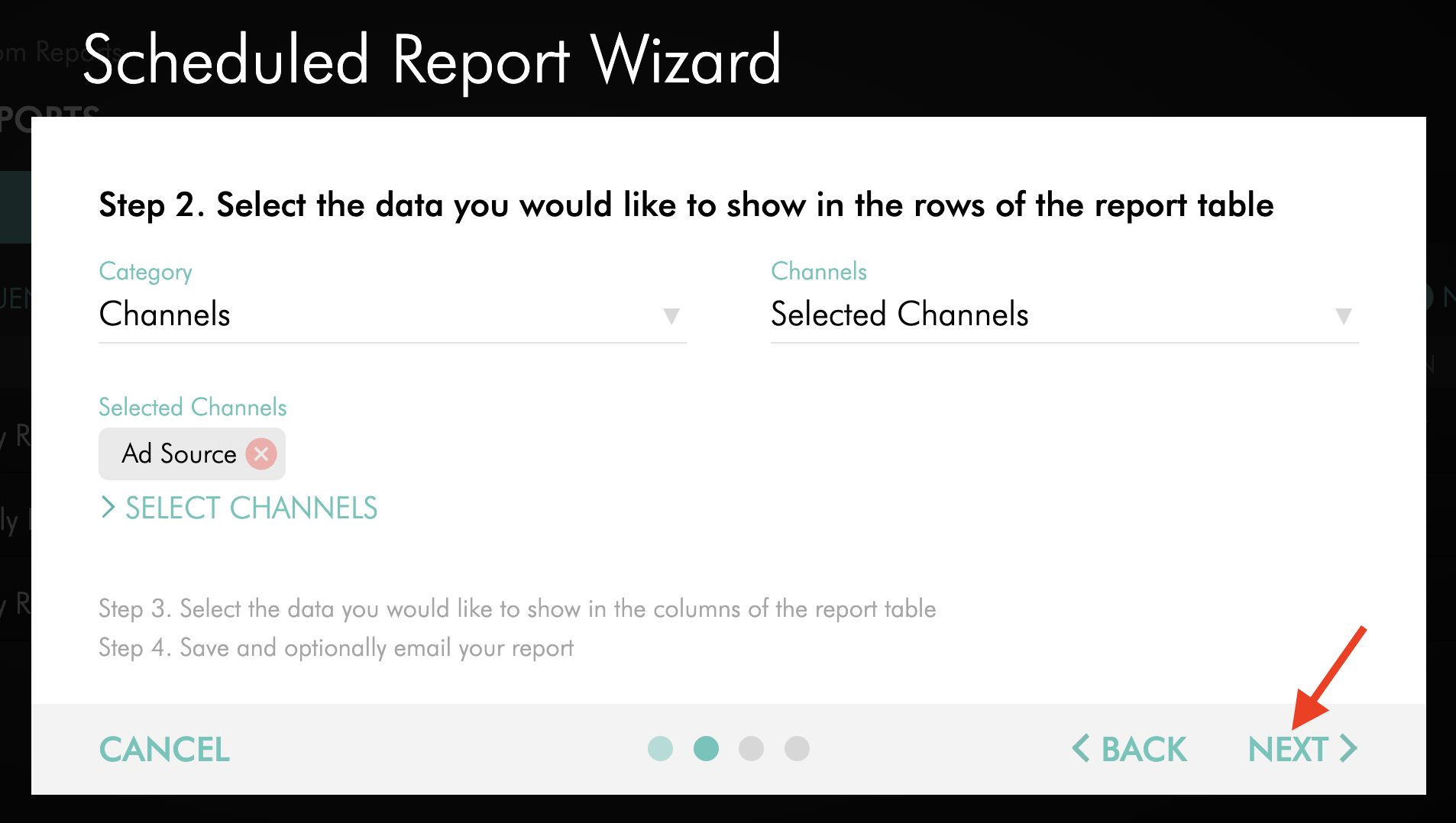
Click Next.
Step 10
Choose any additional report columns that match how you want to review the data, then click Next.
You may be able to include details such as Media Items, Platforms, Apps, Location, or Time Frame, depending on your reporting needs.
Step 11
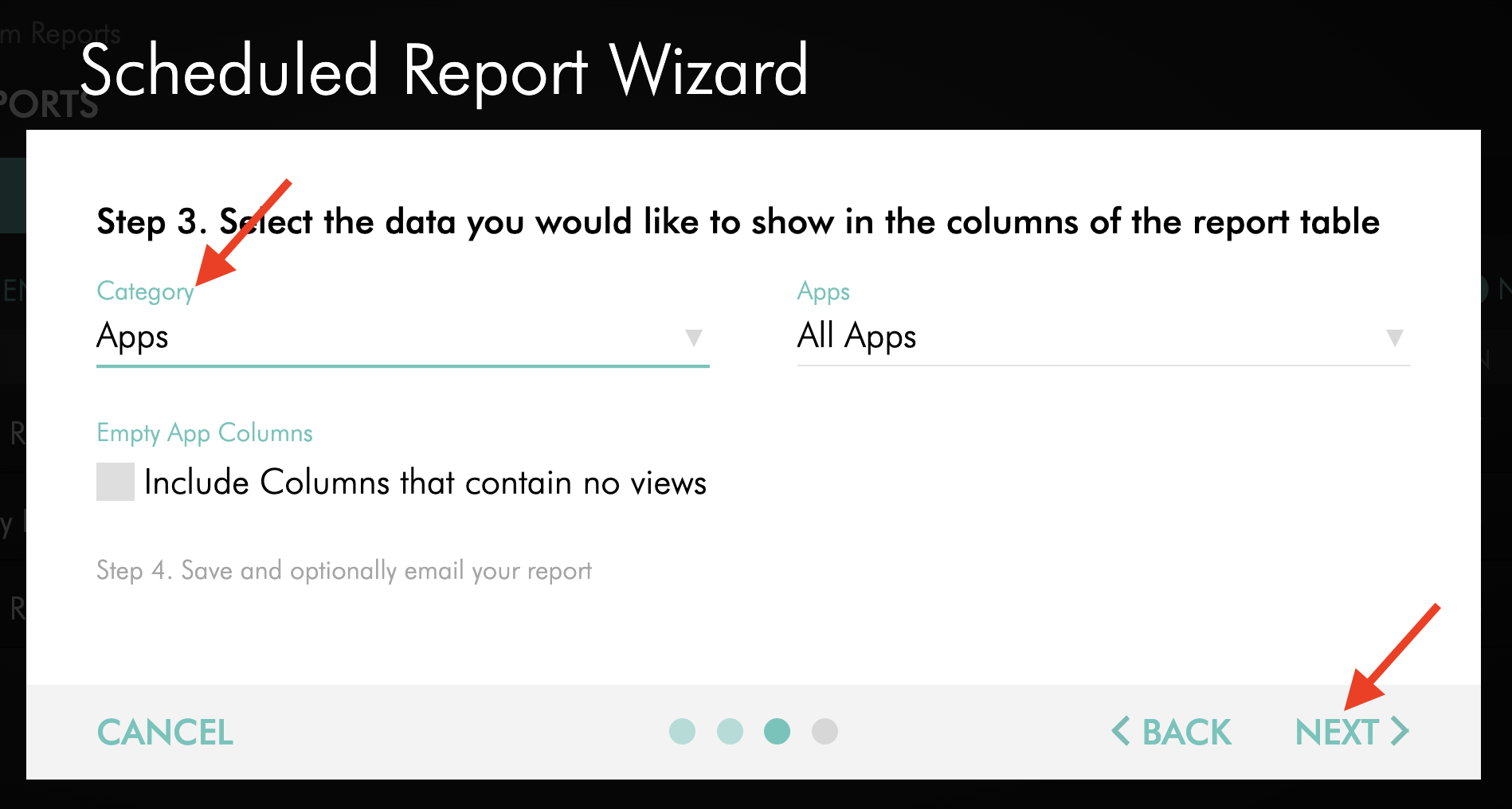
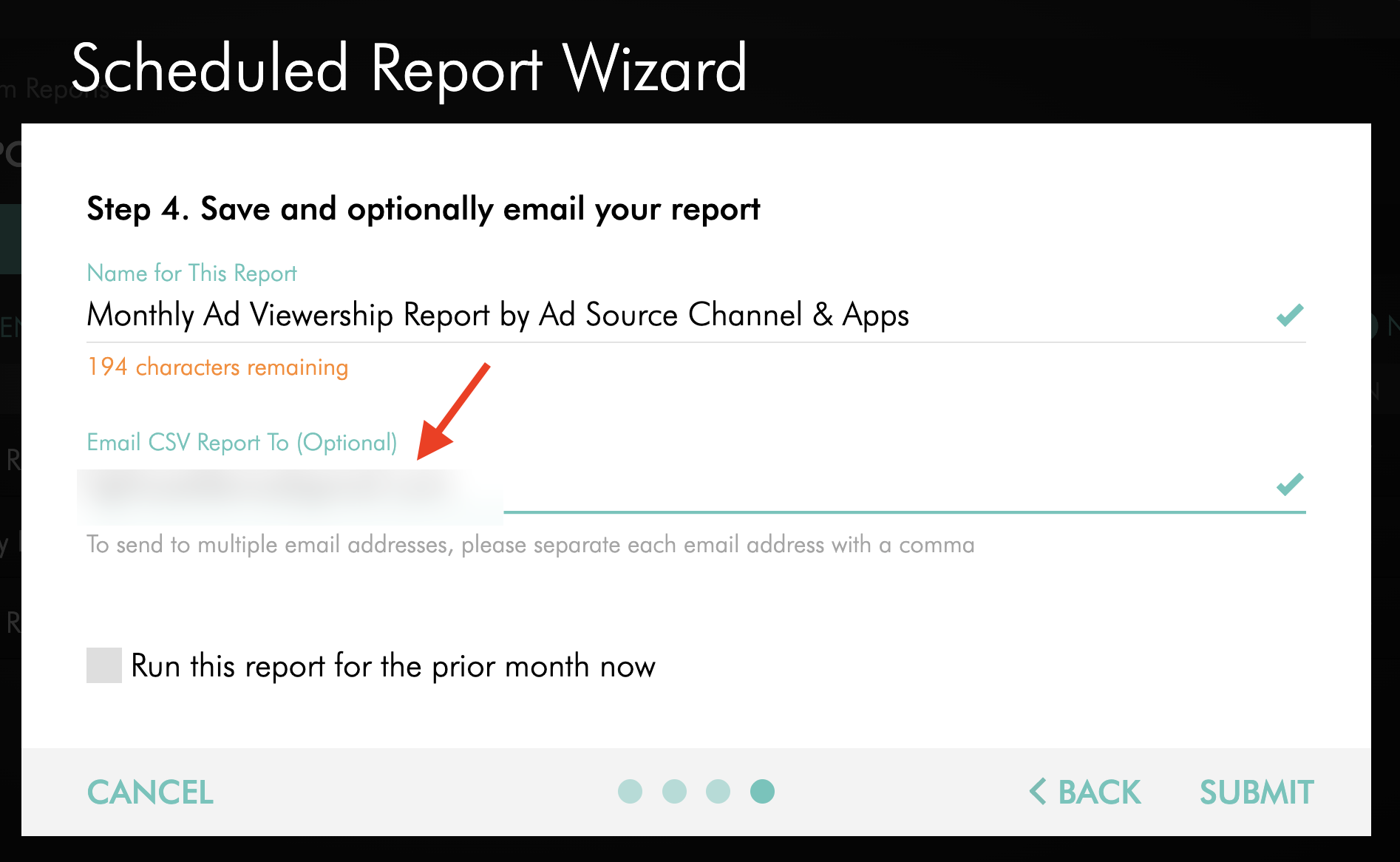
Name your report.
Step 12
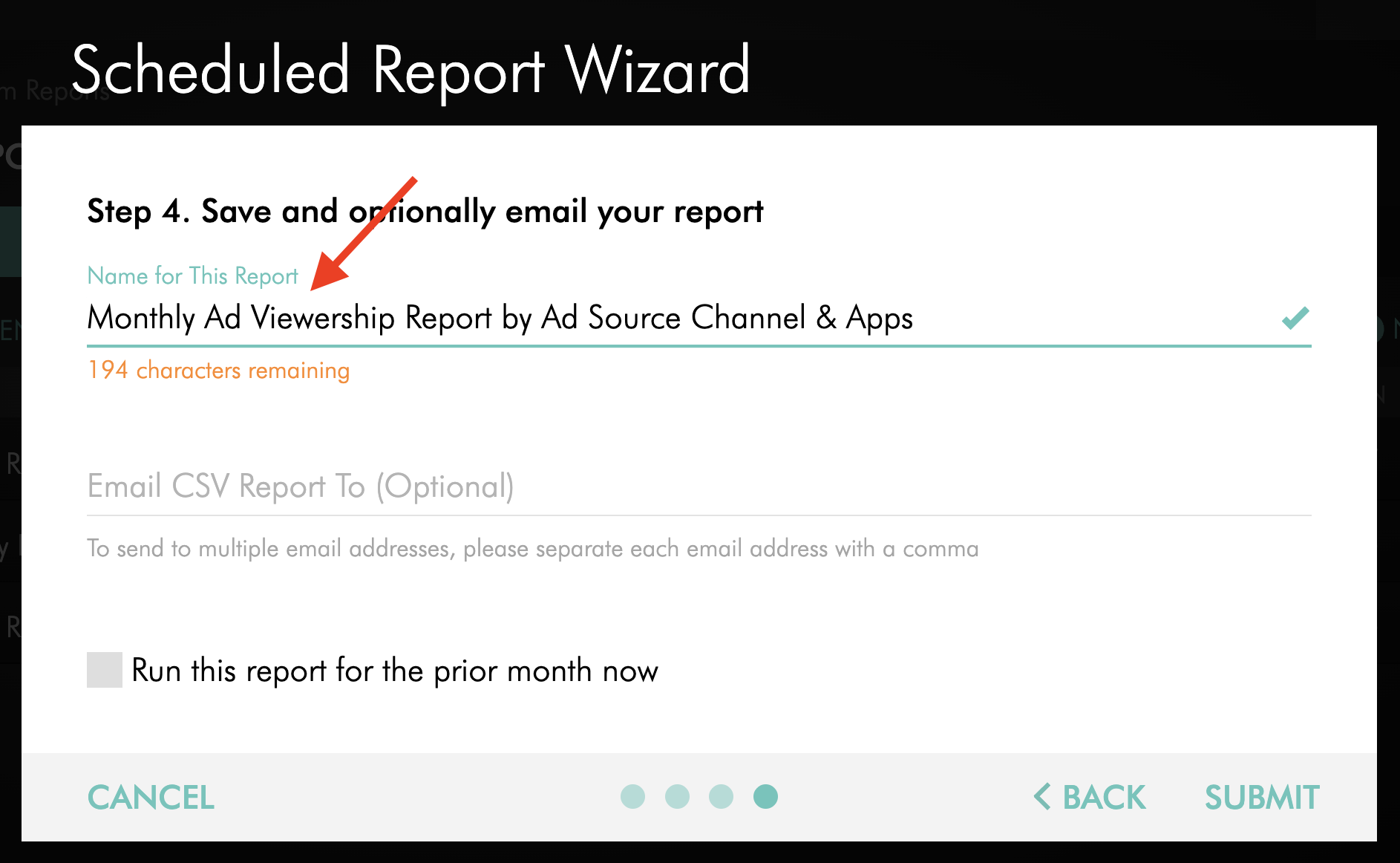
Optional: Add one or more email addresses if you want the report delivered automatically.
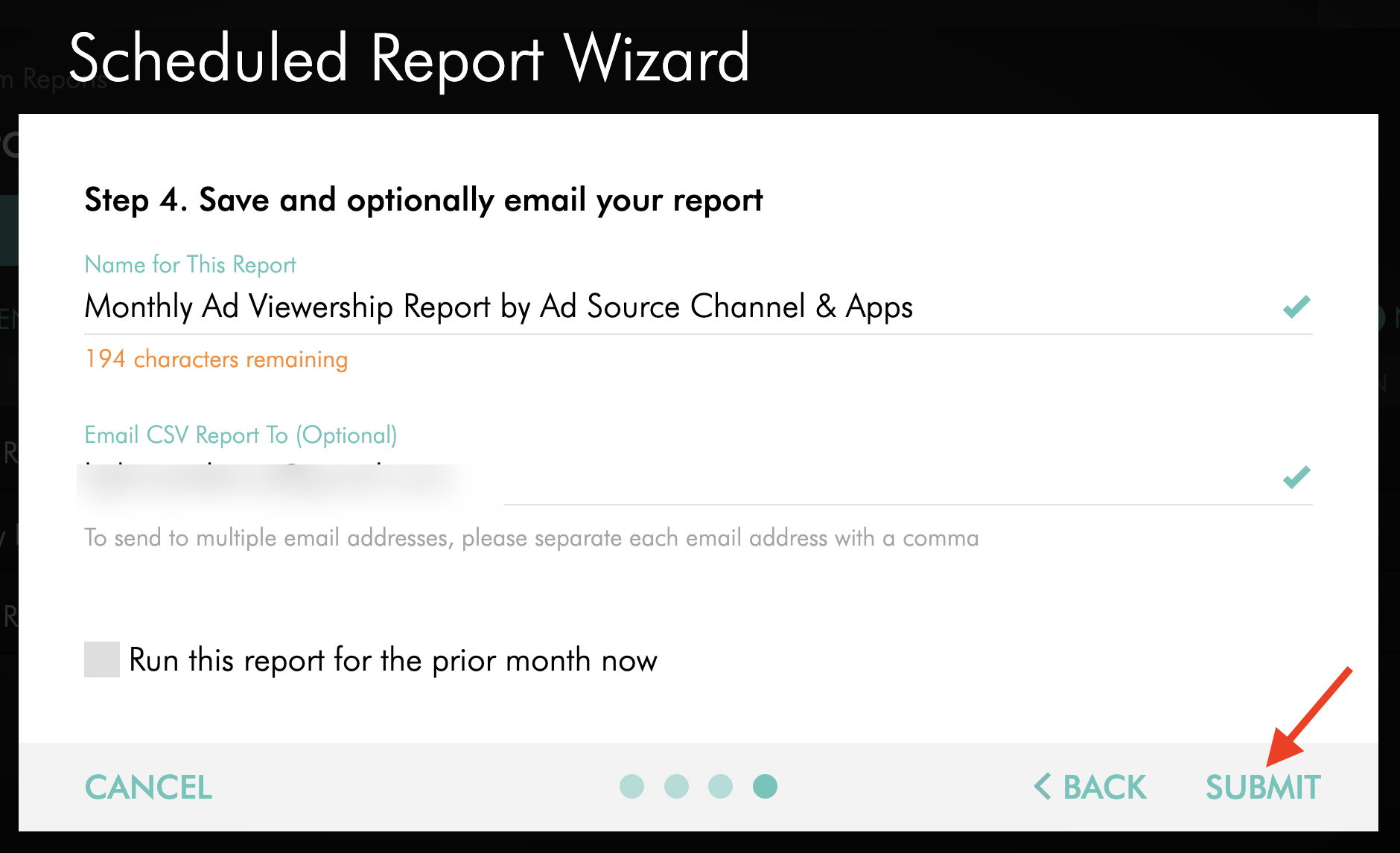
Step 13
Click Submit.
The report will begin generating and will appear in the Media Cloud once it is ready.
FAQs
Where is reporting available for video ads?
Reporting is available from the source where the video ads are delivered.
If your video ads are uploaded directly to the Media Cloud and served from a dedicated VOD Channel, you can view reporting in Custom Reports.
If your video ads are delivered through an external ad network, the ad network provides the reporting.
Can Custom Reports show stats for external ad network ads?
No. Custom Reports only show reporting for video ads that are hosted and served directly from the Media Cloud.
If your ads are served through an external ad network, contact the ad network directly for performance reports or dashboard access.
How does reporting work for Waterfall/Fallback Campaigns?
Reporting may come from more than one source.
Media Cloud-managed house ads can be reviewed in Custom Reports. External VAST Tag performance should be reviewed through the external ad network or ad server.
Which Channel should be selected in Custom Reports?
Select the dedicated VOD Channel where your video ads are hosted.
This Channel may be labeled Ad Source, Video Ads, or something similar in your Media Cloud account.
Which display metric should be selected for video ad reporting?
Choose Views as the display metric for In-House Ad reporting.
This shows how often video ads in the selected Ad Source Channel were viewed when served as pre-roll, mid-roll, or post-roll ads through the ad setup.
Can reporting show performance for individual video ads?
Yes. When building the report, select Media Items as an additional report column if you want to compare performance for individual video ad creatives.
Can video ad reports be delivered by email?
Yes. When creating the Custom Report, you can add one or more email addresses if you want the report delivered automatically.