
Understanding how player links appear on social media
Overview
This article explains what to expect when you share a video or audio player link from the Media Cloud on social media platforms such as Facebook or X.
Depending on the social platform and the type of player link you share, the post may display a preview that includes the media title, thumbnail image, and source website address.
How it works
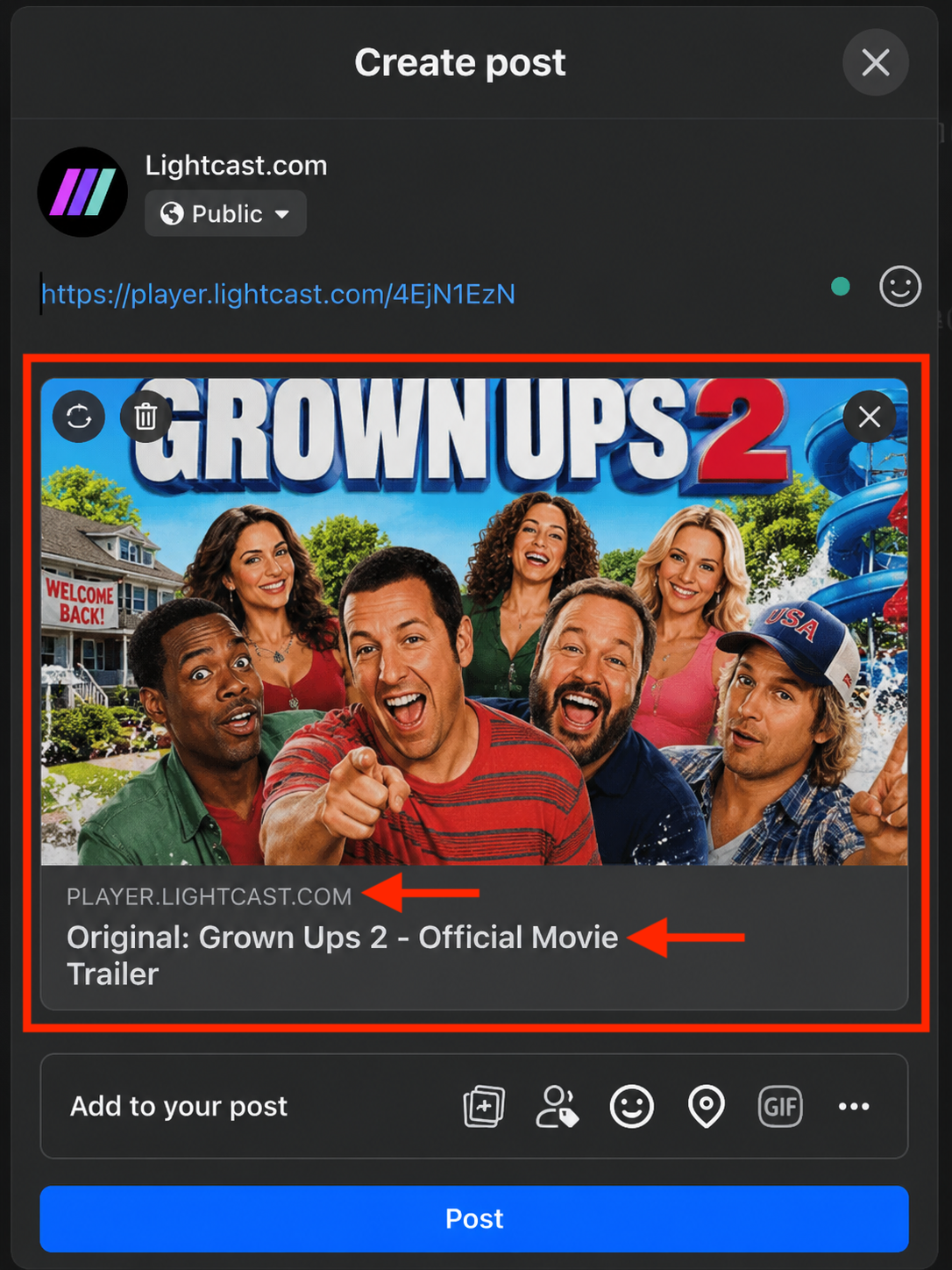
When you share a player link on social media, the social platform may generate a preview card based on information associated with the link. Depending on the platform and how it processes the link, the preview may include:
the media title
a thumbnail image
the source website address or domain
Sharing player links using social sharing shortcuts
Lightcast web players include built-in sharing options that allow viewers to share video or audio content through supported social media platforms and other destinations.
You can share a player link by copying and pasting its URL into a social media post or by selecting one of the available shortcuts from the player's SHARE menu.
The appearance of the shared post may differ depending on the sharing method and how the social media platform processes the link.
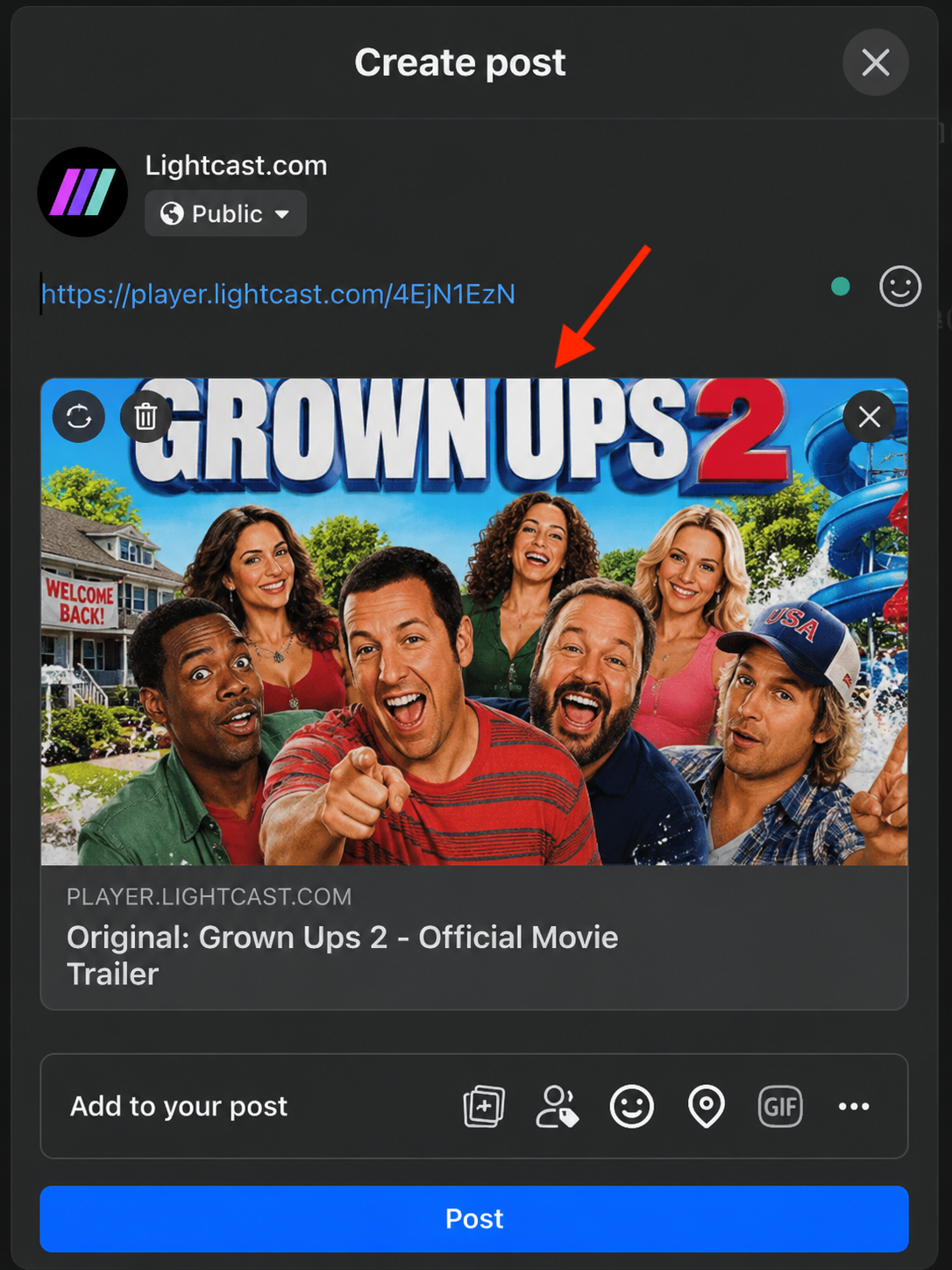
For example, Facebook may display a large thumbnail image and media title when you paste a player URL directly into a post, while using the player's Facebook sharing shortcut may produce a different link preview.
What the social media platform controls
The final appearance of the shared post is controlled by the social media platform. For example, a thumbnail may appear while you are creating the post but may display differently or not appear after the post is published.
Player appearance vs. social media preview
What appears inside the player is managed separately from what appears in the social media post preview.
For example, the Logo Overlay inside the player can be managed through the Player Configurator. The source website address shown in the social media post is based on the player link you shared.
To learn how to change the appearance of your player, see How to customize your shareable and embeddable web player.
Default and custom player links
If you share a default player.lightcast.com player link, the Lightcast domain may appear as the source website in the social media post.
If your account uses a custom player landing subdomain and you share a player link using that subdomain, your custom domain may appear instead.
For more information, see Using a player landing subdomain for your player URLs.
Channel Player links
Channel Player links may behave differently from single-media player links when shared on social media.
When you share a Channel Player link, some social media platforms may generate the post preview using the first media item in the Channel rather than representing the entire Channel.
Instructions
Use these steps to share a player link on social media and review how the link appears before publishing the post.
Step 1
Copy the shareable player link you want to post on social media. To learn how, see How to find and copy a shareable player link from the Media Cloud or Web App.
Step 2
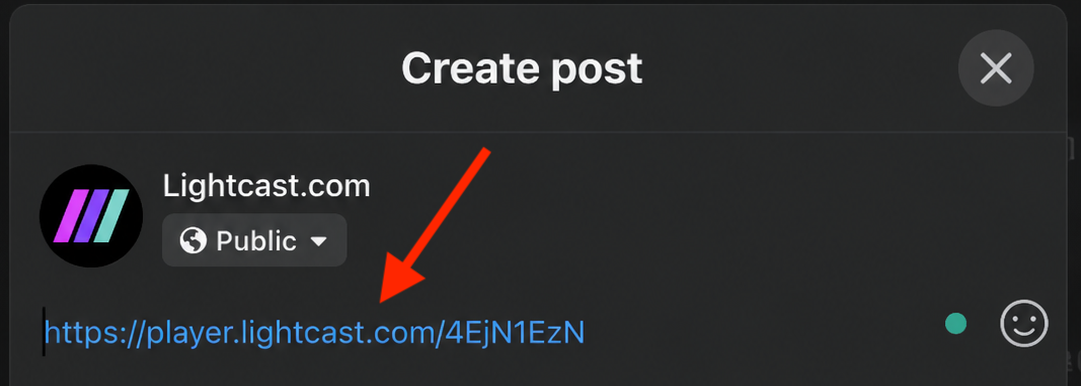
Paste the link into your social media post.
Step 3
Wait for the platform to generate the preview card.
Step 4
Review the preview to confirm the title, thumbnail, and source website address appear the way you want.
Step 5
If you want to change how the player looks when someone opens the shared link, update your player settings in the Player Configurator. To learn how, see How to customize your shareable and embeddable web player.
If you want to change the title or thumbnail shown in the preview, update the file’s metadata or thumbnail in the Media Cloud. To learn how, see How to add and edit metadata for your video and audio files and How to add or change thumbnails for your video and audio files.
If you want a different source website address to appear in the post, use a custom player landing subdomain. For more information, see Using a player landing subdomain for your player URLs.
FAQs
What appears in the social media post when I share a player link?
The social media platform may generate a preview card based on the player link you shared. Depending on the platform, the preview may include the media title, a thumbnail image, and the source website address from the link.
Will the thumbnail I selected in the Media Cloud appear in the shared post?
A thumbnail may appear in the preview card, and it may also appear in the final post. However, the final appearance is controlled by the social media platform, so the thumbnail may not display the same way every time.
Can I hide the Logo Overlay inside the player when someone opens the shared link?
Yes. The Logo Overlay shown inside the player can be controlled in the Player Configurator.
Can I change the source website address shown in the social media post?
The source website address shown in the post is based on the player link you shared. If you share a default player.lightcast.com link, the Lightcast domain may appear in the post. If you use a custom player landing subdomain, your custom web address may appear instead.
Why does Facebook only show the first media item when I share a Channel Player link?
Channel Player links may display differently from single-media player links when shared on social media. In some cases, Facebook may generate the post preview using the first media item in the Channel rather than representing the entire Channel.
Is sharing a player link the same as publishing a video directly from the Media Cloud to Facebook?
No. Sharing a player link creates a social media post based on the player link. Direct Facebook publishing sends the video to Facebook as a published Facebook video.
For more information about Facebook video publishing, see How to publish your videos to Facebook.