
How to add and edit metadata for your video and audio files
Overview
This article explains how to add and edit metadata for an individual video or audio file that has already been uploaded to the Media Cloud.
When to use this article
Use this article when you want to update metadata for an existing video or audio item, including its Title, Description, Keywords, Content Rating, Genres, and Language.
This article is helpful when you want to:
Add or edit metadata manually for an individual media item.
Generate AI metadata suggestions for an existing video or audio item.
Update how your content appears across connected publishing properties, including websites, embeddable players, TV apps, Web App, and mobile apps.
How it works
Metadata is used to display and organize your content across the publishing properties connected to your Media Cloud account. This includes Lightcast players, websites, mobile apps, Web Apps, TV apps, and other connected publishing properties that receive media information through the Lightcast API or feeds.
For each individual video or audio item, you can add or update metadata to support content presentation, search, and dynamic publishing across your connected properties.
You can enter metadata manually at any time by opening the individual media item and updating the fields on the METADATA tab.
You can also use AI to generate metadata suggestions for an individual media item from the METADATA tab.
For newly uploaded or encoded media, the Media Cloud can automatically generate metadata for the fields enabled in Media Settings.
Metadata that was entered manually or imported through the Lightcast API or MRSS feeds will not be changed by AI. You can also review, edit, or replace AI-generated metadata at any time.
Instructions
Enable AI metadata for future uploads
If you want AI metadata to be generated automatically for newly uploaded or encoded media, make sure the corresponding metadata fields are enabled in Media Settings before uploading content.
For step-by-step instructions, see AI-generated metadata explained.
Add or edit metadata for an individual media item that has already been uploaded
You can update metadata for the following fields on the individual media item:
Title
Description
Keywords
Language
Genres
Content Rating
To add or edit metadata for an individual media item, first open the item in the Media Cloud and go to the METADATA tab.
Step 1
Log in to your Media Cloud account.
Step 2
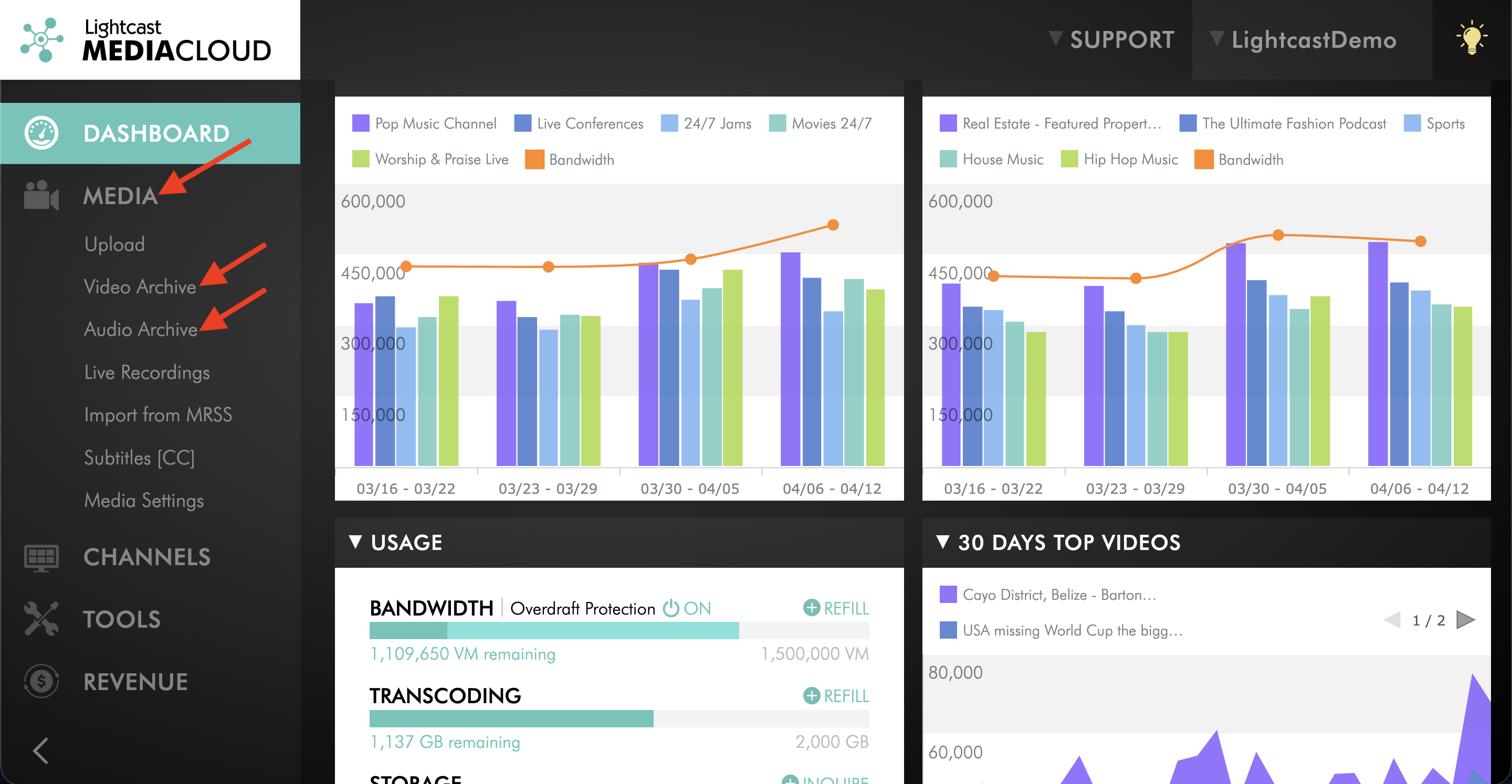
Go to MEDIA, then open the Video Archive or Audio Archive.
Step 3
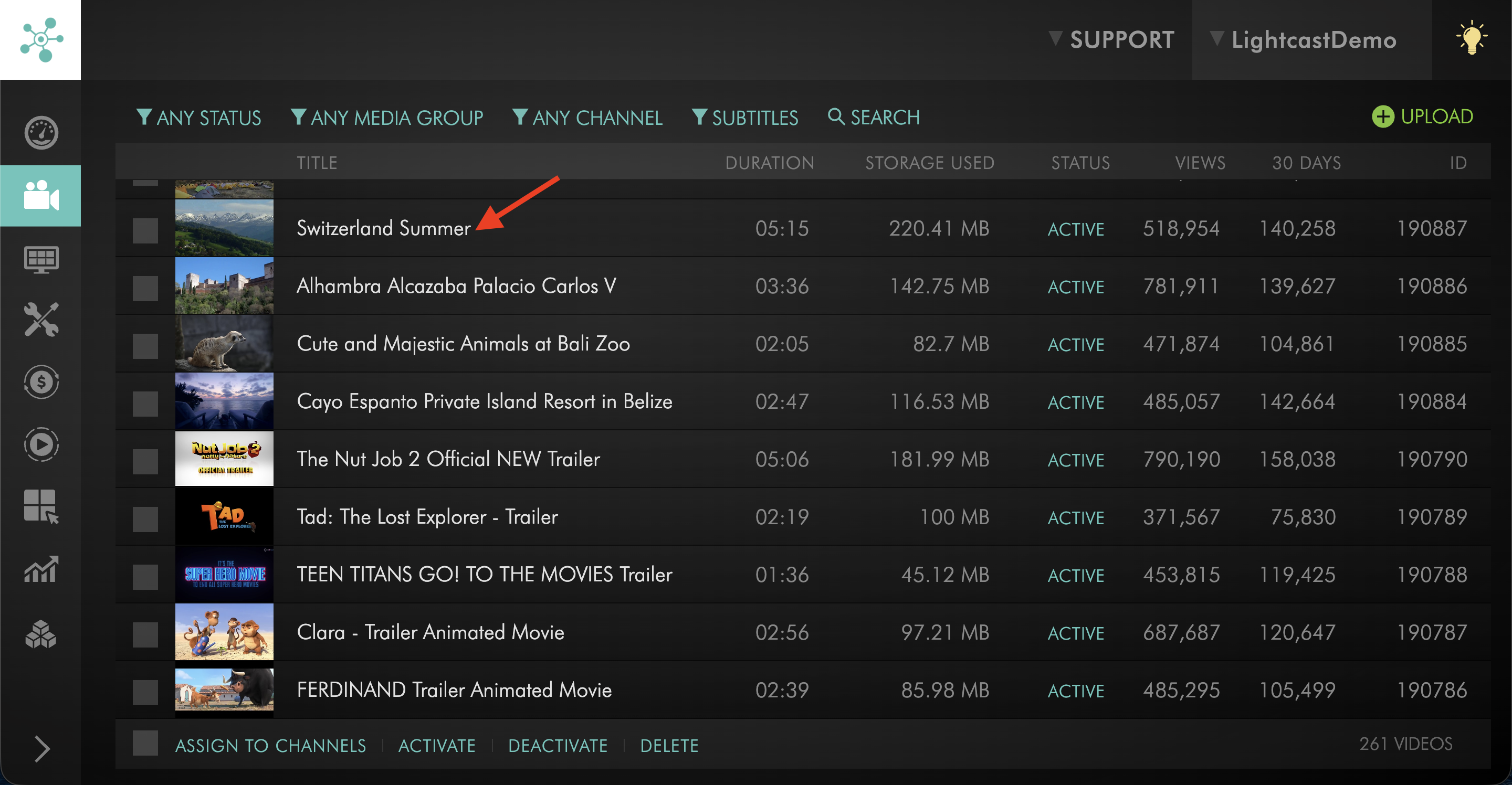
Select the individual media item you want to update.
Step 4
Switch to the METADATA tab.
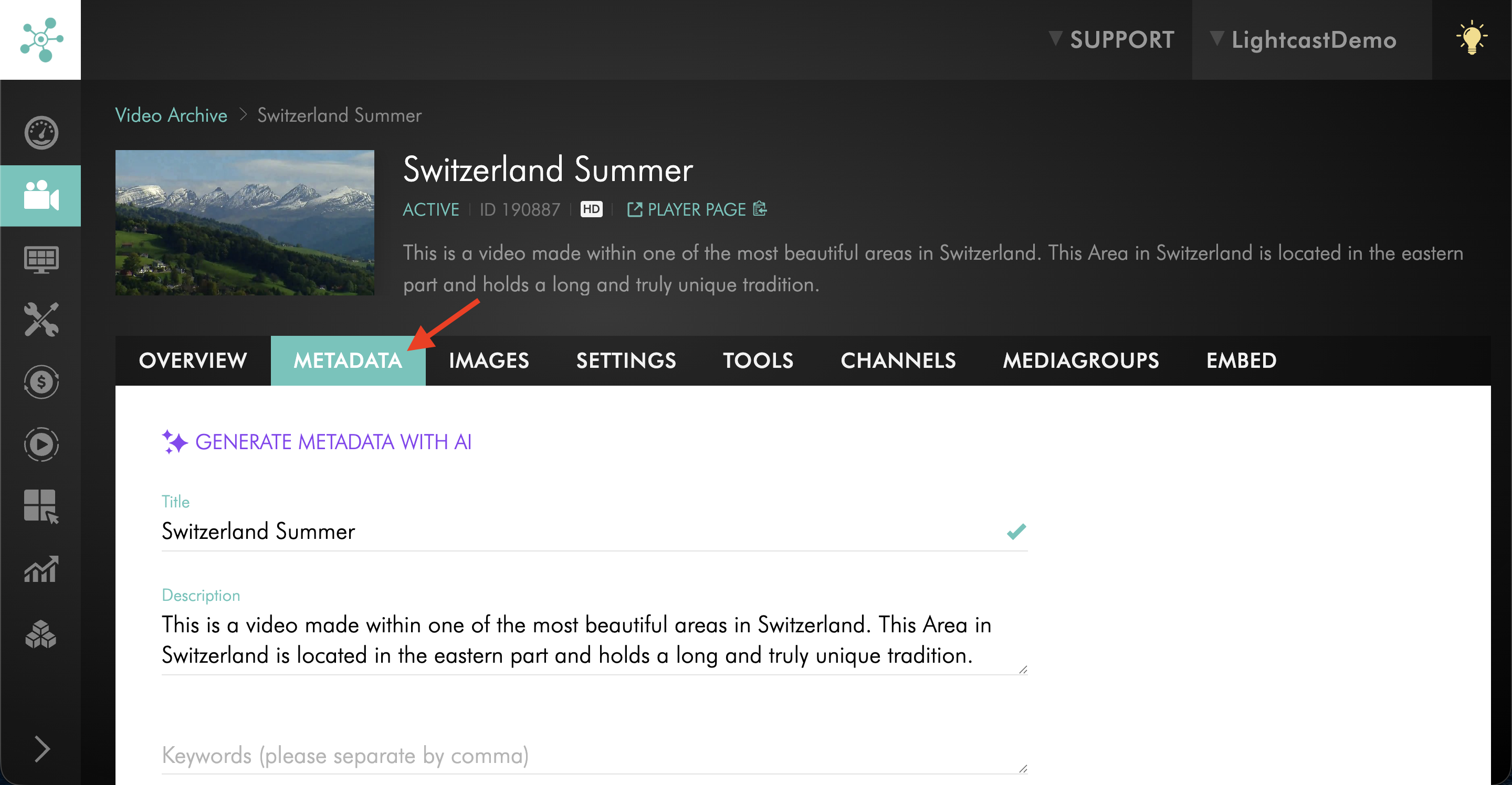
There are two ways to add or change metadata for an individual media item.
Option 1: Add or edit metadata manually
Use this option when you want full control over the metadata for an individual media item.
Step 1
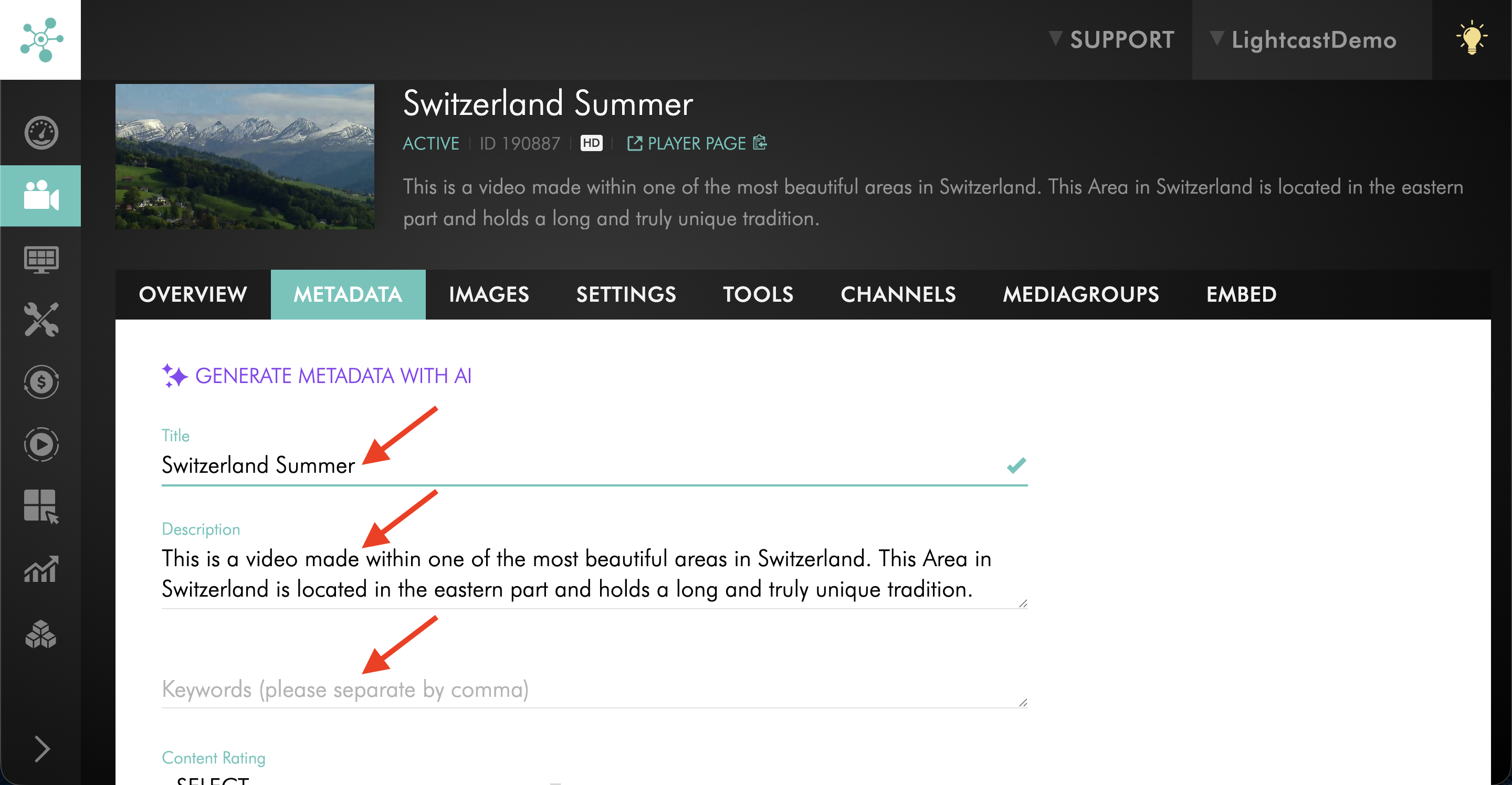
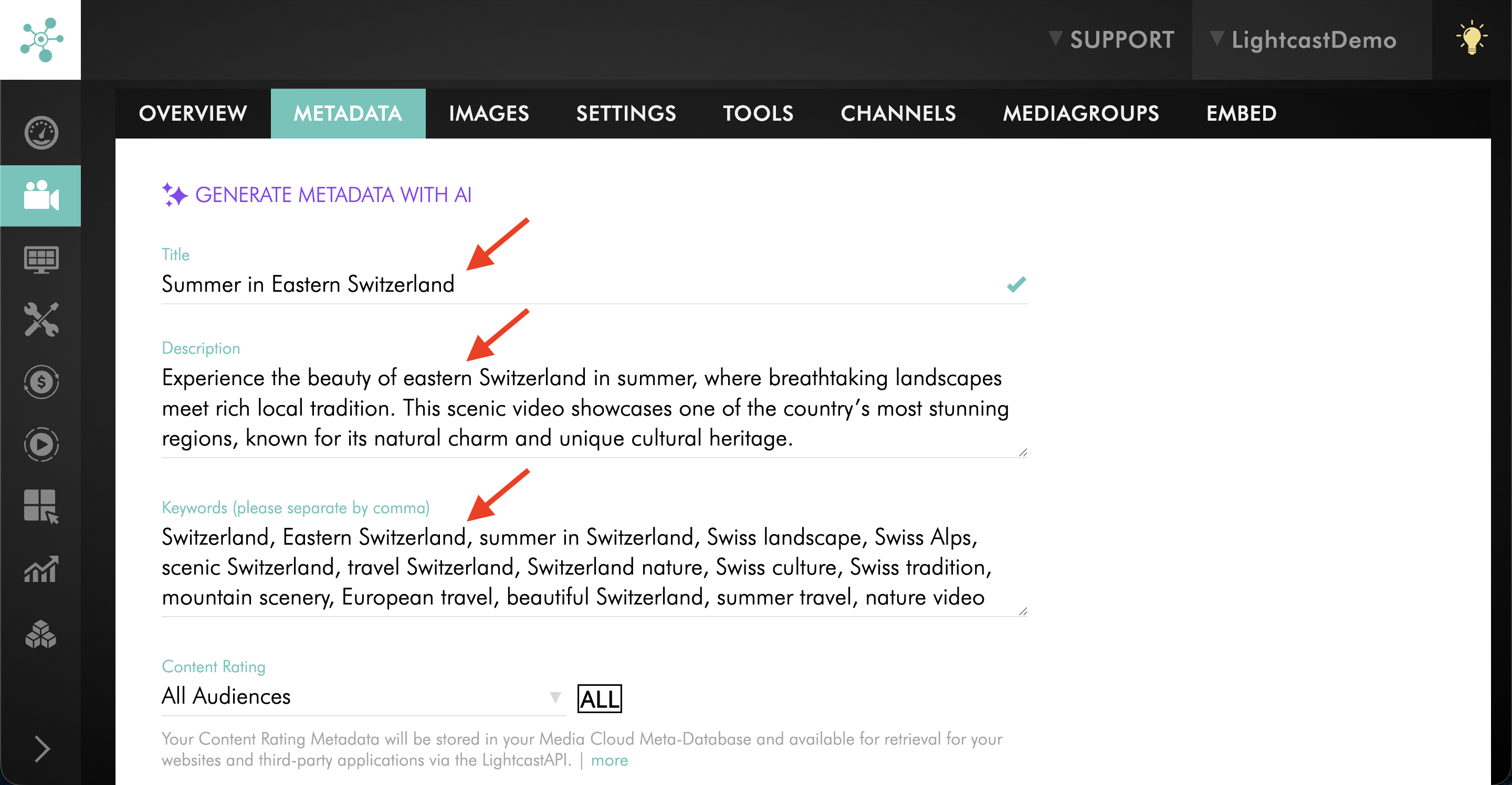
Open the media item’s METADATA tab, then click into the field you want to update.
Step 2
Enter or edit the metadata information manually. You can manually enter your own Title, Description, Keywords, Content Rating, Genres, and Language at any time.
Step 3
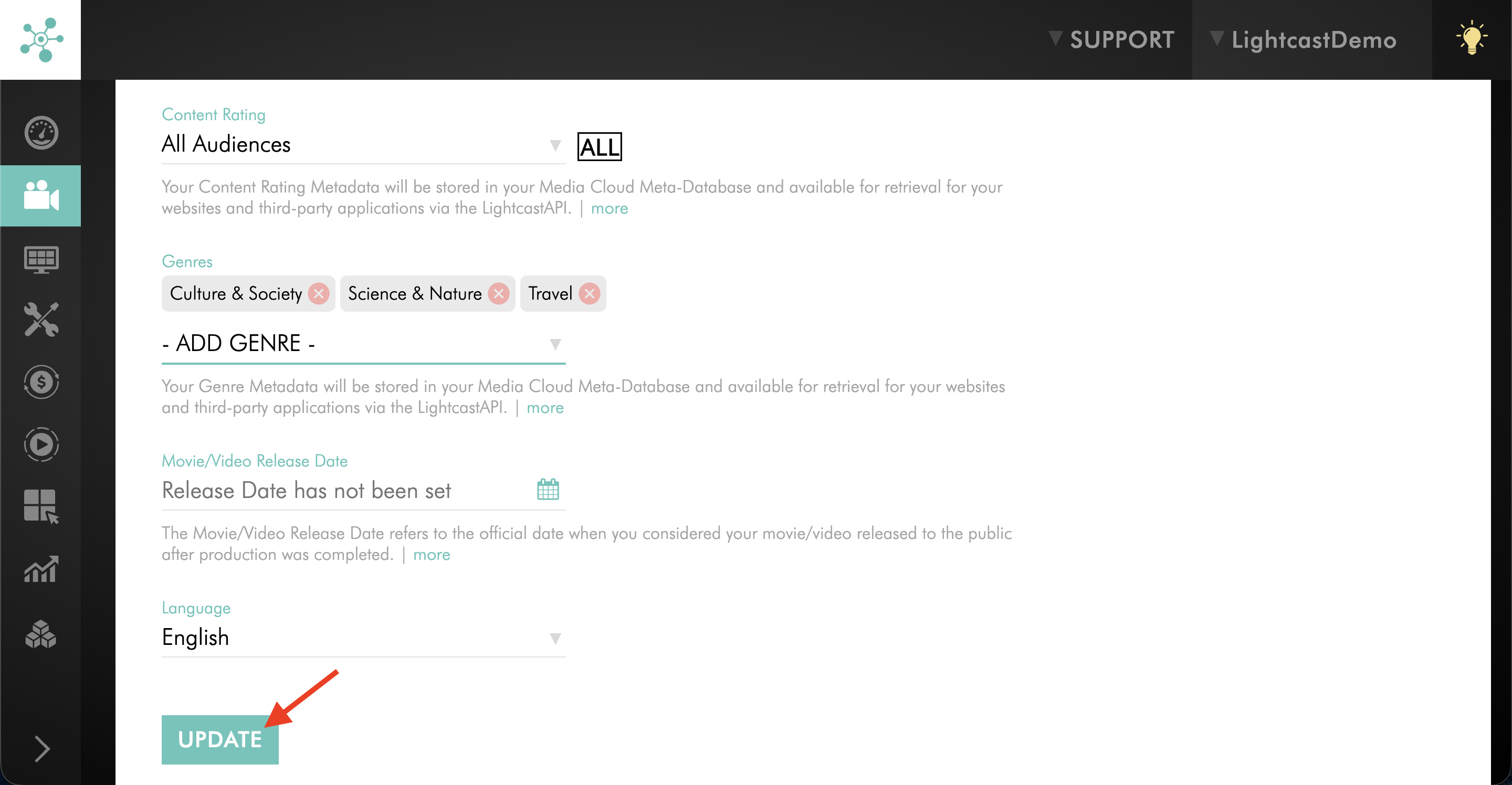
Click UPDATE to save your changes.
Step 4
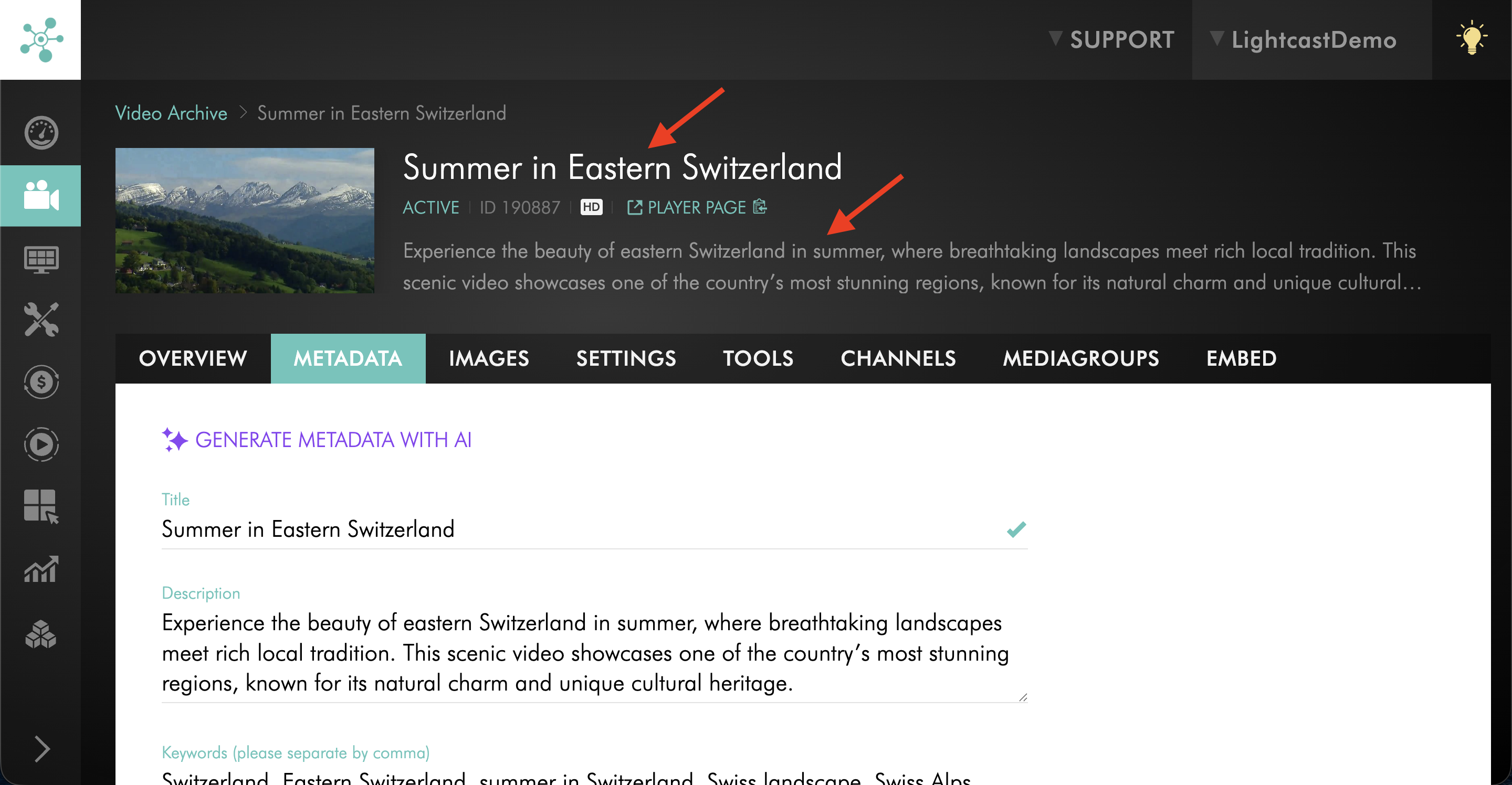
The metadata you enter and save will immediately replace the current metadata for that video or audio item.
Option 2: Generate metadata with AI for an individual media item
Use this option when you want the Media Cloud to generate metadata suggestions for one specific video or audio item.
AI can generate suggestions for Title, Description, Keywords, Content Rating, Genres, and Language. You can review, edit, or replace these suggestions before or after saving.
Step 1
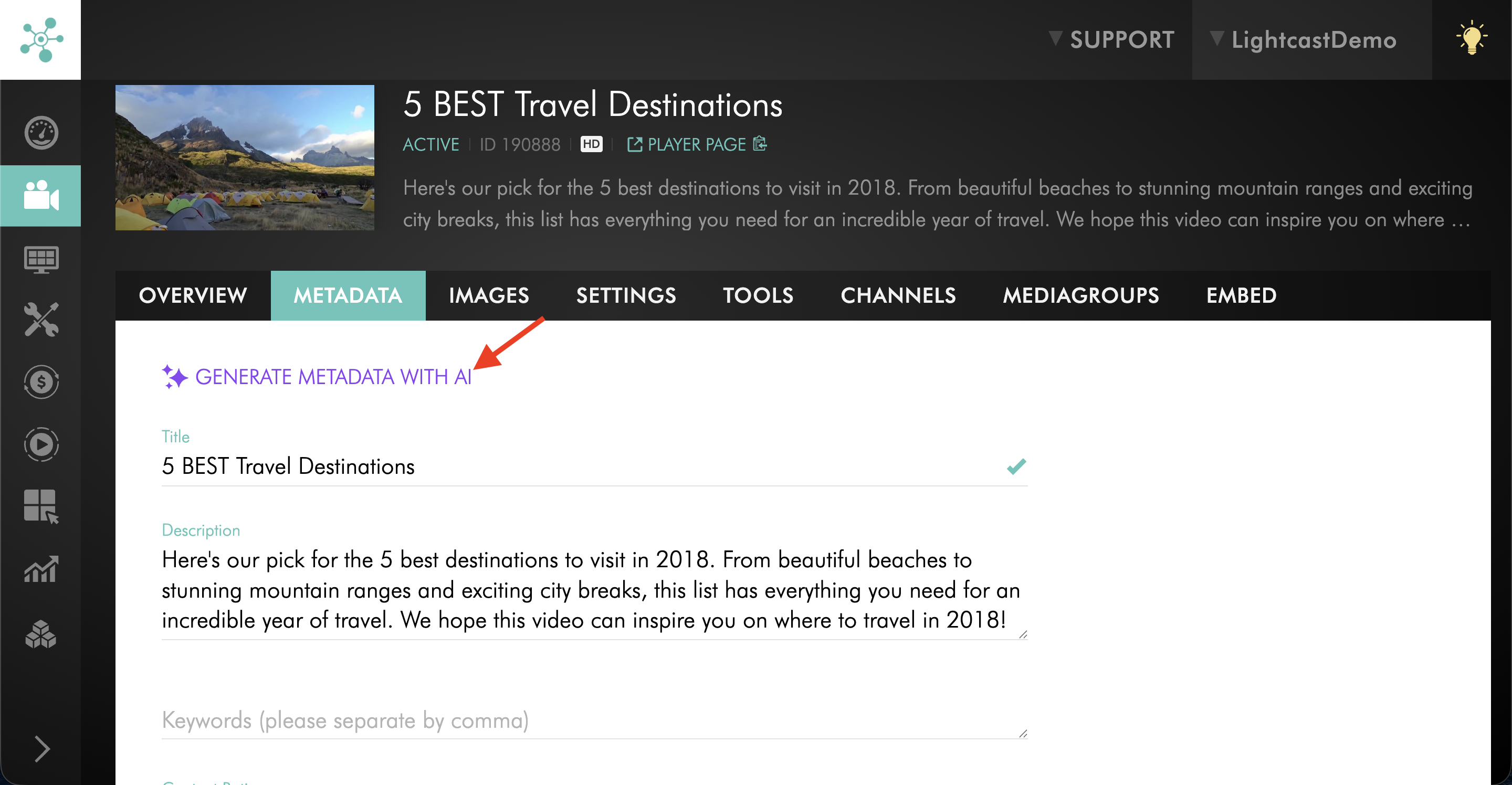
Open the media item’s METADATA tab, then click GENERATE METADATA WITH AI.
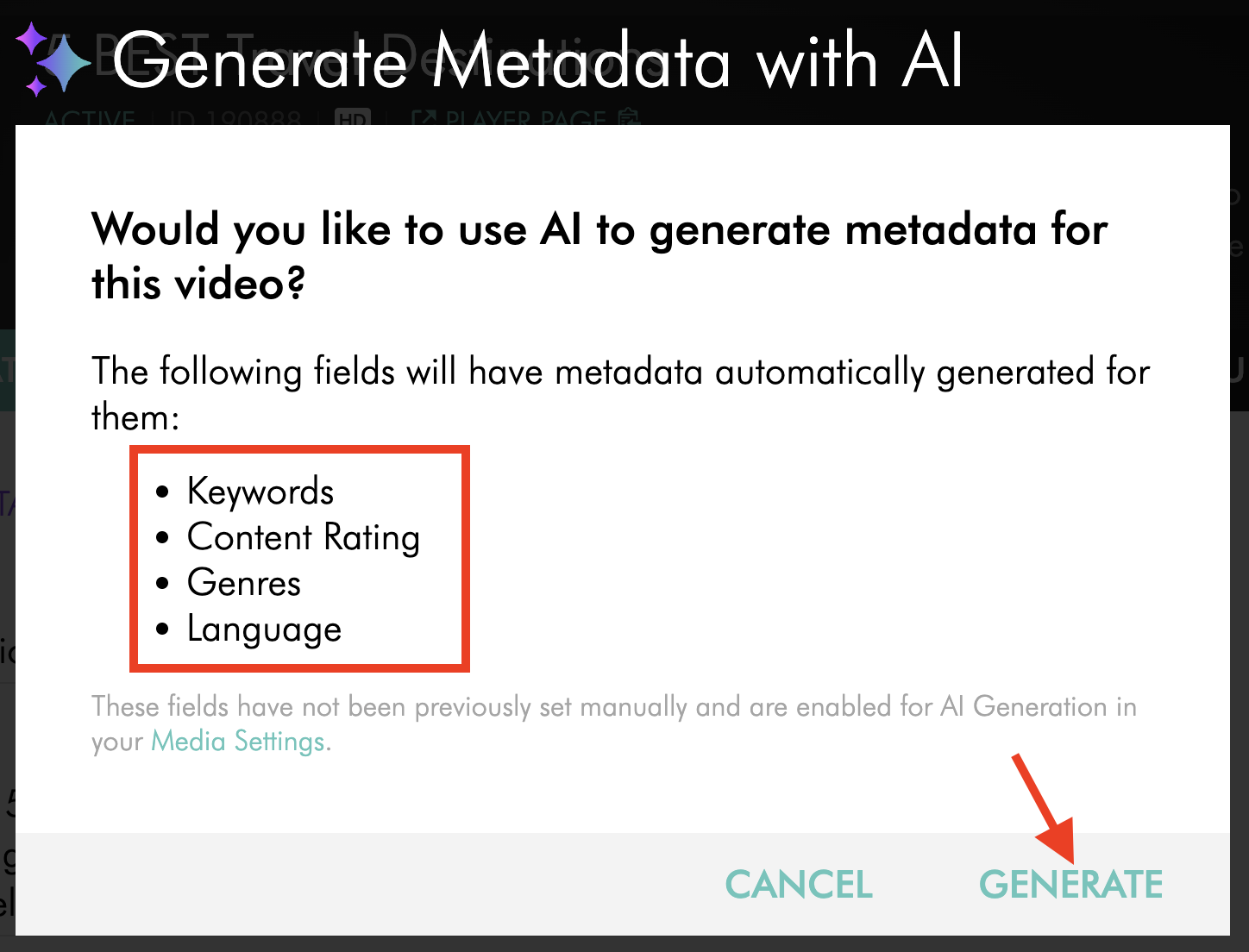
Step 2
In the pop-up window, review the metadata fields that AI will be able to generate, then click GENERATE.
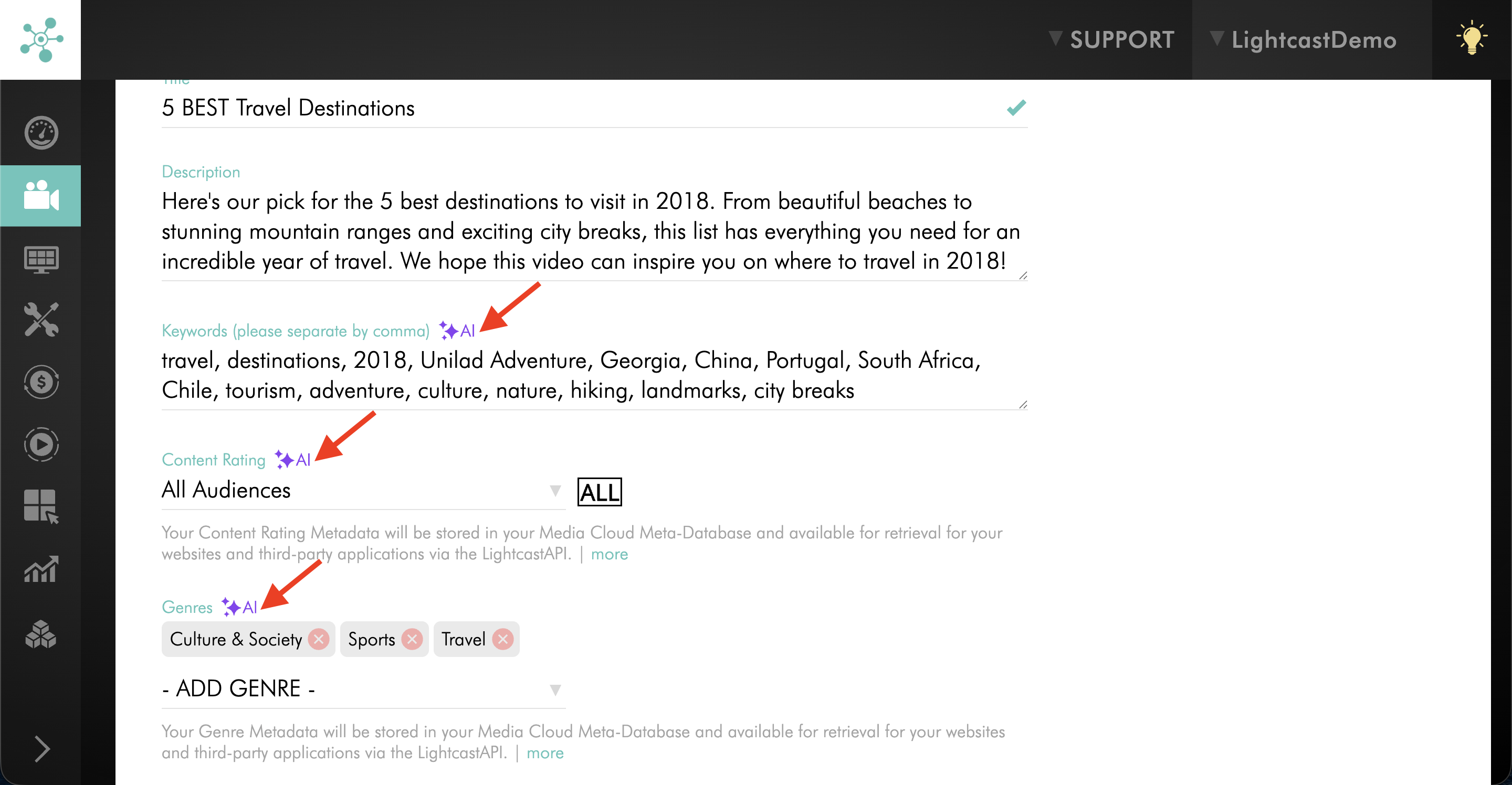
Step 3
Review the AI-generated metadata suggestions.
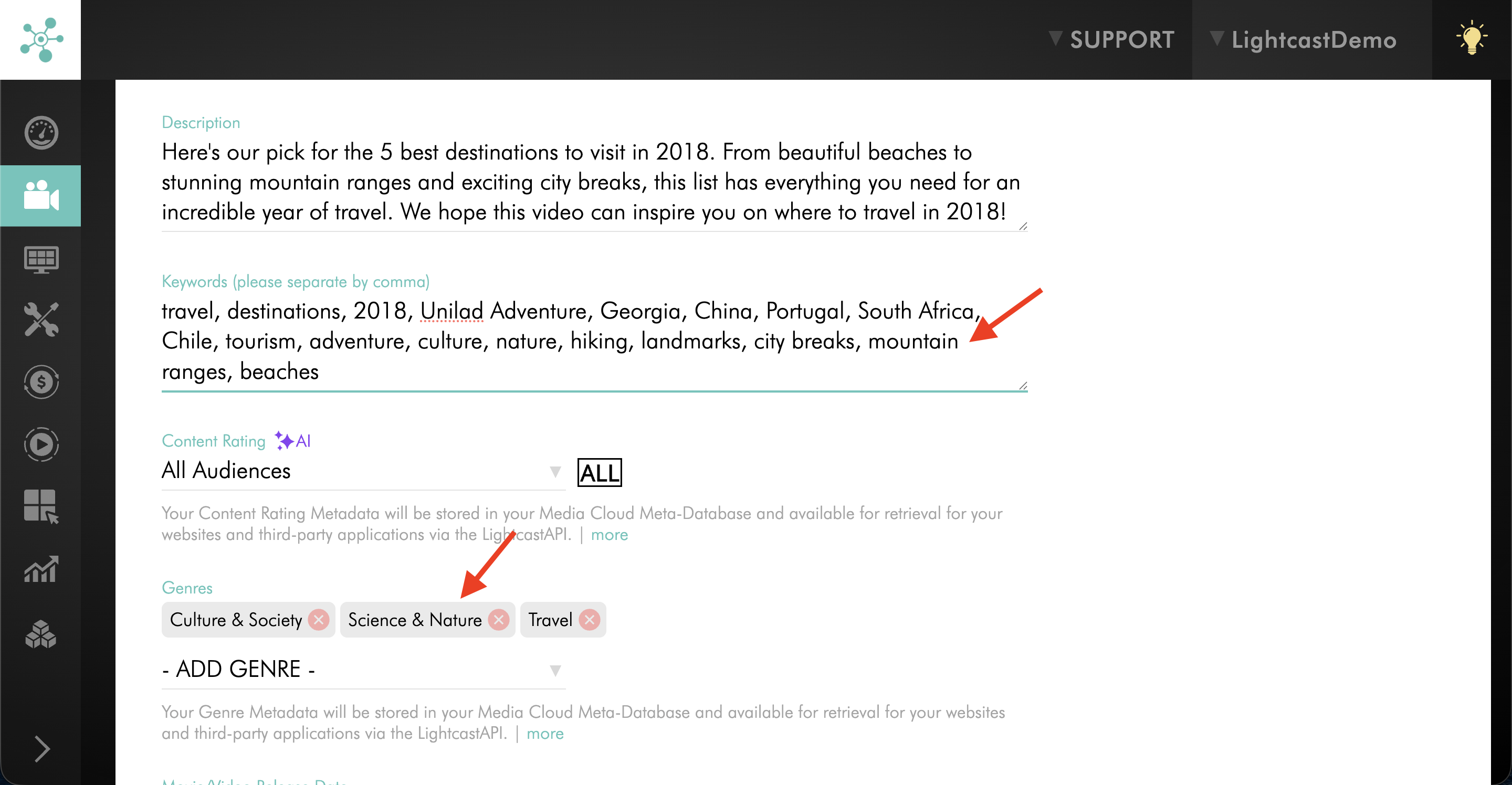
Step 4
Edit any fields if needed.
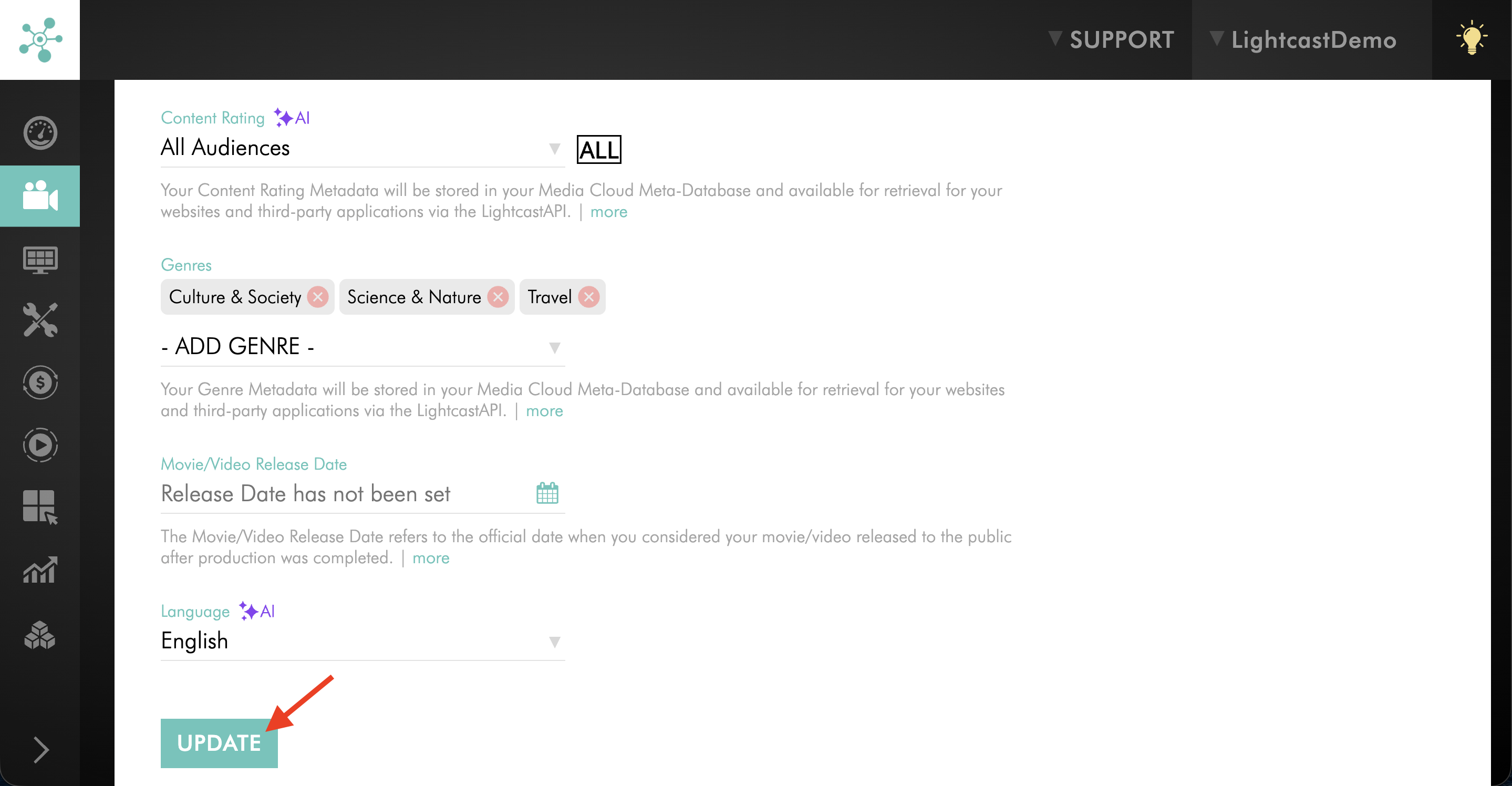
Step 5
Click UPDATE to save the media item’s metadata.
FAQs
Why is metadata important for video and audio files?
Metadata displays essential information about your content across your connected publishing properties. It helps support content presentation, automated publishing, and search functionality across websites, players, mobile apps, Web Apps, and TV apps.
Which metadata fields can be added or edited for an individual media item?
You can add or edit fields such as the Title, Description, Keywords, Content Rating, Genres, and Language for an individual video or audio file.
Can you edit AI-generated metadata?
Yes. You can review, edit, or replace any AI-generated metadata at any time.
Can I generate AI metadata for an existing video or audio item?
Yes. You can generate AI metadata for an individual media item after it has been uploaded to the Media Cloud.
Open the media item, go to the METADATA tab, and click GENERATE METADATA WITH AI. You can then review, edit, or replace the suggestions before saving.
How do I make AI metadata appear on all new uploads?
Enable the desired AI metadata fields in Media Settings before uploading or encoding media. For step-by-step instructions, see AI-generated metadata explained.
Which metadata fields can AI generate?
AI can generate the following metadata fields:
Title
Description
Keywords
Content Rating
Genres
Language
Will AI overwrite metadata that was entered manually?
No. Metadata that was entered manually or imported through the Lightcast API or MRSS feeds will not be altered by AI.
Does Lightcast support metadata for search and publishing?
Yes. The Media Cloud includes a metadata database and management system that stores metadata together with your media assets. This metadata can then be delivered through connected players, apps, APIs, and feeds to support search, dynamic content population, and publishing workflows.
Is it possible to batch upload metadata for media files?
Yes. Batch metadata upload can be achieved through the Ingest API in the Archives area or the MRSS Import in the MEDIA > MRSS Import area. This allows publishers to automate uploads of files, titles, descriptions, keywords, VOD Channel assignments, and publish or unpublish dates.
If your team has the required development resources, your database can also be connected to the Media Cloud and synced in real time through the Lightcast API.