
AI-generated metadata explained
Overview
This article explains what AI-generated metadata is in the Media Cloud, how it works, and how to manage the feature before you upload video or audio content.
When to use this article
Use this article when you want to save time by automatically generating metadata for your video or audio files instead of entering it manually.
This article is helpful when you want to:
Enable or disable automatic AI metadata generation for newly uploaded or encoded media.
Choose which metadata fields the AI should fill in automatically.
Understand how AI-generated metadata supports other AI-powered features, such as thumbnail and poster image generation.
How it works
When you upload a video or audio file, the Media Cloud analyzes the file during upload. It then automatically generates a transcription, creates closed captions in the original language, and suggests metadata for the media item.
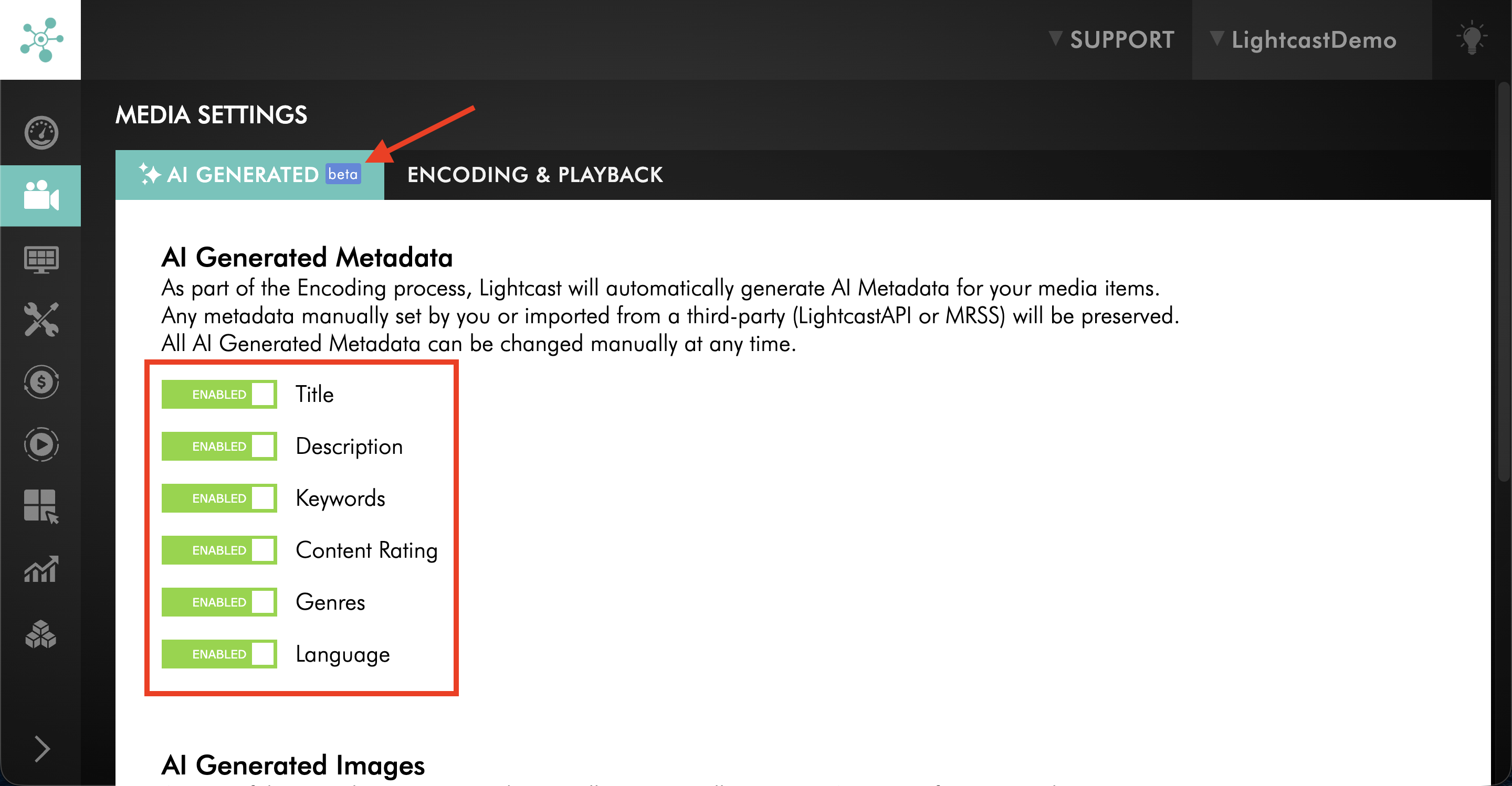
AI-generated metadata can include a Title, Description, Keywords, Content Rating, Genres, and Language.
The AI-generated metadata appears in the METADATA tab of the media item. You can review each suggestion, edit it, or replace it with your own metadata at any time.
By default, AI-generated metadata is enabled. You can adjust which fields the AI should fill in automatically for newly uploaded or encoded media in the Media Settings area before uploading content.
Metadata that is entered manually or imported through LightcastAPI or MRSS is not changed by AI.
How AI-generated metadata supports AI-generated images
AI-generated metadata can also support AI-generated thumbnail images and Poster Images. Both features require a Title and Description for the media item before an AI image can be generated.
When AI-generated metadata is enabled for the Title and Description fields, the Media Cloud can automatically create this information for newly uploaded or encoded media. This helps support automatic AI image generation when the corresponding image settings are also enabled.
For more information, see AI-generated thumbnail images explained.
Generating AI metadata for individual media items
You can also generate AI metadata later for an individual media item from the METADATA tab.
For step-by-step instructions, see How to add and edit metadata for your video and audio files.
Instructions
Manage AI-generated metadata settings before uploading media
Step 1
Log in to your Media Cloud account.
Step 2
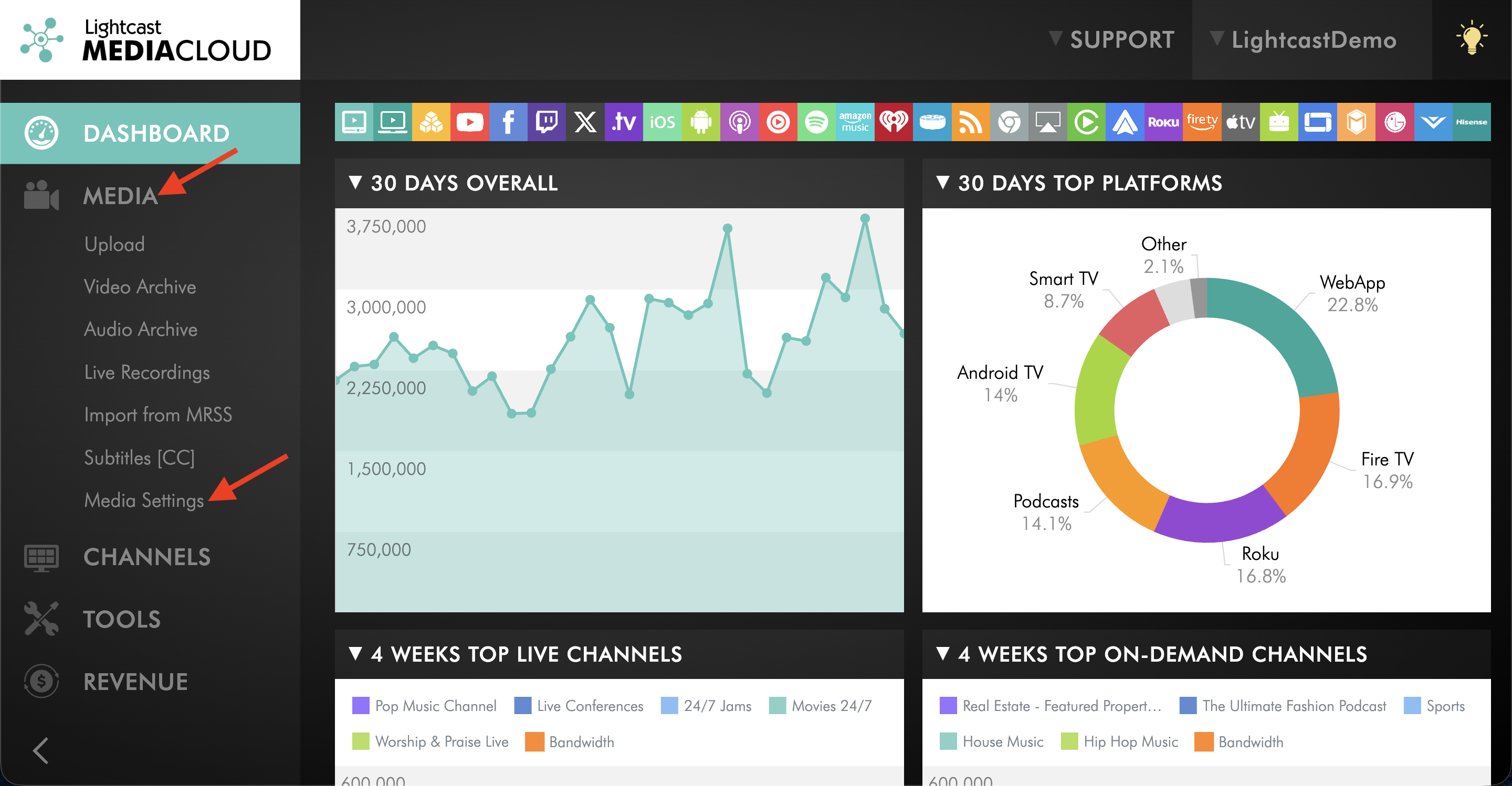
Go to MEDIA, then open Media Settings.
Step 3
On the AI GENERATED tab, review the metadata fields that can be generated automatically.
Step 4
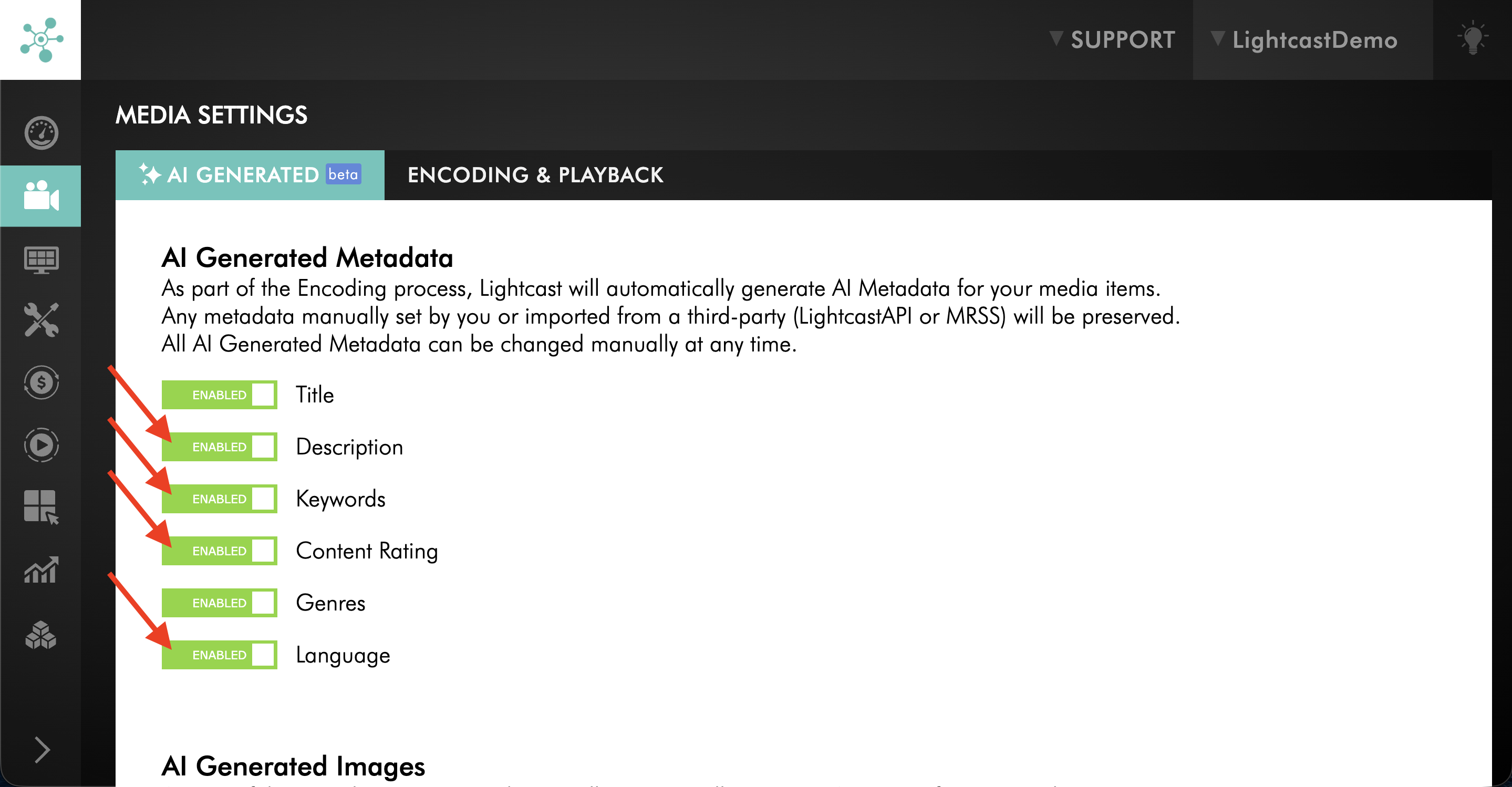
Keep the fields you want the AI to fill in for newly uploaded or encoded media ENABLED.
Step 5
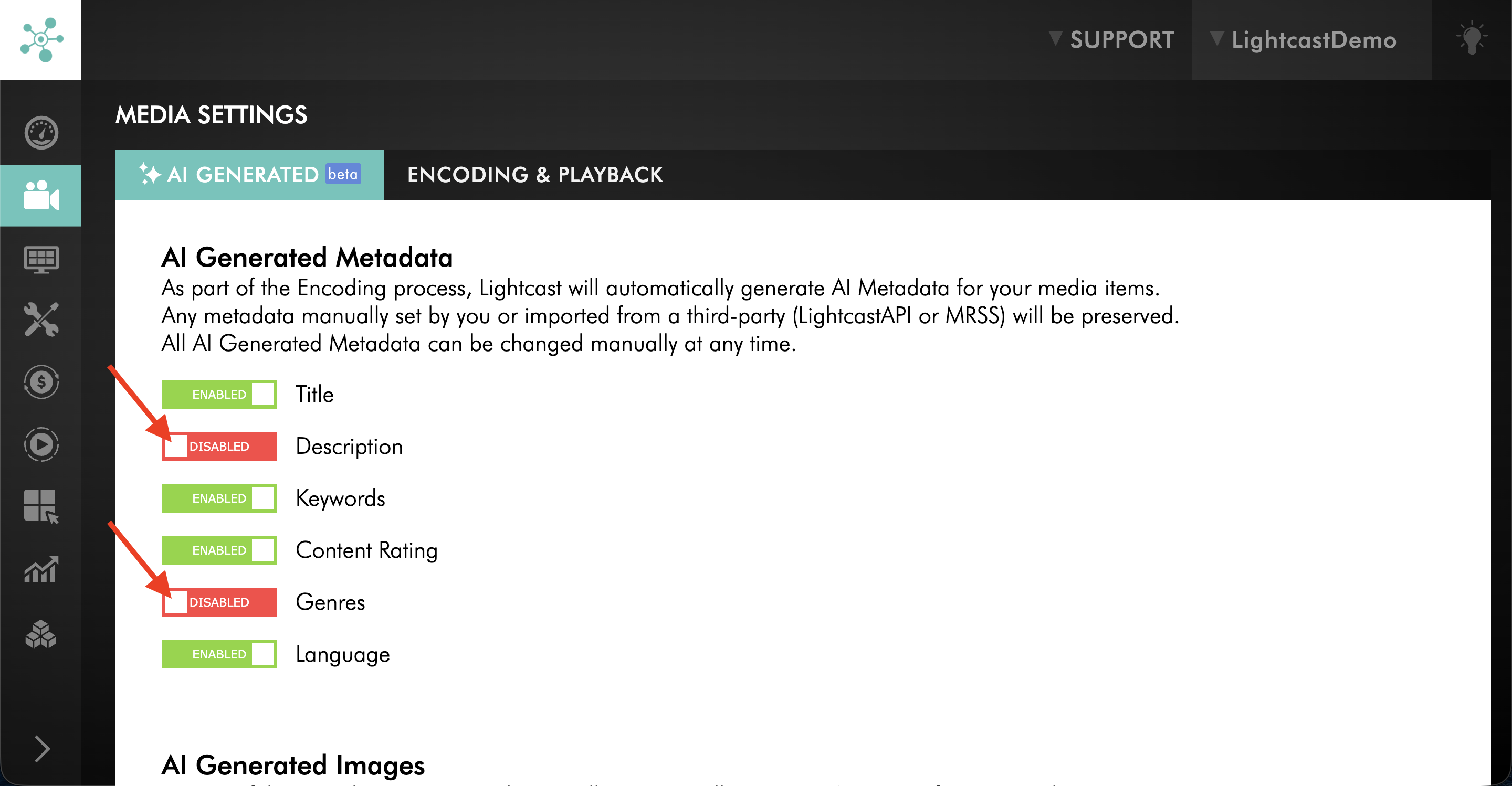
DISABLE any fields you prefer to complete manually.
Step 6
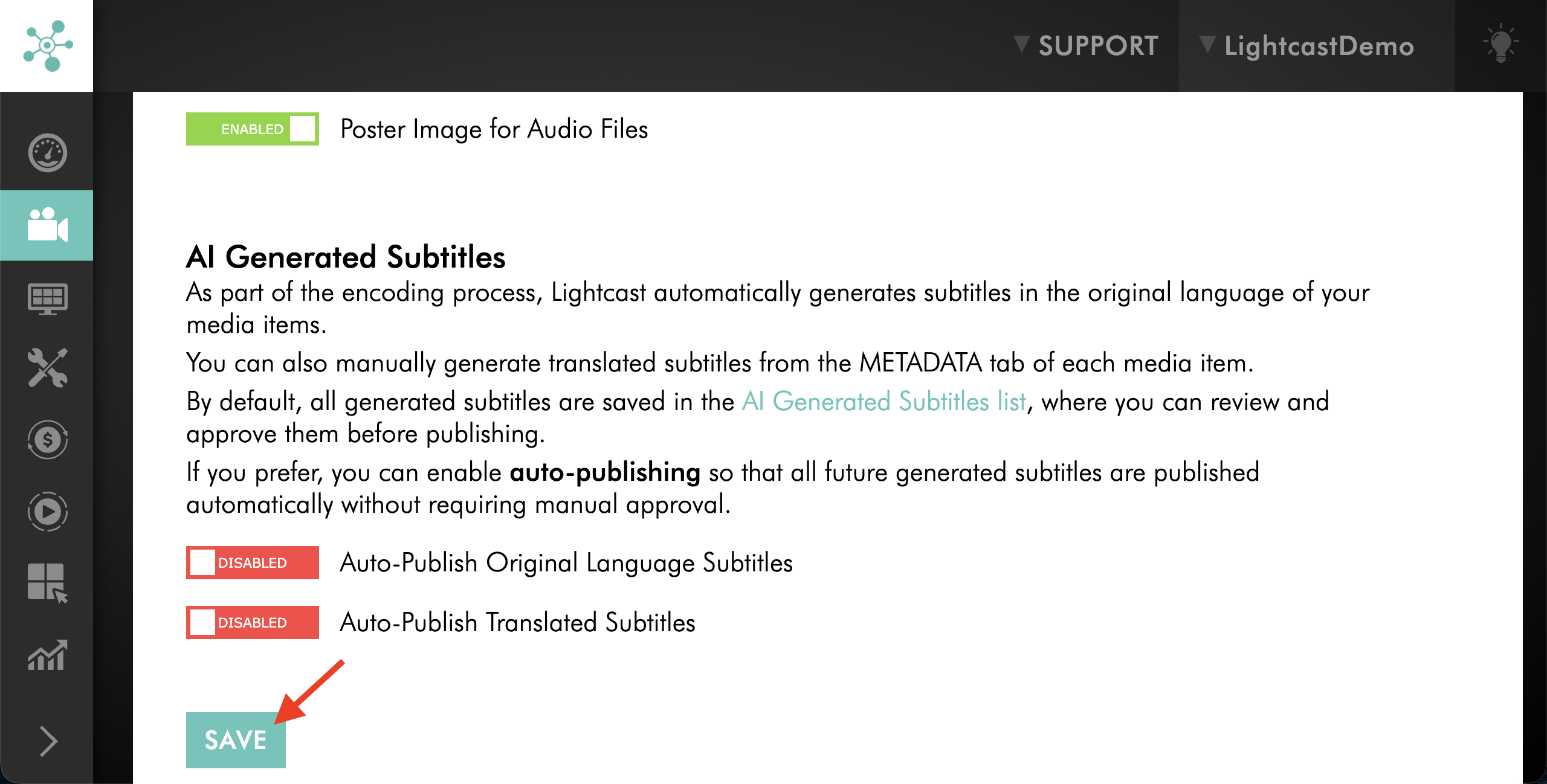
Click SAVE to update your AI metadata preferences.
FAQs
What does AI-generated metadata include?
AI-generated metadata can include a Title, Description, Keywords, Content Rating, Genres, and Language.
Can I edit AI-generated metadata?
Yes. You can review, edit, or replace AI-generated metadata at any time.
Is AI-generated metadata enabled automatically?
Yes. AI-generated metadata is enabled by default.
Can I choose which metadata fields the AI fills in?
Yes. In Media Settings, you can turn individual metadata fields on or off for newly uploaded or encoded media.
Does AI-generated metadata change metadata I entered myself?
No. Metadata that is entered manually or imported through LightcastAPI or MRSS is not changed by AI.
Can I generate metadata for individual media items?
Yes. You can generate AI metadata later for an individual media item from the METADATA tab.
For step-by-step instructions, see How to add and edit metadata for your video and audio files.
How can I tell which fields were generated by AI?
Look for the purple AI icon next to the metadata field.
Pricing
AI-generated metadata is available on POWER packages and up.
If you do not have access to this feature, you can upgrade to one of our latest plans or contact your account manager.