
How to add or change thumbnails for your video and audio files
Overview
This article explains how to add or change the thumbnail for an individual video or audio file in the Media Cloud.
When to use this article
Use this article when you want to update the thumbnail image for an individual media item after it has been uploaded to the Media Cloud.
This article is helpful when you want to:
Upload your own custom thumbnail image.
Select a different thumbnail from the available image options.
Generate a new AI thumbnail image for an existing media item.
Review and select an AI-generated thumbnail image.
How it works
Thumbnails help give your media a more polished and professional appearance. They can improve how your content looks in galleries and help strengthen your brand presentation across your publishing properties.
Every video and audio item in the Media Cloud will display a thumbnail image. If you do not upload your own image, the system will display either an automatically generated thumbnail, an AI-generated thumbnail when available, or a default placeholder image depending on the media type and your settings.
For video files, the system automatically creates thumbnail images from the video during processing. One image is selected automatically so the item is ready for publishing right away. Once the video has finished encoding, you can select a different thumbnail from the available image options.
For audio files, if you do not upload your own thumbnail image and AI Thumbnail Generation is not being used, the system will show a simple gray thumbnail with a speaker icon until you upload your own image.
AI-generated thumbnail images
The Media Cloud can automatically create an AI-generated thumbnail during encoding when AI Thumbnail Generation is enabled in your Media Settings.
You can also manually generate AI thumbnail images for an individual video or audio item after it has been uploaded, even if automatic AI Thumbnail Generation was not enabled when the media was originally uploaded.
For AI-generated thumbnails to be created, the media item must have both a Title and a Description. These fields can be entered manually or generated using AI metadata.
You can generate a maximum of three AI thumbnail images per media item, including any that were automatically generated during encoding.
For more information about automatic AI Thumbnail Generation and how to manage the settings, see AI-generated thumbnail images explained.
Selecting and replacing thumbnail images
The Thumbnail Selector allows you to choose between AI-generated, auto-generated, and custom-uploaded thumbnails.
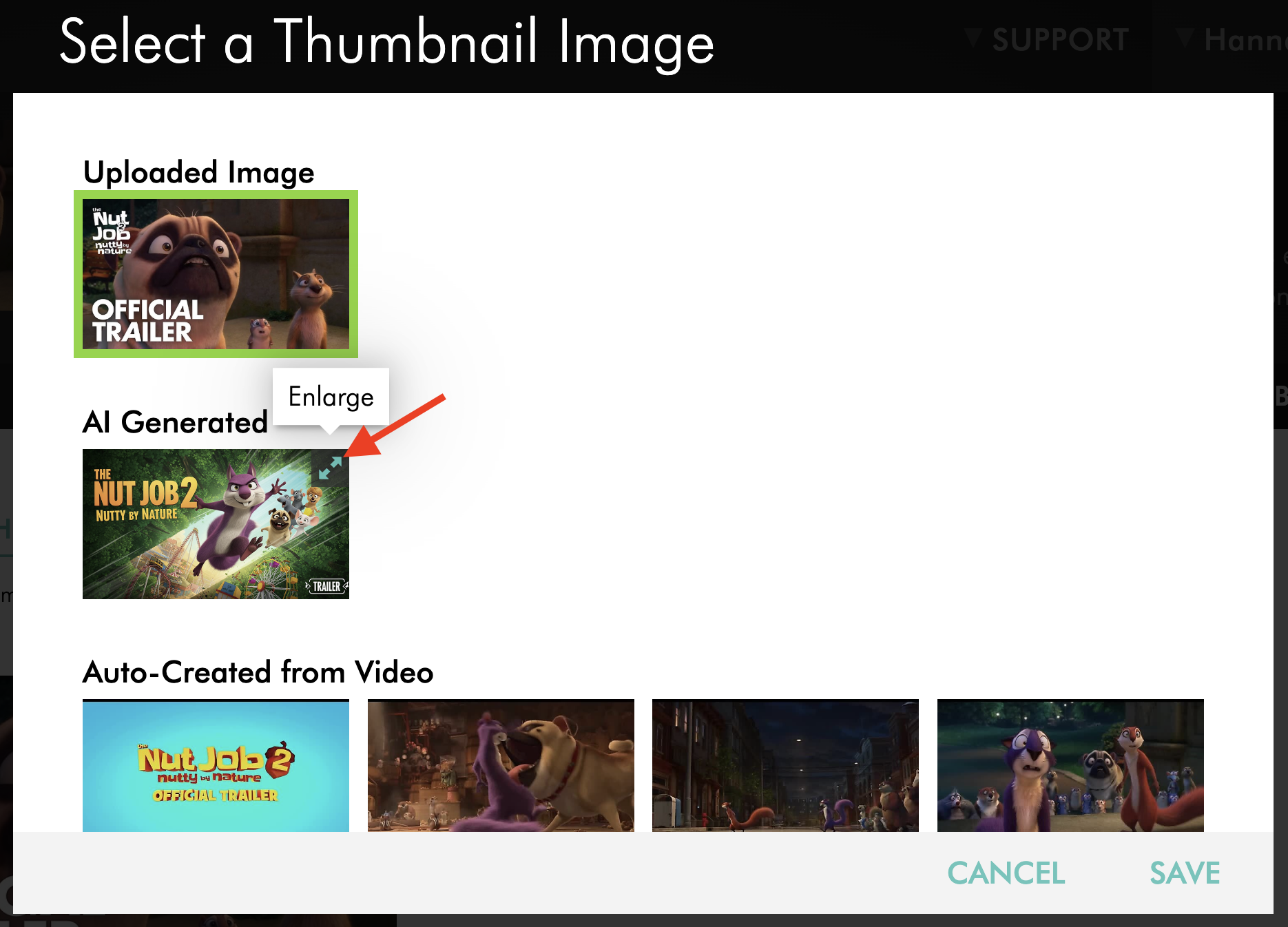
You can preview the available images in an enlarged view before selecting the thumbnail you want to use.
If you upload your own thumbnail image, it will replace the currently selected thumbnail. Images imported through LightcastAPI or MRSS feeds are preserved and are not overwritten by AI-generated thumbnails.
Instructions
To add or change the thumbnail for an individual media item, first open the item in the Media Cloud and navigate to the IMAGES tab.
Step 1
Log in to your Media Cloud account.
Step 2
Go to MEDIA, then open the Video Archive or Audio Archive.
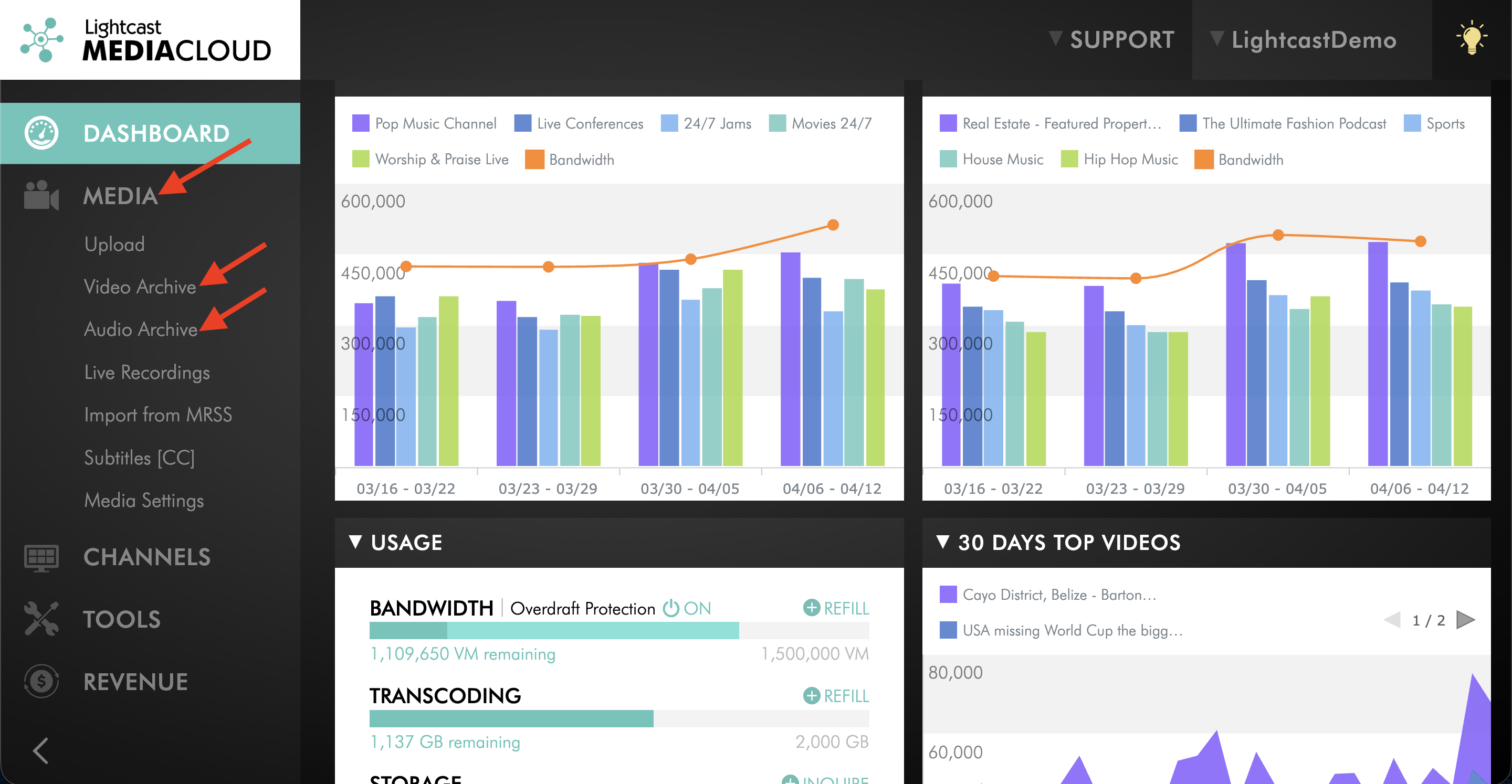
Step 3
Select the individual media item you want to update.
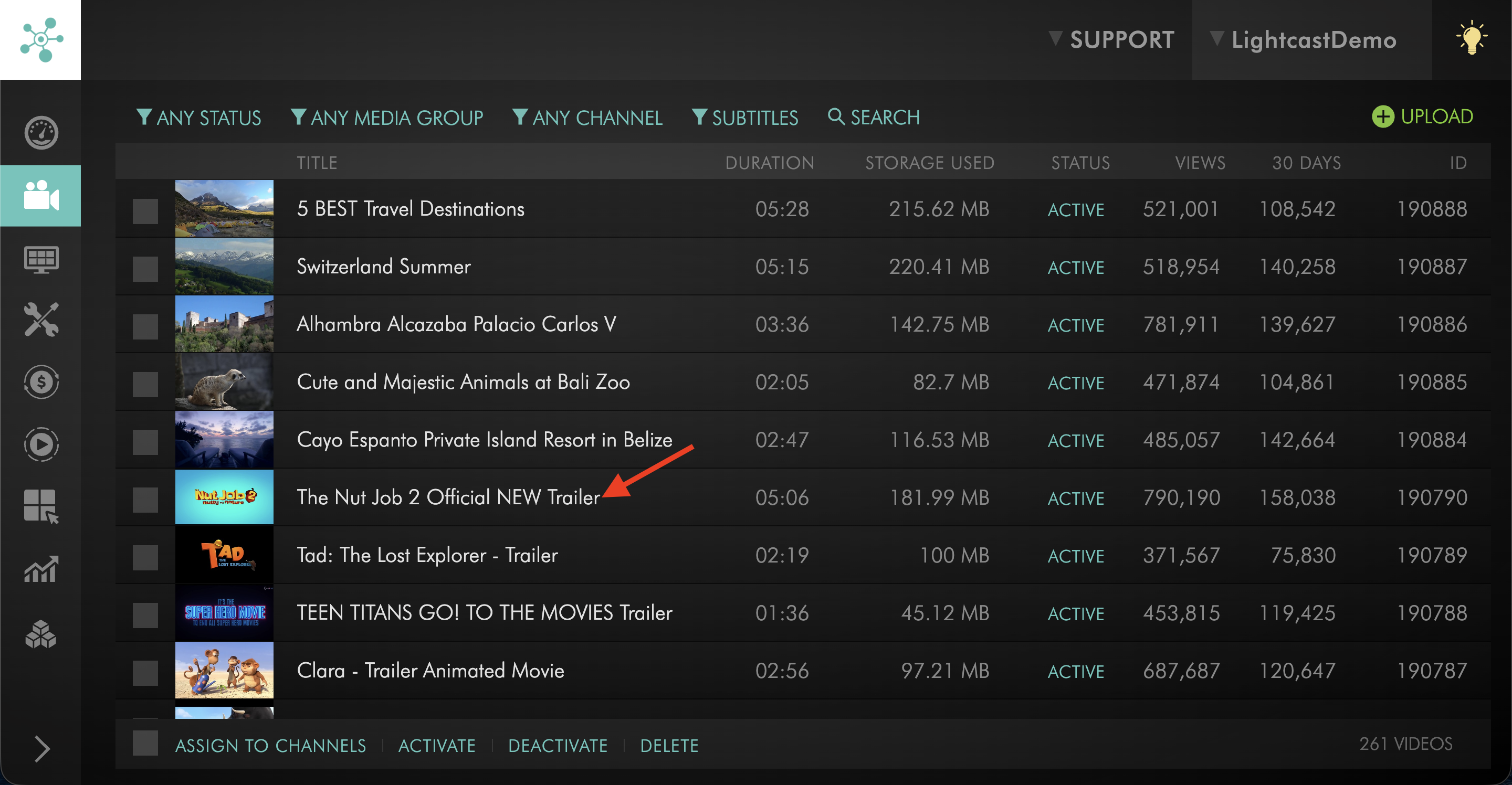
Step 4
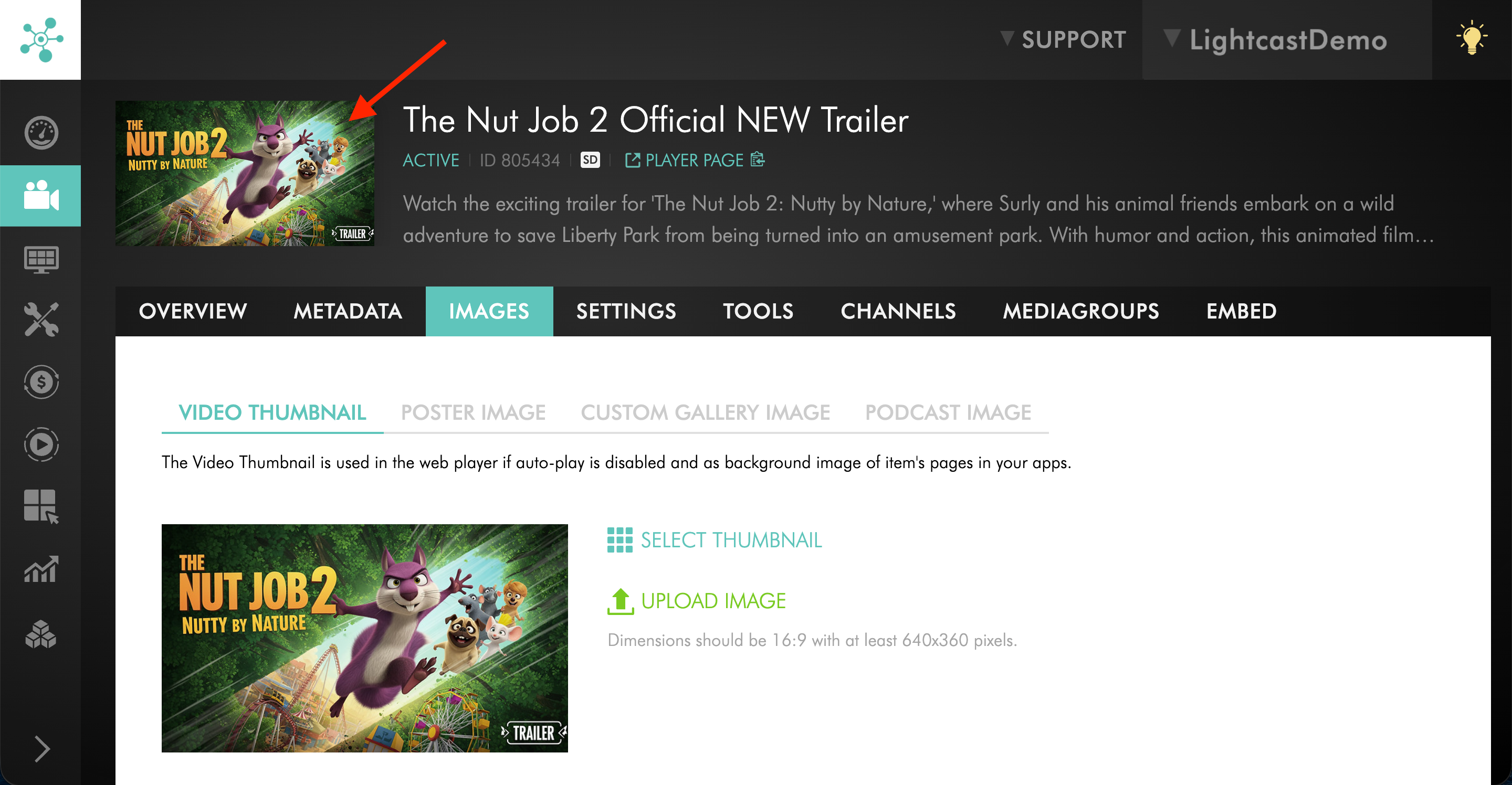
Switch to the IMAGES tab.
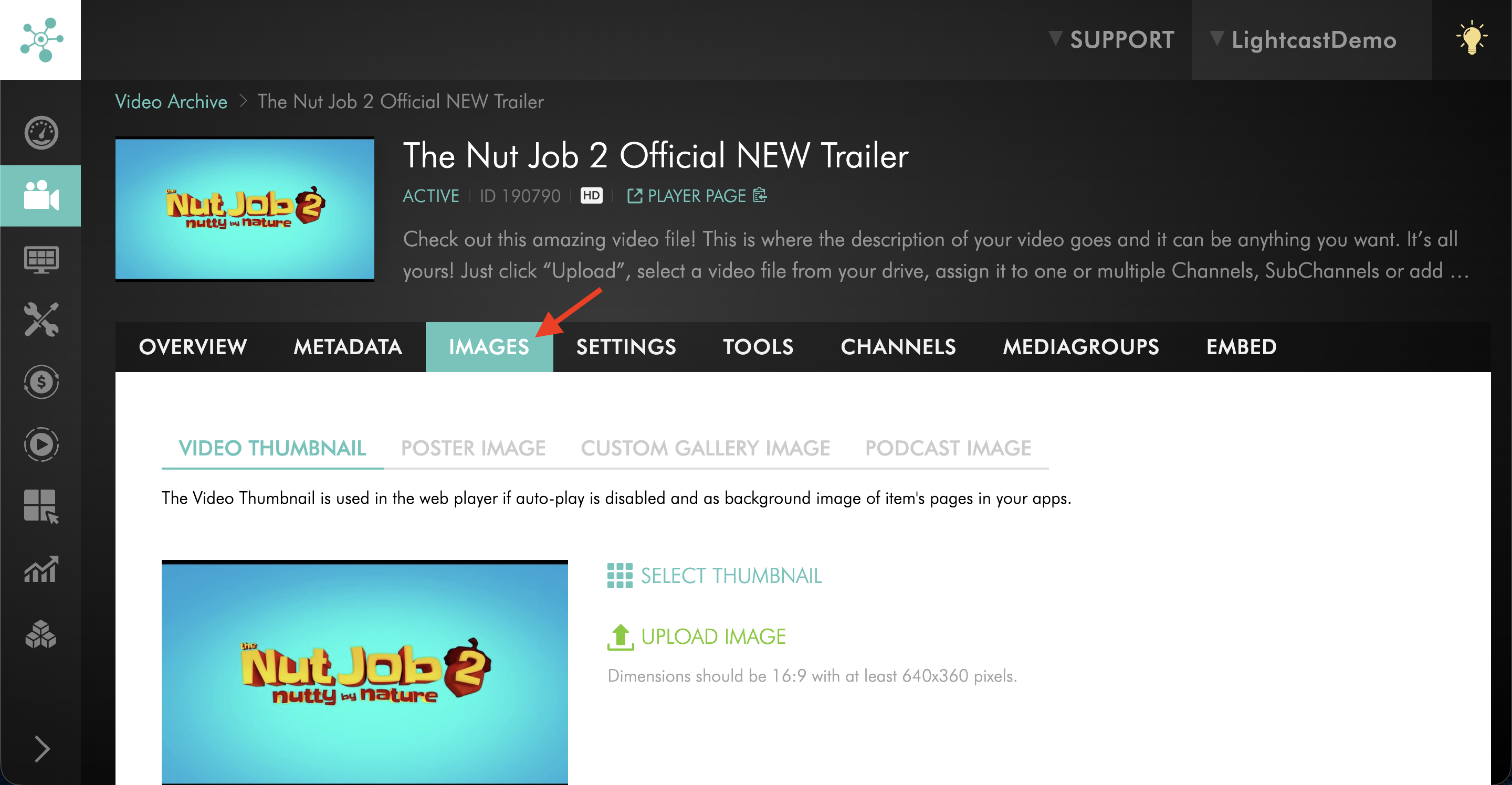
There are four ways to add or change the thumbnail for an individual media item.
Option 1: Upload your own thumbnail image
Use this option when you want to add branded artwork, cover art, series artwork, show graphics, or another custom image.
Step 1
On the media item’s IMAGES tab, click UPLOAD IMAGE.
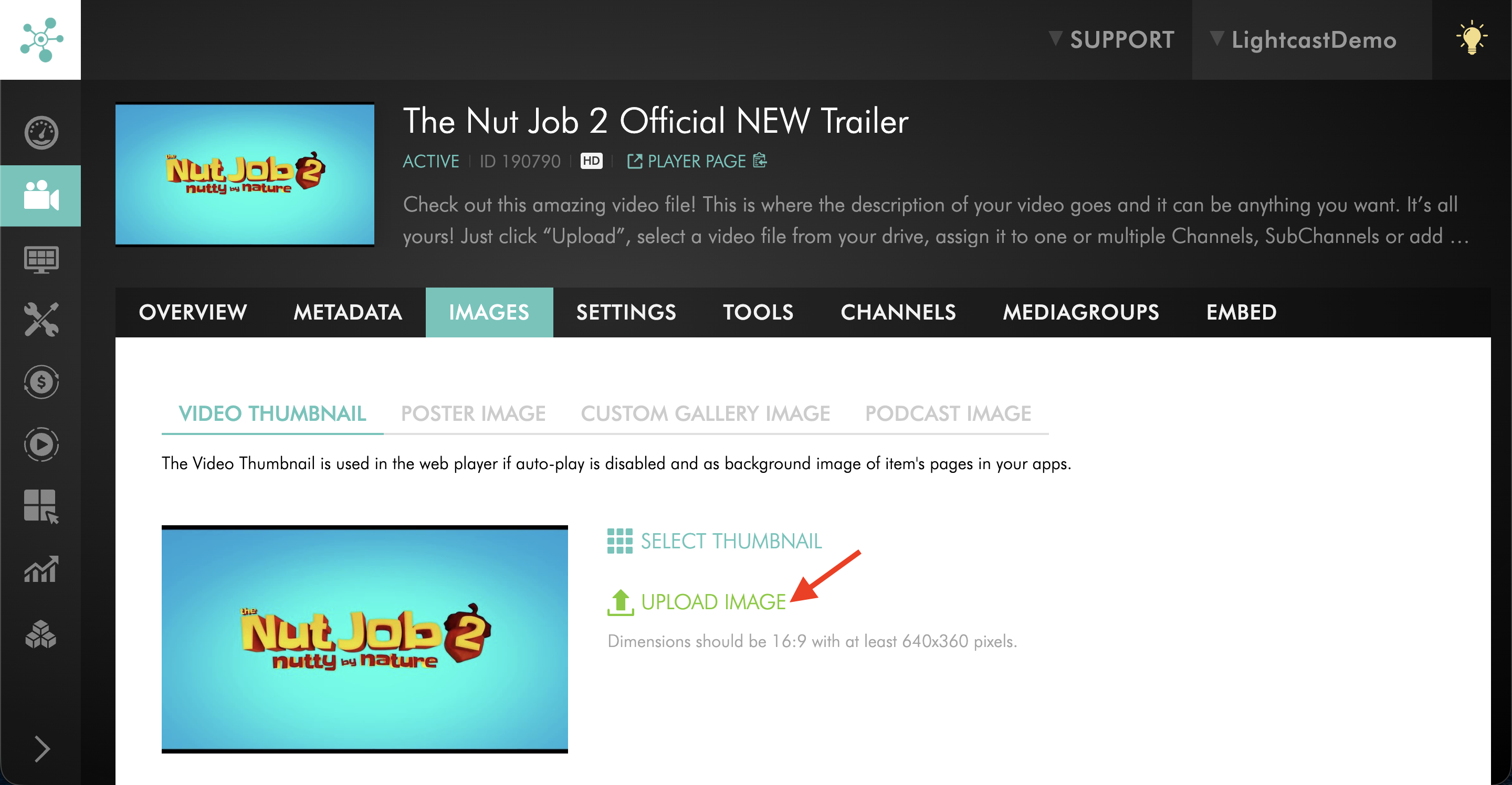
Step 2
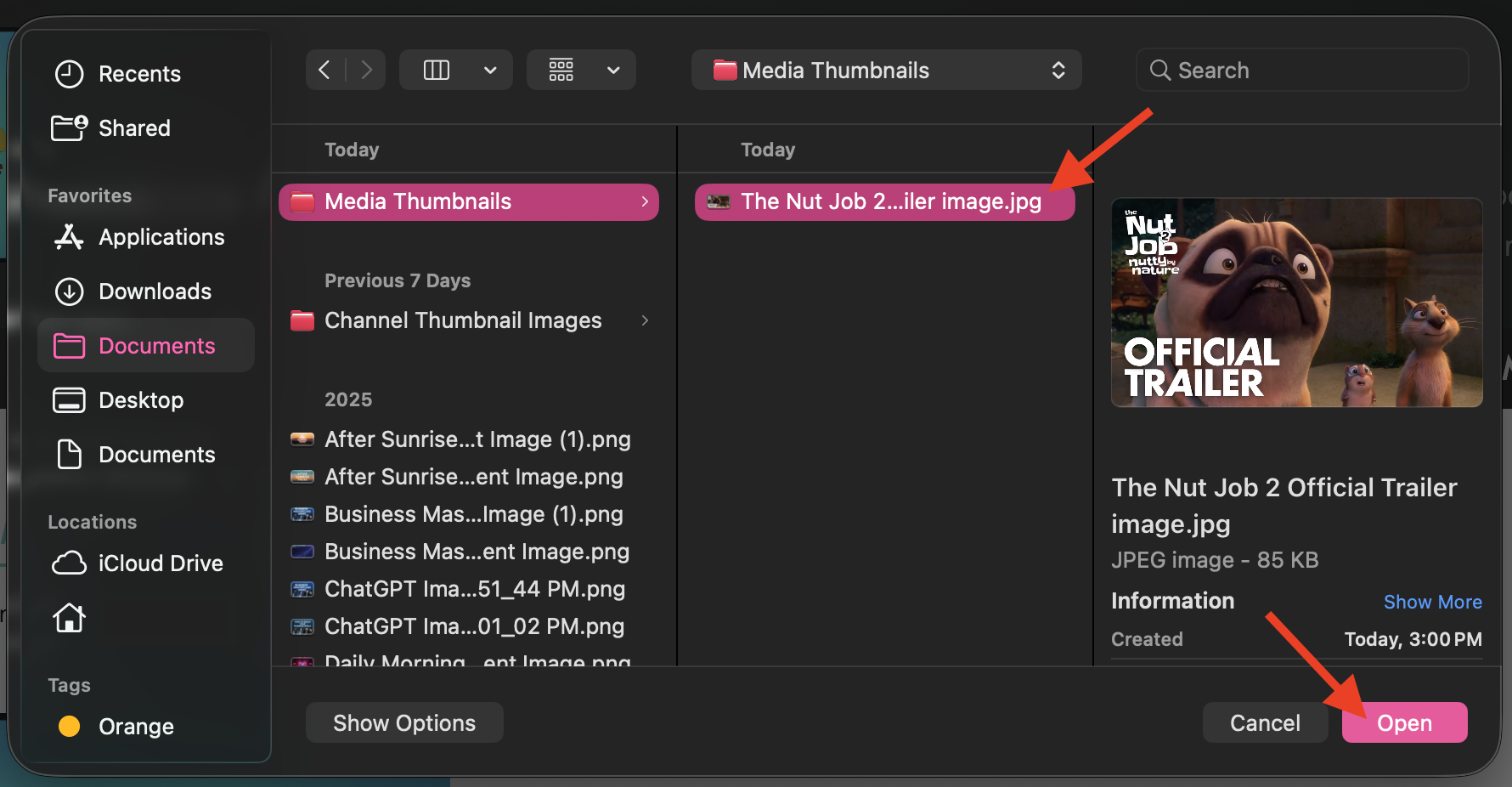
In the pop-up window, select your image file and click Open. You can upload your own image as a .jpg or .png file.
Step 3
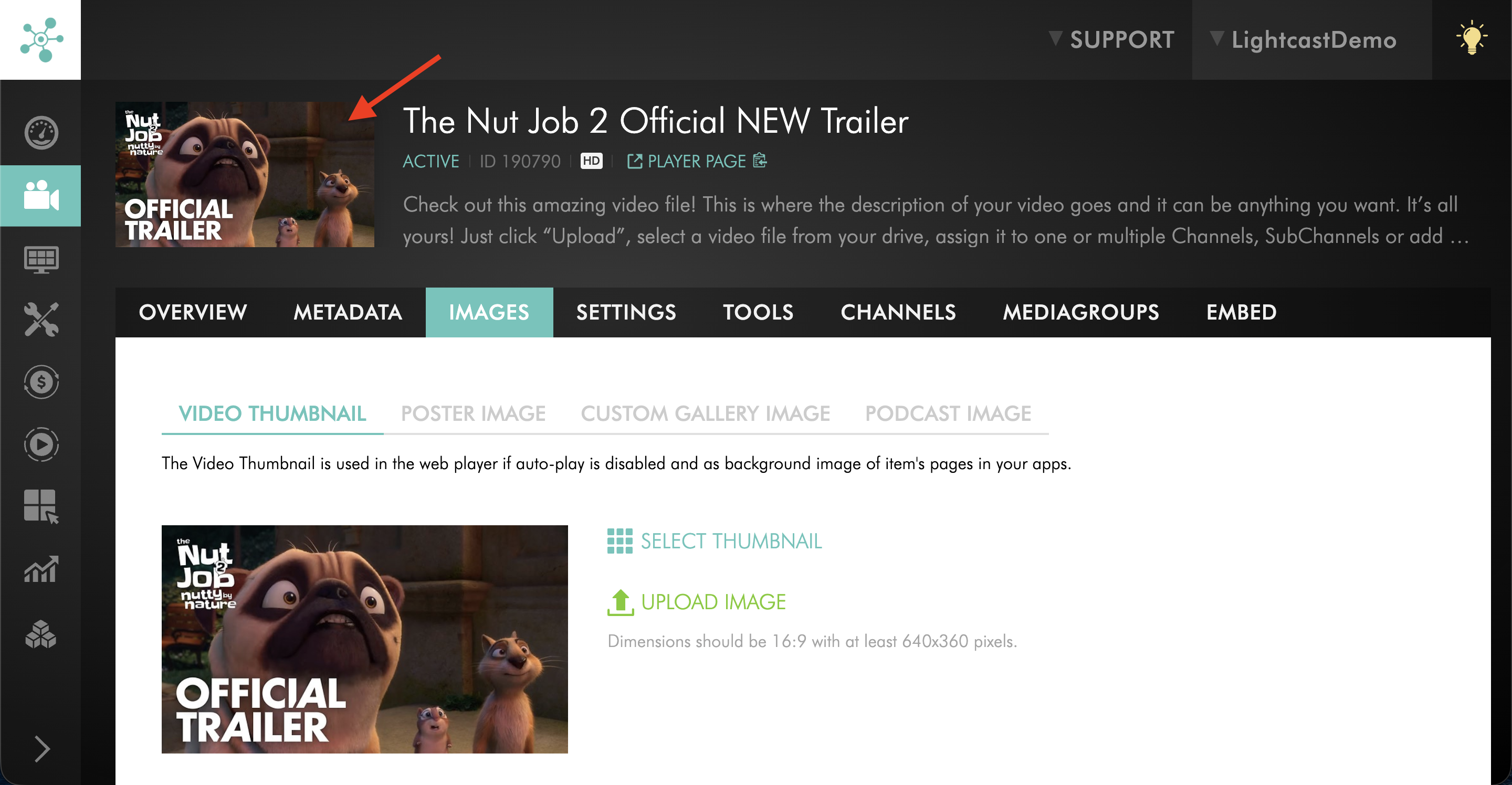
The uploaded image immediately replaces the currently selected thumbnail.
Option 2: Select one of the auto-generated thumbnail images
Use this option for video files when you want to choose an auto-generated thumbnail image that was automatically created from the video during processing.
Step 1
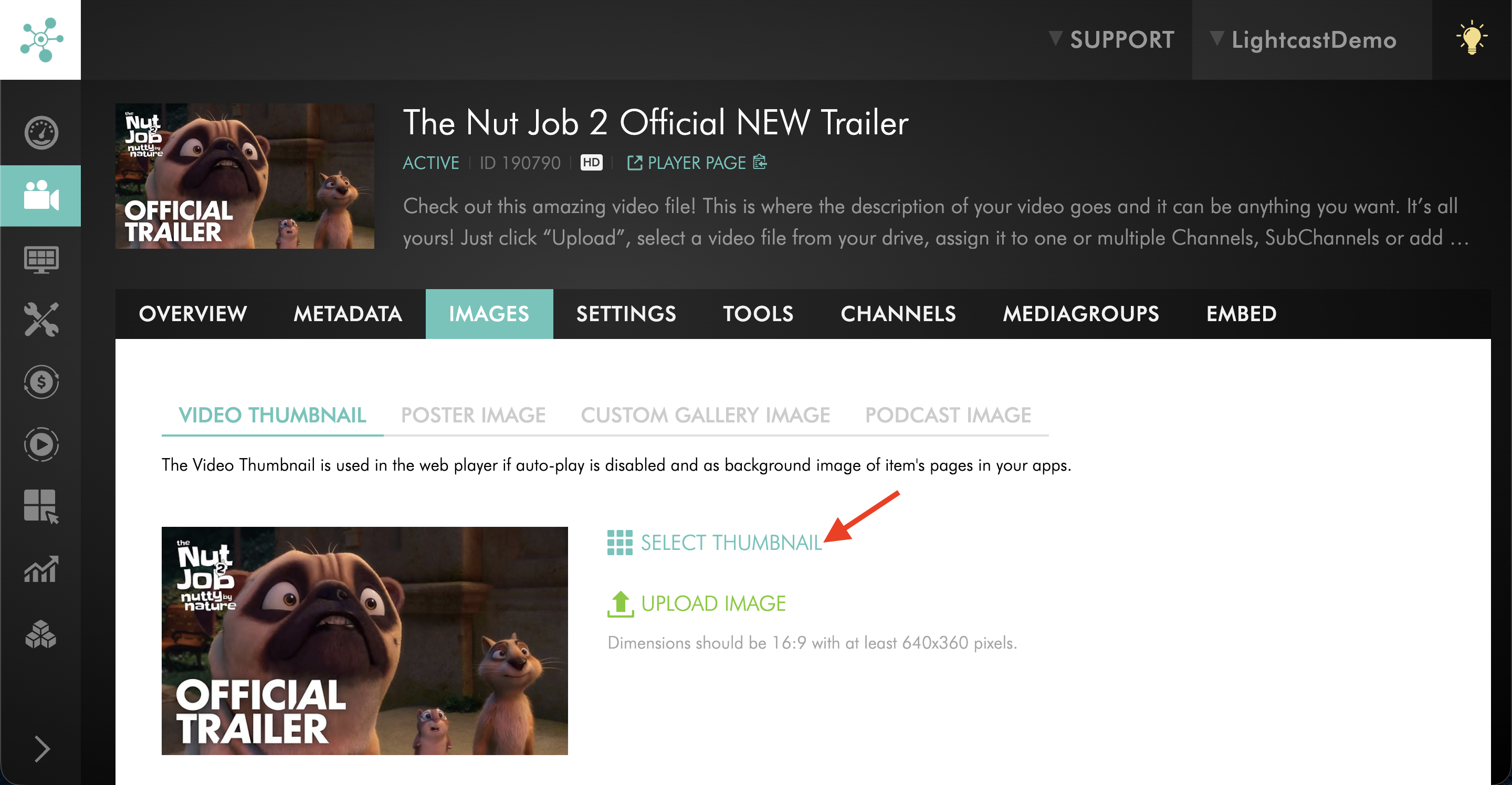
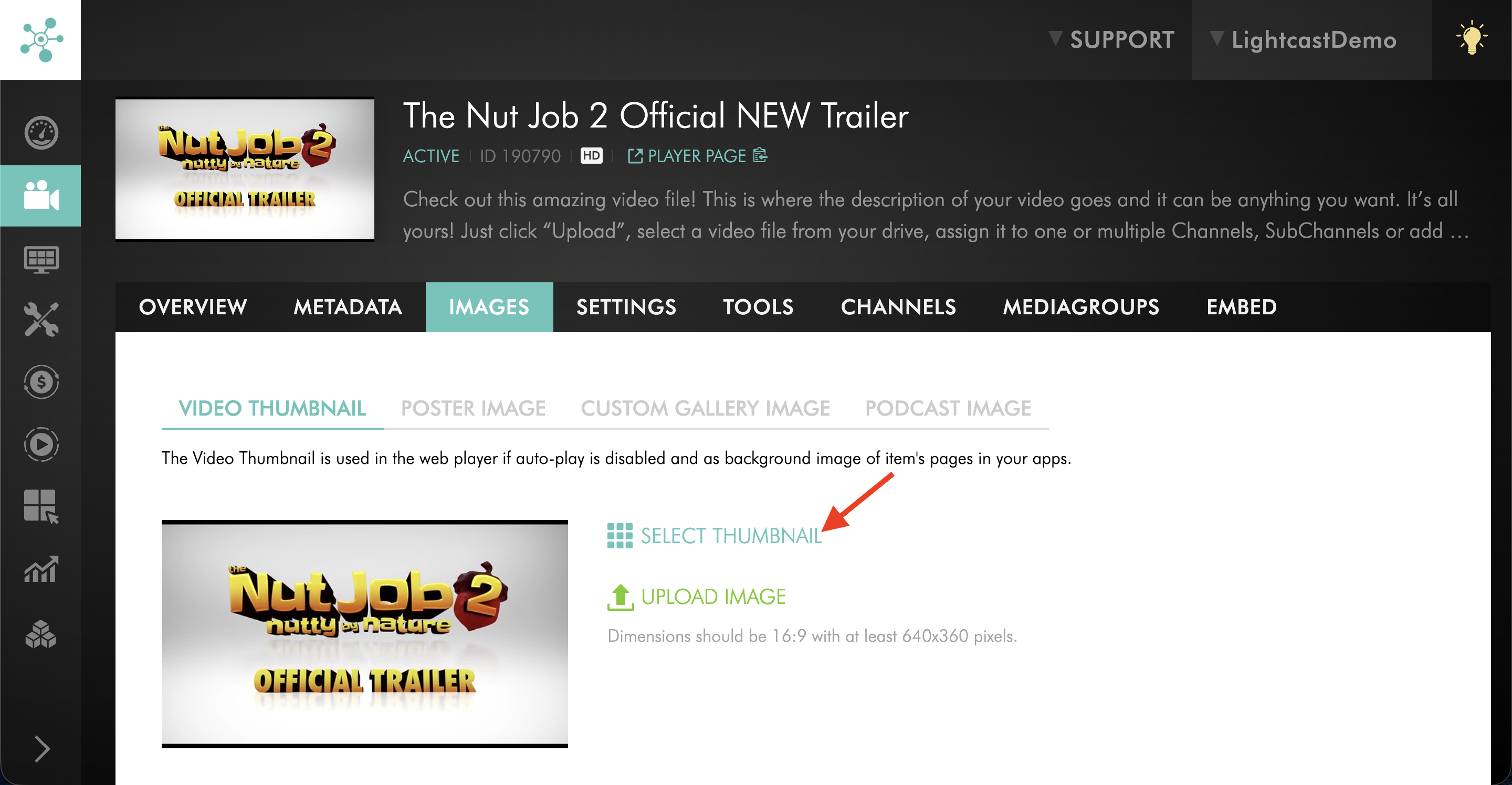
On the media item’s IMAGES tab, click SELECT THUMBNAIL to open the thumbnail selector.
Step 2
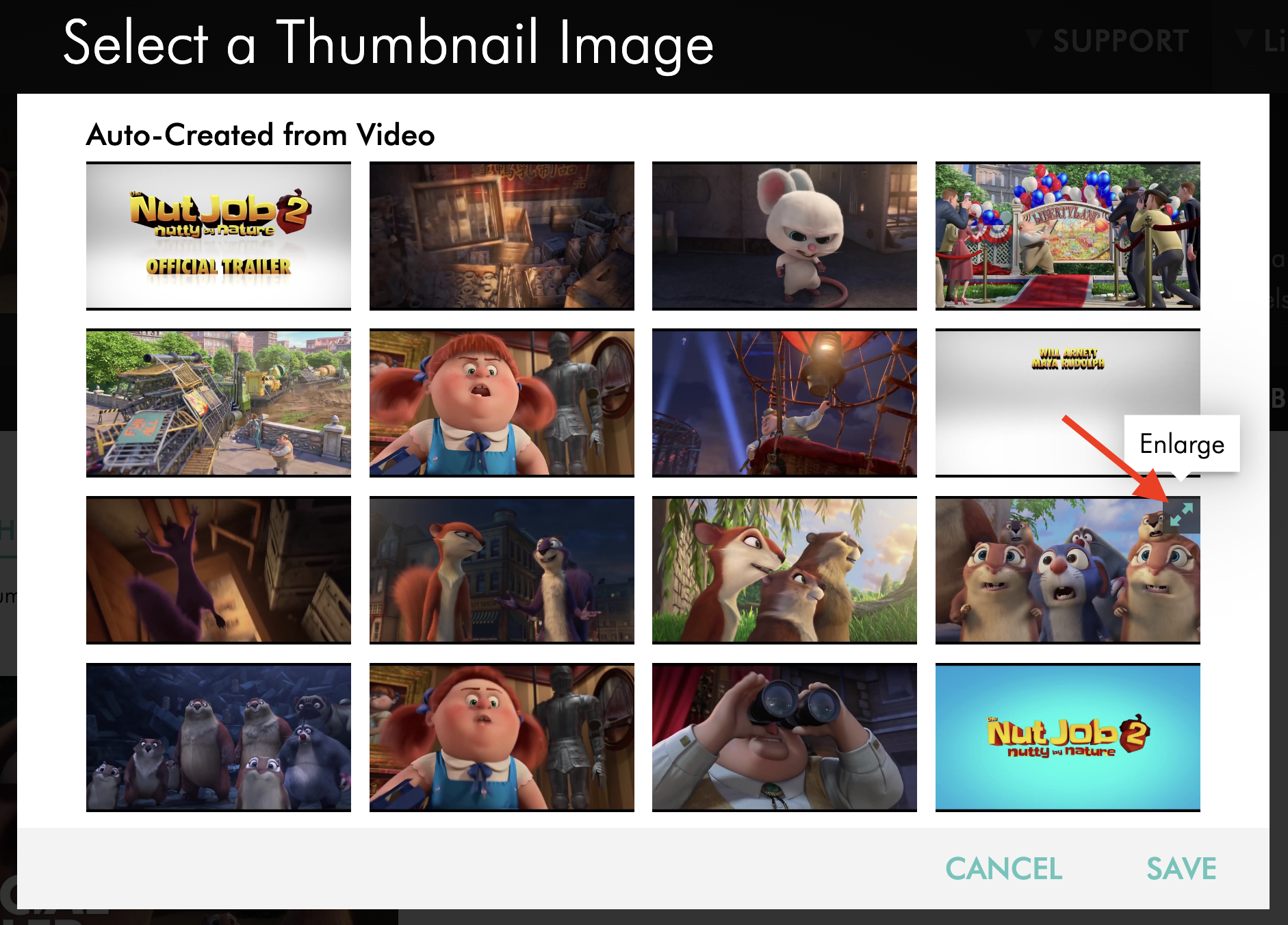
Review the auto-generated thumbnail image options using the ENLARGE arrows to make the thumbnail previews bigger.
Step 3
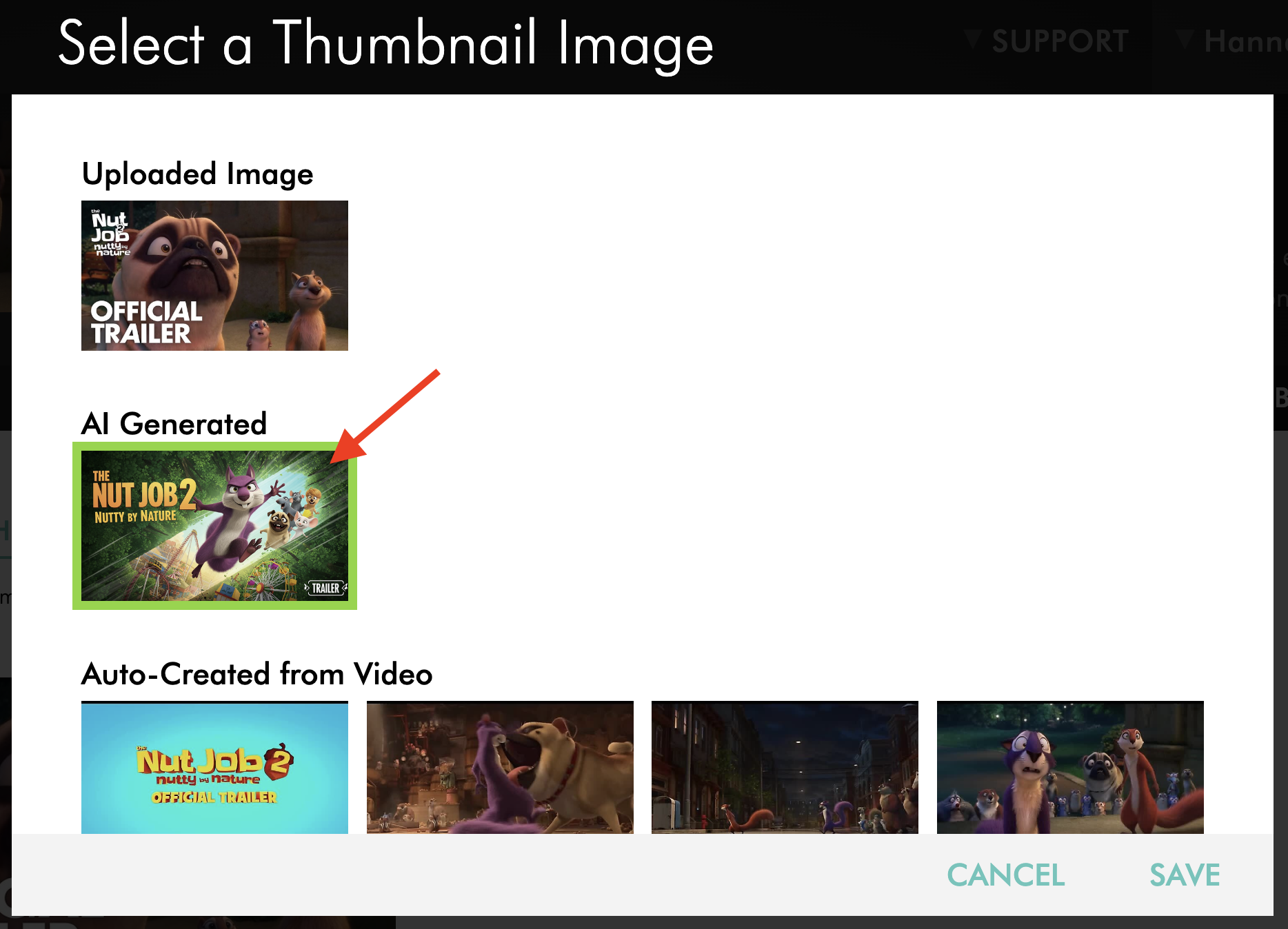
Select the image you want to use.
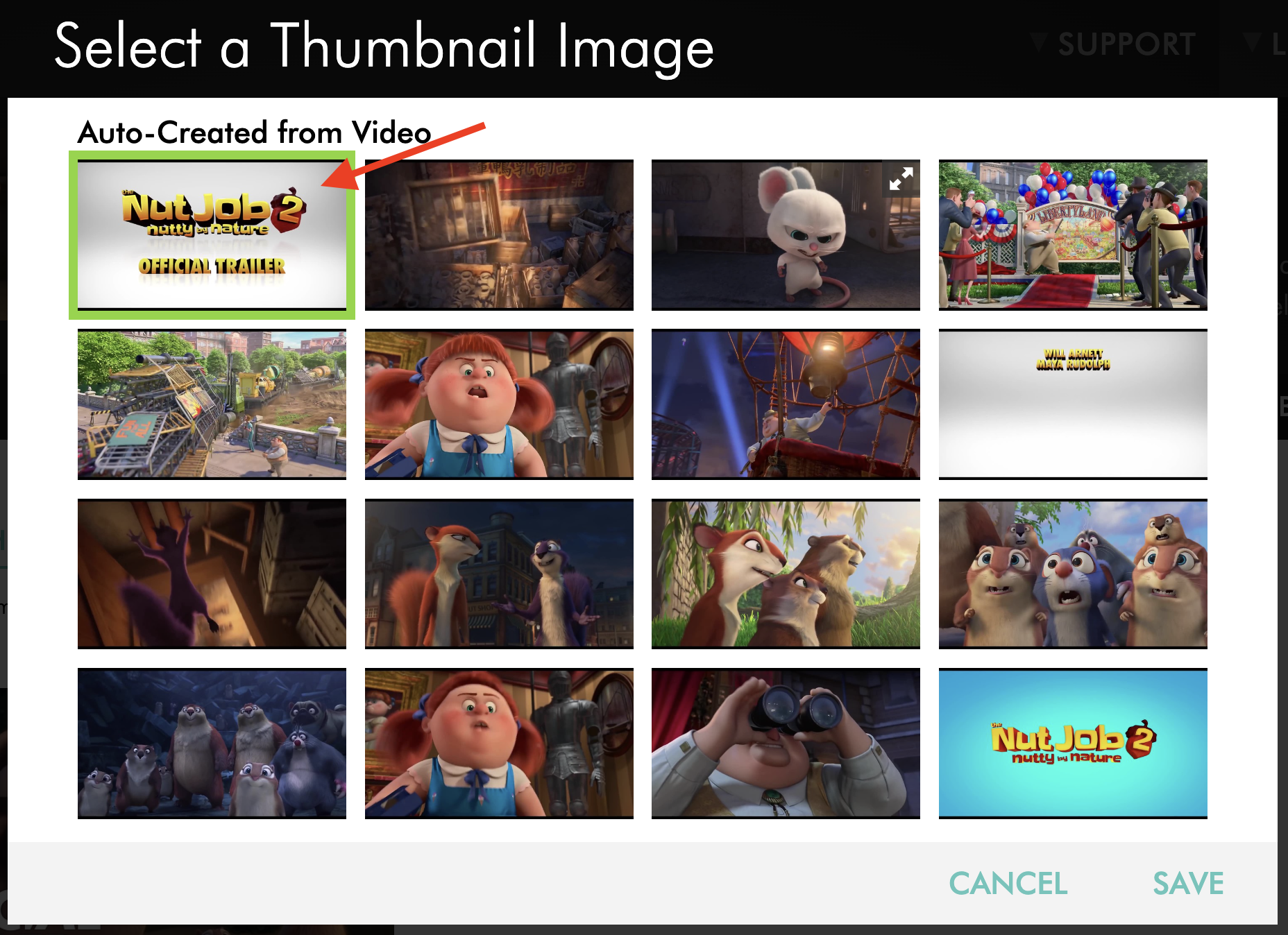
Step 4
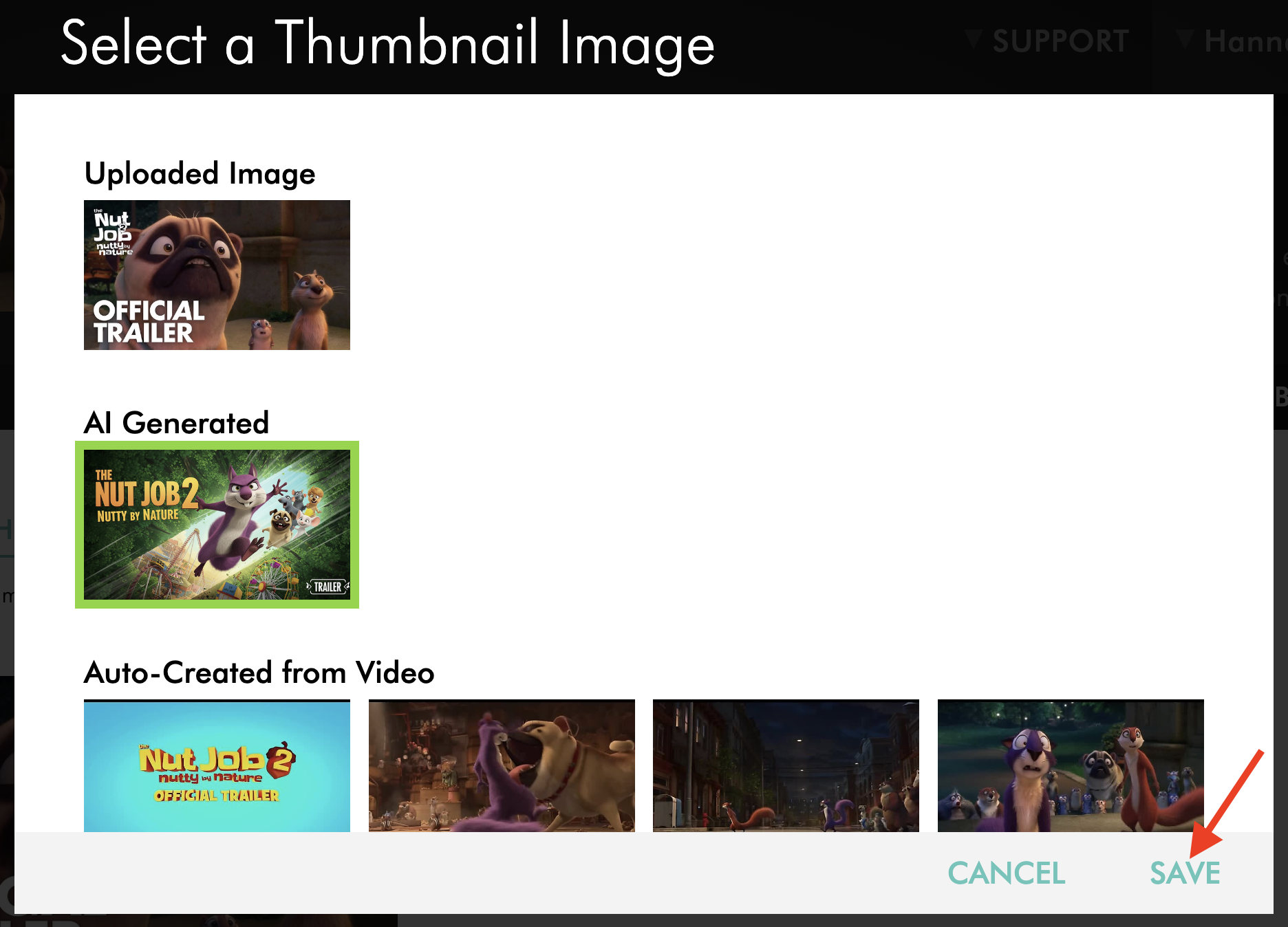
Click SAVE to update the media item's thumbnail image.
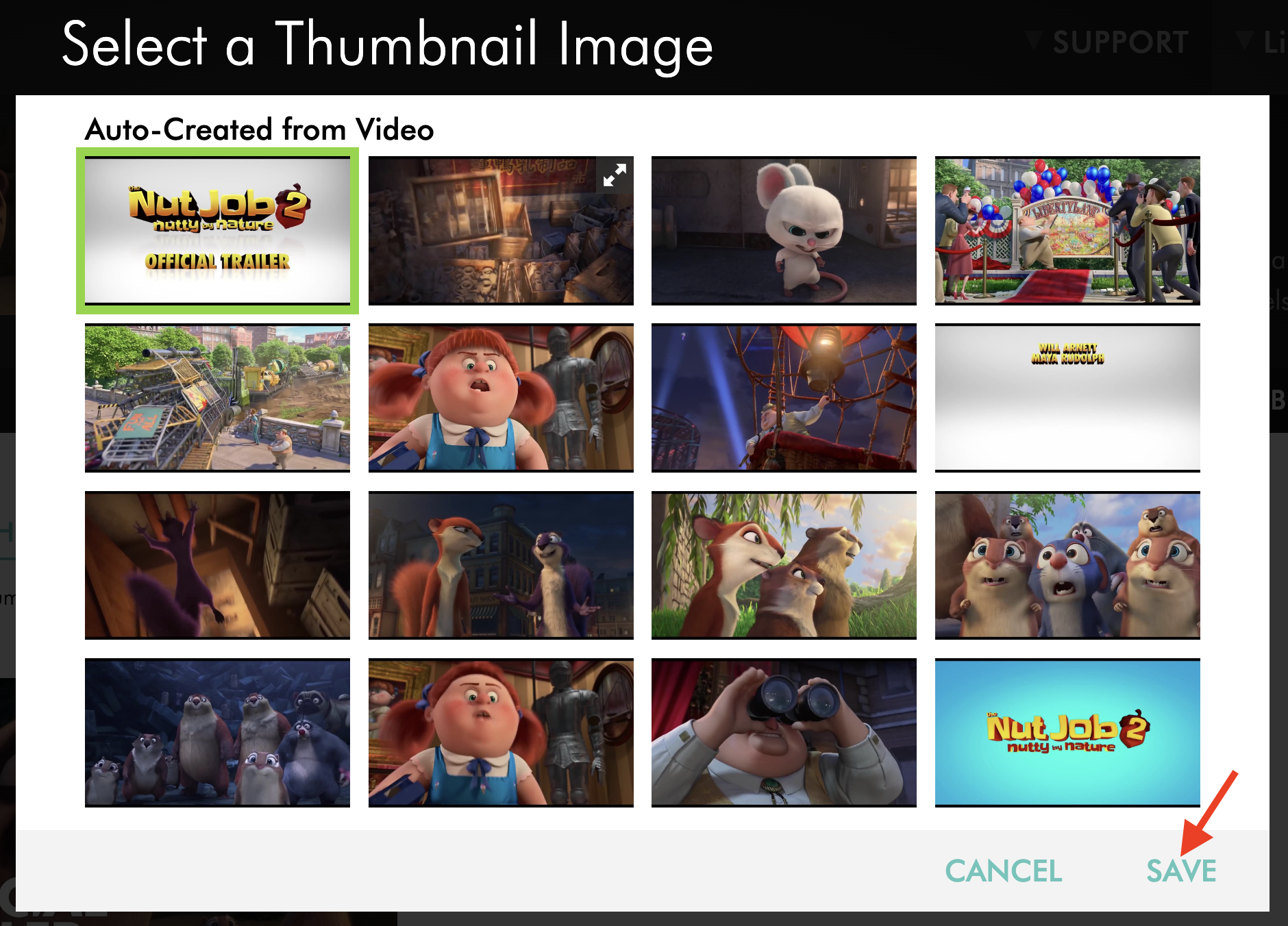
Step 5
The image you select will immediately replace the currently assigned thumbnail for that video item.
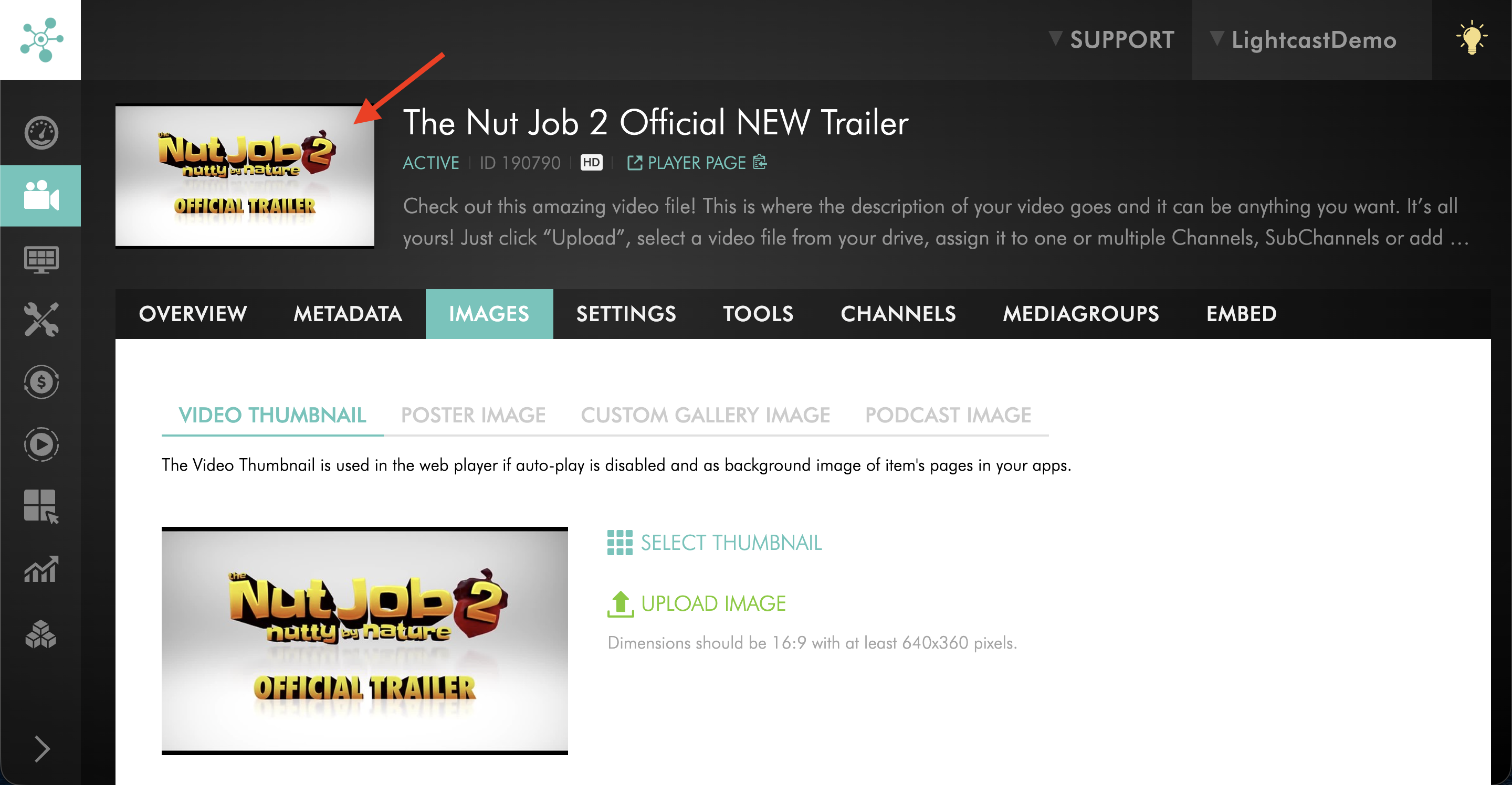
Option 3: Generate a new AI thumbnail image
Use this option when you want the Media Cloud to create a new AI-generated thumbnail for an individual video or audio item, including media that has already been uploaded.
Before generating an AI thumbnail, make sure the media item has both a Title and a Description. You can manually enter these fields or use AI-generated metadata to create them.
Step 1
On the media item's IMAGES tab, open VIDEO THUMBNAIL.
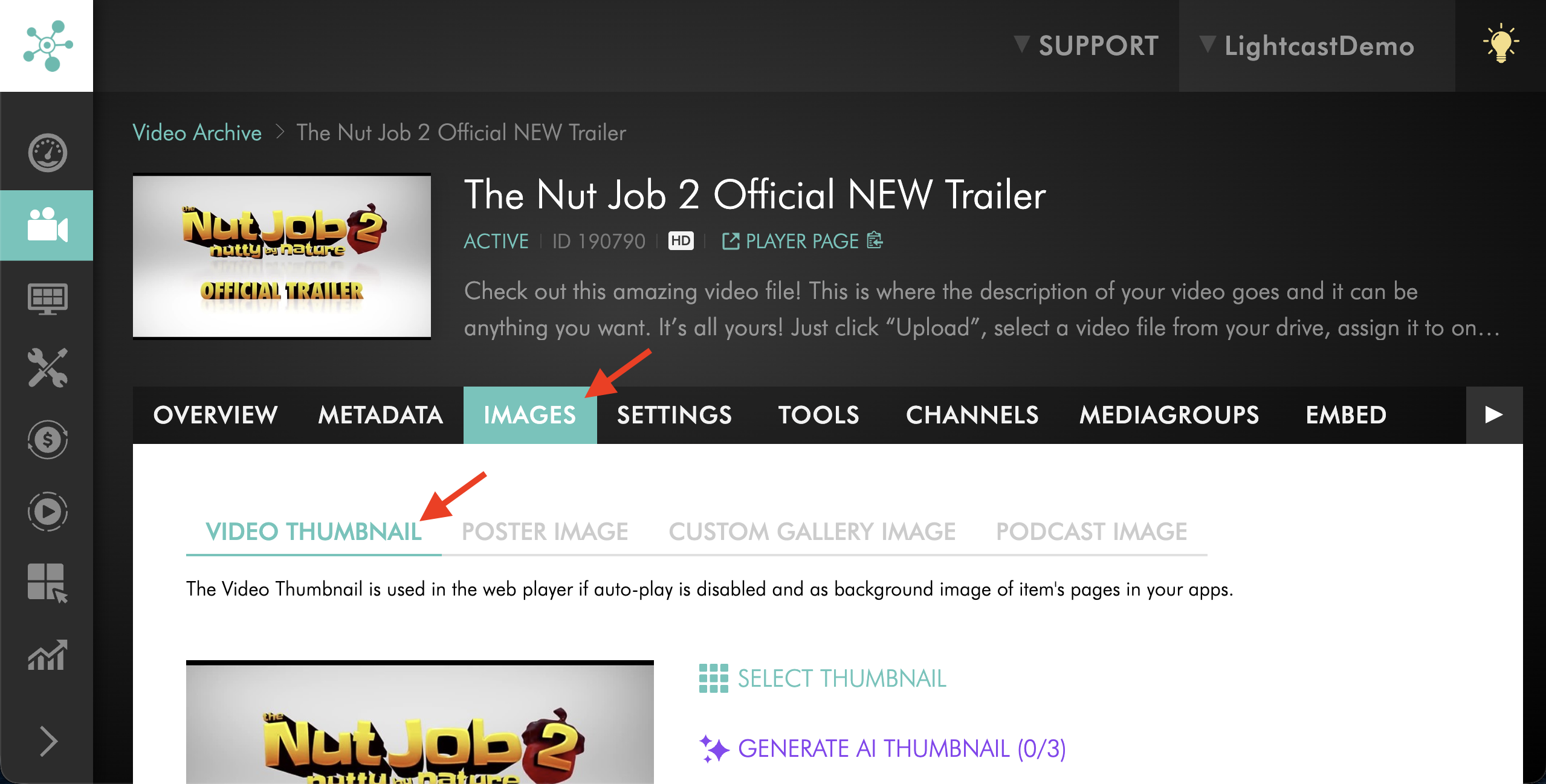
Step 2
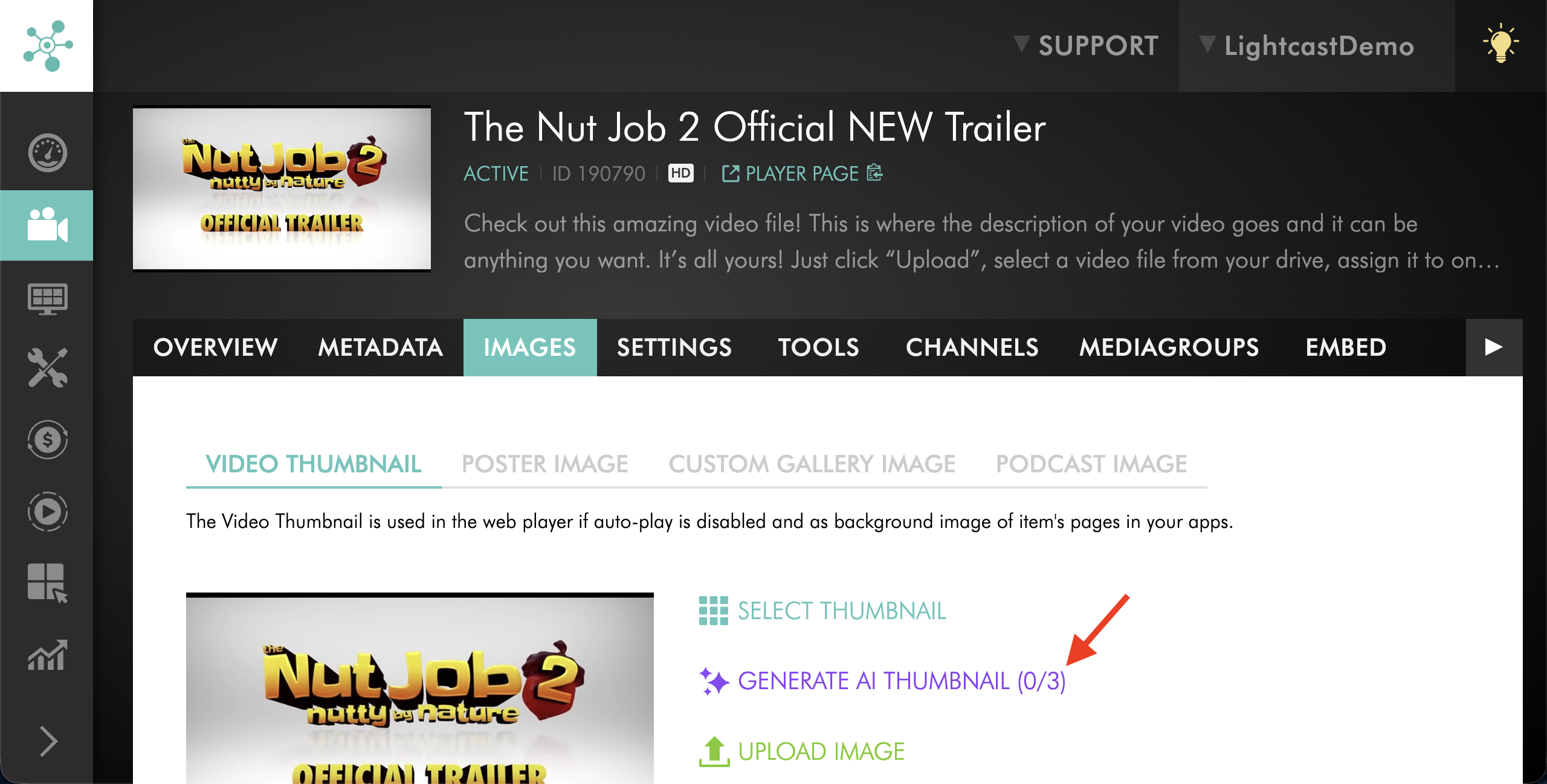
Click GENERATE AI THUMBNAIL.
Step 3
The Media Cloud will generate a new AI thumbnail image, which will become available in the Thumbnail Selector.
Step 4
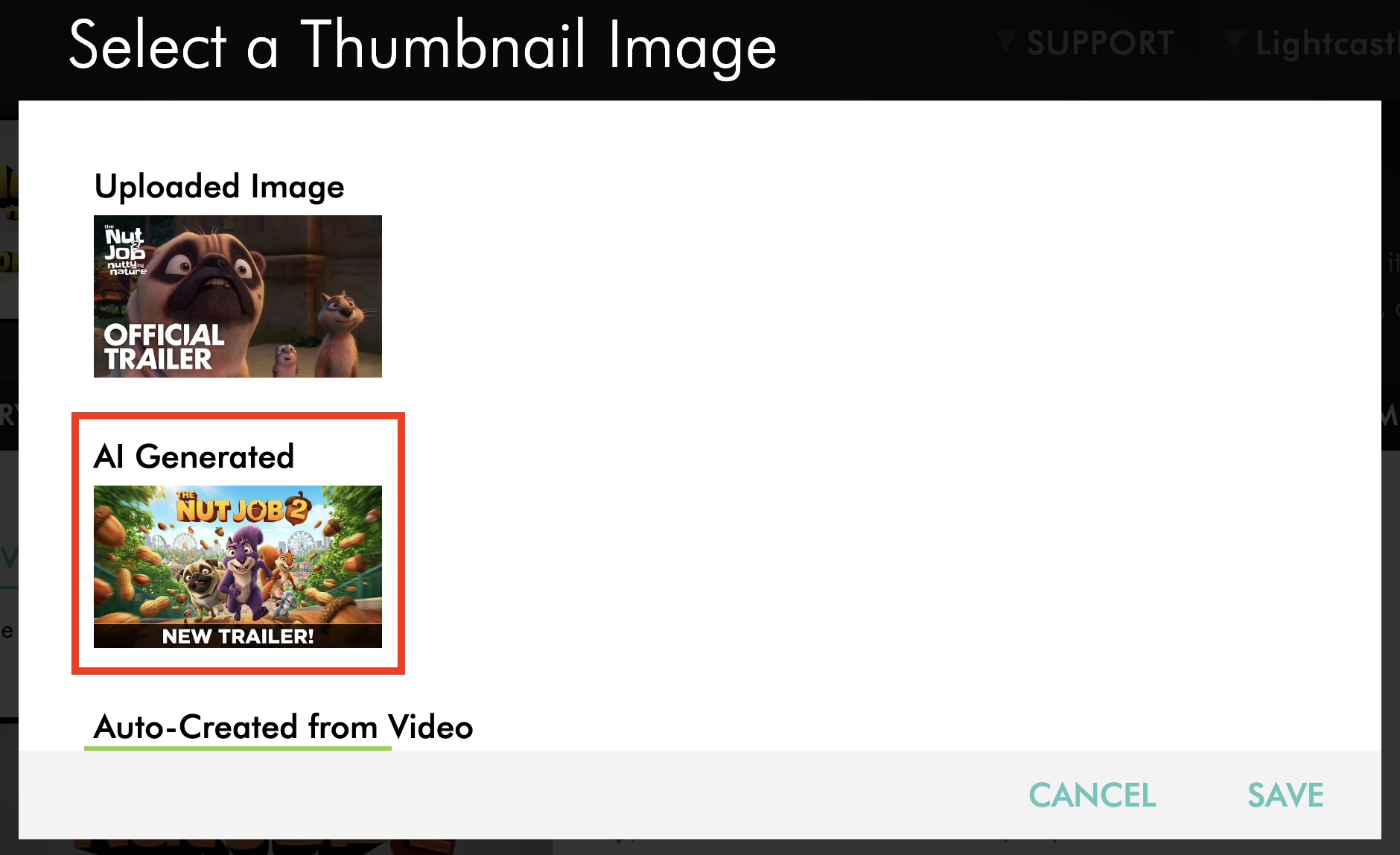
Click SELECT THUMBNAIL to review the available images and choose the thumbnail you want to use.
Step 5
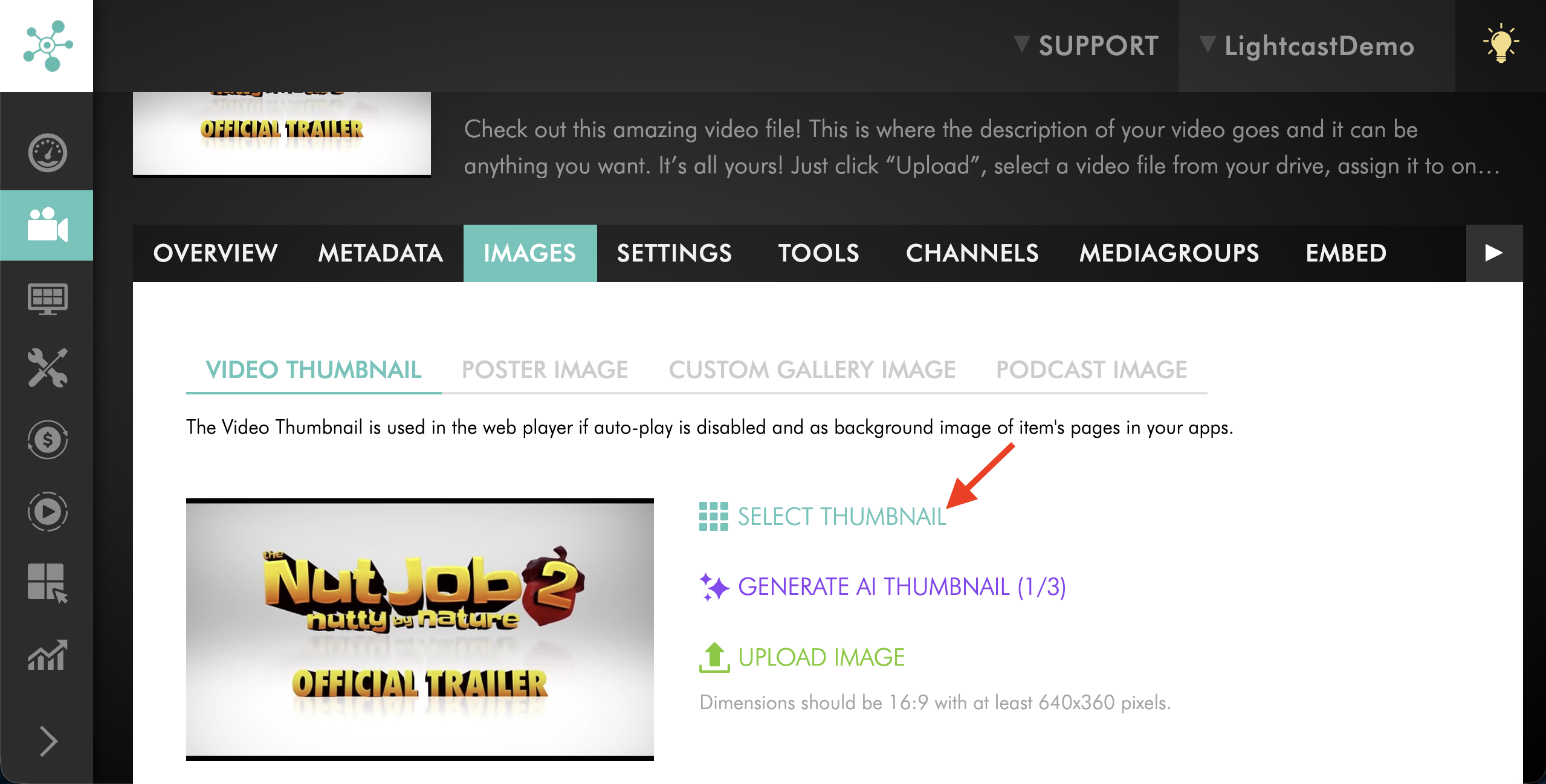
Click SAVE to update the media item's thumbnail image.
You can generate up to three AI thumbnail images per media item. This limit includes any AI thumbnails created automatically during encoding.
Option 4: Select an existing AI-generated thumbnail image
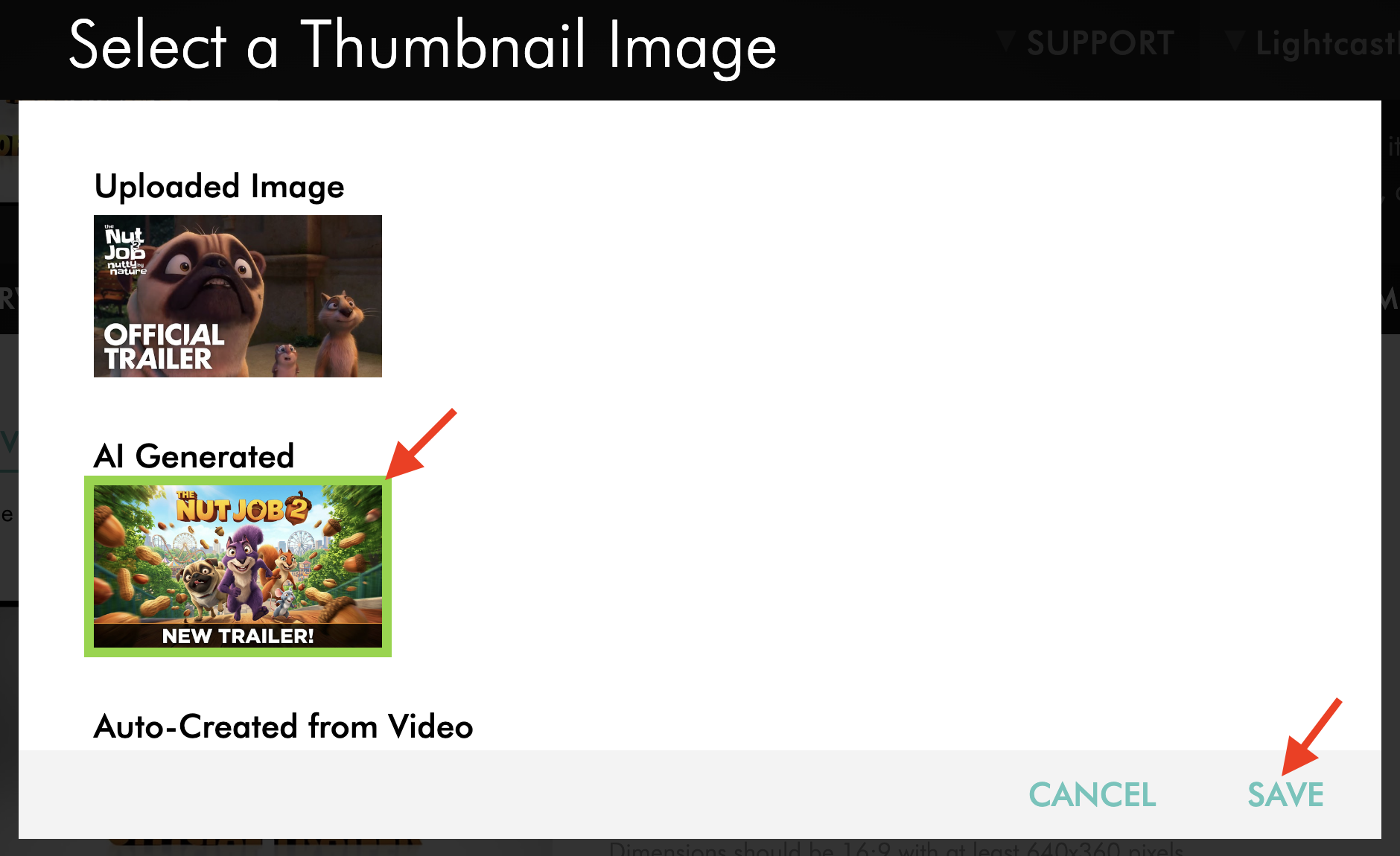
Use this option when an AI-generated thumbnail is already available for the media item and you want to select it as the current thumbnail.
To learn how to enable AI Thumbnail settings, see AI-generated thumbnail images explained.
Step 1
On the media item’s IMAGES tab, click SELECT THUMBNAIL to open the thumbnail selector.
Step 2
Review the available AI-generated thumbnail images using the ENLARGE arrows to make the previews bigger.
Step 3
Select the AI Generated thumbnail you want to use.
Step 4
Click SAVE to update the media item's thumbnail image.
Step 5
The selected AI-generated thumbnail will immediately replace the currently assigned thumbnail.
FAQs
Is a thumbnail required for every video or audio file?
No. A thumbnail is recommended because it helps promote your content visually, but it is not required. Your TV apps and other publishing properties can still work without custom thumbnails.
For video files, the system will automatically use either an AI-generated thumbnail, if available, or one of the auto-generated thumbnail images created from the video file. For audio files, if no custom thumbnail image has been uploaded and AI Thumbnail Generation is not being used, the system will display a default thumbnail until you upload your own image.
Can I upload my own thumbnails instead of using automatically generated ones?
Yes. You can upload your own image from the IMAGES page of an individual media item. This replaces the currently selected thumbnail.
Can I change the thumbnail after the media file has already been uploaded?
Yes. You can open the media item in the Video Archive or Audio Archive, go to the IMAGES tab, and select a different thumbnail, upload your own image, or generate a new thumbnail using AI.
When are AI-generated thumbnails available?
AI-generated thumbnails can be created automatically during encoding when the feature is enabled in Media Settings. They become available after encoding is complete. To learn more, see AI-generated thumbnail images explained.
You can also manually generate AI thumbnail images for an individual media item after it has been uploaded.
Can I generate an AI thumbnail for an existing media item?
Yes. You can manually generate an AI thumbnail for an existing video or audio item, even if AI Thumbnail Generation was not enabled when the media was originally uploaded.
The media item must have both a Title and a Description before an AI thumbnail can be generated.
How many AI-generated thumbnail images can I create for an individual media item?
You can generate a maximum of three AI thumbnail images per media item. This includes AI thumbnails that were automatically generated during encoding and those generated manually afterward.
What is required to generate an AI thumbnail image?
The media item must have both a Title and a Description. You can enter these fields manually from the METADATA tab or use AI-generated metadata to create them.
For step-by-step instructions, see How to add and edit metadata for your video and audio files.
Can an AI-generated thumbnail be replaced?
Yes. You can replace an AI-generated thumbnail by uploading your own image or selecting another available thumbnail from the Thumbnail Selector.
Will AI-generated thumbnails overwrite manually uploaded images?
No. Manually uploaded thumbnails and images imported through LightcastAPI or MRSS feeds are preserved and are not overwritten by AI-generated thumbnails.
Do manually generated AI thumbnail images use AI Tokens?
No. Generating AI thumbnail images does not consume AI Tokens.
What happens if an audio file does not have a custom thumbnail image?
If no custom thumbnail image has been uploaded and AI Thumbnail Generation is not being used, the audio file will display a simple gray thumbnail with a speaker icon.