
How to customize your shareable and embeddable web player
Overview
This article explains how to customize your Lightcast shareable and embeddable web player using the Player Configurator in the Media Cloud. You can use it to upload your logo and icon, update player branding, add a website link, and control which playlist details are shown.
This is useful when you are setting up your player for the first time or when you want the player to better match your organization’s branding.
How it works
The Player Configurator is an account-level tool in the Media Cloud. Changes saved there update your Lightcast web players in real time wherever that player configuration is used, including embedded players on your website, the Web App, Mobile Apps, and Player Landing Pages.
You can use the Player Configurator to upload your own player logo overlay and player icon, control whether branding elements are shown, link the logo overlay and player icon to your website, and control whether the view count and publish date appear in on-demand playlists.
There is no single fixed logo size that works in every case. The player scales the image based on its dimensions and aspect ratio, so the image layout itself affects how large the logo appears.
Instructions
There are several options for customizing your embeddable and shareable web players using the Player Configurator.
Logo Overlay
Step 1
Log in to your Media Cloud account.
Step 2
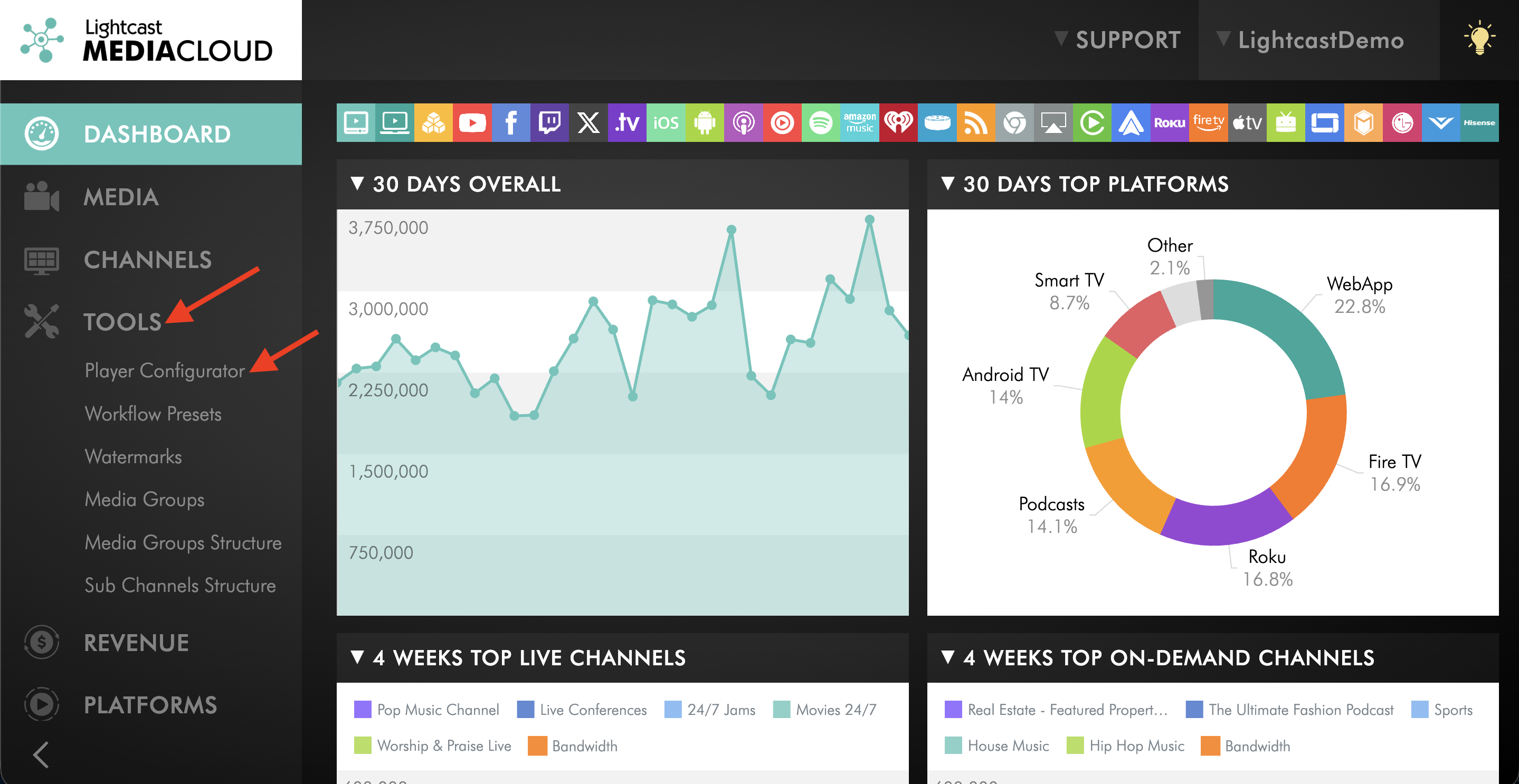
Go to TOOLS and click Player Configurator.
Step 3
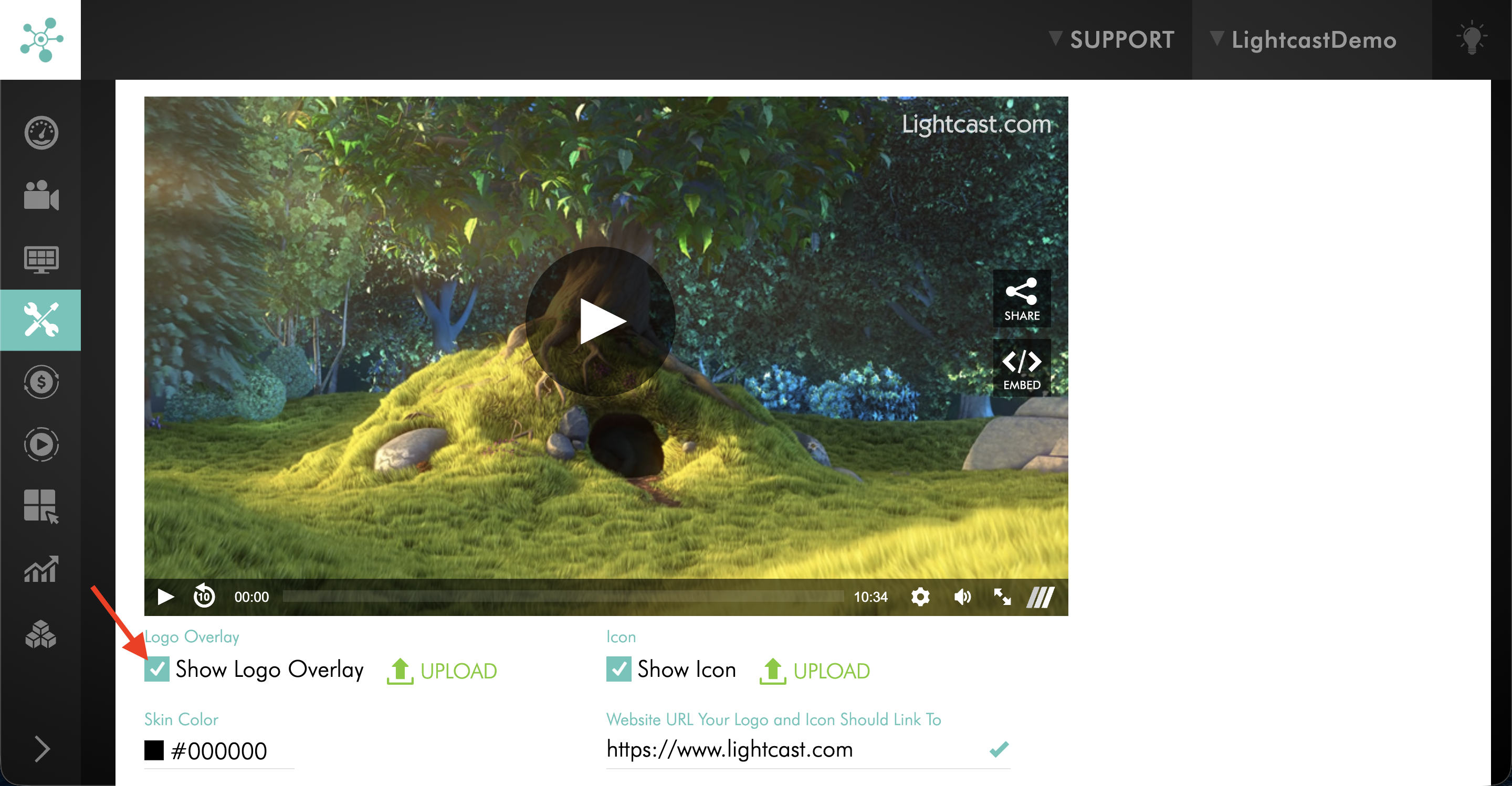
In the Logo Overlay section, select or clear Show Logo Overlay to control whether the logo overlay appears on the player.
Step 4
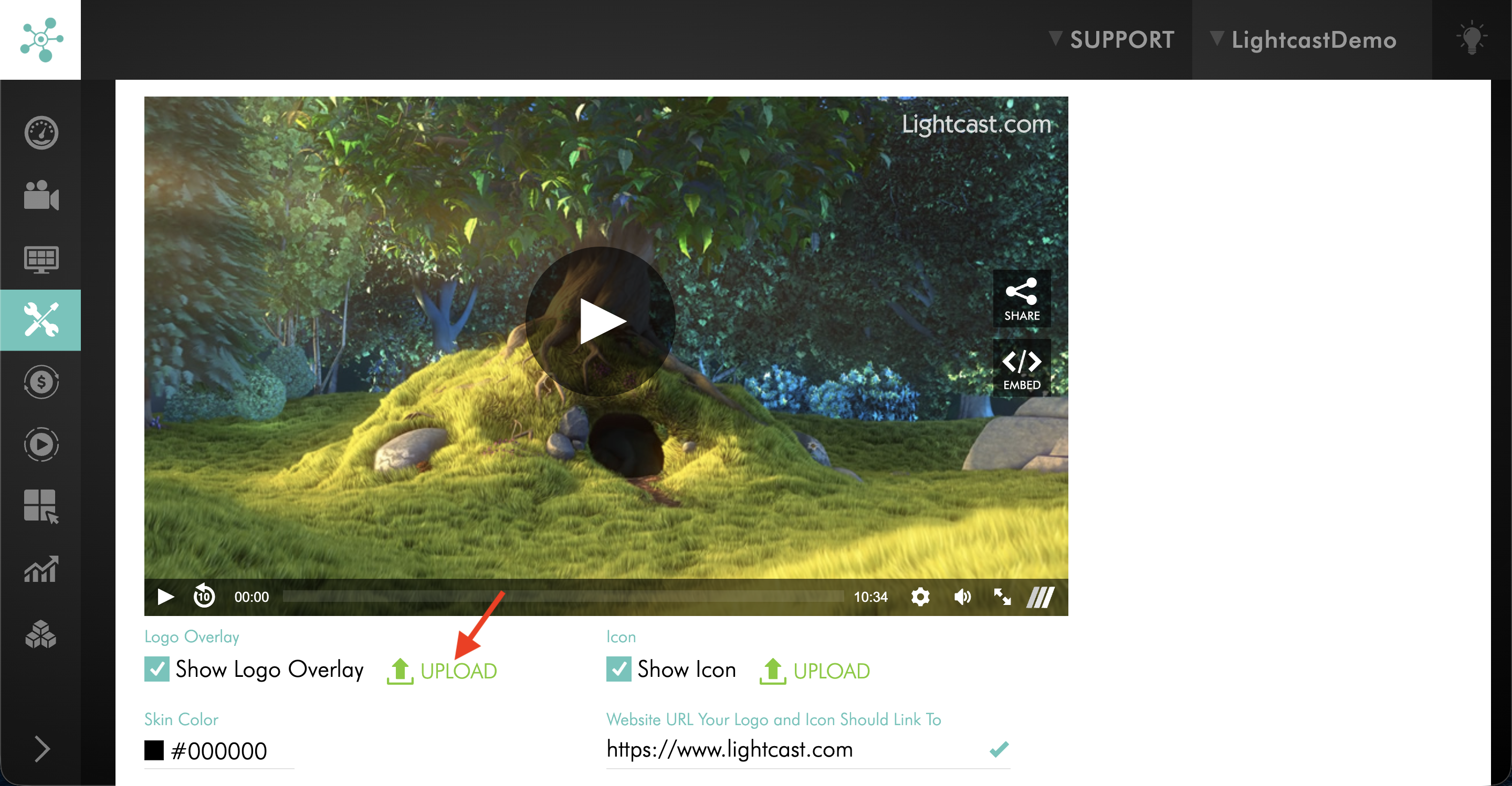
To upload a new logo overlay, click UPLOAD in the Logo Overlay section.
Step 5
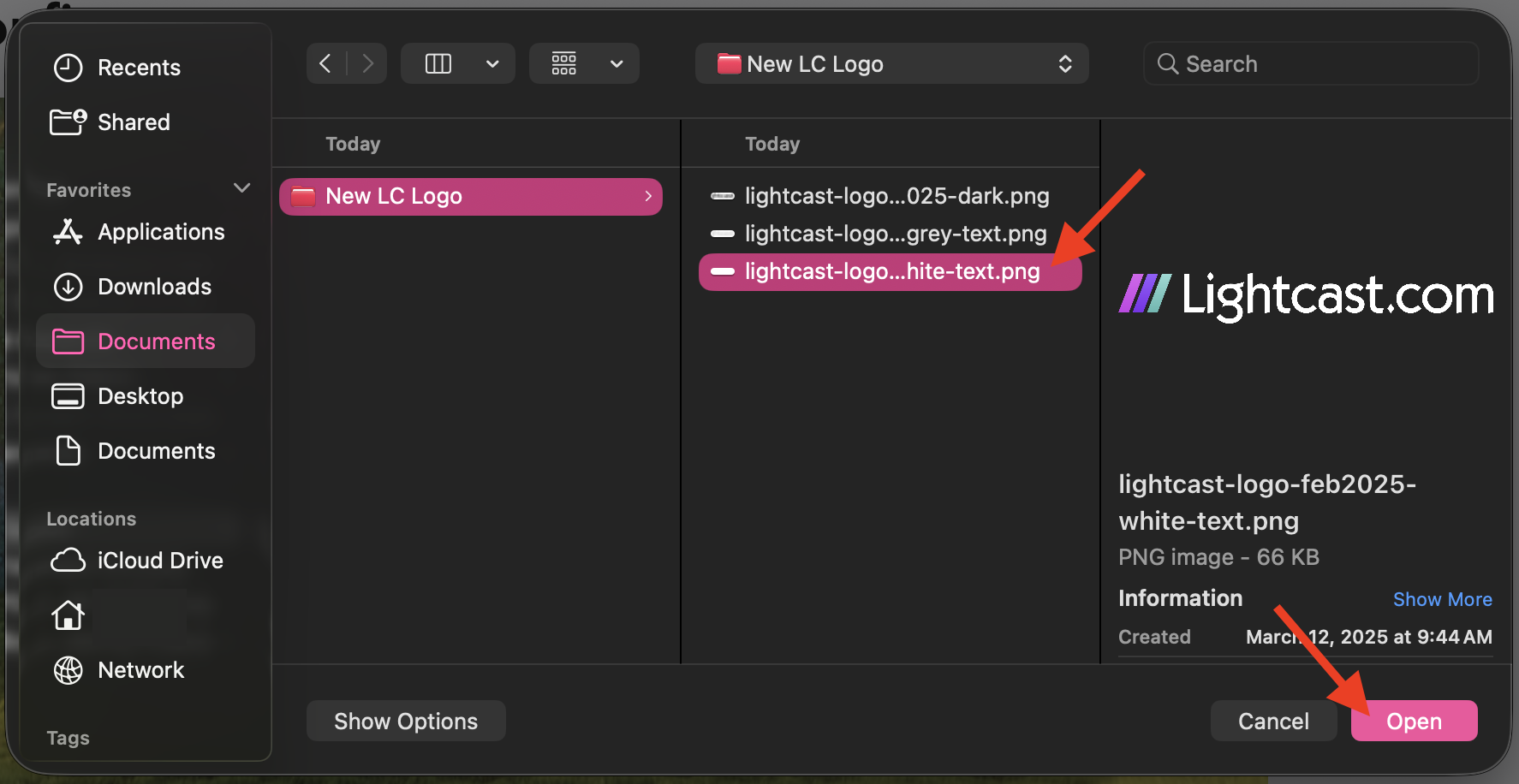
In the pop-up window, select the image file from your device. If needed, hover over UPLOAD to review the accepted file formats and preferred file type.
Step 6
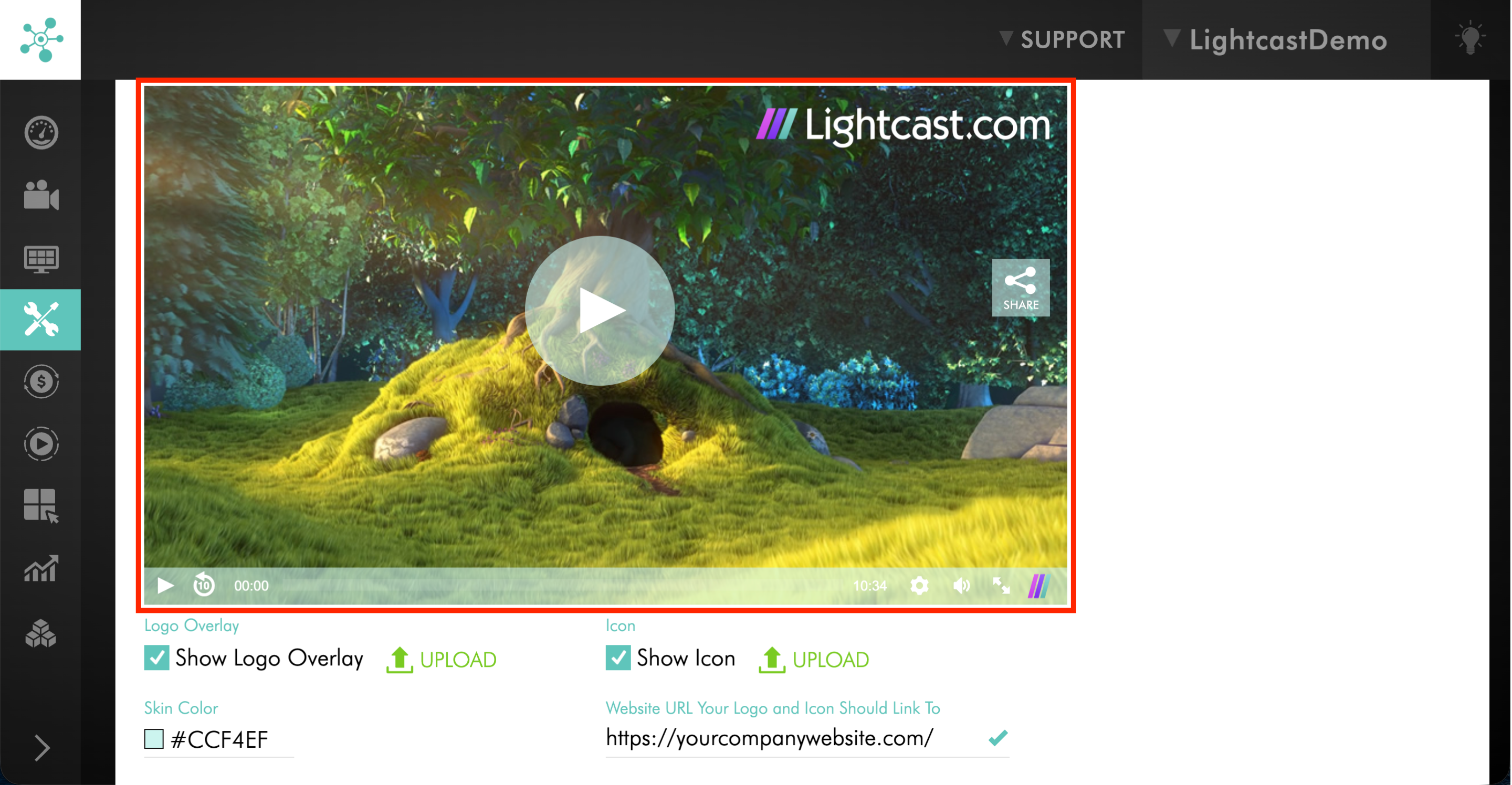
Use the preview screen to confirm the logo overlay appears the way you want.
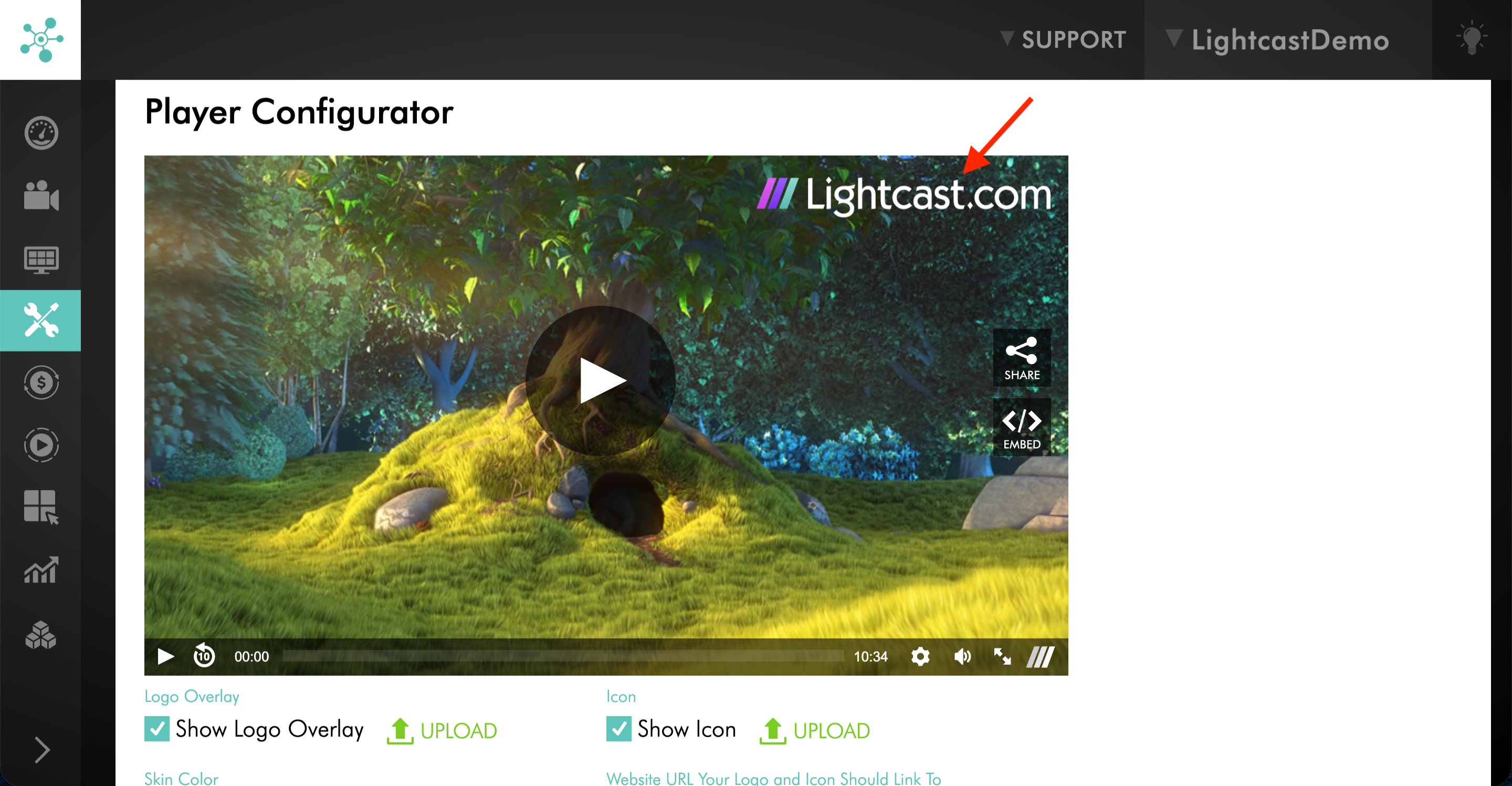
Icon
Step 1
In the Icon section, select or clear Show Icon to control whether the icon appears on the player.
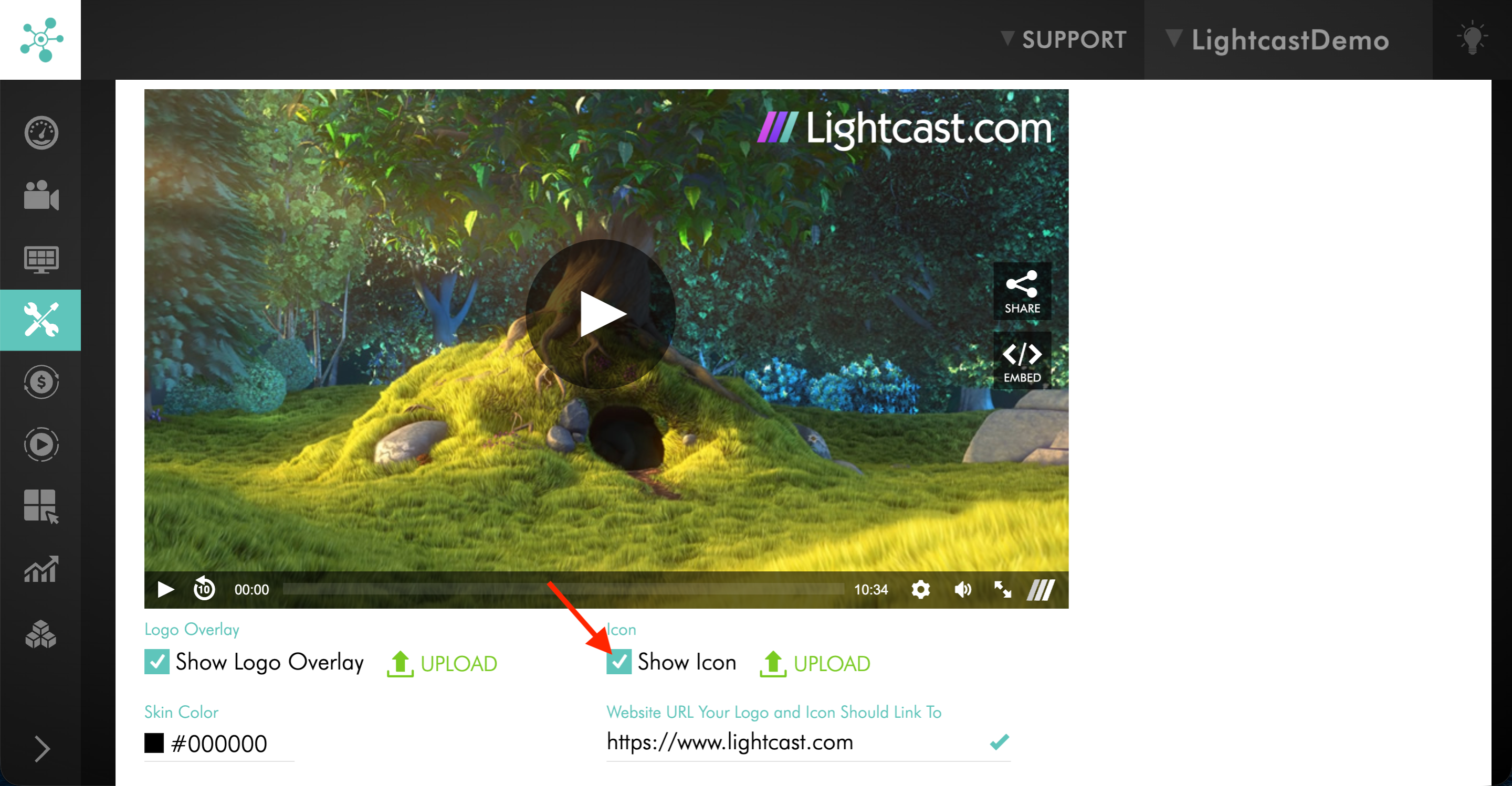
Step 2
To upload a new icon, click UPLOAD in the Icon section.
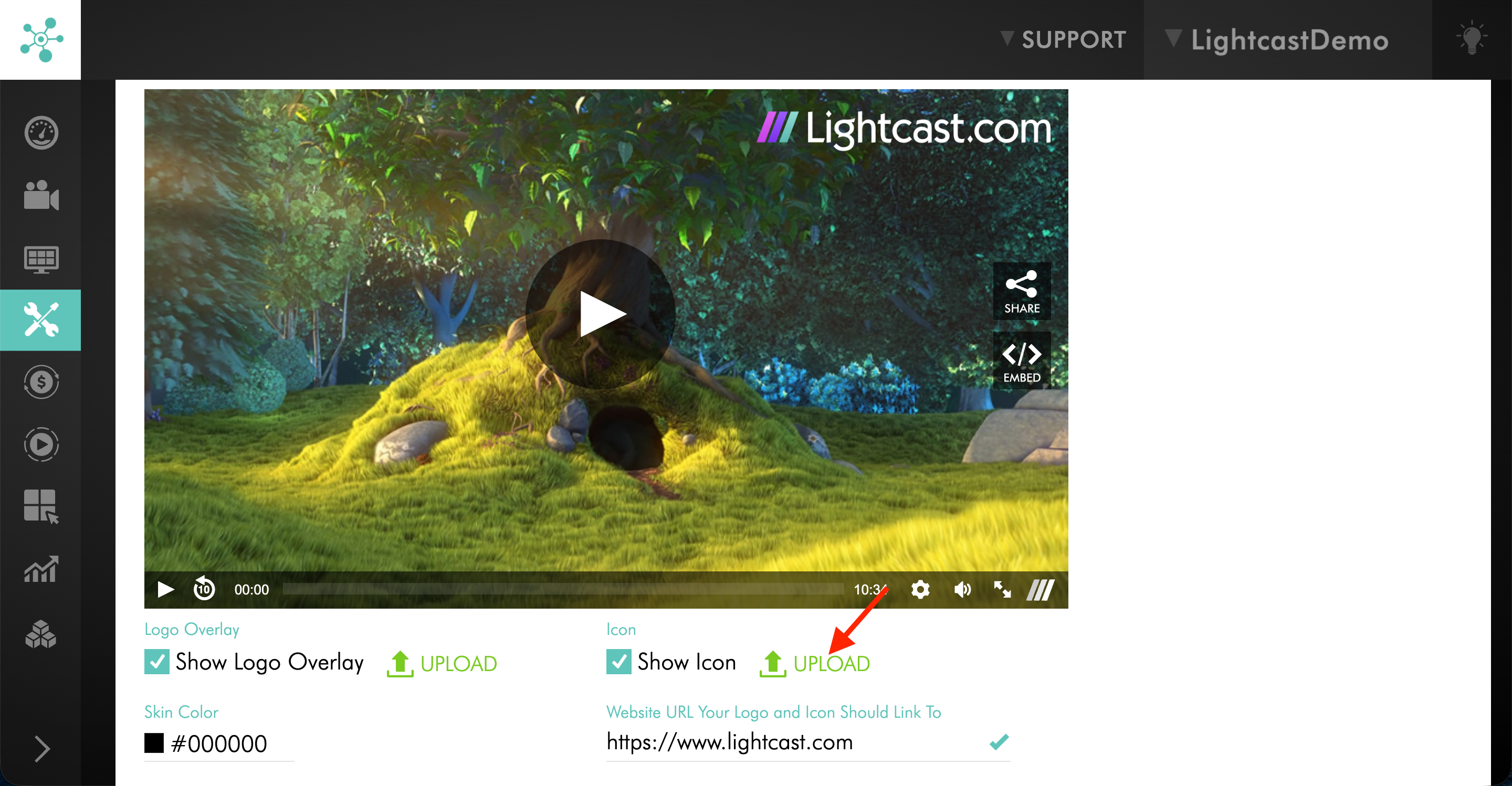
Step 3
In the pop-up window, select the image file from your device. If needed, hover over UPLOAD to review the accepted file formats and preferred file type.
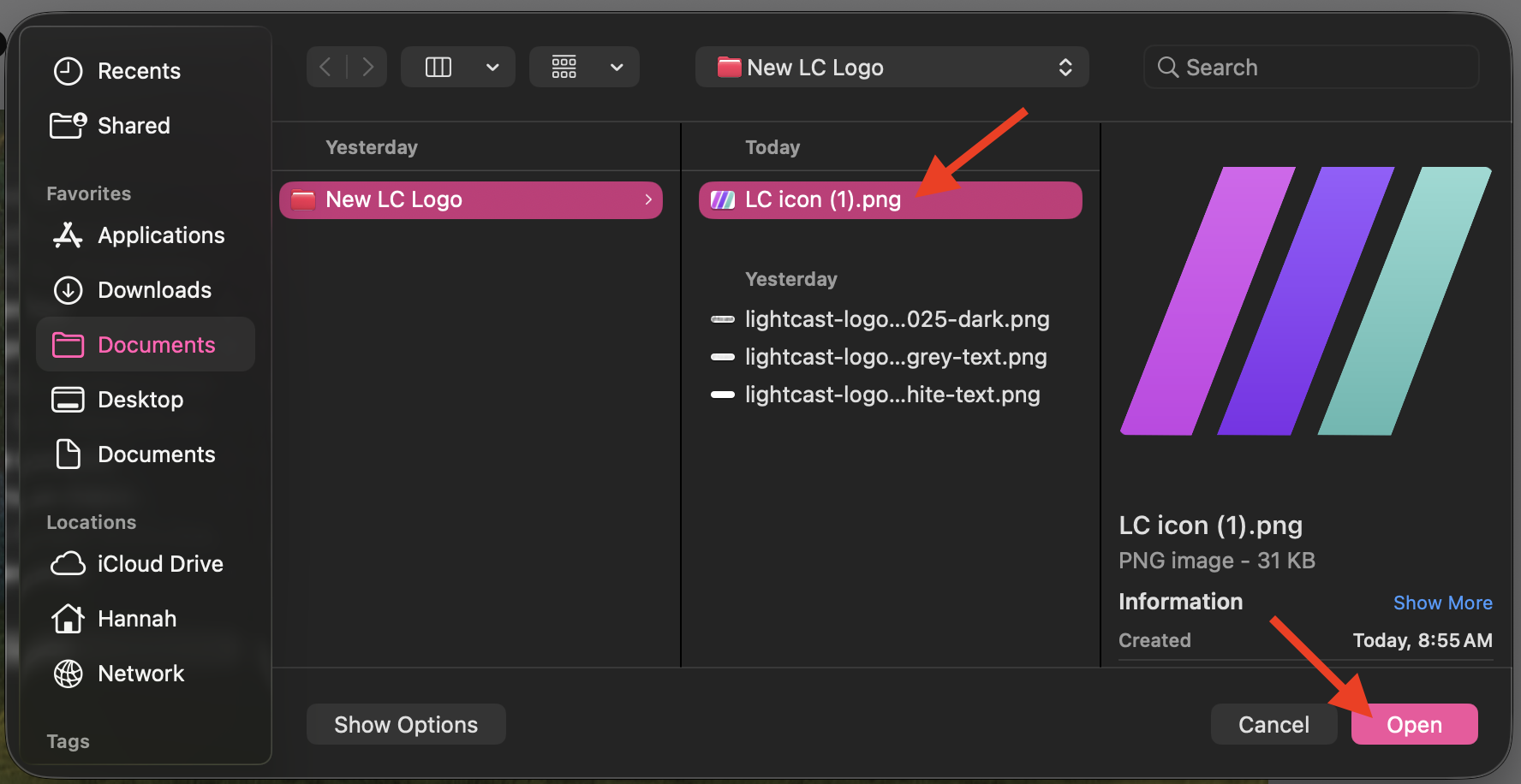
Step 4
Use the preview screen to confirm the icon appears the way you want.
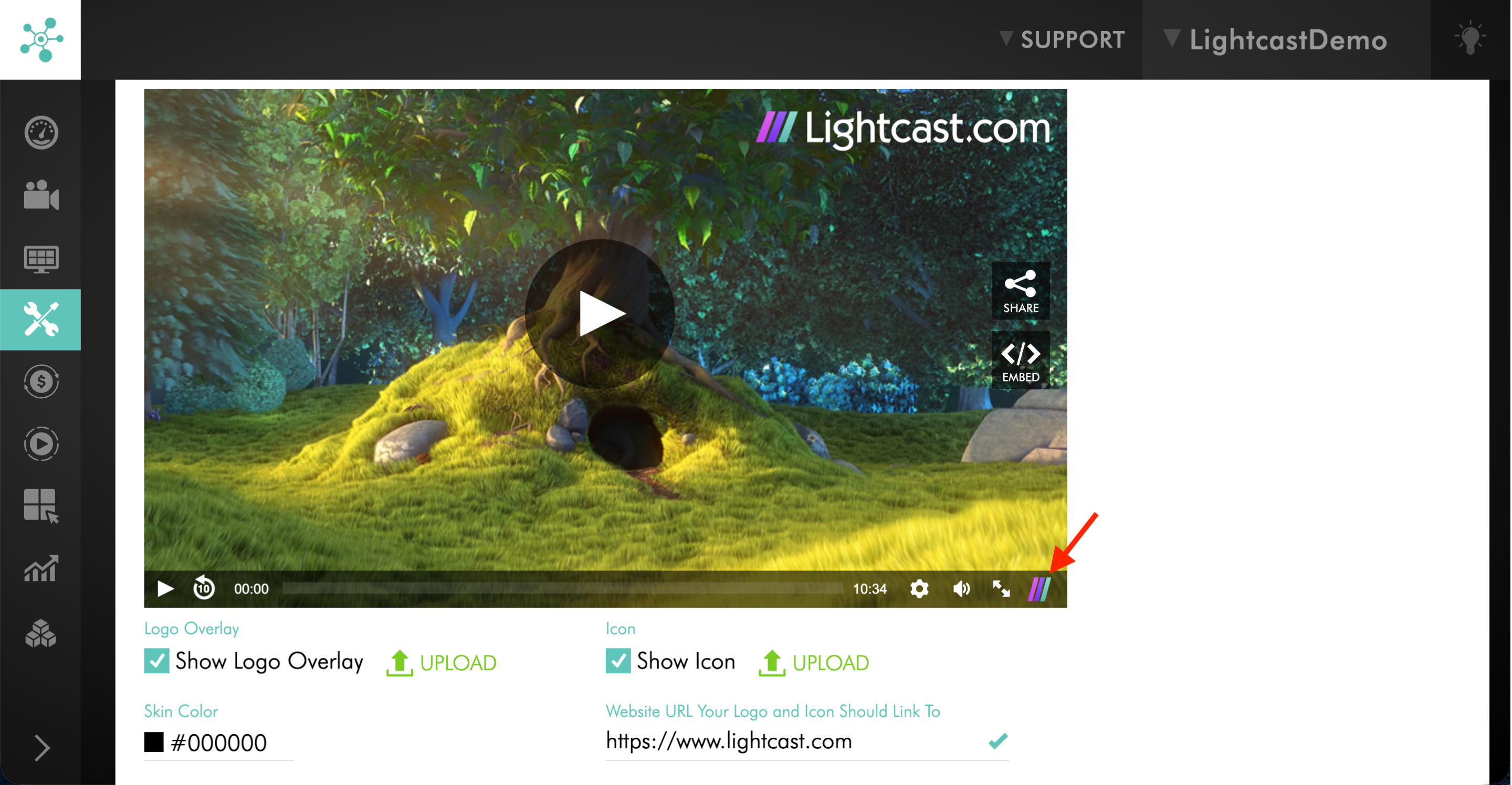
Skin color
Step 1
In the Skin Color section, enter the Hex color value you want to use.
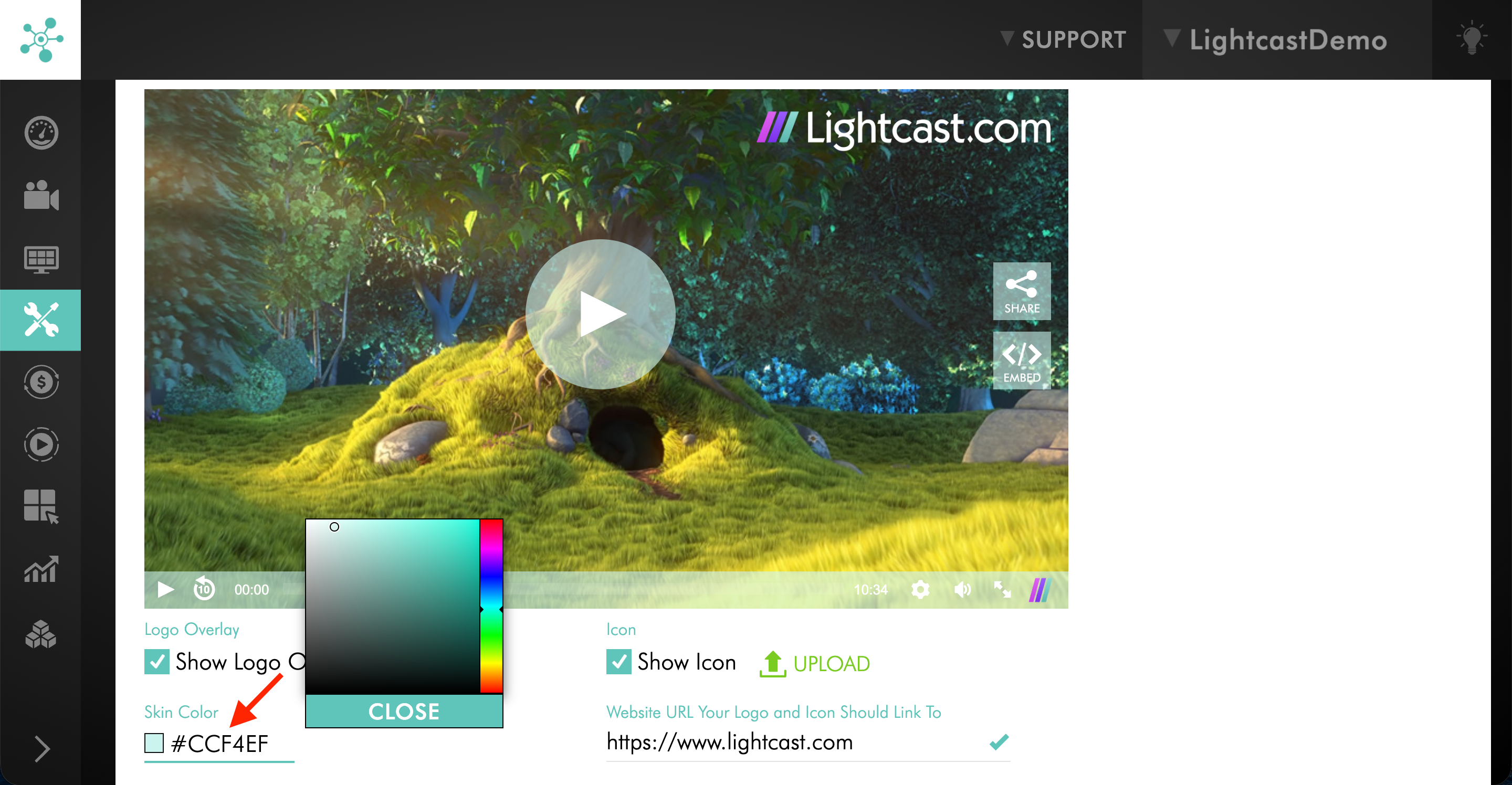
Step 2
Check the preview screen to confirm the player color appears correctly.
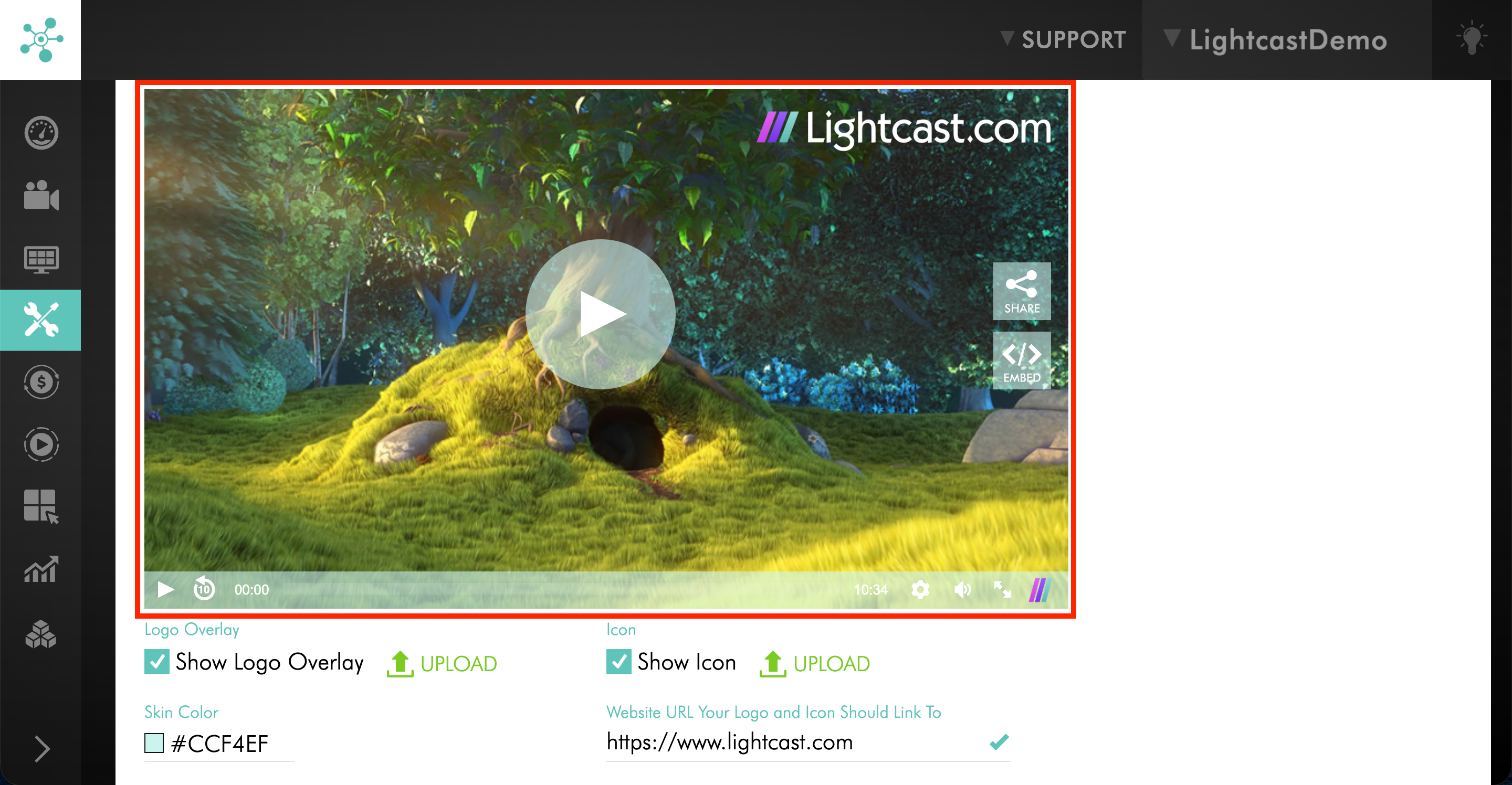
Website URL
Step 1
In the field labeled Website URL Your Logo and Icon Should Link To, enter the website address you want to use.
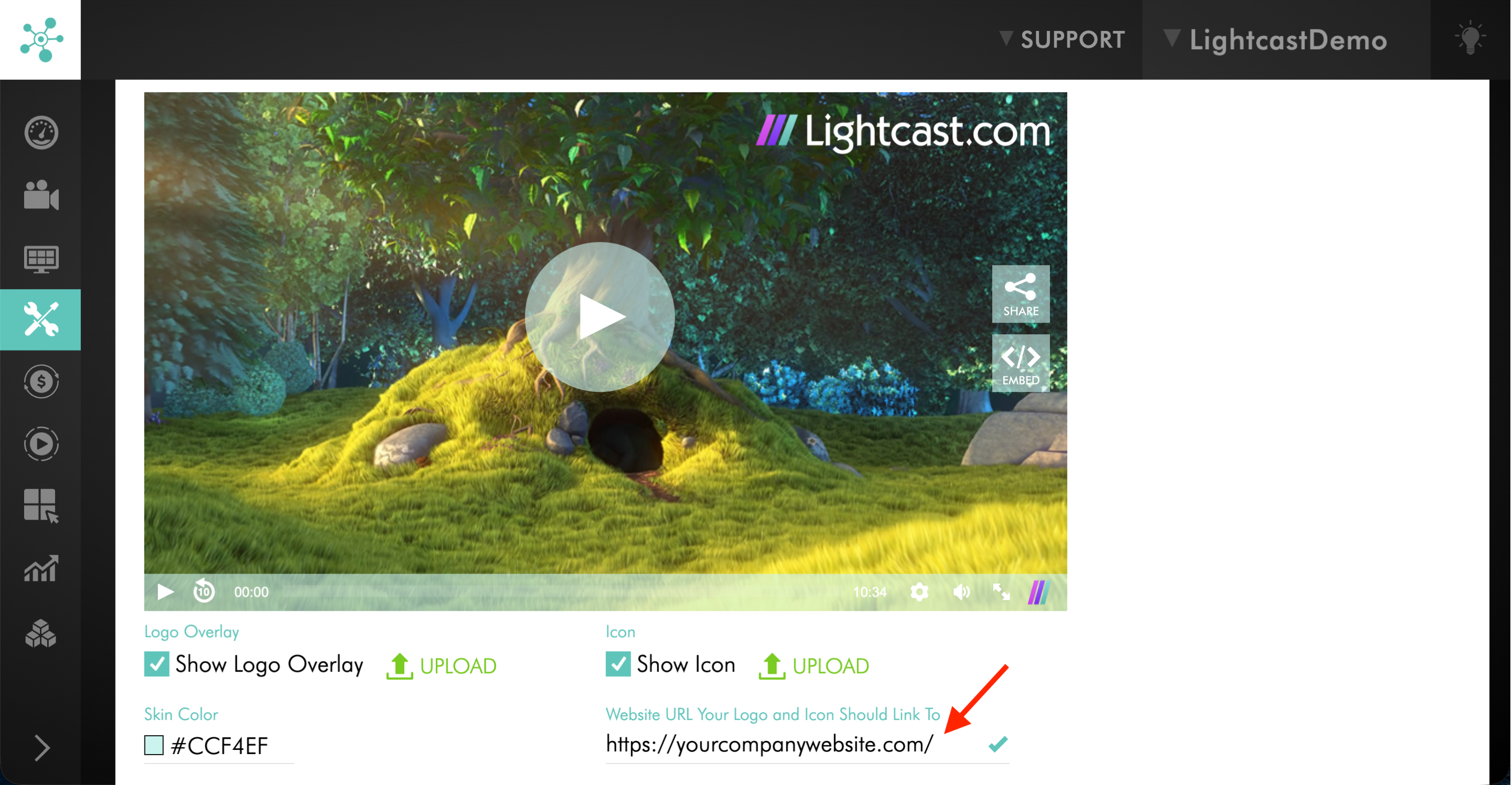
Step 2
Confirm the URL is correct before proceeding to the next settings.
Embedding and social sharing
Step 1
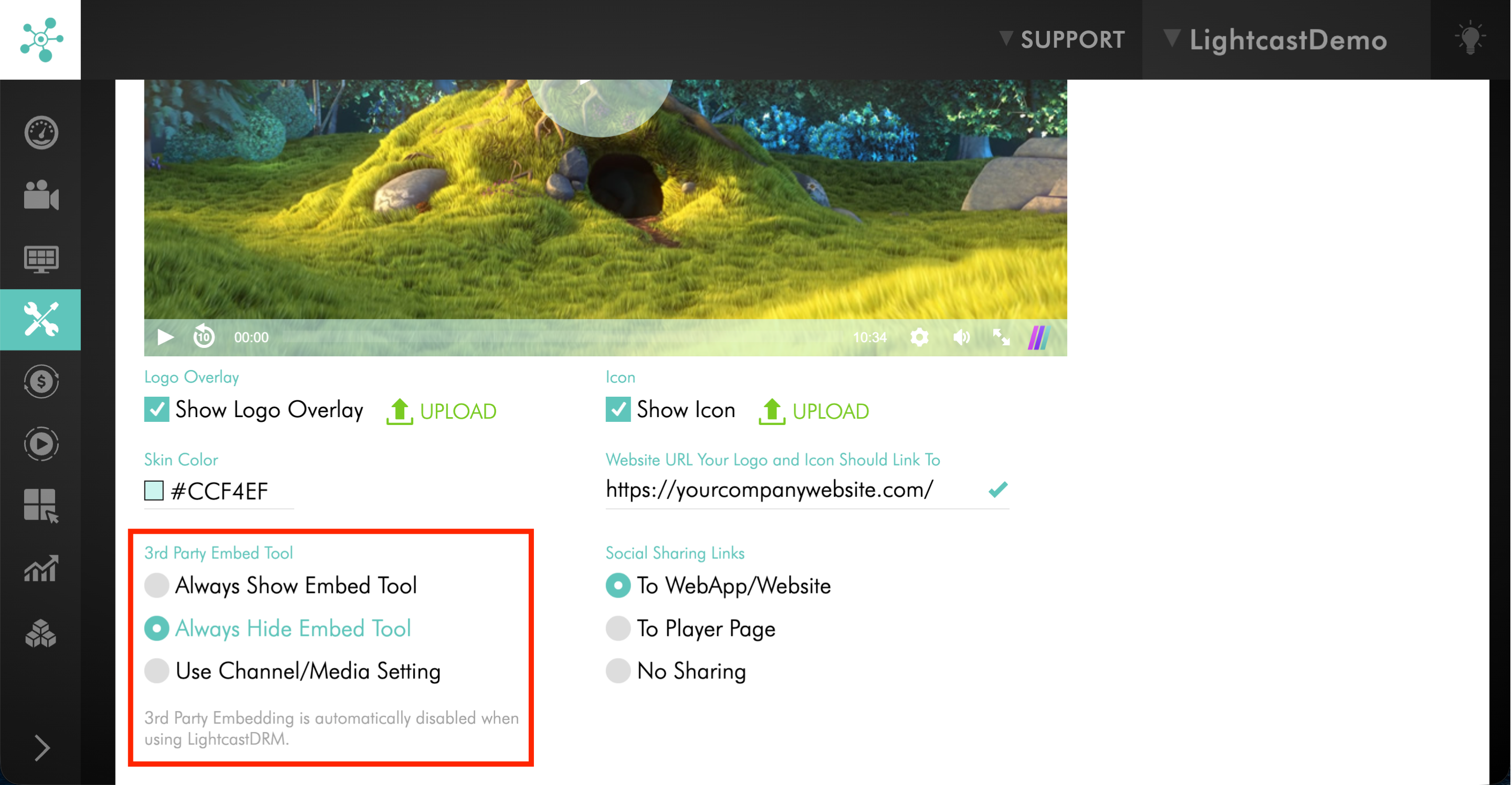
In the 3rd Party Embed Tool section, choose whether to Always Show the Embed Tool, Always Hide the Embed Tool, or Use the Channel or Media Setting.
Step 2
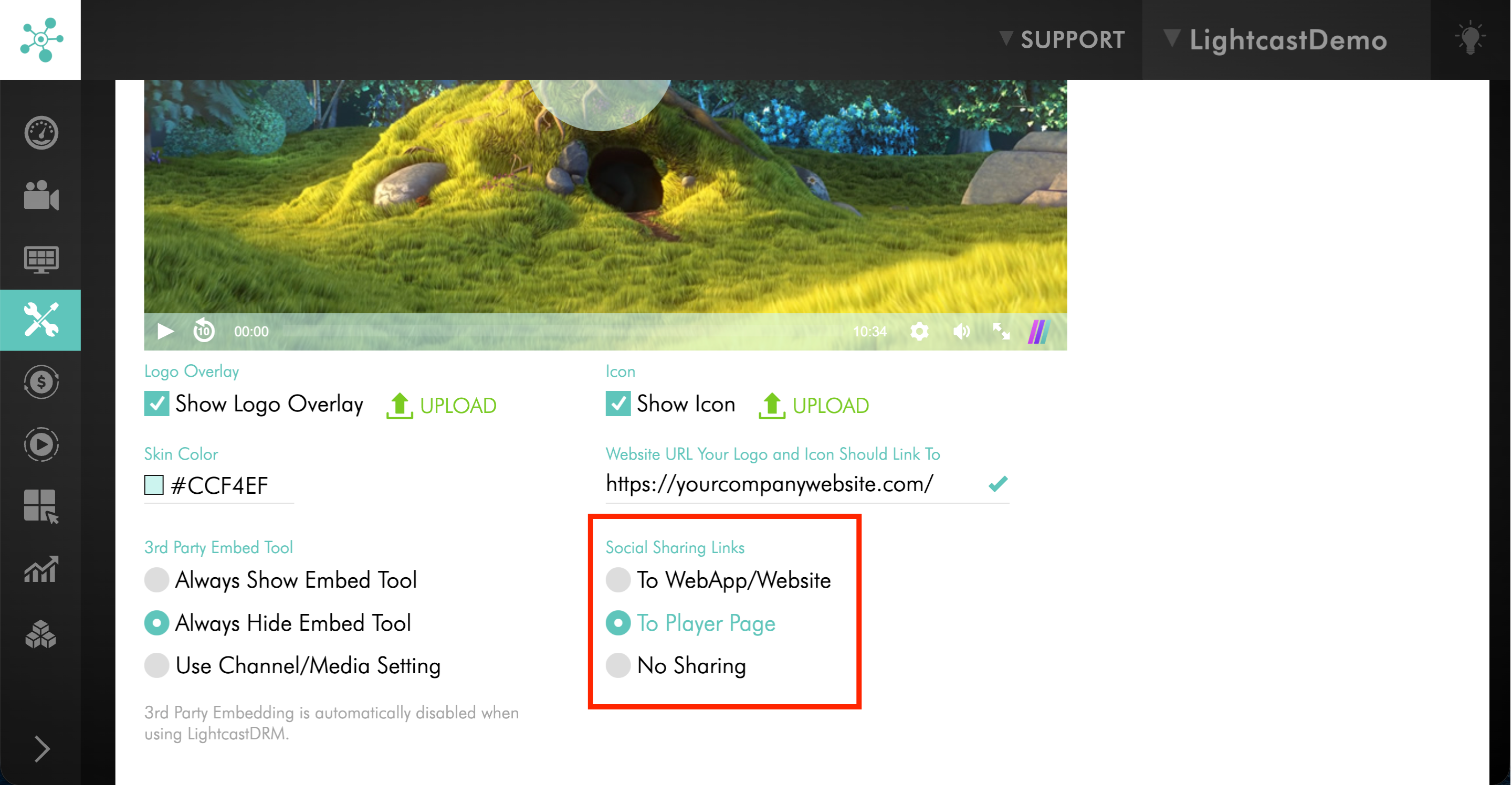
In the Social Sharing Links section, choose whether viewers can share the player To WebApp/Website, To Player Page, or use No Sharing.
Views and publish date
Step 1
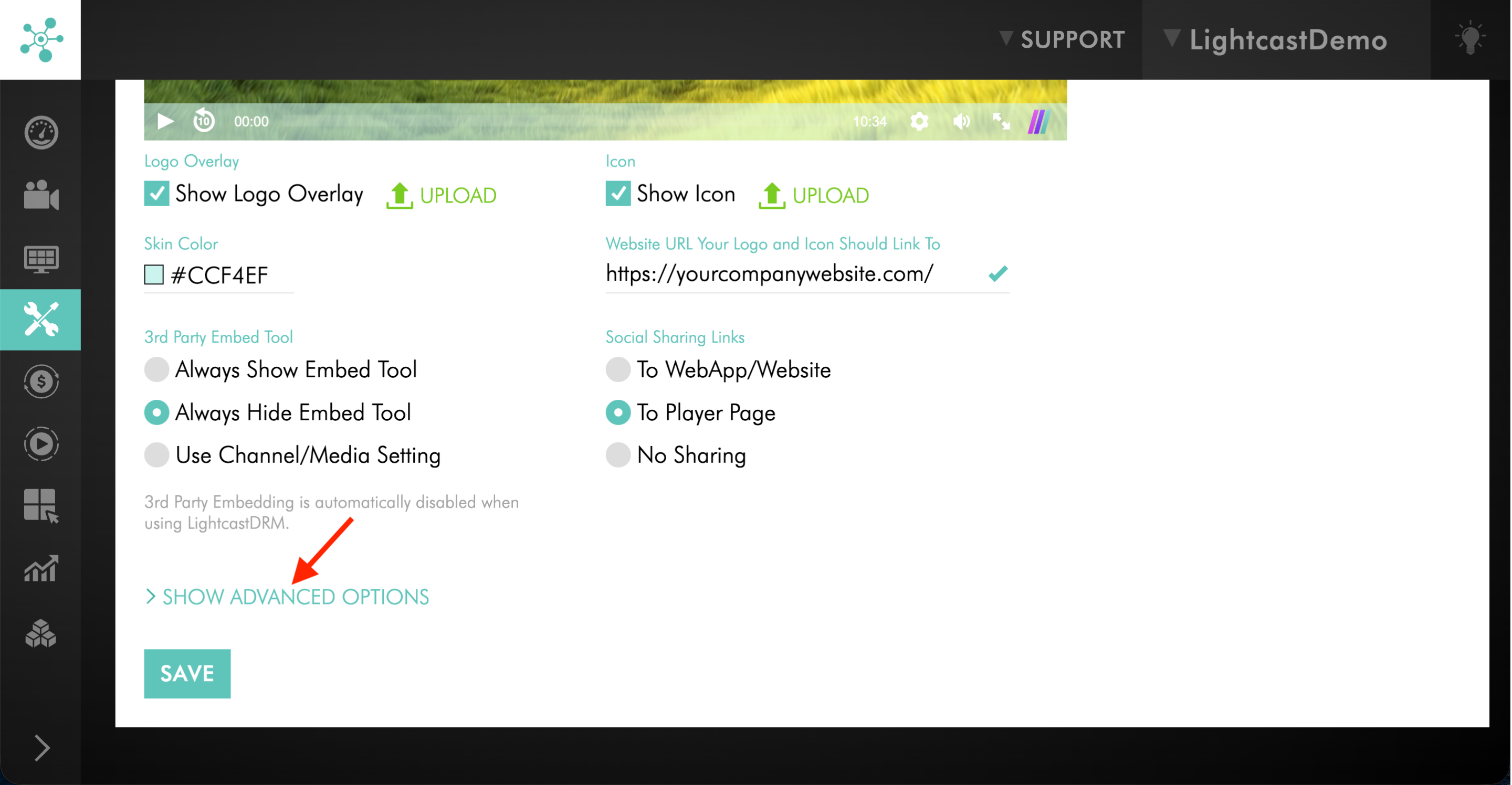
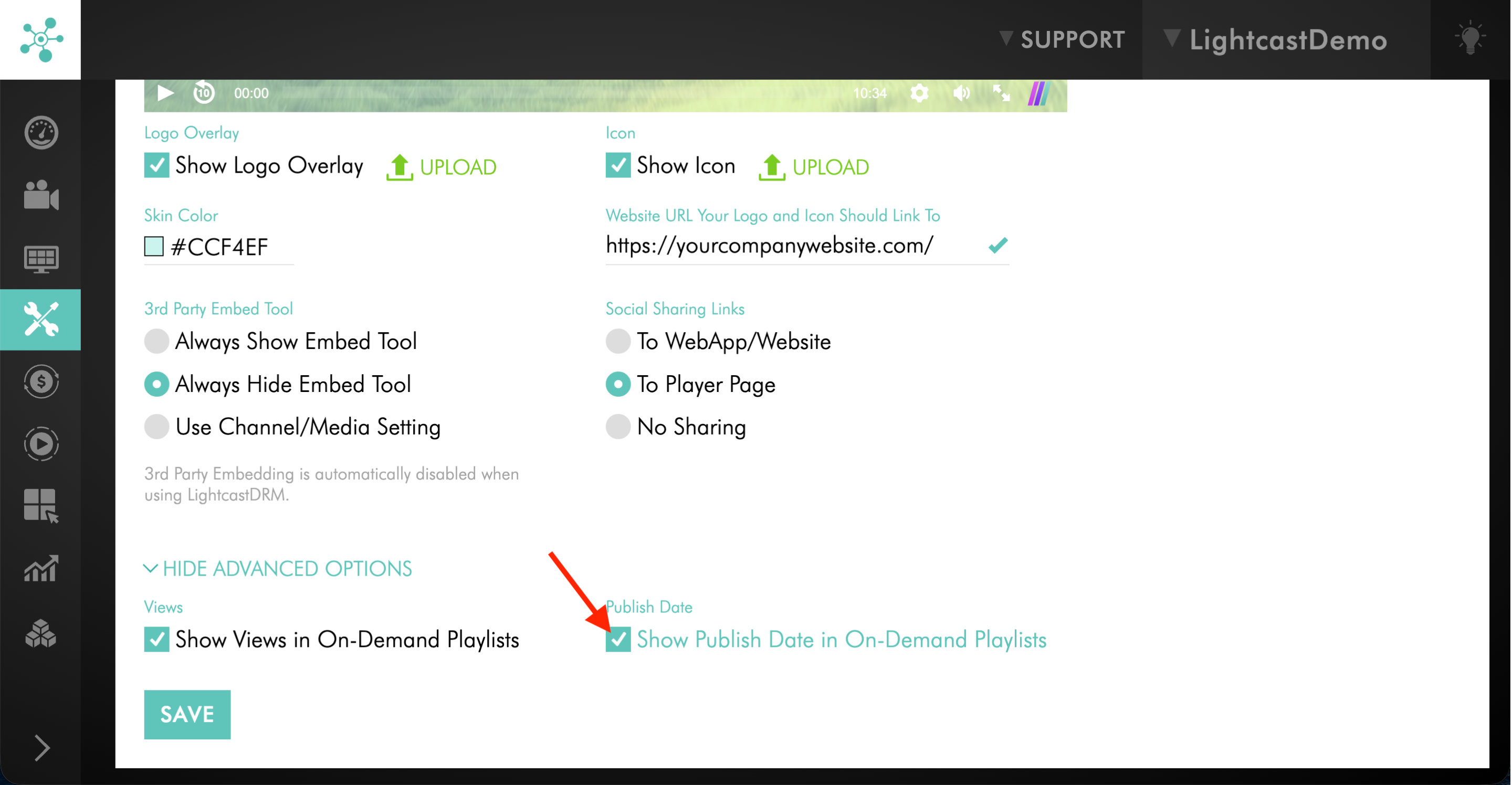
Click SHOW ADVANCED OPTIONS if the advanced settings are not already displayed.
Step 2
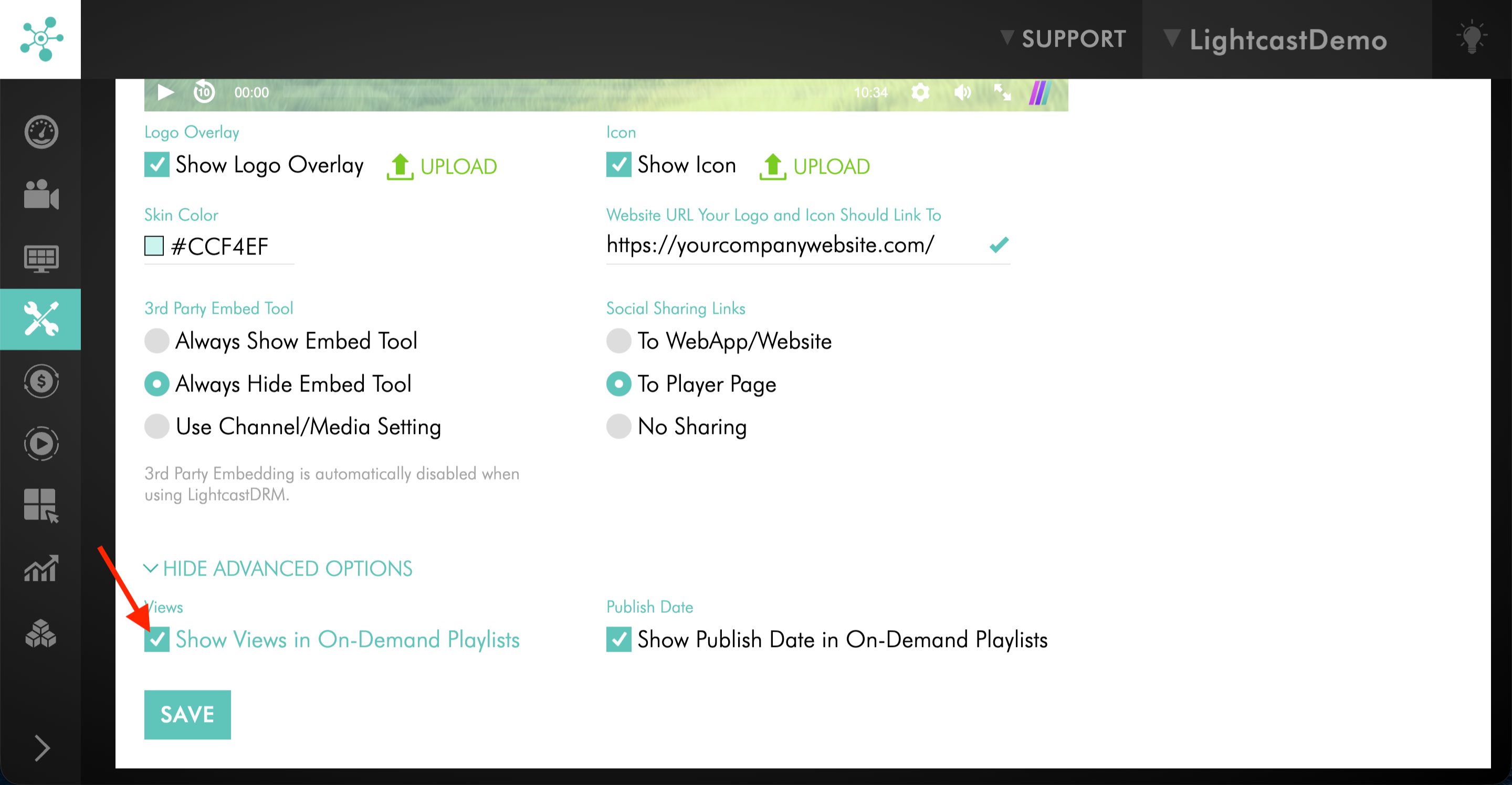
In the Views section, select or clear Show Views in On-Demand Playlists.
Step 3
In the Publish Date section, select or clear Show Publish Date in On-Demand Playlists.
Save your changes
Step 1
Review the preview screen to make sure the player looks the way you want.
Step 2
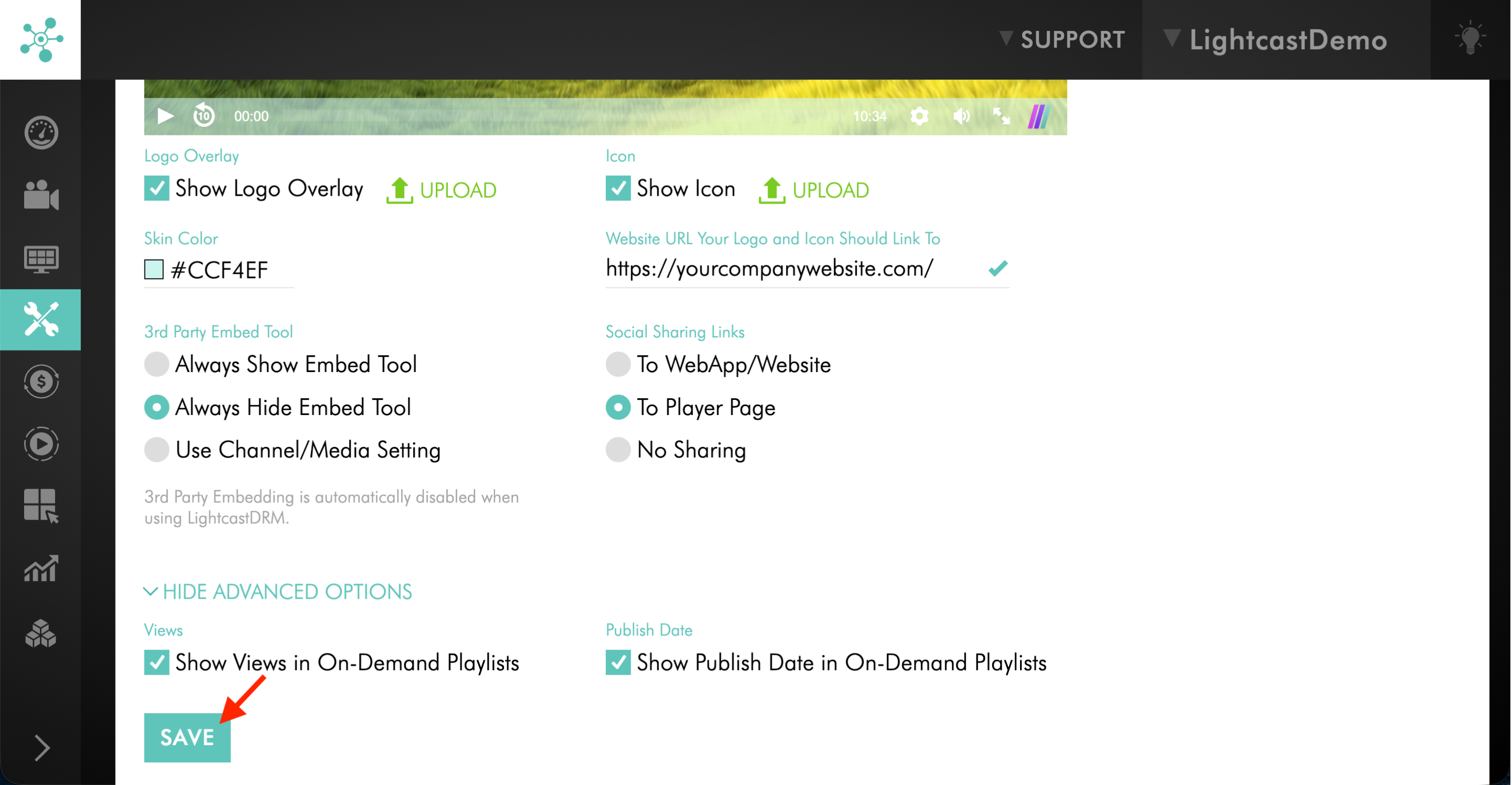
Click SAVE to apply your changes.
FAQs
What is the Player Configurator?
The Player Configurator is a Media Cloud tool that lets you control the appearance and selected display settings of your Lightcast web player at the account level.
Can I upload my own player logo overlay and player icon?
Yes. You can upload both in the Player Configurator by using the UPLOAD options below the preview screen.
How do I remove the Lightcast branding from the web player?
Open the Player Configurator and clear the Show Logo Overlay and Show Icon options. Then save your changes.
Can I link the player logo overlay and player icon to my website?
Yes. Enter your website address in the URL field in the Player Configurator, then save your changes.
Can I hide the view count and publish date in on-demand playlists?
Yes. Click SHOW ADVANCED OPTIONS in the Player Configurator to access those display settings.
How should I size my logo overlay?
Focus on the image dimensions and layout rather than only the file size. A logo with little or no padding can appear too large in the player.
For best results:
Resize the image itself, not just the file size.
Add white space or padding if the logo appears too large.
Keep a high-resolution copy of your original logo file on your computer or drive so you can reuse it later without having to recreate it.
Preview the result in the Player Configurator before saving.
Pricing
The Player Configurator is available on POWER packages and up.
If you don’t have access to this feature, you can upgrade to one of our latest plans or contact your account manager.
How to use the Player Embed Tool
How to use the Player Sharing Feature