
How to schedule media to publish or unpublish in the Media Cloud
Overview
This article explains how to schedule an uploaded video or audio file to publish or unpublish from a VOD Channel or AOD Channel in the Media Cloud.
For information about scheduling videos to publish to Facebook or YouTube, see the related articles at the end of this article.
When to use publish or unpublish scheduling
Use publish or unpublish scheduling to control when media content becomes available or unavailable in a VOD Channel or AOD Channel. Scheduling allows you to prepare content in advance without requiring manual updates later.
This may be helpful when you want to:
Schedule a video or audio file to publish on a future date.
Automatically unpublish seasonal, time-sensitive, or limited-access content.
Prepare content ahead of time without making it immediately available.
Reduce the need for manual publishing or unpublishing later.
How it works
Scheduled publishing controls when a media item becomes available in an assigned VOD Channel or AOD Channel.
Scheduled unpublishing controls when a media item becomes unavailable in an assigned VOD Channel or AOD Channel.
Scheduling is managed from the media item’s CHANNELS tab. The media item must be assigned to a VOD Channel or AOD Channel before a publish or unpublish date can be scheduled.
Scheduling becomes available after the media item has been uploaded and accepted by the encoding farm. Once the media item's status changes from Waiting to Queued, publish and unpublish scheduling becomes available.
If you want to prepare a media item before it becomes available to viewers, upload it without assigning it to a VOD Channel or AOD Channel. After the upload has been accepted by the encoding farm and the media item appears in the Video Archive or Audio Archive, assign it to the desired Channel and configure the publish or unpublish schedule.
When the scheduled publish date and time arrive, the media item is automatically published to the assigned Channel. It then becomes available across any connected publishing properties where that Channel appears, including your website, Web App, TV apps, mobile apps, and the Lightcast Web Player.
Scheduling content for Facebook and YouTube uses a separate workflow and is configured from the media item's SETTINGS tab. See the related articles below for more information.
Why scheduling is managed at the media item level
Publish and unpublish scheduling is configured for each individual media item rather than at the Channel level. This allows each video or audio file to have its own availability window, making it easy to prepare content in advance, schedule premieres, remove time-sensitive content automatically, and manage media independently within the same Channel.
Instructions
Open the media item’s Channel settings
Follow these steps first before scheduling a publish or unpublish date.
Step 1
Log in to your Media Cloud account.
Step 2
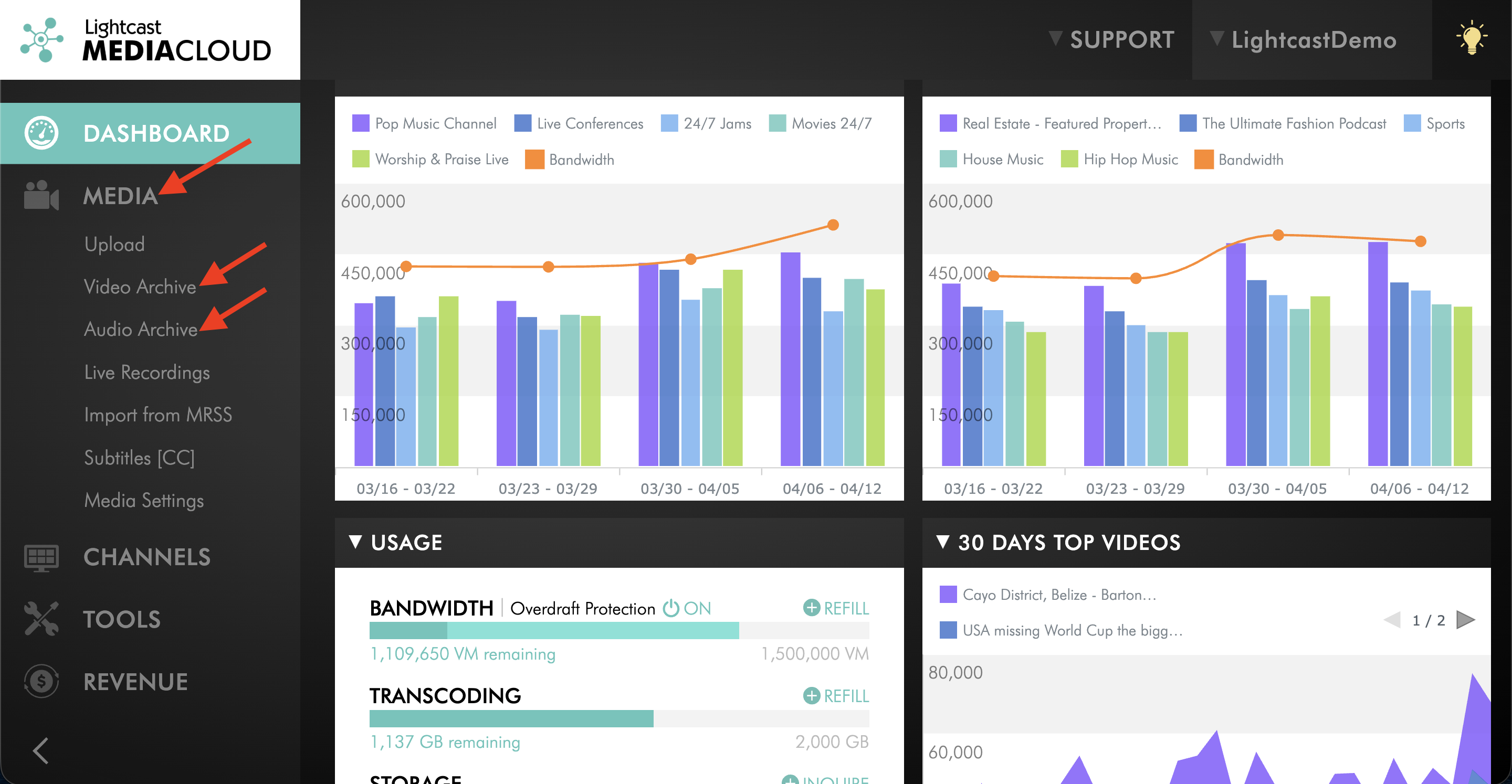
Go to MEDIA, then open Video Archive or Audio Archive.
Step 3
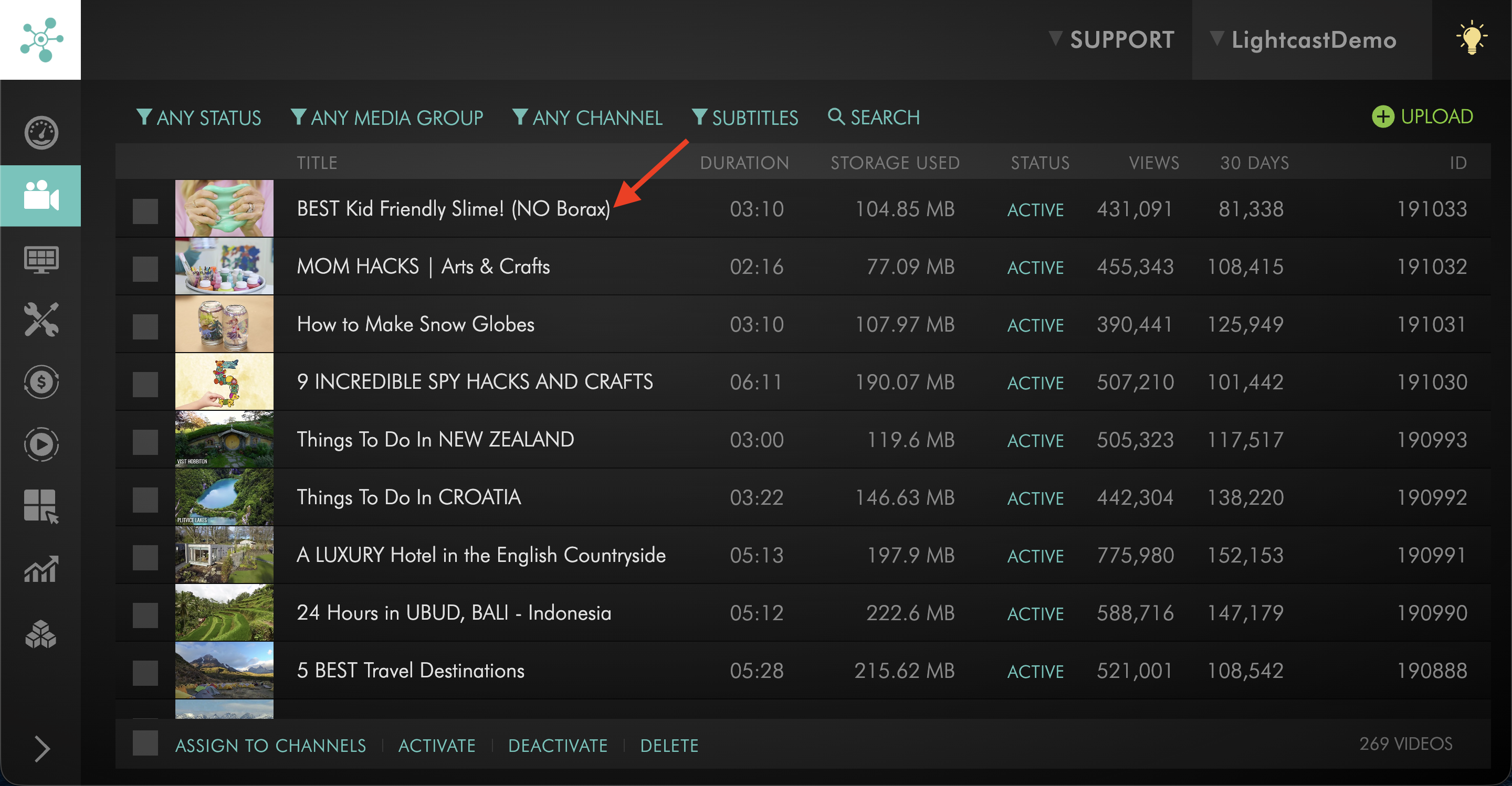
Select the media item that you want to schedule.
Step 4
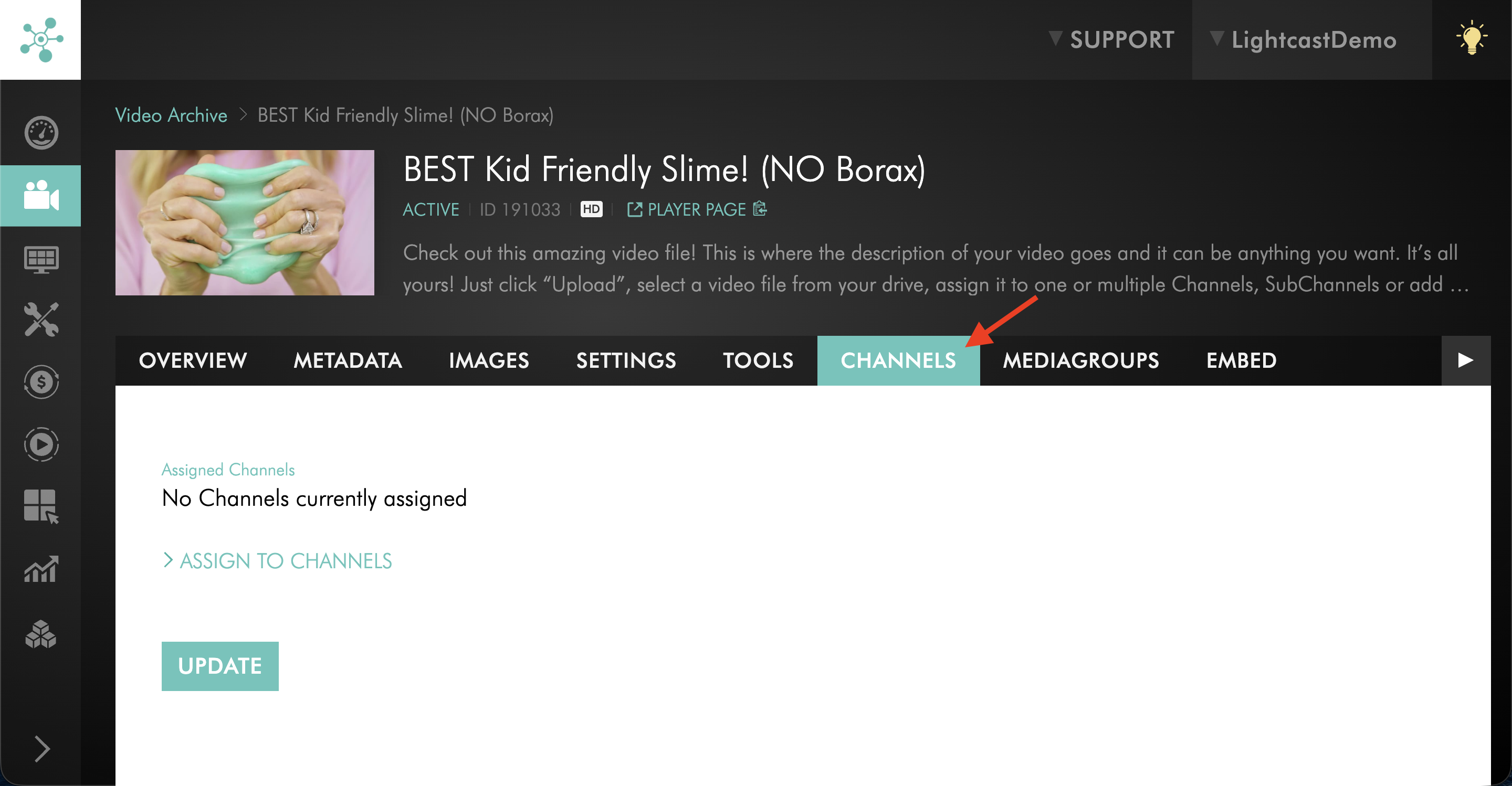
Click the CHANNELS tab.
Step 5
If the media item is not already assigned to the correct Channel, assign it to the VOD Channel or AOD Channel where you want it to publish.
For detailed assignment steps, see:
How to assign videos to a specific Video On-Demand (VOD) Channel
How to assign audio files to a specific Audio On-Demand (AOD) Channel
After the media item is assigned to a Channel, you can schedule its publish date, unpublish date, or both.
Schedule a media item to publish
Step 1
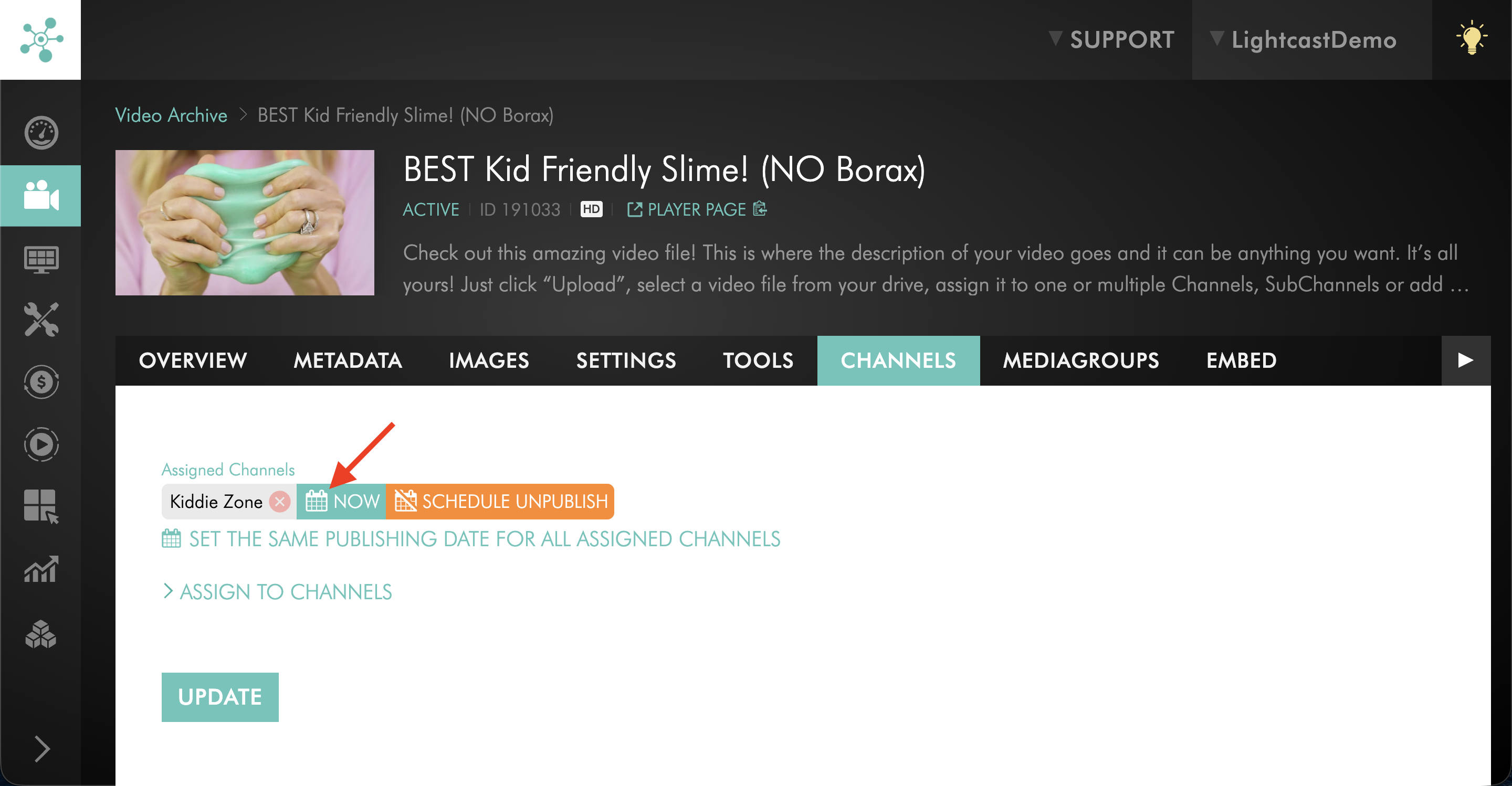
Next to the assigned Channel, click NOW.
Step 2
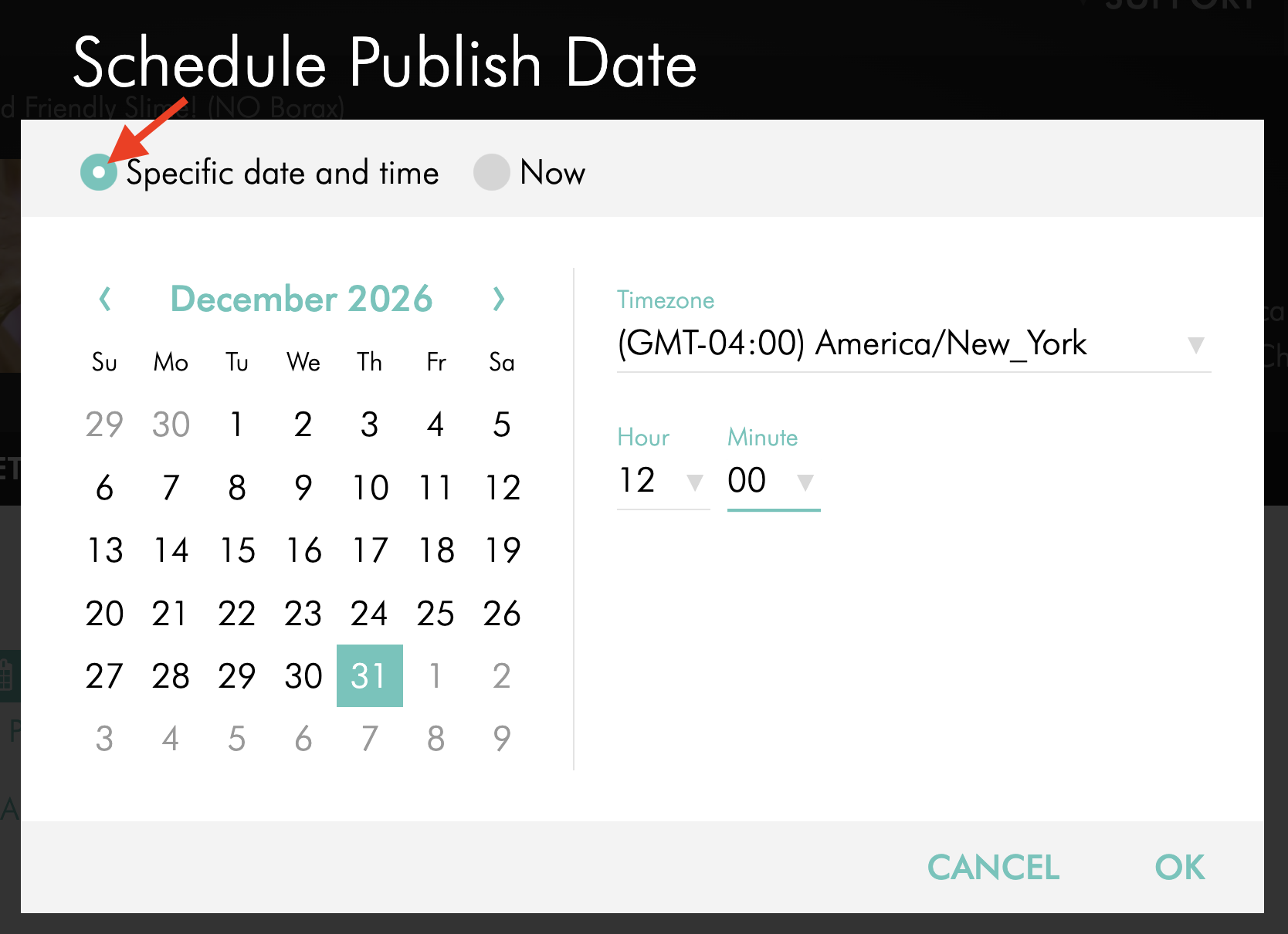
In the Schedule Publish Date pop-up window, choose Specific date and time.
Step 3
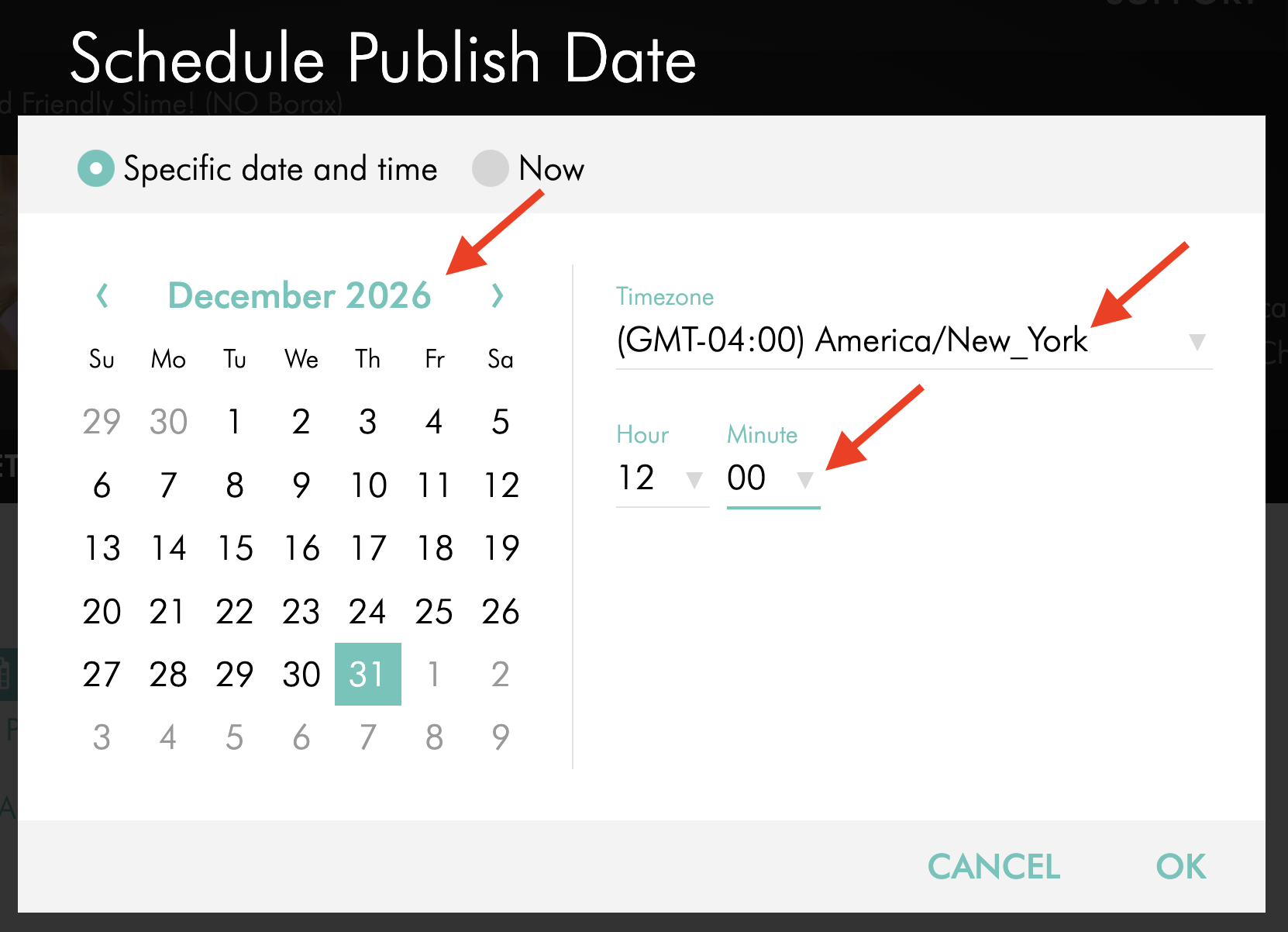
Select the publish date, time, and time zone.
Step 4
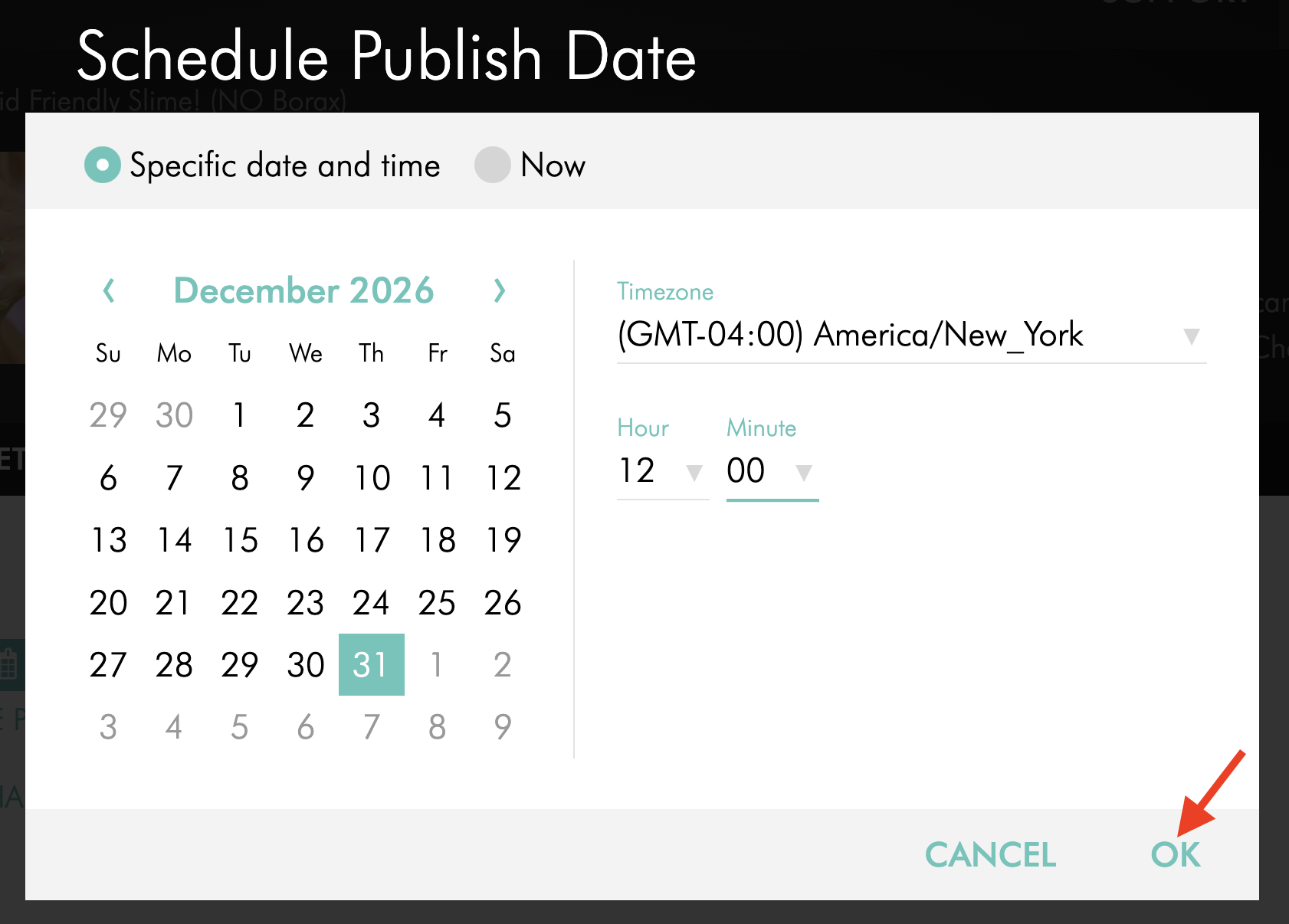
Click OK.
Step 5
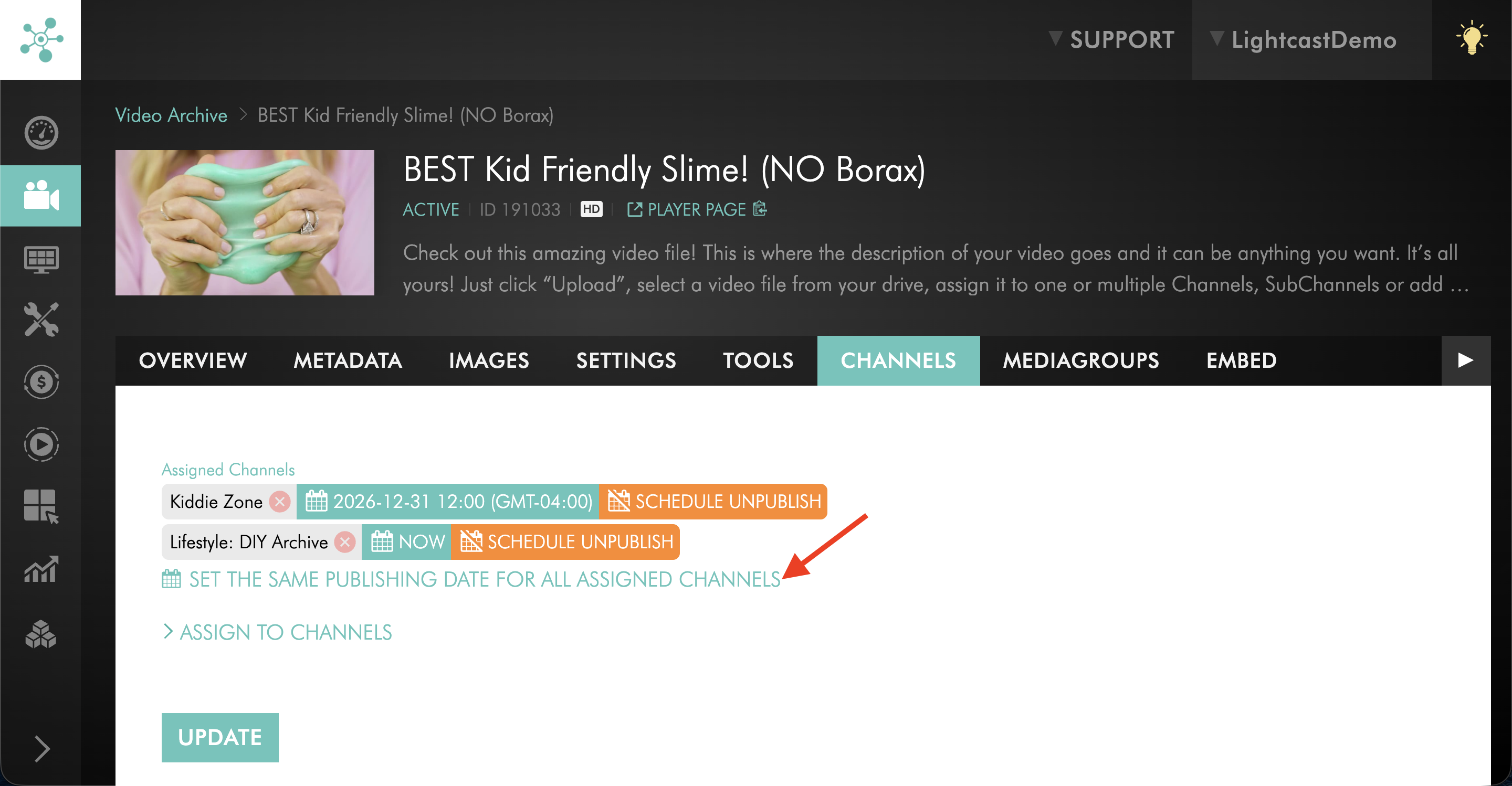
If the media item is assigned to multiple Channels and you want to use the same publishing date for all assigned Channels, click SET THE SAME PUBLISHING DATE FOR ALL ASSIGNED CHANNELS.
If you want to use different publishing dates for different Channels, set the publishing date separately for each assigned Channel.
Step 6
Click UPDATE to save your changes.
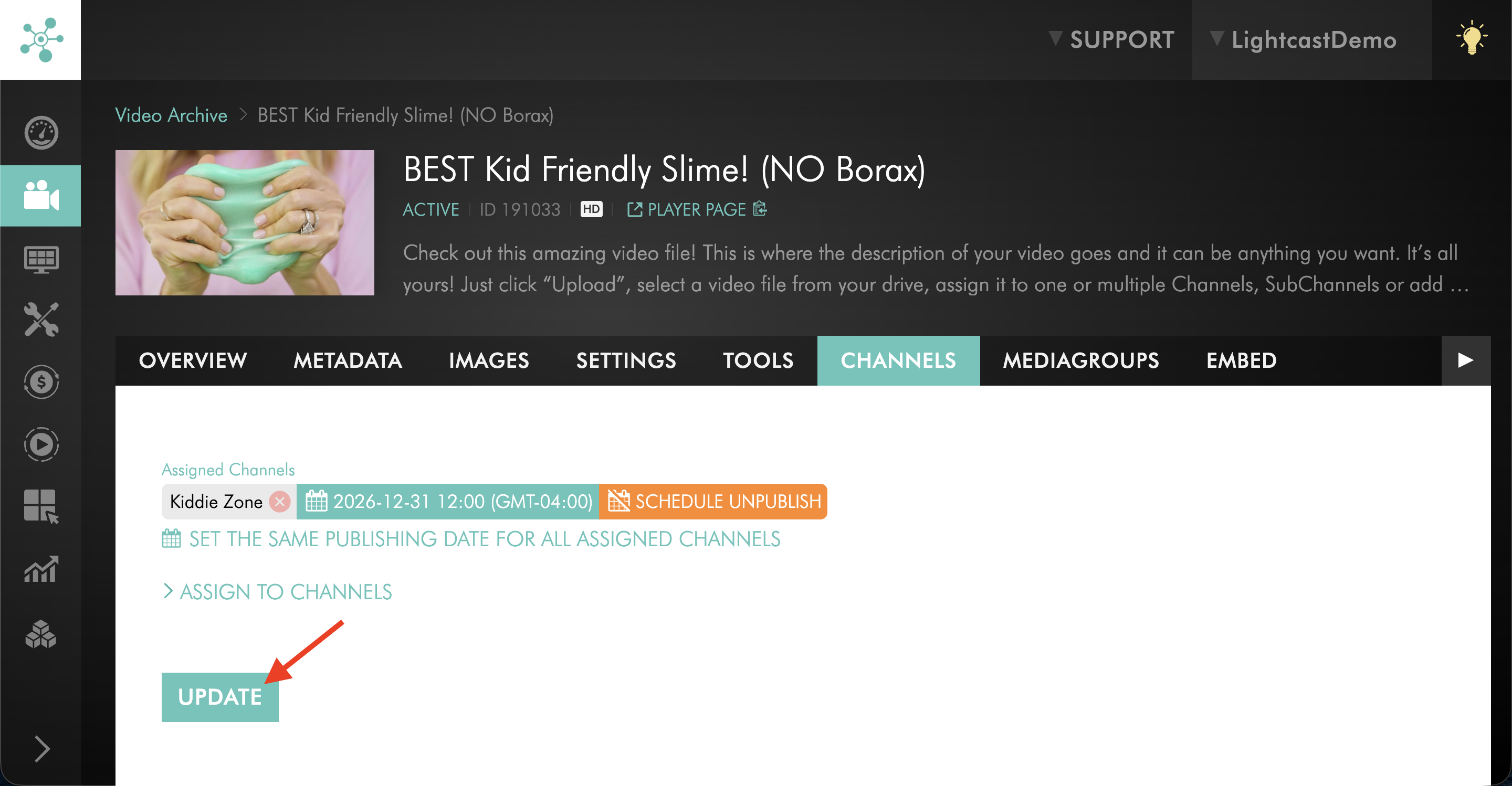
Schedule a media item to unpublish
Step 1
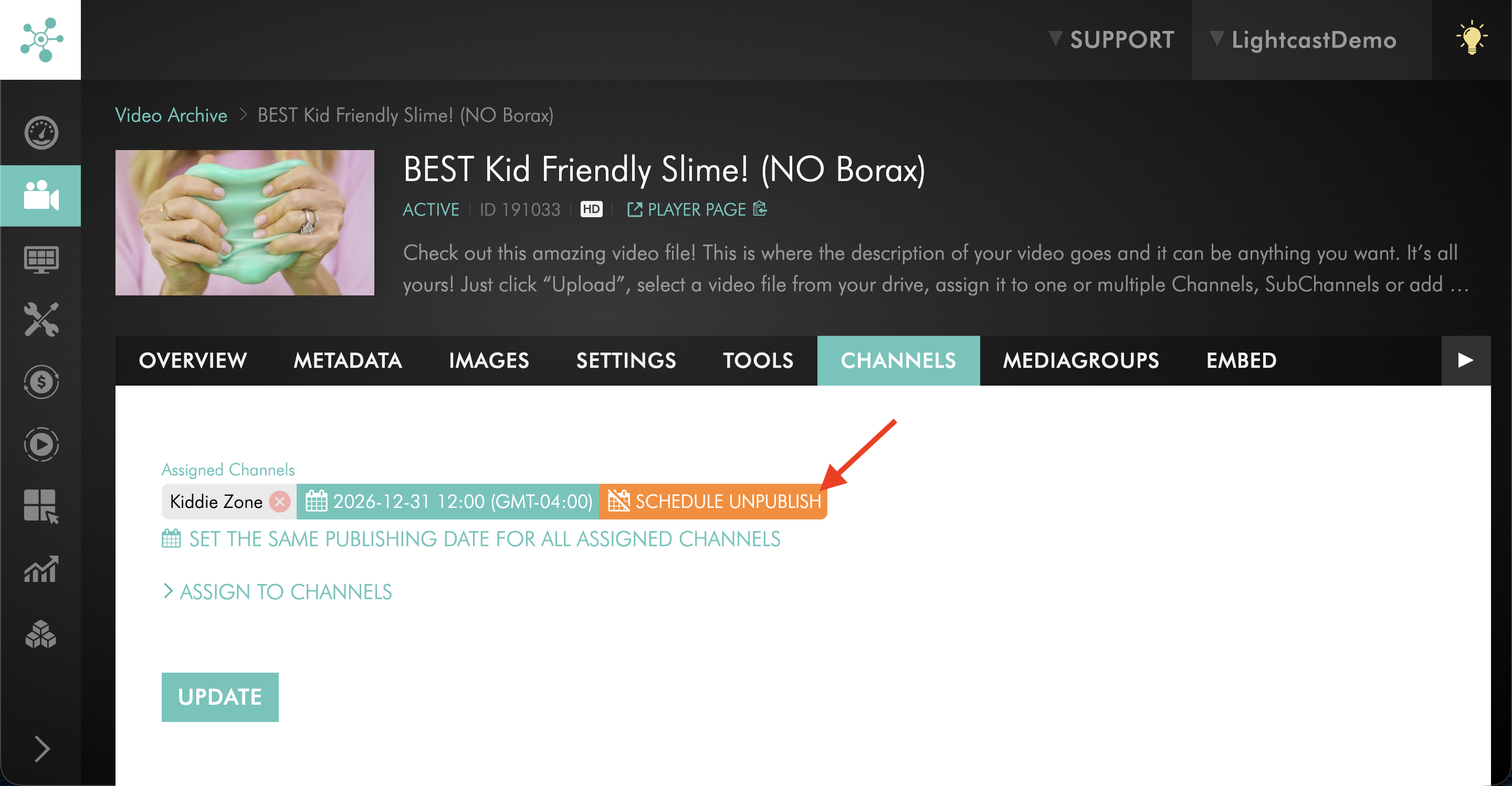
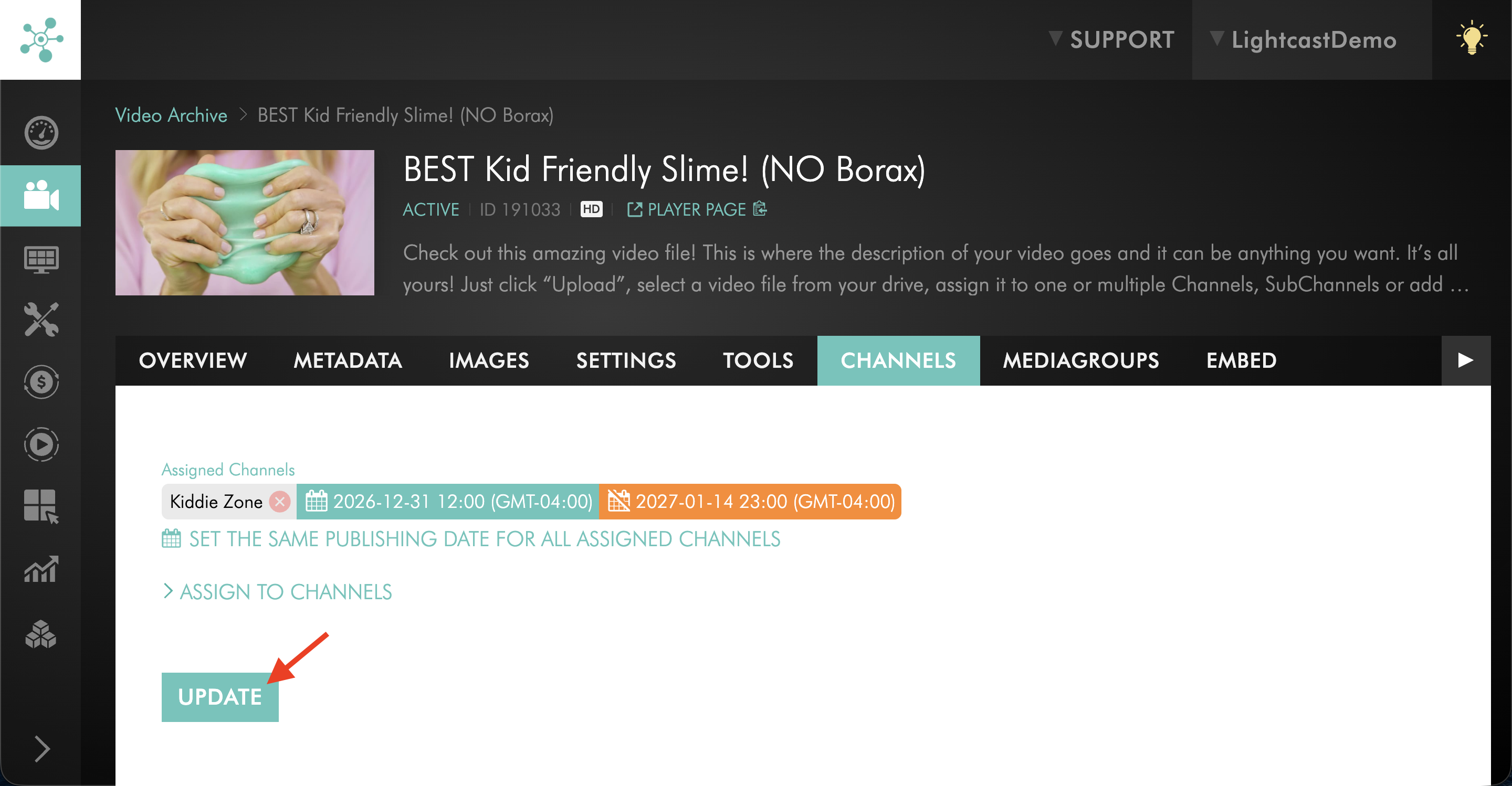
Next to the assigned Channel, click SCHEDULE UNPUBLISH.
Step 2
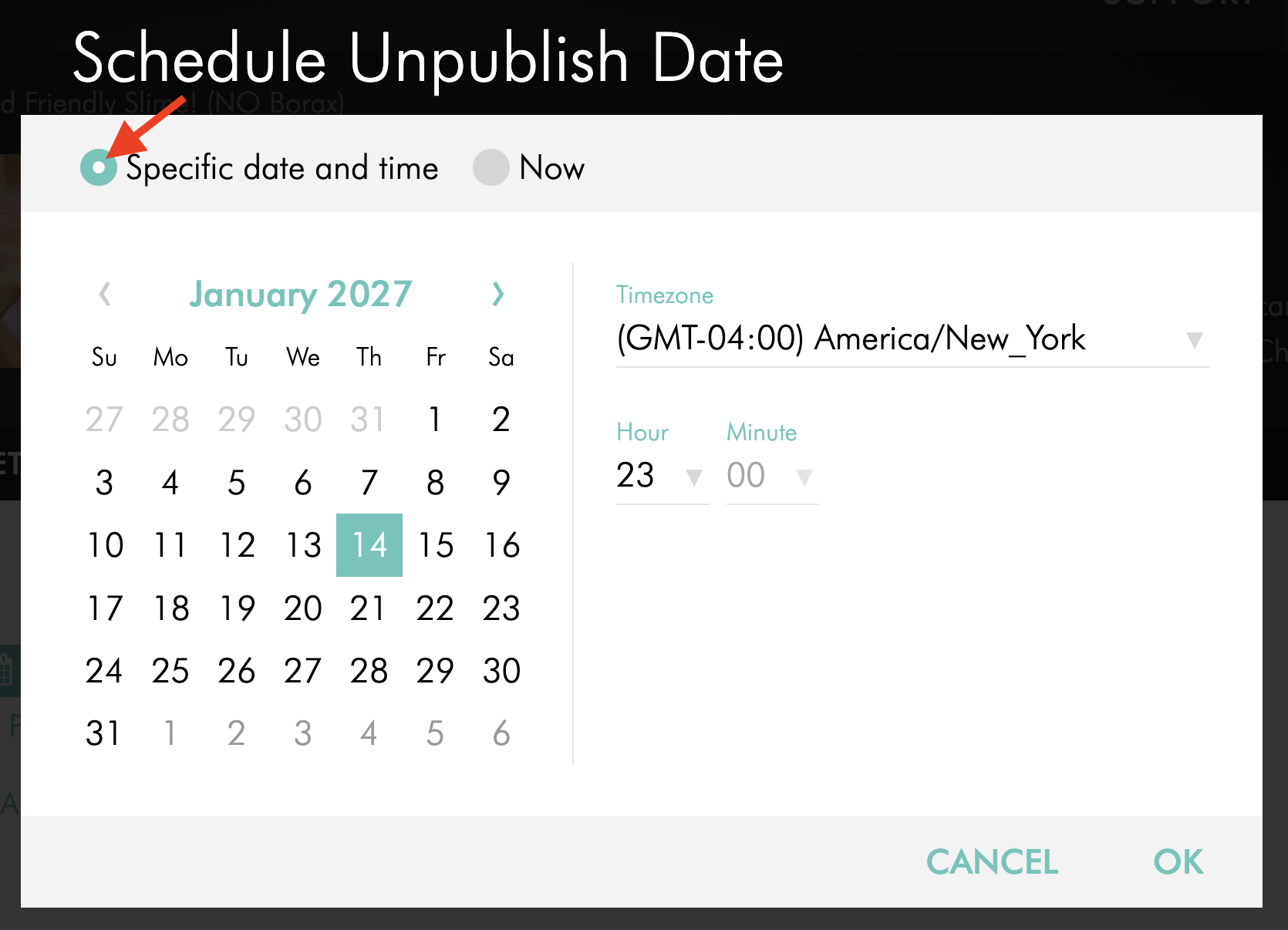
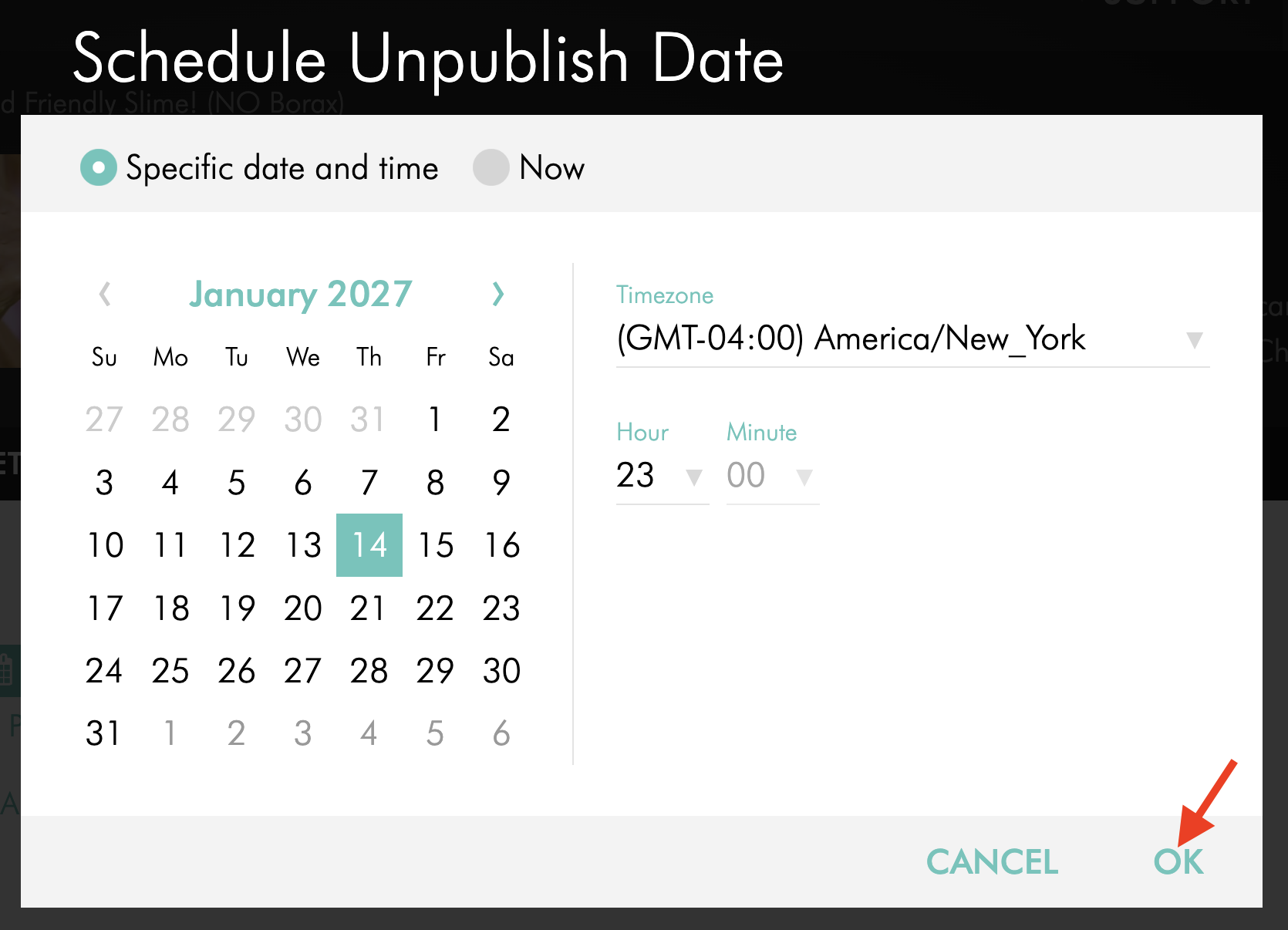
In the Schedule Unpublish Date pop-up window, choose Specific date and time.
Step 3
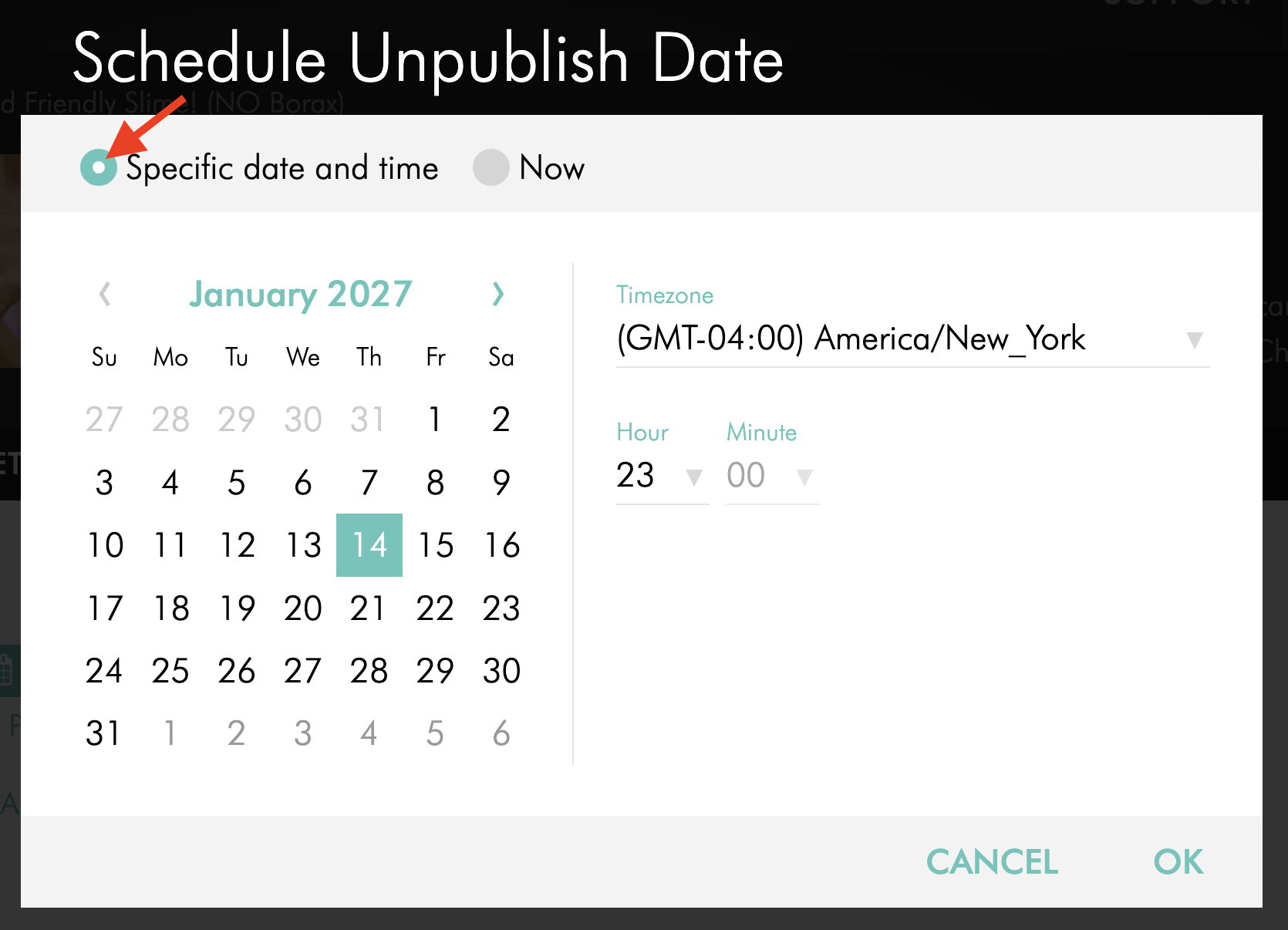
Select the unpublish date, time, and time zone.
Step 4
Click OK.
Step 5
Click UPDATE to save your changes.
FAQs
Can videos and audio files both be scheduled?
Yes. This workflow applies to uploaded videos in the Video Archive and uploaded audio files in the Audio Archive.
Videos can be scheduled for VOD Channels. Audio files can be scheduled for AOD Channels.
When does scheduling become available?
Scheduling becomes available after the media item has been uploaded and sent to the encoding farm.
In other words, the media item must move from Waiting to Queued before you can schedule publishing or unpublishing.
Does the media item need to be assigned to a Channel before scheduling it?
Yes. The media item must be assigned to a VOD Channel or AOD Channel before you can set a publish or unpublish date.
If you want to prevent the media item from going live before the scheduled publish date, we recommend uploading it without assigning it to a Channel first. After scheduling becomes available, assign it to the Channel and set the publish date.
Can the same media item be scheduled for multiple Channels?
Yes. A media item can be assigned to multiple Channels.
You can set the same publishing date for all assigned Channels, or you can set different publishing dates for each Channel.
Why is scheduled media not appearing in an app or Channel?
First, confirm that the scheduled publish date and time have passed. Then check that the media item is assigned to the correct VOD or AOD Channel.
If the media item was published recently, refresh or reopen the app because some apps or devices may cache content temporarily.
Will scheduled publishing apply to connected apps and publishing properties?
Yes. If the assigned Channel is connected to publishing properties, the scheduled publish or unpublish setting applies to those connected publishing properties.
This can include your website, Lightcast Web Player, TV app, Mobile apps, and other connected publishing destinations.
Can this workflow be used to schedule publishing to Facebook or YouTube?
Facebook and YouTube scheduled publishing use a separate workflow from the media item’s SETTINGS tab.
For more information, see:
Can publishing to X be scheduled?
X publishing is supported. However, X does not support scheduled publishing through this workflow.
If you publish a video to X, it will publish the same day, even if a scheduled publishing date is selected for the media item’s Channel assignment.
Pricing
Scheduled Publishing and Scheduled Unpublishing are available on POWER packages and up.
If you do not have access to this feature, you can upgrade to one of our latest plans or contact your account manager.