
How to publish your videos to your YouTube Channel
Overview
You can publish uploaded videos from your Media Cloud account directly to your YouTube Channel. This is useful if you want to distribute your on-demand content to YouTube without manually uploading the video through YouTube.
You can choose to publish the video immediately or schedule it for a future date and time.
How it works
YouTube publishing is managed from the SETTINGS tab of an uploaded video in your Video Archive.
The first time you publish to YouTube, you will need to connect the Google account that manages your YouTube Channel with your Media Cloud account. After the connection is established, the connected YouTube account will appear next to the YouTube setting.
Scheduled publishing is available after the media item has been uploaded and sent to the encoding farm. In other words, the media item must move from Waiting to Queued before scheduling is available. If you want to schedule publishing before a video goes live on connected publishing properties, we recommend uploading the media item without assigning it to a Channel first.
When a video is published to YouTube from the Media Cloud, the title and description are transferred to YouTube. Other settings, such as language, status, or age restrictions, are not transferred through the YouTube API and must be configured directly in your YouTube account after publishing.
Videos published from the Media Cloud are sent to your YouTube Channel, not to a specific playlist. If you want the video to appear in a playlist, you must move it there manually in YouTube after it has been published.
By default, YouTube only allows uploads up to 15 minutes unless the YouTube account is verified. If your YouTube account is verified for live streaming access, uploads longer than 15 minutes are usually already allowed.
Instructions
Step 1
Upload your video to your Media Cloud account.
Step 2
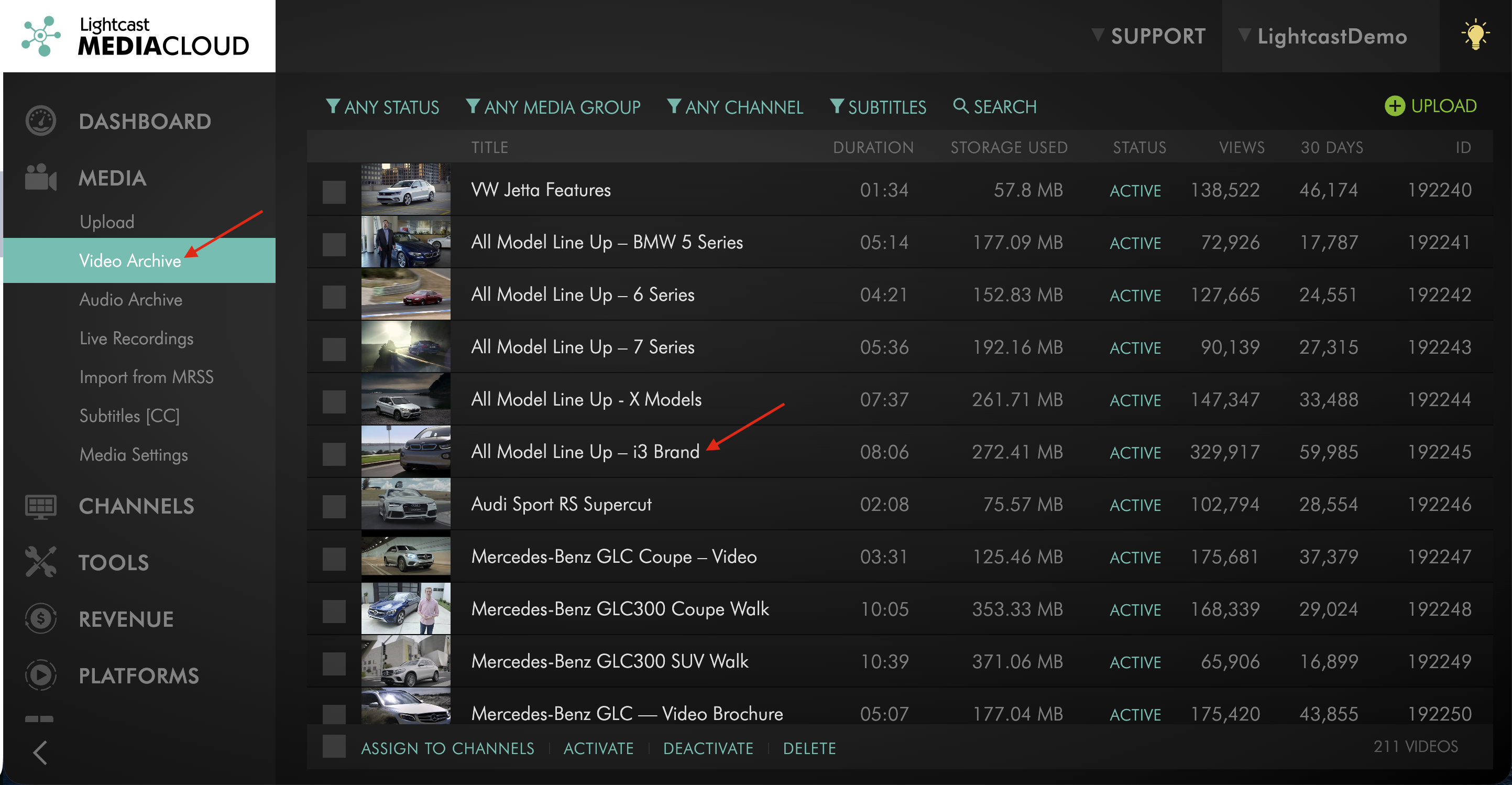
Open the uploaded video from your Video Archive.
Step 3
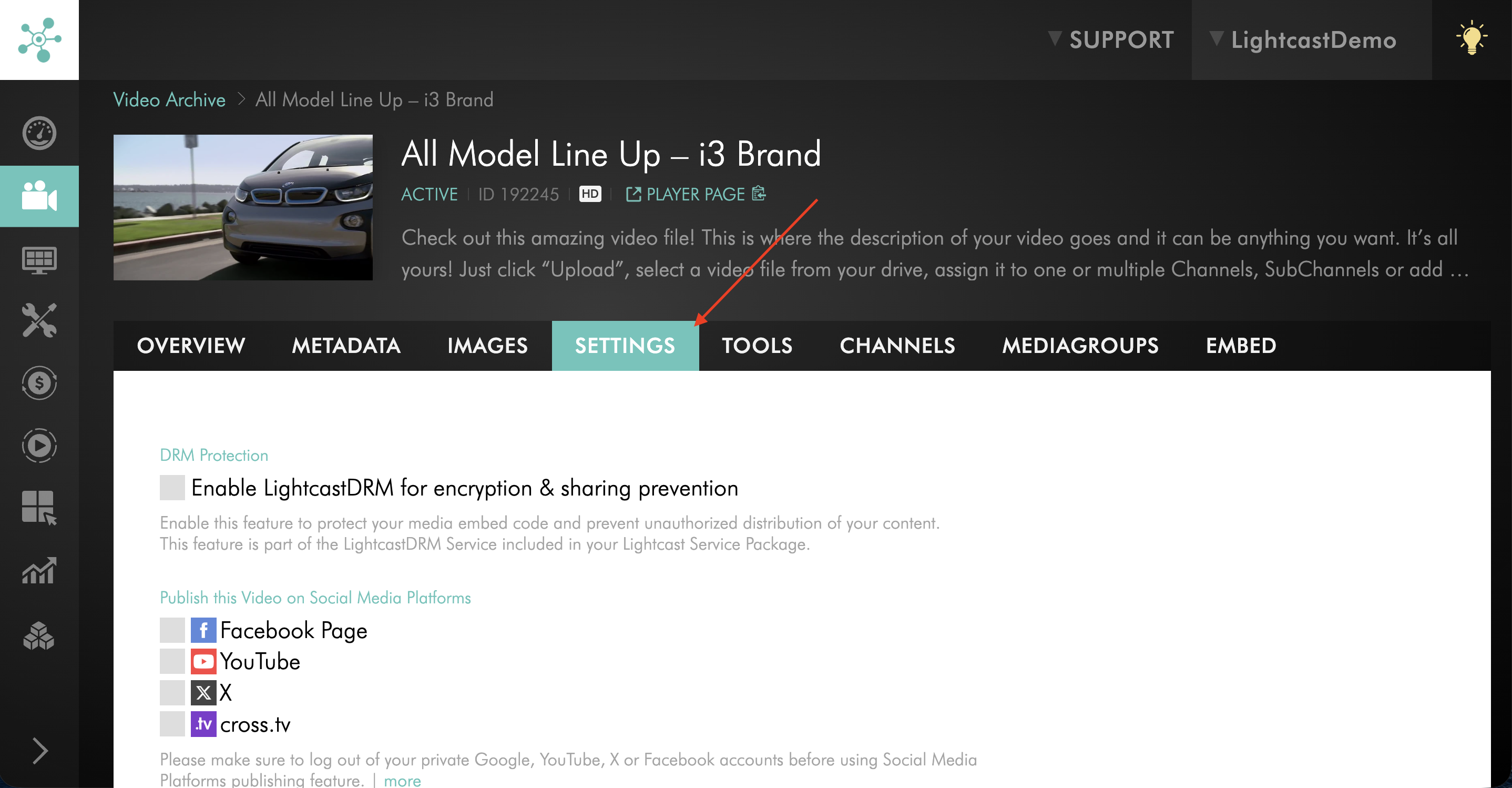
Go to the video’s SETTINGS tab.
Step 4
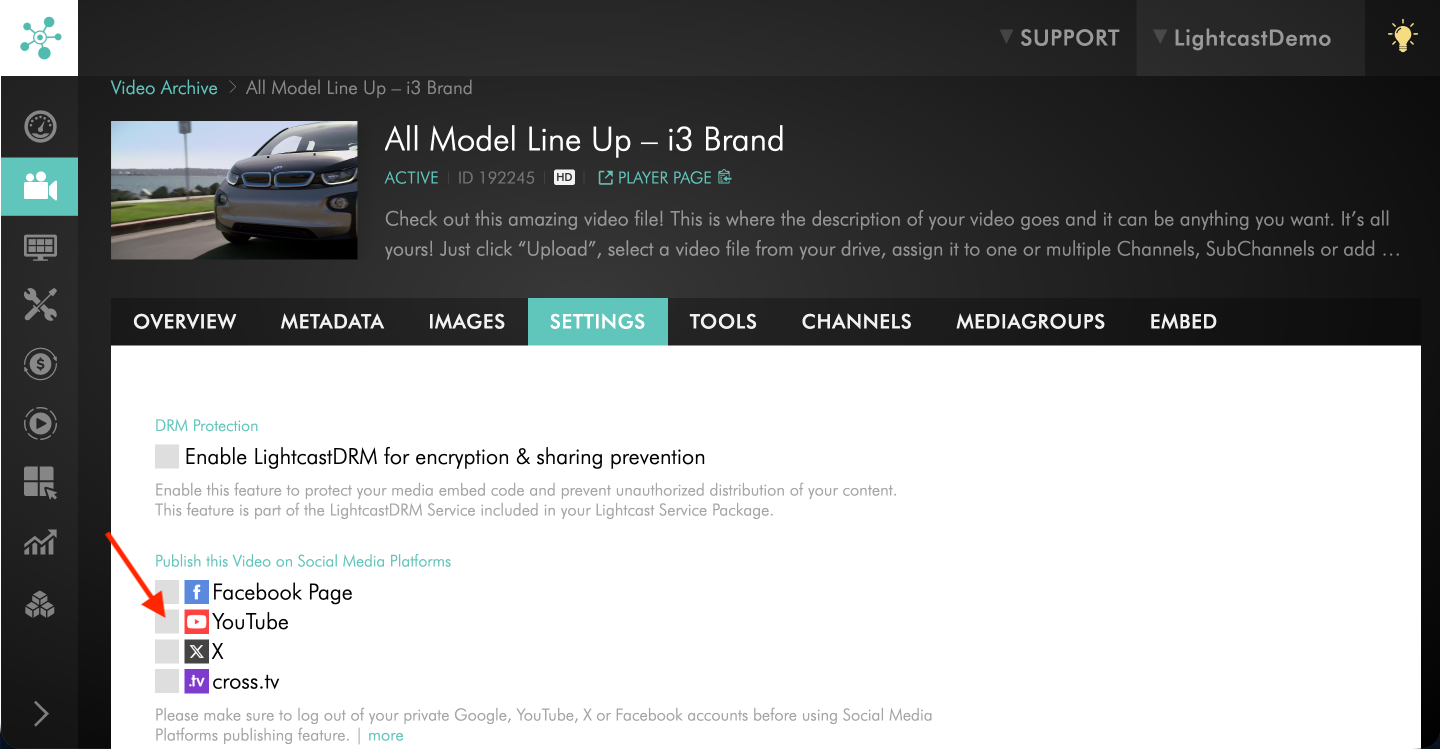
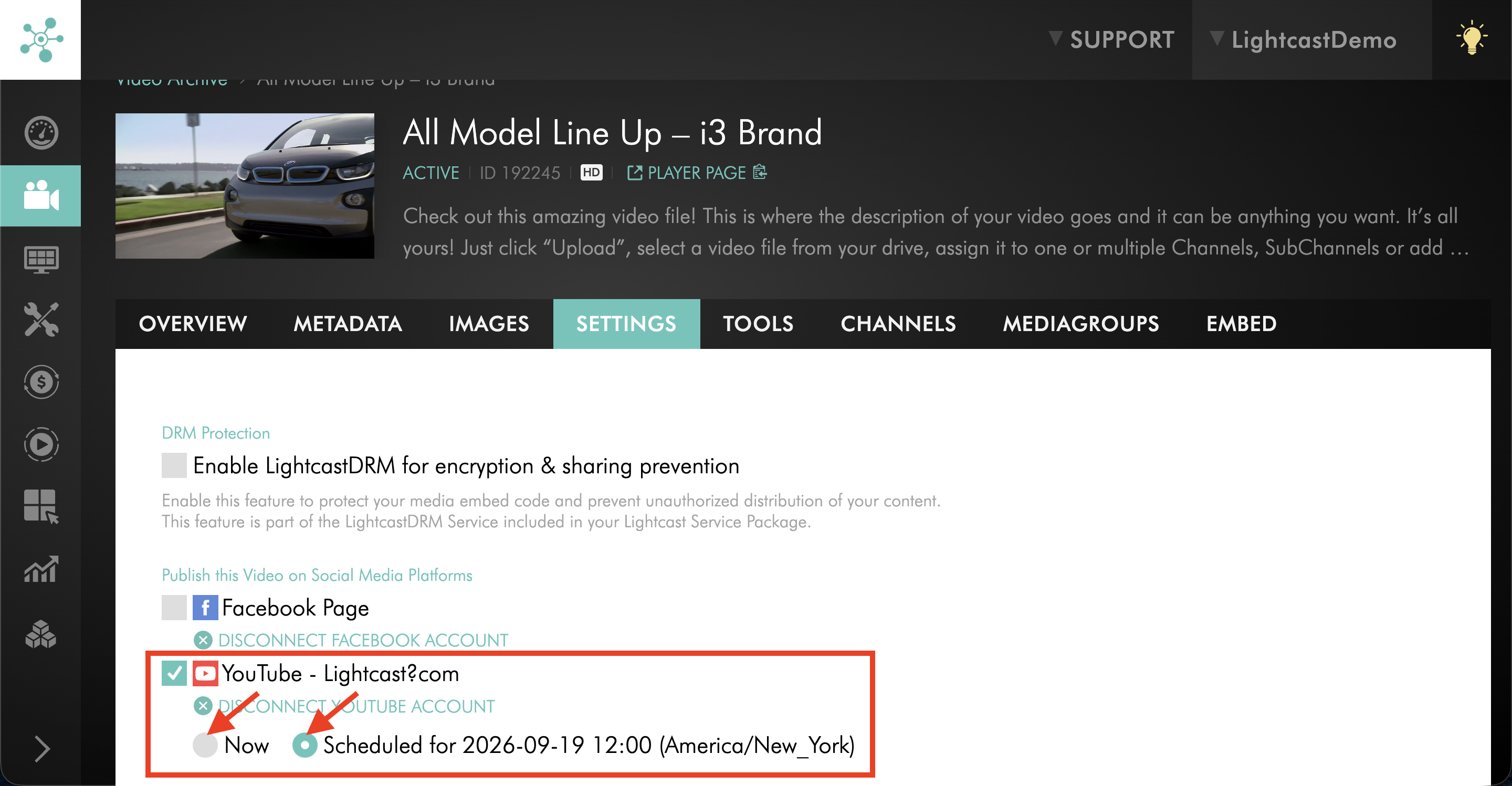
Under Publish this Video on Social Media Platforms, check the box next to YouTube.
Step 5
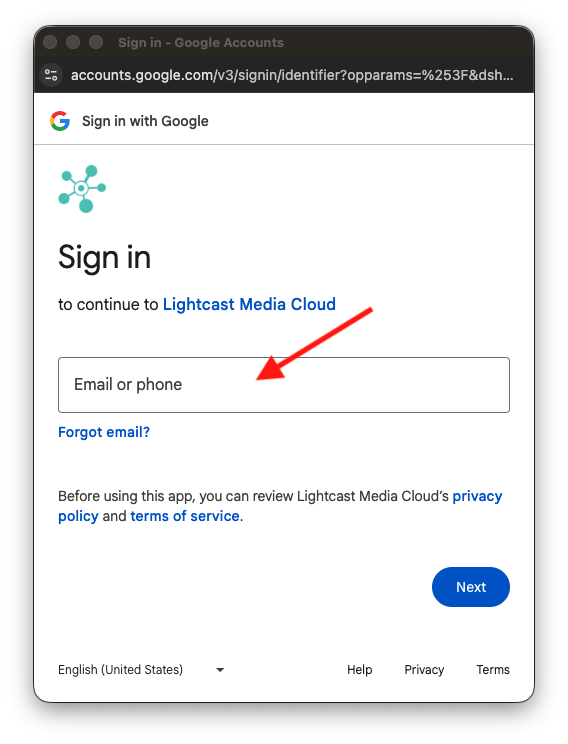
In the pop-up window, log in with the Google account that manages your YouTube Channel. If needed, make sure your browser allows pop-ups.
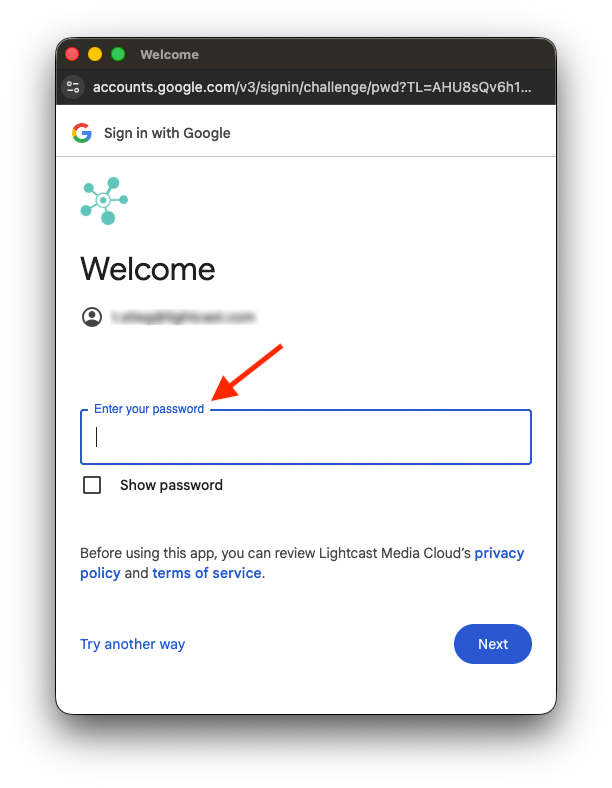
Step 6
Complete the necessary authorization steps.
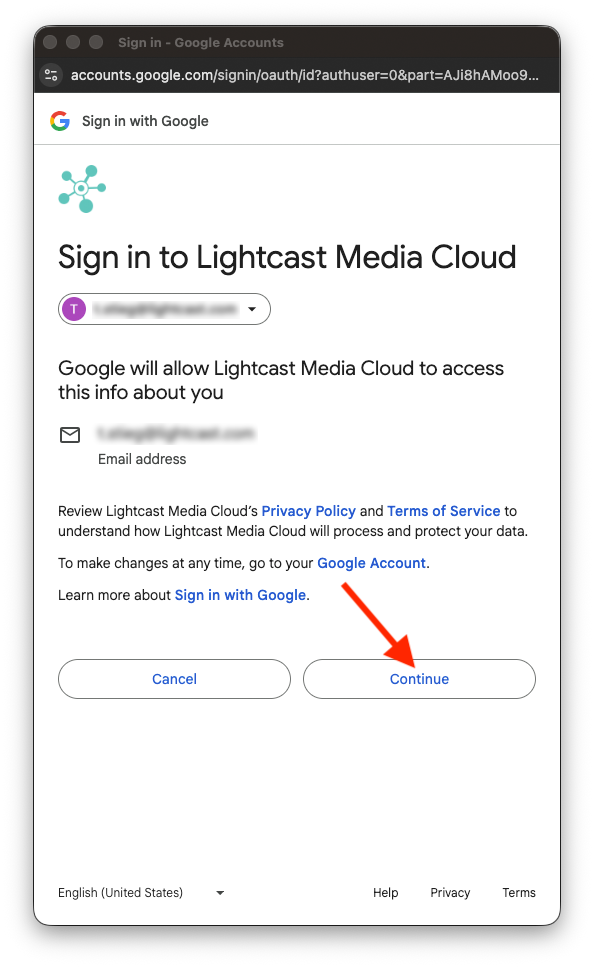
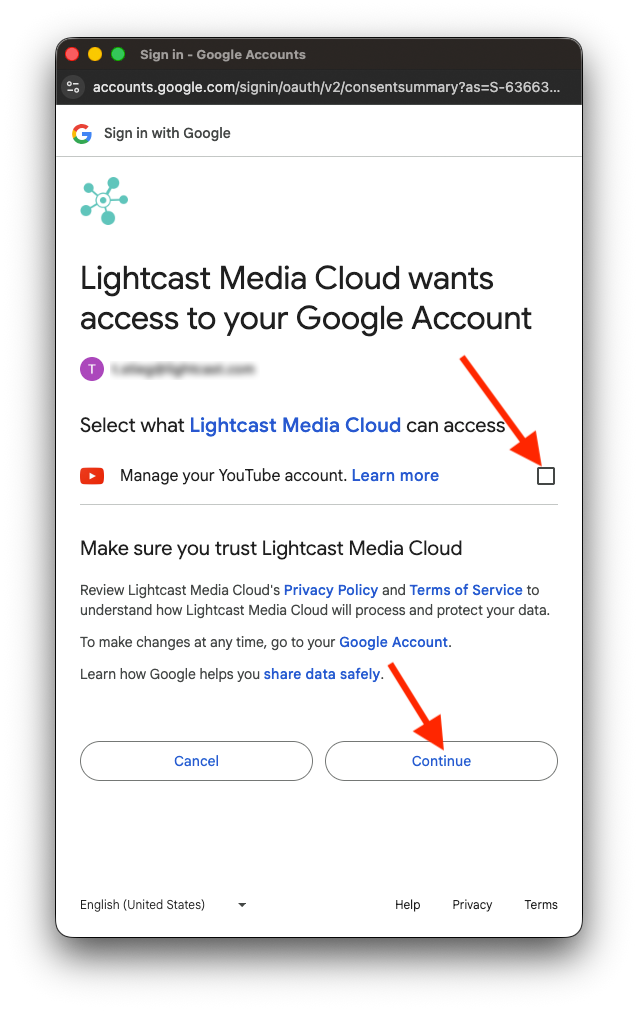
Step 7
Once the connection is complete, return to your Media Cloud account and confirm that your YouTube account name appears next to YouTube.
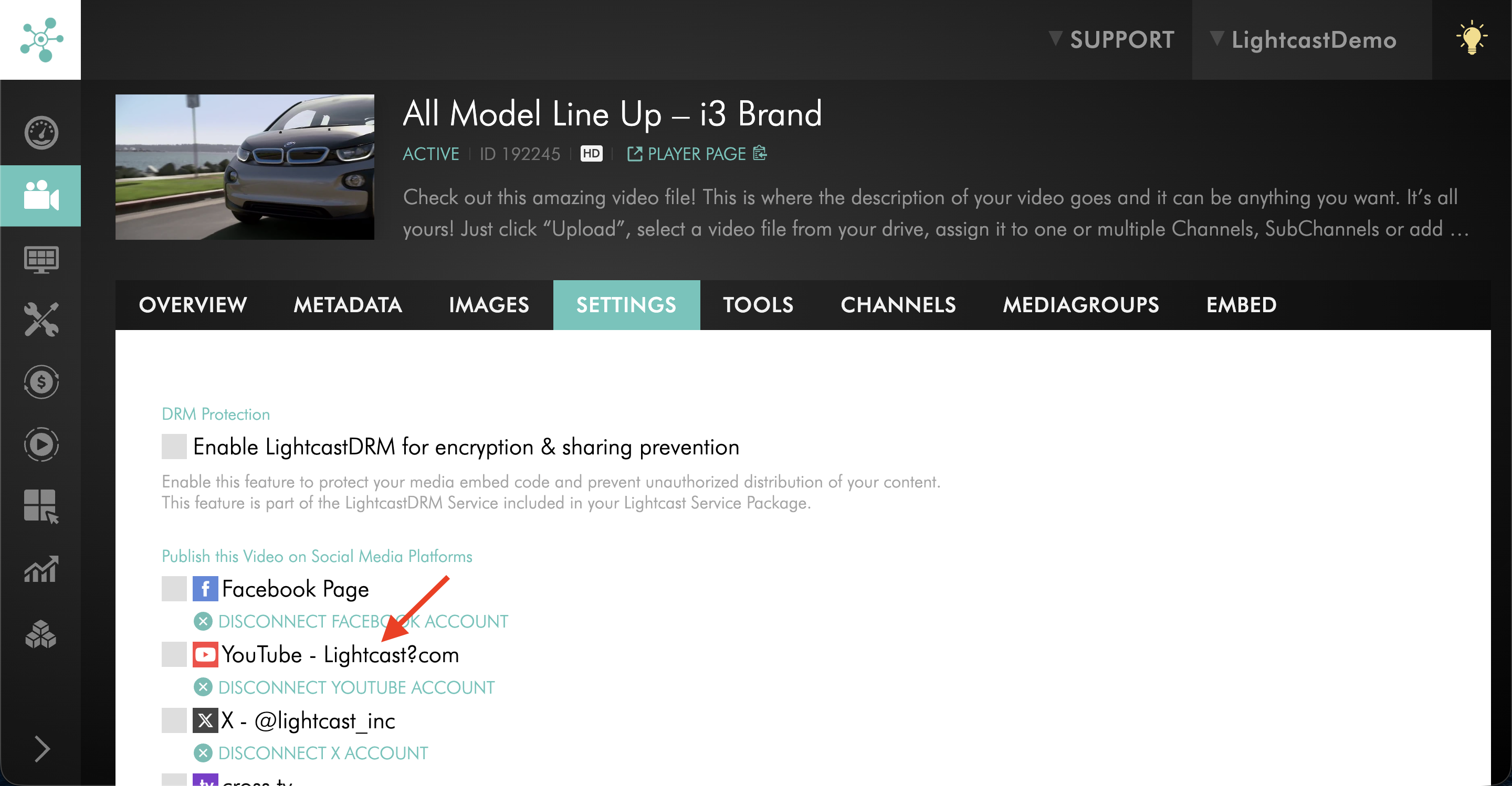
Step 8
Check the box next to YouTube and set your publishing preference by choosing one of the following:
Now to publish the video immediately
Schedule to publish the video on a future date and time
Step 9
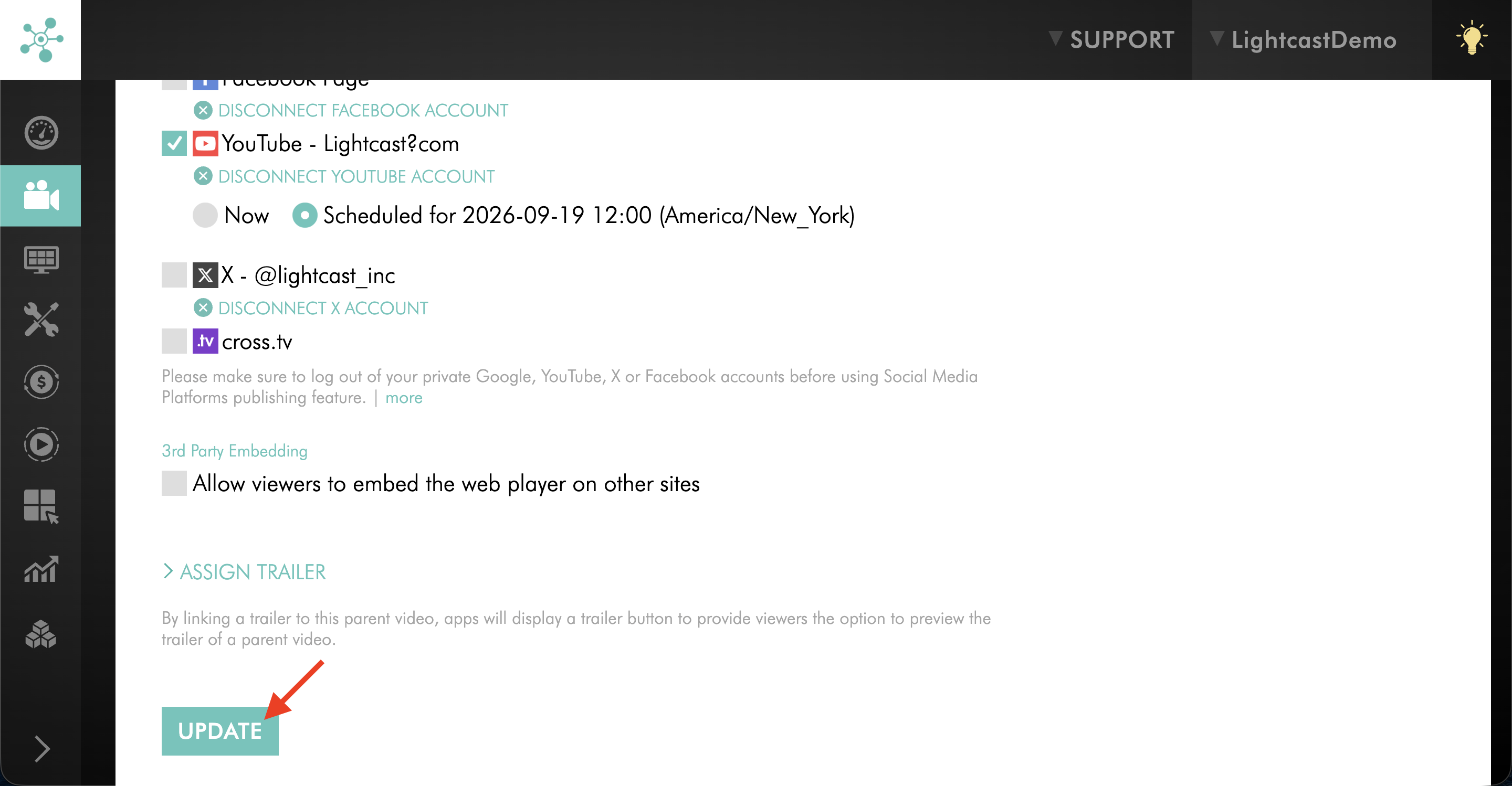
Click UPDATE at the bottom of the SETTINGS tab.
Step 10
After you click UPDATE, the status will change to YouTube publishing in progress. It may take a few minutes for the video to be published.
To confirm whether publishing was successful, refresh the page:
If the video was published successfully, you will see Published on YouTube: Watch Video
If the video was not published successfully, you will see YouTube publishing failed
FAQs
Can I schedule publishing to YouTube?
Yes. You can schedule a video to be published to YouTube at a future date and time after the media item has moved from Waiting to Queued.
Which metadata is transferred to YouTube?
The video title and description are transferred to YouTube when publishing from the Media Cloud.
Can trial accounts connect to YouTube for publishing?
No. Trial accounts cannot be connected to YouTube for auto-publishing. This restriction exists because the connection between the Media Cloud and YouTube uses YouTube's API.
Can I publish videos directly to a YouTube playlist?
No. Videos published from the Media Cloud are sent to your YouTube Channel, not to a specific playlist. If you want the video to appear in a playlist, you must move it there manually in YouTube.
How do I upload videos longer than 15 minutes to YouTube?
YouTube accounts must be verified before they can upload videos longer than 15 minutes. Once the account is verified, longer uploads are allowed based on YouTube’s account permissions and upload limits.
Pricing
YouTube Publishing is available on POWER packages and up.
If you don't have access to this feature, you can upgrade to one of our latest plans or contact your account manager.