
Troubleshooting media encoding issues
Overview
This article explains how to troubleshoot media files that fail during ENCODING or take longer than expected to finish ENCODING in the Media Cloud.
Use this article when a video or audio file has already uploaded successfully but has not completed the encoding process.
When to use this article
Use this article when:
a media item is marked as FAILED after it started ENCODING
a media item uploaded successfully but did not finish processing
you suspect the original media file may be corrupt
you need to re-upload a media item without losing existing metadata or Channel assignments
some files in a large batch upload are still ENCODING
This article covers encoding-stage issues after the upload is complete. For upload-stage issues, see Troubleshooting media upload issues.
How it works
After a media file finishes uploading, the Media Cloud moves the file into ENCODING. During ENCODING, the encoding system creates streaming versions of the media file that are optimized for playback across supported websites, TV apps, mobile apps, Web Apps, and other supported playback experiences.
If ENCODING fails, the issue may be related to the original media file or to the encoding process itself.
One way to verify the original media file is to open it in a media player, such as VLC, and confirm that it plays normally from beginning to end without freezing, skipping, or stopping unexpectedly. If playback does not complete successfully, the original media file may be corrupt.
If only one media file fails while other files uploaded at the same time encode successfully, the issue is more likely related to the original media file than to the Media Cloud.
If the original media file plays correctly, try re-uploading it. When you re-upload from the existing FAILED media item instead of creating a new media item, the Media Cloud preserves existing metadata, such as the title, description, Channel assignments, and Sub-Channel assignments.
Large batch uploads may take longer to finish ENCODING than individual uploads. It is normal for some files in the same batch to complete before others. Encoding time depends on factors such as the number of files waiting to be processed, the size of each file, and overall system workload.
Instructions
Check whether the media file may be corrupt
Step 1
Open the original media file on your computer using a media player, such as VLC.
Step 2
Play the file from beginning to end, or jump near the end of the file and play through the final section.
Step 3
Confirm whether the file plays normally without freezing, skipping, or stopping unexpectedly.
If the file does not play through the ending smoothly, the file may be corrupt. Locate a working version of the file that plays through the end, then upload that version instead.
If the file plays correctly through the end, re-uploading the existing media item in the Media Cloud may resolve the issue.
Re-upload a file that failed during ENCODING
Step 1
Log in to your Media Cloud account.
Step 2
Go to MEDIA and select Video Archive or Audio Archive, depending on the type of media item you need to re-upload.
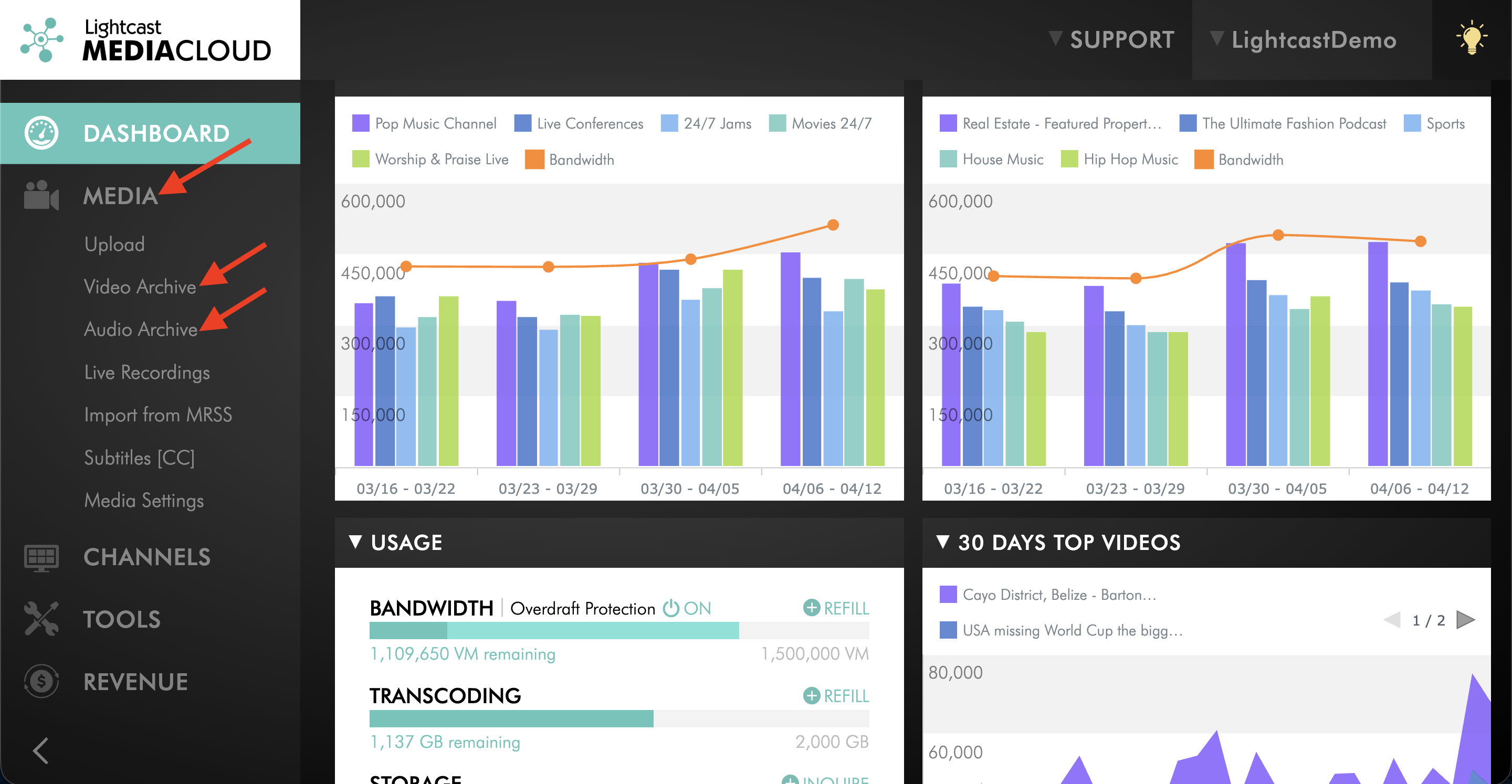
Step 3
Find the media item with the FAILED status.
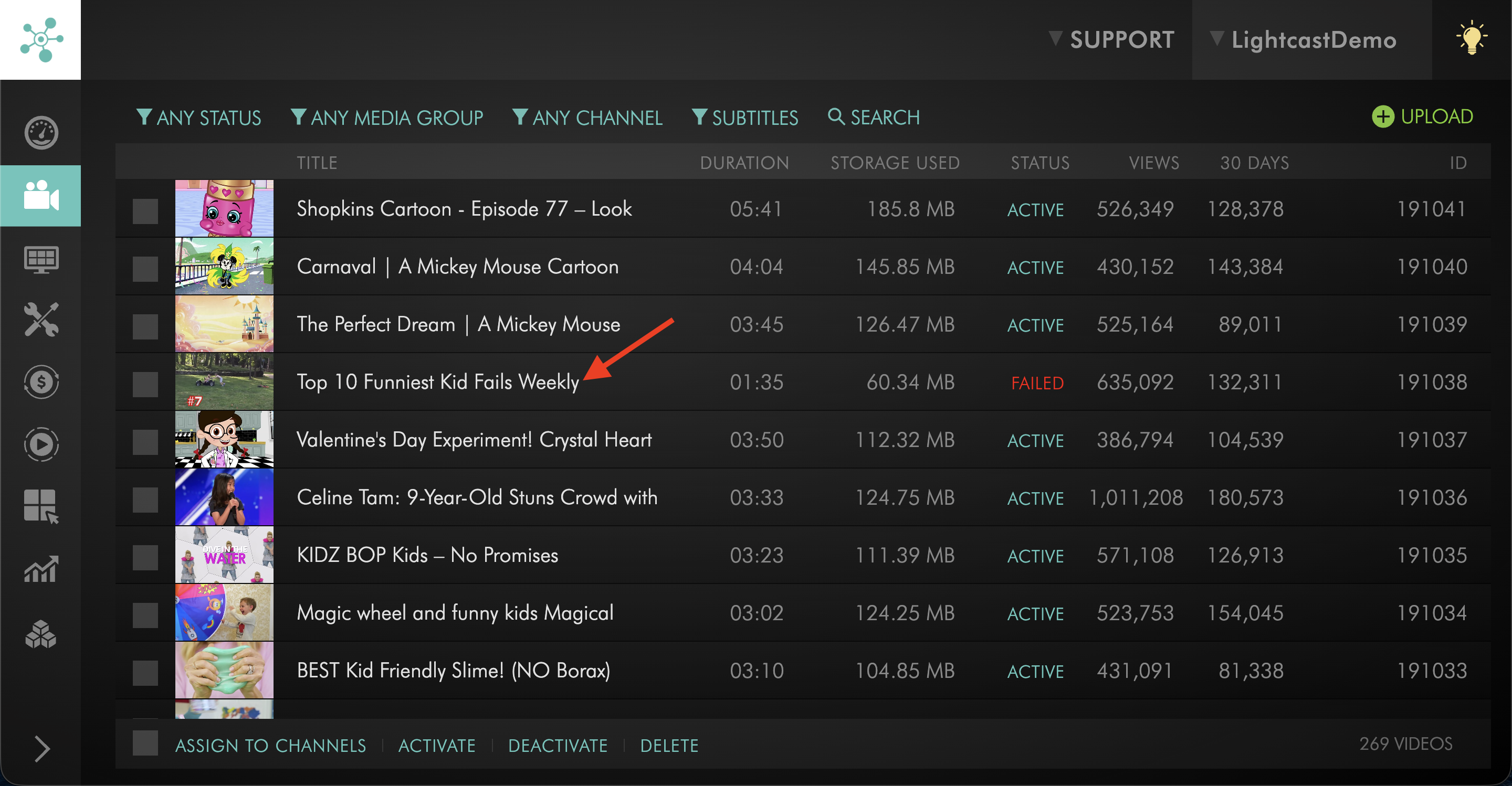
Step 4
Hover over the FAILED status.
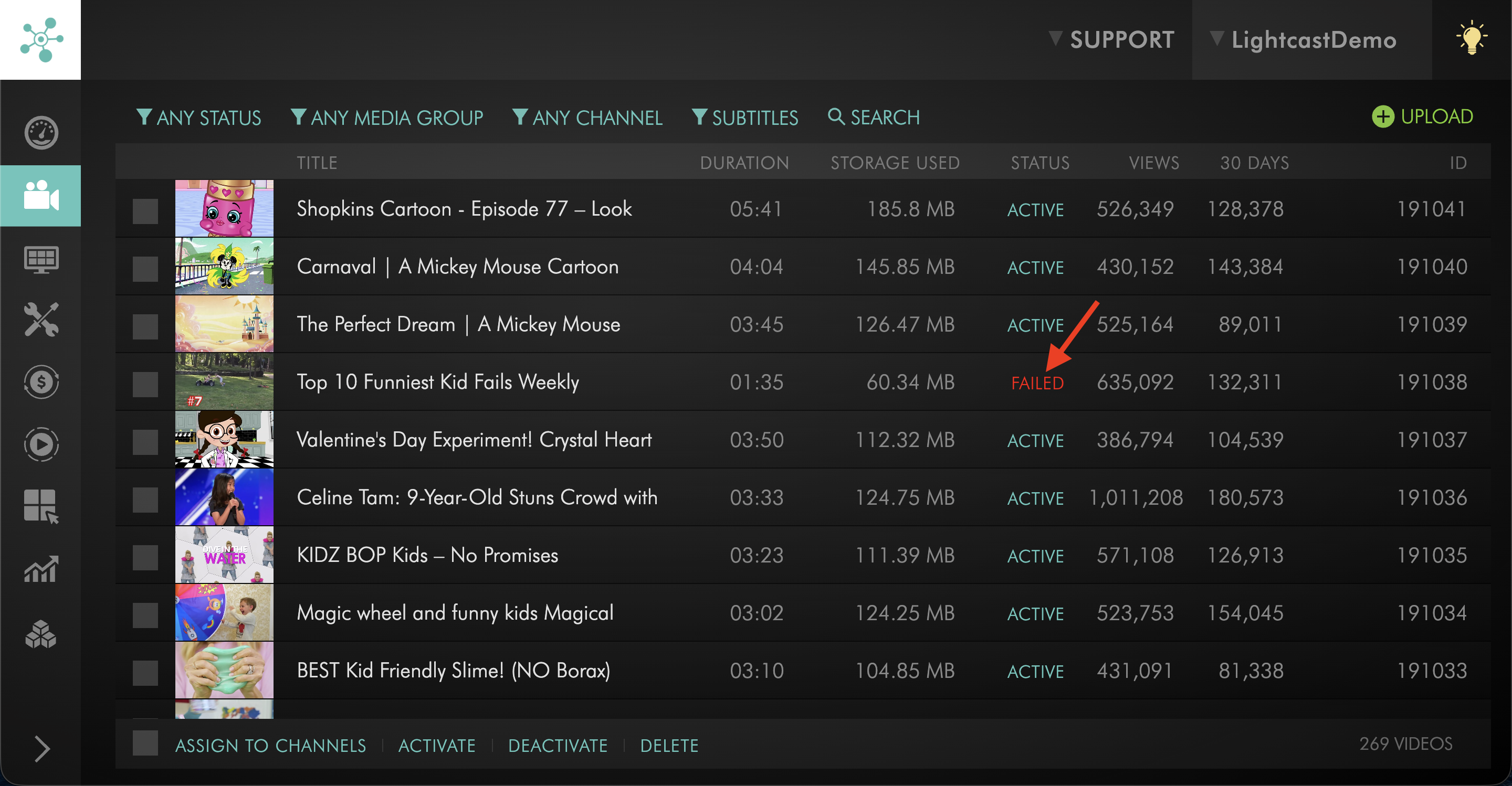
Step 5
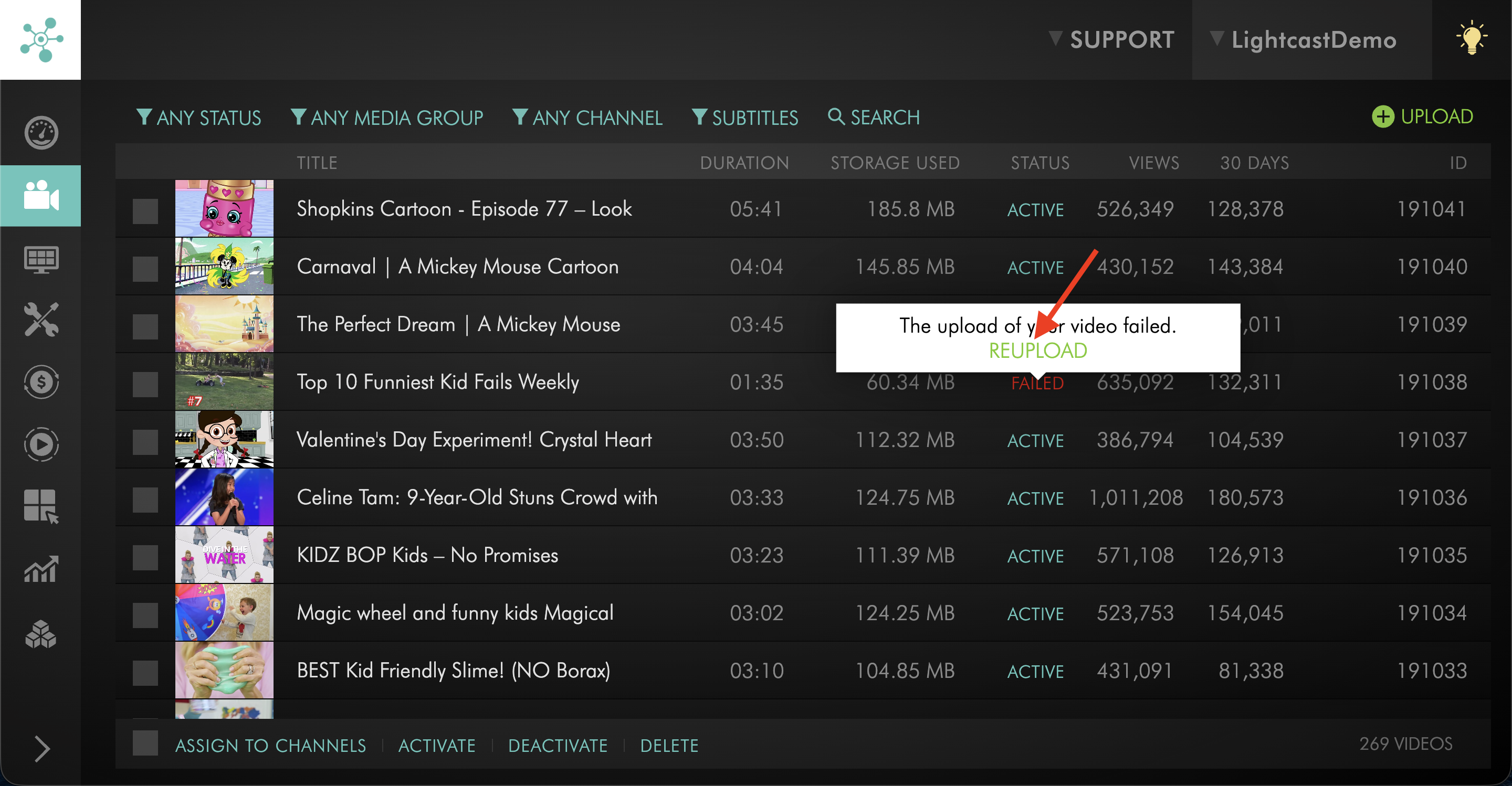
Click the REUPLOAD option to upload the media file again.
When possible, re-upload from the existing FAILED media item instead of creating a new media item. This preserves existing metadata, such as the title, description, Channel assignments, and Sub-Channel assignments.
Step 6
Keep the Media Cloud page open until the file finishes UPLOADING and moves to ENCODING.
FAQs
Why did encoding fail for a media file?
Encoding may fail if the original media file is corrupt or if the file does not process successfully during ENCODING.
To check whether the original file may be corrupt, open it in a media player, such as VLC, and confirm that it plays normally from beginning to end without freezing, skipping, or stopping unexpectedly.
What should be checked before re-uploading a file that failed during ENCODING?
Before re-uploading, check whether the original media file plays correctly from beginning to end.
If the file freezes, skips, stops unexpectedly, or does not play through the ending smoothly, locate a working version of the file and upload that version instead.
What does it mean if only one file in a batch failed during ENCODING?
If only one media file fails while other files uploaded at the same time encode successfully, the issue is more likely related to the original media file than to the Media Cloud.
Check the original file in a media player to confirm that it plays normally from beginning to end.
Can a FAILED media item be re-uploaded without losing metadata?
Yes. If you re-upload from the existing FAILED media item instead of creating a new upload, the Media Cloud preserves existing metadata such as the title, description, Channel assignments, and Sub-Channel assignments.
Why are some files in a large batch upload still ENCODING?
Large batch uploads may take longer to finish ENCODING than individual uploads. It is normal for some files in the same batch to complete before others.
Encoding time depends on factors such as the number of files waiting to be processed, the size of each file, and overall system workload.
Should large batches be split into smaller batches?
Yes. If you are uploading a large number of files, splitting the upload into multiple smaller batches can help the encoding process move more smoothly.
Does this article cover upload issues?
No. This article covers encoding-stage issues after the upload is complete.
If a media item is stuck in UPLOADING, stuck in QUEUED, or FAILED before ENCODING, see Troubleshooting media upload issues.