
Troubleshooting media upload issues
Overview
This article explains how to troubleshoot media upload issues in the Media Cloud, including uploads that are stuck in UPLOADING, stuck in QUEUED, or marked as FAILED.
Use this article when a video or audio file has not moved successfully from the upload stage into ENCODING.
When to use this article
Use this article when:
a Web Uploader upload is stuck in UPLOADING
a Web Uploader upload is stuck in QUEUED
a media upload is marked as FAILED before encoding
your internet connection was interrupted during upload
you need to re-upload a media file without losing existing metadata or Channel assignments
Before you begin
This article focuses on Web Uploader and FTP upload behavior because these workflows require the browser upload or FTP transfer to complete before the media item can move into ENCODING.
For Web Uploader uploads, keep the Media Cloud page open until the file finishes UPLOADING and moves to ENCODING.
For FTP uploads, make sure the file has completely finished uploading in your FTP client before selecting it in the Media Cloud and sending it to ENCODING.
How it works
Every media upload first completes the upload stage. After the upload finishes successfully, the media item automatically moves to ENCODING, where it is prepared for streaming.
For Web Uploader uploads, the browser page must stay open while the file is uploading. If the page is closed, refreshed, or interrupted before the upload is complete, the media item may become stuck in UPLOADING or QUEUED.
If an upload becomes stuck or fails before encoding, you can usually cancel and re-upload the same media item. Whenever possible, re-upload the file from the existing media item instead of creating a new one. This helps preserve information that may already be saved, such as the title, description, Channel assignments, and Sub-Channel assignments.
For FTP uploads, the file transfer happens through your FTP client before the file is selected in the Media Cloud. Before sending an FTP file to ENCODING, make sure the file has fully finished uploading in your FTP client. If an FTP upload has not completely finished, sending the file to ENCODING may cause the encoding job to fail because the Media Cloud cannot access the complete media file.
The Media Cloud includes an auto-resume feature that may continue a Web Uploader upload after a temporary internet interruption if the connection is restored quickly. However, a stable internet connection is still recommended. For large uploads, a wired internet connection is generally more reliable than Wi-Fi.
Before troubleshooting
Before canceling an upload, check the following:
Confirm that your internet connection is stable. If needed, check your upload speed using Speedtest.
Wait a few minutes to see whether the upload resumes automatically.
Verify that the browser tab for the Web Uploader upload is still open.
For FTP uploads, verify that the FTP transfer is complete.
Avoid refreshing or closing the browser while an upload is in progress.
Instructions
Fix a media item stuck in UPLOADING
Step 1
Log in to your Media Cloud account.
Step 2
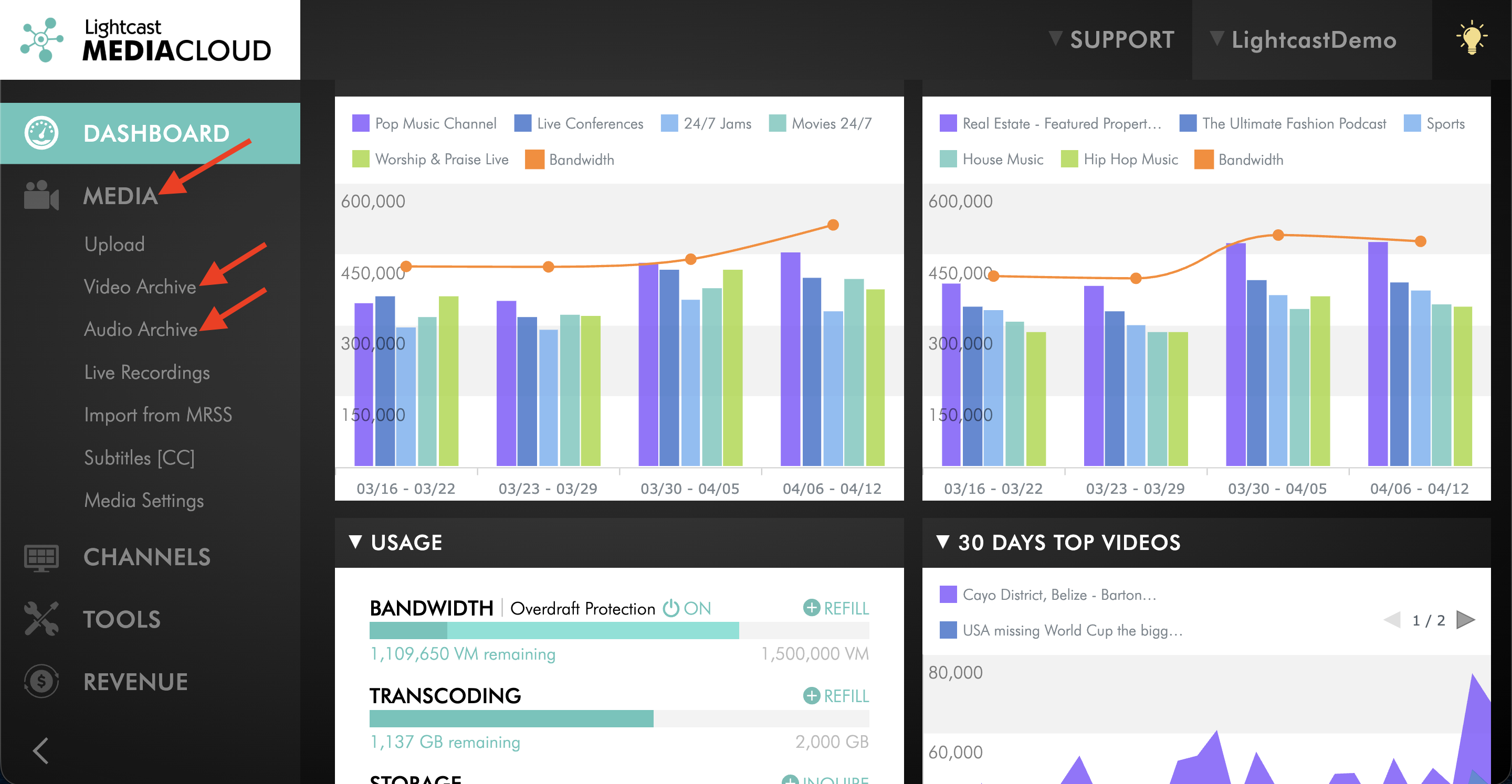
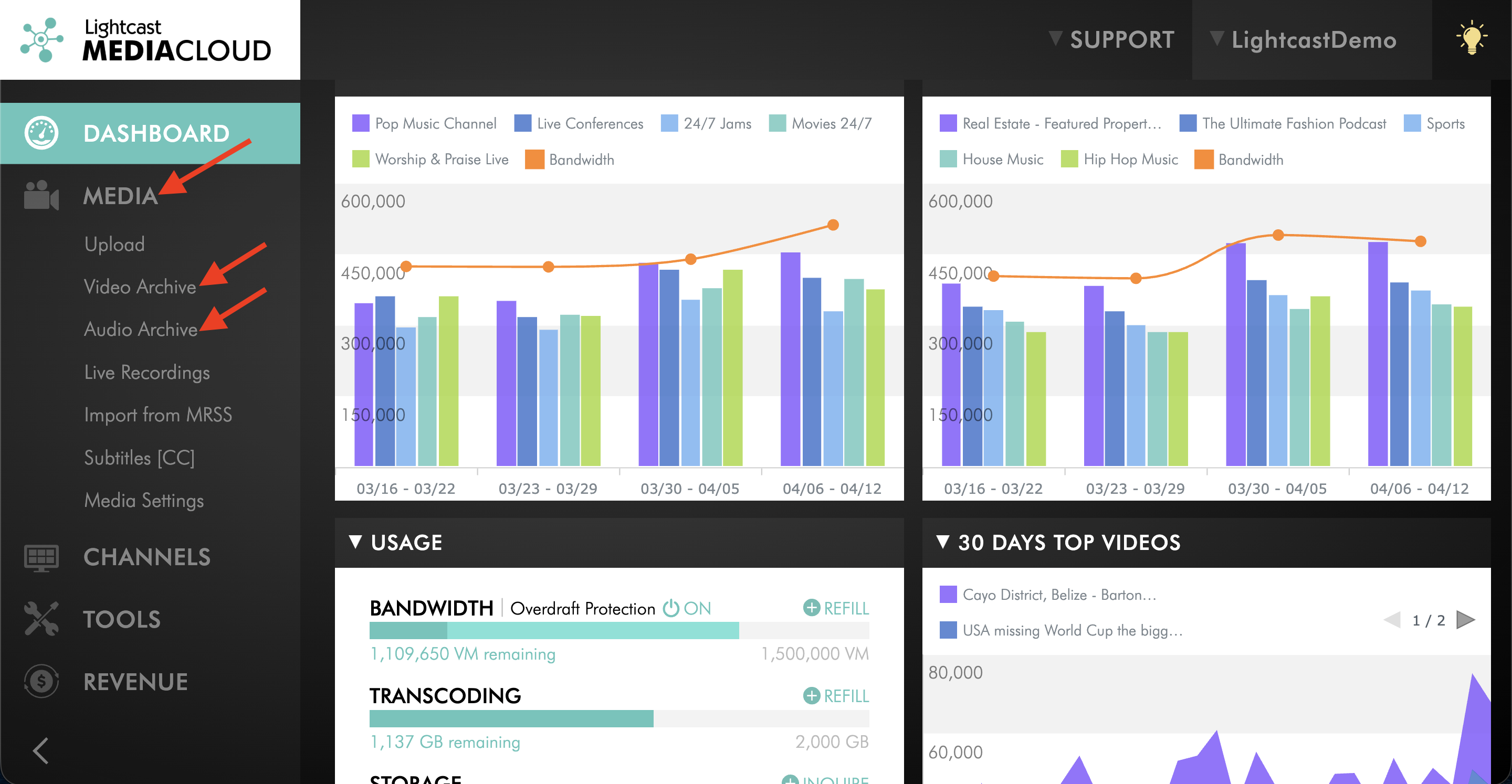
Go to MEDIA and select Video Archive or Audio Archive, depending on the type of media item you need to fix.
Step 3
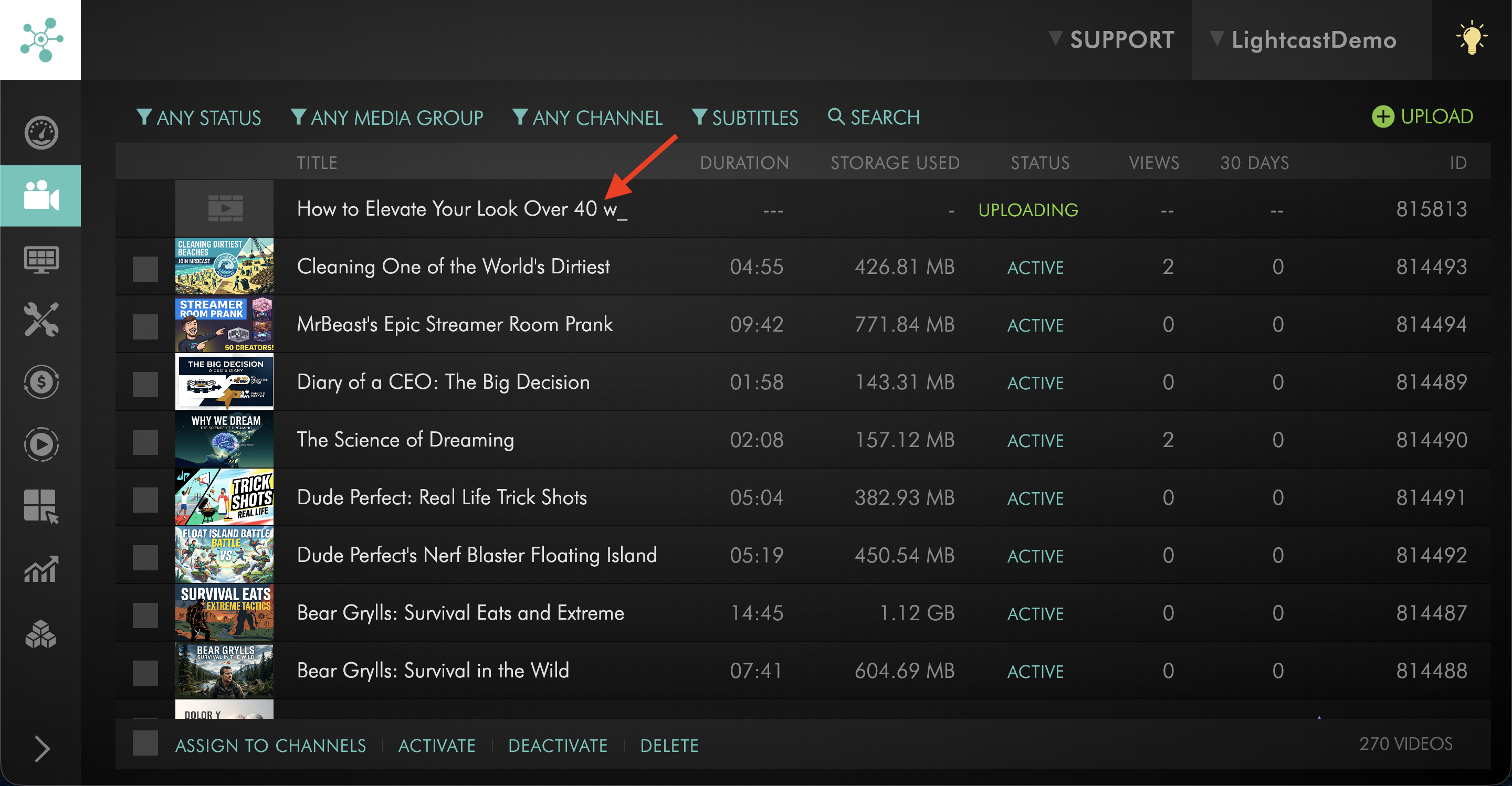
Find the media item that is stuck in UPLOADING.
Step 4
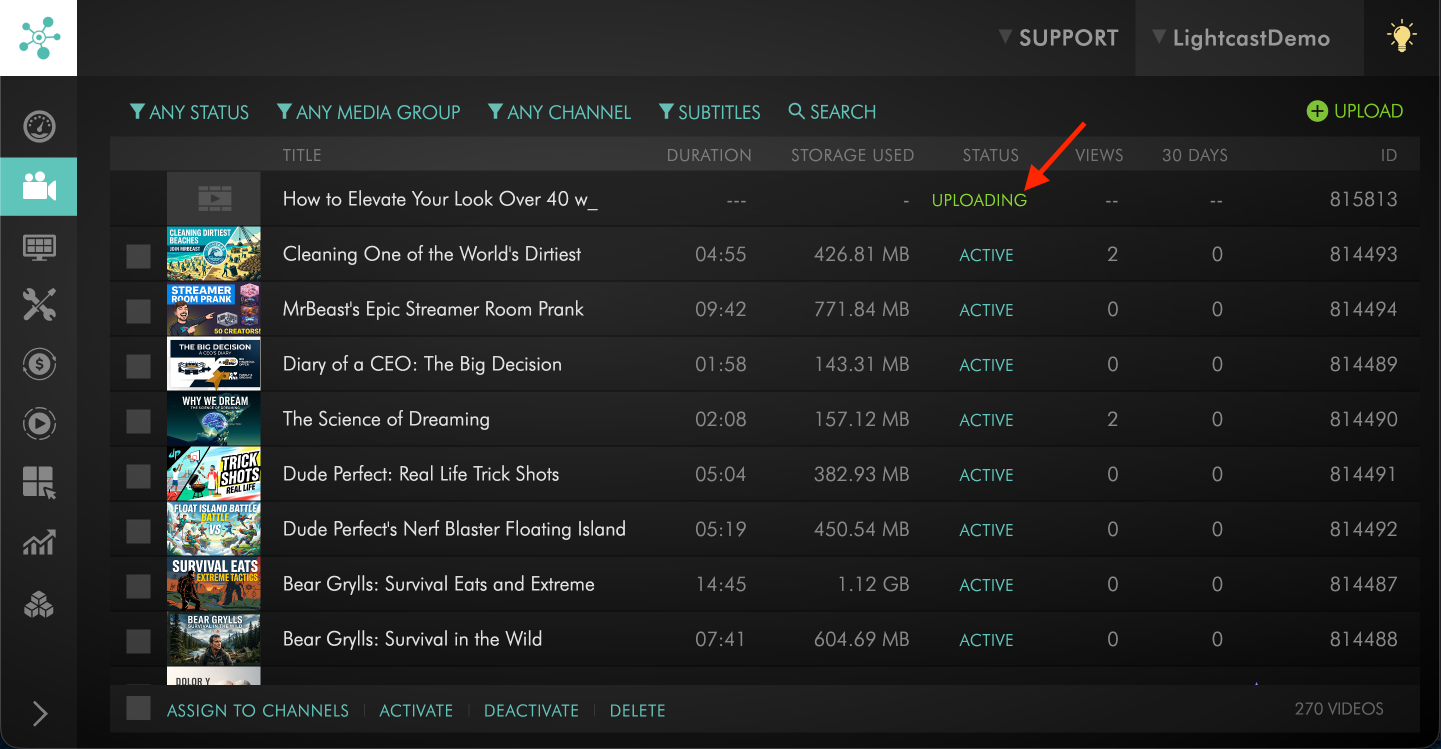
Hover over the UPLOADING status.
Step 5
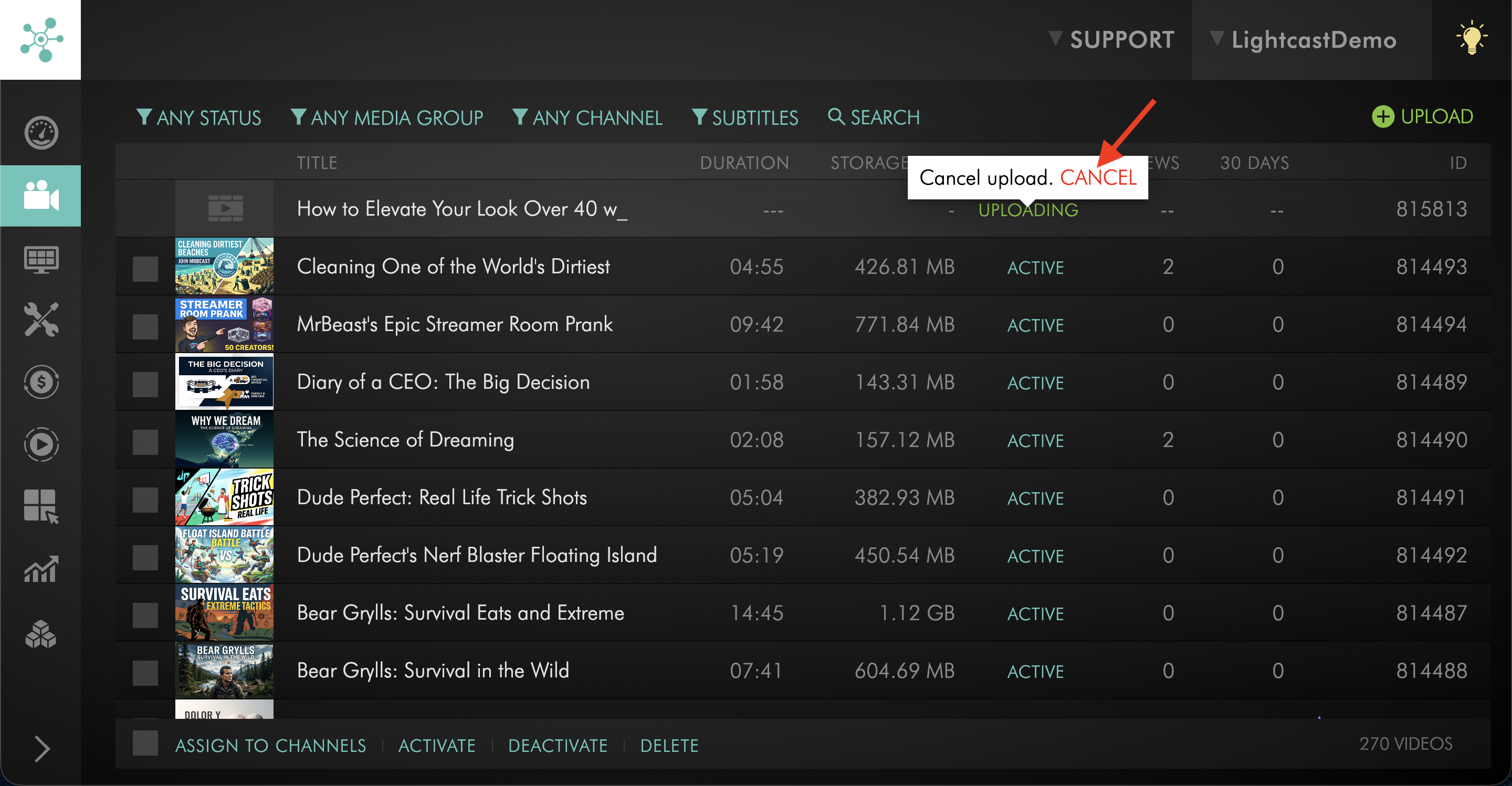
Click CANCEL.
Step 6
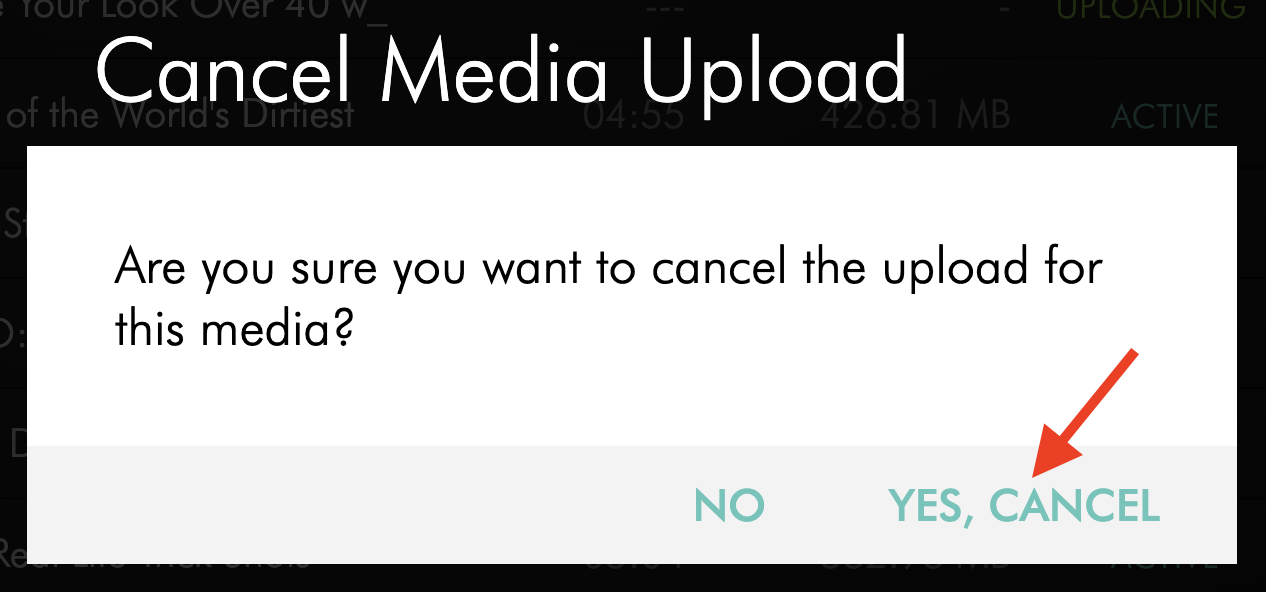
Click YES, CANCEL to confirm.
Step 7
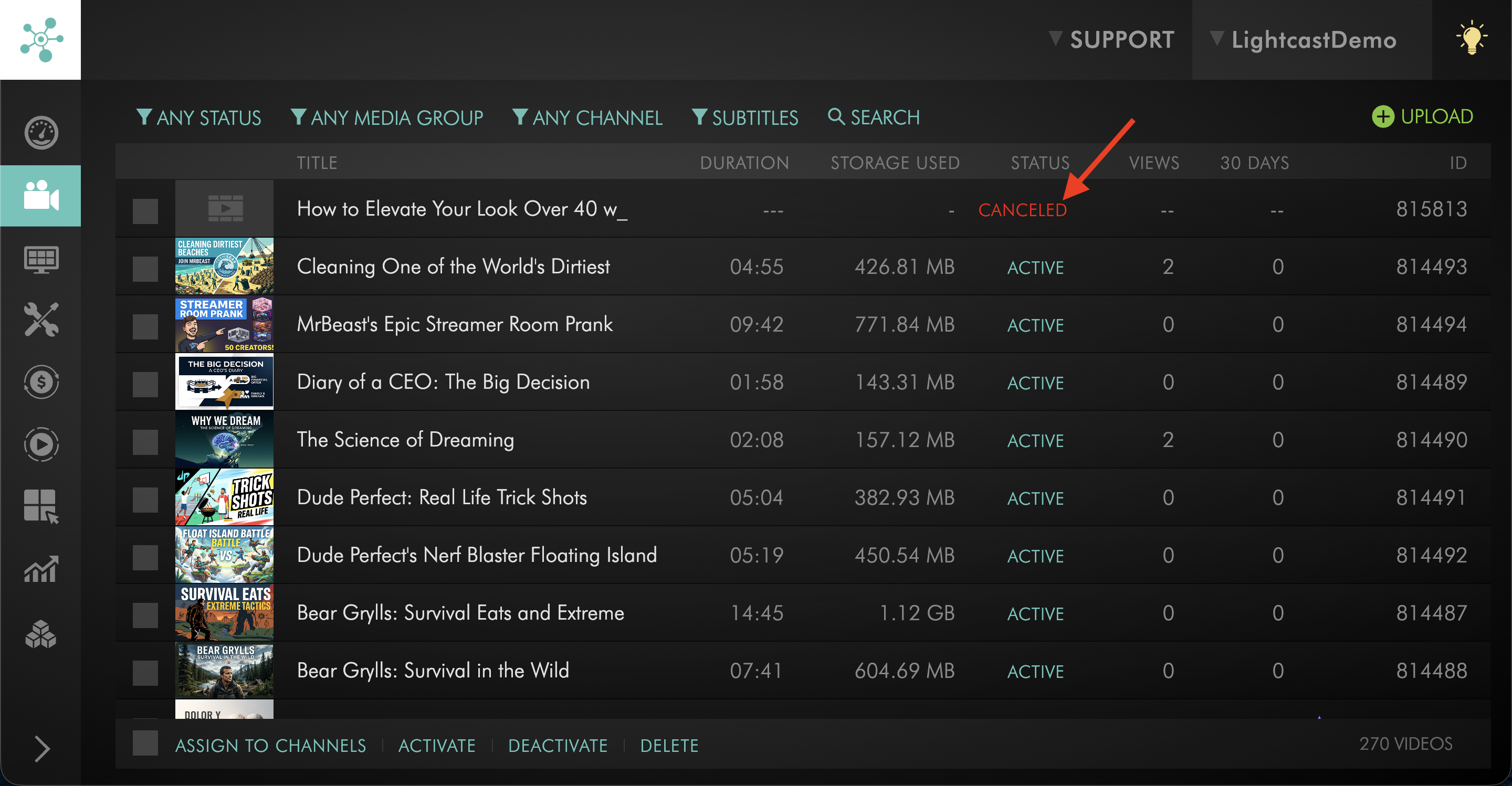
Once the media item status changes to CANCELED, hover over the CANCELED status.
Step 8
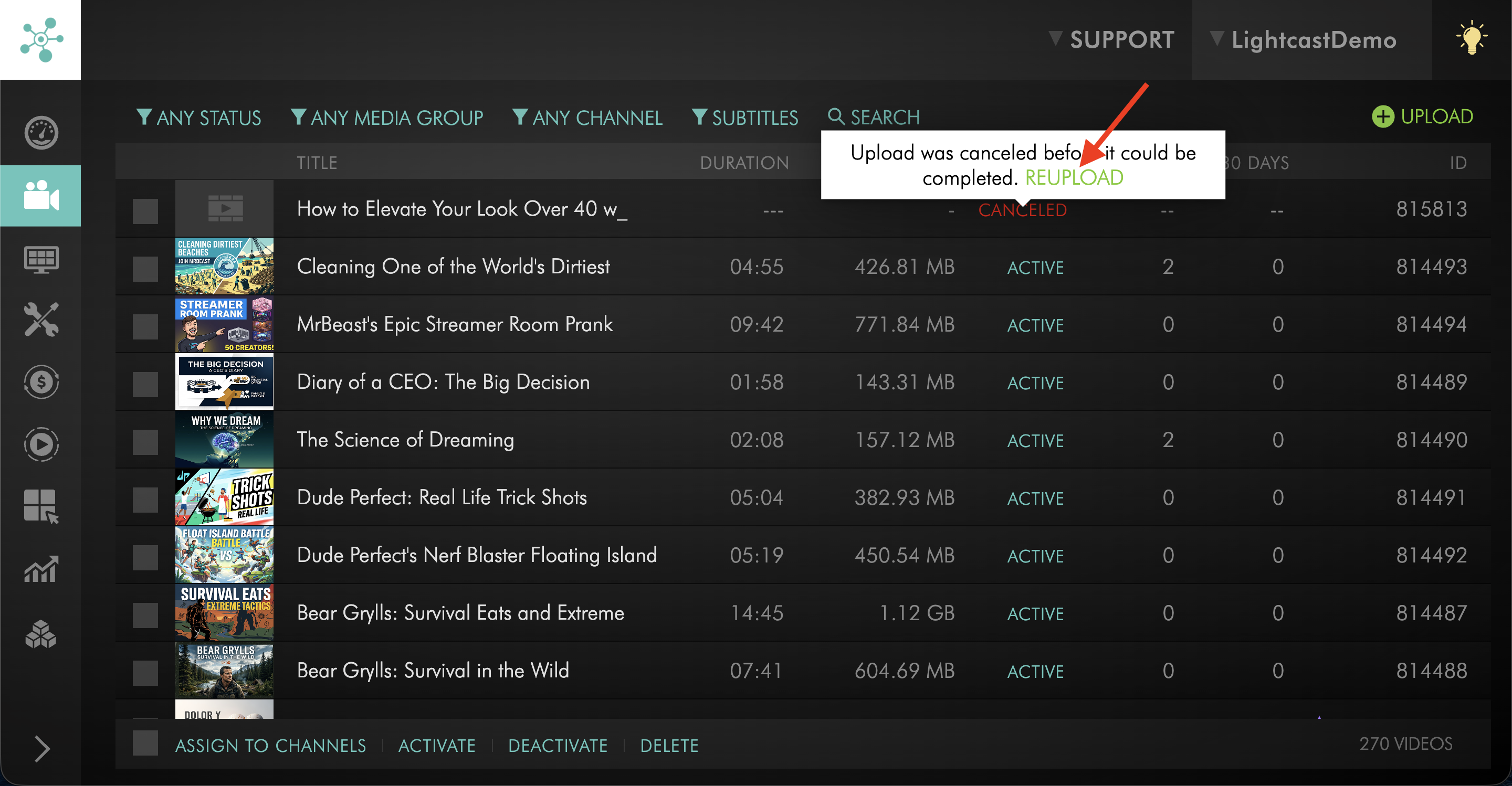
Click the REUPLOAD option to upload the media file again.
Step 9
Keep the Media Cloud page open until the file finishes UPLOADING and moves to ENCODING.
Fix a media item stuck in QUEUED
Step 1
Log in to your Media Cloud account.
Step 2
Go to MEDIA and select Video Archive or Audio Archive, depending on the type of media item you need to fix.
Step 3
Find the media item that is stuck in QUEUED.
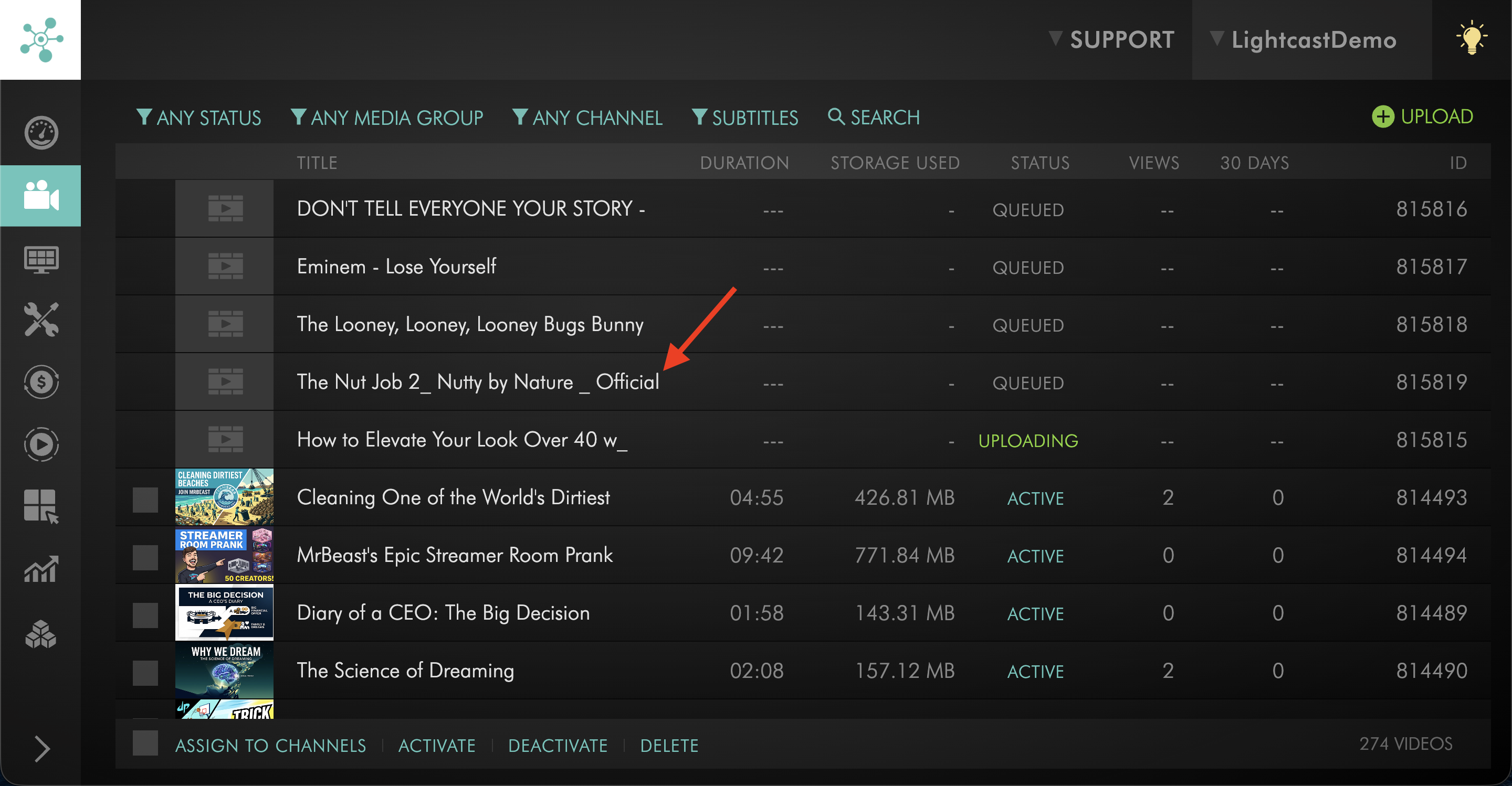
Step 4
Hover over the QUEUED status.
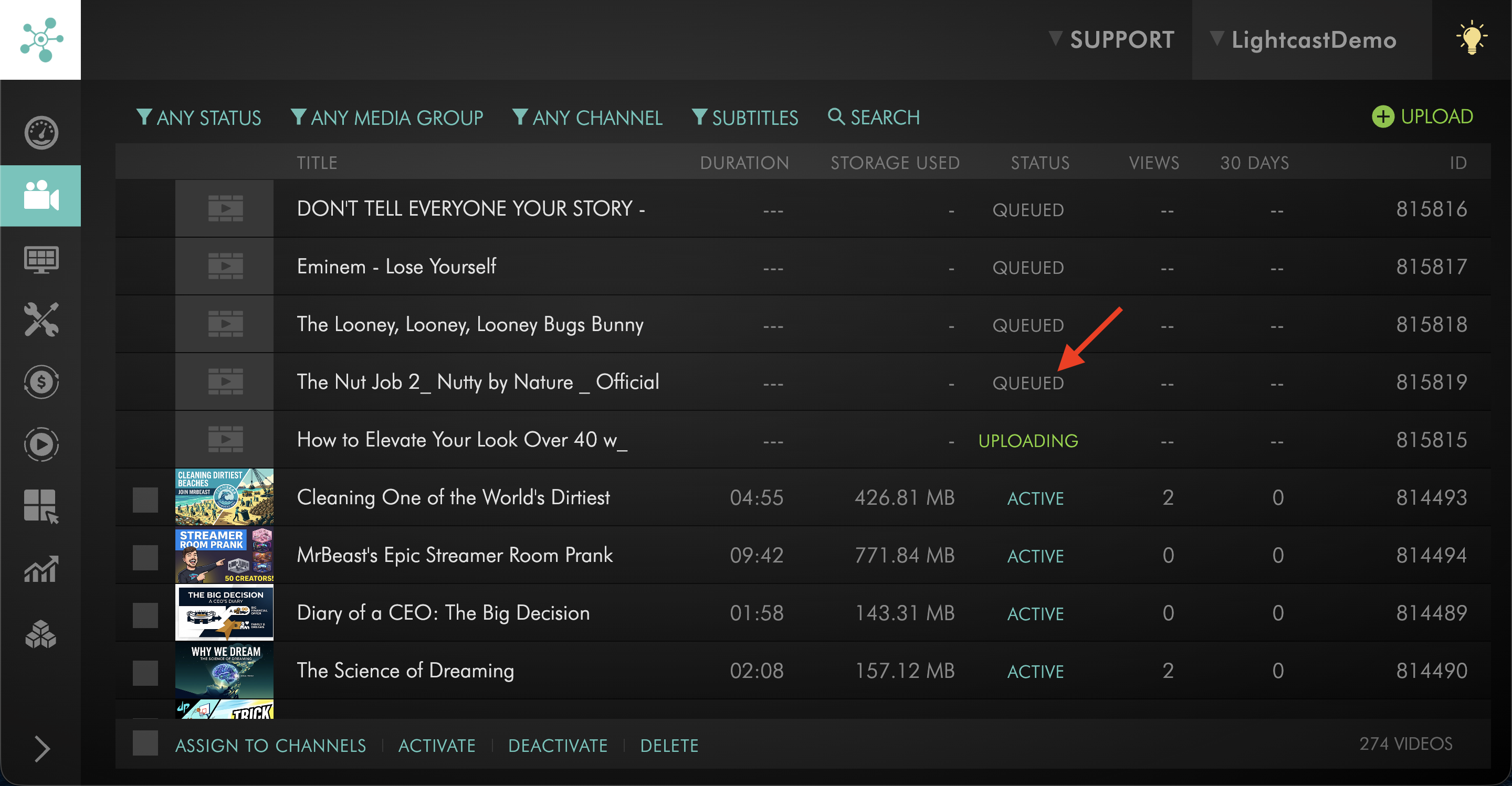
Step 5
Click CANCEL.
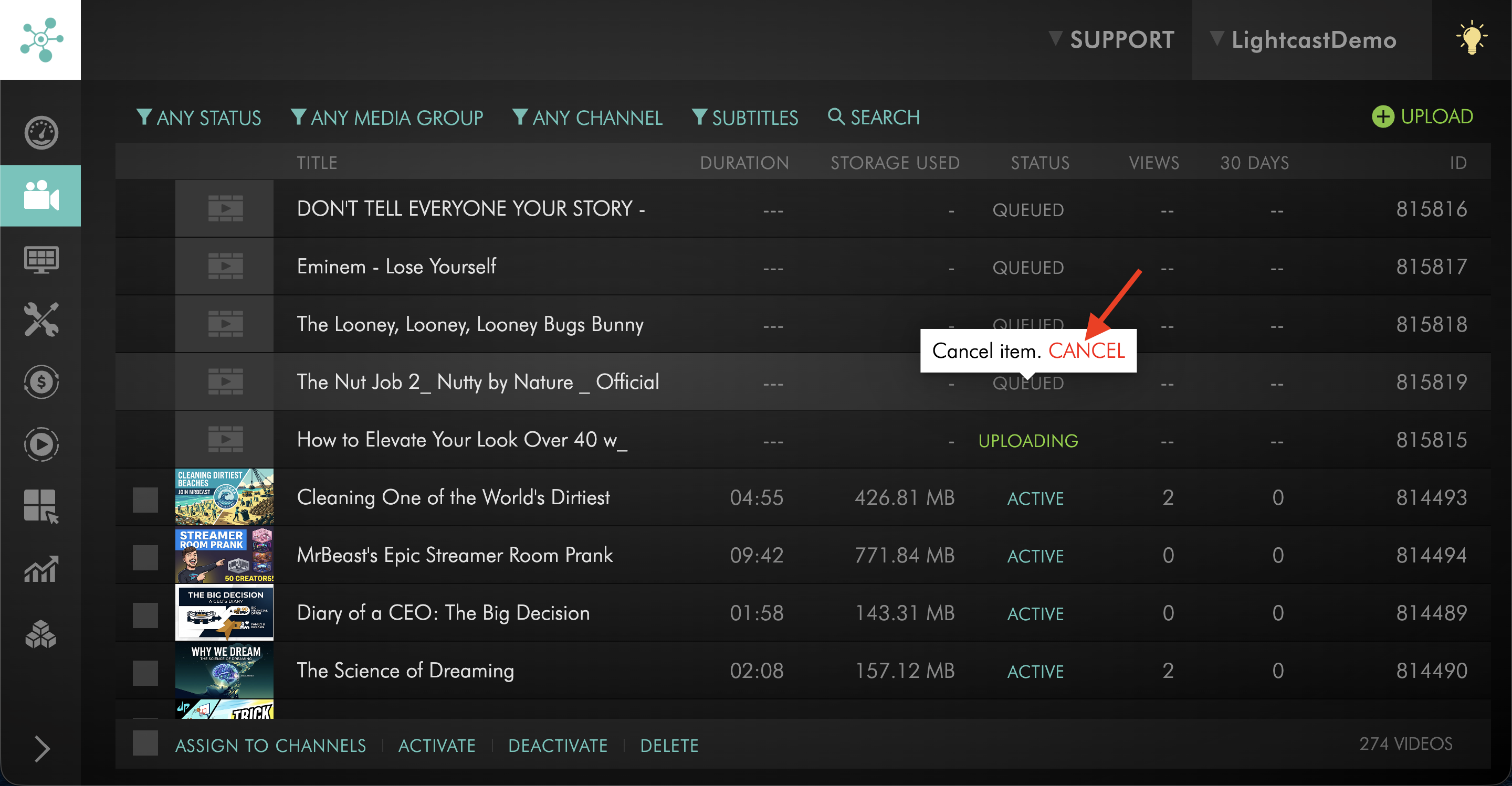
Step 6
Click YES, CANCEL to confirm.
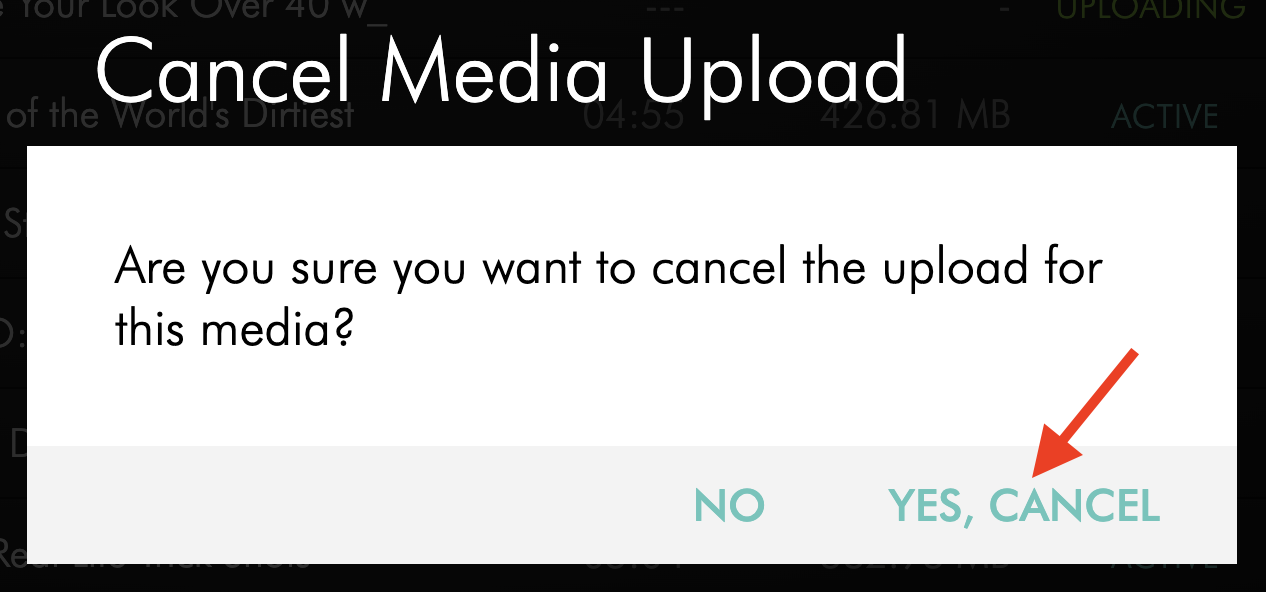
Step 7
Once the media item status changes to CANCELED, hover over the CANCELED status.
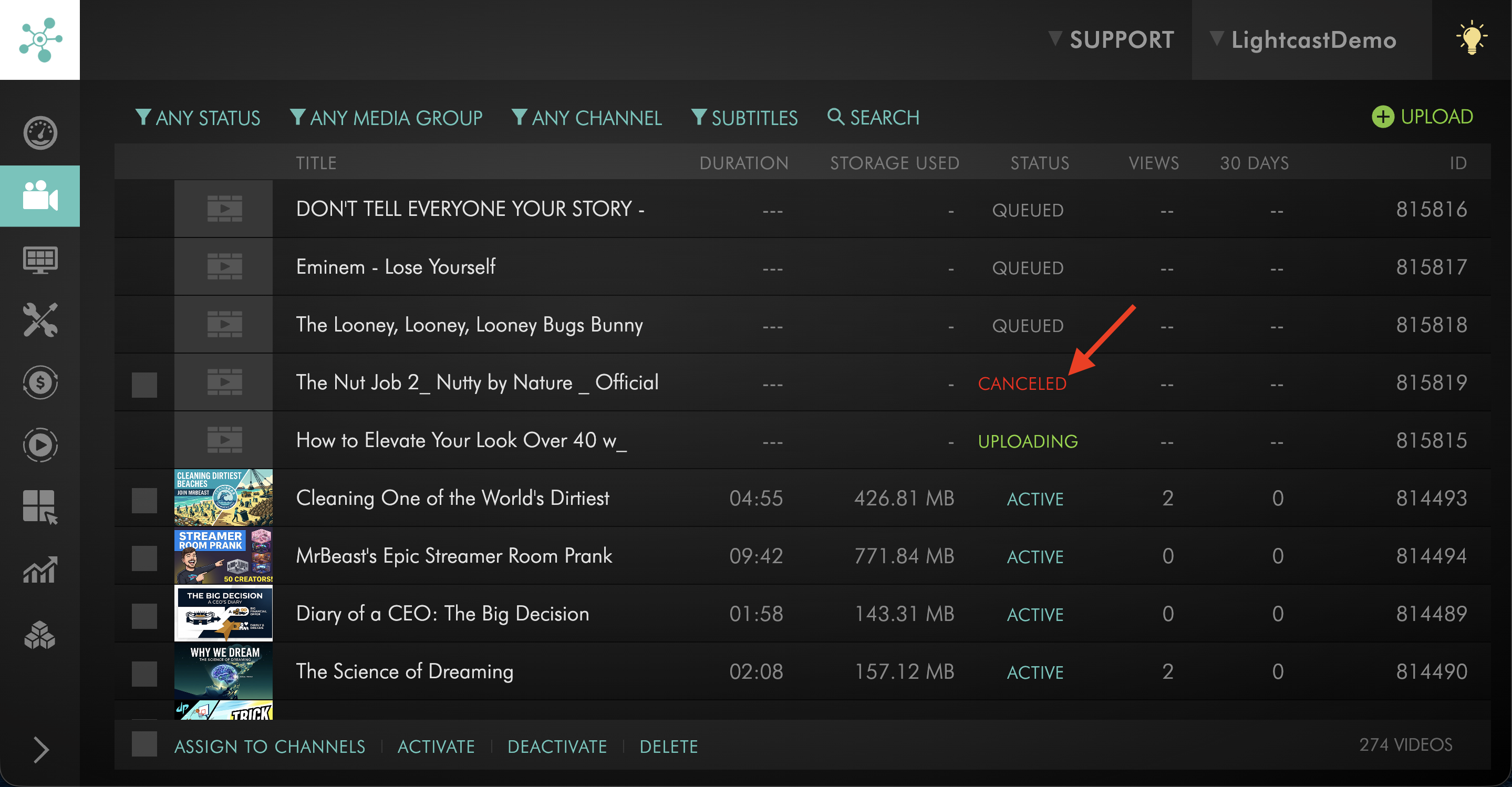
Step 8
Click the REUPLOAD option to upload the media file again.
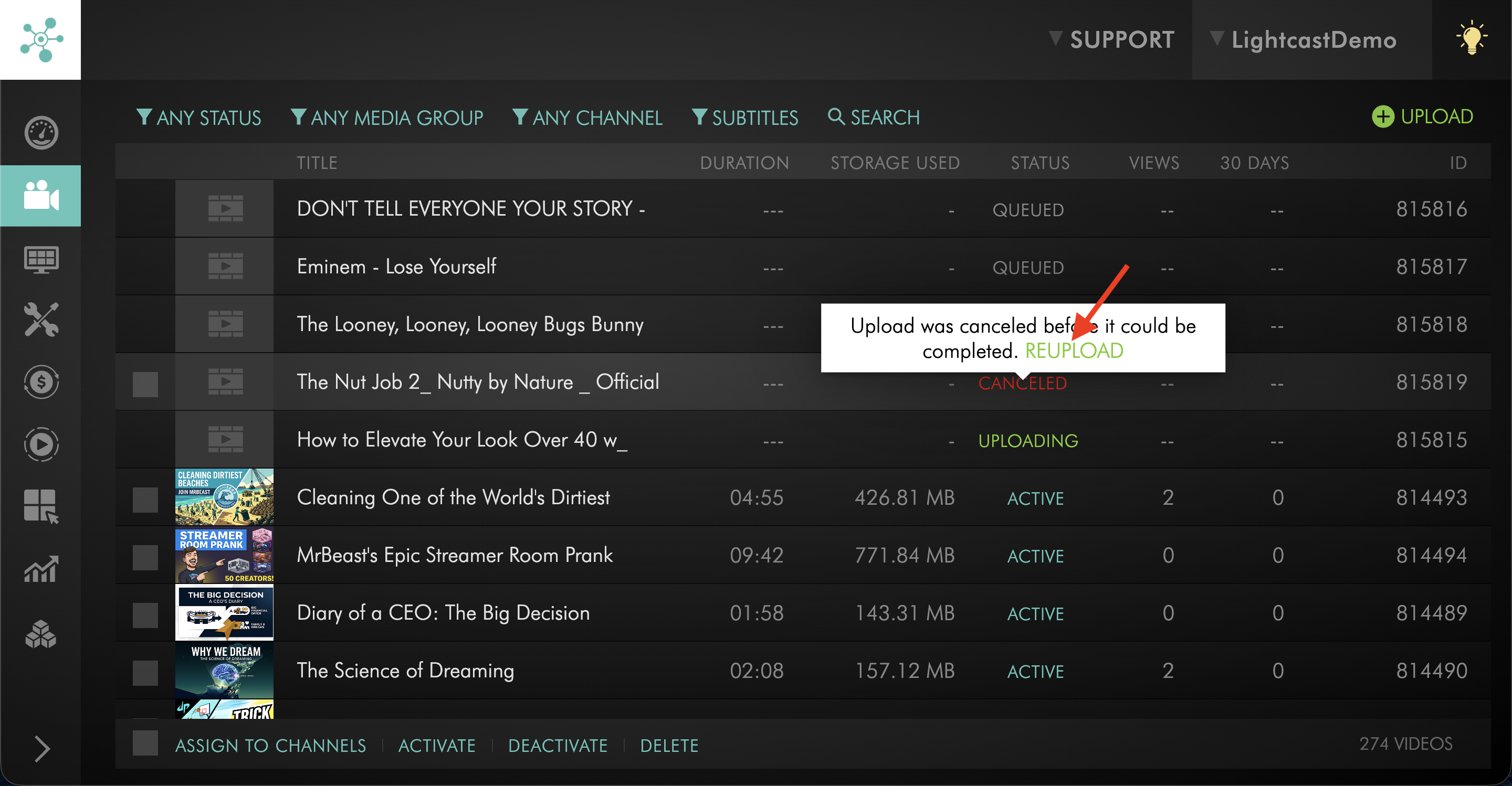
Step 9
Keep the Media Cloud page open until the file finishes UPLOADING and moves to ENCODING.
Re-upload a FAILED media item
Step 1
Log in to your Media Cloud account.
Step 2
Go to MEDIA and select Video Archive or Audio Archive, depending on the type of media item you need to re-upload.
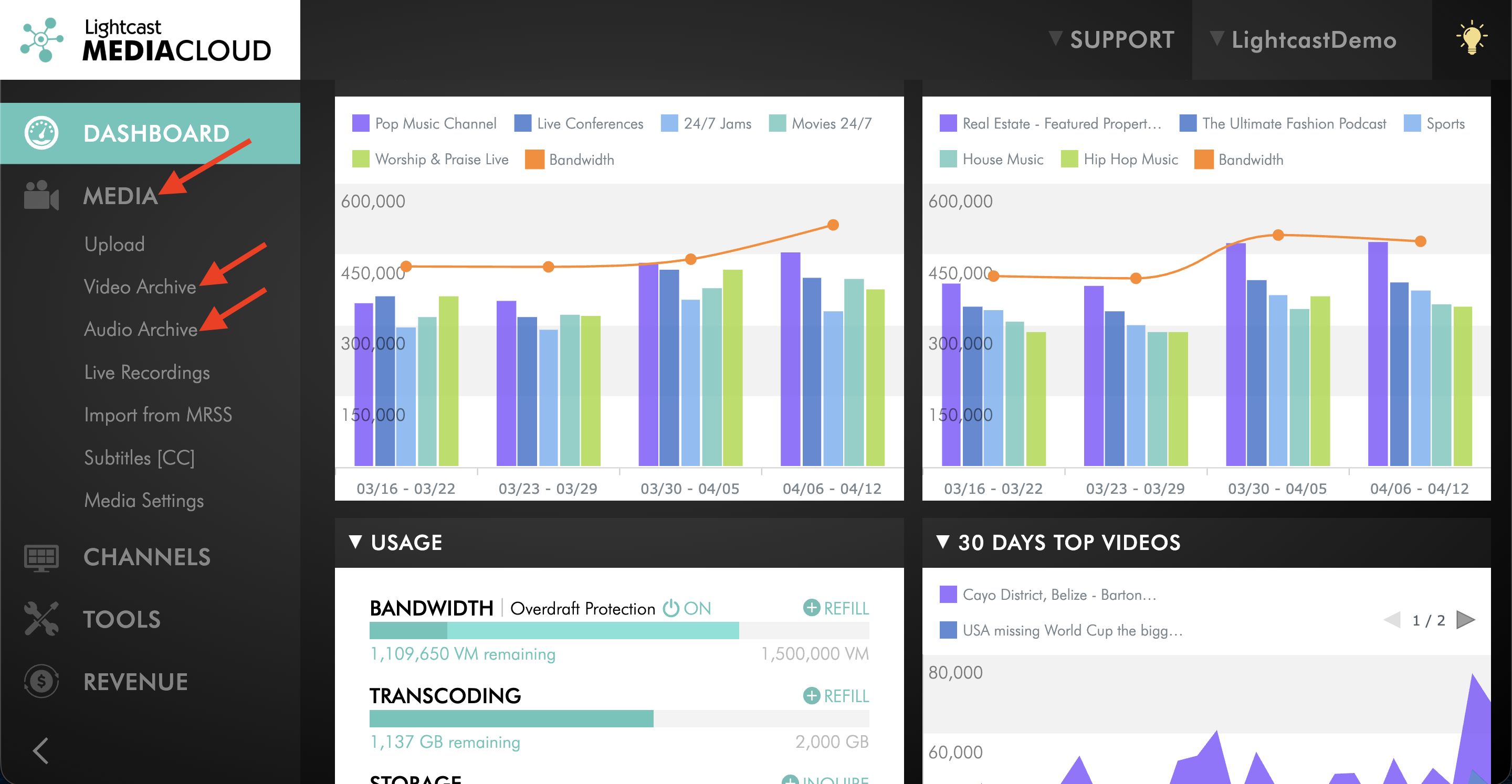
Step 3
Find the media item with the FAILED status.

Step 4
Hover over the FAILED status.
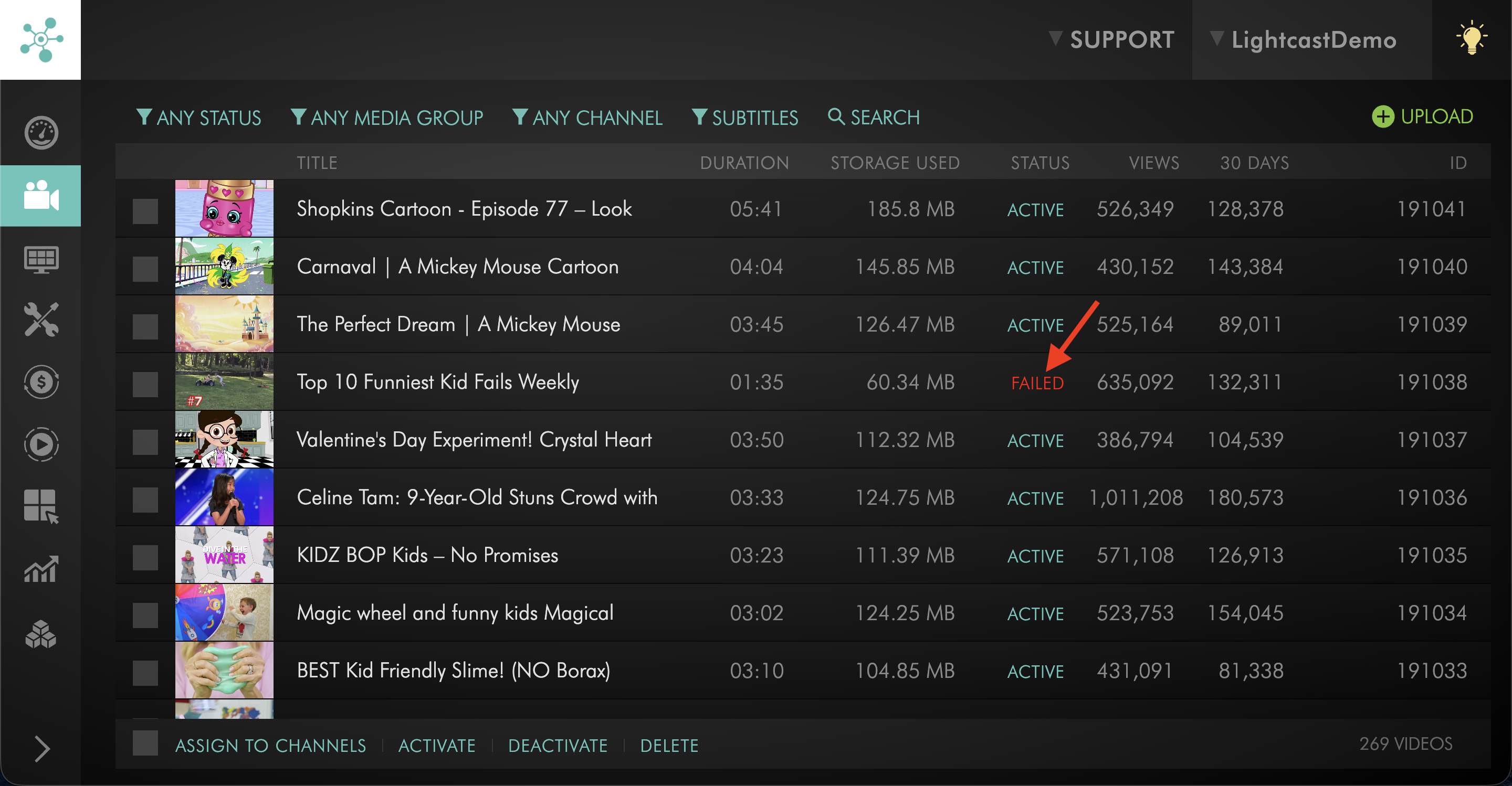
Step 5
Click the REUPLOAD option to upload the media file again.
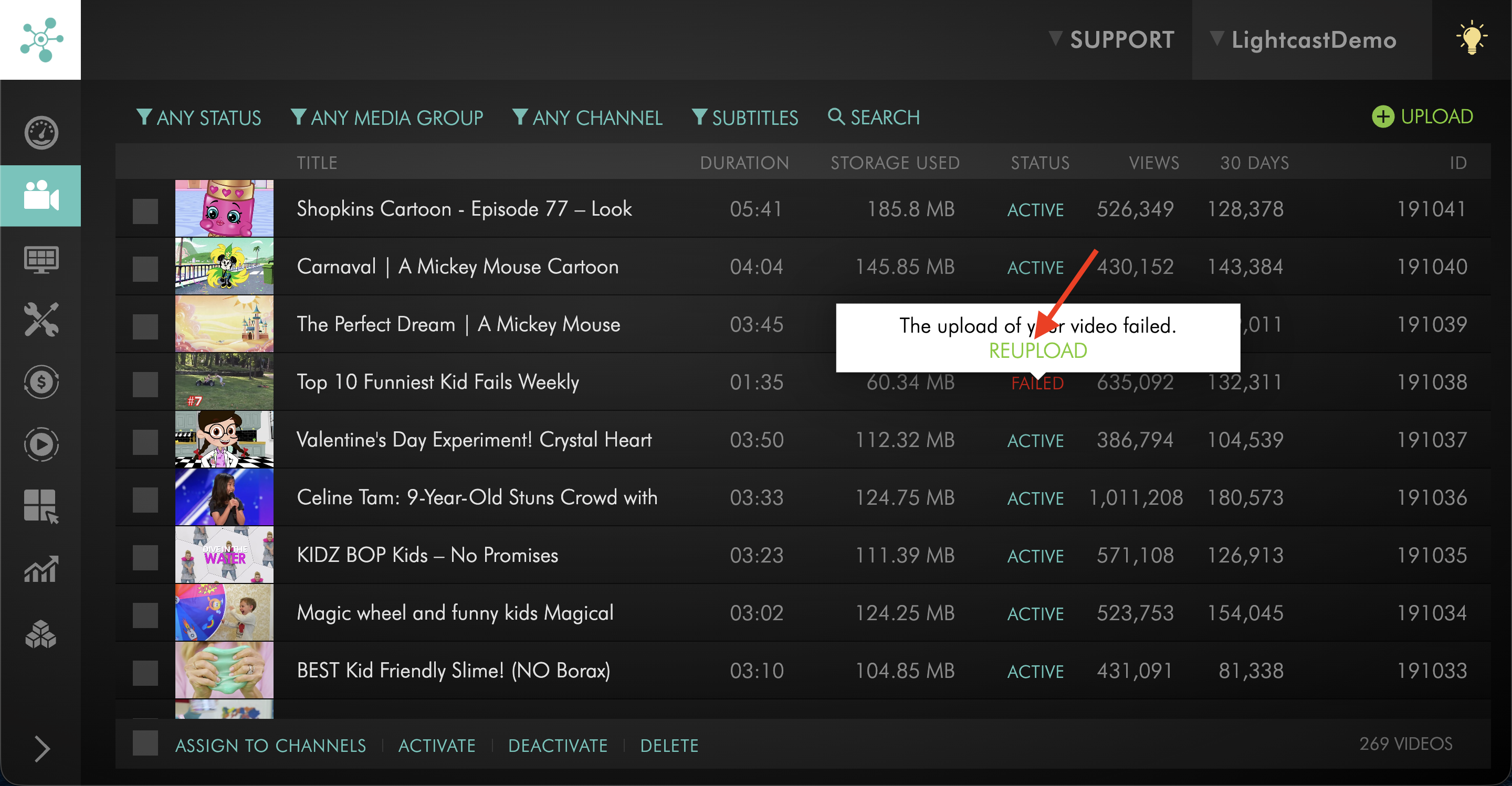
Re-uploading from the existing media item helps preserve existing metadata, such as the title, description, Channel assignments, and Sub-Channel assignments.
Step 6
Keep the Media Cloud page open until the file finishes UPLOADING and moves to ENCODING.
FAQs
Why is a media item stuck in UPLOADING?
A media item may get stuck in UPLOADING if the Media Cloud page was closed, refreshed, or interrupted before the upload was complete.
For Web Uploader uploads, keep the page open until the media item moves from UPLOADING to ENCODING.
Why is a media item stuck in QUEUED?
A media item may get stuck in QUEUED when multiple files are selected for upload and the page is closed or refreshed before that file starts uploading.
If this happens, cancel the QUEUED upload and REUPLOAD the media item.
Can a FAILED media item be re-uploaded without losing metadata?
Yes. If you re-upload from the existing FAILED media item instead of creating a new upload, the Media Cloud can preserve existing metadata such as the title, description, Channel assignments, and Sub-Channel assignments.
What should be checked before sending an FTP file to ENCODING?
Before sending an FTP file to ENCODING, make sure the file has fully finished uploading in your FTP client.
If the file is still transferring when it is selected in the Media Cloud and sent to ENCODING, the Media Cloud may not be able to access the complete media file. This can cause the encoding job to fail.
What happens if the internet connection is interrupted during upload?
The Media Cloud includes an auto-resume feature that may continue a Web Uploader upload after a temporary internet interruption if the connection is restored quickly.
For the best upload experience, use a stable internet connection. For large uploads, a wired internet connection is generally more reliable than Wi-Fi.
When is it safe to leave or refresh the Media Cloud page during a Web Uploader upload?
Wait until the media item has completed UPLOADING and moved into ENCODING before leaving or refreshing the page.
Does this article cover encoding failures?
No. This article covers upload-stage issues before encoding begins.
If the upload completed but the media item failed during encoding, see Troubleshooting media encoding issues.