
Understanding Email Capture
Overview
This article explains how Email Capture works on TV apps, mobile apps, and Web Apps, how captured email addresses can be reviewed, and when a full subscriber registration form may be a better option.
When to use Email Capture
Use Email Capture when you want viewers to enter an email address before watching specific content in your app.
Email Capture can be helpful if you want to collect leads, build your audience list, or follow up with viewers without requiring a paid subscription.
Because Email Capture requires viewers to provide an email address before viewing content, viewers must enter their email address before they can continue watching.
On TV apps, it is best to keep the prompt simple because viewers use a remote instead of a keyboard. For this reason, Email Capture should only require an email address on TV apps.
On mobile apps and Web Apps, it may be possible to collect additional fields. However, Email Capture is still a required step before viewing the selected content, not an optional sign-up form. If you want to collect more detailed viewer information, such as name, phone number, or other registration details, a full subscriber registration form may be a better option.
How it works
Email Capture is applied to specific content access, not automatically to the entire app. When a viewer tries to watch content assigned to a Channel that uses Email Capture, the viewer is prompted to enter an email address before playback can continue.
Email Capture can apply to content assigned to a VOD or AOD Channel. Depending on your setup, it can also apply to LIVE content, including a Live Event, Linear Stream, or 24/7 Scheduler Channel.
Email Capture is designed to work across supported app devices, including TV apps, mobile apps, and Web Apps. Because TV viewers enter text with a remote, keeping the prompt short helps make the viewing experience easier.
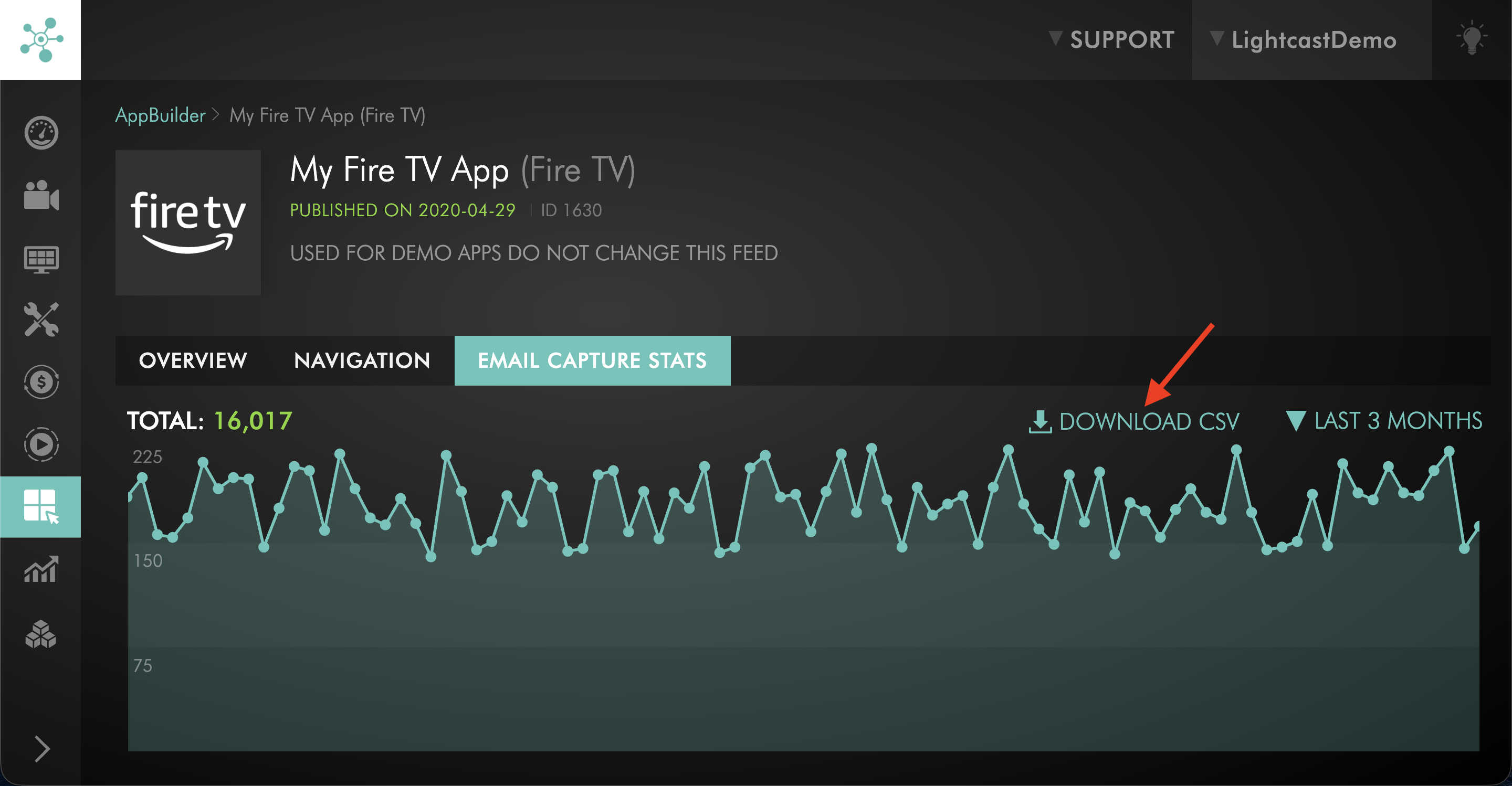
All captured email addresses are available as a downloadable CSV report in the Media Cloud’s APP BUILDER section. The CSV report includes the captured email address and the captured date with time.
Email Capture statistics are also available in the Media Cloud. These statistics can help you review how many viewers submitted an email address during selected timeframes, such as the last 7 days, 30 days, 3 months, 6 months, or 12 months.
If Mailchimp or HubSpot integration is enabled, captured email addresses can also be added automatically to the connected list or account.
New Email Capture data becomes available after midnight Eastern time.
Instructions
Use these steps to review Email Capture statistics and download captured email addresses from the Media Cloud.
Step 1
Log in to your Media Cloud account.
Step 2
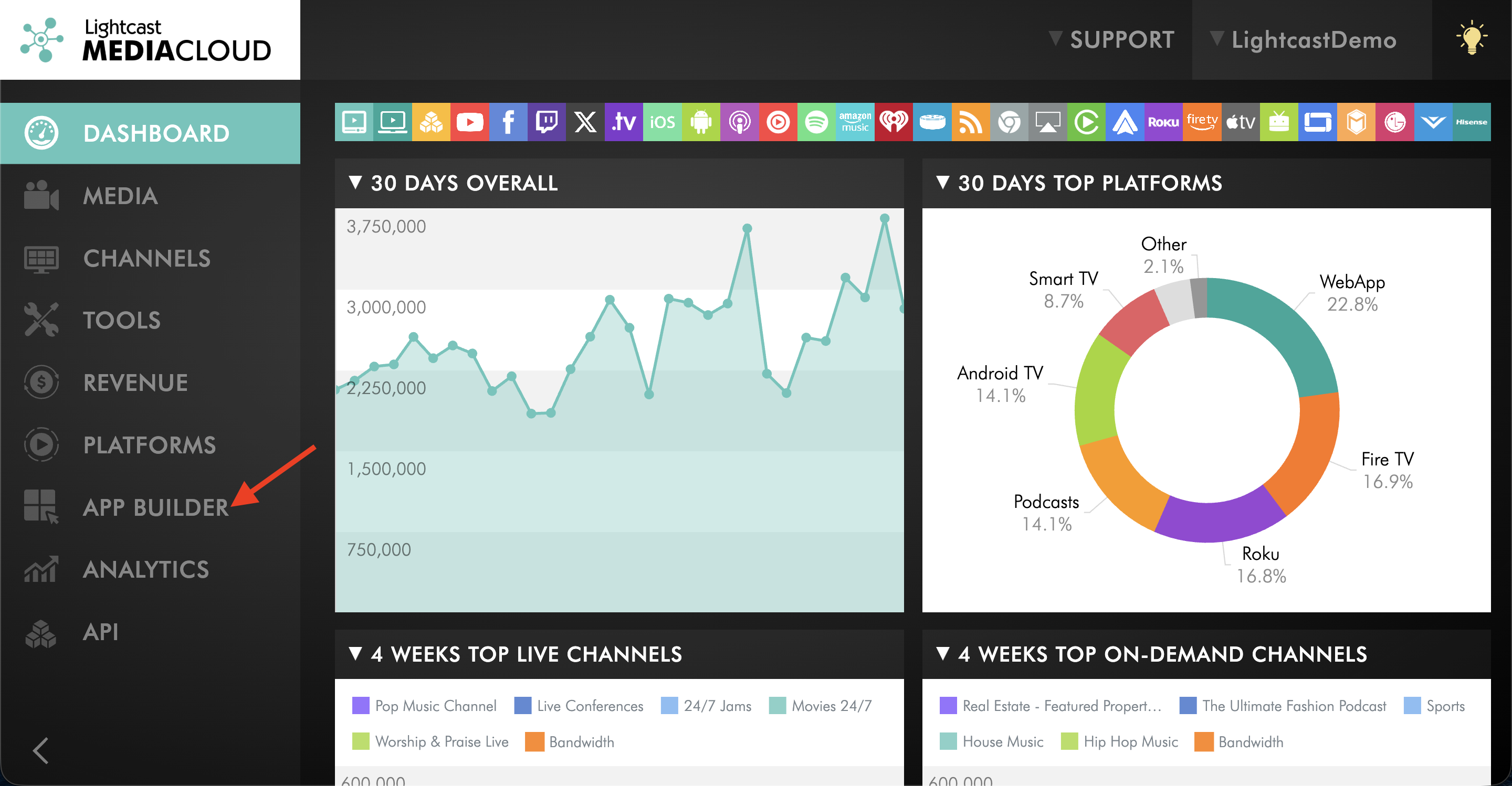
Go to APP BUILDER.
Step 3
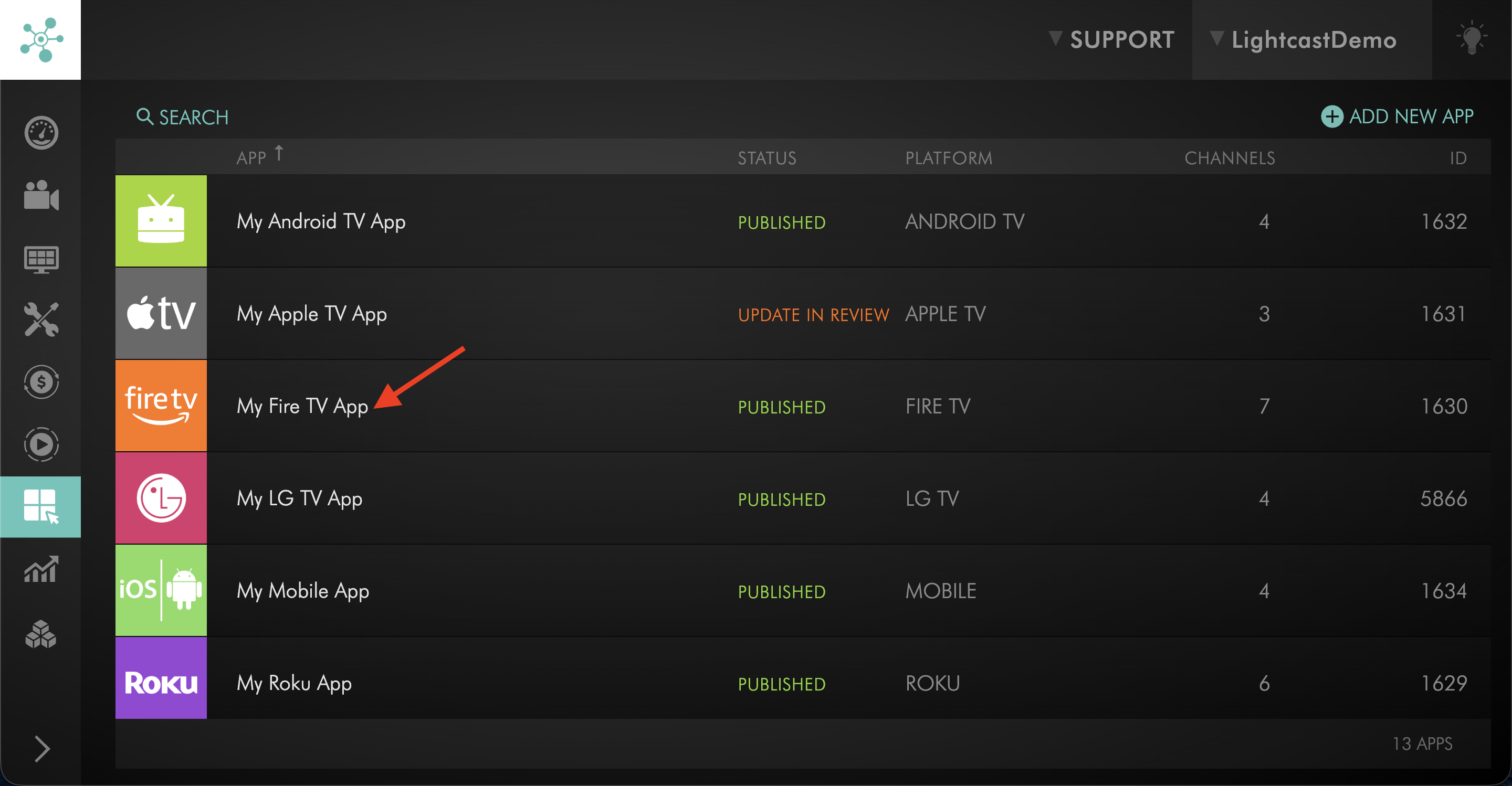
Open the app that has Email Capture enabled.
Step 4
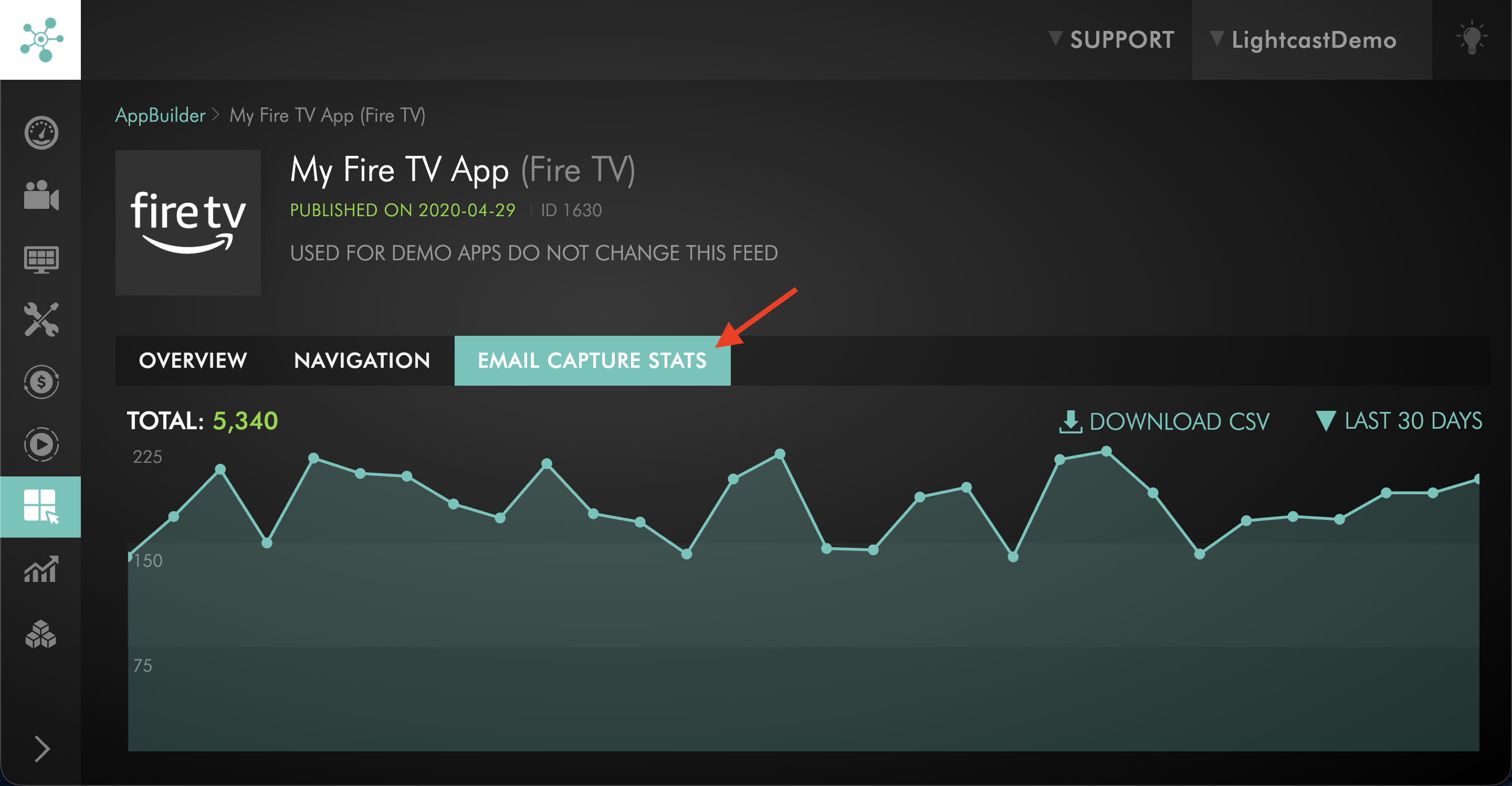
Click the EMAIL CAPTURE STATS tab.
Step 5
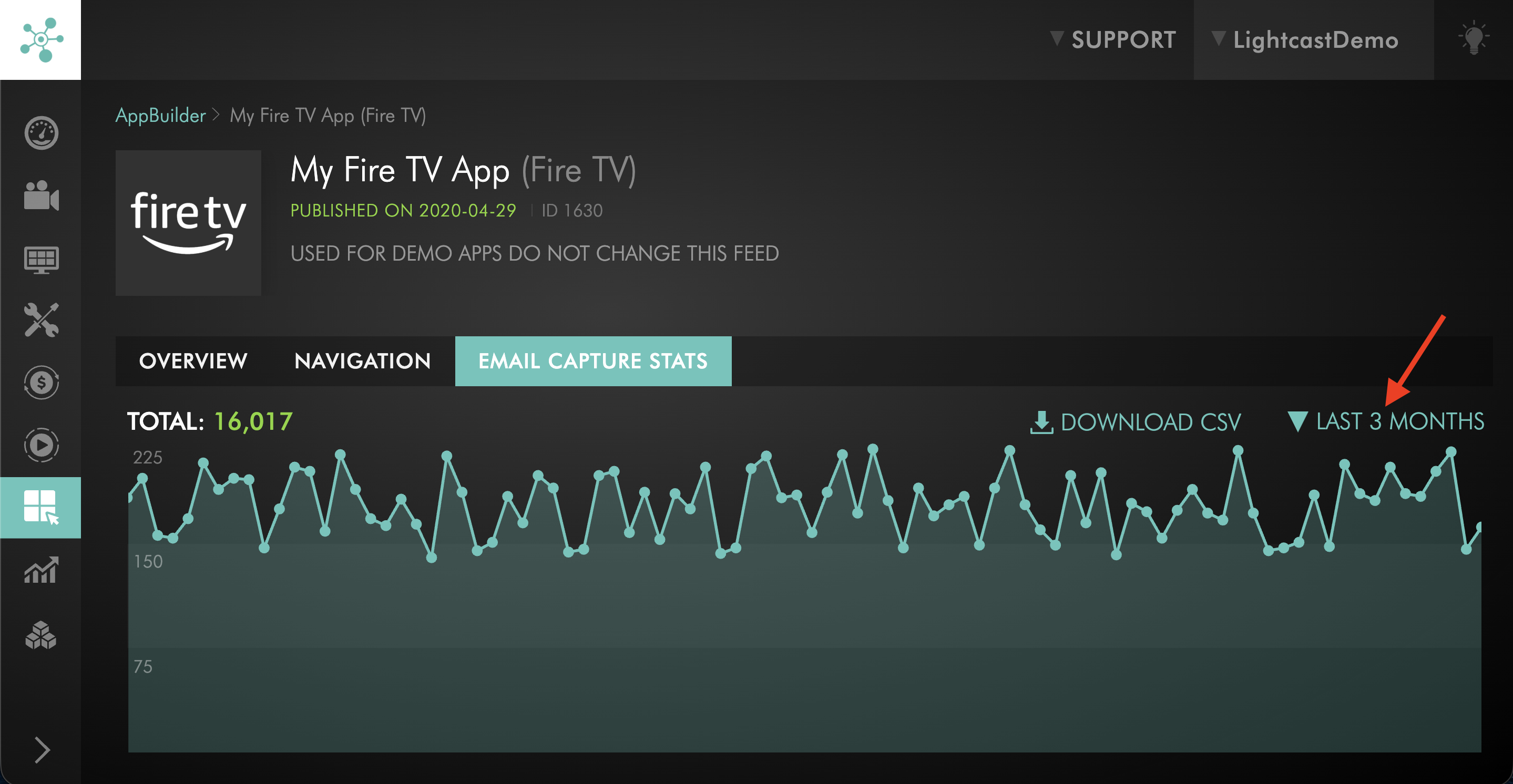
Choose the timeframe you want to review.
Available timeframe options may include the last 7 days, 30 days, 3 months, 6 months, or 12 months.
Step 6
Review the Email Capture statistics for the selected app and timeframe.
Step 7
If you need a report, click DOWNLOAD CSV.
The CSV includes the email address and captured date with time.
FAQs
What is Email Capture?
Email Capture is an access requirement that asks viewers to enter an email address before they can watch selected content in the app.
Does Email Capture work only on mobile apps?
No. Email Capture is designed to work across supported app devices, including TV apps, mobile apps, and Web Apps.
Why should Email Capture stay simple on TV apps?
TV viewers usually enter text with a remote instead of a keyboard. Asking for more than an email address can make the viewing experience frustrating on TV devices.
Can Email Capture collect more than an email address?
On mobile apps and Web Apps, it may be possible to collect an additional field. However, Email Capture is still a required step before viewing the selected content, not an optional sign-up form.
If you need to collect more detailed viewer information, such as name, phone number, or other registration details, a full subscriber registration form may be a better option.
Is Email Capture the same as a subscriber registration form?
No. Email Capture is a simple email collection step that asks viewers to enter an email address before playback.
A subscriber registration form can collect more detailed information, but it creates a higher access requirement because viewers must complete the full form before watching.
Is Email Capture a paid subscription feature?
No. Email Capture does not charge viewers for access. It allows viewers to continue watching after entering their email address.
Where can captured email addresses be viewed?
Captured email addresses can be reviewed from the APP BUILDER section in the Media Cloud by opening the app and selecting the EMAIL CAPTURE STATS tab.
Can Email Capture reports be downloaded?
Yes. All captured email addresses are available as a downloadable CSV report in the EMAIL CAPTURE STATS tab.
The CSV report includes the captured email address and captured date with time.
How often should CSV reports be downloaded?
Download CSV reports regularly if you want to track lead growth, follow up with new viewers, back up viewer data, or combine Email Capture data with other analytics.
When does new Email Capture data become available?
New Email Capture data becomes available after midnight Eastern time.
Can captured email addresses be added to Mailchimp or HubSpot?
Yes. If Mailchimp or HubSpot integration is enabled, captured email addresses can be added automatically to the connected list or account.
Pricing
Email Capture is available as an add-on.
Current pricing for Email Capture is listed on the Rate-Card for Add-On Services page.