
How to send Mobile Push Notifications through Firebase
Overview
This article explains how to manually send Mobile Push Notifications through Firebase for mobile apps that have the Push Notification add-on enabled.
When to use Mobile Push Notifications
Use Mobile Push Notifications when you want to send a message to users who have installed your mobile app.
Push Notifications are an additional add-on and are not included in the standard mobile app framework. Your mobile app must have the Push Notification add-on integrated before you can send notifications through Firebase.
You also need access to your app’s Firebase project. Log in to Firebase using the Gmail address connected to your Firebase access.
How it works
Firebase allows you to create and send notification campaigns to users of your mobile app. You can send a notification to iOS mobile users, Android mobile users, or both platforms.
Push Notifications may appear differently depending on whether the user is actively browsing inside the app, the app is running in the background, or the app is closed.
Not every user will receive Push Notifications. Users may not receive notifications if they have disabled notifications on their device or disabled notifications for your app.
App icon badges also depend on the user’s device settings. For iOS mobile apps, Firebase allows you to enable the badge app feature and set the badge count. For Android mobile apps, the app icon badge is handled automatically by the device if the user has badges enabled in their mobile settings.
Instructions
Step 1
Go to https://console.firebase.google.com/ and click Sign in.
Step 2
Click Get started to open your Firebase project overview.
Step 3
Select the Firebase project named after your app.
Step 4
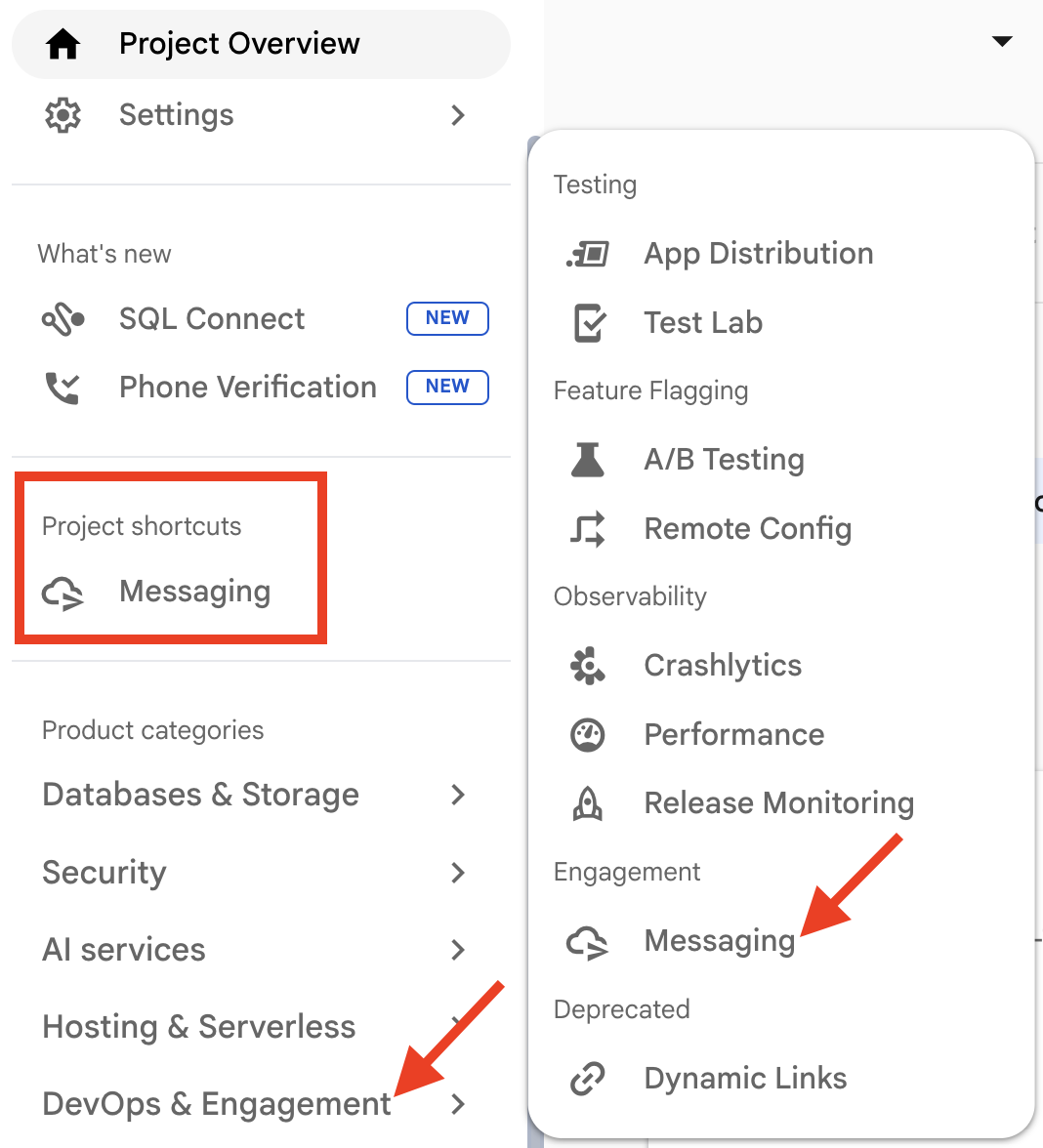
In the left-side menu, open the DevOps & Engagement section and under Engagement, click Messaging.
You may also be able to select Messaging from the Project Shortcuts section.
Step 5
Start a new notification campaign.
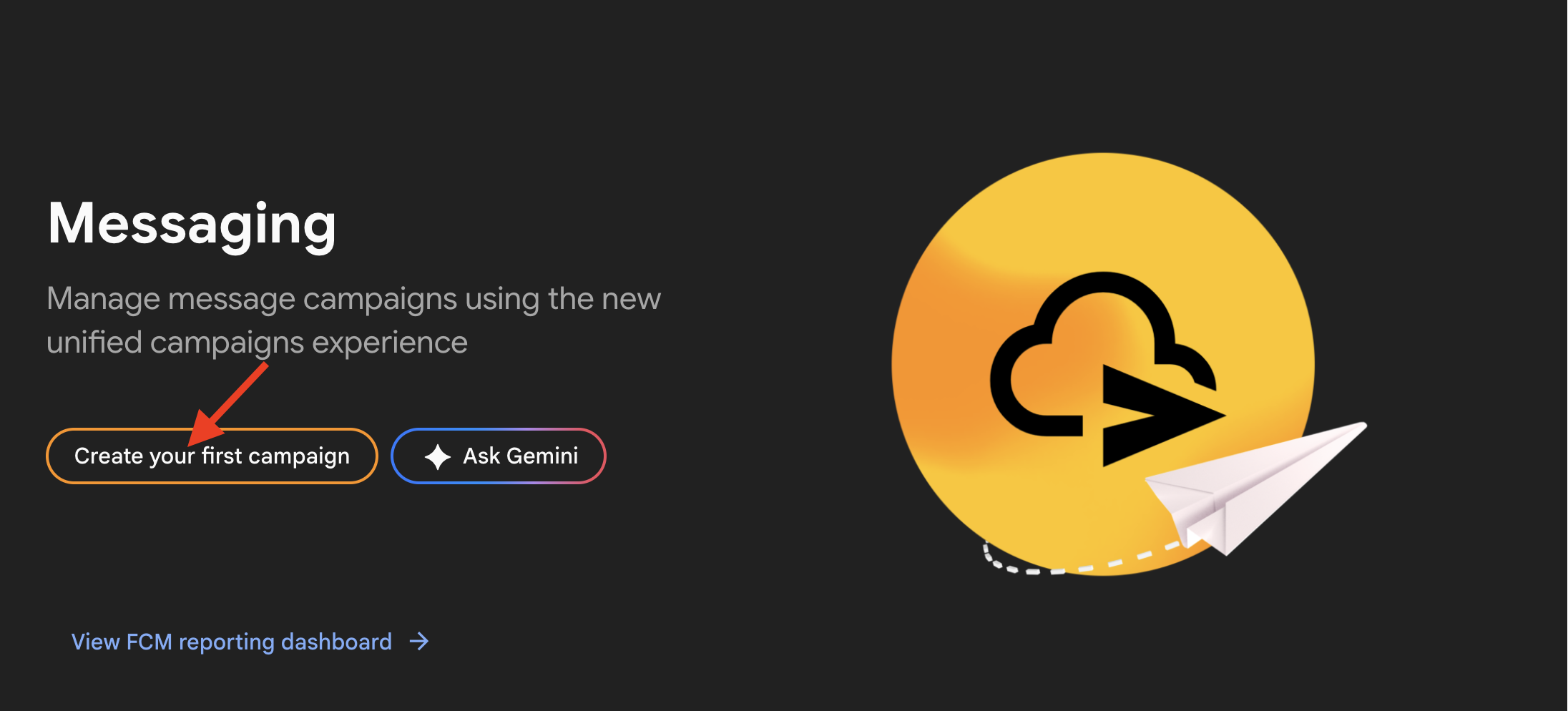
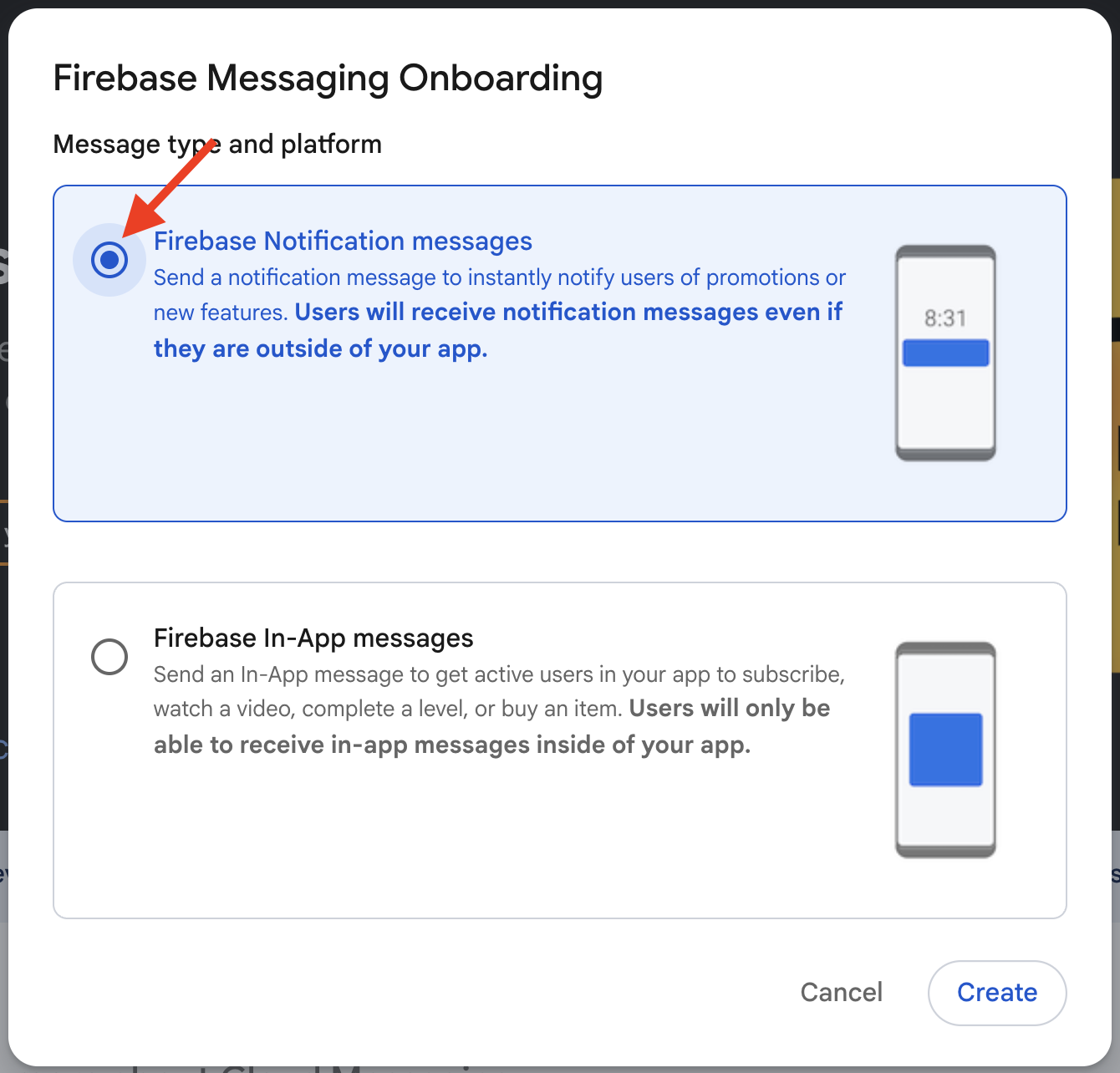
If this is your first Push Notification, click Create your first campaign, then select Firebase Notification message.
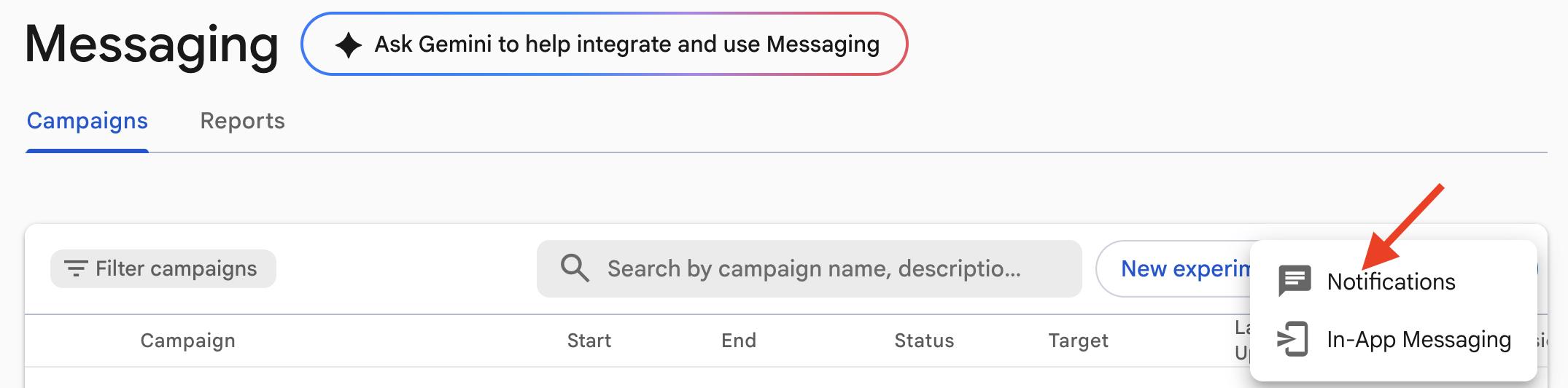
If you have sent Push Notifications before, click New campaign, then choose Notifications as the message type.

Step 6
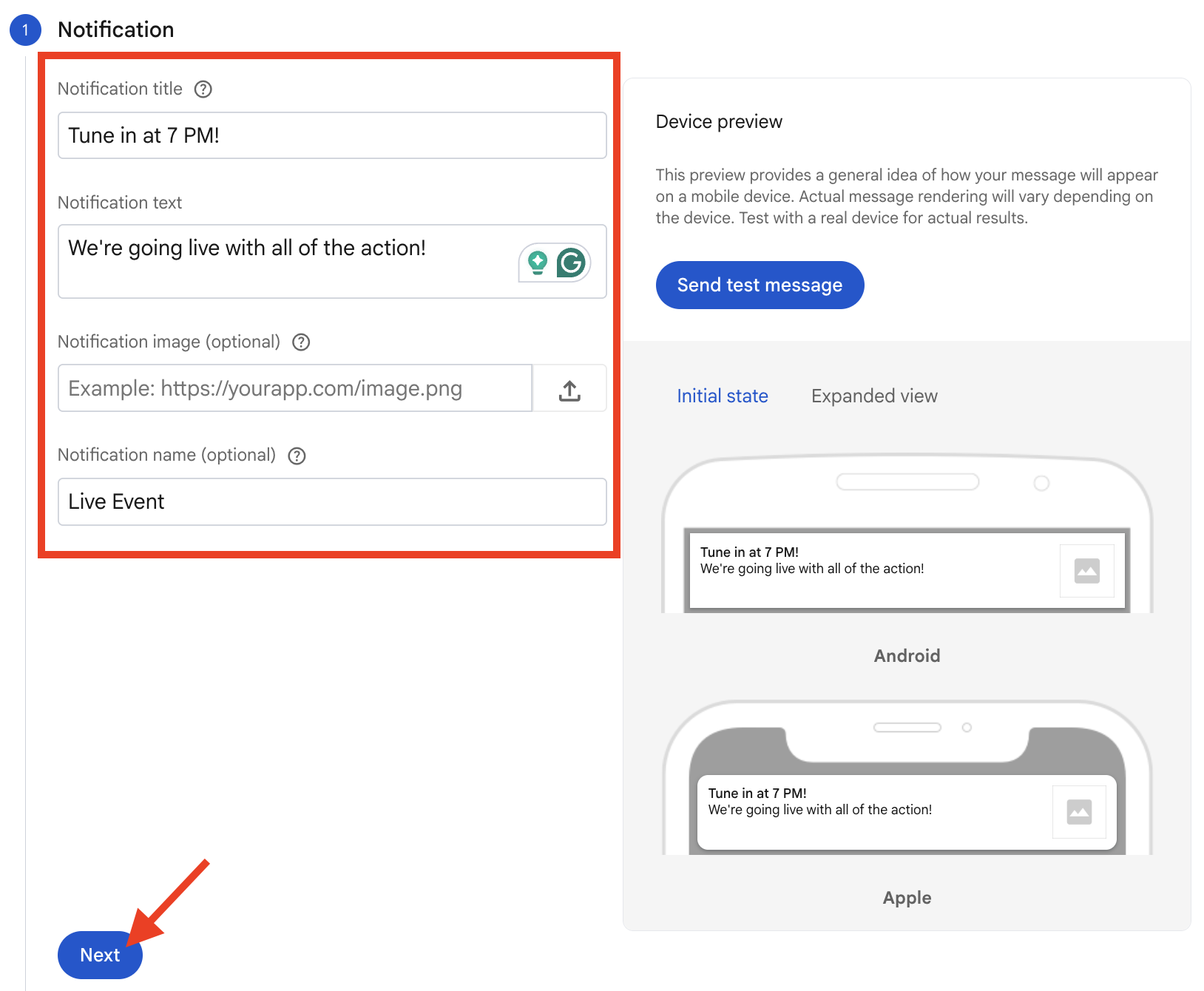
Enter the notification content.
Complete the following fields:
Notification title: The title shown to users.
Notification text: The message shown to users.
Notification image: Optional image for the notification.
Notification name: Optional internal name used to identify the notification in Firebase. This name is not shown to users.
Click Next.
Step 7
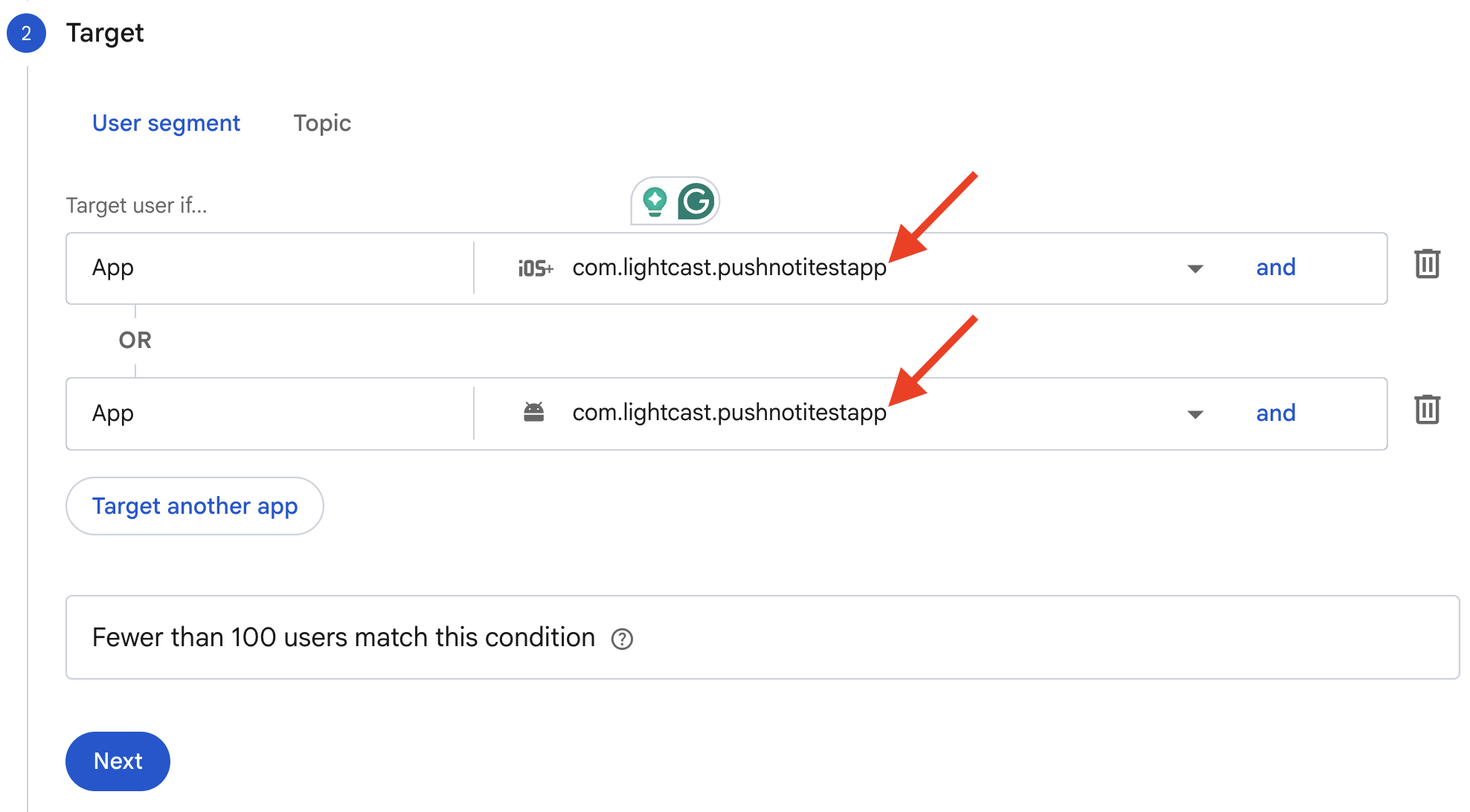
Choose your target platform.
Select whether the push notification should be sent to:
iOS
Android
Both iOS and Android
Step 8
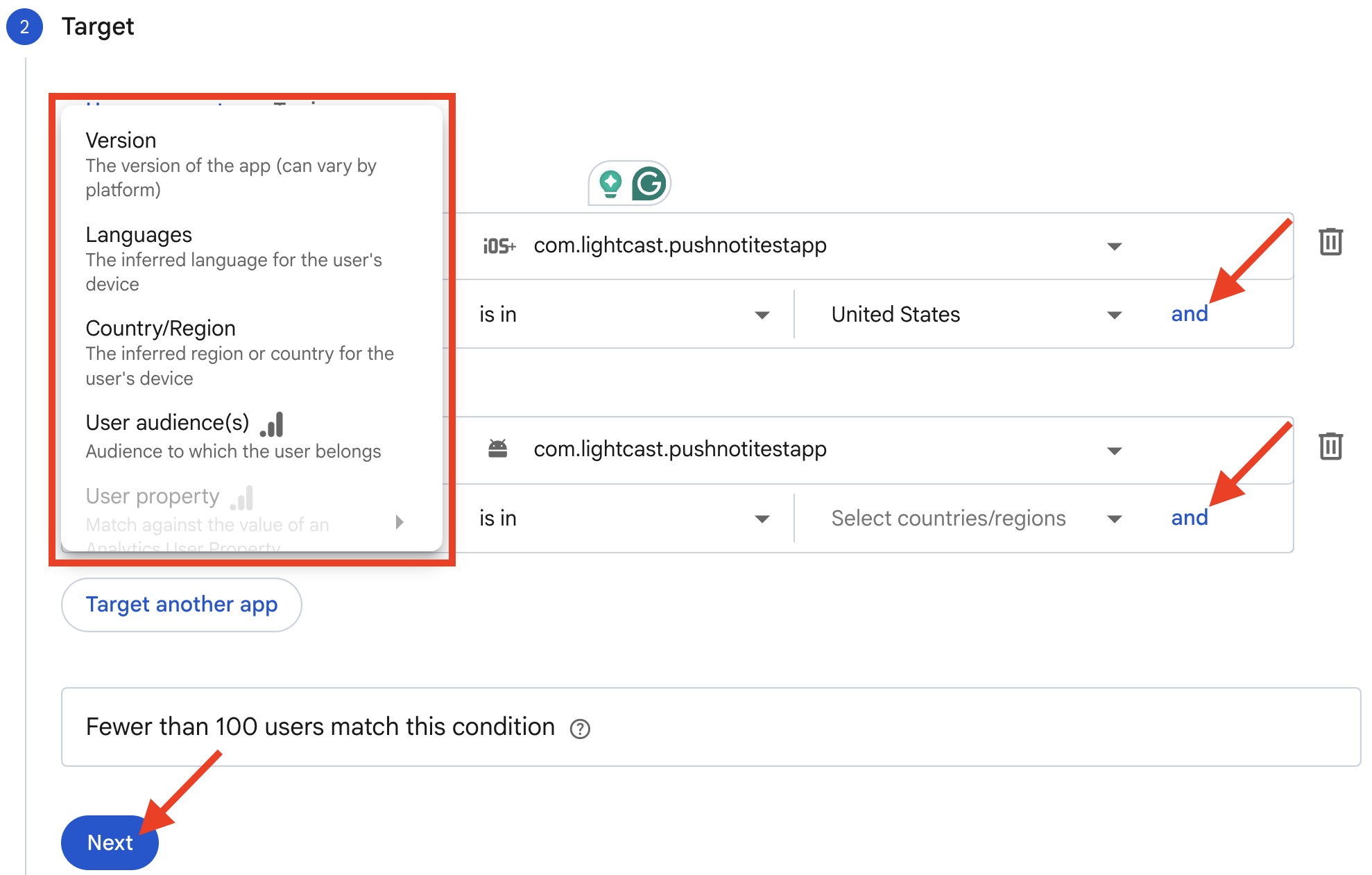
If you want to target a specific audience, click and to view additional targeting options.
If you want to send the Push Notification to all eligible users, skip the additional targeting options and click Next.
Step 9
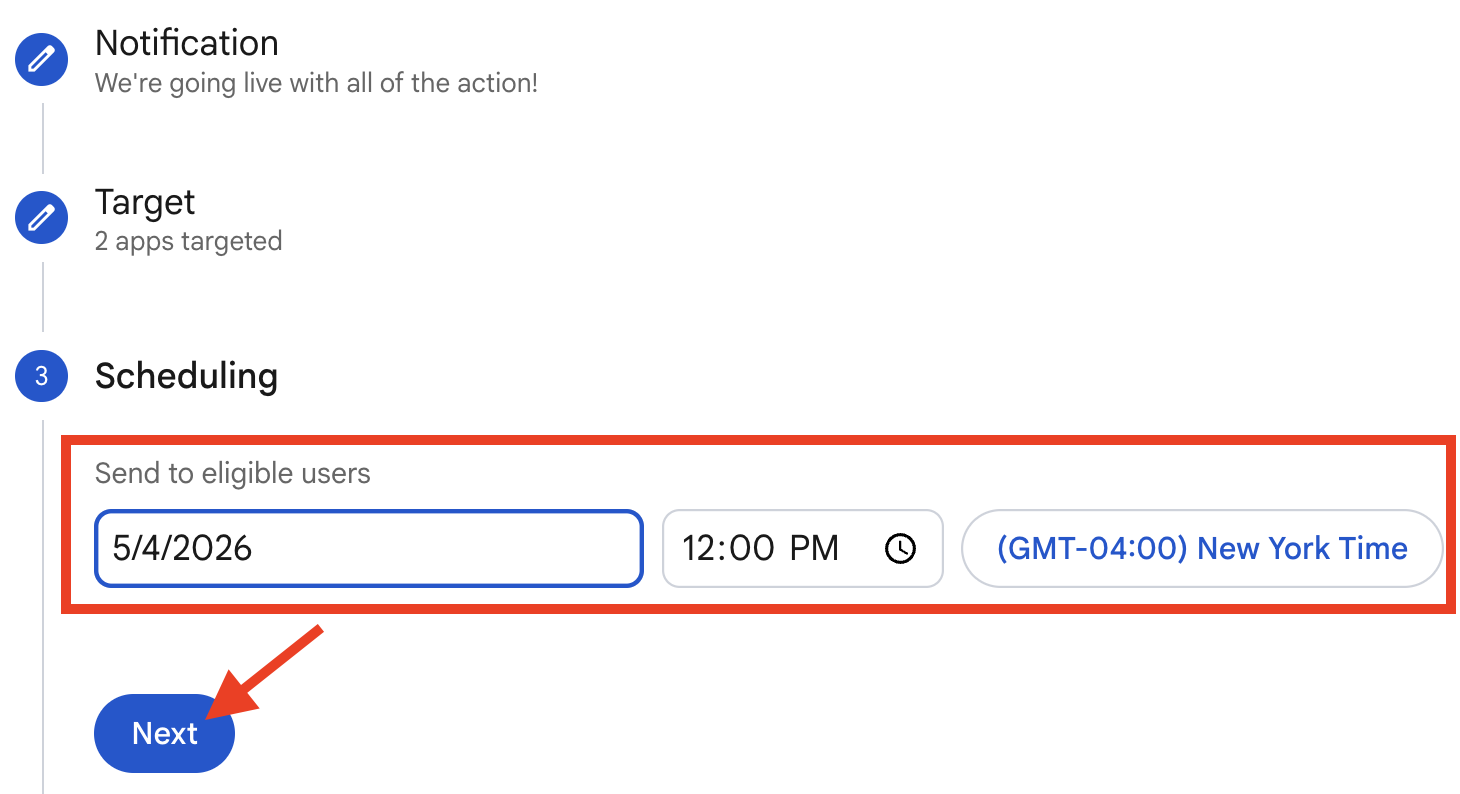
Choose the notification schedule.
You can send the notification now or schedule it for a later time.
You can also choose between:
One time notification
Recurring notification
After setting the schedule, click Next.
Step 10
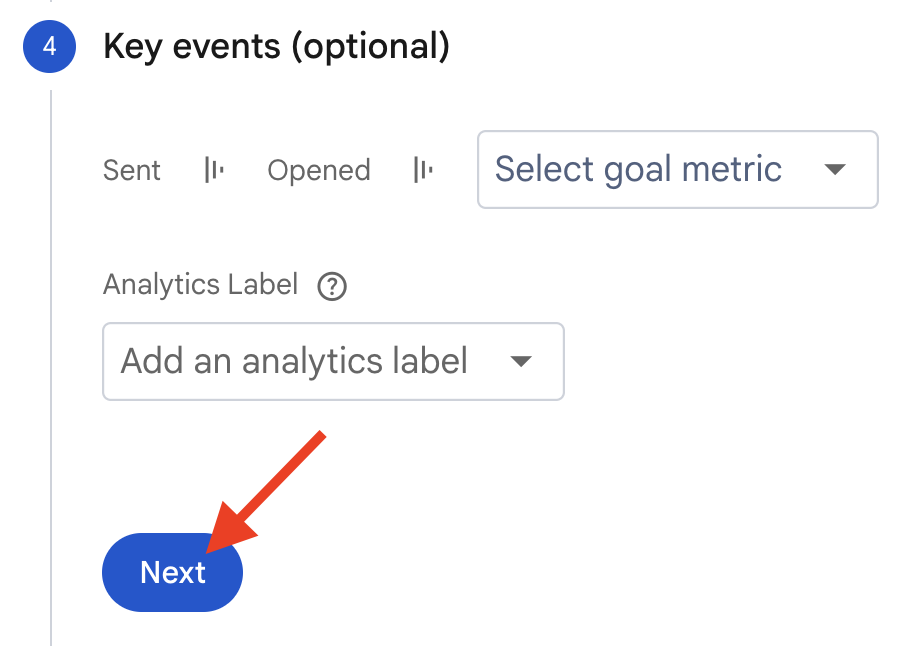
Optional: Select any preferred Key events metrics and then click Next. You can also leave this part blank and click Next.
Step 11
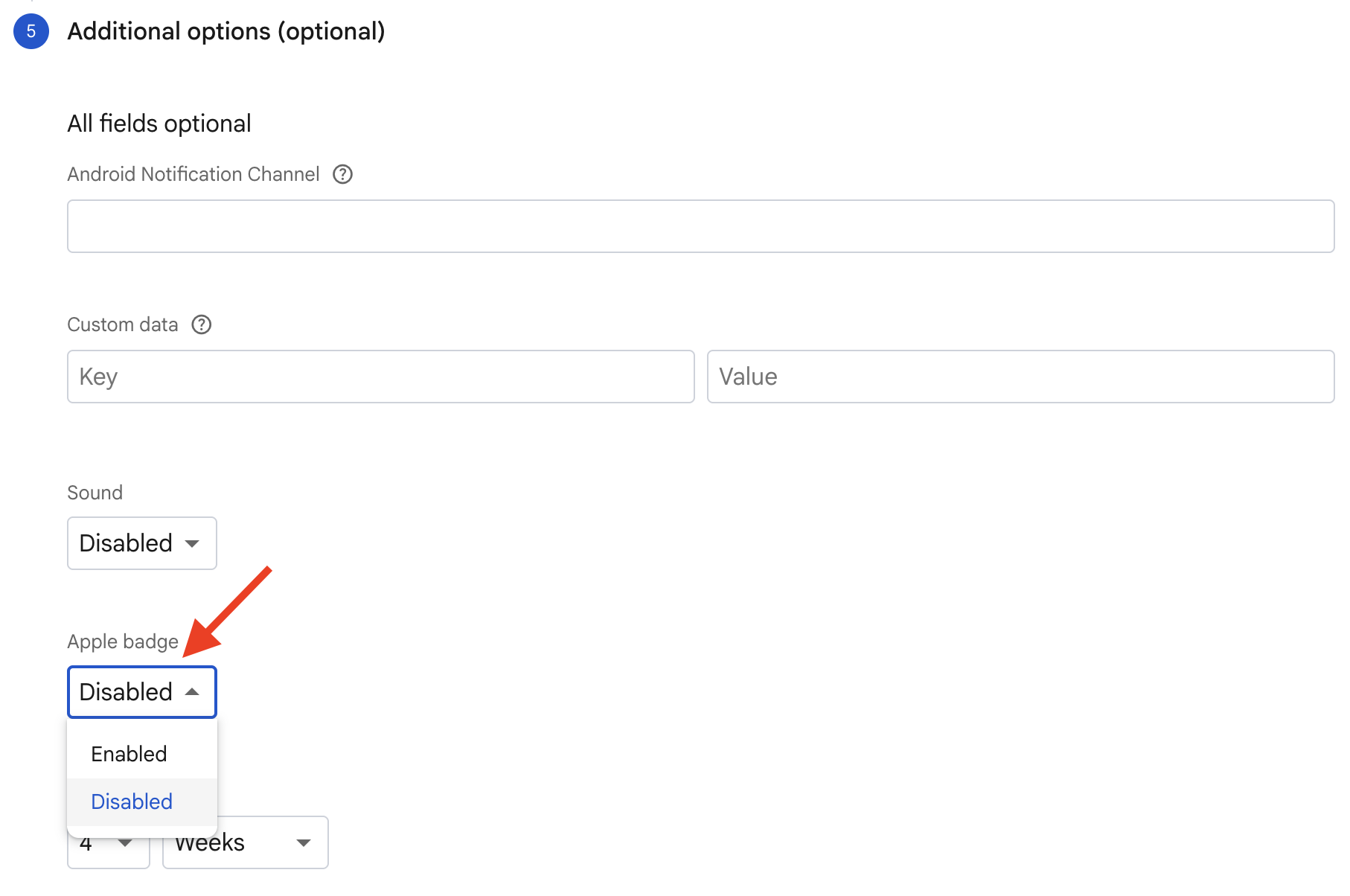
Review the Additional options section.
If you are targeting your iOS mobile app, you can enable the iOS badge app feature. The badge count controls the number displayed in the red circle on the app icon.
The iOS badge will only appear if the user has badges enabled in their device notification settings.
Step 12
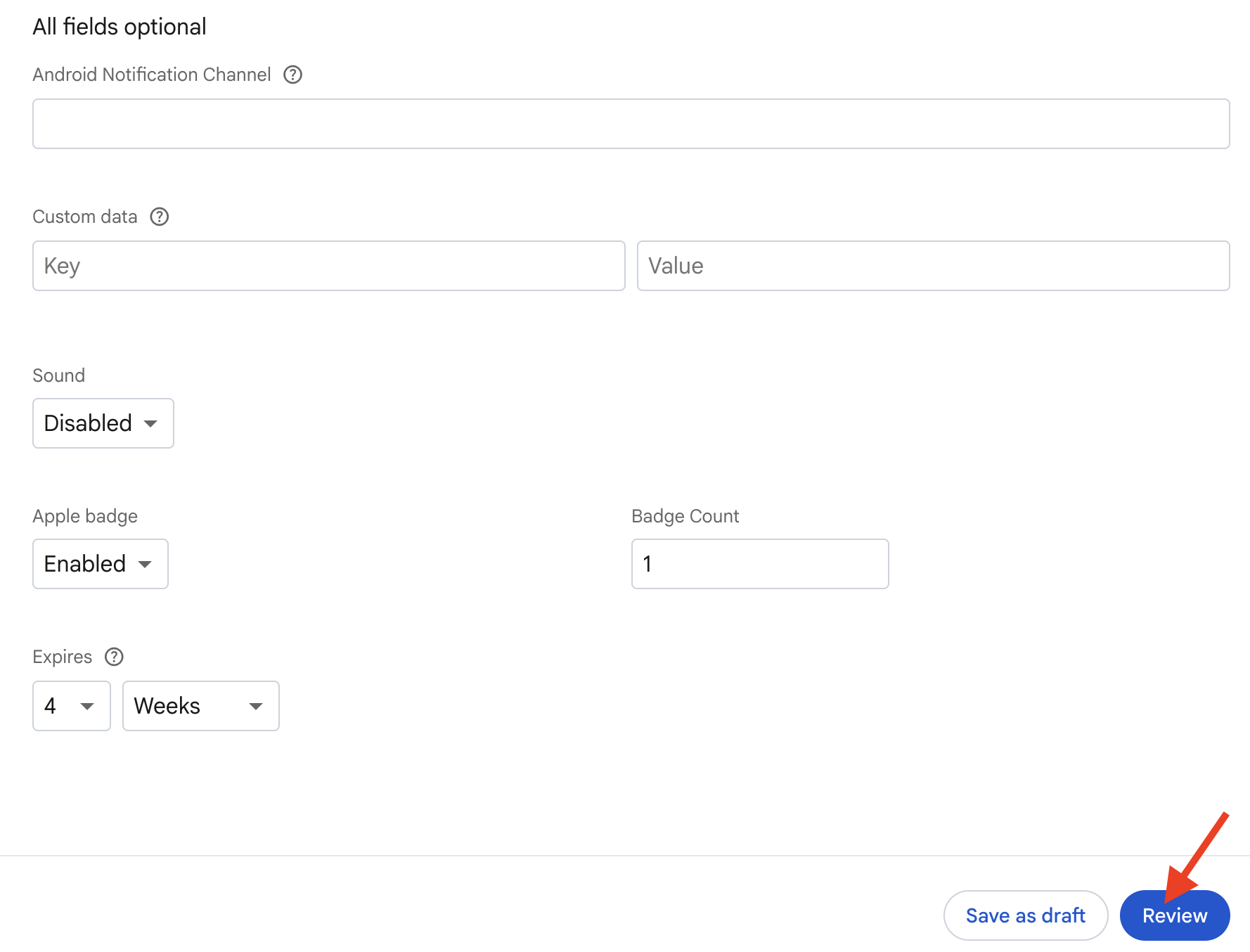
Click Review.
Step 13
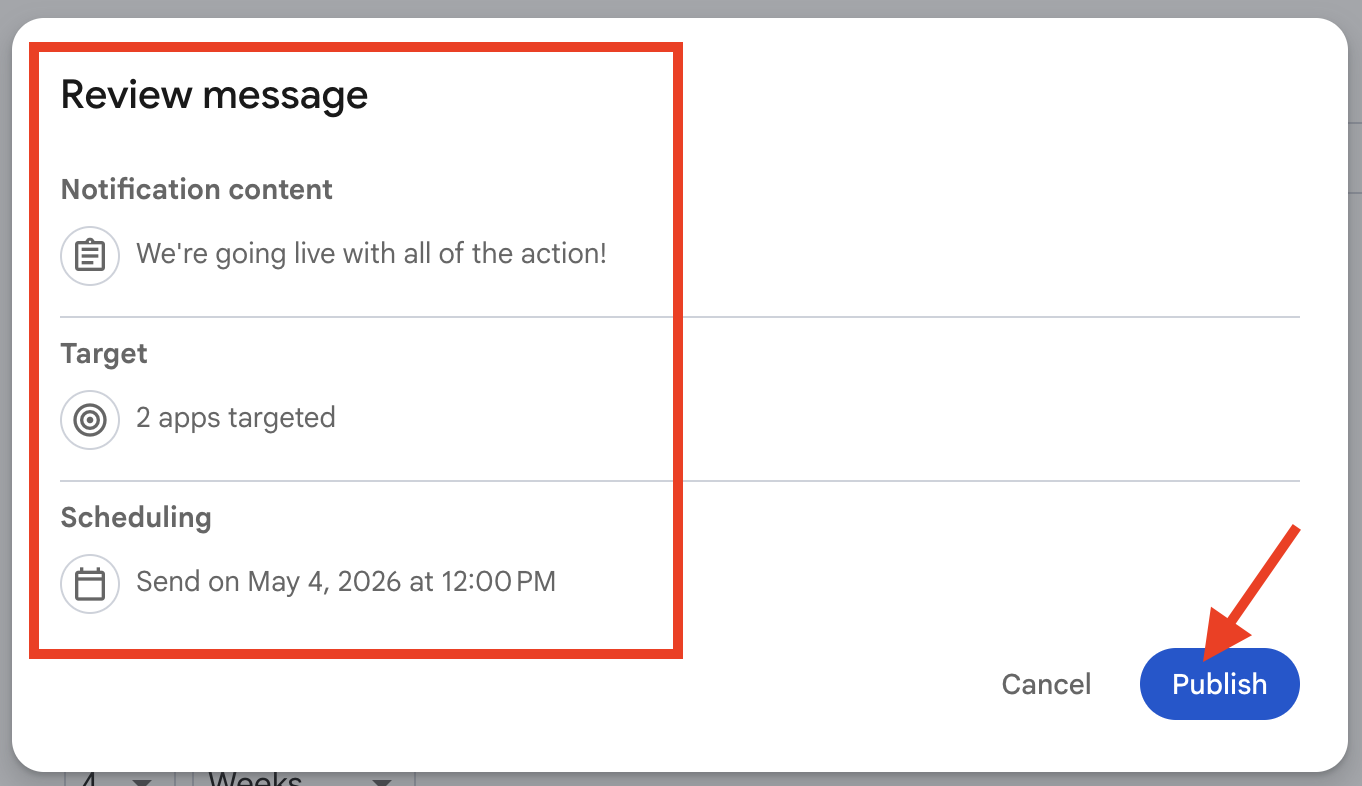
Review the notification details in the pop-up window.
If everything looks correct, click Publish to send or schedule the Push Notification.
FAQs
Can Push Notifications be sent to both iOS and Android mobile users?
Yes. In Firebase, you can target iOS mobile users, Android mobile users, or both platforms when setting up the notification.
Can Push Notifications be scheduled for later?
Yes. Firebase allows you to send a notification immediately or schedule it for a later time.
Can recurring Push Notifications be created?
Yes. Firebase allows you to create a one-time notification or a recurring notification.
Will every app user receive the Push Notification?
No. Not every user will receive Push Notifications. A user may not receive the notification if notifications are disabled on their device or disabled for your app.
How do Push Notifications appear when a user is inside the app?
If the user is browsing inside the app, the Push Notification appears as a pop-up inside the app.
How do Push Notifications appear when the app is closed?
If the app is closed, or if the user’s phone is locked, the Push Notification may appear on the lock screen or in the notification feed.
Why does Firebase show an iOS badge option but not an Android badge option?
Firebase shows an iOS badge option because the iOS badge count can be set while creating the notification.
Android app icon badges are handled automatically by the device if the user has badges enabled in their mobile settings.
Pricing
Push Notifications are available as an add-on.
Current pricing for Auto and Manual Push Notifications is listed on the Add-On Rates page.