
Roku Billing, subscriber reports, and revenue payments
Overview
This article explains how Roku Billing works with paid Roku app content, subscriber access, subscriber reports, revenue payments, and subscription cancellation.
How it works
Roku is currently the only platform that requires its own in-app purchase system, known as Roku Billing, to be implemented alongside a third-party subscription system such as Lightcast’s multi-platform subscription system, MULTIFY.
When paid subscription or pay-per-view content is enabled in your Roku app through MULTIFY, the Roku app also includes Roku Billing to support Roku’s in-app purchase requirements.
This means viewers can choose to subscribe or purchase through their Roku account when watching on Roku, or they can subscribe or purchase through MULTIFY.
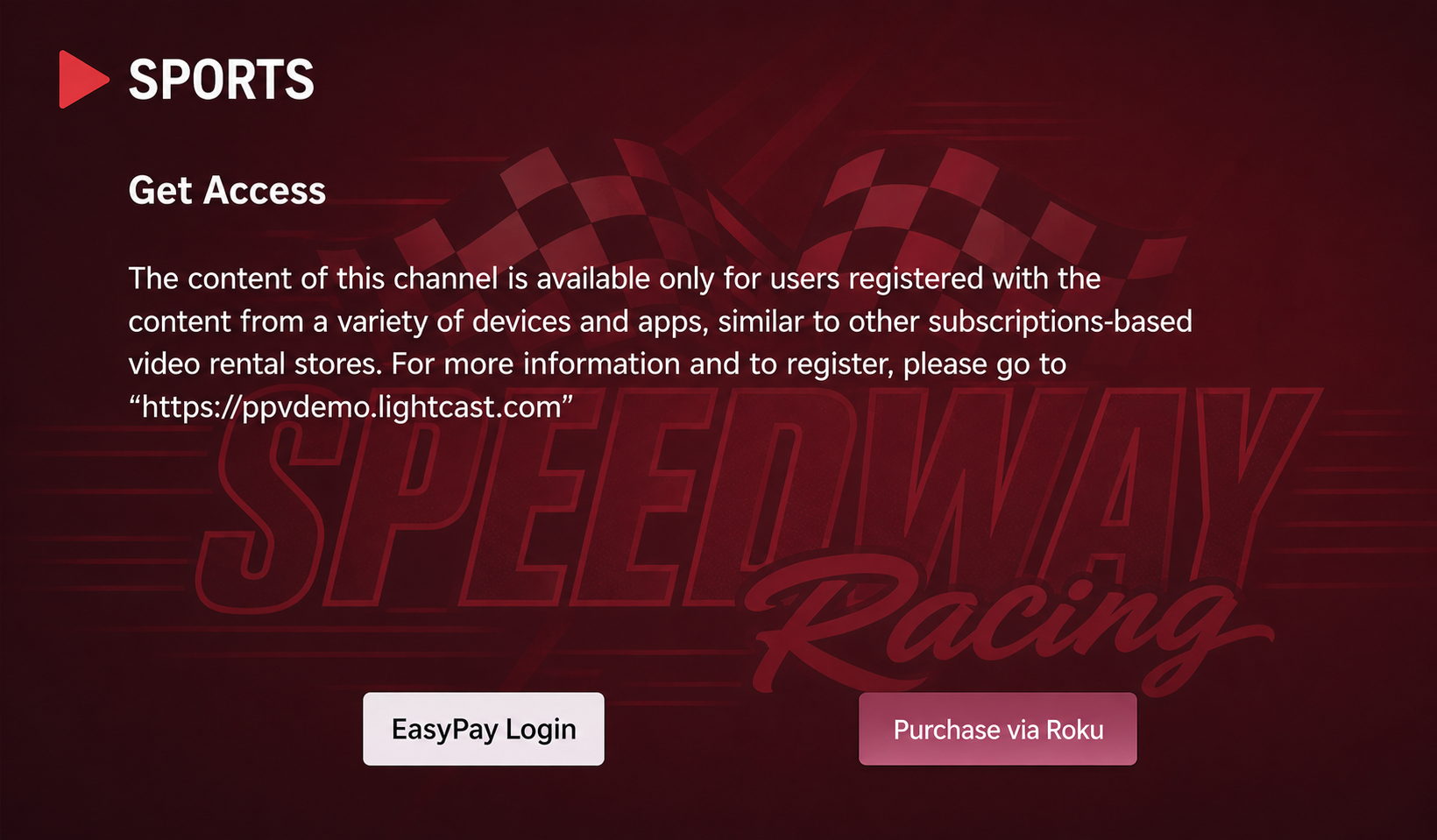
Subscriptions or pay-per-view purchases made through Roku Billing apply to Roku only. They do not automatically grant access to your Web App, mobile apps, or other TV apps. For multi-platform access, encourage viewers to subscribe through MULTIFY, Lightcast’s multi-platform subscriber system, using EasyPay as the payment processor.
Roku Billing supports subscription-based purchases only. If a viewer selects the Roku Billing option for pay-per-view content, the purchase is processed by Roku as a monthly subscription. Lightcast cannot change Roku’s billing structure for these purchases.
Roku Billing and MULTIFY are different subscription systems:
Roku Billing is processed through Roku and applies to subscriptions created through a Roku account.
MULTIFY is Lightcast’s multi-platform subscriber system.
EasyPay is the payment processor used for paid MULTIFY subscriptions.
Subscribers who sign up through MULTIFY can manage their subscription in their EasyPay account.
Subscribers who sign up through Roku Billing must manage or cancel their subscription through their Roku account.
With MULTIFY, subscribers typically register through your Web App and use the same login across supported platforms where MULTIFY is integrated. This is the recommended subscription option because it enables viewers to access your content across your other MULTIFY-enabled apps. EasyPay handles payment processing, invoicing, payment updates, and subscription cancellations.
With Roku Billing, the subscription or purchase is connected to the viewer’s Roku account. If multiple Roku devices are linked to the same account, a separate subscription is typically not required for each device. However, if the devices are linked to different Roku accounts, each account may require its own subscription. Subscriptions made through Roku Billing provide access only on Roku and do not extend to other apps, unlike MULTIFY.
Roku Billing subscribers are managed through Roku’s system. How subscriber and revenue information is accessed depends on which Roku Developer account the app is submitted under.
If your Roku app is submitted under Lightcast’s Roku Developer account, Lightcast sends quarterly Roku Billing subscriber and revenue reports to the preferred email address on file. Revenue from Roku Billing subscriptions is paid out quarterly. If the revenue is less than $10, it is carried over to the next quarter.
If your Roku app is submitted under your own Roku Developer account, you can access subscriber and revenue information directly in your Roku Developer account. Roku Billing revenue is managed through your Roku Developer account.
To learn more about multi-platform subscriptions and in-app purchases, see Lightcast’s Subscriber Management System “MULTIFY” explained.
FAQs
Can paid content be offered on a Roku app?
Yes. Paid content can be offered on a Roku app using Lightcast’s MULTIFY Subscription System.
Because Roku requires its own in-app purchase option for paid Roku content, Roku Billing is also integrated when subscriptions or pay-per-view are enabled in your Roku app.
Lightcast recommends offering at least one free VOD, AOD, or LIVE Channel so viewers can preview your content before subscribing or purchasing paid content.
What is the difference between Roku Billing and MULTIFY?
Roku Billing is Roku’s in-app purchase system. It is connected to the subscriber’s Roku account and applies to subscriptions or purchases created through Roku.
MULTIFY is Lightcast’s multi-platform subscriber system. It allows subscribers to register once and use the same subscriber login across supported platforms where MULTIFY is integrated.
EasyPay is the payment processor used for paid MULTIFY subscriptions.
Does Roku Billing support pay-per-view purchases?
Roku Billing supports subscription-based purchases only.
If a viewer selects the Roku Billing option for pay-per-view content, Roku processes that purchase as a monthly subscription. Lightcast cannot change Roku’s billing structure for these purchases.
Can Roku Billing subscribers access paid content on other platforms?
No. Subscriptions created through Roku Billing apply to Roku only.
If a viewer selects the Roku Billing option for pay-per-view content, Roku processes that purchase as a monthly subscription. That Roku Billing subscription does not automatically give the viewer access on your Web App, mobile apps, or other TV apps.
If viewers want access across supported platforms, they should subscribe through the MULTIFY registration option where available. See Understanding how subscriptions work for subscribers for more information.
Can Roku’s payment processing be used for subscriptions or pay-per-view?
Yes. Roku’s payment processing can be used for subscriptions if the Roku account and app are approved by Roku for that service.
Approval can take time and is not guaranteed for every use case. Roku payment processing may also include platform fees and additional app development requirements.
Does Roku provide subscriber numbers for Roku apps?
Yes. Roku provides subscriber numbers for individual Roku apps.
If your Roku app is submitted under your own Roku Developer account, you can access Roku Billing subscriber information directly in your Roku Developer account.
If your Roku app is submitted under Lightcast’s Roku Developer account, Lightcast sends Roku Billing subscriber reports quarterly to the preferred email address on file.
When are Roku Billing subscriber reports sent?
If your Roku app is submitted under Lightcast’s Roku Developer account, Roku Billing subscriber reports are sent quarterly to the preferred email address on file.
Reports are typically sent approximately 2–3 weeks after the previous quarter ends and include subscriber numbers and revenue information for the previous quarter.
If your Roku app is submitted under your own Roku Developer account, you can access subscriber and revenue information directly in your Roku Developer account.
When is Roku Billing revenue paid out?
If your Roku app is submitted under Lightcast’s Roku Developer account, revenue from subscriptions paid through Roku Billing is paid out quarterly.
If the revenue is less than $10, it is carried over to the next quarter.
If your Roku app is submitted under your own Roku Developer account, Roku Billing revenue is managed through your Roku Developer account.
Where can MULTIFY subscribers be viewed?
Subscribers who signed up and paid through MULTIFY using EasyPay can be viewed in your Subscriber Management account.
Log in to www.crosstribution.com using your Lightcast account credentials to view MULTIFY subscription and invoice information.
Does each Roku device need its own subscription?
Not if the Roku devices are linked to the same Roku account.
Roku Billing subscriptions are connected to the Roku account, not the device hardware. If a household uses multiple Roku devices linked to separate Roku accounts, each Roku account may require its own subscription.
How can a subscriber cancel a MULTIFY subscription?
Subscribers with a MULTIFY subscription can cancel through their EasyPay account.
They can log in to EasyPay, go to Subscriptions & Invoices, click Cancel next to the subscription, and confirm the cancellation.
How can a subscriber cancel a Roku Billing subscription?
Subscribers with a Roku Billing subscription must cancel it through their Roku account.
A Roku Billing subscription cannot be canceled through EasyPay because it is processed by Roku.