
Understanding how subscriptions work for subscribers
Overview
This article explains how subscribers sign up, access subscription content across supported platforms, and manage their EasyPay account, invoices, payment details, cancellations, and linked TV devices.
How it works
MULTIFY and EasyPay
MULTIFY is Lightcast’s multi-platform subscriber system. It supports subscriber accounts and authentication across supported devices and apps where MULTIFY is integrated. EasyPay is the payment processing service used for paid subscriptions.
How subscribers sign up and access content
Subscribers typically register once on the publisher’s Web App (registration page) and then use the same login to access subscription content across supported devices and apps where MULTIFY is integrated.
This allows subscribers to:
Create one username/email and password
Sign in across supported platforms (TV apps, mobile apps, and web)
Use the same subscriber login across supported devices
Multi-platform subscriptions vs. In-App purchases
Subscribers may see different ways to subscribe depending on the platform.
A multi-platform subscription allows subscribers to register once and use the same login across supported devices and apps where MULTIFY is integrated.
An in-app purchase is processed by a specific App Store, such as Roku or Apple. Access may only apply to that specific platform or App Store. Subscribers may need to subscribe again to watch on other devices.
Platform-specific access
Some TV apps may require in-app purchases in addition to a multi-platform subscription system. If a subscriber signs up through an in-app purchase inside a platform’s app, their subscription may only be recognized on that platform.
In-app purchases may also include additional platform fees and require additional app-side integration when enabled.
EasyPay subscriber accounts
EasyPay is the payment processing service for paid subscriptions in this system. Subscribers create an EasyPay account as part of completing a paid subscription signup.
Subscribers can use their EasyPay account to:
Change their email address or password
View, download, and print receipts or invoices
Update their credit or debit card
Manage subscription status, including cancellation
Unlink and relink TV devices, when applicable
Subscribers can manage invoices, payment details, and subscription status in their EasyPay account at https://easypay.lightcast.com/login/.
Why subscription apps are listed as free in App Stores
Apps are typically listed as Free because the app download itself is free. Some content may also be free, while certain premium Channels require a subscription. A Free App Store listing does not prevent you from monetizing premium content inside the app.
Publisher responsibilities for subscriber support
Subscribers are the publisher’s customers, so the publisher is the primary point of contact for subscriber questions.
Lightcast supports subscriber access management and media delivery in the background and does not communicate directly with subscribers unless authorized by the publisher.
Most subscriber questions are about one of these items:
Completing device linking/authorization after signing up (for example, entering a TV device linking code during activation)
Updating payment details in the EasyPay account
Encourage subscribers to follow the on-screen prompts and the emails sent during registration. This usually resolves the request quickly.
Switching to another payment processing service
In most cases, subscribers need to accept new terms and confirm or re-enter payment details when a publisher moves to a different payment processing system.
If the change is to an App Store’s in-app purchase system, many subscribers may already have an account and payment method stored with that platform. This may reduce the number of steps for those subscribers.
Instructions
These instructions apply when a publisher is using MULTIFY with the EasyPay payment processing system.
How your subscribers can find and print invoices
Step 1
To find and print invoices, log in to the EasyPay account.
Step 2
Click Subscriptions & Invoices in the top menu.

Step 3
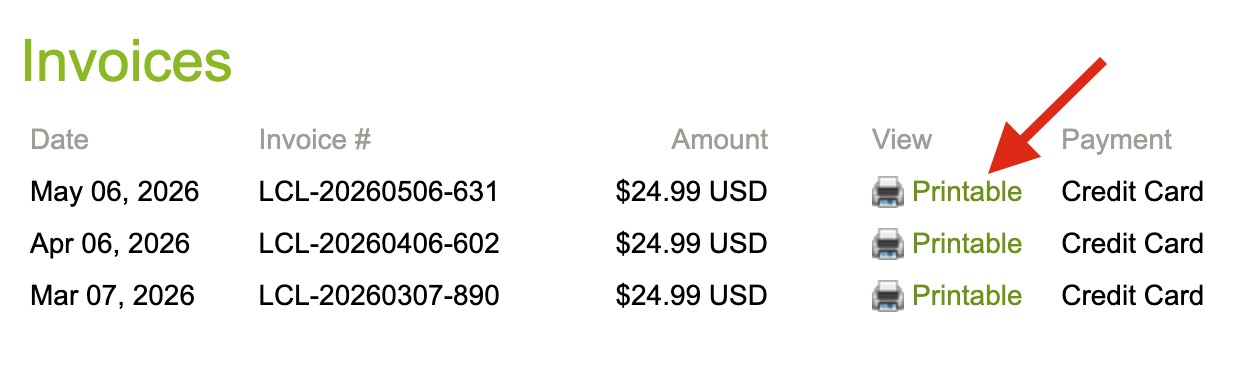
To print an invoice, click Printable or the print icon to open the invoice in a new tab.
Step 4
Use your browser’s print option to print the invoice.
How your subscribers can cancel a subscription
Step 1
To cancel a subscription, log in to the EasyPay account.
Step 2
Go to Subscriptions & Invoices.

Step 3
Find the subscription and click cancel on the right side.

Step 4
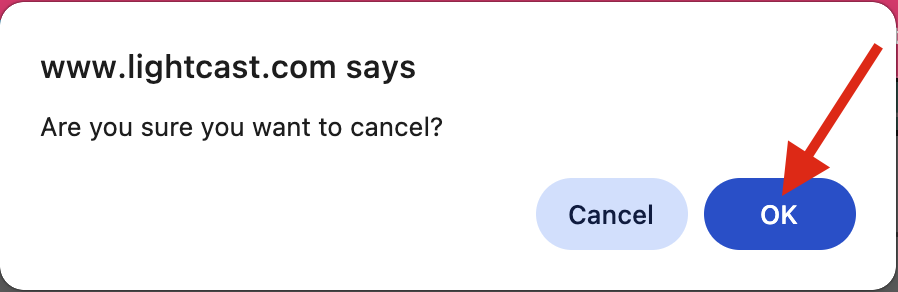
Click OK to confirm the cancellation. If the subscription status shows canceled, the recurring subscription has been canceled successfully.
Troubleshooting
If the subscription registration form does not appear when selecting Get Access, Sign In, or subscription content, the most common reasons are:
You are already logged in to your EasyPay account, so the player recognizes your subscriber access and does not show the registration form.
The Channel or content you selected does not require a subscription. Select a Channel or media item that requires a subscription to view the registration form.
FAQs
Why do subscribers register on the Web App instead of inside the TV app?
Registering on the Web App allows subscribers to register once and use the same login across supported devices and apps where MULTIFY is integrated.
What is the difference between multi-platform subscriptions and in-app purchases?
Multi-platform subscriptions work across supported devices and apps using one login where MULTIFY is integrated. In-app purchases are processed by a specific App Store and may only apply to that platform.
Where do subscribers manage subscriptions, invoices, and payment methods?
Subscribers manage subscriptions, invoices, payment details, and subscription status in their EasyPay account at easypay.lightcast.com/login.
How can subscribers cancel a subscription?
Subscribers can log in to EasyPay, go to Subscriptions & Invoices, click Cancel next to the subscription, and confirm the cancellation.
Why does a subscriber have platform-specific access?
If a subscriber signs up through an in-app purchase inside a platform’s app, the subscription may only be recognized by that specific platform or App Store.