
How to enable LIVE-to-VOD recording
Overview
This article explains how to enable LIVE-to-VOD recording for a Live Events Channel in the Media Cloud.
LIVE-to-VOD recording allows your live stream to be recorded on the server network so you can later review the recording, send it into encoding, and publish the resulting VOD asset.
When to use LIVE-to-VOD recording
Use LIVE-to-VOD recording when you want to record a Live Event stream and make it available as on-demand video after the broadcast.
This may be helpful when:
You want to publish a live event recording as VOD after the event
You want to trim the beginning or end of the recording before publishing
You want to assign the finished recording to a VOD Channel or Media Group
You want the recording to be processed for multi-platform VOD playback
For more information about how LIVE-to-VOD recording works, see Understanding LIVE-to-VOD recording.
How it works
LIVE-to-VOD recording can be enabled for a Live Events Channel in the Media Cloud.
LIVE-to-VOD recording is designed for Live Events Channels and is not available for Linear Stream Channels.
When LIVE-to-VOD recording is enabled, the Media Cloud records the incoming live stream for that Channel.
The workflow is:
Live stream → recording → review/select recording → trimming, if needed → send to encoding → VOD asset → publish or assign
After the broadcast, the recording becomes available for review and optional trimming. You can then choose whether to send it into encoding. Once encoding is complete, the resulting VOD asset can be published and assigned to the appropriate VOD Channel, Media Group, or other supported destination.
LIVE-to-VOD recordings are not automatically published as VOD items. You choose which recordings are sent into encoding and where the resulting VOD assets are published.
Enabling LIVE-to-VOD recording does not change the Channel’s CDN Access Point URL. If your encoder is already configured for the Live Events Channel, no changes to the encoder’s destination URL are required.
Before you begin
Before you begin, make sure you have:
An active Live Events Channel in the Media Cloud
Access to the Channel settings
A live encoder configured to send your stream to the Channel
Access to LIVE-to-VOD recording enabled for your account or package
If LIVE-to-VOD recording is not available in the Channel settings, contact Customer Support to confirm whether the feature is enabled for your account or package.
For more information about setting up and ingesting a Live Event stream, see How to set up and ingest a Live Event stream.
Instructions
Step 1
Log in to your Media Cloud account.
Step 2
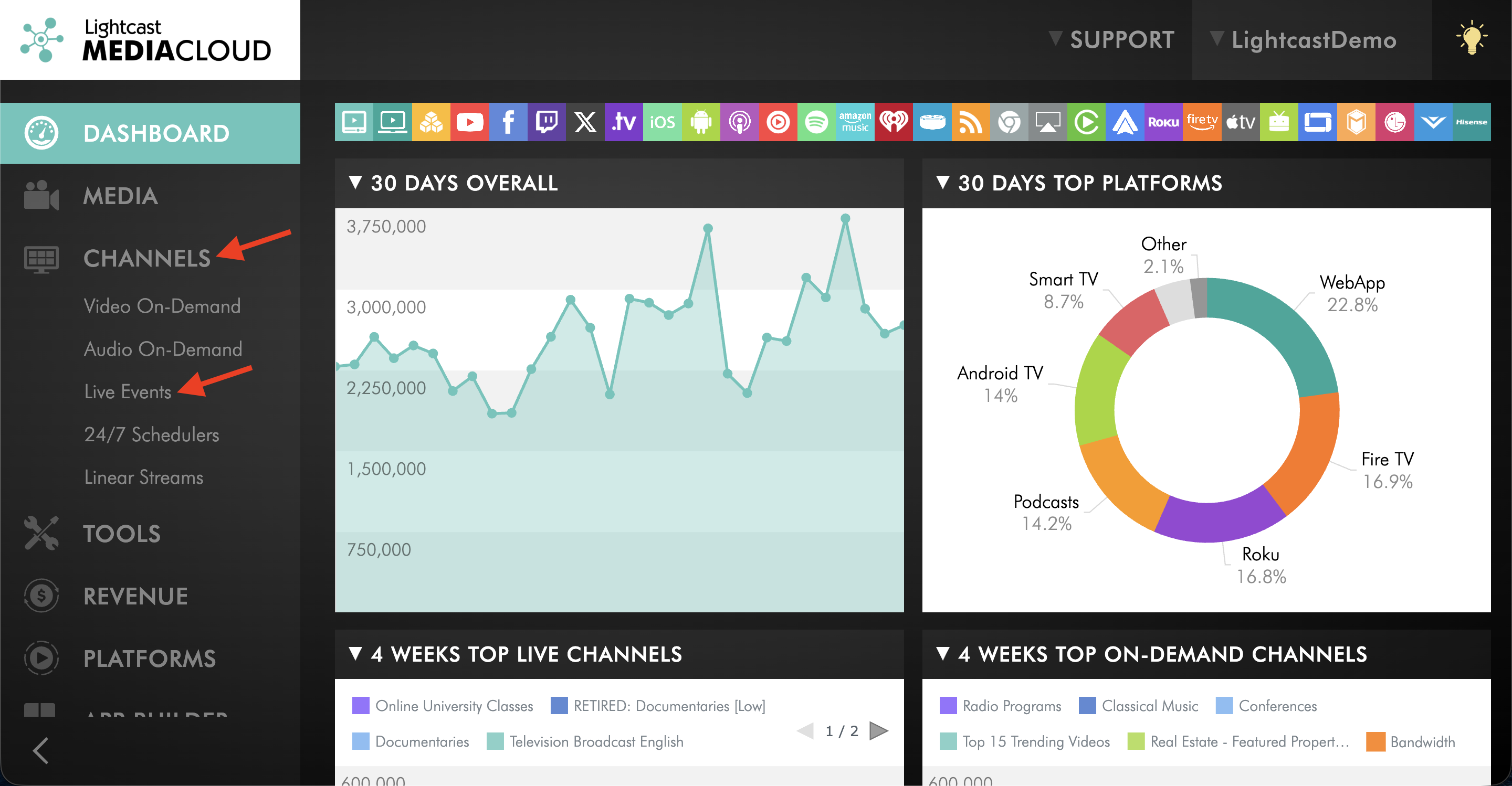
Go to CHANNELS, then select Live Events.
Step 3
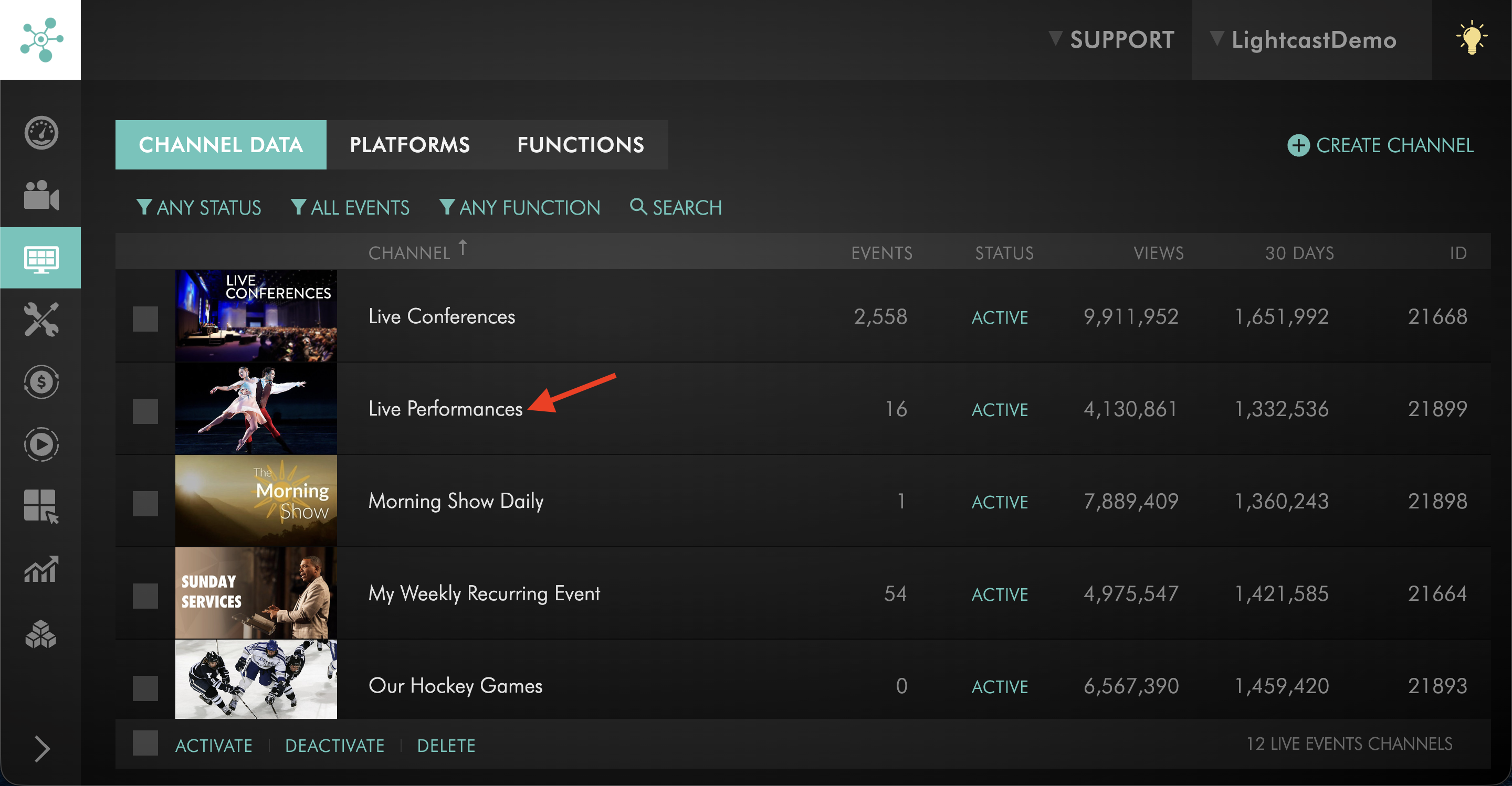
Select the LIVE Channel where you want to enable LIVE-to-VOD recording.
Step 4
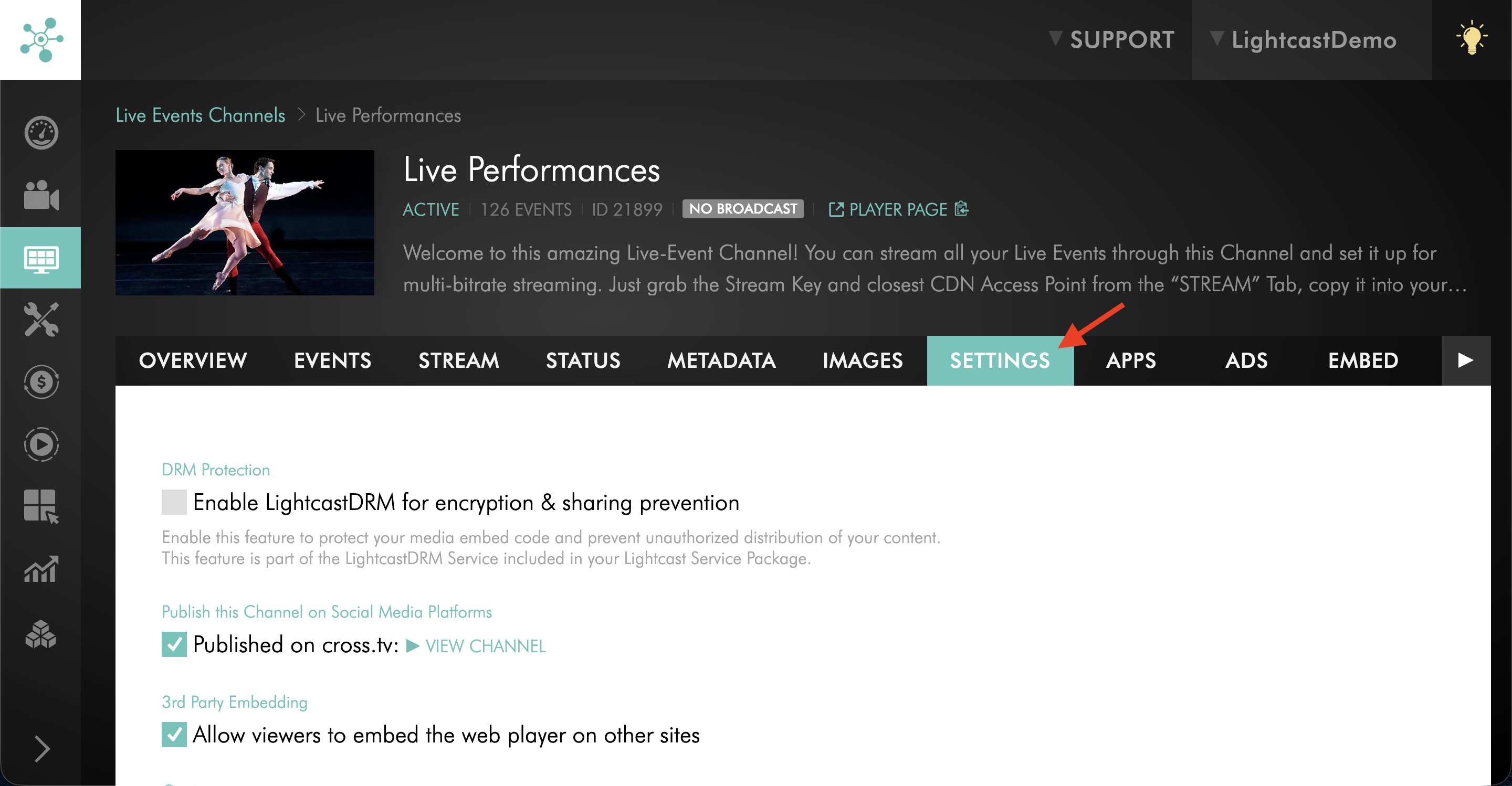
Go to the SETTINGS tab.
Step 5
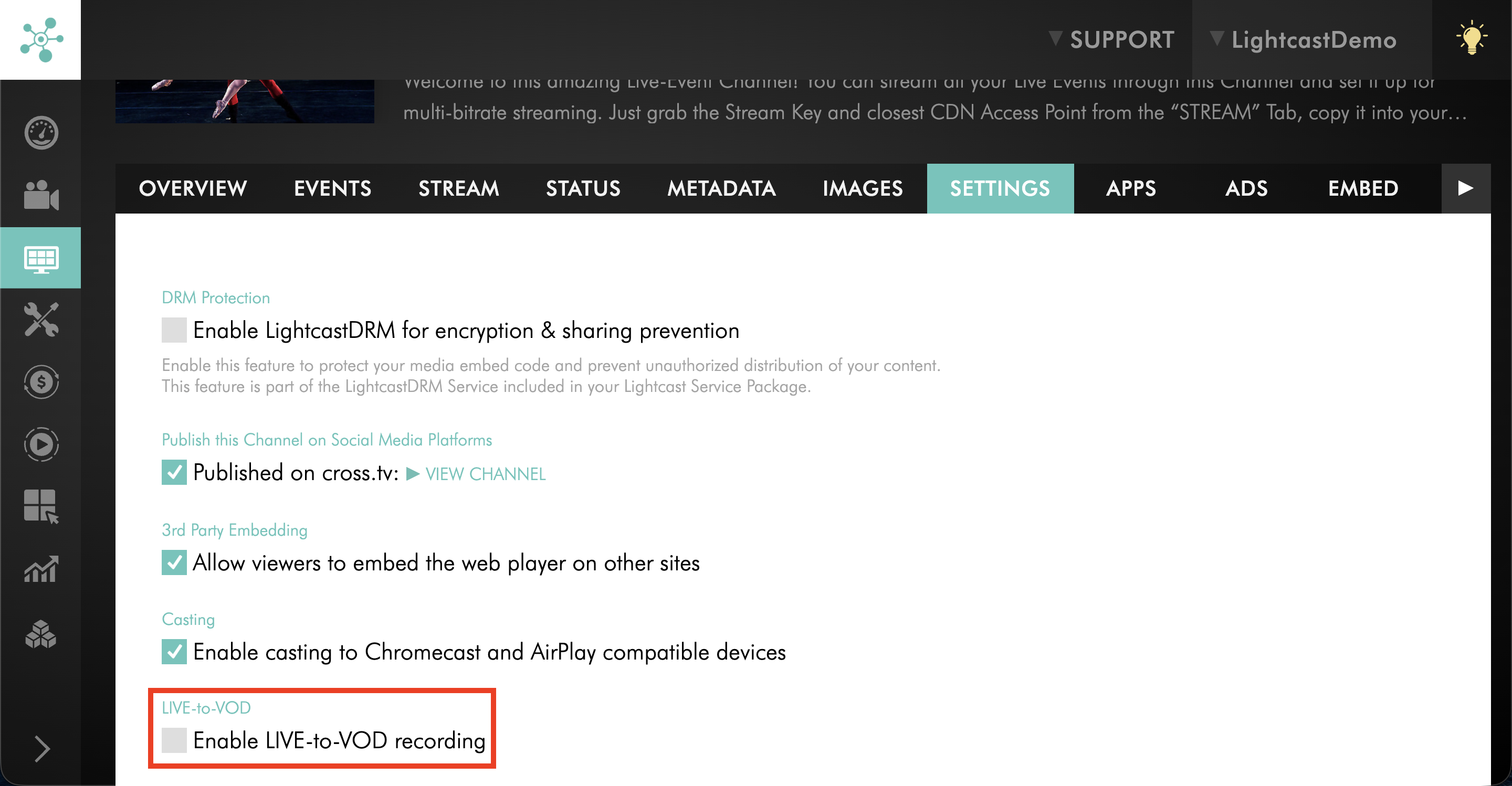
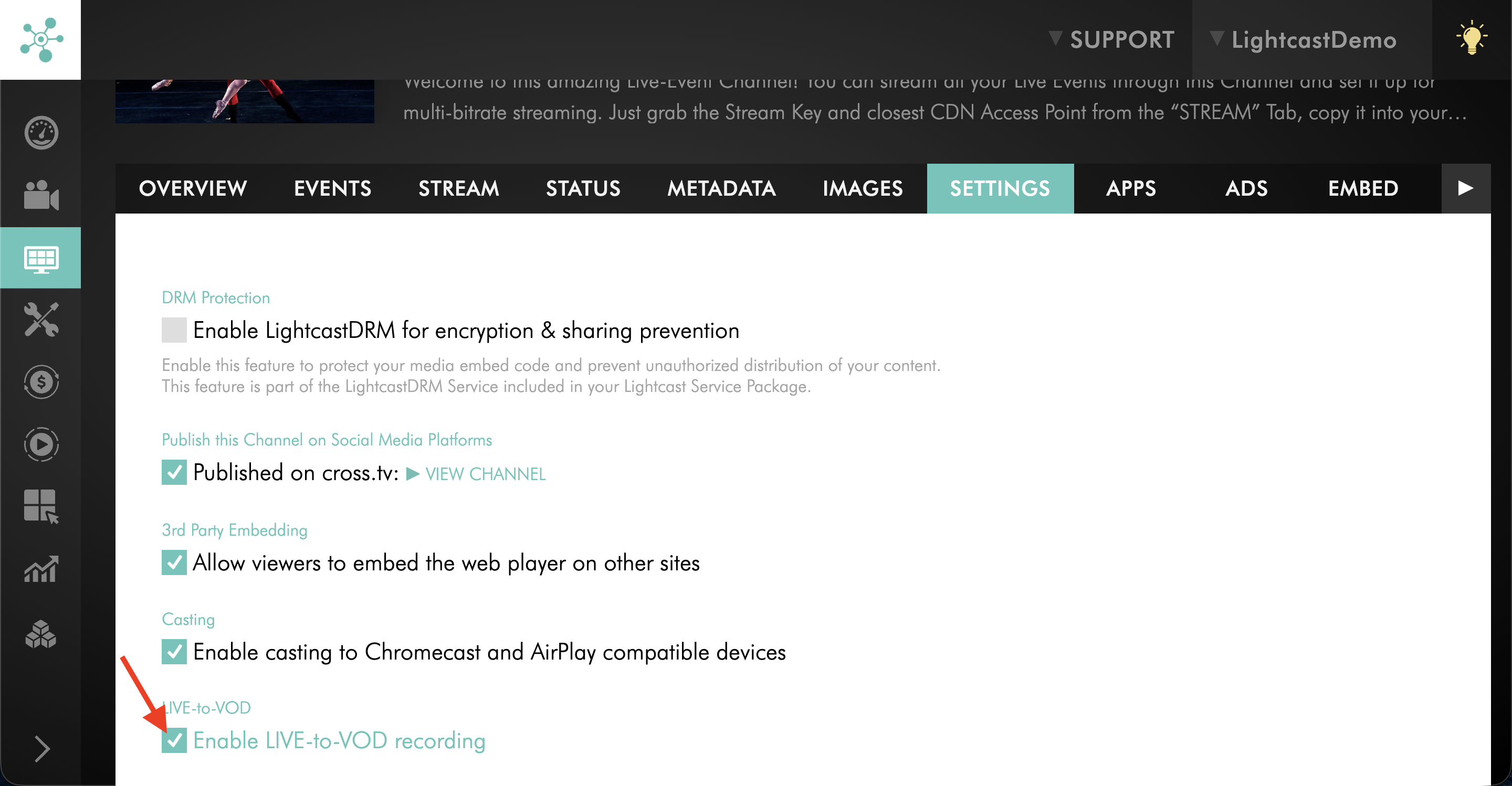
Locate the Enable LIVE-to-VOD recording setting.
Step 6
Select the checkbox to enable LIVE-to-VOD recording.
Step 7
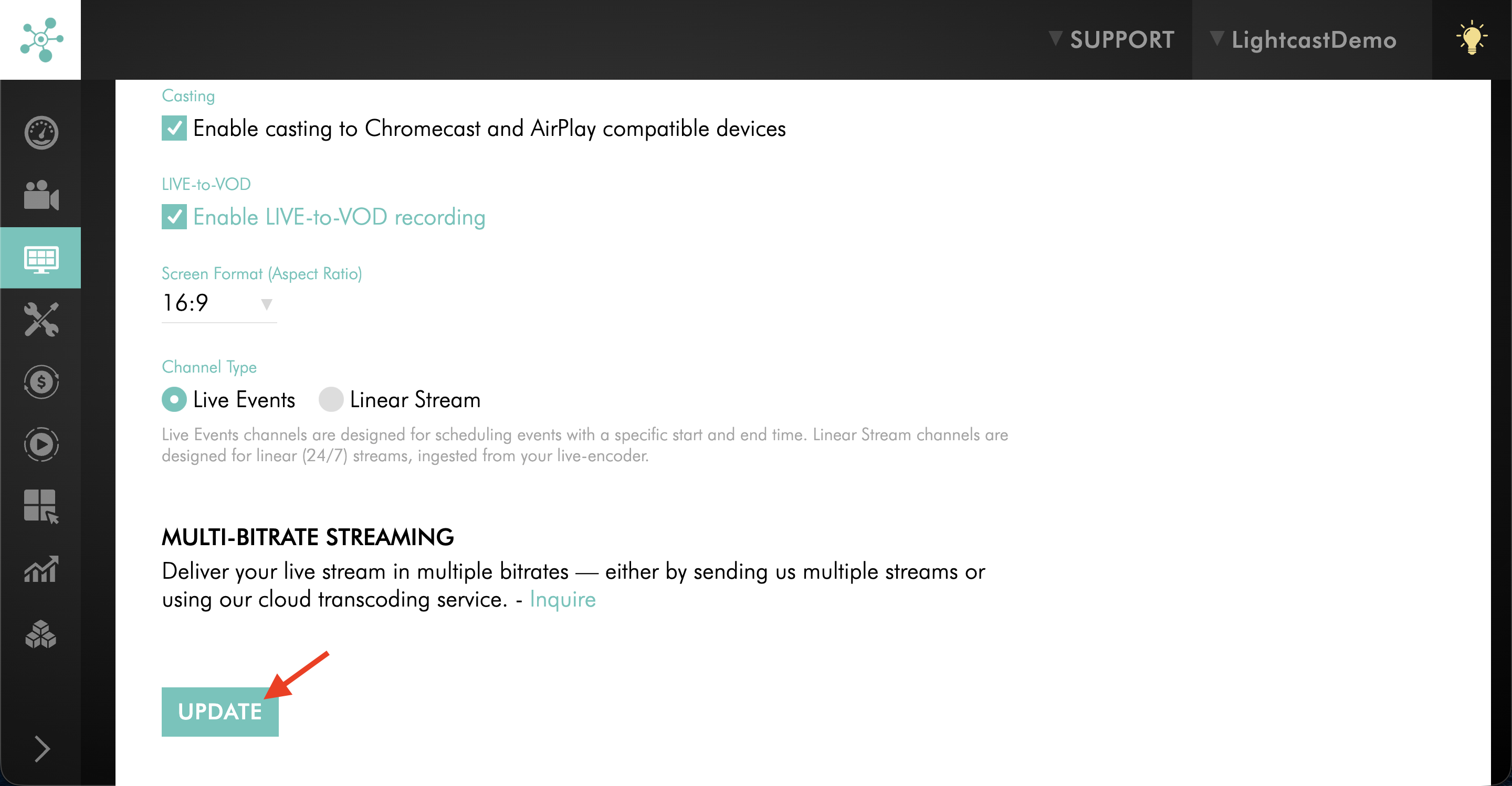
Click UPDATE to save your changes.
What happens after LIVE-to-VOD recording is enabled
Once LIVE-to-VOD recording is enabled, future incoming live streams for the Channel can be recorded.
After a broadcast ends, open the LIVE-to-VOD recordings area to review the recording and send it into encoding when you are ready to create the VOD asset.
LIVE-to-VOD recordings can be found under MEDIA → Live Recordings in the Media Cloud.
For more information about reviewing and processing recordings, see How to manage LIVE-to-VOD recordings.
Next steps
After your live broadcast has been recorded, you can review the LIVE-to-VOD recording, trim the recording if needed, send it into encoding, and prepare the resulting VOD asset for publishing.
For more information, see:
FAQs
Does enabling LIVE-to-VOD automatically publish my live stream as a VOD item?
No. LIVE-to-VOD recordings are not automatically published as VOD items.
You choose which recordings are sent into encoding and where the resulting VOD assets are published.
Where can I find LIVE-to-VOD recordings after a broadcast?
LIVE-to-VOD recordings can be found under MEDIA → Live Recordings in the Media Cloud.
For more information about reviewing and processing recordings, see How to manage LIVE-to-VOD recordings.
Does enabling LIVE-to-VOD recording change my CDN Access Point URL?
No. Enabling LIVE-to-VOD recording does not change the Channel’s CDN Access Point URL.
If your encoder is already configured for the Live Events Channel, no changes to the encoder’s destination URL are required.
As a best practice, test your encoder before your next live event to confirm that the stream connects and records successfully.
Can LIVE-to-VOD recording be enabled for any LIVE Channel?
No. LIVE-to-VOD recording is designed for Live Events Channels.
It is not enabled from Linear Stream Channels.
For more information about supported recording behavior and limitations, see Understanding LIVE-to-VOD recording.
Pricing
LIVE-to-VOD recording is available on POWER packages and up.
If you don't have access to this feature, you can upgrade to one of our latest plans or contact your account manager.