
How to sign in to your Media Cloud account and stay signed in
Overview
This article explains how to log in to your Media Cloud account and stay logged in between visits. It also covers what to check if you are asked to sign in again each time you return.
How it works
When you sign in to the Media Cloud with your Media Cloud account credentials, your browser stores a session cookie. If cookies remain enabled, your browser can usually keep you signed in between visits.
You can also select Keep me signed in on the login page to help your browser remember your session.
For security reasons, you may still be asked to enter your password from time to time.
Instructions
Sign in to the Media Cloud
Step 1
Open the Media Cloud login page: https://mediacloud.lightcast.com/login.
You can also log in from: https://www.lightcast.com/login/.
Step 2
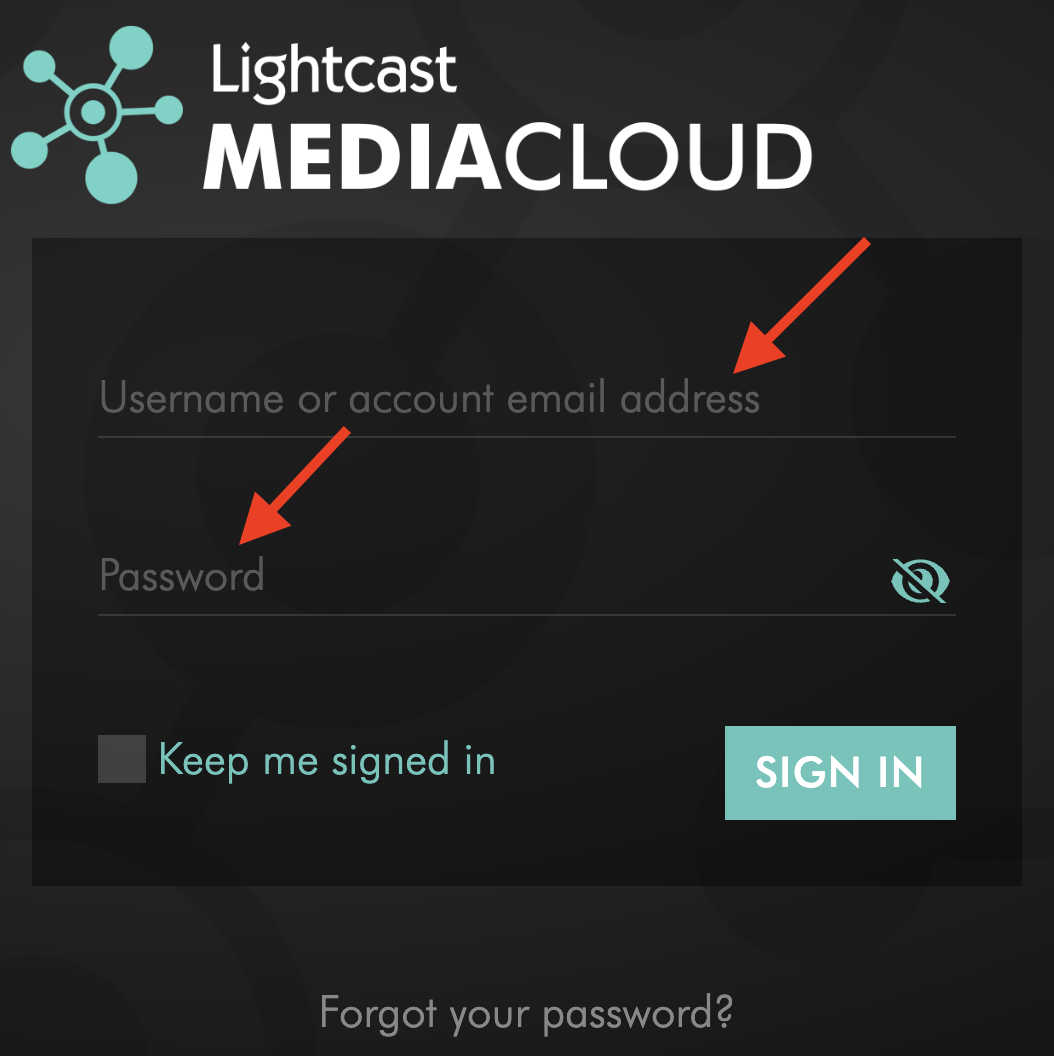
Enter your credentials:
Username or account email address
Password
Step 3
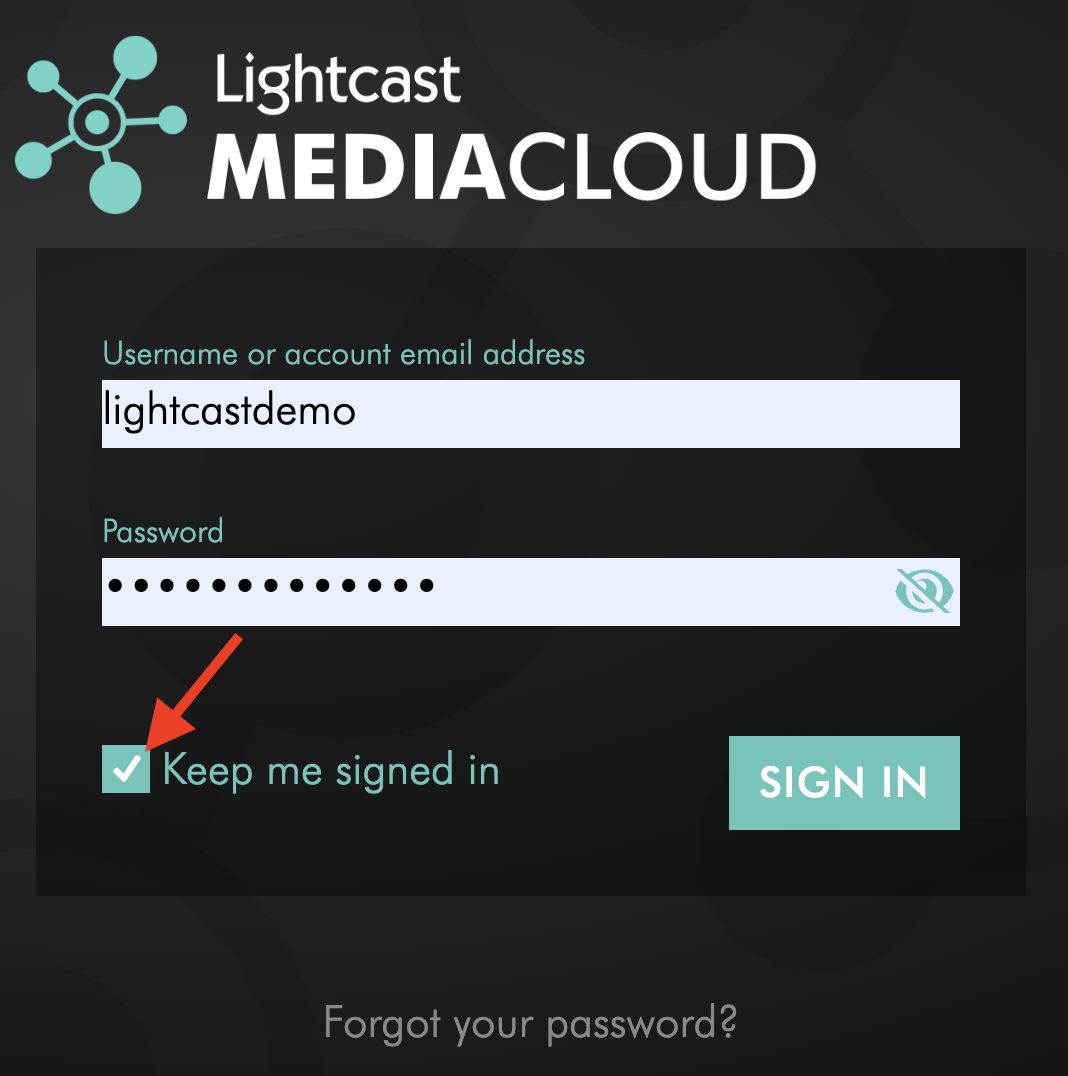
If you want to stay logged in between visits, select the Keep me signed in checkbox.
Step 4
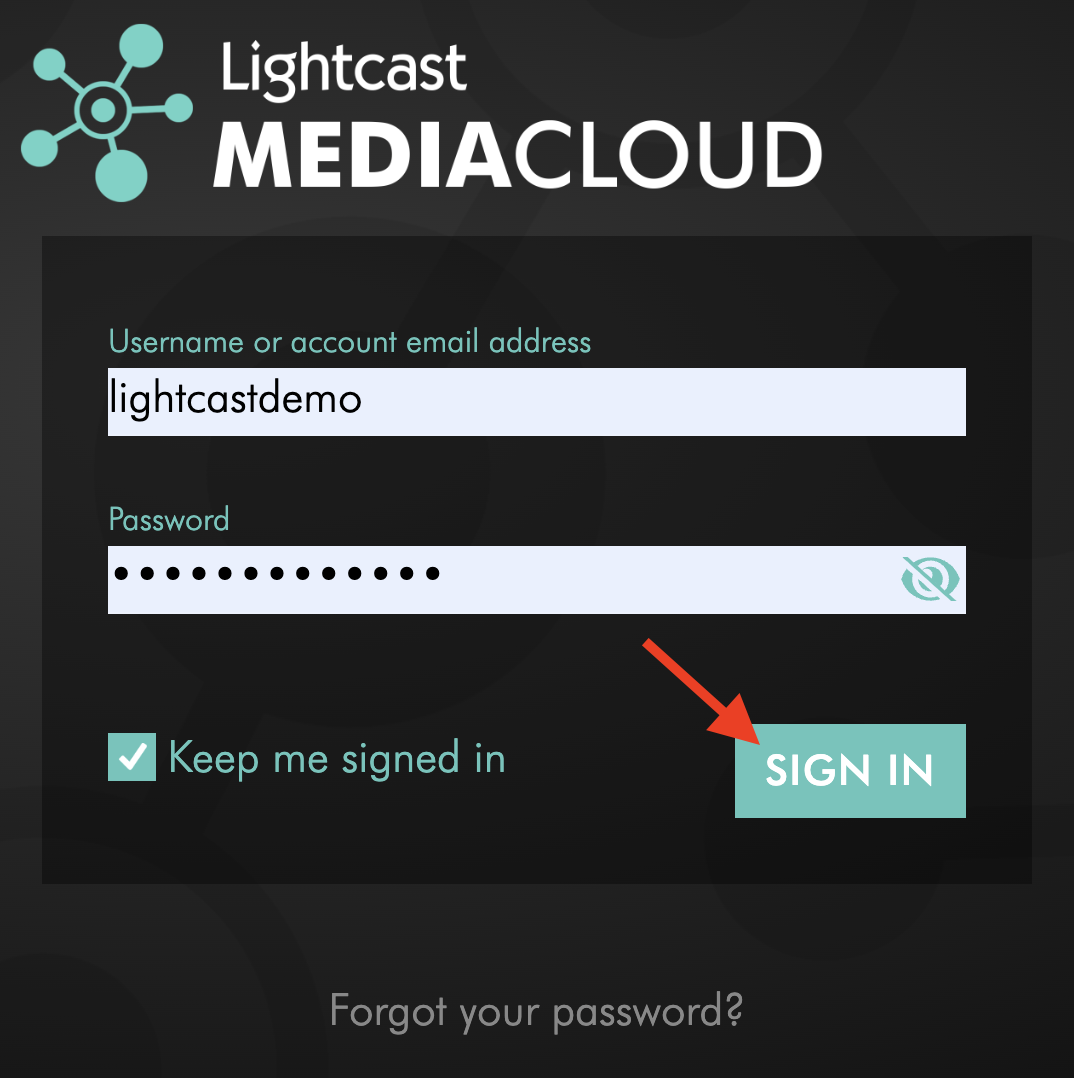
Click SIGN IN.
Step 5
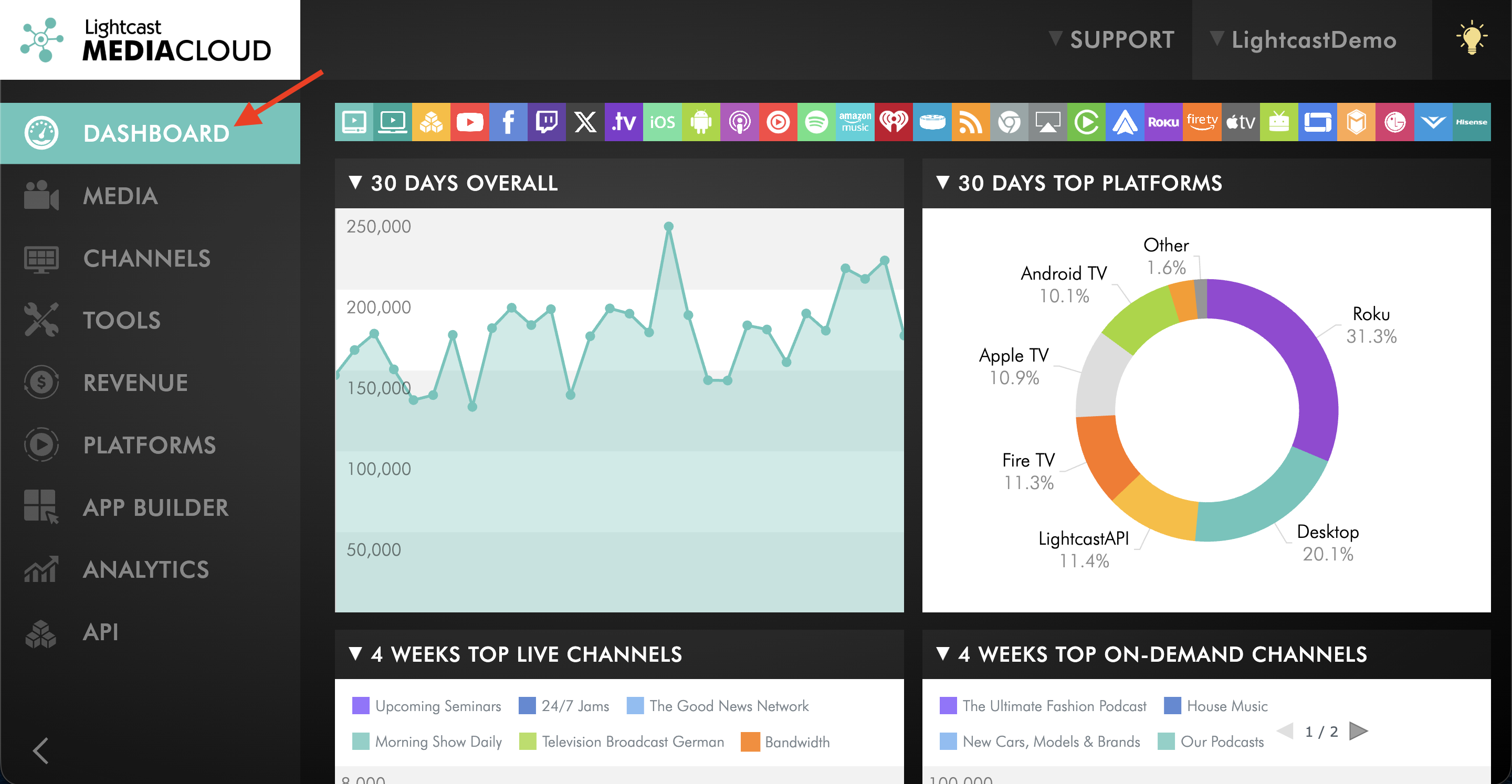
After logging in, you will be taken to your Media Cloud Dashboard.
Stay logged in to your Media Cloud account
Step 1
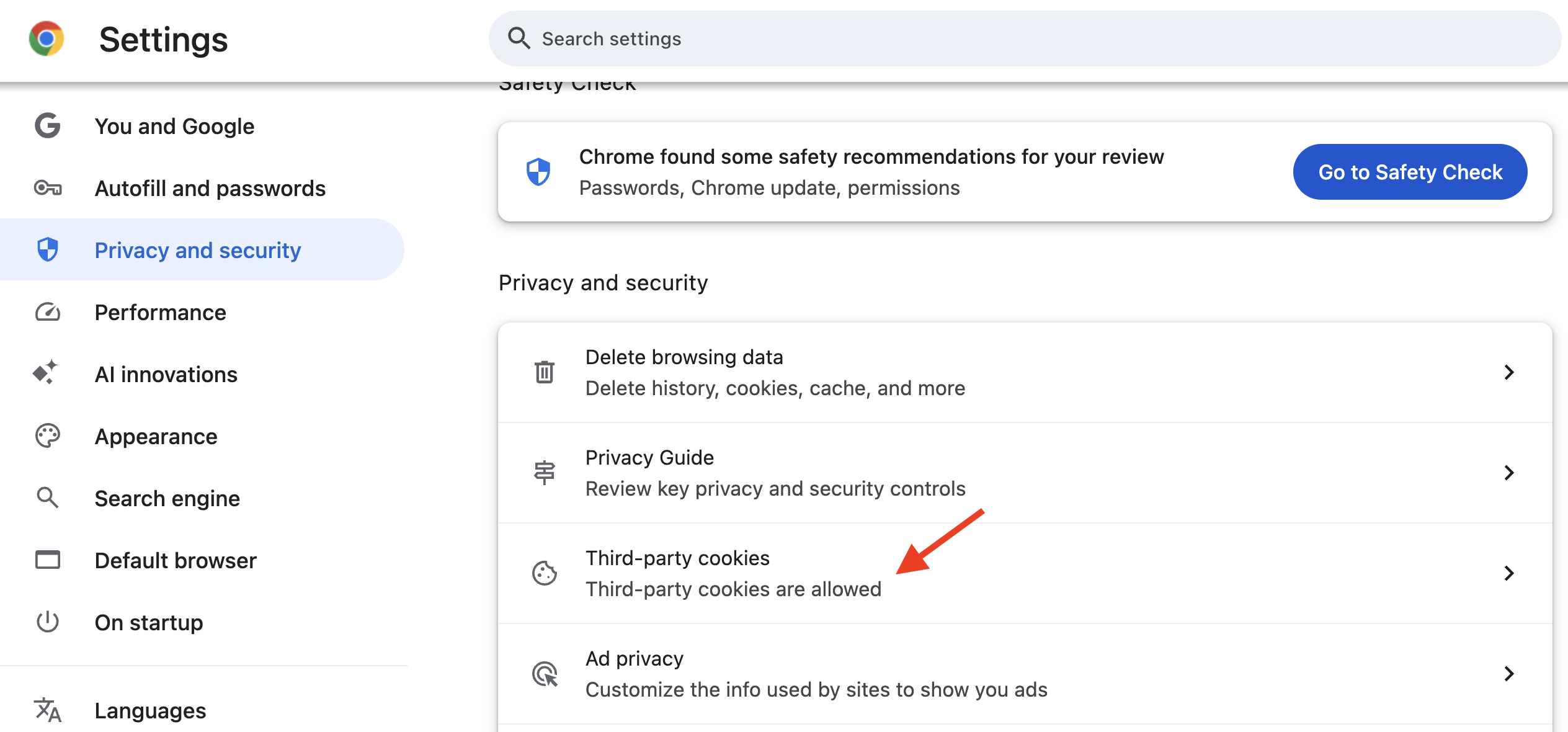
Make sure cookies are enabled in your browser settings.
Step 2
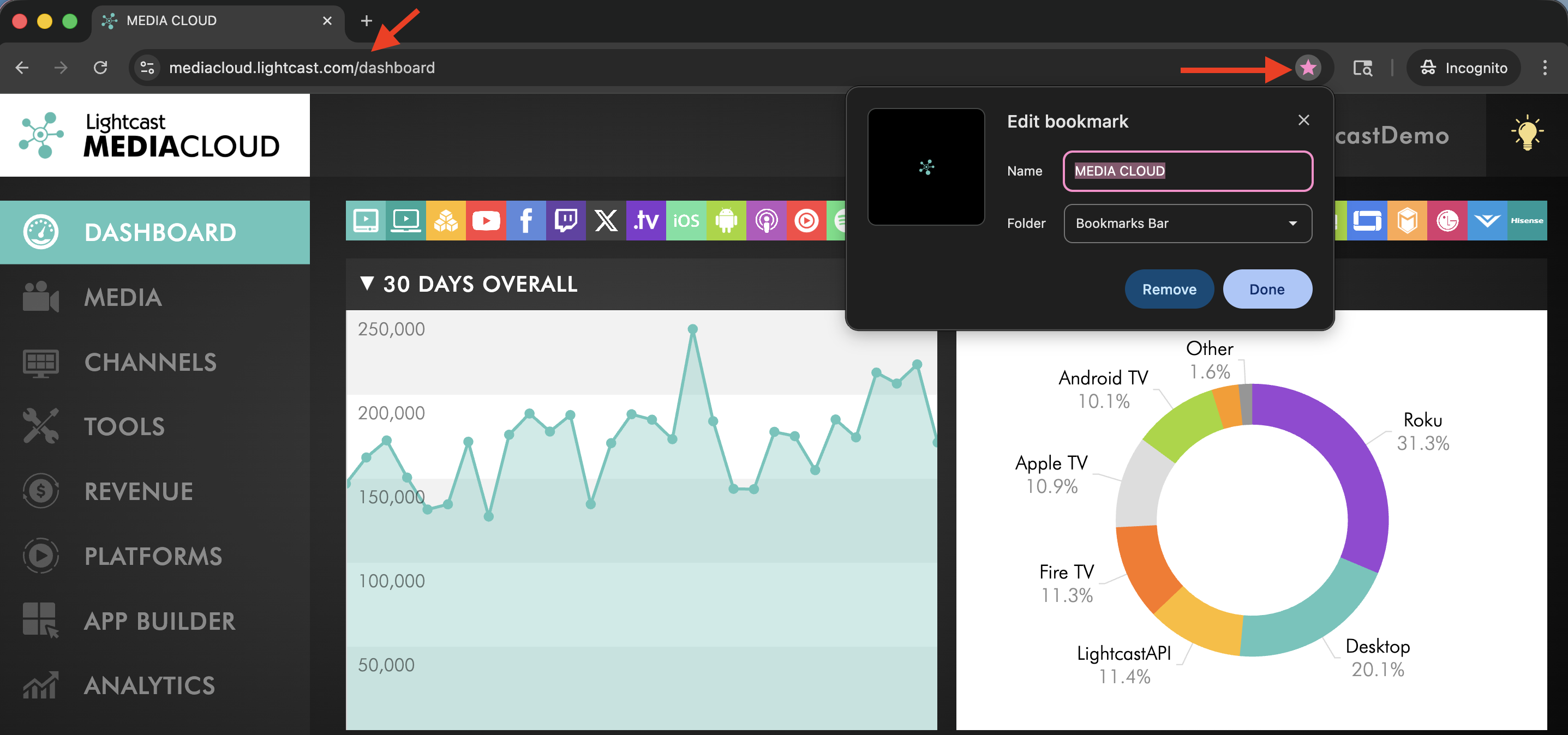
Bookmark the Media Cloud Dashboard URL in the browser you use most often: https://mediacloud.lightcast.com/dashboard.
Step 3
Return to the Media Cloud Dashboard using that bookmark when accessing your account.
If cookies remain enabled and you selected Keep me signed in, you will usually remain logged in between visits. However, you may occasionally be asked to sign in again for security reasons.
Troubleshooting
I am logged out every time I close my browser
This usually happens when:
Cookies are disabled in your browser
Your browser is set to clear cookies automatically when it closes
You are using private or incognito mode
You are using a privacy-focused browser that does not store cookies or session data
Enable cookies, avoid private or incognito browsing, and check whether your browser is set to clear cookies or block session data from being saved.
I forgot my password
Click Forgot Password on the Media Cloud login page to reset your password.
My login credentials are not working
Check the following:
Make sure you entered your username or account email address correctly
Make sure you entered your password correctly
Reset your password if needed
If you still cannot log in, contact Customer Support.
FAQs
Do I need a Media Cloud account to log in?
Yes. You must have an active Media Cloud account to access the Media Cloud Dashboard.
How do I receive my Media Cloud login?
Your account manager will create the Media Cloud account for the account owner and send the login details before the Kick-Off meeting.
If you have not received your login details, please contact your account manager.
Why do I still have to log in sometimes?
For security reasons, the Media Cloud may occasionally require you to enter your password again, even if you selected Keep me signed in and cookies are enabled.
What happens if I disable cookies?
If cookies are disabled, your browser will not remember your session. This means you may need to log in each time you visit the Media Cloud.
Which login page should I use?
You can use either of these login pages:
The Media Cloud login URL is typically the one most commonly used.