
How to change your Media Cloud username
Overview
This article explains how the Account Owner can update the username associated with the main Media Cloud account.
Sub-users do not have a separate username. A sub-user’s email address is their username.
How it works
Your username is managed from your Profile settings in the Media Cloud.
If you are the Account Owner, you can update the username for the main Media Cloud account from Profile > ACCOUNT SETTINGS.
When you save the change, it takes effect immediately.
After the change is saved:
if you use your username to sign in, you must use the new username the next time you log in
you will receive an email confirming the change made to your username
You will remain logged in after making the change. Once you log out, or are logged out, you must sign in with the updated username.
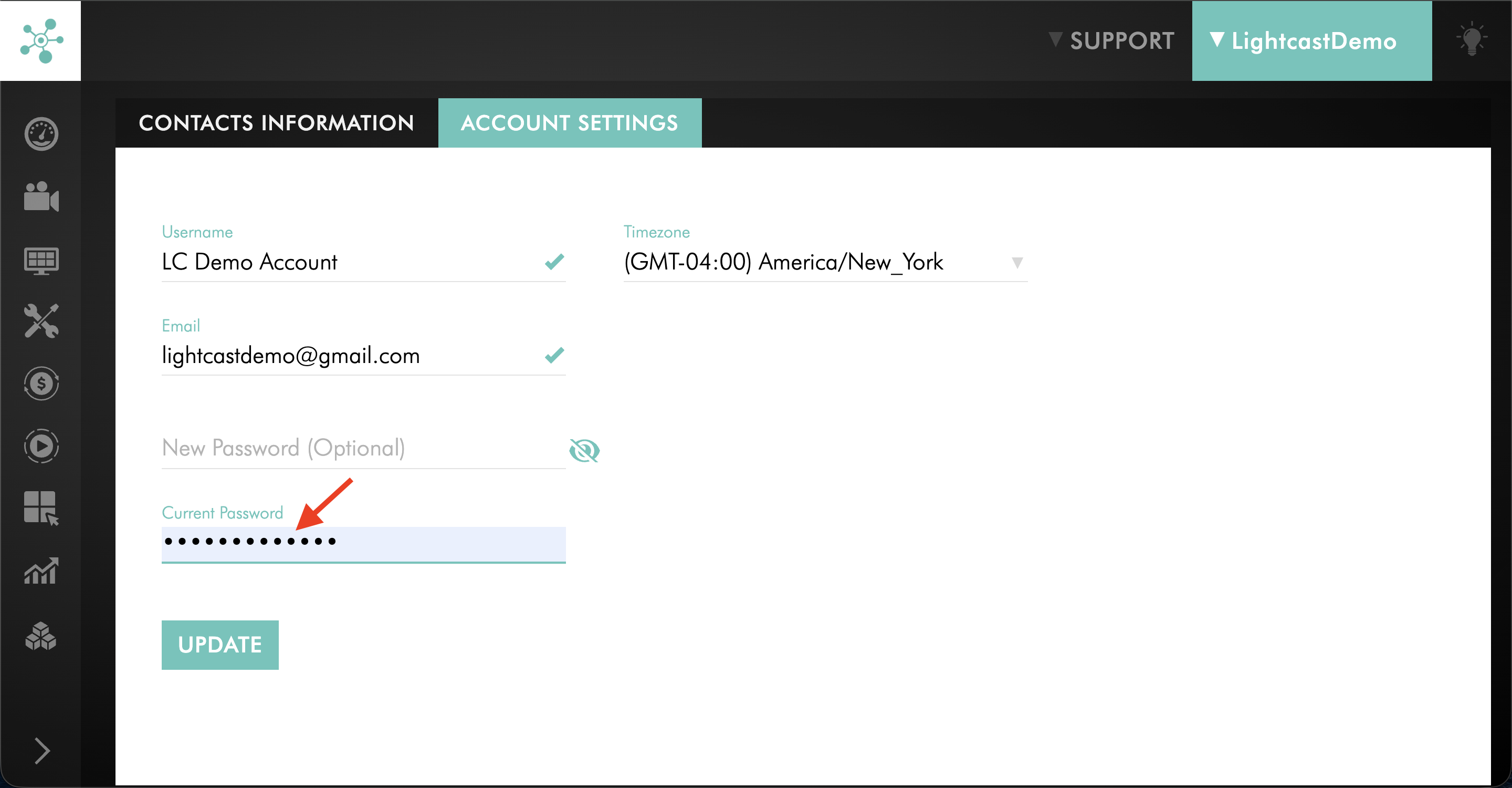
To change your email address or username, you must enter your current password before saving the change.
Sub-users do not have a separate username. A sub-user’s email address is their username. To update your username (email address) as a sub-user, see: How to update your Media Cloud email address
Instructions
Change the username as the Account Owner
Step 1
Log in to your Media Cloud account.
Step 2
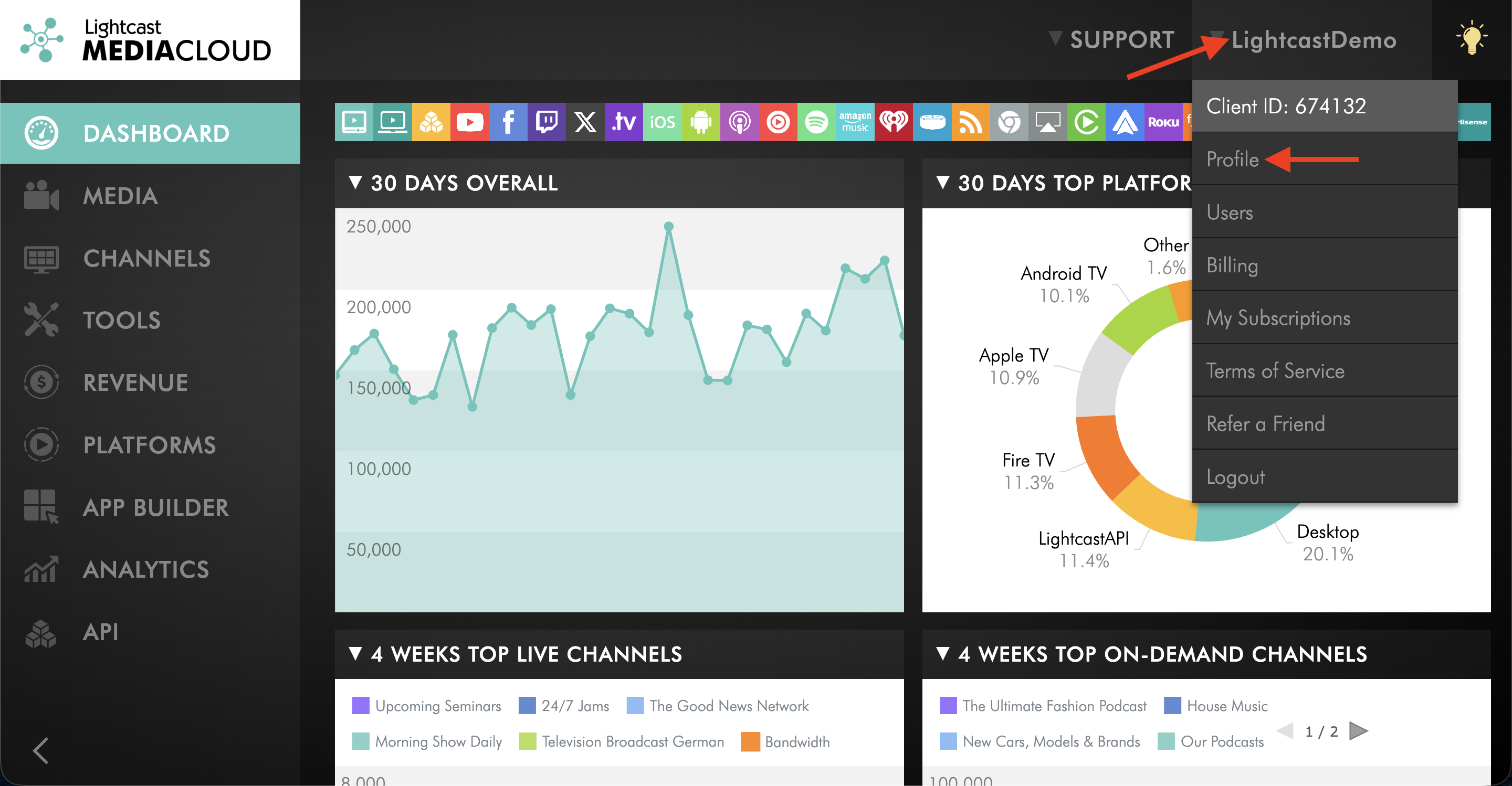
Click your username in the upper-right corner, then select Profile from the dropdown menu.
Step 3
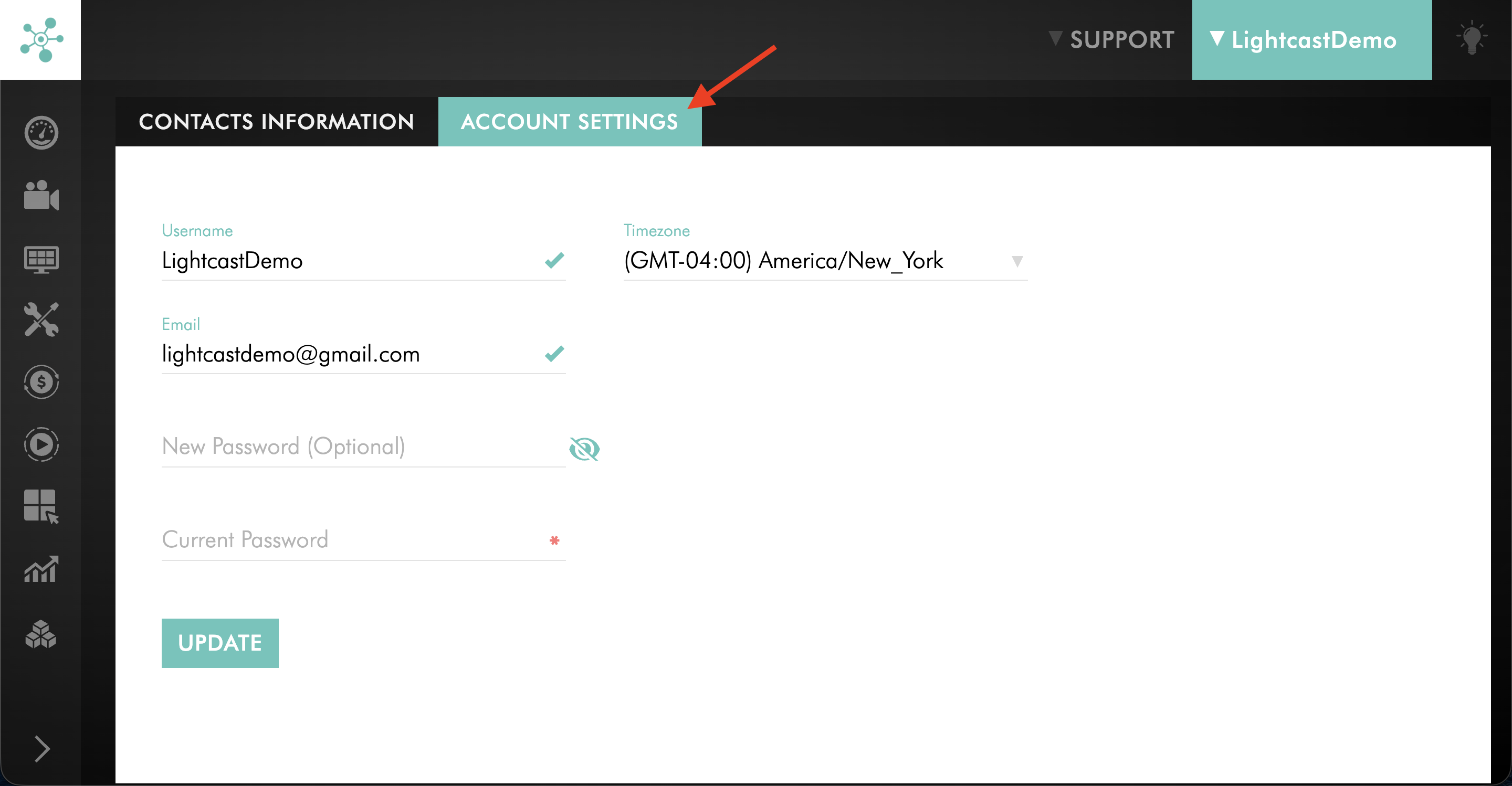
Switch to the ACCOUNT SETTINGS tab.
Step 4
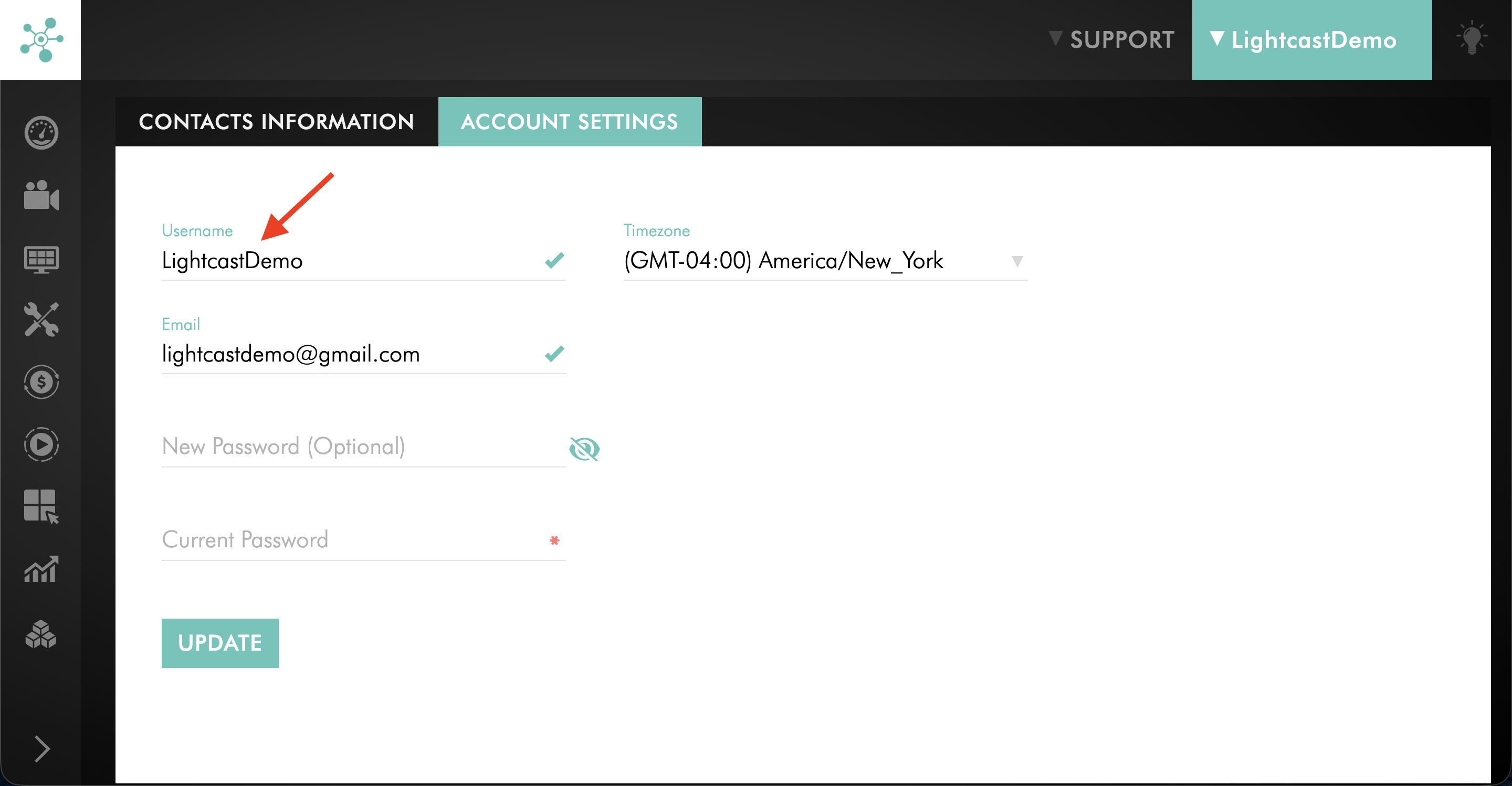
Click in the Username field.
Step 5
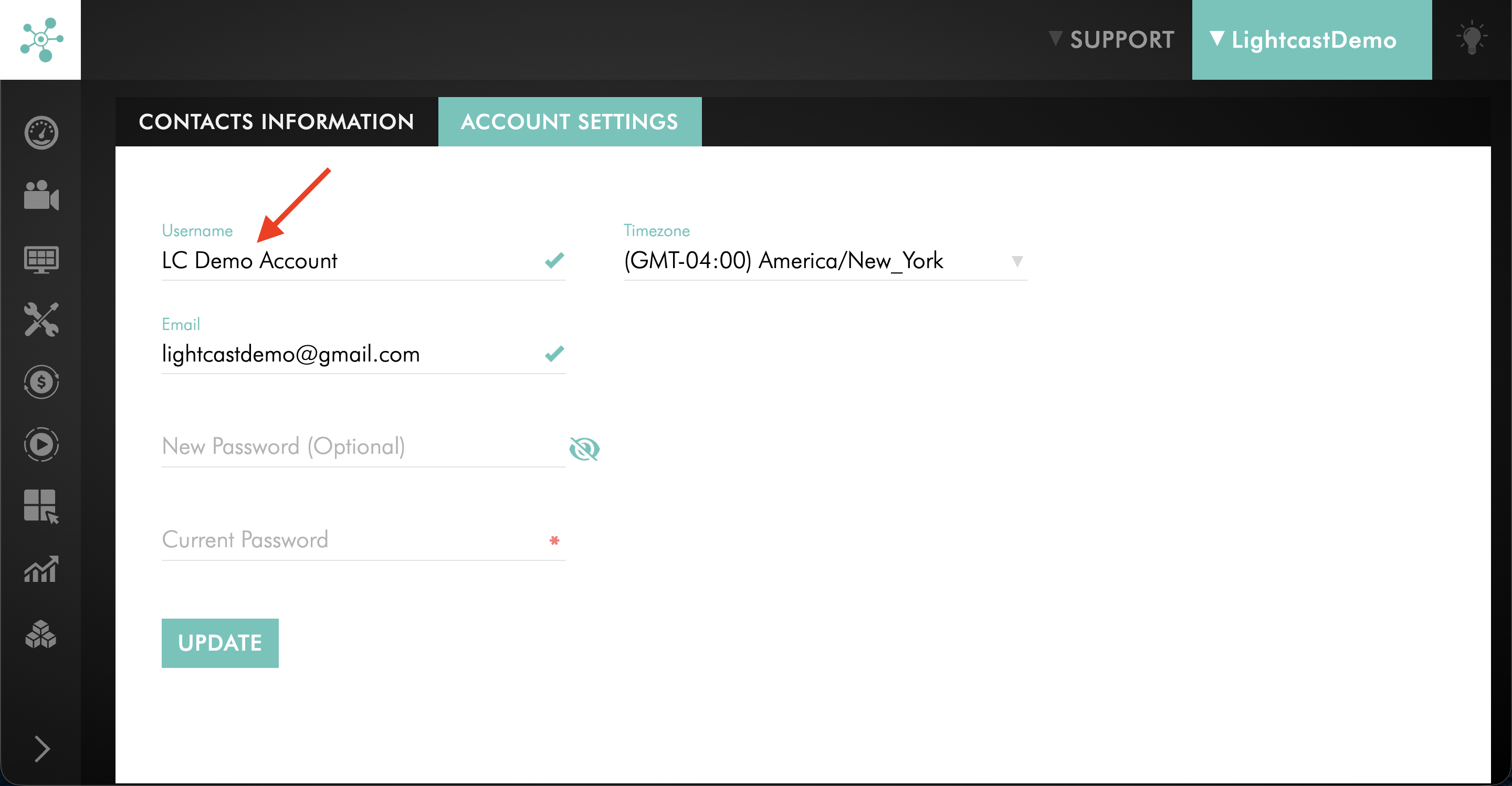
Enter your new username.
Step 6
Enter your current password in the Current Password field.
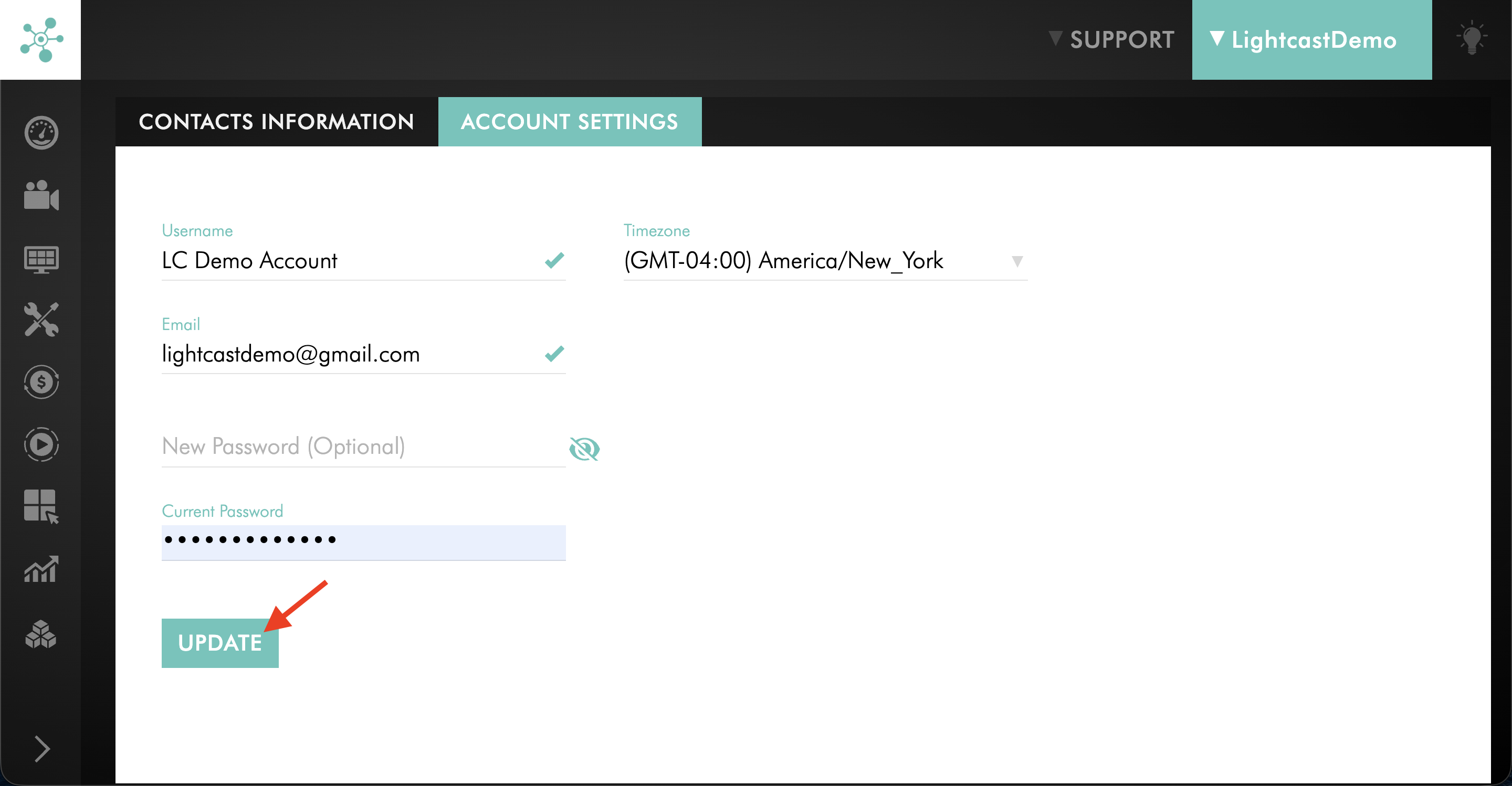
Step 7
Click UPDATE to save your changes.
FAQs
Can a sub-user change the primary username on the account?
No. Only the Account Owner can change the username on the main Media Cloud account.
Do sub-users have their own username?
No. A sub-user’s email address is their username. To update the credential they use to sign in, they must update their email address.
See: How to change your Media Cloud email address
What happens after I update my username?
The change takes effect immediately. If you use your username to sign in, you must use the updated username the next time you log in.
You will also receive an email confirming the change made to your username.
Do I need to log in again after changing my username?
No. You will remain logged in after making the change. However, once you log out, or are logged out, you must use the new username the next time you sign in.
Do I need my current password to change my username?
Yes. You must enter your current password to save a change to your email address or username.
Why does my screen look different from someone else’s?
The profile settings screen differs depending on whether you are the Account Owner or a sub-user. The Account Owner can update the username from ACCOUNT SETTINGS. Sub-users do not have a separate username field.