
How to reset or change your Media Cloud password
Overview
This article explains how to reset your Media Cloud password if you no longer know it, or change your password while logged in to your account.
If you know your current password, the steps to change it are different for an Account Owner and a sub-user.
How it works
If you forget your password, you can request a password reset link from the Media Cloud login page. Lightcast will send a secure email with a time-limited reset link to the email address associated with your account.
If you know your current password, you can change it from your Profile settings in the Media Cloud.
If you are the Account Owner, you can change your password from Profile > ACCOUNT SETTINGS.
If you are a sub-user, you can change your password from Profile > USER PROFILE.
To change your password while logged in, you must enter your new password, confirm your new password, and enter your current password before saving the change.
After your password is reset or changed, the new password takes effect immediately. The next time you log in, you must use your updated password.
Instructions
Reset your password if you do not know your current password
Step 1
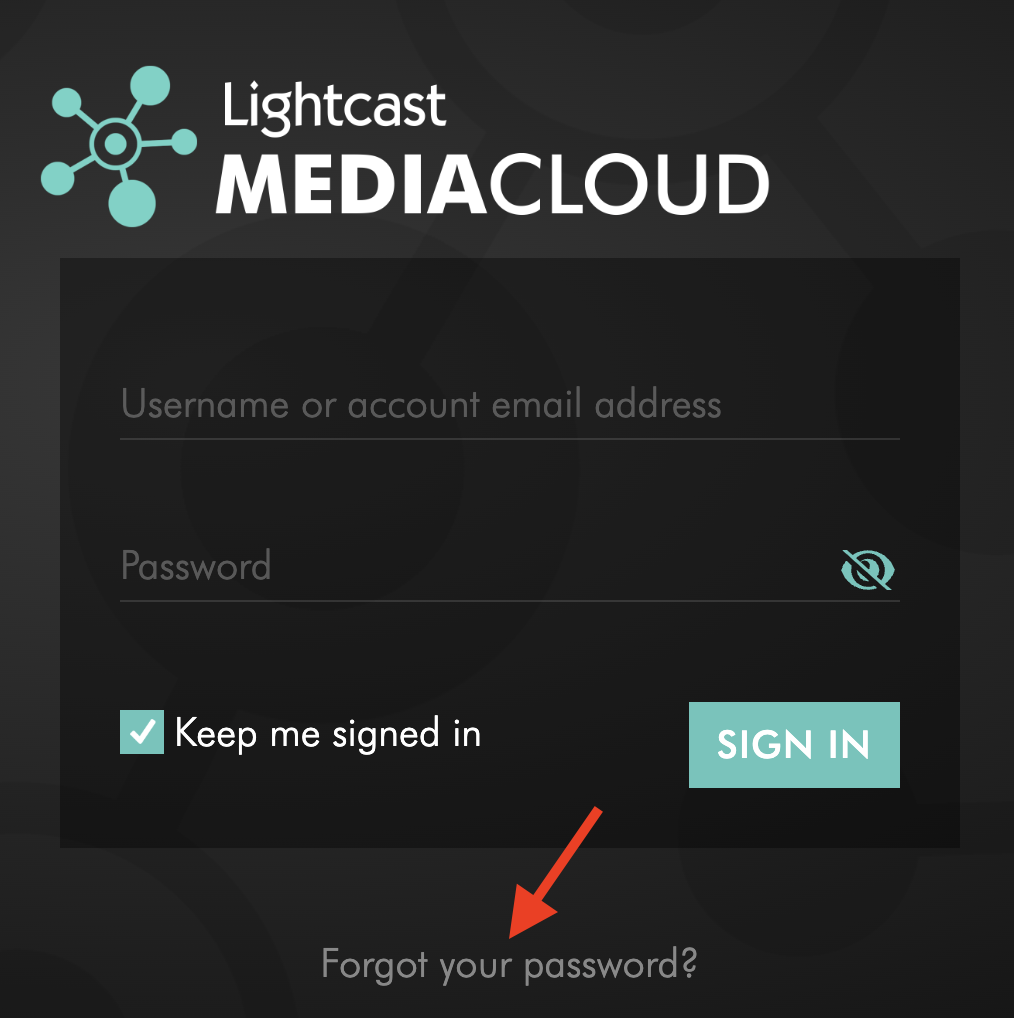
Go to the Media Cloud login page.
Step 2
Click Forgot your password? at the bottom of the page.
Step 3
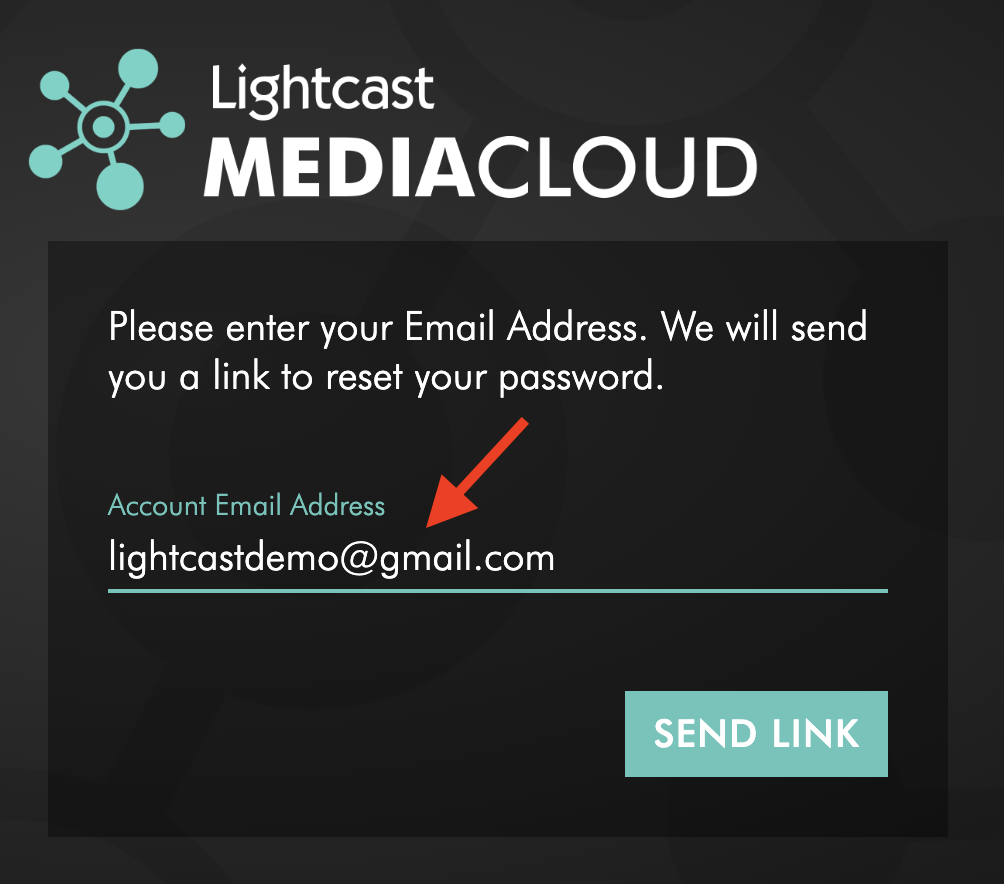
Enter the email address associated with your Media Cloud account.
Step 4
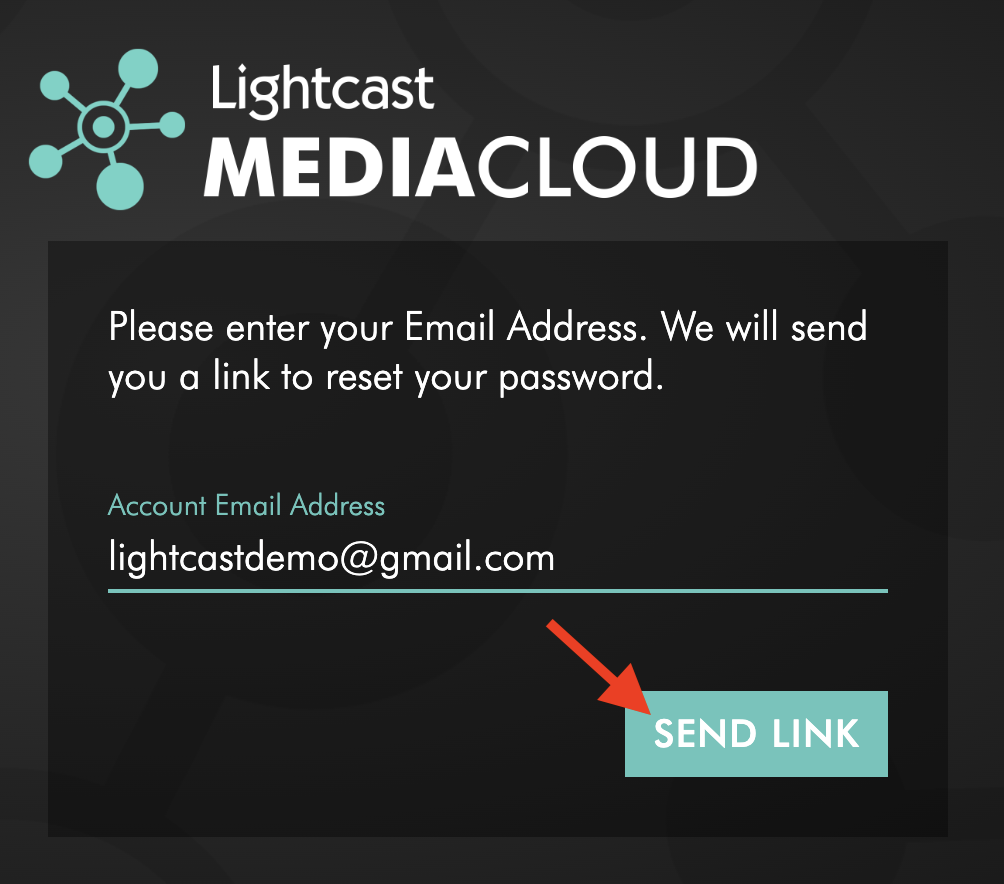
Click SEND LINK.
Step 5
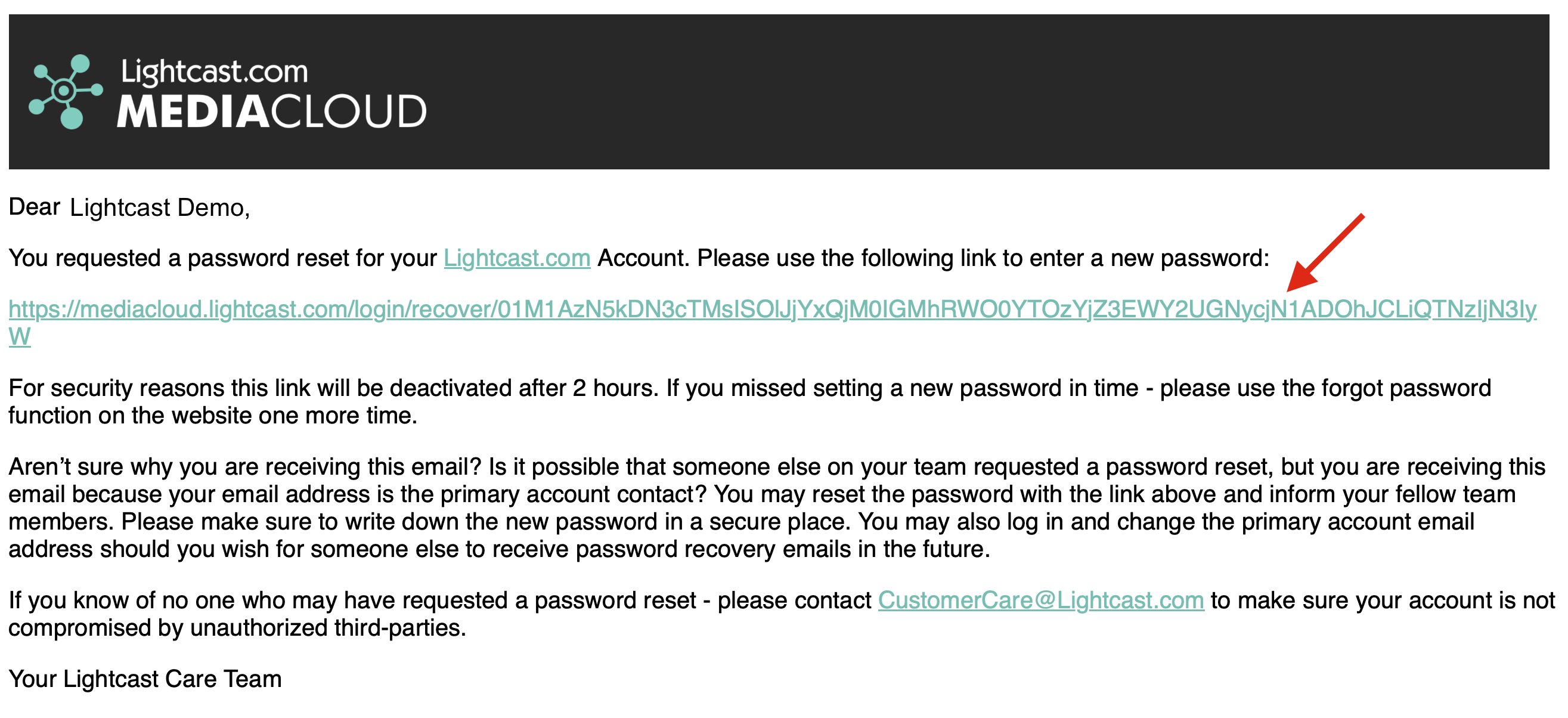
Check your email inbox for a message from Lightcast.com. Be sure to also check your spam or junk folder.
Step 6
Open the email and click the password reset link.
Step 7
Enter your new password.
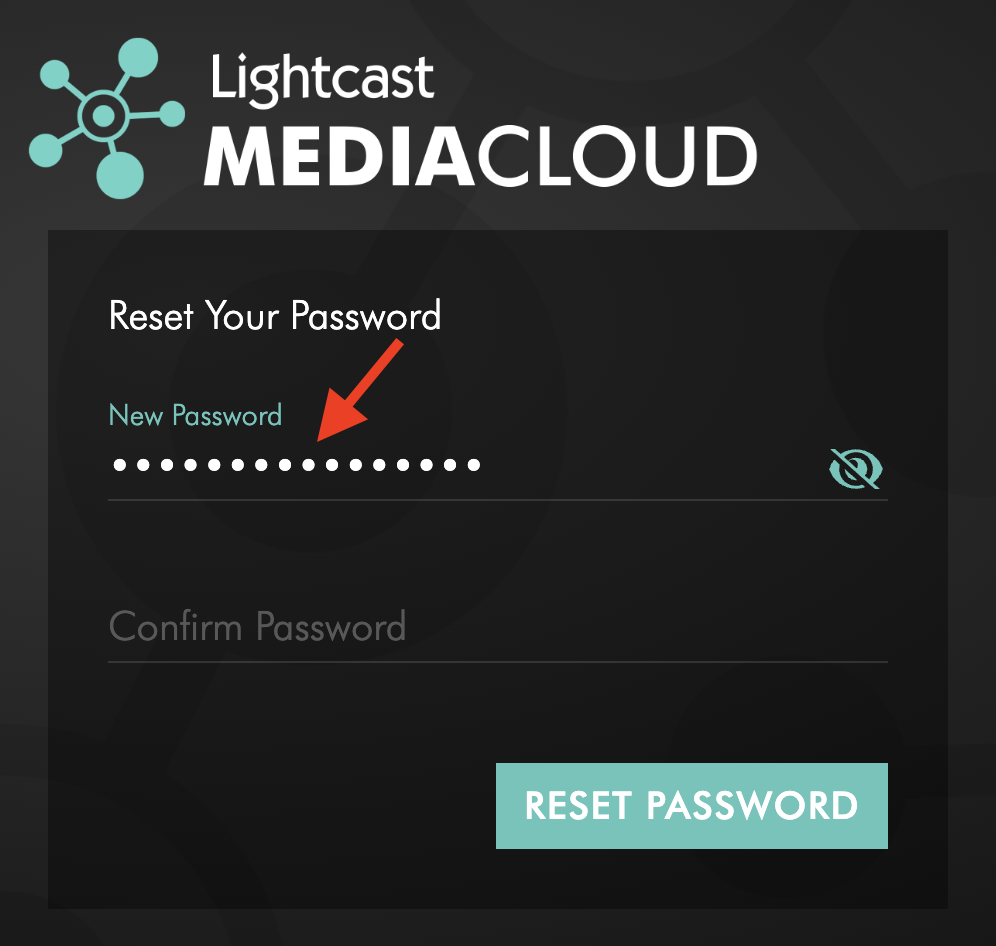
Step 8
Confirm your new password.
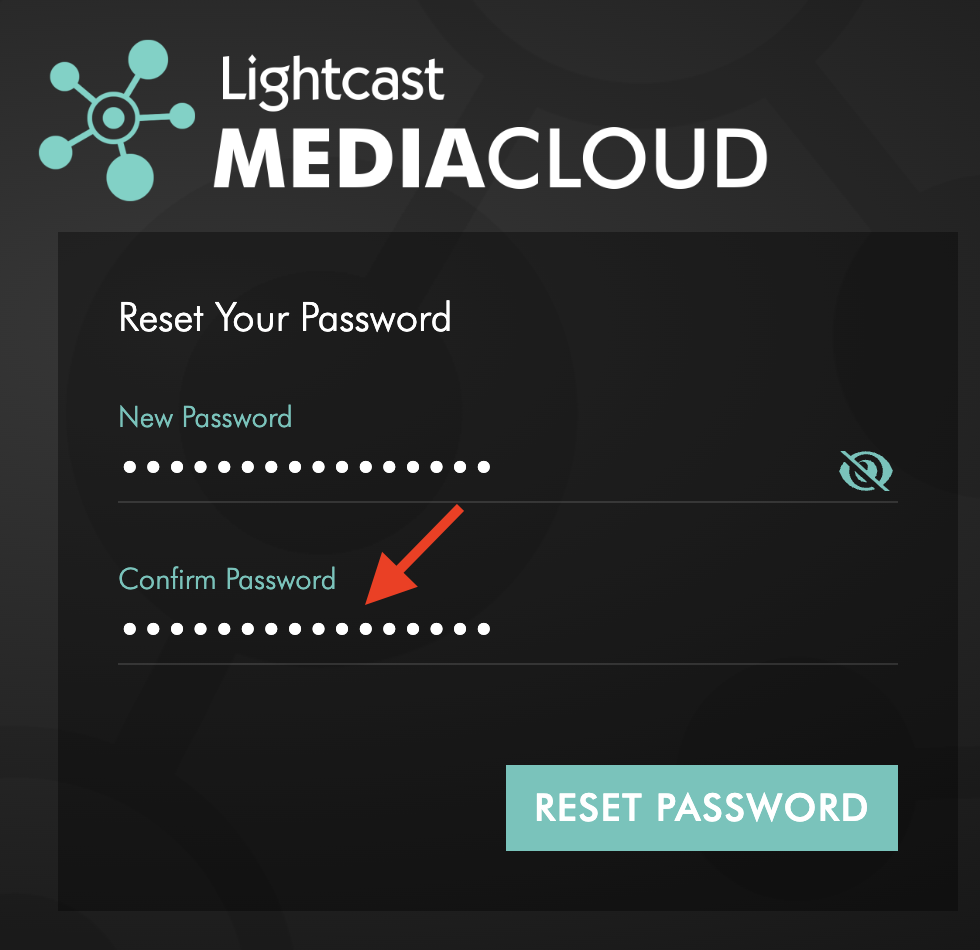
Step 9
Click RESET PASSWORD.
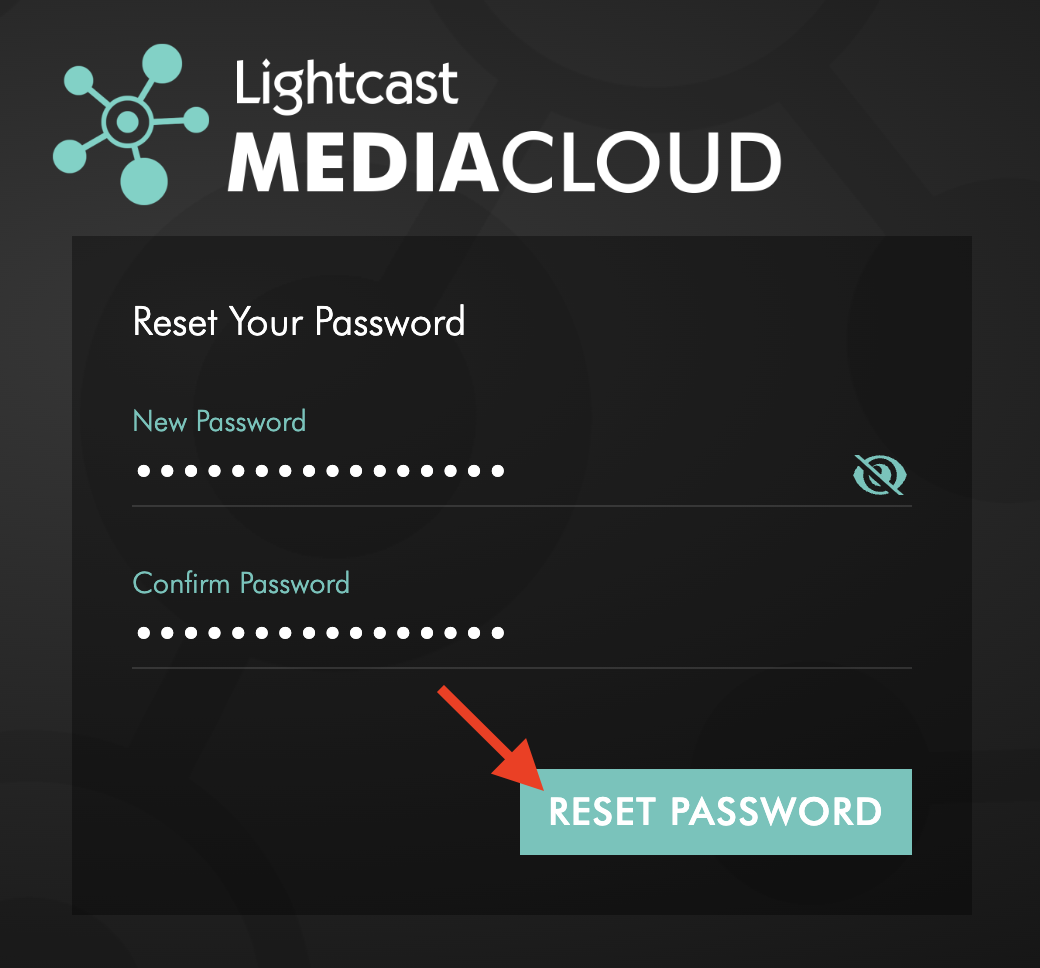
Step 10
Click the word login to return to the sign-in page and log in using your updated password.
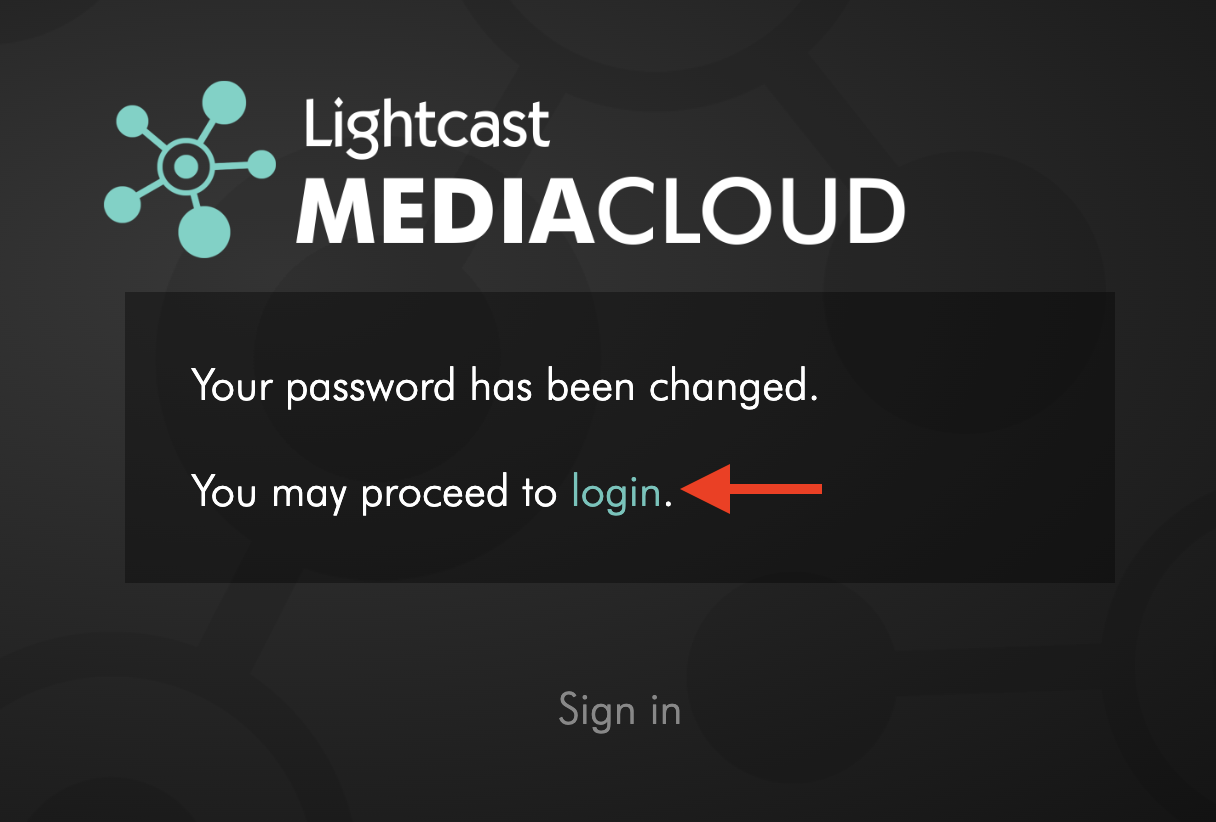
Change your password as the Account Owner
Step 1
Log in to your Media Cloud account.
Step 2
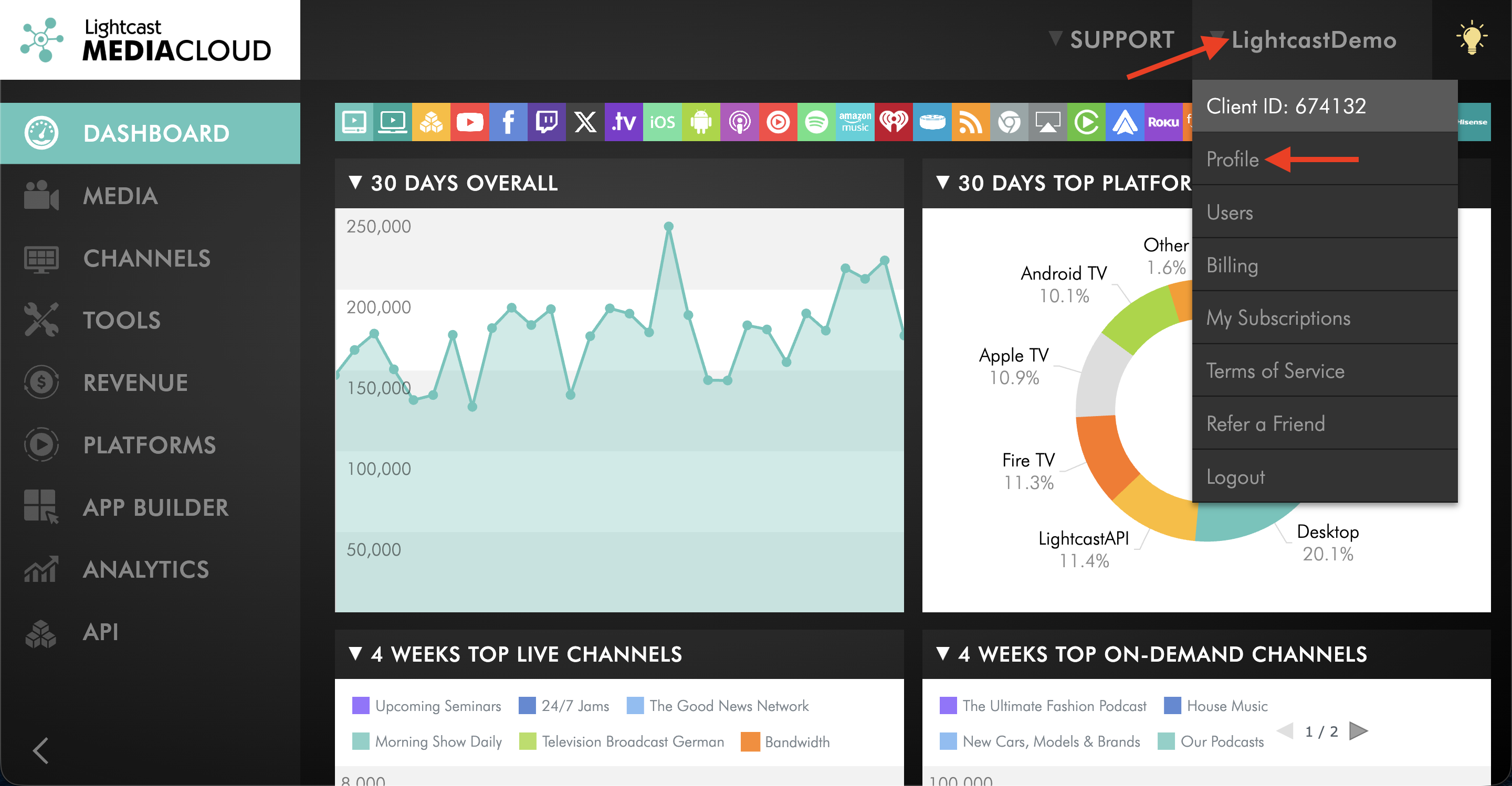
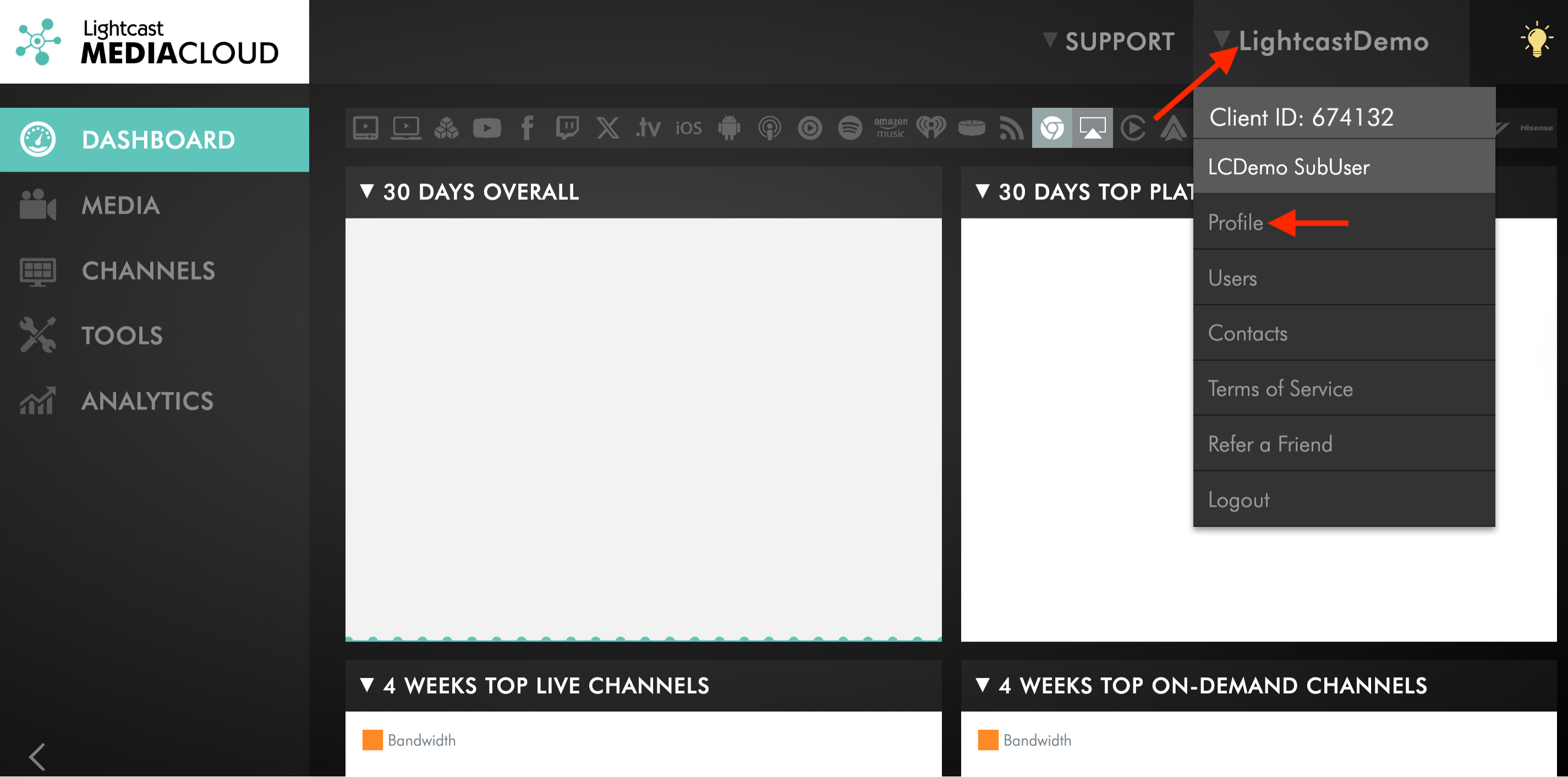
Click your username in the upper-right corner, then select Profile from the dropdown menu.
Step 3
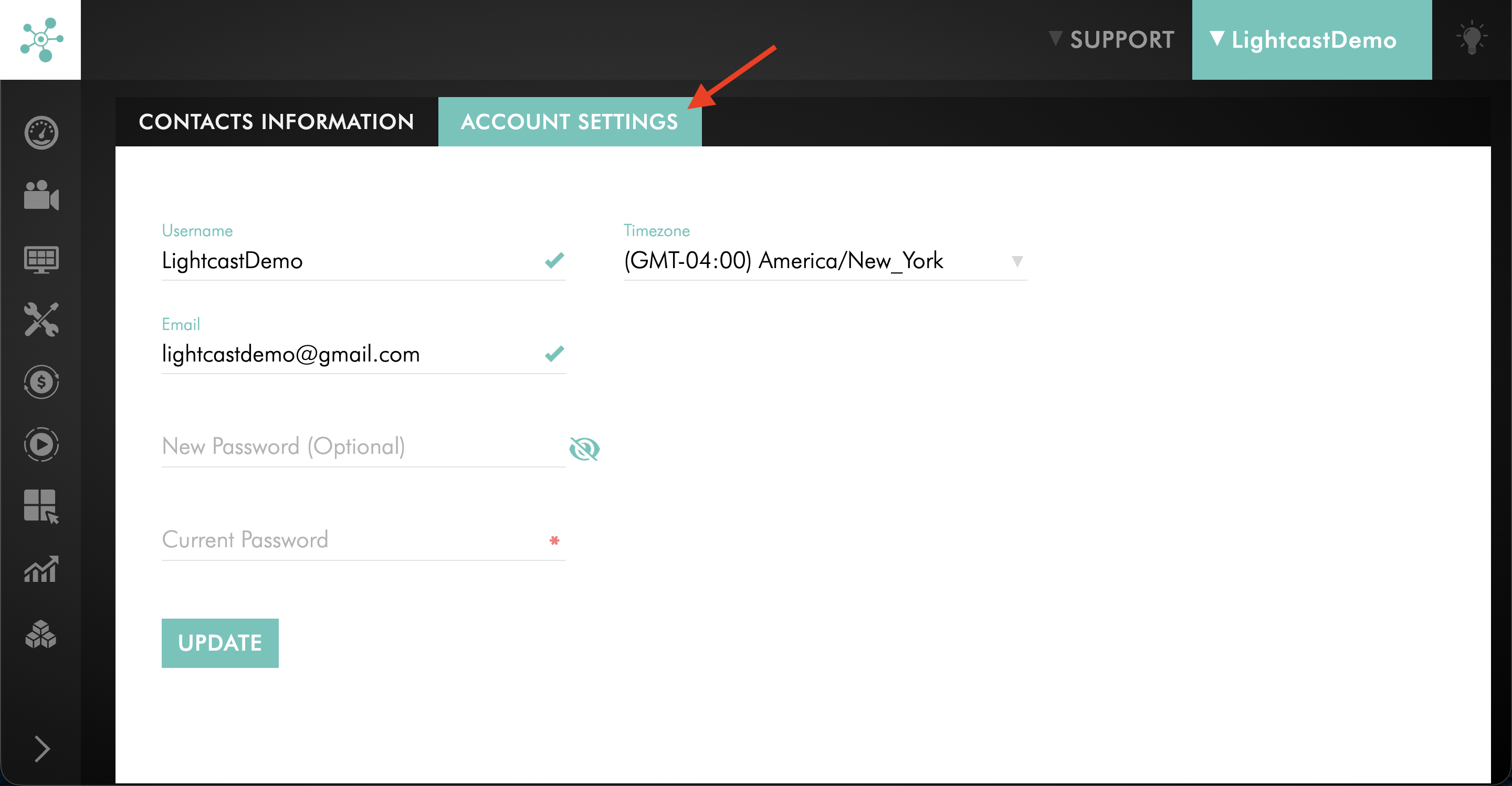
Switch to the ACCOUNT SETTINGS tab.
Step 4
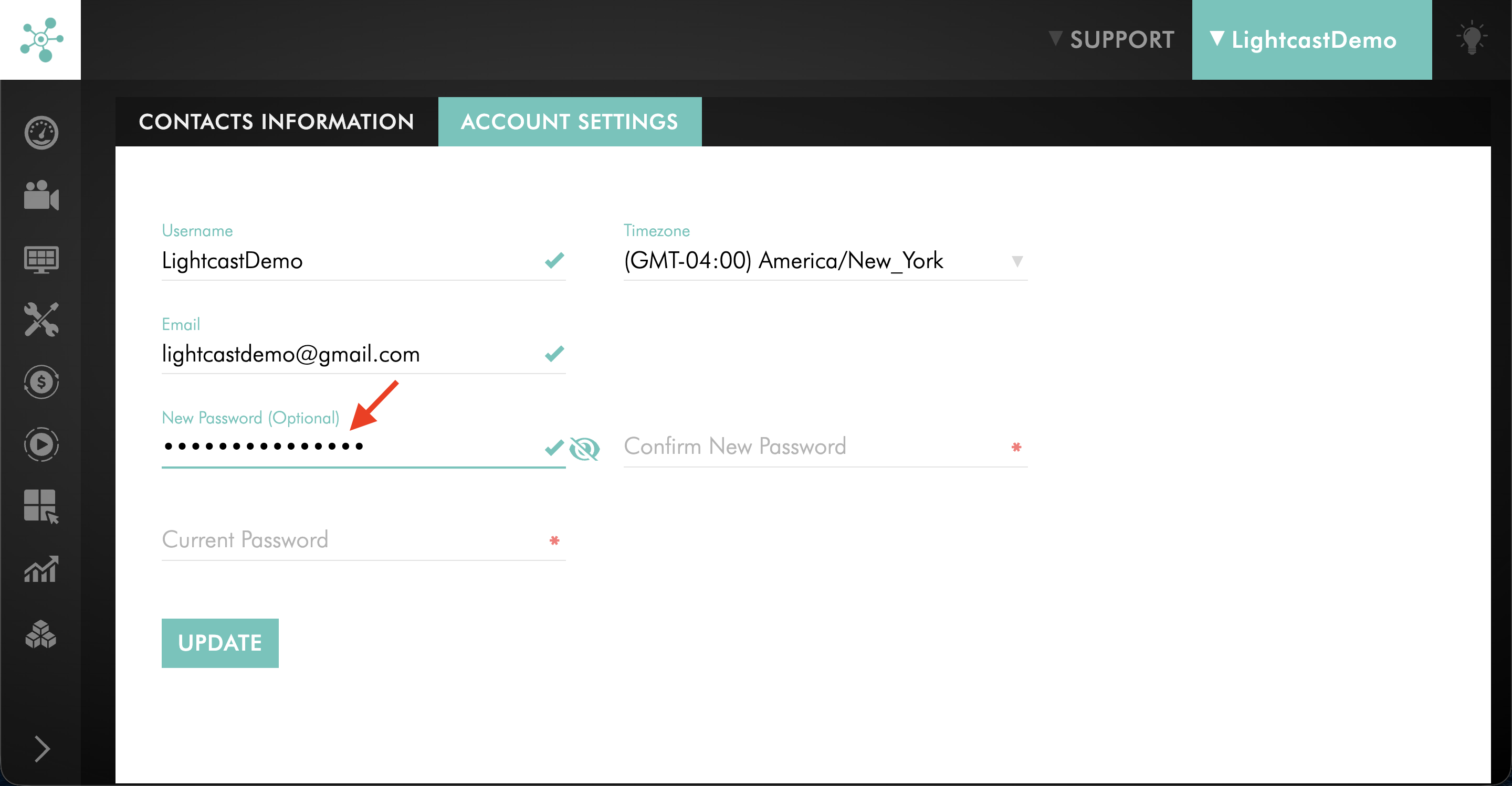
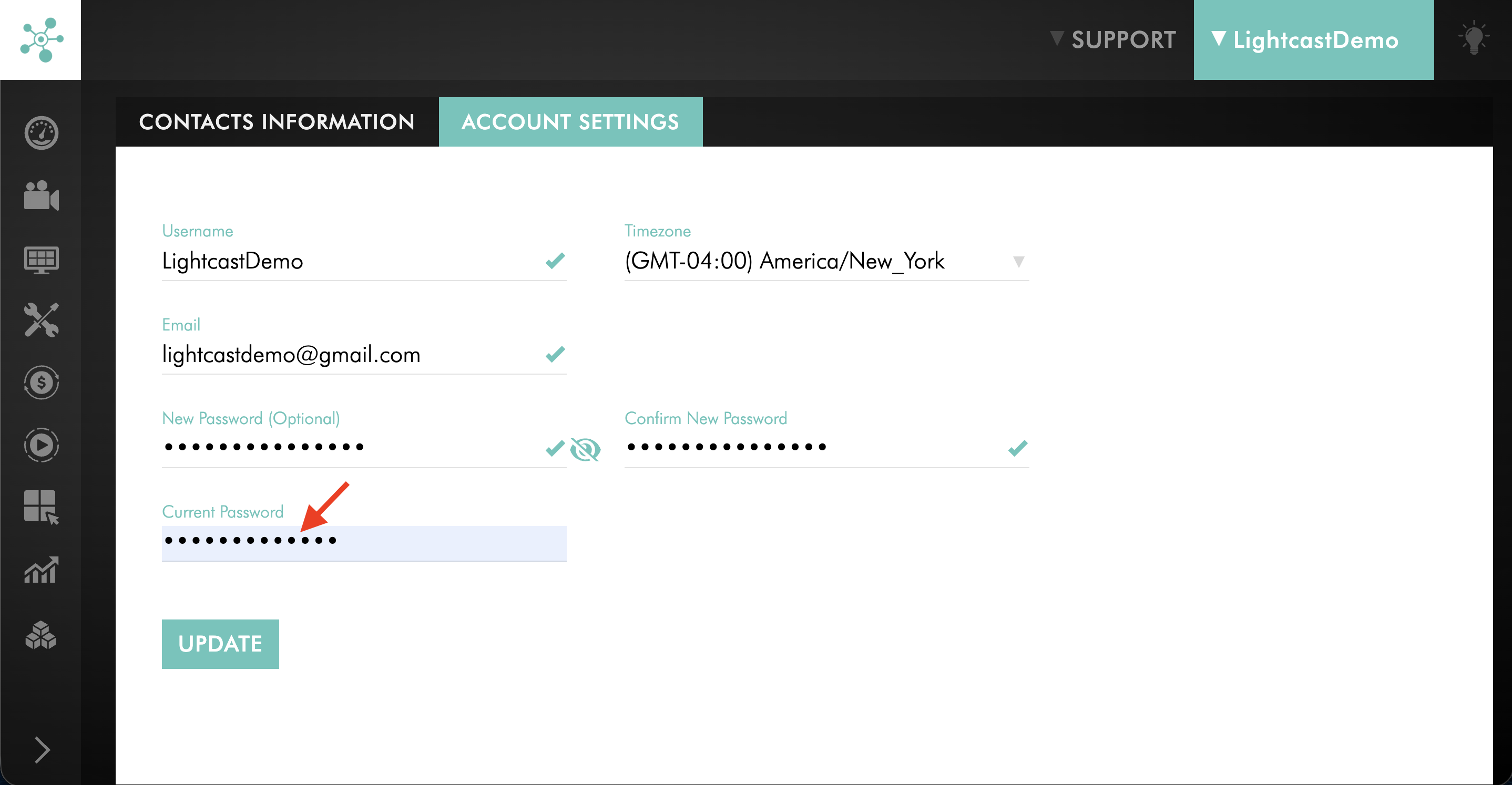
Enter your new password in the New Password field.
Step 5
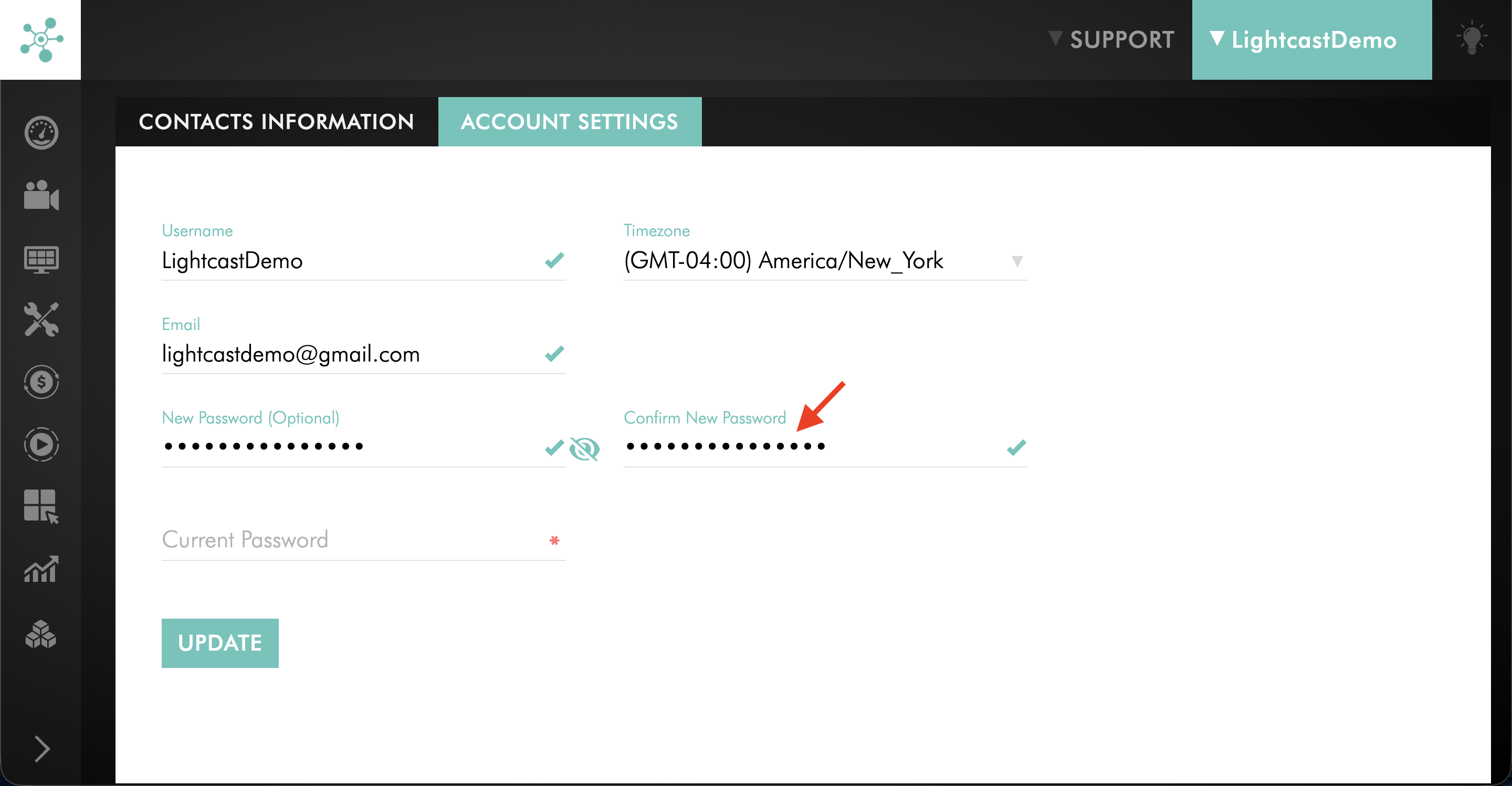
Enter your new password again in the Confirm New Password field.
Step 6
Enter your current password in the Current Password field.
Step 7
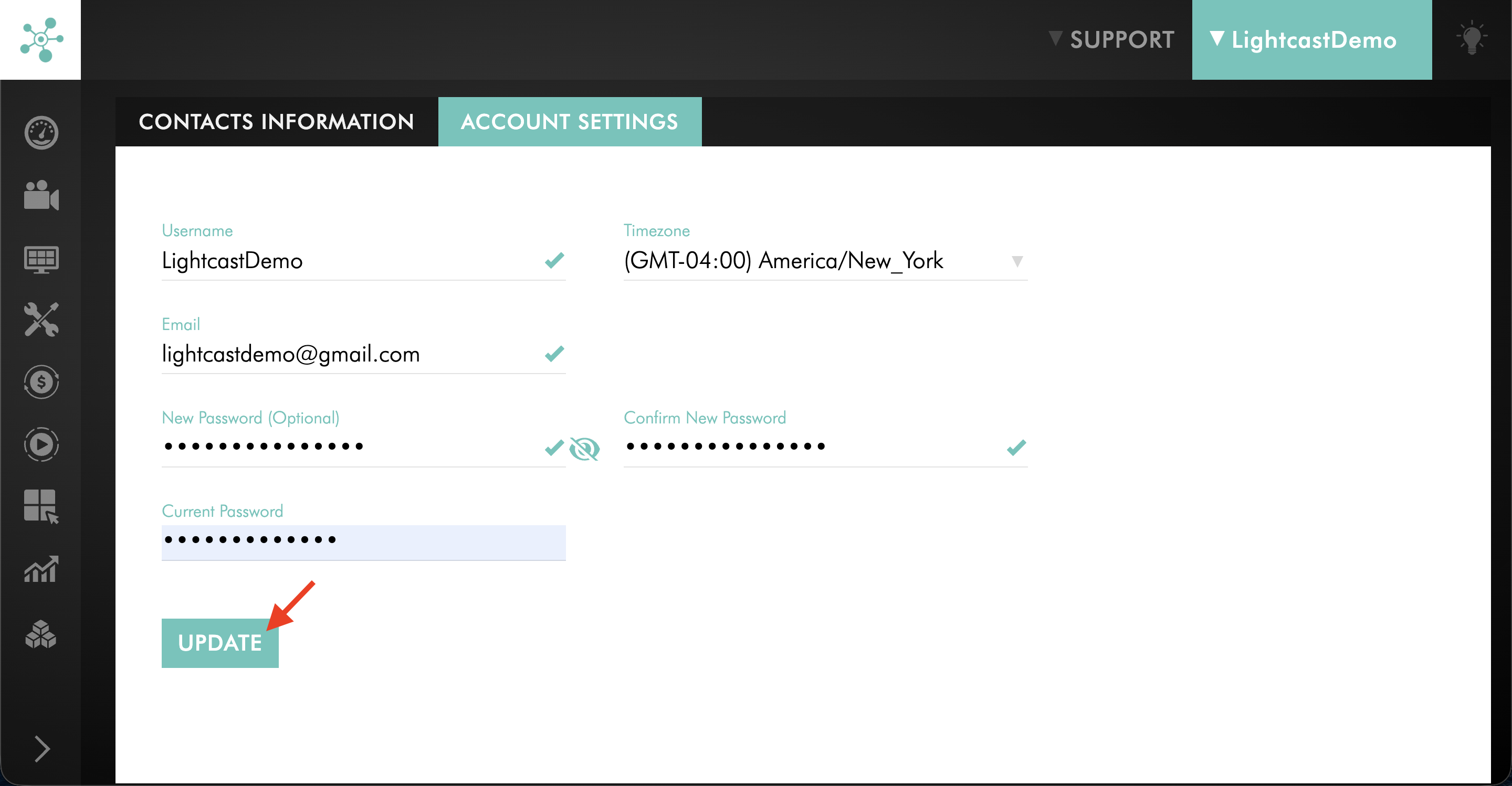
Click UPDATE to save your changes.
Change your password as a sub-user
Step 1
Log in to your Media Cloud account.
Step 2
Click your username in the upper-right corner, then select Profile from the dropdown menu.
Step 3
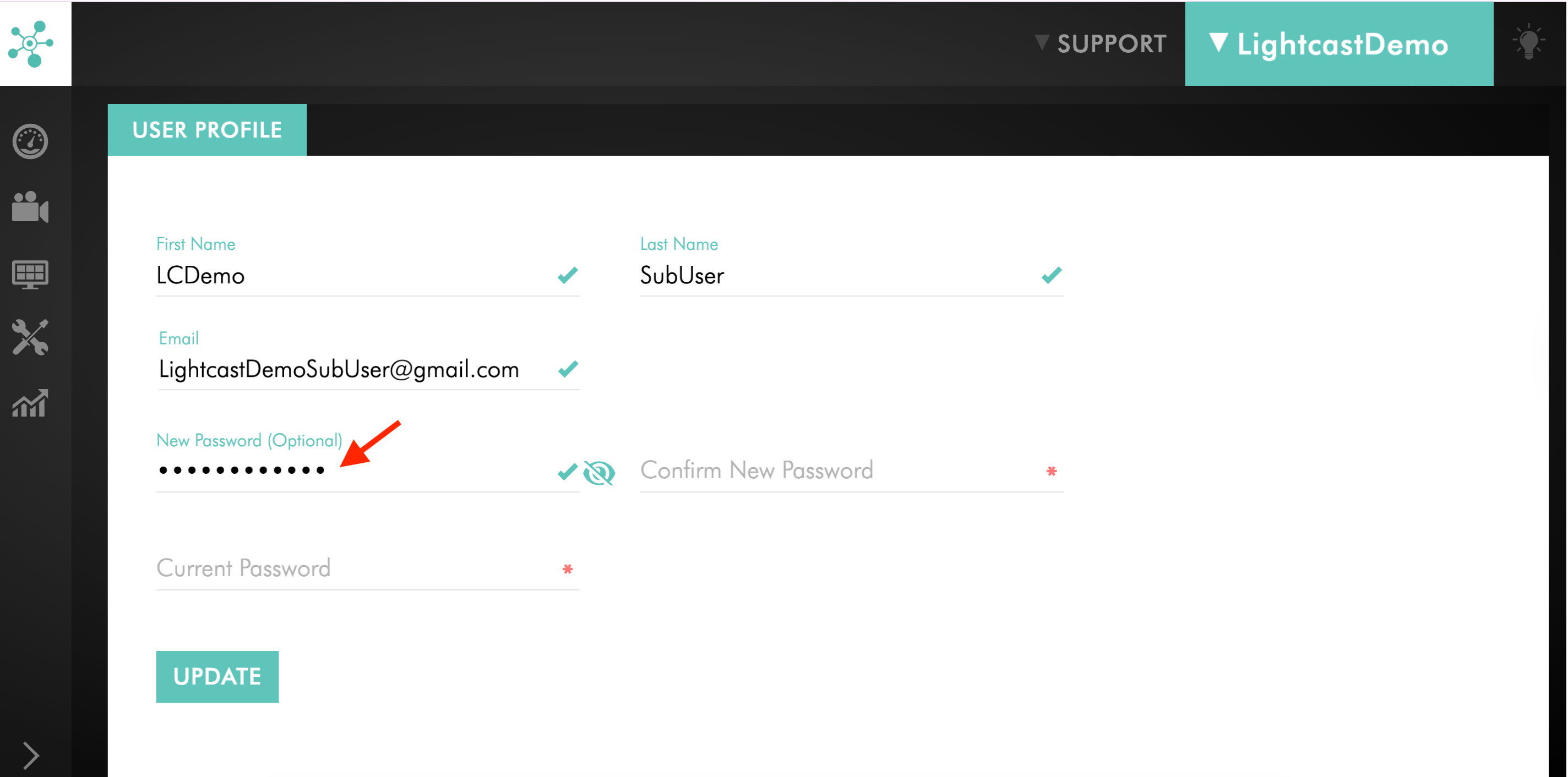
On the USER PROFILE page, enter your new password in the New Password field.
Step 4
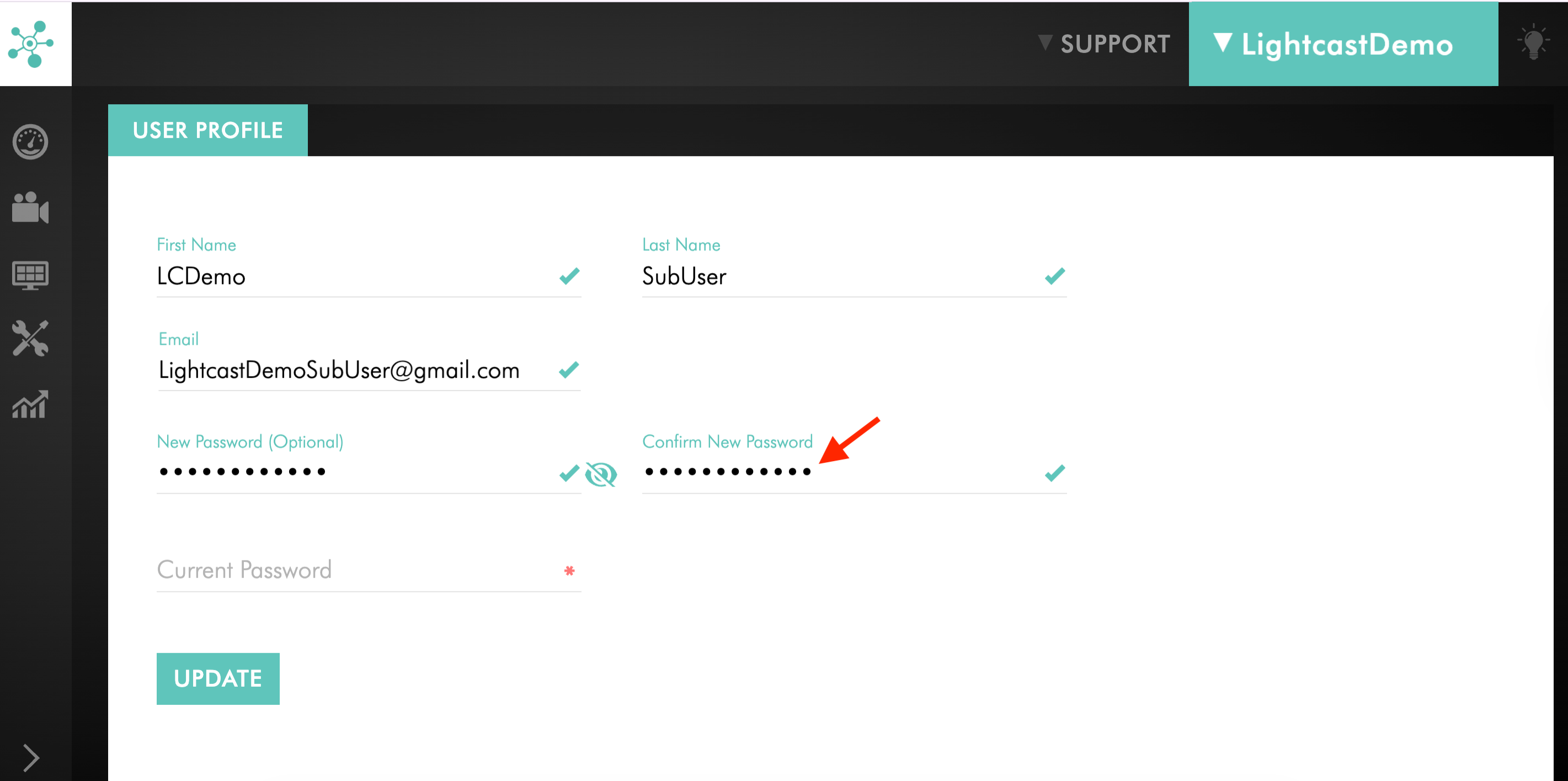
Enter your new password again in the Confirm New Password field.
Step 5
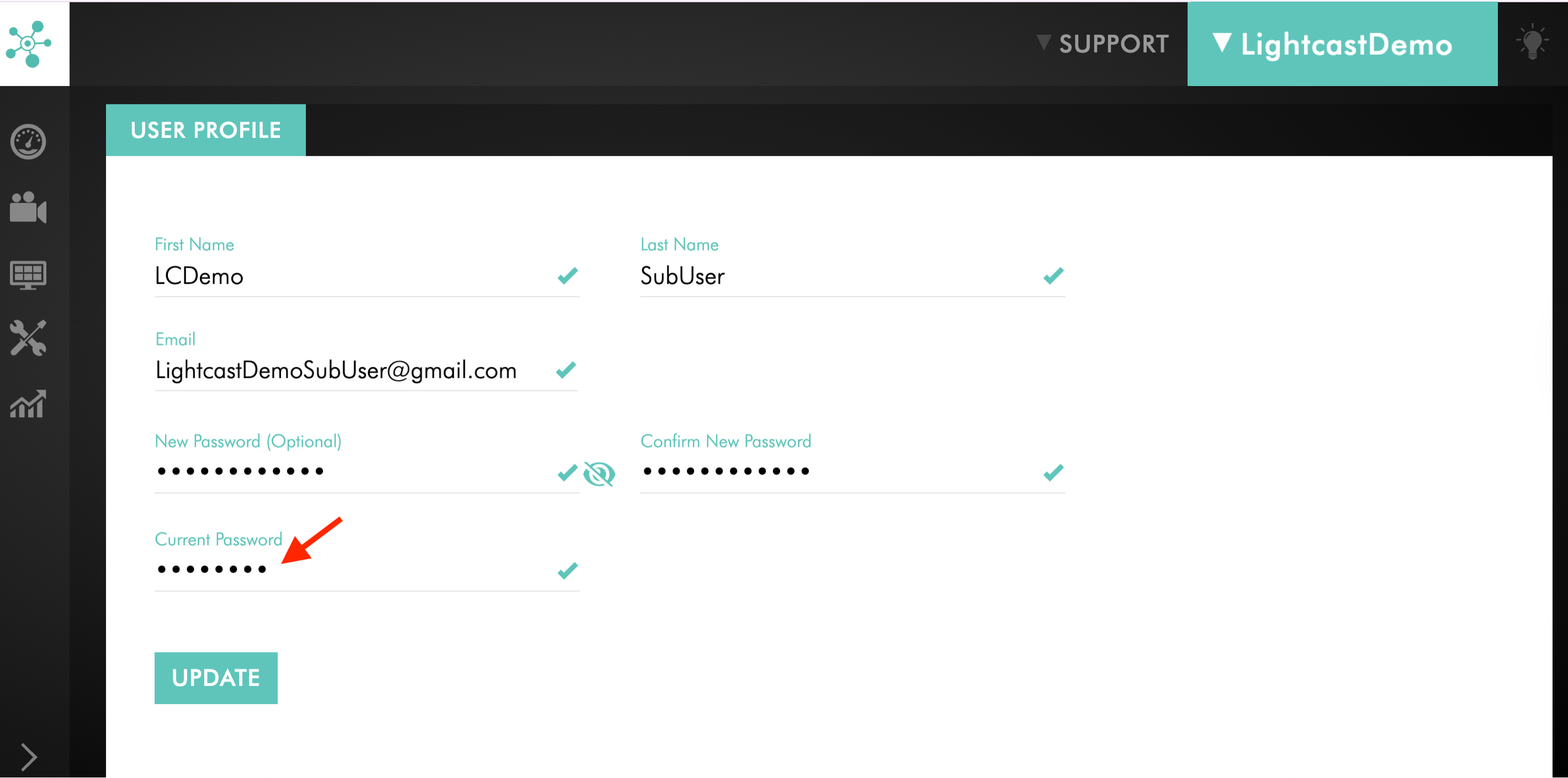
Enter your current password in the Current Password field.
Step 6
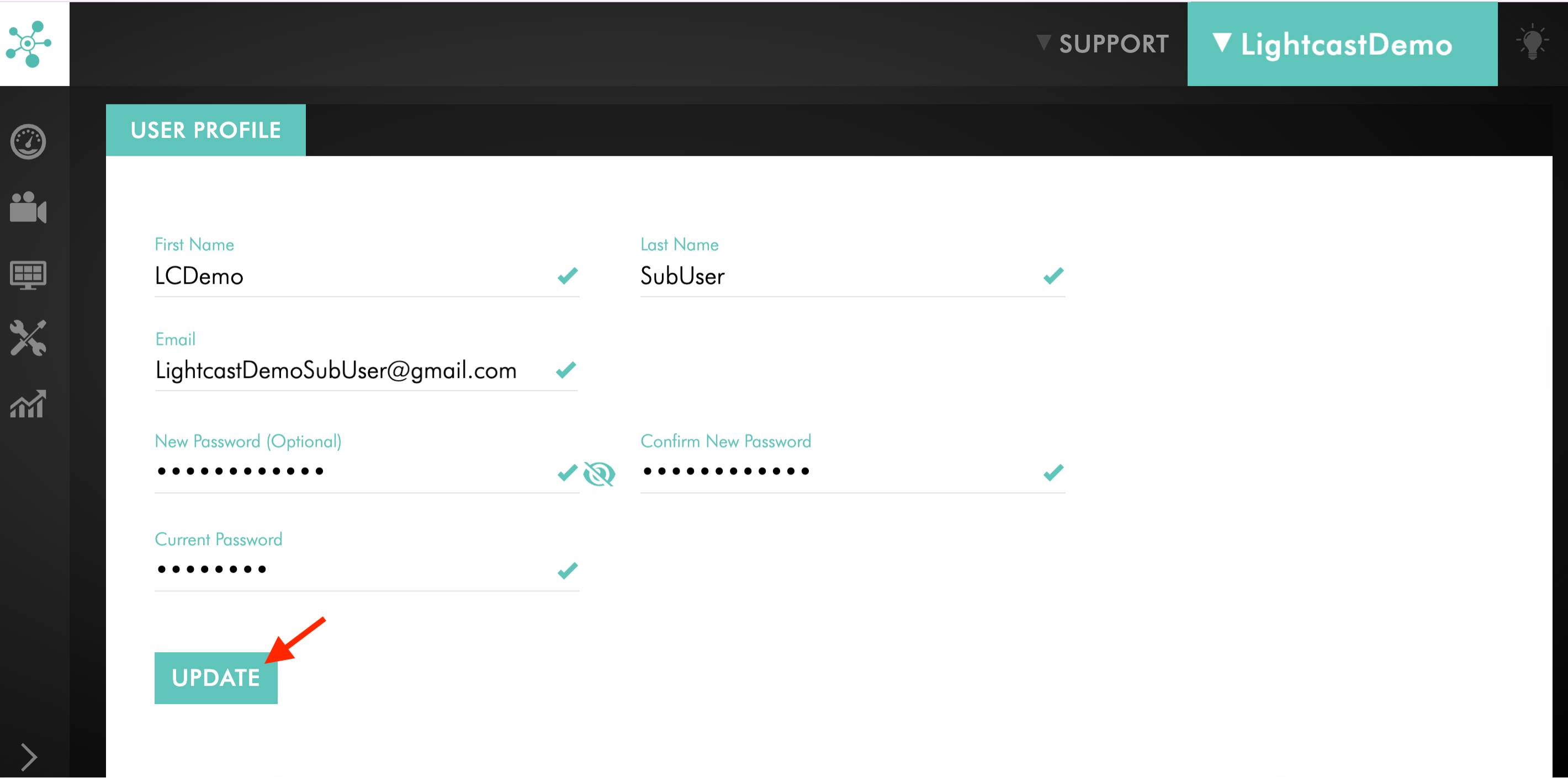
Click UPDATE to save your changes.
FAQs
What can I do if I don't receive the password reset email?
Check your spam or junk folder, confirm you entered the correct email address, and request another reset email.
What can I do if the reset link expired?
Password reset links expire for security reasons. Request a new reset email and repeat the steps.
Can I change my password while logged in?
Yes. If you know your current password, you can change it from your Profile settings in the Media Cloud. The steps are different for an Account Owner and a sub-user.
How can I keep my account secure?
Use the following best practices:
Create a strong password with letters, numbers, and special characters
Do not share login credentials with others
Update your password regularly
Log out on shared or public devices
Keep your email account secure, since it is used for password resets