
Understanding Live Event Images
Overview
This article explains how Live Event Images work in the Media Cloud and where they can appear.
Live Event Images allow you to assign a custom image to a scheduled Live Event. Depending on your setup, the image can be displayed during the event countdown, in supported Web App and mobile app event lists, and as the thumbnail when converting a Live Event to Video on Demand (VOD). Live Event Images can also be used in supported LightcastAPI integrations.
Why use Live Event Images?
Live Event Images help you create a more professional and consistent viewing experience across your Live Events.
Use Live Event Images when you want to:
Display a branded or event-specific image during the countdown before your Live Event begins.
Help viewers identify upcoming Live Events in supported Web Apps and mobile apps.
Maintain consistent branding between your Live Event and its VOD recording.
Make event images available for supported custom integrations using the LightcastAPI.
To learn how to upload, replace, or remove a Live Event Image, see How to add or manage Live Event Images.
Where Live Event Images appear
Once you assign an image to a scheduled Live Event, the Media Cloud can use that image in several supported locations, depending on your player, app, and integration setup.
Player countdown
When you assign a Live Event Image, the Use Image for Player Countdown option is enabled by default.
When enabled, the image can appear as the background of the countdown screen before the Live Event begins in:
Web players
Web Apps
Mobile apps
If you do not want to use the Live Event Image for the countdown, you can disable this option.
When disabled, the countdown background uses the default Player Background Image assigned to the Live Events Channel.
If you have uploaded a Player Background Image for the Channel, that image will be displayed.
If no Player Background Image has been uploaded, the default Lightcast countdown placeholder graphic will be displayed.
To learn more, see How to add a Player Background Image.
Web App and mobile app event lists
Supported Web Apps and mobile apps can display upcoming Live Events with their assigned Live Event Images instead of the default Channel image.
For example, your Web App or mobile app may display Live Event Images in an Upcoming Live Events row.
By default, the Upcoming Live Events display supports:
Up to 50 upcoming Live Events
Events scheduled within the next 90 days
Upcoming Live Events are displayed chronologically, starting with the next upcoming event.
If more than 50 Live Events are scheduled within the next 90 days, only the first 50 events are displayed.
Note: These are the default settings. If you would like to change the number of upcoming Live Events displayed or how far in advance they appear, contact Customer Support to request an adjustment.
Some Web Apps and mobile apps may require an update to the latest framework to display Live Event Images in event lists.
Contact Customer Support if you want to confirm whether your apps support this feature, require an update, or need changes to the upcoming event display settings.
LIVE-to-VOD thumbnail selection
When converting a Live Event to Video on Demand (VOD), you can use the assigned Live Event Image as the thumbnail for the VOD recording.
If a Live Event Image is available, the Use Event Image as Video Thumbnail option appears and is selected by default.
This allows you to maintain consistent branding between the original Live Event and its on-demand recording.
LightcastAPI integrations
Live Event Image information is available through supported LightcastAPI workflows.
Developers can use this information to display event-specific images in custom websites, applications, and other integrations.
For implementation details, see the Live Events Endpoint documentation.
Recommended image specifications
To help your Live Event Images display clearly across supported destinations, use the following specifications.
Specification | Recommendation |
|---|---|
Supported formats | JPG or PNG |
Aspect ratio | 16:9 (widescreen) |
Minimum width | 1024 pixels |
Recommended width | 1280 pixels |
Recommended dimensions | 1280 × 720 pixels |
File size | Under 5 MB recommended |
There is no specified maximum file size, but we recommend keeping images under 5 MB to help maintain efficient loading and display.
Live Event Image design recommendations
For the best viewing experience across Lightcast-powered apps, Web Apps, and embedded web players, we recommend the following:
Use a 16:9 image: Prepare your artwork using the recommended widescreen aspect ratio to maintain a consistent appearance.
Keep important elements visible: Position important text, logos, and other visual elements away from the edges of the image when possible.
Allow space for overlays: Avoid placing important information near the bottom of the image, where countdown timers, event titles, or other information may appear.
Consider smaller screens: Choose artwork that remains clear and recognizable when displayed at smaller sizes, including in Upcoming Live Events rows.
Use clear, high-quality artwork: Avoid overly small text or detailed graphics that may become difficult to read on mobile devices.
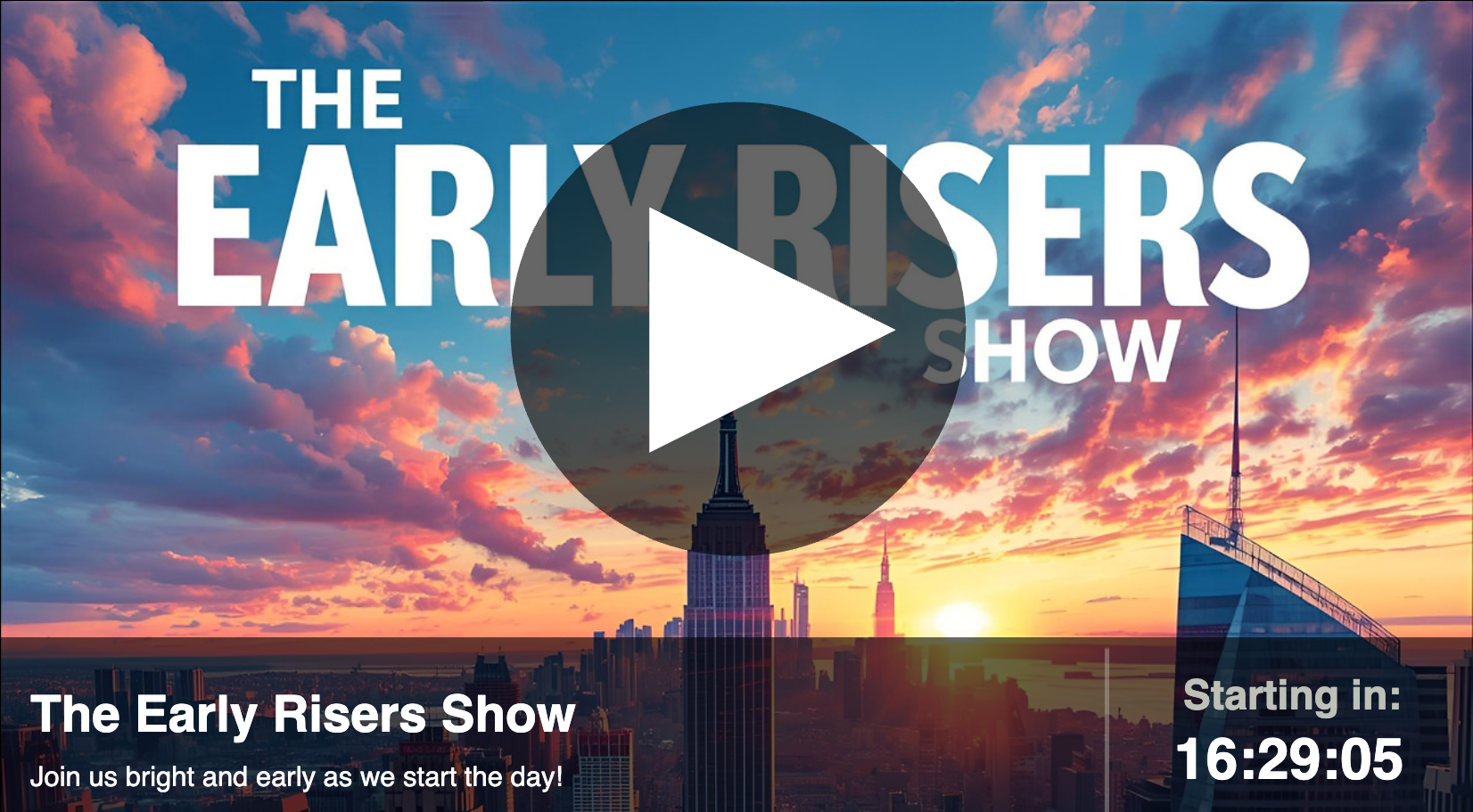
Live Event Images are scaled to fit different display sizes. However, the placement of countdown timers, event titles, and other information can vary between your apps and players.
These recommendations help ensure your artwork remains effective across different viewing experiences.
For instructions on uploading and assigning an image, see How to add or manage Live Event Images.
FAQs
Do I need to add a Live Event Image to every Live Event?
No. Live Event Images are optional.
If you do not add a Live Event Image, the event may use the default image behavior for your player, app, or publishing destination.
Will my Live Event Image be resized or cropped on different devices?
Live Event Images are scaled to fit the available display area.
When using the recommended 16:9 aspect ratio, the image can maintain its original proportions across supported viewing experiences.
The layout of countdown timers, event information, and other on-screen elements may vary depending on the device or player.
For this reason, we recommend keeping important artwork and text away from the edges and allowing space for on-screen information.
Can countdown timers or event information cover parts of my Live Event Image?
Yes. Depending on where your Live Event is displayed, the countdown timer, event title, or other information may appear over portions of the image.
We recommend avoiding important text, logos, or other visual elements near the bottom of the image, where these elements may appear.
Where will my Live Event Image appear?
Live Event Images can appear in several locations, including:
Live Event countdown experiences in supported players and apps.
Upcoming Live Events rows in Web Apps and mobile apps.
Thumbnails associated with Live Event recordings prepared for on-demand use.
Supported integrations that retrieve Live Event information through the LightcastAPI.
The image's appearance depends on the destination and its supported display features.
What happens if I do not upload a Live Event Image?
If no Live Event Image has been assigned, the countdown player can use the Channel Player Background or a default placeholder image.
Uploading an individual Live Event Image allows you to customize the visual presentation of that event.
What happens if I disable the Use Image for Player Countdown option?
The countdown screen uses the default Player Background Image assigned to the Live Events Channel.
If you have uploaded a Player Background Image, that image will be displayed during the countdown.
If no Player Background Image has been uploaded, the default Lightcast countdown placeholder graphic will be displayed.
To learn more, see How to add a Player Background Image.
What happens if I do not upload a Live Event Image?
If no Live Event Image has been assigned, the countdown player can use the Channel Player Background or a default placeholder image.
Uploading an individual Live Event Image allows you to customize the visual presentation of that event.
Can I use the same Live Event Image for multiple events?
You can use the same artwork for multiple Live Events if you want to maintain consistent event branding.
However, using event-specific artwork can help viewers distinguish between different upcoming broadcasts.
Can Live Event Images appear in Web App and mobile app event lists?
Yes. Supported Web Apps and mobile apps can display assigned Live Event Images in event list rows, such as Upcoming Live Events.
Some Web Apps and mobile apps may require an update to the latest framework before Live Event Images can appear in these event lists.
How many upcoming Live Events can appear in a Web App or mobile app event list?
By default, supported Web Apps and mobile apps can display up to 50 upcoming Live Events scheduled within the next 90 days.
Events are displayed chronologically, starting with the next upcoming event.
If more than 50 Live Events are scheduled within the 90-day window, only the first 50 events are displayed.
These are the default settings. If you would like to change the number of upcoming Live Events displayed or how far in advance they appear, contact Customer Support to request an adjustment
Can future Live Events display in an embedded player event list?
Yes. Supported embedded Live Event Channel players can display future Live Events using the Event List Display setting on the Channel’s EMBED tab.
This setting controls how the event list appears with the embedded player. It does not control whether a Live Event Image is assigned to an individual event.
For more information, see How to customize the event list display for a Live Events Channel player.
Can the Live Event Image be used when converting a Live Event to VOD?
Yes. If a Live Event Image exists, the Media Cloud displays the Use Event Image as Video Thumbnail option during the LIVE-to-VOD workflow.
This option is selected by default when available.
What image specifications are recommended for Live Event Images?
Live Event Images must have a 16:9 aspect ratio and be at least 1024 pixels wide. An image width of 1280 pixels is recommended.
JPG and PNG formats are supported. There is no maximum file size, but we recommend keeping images under 5 MB.
If your image contains text, logos, or other important information, avoid placing them near the bottom of the image, where they may be covered by the countdown display.
Can Live Event Images be used in custom API integrations?
Yes. Live Event Image information may be available through supported LightcastAPI event workflows.
For technical details, see the Live Events Endpoint documentation.