
How to filter video and audio files by subtitle availability or language
Overview
This article explains how to filter media in the Video Archive and Audio Archive by subtitle availability or subtitle language in the Media Cloud.
When to use subtitle filters
Use subtitle filters when you want to quickly identify:
Media that has subtitles
Media that does not have subtitles
Media that has subtitles in a specific language
This can be especially helpful when managing a large media library, reviewing subtitle coverage, or identifying media that still needs subtitles.
How it works
The subtitle filters in the Video Archive and Audio Archive narrow the media displayed in the archive based on subtitle availability or language.
You can filter for media with or without subtitles, or select a specific language to find media that has subtitles available in that language.
The filters only change which media items are displayed in the archive. They do not add, remove, translate, or otherwise modify subtitles associated with the media.
Instructions
Step 1
Log in to your Media Cloud account.
Step 2
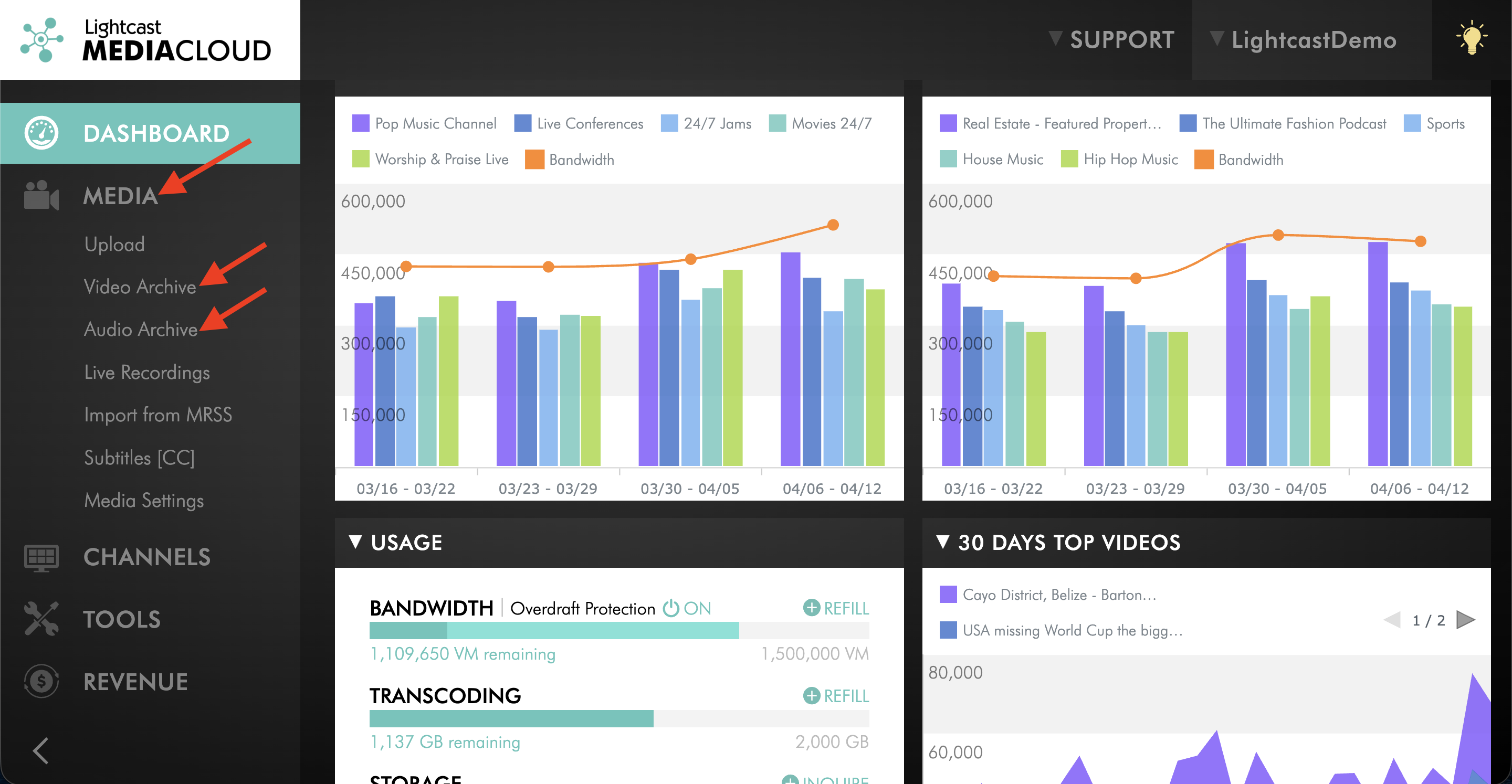
Go to MEDIA, then click on Video Archive or Audio Archive.
Step 3
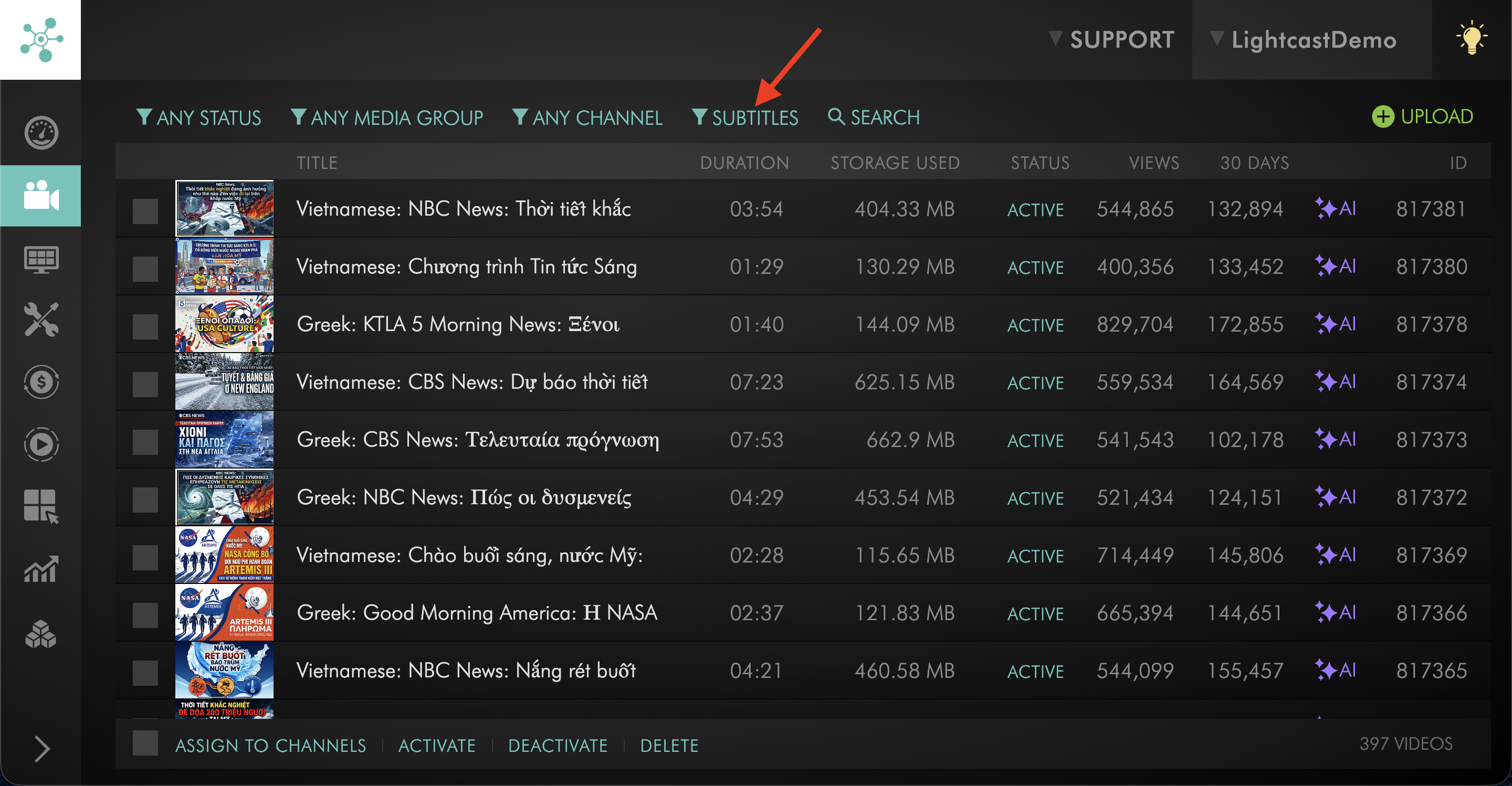
Click the SUBTITLES filter.
Step 4
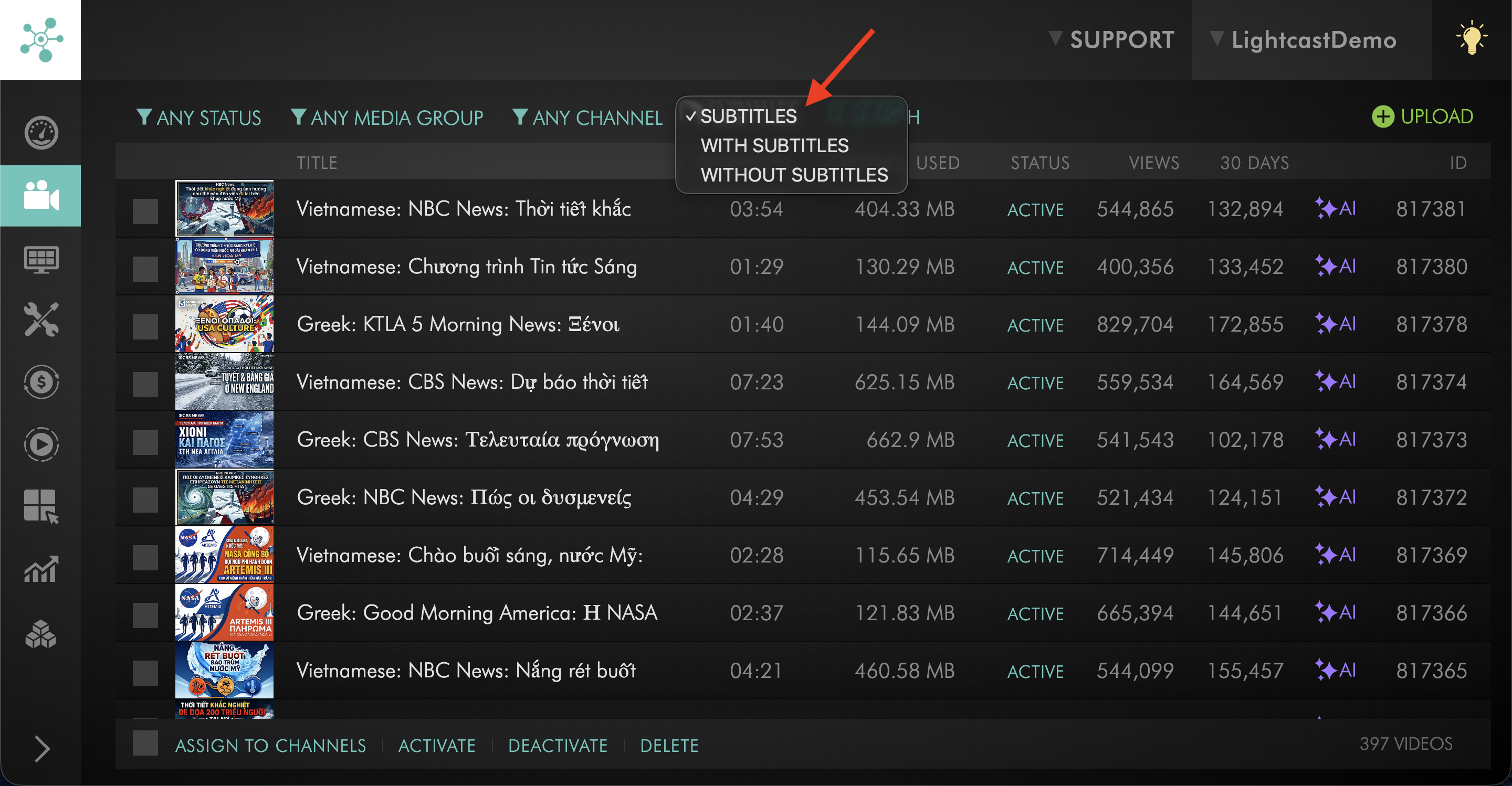
Select WITH SUBTITLES or WITHOUT SUBTITLES.
Step 5
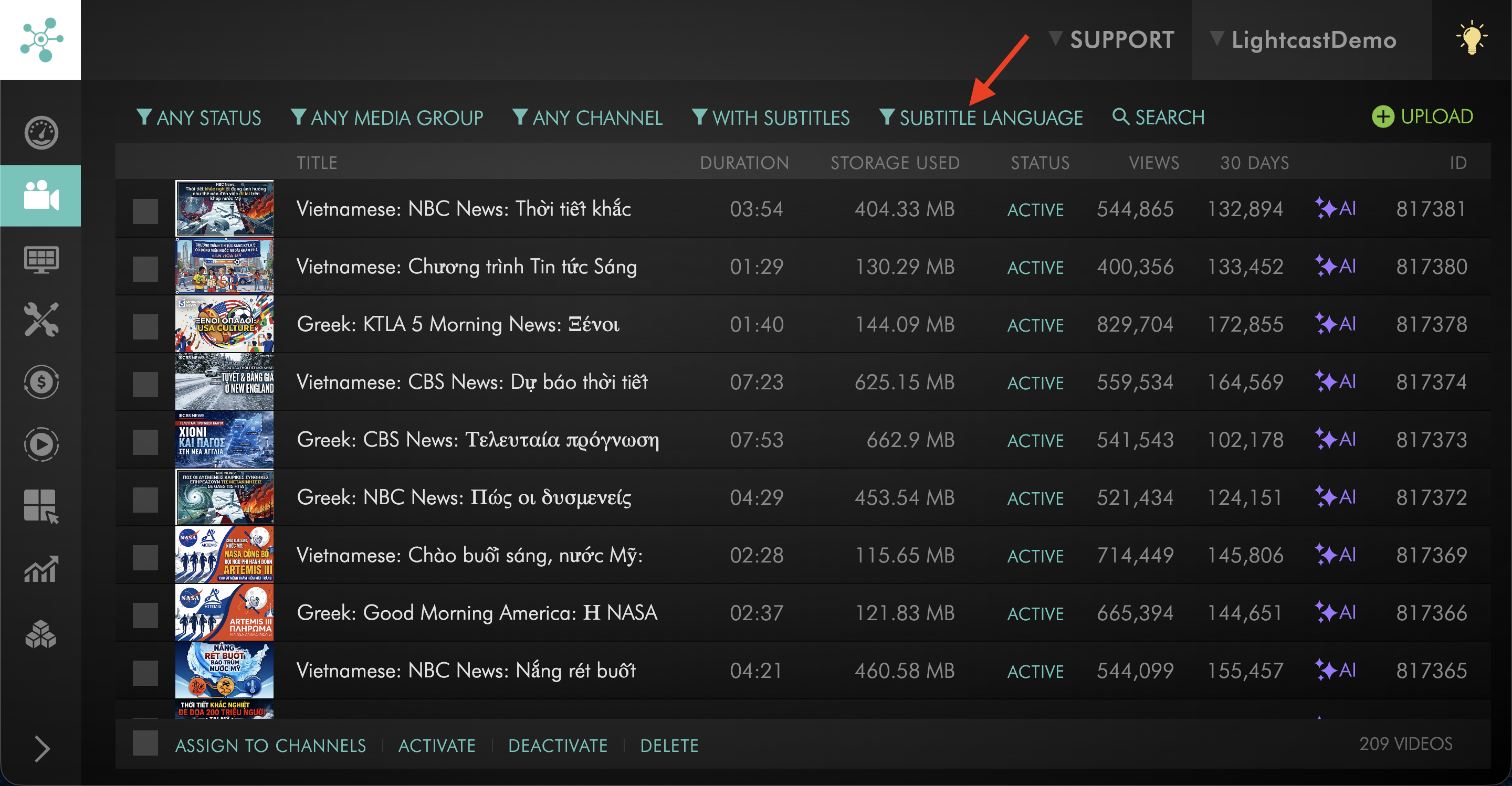
If needed, click the SUBTITLE LANGUAGE filter.
Step 6
Select the subtitle language you want to filter by.
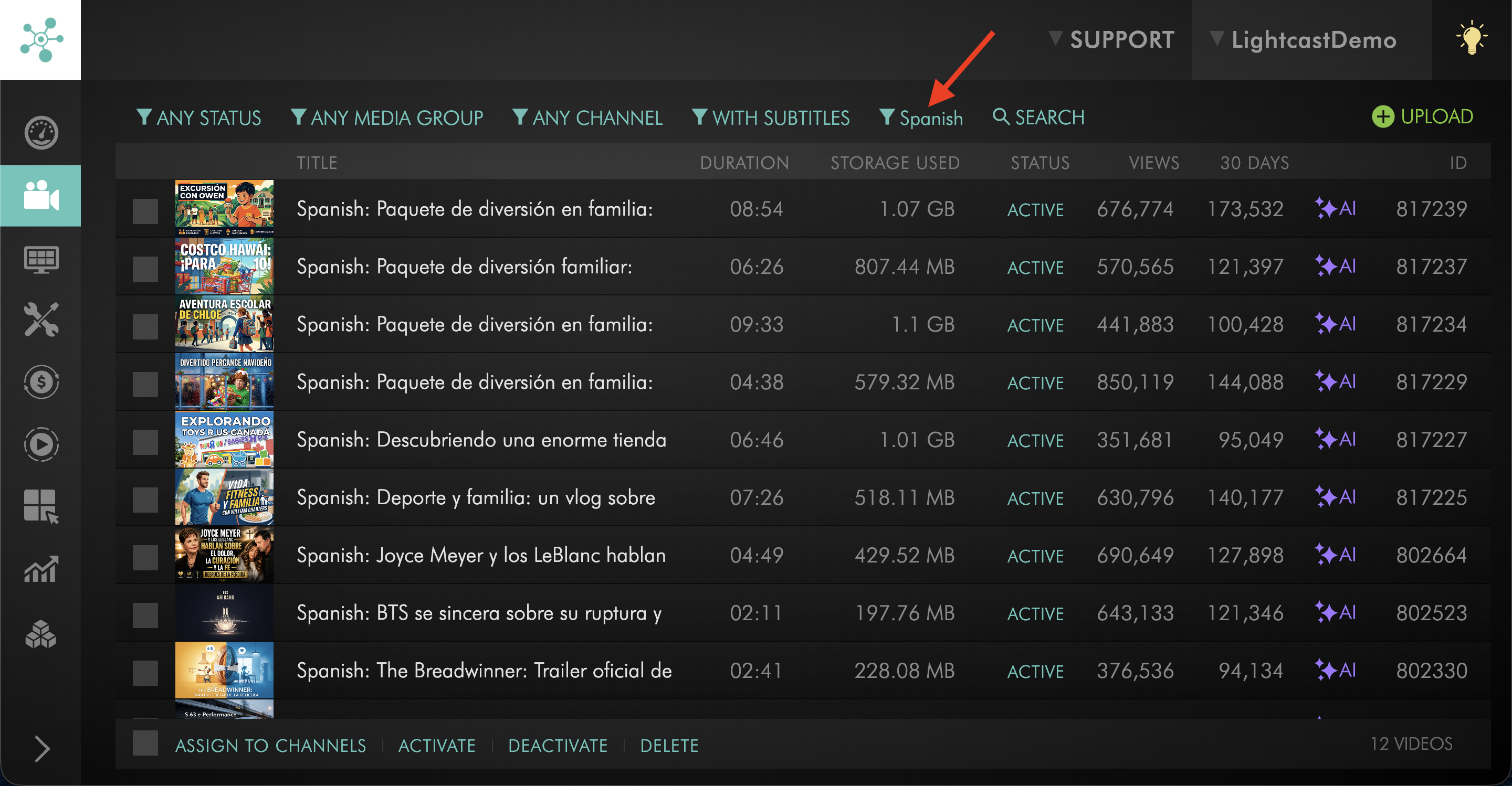
Step 7
Review the filtered list of media items to find the files you need.
FAQs
Can I use subtitle filters in both the Video Archive and Audio Archive?
Yes. Subtitle filters are available in both the Video Archive and Audio Archive.
What can I find using subtitle filters?
You can use subtitle filters to find media with subtitles, media without subtitles, or media with a specific subtitle language.
Why would I use subtitle filters?
Subtitle filters help you manage large media libraries more efficiently. For example, you can use them to find media that still needs subtitles or to locate files that already include subtitle translations in a specific language.
Pricing
The Subtitles feature is available on POWER packages and up.
If you don't have access to this feature, you can upgrade to one of our latest plans or contact your account manager.